Shared posts

03 Aug 19:18

Star Trek's original Uhura is going on a NASA mission

by Ross Miller

Nichelle Nichols, aka the original Uhura from Star Trek, is going on a NASA mission. First mentioned in a Reddit AMA and then clarified in a post on Starpower, Uhura will be "among the first non-essential personnel to experience NASA's newest telescope: SOFIA."

It isn't, however, a mission into space: SOFIA ("Stratospheric Observatory For Infrared Astronomy") is built into a Boeing 747, which will take off from NASA's Armstrong Flight Research Center in California on September 15th. SOFIA is a second-generation airborne observatory and a joint project between NASA and the German Aerospace Center (DLR). The first generation model originally flew in 1977 — and according to Nichols, she was a passenger on that plane, too.


As hinted on...

Continue reading…

03 Aug 15:34

A crayon highlighter that'll never run dry

by Cory Doctorow


Staedtler makes a highlighter called the Textsurfer Gel that somehow congeals finicky, dry-out-prone highlighter ink into an everwet, enduring crayon that you'll be handing down to your grandchildren. Read the rest

03 Aug 15:33

Everything You Can Ask Cortana to Do in Windows 10

by Eric Ravenscraft

Everything You Can Ask Cortana to Do in Windows 10

Cortana is easily one of the coolest new features of Windows 10. You’re probably already familiar with personal assistants like Google Now and Siri, but now you have one built right into your desktop! Here’s how to get information, manage your schedule, and even run a few Google commands.

Using Cortana: Voice vs. Typing

Everything You Can Ask Cortana to Do in Windows 10

There are two ways to use Cortana: you can use voice commands, or you can type out your commands in the Start Menu. If you choose the former, you may want to enable the “Hey Cortana” feature. With this on, you can say “Hey Cortana” out loud to trigger voice commands without pressing a button. Here’s how:

  1. Search for “Cortana settings” in your Start Menu.
  2. Enable the toggle under “Hey Cortana.”
  3. (Optional) Under “Respond best”, you can choose “to me” to tailor Cortana to your voice. You’ll need to perform a couple quick exercises to teach Cortana your voice. Otherwise, Cortana will work for anyone.

While Cortana works with voice commands, they’re not strictly necessary. All of the commands we’ll list here can be typed in as well. Of course, typing whole sentences is pretty inefficient. Fortunately, Cortana’s also pretty good at figuring out what you mean, so you can be a little flexible with the phrasing. For example “What’s on my schedule today?” “What do I have going on today?” and “my schedule today” all perform the same function, so try out different variations and see what works for you!

Get Your Information When You Need It

Everything You Can Ask Cortana to Do in Windows 10

Any good personal assistant should be able to give you the information you need when you need it. Cortana can offer a lot of personalized information based on what it knows about you. These commands can offer information about your schedule, the weather,

Much of this is dependent on how many of Microsoft’s services you use. So if, for example, you don’t use Microsoft’s Calendar app, you may not be able to get information about your schedule. In some cases, you can sync Google services to fill in the gaps, as well. We’ll mark what services these commands depend on where appropriate:

  • What’s the weather like? If you have location services enabled, you can ask this question to find out what the weather is like in your area. Alternatively, you can ask about the weather in a specific area to get the same information for any area.
  • What’s on my schedule? If you have any events scheduled, you can ask Cortana what’s coming up today, tomorrow, next week, or any other time frame. You can also ask natural questions like “What do I have going on this weekend?” to find out what’s on your calendar. This relies on Outlook or the built-in Calendar app. You can sync your Google Calendar, though you won’t be able to add new events.
  • What’s the status of my flight? If Microsoft knows about any flights you have coming up (typically by email via Outlook), you can ask about “my flight” to get up-to-date information about it. Alternatively, you can ask about a flight by number, if you know it. Syncing Gmail with the built-in Mail app or Outlook may help Cortana pick up on some of this info.
  • How long will it take me to get to [place]? If you have location services enabled, you can ask about travel time to a particular place to get an estimate of how long it will take to get there.
  • Show me directions to [place]. Similarly, you can use Cortana to find directions to a place if you know the name or address. This will open in Bing Maps. At the moment, there doesn’t seem to be a way to open it in an alternative app. Technically, you can use any Maps app available on the Windows Store, but none of the typical established mapping companies seem to have a worthwhile option in the Store yet.
  • Show me my notes. If you’re using OneNote, you can use this command to find your notes. You can also filter it by date range. For example “Show me my notes from January 2015” to filter the results.

When you’re busy working on things, it’s handy to be able to just type or say a command and get an answer about what’s going on in your life. The only downside is that most of this requires using Microsoft services (or at least syncing with them), but if you spend a lot of time at your desktop, it may very well be worth it.

Manage Your Time With Reminders, Events, and Alarms

Everything You Can Ask Cortana to Do in Windows 10

If your personal assistant only knows how to read back stuff you already told it, that assistant probably wouldn’t be very useful. Fortunately, Cortana can actually take a more active approach to managing your time and productivity. While managing your calendar events requires using one of Microsoft’s services, alarms and reminders work directly in Windows 10 itself, no special services required.

  • Create an appointment. If you use Microsoft’s calendar services, you can create or modify appointments with a voice command. You can simply say “Create an appointment” to type the information manually, or say the details out loud (for example: “Create a meeting tomorrow at 2PM”).
  • Move my appointment. You can also modify existing events with commands like “Move my 2PM meeting tomorrow to 3PM.” Cortana can generally recognize events on your calendar by name, so you can say something like “Move Bad Movie Night to 8PM.”
  • Set a reminder. Cortana can set reminders like “Remind me to take my lunch on time for once at noon.” If you happen to be using a Windows Phone (yes, you’re finally getting your own shout out, Phone users), you can set reminders to trigger when you reach a certain place, or when a particular contact calls you.
  • Show me my reminders. This command will show you all of the reminders you currently have coming up. You can also click on the menu button and select “History” to see the reminders you’ve already completed.
  • Set an alarm. Just like reminders, you can set alarms for certain times in the day. You can set these to occur only once, or recur on a regular basis.
  • Show me my alarms. You can ask Cortana to show you a list of all the alarms you have active. This will open the new Alarms & Clock app, where you can modify or delete all your existing alarms.

Even if you don’t want to use Microsoft services, the reminders and alarms in Windows 10 make it super easy to stay on top of the things you need to do without having to launch a bunch of separate apps. Your reminders will pop up in your notification tray, and alarms will ring right when you need them.

Find Basic Information Directly in the Start Menu

Everything You Can Ask Cortana to Do in Windows 10

Not every question you have needs a whole dang browser tab. Sometimes you have a simple question that needs a simple answer. While you’re probably used to getting some of these answers from your phone, Cortana can now answer a lot of them directly in the Start Menu. For example:

  • How tall is Jeff Goldblum? Cortana can give you basic information on notable public figures like height, weight, age, marital status and so on.
  • Define “superfluous.” Cortana can quickly give you the definition of a word so you don’t look like an idiot in that internet argument.
  • When is Labor Day? Because not only are you going to get Labor Day and Memorial Day mixed up, now everyone on Facebook will make fun of you for it. Better ask Cortana first.
  • How long is Age of Ultron? Cortana can quickly tell you the runtime of a movie. Cortana can not, however, give you the extended edition that movie so badly needed.
  • Who is the CEO of Microsoft? Cortana can quickly identify a lot of important people. Though, much like the typical American, she didn’t seem to handle questions about local government representatives very well.
  • What’s the theme song to Firefly? Cortana can get this right. You should, too.
  • What is one US dollar in Japanese yen? If you’re traveling, researching a vacation, or on the run from the FBI, Cortana can let you know how much your money is worth in other currencies.
  • What time is it in California? If your boss also doesn’t live in the same time zone as you do, this can be a life saver.

All of these (and plenty more) will typically pull up results directly in the Start Menu. This is a handy way to get a quick answer without having to leave what you’re doing. Of course, if Cortana doesn’t happen to know an answer, you’ll be kicked out to the browser where she’ll search Bing for an answer, so if your goal is to avoid opening new tabs, this might work best with questions you know she can answer.

Search Online with Bing Results

Everything You Can Ask Cortana to Do in Windows 10

Yes, many of us prefer Google, and we have a special trick for you (us) folks in a bit. However, Microsoft has a lot of features that Cortana can do with the help of Bing that are pretty cool. Here are some of the questions Bing can answer when you get kicked out to the web search results:

  • Show me Indian restaurants nearby. Curiously (and thankfully), this doesn’t go the Maps application, but instead searches for restaurants on Bing in your browser.
  • Show me pictures of Mila Kunis. You can use Cortana to run a Bing image search for just about anything. But mostly Mila Kunis.
  • Show me a video of how to deseed pomegranates. Actually, if you need a video for deseeding pomegranates, we’ve got you covered. For all other videos, Bing can take care of it.
  • When is the next baseball game? To be totally honest, it took me about four tries to find a sports-related voice command that worked because I don’t know anything about sports. I did eventually confirm that Bing can handle them.
  • What’s the population of the United States? I’m pretty sure I’ve looked this up more times than is reasonable.

In general, you can use Cortana to search the web for just about anything. Out of the box, Cortana uses Bing for your web results, so the answers are a bit limited. However, there are still plenty of answers you can get from Bing even without changing search engines.

Use (Some) Google Voice Commands With a Chrome Extension

Everything You Can Ask Cortana to Do in Windows 10

Let’s be real for a second: Google has had a massive head start in voice commands over Microsoft. They’re really good at it, too. Naturally, many of us have a preference for Google over Bing. If you do too, or just have a lot more information tied to your Google account, you can use the previously mentioned Bing2Google extension to use Cortana to launch Google commands.

Bing2Google works by redirecting your Bing searches to Google once they load in the browser. This means any command that gets bumped to the browser (including everything in the last section) can technically be performed as a Google command instead. You can use this to perform regular Google searches, commands that Microsoft doesn’t support, or just use Google as an alternative to the normal Bing commands. In addition to the ones in the previous section, here are a few commands we’ve found that work with Google but not Bing:

  • Where are my packages? This will show a list of all the packages that you’ve received emails about in Gmail. It cannot tell you why your package went from Texas to Canada on its way to Oklahoma.
  • When does Battle and Brew close? You can ask Google when a particular store or restaurant will close and get a direct answer.
  • What is tonsillitis? Earlier this year, Google started getting real doctors to provide information for its Knowledge Graph that you can pull up with simple searches.
  • What’s in a Tom Collins? Google’s a pretty good bartender (aside from making you mix drinks yourself). A quick search can get you recipes for a number of cocktails.

Google alone has a ton of its own commands, so we won’t re-list every single one of them, but you get the idea. Even if you’re not a fan of Bing, this extension makes it possible to use Cortana for all the commands she can support, and use Google for everything else. It’s the best of both worlds. As long as you use Chrome, of course. There’s always a catch.

03 Aug 13:57

Simple homebrew deodorant recipe

by Michael Borys

I don’t know about you, but despite my best efforts, my armpits stink to high heaven by the end of the day.

Read the rest
03 Aug 13:29

Superhero portraits in the style of Dutch masters

by Andrea James
9447421f5148509b871c33cee0068e43

Parisian photographer Jackie Tadeoni created this wonderful series of superheroes (and Snow White!) as subjects of Baroque Flemish portraits. Read the rest

03 Aug 13:28

Put a 30-Day Delay on All Impulse Purchases to Ensure You Really Need It

by Eric Ravenscraft

Put a 30-Day Delay on All Impulse Purchases to Ensure You Really Need It

Most stores would like you to think that impulse buying is limited to sodas and candy at the checkout. In truth, impulse buying is anything you weren’t planning on buying already. If you want to know whether the thing you’re about to spend money on is really important, wait a month first.

As personal finance blog Be More With Less points out, waiting thirty days can mean the difference between desperately wanting something, and forgetting it ever existed. Sure, it may be on sale right now, but you’re not saving money if you’re buying something you don’t need. If you really do want or need that item, it will probably still be there in a month:

Timing is everything, especially when it comes to an impulse purchase. Delay the purchase for 30 days and see if you are still as passionate about the purchase as you were initially. You may discover there is more joy in living without.

Of course, that’s not to say that all expenditures ever should be delayed. Pay your rent on time. Get your car fixed when it breaks. However, for unplanned purchases or nice-to-haves, your choices will be the most biased in favor of spending in the heat of the moment. If you really want to save money, get in the habit of waiting to buy the thing you want.

10 Ways to Help You Stop Shopping for a While | Be More With Less via Rockstar Finance

03 Aug 13:27

Soylent 2.0 is bottled, ready to drink, and made from algae

by Chris Ziegler

Soylent, the oddly named meal replacement with a niche following (particularly in the Valley) has announced its second product this morning: Soylent 2.0, which comes ready to drink in recyclable bottles. Each bottle represents one-fifth of a daily meal plan. Twelve bottles will sell for $29 when they go on sale in October; preorders go live today. Just like the original, it'll only be sold online, at least for the moment.

Traditionally, Soylent has been sold in powder form with the idea that the user would add water at their home, making as much as a full day's ration at once — it's cheaper and more efficient to produce and ship it that way. As a product, Soylent has always been about efficiency — so I asked its creator, Rob Rhinehart,...

Continue reading…

03 Aug 12:32

Nokia sells Here maps unit to Audi, BMW, and Mercedes for $3 billion

by Sam Byford

Nokia might be expanding into areas like VR, but it's no longer in the maps business — it's just sold its Here unit to a consortium of German carmakers including BMW, Audi, and Mercedes' parent company Daimler. The final price was €2.8 billion, or just over $3 billion. Each partner will hold an equal stake in Here and none will seek to acquire a majority interest. The Wall Street Journal reported two weeks ago that the deal had been agreed in principle, and that the consortium plans to invite other carmakers to invest in the new business.

"High-precision digital maps are a crucial component of the mobility of the future." said Daimler chairman Dieter Zetsche. "With the joint acquisition of Here, we want to secure the independence of...

Continue reading…

03 Aug 12:32

Best Android gadgets of the week: Moto Surround, Amazon Dash Button, and more!

by Simon Sage

This weekend we're rounding up the best new Android accessories to hit the market again. Amazon pulled the trigger on the public launch of their incredibly convenient shopping button, while Motorola offered up two new pairs of headphones. There's plenty more, so dive in!

03 Aug 12:31

This Utility Can Change Your Windows 10 Login Image

by Eric Ravenscraft

This Utility Can Change Your Windows 10 Login Image

Windows 10: The new version of Windows curiously doesn’t allow you to change the image that displays behind on the login screen when you first start your computer. This tiny utility, aptly called Windows 10 Login Background Changer, can do it for you.

The utility is available from Github. Once you download and run the application, you can choose a particular image or a solid color to display on startup before you log in. You can also choose to disable things like the user information or the networking and shutdown icons in the bottom-right of your screen, though it’s unclear if this will break any functionality of your machine. Changing the background image, however, should work just fine.

Windows 10 Login Background Changer | Github via How-To Geek

03 Aug 12:29

Driving

Sadly, it probably won't even have enough gas to make it to the first border crossing.
02 Aug 16:08

Five Best Record Players

by Alan Henry

Five Best Record Players

Whether you have vinyl records handed down to you, you’re a DJ, or you’re getting into vinyl for the first time, you’ll need a good record player. One that’s reliable, durable, and easy to maintain. This week we’re looking at five of the best, based on your nominations.

Vinyl records are still a small part of overall music sales, but they’re definitely on the rise, there’s no doubt about that. Beyond that, many people have had records for years, or have had them handed down to them, or love to shop for old recordings in thrift stores—but you still need a good player. Earlier in the week we asked you for your favorites, and you gave us tons of great suggestions. We only have room for the top five though, and here they are, in no particular order:

Audio-Technica AT-LP120 USB

Five Best Record Players

Audio-Technica’s AT-LP120 is a direct-drive turntable that can connect to external devices (like mixers or computers) via USB or analog. It’s handy if you’re looking to both listen to your old record collection and digitize it for on-the-go listening or backups. Being direct drive means that the platter is powered directly by the motor, and there’s no belt or other moving parts involved with the rotation of the turntable itself. It also means there are fewer moving parts that can vibrate and create additional noise. The AT-LP120 is also a semi-clone of the ever-popular (which we’ll get to later) Technics SL-1200MK2, except significantly more affordable—it’ll only set you back $250 at Amazon. The turntable can be toggled in forward or reverse easily, has a pitch control slider on the side (+/-10%-20%), hinged dust cover, selectable 33/45/78 RPM speed modes, a cast aluminum platter (with Audio-Technica slipmats, of course), and all the cables and connectors you need to get it hooked up to your stereo, mixer and monitors, or computer.http://www.amazon.com/Audio-Technica...

Those of you who nominated the AT-LP120 and praised its nomination noted that its cast aluminum platter is nice and heavy, the turntables moves without much vibration, and it’s sturdy and reliable, not to mention affordable when compared with other turntables both aimed at DJs or audiophiles. A few of you pointed out that the USB output is a really nice feature, as is in the included preamp, so you don’t need a ton of powerful gear to use the turntable at all. Plus, the USB output makes it easy to connect right to your computer anytime you like. You can read more about it in its nomination thread here.


Rega RP1

Five Best Record Players

A modern, sleek-looking turntable that’s aimed at buyers who care about form as well as function, the Rega RP1 is a belt-driven turntable aimed at audiophiles. That said, it doesn’t come with the exorbitant price tag that a lot of so-called audiophile equipment is usually associated with—the Rega RP1 will set you back $435 at Amazon. It can take a beating (even though by its looks you’d never want to hurt the thing), and the table itself is made from phenolic resin for durability. It features a low-vibration, belt-driven motor with manual speed adjustments so you can really dial in the rotation where you want it. The tonearm is hand crafted and the special “Rega Carbon” magnetic cartridge is designed to complete a high-quality package that delivers great sound at a modest price. Best of all Rega notes that their attention to design extends to the longevity of their products, and that you can buy one of these and enjoy it for years without having to worry about replacing parts.http://www.amazon.com/Rega-RP1-Turnt...

Those of you who nominated the RP1 pointed out that it’s a great kind of “entry level” turntable that won’t break the bank if you’re looking for a stereophile-style record player (trust us, it may seem expensive, but there are plenty that are much, much moreso.) You praised its price point for being at a good place where you get great sound return for your money without paying the “audiophile tax,” where you wind up paying more for less return on your investment sound-wise. The minimal design works in any home entertainment setup, and others of you said that it sounds great on affordable home entertainment gear—but also sounds great if you have pricier equipment as well. All that combined makes it a great buy if you’re just getting into quality audio equipment and may upgrade things like your amp or speakers later, or if you already have some and you’re looking for a record player to match. Read more in its nomination thread here.


Technics SL-1200MK2

Five Best Record Players

Ah, the “wheels of steel.” The Technics SL-1200MK2 (and later, the MK3, MK4, and MK5) are the quintessential turntable. Used by DJs, turntablists, musicians, radio stations, and everyday music lovers for decades since their release in 1978, Technics finally ceased production of the SL1200 line in 2010. They’re so highly prized that a pair of 1210s are on display in the London Science Museum, and they’re highly regarded as turntables you could drop out of the back of a truck, toss down a hill, then pick up, dust off, plug in, and still play like nothing happened. They’re the industry standard for a reason, after all—the least of which is the powerful, low vibration magnetic direct drive motor, steel platter, +-8% pitch control, selectable 33/45RPM speed modules, and of course, removable dust covers and slip mats. Even though the SL-1200s have technically ceased production doesn’t mean they’re impossible to find—they’re still in wide circulation, both new and used, and can be purchased around $600 from Amazon sellers or even cheaper on eBay. We’d suggest you head to a music store in your area and see what they have. They may be the gold standard, but they’re certainly pricey now that they’re discontinued.

Full disclosure, I nominated the 1200s, because I own a pair, have for years, and they’re rock solid. Those of you who supported the nomination pointed this out as well—that it’s possible that these may have been too well made, since more than a few of you said that you’ve had yours forever and they’ve never had so much as a problem. Even if they did, one of the nice things about the 1200 series was that they were easily disassembled for maintenance and repair. Still, a good number of you pointed out that these guys are built like tanks, and while they’re primarily aimed at the DJ set, they’re just as good for listening—as long as you can find a good set. Many people have urged Technics to reintroduce the iconic turntables. There’s even a petition to that effect. You can read more in its nomination thread here.


Pro-Ject Debut Carbon

Five Best Record Players

The Pro-Ject Debut Carbon is a beautifully designed, great-sounding value turntable that’s been consistently reviewed as one of the best budget buys you could pick up for your home stereo. A precision belt-driven turntable with a nicely sized platter, the Debut Carbon features a carbon fiber tonearm, low vibration motor, and interchangeable cartridges (although it comes with a beautiful Ortofon cartridge you might not want to replace. The Debut Carbon also comes in a number of colors, includes removable dust covers, and a minimalist design that’ll look great in any home theater. The body is made from durable MDF and the platter itself is steel, so its durable as well as attractive, and relatively affordable, at $400 from Amazon.http://www.amazon.com/Pro-Ject-Debut...

The Debut Carbon is actually the subsequent model to the Debut III, which many of you called out in the nominations thread. The Debut III has been discontinued (although it’s still available), but the Carbon is generally regarded as a solid improvement at the exact same price—the same turntable and innards with an improved motor and a carbon fiber tonearm. Those of you who praised it and nominated it pointed out that for those people just looking to listen to records—as in they don’t expect to get hands on and they’re not DJing—a belt driven turntable is a better, more affordable choice than a direct drive one, and the fact that the Debut Carbon comes in so many colors and is cost effective makes it a great choice for people who want to listen to their old records—or get into vinyl—without breaking the bank. You can read more in its nomination thread here.


Audio-Technica AT-LP60

Five Best Record Players

The Audio-Technica AT-LP60 is the smaller brother of the previously mentioned LP120, available at a wallet-friendly $100 from Amazon in a variety of colors. It’s a belt-driven turntable, aimed directly at people who don’t have a record player and don’t really know what they want in one—if anything—but they know they don’t want to spend a ton of money to rediscover their record collections (or records handed down to them.) The LP60 features a removable dust cover, 33/45 RPM selectable speed modes, a built-in phono preamp, and replaceable cartridges. It’s durable and solidly built, so you don’t have to worry about it falling apart, even if it’s a budget model. Finally, the LP60 has an all aluminum platter, space-saving design, and all the cables you’ll need to hook it up to your home stereo.http://www.amazon.com/Technica-AT-LP...

Those of you who praised the LP60 pointed out that it’s amazing for budget buyers, and great for people who aren’t too picky about the more audiophile aspects of their listening experience. It’s a space saver, and frequently available for less than the $100 it usually sits around at Amazon. At the same time though, more than a few of you pointed out that you can’t control the tracking and anti-skate on this model, which means that the tonearm can track too heavily, apply too much pressure or pull to one side of the groove or the other of your records, or heaven forbid just slide all the way across your record—all very bad things, both for your listening experience and for the longevity of your records. You can read more of the conversation in its nomination thread here.


Now that you’ve seen the top five, it’s time to put them to an all out vote:


Honorable Mentions

This week’s honorable mentions go out to the ever-awesome, superbly ancient Dual 1237. Seriously, go look at those things. You’ll never find one these days unless you’re extremely lucky (like this Redditor, for example) but if you or a family member have one, you should know you have something amazing on hand. These things are rugged and durable, sound incredible, are fully automatic and belt driven, and some have record changing features. There are a few threads full of love for Dual in the call for contenders post, so make sure to head back and check it out.

Have something to say about one of the contenders? Want to make the case for your personal favorite, even if it wasn’t included in the list? Remember, the top five are based on your most popular nominations from the call for contenders thread from earlier in the week. Don’t just complain about the top five, let us know what your preferred alternative is—and make your case for it—in the discussions below.

The Hive Five is based on reader nominations. As with most Hive Five posts, if your favorite was left out, it didn’t get the nominations required in the call for contenders post to make the top five. We understand it’s a bit of a popularity contest. Have a suggestion for the Hive Five? Send us an email at tips+hivefive@lifehacker.com!

Title photo by Alan Levine.

02 Aug 09:38

Anti-Web Blocking Site More Popular in the UK than Spotify & Skype

by Andy

FCT tyFor citizens of the UK, web blocking is becoming a hot topic. Aside from the large and growing list of torrent, streaming and other downloading sites currently blocked by ISPs, netizens are now facing the specter of government enforced porn barriers.

That’s according to Prime Minister David Cameron, who this week fired off a broadside against adult content providers who he says are failing to control what other people’s children are viewing online.

“Our one nation government is working hard to make the internet a safer place for children, the next step in this campaign is to curb access to harmful pornographic content which is currently far too widely available,” the Prime Minister said. “I want to see age restrictions put into place or these websites will face being shut down.”

According to the government the UK’s top 10 adult sites account for over half (52%) of all site views so this is no trivial matter. The site’s aren’t mentioned by name so TF decided to look them up.

The most popular within the UK’s top 200 most-visited sites according to Alexa are Pornhub (#41), XHamster (#44), Xvideos (#47), RedTube (#92), TubeCup (#105) and YouPorn (#122). To give an idea of scale, PornHub is more popular than Netflix and YouPorn is more visited than Vimeo.

However, while compiling this list we stumbled across something else that’s both surprising on one hand and utterly predictable on the other. Occupying the position of the UK’s 192nd most-visited site is Unblocked.pw, a service entirely dedicated to unblocking blocked websites.

Breaking the top 200 is no mean feat for any site, especially when one considers the competition at that level. Nevertheless, after existing for much less than a year, Unblocked.pw is already more popular in the UK than both Spotify (#194) and Skype (#195).

unblocked

While the skill of the site’s operator is no doubt a factor in its success, the huge popularity of Unblocked.pw is almost entirely down to restrictions being put in place by UK Internet service providers. Every time a blockade is put in place, Unblocked.pw provides a solution to the problem. It currently unblocks most major torrent and streaming sites plus the specialist ebook archives targeted in May.

“Fighting censorship has been the primary motivation behind running Unblocked,” the site’s operator informs TorrentFreak.

“It’s to show that whatever regulators do to censor things online, there will always be a way around it. The initial motivation came from when The Pirate Bay was blocked in the Netherlands. We set up Proxybay.co to maintain a list of Pirate Bay proxy sites and show people how to create their own.”

In respect of porn sites, Cameron’s office suggests that users could be required to validate their ages with a credit card, but the operators of overseas ‘tube’ sites will be extremely reluctant to introduce such measures since they will mess with their business models by reducing traffic and ad revenue.

That will leave web-blocking as Cameron’s only other option but as highlighted by the Open Rights Group, that won’t work.

“While the government can shut down UK-based sites, these are few in number and represent a tiny proportion of the global porn industry. Cameron needs to clarify how he wishes to achieve his goals, given that most porn sites are hosted abroad,” says ORG’s Jim Killock.

“To block them, the government would have to introduce a national firewall, which would censor sites for everyone, and would likely be widely circumvented.”

While there are currently no dedicated adult sites in Unblocked.pw’s repertoire (since none are currently blocked in the UK), there can be little doubt that if the UK government decides to order blockades, Unblocked and similar sites will quickly offer wordarounds.

If that does indeed transpire, expect a successful service to break the top 50 most-visited sites in the country while jockeying for rankings with the likes of Apple and WordPress. It’s a battle the government simply can’t win, but that won’t stop them from trying.

In the meantime the Internet continues to interpret censorship as damage, and routes around it.

Source: TorrentFreak, for the latest info on copyright, file-sharing, torrent sites and the best VPN services.

01 Aug 23:24

This Video Explains All the Ways You're Sleeping Wrong

by Eric Ravenscraft

Most of us are pretty terrible at sleeping. Whether it’s hitting the snooze button too much or using screens before bed, you’re probably doing something that’s not great for your sleep. This video explains all the ways you’re sleeping wrong, and what to do instead.

The video, from YouTube channel You’re Doing It Wrong, offers examples of many things we do wrong while we’re sleeping (like sleeping on your stomach). It also offers some tips on how to sleep better. These include sleeping without clothes (to help reduce your body temperature), sleep on your back (to prevent damage to your spine), and skipping the alcohol before bed (to make sure you stay asleep). Not everything in this video is new information, but it deals with a lot of the problems with how we sleep in a simple six-minute package.

How to get a good night’s sleep | YouTube via Daily Dot

01 Aug 09:50

The Windows 10 Phone Companion and Android: Do you need it?

by Phil Nickinson

This is the Windows 10 Phone Companion app. It's what you'll see when you plug your phone into a Windows 10 box. And it's half-useful, half-plea to get you to install some of Microsoft's apps on your phone. (And these days, there's a decent chance that those apps will be on there in the first place.)


31 Jul 19:57

Sena's low-profile bluetooth motorcycle helmet headset

by Jason Weisberger

I recently installed Sena's SMH10R bluetooth audio system in one of my motorcycle helmets. Now, it is hard to ride without it!

Read the rest

31 Jul 19:49

The most epic Pomeranian puppy sneeze ever has been captured on video

by Xeni Jardin

Roux the Pomeranian and his epic sneeze.”

(more…)

31 Jul 16:40

28 Timeless Images of Time-worn Old Cars

by Darlene Hildebrandt

Antique, old, rusted, archaic, crumbling, ancient, and time-worn – all words that could describe vintage vehicles. Some are in better condition than others, some in running order, others put out to pasture.

Photographers love to shoot crumbling subjects. I hope you enjoy these images of old cars:

The post 28 Timeless Images of Time-worn Old Cars by Darlene Hildebrandt appeared first on Digital Photography School.

31 Jul 16:38

Low-light filming is about to make a big leap forward

by Andrea James
The low-light footage above is about 400,000 ISO. Imagine 4 million ISO, and you'll have a good idea of the newly-announced Canon ME20F-SH that indie filmmakers, wildlife documentarians, and investigative journalists are all discussing this week. Read the rest
31 Jul 16:28

UK Is Leading The Way To Become A Global Bitcoin Hub

by Romain Dillet
a real bitcoin When it comes to regulating bitcoin companies, it’s still mostly a work in progress. Some governments want to restrict bitcoin quite a lot, while others are adopting a more favorable stance. The U.K. has been the financial hub of Europe for decades now, and it looks like it plans to do the same thing with bitcoin. British Prime Minister David Cameron is currently wrapping up his first… Read More
31 Jul 13:35

Ex-GOOG diversity boss promised "UK's 1st women's history museum," built a Jack the Ripper "museum"

by Cory Doctorow


Former Google diversity officer Mark Palmer-Edgecumbe promised the Tower Hamlets council "the first women’s museum in the UK" if they would approve a zoning change that let him add three storeys and an extra floor, but what he built was a Jack the Ripper "museum." Read the rest

31 Jul 13:34

German prosecutors give spies a walk, but investigate journalists for "treason"

by Cory Doctorow

The German prosecutors who dropped all action against the US and UK spy-agencies who trampled German law and put the whole nation, up to and including Chancellor Angela Merkel, under surveillance, have decided instead to open an investigation into the bloggers at Netzpolitik, who revealed the wrongdoing. Read the rest

31 Jul 13:33

Samsung teams up with MasterCard to launch Samsung Pay in Europe

by Harish Jonnalagadda

Samsung is trialling its contactless payment service, Samsung Pay, in South Korea, and is set to launch the service Stateside with its next wave of flagship phones. The vendor announced today that it would be extending its partnership with MasterCard to bring Samsung Pay to Europe.

31 Jul 13:33

Google defies French request to apply 'right to be forgotten' globally

by Harish Jonnalagadda

Last month, French privacy watchdog CNIL ordered Google to delist "right to be forgotten" requests globally and not just from Google's European properties. Google has now issued a blog post stating that it would not comply with the French regulator's demands:

31 Jul 13:33

EE launches new Euro Pass to let you use 4G abroad from just £3 per day

by Rich Edmonds

EE has announced a new Euro Pass for customers who wish to take advantage of unlimited calls, texts and data allowances abroad. From just £3 a day, you'll be able to call and text all your friends while lying on the beach, accompanied by up to 100MB of 4G per day. This new add-on is available in 39 European destinations.

31 Jul 13:29

BBC's Ibiza Prom is the perfect '90s house music mix for the summer

by Tom Warren

If you've ever visited the Royal Albert Hall you'll know it has no connection to Ibiza. Set in the heart of London, it plays host to The Proms annually — eight weeks of classical music concerts in a historic venue. Ibiza and the Royal Albert Hall are polar opposites, but on Wednesday night they merged together to pay homage to house music. The BBC convinced the Heritage Orchestra to play some Ibiza classics and the result is a stunning Ibiza Prom.

Continue reading…

31 Jul 13:20

Vet

It's probably for the best. Since Roombas are native to North America, it's illegal for Americans to keep them in their houses under the Migratory Bird Treaty Act.
30 Jul 13:39

Amazon signs Top Gear's Clarkson, Hammond, and May for new show

by James Vincent

Former Top Gear presenters Jeremy Clarkson, Richard Hammond, and James May have signed up for a new motoring show on Amazon Prime, set to air in 2016. The news ends months of speculation about the trio's future on TV after the BBC refused to renew Clarkson's contract following a "fracas" during filming this year. The deal is a major coup for Amazon's streaming service, which lags behind rival Netflix, and although there are no details of how much the firm paid for the trio, a company insider told the London Evening Standard: "We have made a significant investment."

Continue reading…

30 Jul 13:38

Angry Birds 2 is now available on Android

by Harish Jonnalagadda

Although there are more Angry Birds games than Slipknot band members, Rovio hasn't made a sequel for the original title that launched all the way back in 2009. That changed today, as the Finnish manufacturer launched Angry Birds 2 on Android, with the game featuring new strategies, levels, characters, tournaments and more.

30 Jul 13:34

How to Tweak Windows 10 and Fix Its Minor Annoyances

by Walter Glenn

How to Tweak Windows 10 and Fix Its Minor Annoyances

Windows 10 resolves a lot of the annoyances left over from Windows 8, but it also comes with a few of its own—little as most of them may be. Here’s how to tweak a few of the OS’s new features and fix its little quirks.

If you’re not sure what Windows 10 brings to the table, be sure to check out our roundup of its best new features and read up on whether it’s a good upgrade for you right now. Chances are high that you can also get it for free. http://lifehacker.com/should-i-upgra...

Personally, I’m really enjoying Windows 10. I upgraded my desktop from Windows 8.1 and my laptop from Windows 7 and both went off without a hitch. Most of the lingering little problems I lived with in Windows 8 have been resolved. Of course, like with any OS, there are just a few things that could use fixing.

Fix Up Your New Start Menu

How to Tweak Windows 10 and Fix Its Minor Annoyances

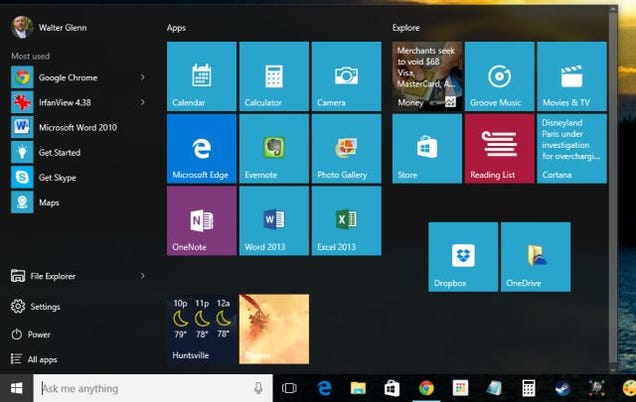
The Start menu became one of the more divisive issues for Windows 8, which removed it entirely in favor of the Modern UI Start screen. Some people loved the new interface; many hated it. Microsoft brought the menu back in Windows 8.1 and has revamped it for Windows 10. And it’s...pretty good.

The Start menu works much more fluidly in Windows 10. It’s fast, all your apps are present on the menu, and search is really good. Still, for many, the new live tile presentation in the right column of the Start menu is pointless. For me, I don’t really use any modern apps, so it’s just wasted space for the most part and I suspect a lot of people feel the same way.

Fortunately, most of the classic Start menu apps for Windows 8 work just fine for Windows 10. Start8, our favorite app, has been updated to Start10 (though unfortunately, it’s a paid upgrade). If you prefer free, Classic Shell still works beautifully. If you prefer your Start menu with the functionality of the Windows 7 Start menu, any of these apps can get you back to it. And don’t worry. The new search functionality will still work.

If you don’t want to use an extra app, there are still a few things you can do to tweak your Windows 10 Start menu to your liking:

  • Adjust the size of the live tile area by dragging the right edge of the Start menu while it’s open. You can make up to four columns wide. You can also drag the top edge to resize the whole menu.
  • Make the Start menu full screen by going to Settings > Personalization >Start and turning on the Use Start full screen switch. This is much like using the Windows 8 Start screen.
  • Right-click any live tile and choose Turn live tile off to make it a regular tile.
  • Unpin all the tiles on the right side of the Start menu (right-click and choose Unpin from Start) to make a single column Start menu with no live tiles.

With the right tweaks, there’s no reason you can’t fall in love with the new Start menu.

Change Your Default File Associations

How to Tweak Windows 10 and Fix Its Minor Annoyances

During the Windows 10 upgrade, a lot of my default programs got reset even though I told Windows not to do it. For example, it went ahead and associated all picture files with the built-in Photos app even though I removed that check box during installation. It’s easy enough to fix, but it is an inconvenience.

If you find your default programs have been changed you can change them in a couple of ways:

  • Change the default program for a single extension on the fly. Right-click a file, point to Open With, and click Choose another app. This lets you choose an app to open that file. Select the Always use this app option to permanently associate the program with the extension.
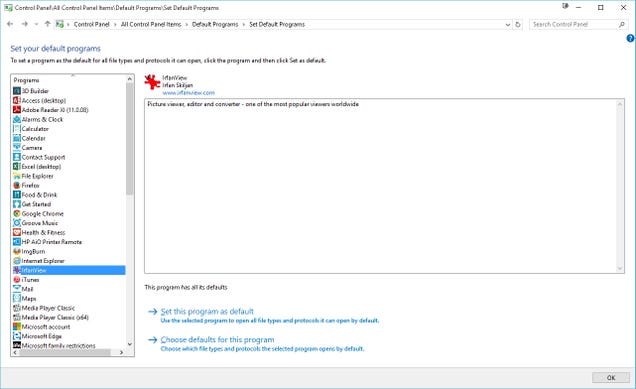
  • Change a program to open some or all available extensions. In the search box, find and open Default Programs. This opens the window shown above. Pick a program on the left to see its current associations. You can set the program as the default for all file types it can open or choose specific file types and protocols with which to associate the program.

Remove the Search Bar and Task View Button From the Taskbar

How to Tweak Windows 10 and Fix Its Minor Annoyances

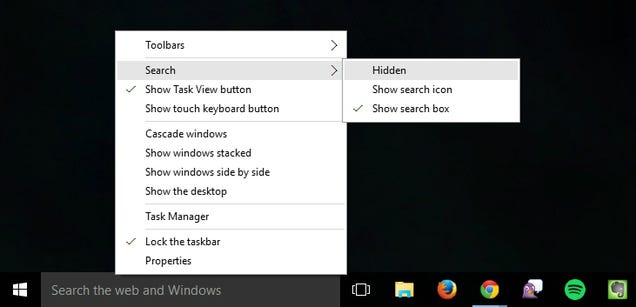
The new search bar on the Windows taskbar can be pretty handy, but it takes up a good bit of real estate on the taskbar. Plus, you can search just as well without it. Even with the search bar hidden, you can hit your Windows key and start typing to perform the same search. To hide the search bar, right-click anywhere on the taskbar and point to Search (or, if you’ve enabled Cortana, Cortana). Choose Show Search Icon (or Show Cortana Icon) to remove the search box itself and just show an icon you can click to open up Cortana, or choose Hidden to remove them from the taskbar entirely.

On that same Taskbar context menu, deselect the Show Task View button option to remove that button from the taskbar. You can still get the same Task View by hitting Windows+Tab.

Remove “Quick Access” From File Explorer

Quick Access is the new area in File Explorer that replaces the Favorites section from Windows 8. The video above, from Windows Central, is a pretty good rundown of the feature. Quick Access can actually be pretty handy, and may not seem like an annoyance to some, but if you’d rather not see all your most recently used folders cluttering up Explorer, you have a few options.

First, you can change the default File Explorer view from Quick Access to This PC. Just open File Explorer and head to View > Options, and under the General tab, change “Open File Explorer to” to This PC. Handy!

If you want to get rid of Quick Access entirely, the process is a bit more complicated. You can read about in full over on Windows Central. It does take several steps, a couple of which require you to make registry changes, so, if it’s not bugging you that much, you may not want to bother. If you’d like to banish Quick Access, though, create a system restore point or make a quick backup of your registry, and go for it.

Change the Boring Title Bar Colors

How to Tweak Windows 10 and Fix Its Minor Annoyances

While Windows 10 does not let you change the default color of the title bar for windows from their default white, you can change them with a little mild hackery.

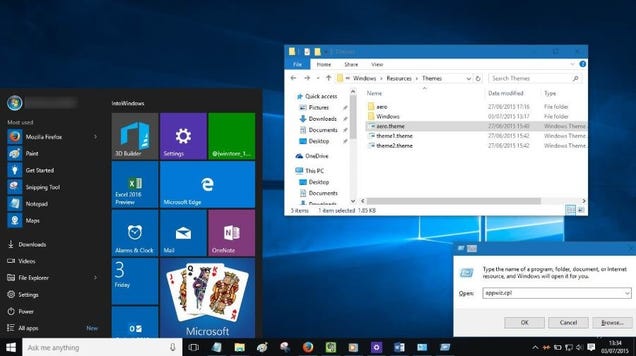
As Into Windows points out (and hit up that link for the full instructions), all you have to do is make some text edits to a couple of styles files so that Windows uses the accent color (a value you can change) for the title bar. After you make the edits, you can change the accent color any time you want to change your title bar color. Do do this, just open Personalization > Colors, turn off the Automatically pick an accent color from my background option, and choose any color you like.

Disable Windows 10 Updates

How to Tweak Windows 10 and Fix Its Minor Annoyances

Windows 10 automatically downloads and installs updates without any input from you. Overall, this is likely a good thing, given how many people out there are bad at keeping things updated. This policy can cause trouble, though, especially if Windows downloads driver updates that end up causing you trouble.

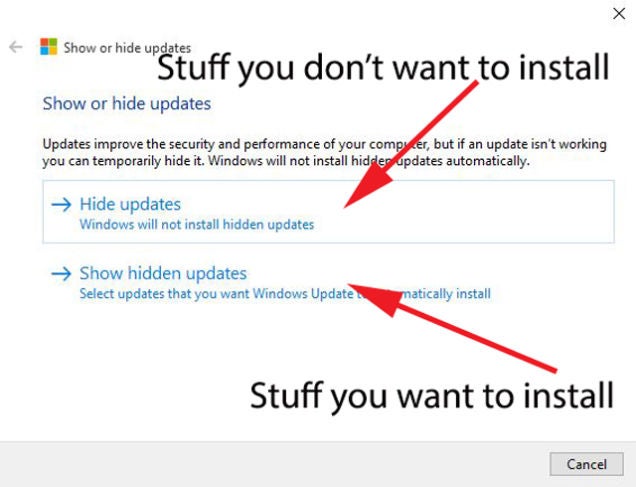
If you’d rather have control over what updates get installed, you can prevent specific updates from installing using a process reported by Gizmodo. The downside is that it’s a pretty hacky workaround. You’ll have to download a troubleshooting tool from Microsoft that lets you view and hide pending updates. Once hidden, Windows won’t automatically install those updates until you unhide them.http://reviews.gizmodo.com/heres-the-incr...

We know most of you are just getting started with Windows 10. If you’ve spotted any annoyances we missed, be sure to let us know below. Whether you’ve found a fix or not, we’d love to hear about it. And we might even be able to help.