Shared posts

19 Jul 07:11

Samsung announces 3,000MB/s enterprise SSD, shames competition

by Timothy J. Seppala

DNP Samsung's blazing fast enterprise SSD announced,

The ink has barely dried on Samsung's last SSD announcement and the South Korean manufacturer has already made it obsolete by orders of magnitude. This 2.5-inch enterprise-class SSD isn't for us regular Joes, but if you thought the company's EVO 840's 540MB/s was zippy, hold on to your desk chair. The newly announced NVMe SSD XS1715 reads data at a mind-numbing 3,000MB/s. Hitting these absurd numbers isn't without a caveat, though, as this SSD won't run on a SATA-6 port -- it requires a PCIe hook-up. When these speed demons do arrive, they'll be available in 400GB, 800GB and 1.6TB sizes. Oh, and we want one. For business.

Filed under: Desktops, Samsung

Comments

19 Jul 07:09

These Neopets Have Been Alive for 13 Years

by Max Knoblauch
Neopets-thumb
Feed-twFeed-fb

It's 2 a.m. on a Thursday morning and I'm buying up shares of virtual potato stock. I need to earn fake money to feed my fake llama some fake apples — which are his favorite

I am deep in the online world of Neopia, home of the Neopets. And I'm not alone.

Neopets was launched by British college students Adam Powell and Donna Williams on Nov. 15, 1999, smack in the center of the Internet's ugly adolescent stage. It was the era of Ask Jeeves and 12-minute MP3 downloads. Thirteen-month-old Google had just eight employees (a shade under the current 54,000) Read more...

More about Entertainment, Gaming, Features, Psychology, and Work Play
19 Jul 07:08

New Interplanetary Laser System Could Reach Mars or Jupiter

by Luisa Rollenhagen
Lasers
Feed-twFeed-fb

Mars or Jupiter may not be as far from reach as you think

A new laser system, developed at NASA's Jet Propulsion Laboratory at the California Institute of Technology, can now span interplanetary distances and make its mark within a millimeter.

As the video above explains, this means the system has the capacity to hit Mars — or even Jupiter.

The advanced laser system uses "active transceivers," meaning that active, synchronized receivers on Earth and in space can send and receive laser pulses, making them easily detectable and boosting power. The pulses are tagged with outgoing and incoming times; the pulses' travel time between transceivers informs the distance between them Read more...

More about Research, Nasa, Science, Mars, and Moon
18 Jul 18:23

#treyvoning

by anonmouse
18 Jul 18:23

Trayvoning

by bender
18 Jul 18:07

Let's Break for a Pun

by Alex Santoso

Photo: Provenance unknown

... and don't go extinct!

18 Jul 18:06

Hand Sanitizer

by Jonco

Hand sanitizer

Thanks TPR


18 Jul 18:03

Looking for Work?

18 Jul 17:55

I know what you did…

by Jonco

I know what you did

via


18 Jul 17:50

Prank of the day: Man gets tricked into thinking he's bungee jumping off a bridge

by biotv
After wearing a blindfold for two hours, a Norwegian guy is ready to do bungee jumping off an old bridge, where his friends have taken him for his bachelor party.


via
18 Jul 17:42

The First Smartwatch You Might Actually Want Is Designed For Kids

by Andrew Liszewski

The First Smartwatch You Might Actually Want Is Designed For Kids

As if kids didn't have it pretty awesome already, now it looks like they'll be among the first of us to get their hands—or wrists—on a bona fide smartwatch with the Filip. But don't get too jealous. The Filip is designed as a safety device more than anything, with Wi-Fi, cellular, and GPS capabilities designed to let a parent keep in touch and keep tabs on their kids.

Read more...

18 Jul 17:40

So That's What Gym Class Is For

18 Jul 17:35

Behold the Molten Glory of Thermite in Slow Motion

by Eric Limer

Thermite is one of the most ridiculously dangerous and completely awesome pyro concoctions out there. We've already seen it completely devour a laptop, and what could be better than that? Thermite explosions. In slow motion.

Read more...

18 Jul 17:34

Clever Food Thief

Submitted by: Unknown

Tagged: clever , food , funny , thief
18 Jul 17:25

alucicrazy: rio de janeiro


alucicrazy:

rio de janeiro

18 Jul 17:01

Know Your Enemy – Spider Anatomy

by Jonco

Know your enemy

Thanks TPR


18 Jul 05:14

How to Cut an Onion

Cutting an onion in the correct shape for cooking can be difficult. When you're sobbing like you just broke up with your high-school sweetheart, it's not so easy to cut an onion the way a line cook might in a restaurant. Luckily, these are some good tips that you can use to cut an onion the right way to produce a beautiful final product.

Edit Steps

Method One: Slice

  1. Turn the onion so that the tapered side sits to your right.

  2. Chop off the right and left ends (this is a vertical cut).

  3. Set the onion on one of the flat sides. Cut it in half vertically.

  4. Take one half and set it on the big flat side so that it arches upward. Make cuts about 1/4 inch apart vertically starting from the right. Repeat with the other half.

  5. Most of the onion will come apart in layers that make nice arches. The parts that are stuck together can be easily pushed apart.

Method Two: Mince

  1. Cut the root end of the onion off.

  2. Slice the onion in half length ways.

  3. Remove the outer skin.

  4. With the pointed end towards you slice as finely as possible.

  5. Turn the pointed end to your left and slice cross ways. The onion will be perfectly minced.

Method Three: Dice

  1. Cut an onion in half lengthwise. Cut the onion so that your knife cuts through the tip and root, not through the middle.

  2. Cut the tip and root off, discarding.

  3. Peel the onion so that the outer skin is fully removed. Discard.

  4. Place the onion flat side-down on a cutting board.

  5. Taking a large, sharp knife, begin cutting the onion lengthwise. Make several parallel cuts along one axis. You'll be cutting in the same direction you originally cut to halve the onion.

    • If you want the dice to be smaller, make more cuts, closer together. If you want the dice to be bigger, make fewer cuts, further apart. You could make anywhere from 2 to 10 cuts here, depending on how large or small you want your dice to be.
    • Leave a small section at the top of the onion uncut. This is so the onion doesn't fall apart when you cut in the following steps. Basically, any cuts you make during this step shouldn't cause any pieces of onion to break off.
  6. In the same direction, cut the onion in half. Instead of cutting in an up/down motion, turn the knife on its side and cut from right to left. If the onion is bigger, you may be able to make two or even three evenly-space sideways cuts.

    • Again, don't cut all the way through the onion. Leave a small space at the end of the onion, so that the onion doesn't yet fall apart. If cutting in this step causes any onion to break off, you haven't cut the onion in the right way.
  7. In an up/down motion again, chop the onion at a right angle, creating little squares. Smaller, more frequent intervals between chops means a smaller dice. Larger, less frequent intervals between chops means a bigger dice. Continue cutting until you've gotten to the bit at the end that you didn't slice through in the previous steps.

  8. Take the end bit and chop it along one axis, and then the next. This should create a dice similar to your other dice.

  9. Repeat above steps, using the other half of the onion, if necessary.


Edit Video

Edit Tips

  • If you mess up cutting, don't throw it away. It's still good. Just improvise.
  • To avoid getting tears in your eyes,
    • place the onion in the freezer for 1-5 minutes,
    • soak the peeled onion in cold water for 5 minutes before chopping,
    • don't lean over the cutting board,
    • chew gum while cutting the onion,
    • place a burning candle next to the cutting board,
    • breath through your nose, or
    • hold a heel of bread sticking out of your mouth, or
    • aim a light fan over the cutting surface.
    • dip the knife in canola oil before you start

Edit Warnings

  • Take off the paper-like peel first, because it may cause your knife to slip and cut you.

Edit Related wikiHows

Article Tools

18 Jul 05:08

Anonymous says FML

by Anonymous

Today, my girlfriend guilted me into roleplaying as Justin Bieber before and during sex. I now feel physically ill. FML

18 Jul 05:08

Guy does Guitar, Drums, and Vocals

by Cletus
18 Jul 05:07

You Won't Believe How Much Netflix Crops Your Movies

by peter ha

You Won't Believe How Much Netflix Crops Your Movies

Did you know that Netflix is cropping the hell out of movies? I didn't. But even if you had noticed, it's unlikely you realize just how bad it gets. A semi-new Tumblr called What Netflix Does has pointed out the extent of the trimming. And it's atrocious.

Read more...

18 Jul 05:01

Soon, Your Smartphone Could Be Powered by Pee

by Jamie Condliffe

Plugging your phone into the main is for suckers. What you really need is one of a new breed of microbial fuel cells to drive your phone—so you can power it with pee.

Read more...

18 Jul 04:59

If Doom was done today (Part 1)

by remouk
18 Jul 04:58

Some Brilliant Lunatic Is Posting All of Star Wars to Instagram Video

by Kyle Wagner

Some Brilliant Lunatic Is Posting All of Star Wars to Instagram Video

Oh man oh man oh man oh man. This is the nerdiest, awesomest, best-best way to use Instagram. Some nerd has taken it upon himself to film the entirety of Star Wars Episode IV: A New Hope 15 seconds at a time, on Instagram Video.

Read more...

18 Jul 04:57

3 Crazy Excel Formulas That Do Amazing Things

by Ryan Dube

Microsoft Excel is one of the most powerful spreadsheet tools, with an impressive collection of built-in tools and features. In this article, you’ll learn how powerful Excel formulas and conditional formatting can be, with three useful examples.

Unlock the "Essential Microsoft Office Shortcuts" cheat sheet now!

This will sign you up to our newsletter

Enter your Email
Unlock

Digging Into Microsoft Excel

We’ve covered a number of different ways to make better use of Excel, such as using it to create your own calendar template or using it as a project management tool.

Much of the power lies behind the Excel formulas and rules that you can write to manipulate data and information automatically, regardless of what data you insert into the spreadsheet.

Let’s dig into how you can use formulas and other tools to make better use of Microsoft Excel.

Conditional Formatting With Formulas

One of the tools that people don’t use often enough is Conditional Formatting. If you’re looking for more advanced information on conditional formatting in Microsoft Excel, make sure to check out Sandy’s article on formatting data in Microsoft Excel with conditional formatting.

With the use of Excel formulas, rules, or just a few really simple settings, you can transform a spreadsheet into an automated dashboard.

To get to Conditional Formatting, you just click on the Home tab, and click on the Conditional Formatting toolbar icon.
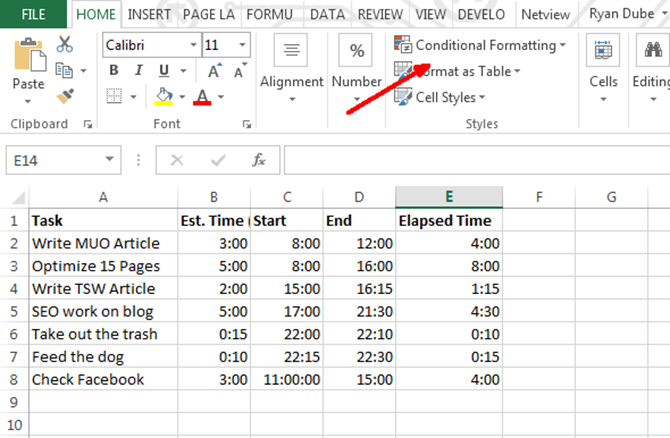
conditional formatting in excel

Under Conditional Formatting, there are a lot of options. Most of these are beyond the scope of this particular article, but the majority of them are about highlighting, coloring or shading cells based on the data within that cell.

This is probably the most common use of conditional formatting—things like turning a cell red using less-than or greater-than formulas. Learn more about how to use IF statements in Excel.

One of the lesser used conditional formatting tools is the Icon Sets option, which offers a great set of icons you can use to turn an Excel data cell into a dashboard display icon.
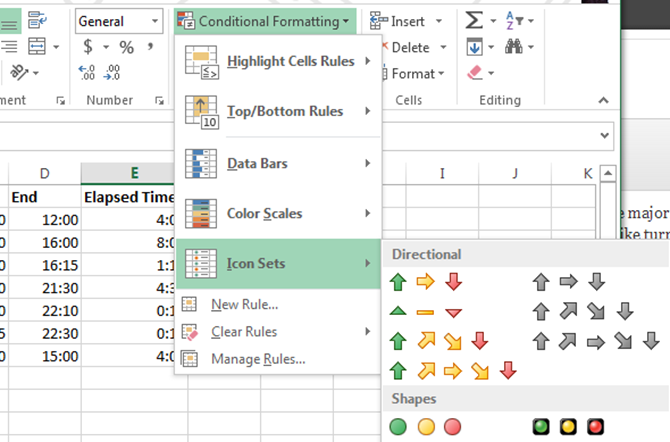
conditional formatting icons

When you click on Manage Rules, it’ll take you to the Conditional Formatting Rules Manager.

Depending on the data you selected before choosing the icon set, you’ll see the cell indicated in the Manager window, with the icon set you just chose.
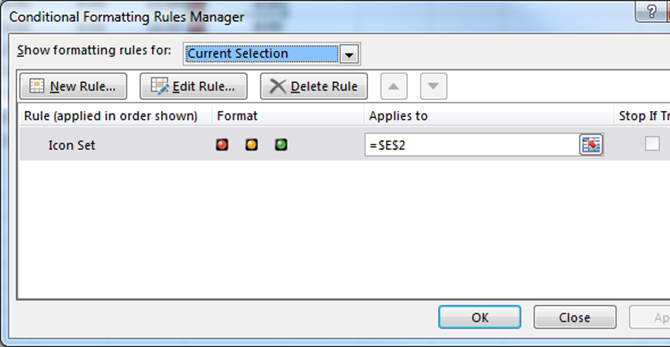
conditional formatting rules manager

When you click on Edit Rule, you’ll see the dialog where the magic happens.

This is where you can create the logical formula and equations that will display the dashboard icon you want.

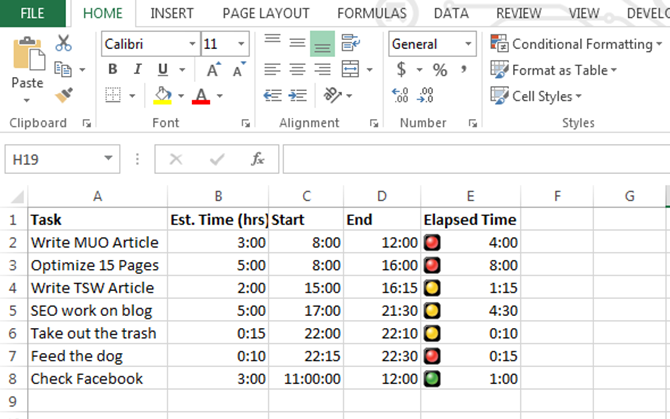
This example dashboard will show time spent on different tasks versus budgeted time. If you go over half the budget, a yellow light will display. If you’re completely over budget, it’ll go red.
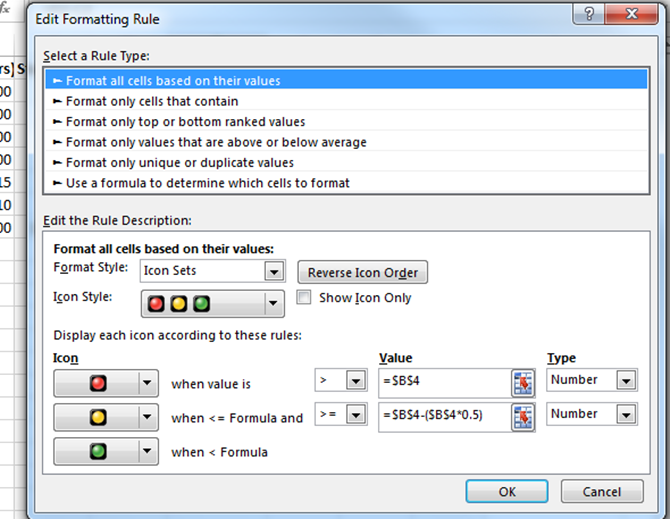
setting conditional formatting rules

As you can see, this dashboard shows that time budgeting isn’t successful.

Almost half of the time is spent way over the budgeted amounts.
time budgeting dashboard

Time to refocus and better manage your time!

1. Using the VLookup Function

If you’d like to use more advanced Microsoft Excel functions, then here’s another one for you.

You’re probably familiar with the VLookup function, which lets you search through a list for a particular item in one column, and return the data from a different column in the same row as that item.

Unfortunately, the function requires that the item you’re searching for in the list is in the left column, and the data that you’re looking for is on the right, but what if they’re switched?

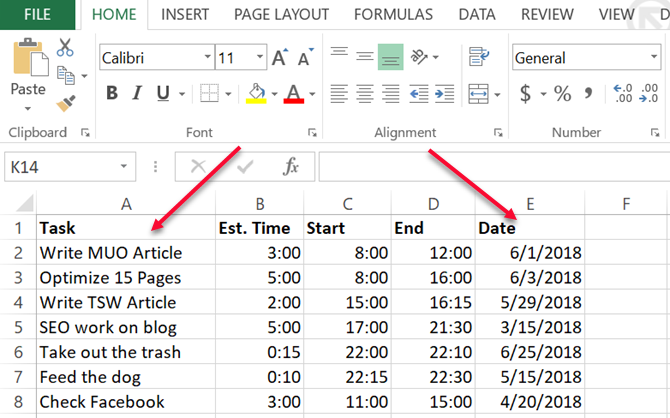
In the example below, what if I want to find the Task that I performed on 6/25/2018 from the following data?
using vlookup in excel

In this case, you’re searching through values on the right, and you want to return the corresponding value on the left – opposite the way VLookup normally works.

If you read Microsoft Excel pro-user forums you’ll find a lot of people saying this isn’t possible with VLookup, and that you have to use a combination of Index and Match functions to do this. That’s not entirely true.

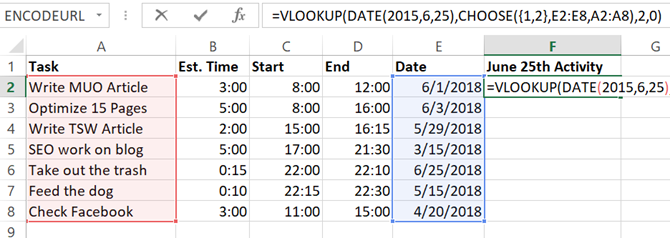
You can get VLookup to work this way by nesting a CHOOSE function into it. In this case, the Excel formula would look like this:

"=VLOOKUP(DATE(2018,6,25),CHOOSE({1,2},E2:E8,A2:A8),2,0)"

What this function means is that you want to find the date 6/25/2013 in the lookup list, and then return the corresponding value from the column index.

In this case, you’ll notice that the column index is “2”, but as you can see the column in the table above is actually 1, right?
vlookup excel formula

That’s true, but what you’re doing with the “CHOOSE” function is manipulating the two fields.

You’re assigning reference “index” numbers to ranges of data – assigning the dates to index number 1 and the tasks to index number 2.

So, when you type “2” in the VLookup function, you’re actually referring to Index number 2 in the CHOOSE function. Cool, right?
vlookup results

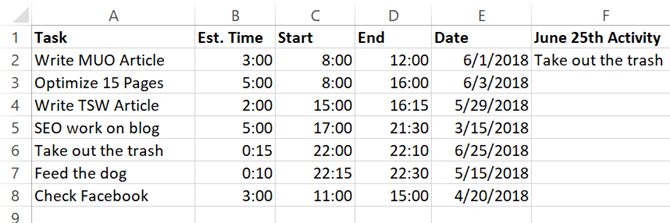
So, now the VLookup uses the Date column and returns the data from the Task column, even though Task is on the left.

Now that you know this little tidbit, just imagine what else you can do!

If you’re trying to do other advanced data lookup tasks, be sure to check out Dann’s full article on finding data in Excel using lookup functions.

2. Nested Formula to Parse Strings

Here’s one more crazy Excel formula for you.

There may be cases where you either import data into Microsoft Excel from an outside source consisting of a string of delimited data.

Once you bring in the data, you want to parse that data out into the individual components. Here’s an example of name, address and phone number information delimited by the “;” character.
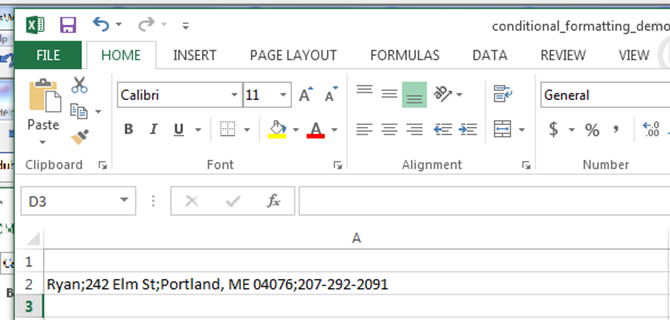
delimited data

Here’s how you can parse this information using an Excel formula (see if you can mentally follow along with this insanity):

For the first field, to extract the leftmost item (the person’s name), you would simply use a LEFT function in the formula.

"=LEFT(A2,FIND(";",A2,1)-1)"

Here’s how this logic works:

  • Searches the text string from A2
  • Finds the “;” delimiter symbol
  • Subtracts one for the proper location of the end of that string section
  • Grabs the leftmost text to that point

In this case, the leftmost text is “Ryan”. Mission accomplished.

3. Nested Formula in Excel

But what about the other sections?

There may be easier ways to do this, but since we want to try and create the craziest Nested Excel formula possible (that actually works), we’re going to use a unique approach.

To extract the parts on the right, you need to nest multiple RIGHT functions to grab the section of text up until that first “;” symbol, and perform the LEFT function on it again. Here’s what that looks like for extracting the street number part of the address.

"=LEFT((RIGHT(A2,LEN(A2)-FIND(";",A2))),FIND(";",(RIGHT(A2,LEN(A2)-FIND(";",A2))),1)-1)"

It looks crazy, but it’s not hard to piece together. All I did is took this function:

RIGHT(A2,LEN(A2)-FIND(";",A2))

And inserted it into every place in the LEFT function above where there’s an “A2”.

This correctly extracts the second section of the string.

Each subsequent section of the string needs another nest created. So now you just take the crazy “RIGHT” equation you had created for the last section, and then pass that into a new RIGHT formula with the previous RIGHT formula pasted into itself wherever you see “A2”. Here’s what that looks like.

(RIGHT((RIGHT(A2,LEN(A2)-FIND(";",A2))),LEN((RIGHT(A2,LEN(A2)-FIND(";",A2))))-FIND(";",(RIGHT(A2,LEN(A2)-FIND(";",A2))))))

Then you take THAT formula, and place it into the original LEFT formula wherever there’s an “A2”.

The final mind-bending formula looks like this:

"=LEFT((RIGHT((RIGHT(A2,LEN(A2)-FIND(";",A2))),LEN((RIGHT(A2,LEN(A2)-FIND(";",A2))))-FIND(";",(RIGHT(A2,LEN(A2)-FIND(";",A2)))))),FIND(";",(RIGHT((RIGHT(A2,LEN(A2)-FIND(";",A2))),LEN((RIGHT(A2,LEN(A2)-FIND(";",A2))))-FIND(";",(RIGHT(A2,LEN(A2)-FIND(";",A2)))))),1)-1)"

That formula correctly extracts “Portland, ME 04076” out of the original string.
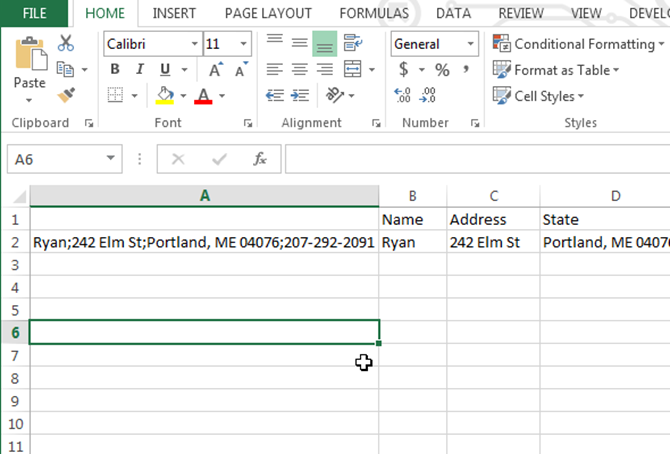
parsed string

To extract the next section, repeat the above process all over again.

Your Excel formulas can get really loopy, but all you’re doing is cutting and pasting long formulas into itself, make long nests that actually work.

Yes, this meets the requirement for “crazy”. But let’s be honest, there is a much simpler way to accomplish the same thing with one function.

Just select the column with the delimited data, and then under the Data menu item, select Text to Columns.

This will bring up a window where you can split the string by any delimiter you want.
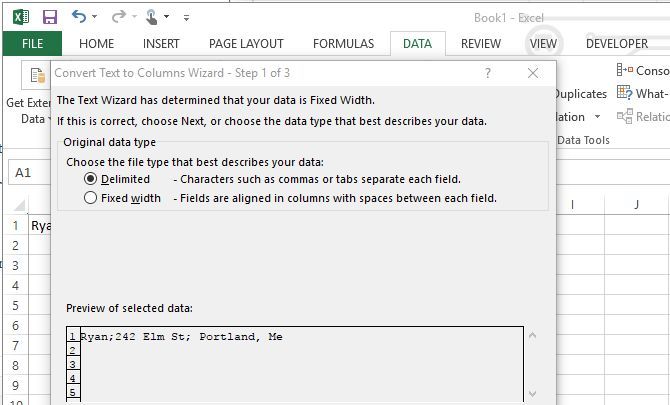
splitting text

In a couple of clicks you can do the same thing as that crazy formula above… but where’s the fun in that?

Getting Crazy With Microsoft Excel

So there you have it. The above formulas prove just how over-the-top a person can get when creating Microsoft Excel formulas to accomplish certain tasks.

Sometimes those Excel formulas aren’t actually the easiest (or best) way to accomplish things. Most programmers will tell you to keep it simple, and that’s as true with Excel formulas as anything else.

If you really want to get serious with using Excel, you’ll want to read through our beginner’s guide to using Microsoft Excel. It has everything you need to start boosting your productivity with Excel.

Read the full article: 3 Crazy Excel Formulas That Do Amazing Things

18 Jul 04:56

Cell Phone Powered By Urine

by samzenpus
sciencehabit writes "The newest source of battery power for your cell phone is both cheap and abundant. Scientists report that microbial fuel cells using human urine can directly power a cell phone battery. However, the devices are not quite portable enough to come in handy during a marathon pub crawl. One consists of six, 4-inch-long ceramic cylinders; the other is a network of 25 smaller fuel cells borrowed from the team's waste-fueled EcoBot. And urine-powered conversations would have to be short and sweet. After 24 hours of charging, a Samsung phone stayed alive for 25 minutes—enough to send several texts and make a 6-minute, 20-second call."

Share on Google+

Read more of this story at Slashdot.


18 Jul 04:55

19-year-old spent a year making this amazing Skyrim mod

by Hamza CTZ Aziz

Skyrim mods are the best, like the one we just featured that brings in Dishonored powers into Skyrim. This one, though, takes the cake. Falskaar is a new mod and it features nearly 25 hours of new content. That's new characters, new voices, new quests, and a new land mass that's a third of the size of the original game.

All this is made even more impressive when you learn that it's a mod made largely by just Alexander Velicky, a 19-year-old who's using this mod to help him try to get a job at Bethesda.

“I organized everyone involved, but the voice actors themselves recorded all the dialogue and submitted it to me,” Velicky told PC Gamer. "I had some people help me out with a few models and textures, someone wrote a book or two for me… But otherwise all content was implemented, written and developed by me.”

Note that a number of people also recorded voices for the dialogue, and someone even composed an original soundtrack.

You can try out this ambitious mod through Skyrim Nexus. Very impressive stuff.

Behind Falskaar, a massive new Skyrim mod, and the 19-year-old who spent a year building it [PC Gamer]

19-year-old spent a year making this amazing Skyrim mod screenshot

18 Jul 04:46

Samsung unveils not-so-entry-level SSD 840 EVO with up to 1TB of space

by Jon Fingas

Samsung SSD 840 EVO

Disappointed that most entry-level solid-state drives are limited in capacity, speed or both? You'll be happy with Samsung's newly unveiled SSD 840 EVO, then. While it's badged as a starter model, the 2.5-inch SATA drive carries up to 1TB of storage, or twice as much as the regular SSD 840. Thanks to both 10nm-class flash memory and a multi-core MEX memory controller, the EVO range is also faster than you'd expect from the category. Depending on the model, sequential write speeds have doubled or tripled versus the original series, peaking at 520MB/s; the flagship 1TB edition can read at a similarly blistering 540MB/s. Samsung doesn't yet have US pricing for the SSD 840 EVO line, although it expects the drives to reach "major" markets worldwide by early August, with other regions coming later.

Filed under: Storage, Samsung

Comments

Source: Samsung

18 Jul 04:13

6 Best Kirby Video Games Ever Made

by Dave LeClair

static gaming
Kirby is a mainstay in Nintendo's staple of mascots, however, the little guy just doesn't get as much love as Mario, Zelda, and some of the Japanese company's other characters. Perhaps it is because Nintendo uses him in weird games outside of his typical genre. Maybe it's because he's too cute. Who knows? Whatever the reason, I am going to push aside the lack of love for Kirby and dedicate an entire article to listing off my favorite Kirby games.

Continue reading the article

Read full article: 6 Best Kirby Video Games Ever Made

18 Jul 04:10

The Walking Ched Will Bring You One Step Closer to Death

by Jill Harness

It might not be alive, but the Walking Ched burger from Zombie Burger is certainly dangerous. It's also incredibly alluring, featuring not only two beef patties topped with cheddar cheese slices, bacon and macaroni and cheese, but also a bun that is made out of deep-fried bundles of macaroni and cheese. 

Link Via Food Beast

16 Jul 16:54

Good Guy WinRAR