If you’re a U.S. citizen with a valid passport, you’re able to freely travel to more places in the world than most other countries’ citizens, and it’s probably a lot more than you realize. All you need are some vacation days and a plane ticket.
If you’re a U.S. citizen with a valid passport, you’re able to freely travel to more places in the world than most other countries’ citizens, and it’s probably a lot more than you realize. All you need are some vacation days and a plane ticket.

Happy weekend, and welcome back to 3-Ingredient Happy Hour, the weekly drink column featuring super simple yet delicious libations. This week we’re making a sparkling cocktail perfect for Mother’s Day or, you know, any Sunday really: the French 75.

When it comes to file management, Apple fans have had it easy. Ever since Apple debuted AirDrop in OS X Lion, way back in July of 2011, moving files around your linked desktop and laptop systems (and iPhones and iPads) couldn’t be any easier.

People don’t really associated chicken with indulgence but, when prepared with love and care (and lots of fat), it can be downright special. Taking a cue from duck confit, we treat these chicken thighs with the respect they deserve, first curing them and then cooking them slow and low in rendered schmaltz for an…

Where do you go to waste time on the internet? Facebook and Twitter, the usual default answers, are exhausting. Scrolling through them feels like work. “I don’t know how to waste time on the internet anymore,” says Dan Nosowitz in the internet-culture blog Select All. We agree with him that it’s way too easy to get…

Google knows a lot about you, and a decent amount of that info comes from YouTube. By default, the video site tracks everything you watch and search for (including that time I played the same Taylor Swift video on a loop for 2 hours) so it can suggest better videos—and target you with more relevant ads, of course.
They definitely are more feature-packed than the QC35 IIs.
Playlists are a core component of Spotify. Not only does the popular music streaming service have curated collections of songs to suit specific genres and moods, but you can also make as many of your own playlists as you like.
So, here are some tips to help you manage your Spotify playlists. Note that most of these tips are for Spotify’s desktop apps. But once you put them into practice there, you can enjoy the same benefits on your smartphone too.
Unlock the "Spotify Keyboard Shortcuts" cheat sheet now!
This will sign you up to our newsletter
You probably know that you can click and drag a song in a playlist to move it, or press Delete to remove a highlighted song. However, there may be times when you want to remove many songs from a playlist. It’s also convenient to move them around a playlist in batches.
To accomplish this, hold down Ctrl (or Cmd on a Mac) to select multiple songs. Then, drag and drop them to move them to another playlist or around in the current playlist. To delete all of the selected songs, right-click on one of the chosen tracks and click Remove from this Playlist (or hit the Delete key).
You can also easily select several songs listed consecutively in a playlist. Click the first one, then hold down Shift while you select the last one. That action highlights all tracks between the two. After that, you can delete or move the block of songs as above.
Using the Spotify desktop app, you can transfer playlists from iTunes or other sources to Spotify by importing them. First, copy the desired songs and put them in an easily accessible folder on your computer. Then, launch Spotify and go to Edit > Preferences. Scroll down to Local Files and click Add a Source.
From the file window, choose the folder of songs you just made and click Open. You’ll then see it appear in the Show songs from list; make sure it’s enabled, as well as the Show Local Files slider at the top of the section. If you’ve imported music from other local sources, you might want to uncheck them here so you can easily copy just the new music.
After this is done, you’ll see all the selected files in the Local Files section of the sidebar. Since imported music doesn’t feature clickable artists and albums, you should click New Playlist in the left sidebar and add them to a fresh playlist for easy categorizing.
You can grab all the songs inside Local Files with Ctrl + A on Windows or Cmd + A on Mac. Then drag or copy and paste them into the new playlist.
Sometimes, you might hear a tune while listening to Spotify and wonder what playlist it’s in. When using the Spotify desktop app, click on the album art in the bottom-left corner to immediately jump to the current playlist (or album).
Note that when you mouse over the album art, you’ll see an arrow icon in the top-right. You’ll need to click anywhere but this to show the current playlist. If you click the arrow, it will make the album cover larger or smaller instead.
Copying a Spotify playlist is handy if you want to make a backup or customize a base playlist to send to someone else. You have to do so manually, but it’s not difficult.
To duplicate a playlist, click New Playlist on the left-hand sidebar to create an empty playlist. Give it a name, then open the playlist you want to duplicate. Click the first song title once to select (but not play) the track.
Then press Ctrl + A (Cmd + A on Mac) to select all of the songs. Finally, click and drag (or copy and paste) the highlighted songs to the new playlist in the left pane.
Similar to duplicating, did you know you can have Spotify find more music you’ll love by right-clicking and choosing Create Similar Playlist?
If you want to make a mega-playlist of all the songs you’ve saved to your library, you can copy them into a new playlist using a similar method to the above. This is a great option if you have Spotify Premium and want to download a big playlist for on-the-go listening without using data.
Create a new playlist as mentioned above. Next, choose Liked Songs from the Your Library section of the left pane. Click on one track in that section to highlight it, then press Ctrl + A (or Cmd + A on Mac) to select all the songs. Finally, drag or copy-paste them to the new playlist.
Want to share your favorite playlists with a friend or create one specifically for them? Spotify makes it easy to share playlists with anyone who also uses the service.
Open a playlist, click the three-dot icon at the top, and select the Share field. You’ll see several ways to share it. If you’d like, you can send it over social media platforms such as Messenger or Telegram with one click. Otherwise, use Copy Playlist Link for a URL you can paste anywhere.
If you want to let other people add songs to the playlist, select Collaborative Playlist from the three-dot menu. This lets anyone with access manage its contents, so you may want to make a backup for yourself first.
By default, Spotify playlists sort tracks based on the order you added them. However, you can change this by clicking the headers at the top.
Click Title, Artist, or Album to sort alphabetically by that field. The first click will sort from A-Z, while the second changes it from Z-A. This also works with the Calendar icon (which shows the date you added the track to the playlist) and the Clock icon (which represents the track length).
Click the Calendar once to show the newest songs first and twice to show the oldest songs first. The first click on the Clock will sort by shortest songs the first time and longest songs the second time. A third click on any field will remove the sorting.
When you haven’t applied any sorting (meaning no green arrows show next to any of the headers), you can manually rearrange the tracks in your playlist. Simply click and drag a song and you’ll see a green line appear. Let it go to drop that song in the new position. You can also move songs in bulk, as explained earlier.
This lets you fine-tune the order of a Spotify playlist before sending it to someone, gradually ramp up the songs’ tempo, and more.
By default, Spotify creates playlist art using the first four album covers from songs in that playlist. For your own playlists, you can change that generic image to anything you wish.
Open the playlist, then hover your cursor over the existing playlist image and click the Pencil icon. Doing that opens up an Edit Playlist Details box. Click the picture on the left side to upload a new image from your computer. Finally, click the green Save button in the Edit Playlist Details box.
We have a guide detailing how to create the perfect artwork for Spotify playlists if you need some help.
Spotify allows you to “like” an album or song by clicking the Heart icon to the left of a track or at the top of an album page. This lets you add the songs to your Library for easy access.
If you find a playlist you love and want to save all (or many) of its songs, simply select them as we’ve discussed. From there, either right-click and choose Save to your Liked Songs or drag them to the Liked Songs item on the left-hand sidebar.
Unfortunately, there’s no option to save all of the albums represented in a playlist, so you’ll have to do those one-by-one.
Spotify playlists can contain thousands of songs, making it difficult to find the right track quickly. To easily search a playlist, click inside the Filter box at the top of the tracklist or press Ctrl + F (Cmd + F on a Mac). Type into this box and Spotify will show matches in the song title, artist, and album name.
You can use this to confirm whether a song is in a playlist or see all the songs by a certain artist. Once you have just those songs pulled up, you can easily select them all and right-click to add them to the queue, remove them from the playlist, or take other actions.
Now, with the help of these handy tips, you should know how to get more out of your Spotify playlists. Having the right mix for every moment is a strength of the service, and these tips should help you keep your collection tidy.
For more help navigating Spotify, check out our Spotify keyboard shortcuts cheat sheet.
Read the full article: How to Manage Your Spotify Playlists: 10 Tips and Tricks


Yes, you are a good person. But a relative or friend may not be so law-abiding. And stuff happens. Here is what to do if you are ever arrested (mostly what not to do) and what you can expect if put behind bars. Written by two professors of criminology; one was a former correctional officer, and the other served eleven years in federal custody, including maximum security. They know what they are talking about, and they dispense their straight dope with surprising clarity and uncommon elegance and wit. (One chapter is called “You’ve Got Jail!”). They’ve written a guidebook to a distant country and its alien customs and ways; may you never arrive there. You get street-smarts from inmates and wise counsel from the Man. I rank my books by how dog-eared they are; this one had nearly every page marked and underlined. This is one of the books you want to read before you need it.
Image: Twenty20/@CreativeGuy
[This is a Cool Tools Favorite from 2005]
Sample Excerpts:
The first thing you need to remember [if arrested] is keep your mouth shut and do not discuss your arrest or case with anyone, police or fellow inmates.
Jailhouse holding tanks are usually bugged with hidden microphones and video cameras. This technology is only incidentally for your protection. Its primary function is to provide the judicial system with an opportunity to gather more incriminating evidence.
*
Whomever you call, never discuss your case on the phone. Any admission of guilt will be used against you in court. Let us repeat: Any admission of guilt will be used against you in court.
The same warning applies to mail, both sent or received, which will be opened and copied by jail staff. Remember, you have no privacy in jail, and every word you say, phone call you make, or letter you write, can be used in court to make a case against you or drum up additional indictments against you or others.
*
In general, with few exceptions, attorneys want their money up front, in advance, or they leave you to throw yourself on the mercy of the court. The reasons are simple enough. If you are found guilty and sent to prison, you will be in no mood to pay your legal bill. Also, many of their clients are crooks who are not overly inclined toward scrupulous bill-paying in the first place. These facts lawyers know only too well, so they will exert great pressure on you to pay up front before your case is decided. You must resist their demands for large sums of money and only pay the attorney a portion of what they ask.
Defense attorneys are like stockbrokers: They collect their fees and commissions on the amount of business they do, no matter whether their customers win or lose. As officers of the court, their first allegiance is to the legal system, even at the expense of their clients. Most lawyers who practice in criminal courts make a good living losing most of their cases, a fact that they rarely share with their clients.
*
You may think the 14th Amendment guarantees you due process, meaning bail, attorney, and a trial by peers. Unfortunately, after being locked up in the county jail, you discover that bail may be denied, lawyers are expensive, and few defendants ever get a trial. The fact is, most people plead guilty to a lesser or reduced charge simply because they get tired of being locked up in jail, their legal defense funds run out, and they fear the possible consequences of losing a trial.
These are the cold, hard equations of crime and punishment. Most cases never go to trial. The attorney persuades the defendant (often after the lawyer has bled the patient dry of money for pre-trial hearings) not to go to trial, arguing that if they lose — and they probably will — they will be sentenced to the full extent of the law.
Yes, you have a Constitutional right to a fair trial, but if you exercise that right and lose the case, the prosecution most likely will demand severe sentencing penalties, in return for your having made them take the case to trial.
*
Another possibility, rarely understood by first-time defendants, but well known to those with lengthier police records, is that once you plead guilty, which becomes public record and part of your police criminal justice dossier, you are more likely to be rearrested, and are easier to convict.
*
The Federal Bureau of Prisons (FBOP) is thought by convicts to operate a better system than most states. The prisons are cleaner, with more desirable food, and the prison staff is better educated, trained, and paid. It is fair to say that most prisoners would prefer to do federal time, day for day, as compared to state time.
That said, federal prisoners are usually allowed fewer material possessions than state convicts. Individuals serving time in state prisons may have their own televisions, collections of books, music, clothes, and posters or pictures hung on their cell walls. Federal prison cells are more austere. These prisoners are restricted to only basic items, such as five books, toiletries, and a few changes of institutional clothes, no television. All of these possessions must be able to fit in one small locker.
*
You will find that every cellblock has “jailhouse lawyers” who will give you more truth than your attorney ever dared to share. (In case you were wondering, jailhouse lawyers are looked down upon by prison administrators, because they can file legal briefs for themselves and fellow inmates; it’s not unusual for cons well versed in the law to find themselves transferred frequently.)
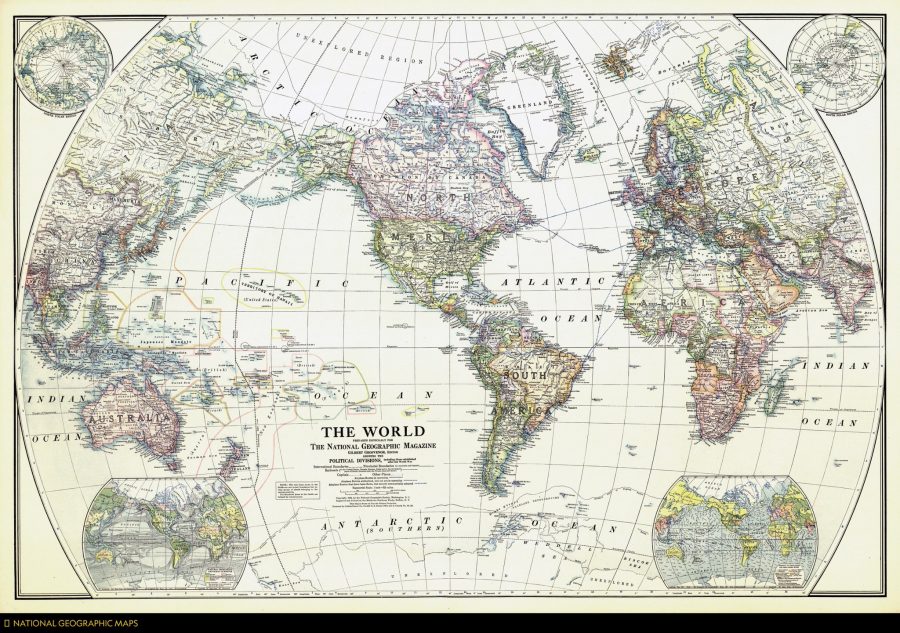
As some of the finest fictional world-builders have understood, few things excite the imagination like a map. And despite the geographical limitation implied by its title, National Geographic’s maps have surveyed the entire globe and beyond. The magazine’s articles have not always presented an enlightened point of view, but for all its historical failings, the richly-illustrated monthly has excelled as a showcase for cartography, over which readers might spend hours, projecting themselves into unknown lands, journeying through the carefully-drawn topographies, cityscapes, and celestial charts.
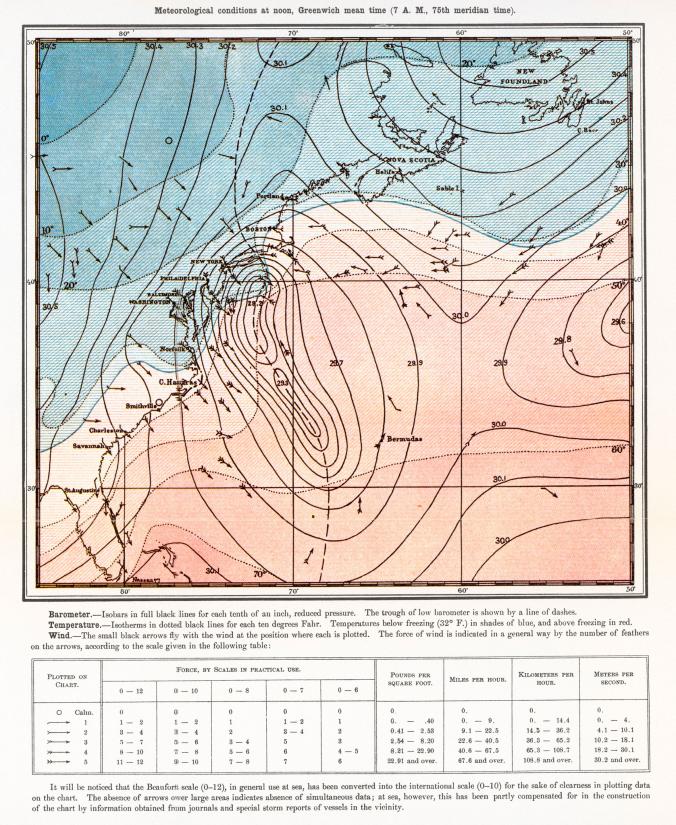
Started as the official journal of the National Geographic Society, the magazine has amassed a huge, 130-year archive of “editorial cartography,” the National Geographic site writes. “Now, for the first time,” that collection is available online, “every map ever published in the magazine since the first issue of October 1888.”
The entire archive is only available to subscribers (however you can find curated selections on the NatGeoMaps Twitter, Instagram, and Facebook accounts), but we can still see an astonishing quality and variety on display in dozens of maps on social media of every conceivable location, topic, and event, beginning with the very first published map, depicting the Great White Hurricane, “one of the most severe blizzards to ever hit the United States” (above)—the “start of a long tradition… of enhancing storytelling with maps.”

As longtime readers of National Geographic well know, the maps—often separable from the magazine in fold-outs suitable for hanging on the wall—function as more than visual aids. They tell their own stories. “A map is able to connect with somebody in a different way than a text will or a photo will,” notes the magazine’s director of cartography Martin Gamache. Maps “engage with a different part of our psyche or our brain.” From its earliest articulation, geography has inclined toward the poetic. The ancient geographer Strabo credited Homer as “the founder of geographical science,” who “reached the utmost limits of the earth, traversing it in his imagination.” Maps present us with a visual poetry often Homeric in its scope.

Though so many of these maps are detachable, it often helps to understand the specific context in which they were created, which doesn’t always appear in a self-contained legend. The map above, for example, published in March 1966, shows the Kremlin “in unprecedented detail,” as the magazine’s Twitter account points out: “Soviet regulations prohibited aerial photos, so artists collected diagrams and ground-level photos to draft a sketch that was brought to Moscow and corrected on the spot.” Further up, we see a map of Mexico from May 1914, “one of the first general reference maps of the country” from the National Geographic archive. The map at the top, from the December 1922 issue, is the magazine’s very first published general reference map of the world.
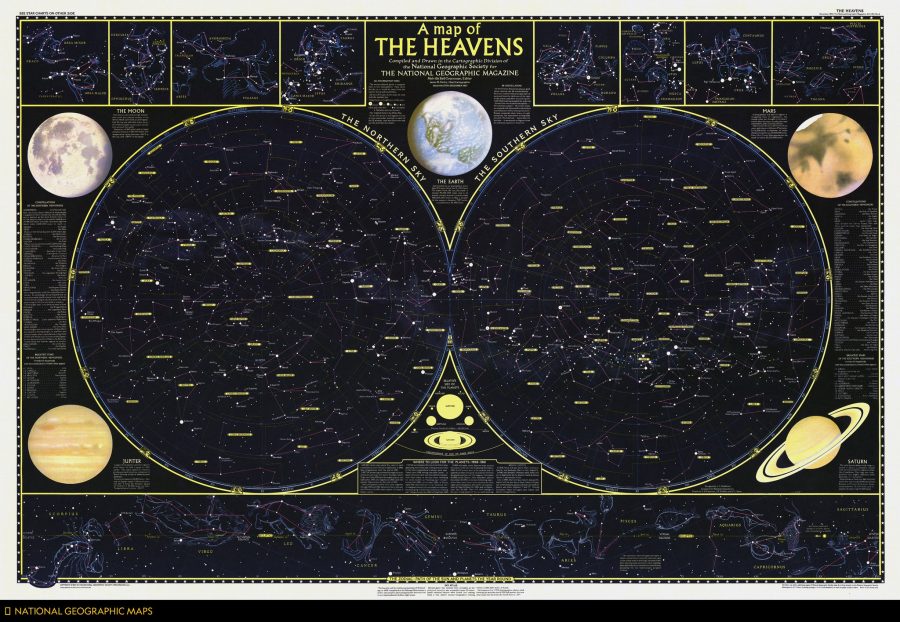
There are maps celestial, as above from 1957, and architectural—such as recent digital recreations of King Tut’s tomb, lately revealed to have no hidden chambers left to explore. Maps of planets beyond the solar system and planets (or “dwarf planets”) within it, such as this first published map of Pluto. Maps of rivers like the Rhine and spectacular natural formations like the Grand Canyon. There are even maps of flowers, like that published below in May 1968, showing “the origins of 117 types of blooms.” Some maps are much less joyous, like this recent series showing what the world might look like if all of the ice melted. Some are purely for fun, like this series on the geography of Star Wars and other fictional franchises.
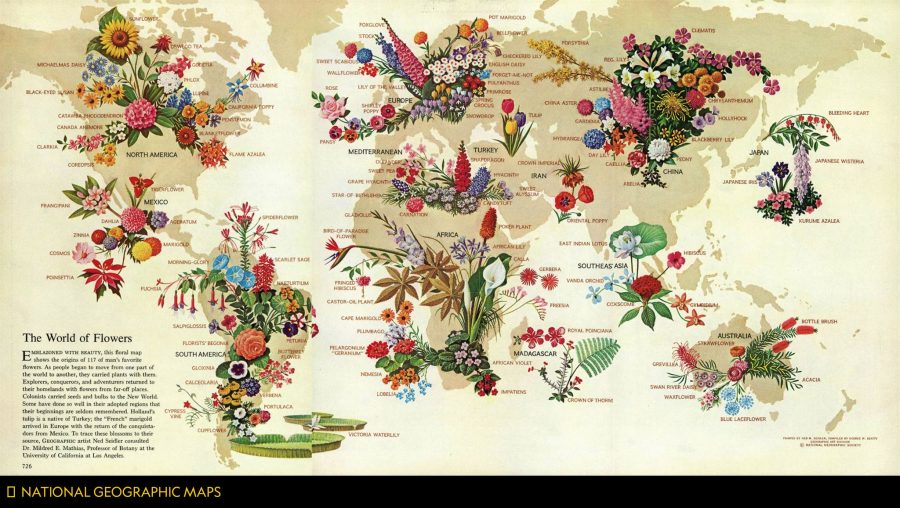
If we can imagine it, National Geographic suggests, we can map it, and conversely, when we see a map, our imaginations are immediately engaged. Learn more at the NatGeo blog All Over the Map, and connect with many more curated maps from this huge collection at the magazine’s Twitter, Instagram, and Facebook accounts.
Related Content:
A Map Showing How the Ancient Romans Envisioned the World in 40 AD
An Interactive Map Shows Just How Many Roads Actually Lead to Rome
Josh Jones is a writer and musician based in Durham, NC. Follow him at @jdmagness
<i>National Geographic</i> Has Digitized Its Collection of 6,000+ Vintage Maps: See a Curated Selection of Maps Published Between 1888 and Today is a post from: Open Culture. Follow us on Facebook, Twitter, and Google Plus, or get our Daily Email. And don't miss our big collections of Free Online Courses, Free Online Movies, Free eBooks, Free Audio Books, Free Foreign Language Lessons, and MOOCs.

Security tools are a necessary evil in the face of a growing Mac malware threat. Fortunately you can protect yourself and restore peace of mind with the right tools, like Objecive-See‘s bounty of freebies.
The project is the brainchild of Patrick Wardle, a security researcher who created a range of tools to secure his own computer. He’s since released them all for free, and maintains a repository of known Mac malware for research and educational purposes.
Let’s take a look at the lineup and how you can use these tools to better protect your Mac.
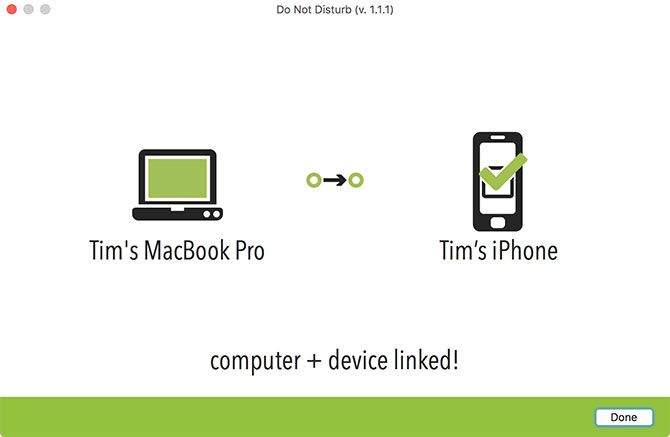
What It Does: Get alerts about physical access attacks on your MacBook.
If you travel with your MacBook or your workplace favors a “bring your own device” approach, physical access attacks might be your laptop’s biggest threat. Many of us leave our laptops unattended to grab a coffee without thinking about the very real threat posed by malicious USB devices and other users.
Do Not Disturb installs a persistent launch process which logs all known “lid open” events, with the option of sending alerts or executing custom actions. It works best when paired with the companion iOS app, allowing you to take evasive action like snapping a shot of the culprit using your webcam, or shutting down your Mac remotely.
Once you’ve installed the app you can view a log of physical access events, no iOS counterpart app required. There are also preferences for running the app “invisibly” using passive logging (no visible alerts) and by hiding the menu bar icon.
Download: Do Not Disturb
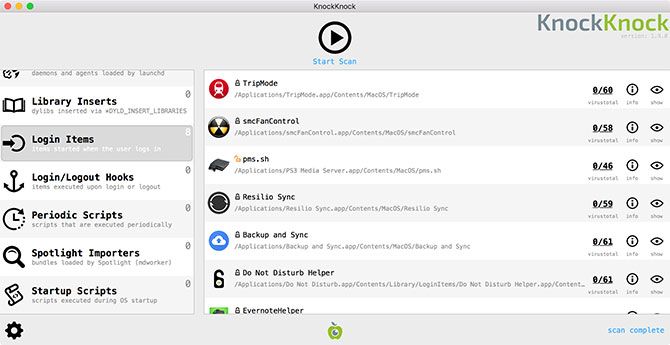
What It Does: Scan your Mac for signs of persistent malware.
More than a basic malware scanner, KnockKnock looks for signs of persistent malware—malicious code that installs itself repeatedly. This usually happens when your computer restarts. KnockKnock integrates with online detection tool VirusTotal, so known malware receives a red highlight on detection.
While VirusTotal integration is nice, the app also reports other persistently installed applications. Most of your results will be benign, but it gives you the opportunity to look down the list and see if you spot anything unusual. The app detects many different types of persistent installers, including plugins, browser extensions, launch and login items, and kernel extensions.
Download: KnockKnock
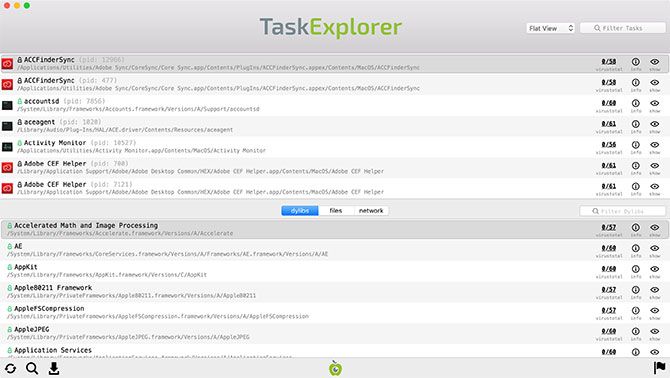
What It Does: Like a security-focused version of Apple’s Activity Monitor task manager.
TaskExplorer is very similar to the Activity Monitor app supplied with your Mac, except with VirusTotal integration. That means the app flags any known malicious currently running processes. You can send anything you don’t recognize to VirusTotal’s servers for analysis.
The app can quickly view the signing status of any running processes, view loaded dynamic libraries, network connection details, and files currently in use by a given task. It’s similar to KnockKnock, but the emphasis here is on processes that have already launched, rather than the code responsible for their execution.
Download: TaskExplorer
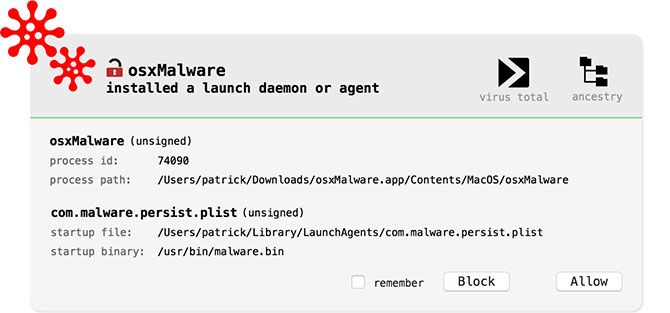
What It Does: Looks for and attempts to block malware installers.
While KnockKnock looks for the installers responsible for malware, BlockBlock attempts to deny the installation altogether. It does this by running constantly in the background, monitoring common persistence locations, and displaying an alert when it detects something suspicious.
As you might expect, BlockBlock integrates with VirusTotal. It flags known malware, but many of BlockBlock’s detections are legitimate apps performing routine operations. BlockBlock gives you the option of blocking any detected installations. The app also reports if the installer is signed by Apple, by a third party, or completely unsigned.
Download: BlockBlock
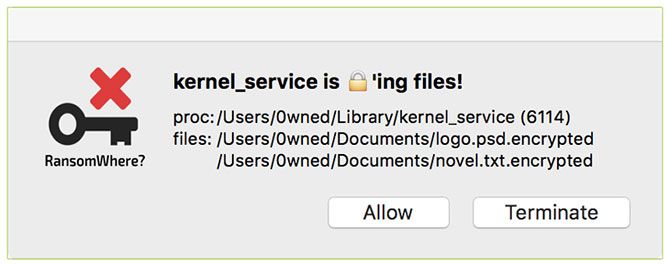
What It Does: Monitors for newly created encrypted files in a bid to prevent ransomware attacks.
Ransomware is a specific type of malware that locks you out of your data, usually demanding some sort of payment for the safe return of your files. A hallmark of this particular malware design is the creation of encrypted files by suspicious processes.
RansomWhere? monitors your system for known signs of ransomware, blocking the process and prompting you to either allow or terminate a possible threat. The app flags untrusted processes that rapidly create encrypted files, while explicitly trusting Apple-signed software and software installed prior to downloading the app.
Like other Objective-See apps, RansomWhere? doesn’t specifically look for malware but actions indicative of malware. It’s possible the app will flag legitimate processes, though the developer has tried to keep the number of false positives to a minimum.
Download: RansomWhere?
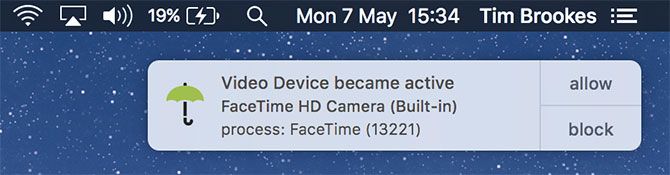
What It Does: Alerts you when your microphone or camera activates.
One of the simplest Objective-See apps, OverSight alerts you when your Mac’s microphone or webcam turn on. There are known examples of Mac malware that attempt to record or even stream users, which is why so many users cover their webcams as a precautionary measure.
OverSight monitors and reports webcam or microphone events. The alert includes the name of the process and the process identifier, along with a prompt to Allow or Block the request. You can also whitelist safe applications so that you don’t have to approve them all the time.
Most interestingly, the app attempts to detect secondary processes that try to piggyback on legitimate webcam or microphone requests. It’s not infallible, but it’s better than nothing.
Download: OverSight
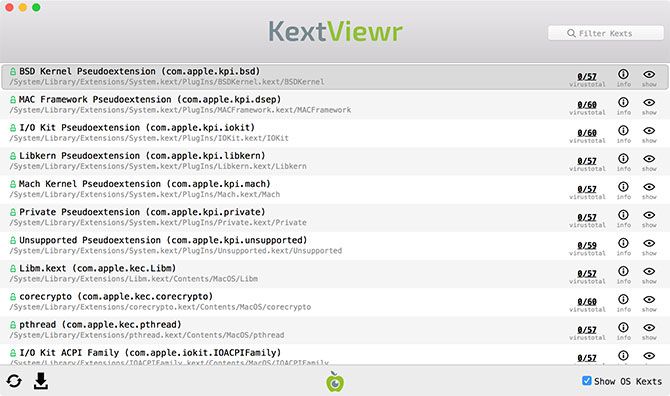
What It Does: Lists currently loaded kernel extensions.
Kernel extensions (known as “kexts”) are given highest privileges in macOS, so it’s important that you don’t have any untrustworthy modules running. KextViewr displays all currently loaded kexts along with their signing status, path to installed files, and perhaps most importantly, results from any hashes cross-referenced with VirusTotal.
You can filter these processes using the following hashtags: #apple, #nonapple, #signed, #unsigned, and #flagged. There’s not much more to it than that!
Download: KextViewr
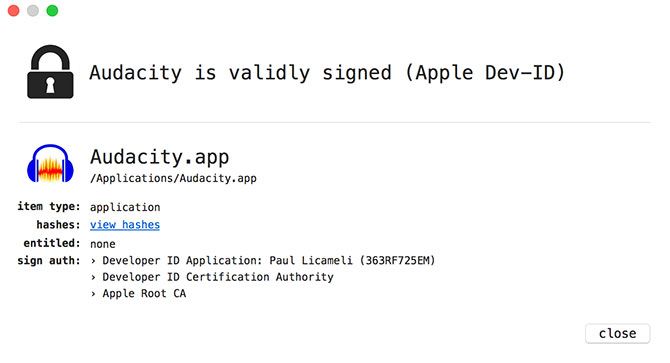
What It Does: Check an app’s signing status to determine its trustworthiness.
Not all unsigned apps are dangerous. Many open source projects and freebies are unsigned, since the developers lack the funding to get a developer license. With that in mind, a signed app is more trustworthy (from a security standpoint) than an unsigned one.
What’s Your Sign adds a new right-click context option called Signing Info. Click it and you’ll find out if the app is Apple-signed, third party-signed, or not signed at all. That’s all there is to it.
Download: What’s Your Sign
In addition to the tools here, Objective-See has a few other tools certain users may be interested in:
Security tools can help you prevent and detect malware infection, but a dash of common sense can do wonders for avoiding infection too. Always be suspicious of processes asking for your admin password, unsigned apps that require Gatekeeper circumvention, and leave system integrity protection enabled at all times.