Shared posts

06 Oct 07:17

The Flavors of Object-Oriented Programming (in JavaScript)

by Zell Liew

In my research, I’ve found there are four approaches to Object-Oriented Programming in JavaScript:

Which methods should I use? Which one is “the best” way? Here I’ll present my findings along with information that may help you decide which is right for you.

To make that decision, we’re not just going to look at the different flavors but compare conceptual aspects between them:

What is Object-Oriented Programming?

Object-Oriented Programming is a way of writing code that allows you to create different objects from a common object. The common object is usually called a blueprint while the created objects are called instances.

Each instance has properties that are not shared with other instances. For example, if you have a Human blueprint, you can create human instances with different names.

The second aspect of Object-Oriented Programming is about structuring code when you have multiple levels of blueprints. This is commonly called Inheritance or subclassing.

The third aspect of Object Oriented Programming is about encapsulation where you hide certain pieces of information within the object so they’re not accessible.

If you need more than this brief intro, here’s an article that introduces this aspect of Object-Oriented Programming if you need help with it.

Let’s begin with the basics — an introduction to the four flavors of Object-Oriented Programming.

The four flavors of Object-Oriented Programming

There are four ways to write Object-Oriented Programming in JavaScript. They are:

Using Constructor functions

Constructors are functions that contain a this keyword.

function Human (firstName, lastName) {
  this.firstName = firstName
  this.lastName = lastName
}

this lets you store (and access) unique values created for each instance. You can create an instance with the new keyword.

const chris = new Human('Chris', 'Coyier')
console.log(chris.firstName) // Chris
console.log(chris.lastName) // Coyier

const zell = new Human('Zell', 'Liew')
console.log(zell.firstName) // Zell
console.log(zell.lastName) // Liew

Class syntax

Classes are said to be the “syntactic sugar” of Constructor functions. As in, Classes are an easier way of writing Constructor functions.

There’s serious contention about whether Classes are bad (like this and this). We’re not going to dive into those arguments here. Instead, we’re just going to look at how to write code with Classes and decide whether Classes are better than constructors based on the code we write.

Classes can be written with the following syntax:

class Human {
  constructor(firstName, lastName) {
    this.firstName = firstName
    this.lastName = lastName
  }
}

Notice the constructor function contains the same code as the Constructor syntax above? We need to do this since we want to initialize values into this. (We can skip constructor if we don’t need to initialize values. More on this later under Inheritance).

At first glance, classes seem to be inferior to constructors — there’s more code to write! Hold your horses and don’t form a conclusion at this point. We have a lot more to cover. Classes begin to shine later.

As before, you can create an instance with the new keyword.

const chris = new Human('Chris', 'Coyier')

console.log(chris.firstName) // Chris
console.log(chris.lastName) // Coyier

Objects Linking to Other Objects (OLOO)

OLOO was coined and popularized by Kyle Simpson. In OLOO, you define the blueprint as a normal object. You then use a method (often named init, but that isn’t required in the way constructor is to a Class) to initialize the instance.

const Human = {
  init (firstName, lastName ) {
    this.firstName = firstName
    this.lastName = lastName
  }
}

You use Object.create to create an instance. After creating the instance, you need to run your init function.

const chris = Object.create(Human)
chris.init('Chris', 'Coyier')

console.log(chris.firstName) // Chris
console.log(chris.lastName) // Coyier

You can chain init after Object.create if you returned this inside init.

const Human = {
  init () {
    // ...
    return this 
  }
}

const chris = Object.create(Human).init('Chris', 'Coyier')
console.log(chris.firstName) // Chris
console.log(chris.lastName) // Coyier

Factory functions

Factory functions are functions that return an object. You can return any object. You can even return a Class instance or OLOO instance — and it’ll still be a valid Factory function.

Here’s the simplest way to create Factory functions:

function Human (firstName, lastName) {
  return {
    firstName,
    lastName
  }
}

You don’t need new to create instances with Factory functions. You simply call the function.

const chris = Human('Chris', 'Coyier')

console.log(chris.firstName) // Chris
console.log(chris.lastName) // Coyier

Now that we’ve seen these four OOP setup possibilities, let’s look at how you declare properties and methods on each of them so we can get a little better understanding of working with them before getting to the bigger comparisons we’re trying to make.


Declaring properties and methods

Methods are functions declared as an object’s property.

const someObject = {
  someMethod () { /* ... */ }
}

In Object-Oriented Programming, there are two ways to declare properties and methods:

  1. Directly on the instance
  2. In the Prototype

Let’s learn to do both.

Declaring properties and methods with Constructors

If you want to declare a property directly on an instance, you can write the property inside the constructor function. Make sure to set it as the property for this.

function Human (firstName, lastName) {
  // Declares properties
  this.firstName = firstName
  this.lastname = lastName

  // Declares methods
  this.sayHello = function () {
    console.log(`Hello, I'm ${firstName}`)
  }
}

const chris = new Human('Chris', 'Coyier')
console.log(chris)

Methods are commonly declared on the Prototype because Prototype allows instances to use the same method. It’s a smaller “code footprint.”

To declare properties on the Prototype, you need to use the prototype property.

function Human (firstName, lastName) {
  this.firstName = firstName
  this.lastname = lastName
}

// Declaring method on a prototype
Human.prototype.sayHello = function () {
  console.log(`Hello, I'm ${this.firstName}`)
}

It can be clunky if you want to declare multiple methods in a Prototype.

// Declaring methods on a prototype
Human.prototype.method1 = function () { /*...*/ }
Human.prototype.method2 = function () { /*...*/ }
Human.prototype.method3 = function () { /*...*/ }

You can make things easier by using merging functions like Object.assign.

Object.assign(Human.prototype, {
  method1 () { /*...*/ },
  method2 () { /*...*/ },
  method3 () { /*...*/ }
})

Object.assign does not support the merging of Getter and Setter functions. You need another tool. Here’s why. And here’s a tool I created to merge objects with Getters and Setters.

Declaring properties and methods with Classes

You can declare properties for each instance inside the constructor function.

class Human {
  constructor (firstName, lastName) {
    this.firstName = firstName
      this.lastname = lastName

      this.sayHello = function () {
        console.log(`Hello, I'm ${firstName}`)
      }
  }
}

It’s easier to declare methods on the prototype. You write the method after constructor like a normal function.

class Human (firstName, lastName) {
  constructor (firstName, lastName) { /* ... */ }

  sayHello () {
    console.log(`Hello, I'm ${this.firstName}`)
  }
}

It’s easier to declare multiple methods on Classes compared to Constructors. You don’t need the Object.assign syntax. You just write more functions.

Note: there’s no , between method declarations in a Class.

class Human (firstName, lastName) {
  constructor (firstName, lastName) { /* ... */ }

  method1 () { /*...*/ }
  method2 () { /*...*/ }
  method3 () { /*...*/ }
}

Declaring properties and methods with OLOO

You use the same process for declaring properties and methods on an instance. You assign them as a property of this.

const Human = {
  init (firstName, lastName) {
    this.firstName = firstName
    this.lastName = lastName
    this.sayHello = function () {
      console.log(`Hello, I'm ${firstName}`)
    }

    return this
  }
}

const chris = Object.create(Human).init('Chris', 'Coyier')
console.log(chris)

To declare methods in the prototype, you write the method like a normal object.

const Human = {
  init () { /*...*/ },
  sayHello () {
    console.log(`Hello, I'm ${this.firstName}`)
  }
}

Declaring properties and methods with Factory functions

You can declare properties and methods directly by including them in the returned object.

function Human (firstName, lastName) {
  return {
    firstName,
    lastName, 
    sayHello () {
      console.log(`Hello, I'm ${firstName}`)
    }
  }
}

You cannot declare methods on the Prototype when you use Factory functions. If you really want methods on the prototype, you need to return a Constructor, Class, or OLOO instance. (Don’t do this since it doesn’t make any sense.)

// Do not do this
function createHuman (...args) {
  return new Human(...args)
}

Where to declare properties and methods

Should you declare properties and methods directly on the instance? Or should you use prototype as much as you can?

Many people take pride that JavaScript is a “Prototypal Language” (which means it uses prototypes). From this statement, you may make the assumption that using “Prototypes” is better.

The real answer is: It doesn’t matter.

If you declare properties and methods on instances, each instance will take up slightly more memory. If you declare methods on Prototypes, the memory used by each instance will decrease, but not much. This difference is insignificant with computer processing power what it is today. Instead, you want to look at how easy it is to write code — and whether it is possible to use Prototypes in the first place.

For example, if you use Classes or OLOO, you’ll be better off using Prototypes since the code is easier to write. If you use Factory functions, you cannot use Prototypes. You can only create properties and methods directly on the instance.

I wrote a separate article on understanding JavaScript Prototypes if you’re interested in finding out more.

Preliminary verdict

We can make a few notes from the code we wrote above. These opinions are my own!

  1. Classes are better than Constructors because its easier to write multiple methods on Classes.
  2. OLOO is weird because of the Object.create part. I gave OLOO a run for a while, but I always forget to write Object.create. It’s weird enough for me not to use it.
  3. Classes and Factry Fufnctions are easiest to use. The problem is that Factory functions don’t support Prototypes. But like I said, this doesn’t really matter in production.

We’re down to two. Should we choose Classes or Factory functions then? Let’s compare them!


Classes vs. Factory functions — Inheritance

To continue the discussion on Classes and Factory functions, we need to understand three more concepts that are tied closely to Object-Oriented Programming.

  1. Inheritance
  2. Encapsulation
  3. this

Let’s start with Inheritance.

What is Inheritance?

Inheritance is a loaded word. Many people in the industry use Inheritance incorrectly, in my opinion. The word “inheritance” is used when you receive things from somewhere. For example:

  • If you get an inheritance from your parents, it means you get money and assets from them.
  • If you inherit genes from your parents, it means you get your genes from them.
  • If you inherit a process from your teacher, it means you get that process from them.

Fairly straightforward.

In JavaScript, Inheritance can mean the same thing: where you get properties and methods from the parent blueprint.

This means all instances actually inherit from their blueprints. They inherit properties and methods in two ways:

  1. by creating a property or method directly upon creating the instance
  2. via the Prototype chain

We discussed how to do both methods in the previous article so refer back to it if you need help seeing these processes in code.

There’s a second meaning for Inheritance in JavaScript — where you create a derivative blueprint from the parent blueprint. This process is more accurately called Subclassing, but people sometimes will call this Inheritance as well.

Understanding Subclassing

Subclassing is about creating a derivative blueprint from a common blueprint. You can use any Object-Oriented Programming flavor to create the Subclass.

We’ll talk about this with the Class syntax first because it’s easier to understand.

Subclassing with Class

When you create a Subclass, you use the extends keyword.

class Child extends Parent {
  // ... Stuff goes here
}

For example, let’s say we want to create a Developer class from a Human class.

// Human Class
class Human {
  constructor (firstName, lastName) {
    this.firstName = firstName
    this.lastName = lastName
  }

  sayHello () {
    console.log(`Hello, I'm ${this.firstName}`)
  }
}

The Developer class will extend Human like this:

class Developer extends Human {
  constructor(firstName, lastName) {
    super(firstName, lastName)
  }

    // Add other methods
}

Note: super calls the Human (also called the “parent”) Class. It initiates the constructor from Human. If you don’t need extra initiation code, you can omit constructor entirely.

class Developer extends Human {
  // Add other methods
}

Let’s say a Developer can code. We can add the code method directly to Developer.

class Developer extends Human {
  code (thing) {
    console.log(`${this.firstName} coded ${thing}`)
  }
}

Here’s an example of an instance of Developer:

const chris = new Developer('Chris', 'Coyier')
console.log(chris)
Instance of a Developer class.

Subclassing with Factory functions

There are four steps to creating Subclasses with Factory functions:

  1. Create a new Factory function
  2. Create an instance of the Parent blueprint
  3. Create a new copy of this instance
  4. Add properties and methods to this new copy

The process looks like this:

function Subclass (...args) {
  const instance = ParentClass(...args)
  return Object.assign({}, instance, {
    // Properties and methods go here
  })
}

We’ll use the same example — creating a Developer Subclass — to illustrate this process. Here’s the Human factory function:

function Human (firstName, lastName) {
  return {
    firstName,
    lastName,
    sayHello () {
      console.log(`Hello, I'm ${firstName}`)
    }
  }
}

We can create Developer like this:

function Developer (firstName, lastName) {
  const human = Human(firstName, lastName)
  return Object.assign({}, human, {
    // Properties and methods go here
  })
}

Then we add the code method like this:

function Developer (firstName, lastName) {
  const human = Human(firstName, lastName)
  return Object.assign({}, human, {
    code (thing) {
      console.log(`${this.firstName} coded ${thing}`)
    }
  })
}

Here’s an example of a Developer instance :

const chris = Developer('Chris', 'Coyier')
console.log(chris)
Example of a Developer instance with Factory functions.

Note: You cannot use Object.assign if you use Getters and Setters. You’ll need another tool, like mix. I explain why in this article.

Overwriting the Parent’s method

Sometimes you need to overwrite the Parent’s method inside the Subclass. You can do this by:

  1. Creating a method with the same name
  2. Calling the Parent’s method (optional)
  3. Changing whatever you need in the Subclass’s method

The process looks like this with Classes:

class Developer extends Human {
  sayHello () {
    // Calls the parent method
    super.sayHello() 

    // Additional stuff to run
    console.log(`I'm a developer.`)
  }
}

const chris = new Developer('Chris', 'Coyier')
chris.sayHello()
Overwriting a parent's method.

The process looks like this with Factory functions:

function Developer (firstName, lastName) {
  const human = Human(firstName, lastName)

  return Object.assign({}, human, {
      sayHello () {
        // Calls the parent method
        human.sayHello() 

        // Additional stuff to run
        console.log(`I'm a developer.`)
      }
  })
}

const chris = new Developer('Chris', 'Coyier')
chris.sayHello()
Overwriting a parent's method.

Inheritance vs. Composition

No talk about Inheritance ever concludes without the mention of Composition. Experts like Eric Elliot often suggests we should favor Composition over Inheritance.

“Favor object composition over class inheritance” the Gang of Four, “Design Patterns: Elements of Reusable Object Oriented Software”

“In computer science, a composite data type or compound data type is any data type which can be constructed in a program using the programming language’s primitive data types and other composite types. […] The act of constructing a composite type is known as composition.” ~ Wikipedia

So let’s give Composition a deeper look and understand what it is.

Understanding Composition

Composition is the act of combining two things into one. It’s about merging things together. The most common (and simplest) way of merging objects is with Object.assign.

const one = { one: 'one' }
const two = { two: 'two' }
const combined = Object.assign({}, one, two)

The use of Composition can be better explained with an example. Let’s say we already have two Subclasses, a Designer and Developer. Designers can design, while developers can code. Both designers and developers inherit from the Human class.

Here’s the code so far:

class Human {
  constructor(firstName, lastName) {
    this.firstName = firstName
    this.lastName = lastName
  }

  sayHello () {
    console.log(`Hello, I'm ${this.firstName}`)
  }
}

class Designer extends Human {
  design (thing) {
    console.log(`${this.firstName} designed ${thing}`)
  }
}

class Developer extends Designer {
  code (thing) {
    console.log(`${this.firstName} coded ${thing}`)
  }
}

Now let’s say you want to create a third Subclass. This Subclass is a mix of a Designer and a Developer — they can design and code. Let’s call it DesignerDeveloper (or DeveloperDesigner, whichever you fancy).

How would you create the third Subclass?

We cannot extend Designer and Developer classes at the same time. This is impossible because we cannot decide which properties come first. This is often called The Diamond Problem.

Diamond problem.

The Diamond Problem can be easily solved if we do something like Object.assign – where we prioritize one object over the other. If we use the Object.assign approach, we may be able to extend classes like this. But this is not supported in JavaScript.

// Doesn't work
class DesignerDeveloper extends Developer, Designer {
  // ...
}

So we need to rely on Composition.

Composition says: Instead of trying to create DesignerDeveloper via Subclassing, let’s create a new object that stores common features. We can then include these features whenever necessary.

In practice, it can look like this:

const skills = {
  code (thing) { /* ... */ },
  design (thing) { /* ... */ },
  sayHello () { /* ... */ }
}

We can then skip Human altogether and create three different classes based on their skills.

Here’s the code for DesignerDeveloper:

class DesignerDeveloper {
  constructor (firstName, lastName) {
    this.firstName = firstName
    this.lastName = lastName

    Object.assign(this, {
      code: skills.code,
      design: skills.design,
      sayHello: skills.sayHello
    })
  }
}

const chris = new DesignerDeveloper('Chris', 'Coyier')
console.log(chris)
Composing methods into a class

You can do the same with Developer and Designer.

class Designer {
  constructor (firstName, lastName) {
    this.firstName = firstName
    this.lastName = lastName 

    Object.assign(this, {
      design: skills.design,
      sayHello: skills.sayHello
    }) 
  }
}

class Developer {
  constructor (firstName, lastName) {
    this.firstName = firstName
    this.lastName = lastName 

    Object.assign(this, {
      code: skills.code,
      sayHello: skills.sayHello
    }) 
  }
}

Did you notice we’re creating methods directly on the instance? This is just one option. We can still put methods into the Prototype, but I think the code looks clunky. (It’s as if we’re writing Constructor functions all over again.)

class DesignerDeveloper {
  constructor (firstName, lastName) {
    this.firstName = firstName
    this.lastName = lastName
  }
}

Object.assign(DesignerDeveloper.prototype, {
  code: skills.code,
  design: skills.design,
  sayHello: skills.sayHello
})
Composition via Classes by putting methods into the Prototype.

Feel free to use whatever code structure you’re attracted to. The results are kinda the same anyway.

Composition with Factory Functions

Composition with Factory functions is essentially adding the shared methods into the returned object.

function DesignerDeveloper (firstName, lastName) {
  return {
    firstName,
    lastName,    
    code: skills.code,
    design: skills.design,
    sayHello: skills.sayHello
  }
}
Composing methods into a factory function

Inheritance and Composition at the same time

Nobody says we can’t use Inheritance and Composition at the same time. We can!

Using the example we’ve ironed out so far, Designer, Developer, and DesignerDeveloper Humans are still humans. They can extend the Human object.

Here’s an example where we use both inheritance and composition with the class syntax.

class Human {
  constructor (firstName, lastName) {
    this.firstName = firstName
    this.lastName = lastName
  }

  sayHello () {
    console.log(`Hello, I'm ${this.firstName}`)
  }
}

class DesignerDeveloper extends Human {}
Object.assign(DesignerDeveloper.prototype, {
  code: skills.code,
  design: skills.design
})
Subclassing and Composition at the same time.

And here’s the same thing with Factory functions:

function Human (firstName, lastName) {
  return {
    firstName,
    lastName,
    sayHello () { 
      console.log(`Hello, I'm ${this.firstName}`)
    }
  }
}

function DesignerDeveloper (firstName, lastName) {
  const human = Human(firstName, lastName)
  return Object.assign({}, human, {
    code: skills.code,
    design: skills.design
  }
}
Subclassing and Composition in Factory functions

Subclassing in the real world

One final point about Subclassing vs. Composition. Even though experts have pointed out that Composition is more flexible (and hence more useful), Subclassing still has its merits. Many things we use today are built with the Subclassing strategy.

For example: The click event we know and love is a MouseEvent. MouseEvent is a Subclass of a UIEvent, which in turn is a Subclass of Event.

MouseEvent is a subclass of UIEvent.

Another example: HTML Elements are Subclasses of Nodes. That’s why they can use all properties and methods of Nodes.

HTMLElement is a subclass of Node.

Preliminary verdict

Classes and Factory functions can both use Inheritance and Composition. Composition seems to be cleaner in Factory functions though, but that’s not a big win over Classes.

We’ll examine Classes and Factory Functions more in detail next.


Classes vs. Factory functions — Encapsulation

We’v looked at the four different Object-Oriented Programming flavors so far. Two of them — Classes and Factory functions — are easier to use compared to the rest.

But the questions remain: Which should you use? And why?

To continue the discussion on Classes and Factory functions, we need to understand three concepts that are tied closely to Object-Oriented Programming:

  1. Inheritance
  2. Encapsulation
  3. this

We just talked about Inheritance. Now let’s talk about Encapsulation.

Encapsulation

Encapsulation is a big word, but it has a simple meaning. Encapsulation is the act of enclosing one thing inside another thing so the thing inside doesn’t leak out. Think about storing water inside a bottle. The bottle prevents water from leaking out.

In JavaScript, we’re interested in enclosing variables (which can include functions) so these variables don’t leak out into the external scope. This means you need to understand scope to understand encapsulation. We’ll go through an explanation, but you can also use this article to beef up your knowledge regarding scopes.

Simple Encapsulation

The simplest form of Encapsulation is a block scope.

{
  // Variables declared here won't leak out
}

When you’re in the block, you can access variables that are declared outside the block.

const food = 'Hamburger'

{
  console.log(food)
}
Logs food from inside the blog. Result: Hamburger.

But when you’re outside the block, you cannot access variables that are declared inside the block.

{
  const food = 'Hamburger'
}

console.log(food)
Logs food from outside the blog. Results: Error.

Note: Variables declared with var don’t respect block scope. This is why I recommend you use let or const to declare variables.

Encapsulating with functions

Functions behave like block scopes. When you declare a variable inside a function, they cannot leak out of that function. This works for all variables, even those declared with var.

function sayFood () {
  const food = 'Hamburger'
}

sayFood()
console.log(food)
Logs food from outside the function. Results: Error.

Likewise, when you’re inside the function, you can access variables that are declared outside of that function.

const food = 'Hamburger'

function sayFood () {
  console.log(food)
}


sayFood()
Logs food from inside the function. Result: Hamburger.

Functions can return a value. This returned value can be used later, outside the function.

function sayFood () {
  return 'Hamburger'
}

console.log(sayFood())
Logs return value from function. Result: Hamburger.

Closures

Closures are an advanced form of Encapsulation. They’re simply functions wrapped in functions.

// Here's a closure
function outsideFunction () {
  function insideFunction () { /* ...*/ }
}

Variables declared in outsideFunction can be used in insideFunction.

function outsideFunction () {
  const food = 'Hamburger'
  console.log('Called outside')

  return function insideFunction () {
    console.log('Called inside')
    console.log(food)
  }
}

// Calls `outsideFunction`, which returns `insideFunction`
// Stores `insideFunction` as variable `fn`
const fn = outsideFunction() 

// Calls `insideFunction`
fn()
Closure logs.

Encapsulation and Object-Oriented Programming

When you build objects, you want to make some properties publicly available (so people can use them). But you also want to keep some properties private (so others can’t break your implementation).

Let’s work through this with an example to make things clearer. Let’s say we have a Car blueprint. When we produce new cars, we fill each car up with 50 liters of fuel.

class Car {
  constructor () {
    this.fuel = 50
  }
}

Here we exposed the fuel property. Users can use fuel to get the amount of fuel left in their cars.

const car = new Car()
console.log(car.fuel) // 50

Users can also use the fuel property to set any amount of fuel.

const car = new Car()
car.fuel = 3000
console.log(car.fuel) // 3000

Let’s add a condition and say that each car has a maximum capacity of 100 liters. With this condition, we don’t want to let users set the fuel property freely because they may break the car.

There are two ways to do prevent users from setting fuel:

  1. Private by convention
  2. Real Private Members

Private by convention

In JavaScript, there’s a practice of prepending underscores to a variable name. This denotes the variable is private and should not be used.

class Car {
  constructor () {
    // Denotes that `_fuel` is private. Don't use it!
    this._fuel = 50
  }
}

We often create methods to get and set this “private” _fuel variable.

class Car {
  constructor () { 
    // Denotes that `_fuel` is private. Don't use it!
    this._fuel = 50
  }

  getFuel () {
    return this._fuel
  }

  setFuel (value) {
    this._fuel = value
    // Caps fuel at 100 liters
    if (value > 100) this._fuel = 100
  }
}

Users should use the getFuel and setFuel methods to get and set fuel.

const car = new Car() 
console.log(car.getFuel()) // 50 

car.setFuel(3000)
console.log(car.getFuel()) // 100 

But _fuel is not actually private. It is still a public variable. You can still access it, you can still use it, and you can still abuse it (even if the abusing part is an accident).

const car = new Car() 
console.log(car.getFuel()) // 50 

car._fuel = 3000
console.log(car.getFuel()) // 3000

We need to use real private variables if we want to completely prevent users from accessing them.

Real Private Members

Members here refer to variables, functions, and methods. It’s a collective term.

Private Members with Classes

Classes let you create private members by prepending # to the variable.

class Car {
  constructor () {
    this.#fuel = 50
  }
}

Unfortunately, you can’t use # directly inside a constructor function.

Error when declaring <code>#</code> directly in constructor function.

You need to declare the private variable outside the constructor first.

class Car {
  // Declares private variable
  #fuel 
  constructor () {
    // Use private variable
    this.#fuel = 50
  }
}

In this case, we can use a shorthand and declare#fuel upfront since we set fuel to 50.

class Car {
  #fuel = 50
}

You cannot access #fuel outside Car. You’ll get an error.

const car = new Car()
console.log(car.#fuel)
Cannot access #fuel.

You need methods (like getFuel or setFuel) to use the #fuel variable.

class Car {
  #fuel = 50

  getFuel () {
    return this.#fuel
  }

  setFuel (value) {
    this.#fuel = value
    if (value > 100) this.#fuel = 100
  }
}

const car = new Car()
console.log(car.getFuel()) // 50

car.setFuel(3000)
console.log(car.getFuel()) // 100

Note: I prefer Getters and Setters instead of getFuel and setFuel. The syntax is easier to read.

class Car {
  #fuel = 50

  get fuel () {
    return this.#fuel
  }

  set fuel (value) {
    this.#fuel = value
    if (value > 100) this.#fuel = 100
  }
}

const car = new Car()
console.log(car.fuel) // 50

car.fuel = 3000
console.log(car.fuel) // 100

Private Members with Factory functions

Factory functions create Private Members automatically. You just need to declare a variable like normal. Users will not be able to get that variable anywhere else. This is because variables are function-scoped and hence encapsulated by default.

function Car () {
  const fuel = 50 
}

const car = new Car() 
console.log(car.fuel) // undefined 
console.log(fuel) // Error: `fuel` is not defined

We can create getter and setter functions to use this private fuel variable.

function Car () {
  const fuel = 50 

  return {
    get fuel () { 
      return fuel 
    },

    set fuel (value) {
      fuel = value 
      if (value > 100) fuel = 100
    }
  }
}

const car = new Car()
console.log(car.fuel) // 50

car.fuel = 3000
console.log(car.fuel) // 100

That’s it! Simple and easy!

Verdict for Encapsulation

Encapsulation with Factory functions are simpler and easier to understand. They rely on the scopes which are a big part of the JavaScript language.

Encapsulation with Classes, on the other hand, requires prepending # to the private variable. This can make things clunky.

We’ll look at the final concept — this to complete the comparison between Classes and Factory functions — in the next section.


Classes vs. Factory Functions — The this variable

this (ha!) is one of the main arguments against using Classes for Object-Oriented Programming. Why? Because this value changes depending on how it is used. It can be confusing for many developers (both new and experienced).

But the concept of this is relatively simple in reality. There are only six contexts in which you can use this. If you master these six contexts, you’ll have no problems using this.

The six contexts are:

  1. In a global context
  2. Inan object construction
  3. In an object property / method
  4. In a simple function
  5. In an arrow function
  6. In an event listener

I covered these six contexts in detail. Give it a read if you need help understanding this.

Note: Don’t shy away from learning to use this. It’s an important concept you need to understand if you intend on mastering JavaScript.

Come back to this article after you’ve solidified your knowledge on this. We’ll have a deeper discussion about using this in Classes and Factory functions.

Back yet? Good. Let’s go!

Using this in Classes

this refers to the instance when used in a Class. (It uses the “In an object property / method” context.) This is why you can set properties and methods on the instance inside the constructor function.

class Human {
  constructor (firstName, lastName) {
    this.firstName = firstName
    this.lastName = lastName
    console.log(this)
  }
}

const chris = new Human('Chris', 'Coyier')
<code>this</code> points to the instance

Using this in Constructor functions

If you use this inside a function and new to create an instance, this will refer to the instance. This is how a Constructor function is created.

function Human (firstName, lastName) {
  this.firstName = firstName 
  this.lastName = lastName
  console.log(this)  
}

const chris = new Human('Chris', 'Coyier')
<code>this</code> points to the instance.

I mentioned Constructor functions because you can use this inside Factory functions. But this points to Window (or undefined if you use ES6 Modules, or a bundler like webpack).

// NOT a Constructor function because we did not create instances with the `new` keyword
function Human (firstName, lastName) {
  this.firstName = firstName 
  this.lastName = lastName
  console.log(this)  
}

const chris = Human('Chris', 'Coyier')
<code>this</code> points to Window.

Essentially, when you create a Factory function, you should not use this as if it’s a Constructor function. This is one small hiccup people experience with this. I wanted to highlight the problem and make it clear.

Using this in a Factory function

The correct way to use this in a Factory function is to use it “in an object property / method” context.

function Human (firstName, lastName) {
  return {
    firstName,
    lastName,
    sayThis () {
      console.log(this)
    }
  }
}

const chris = Human('Chris', 'Coyier')
chris.sayThis()
<code>this</code> points to the instance.

Even though you can use this in Factory functions, you don’t need to use them. You can create a variable that points to the instance. Once you do this, you can use the variable instead of this. Here’s an example at work.

function Human (firstName, lastName) {
  const human = {
    firstName,
    lastName,
    sayHello() {
      console.log(`Hi, I'm ${human.firstName}`)
    }
  }

  return human
}

const chris = Human('Chris', 'Coyier')
chris.sayHello()

human.firstName is clearer than this.firstName because human definitely points back to the instance. You know when you see the code.

If you’re used to JavaScript, you may also notice there’s no need to even write human.firstName in the first place! Just firstName is enough because firstName is in the lexical scope. (Read this article if you need help with scopes.)

function Human (firstName, lastName) {
  const human = {
    firstName,
    lastName,
    sayHello() {
      console.log(`Hi, I'm ${firstName}`)
    }
  }

  return human
}

const chris = Human('Chris', 'Coyier')
chris.sayHello()
Runs <code>chris.sayHello</code>

What we covered so far is simple. It’s not easy to decide whether this is actually needed until we create a sufficiently complicated example. So let’s do that.

Detailed example

Here’s the setup. Let’s say we have a Human blueprint. This Human ha firstName and lastName properties, and a sayHello method.

We have a Developer blueprint that’s derived from Human. Developers can code, so they’ll have a code method. Developers also want to proclaim they’re developers, so we need to overwrite sayHello and add I'm a Developer to the console.

We’ll create this example with Classes and Factory functions. (We’ll make an example with this and an example without this for Factory functions).

The example with Classes

First, we have a Human blueprint. This Human has a firstName and lastName properties, as well as a sayHello method.

class Human {
  constructor (firstName, lastName) {
    this.firstName = firstName
    this.lastname = lastName 
  }

  sayHello () {
    console.log(`Hello, I'm ${this.firstName}`)
  }
}

We have a Developer blueprint that’s derived from Human. Developers can code, so they’ll have a code method.

class Developer extends Human {
  code (thing) {
    console.log(`${this.firstName} coded ${thing}`)
  }
}

Developers also want to proclaim that they’re developers. We need to overwrite sayHello and add I'm a Developer to the console. We do this by calling Human‘s sayHello method. We can do this using super.

class Developer extends Human {
  code (thing) {
    console.log(`${this.firstName} coded ${thing}`)
  }

  sayHello () {
    super.sayHello()
    console.log(`I'm a developer`)
  }
}

The example with Factory functions (with this)

Again, first, we have a Human blueprint. This Human has firstName and lastName properties, as well as a sayHello method.

function Human () {
  return {
    firstName,
    lastName,
    sayHello () {
      console.log(`Hello, I'm ${this.firstName}`)
    }
  }
}

Next, we have a Developer blueprint that’s derived from Human. Developers can code, so they’ll have a code method.

function Developer (firstName, lastName) {
  const human = Human(firstName, lastName)
  return Object.assign({}, human, {
    code (thing) {
      console.log(`${this.firstName} coded ${thing}`)
    }
  })
}

Developers also want to proclaim they’re developers. We need to overwrite sayHello and add I'm a Developer to the console.
We do this by calling Human‘s sayHello method. We can do this using the human instance.

function Developer (firstName, lastName) {
  const human = Human(firstName, lastName)
  return Object.assign({}, human, {
    code (thing) {
      console.log(`${this.firstName} coded ${thing}`)
    },

    sayHello () {
      human.sayHello()
      console.log('I\'m a developer')
    }
  })
}

The example with Factory functions (without this)

Here’s the full code using Factory functions (with this):

function Human (firstName, lastName) {
  return {
    firstName,
    lastName,
    sayHello () {
      console.log(`Hello, I'm ${this.firstName}`)
    }
  }
}

function Developer (firstName, lastName) {
  const human = Human(firstName, lastName)
  return Object.assign({}, human, {
    code (thing) {
      console.log(`${this.firstName} coded ${thing}`)
    },

    sayHello () {
      human.sayHello()
      console.log('I\'m a developer')
    }
  })
}

Did you notice firstName is available within the lexical scope in both Human and Developer? This means we can omit this and use firstName directly in both blueprints.

function Human (firstName, lastName) {
  return {
    // ...
    sayHello () {
      console.log(`Hello, I'm ${firstName}`)
    }
  }
}

function Developer (firstName, lastName) {
  // ...
  return Object.assign({}, human, {
    code (thing) {
      console.log(`${firstName} coded ${thing}`)
    },

    sayHello () { /* ... */ }
  })
}

See that? This means you can safely omit this from your code when you use Factory functions.

Verdict for this

In simple terms, Classes require this while Factory functions don’t. I prefer Factory functions here because:

  1. The context of this can change (which can be confusing)
  2. The code written with factory functions is shorter and cleaner (since we can use encapsulated variables without writing this.#variable).

Next up is the last section where we build a simple component together with both Classes and Factory functions. You get to see how they differ and how to use event listeners with each flavolr.

Classes vs Factory functions — Event listeners

Most Object-Oriented Programming articles show you examples without event listeners. Those examples can be easier to understand, but they don’t reflect the work we do as frontend developers. The work we do requires event listeners — for a simple reason — because we need to build things that rely on user input.

Since event listeners change the context of this, they can make Classes troublesome to deal with. At the same time, they make Factory functions more appealing.

But that’s not really the case.

The change in this doesn’t matter if you know how to handle this in both Classes and Factory functions. Few articles cover this topic so I thought it would be good to complete this article with a simple component using Object-Oriented Programming flavors.

Building a counter

We’re going to build a simple counter in this article. We’ll use everything you learned in this article — including private variables.

Let’s say the counter contains two things:

  1. The count itself
  2. A button to increase the count

Here’s the simplest possible HTML for the counter:

<div class="counter">
  <p>Count: <span>0</span>
  <button>Increase Count</button>
</div>

Building the Counter with Classes

To make things simple, we’ll ask users to find and pass the counter’s HTML into a Counter class.

class Counter () {
  constructor (counter) {
    // Do stuff 
  } 
}

// Usage 
const counter = new Counter(document.querySelector('.counter'))

We need to get two elements in the Counter class:

  1. The <span> that contains the count – we need to update this element when the count increases
  2. The <button> – we need to add an event listener to this element class
Counter () {
  constructor (counter) {
    this.countElement = counter.querySelector('span')
    this.buttonElement = counter.querySelector('button')
  }
}

We’ll initialize a count variable and set it to what the countElement shows. We’ll use a private #count variable since the count shouldn’t be exposed elsewhere.

class Counter () {
  #count
  constructor (counter) {
    // ...

    this.#count = parseInt(countElement.textContent)
  } 
}

When a user clicks the <button>, we want to increase #count. We can do this with another method. We’ll name this method increaseCount.

class Counter () {
  #count
  constructor (counter) { /* ... */ }

  increaseCount () {
    this.#count = this.#count + 1
  }
}

Next, we need to update the DOM with the new #count. Let’s create a method called updateCount to do this. We will call updateCount from increaseCount:

class Counter () {
  #count
  constructor (counter) { /* ... */ }

  increaseCount () {
    this.#count = this.#count + 1
    this.updateCount()
  }

  updateCount () {
    this.countElement.textContent = this.#count
  }
}

We’re ready to add the event listener now.

Adding the event listener

We will add the event listener to the this.buttonElement. Unfortunately, we cannot use increaseCount as the callback straightaway. You’ll get an error if you try it.

class Counter () {
  // ...

  constructor (counter) {
    // ...
    this.buttonElement.addEventListener('click', this.increaseCount)
  }

  // Methods
}
Error accessing #count because this doesn't point to the instance

You get an error because this points to buttonElement. (This is the event listener context.) You’ll see the buttonElement if you logged this into the console.

this points to the button element

We need to change the value of this back to the instance for increaseCount in order for things to work. There are two ways to do it:

  1. Use bind
  2. Use arrow functions

Most people use the first method (but the second one is easier).

Adding the event listener with bind

bind returns a new function. It lets you change this to the first argument that’s passed. People normally create event listeners by calling bind(this).

class Counter () {
  // ...

  constructor (counter) {
    // ...
    this.buttonElement.addEventListener('click', this.increaseCount.bind(this))
  }

  // ...
}

This works, but it’s not very nice to read. It’s also not beginner-friendly because bind is seen as an advanced JavaScript function.

Arrow functions

The second way is to use arrow functions. Arrow functions work because it preserves the this value to the lexical context.

Most people write methods inside the arrow function callback, like this:

class Counter () {
  // ...

  constructor (counter) {
    // ...
    this.buttonElement.addEventListener('click', _ => {
      this.increaseCount()
    })
  }

  // Methods
}

This works, but it is a long way around. There’s actually a shortcut.

You can create increaseCount with arrow functions. If you do this, the this value for increaseCount will be bound to the instance’s value straightaway.

So here’s the code you need:

class Counter () {
  // ...

  constructor (counter) {
    // ...
    this.buttonElement.addEventListener('click', this.increaseCount)
  }

  increaseCount = () => {
    this.#count = this.#count + 1
    this.updateCounter()
  }

  // ...
}

The code

Here’s a complete version of the Class-based code (using arrow functions).

CodePen Embed Fallback

Creating the Counter with Factory functions

We’ll do the same thing here. We’ll get users to pass the Counter’s HTML into the Counter factory.

function Counter (counter) {
  // ...
}

const counter = Counter(document.querySelector('.counter'))

We need to get two elements from counter — the <span> and the <button>. We can use normal variables (without this) here because they are private variables already. We won’t expose them.

function Counter (counter) {
  const countElement = counter.querySelector('span')
  const buttonElement = counter.querySelector('button')
}

We will initialize a count variable to the value that’s present in the HTML.

function Counter (counter) {
  const countElement = counter.querySelector('span')
  const buttonElement = counter.querySelector('button')

  let count = parseInt(countElement.textContext)
}

We will increase this count variable with an increaseCount method. You can choose to use a normal function here, but I like to create a method to keep things neat and tidy.

function Counter (counter) {
  // ... 
  const counter = {
    increaseCount () {
      count = count + 1
    }
  }
}

Finally, we will update the count with an updateCount method. We will also call updateCount from increaseCount.

function Counter (counter) {
  // ... 
  const counter = {
    increaseCount () {
      count = count + 1
      counter.updateCount()
    }

    updateCount () {
      increaseCount()
    }
  }
}

Notice I used counter.updateCount instead of this.updateCount? I like this because counter is clearer compared to this.I also do this because beginners can also make a mistake with this inside Factory functions (which I’ll cover later).

Adding event listeners

We can add event listeners to the buttonElement. When we do this, we can use counter.increaseCount as the callback straight away.

We can do this because we didn’t use this, so it doesn’t matter even if event listeners change the this value.

function Counter (counterElement) {
  // Variables 

  // Methods
  const counter = { /* ... */ }

  // Event Listeners
  buttonElement.addEventListener('click', counter.increaseCount)
}

The this gotcha

You can use this in Factory functions. But you need to use this in a method context.

In the following example, if you call counter.increaseCount, JavaScript will also call counter.updateCount. This works because this points to the counter variable.

function Counter (counterElement) {
  // Variables 

  // Methods
  const counter = {
    increaseCount() {
      count = count + 1
      this.updateCount()
    }
  }

  // Event Listeners
  buttonElement.addEventListener('click', counter.increaseCount)
}

Unfortunately, the event listener wouldn’t work because the this value was changed. You’ll need the same treatment as Classes — with bind or arrow functions to — get the event listener working again.

And this leads me to the second gotcha.

Second this gotcha

If you use the Factory function syntax, you cannot create methods with arrow functions. This is because the methods are created in a simple function context.

function Counter (counterElement) {
  // ...
  const counter = {
    // Do not do this. 
    // Doesn't work because `this` is `Window`
    increaseCount: () => {
      count = count + 1
      this.updateCount()
    }
  }
  // ...
}

So, I highly suggest skipping this entirely if you use Factory functions. It’s much easier that way.

The code

CodePen Embed Fallback

Verdict for event listeners

Event listeners change the value of this, so we must be very careful about using the this value. If you use Classes, I recommend creating event listeners callbacks with arrow functions so you don’t have to use bind.

If you use Factory functions, I recommend skipping this entirely because it may confuse you. That’s it!


Conclusion

We talked about the four flavors of Object-Oriented Programming. They are:

  1. Constructor functions
  2. Classes
  3. OLOO
  4. Factory functions

First, we concluded that Classes and Factory functions are easier to use from a code-related point of view.

Second, we compared how to use Subclasses with Classes and Factory functions. Here, we see creating Subclasses is easier with Classes, but Composition is easier with Factory functions.

Third, we compared Encapsulation with Classes and Factory functions. Here, we see Encapsulation with Factory functions is natural — like JavaScript — while encapsulation with Classes requires you to add a # before variables.

Fourth, we compared the usage of this in Classes and Factory functions. I feel Factory functions win here because this can be ambiguous. Writing this.#privateVariable also creates longer code compared to using privateVariable itself.

Finally, in this article, we built a simple Counter with both Classes and Factory functions. You learned how to add event listeners to both Object-Oriented Programming programming flavors. Here, both flavors work. You just need to be careful whether you use this or not.

That’s it!

I hope this shines some light on Object-Oriented Programming in JavaScript for you. If you liked this article, you may like my JavaScript course, Learn JavaScript, where I explain (almost) everything you need to know about JavaScript in a format as clear and succinct as this.

If you have any questions on JavaScript or front-end development in general, feel free to reach out to me. I’ll see how I can help!


The post The Flavors of Object-Oriented Programming (in JavaScript) appeared first on CSS-Tricks.

You can support CSS-Tricks by being an MVP Supporter.
17 Dec 14:23

The Rising Complexity of JAMstack Sites and How to Manage Them

by Mike Riethmuller

When you add anything with user-generated content or dynamic data to a static site, the complexity of the build process can become comparable to launching a monolithic CMS. How can we add rich content to static sites without stitching together multiple third-party services?

For people in the development community static site generators are a popular choice over traditional content management systems (CMS) like WordPress. By comparison static sites are usually lightweight, highly configurable, fast, easy to use and can be deployed almost anywhere.

With static websites, no code is generated on the server; we've replaced databases and server-side code with APIs and build processes.

This has become known as a JAMstack, which stands for JavaScript, APIs and Markup. I have a strong persuasion towards JAMstack sites because I feel more in control of the output than I do when working with the often large and monolithic CMSs I’ve sometimes had to use on client projects.

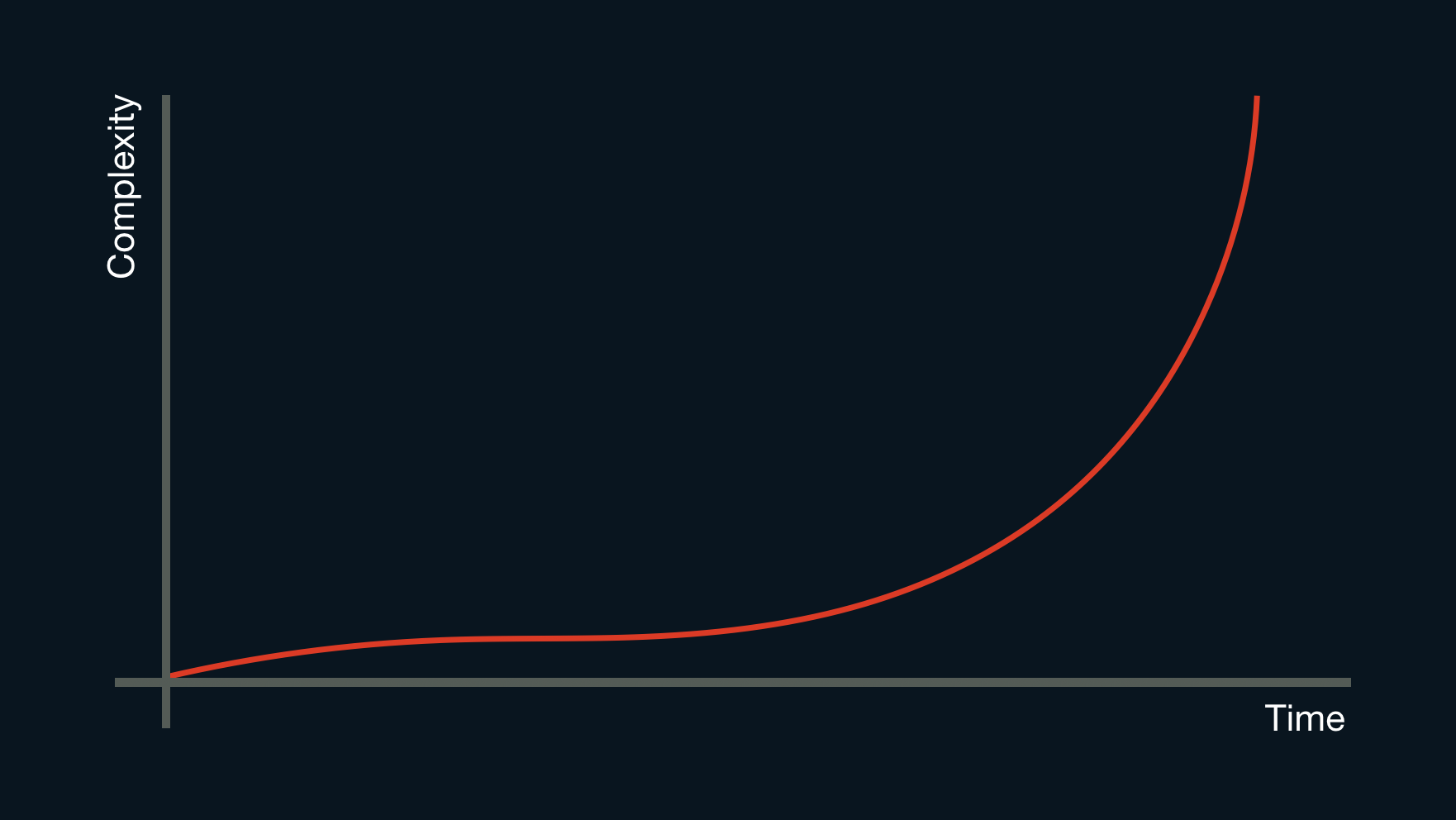
Despite my enthusiasm, I'm often disheartened by the steep complexity curve I typically encounter about halfway through a JAMstack project. Normally the first few weeks are incredibly liberating. It's easy to get started, there is good visible progress, everything feels lean and fast. Over time, as more features are added, the build steps become more complex, multiple APIs are added, and suddenly everything feels slow. In other words, the development experience begins to suffer.

It usually looks something like this:

A hand-drawn chart showing complexity of a project over time. It shows a complexity curve that rises steeply at the end.

One of the reasons for this steep rise in complexity is there are limits to the type of data that markdown can easily represent. Relationships are one example where static sites struggle. Relationships between pages or collections of assets (such as an image gallery) can only be represented by markdown in inefficient ways. It requires significant preprocessing to resolve anything more complicated than a simple set of tags or categories. If you’ve ever had to do it, you will also know the authoring experience of managing relationships in markdown isn’t ideal.

User-generated content is another area that can cause a steep rise in the complexity of static sites. Adding features like comments, ratings, likes or any other kind of dynamic content will require third-party services — each has its own account that needs to be managed, not to mention that adding third-party scripts can have a negative impact of page performance.

If a service doesn't match your specific requirements, sometimes it’s possible to cobble solutions together using generic platforms like Google Forms or AirTable.

The end result is we've outsourced the database, fragmented the content management experience and stitched together a bundle of compromises. That’s a stark contrast from the initial ease of setting up and deploying a JAMstack site.

Although this complexity curve is not unique to JAMstack projects, adding rich features to markdown-driven sites is far more difficult than we care to admit. What happened!? A lack of complexity was one of the reasons we favored JAMstack in the first place.

We did that thing that web developers do. We moved the complexity from one space into another and congratulated ourselves 😂. Not having complexity on the server-side is good for front-end performance, but there is little incentive to optimize any further once we do this. Ridiculous build times and complicated tool-chains have become an acceptable reality for modern front-end web development.

JAMstack Plus

Before I come across as sounding too critical, I should make it clear that I absolutely love static site generators. I think they are a perfect solution for many simple sites and you should still use them. However, I feel like a simple content management layer that I own and can configure is preferable to:

  • poor content management experiences,
  • complicated integration of third-party services, and
  • inefficient build processes.

I want to combine the benefits of a CMS with static site generators.

And it seems I'm not the only one who has reached this conclusion:

The solution doesn’t need to be another third-party service or require abandoning static sites entirely. You can use a personalized content management layer and unified API to enrich a static site. It might not be as hard as you think.

The first step is to create an API for your site. You can use any headless CMS, but the challenge I’ve had with many options is they make a lot of assumptions about the type of content you want. You might not want the CMS to manage pages and posts, but rather use it to store comments or images. I find this particularly difficult with WordPress. I often feel like I’m forcing a blogging platform to be just the service I need.

The new version of KeystoneJS (Keystone 5) is an excellent alternative to more opinionated content management systems. It's made up of tiny independent components, so you only add the parts you need. This means it doesn’t feel like modifying a blogging platform. Instead it's like creating a personalized mini-CMS and API to work specifically with your site.

I call this approach JAMstack Plus.

To help you get started with this idea I've created two projects:

  1. Supermaya, a starter kit for the static site generator Eleventy.
  2. Keystone JAMstack Plus, a blog enrichment platform.

Introducing Supermaya

The first project I want to share with you is Supermaya, an Eleventy starter kit designed to help add rich features to a blog or website without a complicated build process.

It comes with the all "blog standard" features including:

  • Posts and Pages
  • Pagination
  • Tags
  • RSS feed
  • Service worker
  • Lazy loading images
  • Critical CSS (if enabled)

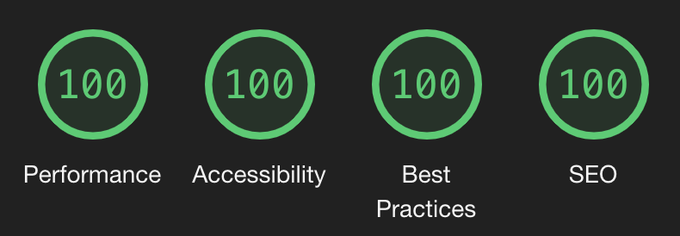
It also has considerate and accessible markup. If deployed correctly, it should get full scores on a lighthouse audit out-of-the-box:

Supermaya scores 100% on Lighthouse tests.

I didn’t build Supermaya specifically as a platform to add user-generated content to static sites. Instead, I started it because I was not satisfied with the way existing static site generators integrate with other build tools. That’s why all the pre-processing steps in Supermaya are built into Eleveny itself. This includes the compilation of SCSS and JavaScript. Unifying the compilation steps eliminates the need for build tools like Grunt, Gulp or Webpack running in parallel.

After this, I realized the other reason for increasing complexity on JAMstack sites was integration with third-party services, usually for user-generated content. To solve this, Supermaya has optional tie-ins with a Keystone JAMstack Plus starter-kit, which makes it easier to add user-generated content and other rich features.

You can deploy both Keystone and Supermaya together and connect them at the same time by following the instructions during installation. This will deploy Keystone to Herouku and Supermaya to Netlify, as well as configure your admin user and API URL.

Rich features are added with progressive enhancement, so if the API cannot be reached or there is a server error, the site will continue to function without noticeable degradation or delays for users.

JAMstack Plus starter kit

The Keystone JAMstack Plus starter kit allows you to add rich features to a blog including:

  • Comments
  • Claps
  • Reading list, and
  • Logins

Just like Supermaya, it can be used on its own. After it’s deployed, you’ll get access to an admin interface that allows you to create and manage content. You’ll also get a GraphQL endpoint that can be connected to Supermaya.

It’s configured with the intention of being a headless CMS for user-generated content. It expects pages and posts to be managed by a static site generator. However, with a little work — and following the examples in Supermaya — you can connect any front-end to the GraphQL API.

I’d encourage you to modify the starter-kit: Add additional features or provide content for pages directly from Keystone. If you add features that could be used by the rest of the community contribute back to the starter-kit and we can make it easier for everyone to add rich features to their sites without the need for third-party services.

Note: The automatic deploy will deploy to a free instance of Heroku. This will sleep periodically if not used which can result in slow API response times after periods of inactivity. You can upgrade to a hobby instance to avoid this.

Consider owning your own data

JAMstack and servers are not incompatible. There’s always a server (usually multiple) — it’s just a question of who owns it. If you are using any kind of third-party service, the chances are they own your account information, your content and collect user data.

Sometimes this might be an acceptable compromise compared with the overhead of deploying and managing a back-end service, but when the complexity of stitching together several APIs becomes comparable to a CMS, I believe managing a tiny configurable service that you own, can provide a better experience for users, developers and content managers. It also provides a solid platform for websites to grow beyond purely static content into more complicated and varying types of applications.

I don’t think JAMstack should defined by pushing all the complexity into the front-end build process or by compromising on developer and user experience. Instead, I think JAMstack should focus on providing lean, configurable static front-ends. These can be connected to APIs to provide user-generated data and content management services. There is no reason not to own and manage these services, if it provides the best outcome.

The post The Rising Complexity of JAMstack Sites and How to Manage Them appeared first on CSS-Tricks.

22 Oct 14:57

Ghost Buttons with Directional Awareness in CSS

by Jhey Tompkins

It would surprise me if you'd never come across a ghost button 👻. You know the ones: they have a transparent background that fills with a solid color on hover. Smashing Magazine has a whole article going into the idea. In this article, we’re going to build a ghost button, but that will be the easy part. The fun and tricky part will be animating the fill of that ghost button such that the background fills up in the direction from which a cursor hovers over it.

Here’s a basic starter for a ghost button:

See the Pen
Basic Ghost Button 👻
by Jhey (@jh3y)
on CodePen.

In most cases, the background-color has a transition to a solid color. There are designs out there where the button might fill from left to right, top to bottom, etc., for some visual flair. For example, here’s left-to-right:

See the Pen
Directional filling Ghost Button 👻
by Jhey (@jh3y)
on CodePen.

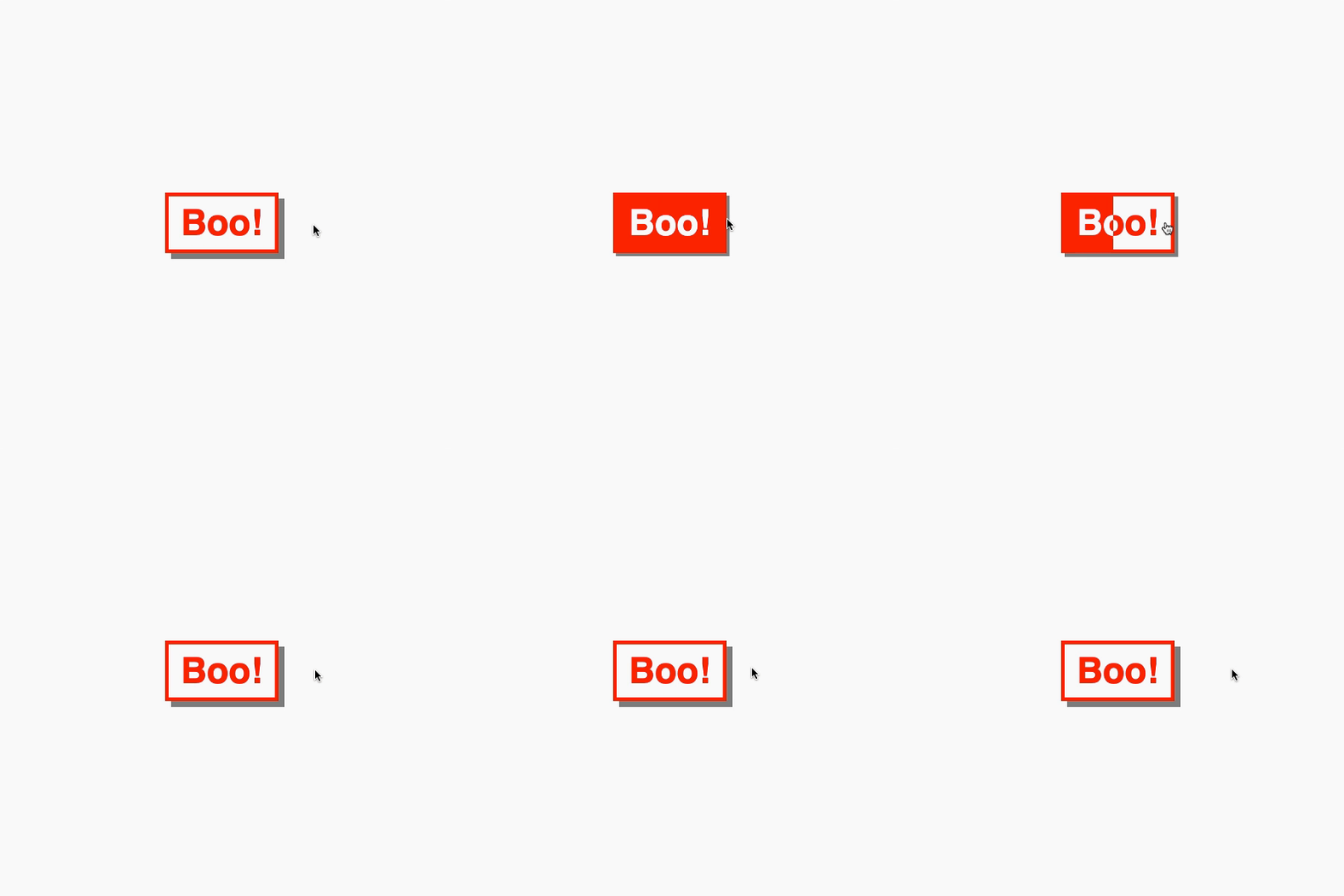
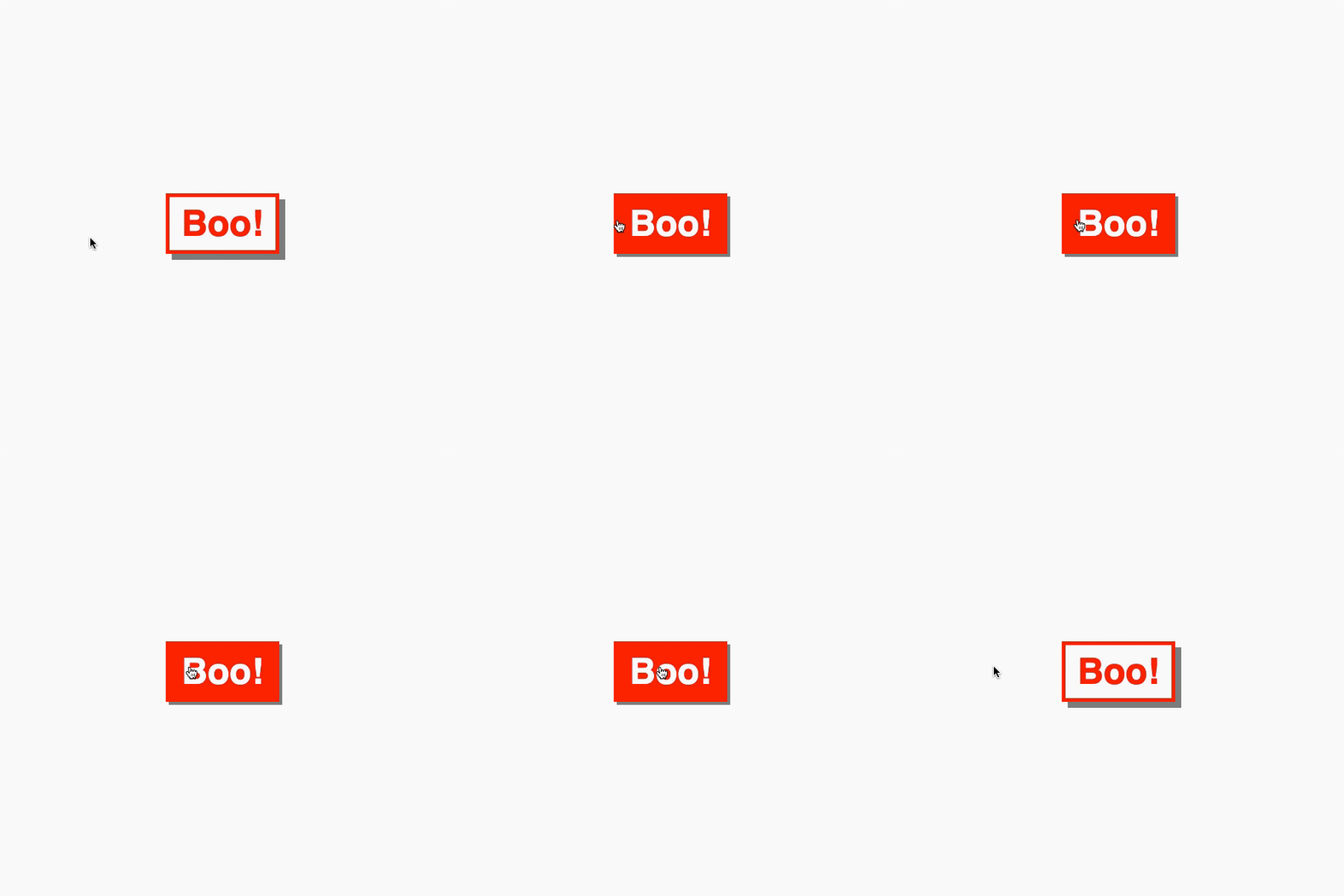
There's a UX nitpick here. It feels off if you hover against the fill. Consider this example. The button fills from the left while you hover from the right.

Hover feels off 👎

It is better if the button fills from our initial hover point.

Hover feels good 👍

So, how can we give the button directional awareness? Your initial instinct might be to reach for a JavaScript solution, but we can create something with CSS and a little extra markup instead.

For those in camp TL;DR, here are some pure CSS ghost buttons with directional awareness!

See the Pen
Pure CSS Ghost Buttons w/ Directional Awareness ✨👻😎
by Jhey (@jh3y)
on CodePen.

Let’s build this thing step by step. All the code is available in this CodePen collection.

Creating a foundation

Let’s start by creating the foundations of our ghost button. The markup is straightforward.

<button>Boo!</button>

Our CSS implementation will leverage CSS custom properties. These make maintenance easier. They also make for simple customization via inline properties.

button {
  --borderWidth: 5;
  --boxShadowDepth: 8;
  --buttonColor: #f00;
  --fontSize: 3;
  --horizontalPadding: 16;
  --verticalPadding: 8;

  background: transparent;
  border: calc(var(--borderWidth) * 1px) solid var(--buttonColor);
  box-shadow: calc(var(--boxShadowDepth) * 1px) calc(var(--boxShadowDepth) * 1px) 0 #888;
  color: var(--buttonColor);
  cursor: pointer;
  font-size: calc(var(--fontSize) * 1rem);
  font-weight: bold;
  outline: transparent;
  padding: calc(var(--verticalPadding) * 1px) calc(var(--horizontalPadding) * 1px);
  transition: box-shadow 0.15s ease;
}

button:hover {
  box-shadow: calc(var(--boxShadowDepth) / 2 * 1px) calc(var(--boxShadowDepth) / 2 * 1px) 0 #888;
}

button:active {
  box-shadow: 0 0 0 #888;
}

Putting it all together gives us this:

See the Pen
Ghost Button Foundation 👻
by Jhey (@jh3y)
on CodePen.

Great! We have a button and a hover effect, but no fill to go with it. Let’s do that next.

Adding a fill

To do this, we create elements that show the filled state of our ghost button. The trick is to clip those elements with clip-path and hide them. We can reveal them when we hover over the button by transitioning the clip-path.

Child element with a 50% clip

They must line up with the parent button. Our CSS variables will help a lot here.

At first thought, we could have reached for pseudo-elements. There won't be enough pseudo-elements for every direction though. They will also interfere with accessibility... but more on this later.

Let's start by adding a basic fill from left to right on hover. First, let's add a span. That span will need the same text content as the button.

<button>Boo!
  <span>Boo!</span>
</button>

Now we need to line our span up with the button. Our CSS variables will do the heavy lifting here.

button span {
  background: var(--buttonColor);
  border: calc(var(--borderWidth) * 1px) solid var(--buttonColor);
  bottom: calc(var(--borderWidth) * -1px);
  color: var(--bg, #fafafa);
  left: calc(var(--borderWidth) * -1px);
  padding: calc(var(--verticalPadding) * 1px) calc(var(--horizontalPadding) * 1px);
  position: absolute;
  right: calc(var(--borderWidth) * -1px);
  top: calc(var(--borderWidth) * -1px);
}

Finally, we clip the span out of view and add a rule that will reveal it on hover by updating the clip. Defining a transition will give it that cherry on top.

button span {
  --clip: inset(0 100% 0 0);
  -webkit-clip-path: var(--clip);
  clip-path: var(--clip);
  transition: clip-path 0.25s ease, -webkit-clip-path 0.25s ease;
  // ...Remaining div styles
}

button:hover span {
  --clip: inset(0 0 0 0);
}

See the Pen
Ghost Button w/ LTR fill 👻
by Jhey (@jh3y)
on CodePen.

Adding directional awareness

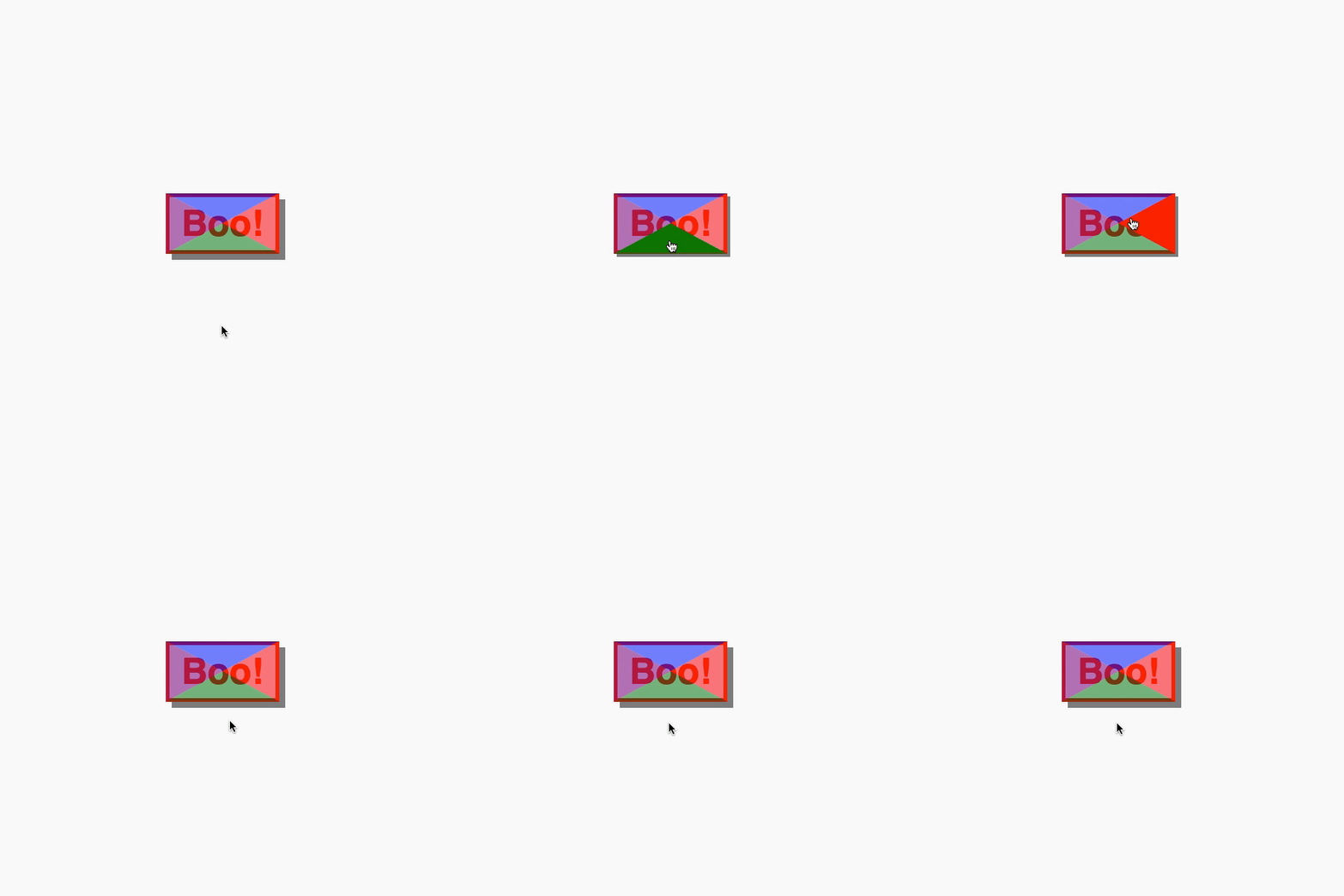
So, how might we add directional awareness? We need four elements. Each element will be responsible for detecting a hover entry point. With clip-path, we can split the button area into four segments.

Four :hover segments

Let's add four spans to a button and position them to fill the button.

<button>
  Boo!
  <span></span>
  <span></span>
  <span></span>
  <span></span>
</button>
button span {
  background: var(--bg);
  bottom: calc(var(--borderWidth) * -1px);
  -webkit-clip-path: var(--clip);
  clip-path: var(--clip);
  left: calc(var(--borderWidth) * -1px);
  opacity: 0.5;
  position: absolute;
  right: calc(var(--borderWidth) * -1px);
  top: calc(var(--borderWidth) * -1px);
  z-index: 1;
}

We can target each element and assign a clip and color with CSS variables.

button span:nth-of-type(1) {
  --bg: #00f;
  --clip: polygon(0 0, 100% 0, 50% 50%, 50% 50%);
}
button span:nth-of-type(2) {
  --bg: #f00;
  --clip: polygon(100% 0, 100% 100%, 50% 50%);
}
button span:nth-of-type(3) {
  --bg: #008000;
  --clip: polygon(0 100%, 100% 100%, 50% 50%);
}
button span:nth-of-type(4) {
  --bg: #800080;
  --clip: polygon(0 0, 0 100%, 50% 50%);
}

Cool. To test this, let's change the opacity on hover.

button span:nth-of-type(1):hover,
button span:nth-of-type(2):hover,
button span:nth-of-type(3):hover,
button span:nth-of-type(4):hover {
  opacity: 1;
}
So close

Uh-oh. There's an issue here. If we enter and hover one segment but then hover over another, the fill direction would change. That's going to look off. To fix this, we can set a z-index and clip-path on hover so that a segment fills the space.

button span:nth-of-type(1):hover,
button span:nth-of-type(2):hover,
button span:nth-of-type(3):hover,
button span:nth-of-type(4):hover {
  --clip: polygon(0 0, 100% 0, 100% 100%, 0 100%);
  opacity: 1;
  z-index: 2;
}

See the Pen
Pure CSS Directional Awareness w/ clip-path 👻
by Jhey (@jh3y)
on CodePen.

Putting it all together

We know how to create the fill animation, and we know how to detect direction. How can we put the two together? Use the sibling combinator!

Doing so means when we hover a directional segment, we can reveal a particular fill element.

First, let's update the markup.

<button>
  Boo!
  <span></span>
  <span></span>
  <span></span>
  <span></span>
  <b>Boo!</b>
  <b>Boo!</b>
  <b>Boo!</b>
  <b>Boo!</b>
</button>

Now, we can update the CSS. Referring to our left-to-right fill, we can reuse the styling. We only need to set a specific clip-path for each element. I've approached the ordering the same as some property values. The first child is top, the second is right, and so on.

button b:nth-of-type(1) {
  --clip: inset(0 0 100% 0);
}
button b:nth-of-type(2) {
  --clip: inset(0 0 0 100%);
}
button b:nth-of-type(3) {
  --clip: inset(100% 0 0 0);
}
button b:nth-of-type(4) {
  --clip: inset(0 100% 0 0);
}

The last piece is to update the clip-path for the relevant element when hovering the paired segment.

button span:nth-of-type(1):hover ~ b:nth-of-type(1),
button span:nth-of-type(2):hover ~ b:nth-of-type(2),
button span:nth-of-type(3):hover ~ b:nth-of-type(3),
button span:nth-of-type(4):hover ~ b:nth-of-type(4) {
  --clip: inset(0 0 0 0);
}

Tada! We have a pure CSS ghost button with directional awareness.

See the Pen
Pure CSS Ghost Button w/ Directional Awareness 👻
by Jhey (@jh3y)
on CodePen.

Accessibility

In its current state, the button isn't accessible.

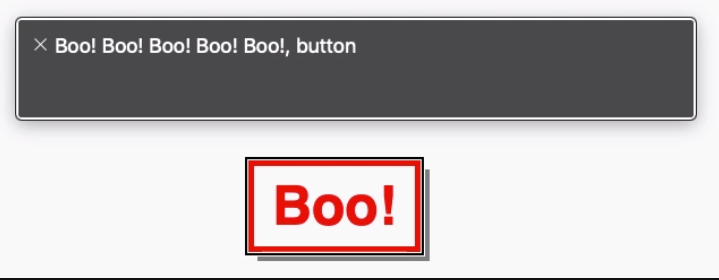
The extra markup is read by VoiceOver.

Those extra elements aren't helping much as a screen reader will repeat the content four times. We need to hide those elements from a screen reader.

<button>
  Boo!
  <span></span>
  <span></span>
  <span></span>
  <span></span>
  <b aria-hidden="true">Boo!</b>
  <b aria-hidden="true">Boo!</b>
  <b aria-hidden="true">Boo!</b>
  <b aria-hidden="true">Boo!</b>
</button>

No more repeated content.

See the Pen
Accessible Pure CSS Ghost Button w/ Directional Awareness 👻
by Jhey (@jh3y)
on CodePen.

That’s it!

With a little extra markup and some CSS trickery, we can create ghost buttons with directional awareness. Use a preprocessor or put together a component in your app and you won't need to write out all the HTML, too.

Here's a demo making use of inline CSS variables to control the button color.

See the Pen
Pure CSS Ghost Buttons w/ Directional Awareness ✨👻😎
by Jhey (@jh3y)
on CodePen.

The post Ghost Buttons with Directional Awareness in CSS appeared first on CSS-Tricks.

16 Oct 07:43

Images Are Not Static Content

by Geoff Graham

We constantly hear about the importance of keeping websites lean and fast. A fast-loading website makes users more satisfied, and satisfied users spend more time and money on your website. However, website optimization is a complex task, as there is not one silver bullet to fix all of the issues causing poor performance.

We also hear that addressing the performance of images is a low hanging fruit if you want to improve your site’s user experience However, anyone who has gotten their hands dirty trying to optimize images and cover major use cases and scenarios with responsive images knows that the complexity of this task escalates quickly. For most medium to large sites, image optimization is not a task suited to humans. This is why image content delivery networks (CDN) exist.

An image CDN is indeed a content delivery network built especially for images. Just like the name suggests. So, why would we need a special CDN to serve images? Why not use a regular CDN to serve static files? Short answer is that images are not static files...

Most image CDNs treat an image as dynamic content by optimizing the image in different ways based on context where the image is consumed.

Explained a bit differently; if you’re using responsive images on your website, an image cdn will automatically generate the derivatives of the image according to the sizes specified in the markup, usually based on some URL parameters. For example, the below code selects from 3 derivatives specified in the srcset attribute based on 3 breakpoints:

<img src="//i.foo.com/image.jpg" alt="cat"

  srcset="//i.foo.com/image.jpg?width=320 320w, //i.foo.com/image.jpg?width=640 640w, //i.foo.com/image.jpg?width=1280 1280w"

  sizes="(max-width: 480px) 100vw, (max-width: 900px) 33vw, 254px">

This way, the developer or designer doesn’t have to worry about creating all the image versions beforehand. Which is very good news, because the number of derivative images may quickly grow exponentially based on many break points, image formats, and screen resolutions. And that is before we’ve started talking about art direction.

Dynamic Image Optimization on Autopilot

Now that we’ve seen how an image CDN can create different sizes of an image on the fly, let's examine how this improves web performance.

Before we go further to choose an image CDN for the examples later, it is important to point out the difference between an image CDN and a digital asset management tool (DAM). A DAM, such as Cloudinary, is mostly focused for file management aspect and often allows you to edit images and apply art direction like filters. Usually these DAMs need a general purpose CDN in front and there is little support for automation of image optimization tasks.

On the opposite end of the scale is ImageEngine. ImageEngine is the most effective image CDN on the market thanks to its built in device detection that enables superior image optimization for mobile traffic. Since mobile devices account for more than 50% of the traffic in many countries, ImageEngine truly has an advantage over other CDNs. While most other image CDNs only offer little or no automatic optimization, ImageEngine has more advanced approach thanks to its focus on mobile traffic. Hence, ImageEngine will be able to produce the best results with less implementation effort and maintenance.

How ImageEngine Improves Web Performance

With ImageEngine handling all image traffic, images are no longer static content. Images are now adapted and served exactly in the size, format, compression rate and resolution needed. Fine. But how do we measure the improvement?

These days, the “go to tool” for identifying performance issues and measuring performance is Google Lighthouse. Lighthouse is available as a standalone app and in your Chrome developer tools.

We’ll run a performance audit on an e-commerce demo page listing product images.

The page has a typical responsive grid layout with product images. The layout has a few breakpoints where the display size of the images change because number of items per row changes. Moreover, there is a mouse over feature displaying a different image of the product. The mouseover effect is handled by JavaScript and even the hidden image is always loaded in our example. So all in all, quite a few images and potential sizes.

Step One: Assess Current State

Running the Lighthouse audit on the demo-page we see a number of issues, summarized in a performance score of 98. The best score is 100, so 98 might not seem that bad. Which is true, but pay more attention to the metrics below the score. The performance score is calculated based on a few metrics with varied weighting. The images on our page have direct and indirect impact on these metrics.

In the details of the report, we see a few opportunities related to images listed:

  • Properly size images. The images does not have the right pixel size. This is quite common on pages with a responsive or fluid layout.
  • Serve images in next-gen formats. For Chrome this basically mean to convert images to webp. Usually webp is a more efficient format than most others when it comes to byte size and decode speed.
  • Efficiently encode images. There is more compression that can be applied to the images before impacting perceived visual quality.

The estimated savings (to the right in the report) are huge. This demonstrates why addressing images is considered a low hanging fruit for performance.

If you haven't signed up already, create a free ImageEngine trial account. Once you’ve completed signup you can define the image origin (usually your website) and a domain from which you want to serve images from. The image may be something like images.mydomain.com. You point this domain name to ImageEngine with a CNAME record in your DNS, and you’re good to go.

The next step is changing the markup to make the most out of ImageEngine’s automatic features.

If our previous image tag looked like this:

<img class="pic-1" src="images/demo9/img-1.jpg">

Our new image tag will look like this when the ImageEngine domain name is serving the images:

<img class="pic-1" src="https://images.mydomain.com/images/demo9/img-1.jpg">

Because our grid layout is fluid with 4 breakpoints, we might also consider to use responsive images syntax:

<img
  class="pic-1" 
  src="https://images.mydomain.com/images/demo9/img-1.jpg" 
  sizes="(max-width: 576px) 93vw, 
         (max-width: 768px) 238px, (max-width: 768px) 238px, 
         (max-width: 992px) 148px, 253px"
>

Thanks to ImageEngine's support for Client hints, ImageEngine will now generate the exact pixel size needed. Client hints are additional HTTP headers the browser can send to enable more accurate image resizing. Client hints are currently only supported by Chrome browsers

Step Three: Measure the Improvement

Running the Lighthouse audit again, we see that the score is now 100. But more importantly, look at the improvements in timings. “Time to interactive” for example. 0.7 seconds less waiting for the user in order to interact with the page. All because images are optimized properly.

What does really “optimized” mean in this case? Why is the page faster and user experience better with ImageEngine? Most of the positive impact is due to reduction in byte size of the images. The less bytes, the faster are the images transferred from the host (or ImageEngine’s edge servers) to the browser. Moreover, lighter images are usually faster to decode and render onto the users screen. This is very simplified, but let’s see how much ImageEngine reduces the image payload using WebPageTest.org to compare our demo site with-, and without ImageEngine:

ImageEngine reduces the image payload to only 25% of the original size.

Bonus: Fix Caching

In the continuous hunt for improved performance, you may have seen this alert from Lighthouse.

Lighthouse thinks the images have a too short Time To Live (TTL) -measured in seconds- in the browser cache. By default, ImageEngine passes on the cache directives given by the origin but luckily this can be changed in ImageEngine's management interface.

Next Step: Automate Image Optimization

We’ve seen how images should no longer can be treated as static content if we want a high performing web site. Because images have such a high impact on website performance, images must be tailored according to the capabilities and context of the browser and user.

A purpose-built image CDN will relieve humans of the responsibility of trying to accommodate all possible combinations of image formats, sizes and compression levels. Managing image derivatives, is not a task for humans as it will quickly grow to become unmanageable.

Using tools like Lighthouse and WebPageTest.org document the positive impact image CDNs like ImageEngine has on important performance metrics.

The post Images Are Not Static Content appeared first on CSS-Tricks.

06 Aug 12:10

The Strategic Advantages of Headless Web Design

by Gal Shachar
How Your Agency Can Use Headless Web Design as a Strategic Advantage

This article was created in partnership with Duda. Thank you for supporting the partners who make SitePoint possible.

Kentico’s most recent State of the Headless CMS report claims that the concept of the headless content management system is “becoming the industry standard for future-proofing and streamlining content creation.” In fact, the report estimates that by this summer, headless CMS use will have doubled.

But what does that even mean?

If you’re currently using a traditional CMS such as WordPress, Drupal or Joomla for your web development needs, chances are you may have never heard of a headless CMS. But what you might know is that you want to build a one-of-a-kind website for your growing agency that can scale with ease, and that marketing your brand across multiple channels is a must if you want to beat the competition.

In this article, we’re going to share with you what the headless CMS trend is all about and how using this API-powered approach to design and deploy your company’s website can help you get ahead, no matter how competitive your industry is.

So, let’s get started.

What Is a Headless CMS?

To better understand what a headless CMS is, let’s compare a traditional CMS (or “monolithic”, as developer Bret Cameron likes to call it), a decoupled CMS, and a headless CMS.

Traditional CMS

Traditional CMS platforms like WordPress link the front end of your website, called the head, to the back end of your site, where all your content files and databases are stored. The head of the CMS is strictly responsible for presenting your website to site visitors when they click on your site. The back end, on the other hand, not only stores content, but is where website design and customization applications are stored, where content is created, and where management of site functionality occurs.

Paired together, as they traditionally are, the back-end portion of the website relies on the head of the CMS to display the stored content on devices to users.

Decoupled CMS

With a decoupled CMS architecture, the head portion and the back end of the site are split into two separate systems. One system is responsible for content creation and storage, and the other is responsible for presenting the data to users on an interface, such as a website, mobile app, smartwatch, etc.

When content is created on your website using a headless CMS, a RESTful API helps connect the back end to the head, so that the content can be delivered to users on any device or channel with ease.

A RESTful API is a type of application interface using HTTP requests to GET, POST, PUT, and DELETE data that’s requested by users. It allows for multiple data formats such as JSON, HTML, XML, and plain text. It’s ultimately what links the client and server in a decoupled CMS, allowing your site to infinitely scale and deliver content to anyone on any device.

Headless CMS

A truly headless CMS eliminates the head portion altogether, leaving just the back end. In other words, there’s no dedicated system for front-end presentation. And while you might initially wonder if this type of structure might be to your disadvantage, it’s actually the best way to display content to your site visitors on all devices and interfaces, putting your agency in the best possible position to scale.

Here’s a simple breakdown of how it works:

  • Website owners create content (often in small blocks) in the headless CMS, with no regard for how it will display to users. They also store and manage this content here.
  • An API connects the back end to many different channels and the various engines that power their front ends.
  • The channel or device displays your site’s content.

The way your content will display on the different channels and devices will depend on the frameworks and tools your front-end developers use to act as the “head” portion of your headless CMS.

So it’s more freedom to integrate with more front ends, more scalably and without the risk of breaking anything. How, exactly? Let’s dive a little deeper.

The Advantages of a Headless CMS

APIs work with a headless CMS to do the following:

  • Reduce Strain. Using a headless CMS, which stores content in a cloud repository as opposed to a server, will leverage less bandwidth, save resources, and reduce the strain your clients’ websites experience.

  • Manage and Store Content
.
With a headless CMS, all content, including written text and images, are stored in the back end of the database. With a traditional CMS, not only is content stored and managed here, but so are front-end templates, CSS, and plugins for front-end functionality. Separating the back end from the front end means you can upgrade and customize your website without compromising site speed or performance — since all your client needs to worry about is managing and storing content.
  • Third-party Integrations.

A headless CMS gives you the chance to use third-party systems to trigger, write and read content for you, making development less disruptive. It also gives developers the flexibility to use the front-end framework they prefer to display their site content, focusing more on content creation and less on content management.

Lastly, a headless CMS protects you, your company and your website’s content from future technological advances. After all, platforms and technology are always evolving, making it challenging to keep up.

For example, think about all the problems that those of us who didn’t build responsive websites had when mobile-friendliness became a necessity. People all over, regardless of how well-established and successful they were at the time, had to change everything to ensure a seamless mobile experience.

And there’s no end in sight to the trends — from artificial intelligence to augmented reality to voice assistants — that have the power to change the way you build and deliver digital content experiences. Traditional CMS platforms were designed with website publishing in mind. They were not built with social media product listings, smartwatch apps or talking speakers in mind.

So when the build is decoupled from the delivery, you’re in the best possible position to experiment with new channels and formats on an agile basis. And this is a key aspect to any agency’s value proposition.

If you take advantage of the headless CMS approach and use APIs to deliver your content to where it needs to surface, it won’t matter what changes. That’s because as long as an API-fed front end can be built, your client’s content can be configured to render properly.

Headless CMS Limitations

Though it might seem as though a headless CMS is the answer to all your website problems, be aware that there are some downsides preventing traditional CMS users from making the switch:

  • Limited Editing UI.

When compared to traditional CMSs, headless CMSs usually lack the flexibility that content managers generally rely on to optimize the content for specific front end uses. If you need to use your CMS for creating landing pages or even article page layouts, the lack of a “Preview” button might be an issue. There is no WYSIWYG page editor on these platforms, since the whole point of going headless is that it won’t render HTML, which makes designing medium-specific content experiences more difficult.

  • Lack of Built-in Features
.
 Boris Kraft, CTO and co-founder of Magnolia CMS, reminds people that a traditional CMS will generally come with features like “asset management, navigation, security, workflow, access control, caching, categorization and link management.” In fact, he goes on to say that while a headless CMS does provide companies with more flexibility, many often get lost in the hype and forget that “I have to write, debug and maintain everything I need myself” with a headless CMS solution.

While there is no CMS solution that satisfies all needs, it’s worth noting that the headless CMS approach can be beneficial when used in a hybrid situation.

In fact, if you use a solution such as Duda, a leading web design platform for companies providing web design services to others, and take advantage of APIs to deliver content and handle your site’s structure and layouts on multiple channels, you can get the best of both worlds.

The post The Strategic Advantages of Headless Web Design appeared first on SitePoint.

06 Aug 12:08

An Introduction to Data Visualization with Vue and D3.js

by Christopher Vundi
An Introduction to Data Visualization with Vue and D3.js

Web applications are normally data-driven and oftentimes the need arises to visualize this data. That’s where charts and graphs come in. They make it easier to convey information, as well as demonstrate correlations or statistical relationships. Information presented in the form of a chart or a graph is also easier for a non-native speaker to understand.

In this tutorial, we’ll learn how to visualize data in a Vue project. For this, we’ll be using the popular D3.js library, which combines powerful visualization components and a data-driven approach to DOM manipulation.

Let’s get started.

Note: the code for this tutorial can be found on GitHub.

What is D3?

As you can read on the project’s home page, D3.js is a JavaScript library for manipulating documents based on data. D3 helps you bring data to life using HTML, SVG, and CSS. Its emphasis on web standards gives you the full capabilities of modern browsers without tying yourself to a proprietary framework.

Whereas most people will refer to D3.js as a data visualization library, it’s not. D3 is more of a framework comprising different parts — such as jQuery parts (which help us select and manipulate DOM elements), Lodash parts, animation parts, data analysis parts, and data visualization parts.

In this tutorial, we’ll be working with the visualization aspect of D3. The real meat of D3 when visualizing data is:

  • the availability of functions for decorating data with drawing instructions
  • creating new drawable data from source data
  • generating SVG paths
  • creating data visualization elements (like an axis) in the DOM from your data and methods

What We’ll Be Building

We want to create an app that lets users search for a repo on GitHub, then get a visual representation of issues opened in the past week that are still open. The end result will look like this:

Final Chart

Prerequisites

This tutorial assumes you have a working knowledge of Vue. Previous knowledge of D3.js isn’t required, but if you’d like to get up to speed quickly, you might want to read our D3 by example tutorial.

You’ll also need to have Node installed on your system. You can do this by downloading the binaries for your system from the official website, or using a version manager.

Finally, we’ll be using the following packages to build our app:

  • Vue CLI — to scaffold out the project
  • D3.js — to visualize our data
  • Lodash — which provides a handful of utility methods
  • Moment JS — for date and time formatting
  • axios — an HTTP client to help us make requests to an external API

New Vue Project

I prefer creating new Vue projects using Vue CLI. (If you’re not familiar with Vue CLI, our beginner’s guide in this Vue series gives a full introduction.) Vue CLI provides a nice folder structure for placing different sections of the code, such as styles, components, and so on.

Make sure that the CLI is installed on your machine:

npm install -g @vue/cli

Then create a new project with the following command:

vue create issues-visualization

Note: while creating a new project using Vue CLI, you’ll be prompted to pick a preset. For this particular project, we’ll just stick with the default (Babel + ESLint).

Once our new Vue project has been created, we cd into the project folder and add the various node modules we’ll need:

npm install lodash d3 axios moment

Even though this is a simple app that doesn’t have many running parts, we’ll still take the components approach instead of dumping all the code inside the App.vue file. We’re going to have two components, the App component and a Chart component that we’re yet to create.

The App component will handle fetching data from GitHub, then pass this data to the Chart component as props. The actual drawing of the chart will happen inside the Chart component. Structuring things this way has the advantage that, if you want to use a library other than axios to fetch the data, it’ll be easier to swap it out. Also, if you want to swap D3 for a different charting library, that’ll be easier too.

Building the Search Interface

We’ll start by building a search interface that lets users enter the name of the repo they want to see visualized.

In src/App.vue, get rid of everything inside the <template> tag and replace the content with this:

<template>
  <div id="app">
    <form action="#" @submit.prevent="getIssues">
      <div class="form-group">
        <input
          type="text"
          placeholder="owner/repo Name"
          v-model="repository"
          class="col-md-2 col-md-offset-5"
        >
      </div>
    </form>
  </div>
</template>

Here we have a form which, upon submission, prevents the browser’s default submission action, then calls a getIssues method that we’re yet to define. We’re also using a v-model directive to bind the input from the form to a repository property inside the data model of our Vue instance. Let’s declare that property repository as an empty string. We’ll also add a startDate property, which we’ll later use as the first date in our time range:

import moment from "moment";
import axios from "axios";

export default {
  name: "app",
  data() {
    return {
      issues: [],
      repository: "",
      startDate: null
    };
  },
  methods: {
    getIssues() {
      // code goes in here
    }
  }
};

Now on to creating the getIssues method:

getIssues() {
  this.startDate = moment()
    .subtract(6, "days")
    .format("YYYY-MM-DD");

  axios
    .get(
      `https://api.github.com/search/issues?q=repo:${this.repository}+is:issue+is:open+created:>=${this.startDate}`,
      { params: { per_page: 100 } }
    )
    .then(response => {
      const payload = this.getDateRange();

      response.data.items.forEach(item => {
        const key = moment(item.created_at).format("MMM Do YY");
        const obj = payload.filter(o => o.day === key)[0];
        obj.issues += 1;
      });

      this.issues = payload;
      console.log(this.issues);
    });
}

In the above block of code, we start by setting the startDate data property to six days ago and formatting it for use with the GitHub API.

We then use axios to make an API request to GitHub to get all issues for a particular repository that were opened in the past week and that are still open. You can refer to GitHub’s search API if you need more examples on how to come up with query string parameters.

When making the HTTP request, we set the results count to 100 per page (the max possible). There are hardly any repositories with over 100 new issues per week, so this should be fine for our purposes. By default, the per_page value is 30.

If the request completes successfully, we use a custom getDateRange method to initialize a payload variable that we will be able to pass to the Chart component. This payload is an array of objects that will like so:

[
  {day: "Dec 7th 18", issues: 0},
  {day: "Dec 8th 18", issues: 0},
  {day: "Dec 9th 18", issues: 0},
  {day: "Dec 10th 18", issues: 0},
  {day: "Dec 11th 18", issues: 0},
  {day: "Dec 12th 18", issues: 0},
  {day: "Dec 13th 18", issues: 0}
]

After that, we iterate over the API’s response. The data we’re interested in is in an items key on a data property on the response object. From this, we take the created_at key (which is a timestamp) and format it as the day property in our objects above. From there, we then look up the corresponding date in the payload array and increment the issues count for that date by one.

Finally, we assign the payload array to our issues data property and log the response.

Next, let’s add in the getDateRange method:

methods: {
  getDateRange() {
    const startDate = moment().subtract(6, 'days');
    const endDate = moment();
    const dates = [];

    while (startDate.isSameOrBefore(endDate)) {
      dates.push({
        day: startDate.format('MMM Do YY'),
        issues: 0
      });

      startDate.add(1, 'days');
    }

    return dates;
  },
  getIssues() { ... }
}

Before we get to the visualization bit, let’s also log any errors we might encounter when making our request to the console (for debugging purposes):

axios
  .get( ...)
  .then(response => {
    ...
  })
  .catch(error => {
    console.error(error);
  });

We’ll add some UX for informing the user in the case that something went wrong later.

So far, we have an input field that lets the user enter the organization/repository name they wish to search issues for. Upon form submission, all issues opened in the past one week are logged to the console.

Below is an example of what was logged on the console for the facebook/react repo:

Console output

If you start up the Vue dev server using npm run serve and enter some different repos, you should see something similar. If you’re stuck for inspiration, check out GitHub’s Trending page.

Next comes the fun bit — visualizing this data.

Drawing a Bar Chart Using D3

Earlier on, we mentioned that all the drawing will be handled inside a Chart component. Let’s create the component:

touch src/components/Chart.vue

D3 works on SVG elements, and for us to draw anything with D3, we need to have an SVG element on the page. In our newly created component (src/components/Chart.vue), let’s create an SVG tag:

<template>
  <div>
    <svg></svg>
  </div>
</template>

For this particular tutorial, we’ll visualize our data using a bar chart. I picked a bar chart because it represents a low complexity visual element while it teaches the basic application of D3.js itself. The bar chart is also a good intro to the most important D3 concepts, while still having fun!

Before proceeding, let’s update our App component to include the newly created Chart component below the form:

<template>
  <div id="app">
    <form action="#" @submit.prevent="getIssues">
      ...
    </form>

    <chart :issues="issues"></chart>
  </div>
</template>

Let’s also register it as a component:

import Chart from './components/Chart.vue';

export default {
  name: "app",
  components: {
    Chart
  },
  ...
}

Notice how we’re passing the value of the issues data property to the Chart component as a prop:

<chart :issues="issues"></chart>

Let’s now update our Chart component to make use of that data:

<script>
import * as d3 from "d3";
import _ from "lodash";

export default {
  props: ["issues"],
  data() {
    return {
      chart: null
    };
  },
  watch: {
    issues(val) {
      if (this.chart != null) this.chart.remove();
      this.renderChart(val);
    }
  },
  methods: {
    renderChart(issues_val) {
      // Chart will be drawn here
    }
  }
};
</script>

In the above code block, we’re importing D3 and Lodash. We then instantiate a chart data property as null. We’ll assign a value to this when we start drawing later on.

Since we want to draw the chart every time the value of issues changes, we’ve created a watcher for issues. Each time this value changes, we’ll destroy the old chart and then draw a new chart.

Drawing will happen inside the renderChart method. Let’s start fleshing that out:

renderChart(issues_val) {
  const margin = 60;
  const svg_width = 1000;
  const svg_height = 600;
  const chart_width = 1000 - 2 * margin;
  const chart_height = 600 - 2 * margin;

  const svg = d3
    .select("svg")
    .attr("width", svg_width)
    .attr("height", svg_height);
}

Here, we set the height and width of the SVG element we just created. The margin attribute is what we’ll use to give our chart some padding.

D3 comes with DOM selection and manipulation capabilities. Throughout the tutorial, you’ll see lot’s of d3.select and d3.selectAll statements. The difference is that select will return the first matching element while selectAll returns all matching elements.

The post An Introduction to Data Visualization with Vue and D3.js appeared first on SitePoint.

01 Feb 11:18

Awesome Demos from 2018

by Chris Coyier

This is an outstanding list of creative and artistic browser demos from this past year from Mary Lou at Codrops.

Direct Link to ArticlePermalink

The post Awesome Demos from 2018 appeared first on CSS-Tricks.

11 Apr 09:30

​The future of data collection is here

by Chris Coyier

(This is a sponsored post.)

Who said collecting data was easy? JotForm did. In today’s world, getting relevant data has never been more important for making informed business decisions. The thing is, companies still struggle with it because the forms they use for gathering information don’t typically resonate with their customers. Until now that is. With JotForm’s newest format, JotForm Cards, your online forms have all the same power of traditional forms, but with added benefits: they’re friendlier, sleeker, and not boring. Better yet, companies that use JotForm Cards see 36% higher conversions, which means more leads, more payments, more registrations, and more feedback. So, what are you waiting for? Get the data your company needs, and try out JotForm Cards for yourself today.

Direct Link to ArticlePermalink

The post ​The future of data collection is here appeared first on CSS-Tricks.

15 Jan 09:43

Looping with NoiseThis is a trick I’ve known for ages from VFX...

by proceduralgeneration


Looping with Noise

This is a trick I’ve known for ages from VFX work, so I really like this through explanation by Etienne Jacob (who has an excellent Tumblr blog of generative stuff). The post also explores a bunch of different things that you can draw with noise. Perlin (and Simplex) noise is useful for more than just the heightfield maps you may be used to!

Golan Leven has made an animation that demonstrates the basic idea behind the looping animations even more directly. (And provided source code for that too.) Like I said, this is one of my favorite noise tricks, and it works with any application of noise, so long as you have noise that’s at least 1 dimension higher than your output. And while circles are easiest (just rotate around a point) you can use any closed figure or repeating loop.

https://necessarydisorder.wordpress.com/2017/11/15/drawing-from-noise-and-then-making-animated-loopy-gifs-from-there/

https://gist.github.com/golanlevin/46a8fd29114f7a9f41345a9f0ccfd059

29 Dec 08:55

A Sliding Nightmare: Understanding the Range Input

by Ana Tudor

You may have already seen a bunch of tutorials on how to style the range input. While this is another article on that topic, it's not about how to get any specific visual result. Instead, it dives into browser inconsistencies, detailing what each does to display that slider on the screen. Understanding this is important because it helps us have a clear idea about whether we can make our slider look and behave consistently across browsers and which styles are necessary to do so.

Looking inside a range input

Before anything else, we need to make sure the browser exposes the DOM inside the range input.

In Chrome, we bring up DevTools, go to Settings, Preferences, Elements and make sure the Show user agent shadow DOM option is enabled.

Series of Chrome screenshots illustrating the steps described above.
Sequence of Chrome screenshots illustrating the steps from above.

In Firefox, we go to about:config and make sure the devtools.inspector.showAllAnonymousContent flag is set to true.

Series of Firefox screenshots illustrating the steps described above.
Sequence of Firefox screenshots illustrating the steps from above.

For a very long time, I was convinced that Edge offers no way of seeing what's inside such elements. But while messing with it, I discovered that where there's a will and (and some dumb luck) there's a way! We need to bring up DevTools, then go to the range input we want to inspect, right click it, select Inspect Element and bam, the DOM Explorer panel now shows the structure of our slider!

Series of Edge screenshots illustrating the steps described above.
Sequence of Edge screenshots illustrating the steps from above.

Apparently, this is a bug. But it's also immensely useful, so I'm not complaining.

The structure inside

Right from the start, we can see a source for potential problems: we have very different beasts inside for every browser.

In Chrome, at the top of the shadow DOM, we have a div we cannot access anymore. This used to be possible back when /deep/ was supported, but then the ability to pierce through the shadow barrier was deemed to be a bug, so what used to be a useful feature was dropped. Inside this div, we have another one for the track and, within the track div, we have a third div for the thumb. These last two are both clearly labeled with an id attribute, but another thing I find strange is that, while we can access the track with ::-webkit-slider-runnable-track and the thumb with ::-webkit-slider-thumb, only the track div has a pseudo attribute with this value.

Chrome screenshot of the structure we have inside a range input.
Inner structure in Chrome.

In Firefox, we also see three div elements inside, only this time they're not nested - all three of them are siblings. Furthermore, they're just plain div elements, not labeled by any attribute, so we have no way of telling which is which component when looking at them for the first time. Fortunately, selecting them in the inspector highlights the corresponding component on the page and that's how we can tell that the first is the track, the second is the progress and the third is the thumb.

Firefox screenshot of the structure we have inside a range input.
Inner structure in Firefox.

We can access the track (first div) with ::-moz-range-track, the progress (second div) with ::-moz-range-progress and the thumb (last div) with ::-moz-range-thumb.

The structure in Edge is much more complex, which, to a certain extent, allows for a greater degree of control over styling the slider. However, we can only access the elements with -ms- prefixed IDs, which means there are also a lot of elements we cannot access, with baked in styles we'd often need to change, like the overflow: hidden on the elements between the actual input and its track or the transition on the thumb's parent.

Edge screenshot of the structure we have inside a range input.
Inner structure in Edge.

Having a different structure and being unable to access all the elements inside in order to style everything as we wish means that achieving the same result in all browsers can be very difficult, if not even impossible, even if having to use a different pseudo-element for every browser helps with setting individual styles.

We should always aim to keep the individual styles to a minimum, but sometimes it's just not possible, as setting the same style can produce very different results due to having different structures. For example, setting properties such as opacity or filter or even transform on the track would also affect the thumb in Chrome and Edge (where it's a child/ descendant of the track), but not in Firefox (where it's its sibling).

The most efficient way I've found to set common styles is by using a Sass mixin because the following won't work:

input::-webkit-slider-runnable-track, 
input::-moz-range-track, 
input::-ms-track { /* common styles */ }

To make it work, we'd need to write it like this:

input::-webkit-slider-runnable-track { /* common styles */ }
input::-moz-range-track { /* common styles */ }
input::-ms-track { /* common styles */ }

But that's a lot of repetition and a maintainability nightmare. This is what makes the mixin solution the sanest option: we only have to write the common styles once so, if we decide to modify something in the common styles, then we only need to make that change in one place - in the mixin.

@mixin track() { /* common styles */ }

input {
  &::-webkit-slider-runnable-track { @include track }
  &::-moz-range-track { @include track }
  &::-ms-track { @include track }
}

Note that I'm using Sass here, but you may use any other preprocessor. Whatever you prefer is good as long as it avoids repetition and makes the code easier to maintain.

Initial styles

Next, we take a look at some of the default styles the slider and its components come with in order to better understand which properties need to be set explicitly to avoid visual inconsistencies between browsers.

Just a warning in advance: things are messy and complicated. It's not just that we have different defaults in different browsers, but also changing a property on one element may change another in an unexpected way (for example, when setting a background also changes the color and adds a border).

WebKit browsers and Edge (because, yes, Edge also applies a lot of WebKit prefixed stuff) also have two levels of defaults for certain properties (for example those related to dimensions, borders, and backgrounds), if we may call them that - before setting -webkit-appearance: none (without which the styles we set won't work in these browsers) and after setting it. The focus is going to be however on the defaults after setting -webkit-appearance: none because, in WebKit browsers, we cannot style the range input without setting this and the whole reason we're going through all of this is to understand how we can make our lives easier when styling sliders.

Note that setting -webkit-appearance: none on the range input and on the thumb (the track already has it set by default for some reason) causes the slider to completely disappear in both Chrome and Edge. Why that happens is something we'll discuss a bit later in this article.

The actual range input element

The first property I've thought about checking, box-sizing, happens to have the same value in all browsers - content-box. We can see this by looking up the box-sizing property in the Computed tab in DevTools.

Comparative screenshots of DevTools in the three browsers showing the computed values of box-sizing for a range input.
The box-sizing of the range input, comparative look at all three browsers (from top to bottom: Chrome, Firefox, Edge).

Sadly, that's not an indication of what's to come. This becomes obvious once we have a look at the properties that give us the element's boxes - margin, border, padding, width, height.

By default, the margin is 2px in Chrome and Edge and 0 .7em in Firefox.

Before we move on, let's see how we got the values above. The computed length values we get are always px values.

However, Chrome shows us how browser styles were set (the user agent stylesheet rule sets on a grey background). Sometimes the computed values we get weren't explicitly set, so that's no use, but in this particular case, we can see that the margin was indeed set as a px value.

Screenshot of Chrome DevTools showing where to look for how browser styles were set.
Tracing browser styles in Chrome, the margin case.

Firefox also lets us trace the source of the browser styles in some cases, as shown in the screenshot below:

Screenshot of Firefox DevTools showing where to look for how browser styles were set.
Tracing browser styles in Firefox and how this fails for the margin of our range input.

However, that doesn't work in this particular case, so what we can do is look at the computed values in DevTools and then checking whether these computed values change in one of the following situations:

  1. When changing the font-size on the input or on the html, which entails is was set as an em or rem value.
  2. When changing the viewport, which indicates the value was set using % values or viewport units. This can probably be safely skipped in a lot of cases though.
Gif recording showing how changing the font-size on the range input changes the margin value in Firefox.
Changing the font-size of the range input in Firefox also changes its margin value.

The same goes for Edge, where we can trace where user styles come from, but not browser styles, so we need to check if the computed px value depends on anything else.

Gif recording showing how changing the font-size on the range input doesn't change the margin value in Edge.
Changing the font-size of the range input in Edge doesn't change its margin value.

In any event, this all means margin is a property we need to set explicitly in the input[type='range'] if we want to achieve a consistent look across browsers.

Since we've mentioned the font-size, let's check that as well. Sure enough, this is also inconsistent.

First off, we have 13.3333px in Chrome and, in spite of the decimals that might suggest it's the result of a computation where we divided a number by a multiple of 3, it seems to have been set as such and doesn't depend on the viewport dimensions or on the parent or root font-size.

Screenshot of Chrome DevTools showing the user agent rule where the font-size for inputs is set.
The font-size of the range input in Chrome.

Firefox shows us the same computed value, except this seems to come from setting the font shorthand to -moz-field, which I was first very confused about, especially since background-color is set to -moz-Field, which ought to be the same since CSS keywords are case-insensitive. But if they're the same, then how can it be a valid value for both properties? Apparently, this keyword is some sort of alias for making the input look like what any input on the current OS looks like.

Screenshot of Firefox DevTools showing how the font-size for inputs is set.
The font-size of the range input in Firefox.

Finally, Edge gives us 16px for its computed value and this seems to be either inherited from its parent or set as 1em, as illustrated by the recording below:

Recording of Edge DevTools showing the computed value of  font-size for inputs and how this changes when changing the font-size of the parent.
The font-size of the range input in Edge.

This is important because we often want to set dimensions of sliders and controls (and their components) in general using em units so that their size relative to that of the text on the page stays the same - they don't look too small when we increase the size of the text or too big when we decrease the size of the text. And if we're going to set dimensions in em units, then having a noticeable font-size difference between browsers here will result in our range input being smaller in some browsers and bigger in others.

For this reason, I always make sure to explicitly set a font-size on the actual slider. Or I might set the font shorthand, even though the other font-related properties don't matter here at this point. Maybe they will in the future, but more on that later, when we discuss tick marks and tick mark labels.

Before we move on to borders, let's first see the color property. In Chrome this is rgb(196,196,196) (set as such), which makes it slightly lighter than silver (rgb(192,192,192)/ #c0c0c0), while in Edge and Firefox, the computed value is rgb(0,0,0) (which is solid black). We have no way of knowing how this value was set in Edge, but in Firefox, it was set via another similar keyword, -moz-fieldtext.

Comparative screenshots of DevTools in the three browsers showing the computed values of color for a range input.
The color of the range input, comparative look at all three browsers (from top to bottom: Chrome, Firefox, Edge).

The border is set to initial in Chrome, which is equivalent to none medium currentcolor (values for border-style, border-width and border-color). How thick a medium border is exactly depends on the browser, though it's at least as thick as a thin one everywhere. In Chrome in particular, the computed value we get here is 0.

Screenshot of Chrome DevTools showing how the border for inputs is set.
The border of the range input in Chrome.

In Firefox, we also have a none medium currentcolor value set for the border, though here medium seems to be equivalent to 0.566667px, a value that doesn't depend on the element or root font-size or on the viewport dimensions.

Screenshot of Firefox DevTools showing how the border for inputs is set.
The border of the range input in Firefox.

We can't see how everything was set in Edge, but the computed values for border-style and border-width are none and 0 respectively. The border-color changes when we change the color property, which means that, just like in the other browsers, it's set to currentcolor.

Recording of Edge DevTools showing the computed values of border properties for inputs and how border-color changes when changing the element's color property.
The border of the range input in Edge.

The padding is 0 in both Chrome and Edge.

Comparative screenshots of DevTools in Chrome and Edge browsers showing the computed values of padding for a range input.
The padding of the range input, comparative look at Chrome (top) and Edge (bottom).

However, if we want a pixel-perfect result, then we need to set it explicitly because it's set to 1px in Firefox.

Screenshot of Firefox DevTools showing how the padding for inputs is set.
The padding of the range input in Firefox.

Now let's take another detour and check the backgrounds before we try to make sense of the values for the dimensions. Here, we get that the computed value is transparent/ rgba(0, 0, 0, 0) in Edge and Firefox, but rgb(255,255,255) (solid white) in Chrome.

Comparative screenshots of DevTools in the three browsers showing the computed values of background-color for a range input.
The background-color of the range input, comparative look at all three browsers (from top to bottom: Chrome, Firefox, Edge).

And... finally, let's look at the dimensions. I've saved this for last because here is where things start to get really messy.

Chrome and Edge both give us 129px for the computed value of the width. Unlike with previous properties, we can't see this being set anywhere in Chrome, which would normally lead me to believe it's something that depends either on the parent, stretching horizontally to fit as all block elements do (which is definitely not the case here) or on the children. There's also a -webkit-logical-width property taking the same 129px value in the Computed panel. I was a bit confused by this at first, but it turns out it's the writing-mode relative equivalent - in other words, it's the width for horizontal writing-mode and the height for vertical writing-mode.

Gif recording showing how changing the font-size on the range input doesn't change its width value in Chrome.
Changing the font-size of the range input in Chrome doesn't change its width value.

In any event, it doesn't depend on the font-size of the input itself or of that of the root element nor on the viewport dimensions in either browser.

Gif recording showing how changing the font-size on the range input doesn't change its width value in Edge.
Changing the font-size of the range input in Edge doesn't change its width value.

Firefox is the odd one out here, returning a computed value of 160px for the default width. This computed value does however depend on the font-size of the range input - it seems to be 12em.

Gif recording showing how changing the font-size on the range input also changes its width value in Firefox.
Changing the font-size of the range input in Firefox also changes its width value.

In the case of the height, Chrome and Edge again both agree, giving us a computed value of 21px. Just like for the width, I cannot see this being set anywhere in the user agent stylesheet in Chrome DevTools, which normally happens when the height of an element depends on its content.

Gif recording showing how changing the font-size on the range input doesn't change its height value in Chrome.
Changing the font-size of the range input in Chrome doesn't change its height value.

This value also doesn't depend on the font-size in either browser.

Gif recording showing how changing the font-size on the range input doesn't change its height value in Edge.
Changing the font-size of the range input in Edge doesn't change its height value.

Firefox is once again different, giving us 17.3333px as the computed value and, again, this depends on the input's font-size - it's 1.3em.

Gif recording showing how changing the font-size on the range input also changes its height value in Firefox.
Changing the font-size of the range input in Firefox also changes its height value.

But this isn't worse than the margin case, right? Well, so far, it isn't! But that's just about to change because we're now moving on to the track component.

The range track component

There's one more possibility regarding the actual input dimensions that we haven't yet considered: that they're influenced by those of its components. So let's explicitly set some dimensions on the track and see whether that influences the size of the slider.

Apparently, in this situation, nothing changes for the actual slider in the case of the width, but we can spot more inconsistencies when it comes to the track width, which, by default, stretches to fill the content-box of the parent input in all three browsers.

In Firefox, if we explicitly set a width, any width on the track, then the track takes this width we give it, expanding outside of its parent slider or shrinking inside, but always staying middle aligned with it. Not bad at all, but, sadly, it turns out Firefox is the only browser that behaves in a sane manner here.

Gif recording showing how changing the width on the track component doesn't influence the width of the range input in Firefox only that of the track. Furthermore, the track and the actual range input are always middle aligned horizontally.
Explicitly setting a width on the track changes the width of the track in Firefox, but not that of the parent slider.

In Chrome, the track width we set is completely ignored and it looks like there's no sane way of making it have a value that doesn't depend on that of the parent slider.

Gif recording showing how changing the width on the track component doesn't do anything in Chrome.
Changing the width of the track doesn't do anything in Chrome (computed value remains 129px).

As for insane ways, using transform: scaleX(factor) seems to be the only way to make the track wider or narrower than its parent slider. Do note doing this also causes quite a few side effects. The thumb is scaled horizontally as well and its motion is limited to the scaled down track in Chrome and Edge (as the thumb is a child of the track in these browsers), but not in Firefox, where its size is preserved and its motion is still limited to the input, not the scaled down track (since the track and thumb are siblings here). Any lateral padding, border or margin on the track is also going to be scaled.

Moving on to Edge, the track again takes any width we set.

Gif recording showing how Edge allows us to change the width of the track without changing that of the parent slider.
Edge also allows us to set a track width that's different from that of the parent slider.

This is not the same situation as Firefox however. While setting a width greater than that of the parent slider on the track makes it expand outside, the two are not middle aligned. Instead, the left border limit of the track is left aligned with the left content limit of its range input parent. This alignment inconsistency on its own wouldn't be that much of a problem - a margin-left set only on ::-ms-track could fix it.

However, everything outside of the parent slider's content-box gets cut out in Edge. This is not equivalent to having overflow set to hidden on the actual input, which would cut out everything outside the padding-box, not content-box. Therefore, it cannot be fixed by setting overflow: visible on the slider.

This clipping is caused by the elements between the input and the track having overflow: hidden, but, since we cannot access these, we also cannot fix this problem. Setting everything such that no component (including its box-shadow) goes outside the content-box of the range is an option in some cases, but not always.

For the height, Firefox behaves in a similar manner it did for the width. The track expands or shrinks vertically to the height we set without affecting the parent slider and always staying middle aligned to it vertically.

Gif recording showing how changing the height on the track component doesn't influence the height of the range input in Firefox only that of the track. Furthermore, the track and the actual range input are always middle aligned vertically.
Explicitly setting a height on the track changes the height of the track in Firefox, but not that of the parent slider.

The default value for this height with no styles set on the actual input or track is .2em.

Gif recording showing how changing the font-size on the track changes its computed height in Firefox.
Changing the font-size on the track changes its computed height in Firefox.

Unlike in the case of the width, Chrome allows the track to take the height we set and, if we're not using a % value here, it also makes the content-box of the parent slider expand or shrink such that the border-box of the track perfectly fits in it. When using a % value, the actual slider and the track are middle aligned vertically.

Gif recording showing how changing the height on the track component doesn't influence the height of the range input in Chrome if the value we set is a % value. Otherwise, the track expands or shrinks such that the track perfectly fits in. Furthermore, in the % case, the track and the actual range input are always middle-aligned vertically.
Explicitly setting a height on the track in % changes the height of the track in Chrome, but not that of the parent slider. Using other units, the actual range input expands or shrinks vertically such that the track perfectly fits inside.

The computed value we get for the height without setting any custom styles is the same as for the slider and doesn't change with the font-size.

Gif recording showing how changing the font-size on the track doesn't change its computed height in Chrome.
Changing the font-size on the track doesn't change its computed height in Chrome.

What about Edge? Well, we can change the height of the track independently of that of the parent slider and they both stay middle aligned vertically, but all of this is only as long as the track height we set is smaller than the initial height of the actual input. Above that, the track's computed height is always equal to that of the parent range.

Gif recording showing how changing the height on the track component doesn't influence the height of the range input in Edge. The track and the actual range input are always middle aligned vertically. However, the height of the track is limited by that of the parent slider.
Explicitly setting a height on the track in Edge doesn't change the height of the parent slider and the two are middle aligned. However, the height of the track is limited by that of the actual input.

The initial track height is 11px and this value doesn't depend on the font-size or on the viewport.

Gif recording showing how changing the font-size on the track doesn't change its computed height in Edge.
Changing the font-size on the track doesn't change its computed height in Edge.

Moving on to something less mindbending, we have box-sizing. This is border-box in Chrome and content-box in Edge and Firefox so, if we're going to have a non-zero border or padding, then box-sizing is a property we need to explicitly set in order to even things out.

Comparative screenshots of DevTools in the three browsers showing the computed values of box-sizing for the track.
The box-sizing of the track, comparative look at all three browsers (from top to bottom: Chrome, Firefox, Edge).

The default track margin and padding are both 0 in all three browsers - finally, an oasis of consistency!

Comparative screenshots of DevTools in the three browsers showing the computed values of margin for the track.
The box-sizing of the track, comparative look at all three browsers (from top to bottom: Chrome, Firefox, Edge).

The values for the color property can be inherited from the parent slider in all three browsers.

Comparative screenshots of DevTools in Chrome and Firefox browsers showing the computed values of color for the track.
The color of the track, comparative look at Chrome (top) and Firefox (bottom).

Even so, Edge is the odd one here, changing it to white, though setting it to initial changes it to black, which is the value we have for the actual input.

Resetting the color to initial in Edge.

Setting -webkit-appearance: none on the actual input in Edge makes the computed value of the color on the track transparent (if we haven't explicitly set a color value ourselves). Also, once we add a background on the track, the computed track color suddenly changes to black.

Adding a background on the track in Edge changes its computed color from white to black.
Unexpected consequence of adding a background track in Edge.

To a certain extent, the ability to inherit the color property is useful for theming, though inheriting custom properties can do a lot more here. For example, consider we want to use a silver for secondary things and an orange for what we want highlighted. We can define two CSS variables on the body and then use them across the page, even inside our range inputs.

body {
  --fading: #bbb;
  --impact: #f90
}

h2 { border-bottom: solid .125em var(--impact) }

h6 { color: var(--fading) }

[type='range']:focus { box-shadow: 0 0 2px var(--impact) }

@mixin track() { background: var(--fading) }

@mixin thumb() { background: var(--impact) }

Sadly, while this works in Chrome and Firefox, Edge doesn't currently allow custom properties on the range inputto be inherited down to its components.

Screenshots of the expected result (and what we get in Chrome and Firefox) vs. the result we get in Edge (neither the thumb or the track show up)
Expected result (left) vs. result in Edge (right), where no track or thumb show up (live demo).

By default, there is no border on the track in Chrome or Firefox (border-width is 0 and border-style is none).

Comparative screenshots of DevTools in Chrome and Firefox browsers showing the computed values of border for the track.
The border of the track, comparative look at Chrome (top) and Firefox (bottom).

Edge has no border on the track if we have no background set on the actual input and no background set on the track itself. However, once that changes, we get a thin (1px) black track border.

Adding a background on the track or actual input in Edge gives the track a solid 1px black border.
Another unexpected consequence of adding a track or parent slider background in Edge.

The default background-color is shown to be inherited as white, but then somehow we get a computed value of rgba(0,0,0,0) (transparent) in Chrome (both before and after -webkit-appearance: none). This also makes me wonder how come we can see the track before, since there's no background-color or background-image to give us anything visible. Firefox gives us a computed value of rgb(153,153,153) (#999) and Edge transparent (even though we might initially think it's some kind of silver, that is not the background of the ::-ms-track element - more on that a bit later).

Comparative screenshots of DevTools in the three browsers showing the computed values of background-color for the track.
The background-color of the track, comparative look at all three browsers (from top to bottom: Chrome, Firefox, Edge).

The range thumb component

Ready for the most annoying inconsistency yet? The thumb moves within the limits of the track's content-box in Chrome and within the limits of the actual input's content-box in Firefox and Edge, even when we make the track longer or shorter than the input (Chrome doesn't allow this, forcing the track's border-box to fit the slider's content-box horizontally).

The way Chrome behaves is illustrated below:

Chrome only moves the thumb within the left and right limits of the track's content-box.
Recording of the thumb motion in Chrome from one end of the slider to the other.

The padding is transparent, while the content-box and the border are semitransparent. We've used orange for the actual slider, red for the track and purple for the thumb.

For Firefox, things are a bit different:

Firefox moves the thumb within the left and right limits of the actual range input's content-box.
Recording of the thumb motion in Firefox from one end of the slider to the other (the three cases from top to bottom: the border-box of the track perfectly fits the content-box of the slider horizontally, it's longer and it's shorter).

In Chrome, the thumb is the child of the track, while in Firefox it's its sibling, so, looking at it this way, it makes sense that Chrome would move the thumb within the limits of the track's content-box and Firefox would move it within the limits of the slider's content-box. However, the thumb is inside the track in Edge too and it still moves within the limits of the slider's content-box.

Animated gif. Shows how Edge moves the thumb within the left and right limits of the actual range input's content-box.
Recording of the thumb motion in Edge from one end of the slider to the other (the three cases from top to bottom: the border-box of the track perfectly fits the content-box of the slider horizontally, it's longer and it's shorter).

While this looks very strange at first, it's because Edge forces the position of the track to static and we cannot change that, even if we set it to relative with !important.

Animated gif. Recording of the following steps: 1) checking the computed value of the position property on the track in Edge DevTools - it's static 2) setting ::-ms-track { position: relative } 3) checking the computed value again - it's still static 4) adding !important to the rule previously set on the track 5) checking the computed value a third time - annoyingly, it's still static!
Trying (and failing) to change the value of the position property on the track in Edge.

This means we may style our slider exactly the same for all browsers, but if its content-box doesn't coincide to that of its track horizontally (so if we have a non-zero lateral padding or border on the track), it won't move within the same limits in all browsers.

Furthermore, if we scale the track horizontally, then Chrome and Firefox behave as they did before, the thumb moving within the limits of the now scaled track's content-box in Chrome and within the limits of the actual input's content-box in Firefox. However, Edge makes the thumb move within an interval whose width equals that of the track's border-box, but starts from the left limit of the track's padding-box, which is probably explained by the fact that the transform property creates a stacking context.

Edge moves the thumb within an interval equal to the scaled track's border-box, starting from the left limit of the padding-box
Recording of the thumb motion in Edge when the track is scaled horizontally.

Vertically, the thumb is middle-aligned to the track in Firefox, seemingly middle-aligned in Edge, though I've been getting very confusing different results over multiple tests of the same situation, and the top of its border-box is aligned to the top of the track's content-box in Chrome once we've set -webkit-appearance: none on the actual input and on the thumb so that we can style the slider.

While the Chrome decision seems weird at first, is annoying in most cases and lately has even contributed to breaking things in... Edge (but more about that in a moment), there is some logic behind it. By default, the height of the track in Chrome is determined by that of the thumb and if we look at things this way, the top alignment doesn't seem like complete insanity anymore.

However, we often want a thumb that's bigger than the track's height and is middle aligned to the track. We can correct the Chrome alignment with margin-top in the styles we set on the ::-webkit-slider-thumb pseudo.

Unfortunately, this way we're breaking the vertical alignment in Edge. This is because Edge now applies the styles set via ::-webkit-slider-thumb as well. At least we have the option of resetting margin-top to 0 in the styles we set on ::-ms-thumb. The demo below shows a very simple example of this in action.

See the Pen by thebabydino (@thebabydino) on CodePen.

Just like in the case of the track, the value of the box-sizing property is border-box in Chrome and content-box in Edge and Firefox, so, for consistent results across browsers, we need to set it explicitly if we want to have a non-zero border or padding on the thumb.

The margin and padding are both 0 by default in all three browsers.

After setting -webkit-appearance: none on both the slider and the thumb (setting it on just one of the two doesn't change anything), the dimensions of the thumb are reset from 10x21 (dimensions that don't depend on the font-size) to 129x0 in Chrome. The height of the track and actual slider also get reset to 0, since they depend on that of their content (the thumb inside, whose height has become 0).

Animated gif. Shows Chrome DevTools with the thumb selected. Changing the font-size on the thumb doesn't change its dimensions. Setting -webkit-appearance: none on both the thumb and the actual slider resets its dimensions to 129x0
The thumb box model in Chrome.

This is also why explicitly setting a height on the thumb makes the track take the same height.

According to Chrome DevTools, there is no border in either case, even though, before setting -webkit-appearance: none, it sure looks like there is one.

Screenshot. Before setting -webkit-appearance:none, it looks like there is a border on the thumb, even though Chrome DevTools says there isn't.
How the slider looks in Chrome before setting -webkit-appearance: none.

If that's not a border, it might be an outline or a box-shadow with no blur and a positive spread. But, according to Chrome DevTools, we don't have an outline, nor box-shadow on the thumb.

Screenshot. The computed value for outline in Chrome DevTools is none 0px rgb(196, 196, 196), while that for box-shadow is none.
Computed values for outline and box-shadow in Chrome DevTools.

Setting -webkit-appearance: none in Edge makes the thumb dimensions go from 11x11 (values that don't depend on the font-size) to 0x0. Explicitly setting a height on the thumb makes the track take the initial height (11px).

Animated gif. Shows Edge DevTools with the thumb selected. Changing the font-size on the thumb doesn't change its dimensions. Setting -webkit-appearance: none on both the thumb and the actual slider resets its dimensions to 0x0
The thumb box model in Edge.

In Edge, there's initially no border on the thumb. However, after setting a background on either the actual range input or any of its components, we suddenly get a solid 1px white lateral one (left and right, but not top and bottom), which visually turns to black in the :active state (even though Edge DevTools doesn't seem to notice that). Setting -webkit-appearance: none removes the border-width.

Animated gif. Shows Edge DevTools with the thumb selected. There is originally no border, but setting a background on either the slider or its components makes the lateral borders solid 1px white ones. Setting -webkit-appearance: none on both the thumb and the actual slider removes this border (as well as making both thumb dimensions 0).
The thumb border in Edge.

In Firefox, without setting a property like background on the range input or its components, the dimensions of the thumb are 1.666x3.333 and, in this case, they don't change with the font-size. However, if we set something like background: transparent on the slider (or any background value on its components), then both the width and height of the thumb become 1em.

Animated gif. Shows Firefox DevTools with the thumb selected. Changing the font-size on the thumb doesn't change initially its dimensions. However, after setting a background on the actual input, the thumb dimensions become equal to the font-size (1em).
The thumb box model in Firefox.

In Firefox, if we are to believe what we see in DevTools, we initially have a solid thick grey (rgb(153, 153, 153)) border.

Screenshot. Shows Firefox DevTools displaying the computed values for the slider thumb border.
The thumb border in Firefox DevTools.

Visually however, I can't spot this thick grey border anywhere.

Screenshot of the slider in its initial state in Firefox, before setting a background on it or on any of its components. I cannot see any border on the thumb, even Firefox DevTools says there is a pretty thick one.
How the slider looks initially in Firefox, before setting a background on it or on any of its components.

After setting a background on the actual range input or one of its components, the thumb border actually becomes visually detectable and it seems to be .1em.

Animated gif. Shows Firefox DevTools with the thumb selected. In DevTools we originally see a thickish grey border, with a different width on every side, but setting a background on either the slider or its components makes this border thinner an uniform around the thumb. Its width varies with the font-size and it seems to be .1em.
The thumb border in Firefox.

In Chrome and in Edge, the border-radius is always 0.

Screenshots. Top: screenshot of Chrome DevTools showing the computed value for the thumb's border-radius is 0. Bottom: screenshot of Edge DevTools showing the computed value for the thumb's border-radius is 0.
The thumb border-radius in Chrome (top) and Edge (bottom).

In Firefox however, we have a .5em value for this property, both before and after setting a background on the range input or on its components, even though the initial shape of the thumb doesn't look like a rectangle with rounded corners.

Animated gif. Shows Firefox DevTools with the thumb selected. In DevTools, we change the font-size on the thumb and, from the way the computed border-radius value changes, we get that it's set to .5em.
The thumb border-radius in Firefox.

The strange initial shape of the thumb in Firefox has made me wonder whether it doesn't have a clip-path set, but that's not the case according to DevTools.

Screenshot. Shows Firefox DevTools with the thumb selected. The computed value for the clip-path property on the thumb is none.
The thumb clip-path in Firefox.

More likely, the thumb shape is due to the -moz-field setting, though, at least on Windows 10, this doesn't make it look like every other slider.

Screenshots. The initial appearance of the slider in Firefox vs. the appearance of a native Windows slider.
Initial appearance of slider in Firefox vs. appearance of a native Windows 10 slider.

The thumb's background-color is reported as being rgba(0, 0, 0, 0) (transparent) by Chrome DevTools, even though it looks grey before setting -webkit-appearance: none. We also don't seem to have a background-image that could explain the gradient or the lines on the thumb before setting -webkit-appearance: none. Firefox DevTools reports it as being rgb(240, 240, 240), even though it looks blue as long as we don't have a background explicitly set on the actual range input or on any of its components.

Screenshots. Top: screenshot of Chrome DevTools showing the computed value for background-color on the thumb is rgba(0, 0, 0, 0) and the computed value for background-image is none. Bottom: screenshot of Firefox DevTools showing the computed value for background-color on the thumb is rgb(240, 240, 240).
The thumb background-color in Chrome (top) and Firefox (bottom).

In Edge, the background-color is rgb(33, 33, 33) before setting -webkit-appearance: none and transparent after.

Animated gif. Shows Edge DevTools with the thumb selected. The computed value for the thumb's background-color is rgb(33, 33, 33). In DevTools, we set -webkit-appearance: none on the actual slider and on the thumb. The computed value for the thumb's background-color becomes transparent.
The thumb background-color in Edge.

The range progress (fill) component

We only have dedicated pseudo-elements for this in Firefox (::-moz-range-progress) and in Edge (::-ms-fill-lower). Note that this element is a sibling of the track in Firefox and a descendant in Edge. This means that it's sized relative to the actual input in Firefox, but relative to the track in Edge.

In order to better understand this, consider that the track's border-box perfectly fits horizontally within the slider's content-box and that the track has both a border and a padding.

In Firefox, the left limit of the border-box of the progress component always coincides with the left limit of the slider's content-box. When the current slider value is its minimum value, the right limit of the border-box of our progress also coincides with the left limit of the slider's content-box. When the current slider value is its maximum value, the right limit of the border-box of our progress coincides with the right limit of the slider's content-box.

This means the width of the border-box of our progress goes from 0 to the width of the slider's content-box. In general, when the thumb is at x% of the distance between the two limit value, the width of the border-box for our progress is x% of that of the slider's content-box.

This is shown in the recording below. The padding area is always transparent, while the border area and content-box are semitransparent (orange for the actual input, red for the track, grey for the progress and purple for the thumb).

Animated gif. Shows the slider in Firefox with the thumb at the minimum value. The width of the border-box of the progress component is 0 in this case. We drag the thumb to the maximum slider value. The width of the border-box of the progress component equals that of the slider's content-box in this case.
How the width of the ::-moz-range-progress component changes in Firefox.

In Edge however, the left limit of the fill's border-box always coincides with the left limit of the track's content-box while the right limit of the fill's border-box always coincides with the vertical line that splits the thumb's border-box into two equal halves. This means that when the current slider value is its minimum value, the right limit of the fill's border-box is half the thumb's border-box to the right of the left limit of the track's content-box. And when the current slider value is its maximum value, the right limit of the fill's border-box is half the thumb's border-box to the left of the right limit of the track's content-box.

This means the width of the border-box of our progress goes from half the width of the thumb's border-box minus the track's left border and padding to the width of the track's content-box plus the track's right padding and border minus half the width of the thumb's border-box. In general, when the thumb is at x% of the distance between the two limit value, the width of the border-box for our progress is its minimum width plus x% of the difference between its maximum and its minimum width.

This is all illustrated by the following recording of this live demo you can play with:

Animated gif. Shows the slider in Edge with the thumb at the minimum value. The width of the border-box of the progress component is half the width of the thumb's border-box minus the track's left border and padding in this case. We drag the thumb to the maximum slider value. The width of the border-box of the progress component equals that of the track's content-box plus the track's right padding and border minus half the width of the thumb's border-box.
How the width of the ::-ms-fill-lower component changes in Edge.

While the description of the Edge approach above might make it seem more complicated, I've come to the conclusion that this is the best way to vary the width of this component as the Firefox approach may cause some issues.

For example, consider the case when we have no border or padding on the track for cross browser consistency and the height of the both the fill's and thumb's border-box equal to that of the track. Furthermore, the thumb is a disc (border-radius: 50%).

In Edge, all is fine:

Animated gif illustrating how the case described above works in Edge using a slider with a grey track and orange progress.
How our example works in Edge.

But in Firefox, things look awkward (live demo):

Animated gif illustrating how the case described above works in Firefox using a slider with a grey track and orange progress.
How our example works in Firefox.

The good news is that we don't have other annoying and hard to get around inconsistencies in the case of this component.

box-sizing has the same computed value in both browsers - content-box.

Screenshot. Top half shows Firefox DevTools with the progress component selected. The computed value for box-sizing is shown to be content-box. Bottom half shows Edge DevTools with the lower fill component selected. The computed value for box-sizing is shown to be content-box in this case too.
The computed value for box-sizing in the case of the progress (fill) component: Firefox (top) and Edge (bottom).

In Firefox, the height of the progress is .2em, while the padding, border and margin are all 0.

Animated gif. Shows Firefox DevTools with the progress component selected. Changing the font-size on this component also changes its height, allowing us to see it was set as .2em.
The height of the progress in Firefox.

In Edge, the fill's height is equal to that of the track's content-box, with the padding, border and margin all being 0, just like in Firefox.

Animated gif. Shows Edge DevTools with the fill component selected. The height of the fill is the same as that of the track's content-box. We set box-sizing: border-box on the track and give it a vertical padding to check this. The height of the fill shrinks accordingly.
The height of the fill in Edge.

Initially, the background of this element is rgba(0, 0, 0, 0) (transparent, which is why we don't see it at first) in Firefox and rgb(0, 120, 115) in Edge.

Screenshot. Top half shows Firefox DevTools with the progress selected. The computed value for the background-color of the progress is rgba(0, 0, 0, 0). Bottom half shows Edge DevTools with the lower fill selected. The computed value for the fill's background-color is rgb(0, 120, 115).
The background-color of the progress (fill) in Firefox (top) and Edge (bottom).

In both cases, the computed value of the color property is rgb(0, 0, 0) (solid black).

Screenshot. Top half shows Firefox DevTools with the progress component selected. The computed value for color is shown to be rgb(0, 0, 0). Bottom half shows Edge DevTools with the lower fill component selected. The computed value for color is shown to be rgb(0, 0, 0) in this case too.
The computed value for color in the case of the progress (fill) component: Firefox (top) and Edge (bottom).

WebKit browsers don't provide such a component and, since we don't have a way of accessing and using a track's ::before or ::after pseudos anymore, our only option of emulating this remains layering an extra, non-repeating background on top of the track's existing one for these browsers and making the size of this extra layer along the x axis depend depend on the current value of the range input.

The simplest way of doing this nowadays is by using a current value --val CSS variable, which holds the slider's current value. We update this variable every time the slider's value changes and we make the background-size of this top layer a calc() value depending on --val. This way, we don't have to recompute anything when the value of the range input changes - our calc() value is dynamic, so updating the --val variable is enough (not just for this background-size, but also for other styles that may depend on it as well).

See the Pen by thebabydino (@thebabydino) on CodePen.

Also doing this for Firefox is an option if the way ::-moz-range-progress increases doesn't look good for our particular use case.

Edge also provides a ::-ms-fill-upper which is basically the complementary of the lower one and it's the silver background of this pseudo-element that we initially see to the right of the thumb, not that of the track (the track is transparent).

Tick marks and labels

Edge is the only browser that shows tick marks by default. They're shown on the track, delimiting two, five, ten, twenty sections, the exact number depending initially on the track width. The only style we can change for these tick marks is the color property as this is inherited from the track (so setting color: transparent on the track removes the initial tick marks in Edge).

Screenshot. Shows Edge DevTools with the SVG group containing the tick lines selected. Unfortunately, I cannot access this group, its children, its SVG parent or the SVG container to modify their styles. I can only access the track (which is the SVG container's parent) via ::-ms-track. Since the color property is inherited and the tick lines use currentColor as the stroke value, changing the color on the track also changes the stroke of the tick lines.
The structure that generates the initial tick marks on the track in Edge.

The spec says that tick marks and labels can be added by linking a datalist element, for whose option children we may specify a label attribute if we want that particular tick mark to also have a label.

Unfortunately, though not at all surprising anymore at this point, browsers have a mind of their own here too. Firefox doesn't show anything - no tick marks, no labels. Chrome shows the tick marks, but only allows us to control their position along the slider with the option values. It doesn't allow us to style them in any way and it doesn't show any labels.

Screenshot. Shows the range input with the tick marks generated in Chrome when adding a datalist.
Tick marks in Chrome.

Also, setting -webkit-appearance: none on the actual slider (which is something that we need to to in order to be able to style it) makes these tick marks disappear.

Edge joins the club and doesn't show any labels either and it doesn't allow much control over the look of the ticks either. While adding the datalist allows us to control which tick marks are shown where on the track, we cannot style them beyond changing the color property on the track component.

Screenshot. Shows the range input with the tick marks generated in Edge when adding a datalist.
Tick marks in Edge.

In Edge, we also have ::-ms-ticks-before and ::-ms-ticks-after pseudo-elements. These are pretty much what they sound like - tick marks before and after the track. However, I'm having a hard time understanding how they really work.

They're hidden by display: none, so changing this property to block makes them visible if we also explicitly set a slider height, even though doing this does not change their own height.

Animated gif. Illustrates the steps above to make the tick marks created by ::-ms-ticks-after visible.
How to make tick marks crested by ::-ms-ticks-after visible in Edge.

Beyond that, we can set properties like margin, padding, height, background, color in order to control their look. However, I have no idea how to control the thickness of individual ticks, how to give individual ticks gradient backgrounds or how to make some of them major and some minor.

So, at the end of the day, our best option if we want a nice cross-browser result remains using repeating-linear-gradient for the ticks and the label element for the values corresponding to these ticks.

See the Pen by thebabydino (@thebabydino) on CodePen.

Tooltip/ current value display

Edge is the only browser that provides a tooltip via ::-ms-tooltip, but this doesn't show up in the DOM, cannot really be styled (we can only choose to hide it by setting display: none on it) and can only display integer values, so it's completely useless for a range input between let's say .1 and .4 - all the values it displays are 0!

Animated gif. Dragging the thumb in Edge results in the tooltip displaying always 0 if both the minimum and the maximum are subunitary.
::-ms-tooltip when range limits are both subunitary.

So our best bet is to just hide this and use the output element for all browsers, again taking advantage of the possibility of storing the current slider value into a --val variable and then using a calc() value depending on this variable for the position.

See the Pen by thebabydino (@thebabydino) on CodePen.

Orientation

The good news is that every browser allows us to create vertical sliders. The bad news is, as you may have guessed... every browser provides a different way of doing this, none of which is the one presented in the spec (setting a width smaller than the height on the range input). WebKit browsers have opted for -webkit-appearance: slider-vertical, Edge for writing-mode: bt-lr, while Firefox controls this via an orient attribute with a value of 'vertical'.

The really bad news is that, for WebKit browsers, making a slider vertical this way leaves us unable to set any custom styles on it (as setting custom styles requires a value of none for -webkit-appearance).

Our best option is to just style our range input as a horizontal one and then rotate it with a CSS transform.

See the Pen by thebabydino (@thebabydino) on CodePen.


A Sliding Nightmare: Understanding the Range Input is a post from CSS-Tricks

19 Sep 08:29

Using the HelloSign API Dashboard and Test Mode

by Angela Molina

In less than 4 minutes, we’ll demonstrate how HelloSign’s dashboard can help you manage and provide overviews into your API calls, callbacks, requests and more! Watch as we create API requests and demonstrate HelloSign’s working dashboard. You’ll see how to find status reports for API requests, usage analytics, and how to manage and debug live and test API calls.

Continue reading %Using the HelloSign API Dashboard and Test Mode%

24 Jun 11:16

Top Ten New Development Tools of June 2017

by Craig Buckler

Top Ten New Development Tools of the Month

You can never have enough tools. There’s always a better way to achieve the same result no matter how slick your development process becomes!

Welcome to a new, regular series of articles that list the top ten new development tools of the month, as collated by StackShare. StackShare uses a combination of community feedback from discussions, favorites, up-votes, and stacks (tool collections) to determine the popularity of each new tool.


Looking for more on development tools or resources for learning development? Check out these great links:


The top ten new development tools for June 2017 are:

1. osquery - OS SQL Query Tool

At number #1 is osquery - a new tool from Facebook which exposes your Windows, macOS or Linux operating system as a relational database. You can use SQL queries to examine running processes, view installed software, discover hardware events and more.

The following example returns a list of attached USB hardware devices:

select * from usb_devices;

It's an unusual idea. It could be used by web developers to monitor performance or security breaches regardless of where an application is hosted or their experience of that platform.

More information and downloads: osquery.io

2. Standup - Progress Reporting Service

Standup processes your project data from services including GitHub, Bitbucket, GitLab, Jira and Trello to create development team progress reports in a single view. The online service is free to use, easy to understand, and could streamline your daily stand-up meetings.

More information and sign-up: getstandup.com

3. Draft - Container Development Tool

Draft is an experimental tool which helps developers build applications that run on Kubernetes containers. It’s currently available on Linux and macOS, with Windows builds coming soon.

More information and downloads: github.com/Azure/draft

Continue reading %Top Ten New Development Tools of June 2017%

31 May 07:05

The Mindfulness of a Manual Performance Audit

by by Chip Cullen

As product owners or developers, we probably have a good handle on which core assets we need to make a website work. But rarely is that the whole picture. How well do we know every last thing that loads on our sites?

An occasional web performance audit, done by hand, does make us aware of every last thing. What’s so great about that? Well, for starters, the process increases our mindfulness of what we are actually asking of our users. Furthermore, a bit of spreadsheet wizardry lets us shape our findings in a way that has more meaning for stakeholders. It allows us to speak to our web performance in terms of purpose, like so:

Graphic of a pie chart showing performance audit results

Want to be able to make something like that? Follow along.

Wait, don’t we have computers for this sort of thing?

A manual audit may seem like pointless drudgery. Why do this by hand? Can’t we automate this somehow?

That’s the whole point. We want to achieve mindfulness—not automate everything away. When we take the time to consider each and every thing that loads on a page, we get a truer picture of our work.

It takes a human mind to look at every asset on a page and assign it a purpose. This in turn allows us to shape our data in such a way that it means something to people who don’t know what acronyms like CSS or WOFF mean. Besides, who doesn’t like a nice pie chart?

Here’s the process, step by step:

  1. Get your performance data in a malleable format.
  2. Extract the information necessary.
  3. Go item by item, assigning each asset request a purpose.
  4. Calculate totals, and modify data into easily understood units.
  5. Make fancy pie charts.

The audit may take half an hour to an hour the first time you do it this way, but with practice you’ll be able to do it in a few minutes. Let’s go!

Gathering your performance data

To get started, figure out what URL you want to evaluate. Look at your analytics and try to determine which page type is your most popular. Don’t just default to your home page. For instance, if you have a news site, articles are probably your most popular page type. If you’re analyzing a single-page app, determine what the most commonly accessed view is.

You need to get your network activity at that URL into a CSV/spreadsheet format. In my experience, the easiest way to do this is to use WebPagetest, whose premise is simple: give it a URL, and it will do an assessment that tries to measure perceived performance.

Head over to WebPagetest and pop your URL in the big field on the homepage. However, before running the test, open the Advanced Settings panel. Make sure you’re only running one test, and set Repeat View to First View Only. This will ensure that you don’t have duplicate requests in your data. Now, let the test run—hit the big “Start Test” button.

WebPagetest screenshot

Once you have a results page, click the link in the top right corner that says “Raw object data”.

WebPagetest screenshot showing raw object data

A CSV file will download with your network requests set out in a spreadsheet that you can manipulate.

Navigating & scrubbing the data

Now, open the CSV file in your favorite spreadsheet editor: Excel, Numbers, or (my personal favorite) Google Sheets. The rest of this article will be written with Google Sheets in mind, though a similar result is certainly possible with other spreadsheet programs.

At first it will probably seem like this file contains an unwieldy amount of information, but we’re only interested in a small amount of this data. These are the three columns we care about:

  • Host (column F)
  • URL (column G)
  • Object Size (column N)

The other columns you can just ignore, hide, or delete. Or even better: select those three columns, copy them, and paste them into a new spreadsheet.

Auditing each asset request

With your pared-down spreadsheet, insert a new first column and label it “Purpose”. You can also include a Description/Comment column, if you wish.

Screenshot of an audit spreadsheet

Next, go down each row, line by line, and assign each asset request a purpose. I suggest something like the following:

  • Content (e.g., the core HTML document, images, media—the stuff users care about)
  • Function (e.g., functional JavaScript files that you have authored, CSS, webfonts)
  • Analytics (e.g., Google Analytics, New Relic, etc.)
  • Ads (e.g., Google DFP, any ad networks, etc.)

Your Purpose names can be whatever you want. What matters is that your labels for each purpose are consistent—capitalization and all. They need to group neatly in order to generate the fancy charts later. (Pro tip: use data validation on this column to ensure consistency in your spreadsheet.)

So how do you determine the purpose? Typically, the biggest clue is the “Host” column. You will, very quickly, start to recognize which hosts provide what. Your root URL will be where your document comes from, but you will also find:

  • CDN URLs like cloudfront.net, or cloudflare.com. Sometimes these have images (which are typically content); sometimes they host CSS or JavaScript files (functionality).
  • Analytics URLs like googletagservices.com, googletagmanager.com, google-analytics.com, or js-agent.newrelic.com.
  • Ad URLs like doubleclick.net or googlesyndication.com.

If you’re ever unsure of a URL, either try it out yourself in your browser, or literally google the URL. (Hint: if you don’t recognize the URL right away, it’s most likely ad-related.)

Mindfulness

Just doing the steps above will likely be eye-opening for you. Stopping to consider each asset on a page, and why it’s there, will help you be mindful of every single thing the page loads.

You may be in for some surprises the first time you do this. A few unexpected items might turn up. A script might be loaded more than once. That social widget might be a huge page weight. Requests coming from ads might be more numerous than you thought. That’s why I suggested a Description/Comment column—you can make notes there like “WTF?” and “Can we remove this?”

Augmenting your data

Before you can generate fancy pie charts, you’ll need to do a little more spreadsheet wrangling. Forewarned is forearmed—extreme spreadsheet nerdery lies ahead.

First, you need to translate the request sizes to kilobytes (KB), because they are initially supplied in bytes, and no human speaks in terms of bytes. Next to the column “Object Size,” insert another column called “Object Size (KB).” Then enter a formula in the first cell, something like this:

=E2/1000
Audit spreadsheet detail

Translation: you’re simply dividing the amount in the cell from the previous column (E2, in this case) by 1000. You can highlight this new cell, then drag the corner down the entire column to do the same for each row.

Animated GIF of a spreadsheet process

Totaling requests

Now, to figure out how many HTTP requests are related to each Purpose, you need to do a special kind of count. Insert two more columns, one labeled “Purpose Labels” and the second “Purpose Reqs.” Under Purpose Labels, in the first row, enter this formula:

=SORT(UNIQUE(B2:B),1,TRUE)
Spreadsheet detail

This assumes that your purpose assessment is column B. If it’s not, swap out the “B” in this example for your column name. This formula will go down column B and output a result if it’s unique. You only need to enter this in the first cell of the column. This is one reason why having consistency in the Purpose column is important.

Now, under the second column you made (Purpose Reqs) in the first cell, enter this formula:

=ARRAYFORMULA(COUNTIF(B2:B,G2:G))
Spreadsheet detail

This formula will also go down column B, and do a count if it matches with something in column G (assuming column G is your Purpose Labels column). This is the easiest way to total how many HTTP requests fall into each purpose.

Totaling download size by purpose

Finally, you can now also total the data (in KB) for each purpose. Insert one more column and call it Purpose Download Size. In the first cell, insert the following formula:

=SUM(FILTER($F$2:F,$B$2:B=G2))

This will total the data size in column F if its purpose in column B matches G2 (i.e., your first Purpose Label from the section above). In contrast to the last two formulas, you’ll need to copy this formula and modify it for each row, making the last part (“G2”) match the row it’s on. In this case, the next one would end in “G3”.

Animated GIF showing a spreadsheet process

Make with the fancy charts

With your assets grouped by purpose, data translated to KB, number of requests counted, and download size totaled, it will be pretty easy to generate some charts.

The HTTP request chart

To make an HTTP request chart, select the columns Purpose Label and Purpose Reqs (columns G and H in my example), and then go to Insert > Chart. Scroll down the list of possible charts, and choose a pie chart. Be sure to check the box marked “Use column G as labels.”

Screenshot showing Google Sheets’ Chart Editor

Under the “Customization” tab, edit the Title to say “HTTP Requests”; under “Slice,” be sure “Value” is selected (the default is “Percentage”). We do this because the number of requests is what you want to convey here.

Screenshot showing Google Sheets’ Chart Editor

Go ahead—tweak the colors to your liking. And ditch Arial while you’re at it.

Download-size chart

The download-size-by-purpose pie chart is very similar. Select the columns Purpose Label and Purpose Download Size (columns G & I in my example); then go to Insert > Chart. Scroll down the list of possible charts and choose a pie chart. Be sure to check the box marked “Use column G as labels”.

Under the “Customization” tab, edit the Title to say “Download Size”; under “Slice,” be sure “Value” is selected as well. We do this so we can indicate the total KB for each purpose.

Or, you can grab a ready-made template. If you want to see a completed assessment, check out the one I did on an A List Apart article. I’ve also made a blank file with a lot of the trickier spreadsheet stuff already done. Feel free to go to File > Make a Copy so you can play around with it. You just need to get your page data from WebPagetest and paste in the three columns. After that, you can start your line-by-line assessment.

Telling the good from the bad

If you show your data to a stakeholder, they may be surprised by how much page weight goes to things like ads or analytics. On the other hand, they might respond by asking what we should be aiming for. That question is a little harder to answer.

Some benchmarks get bandied about—1 MB or less, a WebPagetest Score of 1000, a Google PageSpeed score of over 90, and so on. But those are very arbitrary parameters and, depending on your project, unattainable ideals.

My suggestion? Do an assessment like this on your competitors. If you can come back to your stakeholders and show how two or three competitors stack up, and show them what you’re doing, that will go much further in championing performance.

Remember that performance is never “done”—it can only improve. What might help your organization is doing assessments like this over time and presenting page performance as an ongoing series of bar charts. With a little effort (and luck), you should be able to demonstrate that the things your organization cares about are continually improving. If not, it will present a much more compelling case for why things need to change for the better.

So you have some pretty charts. Now what?

Your charts’ usefulness will vary according to the precise business needs and politics of your organization.

For instance, let’s say you’re a developer, and a project manager asks you to add yet another ad-metrics script to your site. After completing an assessment like the one above, you might be able to come back and say, “Ads already constitute 40 percent of our page weight. Do you really want to pile on more?”

Because you’ve ascribed purpose to your asset requests, you’ll be able to offer data like that. I once worked with a project manager who started pushing back on such requests because I was able to give them easy-to-understand data of this sort. I’m not saying it will always turn out this way, but you need to give decision makers information they can grasp.

Remember, too, that you are in charge of the Purpose column. You can make up any purpose you want. Interested in the impact that movie files have on your site relative to everything else? Make one of your purposes “Movies.” Want to call out framework files versus files you personally author? Go for it!

I hope that this article has made you want to consider, and reconsider, each and every thing you download on a given page. Each and every request. And, in the process of doing this, I hope you are equipped to call out by purpose every item you ask your users to download. That will allow you to talk with your stakeholders in a way that they understand, and will help you make the case for better performance choices.

Further reading:

18 Mar 10:57

Managing Code Components with Bit

by Jonathan Saring

Managing code components with Bit

As the world moves to software architecture based on microservices and multiple repositories, the ecosystem struggles to keep code bases maintainable. From monoliths to publishing hundreds of micro-packages, solutions try to battle growing code duplications across repositories. Bit is a new OSS distributed code component manager built to make components reusable across repositories, and much more.

In this article, Bit team member Jonathan explains the idea behind this new approach to managing code, which has hit the ground running as one of the most popular repositories on GitHub.

The Problem with Code Duplications

Most developers are all too familiar with code duplications. Usually, these are the direct result of copy-pasting small code components and snippets across repositories. Sometimes, duplications are the result of stopping to reinvent small components time after time. As the use of microservices and multiple repositories increases, managing reusable components across repositories becomes a painful issue. Maintaining duplicated code snippets in multiple places becomes a growing headache, and breaking changes become an everyday trouble. This phenomenon touches everyone, including some of the leading JS open-source projects on GitHub. For example, here are 4 of the over 100 different implementations of a simple isString functionality in GitHub’s top 10K repositories:

implementations of a simple isString functionality in GitHub's top 10K repositories

The time invested in reinventing the wheel would probably have been better invested in breeding creation. The duplications across repositories (which are not a part of the same code base in this particular example) makes maintenance an odyssey.

To battle this problem, the ecosystem developed different solutions from gigantic monolith applications used in huge enterprises such as Google, Facebook and others and to community leaders publishing hundreds of components to package managers such as npm. Both solutions are not optimal for most people.

While the first has its pros and cons, it simply isn’t practical for most of us. Building and maintaining a giant monorepo application simply isn’t practical for most developers and teams. Using npm as a duplication free snippet base takes an incredible amount of time and effort, while having multiple shortcomings created simply because traditional package managers were not built to benefit from managing small components: runtime dependency resolution is slow, versioning is complicated, packages are hard to find, they don’t take care of CI, they require the creation and maintenance of multiple tools (Git, Packages, CI etc.) and add unnecessary weight and complexity. Practically speaking, most of us simply don’t have hundreds of components used as micro-packages.

Addressing the problem of making small components reusable requires a tool built specifically for this job; a tool allowing components to be make without overhead or initial configuration; a way to make sure these components are easy to find, and are maintained and taken care of throughout their entire lifecycle including simpler versioning, faster dependency management and even build and test execution. To achieve this, a new, open-source code component manager named Bit was designed from scratch, custom built to make small component reusable.

Continue reading %Managing Code Components with Bit%

14 Sep 09:16

Another 10k Apart: Create a Website in 10 KB, Win Prizes!

by by Jeffrey Zeldman

It gives us great pleasure to announce the 2016 10k Apart competition. Create a fully functioning website in 10 KB or less! Amaze your friends! Astound the world! Compete for fabulous prizes!

Why 10k? Why now? It’s simple, really. In the 16 years since we told you about the first contest to create a functioning website in 5 KB or less, countless aspects of web design and development have changed. And, year after year, A List Apart has marked those changes, even instigating more than a few of them ourselves. But in all those years, one thing has remained constant: the need to keep our websites lean. Indeed, in the age of mobile slash responsive slash multidevice design, keeping sites lean and mean is more important than ever.

In 2000, Stewart Butterfield launched the original 5k competition to celebrate the skill, ingenuity, and innovation of designers and developers who wring every byte of performance out of the websites and applications they fashion. Ten years later, Microsoft and An Event Apart launched the first 10k Apart—adding progressive enhancement, accessibility, and responsive web design to the competition’s requirements.

And now, An Event Apart and Microsoft Edge have teamed up once more to entice you, the makers of websites, to improve your performance game yet again by competing in a new 10k Apart that’s even tougher than the last one. Golly!

Ah, but there’s gain for your pain. Besides fame and glory, you could win $10,000 in cash, tickets to An Event Apart, the complete A Book Apart series, and a copy of Aaron Gustafson’s Adaptive Web Design, 2nd Edition, which I consider the unofficial successor to Designing With Web Standards. So what are you waiting for? Hop on over to the 10k Apart website for complete rules and details.

04 May 06:47

Quick Tip: Use Background White Noise for Greater Productivity

by Elio Qoshi

Vinyl player

In this age of endless information and clutter, productivity Nirvana has been searched for by so many, yet achieved by so few. While there is no ultimate solution that fits everybody, there are various processes and tools which have differing levels of impact for different people.

Noisli is one of these tools. It’s basically a background noise generator that helps you drown out annoying noises and that lets you create your perfect environment for working and relaxing. Noisli allows you to mix different sounds to create your very own sound environment tailored to your personal needs and taste. If you are one of those people who try out some new music playlist or radio station every week, Noisli might cater to your needs. In fact, I wrote this very article while Noisli was playing in the background.

Let’s have a look at its features.

Sounds

Noisli Sounds

Noisli features 13 environment looped sounds and three additional noises (White Noise, Brown Noise, Pink Noise). The fun thing is that you can activate one or more sounds and change the relative volume to create an always different, pleasing sound environment.

Timer

Noisli also offers a Timer function, which you can use to implement time management methods such as the Pomodoro Technique. It’s said to be a more efficient time management approach that cuts down on distraction and prevents burnout.

You can use the Timer to break down work into different sessions, traditionally 25 minutes in length separated by short breaks of five minutes. After four sessions you should take a longer break of 20 to 30 minutes.

Bonus: If you activate the “Fade out” function, the sound will gently stop and fade out at the end of the timer.

Continue reading %Quick Tip: Use Background White Noise for Greater Productivity%

05 Apr 15:20

A-Frame: The Easiest Way to Bring VR to the Web Today

by Patrick Catanzariti

Web developers around the world don't need to go out and learn entirely new languages or a game engine like Unity or Unreal Engine to start developing virtual reality. There are various ways to start experimenting with VR on the web today and the A-Frame framework is one of the easiest ways to get started.

What is A-Frame?

A-Frame is an open source framework for creating WebVR experiences using custom HTML elements. These elements use three.js and WebGL to create VR-enabled elements in a scene, without requiring developers to learn lower level APIs such as WebGL in order to build simple experiences for VR.

The A-Frame team are striving to create an extensible VR web that allows developers to build competing APIs and ideas which, once widely adopted and established, can become part of a defined standard. This allows us to use new capabilities today via JavaScript frameworks and experimental browser builds, without needing to wait for a standard to be implemented and make its way into the browser.

Device Compatibility

The next — and very important — question most likely to be asked next would be "is A-Frame cross-browser compatible?". Surprisingly, A-Frame experiences work well on a variety of platforms, with the 3D scene (without VR) being visible as a fallback as long as the browser is WebGL compatible. This means Chrome, Firefox, Edge and Opera all show an interactive 3D version of the experience for the desktop. For a VR experience, an Oculus Rift can be connected to WebVR enabled versions of some browsers to bring in VR compatibility (see links below under "What You'll Need").

In terms of smartphones, modern smartphones within the last two generations that run iOS and Android are best (iPhone 6 and up, Samsung Galaxy S6 and up, my HTC One M9 works well). Most of these also support virtual reality when inserted into a Google Cardboard headset, so VR-compatibility can actually be higher and easier to manage than trying to get VR working on your desktop!

What You'll Need

To follow along and try out A-Frame yourself, you will need the following:

  • For a basic non-VR experience — A WebGL enabled browser as mentioned above.
  • For a desktop VR experience —
  • For a mobile VR experience — 
    • Most modern smartphones will be capable of at least showing the scene and allowing you to look around in a semi-VR view (one without the headset itself but where moving the phone moves your view around).
    • A Google Cardboard or Gear VR headset.

Getting Started

To get started, head to A-Frame's Getting Started page. The A-Frame team have provided various options for experimenting with A-Frame, including CodePen snippets, an npm build, a downloadable or CDN available JS file of the framework, and a boilerplate with HTML and a local dev server as a guide to best practice. To keep things as simple as possible, we will be downloading and working directly from the A-Frame boilerplate.

Downloading the A-Frame Boilerplate

Extract the boilerplate wherever you prefer to have web projects on your system. It does not necessarily need to be running on a local web server. The boilerplate uses A-Frame from their CDN, so it is mainly the index.html file that we are after. The package.json provides an npm based local web server for testing, we will use this in this article — however, it is not necessary to test this out.

Running Our Local Server

As mentioned above, the A-Frame Boilerplate comes with its own local web server ready for use. While this isn't always necessary in order to test your A-Frame scenes, it is good practice to do so and can reduce confusion when it comes to various cross-origin policy issues that often arise when it comes to running webpages via the file system on your computer.

To run the local web server, go to the folder with your boilerplate project inside your Terminal/Command Prompt and run the following:

[code language="bash"]
npm install && npm start
[/code]

This will install all the necessary files for the web server and then run it for you. After this point, if you ever want to run the server again, just run npm start.

Upon running the local web server, it should automatically open up our web browser and load our boilerplate webpage. It comes with LiveReload — which means that it will automatically refresh whenever you make changes.

If you need to open the webpage on a different device, or if it does not open automatically after you've run the local web server, you can open it by going to http://localhost:3000 in your browser or http://192.168.0.1:3000, where that IP address is the IP address of your computer.

The initial scene you should see looks like so:

The A-Frame Boilerplate Scene

Building a New Scene

Let's clean up the boilerplate code and remove everything within the <body> tag apart from <a-scene>. All of our A-Frame elements will be placed within this <a-scene> component:

[code language="html"]
<!DOCTYPE html>
<html>
<head>
<meta charset="utf-8"/>
<title>Our First A-Frame Experience</title>
<script src="https://aframe.io/releases/0.2.0/aframe.min.js"></script>
</head>
<body>
<a-scene>

</a-scene>
</body>
</html>
[/code]

A-Frame comes with a set of primitives which provide us a series of commonly used elements for VR scenes. Let's add a few of our own to build up a custom scene.

Setting Up Our Sky

Every scene needs a sky (or background of some kind). This can be either a flat color, or a panoramic, equirectangular image. The primitive for this is <a-sky>.

The code for a sky with a single, flat color looks like so:

[code language="html"]
<a-scene>
<a-sky color="#C500FF"></a-sky>
</a-scene>
[/code]

That creates a lovely and natural bright fuchsia sky for our scene:

A Fuchsia Sky

As glorious as that sky is, it will look better with a panoramic 360 image. One nice spot to find skyboxes you can use to experiment is Flickr. There are a range of equirectangular photos here that are provided with a licence that will allow you to reuse them.

I went onto Flickr and found the following photo from Luca Biada which does require attribution in order to be used in a project (always check the licence terms!):

[caption id="attachment_127747" align="aligncenter" width="800"]Our Skybox Street Image source: Luca Biada[/caption]

Continue reading %A-Frame: The Easiest Way to Bring VR to the Web Today%

04 Nov 16:02

How We Hold Our Gadgets

by Josh Clark

A note from the editors: We’re pleased to share an excerpt from Chapter 1 of Josh Clark's new book, Designing for Touch, available now from A Book Apart.

Where do hands and fingers fall on the device? This question is the linchpin for every form factor this book examines, and the answer tells you how to design your layout for comfort and efficiency. Since we hold phones, phablets, tablets, and laptops very differently, it’s no surprise that each of these touchscreen variations has its own UI needs.

Yet these devices also share many consistencies, especially in the crucial role of thumbs. Whether we’re tapping away at tiny phones or jumbo tablets, our thumbs do most of the walking. That fact helps us establish sturdy cross-device guidelines. This chapter looks at why the thumb is so important, and reveals fundamental “rules of thumb” based on how we grab screens of all sizes.

The smartphone is of course the device that we hold most. We stare at it for more than 20% of our waking hours, consulting it 221 times per day on average. Let’s start with that most familiar of gadgets.

Hold the phone

In 2013, researcher Steven Hoober took to the streets to observe over 1,300 people tapping away at their phones. He found that in nearly every case, they held their phones in one of three basic grips. At 49%, the one-handed grip was most popular; 36% cradled the phone in one hand and jabbed with the finger or thumb of the other; and the remaining 15% adopted the two-handed BlackBerry-prayer posture, tapping away with both thumbs.

Drawings showing three different ways of holding smartphones.

Smartphone use is defined by three basic handholds, and we often shift among them.

The study also confirmed what many of us know from our own phone habits: we change grips frequently, depending on convenience and context. We switch between one hand and two, or swap between left and right; sometimes we tap absent-mindedly while doing something else; and other times we stop and give the screen our full attention. Plus: we are nimbly ambidextrous. Hoober found that two-thirds of one-handed grips are in the right hand—a majority, but smaller than the 90% who are right handed. That means many of us favor our non-dominant hand, while using the other to write, drink coffee, hold a baby, or read a book about designing for touch.

So while few of us stick with the same grip, we show a distinct preference for one-handed use. And this is where we get to thumbs. When we hold our phones with one hand, the thumb is the only finger comfortably available for tapping. Even when we use both hands, many of us prefer mashing away with our thumb then, too. Of those who cradle their phone in one hand and tap with the other, Hoober discovered that most use their thumb on the screen. Combine all those folks, and it’s thumbs up: thumbs drive 75% of all phone interactions.

Drawings showing that the most common smartphone grips are thumb-driven.

Though we often refer to “finger-friendly” designs, the thumb does most of the work.

The phone’s thumb zone

While a thumb can sweep most of the screen on all but the most oversized phones, only a third of the screen is truly effortless territory: at the bottom, on the side opposite the thumb. For example, if you hold a phone in the right hand, your thumb falls naturally in an arc at the bottom left corner of the screen—no stretching your thumb or shifting the phone required. The same arc shape applies to the two-handed cradle grip, but the arc is larger because the thumb has greater range of motion.

Comfort and accuracy don’t perfectly align, however. Within this comfort zone, a separate, fan-shaped arc draws out the most accurate targets for thumb tapping, as uncovered in a study by Qian Fei of Alibaba (subscription required). She also found that, for right-handed users, the bottom and top-right corners were the least accurate thumb zones.

Zones showing the easiest access points for thumbs on a smartphone screen.

The green thumb zone is the most comfortable and accurate region of phone screens for one-handed users. Avoid the red-zone reach, or at least compensate with larger-than-usual touch targets.

What about lefties? The thumb zone flips from left to right. But this left-versus-right distinction isn’t especially crucial, since most of us switch hands easily (and frequently) depending on context. Even so, optimizing for one hand penalizes the other: the best solutions put core features at screen middle, where left and right thumb zones overlap. In the end, top versus bottom is more important than left versus right. No matter which hand you use, screen bottom is most comfortable, while the top demands a stretch. That rule holds true for all phone screens, large or small, but as phones grow to jumbo dimensions, that top-screen stretch becomes a strain.

The phabulous phablet

The first generation of post-iPhone devices consistently featured screens under four inches (as measured across the diagonal), an easy size for one-handed use. By mid-2014, however, a third of mobile web-browsing took place on larger screens as bigger phones shouldered into the marketplace. These super-sized devices fill the spectrum between phone and tablet, a category with the dubious nickname phablet, with screens as large as seven inches. My, how our phones have grown up. And down. And sideways.

Photograph showing three people operating phablets.

Samsung’s 7” Galaxy W and similar jumbo devices blur the line between phone and tablet. Photograph courtesy Samsung.

Despite phablets’ gargantuan proportions, people typically handle them like phones, and the three basic grips still apply. Unlike with smaller phones, however, phablet users switch among grips much more often to work the entire screen, and two hands are almost always required. In another study, Hoober and Patti Shank observed that phablet owners use both hands 70% of the time across holds (subscription required). The most popular of these grips, used 35% of the time, is holding a phablet in one hand while tapping with the index finger of the other. But the thumb remains the pointer in charge: 60% of the time, phablet owners tap away with either one thumb or both.

Drawings showing different phablet grips.

Although none of the thumb-driven grips are as common as tapping a phablet with the index finger, they cumulatively account for much more activity.

The phablet’s thumb zone

With so much thumb use, the thumb zone is as important for 4”–7” screens as for smaller ones—with a caveat. Phablet folk use two thumbs more often, which creates a pair of mirrored, overlapping thumb zones at the screen’s bottom, with a swath of tough-to-reach space at the top. Despite its popularity, the double-thumb zone isn’t the one to optimize. Although we hold phablets with one hand only 25% of the time, the single-thumb grip takes on disproportionate importance for designers, because it has the least range.

This brings us to our first rule of thumb for all form factors: always accommodate the most constrained grip, so people can use your interface no matter how they choose to hold their device. On phablets, that means designers should target the single-thumb grip.

Here’s a tricky surprise: the one-handed thumb zone is smaller for phablets than for phones. As phone size increases, the thumb zone remains roughly the same shape and position—anchored to screen bottom—until the size hits a tipping point, where the grip shifts to stabilize the phablet. In that handhold, most people slide their pinky finger under the phone to keep it in place, reducing the thumb’s range.

Zones showing the easiest access points for thumbs on multiple screen sizes.

The size and shape of the thumb zone shifts when the phone’s dimensions require support from the little finger.

Even as swaths of the screen become unreachable by thumb alone, some thumb diehards stick with one-handed use, opting to “choke up” on the phone—sliding their hand higher to extend their thumb’s reach. On phablets, this grip gives people more thumb range overall than the traditional phone grip at screen bottom. We’ll look at the implications of this later in this chapter.

Zones showing thumb access for higher grips on phablets.

A higher one-handed grip on a phablet nets a bigger thumb zone, but the bottom half of the screen goes out of reach.

Tablets: more screen means more handholds

While phones and phablets stay true to three basic grips, there’s no such luck with tablets. More screen means more ways to hold, making things unpredictable. The rule of thumb still applies, but with a special headache: the thumb zone isn’t consistent even for individual devices; it varies depending on stance and posture.

Standing, we typically use two hands to manage a large tablet like the iPad, holding it halfway up the sides for leverage (hold it too close to the bottom, and the thing keels over). Some wrap an arm around it like a clipboard and tap with the other hand. More likely, though, we’re sitting; Hoober and Shank found that 88% of tablet use happens while seated, compared to 19% of phone use. Sitting at a table, we tend to prop up a tablet with one hand at the lower third and, again, tap with the other. Leaning back on the couch, we tend to rest the thing on the belly or nestle it in a blanket, tapping away with one hand. On top of these shifts in grip, each stance also affects how far away we hold the device: we tend to hold tablets closest while standing, and farthest while reclining. Portrait versus landscape is a mixed bag too, with a 60–40 split in favor of a vertical, or portrait, orientation.

As screens get bigger, they also get heavier, and we often lay them down altogether. Hoober and Shank observed that people put large tablets down in nearly two out of three sessions. We rest them flat on a surface (whether table or lap) 40% of the time and upright in a stand 22%. (Smaller 7”–8” tablets are far easier to handle, and 69% of small-tablet use is handheld.) Those surface and stand positions suggest we use large tablets more like traditional monitor screens—or, closer to keyboard-touchscreen hybrids, which we’ll get to in a moment—than handheld devices.

The tablet’s thumb zone

When we do lift up our tablets, they prove too big to be held and operated with one hand, so two hands come into play. Here again, thumbs play an all-important role. We tend to grab tablets at the sides, and while the specific location wanders up and down, thumbs settle at the middle to top third of the screen. This grip makes the neighboring sides and top corners most friendly to touch. On the flip side, the top and bottom edges of tablet screens are hostile zones, because of the necessary reach. The bottom is especially tough, since thumbs are rarely near the bottom—and sometimes that portion of the screen isn’t even visible. In the laziest and perhaps most common tablet posture—lying down—the bottom bezel disappears into blankets, sweaters, or soft bellies.

Zones showing thumb access for a two-handed grip on a phablet screen.

Because the tablet grip is typically at the side edges, the thumb zone changes completely from the phone’s.

We also, of course, often reach into the middle of the screen; as screen size grows, our hands field ever more surface. However, unlike a mouse cursor, which sweeps effortlessly across a screen’s sprawl, our fingers are weighed down by this thing called an arm. This meat pointer goes all the way up to the shoulder, and hefting it around the screen demands effort. An interface shouldn’t be a physical workout: group frequent controls within easy reach of thumbs. Nobody ever broke a sweat twiddling their thumbs.

Hybrids and laptops: slap a keyboard on it

If scaling up the screen size has such a dramatic effect on how we hold a device, it should come as no surprise that adding a keyboard shakes things up even more. Our postures, along with our hands and arms, shift yet again to accommodate the keyboard. Until recently, it was rare to spot this hybrid touchscreen-keyboard combination in the wild. And then came Windows 8.

In 2012, Windows introduced touch interaction to the desktop in a total overhaul of the world’s most-used operating system. In response, a new category of touch devices—touchscreen laptops and tablet-keyboard combos—flooded the consumer market, creating a new ergonomic environment…and fresh demands on designers.

The wrinkle is that hybrids require us to move our hands between keyboard and touchscreen. Before this generation of hybrids arrived, many dinged the concept as ergonomically untenable: shuttling hands to and fro would be too much effort, resulting in a fatigue dubbed gorilla arm. It’s a criticism leveled at the science-fiction interfaces of Minority Report and Iron Man too: Who wants to work with their arms constantly in the air? “Touch surfaces don’t want to be vertical,” a dismissive Steve Jobs said in 2010. “It gives great demo, but after a short period of time you start to fatigue, and after an extended period of time, your arm wants to fall off.”

Research suggests such worries were unnecessary. A study by Intel found that people quickly embrace touch in these new devices, opting for the touchscreen 77% of the time instead of the mouse or keyboard. Despite the availability and precision of the old-school cursor, people said the touchscreen felt more intimate and direct. Other studies have documented this emotional resonance. One reported that people attach more value to products they “touch” on a website versus click with a mouse. When touch is introduced, cold pixels somehow take on the warmth and emotional investment of physical objects. We’ll look at this idea more deeply when we poke at gestural interfaces in Chapter 4.

Appeal aside, the touchscreen isn’t a complete mouse replacement, but rather a welcome addition to the mix—“like having a laptop with an extra gear,” one tester told Intel. With these hybrid devices, people move easily among touch, keyboard, mouse, and trackpad: whatever input seems most convenient. That’s a lot of back and forth, though, and you’d think that would only worsen the gorilla-arm problem. Why aren’t people’s arms going numb? Turns out people quickly figure out how to work the touchscreen without lifting their arms. A study by researcher John Whalen found that when we use touchscreen laptops, we rest our arms alongside the keyboard, keeping a loose grip at the bottom corners of the screen.

The hybrid’s thumb zone

This hands-on-the-corners posture defines the thumb zone for hybrids. Once again, placing touch targets within easy reach of the thumbs makes for easy tapping and, in this case, avoids the need to raise the arms.

Zones showing thumb access on hybrid device screens & Zones showing index finger access on hybrid device screens.

The hot zone for thumbs on hybrid devices settles into the bottom corners, nearly opposite the hot zone for the index finger.

Not everyone adopts the bottom grip, though. Others (especially newcomers) go free-form, jabbing at the screen with their index finger as they roam the entire interface. For designers, this introduces a head-scratcher; the index finger’s hot zone is the reverse of the thumb zone. For index fingers, the center of the screen is easy to hit, and corners are troublesome.

Optimizing for thumbs means a subpar experience for the index finger, and vice versa. One layout has to win, though, and as with every other touch device, studies give the thumb the edge. After a bit of experience with the device, hybrid users soon prefer thumb use for everything, keeping arms planted alongside to thwart gorilla arm.

Photograph showing an example of thumb use in the middle of a hybrid device screen.

Expert users of touchscreen hybrids prefer heavy thumb use, even to reach deep into the screen. Photographs by Intel Free Press (top, bottom).

And that’s the most striking consistency across the form factors we’ve reviewed: thumbs do the driving no matter how large the screen. The thumb offers the most convenient range of motion with the least possible effort. This physical ease is exactly what Bell Lab’s researchers—along with every industrial designer ever—had to take into account as they designed their interfaces. These ergonomic considerations will determine the layouts for your digital interfaces too. We’ll start with some general principles for all touch designs, then dive into guidelines for different devices.

31 Jan 10:09

Simple CSS-Only Row and Column Highlighting

by Chris Coyier

Highlighting rows of a table is pretty darn easy in CSS. tr:hover { background: yellow; } does well there. But highlighting columns has always been a little trickier, because there is no single HTML element that is parent to table cells in a column. A dash of JavaScript can handle it easily, but Andrew Howe recently emailed me to share a little trick he found on StackOverflow, posted by Matt Walton.

It was a few years old, so I thought I'd just clean it up and post it here.

The trick is using huge pseudo elements on the <td>s, hidden by the table overflow

You don't really know how big the table is from CSS, so just make the pseudo elements super tall with a negative top value of half of that.

table {
  overflow: hidden;
}

tr:hover {
  background-color: #ffa;
}

td:hover::after,
th:hover::after {
  content: "";
  position: absolute;
  background-color: #ffa;
  left: 0;
  top: -5000px;
  height: 10000px;
  width: 100%;
  z-index: -1;
}

The negative z-index keeps it below the content. Negative z-index is a fun trick, but beware this table then can't be nested within other elements with backgrounds, otherwise the highlight will go below them.

You can see that in action here:

See the Pen Row and Column Highlighting with CSS Only by Chris Coyier (@chriscoyier) on CodePen.

Making it work with touch

Hover pseudo classes only kinda work on touch devices. First, the element needs to be focusable, which table cells are not by default. You could certainly add a click event handler to the table cells and just do everything in JavaScript, but here's a method to keep most of the work in CSS:

// Whatever kind of mobile test you wanna do.
if (screen.width < 500) {
  
  // :hover will trigger also once the cells are focusable
  // you can use this class to separate things
  $("body").addClass("nohover");

  // Make all the cells focusable
  $("td, th")
    .attr("tabindex", "1")
    // When they are tapped, focus them
    .on("touchstart", function() {
      $(this).focus();
    });
  
}

Then in the CSS you add :focus styles as well.

td:focus::after,
th:focus::after { 
  content: '';  
  background-color: lightblue;
  position: absolute;  
  left: 0;
  height: 10000px;
  top: -5000px;
  width: 100%;
  z-index: -1;
}

td:focus::before {
  background-color: lightblue;
  content: '';  
  height: 100%;
  top: 0;
  left: -5000px;
  position: absolute;  
  width: 10000px;
  z-index: -1;
}

In my final demo, I got a little fancier with the CSS selectors ensuring that empty table cells didn't trigger anything, table headers in the <thead> only selected columns, and table headers in the <tbody> only selected rows.

You can see that in the final demo. And here's touch working:


Simple CSS-Only Row and Column Highlighting is a post from CSS-Tricks

10 Jan 09:20

How to Scale SVG

by Amelia Bellamy-Royds

The following is a guest post by Amelia Bellamy-Royds. Amelia has lots of experience with SVG, as the co-author of SVG Essentials and author of the upcoming Using SVG with CSS3 and HTML5. Amelia and I both will be speaking on SVG at the upcoming RWD Summit as well! Here, she shares an epic guide to scaling SVG, covering all the ways you might want to do that. It's not nearly as straightforward as scaling raster graphics, but that can be good, because it opens up interesting possibilities.

You've made the decision. You're finally going to do it. This year, you are going to start using SVG in your web designs. You create a fabulous header logo in Inkscape and you copy and paste the SVG code it spits out it into your WordPress header file. Of course, you're not giving up on last year's resolution to always use responsive design, so you set svg.banner { width: 100%; height: auto; } in your CSS and you think you're set.

Until you open up your web page in test browsers and discover that some leave huge blocks of whitespace above and below the image, while others crop it off too short.

SVG stands for Scalable Vector Graphics. So, scaling SVG should be easy, right? Isn't that what the SVG advocates have been saying all along, that SVG looks good at any size? It is, but yet it isn't. SVG looks great at any scale, but it can scale in so many different ways that getting it to behave just the way you want can be confusing for SVG beginners. It doesn't help that browsers have only recently started to adopt a standard approach to sizing inline SVG content.

SVG is not (just) an image

Part of the reason that scaling SVG is so difficult is because we have a certain idea about how images should scale, and SVG doesn't behave in the same way.

Raster images like JPG, PNG, and GIF, have a clearly defined size. The image file describes how the browser should color in a grid that is a certain number of pixels wide and a certain number of pixels tall. An important side effect is that raster images have a clearly defined aspect ratio: the ratio of width to height.

You can force the browser to draw a raster image at a different size than its intrinsic height and width, but if you force it to a different aspect ratio, things will get distorted. For this reason, since the early days of the web there has been support for auto scaling on images: you set the height or the width, and the browser adjusts the other dimension so that the aspect ratio stays constant.

See the Pen Image Scaling Basics by Amelia Bellamy-Royds (@AmeliaBR) on CodePen.

SVG images, in contrast, can be drawn at any pixel size, so they don't need a clearly defined height or width. And they won't always have a clearly defined aspect ratio. You're going to need to explicitly provide this information (and more) if you want the SVG to scale to fit the dimensions you give it.

If you don't, SVG won't scale at all. The following example uses inline SVG, adjusting the dimensions of the element (dotted line), without ever altering the size of the drawn graphic:

See the Pen Non-Scaling SVG by Amelia Bellamy-Royds (@AmeliaBR) on CodePen.

Why does it behave this way? Because SVG isn't (just) an image. SVG is a document. Although the above example uses inline SVG, it could just as easily have used <object> or <iframe>. It would look the exact same even if you used <img> tags to embed the same SVG code.

When you include an HTML file with an <iframe>, you don't expect the text inside to scale when you change the size of the frame. Same with SVG. By default, it will be drawn at the size specified in the code, regardless of the size of the canvas.What happens if you set the height or width (or both) to auto for these SVGs? The default size for HTML replaced elements will be used: 300px wide, 150px tall. This applies for <img>, <object> or <iframe>. The default 300x150 size also applies to inline <svg> elements within HTML documents, but that's a relatively recent consensus from the HTML5 specifications: other browsers will by default expand inline SVG to the full size of the viewport—equivalent to width: 100vw; height: 100vh; — which is the default size for SVG files that are opened directly in their own browser tab. Internet Explorer cuts the difference, using width of 100% and height of 150px for images and inline SVG.

In other words, even if you think 300x150 is a perfect image size (though why would you?), don't rely on having a default size for <svg> in HTML.

In addition to deciding what size you want your SVG to be, you're also going to have to decide how you want your graphic to scale to fit that size. Below, I describe the code you need to get the scale you want for the most common situations:

  • Scaling to fit a certain size, without distorting the image
  • Scaling to fit a certain size, stretching or compressing the graphic as necessary
  • Scaling to fit the available width, while maintaining the width-to-height aspect ratio
  • Scaling in non-uniform ways, so that some parts of the graphic scale differently from others

But first: If you want to take control of the scale of your SVG, you're going to need to familiarize yourself with the SVG scaling attributes and other tools available.

The SVG Scaling Toolbox

Other images scale because the browser knows the height, width, and aspect ratio of the image, and it adjusts everything together. Giving SVG these properties is the first step to getting it to scale. However, scaling SVG goes beyond what is possible with other images.

The height and width attributes

A first glance at the SVG specifications would suggest that the height and width attributes on the top-level svg element will implicitly set an aspect ratio and therefore make SVG scale like other images. It's true that setting height and width will override the default dimensions when you use SVG as an image. But of course it's not that easy:

  • If you use an <img> to embed your SVG, setting height and width will make the SVG scale predictably in most browsers, but not in Internet Explorer. With CSS like img { width: 100%; height: auto; }, IE will auto-scale the image area to keep the width:height aspect ratio constant, but it won't scale the actual drawing to match the scale of the image dimensions.
  • If you use an <object>, <embed>, or <iframe> to embed your SVG, setting height and width on the <svg> won't change the size of the frame; you'll just get scrollbars inside your iframe if the SVG is too big.
  • If you use inline SVG (i.e., <svg> directly in your HTML5 code), then the <svg> element does double duty, defining the image area within the web page as well as within the SVG. Any height or width you set for the SVG with CSS will override the height and width attributes on the <svg>. So a rule like svg {width: 100%; height: auto;} will cancel out the dimensions and aspect ratio you set in the code, and give you the default height for inline SVG. Which, as mentioned above, will be either 150px or 100vh, depending on the browser.

So forget height and width. You don't actually want to set the exact height and width anyway, you want the SVG to scale to match the width and/or height you set in the CSS. What you want is to set an aspect ratio for the image, and have the drawing scale to fit. You want a viewBox.

The viewbox attribute

The SVG viewBox is a whole lot of magic rolled up in one little attribute. It's the final piece that makes vector graphics Scalable Vector Graphics. The viewBox does many things:

  • It defines the aspect ratio of the image.
  • It defines how all the lengths and coordinates used inside the SVG should be scaled to fit the total space available.
  • It defines the origin of the SVG coordinate system, the point where x=0 and y=0.

The viewBox is an attribute of the <svg> element. Its value is a list of four numbers, separated by whitespace or commas: x, y, width, height. The width is the width in user coordinates/px units, within the SVG code, that should be scaled to fill the width of the area into which you're drawing your SVG (the viewport in SVG lingo). Likewise, the height is the number of px/coordinates that should be scaled to fill the available height. Even if your SVG code uses other units, such as inches or centimeters, these will also be scaled to match the overall scale created by the viewBox.

The x and y numbers specify the coordinate, in the scaled viewBox coordinate system, to use for the top left corner of the SVG viewport. (Coordinates increase left-to-right and top-to-bottom, the same as for identifying page locations in JavaScript). For simple scaling, you can set both values to 0. However, the x and y values are useful for two purposes: to create a coordinate system with an origin centered in the drawing (this can make defining and transforming shapes easier), or to crop an image tighter than it was originally defined.

Some example viewBox values:

  • viewBox="0 0 100 100": Defines a coordinate system 100 units wide and 100 units high. In other words, if your SVG contains a circle centered in the graphic with radius of 50px, it would fill up the height or width of the SVG image, even if the image was displayed full screen. If your SVG contained a rectangle with height="1in", it would also nearly fill up the screen, because 1 inch = 96px in CSS, and all lengths will get scaled equally.
  • viewBox="5 0 90 100": Almost the same view, but cropped in by 5% on the left and right, so that the total width=90 units and the x-coordinate on the left=5.
  • viewBox="-50 -50 100 100": A view with the same scale, but now with the top-left corner given the coordinates (-50, -50). Which means that the bottom-right corner has the coordinates (+50, +50). Any shapes drawn at (100, 100) will be far offscreen. If you wanted to draw a circle that completely filled the image area, it would be centered at (0, 0).

Once you add a viewBox to your <svg> (and editors like Inkscape and Illustrator will add it by default), you can use that SVG file as an image, or as inline SVG code, and it will scale perfectly to fit within whatever size you give it. However, it still won't scale quite like any other image. By default, it will not be stretched or distorted if you give it dimensions that don't match the aspect ratio. Instead, the scale will be adjusted in order to preserve the aspect ratio defined in the code.

The preserveAspectRatio attribute

The viewBox attribute has a sidekick, preserveAspectRatio. It has no effect unless a viewBox exists to define the aspect ratio of the image. When there is a viewBox, preserveAspectRatio describes how the image should scale if the aspect ratio of the viewBox doesn't match the aspect ratio of the viewport. Most of the time, the default behavior works pretty well: the image is scaled until it just fits both the height and width, and it is centered within any extra space.

Just like viewBox, preserveAspectRatio has a lot of information in a single attribute. The default behavior can be explicitly set with preserveAspectRatio="xMidYMid meet". The first part, xMidYMid tells the browser to center the scaled viewBox region within the available viewport region, in both the x and y directions. You can replace Mid with Min or Max to align the graphic flush against one side or the other. Watch the camelCase capitalization, though: SVG is XML, and is therefore case sensitive. The x is lowercase but the Y is capital.

The second half of the default preserveAspectRatio, meet, is the part that tells the browser to scale the graphic until it just fits both height and width. It's equivalent for CSS background images is background-size: fit. The alternative value for SVG is slice (equivalent to background-size: cover;). A slice value will scale the image to fit the more generous dimension, and slice off the extra. Except, it doesn't necessarily slice off the extra; that depends on the value of the overflow property.

(Side note: If you wish every image could be centered in the dimensions you give it, instead of getting stretched or distorted, the new object-fit CSS property allows you to do the same with other image types.)

There's also preserveAspectRatio="none" option to allow your SVG to scale exactly like a raster image (but with much better resolution), stretching or squishing to fit the height and width you give it.

How to Scale SVG to Fit within a Certain Size (without distorting the image)

Probably the most common requirement is to have an SVG icon scale to fit a specific size, without distortion. The viewBox attribute is really all you need here, although you can use preserveAspectRatio to adjust the alignment.

As mentioned, if you're creating your SVG in a graphical editor, it's probably already including a viewBox. However, you may want to adjust the viewBox to get the positioning just right. The pot-of-gold graphic has been given a viewBox="0 0 60 55" for the rest of the examples. That leaves some extra space around it; to create a tight-cropped icon, you could use viewBox="4.5 1.5 51 49". The following example also shows the effect of the default preserveAspectRatio, centering the graphic in the space provided:

See the Pen Normal SVG Scaling, with a viewBox by Amelia Bellamy-Royds (@AmeliaBR) on CodePen.

How to Scale SVG to Fit the Available Width (and adjust the height to match)

SVG with a viewBox will scale to fit the height and width you give it. But what about auto-sizing? With raster images, you can set width or height, and have the other scale to match. Can SVG do that?

It can, but it gets complicated. There are a couple different approaches to chose from, depending on how you are including your SVG.

Option 1: Use image auto-sizing

When an SVG file has a viewBox, and it is embedded within an , browsers will (nearly always) scale the image to match the aspect ratio defined in the viewBox.

See the Pen Auto-Scaling SVG Images by Amelia Bellamy-Royds (@AmeliaBR) on CodePen.

Internet Explorer, however, remains the bane of SVG. Although it normally works just fine, I used display: table-cell to lay out the figures in an earlier version of this example, and IE distorted the images in weird ways.

If you completely auto-size the image, Internet Explorer applies the standard default 300x150 size. However, other browsers will apply { width: 100%; height: auto; } by default if the image has a viewBox; this behaviour is not defined in any specification.

So to recap: To auto-scale SVG used as <img>,

  1. Set a viewBox attribute.
  2. Set at least one of height or width.
  3. Don't put it inside a table layout if you care about supporting Internet Explorer.

Option 2: Use CSS Background Images and the padding-bottom Hack

For the most part, using SVG as a CSS background image works much the same way as using it in an (but with the added benefit that you can define raster fallbacks for old browsers). There are a few bugs with older browsers scaling the image after converting it to raster instead of before (i.e. pixelating it), but for the most part the viewBox is all you need.

However, auto-sizing isn't an option for CSS background images; after all, the image is supposed to be secondary to the HTML content of the element. If you want the element to exactly match the aspect ratio of the image you're going to use, you're going to have to hack it a little bit.

There are a select number of CSS properties that allow you to adjust height-based attributes based on the available width. If you set the border, padding, or margin of a block-layout element to percentage values, the percentages will be calculated relative to the available width of the container, even for the top and bottom borders, padding, and margin.

The intended purpose is to create evenly-sized borders and padding even when height is automatic. But that's beside the point. For our purposes, the key point is that you can adjust the total height of an element in proportion to the width. In other words, you can control the aspect ratio. To create a <div> with 100% width that exactly matches the 4:3 aspect ratio of an image you're using as its background, you can use:

.ratio4-3 {
 width: 100%;
 background-image: url(image-with-4-3-aspect-ratio.svg);
 background-size: cover;
 height: 0;
 padding: 0; /* reset */
 padding-bottom: calc(100% * 3 / 4);
}

Things to note:

  • To get the desired height as a percentage of the available width, you multiply the percentage width by the desired height factor, divided by the desired width factor.
  • If you want to support browsers that don't support calc(), you'll need to do the math yourself (or with a CSS pre-processor).
  • If you by default set every element to box-sizing: border-box, you'll have to re-set it to use box-sizing: content-box. We want it to be height: 0 plus padding, after all.
  • The padding-bottom property is used instead of padding-top because of problems in IE5. Although you're probably not worried about supporting IE5, you might as well be consistent. It is called the padding-bottom hack, after all.

For the pot-of-gold image, the aspect ratio was 60:55, which works out as bottom padding of 92%. In action, it looks like this:

See the Pen Scaling a <div> to Match an Image Aspect Ratio by Amelia Bellamy-Royds (@AmeliaBR) on CodePen.

Option 3: Use Inline SVG and the latest Blink/Firefox Browsers

SVG images are nice, but in many cases you'll prefer to use inline SVG. Inline SVG reduces the number of HTTP requests, allows user interactions, and can be modified by the CSS in your main web page. But will it scale?

It will if you're using the latest Firefox or Blink browsers. Just set the viewBox on your <svg>, and set one of height or width to auto. The browser will adjust it so that the overall aspect ratio matches the viewBox. Beautiful.

See the Pen Auto-Scaling Inline SVG by Amelia Bellamy-Royds (@AmeliaBR) on CodePen.

But chances are, these aren't the only browsers you need to support.

Many browsers—IE, Safari, and versions of Opera and Chrome released prior to summer 2014—will not auto-size inline SVG. If you don't specify both height and width, these browsers will apply their usual default sizes, which as mentioned previously will be different for different browsers. The image will scale to fit inside that height or width, again leaving extra whitespace around it. Again, there are also inconsistencies in what happens if you leave both height and width auto.

The solution is to again use the padding-bottom hack to control the aspect ratio yourself. The easiest approach, which works for inline SVG as well as <object>, <iframe> and other replaced elements like <video>, is to use a container element.

Option 4: Use the padding-bottom Hack on a Container

To use a container <div>, add classes or inline styles to the div to give it the correct aspect ratio, as was done above when using a background image. But also set position: relative on the container, so that it will become the reference frame for absolutely positioned content. Then set the SVG (or other object) to position: absolute, with height and width of 100%. The absolute positioning is required so that the percentages will be calculated relative to the height of the <div> including the padding, and not relative to the zero-height content area.

Unless you have a lot of graphics with the same aspect ratio, it usually makes sense to declare the padding-bottom inline, so that it is right next to the viewBox it needs to match:

<div class="scaling-svg-container" 
   style="padding-bottom: 92% /* 100% * 55/60 */">
  <svg class="scaling-svg" viewBox="0 0 60 55" >
    <!-- SVG content -->
  </svg>
</div>
.scaling-svg-container {
 position: relative; 
 height: 0; 
 width: 100%; 
 padding: 0;
 padding-bottom: 100%; 
 /* override this inline for aspect ratio other than square */
}
.scaling-svg {
 position: absolute; 
 height: 100%; 
 width: 100%; 
 left: 0; 
 top: 0;
}

See the Pen Scaling Inline SVG Using a Padded Container by Amelia Bellamy-Royds (@AmeliaBR) on CodePen.

The container approach works, but at the cost of an extra wrapper element in your markup. And it isn't a general-purpose container, either: it's a container that has to be customized to the exact aspect ratio your SVG needs. Things get even trickier if you don't want it to scale to a full 100%; you'll need to use another wrapper <div> to set the desired width and other positioning attributes. I personally would rather keep all information about the SVG aspect ratio in the SVG code itself. To do that for inline SVG, you're going to need to tell the browser to draw outside the lines, and into the padding.

Option 5: Use the padding-bottom Hack on an Inline <svg> Element

To use the padding-bottom hack to control the aspect ratio of the total <svg> area, the official height is going to be (essentially) zero. With the default preserveAspectRatio value, the graphic would be scaled down to nothing. Instead, you want your graphic to stretch to cover the entire width you give it, and to spill out onto the padding area you have carefully set to the correct aspect ratio.

Again, I like to use inline styles for the padding-bottom aspect ratio, since it needs to be customized to the viewBox attribute. In the example that follows, I also use it for the other style properties, although you could use a class if you have many graphics that need the same effects:

<svg viewBox="0 0 60 55" preserveAspectRatio="xMidYMin slice"
   style="width: 100%; padding-bottom: 92%; height: 1px; overflow: visible">
  <!-- SVG content -->
</svg>

There are a few other details in there:

  • The height is 1px, not 0, otherwise the SVG may not be drawn at all (Firefox) or may not scale at all (Chrome).
  • The preserveAspectRatio uses YMin for the vertical alignment, so that the graphic is aligned neatly against the top of the <svg> content area, spilling out into the bottom padding.
  • Although overflow: visible may be the default for HTML, it needs to be set explicitly for SVG.

If you want the SVG to scale to some percentage less than 100% width, remember to adjust padding-bottom accordingly. Or use a wrapper <div> to set the size.

See the Pen Scaling Inline SVG Using Padding and Slice by Amelia Bellamy-Royds (@AmeliaBR) on CodePen.

How to Scale, Stretch, and Squish SVG to Exactly Fit a Certain Size

Although preserving the aspect ratio is usually desirable, sometimes the image is an abstract or flexible image that you want to stretch to fit.

Option 1: Use percentages

One option to stretch to fit is to use percentage values for all size and position attributes in the SVG.

See the Pen Flex-Scaling SVG Using Percentages by Amelia Bellamy-Royds (@AmeliaBR) on CodePen.

Things to note about percentages and SVG:

  • If you're using percentages to stretch and squish, don't include a viewBox (although you can specify default height and width).
  • Some lengths in SVG aren't clearly associated with either height or width; for example, the radius of a circle. If you use percentage values in these cases, the length will be calculated as a geometric average (square root of the sum of the squares, divided by square root of 2) of the equivalent percentage of height and width. This preserves the Pythagorean theorem relationship of diagonal lines to rectangular lines, but is otherwise somewhat confusing.
  • Many lengths in SVG cannot be specified with percentages, most importantly the coordinates of <path> and <polygon> elements.

Option 2: Use preserveAspectRatio="none"

If you want a flexibly scaling SVG that also includes SVG paths, you need to use a viewBox plus preserveAspectRatio="none". Here's a slightly fancier version of that rainbow, with puffy cloud s:

See the Pen Flex-Scaling SVG Using preserveAspectRatio="none" by Amelia Bellamy-Royds (@AmeliaBR) on CodePen.

Be aware that with preserveAspectRatio="none", everything gets stretched or squished equally, just as if you were unevenly scaling other image types. That means that circles get stretched into ellipses, and text will be distorted as well. To avoid that, you'll need to use a mixture of scaling approaches.

How to Scale Parts of an SVG Separately

The viewBox and preserveAspectRatio attributes are incredibly flexible. Once you stop thinking of SVG as just another image format, you can start asking yourself how you want your graphic to scale as the window changes size.

An important thing to realize is that you don't need to define a single viewBox and preserveAspectRatio option for the entire SVG. Instead, you can use nested <svg> elements, each with their own scaling attributes, to have different parts of your graphic scale independently. (You can also use these attributes on <symbol> and <pattern> elements, and you can use preserveAspectRatio on other images embedded in your SVG.) With this approach, you can create a header graphic that stretches to fill a widescreen display without taking excessive height as well:

See the Pen Flex-Scaling SVG Using Nested SVGs by Amelia Bellamy-Royds (@AmeliaBR) on CodePen.


How to Scale SVG is a post from CSS-Tricks

17 Nov 07:56

9 basic principles of responsive web design

by Chris Coyier

Come for the information, stay for the GIFs.

Direct Link to ArticlePermalink


9 basic principles of responsive web design is a post from CSS-Tricks

30 Aug 10:23

jquery.smoothstate.js, underscore-tpl

jquery.smoothState.js

jquery.smoothState.js (GitHub: weblinc / jquery.smoothState.js, License: MIT) by Miguel Angel Perez promises to improve the early page loading experience by reducing the amount of sudden visual cuts.

By using unobtrusive JavaScript, jquery.smoothState.js loads content asynchronously and updates the URL with history.pushState. Animations are used as a visual cue to indicate when the main page content has been replaced.

The project’s documentation uses these techniques, but take a look at the demo for a more basic example to get started.

underscore-tpl

underscore-tpl (GitHub: creynders / underscore-tpl, License: MIT) by Camille Reynders allows you to expand placeholders stored within objects:

var config = {
  baz: '<%= qux.mofo %>',
  major: {
    badass: '<%= badass %>'
  },
  '<%= foo %>': 'bar'

It can use mustache-style tags instead of ERB, and accepts the same options as _.templateSettings.

I’ve found myself using this type of thing for generating seed data or fixtures in tests, but I imagine it might also be useful if you’re passing plain objects around with data-binding libraries as well.

10 Oct 15:02

ChocolateChip-UI, Bootstrap Grid Builder, Bootstrap 3 Performance

ChocolateChip-UI

ChocolateChip-UI

ChocolateChip-UI (GitHub: sourcebitsllc / chocolatechip-ui, License: BSD) from Sourcebits is a new UI framework for mobile web applications that is designed to look like iOS 7, Jelly Bean, and Windows Phone 8.

ChocolateChipUI uses specific HTML5 tags for structural markup. The article element is the “basic building block of ChocolateChip-UI”:

Every article should have a unique id so that it can be identified by the navigation system. These must be valid HTML ids. At load time, ChocolateChip-UI checks to see if you have manually set the navigation state of your articles. If not, it will set the first article as current and the others as next. This will mean that initially you app may momentarily load in a state of disarray before it is arranged properly. As such, we strongly recommend that you always put a state on each article so that it loads correctly.

It uses its own JavaScript framework instead of a more established library, and is based around event-based widgets. It has some low-level features like touchscreen gesture recognition, but also includes higher-level widgets like UISegmented, UIPopup, and so on.

The authors have written a guide on how to transition from jQuery:

ChocolateChipJS is very similar to jQuery. But it’s also much smaller. Uncompressed it’s just 60kb and compressed, 26kb. In contrast, jQuery is 2.0.3 uncompressed is 242kb and compressed, 84kb. ChocolateChip was designed for modern mobile browsers. It has no legacy code for browser not on current mobile devices.

Bootstrap Grid Builder

Jay Kanakiya’s Bootstrap Grid Builder (GitHub: kanakiyajay / bootstrap-grid-builder, License: Apache 2.0) is a tool for exploring and generating column/row grids based on Bootstrap 3’s new markup.

It allows you to switch between different devices so you can see what a given layout will look like on a phone, tablet, or desktop.

Bootstrap 3 Performance

Parashuram Narasimhan sent in Bootstrap Performance using telemetry and an article about it: Bootstrap - Evolution over two years:

The performance drop seems to stop at 2.3.2 release and looks like the latest 3.0.0 release was aimed at making things faster. A lot of components in 3.0.0 are way better than their 2.3.2 counterparts.

There are significant performance changes between the RC and the final versions of 3.0.0. This could be due to incorrect CSS files I generated, or was there something different in the final release?

The telemetry page allows you to view performance metrics for each Bootstrap component for each point release.