2016 has been the year that I got used to iOS as my primary computing platform. After years of slowly transitioning from macOS, 2016 was all about optimizing my workflows and getting the most out of my iPhone and iPad.
As I documented in two stories – one in February, the other last week – the consolidation of my iOS-only setup revolved around the iPad Pro. I see the 12.9-inch iPad Pro as the ultimate expression of iOS for portable productivity. With my 2011 MacBook Air now used three hours a week exclusively for podcasting, I invested my time in understanding the iPad platform at a deeper level. Thus, following two years spent assessing the viability of working from iOS, 2016 was characterized by the pursuit of better iOS apps for my needs. That effort was most notable on the iPad, but it also affected the iPhone, which I see as the mobile sidekick to my iPad Pro.
Two trends emerged once I began outlining a list of candidates for my annual Must-Have Apps roundup. First, the apps that define how I work on iOS haven't dramatically changed since last year. As you'll see in this year's collection, the core of what I do on iOS is in line with last year; there are some new entries and apps that have left the list, but my overall app usage is consistent with 2015.
The second pattern is more interesting. To be able to accomplish more every week and automate more aspects of my routine, I have increasingly switched to web services in lieu of iOS-only apps. In looking back at the past year of MacStories, I realized that a good portion of new workflows were based on web services, web automations, and open APIs. Some of those web services also offer iOS clients; others are strictly web-only, but I integrated them with iOS apps through Workflow and Zapier.
For these reasons, you'll notice a difference in the 2016 edition of my roundup. In addition to my must-have iOS apps, I've added a section for my must-have web services. Whether I primarily use them with iOS counterparts, in Safari, or via an API, these are the web services that have helped me handle more responsibilities for my two businesses at MacStories and podcasting duties at Relay FM.
As in previous years, you'll find a series of personal awards at the end of the story. These include my App of the Year and Runners-Up, and, for the first time, a Web Service of the Year and winners in other iOS categories.
Table of Contents
Work Essentials
Ulysses. The Soulmen's text editor has been the revelation of the year. Since late 2014, I've been coping with the apparent demise of Editorial – the app that singlehandedly reinvented how I worked on iOS – but I couldn't find another text editor I truly liked. With Ulysses, I've found my new home.
I was convinced to try Ulysses after reading David's review. As soon as I started using the app, I noticed that its spin on established Markdown paradigms – such as inline links and footnotes – wasn't a problem for me. Ulysses can export as plain text with standard Markdown formatting; the features it implements differently are, effectively, markup additions meant to enhance the writing experience. And because of those decisions, The Soulmen delivered the new best-in-class text editor for iOS.

It's hard to summarize what I like about Ulysses. I can use my favorite monospaced typeface for prose (Nitti) and customized dark theme. Inline links, images, and footnotes are represented as colored tags that expand into contextual menus, which increase the readability of a document. More importantly, Ulysses sets the new standard for text editors that want to integrate with Workflow through URL schemes; its automation features have allowed me to come up with a system dedicated to speeding up content creation for Club MacStories. Thanks to recent improvements to Ulysses' external folders, I migrated my entire plain text library to Dropbox, which I prefer to iCloud because of document revisions and integration with Zapier.
Ulysses 2.5 for iOS was one of the best app launches of 2016, and it's one of the apps I've used the most this year. [Review]
Working Copy. Whatever starts in Ulysses ends up in Working Copy. As I detailed in my iPad Pro story last week, we've moved to a GitHub-based collaborative workflow for every MacStories article, and Working Copy is my favorite GitHub client on iOS.
Working Copy's share extension can receive documents from any text editor and prepare them for a commit; in the app, diffs between commits are displayed with individual word highlights, which is a fantastic way to keep track of changes in the history of a Markdown document. Whether I want to share a personal draft with someone or need to prepare a section of MacStories Weekly, I can write in Ulysses, export a sheet as Markdown, and commit it directly with the Working Copy extension. When I want more control over editing and file management, I can even browse entire repositories stored in Working Copy from Textastic. I've been following this process for the past 10 months, and it's worked incredibly well for us. [Previous Coverage]
Blink. I've been generating iTunes affiliate links with John Voorhees' app since before he joined the MacStories team, and I keep using it because there's nothing else like it. Blink lets you search the iTunes Store and App Store and easily create affiliate links for any product. You can search and read descriptions in the app, or, even better, you can feed any shortened iTunes URL to the Blink extension and the app will resolve the link to turn it into an affiliate one. Blink is the backbone of my app review links. [Review]
Copied. When I want to permanently store bits of text or images and make them available across multiple devices with iCloud, I use Copied. This app is a clipboard manager but, because of iOS limitations, it can't monitor the clipboard in the background like a clipboard app on the Mac. Instead, you can save items in Copied in a variety of ways: with two different extensions, a widget, or a custom keyboard.
Copied is packed with features, including JavaScipt automation and custom text formatters, but I mostly use it to archive text templates I need to insert in articles and newsletters. Copied is particularly effective in Split View on the iPad as it can automatically save what you copy in another app. [Review]
Trello. We've moved the Club MacStories editorial calendar to Trello this year. I spend a lot of time in the Trello app, where I keep dozens of cards sorted into lists for each of the sections of MacStories Weekly we assemble every week. I liked using Trello for Club MacStories so much, it's become my default service for anything that entails collaboration.

Our Trello board to manage Club MacStories content.
Trello works for me because my brain appreciates its Kanban structure. I like splitting projects in multiple stacks that I can either visualize from a bird's eye view or zoom into to get more details. On iOS, Trello is a great choice for project management because its web API integrates with Workflow (which I use, for instance, to create rich cards from the App Store), it has a URL scheme to open specific lists (which I do from Launcher), and it supports Split View and Safari View Controller.
Trello has become the default tool for collaboration at MacStories, but I wish Fog Creek Software would bring support for power-ups to the iOS app.
Todoist. As I shared in an episode of Canvas about task managers, the expansion of MacStories in 2016 made me realize 2Do wasn't cutting it for us anymore. My life and work priorities had changed, and I needed a task manager that could integrate with services I was using to collaborate with other team members. Todoist was an obvious choice.
Todoist lets me set up shared task lists where a team member and I can assign tasks to each other with due dates and comments. There's support for natural language input to create and schedule tasks, and the app was recently updated with the ability to provide scheduling recommendations through artificial intelligence.
More importantly, Todoist isn't an app silo – it's a web service that integrates with my most used web apps. I can create tasks in Todoist directly from Slack, save RSS items as tasks with Zapier automation, and even dictate new tasks while talking with Alexa on my Amazon Echo or via Astra. With Todoist's extensible approach, I can add tasks from anywhere and, as a result, be more productive because I forget less and automate more.
Slack. Speaking of Slack, we've continued to use the service at MacStories over the past year, and, even if I don't love the iOS app (which always feels somewhat buggy and unreliable), I have to use it because it's where team communication happens. This year, I appreciated the ability to send messages to other apps with slash commands, as well as the useful snooze options to put Slack in Do Not Disturb mode. I also discovered that Slack can be automated with URL schemes to open specific channels and DMs. For 2017, I want to test more integrations to interact with services such as Trello and Gmail.
Scrivener. The majority of apps in this roundup are used at least once a day. I only worked in Scrivener for three months in the whole year to prepare my iOS 10 review from June to September. As the biggest project of the year, I effectively lived in Scrivener for an average of 10 hours a day with everything else (email, Twitter, RSS, Slack) shut off.
Scrivener is the only iOS app that can help writers finish book-length projects that involve rich text, research material, and advanced export options to compile a draft and share it with editors. I happily used Scrivener for my iOS 10 review and I plan to do it again for iOS 11 next year. Thanks to the latest improvements for Markdown users, I want to use Scrivener more often for smaller-scale projects, too.
iThoughts. Before my iOS reviews become Markdown drafts, they are mind maps. I've been mind mapping long essays since I was in high school, and I find it to be a great way to evaluate the weight of sections and their relationship to other topics.
iThoughts has fantastic support for keyboard shortcuts and Markdown formatting (which helps when moving content between the mind map and a text editor), and it can attach media and links to individual nodes as research material. I also like the style settings that allow me to adjust a map to my taste. Like Scrivener, iThoughts is another app I don't want to be without for future longform stories.
Dropbox. I include the Dropbox app every year because Dropbox is my cloud filesystem. After using the iPad Pro for a year, Dropbox became even more of a necessity: serious file management on iOS is only possible by going all-in with cloud storage, and Dropbox is where I store all my important files, backups, and shared documents.
1Password. Agile Bits' password manager has gone through lots of changes that have turned it into a service that supports Teams and Families. However, I still use 1Password the old-fashioned way with a single user account synced with Dropbox. The app continues to give me with the peace of mind that all my passwords are unique and I don't need to remember them. [Previous Coverage]
Google Docs. I don't have a stellar relationship with Google Docs, but it remains the best of its kind. I've tried similar services for real-time collaboration on rich text documents, but, in my experience, Google Docs is the fastest and most reliable when it comes to dealing with edits from multiple people at once. The Google Docs iOS app isn't great, and it took Google a long time to support Split View and the iPad Pro, but, unlike other alternatives, it never lost a single edit I made to a document. We use Google Docs for every show that requires real-time collaboration at Relay FM.
Workflow. If I had to identify a single reason why I've been able to get more work done on iOS this year, it'd be Workflow. I've written about the app at length, and anyone familiar with our discussions on Canvas knows why I regard Workflow as the highest point of iOS automation and personal productivity.
With Workflow, I can create automations tailored to my needs. The time saved thanks to Workflow can be invested somewhere else, such as writing more stories or managing a larger team. Workflow is an incredible tool that lets me be creative with tasks that normally bore me. It's the connective tissue between all my most used apps.
Workflow had some terrific updates in 2016, including the ability to interact with any web API and rich lists. Without Workflow, working on iOS would be dramatically worse. I depend on this app. [Previous Coverage]
Editorial. I used to be a heavy user of Editorial a few years ago, but, unfortunately, the app has fallen behind due to a lack of software updates. What Editorial does with Python scripting and Markdown automation, however, is unparalleled and I still use the app daily for MacStories Deals and (occasionally) for editing longform stories. Both my iOS 10 review and One Year of iPad Pro story were edited in Editorial as I needed the advanced Markdown workflows to adjust footnotes, navigate long documents, insert media, and more. Hopefully, the long-awaited update with support for iOS 10 and the iPad Pro will be released next year. [Review]
Textastic. There's one feature that makes Textastic indispensable for me: integration with Working Copy. Earlier this year, Textastic added the ability to bookmark a GitHub repository stored in Working Copy and open it as a folder containing files. This allows me to make changes to a Markdown file in Textastic (which has a superior text editor) and have those edits automatically reflected in Working Copy because there are no duplicate files. No other iOS app can do what Textastic does; the integration with Working Copy has helped us streamline the production of MacStories Weekly sections and articles for the site.
Timepage. I'm not the kind of person with an extremely tight schedule and lots of calendar events going on every day. On a busy day, I have two events – and that's rare. I've always used my task manager more than my calendar, but I also know that sometimes I do have events that require me to be at specific places at a specific time – I just forget to save them in my calendar.
In trying to be more disciplined about this, I came across Moleskine's Timepage and started using it as my main calendar client. Timepage – which also launched on the iPad – is the most elegant and clever calendar app I've ever used on iOS. By doing away with well-known interaction paradigms, Timepage has brought a breath of fresh air to managing my schedule. The app encourages me to use my calendar more because it's gorgeous and fun to use.
I'm not sure if Timepage would be the best solution for calendar power users and busy people with dozens of daily events, but I've found it to be an ideal companion for my weekly schedule.
Launcher. I haven't set up complex shortcuts in Greg Gardner's launcher, but I enjoy its flexibility for the simple needs I have. With Launcher, I've created custom buttons that take me to specific Slack channels, our Club board in Trello, or frequently visited websites in Safari. Launcher lets me assign personalized icons to each shortcut, and it allows me to add multiple widgets to the Search screen, each with unique appearance settings. Thanks to iOS 10's ubiquitous placement of widgets, I tap on Launcher shortcuts every day. [Review]
Airmail. With one of my favorite app launches of the year, Italian studio Bloop raised the bar for email clients on iOS with the most powerful, integrated, and customizable email app available on the iPhone and iPad.
Airmail is a modern email client designed for people who spend a lot of time dealing with their inboxes. Rather than imposing a single system of managing email, Airmail lets you tweak nearly every aspect of the app – all while supporting popular email features such as push notifications, snoozing, read receipts, and more.
Airmail's biggest strength lies in how it can integrate with other apps you already use to turn email messages into actions. An email receipt from Amazon becomes a tracked package in Deliveries with one tap; a message from a teammate can be saved as a task in Todoist; an attachment can be uploaded to Dropbox and shared with others.
Bloop built Airmail with the assumption that email is a starting point – not a destination. Airmail doesn't lock you into a proprietary system: instead, it helps you tackle messages with dedicated apps and services you're familiar with.
Airmail is unlike any other email client for iOS, and I've never been as happy with email as I am right now. [Review for iPhone and iPad]
Social
Tweetbot. One of my ongoing goals is to reduce the time I spend on Twitter to focus on writing, but I still find great value in the interesting links I discover in my timeline.
Tweetbot is the best app for a timeline completionist who tends to catch up on tweets and mentions on the iPad. Tapbots' client has a brilliant split-view mode that allows me to keep a secondary view on the right while I interact with the timeline on the left. I use this for "reply multitasking" when I want to respond to old mentions but also keep an eye on the most recent ones. With its filtering capabilities, Tweetbot brought some sanity to my US-focused timeline this year. [Review and Previous Coverage]
Twitter. I have mixed feelings about the official Twitter app: I don't despise it like others, but I also believe its iPad version is a joke. I keep Twitter installed to access features that are not available in third-party clients, such as pictures in DMs, polls, and buttons to view retweet and like counts on every tweet. Twitter's historical search is another reason why I keep the app around: whenever I want to find an old tweet, I open the search page in the app and use the advanced syntax to find it.
Telegram. We started using Telegram earlier this year with the MacStories Lounge, a public channel where readers can follow a behind-the-scenes look at what we do for MacStories and Club MacStories. At some point, I even used Telegram as my primary messaging app, but I moved back to iMessage since the first beta of iOS 10. I still use Telegram to post content in the MacStories Lounge, and I'm having fun experimenting with IFTTT integration to send textual commands to bots and connected services.
WhatsApp. Like Twitter, this is another app I have to keep installed even if I'm not a fan. Ideally, all my friends would use iMessage or Telegram instead of WhatsApp, which doesn't even have an iPad version. However, WhatsApp is a de facto standard for cross-platform messaging in Italy (alongside Messenger), and to quit it would mean to prevent people from texting me. I find solace in the fact that WhatsApp did receive some new features this year, but I'm still not enthusiastic about the app.
Linky. This is my default share sheet for sharing links and pictures on Twitter when I'm not in Tweetbot. Linky is a share extension that supports multiple Facebook and Twitter accounts with the ability to send multiple image attachments, format links with titles, and even generate textshots. Every MacStories Deals app discount is shared with Linky from Editorial.
I've been using Linky since it relaunched on iOS 8 and I highly recommend it to anyone who manages multiple social accounts. [Review and Previous Coverage]
Entertainment
Spotify. It's a tough choice between Apple Music and Spotify, and I don't want to choose. Each service excels at features that the other doesn't have, such as lyrics in Apple Music or daily mixes in Spotify. I have an Apple Music family subscription, but I've been using Spotify more this year.
Discover Weekly had a profound impact on how I listen to music and discover new songs, while the aforementioned daily mixes are a great way to shuffle songs I know I'm going to like without thinking too much about it. Spotify's iOS app also features Connect, a faster way to beam music to external speakers such as Sonos and the Amazon Echo. Speaking of which, I enjoy sending song requests to Alexa – another reason why I can't abandon Spotify. At least not until Apple makes their own living room speaker with built-in Siri and Apple Music.
Infuse. I've been using Infuse since the first versions for iPad and Apple TV, but my usage of the app increased exponentially after I bought a Synology NAS to store TV shows and movies. Infuse provides a fantastic interface to browse media items stored on my home server, which are presented with descriptions and posters fetched from the Internet. Infuse can play most video formats, it streams videos to an Apple TV or Chromecast, and a recent update brought automatic subtitle downloads. I relax for couple of hours with Infuse every night, and I'm an annual subscriber. [Previous Coverage]
Shazam. I've been using Shazam to recognize songs for years and I've built an archive of tagged songs that I can easily play in Spotify and Apple Music. The app recently gained a new discovery feature to swipe through music recommendations, which I enjoy looking at every couple of weeks.
YouTube. For the most part, YouTube has become the modern day television. I have tons of subscriptions in my YouTube account and while I don't have time for all their videos every week, I try to spend about 15 minutes every day flipping through channels to see what's new. The official YouTube app isn't a great iOS citizen (it doesn't even support Picture in Picture), and I wish I could subscribe to YouTube Red in Italy, but it's also the only way to enjoy all of YouTube's features on iOS.
Television Time. When I'm not watching YouTube, I catch up on my favorite TV shows. Maximilian Litteral's Television Time is my favorite TV show tracker that integrates with trakt.tv: the app looks nice, it keeps my watch queue in sync with iOS devices and the web, and it lets me read episode synopses and hide spoilers.
Television Time supports the latest iOS technologies such as haptic feedback and 3D Touch, and it's also available on the iPad.
SongShift. As someone who can't decide between Apple Music and Spotify, this is an outstanding utility to move playlists across the two services with minimal effort. SongShift can't always match the same song on another service due to differences in each company's catalogue, but it does a good enough job that I don't care about the occasional issue. A great time saver. [Review]
Overcast. There are several solid options when it comes to podcast apps on the iPhone, but I always go back to Marco Arment's Overcast because of Smart Speed, excellent support for chapter navigation, and tasteful design. Smart Speed saves me time without altering the audio quality of my favorite shows; with proper chapter support, it's easy to jump across sections and re-listen to an important discussion I might have missed. I'm excited to see what 2017 will bring for Overcast. [Review of Overcast 1.0 and 2.0]
PlayMira. Formerly known as PlayCast, PlayMira is a dream come true for people who love both iOS and PlayStation games: this app lets you stream PlayStation 4 games via Remote Play to an iPhone or iPad and play them with MFi controllers.

Yes, this is The Last Guardian on an iPad Pro.
I was floored by PlayMira's implementation when I first tried it in August, and I've continued to use it to play games such as No Man's Sky, Final Fantasy XV, and The Last Guardian on my iPad Pro, both on Wi-Fi and 4G. You won't believe what PlayMira does until you try it. [Previous Coverage]
Reading & News
Pocket. Every article I want to read ends up in Pocket. Granted, I'll never get to read most of them, but it's good to have a place where anything can be archived for later. I switched to Pocket a while back because of its annual stats released at the end of the year; it may sound silly, but I look forward to the insight about my reading habits and patterns over the course of 12 months.
Not much has changed in the Pocket reading experience lately, but the company rolled out recommendations and social features that I've been using regularly. I find Pocket's personalized recommendations to be more interesting than anything Google or Apple suggest in their news apps.
Nuzzel. I think Twitter missed a huge opportunity by not acquiring Nuzzel years ago. This app is based on a deceptively simple concept: it aggregates the most popular links shared by people you follow and it presents you with a list of articles to read. Because of my aforementioned effort to use Twitter less, I've relied on Nuzzel over the past few months to give me a summary of what people I follow are talking about without having to open my timeline. Nuzzel is perfect for news junkies and it helps if you're trying to cut back on your Twitter consumption. [Review]
Fiery Feeds. There's no shortage of RSS services that have cropped up after the demise of Google Reader, and Fiery Feeds is an app that doesn't care about which one you prefer – it supports them all. Fiery Feeds is the Airmail of RSS clients: it's highly customizable and it comes with power user features that include a URL scheme to create actions for third-party apps.
With Fiery Feeds, I can catch up on my subscriptions and save articles as tasks in Todoist. I like the typographic controls available in settings and support for multiple themes, too.
Home
Hue. I wasn't fond of the redesigned Hue app when it launched, but the new look has grown on me and, following updates, I understand why Philips was trying to simplify their light management UI.
I couldn't live without my Philips Hue lights: besides setting the mood for watching movies or having dinner with friends, they're just convenient to use. The official Hue app lets me access my lights from anywhere thanks to my online Hue account, and it's also how I configure scenes for Alexa and the app's widget.
Elgato Eve. Over the past two years, I've bought a handful of Elgato Eve sensors to measure temperature and humidity levels in my apartment. I've recently added an Eve Door sensor to the mix, and I'm considering purchasing a bunch of Eve wall plugs, too. The Eve app is the dashboard that connects all of these accessories.
In the 'At a Glance' section, there are live-updating tiles with the status of each sensor; you can 3D Touch one to peek at measured data, and press harder to open the accessory's dedicated page with historical charts and trends. The Eve app was updated with a colorful new design this year (which I like), and it can also be used to view and control other HomeKit accessories such as Philips Hue lights.
Canary. After using Manything as a home surveillance system for a year, we upgraded to a Canary camera per my friend Myke's recommendation. We liked the first Canary camera so much, we bought a second one within two weeks.
The Canary app for iOS and watchOS is pretty good: it uses rich notifications with video previews to show you if any activity has triggered its motion detection system, and there's support for automatic mode switch based on geolocation and Wi-Fi. If I'm home, the Canary cameras are automatically disarmed; when I walk out and leave, the Away mode is engaged and I can receive notifications for motion activity. I can also browse a timeline of events in the app, rich notifications show video previews on iOS 10, and I can view 'HomeHealth' information captured by the cameras' embedded sensors, which include temperature, humidity, and air quality.
Yonomi. I discovered Yonomi thanks to Dan Moren, and I believe it's an under-appreciated home automation gem. Yonomi can connect to a variety of connected home devices like Hue lights, Harmony hubs, WeMo switches and bulbs, Sonos speakers, and more. Once you've configured hardware to be accessed by Yonomi, you can create routines – automations that execute actions if specific conditions are met or if you manually run them.
You can create a routine that plays a favorite item on your Sonos, for instance, or one that turns off all your Hue lights. The best part, though, is that Yonomi can be connected to Alexa, so you'll be able to ask your Echo to perform routines via voice. I set up a few routines that I've used constantly for almost 6 months, but I plan to dig a lot deeper into this next year.
Health
Gyroscope. I track various aspects of my lifestyle and health with the iPhone and Apple Watch, and Gyroscope is the service that brings everything together in a beautiful and informative dashboard. Besides collecting data from HealthKit, Gyroscope connects to services like Moves, Spotify, and Instagram to import different bits of information you either share online (like pictures) or store on web services such as tracked locations and check-ins on Swarm.
Gyroscope wants to build a "complete story of your life", which you can visualize with elegant reports made of charts, cards, and summaries. If you're into the "quantified self" idea as much as I am, Gyroscope is the richest and best-looking dashboard you can find to surface correlations between your habits and health. I highly recommend considering the Pro membership to unlock more Gyroscope functionalities.
HeartWatch. Developed by David Walsh, HeartWatch is the ultimate dashboard for heart rate data captured by the Apple Watch. HeartWatch makes sense of your vitals by displaying sections for low, resting, and elevated heart rate. The more your heart rate stays in the blue zone, the better – unless you've been working out and saving workouts with the Apple Watch, in which case HeartWatch will display workout-related heart rates in their own section.
There's a lot to digest in HeartWatch, but everything is presented clearly and there's even support for sleep tracking. HeartWatch is a natural extension of Apple's tools for HealthKit and watchOS, and it's one of my most used Apple Watch apps. [Review]
AutoSleep. Also by David Walsh, the recently launched AutoSleep turns your Apple Watch into an automatic sleep tracker. It works like a Fitbit: you wear your Apple Watch to bed and that's it. No buttons to press, no special mode to engage. There's not even an Apple Watch app to keep installed – AutoSleep only lives on your iPhone.
It sounds like magic, but under the hood, Walsh created an algorithm based on advanced heuristics using HealthKit data and other iOS frameworks to determine when you're sleeping and at what time you woke up. I've been wearing my Apple Watch Series 2 to bed for the past week, and AutoSleep always calculated my sleep times correctly. There may be variations of a couple of minutes, but the invisible nature of AutoSleep and lack of manual management make it an absolute must-have to build a personal sleep log with minimal effort. [Review]
Images
Google Photos. I keep my primary photo library in iCloud and Apple's Photos app, but I also pay for Google storage because I want to have a secondary layer of backups in Google Photos. I find some of Google's AI-powered features to be more impressive than Apple's version – particularly content search, which yields more results than Photos on iOS 10. Whenever I can't find an old photo in Apple's app, Google Photos usually brings it up in a second.
Pixelmator. I'm no graphic designer and I only use Pixelmator for lightweight modifications to images and photos. The Pixelmator team did a good job in abstracting most of the complexity that comes with desktop image editors, crafting a mobile counterpart that is intuitive and delightful to use.
Pixelmator is my tool of choice whenever I have to work with layered images, change the background of screenshot templates, and other MacStories-related image edits. [Previous Coverage]
Annotable. For quick image annotations, I use Annotable. This app launched as a modern take on Skitch but it evolved into a much more powerful set of tools than its primary source of inspiration. Annotable can apply pixelation effects to hide details of images, overlay magnification loupes, and add shapes with color and size options. Annotable is a must-have for my app reviews and beta-testing needs. [Review]
GIPHY. I recently realized how much I use GIPHY across different apps and services. We have the Slack integration to share random GIFs with our team; I use the GIPHY app on iOS to search for GIFs and paste them in replies with Tweetbot; I also use the iMessage app to find GIFs while I'm talking to friends and want to send funny reactions in conversations. The GIPHY app has received some great updates this year, including the ability to save favorites to your account.
Utilities
Weather Underground. I've tried hundreds of weather apps since the App Store launched in 2008; Weather Underground is the only one I was able to stick with for over a year. In addition to a great UI with a dark theme, Weather Underground is powered by hyper-local data that provides more accurate forecasts than any other app or service I tested.
Weather Underground can even connect to Netatmo weather stations shared by the community, and I happen to have one available at the end of the street where I live. I check the weather with Weather Underground every day, and I like its new widget on iOS 10.
iFinance. Unfortunately, none of the popular finance management apps with automatic bank sync work with my Italian bank, but I've found a great manual alternative in iFinance. To my knowledge, this is the only app that lets you set up import rules that automatically tag and assign transactions based on keywords found in a CSV file. Every month, I download my account's statement, import it into iFinance, and the app categorizes expenses and incomes for me based on keywords and categories I created last year. It's not direct sync, but it works well.
Astra. This recent addition to my Home screen is an Alexa client to issue commands to Amazon's assistant from an iOS device. Alexa Web Services is the same technology that powers the Amazon Echo speakers, and by signing in with your Amazon account you can take advantage of the same skills and commands you'd use at home.
I can create tasks with Todoist, get my news brief, turn on my lights and coffee maker, and ask for anything I'd ask Alexa on my two Echo speakers. With Astra, I have most of the power of the Echo on my iPhone. [Review]
Excel. I'm not a heavy spreadsheet user, but I have to send monthly income and expenses as a spreadsheet to my accountant and I prefer Excel's desktop-like approach to Apple's Numbers. There is no specific design detail or feature that I appreciate; I just feel like every option is where I'd expect it to be, whereas Numbers' interface always confused me. The charts that we publish for Apple's financial results are generated by Excel in combination with Workflow in Split View on the iPad.
Documents. As I detailed last week, Readdle's Documents is my favorite file manager for iOS. Documents combines local storage with web services like Dropbox and Google Drive. Among my favorite features, Documents supports revisions for Dropbox files and it can sync specific folders as favorites, making it easy to retrieve files from a Dropbox folder without having to navigate manually into it.
Pushover. A lot of my web automations on Zapier involve some kind of output message that needs to be delivered to me. My favorite utility for this is Pushover, which is an app dedicated to displaying notifications from other services. Zapier doesn't have an iPhone app, so every time I put together a web workflow that returns a message at the end, I hook it up to Pushover and let the app push the alert to me on iOS. Pushover features various urgency levels for important notifications, custom tones, and it even lets you choose whether a URL appended to a notification should be immediately opened. I also rely on Pushover to tell me when there's a new Apple press release, YouTube video, or online store update.
PCalc. I don't remember what Apple's Calculator app looks like anymore because I've been using James Thomson's PCalc for several years now. I'm not an engineer and I don't need to perform complex calculations on iOS, but I appreciate PCalc's versatility and customization features.
PCalc allows me to create my own layout and mix traditional buttons with custom ones for currency and unit conversion. I use PCalc everywhere, whether it's on the Home screen, from a widget, or on the Apple Watch when I'm grocery shopping.
Opener. This is an excellent utility to open links in third-party clients instead of the official ones that natively support their links. With Opener, a Twitter link can be opened in Tweetbot instead of the Twitter app, and a YouTube video can be easily sent to ProTube. Opener does this with an action extension and a large database of apps that have registered as handlers of specific domains. I've described Opener as "Universal Links for third-party apps" before. Opener does one thing extremely well.
Moves. I used Moves to create an automated archive of my location before Facebook acquired it, and I continue to let it work in the background despite the lack of major updates. I'm too lazy to remember to check into places with Swarm and I prefer Moves' automatic location tracking that follows me constantly.
After years of training and location edits, Moves is accurate in how it tags places and I've never had major issues with battery life. Best of all, Moves has an open API and it integrates with external services: among many, Moves powers location tracking in Gyroscope. When Facebook eventually discontinues Moves, I'll have to look for a replacement.
DS File. I bought a Synology NAS earlier this year, and, of all the apps from the DS line, DS File is the one I use the most because it lets me manage files and folders on the server with a Finder-like interface. It's not the most attractive app, but DS File is functional and it supports logging into a Synology server from a local IP address or through the Internet with the QuickConnect service.
DS Get. Along with DS File, I use DS Get to start download tasks on my Synology, and specifically torrents. DS Get registers as a compatibile receiver of .torrent files on iOS, which makes it the default option in Safari after tapping a torrent in the browser. Like DS File, DS Get can connect to a Synology from anywhere, and it also lets you monitor the status of ongoing downloads.
Google Maps. While Apple Maps has improved, I still use Google Maps for local directions in Rome and to look up nearby businesses with Street View. I like what Apple has been doing, but I prefer the exploration features and integrations that Google Maps offers.
Among the features Google recently rolled out, I found myself using the "busy times" functionality for local businesses a lot: if I know I need to go buy something at a store in Rome, I first check Google Maps to see when it tends be more crowded. This has allowed me to save time and avoid queues, and it's the kind of data-based option that Google does well at scale.
TextExpander. I do a lot of typing on my iOS devices, and there's no better way to save time with words than TextExpander. Smile's app has evolved into a full-blown service with features for team collaboration, but I still use it as a basic snippet manager that holds bits of text I often have to insert into emails and blog posts. TextExpander's web sync makes my snippets available on all my devices (unlike iCloud's unreliable text replacements). TextExpander is a must-have for my longform pieces, especially since it's integrated with Ulysses and other note-taking apps on iOS.
Scanbot. Since the iPhone's camera got very good with the iPhone 5s, I stopped using physical scanners to turn paper documents into PDFs. For the kind of receipts and documents I have to scan, my iPhone is enough. Scanbot is my favorite scanning app for iOS thanks to its elegant design, good performance, and useful integrations. Scanbot can save documents to iCloud Drive, but it can also automatically upload PDFs to Dropbox or send them to Shoeboxed, the service I use to extract expenses from receipts and generate spreadsheets for my accountant.
Deliveries. I buy a lot of stuff from Amazon and the online Apple Store. To keep track of packages and see when they'll show up at my doorstep, I use Deliveries. I've trusted this app with all my tracked packages for years. Deliveries automatically recognizes tracking numbers for popular shipping companies, but, even better, it understands order numbers from the Apple Store. Whenever I buy something from Apple, I can copy the order number in Safari, open Deliveries, and the app will see the number in my clipboard and offer to start tracking a new Apple delivery.

With Deliveries, Junecloud has made the kind of app with dozens of details that I appreciate coming across every time I use it. There's a map preview that tells you where a package is in the world, which you can share as an image by omitting personal details. There's support for 3D Touch, an iOS 10 widget, an Apple Watch app, iMessage stickers, and Safari View Controller to check order webpages without leaving the app. Tracking packages is no fun, but Deliveries makes it enjoyable thanks to its intelligent use of iOS features and a fantastic design. If you buy things online, Deliveries is for you.
Web Services
Zapier. After optimizing how I use iOS apps with Workflow, I turned my attention to web automation and the web services we employ at MacStories every day. Over the past year, I've gone all-in with Zapier and created dozens of web automations that connect services together and automate critical aspects of our collaboration in the background without having to manually trigger them.
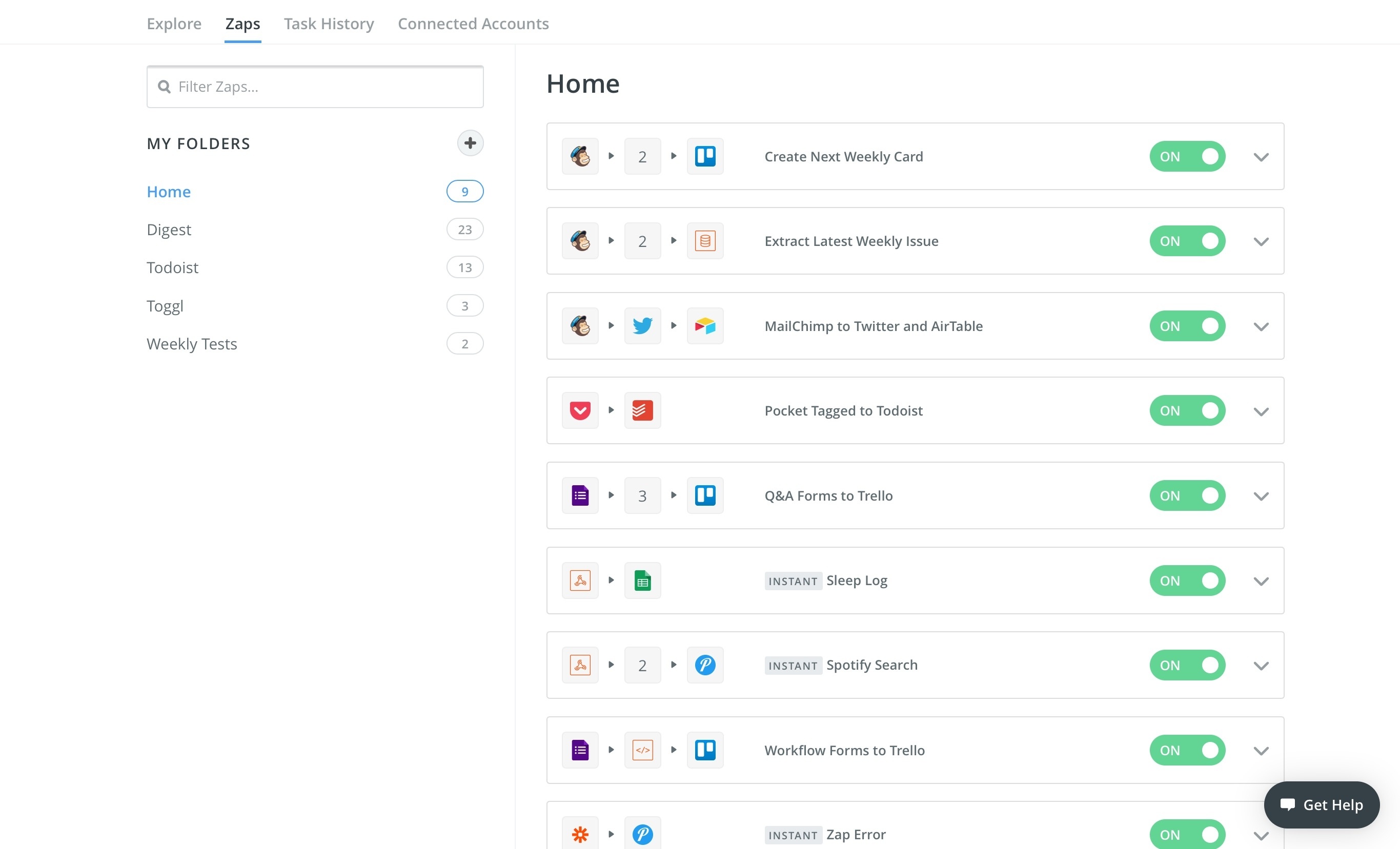
According to my Zapier stats, I use about 8,000 zaps every month. I have automations that go off daily for a variety of reasons: I count how many new Twitter followers we get on our site accounts and save them to a digest delivered every morning; questions submitted by Club MacStories members via Google Forms are converted to Trello cards; Google Calendar events are logged as time entries in Toggl; emails, RSS feeds, Stripe disputes, and anything else I might otherwise forget gets saved as an urgent task in Todoist. Zapier makes these connections easy thanks to its complex multi-action workflows – a big difference from IFTTT's limited applets – and there's a lot of depth to the service that I plan to write about in the future.
Zapier is one of the reasons I was able to complete more and bigger projects this year, and it's redefined my idea of web automation and API integrations.
Kraken. Every image you see on MacStories has been optimized with Kraken and then uploaded to our CDN. Kraken is based on the same concept of ImageOptim: it reduces the file size of images with minimal loss in quality on the final product. Kraken has a web API that we can use with Workflow to upload images from iOS. Kraken's API comes with settings for lossy and lossless optimization; it can even handle direct uploads to Rackspace Cloud Files (our CDN). We make hundreds of requests to Kraken every month, and this service has saved me thousands of dollars in CDN costs.
MailChimp. We've used MailChimp for every newsletter we've sent since the humble beginnings of Classic MacStories Weekly in 2014. I don't use MailChimp much myself – John does the heavy lifting in the web interface – but there's no doubt that Club MacStories wouldn't have been possible without it. The company has an iOS app I use to check stats, but I wish they also provided an API to save templates with Markdown support and a proper campaign editor for iOS.
Shoeboxed. This is a recent discovery of mine, and I'm amazed by what the service does. Shoeboxed uses artificial intelligence and human employees to extract information from receipts and categorize them for you. I'm okay with their privacy policy and I have a business account because Shoeboxed has improved my relationship with my accountant. Thanks to this service, he likes me now.
Every time I get a receipt or an invoice for something I bought, all I have to do is forward the PDF to Shoeboxed's email address, which will analyze the document, extract bits such as dates and amount, and save it in my account. Expenses can be exported en-masse as spreadsheets or original documents, which is what I've been doing for my accountant, who appreciates my newfound precision and timeliness. Furthermore, if Shoeboxed finds an expense in a different currency than the main one, it'll automatically convert it using historical exchange rates. I used to do this manually until last year, and I hated the whole process. Shoeboxed has saved me weeks I would have spent throughout the year to verify my receipts, file them (often incorrectly), and convert them from USD to EUR. I wish I knew Shoeboxed existed sooner.
SaneBox. I covered my SaneBox setup in detail in my story on one year of iPad Pro. SaneBox is an email intelligence that lives in the cloud and connects to any email provider to separate important messages from the rest. Anything that isn't deemed important ends up in a SaneLater folder, while newsletter-type emails are filed into a SaneNews folder; everything else stays in the inbox because it's important.
What makes SaneBox special is that, unlike similar proprietary features of iOS email apps, its cloud-based brain can be integrated with any email client. SaneBox is simply a system that moves messages across folders independently of the email app you use. You can train SaneBox, create custom forwarding rules, mark contacts as VIP, and lots more. I should have started using SaneBox years ago – I've never been as efficient and satisfied with my email as I am with SaneBox.
Toggl. To better understand how I'm spending my work hours and surface patterns in my daily habits, I started tracking my time with Toggl in October. Of all the time tracking services I considered, Toggl caught my attention because it looked nice, featured integrations with other services (including Zapier), and had an API for apps to plug into.
I'm religious about tracking any work-related activity with Toggl. The service doesn't have an iPad app and their iPhone client is a barebones timer with several bugs, so I created my own workflows to start new timers and check for how long an existing one has been running. I mostly interact with the Toggl web app in Safari for iPad when I want to check timers and visualize reports about my projects. Toggl has made me more aware of my bad habits and it's helping me get better at managing responsibilities.
GitHub. Most people know GitHub as a code hosting platform for developers. GitHub repositories, however, can be much more than code: we've been using GitHub to store Markdown files and collaborate on revisions of text files with multiple writers making changes to the same draft over time. GitHub has an excellent diff tool that highlights changed paragraphs and individual words, which we leverage to quickly see which edits have been made to a document.
Since switching to a GitHub-based workflow in February, we've set up a private repository for each writer, as well as a general repository for Club MacStories. This has allowed everyone on the team to check out each other's stories in advance, suggest edits, and leave comments. After seeing the benefits of shared Markdown hosting with GitHub, I wouldn't go back to any other system.
Inoreader. I stuck with the RSS service I mentioned at the beginning of the year. Inoreader is RSS for power users: it's integrated with some of the best clients for iOS, and it supports server-side rules for articles. Rules can perform a variety of actions on your behalf: for example, you can automatically mark as read articles that contain a certain keyword, forward starred articles to someone else, or receive a notification for a story that matches pre-defined criteria. In my case, a rule that marks articles with specific keywords in the title as read ensures those items don't get pushed to Fiery Feeds on iOS – thus, I never see them.
There is a lot of power to Inoreader, and I still feel like I've barely scratched the surface of what this service offers. I haven't had the time to explore the Bundles and the Teams functionalities yet, let alone text highlighters and integration with IFTTT. I plan to build more Inoreader workflows in 2017.
Feature of the Year
Spotify Discover Weekly
No software feature has brought as much joy into my life as Discover Weekly did this year. With its weekly assortment of songs I never heard before, Discover Weekly rekindled my love for mixtapes and the thrill of falling in love with a new band. I've learned to appreciate dozens of new artists thanks to Discover Weekly. I look forward to it every Monday.
Runners-Up
Workflow Web API Actions
With the ability to interact with any web API, Workflow has extended the power of its automation features beyond iOS apps. Workflow's 1.5.3 release has been an important milestone for the app and the entire iOS automation landscape.
Ulysses Automation
Thanks to one of the richest implementations of x-callback-URL, Ulysses' automation features have redefined how deeply an iOS text editor can be integrated with other apps. Over the past several months, I've integrated Ulysses with Todoist, Trello, and Workflow. Ulysses' Markdown automation has raised the bar for other text editors on iOS.
1.0 Release of the Year
Scrivener
I wasn't particularly excited about Scrivener when I first heard it was coming to iOS. After taking the app for a spin, though, I realized that its combination of desktop-class research tools and native iOS features were exactly what I needed for my iOS 10 review. Scrivener is the best 1.0 version I tried this year, and I trusted the app with my most important project for three months.
Runner-Up
PlayMira
I had my jaw-dropping moment on the iPad Pro this year when I was on vacation and successfully connected to my PlayStation 4 at home, woke it up from sleep, and started playing No Man's Sky 400 miles away. PlayMira feels like sorcery. If you have a PS4, a fast Internet connection, and an MFi controller, you should spend some time setting up PlayMira over the holidays.
Web Service of the Year
Todoist
Todoist has fundamentally altered my idea of what a task manager should be. By embracing the web and integrations with other apps and services I use, Todoist is more than my todo app – it's an interconnected and automated task management system that works everywhere.
Todoist's extensible approach helped me accomplish more, collaborate more efficiently with my team, and overcome my productivity anxiety. Todoist perfectly encapsulates the advantages of flexible web services over app sandboxes.
Runner-Up
Zapier
Zapier's hundreds of integrations and power-user functionalities made me realize that there's a world of possibilities for web automation and connecting multiple services together. The most important aspects of our workflow at MacStories have been sped up by Zapier this year.
App of the Year
Airmail
The unique blend of modern email features, integrations with iOS apps and web services, and power-user options makes Airmail the most powerful email client for iOS, which deserves to be my App of the Year.
Airmail allowed me to reimagine the way I process and act on email messages. Despite some minor bugs, it's a deeply customizable email client that adapts to my needs and works with the apps I already use to get work done. Airmail is a power-user email app with no equal.
I have tried several email clients over the past year, but I always go back to Airmail for a simple reason: it's my favorite way to process email and get back to work.
Runners-Up
Ulysses
The Soulmen managed to distill the power and elegance of Ulysses for Mac into an uncompromising iOS text editor that offers a fantastic writing and editing environment. Behind its minimalistic appearance, Ulysses hides a set of advanced Markdown tools that make it my go-to text editor for MacStories articles and Club MacStories content. It's rare to find a balanced combination of simplicity and power-user features, but Ulysses hits all the right notes while simultaneously abstracting much of the cruft of traditional Markdown text editors.
Timepage
Through a spectacular mix of attractive UI design and engaging user interactions, Timepage succeeds where other apps fall short – making the calendar fun to use and informative at the same time. Timepage exudes care and a willingness to subvert the classic metaphors of calendar client design for iOS, providing a standout calendar experience unlike anything else.
2016
Looking back at how I used my iPhone and iPad in 2016, I realize now that the tenets of my iOS workflow haven't significantly changed. Some apps may be different – the App of the Year and Runners-Up are all new this year – but the fundamentals of how I work on iOS are consistent with 2015. The past year was mostly about optimization: I tried to find better apps for tasks I was already handling on iOS.
I wouldn't say that iOS is a mature platform for productivity yet – there's still a long list of aspects to improve, especially on the iPad. But I also feel like iOS 10 didn't open groundbreaking possibilities for the apps I use every day – it was, as I wrote in September, a lifestyle update focused on consumers and our relationship with the iPhone. From this standpoint, it doesn't surprise me that my favorite apps don't appear drastically different from last year – it's almost as if both users and developers are waiting for what's coming next to iOS productivity and iPad multitasking.
Deeper automation with Workflow and the shift to web services are two trends I expect to continue in 2017. I see automation as an essential trait of how I like to work on iOS, but it'll be interesting to measure the impact of iPad updates on my usage of Workflow and app automations. I suspect that web services and API integrations will keep gaining an important role for assistants by Google and Amazon, but I'm also waiting for Apple's second wave of SiriKit extensions and a stronger integration with the iOS apps I use.
I think it's going to be a fascinating 2017 for iOS productivity, and I'm excited for what's next in iPad software.
As always, let's check back in a year.
Support MacStories Directly
Club MacStories offers exclusive access to extra MacStories content, delivered every week; it’s also a way to support us directly.
Club MacStories will help you discover the best apps for your devices and get the most out of your iPhone, iPad, and Mac. Plus, it’s made in Italy.
Join Now


 Consumerist:


 CommitStrip.


 A view of the entrance into PortMiami through Government Cut between Fisher Island and Miami Beach. Image courtesy of Bhakti Baxter and Coral Morphologic
 by Marlon Preuss for The Creators Project
 by Michael Kerbow for The Creators Project
 by kyttenjanae + Philip Rugo for The Creators Project
 by Grace Miceli for The Creators Project
 A yacht passes through the spiral monuments for scale. Image courtesy of Coral Morphologic
 A basic rendering of Bhakti Baxter’s conch/propeller spiral monument marking a post-Panamax PortMiami reaching at least 60’ above mean high tide, and extending 20’ below the surface. Image courtesy of Coral Morphologic