
Abdulmajeed Al-Shuaibi
Shared posts




27 Jan 11:42

Some Of The Best & Most Mesmerizing Artistic GIFs Ever
by Oliur Rahman
It’s pretty easy making a GIF from a video or a series of pictures, but it takes talent to produce the GIFs you see below.
These absolutely amazing GIFs are made by Matthew DiVito and they are definitely some of the best artisitic GIFs ever made.


Original Article on UltraLinx Website - Some Of The Best & Most Mesmerizing Artistic GIFs Ever
Follow UltraLinx on - Facebook | Twitter.
23 Jan 23:44

Weird & Disturbing Portrait GIFs
by Oliur Rahman


Romain Laurent is a photographer who lives in New York and for his day job he’s a conceptual photographer who has worked with some big names such as Xbox, Coca Cola, Google and GQ.
‘One Loop Portrait A Week’ is side project which he does in his free time. The aim of the side project is to create some very weird, disturbing but also hilarious GIFs of people once a week.
Original Article on UltraLinx Website - Weird & Disturbing Portrait GIFs
Follow UltraLinx on - Facebook | Twitter.
12 Jan 22:08

Copy this into your blog, website, etc.
...or into a forum
01.12.2014
Copy this into your blog, website, etc.
<a href="http://explosm.net/comics/3431/"><img alt="Cyanide and Happiness, a daily webcomic" src="http://www.flashasylum.com/db/files/Comics/Rob/hunting.png" border=0></a><br />Cyanide & Happiness @ <a href="http://explosm.net">Explosm.net</a>
...or into a forum
[URL="http://explosm.net/comics/3431/"]
[IMG]http://www.flashasylum.com/db/files/Comics/Rob/hunting.png[/IMG][/URL]
Cyanide & Happiness @ [URL="http://explosm.net/"]Explosm.net[/URL]
[IMG]http://www.flashasylum.com/db/files/Comics/Rob/hunting.png[/IMG][/URL]
Cyanide & Happiness @ [URL="http://explosm.net/"]Explosm.net[/URL]

28 Dec 15:11

What Does Phone Software Update Process Look Like | Infographic
by Jaroslaw Morawski
If you have been wondering why it takes so long for your phone to get a software update, HTC has the answer. The Taiwaneese company decided to give us a peek at what goes into a device update and prepared an amazing infographic to illustrate it.
It turns out that the update process is not simple at all. It includes many stages, in which the software is being modified, thoroughly tested, verified, and sent to carriers or users. The situation is even more complicated when a device comes in different versions. For instance, HTC One is available in three flavors: carrrier, unclocked/developer, and special Google Play Edition. Releasing a new version of Android for all of them is a difficult task that requires cooperation of many people.
Long story short, HTC’s infographic may make it easier for you to forgive (or at least understand) the phone manufacturer for the delay in bringing you the latest update.

Original Article on UltraLinx Website - What Does Phone Software Update Process Look Like | Infographic
Follow UltraLinx on - Facebook | Twitter.


15 Dec 15:07
#RoastJoffrey Round-Up: The King Got Burned
by HBO

The call went out yesterday to citizens of the realm: #RoastJoffrey. Over 45,000 responses came flying in – no ravens required. 'Game of Thrones' fans took to Twitter, Instagram, Facebook and Vine to share the reasons why the dishonorable King makes their blood boil. Below is an assortment of shots that nailed Joffrey with crossbow-like precision.
'Game of Thrones' cast members took part:
@GameOfThrones Maybe he's just hormonal..? Joffrey- the misunderstood teenager😂 #RoastJoffrey
— Maisie Williams (@Maisie_Williams) December 13, 2013
Dear Joffrey, To slightly misquote Woody from Toy Story: "We wargs can see everything, so play nice." #RoastJoffrey
— Isaac.H.Wright (@IsaacBranFlakes) December 12, 2013
I’m tweeting a playlist of songs that represent Joffrey! What songs would you pick? #RoastJoffrey #DJHodor @GameOfThrones
— Kristian Nairn (@KristianNairn) December 12, 2013
I heard Joffrey hangs around flea bottom wearing his mum's clothes at the weekend. #RoastJoffrey #whateverfloatsyourboat
— Daniel Portman (@Daniel_Portman) December 12, 2013
Ros returns from the dead to say her piece to Joffrey!! #RoastJoffrey #RevengeforRos http://t.co/1y27T9gGop
— Esmé Bianco (@esmebianco) December 12, 2013
Comedy pros had some colorful contributions:
How do you circumcise a Lannister? Kick his sister in the chin. #RoastJoffrey @GameOfThrones
— Funny Or Die (@funnyordie) December 13, 2013
Brands hate Joffrey as much as people do:
#RoastJoffrey? Sounds delicious.
— Hannibal (@NBCHannibal) December 12, 2013
There are some people so crappy even we won't go near them. #RoastJoffrey #tweetfromthethrone
— Charmin (@Charmin) December 12, 2013
Send the King to bed without his cookies. #RoastJoffrey https://t.co/QjcKsTMJ2X
— Oreo Cookie (@Oreo) December 12, 2013
No matter how much you suggest it, we can't add #RoastJoffrey to the sandwich menu. #sorrynotsorry
— Au Bon Pain (@AuBonPain) December 12, 2013
Being king might not be your calling. We’d be happy to help you find a better job. #RoastJoffrey
— Monster Careers (@MonsterCareers) December 12, 2013
Sorry Joffrey. We're house Stark. #RoastJoffrey http://t.co/B8q7wb249b
— JCPenney (@jcpenney) December 12, 2013
@GameOfThrones Did you say pawn? No thanks, we don't want him. #RoastJoffrey
— Pawn Stars (@pawnstars) December 13, 2013
Celebrities got in on the fun:
Dear #RoastJoffrey, I have the perfect look for you! @GameOfThrones @HBO pic.twitter.com/prpOg0pycz
— Nina Garcia (@ninagarcia) December 12, 2013
King Joffrey's family is so inbred that they can't even spell Jeffrey right. @GameOfThrones #RoastJoffrey
— Streeter Seidell (@streetseidell) December 12, 2013
Hey Joffrey I can't wait to see your new movie "The Desolation of Smug." #RoastJoffrey @GameOfThrones
— Eli Roth (@eliroth) December 12, 2013
. @GameOfThrones King Joffrey, or should I call you, Your Grace? How bout I diss you and call you disgrace? #RoastJoffrey
— Andy Milonakis (@AndyMilonakis) December 12, 2013
Among fans, it took off like wildfire:
Finding out the roast isn't over gets me more angry than when I realized I was a bastard. #RoastJoffrey @GameOfThrones
— King Joffrey (@King_Joffrey_) December 13, 2013
Why don't we let Joffrey use the internet? @GameOfThrones #RoastJoffrey pic.twitter.com/WYXISsA0us
— Tyrion Lannister (@GoT_Tyrion) December 12, 2013
#GameOfThrones has taken to their #SocialMedia and launched the #RoastJoffrey campaign! And it is very entertaining.. http://t.co/LE3gGKOXos
— All Geek to Me (@AllGeektoMeNet) December 13, 2013
@GameOfThrones Joffrey gets picked last to play kickball at recess everyday #RoastJoffery
— John Jochetz (@JJochetz) December 13, 2013
@GameOfThrones starting my Friday the 13th morning off by grinding beans to roast coffee. I mean #RoastJoffrey
— Jeremy Van (@jarofmy) December 13, 2013
Because a real king uses "I'm telling mommy" as a comeback #RoastJoffrey @GameOfThrones
— Melissa Andre (@AndreMelissa1) December 13, 2013
Joffrey is actually High Valyrian for "Douche bag". #RoastJoffrey #GoT
— Martha Therese (@marthatherese) December 13, 2013
"I for one, LOVE King Joffrey" - King Joffrey on King Joffrey. #RoastJoffrey
— OttaWout (@The_Wout) December 13, 2013
#HipsterJoffrey Has "Rains of Castamere" on Vinyl. #RoastJoffrey @GameOfThrones
— Nick Panayotopoulos (@nickpwaytobe) December 13, 2013
You can see more fan tweets on our Facebook page. Join the realm in continuing the roast today. Use the hashtag #RoastJoffrey and share your favorite jokes in the comments.
01 Dec 22:46

Origins Of Common UI Symbols
by Jaroslaw Morawski
You see and use them every day, but do you know where they come from? Almost all common UI symbols have an interesting history behind them. Designers over at visual.ly came up with a great that will tell you more about your favorite icons, buttons and logos.
There is a reason why USB looks like a trident and the pause button consists of two vertically aligned bars. Surprisingly, origins of some of the most used UI symbols are in neither computer nor electronic industry, but in history, nature and psychology. It turns out that they are more universal than we think, with their roots often reaching various cultures and and being inspired by international symbolism. There’s more to them than just a clever inclusion of their features, sometimes their shapes are supposed to impact the usage, make a suggestion or evoke an association.


Original Article on UltraLinx Website - Origins Of Common UI Symbols
Follow UltraLinx on - Facebook | Twitter.
Randy Laue, Cooper Griggs likes this
06 Nov 00:06
The Bravest Next Gen Console Defender on the Internet

Yazeed Al Subaiee, Lunaticms and -1 others like this


19 Sep 23:24


Google Relaunches Quickoffice As Free App – New UI And Icon, 10GB Of Free Additional Drive Storage, And More
by Ryan Whitwam
 Google bought Quickoffice a while back, but didn't really say what it had planned. Well, now we know at least part of the deal. Google has relaunched the Quickoffice app on Android. It's completely free now, and has a new interface and tight integration with Google Drive.




The app scales correctly to both phones and tablets, and the UI is the standard Holo Light we're used to seeing. All the non-Google cloud storage options from the old app have been removed, placing Google Drive front and center.
Done With This Post? You Might Also Like These:
- [Deal Alert] QuickOffice Pro (Normally $15) And Pro HD (Normally $20) Free Today In The Amazon Appstore
- Quickoffice Creates Its Own Cloud Drive, Lets You Put Your Documents There... For A[n Unreasonable] Price
- Quickoffice For Google Apps For Business Launches On The Play Store, Costs Nothing
- QuickOffice Pro HD For Honeycomb Now Available, Spreadsheets Imminent
Google Relaunches Quickoffice As Free App – New UI And Icon, 10GB Of Free Additional Drive Storage, And More was written by the awesome team at Android Police.
    
|
Bobsoe likes this


22 Aug 00:05

Copy this into your blog, website, etc.
...or into a forum
08.21.2013
Copy this into your blog, website, etc.
<a href="http://www.explosm.net/comics/3273/"><img alt="Cyanide and Happiness, a daily webcomic" src="http://www.flashasylum.com/db/files/Comics/Rob/fattestperson.png" border=0></a><br />Cyanide & Happiness @ <a href="http://www.explosm.net">Explosm.net</a>
...or into a forum
[URL="http://www.explosm.net/comics/3273/"]
[IMG]http://www.flashasylum.com/db/files/Comics/Rob/fattestperson.png[/IMG][/URL]
Cyanide & Happiness @ [URL="http://www.explosm.net/"]Explosm.net[/URL]
[IMG]http://www.flashasylum.com/db/files/Comics/Rob/fattestperson.png[/IMG][/URL]
Cyanide & Happiness @ [URL="http://www.explosm.net/"]Explosm.net[/URL]

11 Aug 07:19


How to Use Emojis on Your Android Device
by Rita El Khoury
I remember when I first started using IM applications, a long decade ago, how excited I was by the presence of emoticons. Instead of typing long sentences, you could convey a lot of feelings in one character, and given that I’m the kind of person who uses facial expressions extensively in real life, emoticons felt like the most authentic written-form translation of my speech.
Prior to Jelly Bean, Android users were left in the cold when it came to emojis. Only a few third-party applications like Whatsapp or Google Talk supported them within their own confines. But if you received emojis from a friend’s iPhone through SMS or on Twitter for example, you were faced with a square placeholder. Thankfully, the situation has changed with Jelly Bean, and now Android can not only read emojis, but it can also write them. Here’s the complete guide.
Like the article? You should subscribe and follow us on twitter.
Does My Device Support Emojis?
Here is the easiest way for you to know if your Android device can read and type emojis. Go to http://en.m.wikipedia.org/wiki/Emoji on your phone’s browser and scroll down to the “Emoji in the Unicode standard section”. Expand it and go to the emoji tables. If you can see most of the characters there, you’re good. Your Android device comes with an emoji font and you don’t have to do anything.
The Wikipedia Emoji page is an easy way to see if your device can read Emojis.
If, however, you see almost nothing but blank squares, then your device can’t read emojis. Your two solutions then would be to either stick to apps that support emojis — Whatsapp, Hangouts, Handcent SMS with its Emoji Plugin, GO SMS Pro and its Emoji Plugin… — or root your device and flash an emoji font. You’ll need to search for the appropriate method to do the latter, because it varies between devices.
If your device can’t read Emojis, you can still use the ones in Whatsapp or Hangouts.
Type Emojis on the iWnn IME Keyboard
Some devices, specifically the Nexus line, have a built-in emoji keyboard in the form of iWnn IME. To check whether you have it or not, go to Settings > Language and Input and look at the list of available keyboards. If iWnn IME is in there, enable it. Now whenever you’re typing text, you can switch the input method to iWnn IME and have a visual keyboard full of nothing but emojis.
Enabling the iWnn IME keyboard and using it to insert emojis (Image courtesy of Dominic’s Stuff)
Type Emojis on the Android Keyboard
The other way to type emojis is via the default Android Keyboard — or by installing the Google Keyboard if you own a Samsung or HTC device that doesn’t have the default keyboard pre-installed.
Go to Settings > Language and Input > Android Keyboard (or Google Keyboard) and click on the settings button next to the keyboard. Now scroll down to Add-on Dictionaries and check the list for Emoji for English Words (use Refresh if it doesn’t show up in the list at first). Install it and click Refresh to make sure it shows as Installed.
Steps to enabe the Emoji add-on in the default Android Keyboard (or Google Keyboard)
Some people, and I was one of them, face a bug in this step where the plugin would never really install on the default Android keyboard. It would show as Installed, but once you refreshed, it would ask you to install it again. I solved this by installing the Google Keyboard from the Play Store and going through the same steps.
Now, whenever you’re typing text with the Android/Google Keyboard in any app, be it Messaging, Twitter, Google+, or any other, you can use some keywords to trigger emojis. For example “happy” or “smile” add a smiley face. Snowflake adds a snowflake, victory adds the two-finger hand V sign, and so on.
Typing specific keywords on the Default/Google Keyboard triggers emojis as predictions.
Even though Android supports a lot of emoticons, I wasn’t able to find a complete list of the keyword triggers for them. The biggest list of keywords I found can be downloaded as a PDF here (courtesy of Skangerland).
Type Emojis on Other Keyboards
If you don’t have the iWnn IME keyboard installed, and you’d rather have a visual UI for inserting emoticons instead of having to guess keywords with the Android/Google Keyboard, you have the choice of a few other third-party keyboards that support emoticons, like Kii Keyboard with the Handcent Emoji Plugin, or Multiling O Keyboard with Emoji Codec 2.
Kii Keyboard supports an Emoji plugin that gives you a visual UI for typing emojis.
Tip: Create Your Own Emoji Keywords
I personally tried both Kii and Multiling and didn’t find them suitable for my usage. I prefer the default Android/Google Keyboard, but as I explained above, there is no complete list of emoji keywords. Notably missing from Skangerland’s list are keywords for facial expression emojis — which I use all the time.
For a while, I kept jumping back and forth between the default keyboard and Kii to insert those emojis, but I eventually thought of a solution — and a brilliant one at that, if I may say so! Since the Android/Google Keyboard supports a personal dictionary with shortcuts, all you’d have to do is create word shortcuts for your most-used emojis!
In order to do this, you’ll have to have both the Android (or Google) keyboard installed, and another keyboard with a visual emoji UI — iWnn IME, Kii, Multiling, etc. Go to Settings > Language and Input > Android (or Google) Keyboard. Click on the Settings icon and scroll to Personal Dictionary. Tap the + button and:
- Under the Phrase section, insert your emoji (or series of emojis). Use a keyboard with a visual emoji UI to do that.
- Next to shortcut, type the keyword you want to use to trigger the emoji.
Now, whenever you’re using the Android (or Google) keyboard, in any application, you can simply type the keyword you picked and you will get the emoji(s) as one of the suggestions. Neat, isn’t it?
Creating your own emoji keywords for the default Android (or Google) Keyboard.
If you don’t see the suggestions right away, give it a few minutes, close your keyboard and reopen it, or restart your phone. They should be there by then.
Which One Do You Use?
Emojis are becoming even more popular and ubiquitous nowadays, and thanks to the openness of Android, there are a multitude of ways to use them, whether limited by specific apps, or available system-wide through pre-installed or third-party apps. This guide was meant to present you with the different methods for using Emojis and let you pick your preferred one. Which one did you settle on, and why?
|
|
31 Jul 12:19

The Old Reader RSS app closes registration after months of 'hell'
by Nathan Olivarez-Giles
Abdulmajeed Al-Shuaibiأنا جاني أنه بيتم نقلي تلقائيًا للموقع الخاص الجديد. فيه أحد جاه نفس الشي؟
Google Reader is long gone and while a handful of new alternatives have popped up over the last few months, one popular option is essentially closing up shop: The Old Reader. In a blog post, the team behind the RSS reading web app said that they are giving up development on the product because they're simply exhausted from building the product. As of Monday, the web app is no longer accepting new users. And in two weeks, The Old Reader will turn into a private site for those who've registered before March 13th. If you're an Old Reader user who signed up after March 13th, the time to pull your data and move over to another product is now — user data is available for export in OPML files.
20 Jul 00:03

Copy this into your blog, website, etc.
...or into a forum
07.19.2013
Copy this into your blog, website, etc.
<a href="http://www.explosm.net/comics/3239/"><img alt="Cyanide and Happiness, a daily webcomic" src="http://www.flashasylum.com/db/files/Comics/Kris/look.png" border=0></a><br />Cyanide & Happiness @ <a href="http://www.explosm.net">Explosm.net</a>
...or into a forum
[URL="http://www.explosm.net/comics/3239/"]
[IMG]http://www.flashasylum.com/db/files/Comics/Kris/look.png[/IMG][/URL]
Cyanide & Happiness @ [URL="http://www.explosm.net/"]Explosm.net[/URL]
[IMG]http://www.flashasylum.com/db/files/Comics/Kris/look.png[/IMG][/URL]
Cyanide & Happiness @ [URL="http://www.explosm.net/"]Explosm.net[/URL]
David Pelaez and -1 others like this

 ...
...
12 Jul 23:53

Copy this into your blog, website, etc.
...or into a forum
07.12.2013
Copy this into your blog, website, etc.
<a href="http://www.explosm.net/comics/3230/"><img alt="Cyanide and Happiness, a daily webcomic" src="http://www.flashasylum.com/db/files/Comics/Rob/privateb.gif" border=0></a><br />Cyanide & Happiness @ <a href="http://www.explosm.net">Explosm.net</a>
...or into a forum
[URL="http://www.explosm.net/comics/3230/"]
[IMG]http://www.flashasylum.com/db/files/Comics/Rob/privateb.gif[/IMG][/URL]
Cyanide & Happiness @ [URL="http://www.explosm.net/"]Explosm.net[/URL]
[IMG]http://www.flashasylum.com/db/files/Comics/Rob/privateb.gif[/IMG][/URL]
Cyanide & Happiness @ [URL="http://www.explosm.net/"]Explosm.net[/URL]
Cooper Griggs and -1 others like this
12 Jul 23:48

Copy this into your blog, website, etc.
...or into a forum
07.11.2013
Copy this into your blog, website, etc.
<a href="http://www.explosm.net/comics/3232/"><img alt="Cyanide and Happiness, a daily webcomic" src="http://www.flashasylum.com/db/files/Comics/Matt/Astronomers,-you-kinky-voyeuristic-geeks.png" border=0></a><br />Cyanide & Happiness @ <a href="http://www.explosm.net">Explosm.net</a>
...or into a forum
[URL="http://www.explosm.net/comics/3232/"]
[IMG]http://www.flashasylum.com/db/files/Comics/Matt/Astronomers,-you-kinky-voyeuristic-geeks.png[/IMG][/URL]
Cyanide & Happiness @ [URL="http://www.explosm.net/"]Explosm.net[/URL]
[IMG]http://www.flashasylum.com/db/files/Comics/Matt/Astronomers,-you-kinky-voyeuristic-geeks.png[/IMG][/URL]
Cyanide & Happiness @ [URL="http://www.explosm.net/"]Explosm.net[/URL]
12 Jul 23:43
Google Reader Backup Viewer
by Alex Chitu
Abdulmajeed Al-ShuaibiVery helpful.
If you created a full backup for your Google Reader account while it was still possible, you probably need a way browse the data. Fortunately, Mihai Parparita created Zombie Reader, a tool that resurects the Google Reader interface and transforms into a viewer for your data.
"Reader is a canonical single page application: once the initial HTML, JavaScript, CSS, etc. payload is delivered, all other data is loaded via relatively straightforward HTTP calls that return JSON (this made adding basic offline support relatively easy back in 2007). Therefore if I served the archived data in the same JSON format, then I should be able to browse it using Reader's own JavaScript and CSS," says Mihai.
Go to readerisdead.com, download the updated archive and use the instructions from the page. You still need Python 2.7 and some basic command-line skills. For Windows, you could use the instructions from my previous post and replace:
with

Zombie Reader uses the Google Reader interface and your local data. It's like a Google Reader snapshot that preserved all your subscriptions, all the items you've read or marked as read, all your starred items, your tags and much more. Obviously, many features don't work (search, trends, subscribe), the application doesn't save your state and it doesn't show the latest posts from your subscriptions.
It does show your first read item, first starred item and the first shared item, as well as the people you followed before Reader's social features were removed. The "sort by oldest" feature is no longer limited to the last 30 days, it now sorts all your feed items.
"A side effect is that I now have a self-contained Reader installation that I'll be able to refer to years from now, when my son asks me how I spent my mid-20s," says Mihai. "It also satisfies my own nostalgia kicks, like knowing what my first read item was. In theory I could also use this approach to build a proxy that exposes Reader's API backed by (say) NewsBlur's, and thus keep using the Reader UI to read current feeds. Beyond the technical issues (e.g. impedance mismatches, since NewsBlur doesn't store read or starred state as tags, or has per item tags in general) that seems like an overly backwards-facing option." I'm sure that someone will build the proxy.

"Reader is a canonical single page application: once the initial HTML, JavaScript, CSS, etc. payload is delivered, all other data is loaded via relatively straightforward HTTP calls that return JSON (this made adding basic offline support relatively easy back in 2007). Therefore if I served the archived data in the same JSON format, then I should be able to browse it using Reader's own JavaScript and CSS," says Mihai.
Go to readerisdead.com, download the updated archive and use the instructions from the page. You still need Python 2.7 and some basic command-line skills. For Windows, you could use the instructions from my previous post and replace:
c:\python27\python reader_archive\reader_archive.py --output=downloadwith
c:\python27\python zombie_reader\zombie_reader.py downloadZombie Reader uses the Google Reader interface and your local data. It's like a Google Reader snapshot that preserved all your subscriptions, all the items you've read or marked as read, all your starred items, your tags and much more. Obviously, many features don't work (search, trends, subscribe), the application doesn't save your state and it doesn't show the latest posts from your subscriptions.
It does show your first read item, first starred item and the first shared item, as well as the people you followed before Reader's social features were removed. The "sort by oldest" feature is no longer limited to the last 30 days, it now sorts all your feed items.
"A side effect is that I now have a self-contained Reader installation that I'll be able to refer to years from now, when my son asks me how I spent my mid-20s," says Mihai. "It also satisfies my own nostalgia kicks, like knowing what my first read item was. In theory I could also use this approach to build a proxy that exposes Reader's API backed by (say) NewsBlur's, and thus keep using the Reader UI to read current feeds. Beyond the technical issues (e.g. impedance mismatches, since NewsBlur doesn't store read or starred state as tags, or has per item tags in general) that seems like an overly backwards-facing option." I'm sure that someone will build the proxy.
Marian Vevurka, Compuwizard123 and 2 others like this


08 Jul 10:58
Google's Search by Image and Special Effects
by Alex Chitu
Google Image Search has a feature that lets you find images on the web by uploading the files or pasting their URLs. It's a clever feature, but it's a lot more clever than you imagined.
It's obvious that Google finds an image if exactly the same file is embedded by a web page or there's a link to that file. Google also finds images if you resize them, crop them or apply various photo effects.
Here's an image from a Wikipedia page, after resizing it and applying the pixelate effect from Picasa. Can Google find it?

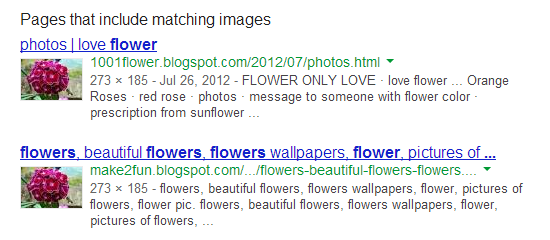
Google can't find other sizes of the image, but if you look at the "Pages that include matching images" section, you'll find the image.
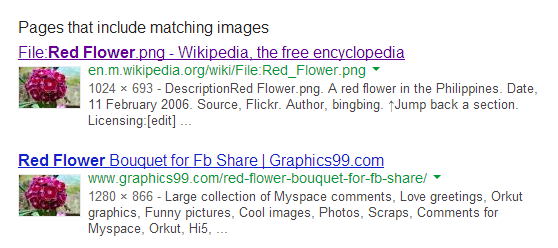
What if you convert the photo to black and white? Will Google's reverse image search engine be able to find it?

You'll get the same pages that include matching images:
Let's try something more difficult - apply multiple Picasa effects: soft focus, tint, filtered black-and-white and posterize. There's no way to recognize this image, right?

Wrong.
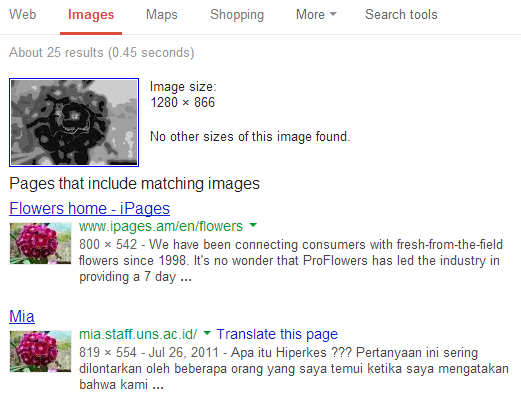
I used IrfanView to remove EXIF data and compress the image above a lot more. Here's what I got:
I edited the image in Paint and added some random shapes:

Here's the original photo:

To call this impressive is an understatement. It's a resilient algorithm that goes beyond matching pixels, colors, shapes - it understands the structure of the image, its essence.
{ The image from this post ("a red flower in the Philippines") has been licensed as Creative Commons Attribution by bingbing. Thanks, Brian Anderson. }
It's obvious that Google finds an image if exactly the same file is embedded by a web page or there's a link to that file. Google also finds images if you resize them, crop them or apply various photo effects.
Here's an image from a Wikipedia page, after resizing it and applying the pixelate effect from Picasa. Can Google find it?

Google can't find other sizes of the image, but if you look at the "Pages that include matching images" section, you'll find the image.
What if you convert the photo to black and white? Will Google's reverse image search engine be able to find it?
You'll get the same pages that include matching images:
Let's try something more difficult - apply multiple Picasa effects: soft focus, tint, filtered black-and-white and posterize. There's no way to recognize this image, right?
Wrong.
I used IrfanView to remove EXIF data and compress the image above a lot more. Here's what I got:
I edited the image in Paint and added some random shapes:
Here's the original photo:
To call this impressive is an understatement. It's a resilient algorithm that goes beyond matching pixels, colors, shapes - it understands the structure of the image, its essence.
{ The image from this post ("a red flower in the Philippines") has been licensed as Creative Commons Attribution by bingbing. Thanks, Brian Anderson. }
almajid, Rodrigo.benenson likes this