KWBaker
Shared posts
Meet The Croncha, The New Hybrid Pastry Taking Over San Antonio

Sears Sold 75,000 DIY Mail Order Homes Between 1908 and 1939, and Transformed American Life

Two of the books that most shaped American culture both happened to bear the nickname “The Big Book.” While the second of these, the A.A. Manual, published in 1939, changed the country with 12-Step recovery groups, the first of these, the Sears Catalog, transformed America with mass consumption, offering customers in every part of the country access to modern conveniences and retail goods of all kinds at unheard of prices. Beginning in 1908, Sears started selling entire houses, in approximately 25-ton kits transported by railroad, consisting of 30,000 pre-cut parts, plumbing and electrical fixtures, and up to 750 pounds of nails.
“In an era before commercial aviation and long-haul trucking,” Curbed marvels, “Sears, Roebuck & Co. set up an operation that would package and ship more than 400 different types of homes and buildings to anybody who had the cash and access to a catalog.”
They started small, and just as they didn’t come up with the concept of the mail order catalog, Sears didn’t invent the kit house, though they suggest as much in their telling of the story. Instead they may have taken the idea from another company called Aladdin. Aladdin houses have been forgotten, however, and even Sears’ main competitor, Montgomery Ward, didn’t catch up until 1921 and only lasted ten years in the kit house business.

Sears houses, on the other hand, are celebrated and sought out as models of the early 20th century American home, and for good reason. Between 1908 and 1939, Sears sold 70-75,000 houses in 447 different styles all over the country. “From Craftsman to Cape Cods, they offered a custom home at budgets and sizes that could accommodate any size family,” writes Popular Mechanics.
These Sears homes weren't cheap low-end houses. Many of them were built using the finest quality building materials available during that time. It's not uncommon to find Sears homes today with oak floors, cypress siding, and cedar shingles.
What’s even more extraordinary is that 50% of these were built by the homeowners themselves, usually, as in a barn-raising, with the generous help of family, friends, and neighbors. The other half sold were built professionally. “Often,” writes Messy Nessy, “local builders and carpentry companies purchased homes from Sears to build as model homes and market their services to potential customers.”
These houses could have a significant effect on the character of a neighborhood. Not only could potential buyers see firsthand, and participate in, the construction. They could order the same or a similar model, customize it, and even—as the company tells us in its own short history of the “Sears Modern Home”—design their own homes and “submit the blueprints to Sears, which would then ship off the appropriate precut and fitted materials.”

Sears sounds modest about its impact. The company writes it was not “an innovative home designer” but instead “a very able follower of popular home designs but with the added advantage of modifying houses and hardware according to buyer tastes.” But Sears houses aren’t beloved for their architectural sexiness, but for their sturdiness and variety, as well as their impact on “the emotional lives of rural folk,” as Messy Nessy puts it.
“The Sears mail-order catalogues were sitting on kitchen countertops inside millions of American homes, allowing potential homeowners to both visualize their new home and purchase it as easily as they might have bought a new toaster.” Building a house required a little more investment than plugging in a toaster, and required a 75-page instruction book, but that’s another part of why Sears house hunters are such a dedicated bunch, awestruck at each still-standing model they’re able to photograph and match up with its catalog illustrations and floor plans.
In its first year of production, 1908, Sears sold only one model, number 125, an Eight-Room Bungalow Style House for $945, advertised as “the finest cottage ever constructed at a price less than $1500.” In 1918, the company moved from a numbering system to named models, most of which sound like the names of cozy small towns and bedroom communities: Adeline, Belmont, Maplewood, Avalon, Kilbourne, Del Ray, Stone Ridge…. (See a full list of these models at The Arts & Crafts Society website.)

In the years Sears sold houses, between 54 and 44 percent of Americans lived in rural areas, and these constituted Sears' most loyal customers, given that the catalog allowed them to purchase things they could buy nowhere else, including ten room colonial mansions like The Magnolia, available from 1913 to 1922 for $6,488, or roughly $88,000—a steal if you can put in the work. This was the largest and most expensive model the company offered, “a three-story, eight room neo-Georgian with a two-story columned portico, porte-cochere, and sleeping porches.” (Mint juleps and servants’ quarters not included.)
Sears eventually offered three build qualities, Honor Bilt, Standard Built, and Simplex Sectional. At the lowest end of the price and build spectrum, the company notes, “Simplex houses were frequently only a couple of rooms and were ideal for summer cottages.” Many of its low-end and early models did not include bathrooms, and the company sold outhouses separately. But due to innovative construction methods, even the least expensive houses held up well.
Because the company lost most of the records after its kit house business folded, it can be difficult to identify a Sears house. And because even the “youngest of Sears homes,” Popular Mechanics points out, is now going on eight decades old, they all require a significant amount of care.” The blog Kit House Hunters has found over 10,000 Sears Houses still standing across the country, most of them in the Northeast and Midwest, where they sold best. (One community in Elgin, IL has over 200 verified Sears homes.)

In the video at the top, you can see a few of those well-built Sears houses still lived in today. The brief How to Architect short video just above notes, “Sears had a massive impact on the business of home-building, and... the business of pre-fabrication, is alive and well today.” For a look at the variety and intricacy of the Sears Modern Home designs, see this Flickr gallery with over 80 images of catalog pages, illustrated homes, and floor plans. And if you think you might be living in one of these houses, many of which have been granted historic status, find out with this handy 9-step guide for identifying a Sears Kit Home.
Related Content:
1,300 Photos of Famous Modern American Homes Now Online, Courtesy of USC
A Quick Animated Tour of Iconic Modernist Houses
Sears Sold 75,000 DIY Mail Order Homes Between 1908 and 1939, and Transformed American Life is a post from: Open Culture. Follow us on Facebook, Twitter, and Google Plus, or get our Daily Email. And don't miss our big collections of Free Online Courses, Free Online Movies, Free eBooks, Free Audio Books, Free Foreign Language Lessons, and MOOCs.
How to Spot Fake “Evil Twin” Public Wi-Fi Networks Run by Hackers

Whether you’re in an airport, in a coffee shop, or a library, free Wi-Fi is available almost everywhere these days. Unfortunately, not all free Wi-Fi networks are vigilantly protected when it comes to their IT security.
That Wi-Fi network you’re using could be open to security threats by hackers and cybercriminals, putting your personal information at risk. Here’s what you need to know about fake Wi-Fi networks.
Why Do Hackers Use Fake Wi-Fi Networks?
Public Wi-Fi is often a target for Man in the Middle (MITM) attacks. According to SaferVPN, up to 25 percent of all public hotspots are used by hackers to access your personal information.
Besides taking advantage of any insecure Wi-Fi networks to steal your identity, two additional Wi-Fi vulnerabilities that hackers can use are Rogue Access Points (AP) and Evil Twins. These are seemingly genuine wireless networks created to trick potential victims into giving away their personal information.
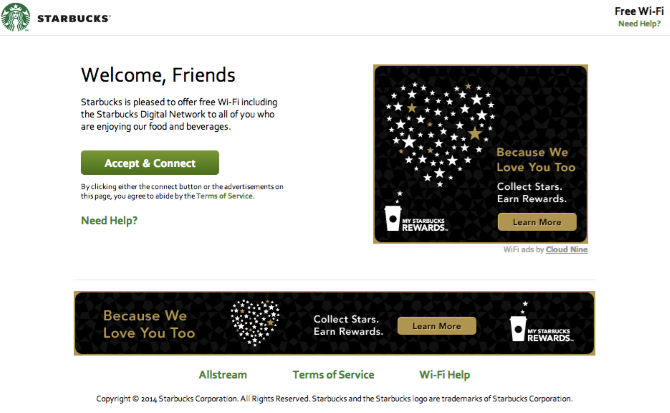
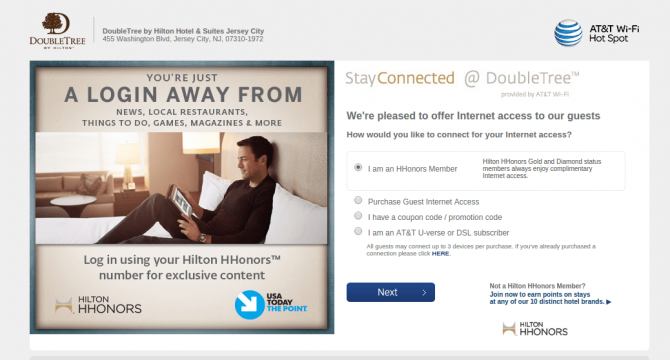
They can look and act as what you would expect from a real network. This includes using the same or similar name (think Starbucks Wi-fi versus Starbucks Free Wi-Fi), and the same login screen.
While connected to an insecure and unencrypted network, you are at minimum giving the hacker free access to anything you do while online. This includes grabbing any usernames, passwords and other personal information that you enter.
At most you’ll download a virus or malware and give them full access to your device even after you disconnect from the insecure “network”.
If you connect to a network where a credit card is required for access, like a hotel, or an airplane “pay per hour” network, the hacker will have copied your credit card info even before you start browsing. In short, any data you upload or download while on the hacker’s Wi-Fi is visible to them.
While there are other ways hackers can use public Wi-Fi to steal your identity, we’re going to focus on what Evil Twins and Rogue Access Points are, what to look for, and what you should do if you connect to one.
What Is a Rogue Access Point (AP)?
A Rogue AP, sometimes used interchangeably with Evil Twin, is an insecure device connected to a network unbeknownst to the owner. This device will broadcast its own Wi-Fi that will connect you to the genuine network created by the business.
It will seem like connecting to the Wi-Fi as normal, but your connection will go via the hacker’s access point instead of the intended secure device.
A hacker will usually combine this with a Denial of Service attack on the original access point to disable it, making theirs the only available signal.
Rogue Access Points are a massive security issue that threaten the security of all the connected users. Any network security features and firewalls that may be enabled on the network will not affect a Rogue APs access to your transmitted data.
A Rogue AP is difficult to spot as a user. However, if you’re worried that you might have any extra devices on your network, here’s how to find a rogue device on your network.
What Is an Evil Twin Wi-Fi Network?
An Evil Twin is technically a type of Rogue Access Point that can be set up with any phone or laptop with wireless capabilities. It differs in that it’s not strictly connected to the business’ Wi-Fi unknowingly. The hacker will set up a duplicate wireless network that also looks and acts the same way as the original network, down to using the same name and seemingly the same security features.
The signal of this Wi-Fi will usually overpower that of the real network, simply by being physically closer to the user. Again, a Denial of Service attack to knock out the original access point is not uncommon in this scenario.
Either way, this means that potential victims will connect to the hacker’s signal rather than the genuine network.
How to Spot an Evil Twin Wi-Fi Network
Unfortunately, in real life, evil twins don’t wear goatees to make them easy to identify. Don’t assume that because the name of the Wi-Fi is “Starbucks Free Wi-fi”, that it is secure, or even that it belongs to Starbucks.
Oddly enough, the easiest Evil Twins to spot can be those that are password protected. If you purposely enter the wrong password and you don’t get an error message, the access point is likely fake. An Evil Twins will commonly let anyone access it regardless of the password you enter.
Look out for very slow network connections. This could be a sign that the hacker is using mobile internet to connect you to the web.
Also, pay attention to the address bar of the websites you visit. If your banking website shows an unencrypted HTTP version instead of HTTPS, your connection is definitely unsafe. This is called SSL Stripping, and a hacker can get your passwords or banking details as you enter them.
It’s easy for a hacker to redirect you to a fake version of any website if you connect through their device, and this way, they can get your login details as soon as you enter them. Using a VPN will not protect you in these cases, as you are entering your information into the hacker’s own website.
However, make sure that the URL is correct, and look out for grammatical errors or language that you would not expect from the website.
Fake domains (often using misnamed addresses) are something you should watch out for when browsing in any situation, as they are one of many common social engineering threats you can face online.
How to Avoid Being a Victim of Public Wi-Fi Hacks
Always use a VPN, like our #1 ranked service ExpressVPN, on your tablet, phone, or laptop. There are VPN solutions for pretty much all devices, including your smartphones, tablets, laptops, desktops, and routers.
When accessing a public Wi-Fi, especially if you don’t have a VPN installed, keep to regular browsing. Avoid accessing any websites where you will input sensitive data, like Amazon or your online banking.
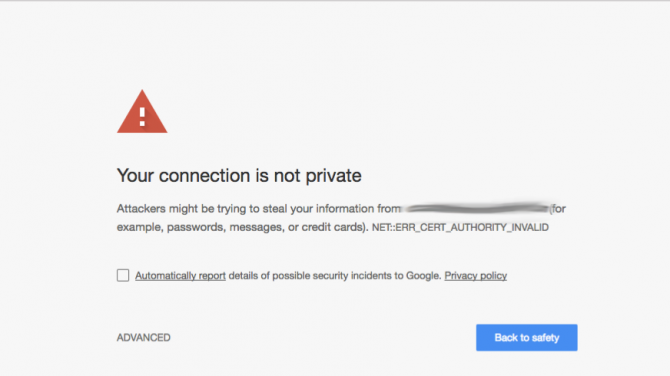
Look out for SSL certificate errors. Many browsers will let you know if you are accessing an insecure and unencrypted page. Make sure that you access encrypted versions of any website. Always check if the “Secure” notice in your address bar is green. In addition to a VPN, you should consider security extensions like HTTPS Everywhere.
If you do see a security certificate error, don’t ignore it. Instead, close the website, and look for other hints that you are on a suspicious network.
It might also be worth disabling your device’s “auto-connect to Wi-Fi” feature to prevent accidentally connecting to an illegitimate network.
Take care and follow these seven secure strategies to use public Wi-Fi safely on your phone.
What to Do If You Connect to an Evil Twin or Rogue AP
Even if you are vigilant, your phone might automatically connect you to an insecure network without you realizing. If you suspect that you have connected to a compromised network, follow these steps to reduce the potential consequences.
- Disconnect as quickly as possible.
- Clear your list of saved Wi-Fi connections, to avoid connecting to the same one in the future.
- Clear your browser cache
- Run antivirus and malware checks.
- Change the password to any site you logged in to, and any other websites that use the same login information.
- Call your bank and cancel any bank cards you used.
Any unencrypted network and public Wi-Fi can be targets for a MITM attack. In fact, the network doesn’t even need to belong to a hacker with criminal intent—any network set up without security in mind is vulnerable. So be careful out there, and always use a VPN when you’re online!
Read the full article: How to Spot Fake “Evil Twin” Public Wi-Fi Networks Run by Hackers
How Much Data Does Streaming Video Use?

Watching video is one of the primary ways that people eat through their allowance. So it makes sense to know how much data does streaming video use.
After all, for many people in the United States and beyond, internet data caps are a reality. Worse still, your internet service provider (ISP) can charge you an exorbitant amount of money per gigabyte if and when you go over your cap.
Knowing how much data streaming video uses should help to prevent any nasty surprises when you receive your next bill.
1. YouTube
Let’s start with YouTube. We’ve already covered how much data YouTube uses in a previous article. To sum up, we discovered that the service uses 562.5MB of data/hour if you stream at 480p resolution (standard definition).
If you want to watch higher resolutions at 60 frames-per-second, the figure jumps to 1.86GB/hour for 720p, 3.04GB/hour at 1080p, and a mammoth 15.98GB/hour if you want to watch videos in 4K.
Thankfully, we included some tips to help you reduce the amount of data YouTube uses in the same article.
2. Netflix
Netflix is the world’s most popular streaming service by some distance. It has more than 130 million subscribers, many of whom don’t necessarily have high-speed internet.
Therefore, like YouTube, there are a number of different quality options available on the app.
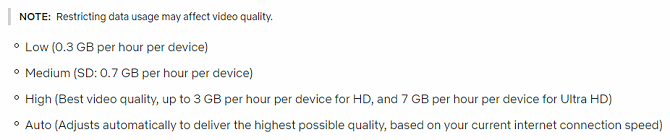
According to Netflix’s own information, an hour of streaming video in standard definition will use approximately 1GB of data. Watching high definition video sees that number rise to 3GB. Ultra-high definition will use 7GB of data/hour.
By default, your account is set to automatically choose which resolution is most appropriate for your connection. However, if you’d like to save data while watching Netflix, you can override the setting. Go to Account > My Profile > Playback Settings to make your selection. Hit Save when you’re ready.
3. Amazon Prime Video
Amazon Prime is just one of many Amazon services. It went live in 2006 but only became a streaming service in 2011. Nonetheless, in just half a decade, it’s grown to become Netflix’s biggest competitor.
The service offers three resolutions to desktop users. They are Good, Better, and Best. Good streams videos at 480p standard definition and uses 800MB of data/hour. Better streams in HD and requires 2GB of data/hour. The ultra-high definition 4K option (Best) will consume 6GB of data/hour.
Mobile users also have a further Data Saver option.
Note: Watching Amazon Prime Video on the mobile app uses slightly less data than watching the same video via the desktop app.
4. Hulu
Hulu is arguably the third member of the video streaming triumvirate. Just like its rivals, Hulu offers some unmissable TV shows.
Hulu’s data usage while streaming video is slightly lower than Netflix and Amazon Prime Video, making it the most economical of the three.
On the standard definition option, you can expect to use 680MB/hour. The 720p high definition setting increases the figure to 1.3GB/hour, and the 1080p resolution increases the usage yet further to 2.7GB/hour.
If you sign up to Hulu’s $39.99/month plan, you can also stream live TV. Hulu only offers its live channels in 720p HD quality, so mobile users on capped plans should steer clear.
5. Spotify
Spotify is most well-known as a music streaming service. However, since mid-2016, it’s also offered a video service in selected markets.
Unfortunately, the company is not very forthcoming about how much data its video service uses. On its website, Spotify merely says “Videos use more data than music due to larger file sizes. But our data usage is comparable to other popular video channels.”
Most of the videos on the service are in high definition, so if we take Spotify’s claims at face value, we can assume an hour of streaming will use between 1.5GB and 3GB of data (based off data from Netflix et al.).
If you’d like to learn about how much data Spotify uses while streaming music, check out our previous article.
6. Vimeo
Like Spotify, Vimeo does not offer any official data usage guidance on its website. However, in third-party testing, one user found that standard definition content used 353MB of data/hour and HD videos used 2.75GB/hour.
7. Stan
Stan is only available in Australia and offers a mix of on-demand movies and TV shows.
The app offers four tiers of quality. The lowest standard definition setting only uses 570MB of data/hour, making it comparable with Netflix. The medium standard definition uses 1.13GB/hour, and the HD and 4K use 2.89GB/hour and 7GB/hour, respectively.
8. DirecTV
DirecTV is yet another company that doesn’t offer clear bandwidth usage information on its website.
Its guidelines simply say, “If your provider caps your bandwidth or data, change your video quality settings to low or medium.”
It’s safe to assume DirecTV’s data usage is in line with the other platforms we have discussed.
9. PlayStation Vue
PlayStation Vue’s guidelines are much clearer. It uses 500MB/hour on Low Quality, 1GB/hour on Medium Quality, and 2GB/hour on High Quality.
Since 2017, the service has also offered a native bandwidth cap. You can set it to your preferred limit and streaming will automatically cut off when the limit is hit.
10. Sling TV
For Sling TV, we once again need to turn to third-party research. According to Cord Cutters News, Sling TV’s highest quality streaming will use 1.66GB/hour. That drops to 540MB/hour on medium and 360MB/hour on low.
Keep an Eye on Your Monthly Data Cap
Going over your data cap could be disastrous for your bank account. If you’re lucky, your ISP will only throttle your speed. If you’re unlucky, it might charge you a sizable fee for every extra gigabyte over your limit you use.
We think it’s a shame that out of all the services we’ve discussed, only PlayStation Vue comes with a built-in bandwidth monitor. It should be something that all video streaming services offer as standard.
Thankfully, other companies are cottoning on to the need to help people keep an eye on their data usage. Learn more about how to monitor your data usage on Windows 10.
Read the full article: How Much Data Does Streaming Video Use?
7 DIY Computer Desk Projects That’ll Save You Money

If you work from home or spend a lot of time on your computer, your desk is arguably your most important piece of furniture.
There various options when it comes to a workspace. Do you go for a sitting desk? A standing desk? Sitting and standing with an adjustable desk? What kind of workstation you chose is up to you, but instead of buying one, have you thought of making your own?
Building a DIY desk is simpler than you think, and could save you money. These computer desk ideas will inspire you to get creative with your workspace.
1. The Trestle Desk

The trestle desk, sometimes known as the A-frame or sawhorse desk, is one of the simplest and cheapest ways to set up a desk. All it requires is two freestanding trestles at the edges, with a desktop laid on top. That’s it! Whether you buy pre-built trestles or build homemade sawhorses, all that is left is to choose the size and material for your work surface.
Pictured above are the well known IKEA FINNVARD trestles, which have the added advantage of storage, and being height adjustable. At around $50 each, they are a little more expensive than a basic sawhorse, but you’ll still be pushed to find an adjustable height desk at a similar price.
A more budget-friendly option would be cheap workshop sawhorses from a local hardware store, coming in at around $25 for a pair.
Cost: $70 to $200 depending on scale.
2. The Cheap Shelf Computer Desk

Is it possible to go even simpler than a trestle desk? Yes! Two sturdy shelf brackets and a work surface of your choice can create a simple desk which should stand up to most daily uses.
Brandon Keepers, GitHub’s Open Source Advocate, was looking for an affordable stand-up desk for his home and instead came up with the $40 stand up shelf. This is a cheap and simple computer desk that anyone could build.
If you go this route, make sure you heed these tips for using a standing desk correctly!
Cost: $40.
3. Amazon-Inspired Door Desk
The door desk comes from Amazon’s early days. The story goes that Jeff Bezos, along with other Amazon founders, used doors as desks as an apparent cost-saving measure. Back then Amazon was far from one of the biggest online places to shop, and the thrifty desk idea is now a startup legend.
Amazon now has a guide to make a door desk. If you have access to an old solid core door, it could save you some cash.
Given that full-size solid core doors start at around $90, it’s hard to see how it could be cheaper than just buying a cheap piece of wood cut to size. Either early Amazon employees knew a good second-hand door salesman, or the door desk was just a clever marketing stunt from the start.
Cost: $120 with a cheap door.
4. Iron Pipes Computer Desk
Desks using iron piping had a surge in popularity in recent years, with countless Pinterest boards highlighting cool designs. It’s easy to see why. They look fantastic and are modular and straightforward making them perfect for any space.
Rather than buying a pre-made desk, Instructables user caspertek designed and made an iron pipe standing computer desk.
The build cost around $180, but according to the guide, this can be cut down by around $100 with access to the right tools. This design was initially not meant to be a standing desk, and it could be easily scaled down to make a regular sitting desk.
Cost: $80 to $180 depending on available tools.
5. Fixed Hybrid Computer Desk
Standing desks are growing in popularity, and there are good reasons to consider an adjustable standing desk. However, desks which allow both standing and sitting do not come cheap.
An excellent solution to cutting down the cost of a standing desk is to convert an area of a traditional sitting desk into a standing space. Following our tutorial to design and build a custom desk with a standing desk corner costs a lot less than you would think.
The resulting desk here cost $150, which is less than the price of any other custom desk designed to fit in your home. You can buy all the required parts at any local hardware store, and build it with simple hand tools.
Cost: $150 depending on size.
6. Counterweight Adjustable Desk
Adjustable standing desks are great for saving space. Rather than having a large work surface with a standing area, the whole desk raises and lowers according to need.
They are, unfortunately, still expensive to buy prebuilt. Cost, along with the desire to design is what prompted Instructables user jjdebenedictis to create a counterweight adjustable desk from scratch.
The entire project cost around $200. All the materials for the build were bought and cut at Home Depot. The build requires only hand tools to put together and is easily customizable for users of different heights.
Cost: $200.
7. Electronic Adjustable Desk
Electronically adjusted standing/sitting desks are the holy grail of the modern standing desk movement. Too much sitting down? Bad for your health. Too much standing up? Painful on the knees. The ability to switch between sitting and standing on the fly gives the best of both worlds.
DIY setups like the one above by YouTuber EXOcontralto can save an astonishing amount of money. The cost of actuators—the motors which drive the desk’s movement—have dropped in recent years. The simple but smart design culminates in a large and sturdy desk that can change heights at the flick of a switch.
This design could easily incorporate an Arduino too or for that extra level of DIY, a NodeMCU board. Wirelessly controlled adjustable standing desk, anyone?
Cost: $175.
A Great Computer Desk Makes for Happier Work
Whichever kind of desk you prefer, making your own gives you complete control over how it feels, and gives you the maximum opportunity to get the most out of it.
While these designs may help you get inspiration for a DIY desk, you still need to take steps to maintain good health while working. And if you have a pet, you should consider our tips for how to pet-proof your computer desk area!
Read the full article: 7 DIY Computer Desk Projects That’ll Save You Money
5 Websites That Save Old Sounds, Maps, Newspapers, Music, and Books

Much like backing up your own data, there are people who back up things they love. From album liner notes and book covers to old maps and newspapers, you’ll find fascinating old records of anything online.
You can almost take it for granted that nothing is truly deleted from the internet. But while the internet backs itself up, external data isn’t like that. Someone has to scan old documents, record and upload audio, and categorize it all thoroughly. That’s what makes these projects worth a look.
Old Maps Online (Web): Historical Maps of the World

People have been making maps of the world since before learning that the Earth was round. You can take a trip into the past by looking at such historical cartography at Old Maps Online, which aggregates links to old maps on different parts of the internet.
It works a bit like Google Maps. Search for a location and you’ll be transported to its current map. On the right, you’ll see a list of old maps for that location. Click any map you want to see to be taken to a different site that hosts the old map.
You can pan and scan the map as you would with Google Maps, and even zoom to smaller areas within cities. If there’s a corresponding old map somewhere on the internet for that location, this site will find it.
Newspaper Archive (Web): Read Old, Defunct Newspapers

Old newspapers that are still active, like The New York Times, let you access their old issues on their sites. But what about newspapers that have shut down? You can find many of those at the Newspaper Archive.
While it’s an international site with publications from across the world, it’s best used to find U.S. newspapers. You can filter the papers by city or search for any words you’re looking for. The Newspaper Archive is a little difficult to browse at first, so you’ll need to learn how to use it well if you want to actually use it for research.
Instead of research, have fun with this blast from the past. It’s quite cool to look at publications from a particular region, with their old design and the type of news that got printed.
Conserve The Sound (Web): Saving Sounds From Extinction
As technology moves rapidly to the next innovation, old ones live on only as photos. But what about their sound? Whether it’s the whirring of an old rotary phone or the screech of a 56K dial-up modem connecting to the internet, Conserve The Sound is saving these audio memories from extinction.
The project covers a variety of sounds, usually from objects that are no longer used regularly. You’ll see a picture of the object, along with a 30-second audio clip. The project also includes videos with people talking about their association with sounds. The videos are in German, but there are English subtitles.
Conserve The Sound’s media is copyrighted, so don’t use these without permission. If you need a sound, email them or try these free sources for audio clips and sound effects.
Book Cover Archive (Web): Repository of Cover Designs

They say you shouldn’t judge a book by its cover, but you can judge the cover itself. Publishers and authors spend hours designing the perfect cover for a book so that it catches your eye. If you love the art of book covers, check the Book Cover Archive for some of the best jackets.
You can simply browse through the various covers on display, or search for your favorite book to see if there’s an offbeat or better-than-normal cover that you didn’t know about. Personally, I just liked going through page after page of clever designs.
Of course, it’s not only book covers that are being saved on the internet. Google is digitizing all the books it can lay its hands on, and there is the celebrated Project Gutenberg for old books, which is actually more than just free books.
Album Liner Notes (Web): Music Is Digital, Liner Notes Should Be Too

You can’t beat the convenience of streaming unlimited music. But since we don’t buy music anymore, we’ve lost one of the best off-shoots of records, cassettes, and CDs: liner notes. Well, at least someone is trying to save them online.
Album Liner Notes usually focuses on CD liner notes, but that’s fine. Liner notes include the album art, lyrics to songs, and even letters and notes from the band. It’s a more personal experience of buying music, and it’s one of the reasons why people still love vinyl.
Apart from liner notes, people on the internet are also trying to save the experience of music itself. For example, there are online radio stations that jump back in time, such as Radiooooo, which plays radio playlists from particular decades.
Head to The Internet Archive for More
These sites try to protect things that were not a part of the internet to begin with or at least weren’t created for the internet. But there are others who focus on protecting the history of the internet itself.
Of these, The Internet Archive is probably the most famous. If you haven’t been there yet, that’s the place to go to. It has a treasure-trove of free content riches, including the ever-popular Wayback Machine that lets you see what web pages looked like in the past.
Read the full article: 5 Websites That Save Old Sounds, Maps, Newspapers, Music, and Books
15 Key iPhone Troubleshooting Tips for All iPhone Models

iPhones might be beautifully crafted pieces of tech that many people regard as the pinnacle of smartphone design, but even they can run into problems.
Here are our top troubleshooting tips for all iPhone iterations. We’ll start by looking at some general troubleshooting tips, then focus on model-specific issues.
1. Restart Your iPhone
The number one cure for any tech aliment—iOS or Android, Windows or Mac, TV or printer—is to turn the device off and back on. Indeed, there are very few situations where a simple reboot shouldn’t be your first port of call.
The trick works because it resets the software into a stable state after an unexpected sequence of events caused something to break.
We’ve shown how to force a reboot on iOS. The process varies depending on which model of iPhone you have. Check out Apple’s website for more information.
2. Update iOS
So a simple reboot didn’t fix your issue? Don’t worry.
Next, you need to make sure your iOS operating system is up-to-date. If you’re running an outdated version of iOS, certain apps and features might not be compatible (not to mention the security vulnerabilities this exposes you to).
To update iOS, navigate to Settings > General > Software Update.
3. Update Your Apps

If you’re having issues with a particular app, it’s worth making sure you’re running the latest version of it.
You can update apps manually via the App Store. Just tap on the Updates tab at the bottom of the app’s interface.
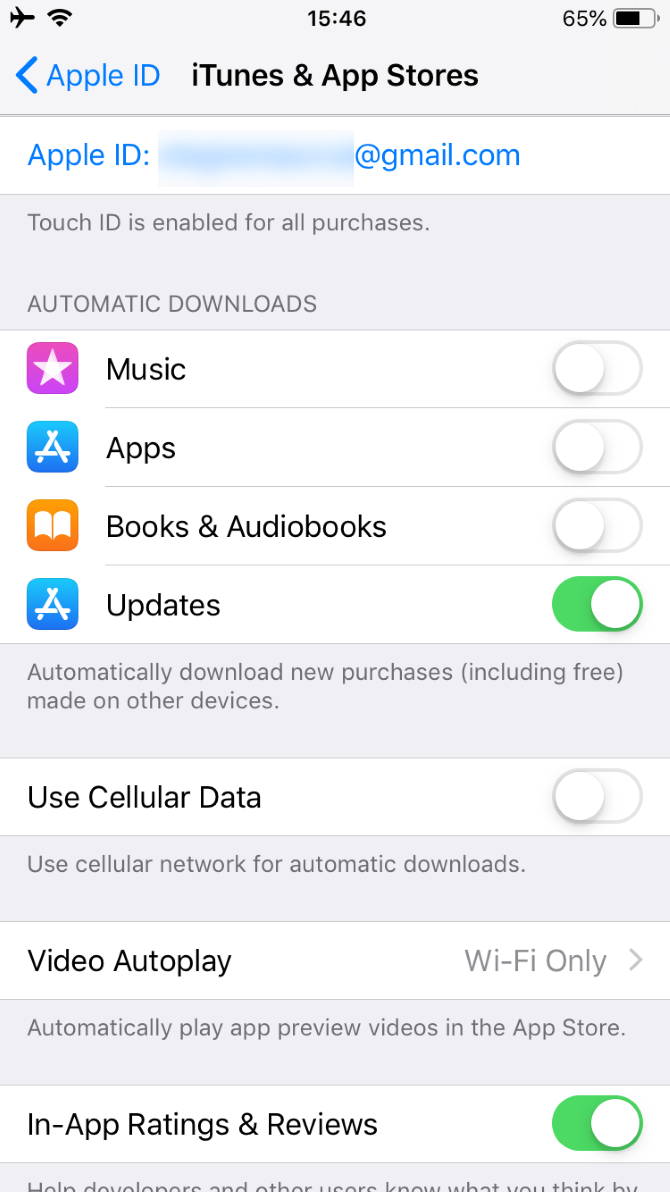
You can also tell apps to update automatically by heading to Settings > [Your Name] > iTunes and App Store. Under the Automatic Downloads section, slide the toggle next to Updates into the On position.
4. Force-Close an App
Sometimes an app’s instance will become unresponsive, causing it to freeze. It’s why you’ll often see a black screen if your camera app is malfunctioning.
Force-Close an App on iPhone X
To force-close an app on an iPhone X, swipe up from the bottom of the screen but leave your finger on the screen halfway up. The phone will launch the app switcher. Swipe up on an app card to close it.
Force-Close an App on iPhone 8 or Earlier
To force-close an app on an iPhone 8, double-press the home button to bring up the app switcher. Swipe left and right to find the app you want to close, then swipe up.
5. Reset Network Settings
Most connectivity issues can be solved by resetting your network settings. It’s easy to do. Head to Settings > General > Reset > Reset Network Settings.
Be warned: by performing this reset, you will lose any saved Wi-Fi passwords.
6. Reset All Settings
If you think an erroneous setting (rather than software or hardware) is the root of your problems, you can reset all phone settings without losing your data. Of course, you’ll need to put everything back the way it was afterward.
Head to Settings > General > Reset > Reset All Settings to begin the process.
7. Factory Reset


If you need a nuclear option, you could factory reset your iPhone. It will return your device to its original state. Although this won’t cure hardware issues, it should solve most software and operating system problems.
To reset your iPhone, open Settings > General > Reset > Erase All Content and Settings. It’s also possible to reset your device using iTunes on a computer. Check out Apple’s guide for more details.
Note: Make sure you back up all your iPhone data before you perform a factory reset. You will irrecoverably lose any data you have not backed up.
8. Check Battery Usage
An iPhone’s battery life often isn’t great, especially if you’re a heavy user. However, if your device’s battery drains unusually quickly, you can try to identify the offending app.
To see which apps use the most juice, go to Settings > Battery. You can check the charts at the bottom to get a look at apps’ battery usage over a certain time frame.
9. Review Battery Health


Batteries can only tolerate a certain number of charge cycles before they start to deteriorate. If you’re running iOS 11.3 or later, you can now see your battery’s health. Go to Settings > Battery > Battery Health to take a look.
10. Fix Bluetooth Issues
For a technology that’s so widely used, Bluetooth can act surprisingly finicky. If you’re having problems creating a Bluetooth connection between your iPhone and another device, there are a couple of fixes you can try.
Firstly, remove old devices that you no longer use. It can help to avoid conflicts. To unpair a device, go to Settings > Bluetooth > Info > Forget This Device.
Secondly, turn Bluetooth off and on again (sound familiar?). Swipe up from the bottom of the screen on an iPhone 8 or earlier (swipe down from the upper-right for iPhone X and later) to access the Control Center, and tap the Bluetooth icon to toggle it.
11. Fix HomeKit Issues
Some smart home devices are HomeKit-enabled, thus letting you control them from your iPhone using Siri.
If you HomeKit devices are not working as expected, make sure you’re logged into the correct iCloud account on both your iPhone and the devices themselves. If nothing else works, you can reset your HomeKit connections by going to Settings > Privacy > HomeKit > Reset HomeKit Configuration.
12. Check for Dirt
If you have problems charging your device, using the power and/or volume keys, or using the physical home button (on iPhone 8 and earlier), you should always check for dirt, dust, and other muck that might have built up under the buttons.
The best way to dislodge the dirt at home is to use a can of compressed air. We have a detailed guide on cleaning your iPhone that should help.
13. Revoke Background Permissions
If your device becomes overheated, you can’t use features such as the camera flash. In extreme cases, you might not be able to use your phone at all until it cools down.
Obviously, if you accidentally left your phone in the sun, it’s easy to identify the culprit. However, if it gets overheated on a regular basis during normal usage, a running background app could be to blame.
To prevent apps from running in the background, go to Settings > General > Background App Refresh and slide the toggles on a per-app basis as required.
14. Remove the SIM Card
If you’ve suddenly lost network signal unexpectedly, a dislodged SIM card could be your issue.
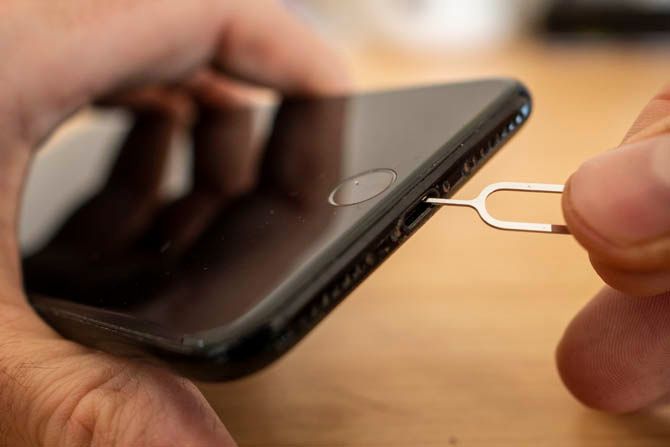
Thankfully, it’s easy to remove and reinsert the SIM. You just need a pin or paperclip to open the tray (because nobody keeps Apple’s specially-designed tool, right?).
15. Go to an Apple Store
If you can’t fix the issue yourself, it’s probably time to head to your local Genius Bar. If your device is under warranty or if you have Apple Care, the store will fix the device for free, even if it involves sending it away for repair.
iPhone X Troubleshooting Tips
Two problems unique to the iPhone X are accidental automatic emergency calls and green lines on the display.
You can disable the automatic emergency calls by going to Settings > Emergency SOS > Auto Call. If you’re suffering from the green line issue, you need to contact Apple Support.
iPhone 8 Troubleshooting Tips
The forced restart method changed on the iPhone 8. If you own one, you’ll need to press and release Volume Up, press and release Volume Down, then press and hold the Side button until you see the Apple logo.
Another issue that afflicted a lot of iPhone 8 devices was a swelling battery. If you have this problem, you’ll need to contact Apple for a replacement.
iPhone 7 Troubleshooting Tips
The most common iPhone 7 complaint is poor call quality. Apple has acknowledged the problem and offered a list of fixes. Here are the company’s suggestions:
- Check your phone is not on Silent mode.
- Make sure a case isn’t blocking the speaker.
- Restart your iPhone.
- Clean any dirt, dust, or debris out of the speaker.
- Make sure your speaker volume is set to the maximum.
It’s fair to say they’re not particularly helpful suggestions, but that’s Apple for you.
Anecdotally, some users said Verizon was to blame, so you could try changing carriers if you’re desperate.
iPhone 6 Troubleshooting Tips
A few people still use an iPhone 6. It’s the phone that was infamously “bendy”. So if you have one, be careful not to place it under physical stress.
That aside, the iPhone 6 was probably the worst iPhone model from a design standpoint:
- It was found to pull people’s hair out because of a tiny space between the screen and chassis (solution: don’t hold it too close to your ear).
- Users suffered Error 53 messages if they replaced the home button using a third party; it locked them out of their device (what right to repair?).
- The Plus model’s optical image stabilization system was defective.
- The touchscreen was prone to failure.
Almost all these issues were only resolved by taking your phone to an Apple Store.
iPhone Troubleshooting, Mastered
We’ve gone over fixes for the most common iPhone issues, plus tips for specific devices. Hopefully one of these helps you fix your issue; you’ll likely need to contact Apple Support if not.
For more iPhone troubleshooting, check out fixes for the most common iCloud issues.
Read the full article: 15 Key iPhone Troubleshooting Tips for All iPhone Models
Apple Unveils a New MacBook Air, Mac Mini, and iPad Pro

Apple has hosted yet another “special event”, six weeks after the last one. In September, Apple unveiled the new iPhone Xs, Xs Max, and iPhone XR. Now, one month on, Apple has unveiled slightly upgraded versions of the MacBook Air, Mac Mini, and iPad Pro.
Apple Announces New Old Products
The New MacBook Air
Apple has finally updated the MacBook Air for the first time since 2015. The new MacBook Air has a Retina display on a 13.3-inch screen, thinner bezels, two USB-C ports, and a 3.5mm headphone jack. At 2.75 pounds, it’s also slightly lighter than the previous model.
Unfortunately, there’s no Touch Bar, USB-A ports, or SD card reader. There are various versions available, with the base model boasting 8GB of RAM and a 128GB SSD. For that you’ll pay $1,199, with the new MacBook Air available to buy from November 7.
The New Mac Mini
Apple has also updated the Mac Mini for the first time since 2014. The new Mac Mini boasts a quad-core 8th Gen Intel processor and up to 64GB of RAM and up to 2TB SSD storage. You get a generous four USB-C ports, plus USB-A ports, HDMI, and Ethernet.
The new Mac Mini actually looks very similar to the old Mac Mini, but the changes have all been made under the hood. The base model includes an Intel Core i3 processor, 8GB RAM, and 128GB of SSD storage. That will set you back $799 and be available from November 7.
The New iPad Pro
Last but not least is the new iPad Pro. This has been redesigned inside and out. Design-wise, the new iPad Pro has smaller bezels and a screen which run closer to the edge. Apple has also added Face ID, but removed the Home button and the 3.5mm headphone jack.
The new iPad Pro boasts impressive specs. It’s powered by the A12X Bionic chip, which has an 8-core CPU and 7-core GPU which Apple claims compares to an Xbox One. The 11-inch iPad Pro starts at $799, with the 12.9-inch base model priced at $999.
But Where Are the New NEW Products?
This is the fourth special event Apple has hosted in 2018. However, they’ve all been about introducing slightly better versions of existing products, including the iPhone, the iPad, the Apple Watch, and operating systems for all of the above and more besides.
But where are the brand new, never-seen-before products that once helped Apple stand out from the crowd? And why aren’t more Apple fans calling out the company for playing it safe? Unfortunately, this is what happens when you’re worth $1 trillion and counting.
Read the full article: Apple Unveils a New MacBook Air, Mac Mini, and iPad Pro
What Are Facebook Shadow Profiles?

Everyone knows that Facebook collects personal data, but shadow profiles are one of the more intrusive methods the social network uses.
In a nutshell, shadow profiles mean that even if you’ve never used Facebook, the website may have information about you stored away.
So, in order to help you maintain your privacy, in this article, we’ll explain what Facebook shadow profiles are, and what you can do about them.
What Are Facebook Shadow Profiles?
Shadow profiles are so-called because they’re not something you make yourself. Instead, Facebook creates shadow profiles without your knowledge or consent.
Let’s suppose you don’t have a Facebook account. One of your friends, however, makes an account on Facebook. Facebook offers them a special service where they can import their contacts to find friends already on the service.
Your friend thinks this is a great idea, so they import their contacts list to Facebook. Facebook can then go through the contact details and let your friend know if any of their friends have also made an account.
However, while it’s scanning the list, Facebook will find the contact details of people who aren’t signed up yet—including you. Ideally, Facebook would understand that you haven’t signed up for an account and would leave the information alone.
However, this is Facebook we’re talking about, and passing up the chance to obtain free information isn’t its modus operandi. Instead, Facebook will create a shadow profile for you behind the scenes, allowing it to store your personal data. This occurs without your consent or knowledge.
As such, even if you’ve sworn off ever using Facebook, the service may still know your name and contact details. If you have friends that use and import their contacts to Facebook, you can never assume Facebook doesn’t have your information.
Unfortunately, while Facebook does allow you to download the data they have on you, it’s currently only possible if you have an account with them. As such, you need to give up more personal information to see your profile, which isn’t an ideal trade-off for the privacy-minded.
How Do We Know Facebook Creates Shadow Profiles?
Unfortunately, Facebook shadow profiles aren’t just a rumor or conspiracy theory. They came to light after Facebook discovered there was a leak of people’s contact details all the way back in 2013.
Leaks typically reveal registered user’s details who willingly gave information to the website. However, Facebook’s breach somehow revealed information for people who had never signed up to the website. This raised eyebrows and revealed the existence of shadow profiles.
Why Does Facebook Create Shadow Profiles?
So, why does Facebook create and store shadow profiles on people who have no interest in using Facebook? It depends who you ask…
If you ask someone from Facebook, they’ll say that shadow profiling is essential for the “People You May Know” feature. This is where Facebook recommends friends you may know that have accounts on the website.
The idea is that if Friend A and Friend B both make a Facebook profile before you, Facebook can get an idea of who is in your circle of friends. For example, the social network can see that you’re in both Friend A and Friend B’s contacts. As such, there’s a chance both of these friends know each other, too.
This gives Facebook a somewhat-uncanny ability to pair you up with the people you know when you first sign up. This is Facebook’s rationale behind the data collection, and it claims it needs shadow profiles to achieve this.
If you ask anyone else why Facebook collects this data, you’ll probably get a more cynical answer. In the modern age, hoarding information on people can be very profitable.
When people give Facebook free data, the service will do everything it can to ensure it harvests as much value from said data as possible. It even goes so far as to keep information after you delete your account, as we covered in our article about deactivating or deleting your Facebook account.
Has Facebook Disclosed These Activities?
Since shadow profiles became public knowledge, Facebook has updated its Privacy Policy. In it, they state that it does use local information from your phone.
Under the section “Networks and Connections,” Facebook says:
“We also collect contact information if you choose to upload, sync or import it from a device (such as an address book or call log or SMS log history), which we use for things like helping you and others find people you may know and for the other purposes listed below.”
And under the section “Things others do and information they provide about you,” Facebook states:
“We also receive and analyze content, communications, and information that other people provide when they use our Products. This can include information about you, such as when others share or comment on a photo of you, send a message to you, or upload, sync or import your contact information.”
The last bolded part is the key line that lets Facebook continue to make shadow profiles. As long as users agree to this privacy policy and continue to entrust Facebook with their data, Facebook will continue to use contact information to create shadow accounts.
Is There Anything You Can Do About Shadow Profiles?
Unfortunately, you don’t have any direct control over shadow profiles on Facebook. Whenever a Facebook user who has you as a contact on their phone signs up to Facebook, your information will be added to your shadow profile.
You CAN ask your friends to delete the contacts they’ve uploaded to Facebook. They can do so by heading over to the Manage Contacts page on Facebook. Of course, they will have to keep the sync settings turned off after this.
Unfortunately, this isn’t very practical. You would have to ask everyone you know who a. has your contact details and b. is on Facebook to follow the procedure. If even one friend doesn’t comply, they’ll eventually upload your data to Facebook.
As such, the best way you can protect yourself from data harvesting is to give your friends some “burner” details. Have an email and phone number which you freely give out to friends, while keeping your personal information private.
It’s a lot to ask, but it’s the only real way you can prevent Facebook from harvesting your data. When a friend adds you as a contact and syncs their contacts with Facebook, your shadow profile is created. As such, the only way to prevent it is to create a new, private email address. Then, only allow close friends and family without Facebook to contact you with it.
Maintain Your Privacy While Using Facebook
Facebook has been, and will likely continue to be, a big sore spot for privacy enthusiasts. It’s likely that Facebook already knows all about you, even if you’ve never visited its website.
The only way to avoid it is to ditch your publicly known information and use a private email address and phone number. Then, you can only share this information with people you trust and know aren’t on Facebook.
If you want to know more about staying safe while using Facebook, be sure to read the complete Facebook privacy guide.
Read the full article: What Are Facebook Shadow Profiles?
What Is an HDR TV? (And Why Some TVs Don’t Measure Up)

High dynamic range (HDR) is the latest must-have feature on new 4K TVs, and when done right, it can create some impressive images by showing brighter highlights and a punchier, more lifelike picture. HDR was originally available only on high-end TVs, but now you’ll find it advertised on many budget TVs too. But just because a TV claims to have HDR doesn’t mean that it really delivers all the performance benefits the technology has to offer.
Unfortunately, there are no industry rules to determine what is, or isn’t, an HDR TV. Even scrutinizing a TV’s specs might not tell the whole story. Without seeing TVs in person or reading a reputable review, it’s difficult to know which ones offer the punchy, vibrant performance of real HDR and which ones are just bland, underperforming impostors.
We’ll always evaluate HDR performance on the TVs we test for our best TV guides and let you know which ones make the grade. But it’s impossible to test every TV out there, so we wanted to talk about the technologies and features you can look for to figure out whether a certain TV is the real deal.
What is HDR?
HDR is a feature designed to show a greater range between the brightest and darkest parts of the image. It requires both specially formatted content and TVs that can properly play that content. When HDR is done correctly, bright highlights, in particular, can be much brighter and more detailed than they are in standard dynamic range. For example, on a “normal” SDR TV, you might have clouds in a bright sky that look like amorphous white blobs. With HDR, those white blobs have a fluffy, cloudlike texture, and they can look brighter, creating a more punchy and lifelike image. Imagine the glint of sunlight off a piece of chrome. With HDR, that highlight is noticeably brighter, closer to what you see in real life.

HDR is usually (but not always) paired with wide color gamut (WCG) technology in today’s 4K TVs. WCG allows the TV to create a broader palette of colors, for more vibrant greens, reds, blues, and every shade in between. It’s not just exaggerated color, as you can see on some SDR TVs. Rather, it’s the ability to display a larger color palette to correctly reproduce all the additional color in specially mastered 4K UHD content.
A TV needs to deliver a certain level of performance (which we’ll discuss below) to properly display HDR content. Faux-HDR TVs may accept an HDR signal and play back the content, but the video won’t look any different or better than non-HDR content. In some cases it might even look worse, washing out details in highlights and possibly even creating posterization.
Which TVs have the best HDR?

To be capable of real HDR playback, a TV must have, first and foremost, an outstanding contrast ratio—and the two types of TVs that deliver the best contrast ratio are OLED TVs and LCD TVs that use local dimming technology.
OLED (organic light-emitting diode) TVs are sold by LG and Sony in the US. We’ve historically picked such models as the best TV due to their impressive black levels and contrast ratio. An OLED TV can adjust the brightness of each pixel individually, which is what allows for those wonderfully deep blacks and bright highlights (though the highlights aren’t as bright as what you get with an LCD TV). All current 4K OLED TVs are HDR compatible and capable of displaying a true HDR picture. Not every TV that’s manufactured by LG and Sony is an OLED, however, so it’s best to double-check.
Currently, the only other TV technology available is LCD. You can find these TVs marketed as LED TVs or QLED TVs, and by several other names, but the underlying technology is the same. If it’s not OLED, it’s LCD. (Other display types are on the horizon, but they’re years away.)

For an LCD TV, by any name, to be able to produce HDR images, it needs to use a technology called local dimming. Behind, or along the edges, of every current LCD TV are tiny LED lights. These create the light you see, while a layer of liquid crystal in front of them manipulates the light so that it looks like an image and not a bunch of tiny flashlights. As the name suggests, local dimming allows the TV to dim sections of the image by making specific LEDs darker. In an LCD TV without local dimming, all the LEDs must be the same brightness level at the same time. The ability to make specific areas (or zones) of LEDs darker (no LCD model has control over each LED individually) helps the TV create an image with both inky blacks and bright highlights. Without local dimming, you can get inky blacks or bright highlights, but not both at the same time; the resulting image looks washed out and flat in comparison with that of an LCD TV that has local dimming.
With few exceptions, if a 4K LCD TV has local dimming, it’s probably HDR compatible and most likely able to display a true HDR image. If an LCD TV doesn’t have local dimming, it doesn’t have the contrast ratio necessary for HDR—and it’s therefore an HDR TV in name only.
What else distinguishes a great HDR-capable TV?

Even among higher-performance OLED TVs and LCD TVs with local dimming, not all models deliver the same HDR performance. Some definitely handle HDR content better than others.
The fundamental brightness capability of each TV makes a difference. A brighter TV (measured in nits) simply has more “wow” factor than a dimmer one, but especially with HDR content that’s mastered to have brighter highlights. In the case of LCD, the more zones of local dimming the TV has, the more punch is possible in bright areas, with fewer oddities such as halos (or a glow) around bright objects. Even though OLED TVs aren’t typically as bright as most LCDs, their much darker black levels allow for a greater contrast between the bright and dark elements, which usually results in even better-looking images with more pop.
The other potential difference occurs within the TV’s software. Because HDR content is created with a specific physical brightness level in mind, any TV that can’t create that level of brightness has to modify the content to work within the confines of what it can do. The process of adjusting the content to suit the television is called tone mapping, and every TV maker does it differently.
You can think of HDR and tone mapping as being like a complex and challenging song—“Bohemian Rhapsody,” for example. Sung by legendary vocalist Freddie Mercury, it sounds unquestionably epic. Someone less skilled, a cover band’s singer perhaps, would still create something undeniably “Bohemian Rhapsody,” but the thunderbolts and lightning would be much less frightening. This would be like the difference between the best HDR TV and a merely adequate HDR TV. At the other end of the scale, faux-HDR TVs would be like senior staff writer Chris Heinonen singing “Bohemian Rhapsody”—sure, you can identify the song, but no one’s clamoring for an encore. (No Chrises were harmed in the making of this article. One eye roll was noted.)
Just as every singer covering “Bohemian Rhapsody” would have their own take to make the song their own, there’s no single correct way to tone-map an HDR image. On one TV you might see lots of details in the highlights, but the overall image is a little dim. On a different TV you may not see any of the highlights, but the rest of the image is brighter. You should see more consistency between Dolby Vision–compatible TVs, but only when you’re playing Dolby Vision content. Ultimately, how natural the tone mapping looks is what separates a great TV from a good one.
Can my TV do HDR?
If you have an older TV, or one that wasn’t specifically labeled HDR-compatible when you bought it, it’s unlikely to be able to display HDR. Check for any firmware updates on your TV manufacturer’s website, but don’t get your hopes up. Such an upgrade is very rare.
If you’re curious as to whether your TV that claims to do HDR actually does HDR, that’s a bit harder to tell. If you watch a show or movie that’s presented in HDR and it doesn’t look any different from the non-HDR version, that’s a possible indication. The only definitive way to tell if a certain TV is truly HDR capable—without using specialized test gear—is to compare it side by side with a good HDR-capable TV.
When you view two TVs side by side in a real-world viewing environment, the differences in contrast, color, and peak brightness can be immediately noticeable. However, this test is all but impossible for most people to do because the floor-model TVs featured in store displays are optimized for maximum visual impact in a bright showroom setting, which washes out a lot of the potential benefits of HDR. Also, it’s rare for all the TVs in a showroom to be running the same HDR content. And as we discussed, you need HDR content for HDR TVs to look their best. Short of ordering several TVs and returning the ones you don’t like (with return shipping at your own expense), the only way to ensure you get a TV that is truly capable of HDR is to read reviews conducted with the aid of specialized test instruments.
This is where we come in. For our TV reviews, we use an X-Rite i1Pro2 spectrometer and a Klein K10-A colorimeter to measure the objective performance of each TV. How accurate is the color? How bright are the highlights? We can’t answer those questions by looking at a spec sheet. We also look extensively at test patterns and real content to judge how well a TV handles HDR content and non-HDR content. For any TV we haven’t seen in person, we try to find links to reviewers we trust who use testing methods similar to ours—all to make sure you get the best TV performance for your money.
The Best Apple Black Friday Deals of 2018: What to Expect and What to Avoid

The holiday season is almost here, and for Wirecutter, that means helping people find the best deals on good stuff so they can spend less time shopping and more time with the people they love. Apple products are always popular holiday gifts, but finding great deals on them can be tricky: Apple stuff just doesn’t go on sale as frequently—or with as much of a discount—as a lot of other tech gear.
In general, you shouldn’t look for deals at Apple’s own stores or on its website: This time of year, the company usually offers only gift cards, instead of lower prices, when you buy products—and even when Apple does offer cash-off deals, they’re often not substantial discounts. You’ll likely find better savings from other retailers.
You also shouldn’t expect great deals on the very newest items—the new iPhone XR or Apple Watch Series 4, for example. But those that have been around for longer—especially previous-generation models—often see decent discounts. Here’s what we expect to see among Apple-focused holiday sales; we’ll be updating this article over the next few weeks with the latest info. Let us know in the comments if you have any questions or suggestions for what else to cover here. (You can also use our feedback form or hit us up on Twitter.)
iPhone

iPhone holiday deals are often tied to cellular carriers—that is, you get big discounts only by agreeing to use a specific carrier like Verizon or AT&T. These deals are usually also gift card based: In 2017, for example, Walmart offered a $300 gift card if you bought an iPhone with an AT&T or Verizon installment plan. Target was right behind it with a $250 gift card, and that retailer included Sprint plans as well as offerings from AT&T and Verizon. Best Buy had the best cash discount, taking $200 off the price of the iPhone 8 or 8 Plus with an installment plan on one of those three carriers. We expect to see similar offers this holiday season, but more likely with the iPhone 8 and 7 series—there’s less of a chance that the iPhone XR, the iPhone XS, and the iPhone XS Max will be included in these deals since they’re so new.
iPad
The 6th-generation 9.7-inch iPad—the latest non-Pro iPad, which debuted back in March—is likely to see some decent deals. Already Apple’s least-expensive tablet at $330, it’s regularly on sale for around $290. We wouldn’t be surprised to see Black Friday deals in the $250 range.
You might also find stores selling the 2017 5th-generation iPad, which is almost identical to the current 9.7-inch model except that it doesn’t support the Apple Pencil and has a slower processor. If you can find the 5th-gen model for around $200, snap it up.
iPad Pro

We don’t expect to see substantial discounts on the newest iPad Pro models, announced at Apple’s October media event, but we wouldn’t be surprised to see previous-generation models on sale at significant discounts. Although the new Pro models have new designs, use Face ID instead of Touch ID, and are faster, last year’s models are still great tablets that offer significant screen and camera upgrades over non-Pro iPads.
Apple Watch

Last year Apple released the Apple Watch Series 3 just prior to Black Friday and Cyber Week, and the only store that offered a deal on that model was Kohl’s: $90 in Kohl’s Cash when you bought the Series 3 at full price. Given that the Series 4 is so new, we expect a similar situation this year.
However, you’ll likely find good deals on the now-year-old Series 3, our budget pick for iPhone-compatible smartwatches. We saw $50 to $70 discounts on the Series 1 (then the “lower-end” model) last year, and we expect similar deals on the Series 3 this year, which would bring the 38 mm version to around $225. We prefer the Series 4 for its larger screen and better performance, but the Series 3 is still a good option for anyone buying their first smartwatch.
Macs

As with iPhones, in previous years we’ve seen the biggest Black Friday and Cyber Week Mac discounts on older models: laptops and desktops that have been around for six months or more. And given that Apple just announced new MacBook Air and Mac mini models, you’ll likely see some good sales on the previous versions.
The catch here is that the previous Mac mini models have been around so long that we don’t recommend buying them, even at steep discounts. Same with the previous version of the MacBook Air, which didn’t see a significant update for nearly four years: Unless it’s on sale for around $700, you can’t afford to spend more, and you are absolutely set on buying a Mac (instead of, say, a Chromebook), it’s not worth buying.
However, we do expect to see some discounts on iMacs, and even year-old iMacs are still great computers. And we may see some big discounts (several hundred dollars off) on current MacBook Pro models, which debuted earlier this year.
What about sales on refurbished Apple gear?
If you see a “too good to be true” price on an iPhone, iPad, or Mac, make sure it isn’t for a refurbished unit, which is a device that has been returned or repaired. With the exception of refurbished products that Apple itself sells, refurbs usually have a shorter warranty than new models and no guarantee of quality.
Buying a refurbished product directly from Apple, on the other hand, is a safe bet. Based on our own experiences and many reports from other people and publications, Apple’s refurbished products are every bit as reliable as new ones and almost always cosmetically indistinguishable. They also come with a full one-year Apple warranty and are eligible for Apple’s optional AppleCare extended warranty. In other words, you’re getting something that’s basically new at a significant discount.
In fact, before you take advantage of a retailer’s Black Friday or Cyber Week deal on an Apple device, check out Apple’s refurbished section on its website. If the retailer’s Black Friday price is still considerably higher than buying the same product refurbished from Apple, it’s not a deal—buy from the source instead.
The Best Mirrorless Camera

After 80 hours of research and testing over four years, we think if you’re looking to buy a mirrorless camera with pro-level performance alongside image quality that bests most DSLRs, the Fujifilm X-T2 is the camera to get.
Essential Gear For an Overland Adventure
You've got your camping supplies and your truck — now here's the gear to keep from getting stranded.

Airstream Nest Review: A Modern, Luxurious Molded Fiberglass Trailer
The trailer is decidedly a luxury — its $45,900 base price might be tough to justify for some when sleeping under the stars can be free.

An Incredibly Easy Way to Update Your Old Car
AT&T is now getting into the aftermarket with a novel approach, the Harman Spark OBD II plug.

Linkdown: 10/24/18
– WSOC Charlotte: Organizers plan to cook more than 14,000 pounds of pork for annual Mallard Creek Barbecue
– This weekend is the Barbecue Festival in Lexington; here’s 10 things you may not have known about barbecue in Lexington
– Jim N Nick’s Bar-B-Q is one of several barbecue restaurants in Birmingham’s Restaurant Hall of Fame
Proud to be in honored in the Birmingham Restaurant Hall of Fame by @aldotcom! Can you believe it’s been 30 years, #Birmingham? Time flies when you’re eating good barbeque. https://t.co/bL2FYr7hiD
— Jim N Nick’s Bar-B-Q (@jimnnicksbbq) October 23, 2018
– Next time you are in Atlanta:
Know your barbecue history? Take a break from obsessing about smoke ring and go learn stuff. https://t.co/bmnTjV1pfh
— David Landsel (@davidlandsel) October 18, 2018
– Dr. BBQ’s restaurant, Dr. BBQ, opened last week in Tampa
– Robert Stegall began smoking turkeys after he returned from WWI after serving with the 82nd Airborne and passed the family recipe to his kids, who run Rock Store Bar-B-Que and Stegall Smoked Turkey
This turkey recipe has been in the Stegall family since the 1940s. Drive out to Marshville to try it. https://t.co/IQN9RGPQNX
— Charlotte magazine (@CharlotteMag) October 19, 2018
– Great stuff as always from Kathleen Purvis on Greek immigrants who started restaurants in Charlotte, several of which were barbecue and none were Greek
“Which restaurant is your family? There’s one special story about Charlotte’s food that I’ve always wanted to tell. https://t.co/l961i4xVGx
— Kathleen Purvis (@kathleenpurvis) October 23, 2018
5 Critical eBay Online Shopping Tips You Must Know

Welcome to eBay Online Shopping 101. You are the select few, chosen to be trained as sharp-shooting eBay bidders, capable of finding the best deals and winning every auction. So pull up a chair and let’s get started.
Shopping on eBay isn’t really like shopping on Amazon or any other shopping site. On most sites, you search for the product you like, find it, and if there are enough left, you buy it at the best fixed price you can find and then wait for it to arrive in the mail. On eBay, not so much.
Is eBay Safe?
There are a few important things you need to know when you buy something on eBay.
It’s important to do your research before you ever press the Place bid button.
- End of the auction timing
- Seller details
- Product details
eBay is a great place to buy some really cool stuff at amazing prices, but you’ve got to be careful.
When it comes to eBay online shopping, in most cases you aren’t dealing with a major business with a reputation and a brand to protect. You’re usually dealing with someone selling stuff right out of their own home.
There’s nothing wrong with that, but it means that you have to go about doing business a little more carefully.
Searching for Things to Buy on eBay
Lesson number one is this—you really shouldn’t bid on just anything on eBay.
If you do, you’re far more likely to lose your money and not get the product that you want. On the other hand, if you search carefully for products, you’ll have very low odds of ever losing your money, getting a bad deal, or or even getting scammed on eBay.
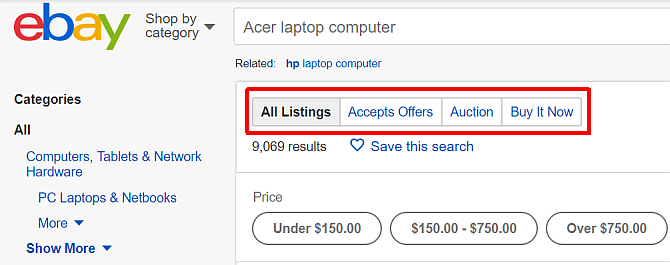
When you’re searching for what you want, listings have options at the top to switch between listing type. “All Listings”, “Accepts Offers”, “Auction”, or “Buy It Now”.
- All Listings: No filter is applied and you’ll see a mix of auction-style and buy-it-now listings.
- Auction: Most people prefer straight auction sales because you can get much better deals.
- Buy It Now: If you’re in a hurry and want more of an Amazon experience, then you can go with a “Buy It Now” sale.
- Accepts Offers: This will show listings where the seller is willing to entertain offers lower than the current listing price.
Pro-tip #1: If you are a collector and find yourself searching for the same sorts of items on eBay over and over, you can click on “Save this search” as a convenient way to quickly see new items that show up.
Pro-tip #2: If you’re new to eBay, sorting by Time: ending soonest or Ending Soon is one of the best ways to get the lowest price. This depends on the time of day you’re able to do the search. There are prime hours to be a buyer when prices are lowest. In the left navigation, click on Completed Items under Show only, to get an idea of what time and day of the week is the prime time for buyers.
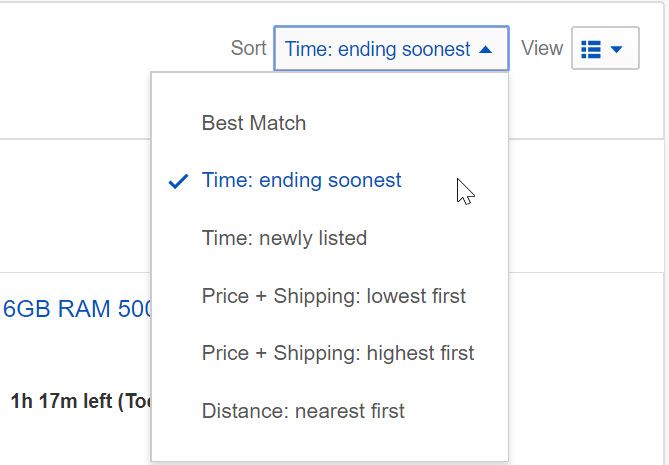
Once you sort the items by when they are ending, it’s time to scroll down the list and find the item you want that’s about to end in just a few minutes—or up to 30 minutes from now.
Waiting 30 minutes to bid on something isn’t such a bad thing if you get a smoking deal out of the wait.

Advanced eBay Search Tips
Using eBay’s advanced search is the best tool in your arsenal for finding the best deals when you’re shopping online at eBay. Hit the Advanced link next to the search box to get started.
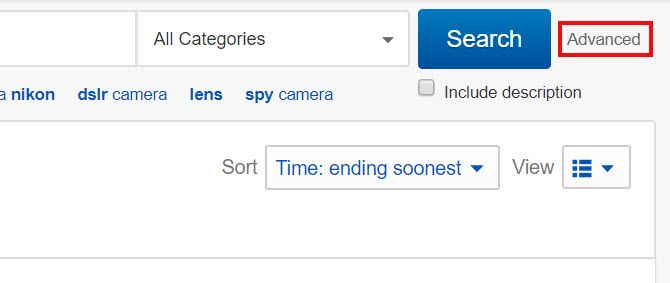
Here, you’ll see the sorts of things you’d expect: a search field, search terms to exclude (which is good if you’re looking for something very specific), the option to include searching descriptions as well as titles (do this!), different buying formats, and so on.
Use as many of these options as you need to find the exact listings you’re looking for.
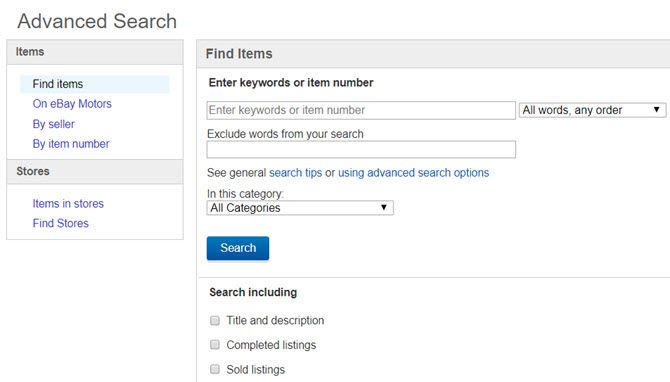
Some of the most useful options in the advanced search are:
- Search including title and description
- Condition
- Listings ending within [time]
- Best offer
- Free shipping
Which ones you select will depend on how specific you want your search to be.
One more quick search tip has to do with categories. When you search for an item, eBay automatically selects and searches a specific category.
When I searched for Fury of Dracula, a board game, eBay selects “Board games > Contemporary manufacture”.
Be sure to set this drop-down to “All categories” to find items that have been listed in the wrong category, as they might have better prices.
Once you find the item that you want, then it’s time to move on to the next phase of your research before you place a bid.
Researching the Seller on eBay
Pro-tip #3: When you find the perfect item, don’t just bid on it immediately.
You need to do your homework or else you’ll end up in a bad situation. Make sure you know everything there is to know about the seller.
See the seller information just off to the right of the “Current Bid:” area of the auction.
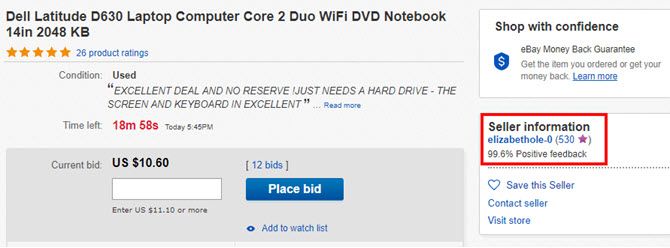
Make sure you pick an item with at least 15 minutes or so remaining so you have the time to do your seller and item research.
First, click on the number next to the seller name. That’ll take you to the seller feedback page.
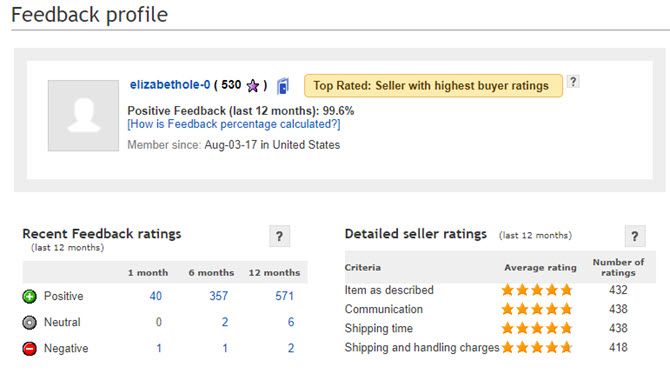
I know a lot of people who are heavy into eBay online shopping who only buy from sellers that have 100% feedback rating for the last 12 months. That might give you nearly perfect odds to never have any issues with anything you purchase on eBay, but it can also really limit what you can bid on.
The truth is, there are a whole lot of fantastic sellers who, through no fault on their part, ended up getting negative feedback from bad buyers.
You can identify patterns like this pretty quickly when you examine the feedback ratings for buyers, which are broken up into 1 month, 6 month and 12 month sections. For example, this buyer had only two negative feedback ratings within the last 12 months.
Of course, it’s always a good idea to scroll down and see what those were all about. In this example, it looks like the feedback ranking for this particular seller is pretty stellar despite the fact that the overall rank score is 99.6%.
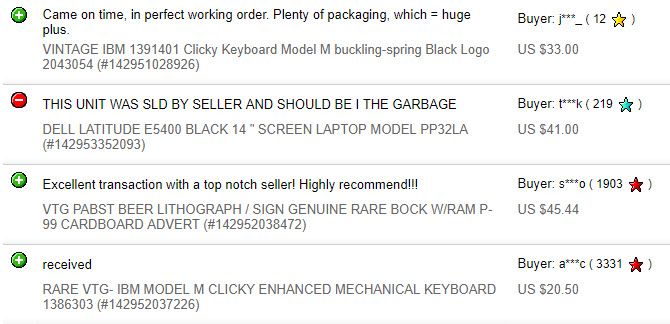
Given the overwhelming number of positive feedback rankings, I think it’s safe to say that this particular negative score was probably the fault of the buyer, not the seller.
Researching the Item on eBay
Once you’re satisfied with the seller, it’s time to research the item.
Pro-tip #4: Don’t just scan the item quickly, because there may be some details about the item that you want to know about before you buy it. Remember, this is likely someone selling a used item right from their home—so it’s probably not going to be perfect. Make sure you know about every imperfection.
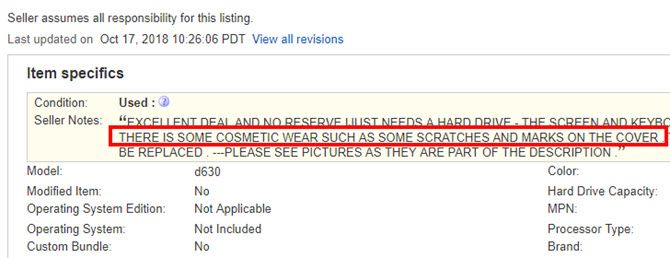
Most good sellers will make sure to note any imperfection.
Another important factor to check is the shipping. You’ll find this when you scroll down to the description area. Just click on the Shipping and Payments tab.
Different sellers have different methods of shipping—and sometimes they might actually overcharge.
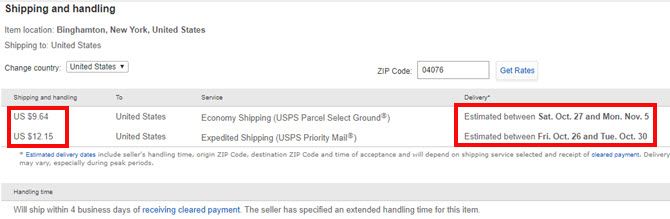
Beyond the shipping cost, check out where the item location is (at the top of the shipping page) so you have some realistic idea of how long it’ll take to get to you.
You’ll also want to scroll down a little further to Payment Details. Make sure the seller accepts the form of payment you want to use.
How to Snipe on eBay and Win Every Time
Pro-tip #5: If you bid in a certain way, you’re nearly guaranteed to win the auction.
This is especially important if the item is being closely followed by a lot of interested people, like the one shown here.
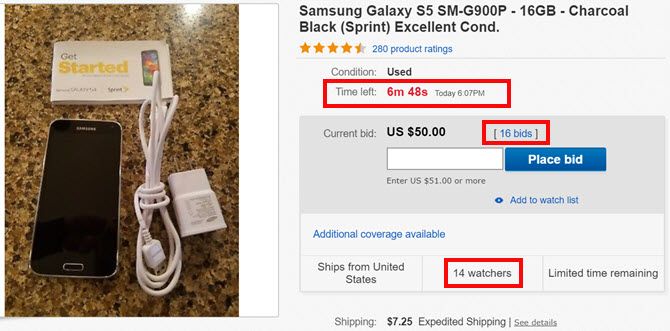
The first thing to do is make sure you’re properly logged into eBay. The last thing you want is a login-request at the last second when you want to bid.
Then, right click on the “Place bid” button and open it in a new window.
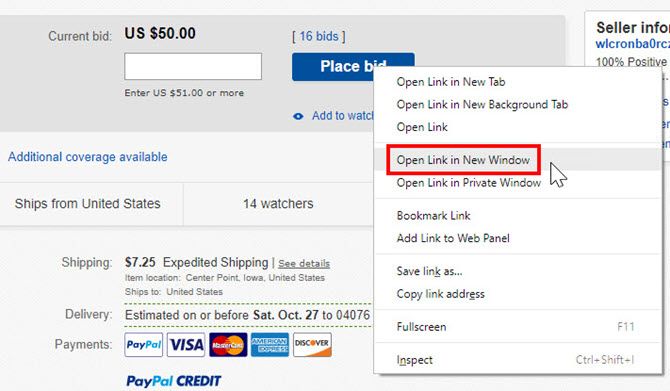
Move that window over to the side. Even better, to a different screen so you can watch the timer countdown on the item page itself.
Type in your maximum bid in the “Your max bid:” field.
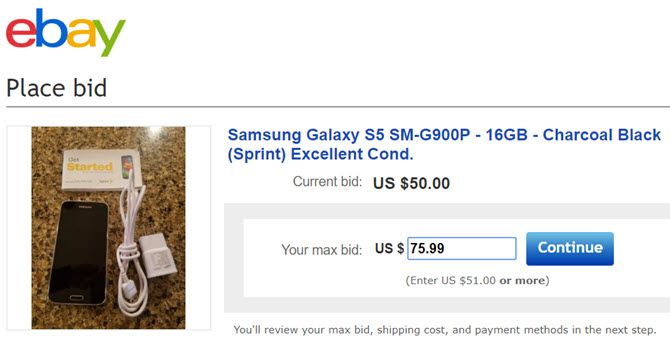
Don’t mess around here. Stretch yourself as far as you’re willing to go.
For example, in the case above, I only wanted to bid $75 at the most. Now, sure I could bid exactly $75, but if there’s anyone else looking for the laptop at the same price, they’re likely going to bid $75, $75.01, or $75.50. These are the most common ways people try to win at a certain price. To outbid all of those folks, bid $75.99. Then click Continue.
Now that you’re on the “Confirm Bid” page, it’s just time to wait for the countdown.
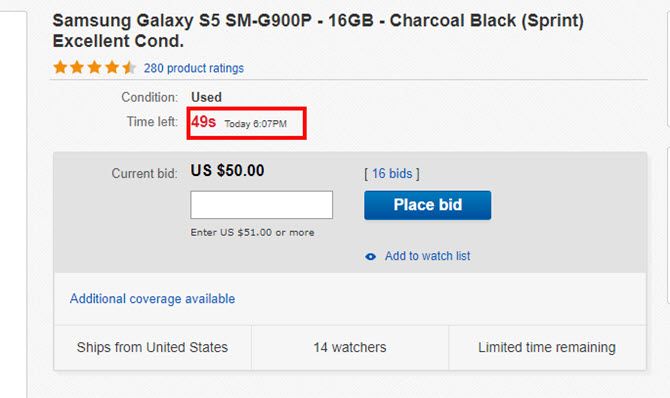
This is the important part, and it’s where most people freak out and bid too early.
On the very last confirmation page, you’re just one step away from officially placing your bid. Wait until the very last moment, providing only enough time for computer and Internet lag—about 3 to 4 seconds.
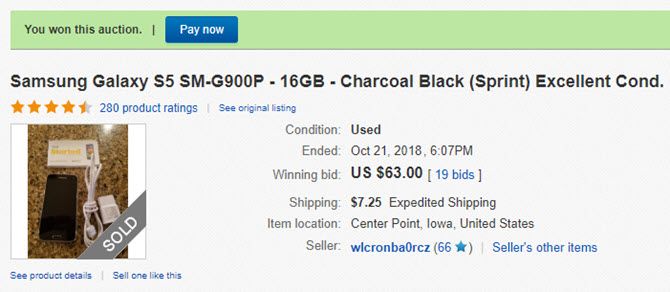
When the clock clicks down under 15 seconds or less, just go ahead and click the “Confirm Bid” button. Wait for the confirmation page that you’re the winner of the auction. Congratulations!
For even more success, check out our full article on using automatic bids and snipes to win auctions on eBay.
Image Credits: gpointstudio/Shutterstock
Read the full article: 5 Critical eBay Online Shopping Tips You Must Know
Ford Let it Slip a New High-Performance Sedan Is On the Way
At a closed-door meeting, attending dealers were allegedly told a four-door Mustang is on the way.

How to Build the Best Weightlifting Sandbag

Sandbags are easy to make, but hard to get right. Sand even comes in a bag, if you buy it at the store, but drop that on the ground two or three times and the sand and the bag will part ways.
The 6 Best Websites to Find Used Laptops for Sale

If you’re on a tight budget, you could land a bargain by buying a used laptop instead of a brand new one. This is especially true for high-end models. MacBooks and ultrabooks are known to hold value, but a second-hand model can help you avoid the eye-watering premiums you’ll pay at retail.
The best place to find your laptop may depend on where you live. Ideally, you’ll want to inspect before you buy. But if you can’t do that buy with confidence from a website that boasts buyer protection.
Here are the best websites to find yourself a used laptop bargain.
1. eBay
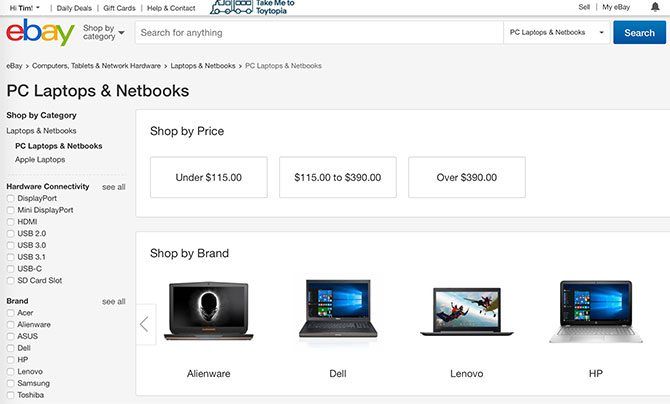
Predictable, but incredibly popular. The internet’s premium online auction site has a huge volume of used laptops at any one time, which makes it easy to find exactly what you want. You can search by brand, narrow things down by price, and pick the year of manufacture.
You can also pick from just about every computer-related metric: processors, storage capacity, RAM, screen size, and more. Choose to search both manufacturer and seller refurbished models, or stick to the used market for the cheapest prices.
Looking at a MacBook? Check out eBay’s MacBook store. Want a Windows laptop? eBay has a PC notebook store too. Sort every laptop auction by ending soonest to spot any bargains that haven’t received any bids yet. You can try your luck at the auctions (sniper tools may come in handy), or take your time with buy it now listings.
eBay also makes past auctions available for perusal. This allows you to use eBay advanced search to find listings that have already finished. You can then use this information to gauge whether you’re getting a bargain or not.
Finally, most auctions are covered by eBay’s Money Back Guarantee. This means you’re covered against sellers that don’t ship your item, items that do not match the listing or faulty items that don’t work as advertised. This makes eBay the best choice for buyers who are unable to inspect items in person.
2. Facebook Marketplace
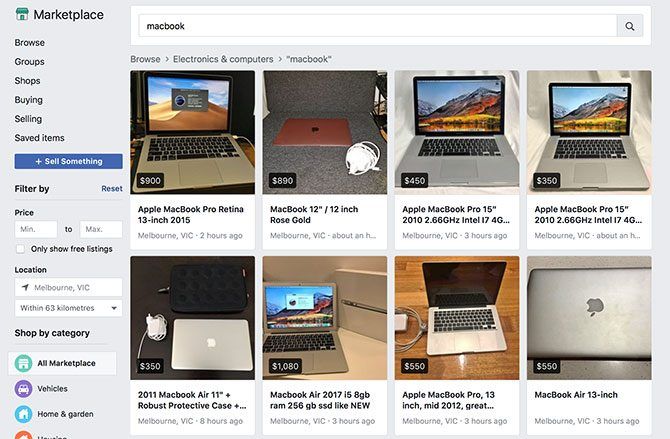
Facebook is no longer just a social network, it’s a rapidly growing peer-to-peer marketplace too. Leveraging the ever growing user base, Marketplace makes it easy to list or find items for sale in your immediate area.
Simply search what you’re looking for, or browse by “Electronics” to see everything computer-related. You can then filter by price or adjust your location, widening the search area if you’re happy to travel a little further to find what you’re looking for.
Unlike eBay, Facebook Marketplace does not take care of the transaction. If you find an item you’re interested in you’ll need to contact the seller to arrange an inspection. For this reason, Facebook Marketplace is not suitable for long-distance transactions, since you’ll have no buyer protection.
Make sure you look any potential product over before you buy. If a bargain looks too good to be true, it probably is. Don’t fall for items that may be stolen that lack essential cables, or are listed at very low price points. Consider joining a few local “buy/sell” groups, where the items for sale are up for discussion.
3. Gumtree
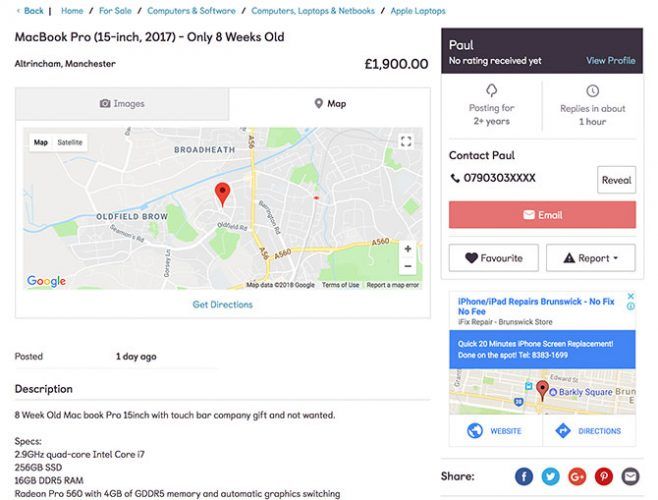
Gumtree is the another classifieds site in the same vein as Facebook Marketplace. The difference here is that you don’t need a Facebook account in order to use it, and you can inquire about any item for sale with a good old email address.
Despite expanding into the US market in 2007, Gumtree is most popular in its home country of the UK. It also enjoys success in Australia, Singapore, and South Africa. You can choose to browse by category (Apple Laptops and PC Laptops & Netbooks are both options) or use the search bar instead.
Once you’ve supplied a location in which to search, you can modify the search area to widen or narrow down your search. When you’ve found an item you like the look of you can either send an email to the seller or reveal their phone number in order to give them a call. Just like Facebook Marketplace, Gumtree sales take place between you and the seller only.
If you’re thinking of buying through Gumtree, take a look at the company’s advice regarding staying safe. It is recommended you avoid sales that don’t take place face to face, and always be suspicious of adverts that look too good to be true.
4. Swappa
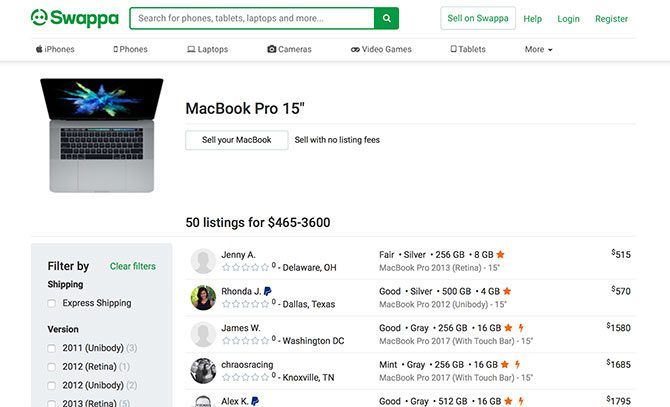
Swappa is a marketplace for used technology products including laptops, but also smartphones, cameras, and video games. Sellers don’t pay for the service, but buyers pay a small fee that’s included in the final sale price.
The service does a few things differently to other services like eBay. Only working products are allowed on the service, which means no broken or “for parts” listings. Each listing that goes live on the website has been reviewed and approved by a member of Swappa’s support team. Serial numbers are checked to help verify items, adding further peace of mind.
All shipping costs are included in the final price and for buyer protection the service uses PayPal. This protects buyers against items not showing up in the post, items that differ significantly from the description, and faulty items. You’ll have to recoup your money through PayPal, not Swappa, though.
If you’re thinking of buying a laptop through Swappa there are dedicated sections for specific models including MacBooks, Chromebooks, and Microsoft Surface Books. Filter by price, year of manufacture, and metrics like RAM, storage, and even color.
5. Best Buy Refurbished Laptops
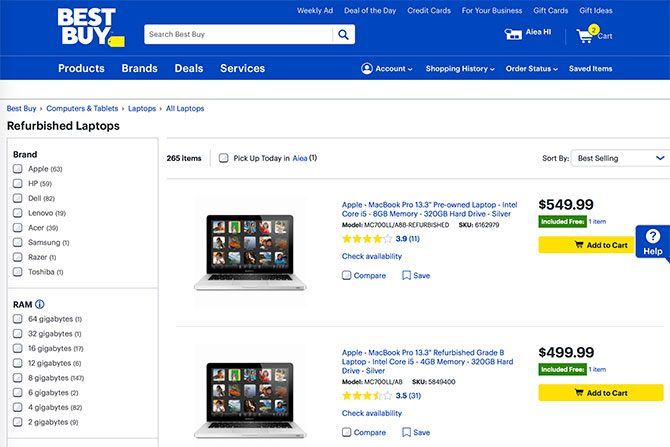
If you’re willing to spend a bit more than what you’d normally pay for a used laptop, you can get a refurbished laptop instead. These machines have been inspected, graded, and often come with some sort of warranty. While they’re not flawless, the price will reflect the laptop’s overall condition.
If you don’t need the latest and greatest, Best Buy carry a lot of refurbished older machines that are still serviceable. These include the chunky old optical drive MacBook Pro models, which lack solid state drives (SSDs). You can also find 14″ Dell machines with small SSDs for around $250, and old Chromebooks for about $170.
Some laptops come with a warranty, while others may not. All laptops purchased through Best Buy come with the company’s Return & Exchange Promise as per the company’s Best Buy Outlet Guide. The company states that “most products offer a minimum 90 day warranty unless otherwise noted” but it’s best to query each individual item before you buy.
6. Apple Certified Refurbished
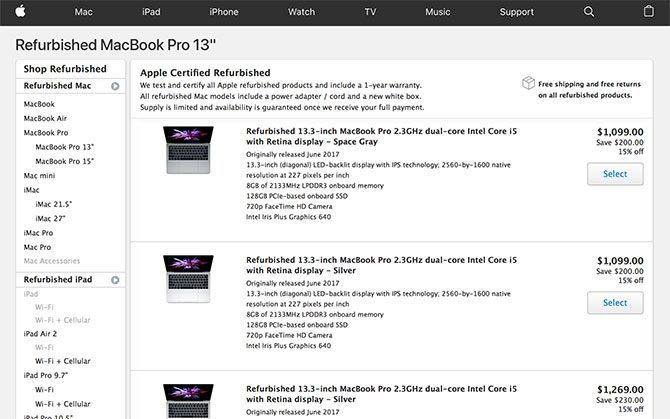
If you’re looking for a Mac and you want the absolute best condition you can buy, Apple’s refurbished store is the best place to buy. Everything you buy under the Apple Certified Refurbished program includes a one year warranty, power adapter, and required power cords.
Apple’s refurbished store is also the most expensive place to buy a used Mac. But it offers the best warranty and range of products. The price you pay will depend largely on the product and the year of manufacture, as well as how powerful the laptop is.
You can grab a refurbished 13-inch MacBook Air from 2007 for around $850, while a high-end MacBook Pro of the same age will run you nearly $2,400. These products still represent a decent saving over the cost of the latest brand new products. And you can purchase with confidence knowing they have been serviced by Apple before being sold.
In addition to a proper warranty, you can also buy AppleCare to extend the coverage of your refurbished products. Purchases are also eligible for a 14-day returns policy. If you spot something, be quick since supplies are generally limited.
Occasionally you’ll find some older models of MacBook surfacing. Though, most Mac models sold through the program are no older than one or two years old.
Getting a Good Deal on Cheap Laptops
You don’t have to buy a used laptop to save some money. Many manufacturers now produce cheap laptops that won’t break the bank. Check our top cheap laptop picks and find out if they’re right for you.
Read the full article: The 6 Best Websites to Find Used Laptops for Sale
How to Master Siri Shortcuts and the Shortcuts App in iOS 12

With iOS 12, Apple made a wise decision to step back and focus on improving iPhone and iPad performance. However, there are still new features for you to take advantage of.
One of the best new features is Siri Shortcuts. It allows you to harness the power of personal assistant Siri to supercharge routines and make it easier to accomplish everyday tasks from popular apps.
Let’s take an in-depth look at Siri Shortcuts, how they improve the overall iOS experience, and how you can go even further with Apple’s Shortcuts app.
Say Hello to Siri Shortcuts
Before iOS 12 arrived, interacting with different apps to accomplish tasks took time and a lot of work on your device’s screen. Siri Shortcuts can help you save time when completing a single task or a larger series of actions that requires many apps.
For example, you could create a shortcut to quickly and easily view the forecast from one of the most entertaining weather apps available—Carrot Weather. The information will appear on the Siri screen without opening the app.
With help from the Shortcuts app, you can also create a more complicated Siri Shortcut. On your commute home, a Siri Shortcut can text someone that you’re hitting the road, automatically start Google Maps, and turn on a specific Apple Music playlist. Instead of having to interact with each app, you can customize a specific name for the shortcut and just ask Siri.
All of Apple’s built-in apps, like Mail, Safari, and many others, can use Siri Shortcuts. And third-party developers can also update their apps to provide support.
The best part of Siri Shortcuts is that you don’t need to do anything to use the feature. Apple’s software is always on the lookout for different daily routines with your different apps, as part of Proactive Siri. (We’ve compared Proactive Siri and the Google Feed if you’re interested.)
On the lock screen of your device or while doing a search, you’ll see a Siri Suggestion with a specific shortcut. Just tap the suggestion to launch the task.
How to Create a Siri Shortcut


But this is far from the only way to create or interact with a Siri Shortcut. Using any compatible third-party app, just look for the Add to Siri icon or a Siri Shortcuts section. Most apps will already provide several different tasks that are perfect for a shortcut.
On the next screen, you’ll see a better look at what exactly the shortcut will do. At the bottom of the screen is a record button. Select that to record a custom phrase to give Siri. Along with creating a memorable phrase, it’s best to keep this short—one or two words is perfect.
All the Siri Shortcuts you customize through third-party apps are available to view by going to Settings > Siri & Search. Select My Shortcuts to view everything you’ve created.
Below that is a Suggested Shortcut section. On the main page, you’ll see a few different Suggested tasks you do frequently. Just select the Plus button to create a shortcut for it.
Under the suggestions, select All Shortcuts for even more options. You can find a number of possible options from both Apple and third-party apps. Those are tasks you’ve already completed with the apps.


In the same section, you can also delete a Siri Shortcut or change the activation phrase.
As a nice bonus, you can also run many of the Siri Shortcuts created in iOS 12 using an Apple Watch or HomePod. If the shortcut can’t activate on those other devices, the voice command will start the process on your iOS device instead.
Using the Shortcuts App
Setting up and using a Siri Shortcut from a single app is definitely useful. But if you’d like to truly harness the power of this feature, download Apple’s Shortcuts app. Formerly known as Workflow, it provides a way for power users—or even novices—to experience iOS automation by tying together multiple apps and services.
The iPhone and iPad app has two major sections. Newcomers should head to the Gallery, where you can browse a huge number of pre-created shortcuts. If you’re looking for something specific, select the search bar on the top of the page.
When you find a shortcut to try out, just select it to see more information. Select Show Actions to see exactly what the shortcut does with different iOS apps and features. The Get Shortcut button will add it to your Library, the other section of the app.


On the main page of the Library, you’ll see all the available shortcuts. Selecting a shortcut will automatically run it.
To make any shortcut fully Siri-ready, tap the three-dot icon on it. That will bring up the entire instruction set of the shortcut. Finally, select the Settings icon at the upper-right part of that screen. There, you can record a phrase for Siri, change the shortcut name and icon, and more.
To start with a completely new shortcut, press the Plus button in the top-right corner of the Library.
This is where the real fun begins, especially for advanced users. The bottom of the screen shows a huge number of different actions to create a shortcut. When you select an option, the section will change to show appropriate actions that pair with it. Selecting the information icon near each action will show you more information and allow you to add the action to your favorites.


On the creation page, it’s easy to edit and move around the different actions. When you want to try out the shortcut, select the Play button in the top-middle of the screen.
For more on how to create and use a shortcut, Apple has a comprehensive Shortcuts User Guide.
Making the Most of Siri Shortcuts
With Siri Shortcuts in iOS 12, you can use the virtual assistant to better interact with apps you use most. It just takes a simple voice command or tap of the screen. And using Apple’s Shortcuts app, you can take the fun to a new level and create an almost unlimited number of different actions and other commands in a few steps.
If you wish your favorite apps worked better together, Siri Shortcuts can bridge the gap. It will also save you time on repetitive tasks every day
And for more on the latest for your iPhone or iPad, make sure to check out the best hidden iOS 12 features. We’ve taken an in-depth look at how Screen Time can help cure your phone addiction, too.
Read the full article: How to Master Siri Shortcuts and the Shortcuts App in iOS 12
Very Nice… How Much?! On Day Rates in Commercial Photography

It’s standard practice for commercial photography clients to ask photographers for their ‘day rate’. Most estimates that photographers provide start with a day rate before going on to production costs and expenses.
Now I used to think I could simply take it for granted that anyone involved in the industry would be able to appreciate this isn’t exactly what a photographer — or any independent creative professional, for that matter — working on a short-term project earns for every single day of the year.
I’ve realized that the world of photography is in so much flux that this isn’t a safe assumption and now I much prefer to provide a rate for each job. My reasons can be best illustrated with an example.
Here’s a fictitious estimate I’ve made up with arbitrary numbers, though its structure is one I actually might use for a similar brand photography shoot of medium complexity.
Yes there are numbers involved, but do stay with me and hopefully our eyes won’t glaze over:
Based on the above, what’s my day rate?
Is it £10,000 / 3 days = £3,333 (~$4,400)? Does that mean in a year with 250 working days I could be making £3,333 x 250 = £833,250 (~$1.1 million)?
Or is it a third of the Creative Fees component i.e. £3,500 / 3 days = £1,167? Meaning I could pull in £291,750 a year?
Or is it somewhere in between?
The real answer is that my effective day rate here comes to just under £400 per day, and that still doesn’t equate to £400 x 250 = £100,000 (~$133,000) a year.
Please allow me to explain.
From the end client’s perspective, this estimate represents a total price of £286 ($380) per image (admittedly before some other costs such as models’ fees in this example) for 35 commercial images specially produced for their brand, which I’d say is excellent value, especially given the generous usage license on offer.
For the sake of comparison, this is a small fraction of the licensing fees quoted by Getty Images for similar usage of images that haven’t been storyboarded and produced specifically for the end client’s brand.
From the photographer’s perspective, the fees (i.e. excluding all expenses owed to third parties) in this example has three components:
Creative and Licensing fees: £3,500
Recce fees: £1,200
Retouching: £1,225
That’s £5,925 for 15 days’ work. Wait a second, how did we get to 15 days from a three day shoot? Let’s see how many days the photographer might spend working on this:
Pre-production: 2 days
Recce: 3 days
Travel: 1 day (not counting locations within 2-3 hours’ driving distance)
Shoot: 3 days
Post-production + review: 3 days (wider selection of images prepared for review)
Retouching: 2 days (assuming approx 30 min per final selected image)
Communicating about project: 1 day (cumulative)
Only some of these days will be directly billed. Do note that 15 working days means three calendar weeks.
£5,925 for 15 days’ work equates to £5,925 / 15 = £395 ($525) per day, which should be pretty good, correct?
Except that this isn’t the photographer’s net income; this is still the gross profit i.e. what’s left after deducting direct production costs from the invoiced total but not operating costs.
Let’s say the costs of running a photography business as a fairly tight ship amount to about £2,000 a month or £24,000 a year. This includes a number of components including marketing costs, office space, photography and IT equipment depreciation and replacement costs, vehicles and transport, training, insurance, etc.
£24,000 a year / 250 working days amounts to £96 ($128) per working day.
If we deduct this from the £395 per day figure we had above, we end up with £395 – £96 = £299 ($397) which is the photographer’s ‘salary’ for every working day of this assignment.
Now £299 per working day should result in an annual income of £299 x 250 days = £74,750 ($99,250), which isn’t too bad for an experienced professional living the dream even in one of the most expensive cities in the world, is it?
Maybe, though this assumes the photographer can consistently fill their diary with similar back-to-back assignments for 49 working weeks a year and find extra time during evenings and weekends to undertake the hundreds of other tasks required to run their own business, including wearing multiple hats ranging from web designer to financial director.
The reality of the availability of photography work (and client budgets) is far, far lumpier than that. It’s all less rock-n-roll, more almost-on-the-dole.
As I said, the figures in the example above are quite arbitrary and involve some rounding off. Some of you reading this might consider them either wildly optimistic or naively modest, but they aren’t a million miles away at all from real commissioned commercial photography jobs.
On the other hand, the same hypothetical client could also likely obtain estimates from other photographers quoting a flat day rate of £300 ($400) for the project with no other line items.
What would their ‘take home’ pay look like? And can a commercial client afford to trust their brand in their hands?
This isn’t a question that I can answer for anyone, though hopefully with this post I’ve managed to shed some light on why I don’t really use the term ‘day rate’ much myself.
About the author: Shariq Siddiqui is a London-based portrait & lifestyle photographer for advertising, commercial, corporate and editorial clients. The opinions expressed in this article are solely those of the author. To see more of his work, head over to his website or follow him on Instagram, Twitter, Facebook or LinkedIn. This post was also published here.
Image credits: Header illustration based on photo by rawpixel
What Digital Transformation Means For The Commercial Real Estate Practitioner

What To Know If You're Ready To Start Investing In Commercial Real Estate

Parcelcopter Drone Project Delivers In Rough Terrain
It’s a known fact that the last mile is also the longest mile in the parcel delivery service. The further removed from a hub city a delivery location is, the more required stops in between. Every part of the process slows to a glacial pace when the drop-off spot is inaccessible by land or air. Now apply this in the case of a medical emergency, and timing is everything.
Enter the joint project between [DHL and Wingcopter] dubbed Parcelcopter 4.0. The half plane, half helicopter drone design was recently tested over a six month period by making medical supply drops to Ukerewe island located in the middle of Lake Victoria. The remote island is home to roughly 400,000 people and many areas around the isle remain out of reach to traditional delivery vehicles. The island’s closest southern port is separated from mainland Tanzania by a four hour trip by barge and over six hours by road which makes drone delivery a potentially life saving option.
The Wingcopter drone itself is capable of vertical take off and landing (see 1:53 in the video below) while holding up to 9 lbs inside the thermally insulated cargo hold on the underside of the craft. It is controlled via 3G and/or 4G LTE, and according to the manufacturer website is capable of flying up to 60 miles on a single charge. Tests showed the drone made the nearly 40 mile trip across Lake Victoria in an average of 40 minutes.
It is interesting to see a real world commercial application seemingly ready to meet the needs of a vastly under served community. There are certainly many tests left to go before drone delivery goes into wider use, but thanks to this project the Parcelcopter 4.0 is 1400 air miles closer to that future.

The 'James Bond Of Jewelry' Explains Real From Fake

The New Way Things Work

This illustration-rich book ($26) provides a peek under the hood of the mechanized world we inhabit. David Macaulay, with tech writer Neil Ardley, has that rare gift of technical understanding paired with an ability to convey complex concepts through visual imagery. Kids, parents, Lit. majors, curious people – all can learn, and laugh, from the interpretive drawings that fill this wonderful tome, granting insight into the workings of everything from twin-rotor helicopters to printing presses to self-winding watches and even modems.
Remember floppy discs? The 1998 edition of this book (the most current) does feature some dated material regarding digital technology. Still, it’s an overwhelmingly relevant, educational reference — awe-inspiring because of Macaulay’s talents as well as the achievements of human ingenuity on which his pictures shed light.
[This is a Cool Tools Favorite from 2009]
Sample Excerpts:

Inside the Mouse
The mouse rolls on a ball that turns two slotted wheels mounted at right angles. Each wheel has one or two pairs of light-emitting diodes and photodiodes. As the wheel turns, light shines through the slots and produces an electric signal in the photodiodes. The signals from the wheels give the changes in the mouse’s position.
*

The Sewing Machine
The Feed-Dog: This moves the fabric forward. One train of cams and cranks moves the feed-dog forward and backward, while the other makes it rise and fall. Both are powered by a wheel driven by the electric motor, synchronizing their movements. The feed-dog rises and moves forward between stitches to shift the fabric and then dips and moves back.
*

Drill Chuck
The chuck of a power drill has to grip very strongly as it rotates the drill, yet it must be possible to loosen or tighten the chuck by hand. A compact arrangement of bevel gears and levers does the trick. The key pinion is turned to rotate the collar of the chuck, which turns the screw inside the chuck to move the jaws in or out. the screw is set at an angle so the the jaws open as they withdraw into the chuck, and close to grip the drill bit as they protrude from the chuck.
*

Automatic Transmission
Changing Down: As the governor rotates more slowly or the accelerator pedal is pressed, the throttle valve pressure exceeds the governor pressure. The shift valve moves back, and the low-gear piston engages low gear while the high-gear piston disengages high gear.
Rivers Cosmogram in New York, New York

The ashes of one of America's best poets are buried in the floor of a New York City library.
In 1921, when the poet Langston Hughes was just 19, his poem “The Negro Speaks of Rivers” was published. Seventy years later, on what would have been his 89th birthday, the Schomburg Center for Research in Black Culture held a ceremony around the public art installation made in his honor. His ashes were buried in a small vessel beneath the tiled piece of art.
The installation, named Rivers, is in the Langston Hughes lobby of the Schomburg Center, a part of the New York Public Library system.
Inspired by Hughes' poem, the artist Houston Conwill made the memorial to honor Hughes and Arturo A. Schomburg, the library’s namesake. The cosmogram quotes lines from the poem: The final line—"My soul has grown deep like the rivers”—is in the circle’s center.
Lines flowing through the piece connect the places Hughes and Schomberg were born—Missouri and Puerto Rico—with Harlem. The lines and signs are meant to be a tribute to African ritual ground markings, “weaving a web of connections between people of diverse cultures and backgrounds, the past and the present,” the library says.
The 7 Best AirPods Accessories to Improve Your Earphones

Apple’s AirPods are some of the best wireless headphones you can buy if you own an iPhone, but that doesn’t mean they’re perfect. They don’t charge wirelessly, are prone to scratching, and can slip out of your ears fairly easily.
Fortunately, you can fix all these problems with the right aftermarket accessories. Here are seven AirPods accessories to make your AirPods even better.
1. PowerPod Wireless Charging Case

The original AirPods charging case doesn’t charge wirelessly. Instead, you’ll need to connect a regular Lightning connector to the bottom, and charge them as you would your smartphone. Even when Apple’s fabled AirPower wireless charging dock arrives, your old AirPods will still use wired charging.
Enter PowerPod. This cover attaches to your AirPods case, slotting into the charging port at the bottom of the unit. You can then use any Qi wireless charging pad to charge your AirPods like you can your iPhone X or similar.
The PowerPod doubles as a silicon case, protecting your AirPods with a shock-absorbing layer that is grippy and comfortable to hold. Don’t forget to pick up a few Qi wireless chargers, since the PowerPod doesn’t come with any.
2. Waterproof Silicon AirPods Cases

Worried about water damaging your AirPods? Then you need a waterproof silicon case, like the one above from Catalyst. The case features sealing ribs and an over-the-top design that clasps shut and locks out moisture.
The Lightning port is covered up at the bottom. This option also protects the case from shock damage and includes a carabiner.
Your other option is the slightly cheaper but virtually identical design from MICOK. Silly name aside, it offers the same silicon shock protection, covers all the important bits, and includes a carabiner for better security.
Both cases offer IP67 water protection, which means you submerge them up to roughly three feet.
3. Spigen AirPods Stand and Charging Dock

Some people love to charge all their devices on a stand. If that sounds like you, the Spigen stand and charging dock for AirPods is one of the best options on the market. Most importantly, it comes with an Apple-certified MFi charging cable so you know it’s not going to damage your earphones.
Despite being a big chunk of plastic, the design is thoughtful. It features a non-slip base and shiny white exterior that perfectly suits Apple’s design. It might also solve the problem of never being able to find your AirPods when you leave the house. You just need to remember to set them on the stand in the first place.
4. PodSkinz Silicon Case

Like the idea of a silicon case but don’t want to spend much money? PodSkinz might be what you’re looking for. The self-described “original” AirPods case, PodSkinz offers eight colors: black, white, grey, clear, cobalt, diamond blue, red, and pink.
If you opt for PodSkinz you’ll get a smooth dust-resistant finish. They also feature a one-year warranty with a money-back guarantee if you change your mind. The thin silicon membrane weights just half an ounce and protects against bumps and scratches.
5. AirPods Earhooks

Earhooks fit over your earbuds and add an additional “hook” that keeps them in place while in use. Apple includes earhooks with the Beats X wireless earphones, but not with the AirPods. You can fix that with a pair of Spigen TEKA RA200 earhooks, which includes two sets of hooks (one large and one small).

A similar alternative is the IndieGoGo-funded Earhoox 2.0. This second version adds support for AirPods. They’re also made from stronger and more durable material for a tighter fit, and use a single-arm design.
Each pack includes two pairs, and they’re available in white, blue, and black.
6. AirPods Straps

Apple’s wireless design is a standout feature of the AirPods, but not everyone loves it. If you often lose your AirPods, or would rather let them hang around your neck, why not get something like the i-Blason Strap?
The necklace design keeps them around your neck, while the ear-fitting loops keep them firmly in your ears while you listen.

If you’d prefer a more simplistic approach, try the Spigen TEKA RA100 strap. The basic design lacks built-in earhooks but includes a convenient strap for keeping your AirPods on a closed loop. Available in white or black, Spigen’s strap is made of durable TPU and uses a tangle-free design. This keeps your earphones close whenever you need them.
7. AirFly Wireless Transmitter for AirPods

Want to use your AirPods like wired headphones? You need the AirFly. This handy gadget connects wirelessly to your AirPods (or other wireless headphones), providing a standard 3.5mm adapter that you can plug into any wired headphone port.
This is especially handy if you want to use your wireless AirPods with wired outputs like in-flight entertainment systems, gym equipment, the Nintendo Switch, or anything else that lacks Bluetooth or W1 connectivity. AirFly provides eight hours of listening, and charges via a standard microUSB cable.
Get the Most Out of Your Apple AirPods
These accessories should help solve some of the issues that AirPods users often experience. Thankfully Apple did a pretty good job in acoustics, battery life, wireless connectivity, and microphone quality—but for $159 a pair, you’d expect so!
If you’re just getting to grips with your new wireless earphones, check out our best Apple AirPods tips to learn about setting up shortcuts, using Siri, and pairing with regular Bluetooth devices.
Read the full article: The 7 Best AirPods Accessories to Improve Your Earphones
