Shared posts

15 Aug 18:12

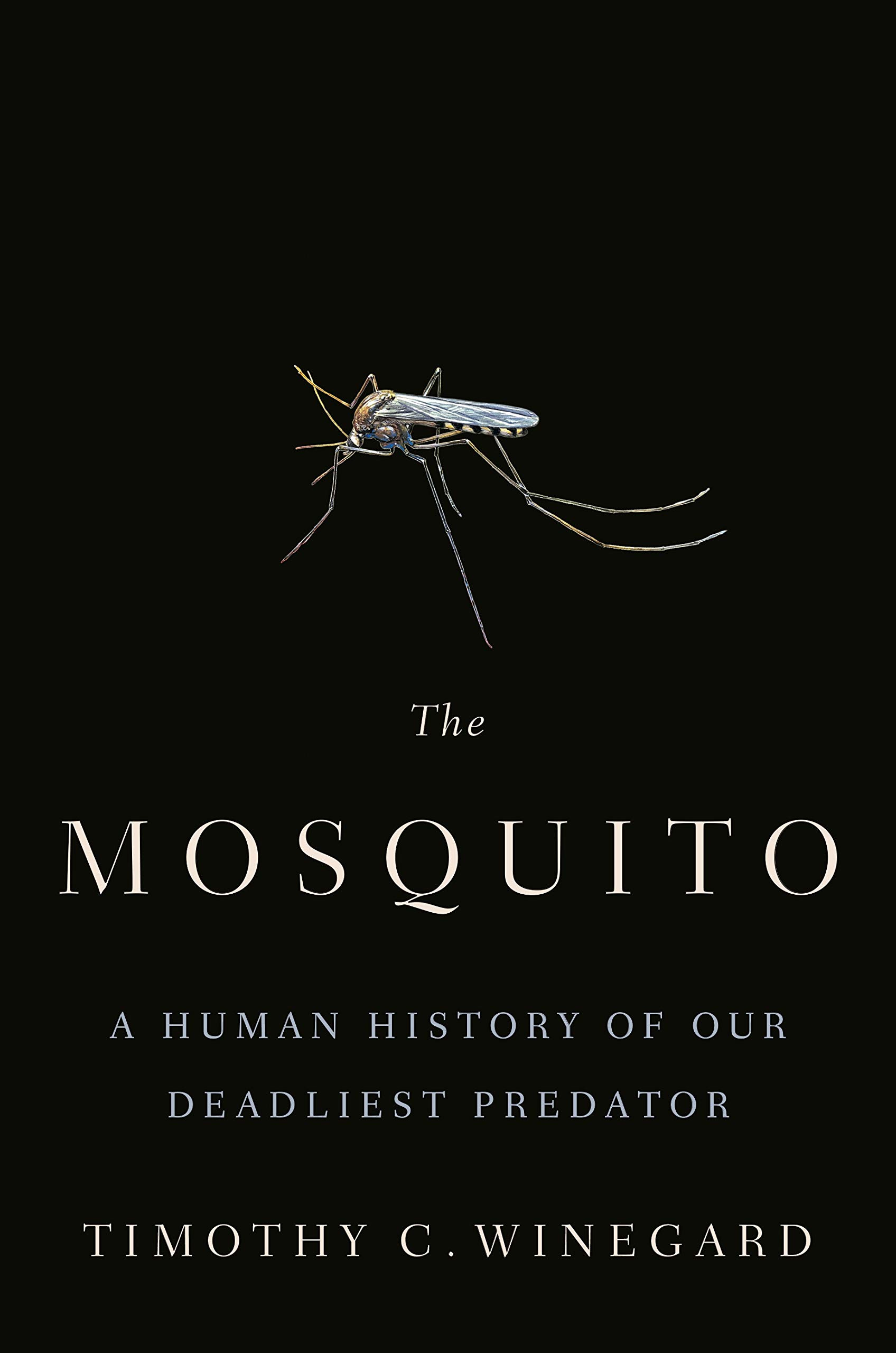
Five Surprising Ways the Mosquito Shaped the South

by Dacey Orr

Drawn to bright colors, beer drinkers, deodorant, perfume, and sweat, mosquitoes are one of the South’s more unpleasant facts of life. But a fascinating new book by Timothy C. Winegard, a professor of history and political science at Colorado Mesa University, reveals just how much the little beasts have influenced the world—to the tune of claiming some 52 billion human lives. The Mosquito: A Human History of Our Deadliest Predator traces the defeat of armies, birth of nations, and shaping of culture all at the hand—or wings—of the mosquito. And as you might expect, the South, in all its humid, sticky glory, makes a number of appearances. From playing key roles in major conflicts to fueling our coffee habit, here are five ways the mosquito has left an indelible mark on the region. 


1. Mosquitoes gave chrysanthemums a bad reputation in the South 

Before people gave chrysanthemums as tokens of love, they mashed them up and used them as insecticide, a practice that dates back to ancient China. That’s because the flowers contain pyrethrins, chemicals that attack the nervous systems of insects, including mosquitoes. While in the Northern United States, chrysanthemums generally enjoyed a reputation as positive symbols of vitality and joy, their link to the mosquito connected them to death and disease in the South, specifically in the mosquito-ridden city of New Orleans, where they were often used to decorate the gravestones of yellow fever and malaria victims until the early twentieth century.


2. Mosquitoes helped win the Civil War 

Not only did the Union have the upper hand when it came to weapons, manpower, and food, it was also rich in another valuable resource: quinine. A strategic naval blockade by the North choked the supply of the malaria medication to the Confederacy. While Union soldiers took daily preventative doses, malaria festered within the Confederate army, leaving sunken eyes and hollow cheeks. Smugglers attempted to sneak quinine past the blockade, stuffed in children’s dolls or the skirts of women disguised as nuns, but it barely made a dent in the number of soldiers falling to the disease. “Abundantly supplied Union troops and allied malarious mosquitoes had tapped and bled dry the fighting strength and spirit of the Confederacy,” Winegard writes. 

photo: U.S. National Library of Medicine

A drawing for Harper’s Weekly shows a Union “Quinine Parade,” as soldiers receive rations of the anti-malaria medication.

3. A Kentucky physician tried to kill Lincoln with yellow fever… and then became the governor

Before Dr. Luke Blackburn was elected governor of Kentucky in 1879, he was dabbling in biological warfare. An ardent Confederate supporter and supposed yellow fever expert, Blackburn secretly devised a plan to assassinate Lincoln by collecting bedsheets from yellow fever victims and selling them to a trade store near the White House. Convinced that the infected linens could kill a man from sixty yards, Blackburn expected the disease to sink its teeth into all of Washington, D.C., and Lincoln in the process. (It wasn’t until the 1890s that scientists firmly established mosquito bites as the culprit.) Yellow fever consumed the already war-torn South, and Blackburn himself traveled around the region to tend to victims. His devotion to the sick made him a likeable candidate for Kentucky governor, and he won in a landslide. 


4. Mosquitoes almost wiped out Memphis 

In the aftermath of the Civil War, “The mosquito…literally sucked the life out of Memphis and turned it into a city of crypts and corpses,” Winegard writes. The sudden growth in trade made the port city a hotbed for yellow fever, which decimated the population. By the summer of 1878, Memphis became a ghost town. More than half of its residents fled, and of the 20,000 people that stayed, 17,000 contracted yellow fever. That September saw an average of 200 people die each day before the chill of October curbed the disease’s winged perpetrators. 


5. We can thank mosquitoes for our coffee habit 

As you might recall from that Boston Tea Party in 1773, we were initially a colony of tea drinkers. But by the late 1700s, shunning tea in favor of coffee became as much a medical practice as an act of patriotism. As malaria festered in the South, doctors peddled coffee as an anti-malarial wonder drug. (It didn’t hurt that many Southern plantations were growing the beans at the time.) Coffee consumption increased dramatically as people hoped their morning cup of Joe would cure them of “agues and fevers.” Today, Americans drink 25 percent of the world’s coffee. As Winegard writes, “Starbucks ought to raise a toasting glass to the tiny mosquito.” 

The post Five Surprising Ways the Mosquito Shaped the South appeared first on Garden & Gun.

15 Aug 12:00

Three Mistakes That Kill Image Quality (and How to Avoid Them)

by Adam Welch

The post Three Mistakes That Kill Image Quality (and How to Avoid Them) appeared first on Digital Photography School. It was authored by Adam Welch.

We all want to make the highest quality photographs we possibly can, right? Hopefully, you just gave a very slow yet very serious head nod in agreement to that statement.

There are a host of factors that play into the final quality of your digital images. Even the phrase “image quality” seems to be the best way to sum up all the pieces that have to come together for us to consider our photographs to be of high quality. Sharpness, composition, color balance and contrast are a few variables that jump to mind along with a multitude of others that we can and cannot control.

image-quality-mistakes

In this article, we’re going to look at three mistakes that you could very well be making with your photography right now which could be sabotaging your image quality before they ever leave your camera. Luckily, all of these mistakes are easily remedied once you realize they exist. Let’s get started.

Shooting “wide open” all the time

Make no mistake, from a lens standpoint, we live in an extraordinary time. Lens manufacturers have evolved to the point where we currently see extremely well-constructed optics with beautiful sharpness capable of shooting with relatively enormous apertures.

Not even a decade ago, you virtually could not find a “fast zoom” lens with a maximum aperture wider than F/4 for less than a $1,000US – at I least I never did.

Now, it has become blissfully common to acquire an outstanding F/2.8 or wider lens without taking out a second mortgage on your home.

image-quality-mistakes

This new age of lens evolution comes with a few caveats, though. Just because your lens is a low-light beast capable of shooting at F/1.4, doesn’t mean that is an ideal aperture for every situation. You see, lenses have certain “optimum apertures” which provide the sharpest results for that particular lens.

In most cases, the widest aperture of your lens, while providing the best light gathering and arguably the best bokeh, is usually the worst optical setting for your lens. The widest aperture setting of your lens often makes nasty little image problems more apparent. Chromatic aberrations, edge softening, and vignetting all become more pronounced when you shoot wide open.

The solution:

Stop down your lens, even if it’s only by a stop or two. You’ll lose some light, but you will also likely see a markedly visible increase in image sharpness and overall quality. While it’s true that not all lenses are created equal (some show shockingly fantastic performance even at their widest apertures), the outcome will probably only become better if you stop down.

Three Mistakes That Kill Image Quality (and How to Avoid Them)

A good F/1.4 lens will be great at F/2.8 and likely outstanding at F/4. If you’re worried about losing that “creamy” bokeh, you may be surprised to see how little background blur you lose with a couple of stops on the wide end of your aperture. It depends on the relative distance of objects in the scene as much as it does on the aperture.

So if you’re suffering from a lack of sharpness and heavy vignetting try stopping down that lens and observe your results.

Poor body mechanics

No matter your gear, conditions or subject matter, if your camera is moving unintentionally, then your images will likely never be as technically qualitative as they could be. Camera shake robs sharpness and can make an otherwise strong image unusable.

Some of us can naturally hold our cameras more steady than others. In-camera or in-lens image stabilization can help, and of course, a trusty tripod is always a good shooting companion.

All of those things aside, simply being conscious of your body mechanics can go a long way to improve the quality of your photographs. At the same time, a bad grip on the camera and poor bodily positioning can cost you a photo.

The solution:

Whenever you’re shooting handheld, be mindful of how your hands grip the camera and the position of your arms and legs. Keep a flat-footed stance with your legs about shoulder-width apart. If you’re using a DSLR or other interchangeable lens camera, grip the camera body firmly with your right hand with your left supporting the lens. Also apply slight opposing pressure (push with the right, pull with the left). Tuck your arms in close to your body for maximum stability.

This will work to help steady your shot. Along those same lines, gently press the shutter button instead of sharply pushing down, which can lead to the camera jerking.

image-quality-mistakes

Elbows tucked, solid grip and lens support.

Bonus tip:

Be mindful of a handy little formula called the “Reciprocal Rule.” This rule will help you approximate the slowest shutter speed based on your focal length to avoid moderate camera shake. The Reciprocal Rule is incredibly simple:

Three Mistakes That Kill Image Quality (and How to Avoid Them)

So, if you’re shooting with a 50mm lens, the slowest shutter speed you should use would be 1/50th of a second. Shooting at 100mm? Your slowest shutter speed should be 1/100th of a second and so on and so forth. This is not an ironclad rule but it is a highly practical one.

For more ways to obtain sharper images be sure to check out my other article 4 Simple Ways to Get Sharper Photos

Neglecting your settings

As simple as it sounds, not being cognizant of your camera’s settings is one of the most frustratingly preventable image quality killers that you will ever encounter. Consistently out of focus images? Check that your viewfinder diopter is adjusted to your eyesight – especially if you wear corrective lenses. Are your photos suddenly pixelated at high magnification? Make sure you haven’t accidentally changed your camera’s resolution (happens more than you might think) to a lesser megapixel count.

Three Mistakes That Kill Image Quality (and How to Avoid Them)

These are just a couple of points to consider, but there are many more. The bottom line is that if you aren’t continuously aware of what your gear is doing, not only are being a sloppy photographer, but you are also limiting yourself and your work for virtually no reason at all.

The solution:

Brace yourself for a huge surprise! Just kidding.

The easiest way to fix a neglectful mindset towards your shooting is to force yourself to remain vigilant. This means constant checks of your deep camera settings such as image and video resolution/format, camera firmware, and micro AF lens adjustments. Sure, keeping track of all these things isn’t an immersively fun experience, but neither are bad photographs.

Do yourself and your photos a favor and never fall into the trap of complacency when it comes to your camera’s settings.

Summing up…

We all could be better at doing the things we love. Each one of us, no matter how experienced or accomplished, will always make mistakes with our photography. The only way we can prevent those image quality mistakes from constantly occurring, and improve the quality of our photos is to make sure we are aware that anything is wrong in the first place. If you do not see the quality of images you would like, the first step towards finding out the problem is realizing that there is one. From there it’s just a matter of working the problem until you resolve it or significantly mediate it.

Put the tips we’ve listed here to work, and you’ll see your image quality improving immediately.

Oh and remember, we’re all in this together! Feel free to share any other tips for image sharpness, or if you have a sticky little issue with your picture quality, feel free to let us know in the comment section, and hopefully, the community can help!

image-quality-mistakes

The post Three Mistakes That Kill Image Quality (and How to Avoid Them) appeared first on Digital Photography School. It was authored by Adam Welch.

15 Aug 11:55

Aston Martin will design a home just for your car collection - Roadshow

by Sean Szymkowski
Ever wanted to give your DB5 its own space? Say no more.
14 Aug 12:10

Tumblr’s latest tumble: A company once valued at $1.1B sells for less than $3m

by Conor Grant

Verizon, which has been trying to get rid of Tumblr for months and allegedly considering selling it to Pornhub in May, has finally unloaded the once-mighty blogging platform… for a mere $3m.

WordPress’ parent company, Automattic, made the purchase

Automattic, which is privately owned and is said to be considering an IPO, likely bought the beleaguered blogosphere to tack on a well-known, public-facing division to it business. 

Automattic will reportedly also take on Tumblr’s 200 remaining staffers and plans — to the frustration of many bloggers — to continue the controversial ban on porn that Verizon implemented last year.

But Tumblr may survive after all…

In spite of the chaos surrounding its numerous ownership changes, Tumblr still hosts more than 450m blogs.

So, depending on Automattic’s plans, this latest purchase could finally give the platform enough stability to let its users do what they really want… blog about ugly renaissance babies in peace.

Unlike Yahoo (which bought Tumblr for the now-infamous price of $1.1B in 2013) and Verizon, Automattic is known for its commitment to open source web design — which could help the company succeed where so many others have failed.

The post Tumblr’s latest tumble: A company once valued at $1.1B sells for less than $3m appeared first on The Hustle.

14 Aug 12:07

The Wooden Powerboat Building Business Is Alive And Well

by Jim Vinoski, Contributor
Wooden powerboats were once a mass-production business, but that declined dramatically when fiberglass came along. Yet there are still a number of builders of these mahogany classics still out there.
13 Aug 19:12

We Tried to Do Vanlife Right

by Miss Cellania

A few years ago, my family took a once-in-a-lifetime road trip across the country. A week of driving, a week of seeing relatives, and a week to get back. It was memorable, but we went through all our savings and arrived home with our credit cards maxed out, having spent more time in Montana with a broken-down truck than we planned. How do the Instagram #vanlife people do it, when you need to rearrange your jobs and give up your home base to live in your vehicle permanently? Chris Wright and his wife Rachel tried it, after dreaming of life on the open road for years. They saved up bought a van they could afford, which was their first mistake. They also decided not to monetize their adventure on Instagram in order to actually live in the moment, which was another mistake. Every mechanical problem that followed raised the stress level.

If I was obsessing about a breakdown, I was also fixated on money and the way it seemed to flow through our wallets like water through a sieve. Living out of a van can be surprisingly expensive, especially if you’re burning through gas on long drives every couple of days. I had underestimated our costs. Working would mean stopping, extending the trip, spending even more money. I kept thinking about the saying “so poor you can’t keep mosquitoes in underpants.” I only had three pairs. We didn’t need much to survive. But the list of things we could afford was shrinking fast. I was sinking into despair: over van noises, over dollar signs, over anything and everything.

Read about the realities of trying to live a nomadic van life at Outside Online.

(Image credit: Jack Richardson)

13 Aug 16:25

Comparing Three of the Most Popular Medium Format Color Films

by DL Cade

If you’re just getting started with medium format film photography, NYC-based photographer and YouTuber Willem Verbeeck created a useful comparison video that may help you decide on your first 120 film purchase.

In the video, Verbeeck compares three of the most popular 120-format color film options currently on the market: Kodak Portra 400, Fujicolor Pro 400H, and Lomography 400. All three will cost you between $6 and $8 per roll of 16 exposures—$19 for a 3-pack of Lomography 400, $35 for a 5-pack of Kodak Portra 400, and $40 for a 5-pack of Fujicolor Pro 400H.

Over the course of the video, Verbeeck tries each with his Mamiya RZ67 Professional, metering every film at 400 to keep the comparison fair, and sharing his impressions as he goes.

It’s a not a “scientific” test comparing grain structure or color rendition or any other “quantifiable” aspect of the three options. But if you’re considering buying a few rolls of 400 speed 120 film and you’re not sure which you would like best, you can see the kind of results you can expect from each of these three popular options.

Finally, as a bonus, he also shot a roll of expired Fuji NPH 400 at the end of the video, before going back to his apartment and discussing his impressions of all four rolls in a bit more depth.

“For me, there definitely isn’t one clear winner here. I think each of these films have a cool characteristic that makes them unique,” he opines at the end. “Personally I really like the warm tones of Portra that makes it great for shooting portraits, I like the Fuji has a very neutral and flat look to it, and Lomography is great if you want something a little more colorful and saturated.”

Check out the full video above to see Verbeeck try out each of these films in turn. And if you like his work, you can find more of it on his website and Instagram.

(via ISO 1200)

13 Aug 16:04

The 25 Best Kitchen Tools You Can Buy for Less Than $25

13 Aug 14:21

This Amateur Photographer Made Over $1 Million From His Hobby

by Jeff Rose, Contributor
You don't always need a million dollar business idea to make a million dollars. Sometimes you can turn a hobby into your next million dollar venture.
13 Aug 14:19

LESSONS FROM WARRIORS PAST

by Mas
Born shortly after World War II, I was a “boomer baby,” and a little boy when the war in Korea broke out.  In school I would later be taught that it was a “conflict” or a “police action,” but my … Read more
13 Aug 13:29

Best Pneumatic Engraver and Vise for Beginners

by claudia

Tools:
Pneumatic Burin Engraver ($200-$5,000)

Engraving Block 5-inch Ball Vise ($120)

Links mentioned:
Steve Lindsay Engraving Tools

Shaun Hughes Engraving videos

“I’m just beginning with engraving and just learning, but it’s been really fascinating to learn about engravers and how people use them and what different tools are available out there.

You know, initially what people did for this hand engraving stuff is they would either just physically push the chisel through the metal or they would have an engraver that they tapped with what’s called a “chasing hammer”. It’s a tiny little hammer with a long handle that you just “tap, tap, tap, tap, tap…” and you move your hand around.

But times have changed. Technology has updated and now there are pneumatic systems. You hook one up to an air compressor and there’s a piston inside that goes back and forth with the air so that you can do the work of the hammer and chisel with one hand and hold the work in the other hand in a specialized vice.”

-- Caleb Kraft

13 Aug 13:24

How Jobscan Helps You Tailor Your Resume to Job Descriptions

by Shianne Edelmayer
jobscan-tailor-resume

There are a lot of employment tools out there that you can use. These tools range from social media sites like LinkedIn to job searching engines like Indeed. These websites help you narrow down your prospects in the industry that you want to work in.

Another tool that you can use to help you with this is Jobscan. It’s an application-scanning website where you can upload your resume and see how you can make it stronger by using specific keywords and phrases.

But what is Jobscan? How can you use it to enhance your resume job description? There are two versions—the free and the premium—so we’ll go over some of the basic tools and see if the paid version is worth it.

What Is Jobscan?

How Jobscan Helps You Tailor Your Resume Sign Up page

Jobscan’s area of expertise is data. The platform acknowledges from the get-go that in a crowded market most things come down to numbers.

Sifting through large piles of resumes is often machine-assisted, and machines don’t care about your potential. Machines only care about which words you’ve used and the “value” that has been assigned to them. Jobscan knows this and tries to play into it.

Jobscan’s primary function is to read your resume and cover letter. From there, it will tell you how likely you are to make it past first-round filters based upon the language you’ve used in your application. The company has explained that its algorithm is based on “more than 300 ATS vendors (Applicant Tracking Systems).” It also regularly updates this algorithm with new info.

Running your submission package through Jobscan’s software is useful when you’re applying to a very large company. In situations like these, the risk of being cut out of the hiring pool because of a lack of keywords is higher.

What Can You Do With Jobscan’s Free Plan?

Jobscan Scan Resume Free Account

In Jobscan you have two options: using their free version or paying for the premium. The cost of the premium can quickly add up, so let’s go over the tools available in the free version.

The Ability to Upload a Job Post

Jobscan needs to scan the job posting you’re responding to when you use it, regardless of the version. It is from this posting that it pulls the keywords and hard skills needed to make you stand out. From there, it makes a determination on what recruiters will be looking for based upon the data in its internal systems.

After Jobscan compares the posting to your application, it will grant your resume a score based upon how many key points you’ve hit.

The Ability to Upload and Scan Your Resume

You can also upload and scan your resume with the free version of Jobscan. Unfortunately, cover letter optimization is only available in the premium version: by uploading both you can get a more accurate score.

That said, even uploading your resume by itself will get you a long way. It can help you increase your focus. An important thing to note is that your score will be based upon the aforementioned keywords and hard skills, along with the job title of the position you’re applying to.

The Ability to Revise Your Resume Based Upon the Score

Lastly, Jobscan will give you a list of concrete changes that you need to make to catch a recruiter’s eye.

These suggestions range from keywords you should insert to “negative” language you should avoid. It will also tell you about potential sections that may be missing. After this, Jobscan will indicate how to include these things to increase your own credibility, ranging from emails to website addresses.

In order to increase your success rate, Jobscan warns that the title of the position you are applying for is a factor in your “match rate”. If you haven’t worked a job with that title before, you can include it as a keyword in your cover letter to make up for this lack.

Once you make these changes, rescan your resume and Jobscan will adjust your score. 80 percent or above is considered a good rate.

In general, this is great news if you’re applying to a job at a big company with a lot of applicants. It’s also good news if you use this tool in conjunction with mock interview websites to help you prepare for a job.

The only downside? Jobscan wants you to get off the free version and onto their premium one. It only lets you scan five resumes per month—this includes rescans when you make your adjustments. That’s barely anything.

Is Jobscan Premium Worth It?

Jobscan Premium Account LinkedIn Optimization

It’s true that if you don’t use up your monthly allowance of free scans that Jobscan will accumulate them. It will continue to collect these scans until you have a max of 20 scans that you can use at once. It’s also true that you can earn job scans through Jobscan’s rewards program.

Additionally, you can do a lot more with the premium version.

You can scan your cover letter, get unlimited scanning, LinkedIn optimization, and “ATS-friendly templates”. These are all really useful tools to have.

Unfortunately, it’s also true that if you have no income that Jobscan’s paid plan will hurt your wallet. The very last thing you want to do is start paying for another subscription service when you have no income to offset it.

With this in mind, the question of “is paying for Jobscan worth it?” depends on what you’re using Jobscan for.

If you’re applying to jobs in an industry where machine-assisted tools are less likely to be used, then you can get away with using the free version. Just use it for the biggest of your job applications, where it will be of better use.

If you’re in an industry where ATS technology is commonplace, then it would be prudent to look into one of the paid options. This is especially true if you already have a job and you’re currently looking for another. It might mean that you have a bit of cash to spare.

Use This Data to Your Advantage

Jobscan is a great tool that can help you with your job search. You can use it to increase your chances of getting a call-back when it comes to certain fields.

Is it the only tool out there that can help you, however? Absolutely not. Here’s a list of job searching tools that will help you find the perfect career.

Read the full article: How Jobscan Helps You Tailor Your Resume to Job Descriptions

12 Aug 21:13

Amelia Earhart mystery: The man who discovered the Titanic is searching for the doomed aviator's plane

by James Rogers
The explorer who discovered the wreck of the Titanic in 1985 has embarked on a mission to unravel the mystery of what happened to Amelia Earhart. Dr. Robert Ballard is leading a team of experts to the remote western Pacific aboard the research vessel E/V ...
12 Aug 19:31

Perch Fishing Tips And Tricks

by Guns and Gear
Jigs, weedless lures, fishing cover - everything you need to know to catch more perch.
12 Aug 17:26

Indian x Traeger Wood-Fired Grill Motorcycle

Custom builder Thor Drake had a dream to combine outdoor grilling with his passion for motorcycles. The result is the perfect marriage of food and machine — a sidecar-mounted grill...

Visit Uncrate for the full post.
12 Aug 17:05

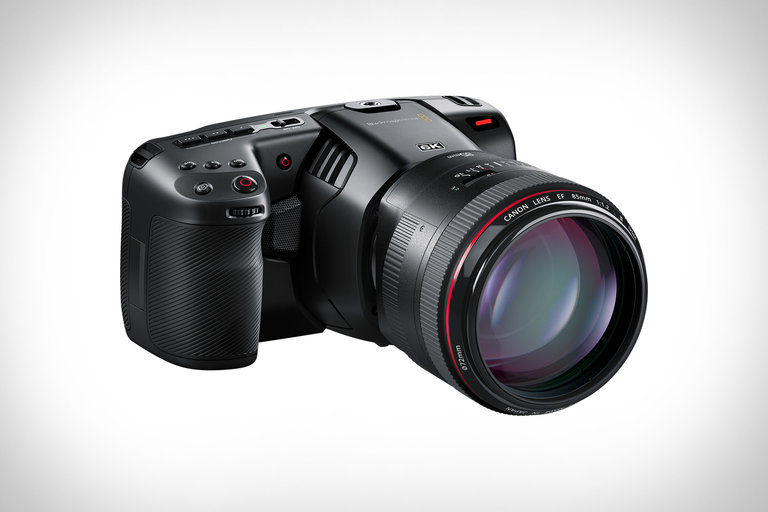
Blackmagic Pocket Cinema Camera 6K

Building on the success of the 4K model, Blackmagic's Pocket Cinema Camera 6K is far more than a simple resolution bump. Its Super 35-sized sensor is larger than the 4/3...

Visit Uncrate for the full post.
12 Aug 16:41

5 Time-Saving Link Shortcut Tips to Zip Around Your Mac

by Akshata Shanbhag
link-shortcut-tips

The shortcuts for using links on macOS are easy to miss. You might eventually stumble upon them somehow, but why wait until then? Discover the best macOS link shortcuts now with the tips below.

1. Open the Right-Click Menu Effortlessly

System Preferences setting to configure trackpad gesture for secondary click on macOS

On macOS, a two-finger tap or click anywhere on the trackpad is equal to a right-click action. I get this gesture right some of the time, but usually I trigger a left-click instead.

That’s why I prefer this alternative method to access the right-click menu: Control-tapping on the trackpad. In other words, you simply combine the Control key with a left-click.

If you don’t like either of these options, you can also trigger a right-click by clicking on the bottom-left corner of the trackpad. However, this action won’t work until you designate it as the default.

To do so, first visit System Preferences > Trackpad > Point & Click. There, select the relevant setting from the dropdown menu underneath Secondary click. As you’ll see in this menu, you can also configure the right-click menu to open with a click on the bottom-right corner of the trackpad.

After you enable one of these two options, the two-finger tap/click gesture won’t work for right-clicking.

2. Open Links in Background and Foreground Tabs

Settings for link behavior in Safari on Mac

When you click on a link in Safari, it opens up in the active tab and moves you away from the content you were already viewing. If you want to retain the original tab as well, why not open the link in a new background tab instead?

Sure, you can do that via the context menu option Open Link in New Tab, but here’s a quicker way: hold down the Cmd key and click on the link. (You can turn off this behavior from Safari > Preferences > Tabs.)

If you prefer to open the new link in a foreground tab instead, hold down both the Cmd and Shift keys before clicking on the link. If you like, you can swap this behavior.

Under Safari > Preferences > Tabs, select this checkbox: When a new tab or window opens, make it active. Now you can Cmd-click to open new links in the foreground tab and Cmd + Shift-click to open them in a background tab.

Here’s one more shortcut for you: Cmd + Option + Shift-click on a link to open it in a new window. Even better, all the shortcuts we’ve just listed work with links in the Favorites Bar and the Reading List Sidebar too.

3. Preview Link Content in Safari

Link preview box in Safari

The web is full of links with inviting—even shocking—headlines. But who has time to open all those links, as interesting as they appear? A better way to satisfy your curiosity is by previewing the content of links without opening them. Your browser will thank you for not opening yet another tab.

It’s easy to preview links in Safari; all you need is a three-finger tap on a link. That’s the data detector feature in action, which works by default. Don’t miss the Add to Reading List button at the top-right of the link preview.

You can’t see link previews if you have disabled the Look up & data detectors setting under System Preferences > Trackpad > Point & Click. The Look up bit of the setting refers to the Look Up feature. This lets you look up definitions anywhere on macOS with a three-finger tap on any word.

By the way, you can also preview link content in the Mail app. To do so, click on the tiny down arrow button that appears when you hover over a link.

4. Add Articles to Safari’s Reading List Quickly

You don’t have to move the cursor all the way up to the address bar or the menu bar to add any link to Safari’s Reading List. There’s no need to bring up the context menu for the Add Link to Reading List option, either.

Simply hold down the Shift key and click on any link to send it to your reading list in a snap. For the active webpage, Shift-clicking on its title does the job.

5. Insert Links Faster

Link selected for drag and drop in Safari

Do you prefer to drag and drop files/folders to move them around, or to create copies of them instead of using menu options for the job? You’ll be glad to know that you can also insert links anywhere on macOS with a drag-and-drop action.

This works with many native Mac apps, including Finder, Notes, Mail, and Messages. Some third-party Mac apps also support this action.

The link will show up in different formats based on the type of app into which you’re dropping the link. For example, the link turns into a Safari shortcut if you drop it into Finder or onto the desktop. If you drag it to the Notes app, it shows up as a thumbnail attachment.

If you want to drag the link for the active webpage in Safari to any app, you can grab it by clicking on the URL in the address bar. (You don’t have to highlight the URL first.) Dragging the page title also works.

You’ll then see a plus button next to the cursor (except in some cases), indicating that your link grab was successful. You can now drop the link elsewhere. If you change your mind midway, hit the Esc key to cut off the drag action.

With this method, you can drag and drop the link for the active webpage between tabs to duplicate it, or even drop the link onto the Favorites Bar to add a bookmark.

To make it easier to drag and drop links (or any other kind of data) between apps, switch to the Split View. Not sure how to enable that view? It’s one of those simple macOS routines that you can learn in no time.

Faster Actions, Fewer Clicks

Recently, I was delighted to discover that you can duplicate tabs in Safari with this pair of shortcuts: Cmd + L and Cmd + Enter. Isn’t it satisfying to discover such tiny macOS features that promise to transform your workflow? We hope you had a few exciting moments of discovery when you read the link shortcut tips above!

Read the full article: 5 Time-Saving Link Shortcut Tips to Zip Around Your Mac

12 Aug 16:32

Google Makes It Easier to Find New Podcasts

by Dave Parrack

Google is making it easier to find new podcasts to listen to. While you have always been able to search Google for podcasts, you have previously then had to dig deeper into the results to find the podcasts and listen to them. Until now.

How to Sort Good Podcasts From Bad

Podcasting is coming of age. While many people are only now discovering the medium, podcasts have been around since the early 2000s. The earliest podcasters have released hundreds of podcasts, and there are new podcasts being released all of the time.

The one problem with the already-large and ever-growing number of podcasts available to listen to is sorting the wheat from the chaff. For every good podcast available there are a handful of bad podcasts. And the trick is to find the best podcasts.

How to Find the Best Podcasts on Google

Google is keen to help out by surfacing playable podcasts directly in Google Search results. All you need to do is search for a podcast about a certain topic, and Google will show playable episodes alongside the usual web pages, news items, images, and videos.

As explained on The Keyword, Google will surface podcasts based on what’s being talked about, with the company transcribing episodes it finds to aid with indexing. In the future, podcasts will also show up in results for searches which don’t include the word “podcasts”.

Google is rolling out its efforts to help people discover new podcasts gradually, starting with people using English in the US. This is initially available in Google Search, but Google will be adding it to Google Assistant and Google Podcasts later this year.

You can rest assured that this won’t replace publishers completely. While Google will now surface individual playable podcasts within Search results, these will sit alongside lists compiled by websites such as MakeUseOf. It just gives you extra options.

Podcasting Is a Growing Medium

Anything that makes podcasts easier to find and listen to is a good thing. Podcasting is a wonderful medium that’s only growing in popularity. And with more podcasters jumping on the bandwagon, it’s getting tougher to find the best podcasts for you.

As well as Google’s efforts to simplify the process, we try to recommend the best podcasts about a particular topic or for a particular group of people. So here are our lists of the best podcasts for kids and the best true crime podcasts, as examples.

Read the full article: Google Makes It Easier to Find New Podcasts

12 Aug 16:32

5 Time Trackers to Stop Wasting Time and Improve Time Management

by Mihir Patkar

If you often find yourself wishing for more time to do the things you want to do, these time tracking apps and time management hacks will give you more time on hand.

It can be difficult to estimate time wastage if you aren’t religiously tracking your minutes and hours. But if you start looking at your day as 10-minute time blocks instead of 24 full hours, then you might be able to pinpoint the time leakage. Or instead of writing off 10 wasted minutes every day, a smart calculator can show how that adds up to days or weeks of missed vacation time.

That’s why these apps and exercises are important.

1. Time Wasters Calculator (Web): How Much Time Are You Wasting?

Way We Do's Time Wasters Calculator helps add up aspects where you waste time daily for a larger picture

SOP Software Way We Do created a fun little calculator to figure out how much time you are wasting in a year by doing things that you could easily avoid or improve. It’s not a precise calculator, but it should give you a rough idea.

The Time Wasters Calculator lays an emphasis on things that you usually write off as the collateral cost of daily life. For example, it asks you to estimate how many inefficient meetings you attend and how much time you waste. Or how often you travel for work, or even how much time you spend on handling email. All of these small tasks can add up to inefficient time management.

When you see it as a small part of a day, you think to yourself that it’s no big deal. “It’s just 20 minutes,” you’ll say to yourself. But when you add up all those time wasters through this calculator, suddenly it’s a much larger amount staring you in the face. Days or weeks that you could have used for a vacation or on your passion project.

2. 144 Blocks (Web): Track 10-Minute Time Blocks for the Day

Do you find yourself wondering how an hour passed very quickly? Well, a regular 24-hour day has 1440 minutes. What if you divided those into 10-minute time blocks and figured out what you did with each? 144 Blocks is a time tracker to note your activity six times per hour.

The web app is easy to use on mobile screens too, thanks to its vertical format. Each hour’s 10-minute slots are shown as blocks. Tap a block and you’ll get an activity list. Choose a specific activity from broader sub-categories like sleep, work, commuting, school, food, leisure, exercise, etc.

Each category has its own color, and as you add those 10-minute blocks, this updates a master pie chart for how you spent your day. It’s a quick visual representation of where your time goes. Once you fill 144 Blocks regularly, you’ll find broader patterns over the weekly dashboards.

3. Time Budget Template (Excel, Sheets): Free Spreadsheet Template to Budget Time

Time Budget Template is a free spreadsheet or Excel template to allocate time for your full week and run routines by it

Time Budget Template is a free time management template by Smartsheet, which you can use in any spreadsheet program like Microsoft Excel or Google Sheets. For more traditional logging, check out these free timesheet templates to track your hours.

This spreadsheet proposes the philosophy that you should treat time like a financial budget. In a financial budget, you have a limited amount of money which you allocate to different activities to balance your expenditures and avoid over-spending. The Time Budget Template applies that to time management, asking you to divide the 168 hours of a week into different activities.

As you add minutes to each activity in each day of the week, the overall amount of hours will go down. Increase and decrease time per activity till you “balance” the time budget and use up all 168 hours.

Pro tip: start with your sleeping hours per day, otherwise you’ll keep adding to other activities and be too burnt out to do anything.

Download: Time Budget Template (Free)

4. SaveMyTime (Android): Track Time Every Time the Screen Wakes

SaveMyTime is hands-down the best manual time tracker for Android that I’ve ever used. By starting a splash screen every time you wake the phone, it is the simplest reminder to add to your activity log.

The app isn’t harsh either. You can tap “Ask me later” to dismiss it when you’re in an emergency. Otherwise, the app asks you to add which of nine activity types you’ve been doing since the last time you logged anything. Tap any activity and you’re ready to use your phone, secure that the app has tracked how you spent your time.

You can choose to add multiple activities too. In that option, you’ll need to specify how many minutes of the elapsed time you spent on any of the activities. If you’re not particularly disciplined about logging your activities in a time tracker, SaveMyTime is an unobtrusive option.

Download: SaveMyTime for Android (Free)

5. Clockify (All Major Platforms): Free Cross-Platform Time Tracker

Clockify is a free cross-platform all-in-one time tracking app and timesheet app

Clockify has become a new force among time-tracking apps, especially given how many features it offers in the free version. You won’t find other apps that do all this while working across all the major platforms. And this is one of the few apps to have both a time tracker and a time sheet, so you can log activity in either of the classic time management methods.

In case you didn’t know, the time tracker needs you to start and stop a timer, along with writing what task you’re doing. You can then add tags to it and log whether it’s billable (something you’ll get paid for or not), making it more useful for freelancers.

The time sheet function shows you an overview of the week, divided by days and activities. In each cell, add the number of hours you spent. A super handy option is the simple “copy last week” button, that immediately fills all cells to make recurring routines easier to fill.

Choose either method, but make sure you fill it out. It’s easy and convenient to start a timer or add an entry, so you don’t have any excuses. Jump into the dashboard or the reports at any point to see analysis of your statistics. Although some of the advanced options are hidden behind paywalls, you won’t miss them as a beginner to time tracking.

Download: Clockify for Windows | macOS | Linux | Chrome | Firefox | Android | iOS (Free)

Other Dedicated Time Tracking Software

Time management is all about knowing where your hours are going. You can either use apps like those above to record your activity after you’ve done it, or get into the habit of starting a time-tracker’s timer when you begin a new task.

If you’re serious about time-tracking, then you need a good app for it. And like with any productivity app, you need something that fits your needs the best if you’re going to continue turning this into a habit. Read about these seven easy time-tracking apps to figure out which is best suited to how you work.

Read the full article: 5 Time Trackers to Stop Wasting Time and Improve Time Management

12 Aug 16:31

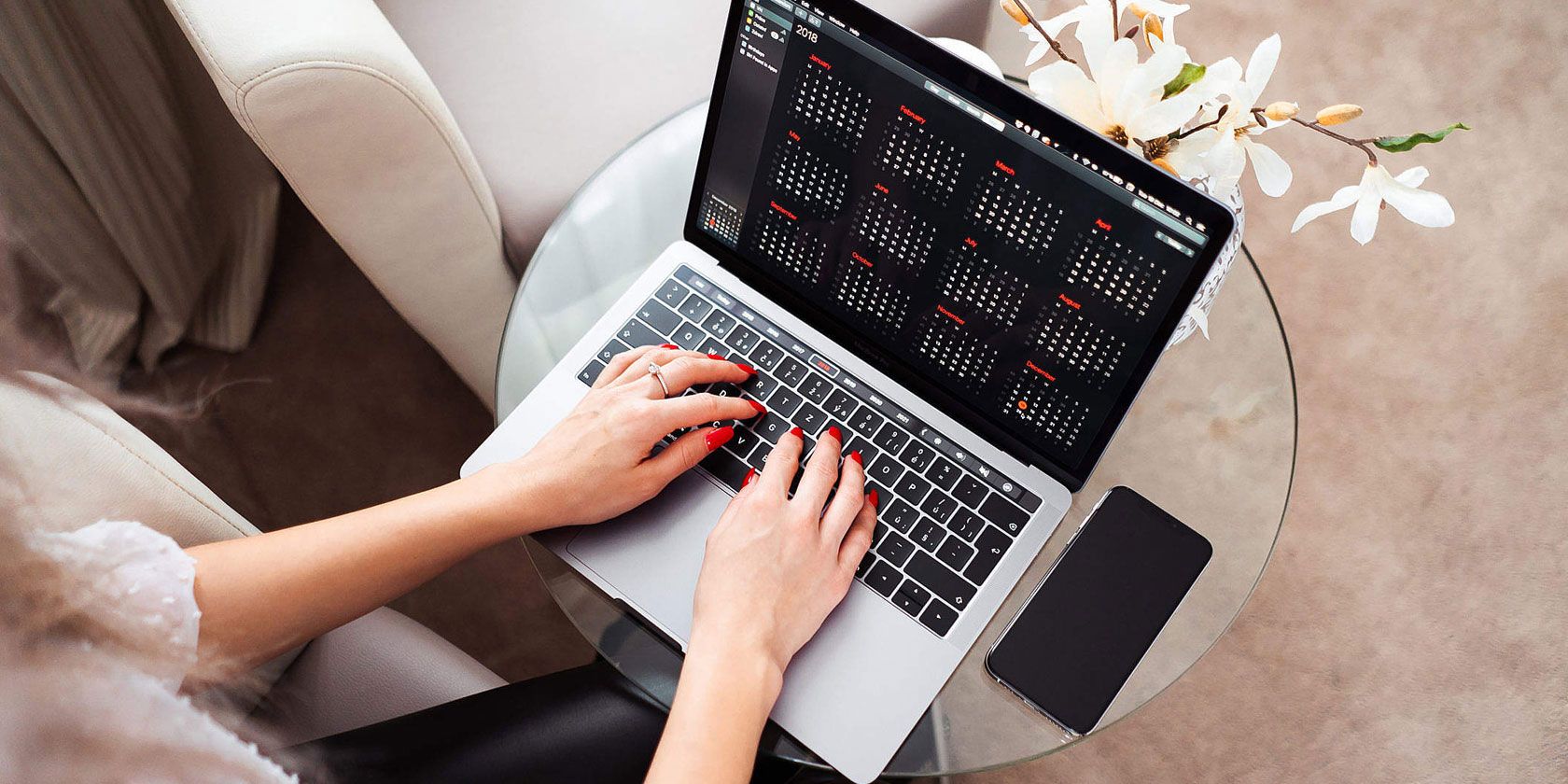
7 Must-Know Tricks to Master Your Mac’s Calendar App

by Akshata Shanbhag
master-mac-calendar

You can do so much more with your Mac’s Apple Calendar app than just create calendars and events. So if you’ve only skimmed the surface of the native macOS calendar so far, let’s delve deeper into it with the advanced Calendar tips below.

To catch up on the basics of the app, check out our Mac Calendar tips for beginners first.

1. Add Multi-Day Events

Edit Event popup for multi-day event in Calendar on Mac

Did you know that you can add multi-day events to a calendar with a simple click-and-drag action? To begin, in the Month view, click on the first day of the upcoming event, drag the cursor all the way to the last day of the event, and then release the cursor. Calendar then schedules the event as all-day sessions spanning multiple days.

To schedule multi-day events in the Week view, drag across the relevant consecutive days in the all-day section at the top. If you click and drag across days in the sections below, the event gets scheduled between the first and last time slots on which you’ve clicked.

2. Add Events From Mail and Notes

Add to Calendar popup in Mail on Mac

Wouldn’t it be convenient if you could add email invites to parties, meetings, and other events to your calendar without leaving the Mail app?

That’s indeed possible, but only after you enable a checkbox under Mail > Preferences > General: Add invitations to Calendar automatically.

After tweaking this setting, when you hover over a date/time snippet in any email, you’ll see a marquee selection appear over it. When you click on the tiny down arrow button next to the marquee, Mail lets you add that event to the Calendar app from a popup. (See the screenshot above for a sample view of the Add to Calendar popup in Mail.)

Since you can schedule only upcoming events, the marquee selection doesn’t show up for dates in the past.

The Notes app also allows you to turn dates and times in your notes into events. The process is similar to the one in Mail, but it involves an additional step. Here, when you click on the button next to the marquee selection, you’ll see a small popup menu. You have to click on the Quick Look Event option in this menu to reveal the Add to Calendar popup.

3. Set Reminders for Birthdays, Meetings, and More

Create birthday alert from Edit Event popup in Calendar on Mac

If you want to, say, receive alerts about someone’s birthday or reminders about upcoming flights, you can program Calendar to deliver them.

The app lets you set up alerts while adding events to your calendar. If you skip adding alerts, you can still go back and add them later. To add an alert to an existing event, first double-click on the event in your calendar to open the Edit Event popup.

Next, click on the date and time section in the popup to reveal a hidden section. There, from the alert dropdown menu options, select when you want Calendar to send you an alert about the event. After you select an option, you’ll notice a plus button show up next to the new alert. That button, as you might guess, lets you create multiple alerts.

For events in need of recurring reminders, also choose a suitable option from the repeat dropdown menu.

The combined setup of the alerts and repeat dropdown menus comes in handy for birthday calendars. With this setup in place, Calendar creates new items for the recurring event automatically and also sends you birthday alerts on time.

If you need a more robust reminder system, check out these great reminder apps for macOS.

4. Open Files and Apps on a Schedule

Set Mac Calendar to open file during an event from Edit Event popup

Let’s say you work on a certain PDF invoice template on the first day of every month before sending it off to a client. Or maybe you need to have certain files ready to go before every meeting. For such repetitive tasks, why not program Calendar to open up the associated file(s) automatically on a schedule? That’s easy to do.

To get started, create an event for the task and then double-click on it in the calendar to open the Edit Event popup.

In the popup, click on the date to reveal the hidden options, then select the Custom option from the alerts dropdown menu. You’ll then see another tiny popup appear. In this second popup, click on the Message with sound dropdown menu to reveal the Open file option.

Once you click on Open file, a new dropdown menu appears, from which you can select the file (or app) that you want Calendar to launch automatically. Tweak the other dropdown menus available to specify when exactly you want to bring up the file and hit the OK button to wrap up.

Notice the plus button that shows up next to the first alert. Use that to create alerts to launch multiple files/apps, one alert at a time.

If a certain file didn’t open on schedule, check if Do Not Disturb was active on your Mac then. If scheduled files are not opening at all, see if you have hidden notifications/alerts via Calendar > Preferences > Alerts or under System Preferences > Notifications > Calendar.

5. View Events as a List

View events as a list in Calendar on Mac

It’s nice that you can see events laid out for the entire week or month in Calendar. But what about when you want to view them as a list or an agenda? Calendar doesn’t have a one-click view option for that.

But you can use this hidden workaround for a makeshift list view: type a double quote () into the search box at the top-right of the app and hit Enter. This reveals a scrolling list of all your events—past, present, and future—across all calendars. That’s handy, right?

6. Hide All-Day Events

When you’re taking in all your scheduled events at a glance in the Month view, all-day events such as birthdays and tasks can be distracting. But you can hide them temporarily with the View > Hide All-Day Events menu option.

To reveal them again, click on View > Show All-Day Events.

7. Let Another Person Manage Your Schedule

Delegation tab for an account in Calendar settings on Mac

The macOS Calendar lets you delegate your calendar-management tasks to someone else, such as a colleague.

To bring in another person to view and edit your calendar, visit Calendar > Preferences > Accounts. There, select an account in the sidebar and click on its Delegation tab in the right-hand pane. The Edit button below this pane lets you grant access to your calendars for that account.

Click on it to start adding the name of the person whom you’d like to invite to manage your calendars. Be sure to select the Allow Write checkbox if you want to grant edit privileges to the delegate.

How is delegating different from sharing in Calendar? When you share calendars, you’re granting access to selective calendars only. But when you delegate, you’re sharing all calendars associated with a particular account.

Note that certain calendar accounts don’t support delegation. You can rely on the Delegation tab for such accounts to tell you so.

Apple Calendar: A Smart Free Calendar App for Mac

Calendar seems like a barebones app when you open it for the first time. But as you get to know it better, you’ll appreciate that it has so many useful features tucked away here and there.

It’s a pity that Calendar doesn’t give you a quick way to add reminders from the macOS menu bar. But as always, “there’s an app for that.” We’re referring to Itsycal, one of those tiny time-saving Mac apps you’ll fall in love with. Itsycal syncs with Apple Calendar and lets you add Calendar items from the menu bar!

Read the full article: 7 Must-Know Tricks to Master Your Mac’s Calendar App

12 Aug 16:23

WoofTags

by mark

I’ve owned these clip-on dog tags for nearly a decade across two dogs and never had a problem with them. The design prevents the jingle that most standard tags make practically every time your dog moves (which is especially annoying at night). I got the clip-on style which works with quick release collars I use; but if you use a standard buckle collar, get the slide-on style. A simple, elegant solution, and only $11.

-- Dave Cortright

WoofTags ($11+)

12 Aug 16:23

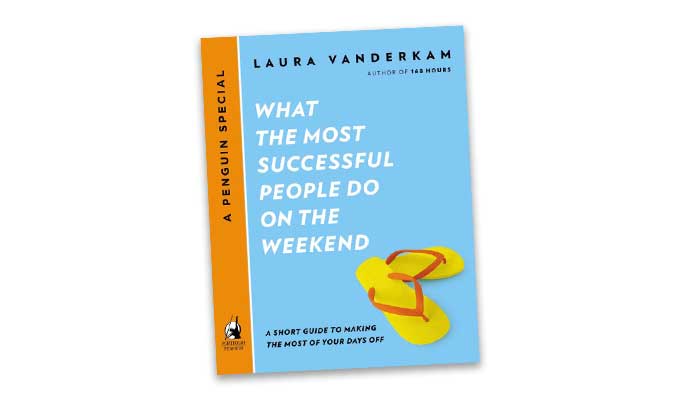
Book Freak #19

by mark

Tips about how to enjoy the run-up to a planned event, from the book What the Most Successful People Do on the Weekend: A Short Guide to Making the Most of Your Days Off, by Laura Vanderkam.

Enjoy the anticipation of a planned activity or event
“Planning a few anchor events for a weekend guarantees you pleasure because—even if all goes wrong in the moment—you still will have derived some pleasure from the anticipation.”

Vacations are fun months before they begin
“One study by several Dutch researchers, published in the journal Applied Research in Quality of Life in 2010, found that vacationers were happier than people who didn’t take holiday trips. That finding is hardly surprising. What is surprising is the timing of the happiness boost. It didn’t come after the vacations, with tourists bathing in their post-trip glow. It didn’t even come through that strongly during the trips, as the joy of travel mingled with the stress of travel: jet lag, stomach woes, and train conductors giving garbled instructions over the loudspeaker. The happiness boost came before the trips, stretching out for as much as two months beforehand as the holiday goers imagined their excursions.”

Don’t wait for the weekend to start appreciating it
“If you wait until Saturday morning to make your plans for the weekend, you will spend a chunk of your Saturday working on such plans, rather than anticipating your fun. Hitting the weekend without a plan means you may not get to do what you want. You’ll use up energy in negotiations with other family members. You’ll start late and the museum will close when you’ve only been there an hour. Your favorite restaurant will be booked up—and even if, miraculously, you score a table, think of how much more you would have enjoyed the last few days knowing that you’d be eating those seared scallops on Saturday night!”

Book Freak is one of four newsletters from Cool Tools Lab (our other three are the Cool Tools Newsletter, Recomendo, and What’s in my bag?).

09 Aug 11:46

Inside the secret world of price tag codes

by Conor Grant

What if we told you that the reason Office Depot prices its staplers at $10.03 — instead of an even $10 — is NOT just to mess with your head? 

In fact, that seemingly random extra 3¢ secretly tells you that the stapler has been marked down 3 times AND that it will likely be marked down once more before disappearing from the shelves…

It’s true. But that 3¢ is just the tip of the iceberg. 

You don’t have to be a member of the retail-luminati to benefit from this secret info — you just need to know the codes.

Retailers use codes to communicate extra product info

Most large department retailers — Home Depot, Target, Old Navy — build secret, unpublicized codes into the prices of the products to reveal information about how they’ve been discounted.

A blog called “Rather Be Shopping” maintains a running list of these open secrets. At Best Buy, for example, a price ending in:

  • $X.92 = 1-time price drop; often below wholesale; Great deal.
  • $X.96 = Adjusted price to beat competitor; Good deal.
  • $X.99 = Full price or marginal markdown; Bad deal.

Other retailers have similar codes: At Home Depot, prices ending in $X.06 are on sale but will drop further in 6 weeks, while prices ending in $X.03 are marked down fully and will disappear forever in 3 weeks.

There are some more general takeaways for shoppers, too: Prices that end in 9 are generally bad deals (full price), while prices that end in 7 are generally good deals (marked down price).

But what do the retailers get out of these mind games?

The code’s meant to be cracked — and once it is, it creates loyal, engaged customers. 

According to the Harvard Business Review, the secret menu at In-N-Out is one of the main drivers of the famous burger chain’s long-term financial success.

These “price vocabularies” are the secret menus of big retailers — they engage shoppers by letting them in on a “secret” and create loyalty among the frequent shoppers (who matter most to large retailers) by making them feel like they’re in the club.

The post Inside the secret world of price tag codes appeared first on The Hustle.

01 Aug 17:14

18 Glorious Ways To Enjoy Oysters On National Oyster Day

by Aly Walansky, Contributor
National Oyster Day is on Monday, August 5. While celebrating with some raw oysters at happy hour is never a bad idea, there’s some really fun creative spins that it’s a perfect time to try!
30 Jul 16:26

How Will People Work, Live, And Travel In The Future?

by Quora, Contributor
How will people live, work, and travel in the future? This question was originally answered on Quora by Andrew Kitchell.
29 Jul 14:25

Behold Color Photographs Taken During the Aftermath of San Francisco’s Devastating 1906 Earthquake

by Colin Marshall

If a city has been around long enough, it will more than likely have suffered some sort of catastrophically destructive event: the Great Fire of London in 1666, the Great Chicago Fire of 1871, the Great Kant? earthquake that devastated Tokyo in 1923. Most of their names, come to think of it, include the word "great," though not every source refers to San Francisco's 1906 earthquake that way. Not, of course, to minimize its destructiveness: with a force that would measure 7.8 on the Richter scale, the earthquake ultimately destroyed 80 percent of the city — about 25,000 buildings, with lost property equivalent to $11.2 billion in today's dollars — and killed 3,000 people.

Six months after the disaster, an inventor named Frederick Eugene Ives arrived to document the still-fresh aftermath of the disaster. He had in hand something called a brr, a 3D color camera he designed himself. Its "system of mirrors and filters behind each lens split and filtered the light to create one pair of slides for each primary color of light (red, green, blue).

The slides were bound together in a special order with cloth tapes into a package known as a Kr?mgram," viewable only with a Kr?msc?p, "the apparatus used to rebuild the image allowing the viewer to see in three-dimensional color."

Anthony Brooks discovered Ives' Kr?mgrams of San Francisco in ruins only in 2009, reports the Telegraph. Most of its pictures were taken from a hotel rooftop, and "although hand-colored photographs of the quake's destruction have surfaced before, Ives' work is probably the only true color documentary evidence." Such images would have astonished any contemporary viewer, not just for the devastation they showed but the lifelike color and depth with which they rendered it. And yet the Photochromoscope system never caught on, Brooks writes: "The Kr?msc?p viewers were expensive ($50 in 1907 or about $1000 today adjusting for inflation), required strong sunlight or arc light for viewing, and were technically complex to use, despite Ives’ assertions to the contrary."

But even though few probably saw these pictures in the early 20th century, Ives was hardly forgotten in the realm of photography. The recipient of several major scientific and engineering awards in his lifetime, he left behind such more widely adopted inventions as one of the several varieties of "halftone process" that allowed photographs to be reproduced in newspapers — just as newspapers around the country did after the earthquake struck, combining them with headlines like "WATER FRONT BURNS ALMOST TO THE FERRY," "3,000 PEOPLE ARE HOMELESS," and "SAN FRANCISCO ANNIHILATED." But H.G. Wells, who was on a visit to the United States at the time, sensed more of a sanguinity in the Americans around him: "There is no doubt anywhere that San Francisco can be rebuilt, larger, better, and soon."

via Mashable

Related Content:

Dramatic Footage of San Francisco Right Before & After the Massively Devastating Earthquake of 1906

Rome Comes to Life in Photochrom Color Photos Taken in 1890: The Colosseum, Trevi Fountain & More

Take a Visual Journey Through 181 Years of Street Photography (1838-2019)

Beautiful, Color Photographs of Paris Taken 100 Years Ago—at the Beginning of World War I & the End of La Belle Époque

Behold the Very First Color Photograph (1861): Taken by Scottish Physicist (and Poet!) James Clerk Maxwell

Voltaire & the Lisbon Earthquake of 1755

Based in Seoul, Colin Marshall writes and broadcasts on cities, language, and culture. His projects include the book The Stateless City: a Walk through 21st-Century Los Angeles and the video series The City in Cinema. Follow him on Twitter at @colinmarshall, on Facebook, or on Instagram.

Behold Color Photographs Taken During the Aftermath of San Francisco’s Devastating 1906 Earthquake is a post from: Open Culture. Follow us on Facebook, Twitter, and Google Plus, or get our Daily Email. And don't miss our big collections of Free Online Courses, Free Online Movies, Free eBooksFree Audio Books, Free Foreign Language Lessons, and MOOCs.

25 Jul 12:51

Secretary Sonny Perdue: Thanking The American Farmer

by Forbes Leadership Forum, Contributor
BY SECRETARY SONNY PERDUE - The productivity of America’s farmers has afforded us the ability to spend more of our income on things that aren’t food. In 1950, almost 20% of disposable personal income was spent on food. Today, that number has dropped to 6.4%, the lowest of any nation in the world.
23 Jul 18:33

Inspirato Travel Pass

Inspirato is giving travel junkies something to binge on with their new Travel Pass. The monthly subscription service gives members access to over 60,000 trips across the globe, including accommodations...

Visit Uncrate for the full post.
23 Jul 18:26

How to Use the Name Box in Excel

by Saikat Basu
excel-name-box

You can’t go anywhere in Microsoft Excel without using this humble little box. But where is the Name Box in Excel? It lies right next to the formula bar in a worksheet and displays the address of the selected cell or an object. But that’s just the most obvious use. You can navigate around the sheet with it or use it as a powerful selection tool.

But that’s just the scratching the corners of the box. Let’s look at all the productivity purposes the Name Box was created for.

1. Find the Address of the Selected Cell

Find the address of the selected cell in Excel

As shown in the screen above, the Name Box shows C4 because the cell C4 is selected right now. Click on any cell to get the cell address to use in a formula.

The Name box won’t just give you the address of one cell. It can be applied to any group of cells too. For instance:

Select a block of cells. The Name Box will identify the first cell in the selected group of cells.

Select a range of non-contiguous cells. You can select several cells that are not grouped together. Press the Ctrl key and choose a bunch of non-contiguous cells. The Name Box in Excel will display the address of the last cell you select.

You can go the other way also. If you want to go to a specific cell or a range of cells, then you can type the address of that cell in this Name Box and select them in a pinch.

Let’s see how it can speed up your work when you have a lot of rows, columns, and even sheets to work with.

2. Use the Name Box to Select Cells

Let’s do away with the mouse to select a block of cells with their addresses alone.

Select a block of cells. In the screenshot below, I typed A2:B10 in the Name Box and then pressed Enter. This selects a block of cells and you didn’t have to travel across your worksheet with the mouse.

Using the Name Box in Excel to select range of cells

Select a range of cells on another worksheet. Add the sheet reference (E.g. Sheet2!A5:B10) in the Name Box.

Select multiple blocks of cells. As shown with an example in the screen below, you can type A1:A5,C1:C5,G1:G5 and then press Enter to select any number of non-adjacent blocks of cells at once.

Select non-adjacent groups of cells with the Excel Name Box

You can jump from any cell to any cell by just typing these cell addresses. To jump to any cell in another worksheet within the same workbook, type the sheet name, an exclamation point, the cell address, and then press Enter. For example, Sheet2!A10.

3. Select Rows and Columns With the Name Box

Use the Excel Name Box as another speed trick to quickly select rows and columns. These are handy Excel shortcuts when you want to want to avoid the mouse.

Select the current row. Type the letter R in the Name Box and press Enter to select the current row.

Select the current column. Type the letter C in the Name Box and press Enter to select the current column.

Do remember that the letters R and C are reserved by Excel for this reason, and you cannot use these single alphabets to create Named Ranges in Excel (learn more about Named Ranges below).

Select any number of rows. Want to highlight the first five rows? Type 1:5 in the Name Box and then press Enter to select rows 1 through 5. You must select two or more rows. If you type a single number in the Name Box (for instance, 1) and press Enter, Excel shows an error message.

Use the Excel Name Box to select two or more rows

Select two or more columns. Want to highlight the first five columns? Type A:E in the Name Box and then press Enter to select columns A through E. Again, you have to give two or more columns.

Select Specific Rows and Columns Together. You can even select several multiple rows and columns together. For instance, type A:C,5:7 and hit Enter to get the following selection.

This is interesting because you can immediately see where rows and column values overlap. In the screen below, it is the data in the range A5:C7.

Use Excel's Name Box to select multiple rows and columns

In the above case, you can also just isolate the overlap between cells by typing A:C 5:7. Omit the comma and include a single space between the ranges to see that Excel highlights the cells where the two ranges intersect.

Two ranges intersect in Excel

Find the total number of rows and columns. The Name Box displays the total number of rows and columns when you keep the left mouse button pressed or hold down the Shift key while selecting a block of cells.

Find the number of rows and columns with the Name Box

4. Create Named Ranges for Excel Formulas

Imagine an Excel worksheet that references several cell ranges in multiple formulas. It’s easy to get confused with all the alpha-numeric cell names. Wouldn’t it be easier if these cells had their own descriptive names that told you at a glance what the cells were all about?

Excel uses Named Ranges to do just that. And you will use the Name Box in Excel for that.

  1. Select a cell or a range of cells.
  2. Give a descriptive name to the selection in the Name Box. Press Enter.
  3. Use this name instead of selected cell address or the address of the entire range in any formulas.

In the screen below, I assigned the name Interest to cells B3 to B7. I select the range of these cells, typed the word Interest in the Name Box, and then hit Enter. All range names in a workbook must begin with a letter, underscore, or backslash. Spaces are not allowed.

Use the Name Box to assign names to Excel cells

See this illustrated step by step tutorial to learn how to work with Named Ranges in Excel. Named Ranges are excellent descriptors if you also program with macros in Excel.

5. Name Every Object in Your Excel Worksheet

A worksheet can have different objects like pictures, charts, macro buttons, form controls like buttons and checkboxes, etc. Excel uses generic names like Chart 1, Chart 2… to name them. You can navigate through all objects by typing these names in the Name Box.

But just like the facility of Defined Ranges for easier formulas, you can assign objects your own descriptive names. It makes them easier to find.

Use Excel Name Box to rename chart

  1. Select the chart, picture, or object.
  2. Place the cursor in the Name Box and type a new descriptive name.
  3. Press Enter.

6. Insert (Or Delete) Multiple Blank Rows With the Name Box

There are several ways to insert blank rows in Excel. One of them is with the Name Box. This method is useful when you want to insert many rows in one shot. Head to the Name Box and use the format starting row: ending row with the numeric values for the rows you want.

For example, if you want to insert 10 rows from row 2, then type 2:11 in the Name Box and hit Enter. Excel will select the next ten rows starting from row 2 (it is “eleven” because the second row will also be counted in the next ten row) selections.

Then, right click on the selected rows and click Insert. Ten blank rows will be inserted starting from row 2.

Use Excel's Name Box to insert blank rows

This method is handy when you want to insert thousands of blank rows for some reason.

7. View a Macro

Launch VBA Editor from Excel's Name Box

As mentioned before, you can give your own names to macro buttons in Excel. But you can also launch the Visual Basic editor to get into the source code for any macro.

Type the name of the macro in the Name Box. The VBA Editor opens with the macro’s source code for you to edit or see.

The Name Box in Excel Is a Productivity Shortcut

The time saving uses of Excel’s Name Box demonstrate why you shouldn’t neglect it’s utility. As it is a core navigational feature in Excel, you just have to use it. But creating Named Ranges and its prowess for quick selections show how you can better grasp a complex spreadsheet.

That’s just the start you need to use more of Excel’s time saving secrets to boost your productivity.

Image Credit: Rawpixel/Depositphotos

Read the full article: How to Use the Name Box in Excel

23 Jul 18:26

The 7 Best Drawing Tablets for Digital Artists

by Dan Price
best-drawing-tablets

Are you still using real paint and actual pencils to create artwork? Come on, this is the 21st century. We have no need for such rudimentary tools. Today, you can produce everything on a mess-free digital drawing tablet.

We jest, of course. Traditional art forms will always have their place. But if you’d like to try some new creative mediums to express yourself, perhaps you should check out the best drawing tablets on the market for the digital artist.

1. Best Drawing Tablet Overall:
Wacom Cintiq Pro 16

Wacom Cintiq Pro 16 Wacom Cintiq Pro 16 Buy Now On Amazon $1,489.00

If you’re willing to spend a decent chunk of money on a drawing tablet, you should check out the Wacom Cintiq 16. It ticks all the boxes (except the price!) and is widely used by professional illustrators.

There’s a 4K 3840×2160 resolution display which measures 16 inches. It is also capable of displaying 16.7 million displayable colors, and has support for 3D images. There are multiple ways to connect the tablet to other devices (including USB-C and HDMI) thanks to the Wacom Link Plus hub (sold separately).

The price of the Wacom Cintiq Pro 16 might already be making your eyes water, but there’s also a 24-inch model and a 32-inch model. Both larger-size models come with increased price tags too.

2. Best Cheap Drawing Tablet:
Huion H610 Pro

Huion H610 Pro Huion H610 Pro Buy Now On Amazon $59.99

A more affordable drawing tablet is the Huion H610 Pro. Some of the key specs you need to know about include a 5080LPI resolution, a report rate of 233PPS and a pen pressure sensitivity of 8,192. The screen measures 10 x 6.25 inches and has a smooth, paper-like texture.

The Huion H610 Pro is customizable. It has eight hard keys and 16 soft keys that you can set up with the shortcuts you use most frequently. You can expect complete compatibility with all the mainstream design apps, including Photoshop, Illustrator, Corel Painter, Manga Studio, GIMP, and Zbrush.

Unlike many tablets, this drawing tablet also comes with some extra goodies in the box, including a pen holder, a carry bag, and an artist’s glove.

3. Best Drawing Tablet for Children:
Boogie Board Play ‘n’ Trace

Boogie Board Play 'n' Trace Boogie Board Play 'n' Trace Buy Now On Amazon $16.95

Boogie Board’s products are well-known for providing one of the most natural pen-on-paper experiences. With the Play ‘n’ Trace, the company has carried those attributes over into a fantastic drawing tablet for kids.

The tablet looks like an artist’s palette, complete with a thumb grip and oval design. The screen has been made extra durable so it can withstand the inevitable rough-and-tumble that it will experience.

The screen is also slightly transparent; your kids can use it to trace other images and then edit them. The twin-tip stylus has one end for tracing and one end for filling in.

4. Best Drawing Tablet for Beginners:
Turcom TS-6610

Turcom TS-6610 Turcom TS-6610 Buy Now On Amazon $81.99

If you’re looking for the best drawing tablet for beginners, the Turcom TS-6610 is worth investigating. Its low price means it’s also a great drawing tablet for students.

Visually, it looks very similar to the Huion H610 Pro that we discussed earlier. Hard buttons are located down the left-hand side, and there’s a beefy bezel around the screen.

Like the Huion model, there’s a 10 x 6.25 inches display, though the LPI resolution is only 4,000. It also falls slightly below its competitor in terms of pen sensitivity, coming in at 2,048 instead of 8,192.

Again, all the major design software is supported, including Corel Painter, CorelDraw, Photoshop, Illustrator, Adobe Fireworks, ComicStudio, SAI, and Autodesk.

5. Best LCD Writing Tablet:
Boogie Board Jot 8.5

Boogie Board Jot 8.5 Boogie Board Jot 8.5 Buy Now On Amazon $21.99

The Boogie Board Jot 8.5 is one of the most popular LCD writing tablets. From a drawing standpoint, it’s good for sketches and doodles, but it’s not going to let you create colorful masterpieces. It is mainly targeted at people who are looking for a digital replacement for pen and paper, sticky notes, and notebooks.

You can share your creations with other devices using the Jot app, attach it to the fridge using the rear magnets, and stand it on a flat surface using the stylus dock which doubles as a kick-stand. Three different colors are available: blue, grey, and pink.

6. Best Mid-Range Drawing Tablet:
XP-PEN Artist

XP-PEN Artist XP-PEN Artist Buy Now On Amazon $299.99

So, which tablet do you go for if you want something that falls squarely in the middle of the range of products out there?

The XP-PEN Artist is a good choice. You can use the tablet to sketch, paint, and design illustrations. It has a 15-inch display with a resolution of 1920×1080, there are 8,192 levels of pen pressure sensitivity, and there’s also support for USB-C.

It also boasts an impressively large 178 degrees of visual angle And like some of the other products we’ve looked at, the XP-PEN Artist also has programmable express keys. In truth, the Wacom products are superior in terms of the wider ecosystem, but for non-professionals, it won’t be an issue. Again, all the major design apps are supported.

7. Best Tablet for Graphic Design:
Wacom Intuos Pro

Wacom Intuos Pro Wacom Intuos Pro Buy Now On Amazon $325.00

The Wacom Intuos Pro drawing tablets are not as feature-rich nor as high performance as the Cintiq range we looked at earlier. However, if you want to enter the Wacom ecosystem without spending a fortune, they are a solid choice.

The tablet comes in three different sizes. The smallest screen size is 6.3 x 3.9 inches, the medium model is 8.7 x 5.8 inches, while the largest version is 12.1 x 8.4 inches.

Each of the tablets ship with a Wacom Pro Pen 2—that’s the same stylus as the one included with the Cintiq Pro 16. All the Wacom Intuos Pro tablets have 8,192 pen pressure levels, built-in Bluetooth, and support for the major design software on PC and Mac.

The Best Drawing Tablet for You

We’re confident that one of the seven tablets we have recommended will provide you with the features you need. For different reasons, they are all among the best drawing tablets you can buy.

If, after looking at these models, you decide a dedicated drawing tablet isn’t for you, there are still options open to you. Your smartphone can make a great alternative, especially when coupled with the best drawing and painting apps for Android.

Read the full article: The 7 Best Drawing Tablets for Digital Artists