In the previous post I talked about the three ways to set up devices for work with Azure AD. In this post I will talk about Domain Join and how additional capabilities are enabled in Windows 10 when Azure AD is present.
Domain Join until now
Domain Join has been deployed by many of you since the beginning of this millennium (although Domain Join existed even before AD was born and Windows NT was around).
Domain Join adds a computer to a particular realm, the Active Directory domain. The computer gets a unique identity and a channel is created so admins can reach out to the computer for settings and policy purposes (a.k.a. Group Policy).
When the computer is physically in the domain network it authenticates to the domain through a domain controller (DC). The computer participates in authorization decisions when accessing other resources in the domain. Users who sign-in to these computers using their AD accounts get authenticated to the domain as well.
Domain Join in Windows 10 and Azure AD
None of the existing behaviors for Domain Join change in Windows 10, however new capabilities light up when Azure AD is in the picture:
- Users don’t see additional authentication prompts when accessing work resources (a.k.a. SSO). Users enjoy SSO to Azure AD apps even when not connected to the domain network.
- Enterprise compliant roaming of user settings across joined devices. Users don’t need to connect a Microsoft account (e.g. Hotmail) to see settings across devices.
- Access to Windows Store for Business using AD account. Users can choose from an inventory of applications pre-selected by the organization.
- Microsoft Passport for Work and Windows Hello for secure and convenient access to work resources.
- Restriction of access to apps from only devices that meet compliance policy.
Domain joined devices will automatically register to Azure AD and avail of the above mentioned experiences. You can enable this functionality in your organization quite easily through a particular Group Policy. Note that you need to have the latest version of Azure AD Connect (AAD Connect). Look for a future post where I’ll discuss the AAD Connect role in enabling Windows 10 experiences.
To understand how this process works let’s consider the following illustration:
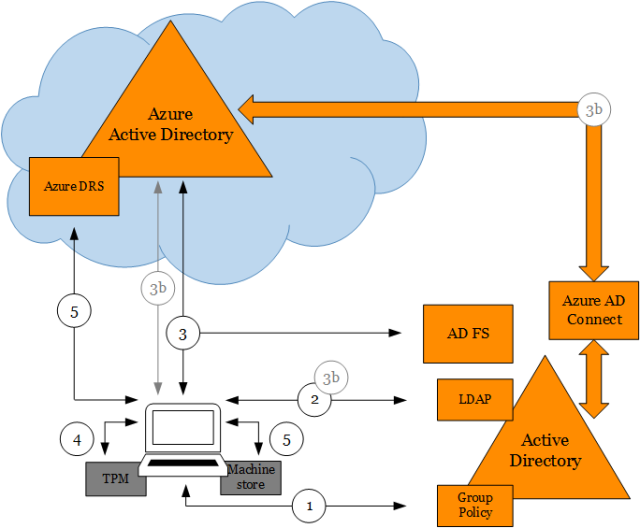
(1) Policy signals device to start auto-registration with Azure AD
When the policy Register domain computers as devices is pushed down to the computer via Group Policy the device registration process will trigger. This policy is found at:
Computer Configuration/Policies/Administrative Templates/Windows Components/Device Registration
Please notice that if you are using the Group Policy management console from Windows Server 2012 R2 the policy name is Automatically workplace join client computers and is found at:
Computer Configuration/Policies/Administrative Templates/Windows Components/Workplace Join
The registry key value for this policy in the device is the REG_DWORD value autoWorkplaceJoin under:
HKEY_LOCAL_MACHINE\SOFTWARE\Policies\Microsoft\Windows\WorkplaceJoin
A task registered in Task Scheduler with name Automatic-Device-Join under \Microsoft\Windows\Workplace Join triggers once the registry key value for the policy changes. A value of 1 means that auto-registration is enabled.
(2) Device queries Active Directory to get information about Azure AD tenant
The task which runs as SYSTEM reaches out to AD using the computer identity to query Azure AD tenant information stored in a Service Connection Point (SCP) object in the configuration naming context of the forest where the computer domain belongs.
The SCP is created by AAD Connect during Express installation. AAD Connect provides a PowerShell cmdlet to create the object manually. Please see more details at step-by-step to register Windows 10 domain joined devices to Azure AD. This SCP is placed in the following location (for example for the contoso.com domain):
CN=62a0ff2e-97b9-4513-943f-0d221bd30080,CN=Device Registration Configuration,CN=Services,CN=Configuration,DC=contoso,DC=com
The keywords multi-valued attribute on this object contains two values, one for the tenant domain name and one for the tenant ID. For example:
azureADName:contoso.com; azureADId:6c8b4242-a724-440d-a64c-29373788285b
(3) Device authenticates itself to Azure AD via AD FS to get a token for registration
Once it gets this information, it authenticates to Azure DRS via AD FS using Windows Integrated Authentication (i.e. Kerberos auth using the computer identity). AD FS issues a token to Azure AD before Azure AD issues the final token for Azure DRS. Three claims are passed to Azure AD via the AD FS token when the computer authenticates, and are written as attributes in the newly created device object:
- Object GUID of computer object on-prem.
- SID (Security Identifier) of computer object on-prem.
- Claim stating that computer is domain joined.
These claims are generated thanks to three AD FS issuance transform rules that are created by AAD Connect during Express installation. To know how to create these rules manually please see more details at step-by-step to register Windows 10 domain joined devices to Azure AD.
AAD Connect will then later use these attributes in the device object to correlate it with the computer object in on-prem AD. This is needed for lifecycle of the device object which is authoritative on-prem. For more details please look for a future post where I’ll discuss the AAD Connect role in enabling Windows 10 experiences.
(3b) Device authenticates itself to Azure AD (when Azure AD SSO configuration is password hash sync’ i.e. no AD FS)
When Azure AD SSO configuration is not federated but password hashes are sync’ed from on-prem, the following happens for the device to authenticate to Azure DRS:
- The task will create a credential in the form of a self-signed certificate and will register with the computer via LDAP in the userCertificates attribute.
- AAD Connect detects that the computer has registered this credential and takes it up to Azure AD in the form of a device object holding this credential, the object GUID and the computer SID.
- The task will use the credential in #1 to authenticate to Azure DRS directly once the device is created in #2.
Please notice that there is a inherent delay between the time the policy reaches the device and the device is ready for registration. This is because the credential that is used to complete device registration against Azure AD must flow up through AAD Connect in the absence of federation. For more details please look for a future post where I’ll discuss the AAD Connect role in enabling Windows 10 experiences.
(4) Device generates keys used in device registration
The task generates a private/public key pair to be used in a certificate signing request (CSR) to Azure DRS to obtain the certificate that the device will use to authenticate to Azure AD later on.
In addition, the task generates a second private/public key pair that is later used to bind the Primary Refresh Token (PRT) to the physical device upon authentication. This removes the risk of token replay in other devices. The PRT is the token used to provide SSO when users in that device access Azure AD applications. Please look for a future post about SSO in Windows 10 devices to understand in detail how this works.
If AD FS vNext is deployed (i.e. AD FS in Windows Server 2016 which is in Production Preview as of the date of this post), the device will also obtain an AD FS PRT for SSO to AD FS applications. Please look for a future post that I will publish about AD FS support for Windows 10.
If the device has a Trusted Platform Module (TPM) the private keys will be hardware protected.
(5) Device registers with Azure AD via Azure DRS
The task sends the CSR obtaining the certificate which places in the LocalMachine\My store. A device object is created in Azure AD and the certificate thumbprint is associated with it.
In addition the public key for PRT binding is registered with the device object as well. To learn how this key is used during authentication to protect the PRT look for a future post where I’ll cover the topic of SSO in Windows 10 devices.
Final thoughts
Once registration is complete users will enjoy the new experiences described at the beginning of this post. IT will also be able to restrict access to only devices that are domain joined or only domain joined devices that are compliant. Please also look for a future post that I will publish about device conditional access and Windows devices.
Until next time,
Jairo (Twitter: @JairoC_AzureAD)