In my recent post about managing change in Office 365 I talked about the role of Message Center notifications in keeping you up to date with changes occurring in the cloud. One of the weaknesses of the Message Center is the lack of email notifications, requiring admins to visit the Office 365 admin portal regularly to keep up with new messages. That’s not very convenient since many admins rarely visit that portal, either due to an infrequent need to perform the tasks that portal makes available (such as license management), or because they’ve done the right thing and automated most of those tasks.
For me personally, email notifications are a must. I prefer sitting at my desk in the morning and scanning through a series of email reports telling me the most important things I need to know, or looking at a single monitoring dashboard to see them, rather than logging into a bunch of different portals to find alerts. The lack of Message Center notifications has bothered me for a long time, and so for the last few months I’ve been using a PowerShell script to check the Message Center every day and email me a digest of new or changed messages.
As I prepared to release the script publicly, my co-author Tony Redmond showed me a Message Center digest email that he’d received for his Office 365 tenant directly from Microsoft. It seems that Message Center email notifications are going to be available, although there’s no mention on the Office 365 road map, and the functionality hasn’t appeared in any of my own tenants yet. As such, I figure I may as well share the script I’ve already written, in case the roll-out to other tenants is slow, and because my script can be scheduled to run as often as you like, whereas the Office 365 email seems to only be a weekly notification.
Installation
This script has a dependency on the following functions and modules:
Unzip the files to a folder on the workstation or server where you want to run the script.
Rename Get-MessageCenterDigest.xml.sample to Get-MessageCenterDigest.xml
Edit Get-MessageCenterDigest.xml with appropriate email settings for your environment. If you exclude the SMTP server, the script will send the report email to the first MX record for the domain of the To address.
Create a new stored credential by running New-StoredCredential
Run the script using the usage examples below.
The script will store information about the Message Center messages for a tenant in a file named MessageCenterArchive-tenantdomain.xml, located in the same folder as the script. The first time you run the script, all messages will be reported as “New”. On subsequent runs, the script will use the previous results to determine which messages are new or changed since the last time the script was run. If you delete the XML file or move the script to a different folder, it will report all messages as new again.
If there are no new or changed messages in the Message Center, then no email is sent.
You can run the script as a scheduled task as often as you need it to check for new messages. Mine runs daily at 6:45am so that the report is waiting for me when I get to my desk. My scheduled task settings are:
Run whether use is logged on or not (the user account you use for the scheduled task must be the same as the user you were logged on with when you generated the stored credentials, otherwise the stored credentials can’t be decrypted)
If your Office 365 tenant is already receiving the weekly email digests from Message Center, and you’re happy with it, then you probably don’t need this script. Otherwise, please feel free to try this script for yourself, and if you have any questions or feedback please leave a comment below.
Microsoft hat seine Cloud-Lösung Onedrive umfassend überarbeitet. Sie kommt jetzt auch für Mac-Nutzer als dediziertes Programm. Neulinge erhalten eine bessere Einleitung und Administratoren ein Kontrollzentrum. (Onedrive, Microsoft)
by ZEIT ONLINE: Wirtschaft - Marcus Gatzke, Zacharias Zacharakis
Donald Trump versteht die Autoindustrie nicht, sagt der ehemalige Obama-Berater Steven Rattner. Zölle hält er für falsch – auch weil sie keine Jobs bringen werden.
Eine Milliarde Menschen nutzen regelmäßig Whatsapp. Wir zeigen euch, wie ihr das Meiste aus dem Messenger herausholt.
Auch wenn Whatsapp vor allem nach der Übernahme durch Facebook massiv in die Kritik geraten ist, sollen monatlich eine Milliarde Menschen den Messenger nutzen. Auf absehbare Zeit dürfte sich das auch nicht ändern. Doch während die meisten Nutzer zwar wissen, wie sie Text- oder Sprachnachrichten und auch Bilder verschicken, beschäftigen sich nur die wenigstens eingehender mit den zugegebenermaßen nicht sehr umfangreichen Einstellungsmöglichkeiten.
Dabei gibt es durchaus ein paar praktische Tipps, mit denen ihr den Umgang mit Whatsapp deutlich verbessern könnt. Die Wichtigsten haben wir euch rausgesucht.
Whatsapp: Blaue Häkchen und zuletzt online
Seit 2014 zeigen blaue Häkchen in einem Whatsapp-Chat an, dass die entsprechende Nachricht von eurem Gegenüber gelesen wurde. An sich ist das ein praktisches Feature, vor allem wenn es darum geht, jemandem etwas mitzuteilen, auf das man keine direkte Antwort benötigt. Doch leider gibt es sie, jene unverbesserlichen Zeitgenossen, die es einfach nicht einsehen wollen, dass man nicht immer sofort auf eine ihrer Nachrichten reagieren kann oder will. Für sie ist ein blauer Haken eine offene Einladung nachzufragen oder gar zu kritisieren, warum sie keine Antwort auf ihre Nachricht kriegen.
Blaue Haken zeigen an, dass eure Whatsapp-Nachricht gelesen wurde. (Screenshot: Whatsapp Web)
Wer mit solchen Menschen aus welchen Gründen auch immer in Kontakt steht, kann sich überlegen, ob er die blauen Häkchen nicht einfach deaktiviert. Dazu geht ihr in Einstellungen > Account > Datenschutz und deaktiviert die Lesebestätigungen. Aber Achtung: Dann seht auch ihr nicht mehr, wenn jemand eure Nachrichten gelesen hat. Zusätzlich könnt ihr im selben Menü auch dafür sorgen, dass innerhalb von Whatsapp nicht mehr angezeigt wird, wann ihr zuletzt online wart. Wobei ihr hier beachten solltet, dass ihr nach wie vor als „Online“ angezeigt werdet, wenn ihr es tatsächlich seid. Nur die Uhrzeit eurer letzten Whatsapp-Nutzung wird euren Kontakten nicht mehr eingeblendet.
So schaltet ihr Gruppen-Chats stumm
Geliebt und gehasst: Gruppen-Chats bieten eine einfache Möglichkeit, sich mit Freunden oder Verwandten auszutauschen. Je nachdem wie mitteilungsbedürftig die Personen in einer Gruppe sind, können die vielen Benachrichtigungen sehr schnell nerven. Erfreulicherweise könnt ihr Gruppen allerdings auch stummschalten. Dazu müsst ihr innerhalb der Gruppe auf das Menü-Icon am oberen rechten Rand klicken. Anschließend wählt ihr den Menüpunkt Stummschalten aus. Jetzt könnt ihr wählen, ob ihr die Gruppe für acht Stunden, eine Woche oder gleich ein ganzes Jahr „muten“ wollt. Außerdem könnt ihr hier festlegen, ob ihr aus der stummgeschalteten Gruppe nach wie vor Benachrichtigungen erhalten möchtet.
Broadcast-Listen: Eine Nachricht an viele Empfänger
Whatsapp-Gruppen sind eine tolle Möglichkeit, um mit mehreren Kontakten gleichzeitig zu kommunizieren. Wenn ihr aber eine Nachricht an mehrere Kontakte versenden möchtet, ohne dass die jeweils anderen Empfänger das mitbekommen, dann eignet sich die Erstellung einer Broadcast-Liste dafür. Die jeweiligen Antworten der Empfänger erscheinen dir dann als individuelle Chats. Unter iOS wählt ihr dazu einfach Broadcast-Listen oben links in Whatsapp aus und erstellt dann eine neue Liste. Unter Android findet ihr die entsprechende Option im Hauptmenü. Wichtig: Broadcast-Nachrichten könnt ihr nur an Personen verschicken, die auch eure Nummer im Telefonbuch gespeichert haben.
Giphy: Animierte GIFs direkt im Whatsapp-Chat nutzen
Auch Whatsapp unterstützt jetzt animierte GIFs. (Bild: t3n)
Wer seine Textnachrichten ein wenig aufmotzen möchte, der kann dazu mittlerweile auch animierte GIFs einbinden. Der Clou: Whatsapp erlaubt euch direkt über den Messenger den Zugriff auf die GIF-Suchmaschine Giphy. Unter iOS müsst ihr euch dazu in einen Chat begeben, und auf das Plus-Icon klicken. Anschließend wählt ihr Foto/Video Mediathek aus und wählt unterhalb des Lupensymbols GIF aus. Unter Android steht euch diese Funktion derzeit leider nur in der Beta-Version von Whatsapp zur Verfügung. Dafür ist die Funktion hier etwas sinnvoller angebracht: Wenn ihr im Text-Eingabefeld die Emoji-Übersicht auswählt, findet ihr am unteren Bildrand ein GIF-Icon. Das zeigt euch die Giphy-Suche samt Ergebnissen dann bequem anstelle der Bildschirmtastatur an.
Whatsapp-Account mit einer neuen Telefonnummer nutzen
Wenn ihr euch eine neue Telefonnummer zulegt, müsst ihr nicht gleich ein neues Whatsapp-Konto anlegen. Stattdessen könnt ihr einfach die mit eurem Account verknüpfte Nummer ändern. Dann bleiben, sofern ihr dasselbe Telefon verwendet, auch eure bisherigen Chats erhalten. Die Funktion, um die Nummer zu ändern, findet ihr im Menü unter Einstellungen > Account > Nummer ändern.
We built Office 365 Advanced Threat Protection to provide nearly unparalleled email security with little impact on productivity. Advanced Threat Protection defends your organization from today’s growing and evolving advanced threats with powerful safeguards like Safe Links, which provides time-of-click protection to help prevent users from opening or accessing malicious links, and Safe Attachments, which protects users from opening malicious email attachments. Today, we’re pleased to announce availability of two new capabilities—URL Detonation and Dynamic Delivery—which improve the security Advanced Threat Protection provides while keeping people productive.
General availability of URL Detonation
URL Detonation helps prevent your users from being compromised by files linked to malicious URLs.
Email with malicious link to PDF file.
When a user receives an email, Advanced Threat Protection analyzes the URLs for malicious behavior. This new capability is in addition to the URL reputation checks that Advanced Threat Protection already does. If the user clicks a link during the scan, the message “This link is being scanned” is displayed. If the link is identified as malicious after the scan, a pop-window opens notifying the user that the file is malicious and warns the user against opening it.
Link scan in progress notification (left). Malicious link notification (right).
IT admins can configure a SafeLink policy that turns on the URL trace to track user clicks, which is especially useful for instances when users can bypass the warning and click through to blocked pages. This enables them to appropriately focus on remediation efforts for impacted users while not disrupting the work of unaffected users.
URL trace of user activity.
Public preview of Dynamic Delivery
Since introducing Safe Attachments, we have greatly reduced the time it takes to scan emails containing attachments. While any malware solution requires some small amount time to scan suspicious attachments, Advanced Threat Protection enables you to remain productive during this scan time. Now, with Dynamic Delivery, recipients can read and respond to the email while the attachment is being scanned. Dynamic Delivery delivers emails to the recipient’s inbox along with a “placeholder” attachment notifying the user that the real attachment is being scanned—all with minimal lag time.
Users can read the email body while the attachment is scanned in a Safe Attachments sandbox.
If a user clicks the placeholder attachment, they see a message showing the progress of the scan. If the attachment is harmless, it seamlessly re-attaches to the email so the user can access it. If it is malicious, Office 365 Advanced Threat Protection will filter out the attachment.
The scan progress page displayed when a user clicks an attachment undergoing a scan.
How to enable URL Detonation and Dynamic Delivery
URL Detonation can be enabled through the policy controls in the Safe Links admin window under settings. To enable URL Detonation, select the On radio button and then select the Use Safe Attachments to scan downloadable content checkbox.
Admin control window for Safe Links policy. Both Linked Content Detection and Dynamic Email Delivery (through Safe Attachments) are enabled.
Dynamic Delivery can be activated through the policy controls from the Safe Attachments admin control window under Settings. Simply select the Dynamic Delivery radio button.
Admin control window for Safe Attachments policy with Dynamic Delivery activated.
How to get started with Advanced Threat Protection
To learn how to turn on the new Advanced Threat Protection capabilities in the Office 365 Security & Compliance Center, watch this Office Mechanics video. If you don’t yet have Advanced Threat Protection, sign up for a trial of Office 365 E5, which provides advanced security and compliance capabilities including Advanced Threat Protection.
We’re continuously trying to improve your experience on Office 365, so be sure to let us know what you think of these Advanced Threat Protection feature enhancements!
Die Gebühren für den öffentlich-rechtlichen Rundfunk sind an Wohnungen und nicht an Geräte gebunden. Diesen Grundsatz hat das Bundesverwaltungsgericht bestätigt.
Today, we are excited to announce the ‘Send-as’ and Send-on-behalf of feature for groups in Outlook, which brings you one step closer to turning your email into a great customer support solution.
With the new ‘Send as’ and ‘Send on behalf of’ feature, members of the group can respond to conversations using the shared identity of the Group instead of their individual personal identity – without losing the personal, individual touch. Because sometimes, that’s just what you need.
Like other groups in Outlook, members can read all messages sent to the group. But with this feature turned on, responses look like they come from the group rather than the individual.
Here’s what Send on Behalf and Send As look like from the recipient’s perspective:
Send on Behalf
Send As
If your business is looking for a lightweight, email-centric customer support solution, you’re in luck. This feature might be what you need. The consistent use of a single email address will help your customers develop recognition and trust—ensuring that your email messages are seen.
This feature is particularly helpful in scenarios where you want to set up a group to connect with external customers. Collective knowledge of group helps resolve those customer inquiries faster and everyone on the team benefits from shared knowledge of the Group.
Here are some example scenarios:
1. Support@Contoso.com can be set as group to receive all customer support inquiries. When your customers send email to this group, any member of the group could respond to inquiry in a timely fashion without disclosing their individual identity. Subsequent responses from the customer also go back to the group, keeping all information in one place and making it faster for support representatives to respond to new inquiries. Additionally, because all of the group conversation history is available, other team members will be able to see that specific customer emails have already been answered to.
The support team member would see the following:
The recipient (customer) would see the following:
2. Some organizations may also want to use ‘Send as’ or ‘Send on behalf of’ for an internal group. For example, if you want all expense reports sent to a Billing department alias rather than bombarding a specific person.
Billing@contoso.com can be set up as a group to receive all your organization’s billing inquiries. Individuals who work in the billing department and are a part of this group can respond back as the Billing department identity.
Sound like what your business needs? Learn how to turn it on.
Für SharePoint- und Office 365-Profis sind die Ausbildungs- und Zertifizierungsoptionen des Herstellers ein unverzichtbares Qualifizierungsangebot. Microsoft bietet dazu im Bereich SharePoint zwei zentrale Zertifizierungen an, die mit den Titeln „Microsoft Weiterlesen
Author information
Thomas Maier
Thomas Maier ist der „SharePoint Schwabe". Sein Motto: "Nutzen Sie alle Räume Ihrer SharePoint Villa bevor Sie anbauen!" Mit seinen Artikeln möchte er Ihnen dabei helfen.
"Wenn Sie schnell die Lücke zwischen 'genutzt' und 'vorhanden und bezahlt' verkleinern möchten, steht seine PTM mit...
[Den vollständigen Beitrag finden Sie auf der Website]
Welcome to our new Demo Tuesday series. Each week we will be highlighting a new product feature from the Hybrid Cloud Platform.
Server operating systems, including Microsoft Windows Server, have traditionally been all-inclusive. When you install it, you get everything you might possibly want, baked into the OS image. That made complete sense in an on-premises datacenter model. Today, with organizations having much larger-scale deployments, things have changed. Size, scalability, and security have become critically important. Many of you have been asking for a different optionsomething small, light, and optimized for todays larger scale, both on-premises and in the cloud. With Windows Server 2016, that something is here and its called Nano Server.
Nano Server is tiny
In the cloud, every gigabyte not used is money saved. So, rather than 13.2 GB, Nano Server has a ridiculously small disk footprint of 500 MB. Its a new installation option designed specifically to provide infrastructure services for the cloud. You get only what you need and nothing more. We call it just enough OS and its ideal for many cloud scenarios. Take a look:
Built of the cloud, for the cloud
Nano Server lets you build slimmed-down images tailored to specific workloads, like a compute host for Hyper-V, a DNS server, or for apps using containers. No bulky extras. No unnecessary processes. Its essential for cloud scalability and will help you achieve real benefits:
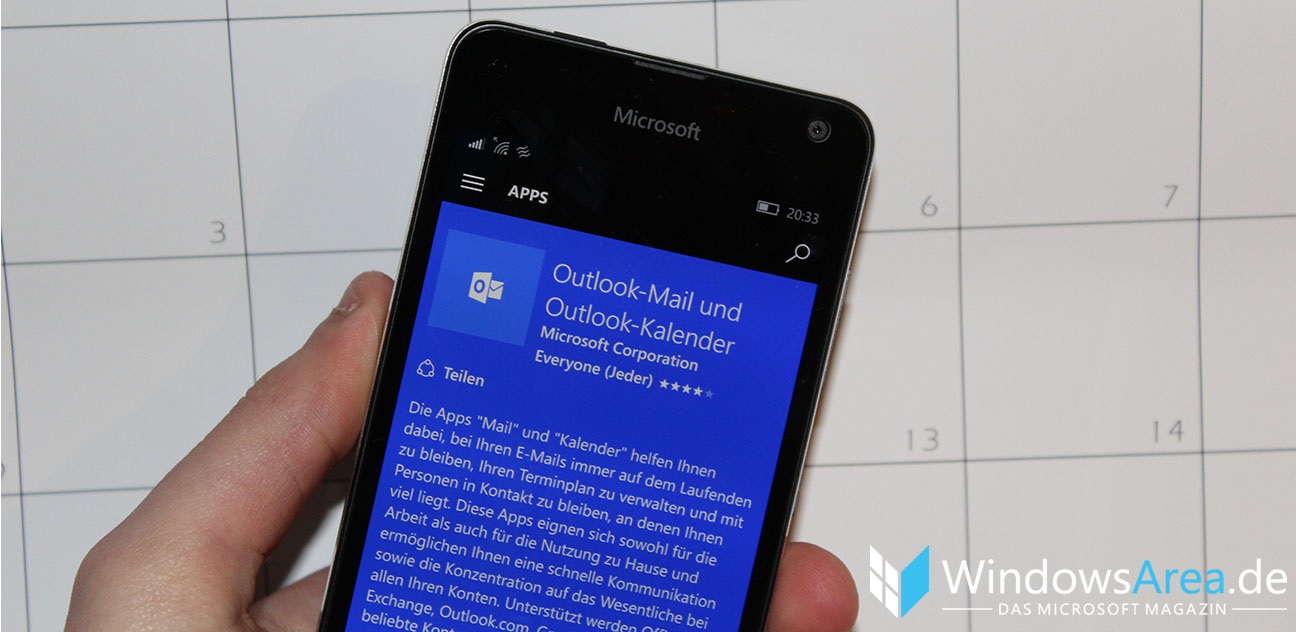
Nach der Übernahme von Acompli durch Microsoft, wurde das gleichnamige Mailprogramm einfach in Outlook umbenannt und die bestehenden Features übernommen. Da es Acompli nie für Windows 10 und Windows 10 Mobile gegeben hat, hatten diese Plattformen einen gewissen Feature-Vorsprung gegenüber Microsofts Eigenentwicklung.
Einige dieser Funktionen hatten sich Windows Phone-Nutzer gewünscht, darunter auch den fokussierten Posteingang. Hierbei handelt es sich um ein Feature, das die eigenen Mails automatisch scannt und selbstständig entscheidet, welche wichtig sind und welche nicht. Die wichtigen Mails finden sich dann im Fokus-Posteingang, alle anderen Emails im normalen Posteingang. Microsoft hat nun einen Blogpost vom Juli 2016 aktualisiert und angekündigt, dass der Fokus-Posteingang für alle unterstützten Outlook.com-Accounts ab Februar 2017 in der Mail-App zur Verfügung stehen wird.
In kommenden App-Updates für die Outlook Mail-App dürften wir also dieses Feature sehen und da es sich hierbei um eine Universal App handelt, müsste das Feature dann auch für Windows 10 Mobile verfügbar sein.
Wegen eines Softwarefehlers hat Dropbox bis zu acht Jahre alte Dateien weiterhin gespeichert, obwohl deren Eigentümer sie eigentlich aus ihren Konten gelöscht hatten. Nutzer im Supportforum zeigten sich erbost über die langsame Reaktion des Unternehmens. (Dropbox, Cloud Computing)
Ab sofort steht das Update auf Android 7.0 Nougat und Emui 5.0 für das Honor 8 bereit. Mit der Aktualisierung kommen viele neue Funktionen auf das Dual-SIM-Smartphone.
Mit dem Ausstieg von Blackberry aus der Smartphone-Entwicklung könnte auch das Aus für Handys mit Hardware-Tastatur kommen. Das vielleicht letzte Gerät dieser Art, das Blackberry Mercury, soll am 25. Februar offiziell vorgestellt werden.
Das Internet der Dinge hat viele praktische Vorteile. Leider sorgen mangelnde Sicherheitsvorkehrungen aber auch für ein erhöhtes Gefahrenpotenzial.
Das Internet der Dinge: Sicherheit spielt häufig kaum eine Rolle
Die Hersteller haben es sich so schön ausgemalt: Vom Kühlschrank bis zur Glühbirne sollen alle Geräte vernetzt werden und uns so eine Menge Arbeit abnehmen. Das klingt in der Theorie furchtbar praktisch, im wahren Leben führt das aber zu ganz neuen Sicherheitsrisiken.
Das derzeit wohl größte Problem: Viele Anbieter von Geräten für das sogenannte Internet der Dinge achten viel zu wenig auf die Sicherheit. Häufig wird veraltete Software eingesetzt, ohne bekannte Sicherheitslücken zu stopfen. Oftmals gibt es auch gar keine Möglichkeit, Updates einzuspielen.
Internet der unsicheren Dinge: Infografik klärt über IoT-Sicherheitslücken auf
In einer optisch sehr interessanten Infografik zeigt euch die Online-Plattform Refiguide einige der aufsehenerregendsten Sicherheitslücken aus den letzten Jahren. Außerdem werden weitere potenzielle Gefahren genannt. Abgerundet wird die Grafik mit einigen Tipps, um eure IoT-Geräte gegen Missbrauch abzusichern.
Ein Klick auf den unten stehenden Ausschnitt öffnet die vollständige Infografik.
Das Internet der Dinge kann ein Sicherheitsrisiko darstellen. (Grafik: Refiguide)
Samsung hat eine Lücke in älteren Geräten gestopft, die missbraucht werden kann, diese in eine Bootschleife zu versetzen und Angreifern wahrscheinlich auch die Möglichkeit gibt, Schadcode auszuführen. Geräte anderer Hersteller sind wohl noch verwundbar.
Als Alternative zu Fahrrad und Moped kriegt man Segways immer öfter zu Gesicht. Es gibt Erlebnistouren mit Segways, Stadtführungen, Weintouren und sogar Polo-Turniere. Für Junggesellenabschiede, sonstige feuchtfröhliche Veranstaltungen und den anschließenden Nachhauseweg eignet sich der Segway aber nur bedingt. Denn wer besoffen oder bekifft einen Segway fährt, riskiert seinen Führerschein.
Diese Erfahrung machte ein Mann in Hamburg. Er war per Segway auf dem Bürgersteig gefahren und wurde von der Polizei angehalten. Die Blutprobe ergab mindestens 1,5 Promille. Für das Oberlandesgericht Hamburg stellte sich die Frage, wie der Segway rechtlich einzuordnen ist. Als Fahrzeug? Oder als Nichtfahrzeug, wie etwa Rodelschlitten, Kinderwagen, Tretroller und Skateboards?
Die Richter kamen zu einem klaren Ergebnis: Der Segway ist ein Fahrzeug. Deshalb gilt für Segway-Lenker ein Alkohol- und Drogenverbot am Steuer (§ 316 StGB). Außerdem billigen die Richter für den Segway auch die Grenze von 1,1 Promille, ab der Fahruntüchtigkeit immer vermutet wird. Für den Betroffenen bedeutet das eine Geldstrafe und Führerscheinentzug. Und dieser Entzug ist nicht etwa auf Segways beschränkt. Der Mann darf auch nicht mehr Auto fahren (Aktenzeichen 1 Rev 76/16).
Fürstenfeldbruck - Aus einer Internet-Satire-Aktion könnte nun eine ganz reale, freilich wohl wieder satirische OB-Bewerbung werden: Florian Weber von der Partei „Die Partei“ hat, wie er bestätigt, bei den Piraten angefragt, ob sie ihn offiziell nominieren möchten.
Aktuell werden die notwendigen Prozesse zur Nutzung der eSIM definiert, so dass sie in einigen Monaten verfügbar ist. Immerhin gibt es mittlerweile einen endgültigen Standard für die fest integrierte SIM-Karte.
Die Bundesregierung stimmt dem Projekt von Verkehrsminister Dobrindt zu. Die Maut soll 2019 kommen. Auf EU-Ebene organisiert Österreich den Widerstand der Nachbarstaaten.
Amazon hat einen neuen Dash-Button kreiert - mit Überraschungseffekt. Das Konzept: Ein Überraschungspaket an Schoki nachbestellen - so oft ihr wollt (und das Taschengeld reicht).
Artikel des täglichen Bedarfs sind ein Bestellgarant. Das hat Amazon gut erkannt und daraus geschlussfolgert, dass es sinnvoll sei, dafür zu sorgen, dass die Menschheit bei Amazon nachbestellt. Der Dash-Button war geboren.
Nun hat Amazon das Konzept um einen Überraschungsfaktor erweitert. Das Ergebnis: Amazon Prime Surprise Sweets zum Nachbestellen von Schokolade.
Luxus-Schoki für 18 US-Dollar
Jetzt gibt es auch einen Dash-Button für Schokolade. (Bild: Amazon)
Jede Box kostet 18 US-Dollar und ist gefüllt mit Naschereien und von Hand hergestellten Pralinen von überall aus den USA. Lieferanten sind unter anderem Brandini, Toffee, Brigadeiro, Frans, Chocolate Twist und Whoopies. Was genau jede Box enthält ist – der Titel verrät es bereits – eine Überraschung. Leider ist die Überraschungsbox derzeit nur in USA erhältlich. Natürlich könnt ihr versuchen, eure Naschereien als Anbieter in der Box zu platzieren. Eine E-Mail an primesurprise@amazon.com genügt. Aber auch hier ist Voraussetzung, dass ihr in den USA produziert.
Jeder Schokoholic, der Prime Surprise Sweets nutzen will, muss
Amazon Prime-Kunde sein
den Dash-Button Prime Surprise Sweets bestellen
den Dash-Button drücken, um Nachschub zu bestellen
zwei Tage warten, bis die Box geliefert wird – das ist für Amazon eine relativ lange Lieferzeit
Die Verbraucherzentrale Nordrhein-Westfalen kritisiert die Ur-Form des Dash-Buttons heftig. Intransparenz der Preise, die Datensammelwut und die Tatsache, dass der Service nur Prime-Kunden zur Verfügung steht, sorgen für Unmut.
Trotzt aller Kritik lässt sich Amazon nicht beirren und hat erst vor ein paar Tagen den Dash-Button auch virtuell aufs Smartphone gebracht.
Microsoft hat kürzlich über den offiziellen Blog Intune for Education angekündigt sowie eine Reihe von Windows 10 PCs, welche sich vorrangig an Schüler richten. Microsoft und seine Partner wollen damit jene Marktanteile im Bildungsbereich zurückgewinnen, welche Google durch die günstigen Chromebooks gewinnen konnte.
Um dieses Ziel zu erreichen, wird Microsoft in zwei Bereich ansetzen: Einerseits wird man Administratoren und dem IT-Personal die Verwaltung der Infrastruktur erleichtern, was dank dem neu angekündigten Microsoft Intune for Education erledigt werden kann. Der Cloud-basierte Dienst erlaubt das effiziente Verwalten der Geräte und wurde gezielt für Schulen entwickelt.
Auf der anderen Seite will man Lehrer, Schüler sowie Eltern erreichen und hat deshalb auch Geräte vorgestellt, die genau deren Ansprüchen entsprechen. Mehrere Hersteller, darunter HP und Lenovo, werden künftig günstige Convertible-Notebooks anbieten, welche laut Microsoft „großartige Alternativen zu Chromebooks“ darstellen. Tatsächlich sind die Geräte durchaus interessant und sind gute Konkurrenz für die Chromebooks.
HP ProBook x360 11: Günstiges Convertible
Das „Flaggschiff“ unter den günstigen Schüler-Geräten ist das HP ProBook x360 11, ein unserer Meinung nach sehr interessantes Convertible-Notebook. In den USA wird es ab einem Preis von 289 US-Dollar erhältlich sein und durchaus solide Hardware bieten. Verbaut ist ein 11,6-Zoll großes HD-Display mit Stiftunterstützung, ein Intel Celeron N3350-Prozessor, erfreulicherweise vier Gigabyte an DDR3L-Arbeitsspeicher und 64 Gigabyte an eMMC Speicher.
Acer Travelmate Spin B118
Als Upgrade zum Acer B117 hat das Unternehmen nun ein Convertible-Notebook präsentiert, das sich ebenfalls an Schulen richtet. Das Acer Travelmate Spin B118 läuft mit Windows 10 Pro, wird Stiftunterstützung bieten sowie ein robustes Design. Dank einer Laufzeit von 13 Stunden soll das Notebook für den schulischen Alltag ideal sein. Es wird in den USA ab einem Preis von 299 US-Dollar erhältlich sein.
Lenovo ThinkPad 11e
Auch Lenovo wird ein 11,6-Zoll Gerät anbieten und zwar das Lenovo ThinkPad 11e. Davon wird es zwei Varianten geben, ein traditionelles Notebook und ein Convertible-Notebook. Das Gerät wird ebenfalls Stiftunterstützung bieten und eine Akkulaufzeit von bis zu 11 Stunden.
Lenovo N24: Microsoft-Lenovo-Kooperation
Noch weniger Informationen gibt es von den beiden Unternehmen zum Lenovo N24. Das Gerät sei Resultat einer Kooperation zwischen Microsoft und dem chinesischen Hersteller und werde Mitte 2017 auf den Markt kommen. Es wird ein 11,6-Zoll großes Display mit 360-Grad-Scharnier besitzen und Stiftunterstützung bieten inkl. eines integriertes Stifthalters. Bilder, Preise und nähere Details gibt es bislang allerdings nicht.
Ob und wann die Geräte auf den europäischen Markt kommen werden, ist aktuell nicht bekannt. Wir haben diesbezüglich aber nachgefragt.
Wer sich in seiner eigenen Wohnung aufhält und innerhalb der Wohnung filmt, kann sich dennoch wegen „Verletzung des höchstpersönlichen Lebensbereichs durch Bildaufnahmen“ (§ 201a StGB) strafbar machen. Das hat der Bundesgerichtshof im Fall eines Vertrauenslehrers entschieden. Der Lehrer hatte einvernehmlichen Sex mit zwei 15 und 16 Jahre alten Schülerinnen. Die sexuellen Kontakte filmte er teilweise, ohne dass die Schülerinnen dies wussten.
Der Lehrer wehrte sich gegen die Verurteilung nach § 201a StGB mit der nachvollziehbaren Begründung, der sogenannte Paparazzi-Paragraf solle verhindern, dass jemand von außerhalb in Wohnungen filmt oder in fremden Wohnungen Kameras anbringt. Nicht jedoch davor, dass der Wohnungsinhaber Besucher filmt.
Der Bundesgerichtshof legt die Vorschrift weiter aus. Das Gesetz fordere nur eine Wohnung oder einen gegen Einblick besonders geschützten Raum. Auch die eigene Wohnung sei eine Wohnung. Aus dem Gesetz ergebe sich ebenfalls nicht, dass der Filmende sich außerhalb der Wohnung aufhalten müsse. Somit kann die eigene Wohnung des Täters ein „Schutzraum“ für Dritte werden, die ihn besuchen. Die Besucher bringen ihren „höchstpersönlichen Lebensbereich“ sozusagen mit in die fremde Wohnung.
Es kommt dann lediglich noch darauf an, ob die Aufnahmen „unbefugt“ entstanden sind. Das ist aber regelmäßig der Fall, wenn die Betroffenen nichts von den Aufnahmen wissen. Strenggenommen macht sich ein Wohnungsinhaber also schon strafbar, wenn er mit seinen Besuchern ganz normal auf dem Sofa sitzt, plaudert und diese nicht darüber informiert, dass er eine Überwachungskamera (weiter) laufen lässt. Das Gesetz setzt nämlich nach seinem Wortlaut nicht voraus, dass die Filmaufnahmen irgendwelche sexualbezogenen oder sonstwie pikanten Situationen zeigen.
Daran sollte man jedenfalls denken, wenn man seinen Wohnraum mit einer Videokamera oder einer Babycam überwacht. Auch Spielkonsolen oder Webcams sind möglicherweise „always on“. Wer hier auf Nummer sicher gehen will, muss die Kamera abschalten. Oder er muss sich das Einverständnis der gefilmten Personen geben lassen (Aktenzeichen 5 StR 198/16).
Google hat fast 60.000 Mitarbeiter. Dementsprechend muss sich die Alphabet-Tochter auch um tausende Desktop-Computer, Notebooks, Tablets und Smartphones kümmern. Mit Glazier zeigt Google jetzt eines der Werkzeuge, die intern dazu verwendet werden.
Google nutzt ein Python-Tool, um die Installation von Windows einfach automatisieren zu können. (Foto: t3n)
Glazier ist ein Python-Tool, das die Installation von Windows automatisieren soll. Images werden bei Glazier rein durch Textdateien verwaltet. Dadurch lassen sich die Windows-Installationen wie Quellcode behandeln. Änderungen können so leicht nachvollzogen und kontrolliert werden.
Erwartet keinen Support: Glazier ist kein offizielles Google-Produkt
Google hat den Quellcode von Glazier unter der freien Apache-2.0-Lizenz auf Github veröffentlicht. Der Konzern weist dort allerdings darauf hin, dass es sich bei dem internen Tool nicht um ein offizielles Produkt handelt. Die Dokumentation ist derzeit noch ziemlich dünn. Google will dieses Manko mittelfristig noch ausbügeln. Außerdem gibt es eine öffentliche Nutzer-Gruppe auf Google Groups.
Im Rechtsstreit mit der US-Regierung hat Microsoft einen Sieg errungen: Das Unternehmen hatte sich geweigert, im Ausland gespeicherte Daten an US-Behörden weiterzugeben.
Today’s post was written by Kirk Koenigsbauer, corporate vice president for the Office team.
Happy New Year from Office! We’re kicking off 2017 with updates to OneDrive, the Activity feed within the Office apps, Microsoft StaffHub and more. Read on for the details.
OneDrive for Business updates
Today, we are announcing several enhancements to OneDrive for commercial customers. Now you can use the latest client to sync SharePoint Online team sites and OneDrive for Business shared folders, providing you with easy access to your shared documents. On the web, we have simplified the sharing experience, helping you better specify scope and duration for sharing permissions. OneDrive is also easier for IT to deploy and manage with the new OneDrive admin center and a standalone Mac client. Learn more about the details, availability and more in today’s OneDrive blog.
Easily access more of your shared files by syncing SharePoint Online team sites and OneDrive for Business shared folders.
Availability: Syncing SharePoint Online team sites and OneDrive for Business shared folders is now available for commercial customers in OneDrive on Windows desktops and Macs. The simplified sharing experience in OneDrive on the web and new OneDrive admin center are now available for commercial customers. The standalone OneDrive sync client for Mac is now available for commercial customers.
Activity feed is now available for consumers
In April, we introduced an activity feed in Word, Excel and PowerPoint for documents stored on SharePoint or OneDrive for Business—one of many updates bringing the collaboration experience front and center within the Office apps. Now this experience is available for consumers who store their documents on OneDrive. This means all subscribers can now stay on top of changes to shared cloud documents by accessing a full history of changes, as well as easily opening or even reverting to a prior version as needed. Get started with the Activity feed in a few easy steps.
The Activity feed provides access to a full history of document changes, including prior versions.
Availability: The Activity feed is currently available in Word, Excel and PowerPoint on Windows desktops, for commercial Office 365 customers. It is now available in Word, Excel and PowerPoint on Windows desktops, for consumer Office 365 subscribers in the Office Insider program.
Office Lens integration on Android
Office Lens is a pocket scanner for digitizing notes from whiteboards or blackboards, as well as capturing documents, business cards and more. Now we’ve started integrating its technology directly into the camera capture experience in Word and PowerPoint on Android. This means that directly from within Word and PowerPoint, you can capture, crop, straighten and enhance pictures of whiteboards. This can help students summarize classroom lecture notes and diagrams into a document, professionals capture diagram mockups into a presentation and more. In the future, we’ll expand this option to Excel and integrate additional Office Lens capabilities, such as document capture, Optical Character Recognition (making handwritten text within captured searchable) and more. Stay tuned!
Office Lens integration in Word and PowerPoint on Android helps you capture, crop, straighten and enhance pictures of whiteboards.
Availability: Office Lens whiteboard capture capabilities are currently available in Word and PowerPoint on Android. Office Lens is also available for download on Windows Mobile, iOS and Android.
Availability: Office Insider for iPhone and iPad is currently available with limited capacity (learn more at Office.com/insider). Follow @OfficeInsider for updates and support.
Microsoft StaffHub is generally available
Earlier this month, we announced the general availability of Microsoft StaffHub, a new app for Office 365 designed to help staff workers manage their workday. Managers can easily create and adjust shift schedules, which employees can access from their mobile device. Employees can also access documents, videos and other information directly within the app, as well as send quick messages to each other or to the entire work group. Microsoft StaffHub will soon integrate with Kronos (a leading workforce management solution). Stay tuned for more!
With Microsoft StaffHub, managers can easily create schedules, staff can easily view shift information and more.
Availability: Microsoft StaffHub is enabled today for Office 365 subscribers with a K1, E1, E3 or E5 plan (including the Education version of these plans). Team managers can sign in at staffhub.ms, and employees can download the app on iOS or Android.
Editor’s note 1/27/2017:
This post was updated to call out that your Office 365 admin must explicitly enable users to sync SharePoint Online document libraries with the latest OneDrive sync client. This and other questions are addressed in an FAQ below.
In today’s digital workplace, the amount of content produced is growing exponentially, and working relationships change by the day. To maintain productivity in this environment, it’s essential that people can easily access and collaborate on team files in and outside their organizations from anywhere, on any device.
Today, we are excited to announce availability of several new capabilities in OneDrive for Business that make it easier than ever to sync, share and collaborate on all your files in Office 365.
Here’s a look at what’s new:
Sync all your files anywhere, anytime across PC and Mac
Organizations have been using the latest OneDrive client to reliably sync their OneDrive files to their PCs and Macs since its debut over a year ago. However, much of the team content they are collaborating on exists in SharePoint Online team sites and OneDrive folders shared by others.
Today, we are enhancing OneDrive with the ability to sync SharePoint Online team sites—including files used inside Microsoft Teams, Office 365 Groups and OneDrive folders—shared by others across PC and Mac platforms. Now you can work with all your Office 365 files just as you would files stored on your PC or Mac—even when you are offline.
Syncing SharePoint sites and OneDrive for Business shared folders—Making sure you have the information that is critical to you on every device no matter where you are is key to our customers. The ability to sync SharePoint Online team sites directly to OneDrive makes doing this easier and simpler for users. Additionally, you can now sync a OneDrive for Business shared folder. Note: Your Office 365 admin must explicitly enable users to sync SharePoint Online document libraries with the latest OneDrive sync client using the guidance below. As always, we remain committed to providing the most reliable and performant sync experience for all your files.
Standalone Mac client—We’ve seen a significant increase of adoption and interest for OneDrive in the Mac community. But we heard feedback that IT admins want to be able to deploy and manage the OneDrive Mac client outside of the App Store. Now you can with the new standalone client for Mac. The standalone client allows admins to control features like enabling sync status as well as visual overlays in Finder, adding a Finder shortcut for OneDrive, and the ability to set up OneDrive sync to run at sign in. This latest client also has built-in multi-language support. You can download the standalone client for Mac file here.
Activity center—The activity center is now available in the latest OneDrive sync client for Windows and Mac—giving you detailed visibility to the most recent sync activity and status. Simply click the OneDrive icon in your system tray (PC) or Finder (Mac) to see your file sync status and activity.
If you are using our preview, the sync client will automatically update with these new capabilities including the new activity center. If you aren’t running the latest OneDrive sync client, or aren’t sure, read “Get started with the new OneDrive sync client in Windows” to learn more.
Below is newly updated guidance to help get you up to speed with the latest OneDrive sync client and admin center features and functionality.
Simplified file sharing in and outside your organization
Collaborating on content is predicated on successfully sharing content with others. The OneDrive team is committed to making this process as simple as possible even when the user is outside your managed organization.
A new onboarding experience—For users who are new to OneDrive, our new onboarding experience will guide them through common activities like uploading documents, using the mobile app and collaborating with others.
Simplified sharing options—When users share files they now see a simplified sharing experience that keeps them better informed on the scope of their sharing and explicitly calls out if the recipients are external to the organization. The sharing pane allows them to easily modify this, including the ability to set an expiration duration on anonymous guest links.
Streamlined guest access—When external users attempt to access a shared file that requires authentication and don’t already have an Office 365 or Microsoft account, they will experience a much-simplified account setup process that gets them to these files more quickly.
Empowering administrators to manage with confidence
To help IT admins better manage sync and sharing capabilities, we are rolling out the new OneDrive admin center. The admin center controls how and from where a user will access the files in OneDrive—that is device, location and app.
Other new features include:
Home—Admin center dashboard will soon show recent Office 365 Message Center posts and usage reporting related to OneDrive.
Sharing—This section helps you gain control over how and with whom your users are sharing information. Includes controlling the use of external sharing and anonymous links, as well as limiting which external domains users can share with.
Sync—You now can block syncing of specific file types and deny syncing to non-domain joined PCs.
Storage—Where you can easily set default storage limits and document retention durations.
Device access—This gives you control over how and from where a user can access their files. Includes allow/deny access from personal devices or specific networks as well as rich Mobile Application Management Intune policies for iOS and Android.
Compliance—Offers quick links to the Office 365 Security and Compliance Center for key scenarios like auditing, data loss prevention, retention and eDiscovery.
Notification—Ability to turn on/off various notifications for your tenant.
Once deployed to your tenant, all tenant and SharePoint admins will have permissions to access the OneDrive admin center at admin.onedrive.com. If you are ready for a deeper dive, check out our Microsoft Mechanics video on the admin center with Randy Wong from our product team.
OneDrive for Business customer momentum
Office 365 continues strong growth with over 85 million commercial monthly active users. Many of these customers are moving to OneDrive for Business from on-premises file shares and other cloud-based solutions to empower their employees to intelligently discover, share and collaborate on files.
Here’s what a some of our customers had to say:
Doug Lind, director of Windows Infrastructure, Telecom and End User Services at Polycom:
“We wanted to enable colleagues who aren’t in the same physical location to work closely together in a safe, controlled manner, so we brought in OneDrive for Business and SharePoint Online. We’re replacing a number of unsanctioned cloud-based file-sharing services and on-premises file shares with personal OneDrive for Business repositories where permissions and access are more visible.” —Read the full case study.
Tony Taylor, senior director of Infrastructure and Security at Land O’Lakes:
“Moving to OneDrive for Business gave us a more secure, managed place for document storage. We’re able to create policies to protect our data now that we have one standard solution that’s accessible to everyone.” —Read the full case study.
You can also check out the case study on how Contiki Travel uses OneDrive For Business to connect with their teams around the world. To learn how you can make the move to OneDrive for Business, leverage our Microsoft FastTrack service—which includes no-cost migration services from on-premises file shares, Google Drive and Box for eligible Office 365 customers.
Let us know what you think
As always, we want to hear from you and encourage your feedback on what is impacting you and your world. Please share your thoughts and ideas through UserVoice and the Microsoft Technical Community. Also, be sure to join us on Wednesday, February 1, 2017 from 9 a.m. to 10 a.m. PST / 5 p.m. to 6 p.m. GMT for an “Ask Microsoft Anything” (AMA) session on OneDrive for Business in the OneDrive AMA group. Add the event to your calendar. We hope to see you there!
—Stephen L. Rose, @stephenlrose, product manager for the OneDrive team
Frequently asked questions
Q. How do I know if I’m running the latest OneDrive sync client?
Q. Can I sync SharePoint on-premises document libraries with this update?
A. No, but PC users can continue to use the original OneDrive sync client (AKA Groove.exe) until this is supported. No timeline for adding this capability has been disclosed.
Q. Is there a 20K file limit on syncing SharePoint Online document libraries with the latest OneDrive sync client?
A. The latest OneDrive sync client doesn’t have an explicit file limit.
Q. How do you sync a OneDrive for Business shared folder?
A. After a user shares a folder with you in OneDrive, navigate to that folder in the web and click the Sync button in the command bar, which will launch the OneDrive sync client.


 Microsoft hat seine Cloud-Lösung Onedrive umfassend überarbeitet. Sie kommt jetzt auch für Mac-Nutzer als dediziertes Programm. Neulinge erhalten eine bessere Einleitung und Administratoren ein Kontrollzentrum. (
 Donald Trump versteht die Autoindustrie nicht, sagt der ehemalige Obama-Berater Steven Rattner. Zölle hält er für falsch – auch weil sie keine Jobs bringen werden.




 Die Gebühren für den öffentlich-rechtlichen Rundfunk sind an Wohnungen und nicht an Geräte gebunden. Diesen Grundsatz hat das Bundesverwaltungsgericht bestätigt.


 Wegen eines Softwarefehlers hat Dropbox bis zu acht Jahre alte Dateien weiterhin gespeichert, obwohl deren Eigentümer sie eigentlich aus ihren Konten gelöscht hatten. Nutzer im Supportforum zeigten sich erbost über die langsame Reaktion des Unternehmens. (Dropbox, Cloud Computing)
 Ab sofort steht das Update auf Android 7.0 Nougat und Emui 5.0 für das Honor 8 bereit. Mit der Aktualisierung kommen viele neue Funktionen auf das Dual-SIM-Smartphone.
 Mit dem Ausstieg von Blackberry aus der Smartphone-Entwicklung könnte auch das Aus für Handys mit Hardware-Tastatur kommen. Das vielleicht letzte Gerät dieser Art, das Blackberry Mercury, soll am 25. Februar offiziell vorgestellt werden.


 Aktuell werden die notwendigen Prozesse zur Nutzung der eSIM definiert, so dass sie in einigen Monaten verfügbar ist. Immerhin gibt es mittlerweile einen endgültigen Standard für die fest integrierte SIM-Karte.
 Die Bundesregierung stimmt dem Projekt von Verkehrsminister Dobrindt zu. Die Maut soll 2019 kommen. Auf EU-Ebene organisiert Österreich den Widerstand der Nachbarstaaten.


 Im Rechtsstreit mit der US-Regierung hat Microsoft einen Sieg errungen: Das Unternehmen hatte sich geweigert, im Ausland gespeicherte Daten an US-Behörden weiterzugeben.


