Shared posts

20 Nov 21:35

Verfassungsgericht: Es gibt nicht nur Männer und Frauen

by Udo Vetter

Männlich, weiblich – und was gibt es dazwischen? Oder daneben? Das Bundesverfassungsgericht stärkt nun mit einer, wie ich finde, aufsehenerregenden Entscheidung die Rechte der vielen Menschen, die sich nicht den klassischen Geschlechtern zuordnen lassen wollen. Die bisherige Praxis, entweder als Frau oder Mann kategorisiert zu werden oder gar keinen Eintrag zu bekommen, ist nach einem heute veröffentlichen Beschluss des Gerichts verfassungswidrig.

Das Gericht nimmt schon selbst auf die sensible Materie Rücksicht, indem es im Beschluss von einer „beschwerdeführenden Person“ spricht und nicht, wie üblich, von einer Beschwerdeführerin oder einem Beschwerdeführer. Die betreffende Person hatte sich längere Zeit darum bemüht, dass ihr Geschlecht im Personenstandregister von weiblich in „inter/divers“ oder „divers“ geändert wird. Von der bereits bestehenden Möglichkeit, den Eintrag ganz streichen zu lassen mit der Folge,
dass im Personenstandsregister dann „fehlende Angabe“ steht, wollte sie keinen Gebrauch machen.

Die Behörden und auch die Gerichte verweigerten die Änderung zunächst. In Karlsruhe fand die Person nun offene Ohren. Nach dem Beschluss schützt das allgemeine Persönlichkeitsrecht auch die geschlechtliche Identität derjenigen, die sich dauerhaft weder als Männer noch Frauen begreifen. Geschlechtliche Identität, so das Gericht, sei auf das Selbstverständnis als Mann oder Frau reduziert. Wer sich der klassischen Zuordnung entziehe, dessen „geschlechtliche Identität“ sei aber dennoch genauso geschützt wie die von Männern und Frauen. Deshalb werde die „fehlende Angabe“ der berechtigten Identifikation mit einem Geschlecht, das nicht männlich oder weiblich ist, nicht gerecht.

Im Ergebnis bejaht das Gericht eine Diskriminierung der Betroffenen. Diese Diskriminierung werde auch nicht dadurch gerechtfertigt, dass bei Zulassung anderer Angaben im Personenstandsregister die Verwaltungskosten steigen. Ein „Mehraufwand“, so das Gericht, sei hinzunehmen.

Eine eigene Regelung treffen die Richter nicht. Vielmehr muss nun das Parlament entscheiden, welche Lösung sinnvoll ist. Neben der Anerkennung eines dritten Geschlechts kommt laut dem Gericht durchaus in Betracht, dass auf den Geschlechtseintrag im Personenstandsregister komplett verzichtet wird. Als Übergangsfrist legen die Richter den 31. Dezember 2018 fest (Aktenzeichen 1 BvR 2019/16).

Flattr this!

09 Nov 11:41

Triggers for Microsoft Planner, actions for SharePoint attachments, and other connector improvements

This week we are announcing that another top request from the community is now available: triggers for the Microsoft Planner connector. A second highly requested feature available this week is to work with Attachments in SharePoint lists. There is a new Flow management connector that can be used to automate the creation and management of flows. We also have four other new connectors: Enadoc, Custom Vision, the D&B Optimizer, and SIGNL4 (Derdack) and new functions in other connectors.
09 Nov 09:25

Driverless shuttle bus crashes just after launch in Las Vegas

09 Nov 09:19

Stiftung Warentest: Das sind die 3 besten Bürostühle

Ihr wollt ein Büro einrichten oder einfach nur euer Home-Office auf Vordermann bringen? Da darf der richtige Schreibtischstuhl natürlich nicht fehlen. Das sind die drei besten Bürostühle.

Es ist wissenschaftlich erwiesen: Sitzen gefährdet unter Umständen die Gesundheit. Zu lange in dieser für den Körper unnatürlichen Position zu verharren, führt zu Rücken- und Gelenkschmerzen. Wer sich wenig bewegt, der riskiert sogar Herzerkrankungen und Kreislaufprobleme. Wer viel sitzt, lebt insofern gefährlich. Und doch tun wir es alle, jeden Tag, oft über Stunden. Egal, ob Büroangestellter, Student oder abends beim Surfen im Netz. Laut einem Gesundheitsreport der Deutschen Krankenversicherung (DKV) aus dem Jahr 2015, sitzen wir im Durchschnitt 7,5 Stunden am Tag. Bürojobber sogar elf Stunden. Doch verhindern lässt sich das kaum. Die einzige Abhilfe liegt darin, nebenher viel Sport zu treiben und so gesund wie möglich zu sitzen. Doch welcher Bürostuhl ist da empfehlenswert?

Stiftung Warentest kürt die 3 besten Bürostühle

Stiftung Warentest kürt die drei besten Bürostühle. (Foto: Shutterstock-Dean Drobot)

Es gibt viele Testberichte und Meinungen im Netz, die sich an eine Bewertung der besten Bürostühle wagen. Angefangen bei Blog-Postings bis hin zu Amazon-Bewertungen. Wie unabhängig diese Erfahrungsberichte wirklich sind, lässt sich in Zeiten von Influencer-Relations und gefakten PR-Kundenrezensionen natürlich nur schlecht sagen. Wer also auf der Suche nach einem vernünftigen Bürostuhl ist, sollte sich dahingehend lieber von unabhängigen Institutionen leiten lassen – wie beispielsweise der Stiftung Warentest, die wohl bekannteste gemeinnützige Verbraucherorganisation in Deutschland, die im Sinne ihres staatlichen Auftrags mit Hilfe deutscher Steuergelder testet. Sie hat sich in diesem Jahr dem Thema angenommen und gängige Bürostuhl-Modelle auf Herz und Nieren geprüft.

„Ein guter Drehstuhl passt sich ergonomisch an seinen Nutzer an!“

Beim Test mussten sich die Stühle in sechs Kategorien beweisen. Am meisten Wert haben die Warentester auf den Sitzkomfort gelegt. Er macht 35 Prozent der Gesamtwertung aus. Außerdem wurden Haltbarkeit, Handhabung und Sicherheit der Stühle bewertet. Zu guter Letzt flossen auch Schadstoffbelastung und die Kennzeichnung ein. „Ein guter Drehstuhl passt sich ergonomisch an seinen Nutzer an und fördert durch eine Wippfunktion aktives Sitzen“, heißt es in dem Bericht. Im Test von 13 Bürostühlen gelingt das etlichen Modellen, schreiben die Bürostuhl-Tester zusammenfassend. Und dennoch: Mehrere der 150 bis 300 Euro teuren Stühle schwächeln im Dauertest, offenbaren Sicherheitsmängel oder fallen durch die Schadstoffprüfung. Die zwei besten Modelle konnten jedoch mit einer Gesamtnote von 1,9 punkten.

Dabei hat sich ein Modell positiv hervorgetan, von dem Kunden es vielleicht gar nicht geglaubt hätten: Mit dem Ikea-Stuhl Volmar macht der Büroarbeiter von heute nichts verkehrt. Der Drehstuhl sei nicht nur bequem und sehr stabil, er überzeugt auch in allen anderen Bereichen. Als einer von zwei Stühlen hat er keine Stellen, an denen man sich die Finger einklemmen könnte, heißt es im Fazit. Das einzige Manko sei, dass er mit abgenutzten Rollen etwas zu leicht wegrollt. Insgesamt gab es die Gesamtnote „gut“, was nicht zuletzt auch am Preis-Leistungsverhältnis liegt. Der beginnt für Volmar bei 229 Euro, je nach gewählter Farbe. Gleich auf in Sachen der Benotung ist zudem der Nowy Styl Net Motion, der vor allem mit der besten Handhabung im Test glänzt. Beim Sitzkomfort, der Haltbarkeit und der Sicherheit schneidet er nur minimal schlechter ab. Der Preis: Knapp 280 Euro.

Ein nicht zu vergessener Punkt bei der Auswahl des Bürostuhles sollte jedoch auch die eigene Körpergröße sein. Obwohl mit einer Gesamtnote von 2,2 („gut“) auf dem dritten Platz, ist der Höffner-Drehstuhl Brigach für Menschen mit einer Körpergröße ab 1,90 Meter die erste Wahl. Laut Stiftung Warentest weise er für große Nutzer bessere ergonomische Merkmale auf. In Sachen Sitzkomfort, Haltbarkeit und Handhabung kommt das Modell an die des Testsiegers locker heran. Einzig die Sicherheit sei zu kritisieren, wegen einer möglichen Quetschstelle für die Finger an der Unterseite der Sitzfläche. Wer nicht nur groß gewachsen ist, sondern auch keine Angst vor zerschlissenen Händen hat, darf sich auch hinsichtlich des Preises freuen. Die 220 Euro seien gut investiert.

Die besten Bürostühle – so sehen sie aus!
Die besten Bürostühle: Nowy Styl Net Motion (Gesamtnote: 1,9 – „gut“)

1 von 3

Abzuraten ist übrigens vor allem von diesem Bürostuhl: Der Mayer Spirit hat den letzten Platz im Testfeld belegt und gilt geradezu als gefährlich. Der Drehstuhl sei sowohl schadstoffbelastet als auch unsicher. Die größte Gefahr gehe von den scharfkantigen Gasfedern aus. Die können bei dauerhaften Belastungen ernstzunehmende Risse bekommen und bersten, so der Warentester. Mittlerweile habe die EU wegen zahlreicher Verletzungen sogar eine Norm für abgerundete Kanten eingeführt, die der Mayer-Stuhl jedoch auch nicht erfüllt. Das Gesamtergebnis ist deshalb mit einem klaren „mangelhaft“ kaum verwunderlich. Selbst bei einem Preis von in etwa 90 Euro sollten bewusste Sitzer von diesem Modell lieber die Finger lassen. Im Zweifel sind sie sonst ab, würden Komiker jetzt wohl sagen.

Übrigens, wie du dir ein cooles Büro einrichtest, ohne dabei Bankrott zu gehen, erklärt unser t3n-Artikel: Stylisches Startup-Büro für wenig Geld – so geht's!

09 Nov 09:05

Autonomer Shuttlebus hat beim ersten Test gleich den ersten Unfall

Las Vegas hat am Donnerstag eine neue Attraktion erhalten: einen selbstfahrenden Shuttlebus. Doch schon beim ersten Einsatz kam es zum ersten Unfall. Schuld war aber nicht die Technik.

Selbstfahrende Autos sollen unsere Straßen sicherer machen. So ist es immer wieder zu lesen. Allerdings müssen sich die autonomen Gefährte die Verkehrswege derzeit noch mit von Menschen gesteuerten Fahrzeugen teilen. Einem Shuttlebus in Las Vegas wurde genau das zum Verhängnis – in der ersten Stunde seines ersten Tages, wie der Lokalsender KSNV berichtet.

Shuttlebus trug keine Schuld

Ein Sattelschlepper setzte offenbar rückwärts aus einer Einfahrt heraus, als der Kleinbus vorbeifuhr. Der Shuttle soll sofort gestoppt haben und nur leicht geschrammt worden sein. Verletzte gab es keine. Ein Repräsentant der American-Automobile-Association (AAA) betonte gegenüber Mashable, dass das System genau so reagiert habe, wie es reagieren solle. Der Bus fuhr um den Block und wurde von den Betreibern vorerst aus dem Verkehr gezogen. Sie planen nun eine Sicherheitsüberprüfung des Shuttlebus.

 „Der Shuttle blieb einfach stehen.“

Auch wenn der Fehler menschlicher Natur war, beschreibt ein Passagier, dass der Kleinbus dem Sattelschlepper offenbar nicht auswich. „Der Shuttle blieb einfach stehen“, sagte er gegenüber KSNV. Das autonome Fahrzeug habe nicht die Fähigkeit gehabt, rückwärts zu fahren. Erste Kritik wird deshalb laut, dass der Kleinbus auf solche Eventualitäten vorbereitet sein müsse. Die Stadt Las Vegas sieht das nicht so: „Hätte der Sattelschlepper dieselben Sensoren wie der Shuttle gehabt, hätte der Unfall verhindert werden können“, heißt es in einem Statement.

Den Kleinbus haben die AAA, das Transportunternehmen Keolis und die Stadt Las Vegas gemeinsam auf die Straße gebracht. Er soll eine Strecke von 0,6 Meilen (etwa ein Kilometer) mit drei Stopps zurücklegen. Das Fahrzeug bietet Platz für acht Personen. Der Shuttle des französischen Herstellers Navya Arma ist mit Lidar-Sensoren ausgestattet, die den Weg gewissermaßen planen sollen. Kameras machen mögliche Hindernisse aus und per GPS kann das Gefährt in Echtzeit getrackt werden.

Auch interessant: 

09 Nov 09:04

Smartphone-Speicherkapazität: Wie groß der Speicher eines iPhones sein sollte

Sind 64 oder gar 32 GByte für ein iPhone genug? Oder sollte es lieber das Vierfache sein? Seit Apple die Zwischenstufen aus dem Programm genommen hat, wird die Entscheidung schwerer. Von Andreas Sebayang (iPhone, Apple)
09 Nov 09:04

Quartalsbericht: Telekom gewinnt 700.000 neue Vectoring-Kunden

Wegen einer hohen Abschreibung auf T-Systems halbierte sich der Gewinn der Telekom. Doch der Umsatz wuchs, viele Neukunden kamen im Festnetz in Deutschland und im US-Mobilfunk hinzu. (Vectoring, DSL)
09 Nov 09:04

Übernahme durch PSA: Opel soll ohne Kündigungen und Schließungen saniert werden

by ZEIT ONLINE: Unternehmen -
100 Tage nach der Übernahme durch den französischen PSA-Konzern hat der neue Opel-Chef seinen Sanierungsplan vorgelegt. Auf harte soziale Einschnitte will er verzichten.
09 Nov 09:04

First Steps: Configuring Exchange Online Protection

by Paul Cunningham

Every Office 365 tenant with Exchange Online mailboxes has Exchange Online Protection (EOP), the cloud-based email anti-spam and anti-malware service. All inbound and outbound mail for Exchange Online mailboxes travels through EOP and is scanned for spam and malicious content, even if you use a third party scanning service or route mail through an on-premises Exchange server.

Although your Exchange Online mailboxes are protected by EOP automatically, the default configuration might not be suitable for your organization. The effectiveness of EOP is often debated. Some customers think it works fine, others are disappointed with the bad email that gets past it. Usually the missed emails are spam or phishing, but zero-day malware is also a risk.

At 400,000,000,000 messages scanned per month (according to Microsoft at Ignite 2017), even a small percentage of missed email adds up to a lot. Perfection is the goal, but realistically we'll probably never achieve it. EOP is just one layer of defence after all. What we can do, as customers, is tune our EOP configurations to be as effective as we need them to be.

In this article I'll walk through the EOP configuration options and demonstrate how I configure EOP for my customers. You should make your own decisions. You don't need to agree with all of my advice. But I encourage you to review the settings and continue to adjust them over time until you're happy with the results.

Accessing Exchange Online Protection Settings

The EOP configuration options are found in the Exchange admin center, in the Protection section. Different components of EOP are found in sub-sections of Protection. You can configure these options as a Global administrator or as an Exchange administrator for the tenant.
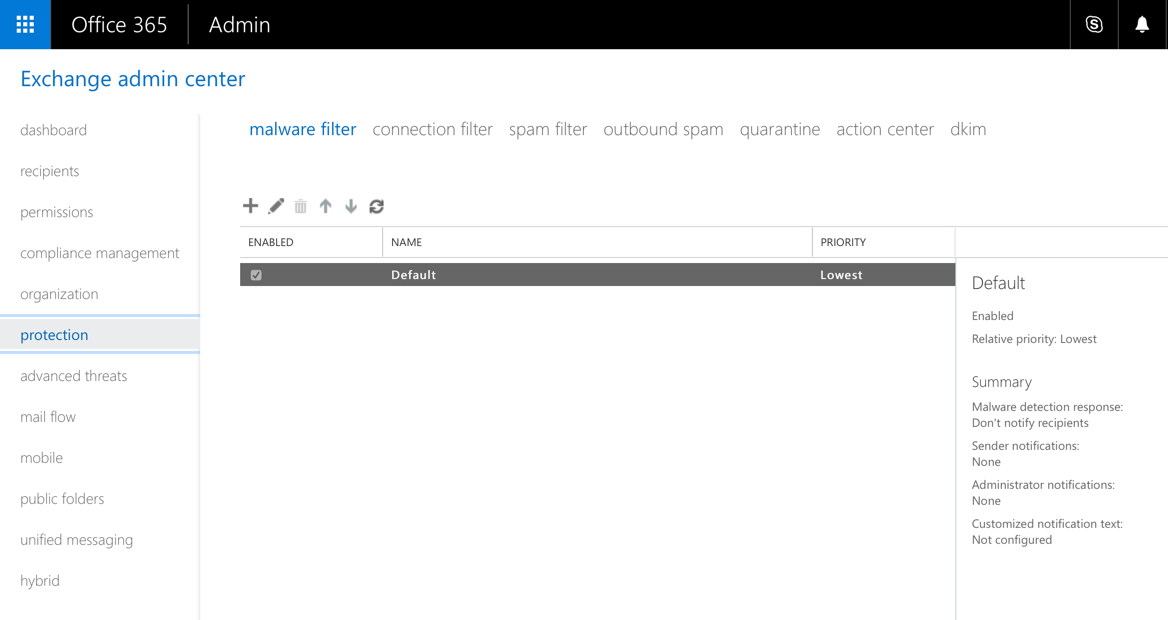
In each of the policy sections you'll find a default policy that applies to your entire tenant. In some policy sections you can add your own policies that are scoped to specific recipients, specific domains, or members of a group. This allows you to have granular policies that apply different controls to different parts of your user population.

When you configure multiple policies they are given a relative priority. If no higher priority policy exists that matches an email, the default policy will be applied. For many customers just a single policy for each of the protection types is required. However, even in smaller organizations some exceptions to policies are desirable. For example, an inbound customer service address might want to have more lenient content filtering to avoid the risk of blocking a customer email, whereas higher risk parts of the organization may need more aggressive protection to reduce the risk of phishing and other attacks.

Also keep in mind as you're reviewing your settings, it's possible that your default settings are different to someone else's default settings due to minor changes over the years in how new tenants are provisioned. Again, this highlights the importance of reviewing your EOP configuration and making decisions about what settings to apply.

Configuring Malware Policies

Exchange Online Protection scans email attachments for malware using multiple anti-malware engines, as well as Microsoft's own detection rules based on their analysis of malware outbreaks.

The malware policy settings in EOP mainly provide for customization of notifications. There is an additional setting for blocking file types that are likely to be harmful. This setting might be disabled in your tenant by default. You can turn it on, and then review the default list of files types to be blocked. If you like you can also add or remove file types to customize the list. In the default list, the file type most likely to cause a problem at customers I've worked with is .docm (Macro-enabled Word document), due to the heavy use of Word macros in the industries I deal with most.

Removing file types from the list is not ideal, but some customers insist. The preferred approach, in my opinion, is to change from emailing macro-enabled Word documents around, and instead use the file sharing capabilities of OneDrive. But if a customer does insist on flinging macros around in email attachments, we can look at securing Office macros using Group Policy. This is a whole separate adventure of trying to come to grips with macro signing, trusted locations, and all the rest. It's not easy, but it addresses a significant risk, and also protects against other sources of macro-based attacks such as file downloads from the internet.

For malware notifications, I generally don't turn on the notification to recipients. Malware tends to be malware, with very few false positives. Some customers have enabled it though, with the default notification text.

As notifications start to roll in, the customer can then craft a custom notification text that addresses the most common concerns or questions that their users ask when they receive a notification. The notification text is seen by the user in the text file attachment that replaces the infected file attachment.

For sender notifications, I recommend enabling notifications to internal senders only.

You can further customize the sender notifications as well, to provide more useful information to any senders in your organization who are the source of outbound malware.

Configuring Connection Filtering

Exchange Online Protection uses connection filtering to allow or block email based on the source IP address. Connection filtering is a good way to prevent spam and malware being received from known bad neighborhoods, such as the IP address ranges of residential ISPs where home computers can be infected by spam botnets.

There is one connection filtering policy that you can modify with specific IPs to allow or block.

In most cases I don't make any changes to these settings. If the customer has an externally hosted system that sends inbound email, and IP address is the only characteristic of the emails that we can use to allow it, then we'll add the IP to the allow list in the connection filtering policy. From time to time there will also be a need to add IP addresses to the block list if there's a sustained attack that other layers of spam or malware protection are not accurately blocking.

There is also the option to enable the safe list. Microsoft subscribes to various third party lists of trusted senders. There's not much more detail available, and if your security teams don't like to trust unknown lists of senders, then you can ignore this setting. I've found it useful to enable this option as a way to decrease the risk of legitimate email being blocked when other spam filtering settings are configured more aggressively.

IP allow/block lists configured in connection filtering apply to your entire tenant, and EOP doesn't allow you to create additional connection filtering policies. If you have more granular IP-based filtering requirements, use a mail flow rule (transport rule) instead.

As a final note on connection filtering, if you're using a third party email security service to filter email before it arrives in EOP, then you might be reducing the effectiveness of EOP. You can find out more in this discussion with Microsoft MVP Brian Reid.

Configuring Spam Filtering

Spam filtering in EOP makes decisions based on the content of emails. The spam filtering options provide some of the most detailed customization available to you in EOP.

Incoming email is assigned a “spam confidence level” (SCL) when it has been scanned by EOP. The SCL ratings are published on TechNet, and are as follows:

  • -1 for non-spam coming from a trusted source (e.g. IP allow list)
  • 0-1 for email determined to be non-spam
  • 5, 6 for email determined to be likely spam
  • 7, 8, 9 for email determined to be high confidence spam

The default for likely spam and high confidence spam is to deliver to the recipient's junk email folder. However, there are multiple actions you can choose from when spam is detected:

  • Move message to Junk Email folder (default setting)
  • Add X-Header (adds a entry to the message headers that you can then use for mail flow/transport rules)
  • Prepend subject line with text (useful for flagging to end users that an item is suspected spam)
  • Redirect message to email address (useful if you want to look at all the spam you're blocking)
  • Delete message (when you're really sure you won't miss legitimate email)
  • Quarantine message (when you're not confident enough to delete the messages)

Customers tend to fall into two categories:

  1. Those who want to send suspected spam to Junk Email, and quarantine the high confidence spam
  2. Those who want to quarantine suspected spam email, and delete the high confidence spam

Very few customers that I work with mess around with X-Header or subject line insertion. If you do choose to quarantine spam, it's recommended that you configure end-user spam notifications, which we'll look at shortly.

The next spam filtering setting to review is the handling of bulk email. Bulk email is usually not spam. It's often referred to as “grey mail”. Bulk email is things like newsletters, marketing emails, anything that is sent out in bulk to a large audience. Transaction email such as receipts for online shopping is usually not considered bulk email, but might be treated as such if it comes from the same IP address pools.

I recommend treating bulk email as spam, and setting a high BCL value. The BCL (Bulk Complaint Level) is the number of spam complaints that a bulk email service generates. When recipients of newsletters and other marketing materials hit the equivalent of a “This is spam” button in their mail client, a spam complaint is registered against that sender. Bulk email services that allow their customers to generated a lot of complaints without terminating their service will end up with a poor reputation in the eyes of filtering systems like EOP. Reputable bulk email services work very hard to maintain their reputation, but there are others that are happy to take money from the less than ethical marketers of the world.

I generally leave the bulk email threshold to the default value of 7. Most customers operate in industries that have some form of marketing or professional newsletters that they want to receive. Users can be encouraged to add senders to their safe list if any of the newsletters that they want to receive are getting marked as spam. In a few cases I've worked with customers who discourage the use of work email addresses for any type of marketing or newsletter, and configure the bulk email threshold to a lower value to block as much of it as possible. Users are encouraged to use a personal email address for any newsletters they want to receive. I would argue that this doesn't really solve the problem, since users can usually still access their personal email from work anyway.

For quarantined item retention, you can set this to whatever you like really, since it's Microsoft's job to store it all. The maximum duration is 15 days, but you don't save any money by changing it to a lower value.

Spam filtering also has block lists and allow lists available for you to explicitly allow/block email addresses or domains. Using block lists is a game of whack-a-mole, but I've had customers who blocked emails from the major social networks (Facebook, LinkedIn, Twitter, etc). The goal was to reduce distractions if an employee happened to sign up to one of those networks using their work email. Allow lists are a little more useful for making sure that emails from a domain or specific sender are not blocked by the spam filters. Customers of mine tend to use this for any emails that they absolutely must receive emails from, such as emails with new bids or grants notifications.

The international spam filter options have been quite effective in reducing spam for local businesses that I have worked with. If they have no global operations at all, and don't speak or read any other languages, then there's usually no reason to accept email written in other languages. Filtering email from other countries or regions gets a little tricker, because there's always the possibility that a local customer is using an email server hosted in some other part of the world. For region blocking I usually recommend to build the list up over time as any problematic spam is analyzed.

The advanced spam options have some additional controls that can be turned on/off, or placed in test mode as way to measure the impact of turning them on. The first set of controls will increase the spam score for an email if the condition is matched. This doesn't mean that the email will be marked as spam, but it will increase the likelihood. The conditions are

  • Image links to remote sites – these are commonly used in email signatures, so increasing the spam score might result in more false positives if the sender has other issues with their mail. If you start to see too much missed spam with remote images, then you should turn this on.
  • Numeric IP address in URL – I always turn this on. It can cause problems with things like UPS alert emails, but those can be fixed in other ways such as connection filtering or mail flow rules.
  • URL redirect to another port – I always turn this on, there's no good reason for regular users to be clicking links that go to non-standard HTTP ports. Again, this might cause problems with systems that use non-standard ports for admin interfaces, if they happen to send emails containing links to those URLs. But that can be fixed in other ways.
  • URL to .biz or .info domains – these are almost never legitimate websites, so I find it safe to turn this option on.

The next set of controls will mark an email as spam if the condition is matched. The conditions are:

  • Empty messages – I enable this option on the basis that an empty message is useless anyway, so there's no real risk of blocking legitimate email.
  • Javascript or VBScript in HTML – I always turn this on. Active content is too risky.
  • Frame or iFrame tags in HTML – I always turn this on.
  • Object tags in HTML – I always turn this on.
  • Embed tags in HTML – I usually turn this on. Most of the time it isn't a problem, but if you're concerned about some edge case of embedded media being blocked then you should try this one in test mode first.
  • Form tags in HTML – I always turn this on.
  • Web bugs in HTML – I always leave this turned off. Web bugs are basically remote images, a single pixel in size usually, that let a sender know whether an email has been opened. Most clients block remote image loading by default anyway, so web bugs are not entirely effective, but they're still widely used for legitimate emails.
  • Apply sensitive word list – I usually turn this on as I've never had an issue with spam being blocked due to the use of “sensitive” words. If “sensitive” words are a normal part of your email communications and you're unsure of the impact of this setting, then you can just try it in test mode for a while first.
  • SPF record: hard fail – I like to turn this on, but in some industries and small business sectors there is still a huge shortfall in proper use of SPF and other measures. There is no test mode for this setting, so if you prefer to err on the side of caution, leave it turned off.
  • Conditional Sender ID filtering: hard fail – if the SPF setting is on, turn this on too. If not, leave it off.
  • NDR backscatter – if you use Exchange Online for outbound mail then this is not required to be turned on at all. If you have outbound email from on-premises servers that does not route via EOP, then you can turn this on.

If you're using any settings in test mode, you can choose an action to take on messages that match those conditions. Sending a Bcc message to another mailbox is the simplest way to keep an eye on hits for your test mode items.

Finally, after configuring your desired spam filtering options, if you have enabled the quarantine action for spam, you should configure the end-user spam notifications.

I prefer to leave the notifications to be sent every day, but as you get your EOP settings tuned for greater effectiveness over time, and your users tell you that the spam notifications do not contain any legitimate email, then you can consider reducing the frequency of the notifications to every 2-3 days.

Configuring Outbound Spam Preferences

Exchange Online Protection will detect and block outbound spam, which is spam that is sent by users in your own organization. Most of the time the spam is not intentionally being sent by your own users, but is being sent by someone who has compromised one of your accounts. Other times the spam is due to an over-eager marketing person using Outlook to send bulk email out to the world, which is a bad idea.

In the outbound spam preferences you can set notifications so that you receive a copy of any suspicious outbound email. I usually find the email is not actually spam, but has some spam-like characteristics like awkward phrasing or an invitation to click on a link to login somewhere. A little user education can usually prevent those incidents from being repeated.

You can also configure a notification for any time one of your senders is blocked for sending spam. This is almost always an account compromise, as I mentioned earlier, so make sure these alerts are going to people who can take prompt action.

Additional Steps

So far we've covered the basic features of Exchange Online Protection. After you've taken those steps to configure EOP, there are some additional items to look at. One of them is DKIM, which I'll explore in a separate article in future. The others that I recommend are:

Photo by Patryk Grądys on Unsplash

The post First Steps: Configuring Exchange Online Protection appeared first on Practical 365.

09 Nov 09:03

Kosten für Flüchtlinge: Auf so vielen Millionen bleibt die Stadt sitzen

by Christine Ulrich
Viel Geld hat die Stadt in den vergangenen Jahren für Geflüchtete ausgegeben. Nun steht fest: Geschätzt 98 Millionen Euro werden ihr voraussichtlich nicht erstattet.
08 Nov 20:40

Schnelles Internet: AVM Fritzbox 6890 LTE

AVM verkauft ab sofort die Fritzbox 6890 LTE. Mit dem neuen Topmodell empfangen Sie Internet wahlweise via LTE oder per DSL.
08 Nov 20:29

Datenschutz: Online-Bezahldienste erheben zu viele Kundendaten

by ZEIT ONLINE: Datenschutz -
Marktführer PayPal und andere Bezahldienste klären ihre Nutzer nur unzureichend darüber auf, welche Daten sie sammeln. Das belegt eine Studie, die der ZEIT vorliegt.
08 Nov 20:25

Limux-Ende: Münchner Stadtrat stimmt für Windows-Migration

Der zuständige Verwaltungsausschuss des Münchner Stadtrats hat das Ende des Limux-Projektes besiegelt und für eine Migration zu Windows gestimmt. Die soll 2022 abgeschlossen sein, die Kosten dafür bleiben geheim. (Limux, Linux)
08 Nov 20:25

Abgasskandal: Es stinkt zum Himmel

by ZEIT ONLINE: Unternehmen - Lukas Koschnitzke
Ausgerechnet VW verhindert strenge Abgaswerte in der EU. Der Konzern hat offenbar aus den jüngsten Skandalen nichts gelernt. Noch viel schlimmer: die Politik auch nicht.
08 Nov 20:19

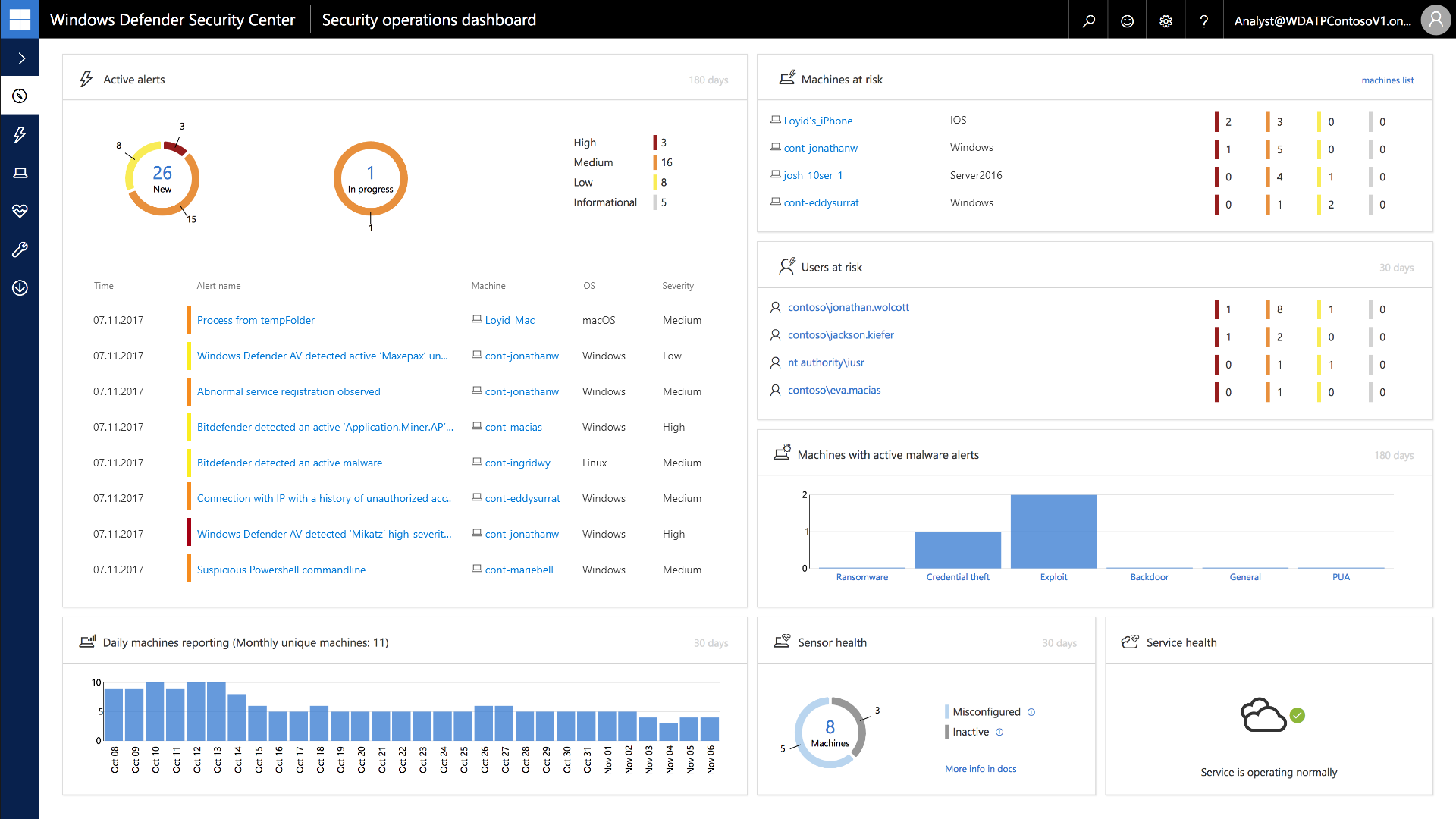
Microsoft extends Windows Defender ATP across macOS, Linux, iOS, and Android

by Dan Thorp-Lancaster

Microsoft is extending Windows Defender Advanced Threat Protection (ATP) across even more platforms.

As part of a partnership with Bitdefender, Lookout, and Ziften, Windows Defender ATP will soon be able to detect threats across macOS, Linux, iOS, and Android.

08 Nov 20:18

Snapchat Has a Child-Porn Problem

08 Nov 20:16

LinkedIn can now help you build a better resume in Word

by Dan Thorp-Lancaster

Microsoft is bringing LinkedIn and Word a little closer together with its latest integration.

The next time you need to work on your resume in Word, you can get a little help from LinkedIn.

08 Nov 20:16

Bringing AI to job seekers with Resume Assistant in Word, powered by LinkedIn

by Bryan Goode

Today’s post was written by Bryan Goode, general manager for Office 365.

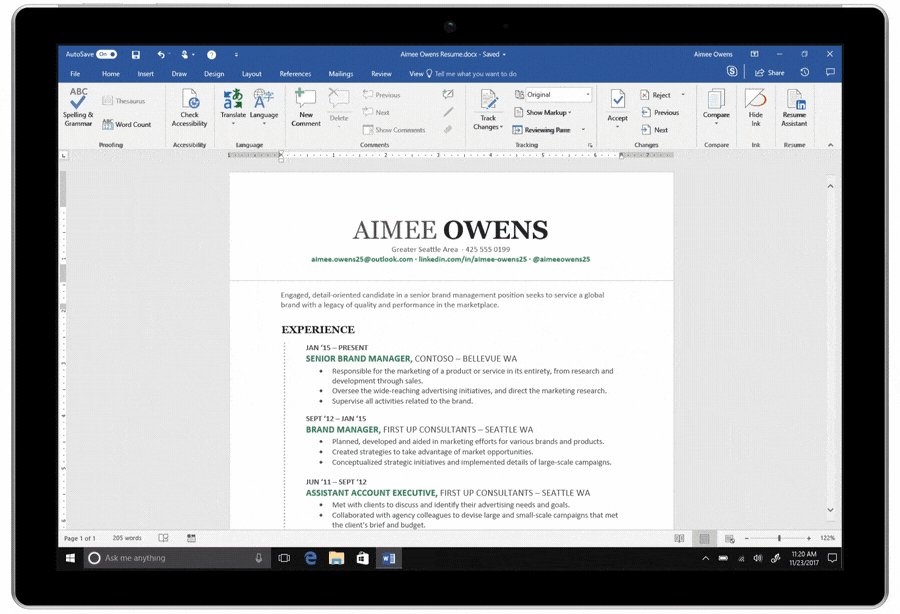
Today, at LinkedIn’s headquarters in San Francisco, we announced Resume Assistant, a new feature in Microsoft Word to help Office 365 subscribers craft compelling resumes with personalized insights powered by LinkedIn. With over 80 percent of resumes updated in Word, Resume Assistant helps job seekers showcase accomplishments, be more easily discovered by recruiters, and find their ideal job.

The workplace is changing, impacting not only how people work, but also the frequency with which they change roles, introducing new challenges for job seekers. Nearly 70 percent of people say they have difficulty portraying their work experience effectively, and 50 percent struggle to tailor their resume to a specific job opportunity. Furthermore, job applications on LinkedIn have increased 40 percent year-over-year, signaling increased competition for jobs.

Leveraging the power of LinkedIn, Resume Assistant provides intelligent tools to help job seekers improve their resumes, right from within Word.

  • Leverage relevant examples—See how top people in a field represent their work experience and filter by industry and role for a personalized experience.
  • Identify top skills—Find the most prominent skills for the type of job you’re seeking so you can more easily increase your discoverability.
  • Customize a resume based on real job postings—People can see relevant job listings from LinkedIn’s 11 million open jobs and customize their resume to appeal to recruiters.
  • Get professional help—Easily connect to ProFinder, LinkedIn’s freelance platform, to get additional hands-on resume writing, interview, and career coaching.
  • Let recruiters know you’re open—Candidates can quietly let recruiters know they are open to new opportunities with Open Candidates.

Brief animation showcases Resume Assistant in Word.

Microsoft and LinkedIn are committed to empowering professionals—both in their current jobs and over the course of their career—with innovative new tools that bring together the world’s largest professional cloud with the world’s largest professional network. Look out for more updates in the coming months.

—Bryan Goode

Availability: Resume Assistant in Microsoft Word begins rolling out this week to Office 365 subscribers that are enrolled in the Office Insiders program on Windows Desktop using English display language. It will be available first in Australia, Brazil, Canada, China, France, Germany, India, Ireland, Japan, Singapore, South Africa, Spain, New Zealand, United, Kingdom, and United States of America. It will be generally available on more platforms and markets over the coming months.

The post Bringing AI to job seekers with Resume Assistant in Word, powered by LinkedIn appeared first on Office Blogs.

08 Nov 20:15

Microsoft refunding rewards points spent on Groove Music passes

by Dan Thorp-Lancaster

If you recently spent Microsoft Rewards points on a Groove Music pass, it looks like you can expect a refund.

Following news that it will soon kill Groove Music Pass, Microsoft is looking to make amends to anyone who recently may have spent Microsoft Rewards points on a subscription.

08 Nov 20:15

How Microsoft helps deaf people 'hear'

by Jason Ward

There are 360 million people in the world who are deaf or hard of hearing. Microsoft's inclusion mission embraces them within its workforce and brings them some of the benefits of hearing via technology.

Some degree of hearing loss is virtually inevitable as we age. Sadly other factors, such as loud noises, disease, injury or congenital disabilities, rob millions of others of the vital sense. As with many disabilities, individuals who are deaf or hard of hearing face discrimination in various areas of life, including employment opportunities.

Additionally, a person's inability to hear could have adverse effects on how they interact socially. Thus, they may be uncomfortable or lack confidence in certain social settings. How others embrace or fail to embrace them could also affect them. An inability to hear could be a life-threatening condition, as well, if an individual is unable to perceive environmental cues to alert them to danger.

Microsoft's inclusion mission seeks to move beyond discriminatory practices by bringing people who are deaf or hard of hearing into its workforce. The company is also producing technology that will enable these individuals to experience some of the benefits of hearing.

08 Nov 20:15

Stammzellen: Gezüchtete Haut rettet Siebenjährigen

by ZEIT ONLINE: Gesundheit - Saskia Gerhard
Erstmals haben Stammzellforscher großflächig gezüchtete Haut verpflanzt und so eine lebensbedrohliche Krankheit therapiert. Ein Einzelfall. Aber die Methode hat Zukunft.
08 Nov 20:14

How Home Buyers Screw Up Their Home Inspections

08 Nov 20:14

A DoS Attack Against the C# Compiler

08 Nov 20:14

Windows 10 build 17035 now available for Insiders in the Fast ring with new features

by Zac Bowden

A new Insider Preview build with new changes and features is rolling out to Insiders now. Here's what's new!

Microsoft is rolling out a brand new Insider Preview build of Windows 10 to Insiders in the Fast and Skip Ahead ring today that introduces a plethora of new changes, features and enhancements over the last preview builds.

Today's build is 17035 and is rolling out now. No build for Mobile today, which isn't much of a surprise. Let's dive into what's new in the PC build.

What's new in build 17035?

Microsoft Edge

08 Nov 20:13

Advanced Nuclear Finds a More Welcome Home in Canada

08 Nov 20:13

Piaggio: Erste Elektrovespa kommt nächstes Jahr

Piaggos "Kunstwerk", ein Elektroroller, braucht Zeit. Die italienische Marke hatte zwar schon im letzten Jahr ein Konzept angekündigt, doch dann wurde es ruhig. Nun hofften viele, dass jetzt eine E-Vespa kommt, doch daraus wird erst 2018 etwas. (Elektroauto, Technologie)
08 Nov 20:13

Windows 10 Build 17035 bringt neue Features im Fast Ring

by Albert Jelica

Microsoft hat heute die Windows 10 Build 17035 für Windows Insider im Fast Ring ausgerollt und hat damit eine ganze Reihe von neuen Funktionen ausgerollt. Wir haben alle wichtigen Neuerungen für euch zusammengefasst.

Windows 10 Build 17035 – Neuerungen

Microsoft Edge

  • Tabs stummschalten: Mittels Rechtsklick auf einen Tab kann nun ein einzelner Tab stummgeschaltet werden, wenn beispielsweise ein Video automatisch abgespielt wird.
  • EPUB-Dateien speichern: Kostenlose EPUB-Bücher aus dem Internet können nun gespeichert werden.
  • Neue Kontext-Menü-Optionen: Beim Rechtsklick während dem Lesen eines Buchs können nun weitere Optionen aufgerufen werden, darunter das Anspinnen an den Startbildschirm, Öffnen im Store und neu laden.

Windows Shell

  • Near Share: Ab sofort können Dateien direkt an PCs in der Nähe versandt werden.
  • Touch-Tastatur mit Fluent Design: Die virtuelle Tastatur in Windows 10 erscheint nun leicht transparent und wurde somit an die Richtlinien des Fluent Design angepasst.
  • Neue Animation beim Einsetzen von vorgeschlagenen Wörtern
  • Wortvorschläge auch bei Eingabe über die Hardware-Tastatur: Ab sofort werden Vorschläge bei Eingaben über die Hardware-Tastatur angezeigt.

Einstellungen

  • Windows Update: Download-Bandbreite kann nun auch für das Laden von Updates im Vordergrund festgelegt werden.
  • Sound: Einige häufige Sounds können nun direkt in den Einstellungen geändert werden, sodass die Systemsteuerung dafür nicht mehr notwendig ist.
  • Erleichterte Bedienung: Es gibt nun neue Optionen in den Einstellungen für erleichterte Bedienung.

Weitere Neuerungen und Behebungen:

  • ATTENTION DEVELOPERS: We fixed an issue from the previous flight where launching an app with a debugger attached caused it hang at the splash screen. Debugging UWPs now works again.
  • When the default location is set on your home or office PC, Cortana now knows to show you location-based reminders in the area on your PC. Your default location can be set in the Maps app.
  • We’ve updated Cortana Collections to now support light theme.
  • We’re making some changes to the Data Usage settings page under Settings > Network & Internet — you’ll notice some differences in this build. Not everything is working so stay tuned for an announcement in a later flight when everything is up and running.
  • We fixed an issue where some Store download errors were unexpectedly displaying on the Windows Update history page.
  • We’ve updated the Action Center to now use Fluent Design’s Reveal. You’ll also notice we’ve updated „Clear all“ to now say „Clear all notifications“ to improve discoverability.
  • We fixed an issue where it wasn’t possible to swipe to clear notifications from the Action Center in the last few flights.
  • We fixed an issue where dismissing an alarm notification above lock resulting in the alarm sound continuing to play despite being dismissed.
  • We fixed an issue where after uninstalling an app, its pinned tile might still exist on the Start Menu.
  • We fixed an issue where after connecting via Remote Desktop the first local launch of Start menu would show Start briefly clipped to the top half before animating in the bottom.
  • We fixed an issue where after upgrading the Start Menu might contain multiple listings of apps with only the name „NoUIEntryPoints-DesignMode“ and a grey tile.
  • We fixed an issue where it wasn’t possible to rename files in File Explorer when using the Small Icons view.
  • We fixed an issue where using the File Picker from a UWP app would show an error saying „multiple selections aren’t allowed“ when attempting to pick multiple images from a phone connected to the PC via USB.
  • We fixed an issue resulting in „Occasionally show suggestions in Start“ being reset after upgrading.
  • We fixed an issue resulting in a drop in Start menu reliability in the last two flights.
  • We fixed an issue where notifications with progress bars wouldn’t update while the Action Center was open.
  • We fixed an issue where valid characters in the touch keyboard were unexpectedly disabled in password fields for certain keyboards.
  • We fixed an issue where you couldn’t switch to alpha mode when using the touch keyboard using a third party Japanese IME since the key wasn’t available.
  • We fixed an issue where the input indicator state wouldn’t be preserved across reboot if set to something other than the default value.
  • We fixed an issue resulting in the touch keyboard coming up unexpectedly after setting focus to Start when in tablet mode.
  • We fixed an issue resulting in ink strokes in OneNote sometimes unexpectedly changing thickness after interacting with buttons in the app.
  • We fixed an issue resulting in the touch keyboard not coming up in certain text fields with the keyboard docked in tablet mode.
  • We fixed an issue where words would sometimes get duplicated when using the handwriting panel in certain apps.
  • We fixed an issue resulting in screen flickering in the last flight after bringing up the game bar, volume slider or other on-screen UI when playing fullscreen DirectX9 games.
  • We fixed an issue resulting in Forza Horizon 3 unexpectedly failing to run with an „unsupported graphics card“ error on some laptop configurations.
  • We fixed an issue where pressing Shift + Del while editing the URL of a favorite would delete the favorite entry instead of performing a Cut action.
  • We fixed an issue from the previous flight where changes made to About:flags in Microsoft Edge wouldn’t persist.

Quelle: Microsoft

Der Beitrag Windows 10 Build 17035 bringt neue Features im Fast Ring erschien zuerst auf WindowsArea.de.

08 Nov 20:10

Neue Funktionen: Chrome schützt dich jetzt besser vor dubiosen Websites

Google verpasst seinem Browser drei neue Schutzfunktionen, damit Nutzer sicherer surfen können. An den Kragen gehen soll es etwa Weiterleitungen und Overlays.

Chrome: 3 neue Schutzfunktionen für mehr Sicherheit beim Browsen

Ab dem kommenden Jahr soll Googles Chrome-Browser einen integrierten Werbeblocker bekommen, der zumindest für Google inakzeptable Werbung herausfiltert. Zudem hat Google schon einen Pop-up-Blocker und einen Autoplay-Schutz für seinen Browser eingeführt. Jetzt sollen drei weitere neue Schutzfunktionen dafür sorgen, dass Nutzer mit künftigen Chrome-Versionen sicherer surfen können, wie Google mitteilte.

Chrome: Google will Nutzer besser vor unerwünschten Weiterleitungen und Overlays schützen. (Screenshot: Google/t3n.de)

Damit will der Suchmaschinenbetreiber nach eigenen Angaben unerwünschtes Weiterleiten zu anderen Seiten, etwa durch eingebettete Iframes oder transparente Overlays, verhindern. In Chrome 64 soll bei allen Weiterleitungen, die von Iframes Dritter stammen, stattdessen ein Infobalken angezeigt, solange der Nutzer nicht mit diesem Frame interagieren möchte.

Ähnliches soll künftig auch ein unerwünschtes Aushebeln des Pop-up-Blockers in Chrome verhindern. Bisher ist es möglich, dass durch Klicken auf einen Link das gewünschte Ziel in einem neuen Fenster öffnet, während das Hauptfenster zu einer anderen, unerwünschten Seite navigiert, wie Google erklärt. Das soll in den nächsten Chrome-Versionen ebenfalls unterbunden und dem Nutzer über einen Infobalken die Wahl gelassen werden.

Anzeige

Transparente Webseiten-Overlays künftig in Chrome verboten

Auch einige weitere Formen von „Abusive Experiences“, bei denen Nutzer zu unerwünschten Zielen weitergeleitet werden, hat Google ausgemacht. Unter diesen unerwünschten Weiterleitungen fasst Google etwa Links zu Webseiten Dritter zusammen, die als Play-Tasten oder andere Steuerungen der Seite verschleiert sind. Auch transparenten Webseiten-Overlays, die Klicks erfassen und unerwünscht neue Registerkarten oder Fenster öffnen, soll der Garaus gemacht werden.

Chromebook Pixel: Googles Highend-Touch-Notebook zum Premium-Preis

1 von 8

Ab Januar soll der Pop-up-Blocker von Chrome ein solches Öffnen von neuen Fenstern und Registerkarten verhindern. Website-Betreiber finden in der Google-Such-Konsole jetzt einen „Abusive-Experiences-Report“, wo sie sehen können, ob solche Handlungen auf ihren Seiten festgestellt wurden. Nach 30 Tagen, ohne dass die Website-Betreiber Änderungen vorgenommen haben, löst Google die Unterdrückung neuer Fenster und Registerkarten aus.

Interessant in diesem Zusammenhang: 30 praktische Erweiterungen für den Chrome-Browser

08 Nov 20:09

Preview of first System Center semi-annual channel release now available

by candacemorris

This blog post was authored by Bala Rajagopolan, Principal Group Program Manager, System Center.

In June, we announced that System Center was moving to a faster release cadence with new semi-annual channel releases coming this year. At Ignite, I shared with you that the first public preview would be available in November. Im excited to announce that you can now try the System Center preview, version 1711, to take advantage of the new features and updates across the System Center family.

Download the System Center preview now.

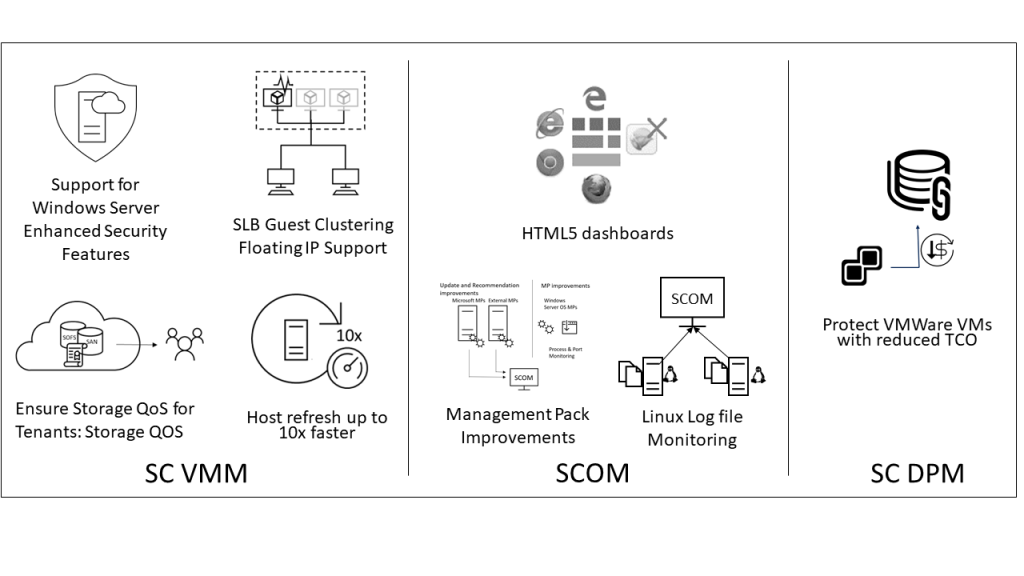
Our focus in this first semi-annual channel release is on enhancements and features for System Center Operations Manager, Virtual Machine Manager, and Data Protection Manager, based on feedback from our customers. Additionally, security and bug fixes, as well as support for TLS 1.2 will be available for all System Center components including Orchestrator (including Service Manager Automation, Service Provider Foundation) and Service Manager. Feature updates across components for the next semi-annual channel release will be shared in the first quarter of 2018.

Enhanced support for Windows Server, Linux, and VMware

Since the release of System Center 2016 last October we have seen many customers upgrade and start using the new features that enhance previous versions of System Center and support the latest software-defined datacenter capabilities in Windows Server, Linux, and VMware. I am pleased to share several new features that you can check out now as part of the public preview:

As well asconsistent evaluation and license experiences across components.

New Azure integrations

Microsoft has made significant investments in Azure services for operations management. To help you connect to these great capabilities, we are including the following updates in System Center:

  • Service Map integration with Operations Manager: Use the Distributed Application Diagram function in SCOM to automatically see application, server, and network dependencies, deduced from Service Map. This deeper endpoint monitoring from SCOM is surfaced in the diagram view for better diagnostics workflows.
  • Manage Azure ARM VMs and special regions: Using a Virtual Machine Manager add-in, you can now manage Azure ARM VMs, Azure Active Directory, and more regions (China, US Government, and Germany).
  • Service Manager integration with Azure: Using the Azure ITSM integration with Azure Action Groups you can set up rules to create incidents automatically in System Center Service Manager for alerts fired on Azure and non-Azure resources.

We look forward to getting your feedback from this preview release as we move closer to our general availability planned for early next year. To help influence the upcoming releases, we encourage you to join the System Center Tech Community and UserVoice forums to provide your feedback and suggestions.

08 Nov 20:09

Ask HN: Does your Amazon Echo talk to you without being asked?