The Reid Technique is the go-to method for coercing false confessions in America's police interrogation rooms, and now it's being taught to America's schoolteachers, just as schools are using "zero-tolerance" policies and on-site cops to re-characterize school discipline problems as criminal matters, creating a school-to-prison pipeline.
(more…)
Spring isn’t a lot of fun for allergy sufferers. The video above from Cleveland Clinic, however, offers easy sinus relief.
Acupuncturist Jamie Starkey points out two simple techniques to relieve the pressure in your eyes and nose when hay fever or other allergy issues are driving you crazy. In the first exercise, you’ll apply pressure with your fingers at the sides of your nose. In the second exercise, apply pressure to the inner parts of your eyebrows.
These aren’t guaranteed to completely tame your allergies, but they’re quick and don’t cost a cent, so worth a try.
On Wednesday, Fairfax and Huffington Post broke the Unaoil story, revealing that they had been leaked a trove of email from an obscure Monaco family business that had acted as a global fixer in bribery and bid-rigging that looted the treasuries and oil-fields of some of the world's poorest countries, from Iraq to Yemen, acting on behalf of blue-chip companies like Rolls-Royce and Halliburton.
(more…)
Nobel Prize-winning economist Joseph Stiglitz says the Trans-Pacific Partnership, or TPP, could be the worst trade agreement ever negotiated in history. In an interview with CBC News, he recommended that the government of Canada insist on reworking it.
Channel 4 has an Android app that lets users view TV shows and content on demand. Now the UK-based broadcasting network is taking things to the next level with the introduction of live broadcasting over Wi-Fi and cellular data, a feature it's calling Watch Live.
People who download the app now have the option to view live broadcasts of all of Channel 4's channels (all of which, I'm assuming, can't be on channel 4) at home or out and about, as long as they don't leave the country.
The number of people in the world who are obese skyrocketed to 641 million in 2014 from 105 million in 1975, according to a new study published in the medical journal The Lancet. That’s a sixfold increase in about 40 years.
The study compared the Body Mass Index (BMI), a measure of body fat based on height and weight, of almost 20 million people from 186 countries from 1975 to 2014. The global obesity rate for men raised to 10.8 percent in 2014 from 3.2 percent in 1975. For women, the obesity rate increased to 14.9 percent from 6.4 percent, according to the study conducted by scientists from the Imperial College London.
Microsoft OneNote has been one of our favorite note-taking apps for years, and it keeps getting better. The app is completely free to install on your Mac or Windows desktop and lets you format notes any way you wish in an intuitive digital notebook interface. Here’s how to get started with OneNote and take your notes to the next level.
This post is part of Microsoft Office Week, a series at Lifehacker where we offer tips to get started with or master Microsoft Office. Want more? Be sure to keep an eye on the Office Week tag page throughout the week.
Get Up and Running with OneNote Quickly
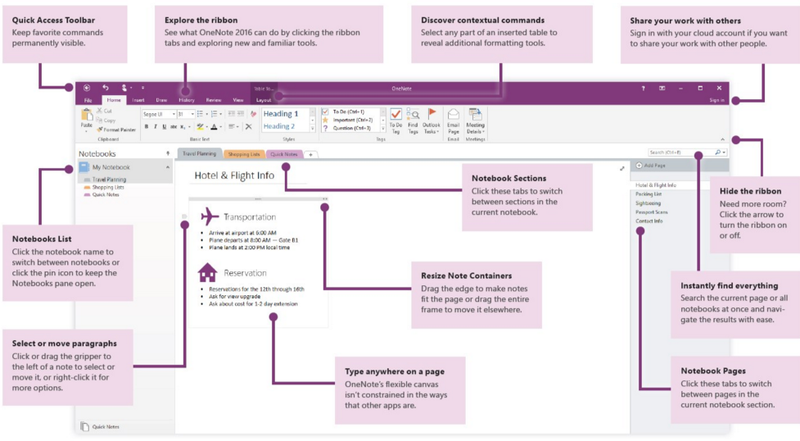
In addition to the familiar Office ribbon, OneNote’s interface mimics a spiral notebook. Each note is a page in OneNote, listed by default in the right sidebar. Pages are stored in sections of the notebook, which you can navigate between using the colorful tabs at the top. You can have an endless number of notebooks, stored either in OneDrive, if you’re using the free version of OneNote, or anywhere on your hard drive, if you’re using the paid edition.
For this guide, we’ll assume you know most of the basics of OneNote, such as how to add a new page or create a new tab. If you’d like a refresher, check out Microsoft’s Quick Start guides to Office.
How to Do the Most Common, Essential Tasks in Microsoft OneNote
OneNote is all about capturing information and helping you keep it all organized. On the surface, it works just like a basic word processor, but with handwriting support, multimedia embedding, and other powerful features, it’s more than just a notes app.
Organize Your Notebooks and Sections
I love OneNote because it helps keep all the random bits of information related to a project all in one place and visually organized. We’ve mentioned some of the features below previously, but here are a few tips to make the most out of this notebook metaphor.
Create a hierarchy of notes: Drag a note to the right in the list to make it a subpage of the note above it. You can collapse all the subpages with the arrow at the right of the top note to make scanning all your notes easier.
Create section groups: If you have a ton of sections in a notebook, consider grouping some of the related sections. Right-click on a tab and choose “New Section Group.” Then you can move individual tabs to the new group. For example, you might have a Recipes notebook and create a section group for desserts, and, within that group, sections for pies, cakes, cookies, and so on.
Use tags freely within a page: Unlike other notes apps where you add tags for the entire note, OneNote lets you tag individual parts of the note. So, for example, you can mark a paragraph with a question mark tag for further researching, create a list of checkbox tags for things you have to do, and tag other parts of your notes with custom tags, such as people’s names or project names.
Tags become even more useful when you use the “Find Tags” button in the Home tab to search across your notebook or notebooks for a specific tag. Click the “Create Summary Page” in the Tags Summary pane that opens when you’re searching for a tag, and OneNote will create a (refreshable) list of everything you’ve tagged in one page.
Automatically create new pages, linked together in a master list: If you’re working on a project that you know will require several pages of notes, here’s a killer shortcut: Type two square left brackets followed by the title of the first note you want to make and then type two right square brackets at the end. OneNote will instantly create a new note with that title and a link to it in your current note. Repeat the brackets shortcut to add more new linked notes.
Password-protect a section: Right-click a tab and choose “Password Protect This Section” to protect sections with sensitive information in them.
Connect IFTTT to OneNote and automate sending favorites from Pocket, screenshots from your iPhone, starred Gmail messages, and more to OneNote.
Use the Windows+N keyboard shortcut to quickly create a OneNote note that will be stored in your QuickNotes section. (For Windows PCs only.)
I think Evernote still has a bit of a leg up on OneNote when it comes to web clipping, but with OneNote you still have numerous options for quickly getting your information into the app.
Save Audio, Video, Photos, and More Than Just Text
You can embed just about anything into a OneNote note, and, here’s the kicker, OneNote will likely make that audio, video, scanned receipt, or other object searchable. Add these objects anywhere you want on the page. You can have a photo to the right of a checklist, an embedded Excel spreadsheet with Outlook task reminders beneath it, or a YouTube video above your meeting notes.
Click on the Insert tab to see your options, or try just copying and pasting the item into a page.
If you insert a screenshot or photo into a page, OneNote can be an awesome markup tool. For example, when I was planning a trip to Disney (which is like having a second job), I added this crowd calendar to my planning notebook and highlighted where we were going each day.
OneNote is also amazing for math geeks. In the Insert tab, click Symbols > Equation and pick an equation to enter, such as the area of a circle. You’ll find a new Design tab that lets you format math equations in OneNote, with a catalog of math symbols and also the ability to handwrite a math equation.
Additionally, OneNote can calculate math for you. For example, if you type in something like “$15*365*10=” (without the quotes), once you press the spacebar, OneNote will fill in the answer. Go ahead and type in “PI=” (without the quotes) and then the spacebar in OneNote. Cool, right? Other math functions OneNote works with: cosine and sine, square root, and logarithm. See this Office support page for more fun math tricks.
Finally, if you have a touchscreen PC or, better yet, a stylus-supporting device like the iPad Pro or Surface Pro, you’ll probably love OneNote’s inking support. Not only can you draw or handwrite anywhere on the page with a variety of colors and thickness options, OneNote can convert your chicken scratch into text or turn misshapen shapes into a standard shape.
Also, your handwritten notes, like your audio and video recordings from within OneNote, will be searchable. It’s like magic!
Work Faster in OneNote with These Keyboard Shortcuts
When you’re quickly typing up notes in OneNote, you don’t have time to mess with the mouse. OneNote packs over 100 keyboard shortcuts, but these are the ones you’ll likely use most often:
Ctrl+Alt+D: Dock the OneNote window so you can use it side-by-side with another app, like your browser
Ctrl+Shift+C: Copy the formatting of selected text (use the Format Painter)
Ctrl+Shift+V: Paste the formatting of the selected text
Alt+N: Open the Insert menu, with additional shortcuts highlighted. For example, after pressing Alt+N, the insert menu shows you can now press A to insert and start recording audio or press R to create and insert a screen clipping
Ctrl+1: Add, mark, or clear the To Do tag
Ctrl+Alt+N: Create a new page beneath the current one at the same level (pressing Ctrl+N creates a new page, but puts it at the bottom of the page list)
Ctrl+Shift+Alt+N: Create a new subpage beneath the current one
Ctrl+T: Create a new section
Ctrl+E: Open the search box
Because OneNote uses rich text formatting much like Microsoft Word and other word processors, other universal text editing keyboard shortcuts also apply, such Ctrl+K to insert a hyperlink or using the control and arrow keys to move the cursor a word to the right or left. Check out our list of these text selection shortcuts here.
OneNote’s a powerful tool for collecting your thoughts, taking meeting notes, saving stuff from the web, and more. There’s more to the program than we can cover here, so check out these additional resources:
Do more in OneNote with Onetastic: The free Onetastic add-in gives you tons of new features, such as custom styles, a calendar view of your notes, and the ability to create macros in OneNote. It’s a must-have for OneNote fans, and Office has a 15-minute webinar showing how to use it.
Apply a template to a OneNote page: Use a consistent layout or apply a background to your pages with OneNote’s built-in templates or create your own page templates. Here’s Microsoft’s tutorial on page templates.
Set up a GTD notebook for task management: If you’re a Getting Things Done fan, incorporate that system into OneNote with this notebook and tagging example.
Migrate from Evernote to OneNote: If you want to move your notes from Evernote to OneNOte, Microsoft has an importer tool for that. Right now it’s only available for Windows, but once your Evernote notes are imported, they’ll be available in OneNote on all your devices.
The time of day you shoot at can make a huge difference to the images you capture. Often photographers are shooting at the coveted golden hour – early morning or late evening – when the sun is low and the light is special.
Here is a set of dazzling dawn images that use this magic golden hour light.
Today’s April Fool’s Day. Which means you have two choices: you can either bemoan the fact that the day is now devoted to competitive corporate silliness and the word “prank” has become meaningless, or you can make fun of those very pranks with us. Join me as we ruin everyone’s fun with our annual prank spoiler.
Let’s Get the Google Stuff Out of the Way
Inbox Smart Reply Emoji: When someone emails you asking to schedule a meeting, there’s a good chance you’re thinking, “Aw 💩 .” Or, when you get that 17th update on that topic you stopped caring about 10 emails ago, you just wanna say 💤 . Or maybe your friend just emailed you photos from Vegas, and you get inspired to stand up and 👏 . Whatever you want to say, emoji can say it better (obvs). So we figured we’d take the deep neural network behind Smart Reply, and make it more sassy.
Lifehacker neither endorses nor advises replying to your boss’s emails with copious poop emoji if you value your job.
Groovy Maps: Online. Offline. #FunkyTown is always fly. Just bring your groovy moves.
This one turns Pegman into a Funky Town resident, and if you open Google Maps, you can send a link to your phone that will open a brief video showing Pegman dancing. Which is way less cool than turning “Won’t you take me to Funky Town” into a valid voice command that provided directions, like I was expecting. It seems a lot of people need guidance on how to get there.
Google Photos Emoji Search:We’re taking our groundbreaking visual search to the next level. Starting today, search inside your photos using emoji – still no tagging required.
Okay, new game. Every time one of these pranks involves emoji, take a shot. Then, try to explain to your boss why you’re blackout drunk by nine in the morning.
Google Cardboard Plastic:Google Cardboard Plastic combines everything you love about virtual reality headsets with everything you love about reality.
You’re right, Google. The idea of strapping a clear piece of plastic on your face to “augment” your actual reality would be pretty silly.
Gmail Mic Drop: Today, Gmail is making it easier to have the last word on any email with Mic Drop. Simply reply to any email using the new ‘Send + Mic Drop’ button. Everyone will get your message, but that’s the last you’ll ever hear about it. Yes, even if folks try to respond, you won’t see it.
You’d think we ran out the clock on mic drop jokes back in 2012, but for some reason Google’s pulling out this antique for a Gmail feature. Google Trends, however, thinks we reached Peak Mic Drop in January of this year. However, that was more likely due to an influx of people trying to figure out whether President Obama really did drop the mic at the State of the Union (he did not). This is what happens when you determine whether your jokes are trendy based on search data.
I want to thank YouTube, Google Trends, and Google Search for helping me to humorlessly and analytically undermine this Google Joke.
Google Japanese Input Flick:Google 日本語入力は、いつでもどこでも思いどおりの日本語入力を提供すべく、日々進化を続けています。最新の Android 版では、さらに多くの絵文字が入力できるようになりました。
On the off chance you can’t read Japanese, this is a keyboard used to input Hiragana characters. Fortunately, the video above is subtitled, which is great because “You can even transform your half-eaten chocolate bar into a keyboard,” might be the most genuinely funny thing I’ll see today.
ThinkGeek Pretends Many of These Products Won’t Be Real Someday
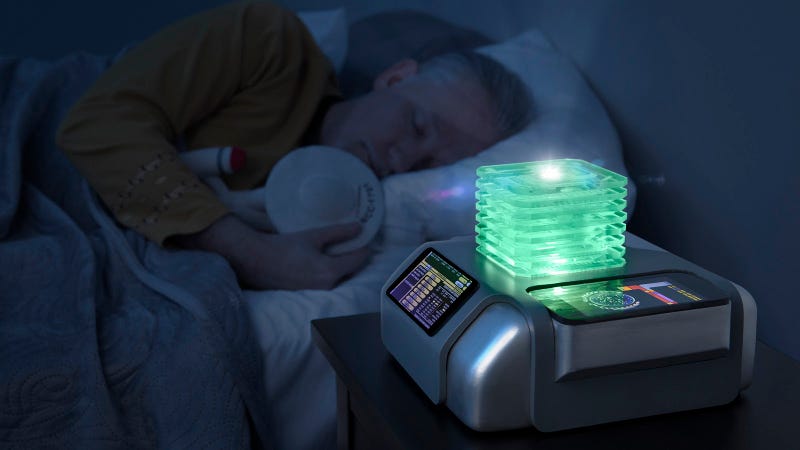
Star Trek White Noise Sleep Machine:The Star Trek White Noise Sleep Machine provides the low thrum of a familiar spacecraft exploring some corner of an as-yet-unknown galaxy to gently lull you to sleep.
Or, if you want to save some cash, you can put this video on while you sleep. Or you can choose from a bunch of other videos here. Or roll your own Star Trek-style white noise soundscape with this online tool. Apparently ThinkGeek is very late to the shockingly overcrowded Star Trek white noise market.
SpaceX Vertical Landing Mentos & Diet Coke Rocket: Our favorite cutting-edge company has taken your backyard science to the next level with their SpaceX Vertical Landing Mentos & Diet Coke Rocket.
Now that SpaceX has successfully tested the world’s first reusable Diet Coke and Mentos rocket, this breakthrough could slash the rate of interstellar diabetes.
Flavor of the Day Desktop Calendar:Here at ThinkGeek we’re proud to bring you the very first Flavor of the Day Desktop Calendar. 366 different flavors that take your tongue on a world tour of culinary delights.
“Johnson, are you making out with your calendar?”
“No, sir. It’s just...well, today is orange dreamsicle day and I’m really enjoying myself.”
“You’re fired.”
“That’s legit.”
Useless Light Switch: Nobody will ever leave the lights on again with the Useless Light Switch.
Also doubles as a very slow strobe light.
VR Sensory Immersion Generator:Take your virtual reality gaming experience to the next level with the VR Sensory Immersion Generator. It provides multisensory accompaniment to your VR headset for a fully-immersive experience.
Let’s face it. Getting sprayed in the face with a squirt gun probably isn’t the weirdest thing you’ll ever do in VR.
Attack on Titan Colossal Titan Lawn Ornament:The integrated air pump will have this Attack on Titan Colossal Titan Lawn Ornament up and peeking over your wall within minutes. His durable tear-resistant polyester body comes with tethers and ground stakes to ensure he doesn’t wreak unintended havoc.
This will either be very difficult to get past the HOA, or you have the coolest HOA in history (which is not a high bar).
baRPG:baRPG has the mechanics of a dungeon crawl but none of the higher math that’s sometimes involved in tabletop sessions (which becomes significantly more tricky with alcohol).
This just formalizes the long-standing informal rule that tabletop RPGs are better when alcohol is involved.
Magic: The Gathering - Travel Edition:With 120 mini cards, Magic: The Gathering - Travel Edition has all the fun of your standard Magic deck, now in super-concentrated form. The carrying case itself turns into a Battle Board with integrated playmat and life counters for a head-to-head duel.
What is this? A card game for ants?!
Plumbus:At ThinkGeek we carry only artisan plumbuses. It takes a little extra time, but we think it’s worth it. And we think you’ll agree.
We’re always in favor of buying quality when it comes to the items you use everyday, so it makes sense everyone should invest in a high-quality plumbus. Low-quality plumbuses often still have abrasive layers of ploobis leftover. Some manufacturers also skimp on the fleeb juice. Fortunately ThinkGeek’s plumbus uses locally sourced dinglebop and hand-crafted schleem for a premium plumbus that can always get the job done.
The Rest of the Internet Tries to Be Funny
Grüber:Grüber, marks a new era in food-delivery/ride-share and will allow people to hitch rides with Grubhub’s existing delivery drivers. The perfect solution for anyone who loves the smell of food AND getting places quickly.
I’m only on board with this idea if you can pay your driver to buy the delicious smelling food away from the person they’re delivering to. Like an eBay sniper, but with tastier results.
OpenTable Taste:OpenTable, the world’s leading provider of online restaurant reservations, today unveiled “OpenTable Taste,” a new feature available exclusively within the OpenTable app that helps gives diners the pleasure of discovering the perfect dish with a simple lick of their phone, phablet or tablet.
Okay, this is the second prank this year to involve licking things that aren’t meant to be licked and it’s getting weird.
Burrit-Oh!:Zoosk, a leading technology-driven dating company, today announced the next revolution in online dating—Burrit-OH!, a mobile dating site that uses a new, game-changing burrito compatibility framework to match potential daters and firmly insert burritos into every aspect of the online dating experience.
I had several real pitches in my inbox for dating apps that were worse than this, so I’m not sure if this is more absurdist humor or pointed satirical commentary.
Duolingo Pillow:Duolingo, the world’s most popular online language learning platform, has made its first foray into hardware with the new Duolingo PillowTM, a revolutionary technology that promises fluency in a foreign language after a single night of sleep!
Pros: Learn a new language in your sleep, simpler interface than phone app. Cons: You can also only remember the new language in your sleep, pillow gives you wicked neck pain the next day.
We’ll be updating this post throughout the day with more Official Jokes as we find them.
Want to see what was popular in years gone past? Here are some of the best April Fool’s pranks from 2015, 2014, 2013, 2012, 2011, and 2010.
CIA personnel left “explosive training material” under the hood of a Loudoun County, Virginia school bus after performing training exercises using the school bus last week. That very same bus was then used to shuttle elementary and high school students to and from school on the following Monday and Tuesday with that explosive material still inside the engine compartment.
Virtual reality has brought us to places ranging from the bottom of the ocean to the surface of Mars. But as good as VR is, it’s never been quite as real as, well… real life. Google Cardboard Plastic, launching today, changes all that. It’s our latest step toward truly immersive technology—a new viewer that lets you see, touch, smell and hear the world just like you do in real life.
Cardboard Plastic is the world’s first actual reality headset, complete with 4D integrated perspective, 360° spatially accurate sound, 20/20 resolution, and advanced haptics for realistic touch sensations. Expertly crafted from polymethyl methacrylate, Cardboard Plastic is lightweight, waterproof, and engineered to last a lifetime—no batteries, no wires. And unlike other VR headsets, it integrates seamlessly into your life—so you’ll never miss a thing. Unless you blink.
Posted by Jon Wiley, Director of Immersive Design, Google Cardboard Plastic https://1.bp.blogspot.com/-_NDBFo_zubo/Vv3KupxthPI/AAAAAAAASGs/PX838Bywdmkt0k6yG3RBVELrxI5w0ubyQ/s1600/cardboardPlastic2.jpg Jon Wiley Director of Immersive Design Google Cardboard Plastic
And there it is.
After years of speculation, the Tesla Model 3 has been unveiled. We’re live in Hawthorne, CA, where the company has just shown the car for the very first time.
Here’s what we know so far:
Deliveries will begin at the end of next year, and start at $35,000 for the base model.
Base model will do 0-60 in under 6 seconds, with versions that go “much, much… Read More
In virtual reality you can be the person you always dreamed of. And let's face it, your life is never going to get better than when you rescuing kittens from a wobbly plank halfway up a skyscraper. Imagine the sense of achievement; of saving a tiny furball of pure goodness from an unthinkable fate. You'll be a goddamn hero.
This is the endorphin-high promised by Japanese games company Bandai Namco. The firm is putting on a show of virtual reality demos in Tokyo from April 15th, and one of them (as you can see in the video above) is all about rescuing cats — using a plank and a toy kitten as props.
Be the kitten-rescuing hero you always dreamed you'd be
We're not sure if the people in the video are actors or members of the public,...
Microsoft is planning to bring Android phone notifications directly to Windows 10 PCs. During a session at Build 2016 today, Microsoft detailed how missed calls, messages, and other notifications from an Android phone will appear on a Windows 10 PC. Microsoft is using the Cortana app for Android to enable this support, and Windows 10 users will even be able to reply to the Android notifications directly from a PC.
Cortana for Android will build up a user notifications store in the cloud, allowing the notifications to mirror onto a Windows 10 PC. The software maker is also planning to allow you to dismiss notifications on an Android phone from a PC. Naturally, this functionality will work for Windows 10 Mobile devices too, but Microsoft...
For the first time ever, researchers have spotted a white dwarf surrounded by an atmosphere of mostly oxygen. A star of this kind, a super-dense dead star with an oxygen atmosphere, had never been seen before, though astronomers had speculated that one might exist. Such a unique finding could change how we think about the evolution of stars and what happens when these stellar objects die.
Microsoft Outlook is the de facto email and calendaring client in most offices—and it can help manage your tasks and notes as well. Beyond just clicking Send and Receive, there are lots of things you can do to improve your Outlook workflow, such as sharing your calendar, auto-filtering emails, and more.
This post is part of Microsoft Office Week, a series at Lifehacker where we offer tips to get started with or master Microsoft Office. Want more? Be sure to keep an eye on the Office Week tag page throughout the week.
Get Up and Running with Outlook Quickly
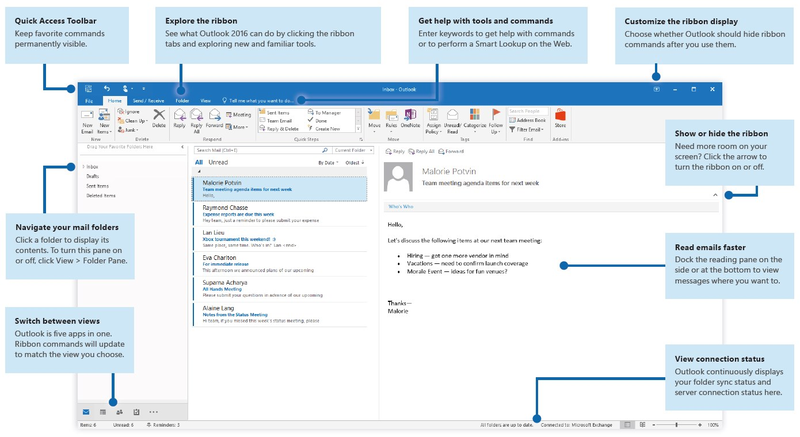
As with the other Office apps, the commands you need to use in Outlook are all there in the ribbon. The left navigation pane is also a critical part of Outlook’s interface, and allows you to quickly switch between Outlook’s different views.
For this guide, we’ll assume you’ve already set up an email account in Outlook and know the basics, such as composing emails and adding a calendar event. If you’d like a refresher, check out Microsoft’s Quick Start guides for Office here.
How to Do the Most Common, Essential Tasks in Microsoft Outlook
Unlike the other Microsoft Office programs, which each have one dedicated purpose (Word does word processing, Excel does spreadsheets, PowerPoint does presentations, etc.), Outlook is a multi-tasker. It’s meant to be your all-in-one personal assistant—managing your emails, appointments, address book, notes, and tasks in one place. For most people, email, calendar, and contacts (or “people”) are the most-used features in Outlook, so we’ll focus on productivity tips for these features here.
Auto-Filter Emails with Rules
Outlook’s rules provide a powerful way to automatically organize the nonstop firehose of email. Outlook can automatically move emails that have attachments to a folder, send desktop or audio alerts from certain contacts, categorize emails based on their content, and much more.
To get started with rules:
Click the Move folder in the Home tab
Click Rules > Manage rules and alerts
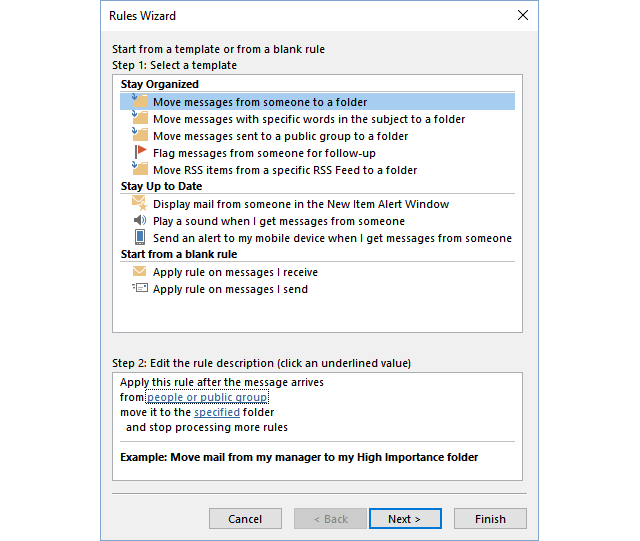
Click the New Rule… button to get to the wizard shown above
Outlook offers some common rule templates you can use. Select one, and then in Step 2, click on the underlined links to edit the details. If you want to create rule with more criteria, start from a blank rule: Choose either “Apply rule on messages I receive” or “Apply rule on messages I send” and then walk through the wizard.
For example, I wanted to categorize all emails from my Lifehacker co-writers as “Work” and also send those emails to a “Lifehacker” folder. To do that, I started with a blank “Apply rule on messages I receive.” The first condition I selected was “with specific words in the recipient’s address” and I put “@lifehacker.com” as the “specific words” value. Then I checked both the “move it to the specified folder” and “assign it to the category category” options and edited those values.
If you upgrade to a new computer or use more than computer at a time, you can import and export your Outlook rules so you don’t have to recreate them. Again, go to Move > Manage Rules and Alerts. Then click the Options button to import or export the rules.
Use Quick Steps to Organize Emails with One Click
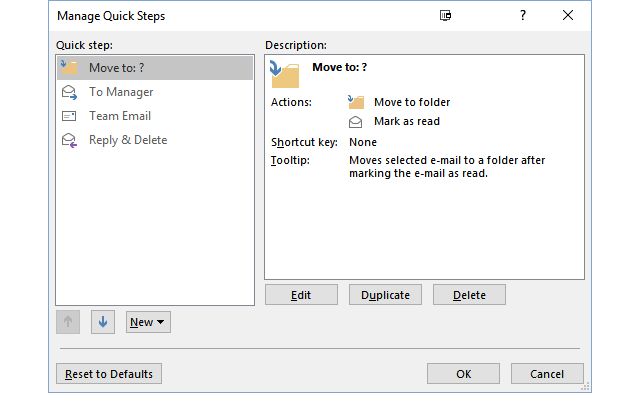
Rules are handy for automatically organizing messages when you receive or send them, but often you’ll want to process emails individually. Outlook’s Quick Steps combines multiple actions into one-click buttons to make managing email less time-consuming. It’s like a macro for email handling.
Some default Quick Steps include moving messages to a specific folder and marking them as read, and forwarding emails to a specific contact or multiple contacts. For example, you might use a Quick Step to send newsletters to your “Reference” folder after you’ve read them, or forward messages that another department should handle to the proper email addresses.
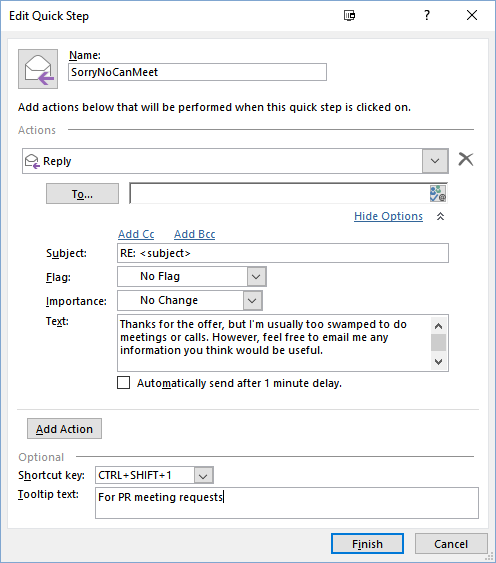
You can create your own Quick Steps by clicking on the Quick Steps button in the Home tab, then choosing New Quick Step. For example, I often get requests for “quick” chats or meetings over coffee from PR companies, but I don’t have the time for that. So I set up a Quick Step in Outlook with a standard reply that I can quickly send in just one click. In the Quick Step, I chose Reply as the action and clicked the Options link to enter my canned text.
Combined with an Outlook rule that looks for messages that contain “quick call with” or “quick chat with,” this helps me deal with some of my most frequently received emails in one step.
Add an Email Signature
Outlook not only lets you create an email signature that will be included in every email you send, you can create multiple signatures and choose among them when you compose an email.
To create your first email signature (or modify an existing one:)
Go to the File menu and click Options
Click Mail in the left menu
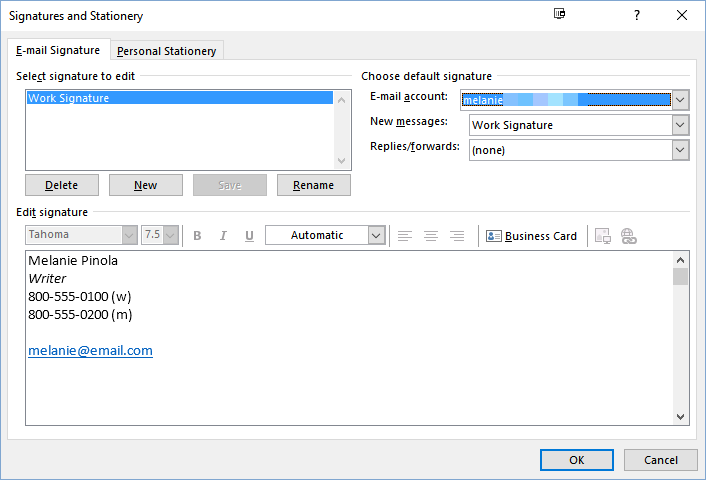
Click the Signatures… button.
Then click the New button to create a signature or select an existing signature you can edit.
You can format your signature’s appearance, attach a contact card, insert web links, and more.
If you click the “Personal Stationery” tab in this Signatures and Stationery window, you can apply a theme for your HTML email messages and set the default font when composing or reading messages. However, most people prefer not to get HTML messages, so it’s better to leave the defaults as they are.
Finally, if you have more than one email account set up in Outlook, you can choose a different default signature for each account. Alternatively, when you’re composing an email, you can switch between email signatures by going to the Insert menu in the new message window and clicking the Signatures button, which looks like a pen over a piece of paper.
Share Your Calendar with Others
If you work in an office where people use your calendar to set up meetings and appointments with each other, there are a couple of ways you can set Outlook Calendar to show others when you’re busy or free.
If your company uses Microsoft Exchange Server, you can easily share your calendar with another Exchange user by going to the Home tab and clicking “Share Calendar.” In the sharing invitation, enter the email address of the person you want to share your calendar with.
If you’re not using Exchange, you can send your calendar details by email:
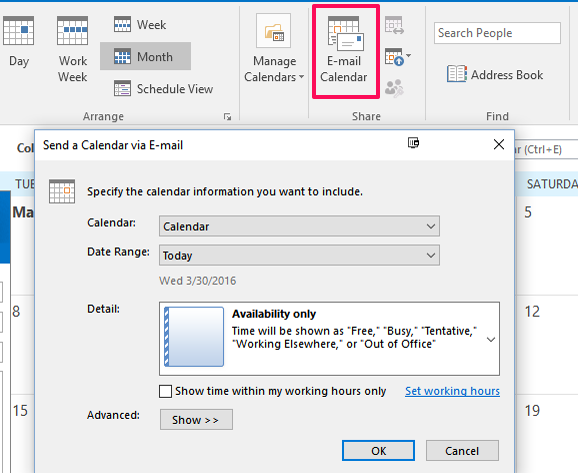
Click the E-mail Calendar button in the Home tab
Select the calendar information you want to share. You can choose the default calendar or any additional calendars you’ve created, a specific date range or your entire calendar, and the level of detail to include: availability, availability and the event titles in your calendar, or the full details of your calendar items.
(Optional) In the advanced options, choose the email layout (daily schedule or list of events) and whether you want to include details for items marked private and/or attachments added to calendar items.
When you click OK, the calendar will be embedded in the body of an email message as a “Calendar Snapshot” and also included as an ICS (iCalendar file) attachment. If your email recipient also uses Outlook, he or she can open the Calendar Snapshot in Outlook and see your calendar next to their default calendar. However, if you change or add events, the calendar won’t be updated for the other person, so it’s a more limited version of “sharing” a calendar.
And, finally, Outlook 2016's new Groups feature gives team members a group calendar that everyone can update. It’s only available for Office 365 work or school accounts, however.
Sync or Access Your Google Calendar with Outlook
If you use both Google Calendar and Outlook, you’ll probably want to keep your calendars in sync. The only way to do this right now is with a third-party utility. Slipstick lists a few tools that can do the job here, including freeware Outlook Google Calendar Sync, which How-To Geek describes in detail here. If your company uses Google Apps for work, Google offers a syncing tool for Outlook, which can keep your email, contacts, calendar, and notes consistent between Outlook and Google’s products.
However, if all you want to do is be able to see your Google Calendar from within Outlook, you can do that by subscribing to your Google Calendar:
In Google Calendar, click the arrow button next to the calendar you want to subscribe to in Outlook
Click Calendar settings
Select ICAL for the Private Address
Right-click the URL and click “Copy link address”
In Outlook, go to File and click Account Settings > Account Settings in the Info tab (Yeah, it’s redundant)
Click the Internet Calendars tab
Click New…
Paste in the URL you copied
Name the calendar and enter a description if you wish.
Once you’re subscribed to the calendar, you’ll see all new and edited events when you select that calendar from the left navigation menu.
Create Contact Groups in Outlook
You probably email the same groups of people over and over again. If you create a contact group, you can not only email all those people at once without having to type in all of their email addresses, you can apply rules to identify and manage these kinds of group emails with ease.
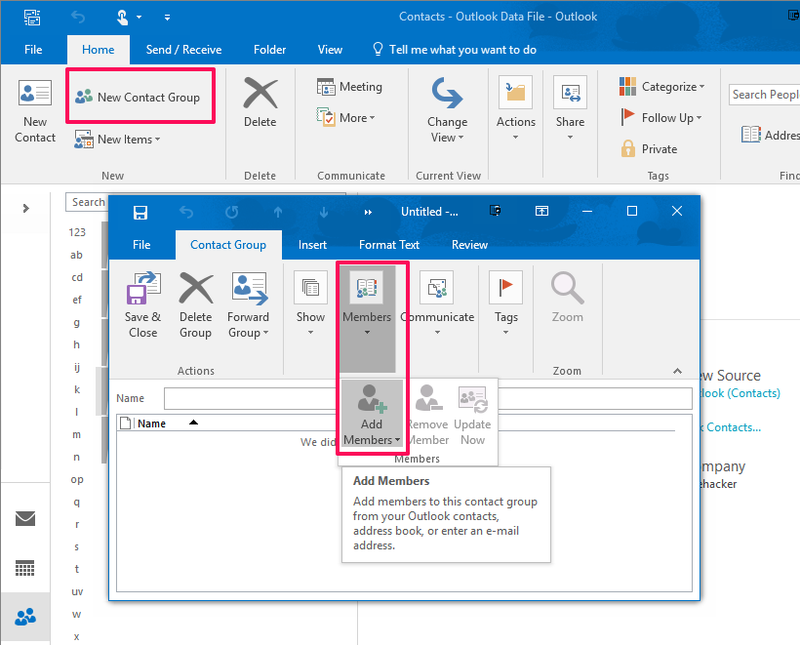
Click New Contact Group in the Home tab.
Click Members > Add Members > From Address Book to select contacts. If there’s a contact you haven’t added to your address book yet, select Members > Add Members > New E-mail Contact.
Double-click on each name in the address book you want to include in your group or enter in the details for the new contact.
Click OK
Enter a name for the contact group.
Voila! Now you can quickly email all the members of the group or use this group contacts list elsewhere in Outlook, such as creating meeting invites in the calendar view.
What’s New in Outlook 2016
Like the other apps in Office, Outlook hasn’t picked up any radical new features or interface changes. However, there have been some welcome improvements:
Clutter: Outlook’s “Clutter” feature is designed to help you filter away low-priority email. You have to turn Clutter on in the Outlook Web App and have an Office 365 subscription to use it. Once it’s turned on Outlook will keep track of the kinds of messages you read and the ones you don’t, and it’ll move unimportant emails into the Clutter folder.
New Archive and Groups buttons on the ribbon make it quicker to get to these functions.
Tell Me: As with the other Office programs, the Tell Me box at the top of the ribbon lets you search for the commands you need in Outlook.
Better touch interface: If you have a Windows 2-in-1 and put it into tablet mode, Outlook’s interface becomes more touch-friendly, with larger buttons to tap.
There are more old and new features buried underneath the surface. Find out more about the newest version of Office on Microsoft’s blog.
Work Faster in Outlook with These Keyboard Shortcuts
Master a few keyboard shortcuts and you’ll get to inbox zero a lot quicker. Outlook has a ton of keyboard shortcuts, but these are some you’ll likely use most often:
Ctrl+N: Create a new appointment, note, email, or task when you are in that view
Ctrl+Shift+M: Create a new email message from any view
Ctrl+Shift+A: Create a new appointment from any view
Ctrl+Shift+C: Create a new contact from any view
Ctrl+Shift+N: Create a new note from any view
Ctrl+Shift+K: Create a new task from any view
Ctrl+E: Open the search box
Ctrl+M: Check for new email messages
Ctrl+Shift+I: Switch to the email inbox
Ctrl+Shift+O: Switch to the email outbox
Alt+S: Send a message
Up/Down Arrow: Go to the previous/next message
Ctrl+G: Go to a specific date on the calendar
Ctrl+D: Delete an item
Also, you can right-click on the Outlook icon in the taskbar to quickly create a new email, appointment, meeting request, contact, or task—without needing to switch to the Outlook window.
Additional Reading for Power Users
Love it or hate it, Outlook is a powerful tool that could help you get more organized. Here’s more reading to help you delve deeper into the program:
Use a custom Search Folder: Search Folders are awesome; they’re like the smart folders in OS X. Anything you regularly search for can be saved for quick access again later.
Let someone else manage your calendar and email: Beyond sharing your Outlook folders or other specific items, such as your calendar, you can give someone else permission to read, create, modify, and delete items in Outlook.
Use VBA and add-ins to power up Outlook: If there’s a feature you want that’s missing in Outlook, you’ll probably be able to add it or create a workaround using VBA or third-party utilities. Slipstick Systems compiles many of them and also offers more power user tips.
Some Outlook features are only available for those using Exchange (such as setting up an out-of-office reply), but even if you’re not using Exchange, Outlook still reigns as an all-in-one email, calendar, contacts, notes, and task manager.
Amazon this morning announced an expansion of its Dash Buttons product line – those Wi-Fi connected, push-button devices that let you buy products from its site with just a press. One year after the buttons went live, and apparently not the April Fool’s joke people once imagined, Amazon says it now has over 100 buttons available, and orders have increased by more than 75 percent in… Read More
Last year, we opened the doors to the music landmark Abbey Road Studios, where musical legends like the Beatles and Pink Floyd have recorded. With a click of a mouse or a tap of a screen, more than 2 million fans from around the world have stepped Inside Abbey Road to explore the famous studios. Now you can go even further and experience what it actually feels like—and sounds like—inside the studios, using Google Cardboard and your smartphone.
To get this virtual reality experience, download the app on Android (iOS coming soon), then start your journey with a nine-part guided tour narrated by Giles Martin, the son of the late Beatles producer, George Martin, who shares the history of the studios from the 1930’s to present day.
After the tour, you can quite literally move around the studios at your leisure to see hidden treasures like Studio 3’s Mirrored Drum Room, where the mirrors help to create a close, bright and loud sound quality. Uncover one of Abbey Road's Mastering Suites, where a record gets its finishing touches before a release. In Studio 1, experience what it’s like to be in a recording session with the London Symphony Orchestra with surround sound.
With Inside Abbey Road for Cardboard, you can get even closer to the history, stories and innovation of the most famous music studios in the world.
Posted by Tom Seymour, Creative Lead and VR sightseer, Google Creative Lab London https://3.bp.blogspot.com/-e6n8OBG9qn8/VvxsceGGcgI/AAAAAAAASGQ/ulbZa58NrEU2QvROv0bxmL991NijWP6Kg/s1600/Inside%2BAbbey%2BRoad.jpg Tom Seymour Creative Lead Google Creative Lab London
Jay Z is preparing a lawsuit against Tidal's former owners, accusing them of overvaluing the company by using inflated subscriber numbers, according to a report from Dagens Næringsliv. Project Panther Bidco, Jay Z's holding company that owns Tidal, sent letters to former board members and investors in Sweden and Norway notifying them that Tidal would file a claim against them after it finished its internal investigation.
In a statement to The Verge, Tidal says that after conducting an internal audit, it found that its subscriber base was much lower than it was stated by the previous owners. "The growth in our subscriber numbers has been even more phenomenal than we’ve previously shared. It became clear after taking control of TIDAL and...
Unlike the Hollywood hospital shutdown in Feb and the Kentucky shutdown in March which got in by phishing attacks on employees, the two hospitals in Baltimore that were taken offline by ransomware were targeted by server-based attacks that got in through vulnerabilities in public-facing hospital services.
(more…)
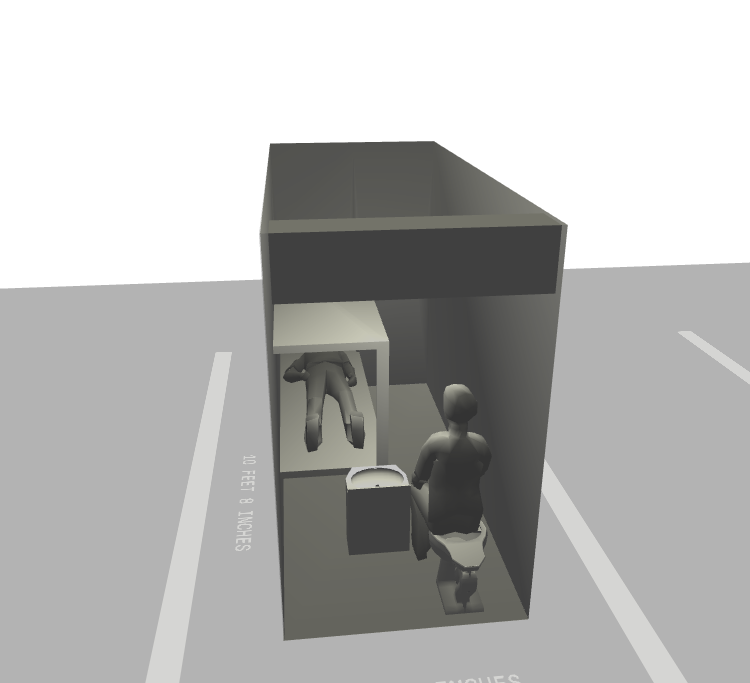
As America's prison populations swell, as mental heath services for inmates are withdrawn, and as the range of offenses for which inmates can be sent to inhumane solitary confinement soars, the prison system has hit on an obvious solution: just lock two angry prisoners, possibly with untreated mental illnesses, in a cell so small they have to take turns standing up, for 23 hours a day.
(more…)
Every year, Microsoft holds a developer event called "Build." And recently, those events have gone from snoozers to exciting showcases. Microsoft has a winner with Windows 10 (as long as you ignore the phones), a robust personal assistant in Cortana (that works just fine on a laptop), and a wild holographic future to plan with HoloLens. It's a lot to take in, and at this year's Build Microsoft we got updates on all of it. And a few surprises.
Going in, we weren’t totally sure what would be coming next for Windows 10, but it turns out there’s a lot that Microsoft has planned. It’s not just that there are new apps, there are also new bots, which will help people handle all sorts of small tasks. In fact, those bots and Microsoft’s vision...
Gett, the on-demand taxi app looking to take on the likes of Uber, has just announced that it has launched a bid to acquire Radio Taxis in London. The deal would bring the total number of black cabs available to users to 11,500, which is equivalent to half of all the licensed taxis in the city. The acquisition is still subject to shareholder approval. However, if it goes through it will make… Read More
Here is an announcement from Microsoft Build you probably didn’t see coming: Microsoft today announced that it is bringing the GNU project’s Bash shell to Windows. Bash (Bourne Again SHell) has long been a standard on OS X and many Linux distribution systems, while the default terminal for developers on Windows is Microsoft’s own PowerShell. More importantly than bringing… Read More
In an announcement met by hoots and hollers from the developers at Build, Microsoft introduced the ‘Centennial’ desktop app converter. With this, developers can convert their Win32 and .NET apps into the AppX app format for use in the Windows store, turning legacy apps into current-gen applications. Read More
Microsoft's Redstone update for Windows 10 is being detailed today at the company's Build conference, with Windows chief Terry Myerson announcing it will be coming this summer, for free to all Windows 10 users. Myerson also took a friendly jab at Apple, saying Microsoft welcomes everyone to Windows 10, "whether they have a new PC, a 5-year-old PC, or a brand new Mac." Dubbed the Windows Anniversary Update, it is coming to Xbox One too, turning any retail Xbox One into a dev unit and bringing Windows 10 apps to Xbox One.
Windows Ink is going to be "front and center" in the newly updated version of Windows. It's intended to help people "ideate and collaborate better," according to Microsoft's demo maestro Bryan Roper. There's a new Ink...
Microsoft is bringing together its Windows and Xbox app stores. This summer, with the release of Windows 10's Anniversary update, the two stores will be combined into one, creating "a single unified store across devices," says Xbox lead Phil Spencer.
Don't let your home screen fall into a rut — switch out your wallpaper!
You don't have to pull out a complex new theme like our custom Deadpool kit to bring a breath of fresh air to your home screen. A new wallpaper can do wonders, and launchers like Action Launcher can re-theme your entire home screen around a good wallpaper. In our effort to help brighten your device — and maybe your day — we're compiling some wallpapers for you to try out.
If you've got a wallpaper you use everywhere, share it in the comments below! We're always looking for something new. Now get your wallpaper picker ready and see what's in store this week.
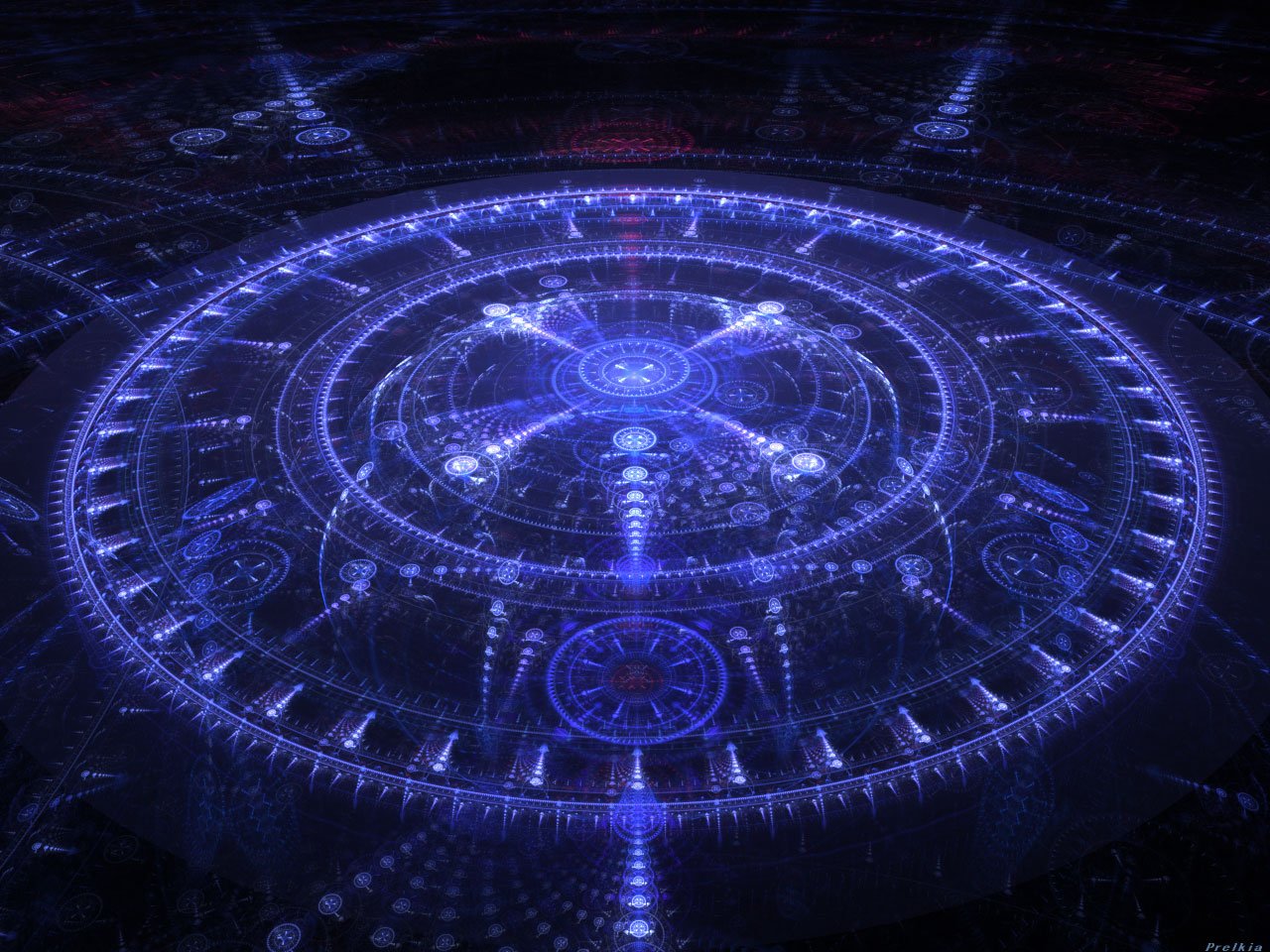
Fractal Portal
There's something mesmerizing about a good fractal. This one conjures up a few different scenes, be it an alchemist circle from Fullmetal Alchemist or a portal to another dimension. This geometric beauty features soothing cool tones and it's ready to grace your phone, tablet, or computer. Just be sure to tell us if it leads you through space and time, okay?
This wallpaper balances the cold emptiness of space with the bright warmth of the sun, a fiery inferno with the beauty of nature, and the seeming chaos of space with the interconnections of the universe. It's a wallpaper that reminds us to find that own balance within our lives, and to summon our own inner power.
The fractal flower is blooming just in time for spring, and offers a burst of color for your screen. The cascades of of light and the light grids on the edges of the boom draw the eye and softer focus helps play with a few of the fractal's light effects. The water droplets scattering the scene also make us wonder if this is morning dew or a morning shower.
This may not a view any of us will ever see in our lifetime, but why can't we dream of a beautiful spacescape like this out on the edges of a distant spiral galaxy? This green galaxy's gold and blue highlights sing out throughout the wallpaper, and blurring lights along the galaxy's wrap-around stars make us wonder what fantastic worlds would circle those suns...
I'm not sure if these infinitely repeating seals are levels of some super-secure lockdown or just the repetitions of a time-travel rune as you go back to stop some impending doom, but I'd love to find out. The red seals scattered throughout the scene pop, and the beautiful symmetry of this powerful wallpaper make me wanna get the Stargate crew together and see where we're off to this week.



































![[Shutterstock]](http://media.boingboing.net/wp-content/uploads/2016/03/children-boarding-school-bus.jpg)
 And there it is.
After years of speculation, the Tesla Model 3 has been unveiled. We’re live in Hawthorne, CA, where the company has just shown the car for the very first time.
Here’s what we know so far:
Deliveries will begin at the end of next year, and start at $35,000 for the base model.
Base model will do 0-60 in under 6 seconds, with versions that go “much, much…
And there it is.
After years of speculation, the Tesla Model 3 has been unveiled. We’re live in Hawthorne, CA, where the company has just shown the car for the very first time.
Here’s what we know so far:
Deliveries will begin at the end of next year, and start at $35,000 for the base model.
Base model will do 0-60 in under 6 seconds, with versions that go “much, much… 



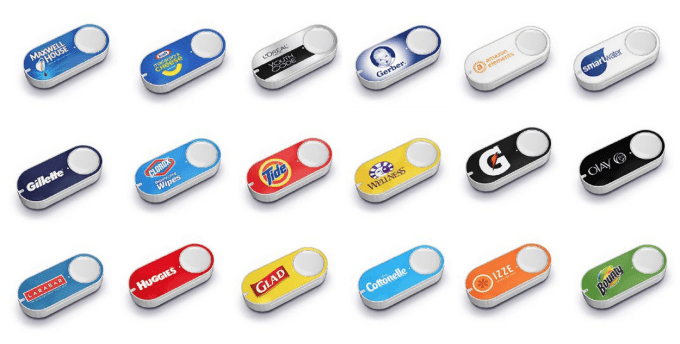 Amazon this morning announced an expansion of its Dash Buttons product line – those Wi-Fi connected, push-button devices that let you buy products from its site with just a press. One year after the buttons went live, and apparently not the April Fool’s joke people once imagined, Amazon says it now has over 100 buttons available, and orders have increased by more than 75 percent in…




 Gett, the on-demand taxi app looking to take on the likes of Uber, has just announced that it has launched a bid to acquire Radio Taxis in London. The deal would bring the total number of black cabs available to users to 11,500, which is equivalent to half of all the licensed taxis in the city. The acquisition is still subject to shareholder approval. However, if it goes through it will make…
 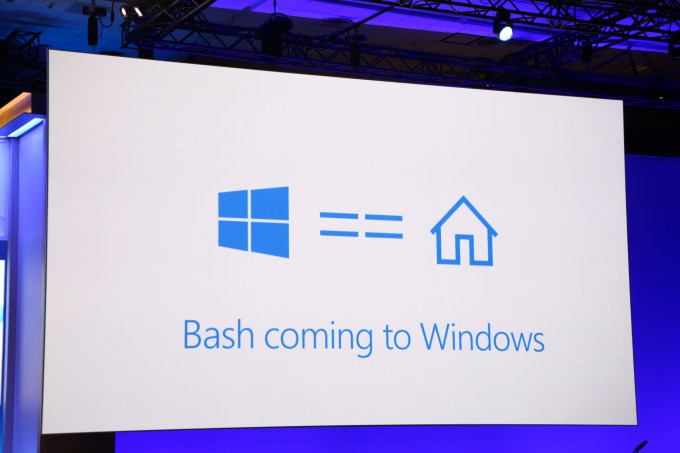 Here is an announcement from Microsoft Build you probably didn’t see coming: Microsoft today announced that it is bringing the GNU project’s Bash shell to Windows. Bash (Bourne Again SHell) has long been a standard on OS X and many Linux distribution systems, while the default terminal for developers on Windows is Microsoft’s own PowerShell. More importantly than bringing…
 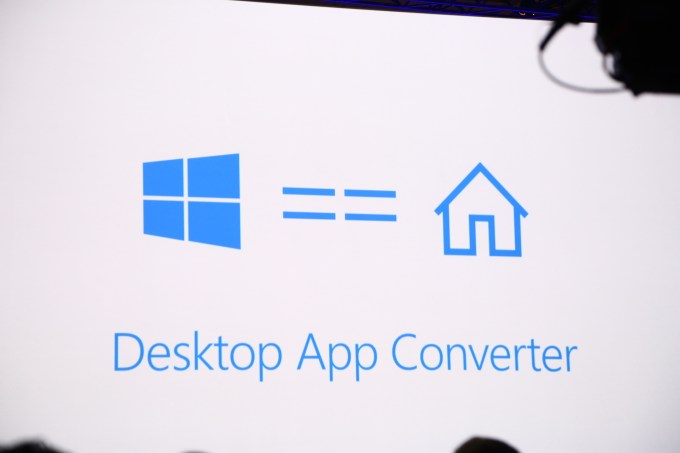 In an announcement met by hoots and hollers from the developers at Build, Microsoft introduced the ‘Centennial’ desktop app converter. With this, developers can convert their Win32 and .NET apps into the AppX app format for use in the Windows store, turning legacy apps into current-gen applications.