Shared posts

11 Jan 01:21

Free Responsive and Mobile Website Templates

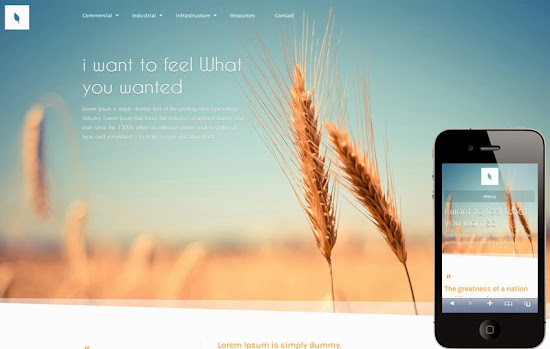
Do you know about w3layouts.com? Recently I have stumbled across w3layouts.com impressed with their work and made me to write this article about Responsive and Mobile friendly web design. They are providing 340+ Responsive and Mobile Friendly web templates designs look professional and attractive. One of the major perks to W3layouts is that all of their templates are completely FREE. They are providing all the templates in three formats Responsive web, Smartphone and Mobile. why we need three different formats of a single design I will try to explain it below

Free Responsive and Mobile Website Templates


Is your website Responsive?
If you are starting a website for your Business, Personal blog or some purpose, is it responsive and Mobile friendly? If “responsive web design” term is new to you, don’t feel bad, I promise you’re with the majority. Responsive web design is that adjusts itself to fit on desktop, tablet and Smartphone browsers. Did you ever experience a website on your Smartphone and it was just a very tiny version of what you see on your desktop, so you need to zoom to read the content in the website, and then moved the website around and enlarged and shrunk it as needed to read text and click on things? That was not a responsive website. A responsive website looks good no matter whether you’re looking at it on a phone, tablet, or desktop.

Is responsive enough for Mobile Web?
No, Responsive is not enough if you have lot of visitor to your website from Mobile because Smartphone and Tablet browsers support Html5 and java script but not old devices with symbian and Java based Mobile browsers. So, a separate lite version of website is necessary to serve them. A separate Smartphone version also provided by them to increase the user experience by reducing the image and size which will reduce the bandwidth usage and increase the loading speed of website.

How I can detect and load different design for Web, Smartphone and Mobile?
Don’t worry about that w3layouts providing a Package of every web template contains PHP script which will take care of detecting device and loading design compatible to device.

Below I have selected some stunning Free Responsive web Templates by w3layouts

Skokov Corporate Responsive web Template
Download: http://w3layouts.com/skokov-corporate-flat-responsive-web-template

Free Responsive and Mobile Website Templates


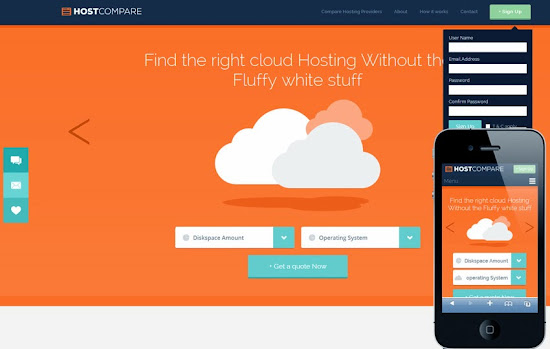
Host Compare Web hosting business Free Responsive web template
Download: http://w3layouts.com/hostcompare-cloud-hosting-flat-responsive-mobile-website-template

Free Responsive and Mobile Website Templates


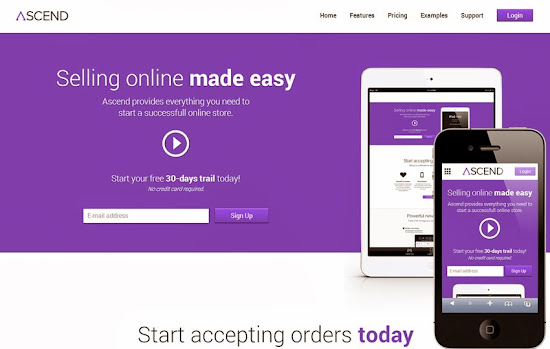
Ascend E-commerce Responsive and Mobile web template
Download: http://w3layouts.com/ascend-ecommerce-responsive-mobile-website-template

Free Responsive and Mobile Website Templates


MINIMA Responsive web design for Design studios and Graphic designers freelancers
Download: http://w3layouts.com/minima-freebiesxpress-mobile-website-template

Free Responsive and Mobile Website Templates


Organic a professional responsive web template
Download: http://w3layouts.com/organic-corporate-responsive-mobile-website-template

Free Responsive and Mobile Website Templates


Perth corporate or product showcase responsive and Mobile design
Download: http://w3layouts.com/perth-flat-responsive-design-mobile-website-template

Free Responsive and Mobile Website Templates


And 340+ free Responsive and Mobile website templates
09 Jan 21:33

Flexible & Good-Looking Share Button jQuery Plugin

by Ray Cheung

Advertise here via BSA

All the major social networks have their own share buttons but they are slow-loading, and inject a lot of extra javascript onto your page that’s not needed which makes your page slower. They don’t look sexy and fit nicely with your site like you want, and you can’t change how they look.

Share Button is a simple, light, flexible, and good-looking share button jquery plugin. It doesn’t load any iframes or extra javascript and overall load time is tons faster. It looks simple and clean by default, and can be customized in any and every way. It’s tiny and compact, expanding only when the user actually wants to share something.

share-buttons

Requirements: jQuery Framework
Demo: http://carrot.github.io/share-button/
License: License Free

Sponsors

Professional Web Icons for Your Websites and Applications

06 Jan 21:30

Simptip: A Sass-made CSS tooltip

by Cameron

Simptip is a CSS tooltip made with Sass. There are multiple options for position, color, and effects on each tooltip, all of which are easy to implement.

simptip

06 Jan 21:27

Easy Node Authentication: Linking All Accounts Together

by Chris Sevilleja
node-authentication-all

This will be the final article in our Easy Node Authentication Series. We will be using all of the previous articles together.

Linking Accounts Together

This article will combine all the different Node Passport Strategies so that a user will be able to have one account and link all their social networks together.

node-auth-login

There are many changes that need to take place from the previous articles to accomplish this. Here are the main cases we have to account for when moving from authenticating with only 1 account versus multiple accounts.

Scenarios to Account For

  • Linking Accounts: Check if a user already exists in the database. If they do, then add a social account to their user profile
  • Account Creation: If a user does not exist in the database, then create a user profile
  • Unlinking: Unlinking social accounts
  • Reconnecting: If a user unlinked a social account, but wants to reconnect it

We’ll be going through each of these scenarios and updating our previous code to account for them.

What We’ll Be Coding

We’ll be working with the Local Strategy and the Facebook Strategy to demonstrate linking accounts. The tactics used for the Facebook Strategy will carry over to Twitter and Google.

In order to add linking accounts to our application, we will need to:

  • Update our Strategies
  • Add new routes
  • Update our views for linking and unlinking

node-auth-not-linked

User Model Explanation

When looking at the way we set up our user model, we deliberately set up all the user accounts to be set up within their own object. This ensures that we can link and unlink different accounts as our user sees fit. Notice that the social accounts will use token and id while our local account will use email and password.

// app/models/user.js
...
var userSchema = mongoose.Schema({
    local            : {
        email        : String,
        password     : String,
    },
    facebook         : {
        id           : String,
        token        : String,
        email        : String,
        name         : String
    },
    twitter          : {
        id           : String,
        token        : String,
        displayName  : String,
        username     : String
    },
    google           : {
        id           : String,
        token        : String,
        email        : String,
        name         : String
    }
});
...

We have also added in email, name, displayName, and username for some accounts just to show that we can pull that information from the respective social connection.

Once a user has linked all their accounts together, they will have one user account in our database, with all of these fields full.

node-auth-profile-all-linked

Authenticating vs Authorizing

When we originally made these Strategies, we would use passport.authenticate. This is what we should be using upon first authentication of our user. But what do we do if they are already logged in? They will be logged in and their user stored in session when we want to link them to their current account.

Luckily, Passport provides a way to “connect” a users account. They provide passport.authorize for users that are already authenticated. To read more on the usage, visit the Passport authorize docs.

We will update our routes to handle the authorization first, and then we’ll update our Passport Strategies to handle the authorization.

Routes

Let’s create our routes first so that we can see how we link everything together. In the past articles, we created our routes for authentication. Let’s create a second set of routes for authorization. Once we’ve done that, we’ll change our Strategy to accommodate the new scenarios.

Our old routes will be commented to make a cleaner file.

// app/routes.js
module.exports = function(app, passport) {
// normal routes ===============================================================
	// show the home page (will also have our login links)
	// PROFILE SECTION =========================
	// LOGOUT ==============================
// =============================================================================
// AUTHENTICATE (FIRST LOGIN) ==================================================
// =============================================================================
	// locally --------------------------------
		// LOGIN ===============================
		// show the login form
		// process the login form
		// SIGNUP =================================
		// show the signup form
		// process the signup form
	// facebook -------------------------------
		// send to facebook to do the authentication
		app.get('/auth/facebook', passport.authenticate('facebook', { scope : 'email' }));
		// handle the callback after facebook has authenticated the user
		app.get('/auth/facebook/callback',
			passport.authenticate('facebook', {
				successRedirect : '/profile',
				failureRedirect : '/'
			}));
	// twitter --------------------------------
		// send to twitter to do the authentication
		// handle the callback after twitter has authenticated the user
	// google ---------------------------------
		// send to google to do the authentication
		// the callback after google has authenticated the user
// =============================================================================
// AUTHORIZE (ALREADY LOGGED IN / CONNECTING OTHER SOCIAL ACCOUNT) =============
// =============================================================================
	// locally --------------------------------
		app.get('/connect/local', function(req, res) {
			res.render('connect-local.ejs', { message: req.flash('loginMessage') });
		});
		app.post('/connect/local', passport.authenticate('local-signup', {
			successRedirect : '/profile', // redirect to the secure profile section
			failureRedirect : '/connect/local', // redirect back to the signup page if there is an error
			failureFlash : true // allow flash messages
		}));
	// facebook -------------------------------
		// send to facebook to do the authentication
		app.get('/connect/facebook', passport.authorize('facebook', { scope : 'email' }));
		// handle the callback after facebook has authorized the user
		app.get('/connect/facebook/callback',
			passport.authorize('facebook', {
				successRedirect : '/profile',
				failureRedirect : '/'
			}));
	// twitter --------------------------------
		// send to twitter to do the authentication
		app.get('/connect/twitter', passport.authorize('twitter', { scope : 'email' }));
		// handle the callback after twitter has authorized the user
		app.get('/connect/twitter/callback',
			passport.authorize('twitter', {
				successRedirect : '/profile',
				failureRedirect : '/'
			}));
	// google ---------------------------------
		// send to google to do the authentication
		app.get('/connect/google', passport.authorize('google', { scope : ['profile', 'email'] }));
		// the callback after google has authorized the user
		app.get('/connect/google/callback',
			passport.authorize('google', {
				successRedirect : '/profile',
				failureRedirect : '/'
			}));
};
// route middleware to ensure user is logged in
function isLoggedIn(req, res, next) {
	if (req.isAuthenticated())
		return next();
	res.redirect('/');
}

As you can see, we have all the authentication routes and the routes to show our index and profile pages. Now we have added authorization routes which will look incredibly similar to our authentication routes.

With our newly created routes, let’s update the Strategy so that our authorization routes are utilized.

Updating Strategies

We will just update the Facebook and Local Strategies to get a feel for how we can accommodate all our different scenarios.

When using the passport.authorize route, our user that is stored in session (since they are already logged in) will be passed to the Strategy. We will make sure we change our code to account for that.

We’re going to show the old Strategy and then the new Strategy. Read the comments to get a full understanding of the changes.

Old Facebook Strategy

// config/passport.js
...
	// =========================================================================
    // FACEBOOK ================================================================
    // =========================================================================
    passport.use(new FacebookStrategy({
        // pull in our app id and secret from our auth.js file
        clientID        : configAuth.facebookAuth.clientID,
        clientSecret    : configAuth.facebookAuth.clientSecret,
        callbackURL     : configAuth.facebookAuth.callbackURL
    },
    // facebook will send back the token and profile
    function(token, refreshToken, profile, done) {
        // asynchronous
        process.nextTick(function() {
            // find the user in the database based on their facebook id
            User.findOne({ 'facebook.id' : profile.id }, function(err, user) {
                // if there is an error, stop everything and return that
                // ie an error connecting to the database
                if (err)
                    return done(err);
                // if the user is found, then log them in
                if (user) {
                    return done(null, user); // user found, return that user
                } else {
                    // if there is no user found with that facebook id, create them
                    var newUser            = new User();
                    // set all of the facebook information in our user model
                    newUser.facebook.id    = profile.id; // set the users facebook id                   
                    newUser.facebook.token = token; // we will save the token that facebook provides to the user                    
                    newUser.facebook.name  = profile.name.givenName + ' ' + profile.name.familyName; // look at the passport user profile to see how names are returned
                    newUser.facebook.email = profile.emails[0].value; // facebook can return multiple emails so we'll take the first
                    // save our user to the database
                    newUser.save(function(err) {
                        if (err)
                            throw err;
                        // if successful, return the new user
                        return done(null, newUser);
                    });
                }
            });
        });
    }));
...

Now we want the ability to authorize a user.

New Facebook Strategy


...
	// =========================================================================
    // FACEBOOK ================================================================
    // =========================================================================
    passport.use(new FacebookStrategy({
        // pull in our app id and secret from our auth.js file
        clientID        : configAuth.facebookAuth.clientID,
        clientSecret    : configAuth.facebookAuth.clientSecret,
        callbackURL     : configAuth.facebookAuth.callbackURL,
        passReqToCallback : true // allows us to pass in the req from our route (lets us check if a user is logged in or not)
    },
    // facebook will send back the token and profile
    function(req, token, refreshToken, profile, done) {
        // asynchronous
        process.nextTick(function() {
        	// check if the user is already logged in
        	if (!req.user) {
	            // find the user in the database based on their facebook id
	            User.findOne({ 'facebook.id' : profile.id }, function(err, user) {
	                // if there is an error, stop everything and return that
	                // ie an error connecting to the database
	                if (err)
	                    return done(err);
	                // if the user is found, then log them in
	                if (user) {
	                    return done(null, user); // user found, return that user
	                } else {
	                    // if there is no user found with that facebook id, create them
	                    var newUser            = new User();
	                    // set all of the facebook information in our user model
	                    newUser.facebook.id    = profile.id; // set the users facebook id                   
	                    newUser.facebook.token = token; // we will save the token that facebook provides to the user                    
	                    newUser.facebook.name  = profile.name.givenName + ' ' + profile.name.familyName; // look at the passport user profile to see how names are returned
	                    newUser.facebook.email = profile.emails[0].value; // facebook can return multiple emails so we'll take the first
	                    // save our user to the database
	                    newUser.save(function(err) {
	                        if (err)
	                            throw err;
	                        // if successful, return the new user
	                        return done(null, newUser);
	                    });
	                }
	            });
	        } else {
				// user already exists and is logged in, we have to link accounts
	            var user            = req.user; // pull the user out of the session
				// update the current users facebook credentials
	            user.facebook.id    = profile.id;
	            user.facebook.token = token;
	            user.facebook.name  = profile.name.givenName + ' ' + profile.name.familyName;
	            user.facebook.email = profile.emails[0].value;
				// save the user
	            user.save(function(err) {
	                if (err)
	                    throw err;
	                return done(null, user);
	            });
	        }
        });
    }));
...

Now we have accounted for linking an account if a user is already logged in. We still have the same functionality from before, now we just check if the user is logged in before we take action.

Linking Accounts

Using this new code in our Strategy, we will create a new user if they are not already logged in, or we will add our Facebook credentials to our user if they are currently logged in and stored in session.

Other Strategies: The code for the Facebook Strategy will be the same for Twitter and Google. Just apply that code to both of those to get this working. We will also provide the full code so you can look at and reference.

Now that we have the routes that will pass our user to our new Facebook Strategy, let’s make sure our UI lets our user use the newly created routes.

We will update our index.ejs and our profile.ejs to show all the login buttons on the home page, and all the accounts and link buttons on the profile page. Here is the full code for both with the important parts highlighted.

Home Page index.ejs

<!-- views/index.ejs -->
<!doctype html>
<html>
<head>
	<title>Node Authentication</title>
	<link rel="stylesheet" href="https://feeds.feedblitz.com/~/t/0/0/scotch_io/~scotch.io//netdna.bootstrapcdn.com/bootstrap/3.0.2/css/bootstrap.min.css">
	<link rel="stylesheet" href="https://feeds.feedblitz.com/~/t/0/0/scotch_io/~scotch.io//netdna.bootstrapcdn.com/font-awesome/4.0.3/css/font-awesome.min.css">
	<style>
		body 		{ padding-top:80px; }
	</style>
</head>
<body>
<div class="container">
	<div class="jumbotron text-center">
		<h1><span class="fa fa-lock"></span> Node Authentication</h1>
		<p>Login or Register with:</p>
		<a href="https://feeds.feedblitz.com/~/t/0/0/scotch_io/~scotch.io/login" class="btn btn-default"><span class="fa fa-user"></span> Local Login</a>
		<a href="https://feeds.feedblitz.com/~/t/0/0/scotch_io/~scotch.io/signup" class="btn btn-default"><span class="fa fa-user"></span> Local Signup</a>
		<a href="https://feeds.feedblitz.com/~/t/0/0/scotch_io/~scotch.io/auth/facebook" class="btn btn-primary"><span class="fa fa-facebook"></span> Facebook</a>
		<a href="https://feeds.feedblitz.com/~/t/0/0/scotch_io/~scotch.io/auth/twitter" class="btn btn-info"><span class="fa fa-twitter"></span> Twitter</a>
		<a href="https://feeds.feedblitz.com/~/t/0/0/scotch_io/~scotch.io/auth/google" class="btn btn-danger"><span class="fa fa-google-plus"></span> Google+</a>
	</div>
</div>
</body>
</html>

node-auth-login

Profile Page profile.ejs

<!-- views/profile.ejs -->
<!doctype html>
<html>
<head>
	<title>Node Authentication</title>
	<link rel="stylesheet" href="https://feeds.feedblitz.com/~/t/0/0/scotch_io/~scotch.io//netdna.bootstrapcdn.com/bootstrap/3.0.2/css/bootstrap.min.css">
	<link rel="stylesheet" href="https://feeds.feedblitz.com/~/t/0/0/scotch_io/~scotch.io//netdna.bootstrapcdn.com/font-awesome/4.0.3/css/font-awesome.min.css">
	<style>
		body 		{ padding-top:80px; word-wrap:break-word; }
	</style>
</head>
<body>
<div class="container">
	<div class="page-header text-center">
		<h1><span class="fa fa-anchor"></span> Profile Page</h1>
		<a href="https://feeds.feedblitz.com/~/t/0/0/scotch_io/~scotch.io/logout" class="btn btn-default btn-sm">Logout</a>
	</div>
	<div class="row">
		<!-- LOCAL INFORMATION -->
		<div class="col-sm-6">
			<div class="well">
				<h3><span class="fa fa-user"></span> Local</h3>
				<% if (user.local.email) { %>
					<p>
						<strong>id</strong>: <%= user._id %><br>
						<strong>email</strong>: <%= user.local.email %><br>
						<strong>password</strong>: <%= user.local.password %>
					</p>
					
					<a href="https://feeds.feedblitz.com/~/t/0/0/scotch_io/~scotch.io/unlink/local" class="btn btn-default">Unlink</a>
				<% } else { %>
					<a href="https://feeds.feedblitz.com/~/t/0/0/scotch_io/~scotch.io/connect/local" class="btn btn-default">Connect Local</a>
				<% } %>
			</div>
		</div>
		<!-- FACEBOOK INFORMATION -->
		<div class="col-sm-6">
			<div class="well">
				<h3 class="text-primary"><span class="fa fa-facebook"></span> Facebook</h3>
				<!-- check if the user has this token (is the user authenticated with this social account) -->
				<% if (user.facebook.token) { %>
					<p>
						<strong>id</strong>: <%= user.facebook.id %><br>
						<strong>token</strong>: <%= user.facebook.token %><br>
						<strong>email</strong>: <%= user.facebook.email %><br>
						<strong>name</strong>: <%= user.facebook.name %><br>
					</p>
					<a href="https://feeds.feedblitz.com/~/t/0/0/scotch_io/~scotch.io/unlink/facebook" class="btn btn-primary">Unlink</a>
				<% } else { %>
					<a href="https://feeds.feedblitz.com/~/t/0/0/scotch_io/~scotch.io/connect/facebook" class="btn btn-primary">Connect Facebook</a>
				<% } %>
			</div>
		</div>
	</div>
	<div class="row">
		<!-- TWITTER INFORMATION -->
		<div class="col-sm-6">
			<div class="well">
				<h3 class="text-info"><span class="fa fa-twitter"></span> Twitter</h3>
				<!-- check if the user has this token (is the user authenticated with this social account) -->
				<% if (user.twitter.token) { %>
					<p>
						<strong>id</strong>: <%= user.twitter.id %><br>
						<strong>token</strong>: <%= user.twitter.token %><br>
						<strong>display name</strong>: <%= user.twitter.displayName %><br>
						<strong>username</strong>: <%= user.twitter.username %>
					</p>
					<a href="https://feeds.feedblitz.com/~/t/0/0/scotch_io/~scotch.io/unlink/twitter" class="btn btn-info">Unlink</a>
				<% } else { %>
					<a href="https://feeds.feedblitz.com/~/t/0/0/scotch_io/~scotch.io/connect/twitter" class="btn btn-info">Connect Twitter</a>
				<% } %>
			</div>
		</div>
		<!-- GOOGLE INFORMATION -->
		<div class="col-sm-6">
			<div class="well">
				<h3 class="text-danger"><span class="fa fa-google-plus"></span> Google+</h3>
				<!-- check if the user has this token (is the user authenticated with this social account) -->
				<% if (user.google.token) { %>
					<p>
						<strong>id</strong>: <%= user.google.id %><br>
						<strong>token</strong>: <%= user.google.token %><br>
						<strong>email</strong>: <%= user.google.email %><br>
						<strong>name</strong>: <%= user.google.name %>
					</p>
					<a href="https://feeds.feedblitz.com/~/t/0/0/scotch_io/~scotch.io/unlink/google" class="btn btn-danger">Unlink</a>
				<% } else { %>
					<a href="https://feeds.feedblitz.com/~/t/0/0/scotch_io/~scotch.io/connect/google" class="btn btn-danger">Connect Google</a>
				<% } %>
			</div>
		</div>
	</div>
</div>
</body>
</html>

node-auth-not-linked

Now we will have the links to each of our login methods. Then after they have logged in with one, the profile will check which accounts are already linked and which are not.

If an account is not yet linked, it will show the Connect Button. If an account is already linked, then it our view will show the account information and the unlink button.

Remember that our user is passed to our profile view from the routes.js file.

Connecting Local

Our social accounts can easily be configured this way. The only problem currently is if a user wanted to connect a local account. The problem comes in because they will need to see a signup page to add their email and password.

We have already created a route to handle showing our new connection form (in our routes.js file: (app.get('connect/local'))). All we need to do is create the view that the route brings up.

Create a file in your views folder: views/connect-local.ejs.

<!-- views/connect-local.ejs -->
<!doctype html>
<html>
<head>
	<title>Node Authentication</title>
	<link rel="stylesheet" href="https://feeds.feedblitz.com/~/t/0/0/scotch_io/~scotch.io//netdna.bootstrapcdn.com/bootstrap/3.0.2/css/bootstrap.min.css">
	<link rel="stylesheet" href="https://feeds.feedblitz.com/~/t/0/0/scotch_io/~scotch.io//netdna.bootstrapcdn.com/font-awesome/4.0.3/css/font-awesome.min.css">
	<style>
		body 		{ padding-top:80px; }
	</style>
</head>
<body>
<div class="container">
<div class="col-sm-6 col-sm-offset-3">
	<h1><span class="fa fa-user"></span> Add Local Account</h1>
	<% if (message.length > 0) { %>
		<div class="alert alert-danger"><%= message %></div>
	<% } %>
	<!-- LOGIN FORM -->
	<form action="/connect/local" method="post">
		<div class="form-group">
			<label>Email</label>
			<input type="text" class="form-control" name="email">
		</div>
		<div class="form-group">
			<label>Password</label>
			<input type="password" class="form-control" name="password">
		</div>
		<button type="submit" class="btn btn-warning btn-lg">Add Local</button>
	</form>
	<hr>
	<p><a href="https://feeds.feedblitz.com/~/t/0/0/scotch_io/~scotch.io/profile">Go back to profile</a></p>
</div>
</div>
</body>
</html>

This will be look incredibly similar to our signup.ejs form. That’s because it really is. We pretty much just changed out the verbiage and the action URL for the form.

Now when someone tries to connect a local account, they will be directed to this form, and then when submitted, they will be directed to our Local Strategy. That links the accounts!

Linking Accounts Works!

With just those routes and the update to our Passport Strategies, our application can now link accounts together! Take a look at a user in our database that has all their accounts linked using Robomongo:

node-auth-all-database

Unlinking Accounts

Linking accounts was easy. What about unlinking? Let’s say a user no longer wants their Facebook account linked.

For our purposes, when a user wants to unlink an account, we will remove their token only. We will keep their id in the database just in case they realize their mistake of leaving and want to come back to join our application.

We can do this all in our routes file. You are welcome to create a controller and do all this logic there. Then you would just call the controller from the routes. For simplicity’s sake, we’ll throw that code directly into our routes.

Let’s add our unlinking routes after our newly created authorization routes.

// app/routes.js
...
// normal routes
// authentication routes
// authorization routes
// =============================================================================
// UNLINK ACCOUNTS =============================================================
// =============================================================================
// used to unlink accounts. for social accounts, just remove the token
// for local account, remove email and password
// user account will stay active in case they want to reconnect in the future
    // local -----------------------------------
    app.get('/unlink/local', function(req, res) {
        var user            = req.user;
        user.local.email    = undefined;
        user.local.password = undefined;
        user.save(function(err) {
            res.redirect('/profile');
        });
    });
    // facebook -------------------------------
    app.get('/unlink/facebook', function(req, res) {
        var user            = req.user;
        user.facebook.token = undefined;
        user.save(function(err) {
            res.redirect('/profile');
        });
    });
    // twitter --------------------------------
    app.get('/unlink/twitter', function(req, res) {
        var user           = req.user;
        user.twitter.token = undefined;
        user.save(function(err) {
           res.redirect('/profile');
        });
    });
    // google ---------------------------------
    app.get('/unlink/google', function(req, res) {
        var user          = req.user;
        user.google.token = undefined;
        user.save(function(err) {
           res.redirect('/profile');
        });
    });
...

In these routes, we just pull a user’s information out of the request (session) and then remove the correct information. Since we already had created our links to these routes in profile.ejs, they will now work since we have created the routes finally.

Now you can link an account and unlink an account.

node-auth-not-linked

When trying to unlink, we will have to do a little more configuration for that to work. Since the id is already stored in the database, we will have to plan for that scenario when a user links account that was already previously linked.

Relinking Account After Unlinked

After a user is unlinked, their id still lives in the database. Therefore, when a user logs in or relinks an account, we have to check if their id exists in the database.

We will handle this in our Strategy. Let’s add to our Facebook Strategy.

// config/passport.js
...
	// =========================================================================
    // FACEBOOK ================================================================
    // =========================================================================
    passport.use(new FacebookStrategy({
        // pull in our app id and secret from our auth.js file
        clientID        : configAuth.facebookAuth.clientID,
        clientSecret    : configAuth.facebookAuth.clientSecret,
        callbackURL     : configAuth.facebookAuth.callbackURL,
        passReqToCallback : true // allows us to pass in the req from our route (lets us check if a user is logged in or not)
    },
    // facebook will send back the token and profile
    function(req, token, refreshToken, profile, done) {
        // asynchronous
        process.nextTick(function() {
        	// check if the user is already logged in
        	if (!req.user) {
	            // find the user in the database based on their facebook id
	            User.findOne({ 'facebook.id' : profile.id }, function(err, user) {
	                // if there is an error, stop everything and return that
	                // ie an error connecting to the database
	                if (err)
	                    return done(err);
	                // if the user is found, then log them in
	                if (user) {
	                	// if there is a user id already but no token (user was linked at one point and then removed)
	                	// just add our token and profile information
	                    if (!user.facebook.token) {
	                        user.facebook.token = token;
	                        user.facebook.name  = profile.name.givenName + ' ' + profile.name.familyName;
	                        user.facebook.email = profile.emails[0].value;
	                        user.save(function(err) {
	                            if (err)
	                                throw err;
	                            return done(null, user);
	                        });
	                    }
	                    return done(null, user); // user found, return that user
	                } else {
	                    // if there is no user found with that facebook id, create them
	                    var newUser            = new User();
	                    // set all of the facebook information in our user model
	                    newUser.facebook.id    = profile.id; // set the users facebook id                   
	                    newUser.facebook.token = token; // we will save the token that facebook provides to the user                    
	                    newUser.facebook.name  = profile.name.givenName + ' ' + profile.name.familyName; // look at the passport user profile to see how names are returned
	                    newUser.facebook.email = profile.emails[0].value; // facebook can return multiple emails so we'll take the first
	                    // save our user to the database
	                    newUser.save(function(err) {
	                        if (err)
	                            throw err;
	                        // if successful, return the new user
	                        return done(null, newUser);
	                    });
	                }
	            });
	        } else {
				// user already exists and is logged in, we have to link accounts
	            var user            = req.user; // pull the user out of the session
				// update the current users facebook credentials
	            user.facebook.id    = profile.id;
	            user.facebook.token = token;
	            user.facebook.name  = profile.name.givenName + ' ' + profile.name.familyName;
	            user.facebook.email = profile.emails[0].value;
				// save the user
	            user.save(function(err) {
	                if (err)
	                    throw err;
	                return done(null, user);
	            });
	        }
        });
    }));
...

Now just add that same code across the board to all of our Strategies and we have a an application that can register a user, link accounts, unlink accounts, and relink accounts!

Full Code

For those interested in seeing the entire code all together, make sure you check out the Github repo. Also, here are direct links to the two most important files:

Conclusion

Hopefully we covered most of the cases that you’ll run into when authenticating and authorizing users. Make sure to take a look at the full code and the demo to make sure that everything is working properly. If you see anything that raises questions, just let me know and be sure to go look at the full code for clarification!

Thanks for sticking with us throughout this entire series. We hope you enjoyed it. We’ll be expanding on authentication further in the future by doing a Node and Angular authentication tutorial. Until then, happy authenticating!

This article is part of our Easy Node Authentication series.
31 Dec 13:06

Easy Node Authentication: Facebook

by Chris Sevilleja
node-authentication-facebook

Welcome to Part 2 of our Easy Node Authentication series. We will be using the foundation of that tutorial to use Facebook authentication with our application. We already have a good application structure for our application packages, user model, application setup and views.

node-auth-facebook

Since we set up our application to be as clean and efficient as possible, we will only have to create our Facebook application and add to 4 different files:

Creating the FB App and App ID and Secret config/auth.js
Configuring the Passport Facebook Strategy config/passport.js
Generating Routes app/routes.js
Updating Views views/

This will be a much shorter tutorial than the last one since we don’t have to set up our entire Node application from scratch. This is our code structure from the first tutorial. If you need those files, go read that tutorial.


- app
------ models
---------- user.js 	<!-- our user model -->
------ routes.js 	<!-- all the routes for our application -->
- config
------ auth.js 		<!-- will hold all our client secret keys (facebook, twitter, google) -->
------ database.js 	<!-- will hold our database connection settings -->
------ passport.js 	<!-- configuring the strategies for passport -->
- views
------ index.ejs 	<!-- show our home page with login links -->
------ login.ejs 	<!-- show our login form (only needed for local login) -->
------ signup.ejs 	<!-- show our signup form (only needed for local signup) -->
------ profile.ejs 	<!-- after a user logs in, they will see their profile -->
- package.json 		<!-- handle our npm packages -->
- server.js 		<!-- setup our application -->

Let’s get down to business.

Authenticating With Facebook using Passport

Creating Our Facebook Application

First thing’s first, let’s go to the Facebook Developers Portal and create our application. Once we do that, we will have the credentials we need for logging in with Facebook.

node-auth-facebook-keys

Set your callback URL to http://localhost:8080/auth/facebook/callback. This will ensure that our application will authenticate with Facebook and redirect users back to our application after they have approved access for our application. The callback will be where we store the user details that we need.

Live vs Sandbox: Having your application in sandbox mode means only you can log into the application. Live means logins are available for everyone.

Now that we have our App ID and App Secret, let’s set up our config file. We’ll add the necessary fields for our Twitter and Google auth also so we can just update that in our future Node Authentication tutorials.

// config/auth.js
// expose our config directly to our application using module.exports
module.exports = {
	'facebookAuth' : {
		'clientID' 		: 'your-secret-clientID-here', // your App ID
		'clientSecret' 	: 'your-client-secret-here', // your App Secret
		'callbackURL' 	: 'http://localhost:8080/auth/facebook/callback'
	},
	'twitterAuth' : {
		'consumerKey' 		: 'your-consumer-key-here',
		'consumerSecret' 	: 'your-client-secret-here',
		'callbackURL' 		: 'http://localhost:8080/auth/twitter/callback'
	},
	'googleAuth' : {
		'clientID' 		: 'your-secret-clientID-here',
		'clientSecret' 	: 'your-client-secret-here',
		'callbackURL' 	: 'http://localhost:8080/auth/google/callback'
	}
};

Fill in your clientID (app id) and clientSecret (app secret) and we’ll be using this data when we configure our Passport Facebook Strategy.

Configuring Passport’s Facebook Strategy config/passport.js

Now that we have our Node application set to access our Facebook application, let’s configure our Facebook strategy. This strategy will be used to authenticate with Facebook and handle the callback.

The code from our Local Strategies will be in this file, we’ll just add our Facebook Strategy below them.

// config/passport.js
// load all the things we need
var LocalStrategy    = require('passport-local').Strategy;
var FacebookStrategy = require('passport-facebook').Strategy;
// load up the user model
var User       = require('../app/models/user');
// load the auth variables
var configAuth = require('./auth');
module.exports = function(passport) {
	// used to serialize the user for the session
    passport.serializeUser(function(user, done) {
        done(null, user.id);
    });
    // used to deserialize the user
    passport.deserializeUser(function(id, done) {
        User.findById(id, function(err, user) {
            done(err, user);
        });
    });
    
	// code for login (use('local-login', new LocalStategy))
	// code for signup (use('local-signup', new LocalStategy))
	// =========================================================================
    // FACEBOOK ================================================================
    // =========================================================================
    passport.use(new FacebookStrategy({
		// pull in our app id and secret from our auth.js file
        clientID        : configAuth.facebookAuth.clientID,
        clientSecret    : configAuth.facebookAuth.clientSecret,
        callbackURL     : configAuth.facebookAuth.callbackURL
    },
    // facebook will send back the token and profile
    function(token, refreshToken, profile, done) {
		// asynchronous
		process.nextTick(function() {
			// find the user in the database based on their facebook id
	        User.findOne({ 'facebook.id' : profile.id }, function(err, user) {
	        	// if there is an error, stop everything and return that
	        	// ie an error connecting to the database
	            if (err)
	                return done(err);
				// if the user is found, then log them in
	            if (user) {
	                return done(null, user); // user found, return that user
	            } else {
	                // if there is no user found with that facebook id, create them
	                var newUser            = new User();
					// set all of the facebook information in our user model
	                newUser.facebook.id    = profile.id; // set the users facebook id	                
	                newUser.facebook.token = token; // we will save the token that facebook provides to the user	                
	                newUser.facebook.name  = profile.name.givenName + ' ' + profile.name.familyName; // look at the passport user profile to see how names are returned
	                newUser.facebook.email = profile.emails[0].value; // facebook can return multiple emails so we'll take the first
					// save our user to the database
	                newUser.save(function(err) {
	                    if (err)
	                        throw err;
	                    // if successful, return the new user
	                    return done(null, newUser);
	                });
	            }
	        });
        });
    }));
};

Profile: The callback will pass back user profile information and each service (Facebook, Twitter, and Google) will pass it back a different way. Passport standardizes the information that comes back in its profile object. For more information on how Passport formats its user profile, visit the user profile doc.

We will use this strategy to authenticate with Facebook and handle the callback. We will also store some user information and the Facebook oauth token.

Now that it is all set up, we just have to link to it in our routes.

Generating Our Routes app/routes.js

Remember when we set up our application, our passport object is passed from the server.js file to the config/passport.js file. Then it is passed to the routes. This is why we can just add our Facebook Strategy straight to the config file and have it work in routes.

This is the simplest part. We will need two routes: one for authentication and one for handling the callback.

  • /auth/facebook: Send our user to Facebook to authenticate
  • /auth/facebook/callback: Facebook sends our user back to our application here with token and profile information.
// app/routes.js
module.exports = function(app, passport) {
	// route for home page
	app.get('/', function(req, res) {
		res.render('index.ejs'); // load the index.ejs file
	});
	// route for login form
	// route for processing the login form
	// route for signup form
	// route for processing the signup form
	// route for showing the profile page
	app.get('/profile', isLoggedIn, function(req, res) {
		res.render('profile.ejs', {
			user : req.user // get the user out of session and pass to template
		});
	});
	// =====================================
	// FACEBOOK ROUTES =====================
	// =====================================
	// route for facebook authentication and login
	app.get('/auth/facebook', passport.authenticate('facebook', { scope : 'email' }));
	// handle the callback after facebook has authenticated the user
	app.get('/auth/facebook/callback',
		passport.authenticate('facebook', {
			successRedirect : '/profile',
			failureRedirect : '/'
		}));
	// route for logging out
	app.get('/logout', function(req, res) {
		req.logout();
		res.redirect('/');
	});
};
// route middleware to make sure a user is logged in
function isLoggedIn(req, res, next) {
	// if user is authenticated in the session, carry on
	if (req.isAuthenticated())
		return next();
	// if they aren't redirect them to the home page
	res.redirect('/');
}

By default, Facebook will provide you with user information, but not the email address. We will add this by specifying the scope. You can also add in more scopes to access more information.

When logging in with Facebook, try to use the fewest permissions that you need. You want your users to feel comfortable about their privacy when logging into and using your application.

Showing Our User index.ejs, profile.ejs

Now that we have our routes, we just need to provide users with a button to authenticate with Facebook. Then after they are authenticated and redirected to the authentication required profile page, we want to display their information.

Showing the Login Button

We’ll add this button to our index.ejs file.

<!-- views/index.ejs -->
<!doctype html>
<html>
<head>
	<title>Node Authentication</title>
	<link rel="stylesheet" href="https://feeds.feedblitz.com/~/t/0/0/scotch_io/~scotch.io//netdna.bootstrapcdn.com/bootstrap/3.0.2/css/bootstrap.min.css"> <!-- load bootstrap css -->
	<link rel="stylesheet" href="https://feeds.feedblitz.com/~/t/0/0/scotch_io/~scotch.io//netdna.bootstrapcdn.com/font-awesome/4.0.3/css/font-awesome.min.css"> <!-- load fontawesome -->
	<style>
		body 		{ padding-top:80px; }
	</style>
</head>
<body>
<div class="container">
	<div class="jumbotron text-center">
		<h1><span class="fa fa-lock"></span> Node Authentication</h1>
		<p>Login or Register with:</p>
		<a href="https://feeds.feedblitz.com/~/t/0/0/scotch_io/~scotch.io/auth/facebook" class="btn btn-primary"><span class="fa fa-facebook"></span> Facebook</a>
	</div>
</div>
</body>
</html>	

Now we have the login button for Facebook. It will point to the route we just created and then the callback will redirect the user to the profile page upon successful authentication.

For simplicity’s sake, I’ve just removed the links from the last tutorial for local login and signup. You can keep them, but they aren’t important. The last tutorial of this series will combine all the forms of login so we’ll deal with those then.

node-auth-facebook

When a user clicks that button, they will be taken to our /auth/facebook route where they will be passed to the Passport Strategy. There they will be sent to Facebook for authentication.

node-facebook-permission

If a user presses cancel, they will just be redirected back to our home page. This is set in the failureRedirect of our /auth/facebook/callback route. If successful, they will be saved to the database or logged in and redirected to /profile.

The Profile Page views/profile.ejs

The last thing we need to do is to show off our user information on our profile page.

We can see the user below in our database:

node-auth-facebook-database

We have our user with the Facebook information that we set. Now we show that user on their profile page.

<!-- views/profile.ejs -->
<!doctype html>
<html>
<head>
	<title>Node Authentication</title>
	<link rel="stylesheet" href="https://feeds.feedblitz.com/~/t/0/0/scotch_io/~scotch.io//netdna.bootstrapcdn.com/bootstrap/3.0.2/css/bootstrap.min.css">
	<link rel="stylesheet" href="https://feeds.feedblitz.com/~/t/0/0/scotch_io/~scotch.io//netdna.bootstnode-auth-facebook-profilerapcdn.com/font-awesome/4.0.3/css/font-awesome.min.css">
	<style>
		body 		{ padding-top:80px; word-wrap:break-word; }
	</style>
</head>
<body>
<div class="container">
	<div class="page-header text-center">
		<h1><span class="fa fa-anchor"></span> Profile Page</h1>
		<a href="https://feeds.feedblitz.com/~/t/0/0/scotch_io/~scotch.io/logout" class="btn btn-default btn-sm">Logout</a>
	</div>
	<div class="row">
		<!-- FACEBOOK INFORMATION -->
		<div class="col-sm-6">
			<div class="well">
				<h3 class="text-primary"><span class="fa fa-facebook"></span> Facebook</h3>
					<p>
						<strong>id</strong>: <%= user.facebook.id %><br>
						<strong>token</strong>: <%= user.facebook.token %><br>
						<strong>email</strong>: <%= user.facebook.email %><br>
						<strong>name</strong>: <%= user.facebook.name %>
					</p>
			</div>
		</div>
	</div>
</div>
</body>
</html>

Now we have our user logged in at their profile page.

node-auth-facebook-profile

That’s It!

That wasn’t too much work! Since our application was already set up in the last tutorial, we only had to add a few components. We have configured Passport for Facebook, added our routes, authenticated with Facebook, and shown our user’s profile.

In the next article, we will be tackling Twitter authentication using Passport. This will be very similar to the Facebook authentication so if you want to try to figure out Twitter authentication, I’d definitely encourage it. Until next time!

31 Dec 13:06

Easy Node Authentication: Twitter

by Chris Sevilleja
node-auth-twitter-banner

Welcome to Part 3 of our Easy Node Authentication series. We will be using the foundation of that tutorial to use Twitter authentication with our application. We already have a good application structure for our application packages, user model, application setup and views.

node-auth-twitter

Since we set up our application to be as clean and efficient as possible, we will only have to create our Twitter application and add to 4 different files:

Creating the Twitter App and App ID and Secret config/auth.js
Configuring the Passport Twitter Strategy config/passport.js
Generating Routes app/routes.js
Updating Views views/

Since we are already familiar with code organization (the first tutorial) and where we need to add code to authenticate with a social network (the second tutorial), we’ll jump right into configuring our Passport Twitter Strategy.

Authenticating with Twitter using Passport

Creating Our Twitter Application

Let’s get the easiest part out of the way and create our Twitter application over at Twitter Developers. We will need the consumer key, consumer secret, and callback URL.

twitter-auth-secrets

Callback URL: Using http://localhost:8080/auth/twitter/callback wasn’t working for me. Twitter liked http://127.0.0.1:8080/auth/twitter/callback however so that’s what I used.

Let’s add our consumer key and our consumer secret to our auth.js file so that our application knows the secrets it needs to authenticate with Twitter.

// config/auth.js
// expose our config directly to our application using module.exports
module.exports = {
	'facebookAuth' : {
		'clientID' 		: 'your-secret-clientID-here', // your App ID
		'clientSecret' 	: 'your-client-secret-here', // your App Secret
		'callbackURL' 	: 'http://localhost:8080/auth/facebook/callback'
	},
	'twitterAuth' : {
		'consumerKey' 		: 'your-consumer-key-here',
		'consumerSecret' 	: 'your-client-secret-here',
		'callbackURL' 		: 'http://localhost:8080/auth/twitter/callback'
	},
	'googleAuth' : {
		'clientID' 		: 'your-secret-clientID-here',
		'clientSecret' 	: 'your-client-secret-here',
		'callbackURL' 	: 'http://localhost:8080/auth/google/callback'
	}
};

Fill in your Twitter key and secret and let’s move on.

Configuring Passport’s Twitter Strategy config/passport.js

We’ll make this short and sweet. I’ll add comments for where our old code went for local and Facebook authentication.

// config/passport.js
// load all the things we need
var LocalStrategy    = require('passport-local').Strategy;
var FacebookStrategy = require('passport-facebook').Strategy;
var TwitterStrategy  = require('passport-twitter').Strategy;
// load up the user model
var User       = require('../app/models/user');
// load the auth variables
var configAuth = require('./auth');
module.exports = function(passport) {
	// used to serialize the user for the session
    passport.serializeUser(function(user, done) {
        done(null, user.id);
    });
    // used to deserialize the user
    passport.deserializeUser(function(id, done) {
        User.findById(id, function(err, user) {
            done(err, user);
        });
    });
    
	// code for login (use('local-login', new LocalStategy))
	// code for signup (use('local-signup', new LocalStategy))
	// code for facebook (use('facebook', new FacebookStrategy))
	// =========================================================================
    // TWITTER =================================================================
    // =========================================================================
    passport.use(new TwitterStrategy({
        consumerKey     : configAuth.twitterAuth.consumerKey,
        consumerSecret  : configAuth.twitterAuth.consumerSecret,
        callbackURL     : configAuth.twitterAuth.callbackURL
    },
    function(token, tokenSecret, profile, done) {
        // make the code asynchronous
	// User.findOne won't fire until we have all our data back from Twitter
    	process.nextTick(function() {
	        User.findOne({ 'twitter.id' : profile.id }, function(err, user) {
	       	 	// if there is an error, stop everything and return that
		        // ie an error connecting to the database
	            if (err)
	                return done(err);
				// if the user is found then log them in
	            if (user) {
	                return done(null, user); // user found, return that user
	            } else {
	                // if there is no user, create them
	                var newUser                 = new User();
					// set all of the user data that we need
	                newUser.twitter.id          = profile.id;
	                newUser.twitter.token       = token;
	                newUser.twitter.username    = profile.username;
	                newUser.twitter.displayName = profile.displayName;
					// save our user into the database
	                newUser.save(function(err) {
	                    if (err)
	                        throw err;
	                    return done(null, newUser);
	                });
	            }
	        });
	});
    }));
};

Twitter Passport Profile

This is where the Twitter Strategy differs from the Facebook and Google Strategies for Passport.

Passport standardizes the information that is sent back in profile. To see exactly how they lay out their information, see their User Profile docs. As you can see, you can retrieve information like displayName, name, and emails (in an array).

In my experience, using Passport with Twitter returns some different information. The Twitter information that gets passed back looks like:


	{
		id: '130668248',
		username: 'sevilayha',
		displayName: 'Chris Sevilleja',
		photos: [{ value: 'https://pbs.twimg.com/profile_images/805686037/IMG_0075_normal.JPG' }]
	}

Getting Email from Twitter: You might ask why we don’t get a user’s email back from Twitter. In Twitter’s eyes, accounts are not really tied to a real email like Facebook or Google are and is less firmly attached to a real-world identity. Email is seen more as a formality to Twitter and accounts are more directly tied to their username.

Now that we have our application and our Twitter Passport Strategy, we just need to add in our Twitter auth routes and show our user on the profile page.

Generating Our Routes app/routes.js

Just like our Facebook authentication, we will need just two routes.

  • /auth/twitter: Send our user to Twitter to authenticate
  • /auth/twitter/callback: Twitter sends our user back to our application here with token and profile information
// app/routes.js
module.exports = function(app, passport) {
	// route for home page
	app.get('/', function(req, res) {
		res.render('index.ejs'); // load the index.ejs file
	});
	// route for login form
	// route for processing the login form
	// route for signup form
	// route for processing the signup form
	// route for showing the profile page
	app.get('/profile', isLoggedIn, function(req, res) {
		res.render('profile.ejs', {
			user : req.user // get the user out of session and pass to template
		});
	});
        // route for logging out
	app.get('/logout', function(req, res) {
		req.logout();
		res.redirect('/');
	});
	// facebook routes
	// =====================================
	// TWITTER ROUTES ======================
	// =====================================
	// route for twitter authentication and login
	app.get('/auth/twitter', passport.authenticate('twitter'));
	// handle the callback after twitter has authenticated the user
	app.get('/auth/twitter/callback',
		passport.authenticate('twitter', {
			successRedirect : '/profile',
			failureRedirect : '/'
		}));
};
// route middleware to make sure a user is logged in
function isLoggedIn(req, res, next) {
	// if user is authenticated in the session, carry on
	if (req.isAuthenticated())
		return next();
	// if they aren't redirect them to the home page
	res.redirect('/');
}

Our routes are very simple. Just authenticate and handle the callback.

Showing Our User index.ejs, profile.ejs

Now that our user is authenticated and saved to the database, they will be redirected to our profile page. The last thing to do is show that user’s Twitter information.

Showing the Login Button

We’ll add this button to our index.ejs file.

<!-- views/index.ejs -->
<!doctype html>
<html>
<head>
	<title>Node Authentication</title>
	<link rel="stylesheet" href="https://feeds.feedblitz.com/~/t/0/0/scotch_io/~scotch.io//netdna.bootstrapcdn.com/bootstrap/3.0.2/css/bootstrap.min.css"> <!-- load bootstrap css -->
	<link rel="stylesheet" href="https://feeds.feedblitz.com/~/t/0/0/scotch_io/~scotch.io//netdna.bootstrapcdn.com/font-awesome/4.0.3/css/font-awesome.min.css"> <!-- load fontawesome -->
	<style>
		body 		{ padding-top:80px; }
	</style>
</head>
<body>
<div class="container">
	<div class="jumbotron text-center">
		<h1><span class="fa fa-lock"></span> Node Authentication</h1>
		<p>Login or Register with:</p>
		<a href="https://feeds.feedblitz.com/~/t/0/0/scotch_io/~scotch.io/auth/twitter" class="btn btn-info"><span class="fa fa-twitter"></span> Twitter</a>
	</div>
</div>
</body>
</html>	

node-auth-twitter

Now we have our login button for Twitter. It will point to our /auth/twitter route and then once a user successfully authenticates, they’ll be pushed to the profile page.

The Profile Page views/profile.ejs

After a user registers with Twitter, here they are in our database.

node-auth-twitter-database

Let’s show their profile page.

<!-- views/profile.ejs -->
<!doctype html>
<html>
<head>
	<title>Node Authentication</title>
	<link rel="stylesheet" href="https://feeds.feedblitz.com/~/t/0/0/scotch_io/~scotch.io//netdna.bootstrapcdn.com/bootstrap/3.0.2/css/bootstrap.min.css">
	<link rel="stylesheet" href="https://feeds.feedblitz.com/~/t/0/0/scotch_io/~scotch.io//netdna.bootstrapcdn.com/font-awesome/4.0.3/css/font-awesome.min.css">
	<style>
		body 		{ padding-top:80px; word-wrap:break-word; }
	</style>
</head>
<body>
<div class="container">
	<div class="page-header text-center">
		<h1><span class="fa fa-anchor"></span> Profile Page</h1>
		<a href="https://feeds.feedblitz.com/~/t/0/0/scotch_io/~scotch.io/logout" class="btn btn-default btn-sm">Logout</a>
	</div>
	<div class="row">
		<!-- TWITTER INFORMATION -->
		<div class="col-sm-6">
			<div class="well">
				<h3 class="text-info"><span class="fa fa-twitter"></span> Twitter</h3>
					<p>
						<strong>id</strong>: <%= user.twitter.id %><br>
						<strong>token</strong>: <%= user.twitter.token %><br>
						<strong>username</strong>: <%= user.twitter.username %><br>
						<strong>displayName</strong>: <%= user.twitter.displayName %>
					</p>
			</div>
		</div>
	</div>
</div>
</body>
</html>

Here is their profile page.

node-auth-twitter-profile

Bam!

We’re all done. We have configured Passport for Twitter, added our routes, authenticated with Twitter, and shown our user’s profile.

In the next article, we’ll deal with Google authentication. Then we move on to the big one. Linking all these social accounts and local account together into one gigantic user profile.

31 Dec 13:05

Easy Node Authentication: Google

by Chris Sevilleja
node-authentication-google-banner

Welcome to Part 4 of our Easy Node Authentication with Passport series. We will be using the foundation of that tutorial to use Google authentication with our application. We already have a good application structure for our application packages, user model, application setup and views.

node-auth-google-index

Since we set up our application to be as clean and efficient as possible, we will only have to create our Google application and add to 4 different files:

Creating the Google App, Client ID, and Client Secret config/auth.js
Configuring the Passport Google Strategy config/passport.js
Generating Routes app/routes.js
Updating Views views/

Since we are already familiar with code organization (the first tutorial) and where we need to add code to authenticate with a social network (the second tutorial), we’ll jump right into configuring our Passport Google Strategy.

Authenticating with Google using Passport

Creating Our Google Application

The place to create Google applications can be found at their Cloud API Console. Applications can be found under Project > APIs & auth.

Let’s go ahead and create our application with the correct redirect URL: http://localhost:8080/auth/google/callback.

node-auth-google-credentials

Let’s add our Client ID and our client secret to our auth.js file so that our application knows the secrets it needs to authenticate with Google.

// config/auth.js
// expose our config directly to our application using module.exports
module.exports = {
	'facebookAuth' : {
		'clientID' 		: 'your-secret-clientID-here', // your App ID
		'clientSecret' 	: 'your-client-secret-here', // your App Secret
		'callbackURL' 	: 'http://localhost:8080/auth/facebook/callback'
	},
	'twitterAuth' : {
		'consumerKey' 		: 'your-consumer-key-here',
		'consumerSecret' 	: 'your-client-secret-here',
		'callbackURL' 		: 'http://localhost:8080/auth/twitter/callback'
	},
	'googleAuth' : {
		'clientID' 		: 'your-secret-clientID-here',
		'clientSecret' 	: 'your-client-secret-here',
		'callbackURL' 	: 'http://localhost:8080/auth/google/callback'
	}
};

Customizing Your Application Screen

Google let’s you change the default login screen so that you can customize it with your brand’s logo and text. This can be found on the same page where your client ID and secret are. The option is under Consent Screen.

Here is the customization screen:

node-auth-google-customization

With our application ready to go, let’s set up our Passport Google Strategy.

Configuring Passport’s Google Strategy config/passport.js

We will be using the passport-google-oauth package by Jared Hanson so that we can authenticate with OAuth2.

There will be comments as placeholders for the previous article’s strategies.

// config/passport.js
// load all the things we need
var LocalStrategy    = require('passport-local').Strategy;
var FacebookStrategy = require('passport-facebook').Strategy;
var TwitterStrategy  = require('passport-twitter').Strategy;
var GoogleStrategy = require('passport-google-oauth').OAuth2Strategy;
// load up the user model
var User       = require('../app/models/user');
// load the auth variables
var configAuth = require('./auth');
module.exports = function(passport) {
	// used to serialize the user for the session
    passport.serializeUser(function(user, done) {
        done(null, user.id);
    });
    // used to deserialize the user
    passport.deserializeUser(function(id, done) {
        User.findById(id, function(err, user) {
            done(err, user);
        });
    });
    
	// code for login (use('local-login', new LocalStategy))
	// code for signup (use('local-signup', new LocalStategy))
	// code for facebook (use('facebook', new FacebookStrategy))
	// code for twitter (use('twitter', new TwitterStrategy))
	// =========================================================================
    // GOOGLE ==================================================================
    // =========================================================================
    passport.use(new GoogleStrategy({
        clientID        : configAuth.googleAuth.clientID,
        clientSecret    : configAuth.googleAuth.clientSecret,
        callbackURL     : configAuth.googleAuth.callbackURL,
    },
    function(token, refreshToken, profile, done) {
		// make the code asynchronous
		// User.findOne won't fire until we have all our data back from Google
		process.nextTick(function() {
	        // try to find the user based on their google id
	        User.findOne({ 'google.id' : profile.id }, function(err, user) {
	            if (err)
	                return done(err);
	            if (user) {
	                // if a user is found, log them in
	                return done(null, user);
	            } else {
	                // if the user isnt in our database, create a new user
	                var newUser          = new User();
	                // set all of the relevant information
	                newUser.google.id    = profile.id;
	                newUser.google.token = token;
	                newUser.google.name  = profile.displayName;
	                newUser.google.email = profile.emails[0].value; // pull the first email
	                // save the user
	                newUser.save(function(err) {
	                    if (err)
	                        throw err;
	                    return done(null, newUser);
	                });
	            }
	        });
	    });
    }));
};

Now we have the Google Strategy that will search for a user based on their google.id that corresponds to their profile.id we get back from Google. Next let’s handle our routes to use our new Strategy.

Generating Our Routes app/routes.js

We will need 2 routes.

  • /auth/google: Send our user to Google to authenticate
  • /auth/google/callback: Google sends our user back to our application with token and profile
// app/routes.js
module.exports = function(app, passport) {
	// route for home page
	app.get('/', function(req, res) {
		res.render('index.ejs'); // load the index.ejs file
	});
	// route for login form
	// route for processing the login form
	// route for signup form
	// route for processing the signup form
	// route for showing the profile page
	app.get('/profile', isLoggedIn, function(req, res) {
		res.render('profile.ejs', {
			user : req.user // get the user out of session and pass to template
		});
	});
    // route for logging out
	app.get('/logout', function(req, res) {
		req.logout();
		res.redirect('/');
	});
	// facebook routes
	// twitter routes
	// =====================================
	// GOOGLE ROUTES =======================
	// =====================================
	// send to google to do the authentication
	// profile gets us their basic information including their name
	// email gets their emails
    app.get('/auth/google', passport.authenticate('google', { scope : ['profile', 'email'] }));
    // the callback after google has authenticated the user
    app.get('/auth/google/callback',
            passport.authenticate('google', {
                    successRedirect : '/profile',
                    failureRedirect : '/'
            }));
};
// route middleware to make sure a user is logged in
function isLoggedIn(req, res, next) {
	// if user is authenticated in the session, carry on
	if (req.isAuthenticated())
		return next();
	// if they aren't redirect them to the home page
	res.redirect('/');
}

Our routes are very simple. Just authenticate and handle the callback.

Showing Our User index.ejs, profile.ejs

Once a user is authenticated, they will be redirected to their profile page. Last thing we need to do is show their user information.

Google Login Button views/index.ejs

Let’s create the Google login button.

<!-- views/index.ejs -->
<!doctype html>
<html>
<head>
	<title>Node Authentication</title>
	<link rel="stylesheet" href="https://feeds.feedblitz.com/~/t/0/0/scotch_io/~scotch.io//netdna.bootstrapcdn.com/bootstrap/3.0.2/css/bootstrap.min.css"> <!-- load bootstrap css -->
	<link rel="stylesheet" href="https://feeds.feedblitz.com/~/t/0/0/scotch_io/~scotch.io//netdna.bootstrapcdn.com/font-awesome/4.0.3/css/font-awesome.min.css"> <!-- load fontawesome -->
	<style>
		body 		{ padding-top:80px; }
	</style>
</head>
<body>
<div class="container">
	<div class="jumbotron text-center">
		<h1><span class="fa fa-lock"></span> Node Authentication</h1>
		<p>Login or Register with:</p>
		<a href="https://feeds.feedblitz.com/~/t/0/0/scotch_io/~scotch.io/auth/google" class="btn btn-danger"><span class="fa fa-google-plus"></span> Google</a>
	</div>
</div>
</body>
</html>	

node-auth-google-index

When a user clicks on our authentication link, they will be directed to Google. A user will have to login and then grant permissions.

node-auth-google-signin
node-auth-google-accept

Profile Page views/profile.ejs

Once a user registers, they will be added to our database. Let’s show their user information.

<!-- views/profile.ejs -->
<!doctype html>
<html>
<head>
	<title>Node Authentication</title>
	<link rel="stylesheet" href="https://feeds.feedblitz.com/~/t/0/0/scotch_io/~scotch.io//netdna.bootstrapcdn.com/bootstrap/3.0.2/css/bootstrap.min.css">
	<link rel="stylesheet" href="https://feeds.feedblitz.com/~/t/0/0/scotch_io/~scotch.io//netdna.bootstrapcdn.com/font-awesome/4.0.3/css/font-awesome.min.css">
	<style>
		body 		{ padding-top:80px; word-wrap:break-word; }
	</style>
</head>
<body>
<div class="container">
	<div class="page-header text-center">
		<h1><span class="fa fa-anchor"></span> Profile Page</h1>
		<a href="https://feeds.feedblitz.com/~/t/0/0/scotch_io/~scotch.io/logout" class="btn btn-default btn-sm">Logout</a>
	</div>
	<div class="row">
		<!-- GOOGLE INFORMATION -->
		<div class="col-sm-6">
			<div class="well">
				<h3 class="text-danger"><span class="fa fa-google-plus"></span> Google</h3>
					<p>
						<strong>id</strong>: <%= user.google.id %><br>
						<strong>token</strong>: <%= user.google.token %><br>
						<strong>email</strong>: <%= user.google.email %><br>
						<strong>name</strong>: <%= user.google.name %>
					</p>
			</div>
		</div>
	</div>
</div>
</body>
</html>

Now we have their profile page!

node-auth-google-profile

All Done!

Just like the other articles in this series, it is fairly straightforward to authenticate a user using a social network and OAuth 2.0.

In our next and final article, we will be dealing with the giant task of combining all of these methods of authentication into one user.

We’ll be diving into many ideas like linking social accounts under one user, unlinking an account, and handling all the other complex scenarios involved with this process.

17 Dec 23:15

Google Wallet passa a ter cartão físico

by Carlos Martins

Muitas empresas estão a tentar fazer desaparecer as fronteiras que separam o dinheiro físico do dinheiro "virtual". Isso é algo que se pode comprovar pelo interesse que o PayPal tem em fazer com que os postos de venda comecem a aceitar pagamentos usando o seu serviço... e agora também o Google traz a sua Wallet para o mundo físico com um cartão real (que só é pena não ser um cartão programável "Coin").

Se para muitas pessoas, ter dinheiro no PayPal e no Google Wallet é algo que já faz parte das suas rotinas diárias, para outras ainda continua a fazer-lhes "confusão" ter o dinheiro numa conta virtual, que apenas pode ser gasto em compras na internet mas que se quiserem reaver terão que esperar vários dias para que seja transferido para a sua conta. Por isso o Google quer transformar a sua wallet em algo mais tradicional, com um cartão que as pessoas possam utilizar em qualquer loja para fazer as suas compras - e ainda assim ter algumas vantagens adicionais.

No fundo, trata-se de um cartão MasterCard que acede ao vosso crédito/conta do Google Wallet, e que vos permite receber notificações no smartphone sempre que for usado; assim como dar acesso ao histórico das compras e até a sua desactivação em caso de perda ou roubo. Algo que vários outros cartões já oferecem igualmente, mas que aqui tem a particularidade de estar integrado com a vossa conta do Google Wallet. A principal vantagem é que assim poderão usar imediatamente o dinheiro que tiverem na conta.

De qualquer modo, mesmo que achem interessante, não vos irá servir de muito já que por agora este serviço está limitado aos EUA. (Embora, o facto de ser uma parceria com a MasterCard signifique que não deveria ser muito difícil lançar isso internacionalmente...)
17 Dec 23:10

Novo App Inventor, para criar aplicativos Android

by Denise Helena

app inventor

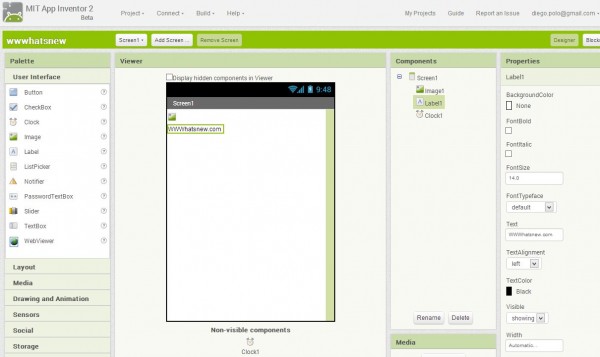
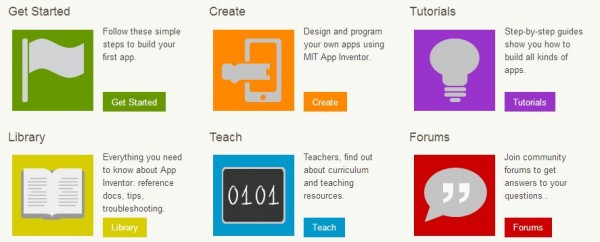
Quem já usou app Inventor para construir aplicativos android certamente conhece um pouco de sua história. Se trata de um sistema, originalmente proporcionado por Google e mantido atualmente por MIT (foi criado pelo professor Harold Abelson do MIT, em 2009), que permite criar aplicativos sem precisar ter grandes conhecimentos de programação. Foi usado em vários centros educacionais antes de ir para o mercado, usa programação visual, arrastando blocos, e deixou de ser considerado produto do Google em agosto de 2011, quando o código começou a ser código livre.

Disponível em appinventor.mit.edu agora tem uma nova versão que pode ser executada desde o navegador (menos desde Internet explorer, embora estejam trabalhando para que também possa ser suportado), sendo possível instalar um emulador para testar os aplicativos criados sem necessidade de dispor de um dispositivo android.

Existem vários cursos de app inventor na Internet, sendo este um dos mais legais (está em português). No youtube há dezenas de excelentes vídeos mostrando como é possível realizar aplicativos arrastando e soltando blocos de informação, ideal para entender as bases da programação sem se aprofundar no código. Em sua página principal também há vários tutoriais para começar a trabalhar com o sistema.

tutoriales

A primeira versão de App Inventor ainda está disponível, embora deixarão de dar suporte em 2014.


Artigo escrito no br.wwwhatsnew.com
Acompanhe também as notícias pelo twitter: twitter.com/pooldigital ou pelo RSS


16 Dec 00:01

iFixit Repair app auxilia-te nas reparações

by Carlos Martins

O site iFixit já se tornou no site de referência para todos os que querem saber como abrir, substituir e reparar todo o tipo de equipamentos e produtos. O que poderão não saber é que existe uma app para Android e iOS que te auxilia nessa tarefa... e que também te permite ajudar outras pessoas.

Com o iFixit Repair Manual, disponível gratuitamente para Android e para iOS, tens acesso imediato aos milhares de guias sobre todo o tipo de reparações disponíveis: desde substituir um ecrã partido de um smartphone, trocar o disco de um computador, e até mudar o óleo num automóvel! E uma das coisas mais interessantes nesta app é que, no caso de não existir um guia para algo que saibam fazer, poderão facilmente criar um guia novo que poderá ser útil para outras pessoas na mesma situação mas que não tenham os vossos conhecimentos.

... É daquelas apps obrigatórias para todos os que tiverem curiosidade em saber como as coisas são por dentro; e também para aqueles que precisam de alguma motivação adicional para se mentalizarem que as coisas não trabalham "por magia", e que quanto têm algum problema por vezes têm uma reparação bastante simples (e que pode evitar gastar centenas de euros numa loja).

16 Dec 00:00

Camara Timelapse com um Raspberry Pi

by Carlos Martins

Já todos terão visto e ficado hipnotizados pelos vídeos em timelapse que nos deixam ver as horas a passar em segundos, e revelar muitas das coisas que em tempo real seriam invisíveis aos nossos olhos. Mas nem sempre é fácil captarmos tais imagens, pois isso implicaria deixar ficar a câmara em locais inóspitos - por isso, uma das soluções é criar uma câmara que passe mais despercebida... e que mesmo em caso de roubo, não represente uma perda avultada.


Este projecto recorre a um simples e económico Raspberry Pi para criar uma câmara para fotos timelapse de longa duração que podemos simplesmente deixar em qualquer lado. O conjunto fica alojado (e disfarçado) no interior de uma vulgar lata, necessitando apenas de um pequeno furo por onde o sensor da câmara espreita o exterior.


A autonomia dependerá do pack de baterias que utilizarem - neste caso foi usado um clip com 4 baterias AA recarregáveis de 2900mAh cada uma (num total de 11600mAh), suficiente para manter a câmara em funcionamento durante muitas horas (como poderão ver no vídeo que está no final).

Claro que se pretenderem deixar a lata "abandonada" num local onde não a mantenham sob vigilância, sujeitam-se sempre a que quando lá regressarem ela já lá não esteja. O criador do projecto sugere deixar uma etiqueta com uma indicação que tente apelar ao bom sentido cívico da pessoa que a encontrar, para que a deixe ficar no local; mas poderão também dizer que a lata tem um sistema de geolocalização que permite saber onde está (para servir como factor dissuasor adicional).

E como sempre... não esquecer o facto de, sendo algo criado por nós, torna-se também mais simples modificar o projecto para que sirva os nossos interesses. Por exemplo, se for para ser usada mais perto de casa poderiam ligar-lhe uma fonte de energia permanente e ligação WiFi, e enviar cada imagem directamente para a internet, para terem um álbum contínuo de todas as imagens captadas - e que em caso de detecção de movimento numa secção especificada, poderia até enviar-vos um alerta. Enfim... é só ter um pouco de imaginação. :)

10 Dec 21:05

Verifica se alguma conta tua já foi "hackada"

by Carlos Martins

A nossa vida digital faz com que seja inevitável que se vá criando contas em múltiplos sites, quer seja para aceder aos seus conteúdos ou simplesmente para deixar um comentário... Esses registos são sempre apetecíveis para os hackers, e tornam-se num verdadeiro dilema para aqueles que usam a mesma password em múltiplos sites. Agora há um serviço que quer ajudar a descobrir até que ponto poderemos estar em risco...


O site have i been pwned permite introduzir um email e ver se ele está incluindo nas diversas bases de dados com dados de milhões de utilizadores que foram hackadas e tornadas públicas: a da Adobe, a de Strattfor, da Gawker, e várias outras. Por norma, desconfio sempre deste tipo de sites - que muitas vezes são criados apenas com o intuito de apanhar os emails dos utilizadores. Mas neste caso, considerando que é mais que provável que o nosso email já ande a circular por todo o lado... não me parece demasiado arriscado.

Caso o vosso email esteja nalguma destas bases de dados, isso será indicado - e embora isso não signifique que a vossa password foi decifrada, servirá no mínimo como sinal de alerta para que alterem as vossas passwords e não voltem a cometer o erro de usar passwords genéricas repetidas para diversos sites. Acreditem que poderá dar agora mais trabalho... mas evitam terem que se lembrar em que sites poderão estar a usar uma password que foi crackada num qualquer destes ataques - numa altura em que o terão que fazer obrigatoriamente, sob risco de verem algumas das vossas contas apoderadas por hackers.

Com as diversas ferramentas de gestão de passwords que existem, não há desculpa para que não usem passwords seguras!
17 Nov 21:46

Iluminação automática LED para corredores

by Carlos Martins

Não há nada mais irritante do que quererem ir a algum lado a meio da noite, e terem que ligar a iluminação "de tecto", não só causando um choque luminoso para os nosso olhos mas que também poderá incomodar os restantes residentes. Felizmente, há soluções que podem ser implementadas por valores ridiculamente acessíveis, como neste exemplo que hoje vos trago.

Recorrendo a umas fitas LED e um pequeno Arduino ligado a um sensor de movimento, é possível criarem uma iluminação suave para colocarem nos rodapés, que garantirá que não andam aos tropeções pela casa mas que não irá incomodar ninguém.

Este projecto pode ser feito numa questão de horas e custa apenas umas dezenas de euros - e tem como vantagem adicional a infinita versatilidade de o poderem expandir ou modificar de acordo com as vossas necessidades. Querem que a iluminação faça um fade out mais lento? É só alterarem umas linhas no programa... ou que tal ter em conta a hora do dia e iluminação ambiente para escolherem entre diferentes velocidades de fade-in/fade-out ou brilho máximo?

E já nem falo de usarem o sistema com fitas LED RGB programáveis que pudessem mudar de cor em função de outros parâmetros, ou que tivessem animações a acompanhar o vosso movimento, iluminando apenas o chão em redor do sítio em que se encontram. :)

07 Oct 12:21

Santiago Ortiz

Santiago Ortiz

Who are you, and what do you do?

I’m Santiago Ortiz, married father of two, living in a small town in Argentina. I invent stuff using code, I research a lot and I love to experiment. I do interactive information visualization, and I’m a specialist in networks visualization. I’m interested in diversity (books, activities, people, places, data, stories) and innovation (creativity + social meaning + methodology + time + execution).

I studied mathematics, with an emphasis in complexity, which I reckon is my most basic tool.

What hardware do you use?

My first computer was a Macintosh 512K (well, it was my parent’s computer but I used it like hell), and at 15 I got my first own one, a pocket tactile computer, the wonderful Casio PB-1000 (tears). Afterwards I began using all sort of desktop Macs, with a 6 month black hole using a PC. Then, in 2001 I quit Colombia and start living in different places, and of course I started using iBooks and MacBooks (the first one: the “snow” iBook, the most beautiful one so far in my opinion)

I’ve tried different things: small screens, comfortable to travel with, and big screens, comfortable to work with, and I still don’t know what’s better for me. Currently I’m with the big screen - I have a 2010 MacBook Pro 17”.

I’m in the verge of buying a new portable and still can’t decide whether to buy a MacBook Air (perhaps I should wait for the 13” with Retina display), or the 15” MacBook Pro.

Other important hardware I use:

iPod nano 6th generation, - I don’t think it will be beaten for a long time (why bigger, why smaller?). I mainly use it for listening to audiobooks, so it has a considerable impact in my work.

I have an iPad but I don’t really like it or use it, so it’s basically for my kids. I hate cellphones - I have an ugly one that I barely bring with me (I never charge it, actually).

My favorite gadget is, without a doubt, the Kindle, and I’ll soon update it to the Paperwhite version. For some reason this the only device I consider a ‘gadget’. The other hardware are tools, and it’s nice to have the most suitable ones, but I’m never extremely excited when buying one (and I don’t give a shit about Apple device packaging). On the contrary, I’m very eager to get my brand new Kindle and I can imagine I’ll be carrying it in my bag, even if I know I won’t read anything.

And what software?

I use the development tool Aptana Studio 3 to code all my projects. I code in Javascript and use my own framework which is actually my main software. I’m not completely satisfied with Aptana (it’s slow), but I’m not sure there are better options (perhaps I’m waiting to change computers to see things working better magically?).

I often create my own tailor-made software. For instance: I have created a freelancer projects manager application, which of course contains visualizations of how I’m doing with schedules, intensity of work, milestones, deliveries, money, and also travel and work and personal events (Could it be a product to be used by others? Maybe).

One of the most important tools in my work is Delicious, which I believe has been highly underestimated. I don’t use it as a simple bookmarking tool, it’s the place I’ve organized my research for the last 10 years. I have more than 3K references and I’ve spent a lot of time taking a care of it, organizing, cleaning and renaming tags and creating my own use rules. It contains more than 700 Wikipedia articles that somehow define the conceptual basis of my research. I have what I call categorical tags, that act as definitions instead of associations: [post_blog], [wikipedia_article], [project], [video], etc. Based on my Delicious information I built my knowledge database exploration space.

Evernote is amazing. I have a notebook with more than 160 well-described projects I want to do. And as Evernote allows me to export the data, I have in mind this project of publishing and visualizing these ideas, allowing people to comment or to choose the ones they want me to do first (or to just take the ideas and use them).

Sporadically, I use Photoshop and Illustrator to process images, or, eventually, to make a sketch or a scheme to explain something to a colleague or client.

Other indispensable tools: Dropbox, Safari, Chrome, Mail, Skype, Fetch, Google tables, Google Reader (tears).

What would be your dream setup?

I dream of an impossible chimera: a MacBook Air 17” with a Retina display.

The big jump I have pending in terms of tools is to start using Github. It’s suitable to share code with clients and colleagues, but what I really want to do is to publish and open my framework. It’s not something I can do now, though, because it’s not completely stable yet and lacks comments, documentation and examples. But I’ll do it!

07 Oct 12:18

.Gitignore.io: Create .gitignore files for your project

by Cameron

Need git to ignore certain files in your project? There are a few ways to do that, one of which is to use .gitignore files. .Gitignore.io makes is super simple to create those files, either with a GUI or through the command line.

gitignore.io

30 Sep 17:21

Solo: A Free Project Management App for Freelancers

by Ray Cheung

Advertise here via BSA

Solo is the easiest way to manage your projects. You can create contacts, manage tasks, upload files, track project progress, and keep notes – all in the same place. The interface is simple, elegant, and intuitive.

You can easily keep track of how much time is spent on a task using the task timer. Manually enter time for those cases when work is performed without the timer. It’s easy to use installation wizard to guide you through the process. Requires a linux server, PHP 5.3+, and MySQL. You’ll have full access to the unencrypted source, allowing you to make any changes you like.

solo

Requirements: PHP and MySQL Framework
Demo: http://www.getsoloapp.com/
License: Solo License

Sponsors

Professional Web Icons for Your Websites and Applications

30 Sep 17:07

CLNDR: A jQuery Plugin for Creating Calendars

by Ray Cheung

Advertise here via BSA

There are wonderful and feature-rich calendar modules out there and they all suffer the same problem: they give you markup (and often a good heap of JS) that you have to work with and style. This leads to a lot of hacking, pushing, pulling, and annoying why-can’t-it-do-what-I-want scenarios.

CLNDR is a jQuery calendar plugin. Unlike most calendar plugins, CLNDR doesn’t generate markup. Instead, CLNDR asks you to create a template and in return it supplies your template with a great set of objects that will get you up and running in a few lines.

jquery-calendar-plugin

Requirements: jQuery Framework
Demo: http://kylestetz.github.io/CLNDR/
License: MIT License

Sponsors

Professional Web Icons for Your Websites and Applications

30 Sep 17:01

Google Static Map Maker: Create embedable static maps

by Cameron

The Google Static Map Maker is an easy to use generator that lets you create static Google Maps. It’s hosted on CodePen, so you can dive right into the code and customize it to your liking.

google static maps

30 Sep 17:01

Animo.js: CSS animation management with JavaScript

by Cameron

Animo.js is a powerful tool for managing CSS animations. It makes it possible to stack animations and trigger one right after another.

animo.js

30 Sep 16:34

Cria um SSD a partir de 4 cartões microSD

by Carlos Martins

Se têm acumulado cartões microSD ao longo dos anos - o que não será nada difícil - e não quiserem deixá-los a ganhar pó sem serem utilizados, que vos parece a possibilidade de os combinar e transformar num SSD? É isso mesmo que podemos fazer com este adaptador de cartões micro SD para SSD.


Com este "disco" poderão juntar quatro cartões micro SD para criar um disco de memória Flash SATA de 2.5" que promete maior velocidade e acesso instantâneo (até um máximo de 128GB usando quatro cartões de 32GB - classe 10 de preferência).

A ideia poderá parecer boa mas não sei até que ponto é que será realmente aconselhável. É que os cartões microSD não são muito adequados a escritas quase contínuas como acontece num disco/SSD e embora o controlador deste adaptador até possa ser excelente a fazer essa gestão... não me parece que valha a pena arriscar. Para além disso, será provável que utilizem cartões microSD já bastante usados, o que aumentará ainda mais a probabilidade de complicações e falhas - e no caso disto estar a usar os cartões em RAID 0, bastará que um deles falhe para que percam toda a informação no disco (embora não esteja especificado se é o caso).

Considerando o custo de quase $80 (para além dos cartões microSD) e que agora temos discos SSD "a sério" por valores pouco superiores... acho que a melhor opção continuará a ser investirem num disco SSD e deixarem que os vossos micro SD continuem a ser usados nos smartphones e câmaras.

30 Sep 16:23

TP-LINK TL-MR10U : Mais uma pechincha!

by Nuno Pereira
Lembra-se do pequeno router 703N da TP-Link que é uma maquina do caraças e vocês ainda não compraram um ;)

Talvez vão gostar de saber que a TP-Link têm um novo router com o mesmo "hardware" do 703N e ainda com um extra de uma bateria adicional de 2600 mAh. O preço mantém-se "bombásticamente" nos 20€ na mais famosa loja chinesa de gadgets, a DX!


Este TL-MR10U partilha o mesmo hardware do 703N, e já é por isso um "hackable device" com a firmware linux da OpenWRT.

Via (Google+)
30 Sep 16:14

Prezi, concorrente do Power Point, lança site em português

by Denise Helena

prezi

Foi lançada, nesta terça-feira (24), a versão em português do site Prezi, um serviço on-line, criado em 2009, de desenvolvimento de apresentações, uma interessante alternativa ao Power Point, da Microsoft, voltada para o público do Brasil.

Mesmo já contando com meio milhão de usuários no Brasil, Prezi, que possui 27 milhões de usuários em todo o mundo, pretende aumentar seu poder de alcance por aqui, já que a América Latina é seu segundo maior mercado, mesmo antes do Brasil possuir suporte à língua.

Diferente das exibições de slides do Power Point, mais sequenciais e lineares, as apresentações do Prezi permitem a criação de forma colaborativa, menos estáticas e com melhor aproveitamento do espaço. Além disso, é possível dar zoom em figuras, incluir mais facilmente, vídeos, músicas e outros documentos.

O Prezi, no entanto, acredita haver espaço para as duas plataformas, podendo ambas serem usadas com diferentes finalidades.

Uma das principais características de Prezi é oferecer a possibilidade de criar demonstrações animadas, além das conferências, as salas de aula e as de reuniões de negócios são alvos do Prezi.

Úteis tanto para professores quanto para alunos, embora nem só com números e gráficos podem ser feitas as apresentações no Prezi, tanto que Bono Vox, do U2, usou a plataforma para fazer sua apresentação no circuito global de conferências TED, em fevereiro de 2013.

Vale ressaltar que Prezi possui esse nome por ser utilizado como um diminutivo carinhoso para apresentação -presentation, em inglês.

Link: prezi.com | Via G1


Artigo escrito no br.wwwhatsnew.com
Acompanhe também as notícias pelo twitter: twitter.com/pooldigital ou pelo RSS


30 Sep 16:13

youdontneedacrm – Ferramenta de gerenciamento de clientes pela Internet

by Juan Diego Polo

dont need CRM

You Don’t Need a CRM (não precisa um CRM) é o nome da nova aplicação que abre agora suas portas em resposta à decepção e insatisfação de muitos usuários de plataformas clássicas de CRM.

As ferramentas de CRM tradicionais são projetadas para gerentes e equipes de marketing, e não comerciais. Temos que criar o nome da empresa, depois um contato dentro dessa empresa, então a oportunidade e, finalmente, a lista de tarefas.

Disponível em youdontneedacrm.com quer criar uma nova oportunidade entre um comercial e um cliente em poucos segundos, pelo PC ou celular, a partir de um cartão de visita, uma folha de cálculo ou o site da empresa.

Todas as listas estão em uma página, com as oportunidades comerciais. A atividade da equipe aparece em um fluxo de dados, intuitivo, rápido e focado em produtividade.

Entre suas características estão: fácil criação de oportunidades, reconhecimento de cartão de visita, alertas automáticas, integração com o Google Apps, sincronização com o iCal e versão móvel.

Disponível em inglês, espanhol, português e francês, custa menos de 10 dólares por usuário por mês.

A idéia é ótima para freelancers e pequenas empresas com comerciais que têm que colocar as mãos na massa imediatamente, sem muito protocolo, sem necessidade de um banco de dados organizado de empresas. Às vezes, o negócio é baseado em reflexos, e é aí que um aplicativo assim é importante.


Artigo escrito no br.wwwhatsnew.com
Acompanhe também as notícias pelo twitter: twitter.com/pooldigital ou pelo RSS


23 Sep 19:10

Pace: An automatic page load progress indicator

by Cameron

Pace is a JavaScript progress bar that automatically detects and displays how close your page is to loading. Just include the Pace.js file and the theme CSS of your choice and it does the rest, without requiring you to hook into any of your existing code.

pace

23 Sep 18:25

Avisador de Emails Importantes no Gmail com um Arduino Yún

by Carlos Martins

Por muitos equipamentos que se tenha, por vezes não há nada como ter um display dedicado para nos mostrar informação realmente importante e prioritária que não queremos que fique perdida no meio de widgets num ecrã, ou de notificações que podem ficar por entregar num smartphone com bateria descarregada. Usando um dos pequenos Arduino Yún com WiFi integrado tornar-se extremamente simples criar um sistema que apresenta informação num pequeno display - neste caso em concreto, um avisador de emails importantes no Gmail.


Este foi mais um projecto que me surpreendeu pela sua simplicidade, já que a nível de hardware apenas precisam do Yún, um LED que serve de avisador (e que poderão usar como saída para ligar qualquer outra coisa, como uma lâmpada, buzina, ou o que bem entenderem, e opcionalmente também um pequeno display LED).


Tudo o resto fica a cargo do software, e uma vez que o Yún tem funcionalidades bem interessantes, como a parte que corre em "Arduino" poder comunicar com a parte que corre em Linux usando simples chamadas REST via URLs , há um mundo de possibilidades que fica à vossa espera para expandirem este projecto.

Neste caso em concreto, temos um curl que vai buscar o feed ATOM de uma label definida no vosso Gmail (para a qual redireccionarão os emails que considerarem importantes, usando filtros e regras), que depois é processado e usado para ligarem o LED de aviso e mostrarem o número de emails por ler.

... Depois de fazerem isto, já terão as bases para fazer tudo aquilo que imaginarem: por exemplo, um avisador de quando há novos posts no Aberto até de Madrugada! Ora aí estava um uso bem importante! ;)
23 Sep 18:08

mymusiccloud – Para guardar nossa música na Internet

by Juan Diego Polo

mymusiccloud

MyMusicCloud ( mymusiccloud.com ) é uma solução para armazenar nossas músicas na web, com opções para importar músicas do iTunes , Dropbox , Google Drive ou qualquer diretório do seu computador. Depois de salvar o conteúdo na nuvem, oferece a capacidade de acessá-lo a partir de qualquer dispositivo, tanto tablets como PCs e telefones ou TVs ligadas a internet.

Disponível em várias línguas tem listas de reprodução inteligentes e recomendações de música , tudo dentro de um aplicativo que passou por uma reformulação completa este mês, com fotos dos músicos, álbuns e artistas do dia e 250 canções nas contas gratuitas.

Por US$ 40 por ano você pode ter espaço ilimitado para armazenar todas as músicas que você tem em vários serviços e para ouvir o conteúdo de qualquer dispositivo. Todos os 250.000 usuários que já estavam pagando, terão agora o novo plano ilimitado, serão automaticamente migrados para o novo modelo .

Ser capaz de salvar a música dentro de um servidor, e pagar para ter acesso a eles, é uma boa idéia quando você considera que, quando compra um item no iTunes, por exemplo, estão ligados ao serviço, sem uma opção para remover o arquivo para não depender da Apple. MyMusicCloud resolve esse problema removendo essa dependência, e com um plano gratuito de 250 músicas é muito fácil de verificar se é o que estávamos procurando.

Vejam agora um vídeo de apresentação do novo MyMusicCloud:


Artigo escrito no br.wwwhatsnew.com
Acompanhe também as notícias pelo twitter: twitter.com/pooldigital ou pelo RSS


20 Sep 00:44

Semantic: Sharing UI Elements Between Developers

by Ray Cheung

Advertise here via BSA

Semantic UI is a set of specifications for sharing UI elements between developers. Semantic is also a UI library to make front end development simpler and easier to learn. The Semantic library describes many UI elements. In most instances it might be best to build a custom build with only the elements you need.

UI components are split into four categories, ranging from smallest to largest in scope: UI Elements, UI Collections, UI Modules and UI Views. Semantic gives you a variety of UI components with real-time debug output, letting your code tell you what its doing.

semantic-ui

Requirements: -
Demo: http://semantic-ui.com/
License: MIT License

Sponsors

Professional Web Icons for Your Websites and Applications

20 Sep 00:23

Todos os Edifícios na Holanda Coloridos por data de Construção

by Carlos Martins

Nalgumas séries vemos as forças da autoridade a terem acesso quase imediato às plantas de qualquer edifício onde esteja a acontecer qualquer incidente. Não é bem o caso do que vos trago hoje, mas quase. Este site disponibiliza todos os 9.8 milhões de edifícios registados na Holanda codificados por idade, e com informações públicas disponíveis sobre cada um deles (como o tipo de edifício, a que fim se destina, área, etc.)

Imagino que por cá também exista a mesma informação nos registos prediais, mas seria bom ter acesso a este tipo de dados publicamente. Torna-se extremamente interessante poder olhar para uma cidade (ou neste caso, todo o país) e ver a expansão e evolução urbana, com as zonas mais antigas e mais modernas a "mudar de cor".

Daqui por umas décadas já nem se surpreende que seja possível ver mesmo em detalhe a planta interior de todos os edifícios... e, se por essa altura já se tiver decretado o fim da privacidade, que tal se em todas as divisões se tivessem câmaras a fazer streaming para a internet 24h por dia? Seria o verdadeiro Big Brother à escala global! :)
17 Sep 00:33

Favico.js: Animate your favicon

by Cameron

Want to add badges, images, or even video to your favicon? Favico.js makes it simple to add animated badges for your favicon, or create a favicon on the fly from an image, video, or even a live image from your visitor’s webcam.

favico.js

13 Sep 16:32

Autodesk lança Simulador de Circuitos Electrónicos 123D

by Carlos Martins

Se têm ideias que gostariam de implementar em circuitos electrónicos, ou até aventurarem-se no mundo da programação dos Arduinos, mas têm receio em dar aquele passo inicial de meter mãos à obra; a Cicuits.io e a Autodesk dão uma ajudinha como este 123D Circuits.

Assim, basta o vosso browser para poderem criar e experimentar tudo aquilo que quiserem, sem receio de estragar seja o que for - ou fazer com que o vosso precioso Arduino comece a fumegar (já sabemos que o fumo é essencial para o bom funcionamento dos chips, e que quando sai cá para fora, deixam de funcionar ;)

Este simulador está disponível gratuitamente mas têm também disponíveis modalidades pagas ($12 e $25 por mês) com benefícios extra, como desconto na produção de placas PCB e possibilidade de criar um número ilimitado de projectos públicos/privados. Agora já não há desculpas para não testarem as vossas ideias e verem tudo a funcionar, antes sequer de terem soldado um único componente.


Introducing 123D Circuits.io from circuits.io on Vimeo.