Shared posts
(Denali) : Getting Ctrl+R to work again - SQL Server Blogs
How to setup a Load Balanced Web Farm of Virtual Machines (Linux or otherwise) on Windows Azure (command line)
A buddy of mine was thinking to move some of his Linux-based website to Azure. If you're running a Web Site that this node.js, ASP, ASP.NET, or PHP, it's easiest to use Azure Web Sites. I showed how to do setup Azure Web Sites in minutes with Git in this post. They hide the underlying OS from you, are automatically updated, scale easily, and share disks.
However, he likes VMs and the control they give him, plus he can run whatever he wants, move things around and generally control his world.
I'll be using the open source (GitHub) cross platform CLI tools (command line interface) for Azure. If you have node package manager you can "npm install azure-cli --global" then import your subscription. You can also get the command line tools by downloading and installing from www.windowsazure.com.
Setting up a Linux VM
We'll create a the initial VM using the Portal (I'll show you how to do it from the command line in a minute). This virtual machine will be for setting up a template VM image. I'm going to create an Ubuntu 13.04 server, then add Apache and PHP. Then I'll capture a generic image of my now-set-up machine and use it to create copies that I'll add to a farm. This image will show up later in "My Images" in the Azure Portal.
NOTE: There's an amazing community-driven category of prepped and ready Virtual Machine images at the Open Tech VM Depot. It's like the Azure's best kept secret. I'll do a post on it later but it's really deep and broad and worth checking out.
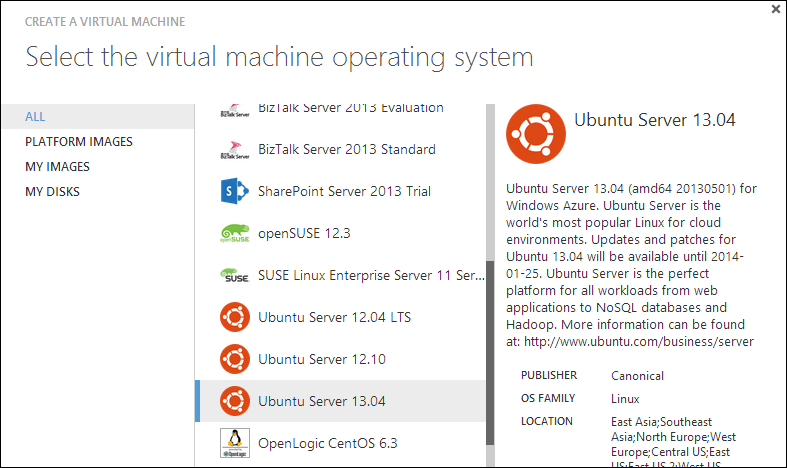
From within the Azure Portal I'll go New | Virtual Machine | and select Ubuntu Server 13.04.
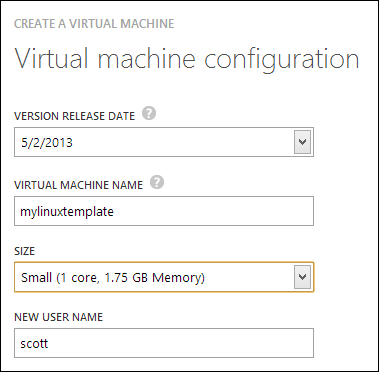
The name doesn't matter, but I'll setup a user name and password (or use a SSH key):
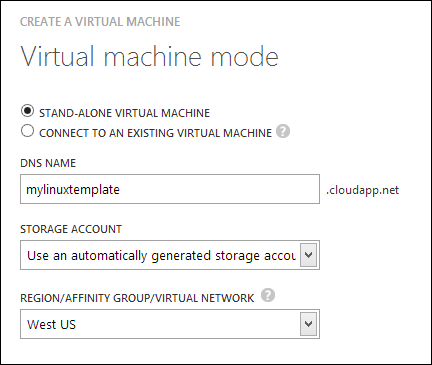
Note I'll create a stand-alone Virtual Machine:
TIP: If I didn't want to use the Portal at all to make this VM, I could even find a VM image programmatically, then create a VM instance, all from the command line. Using "azure vm list" would get me the list of VMs to choose from. The Ubuntu one I wanted is "Ubuntu-13_04-amd64-server-20130501-en-us-30GB" (with a guid in the name as well) so I'd just "azure vm create MyDNSName ImageName [options]" and then proceed from there.
Once this Linux VM has started up, I'll SSH into it. You can see that Azure has mapped a random high number public port to the VM's internal SSH port 22.
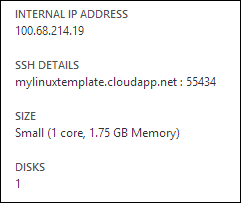
I SSH in. I'm gonna add Apache, PHP, restart apache, then add a test.php that will show PHP is working as well as output the current IP address so I can tell which machine served the request.
sudo apt-get install apache2

sudo apt-get install libapache2-mod-php5 php5
I'll add a test.php
sudo nano /var/www/test.php
and put in
<?php echo gethostbyname(trim(`hostname`)); ?>

<?php phpinfo(); ?>
Then I'll exit SSH. VMs are locked down by default, so to test this I need to add an endpoint. I can do that via the Portal but I'd like to see what I can do from the Azure command line.
Run vm endpoint create to map external 80 to internal 80.
azure vm endpoint create mylinuxtemplate 80 80
At this point I should be able to hit mylinuxtemplate.cloudapp.net:80/test.php and see it work.
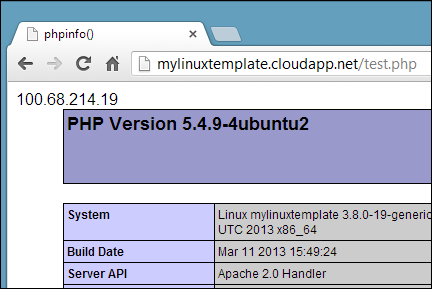
Cool. So I've got my Linux VM template the way I want it. Now I want to "capture it" as an image so I can stamp out more of them. This "waagent" on Linux is like "sysprep" on Windows.
From within a SSH session, run waagent -deprovision.
~$ sudo waagent -deprovision

scott@mylinuxtemplate:~$ sudo waagent -deprovision

WARNING! The waagent service will be stopped.

WARNING! All SSH host key pairs will be deleted.

WARNING! Nameserver configuration in /etc/resolvconf/resolv.conf.d/{tail,originial} will be deleted.

WARNING! Cached DHCP leases will be deleted.

WARNING! root password will be disabled. You will not be able to login as root.

Do you want to proceed (y/n)? y
WINDOWS PEOPLE: If you're a Windows person, you can setup your Windows VM just as you like it, then run %windir%\system32\sysprep.exe on it, capture an image of the VM and do everything described in this post as well!
I could shut it down and capture an image from the Portal, but again, it's command line fun today. Note that shutting down can take a little while.
azure vm shutdown mylinuxtemplate

azure vm capture mylinuxtemplate hanselmanlinuxwebfarmimage --delete
The capture command will DELETE the Virtual Machine. Remember that it was just a template. However, how I have a reusable image! I can see the images available to me, both user images and gallery images with "azure vm list."
NOTE: When you delete Virtual Machines, you're just deleting the "configuration" of the VM. You're not deleting the disk that was associated with it, as it's possible you might want to start that VM up again. If you're really trying to remove things, make sure you delete the instance of the VM and then delete the disk, too.
Creating a Linux VM Farm from the command line
Now I have an image sitting in my storage account that I can use to make "n" VMs from. I'll make one VM to start. I can watch it startup with "azure site list" after making it. When it's ready, I can make more! Make sure you use the --ssh switch or you will NOT be able to SSH into the machine!
C:\> azure vm create hanselmanlinuxfarm hanselmanlinuxwebfarmimage scott MyPassword123 --location "West US" --ssh

info:    Executing command vm create

+ Looking up image

+ Looking up cloud service

+ Creating cloud service

+ Creating VM

info:    vm create command OK

C:\> azure vm list

info:    Executing command vm list

+ Fetching VMs

data:    DNS Name                         VM Name             Status

data:    -------------------------------  ------------------  ----------

data:    hanselmanlinuxfarm.cloudapp.net  hanselmanlinuxfarm  CreatingVM

info:    vm list command OK

C:\> azure vm list

info:    Executing command vm list

+ Fetching VMs

data:    DNS Name                         VM Name             Status

data:    -------------------------------  ------------------  ---------

data:    hanselmanlinuxfarm.cloudapp.net  hanselmanlinuxfarm  ReadyRole

info:    vm list command OK
WEIRD: Azure has a concept called a "Cloud Service" which is a lousy name, IMHO. For us, let's consider it a "container" for our VMs. It's a logical container that will hold and associate all our VMs (and other cloudy stuff) together. When you have one VM you have one cloud service associated with it, but you can't see it in the Portal but because it doesn't really provide value...yet. When you have TWO VMs in the same container, then you'll see that cloud service "container" appear in the Portal.
I've made a hanselmanlinuxfarm VM now so there's a hanselmanlinuxfarm cloud service 'container.' Now, I'm going to make a few more VMs but I'll connect them to the first VM. There's two ways to do this. First, the --connect option from the command line. Note that you don't have control over the name of your VM this way, if you care. If you have hundreds, you likely don't.
The command will find the existing cloud service (again, 'container') then make a new VM. I'm going to run this command twice so I'll have three VMs total.
SO IMPORTANT: It's the --connect used on this second call that is the key. It makes the second (and then n+1) VM and adds it to the same cloud service "container." It seems the VMs associated with each other. The name of the next VM will be whatever-2, then -3, etc but they will also use the same external name, like hanselmanlinuxfarm.cloudapp.net.
I'll do this twice, each time using a different high SSH port number that will map to 22 internally. If I don't want SSH expose externally, I can delete the public endpoint later.
C:\> azure vm create --connect hanselmanlinuxfarm hanselmanlinuxwebfarmimage scott MyPassword --ssh 12345

info:    Executing command vm create

+ Looking up image

+ Looking up cloud service

+ Getting cloud service properties

+ Looking up deployment

+ Creating VM

info:    vm create command OK
When creating a Linux VM you MUST add a --ssh flag to the command line or you'll not be able to SSH into the box. Make sure to add a high port number so you'll get a mapping from that port to 22, so maybe 12346 -> 22, etc. If you make these VMs from the Portal, it will pick a random port for you. When you do it from the command line, you need to choose.
At this point, azure vm list says I have three. Two are ready and the last is being created now. You can tell these VMs are running in the same Cloud Service "container" because the DNS name is the same. These VMs are officially a "farm."
C:\> azure vm list

info:    Executing command vm list

+ Fetching VMs

data:    DNS Name                         VM Name               Status

data:    -------------------------------  --------------------  ----------

data:    hanselmanlinuxfarm.cloudapp.net  hanselmanlinuxfarm    ReadyRole

data:    hanselmanlinuxfarm.cloudapp.net  hanselmanlinuxfarm-2  ReadyRole

data:    hanselmanlinuxfarm.cloudapp.net  hanselmanlinuxfarm-3  CreatingVM

info:    vm list command OK
OK, now here's making a fourth VM from the Portal, just as an FYI.
Creating a Linux VM and adding to the Farm from the Portal
Just so you know, you can add VMs to your farm from the Portal also.
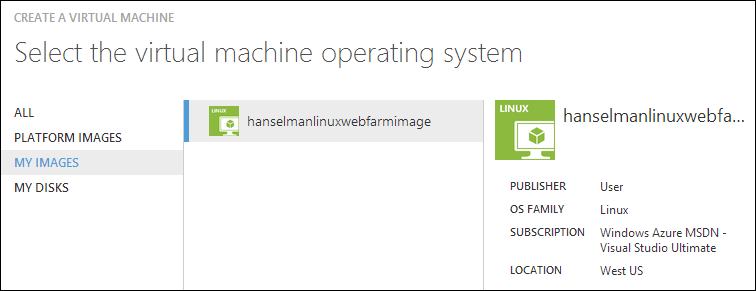
Give your new VM a name, then "connect it to an existing virtual machine." I don't like this phrasing, and I'm curious what you think. Basically it's "add this VM to this collection of VMs." It doesn't matter which one you select from this dropdown, as long as you pick one that's in the Cloud Service "container".
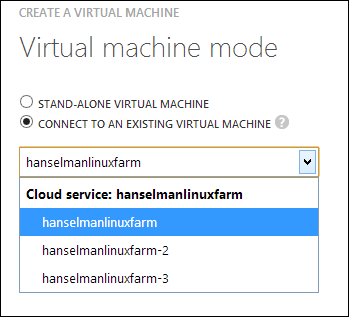
I won't click OK, but if I did, at this point I've would've a fourth VM, this one via the Portal.
Load Balancing my Linux VM Farm
I have three identical VMs running Apache and PHP and my test.php page.
C:\> azure vm list

info:    Executing command vm list

+ Fetching VMs

data:    DNS Name                         VM Name               Status

data:    -------------------------------  --------------------  ---------

data:    hanselmanlinuxfarm.cloudapp.net  hanselmanlinuxfarm    ReadyRole

data:    hanselmanlinuxfarm.cloudapp.net  hanselmanlinuxfarm-2  ReadyRole

data:    hanselmanlinuxfarm.cloudapp.net  hanselmanlinuxfarm-3  ReadyRole


info:    vm list command OK
Let me open up port 80 on all three. Since I want them load balanced I can't do this, as this is how you map single non-load-balanced ports.
azure vm endpoint create hanselmanlinuxfarm   80 80

azure vm endpoint create hanselmanlinuxfarm-2 80 80

azure vm endpoint create hanselmanlinuxfarm-3 80 80
For load balanced ports I need to use "create-multiple." Not only may I want to open multiple ports all at once, but also since I want load-balancing, I also may want a probe set up. For example, since I'm using HTTP, if there's a result other than 200 returned from test.php then I'll want that VM pulled out of the farm. It will also pull the VM out of rotation if it doesn't hear back in 30 seconds.
Here I'm creating those 80 to 80 maps, but also watching test.php for anything other than an HTTP 200.
azure vm endpoint create-multiple hanselmanlinuxfarm   80:80:HttpTrafficIn:http:80:/test.php

azure vm endpoint create-multiple hanselmanlinuxfarm-2 80:80:HttpTrafficIn:http:80:/test.php

azure vm endpoint create-multiple hanselmanlinuxfarm-3 80:80:HttpTrafficIn:http:80:/test.php
In this case "HttpTrafficIn" is what I am calling the Load Balancing Set Name.
NOTE: I'm doing a pull request now to add the ability to see the ProbePath from the endpoint command but for now you can see it with "azure vm show" like this:
C:\>azure vm show hanselmanlinuxfarm

info:    Executing command vm show

+ Fetching VM

data:    DNSName "hanselmanlinuxfarm.cloudapp.net"

data:    VMName "hanselmanlinuxfarm"

data:    IPAddress "100.68.xx.xx"

data:    InstanceStatus "RoleStateUnknown"

data:    InstanceSize "Small"

data:    InstanceStateDetails ""

data:    OSVersion ""

data:    Image "hanselmanlinuxwebfarmimage"

data:    DataDisks ""

data:    Network Endpoints 0 LoadBalancedEndpointSetName "HttpTrafficIn"

data:    Network Endpoints 0 LocalPort "80"

data:    Network Endpoints 0 Name "endpname-80-80"

data:    Network Endpoints 0 Port "80"

data:    Network Endpoints 0 LoadBalancerProbe Path "/test.php"

data:    Network Endpoints 0 LoadBalancerProbe Port "80"

data:    Network Endpoints 0 LoadBalancerProbe Protocol "http"

data:    Network Endpoints 0 Protocol "tcp"

data:    Network Endpoints 0 Vip "137.135.xx.xx"

info:    vm show command OK
Cool, so now let's see if I have a load-balanced farm.
PERF NOTE: In order to get the best performance from your Azure VMs (or any cloud VM) considering putting things like MySQL/PostgreS databases on a separate disk with different caching semantics. You want the OS disk and the Data Disks to be separate. For example. I have a Windows VM running MySQL. The OS is on a standard 30 gig disk, but the MySQL Database is alone on a 5 gig disk that's attached. It keeps things separate and tidy, plus it performs better
Checking on my new Farm
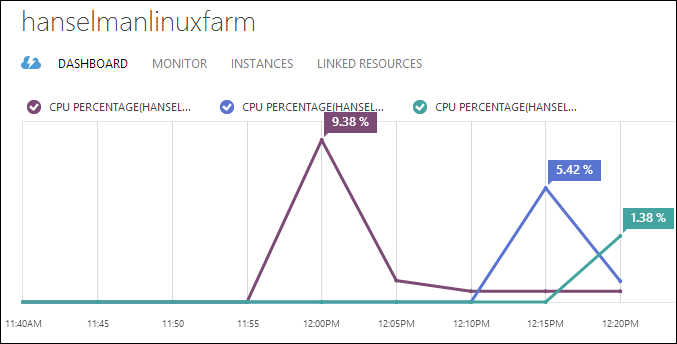
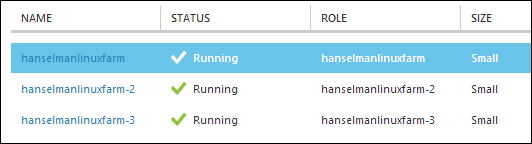
If I log into the Portal, I can look at each individual VM or I can look at the farm as if it's one 'cloud service.' Get it?
Making my Farm more reliable
I want to make sure my new VMs are all on different racks in the Azure Data Center. I know they are in "West US" because I put them there, but I'm not sure if they are together on the same rack or near each other or what. Since a rack is within a "fault domain" meaning that a Rack could, I dunno, spontaneously explode, then I want to tell Azure that all these VMs are part of an "availability set." This is a name I apply to the VMs that says "make these more available by keeping them apart."
From the Portal I'm going to pick the first VM and select Configure, then Create an Availability Set. I'll name it "hanselmanlinux" but it can be anything.
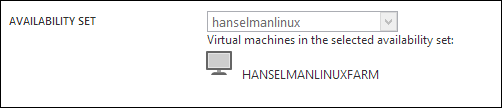
Adding an Availability Set can involve Azure moving my VM somewhere else within the Data Center and it may need to restart it if it does. Sometimes this is fast, other times it takes a minute or 10 as it's a big deal initially, so be aware. Once everyone's in the set, it's less of a big deal.
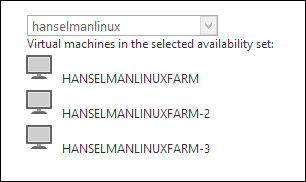
When it's done, head over to the other VMs and add them one at a time to the same availability set. The result looks like this in the Portal, and now I'm assured that my three VMs are all in different Fault Domains (and racks).
Hitting my Web Farm
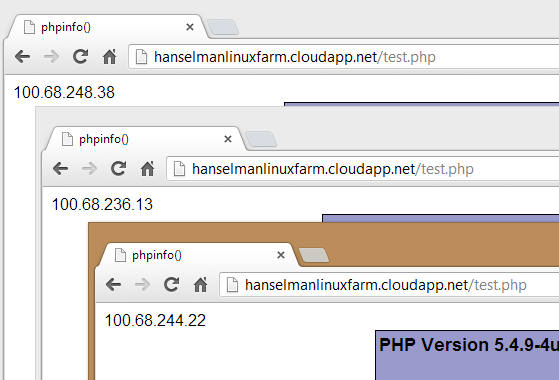
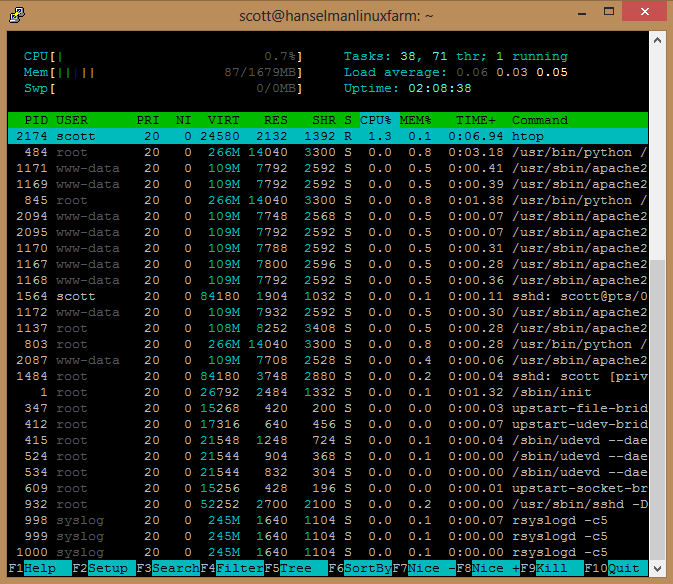
Now I can hit hanselmanlinuxfarm.cloudapp.net/test.php and see the IP changing (as well as the CPU% changing in my portal!) or even watch HTOP over SSH and get a live view. Hey, I've got a little Linux farm!
Here's my SSH'ed into one of them, looking at htop (it's better than top!)
My Complete Script, Summarized
Here's my complete script. I used azure vm image list | find /I "13_04" to find an Ubuntu image. I could have done this with bash as well.
C:\>azure vm image list | find /i "13_04"

data:    b39f27a8b8c64d52b05eac6a62ebad85__Ubuntu-13_04-amd64-server-20130423-en-us-30GB

data:    b39f27a8b8c64d52b05eac6a62ebad85__Ubuntu-13_04-amd64-server-20130501-en-us-30GB

data:    b39f27a8b8c64d52b05eac6a62ebad85__Ubuntu_DAILY_BUILD-raring-13_04-amd64-server-20130511-en-us-30GB

data:    b39f27a8b8c64d52b05eac6a62ebad85__Ubuntu_DAILY_BUILD-raring-13_04-amd64-server-20130515-en-us-30GB

data:    b39f27a8b8c64d52b05eac6a62ebad85__Ubuntu_DAILY_BUILD-raring-13_04-amd64-server-20130517-en-us-30GB

data:    b39f27a8b8c64d52b05eac6a62ebad85__Ubuntu_DAILY_BUILD-raring-13_04-amd64-server-20130518-en-us-30GB

data:    b39f27a8b8c64d52b05eac6a62ebad85__Ubuntu_DAILY_BUILD-raring-13_04-amd64-server-20130521-en-us-30GB
Once I've found an image, I create my first VM from the command line in a location of my choice. Again, it's Linux, don't forget the -ssh.
azure vm create mylinuxtemplate b39f27a8b8c64d52b05eac6a62ebad85__Ubuntu-13_04-amd64-server-20130501-en-us-30GB scott MyPassword --location "West US" --ssh
Get it how you like it. SSH in, set it up, run the waagent to prep it. Shut it down and capture it.
azure vm shutdown mylinuxtemplate

azure vm capture mylinuxtemplate mylinuxfarmimage --delete
Finally, here's a basic batch file to make 5 VMs. Note the first command is different from the Nth. Of course, with bash you could make a script like "spinup 5" and automate to your heart's content. The HTTP probe is optional on the endpoint creation.
azure vm create hanselmanlinuxfarm hanselmanlinuxwebfarmimage scott password --location "West US" --ssh

azure vm create --connect hanselmanlinuxfarm hanselmanlinuxwebfarmimage scott password --ssh 12345

azure vm create --connect hanselmanlinuxfarm hanselmanlinuxwebfarmimage scott password --ssh 12346

azure vm create --connect hanselmanlinuxfarm hanselmanlinuxwebfarmimage scott password --ssh 12347

azure vm create --connect hanselmanlinuxfarm hanselmanlinuxwebfarmimage scott password --ssh 12348

azure vm endpoint create-multiple hanselmanlinuxfarm   80:80:HttpTrafficInLhttp:80:/test.php

azure vm endpoint create-multiple hanselmanlinuxfarm-2 80:80:HttpTrafficInLhttp:80:/test.php

azure vm endpoint create-multiple hanselmanlinuxfarm-3 80:80:HttpTrafficInLhttp:80:/test.php

azure vm endpoint create-multiple hanselmanlinuxfarm-4 80:80:HttpTrafficInLhttp:80:/test.php

azure vm endpoint create-multiple hanselmanlinuxfarm-5 80:80:HttpTrafficInLhttp:80:/test.php
After it ran, I went in to the Portal and set up Availability Sets manually. That's only available in PowerShell today, but setting availability sets is coming soon to the cross-platform tools!
Next time, maybe I'll try"azure vm scale" to move these tiny VMs into 8 processor 56 gig monsters.
Sponsor: Big thanks to SoftFluent for sponsoring the feed this week! Less Plumbing, More Productivity! Generate rock-solid foundations for your .NET applications from Visual Studio and focus on what matters!
© 2013 Scott Hanselman. All rights reserved.


EMC – DIY Heatmaps – Updated Version

Mat has updated the DIY Heatmaps for EMC CLARiiON and VNX arrays to version 4.01. You can get it from the Utilities page. Any and all feedback welcome.
Updates and Changes to the script
- Add database storage / retrieval for performance stats. The database size will be approximately 2.1 x the size of the NAR file based on the default interval of 30 minutes. On my PC it took a bit over 9 hours to process 64 NAR files into a database, the NAR files were 1.95GB and the resulting database was 4.18GB. However running the script over the database to produce a heatmap only takes seconds.
- Changed to use temporary tables for transitional data. This should slightly reduce the size of the database file, as the temporary data is not written to disk.
- Changed the way the script processes multiple NAR files, the script previously bunched all NAR files into a single naviseccli process, this was problematic if you were processing multiple large NAR files, the script now processes them one at a time.
- Add command line options:
–output_db Output the processed NAR file to the nominated database
–input_db Use the nominated database as the source of data for the heatmap
–s_date Specify a start date/time must be in the format (with quotes if specifying date and time “mm/dd/yyyy hh:mm:ss”
–e_date Specify an end date/time
–retrieve_all_nar When retrieving NAR files from the array, you can now retireve all nar files (it wont overwrite files already downloaded)
–process_only_new If you are downloading NAR files, only process files that haven’t been downloaded previously
–max_nar_files Set the maximum number of files to download and process
Please let us know if you find any bugs or problems with the script, or if you have any further suggestions for changes and enhancements.
Thanks
Mat.
The Case of Anti-Virus filter drive interference with File Stream Restore
"Denzil and I were working on this issue for a customer and Denzil has been gracious enough to write-up a blog for all of us." – Bob Dorr
From Denzil:
I recently worked with a customer on a Database restore issue where the database being restored had 2TB of File stream data. The restore in this case would just not complete successfully and would fail with the error below.
10 percent processed.
20 percent processed.
30 percent processed.
40 percent processed.
Msg 3634, Level 16, State 1, Line 1
The operating system returned the error '32(The process cannot access the file because it is being used by another process.)' while attempting 'OpenFile' on 'F:\SQLData11\DataFiles\535cc368-de43-4f03-9a64-f5506a3f532e\547fc3ed-da9f-44e0-9044-12babdb7cde8\00013562-0006edbb-0037'.
Msg 3013, Level 16, State 1, Line 1
RESTORE DATABASE is terminating abnormally.
Subsequent restore attempts would fail with the same error though on "different" files and at a different point in the restore cycle.
Given that this was "not" the same file or the same point of the restore on various attempts my thoughts immediately went to some filter driver under the covers wreaking some havoc. I ran an a command to see what filter drivers were loaded (trimmed output below.)
C:\>fltmc instances
Filter Volume Name Altitude Instance Name
-------------------- ----------------------- ------------ ---------------------- -----
BHDrvx64 F:\SQLData11 365100 BHDrvx64 0
eeCtrl F:\SQLData11 329010 eeCtrl 0
SRTSP F:\SQLData11 329000 SRTSP 0
SymEFA F:\SQLData11 260600 SymEFA 0
RsFx0105 \Device\Mup 41001.05 RsFx0105 MiniFilter Instance 0
SymEFA = Symantec extended file attributes driver
SRTSP = Symantec Endpoint protection
RsFx0105 = SQL Server File Stream filter driver.
In discussing this with the customer, Anti-virus exclusions were controlled by GPO so he had put in a request to exclude the respective folders, yet the issue still continued.
In order to do my due diligence, the other question was whether we "released" the file handle after we created it, and whether someone else grabbed it? So we (Venu, Bob and I) did take a look at the code and this can be the case. On SQL Server 2008 R2 when we call the CreateFile API and we hardcode the shareAccess parameter to 0 which is exclusive access while we have it open to prevent secondary access.
http://msdn.microsoft.com/en-us/library/windows/desktop/aa363858(v=vs.85).aspx
If this parameter is zero and CreateFile succeeds, the file or device cannot be shared and cannot be opened again until the handle to the file or device is closed. For more information, see the Remarks section.
Once the file is created, we release the EX latch and can close the file handle, on the file, but sqlservr.exe continues to hold the lock on the file itself during the restore process. Once the restore operation is completed, we no longer hold an exclusive lock to the file.
We can reopen file handles during the Recovery process so the other thought was perhaps it was a transaction affected by recovery and GC and potentially some race condition but in this case we know that the restore was failing prior to that as it didn't reach 100% so that could be ruled out as well.
Getting a dump at the failure time showed me the same Restore Stack but different dumps showed multiple different files in question so it wasn't a particular Log record sequence per say causing this.
sqlservr!ex_raise
sqlservr!HandleOSError
sqlservr!FileHandleCache::OpenFile
sqlservr!FileHandleCache::ProbeForFileHandle
sqlservr!FileHandleCache::GetFileHandle
sqlservr!RestoreCopyContext::RestoreFilesystemData
BackupIoRequest::StartDatabaseScatteredWrite
Given now that it was unlikely it was SQL Server, I concentrated more on the Filter driver theory. I tried to capture Process monitor, but given the time it took and amount of files touched, Process monitor was not all that useful. I couldn't filter on a specific folder as it failed on different folders and there were 10 + mount points involved.
However from Process monitor while the restore was going on, I looked at the stack for some I/O operations (not ones that failed by any means) and I still saw fltmgr.sys sitting there for an OpenFile Call on a file in the filestream directory
fltmgr.sys + 0x2765 |
0xfffffa6001009765 |
C:\Windows\system32\drivers\fltmgr.sys |
fltmgr.sys + 0x424c |
0xfffffa600100b24c |
C:\Windows\system32\drivers\fltmgr.sys |
fltmgr.sys + 0x1f256 |
0xfffffa6001026256 |
C:\Windows\system32\drivers\fltmgr.sys |
ntoskrnl.exe + 0x2c8949 |
0xfffff80002918949 |
C:\Windows\system32\ntoskrnl.exe |
ntoskrnl.exe + 0x2c0e42 |
0xfffff80002910e42 |
C:\Windows\system32\ntoskrnl.exe |
ntoskrnl.exe + 0x2c19d5 |
0xfffff800029119d5 |
C:\Windows\system32\ntoskrnl.exe |
ntoskrnl.exe + 0x2c6fb7 |
0xfffff80002916fb7 |
C:\Windows\system32\ntoskrnl.exe |
ntoskrnl.exe + 0x2b61a8 |
0xfffff800029061a8 |
C:\Windows\system32\ntoskrnl.exe |
ntoskrnl.exe + 0x57573 |
0xfffff800026a7573 |
C:\Windows\system32\ntoskrnl.exe |
ntdll.dll + 0x471aa |
0x77b371aa |
C:\Windows\System32\ntdll.dll ZwOpenFile |
kernel32.dll + 0x10d48 |
0x779d0d48 |
C:\Windows\system32\kernel32.dll |
kernel32.dll + 0x10a7c |
0x779d0a7c |
GetVolumeNameForRoot |
_____SQL______Process______Available + 0x695c7e |
0x1a080fe |
GetVolumeDeviceNameAndMountPoint |
_____SQL______Process______Available + 0x6d6898 |
0x1a48d18 |
|
_____SQL______Process______Available + 0x6d714a |
0x1a495ca |
sqlservr!CFsaShareFilter::RsFxControlContainerOwnership |
Also looking at some other Symantec related issues, I found an article not necessarily to do with any SQL restores but the fact that this was a possibility – again this has to do with a specific issue on a specific build, but am illustrating that Filter drivers can cause some unexpected behaviors.
As far as Anti-virus exclusions go, we actually have guidance in the article below: http://support.microsoft.com/kb/309422
And also in our File stream best practices article: http://msdn.microsoft.com/en-us/library/dd206979(v=SQL.105).aspx
When you set up FILESTREAM storage volumes, consider the following guidelines:
•Turn off short file names on FILESTREAM computer systems. Short file names take significantly longer to create. To disable short file names, use the Windows fsutil utility.
•Regularly defragment FILESTREAM computer systems.
•Use 64-KB NTFS clusters. Compressed volumes must be set to 4-KB NTFS clusters.
•Disable indexing on FILESTREAM volumes and set disablelastaccess to set disablelastaccess, use the Windows fsutil utility.
•Disable antivirus scanning of FILESTREAM volumes when it is not unnecessary. If antivirus scanning is necessary, avoid setting policies that will automatically delete offending files.
•Set up and tune the RAID level for fault tolerance and the performance that is required by an application.
Looking at another run of "fltmc instances" command output and still saw the Anti-virus components on the list for those mount points. Given we "thought" we had put an exclusion in for the whole drive, and it was showing up, it was time to look at this closer
- Excluded the drives where the data was being stored – Restore still failed
- Stopped the AV Services - Restore still failed
- Uninstalled Anti-virus – Restore now succeeded
Voila once we uninstalled AV on this machine, the restore succeeded. The customer is broaching this this with the AV vendor to figure out more of the root cause.
Denzil Ribeiro – Senior PFE
SQLIOSim Checksum Validations
I had a very specific question asked of me related to the SQLIOSIM.exe, checksum validation logic. It is pretty simple logic (on purpose) but effective so here are the basics.
The key is that there are multiple memory locations used to hold the data and do the comparison.

1. Allocate a buffer in memory of 8K.
Stamp the page with random data using Crypto Random function(s)
Save Page Id, File Id, Random seed and calculated checksum values in the header of the page
2. Send the page to stable media (async I/O)
Check for proper write completion success
3. Sometime after successful write(s). Allocate another buffer and read the data from stable media.
(Note: This is a separate buffer from that of the write call)
4. Validate the bytes read.
Do header checks for file id, page id, seed and checksum values
Expected CheckSum: 0xEFC6D39C ---------- Checksum stored in the WRITE buffer
Received CheckSum: 0xEFC6D39C ---------- Checksum stored in the READ buffer (what stable media is returning)
Calculated CheckSum: 0xFBD2A468 --------- Checksum as calculated on the READ buffer
| The detailed (.TXT) output file(s) show the WRITE image, the READ image and the DIFFERENCES found between them (think memcmp). When only a single buffer image is added to the detailed TXT file this indicates that the received header data was damaged or the WRITE buffer is no longer present in memory so only the on disk checksum vs calculated checksum are being compared. |
| If there appears to be damage SQLIOSim will attempt to read the same data 15 more times and validate before triggering the error condition. Studies from SQL Server and Exchange showed success of read-retries in some situations. SQL Server and Exchange will perform up to 4 read-retries in the same situation. |
| The window for damage possibilities is from the time the checksum is calculated to the time the read is validated. While this could be SQLIOSim the historical evidence shows this is a low probability. The majority of the time is in kernel and I/O path components and the majority of bugs over the last 8 years have been non-SQL related. |
| For vendor debugging the detailed TXT file contains the various page images as well as the sequence of Win32 API calls, thread ids and other information. Using techniques such as a bus analyzer or detailed I/O tracing the vendor can assist at pin-pointing the component causing the damage. |
The top of the 8K page header is currently the following (Note: This may change with future versions of SQLIOSim.exe)
DWORD Page Number (Take * 8192 for file offset)
DWORD File Id
DWORD Seed value
DWORD Checksum CRC value
BYTE Data[8192 – size(HEADER)] <--------- Checksum protects this data
Bob Dorr - Principal SQL Server Escalation Engineer
How It Works: Always On–When Is My Secondary Failover Ready?
I keep running into the question: “When will my secondary allow automatic failover?” Based on the question I did some extended research and I will try to summarize in is blog post. I don’t want to turn this post into a novel so I am going to take some liberties and assume you have read SQL Server Books Online topics related to Always On failover.
The easy answer: Only when the secondary is marked SYNCHRONIZED. - End of blog right? – not quite!
At a 10,000 foot level that statement is easy enough to understand but the issue is really understanding what constitutes SYNCHRONIZED. There are several state machines that determine the NOT vs SYNCHRONIZED state. These states are maintained using multiple worker threads and at different locations to keep the system functional and fast.
- Secondary Connection State
- End Of Log Reached State
To understand these states I need to discuss a few concepts to make sure we are all on the same page.
Not Replicating Commits – Log Blocks Are The Replication Unit
The first concept is to remember SQL Server does not ship transactions. It ships log blocks.
The design is not really different than a stand alone server. On a stand alone server a commit transaction issues (FlushToLSN/StartLogFlush) to make sure all LSN’s up to and including the commit LSN flushed. This causes the commit to block the session, waiting for the log manager to indicate that all blocks of the log have been properly flushed to stable media. Once the LSN has been reached any pending transaction(s) can be signaled to continue.
 | Let’s use the diagram on the left for discussion. The ODD LSNs are from Session 1 and the EVEN LSNs are from Session 2. The Log Block is a contiguous, chunk of memory (often 64K and disk sector size aligned), maintained by the Log Manager. Each database has multiple log blocks maintained in LSN order. As multiple workers are processing they can use various portions of the log block, as shown here. To make this efficient a worker requests space in the block to store its record. This request returns the current location in the log block, increments the next write position in the log block (to be used by the next caller) and acquires a reference count. This makes the allocation of space for a log record only a few CPU instructions. The storage position movement is thread safe and the reference count is used to determine when the log block can be closed out. In general, closing out a log block means all the space has been reserved and new space is being handed out for another log block. When all references are released the block can be compressed, encrypted, … and flushed to disk. Note: A commit transaction (FlushToLSN/StartLogFlush) can trigger similar behavior, even when the block is not full, so a commit transaction does not have to wait for the block to become full. Reference: http://support.microsoft.com/kb/230785 In this example both commits would be waiting on the log block to be written to stable media. Session 1 – FlushToLSN (05) Session 2 – FlushToLSN (06) The log writer’s completion routine is invoked when the I/O completes for the block. The completion routine checks for errors and when successful, signals any sessions waiting on a LSN <= 6. In this case both session 1 and 2 are signaled to continue processing. Write Log Waits accumulate during this wait for the flush activities. You can read more about write log waits at: http://blogs.msdn.com/b/psssql/archive/2009/11/03/the-sql-server-wait-type-repository.aspx Misconception I had a discussion on an e-mail where the individual was thinking we only shipped committed transactions. Not true (for Always On or Database Mirroring). If I only shipped committed transactions it would require a different set of log blocks for EACH transaction. This would be terrible performance impacting overhead. It would also be extremely difficult to handle changes on the same page. If SQL Server doesn’t have the ACID series of log records how would SQL Server ever be able to run recovery, both redo and undo. Throw in row versioning and shipping just the committed log records becomes very cumbersome. We don’t ship log records, we ship log blocks and optimize the recovery needs. |
Parallel Flushing / Hardening
Always On is a bit different than database mirroring (DBM) with respect to sending the log blocks to the secondary replica(s). DBM flushes the log block to disk and once completed locally, sends the block to the secondary.
Always On changed this to flush the block(s) in parallel. In fact, a secondary could have hardened log block(s) before the primary I/O completes. This design increases performance and narrows the NOT IN SYNC window(s).
SQL Server uses an internal, callback mechanism with the log manager. When a log block is ready to be flushed (fully formatted and ready to write to disk) the notification callbacks are fired. A callback you might expect is Always On. These notifications start processing in parallel with the actual flushing of the log to the local (LDF) stable media.

As the diagram shows, the race is on. One worker (log writer) is flushing to the local media and the secondary consumer is reading new blocks and flushing on the secondary. A stall in the I/O on the primary can allow the secondary to flush before the primary just as a delay on the secondary could cause the primary to flush the I/O before the secondary.
My first reaction to this was, oh no, not in sync this is bad. However, the SQL Server developers didn’t stop at this juncture, Always On is built to handle this situation from the ground up.
Not shown in the diagram are the progress messages. The secondary sends messages to the primary indicating the hardened LSN level. The primary uses that information to help determine synchronization state. Again, these messages execute in parallel to the actual log block shipping activities.
Cluster Registry Key for the Availability Group
The cluster, AG resource is the central location used to maintain the synchronization states. Each secondary has information stored in the AG resource key (binary blob) indicating information about the current LSN levels, synchronization state and other details. This registry key is already replicated, atomically across the cluster so as long as we use the registry at the front of our WAL protocol design the AG state is maintained.
Note: We don’t update the registry for every transaction. In fact, it is seldom updated, only at required state changes. What I mean by WAL protocol here is that the registry is atomically updated before further action is taken on the database so the actions taken in the database are in sync with the registry across the cluster.
Secondary Connection State (Key to Synchronized State)
The design of Always On is a pull, not a push model. The primary does NOT connect to the secondary, the secondary must connect to the primary and ask for log blocks.
Whenever the secondary is NOT connected the cluster registry is immediately updated to NOT SYNCHRONIZED. Think if it this way. If we can’t communicate with the secondary we are unable to guarantee the state remains synchronized and we protect the system by marking it NOT SYNCHRONIZED.
Primary Database Startup
Whenever a database is taken offline/shutdown the secondary connections are closed. When the database is started we immediately set the state of the secondary to NOT SYNCHRONIZED and then recover the database on the primary. Once recovery has completed the secondary(s) are allowed to connect and start the log scanning activity.
Note: There is an XEvent session, definition included at the end of this blog, that you can be use to track several of the state changes.
Connected
Once the secondary is connected it asks (pull) for a log scan to begin. As the XEvents show, you can see the states change for the secondary scanner on the primary.
| Uninitialized | The secondary has connected SQL Server but it has not sent LSN information yet. |
| WaitForWatermark | Waiting for the secondary to reconcile the hardened log LSN position on the secondary with the cluster key and recovery information. The secondary will send its end-of-log (EOL) LSN to the primary. |
| SendingLog | The primary has received the end-of-log position from the secondary so it can send log from the specified LSN on the primary to the secondary. |
Note: None of these states alone dictate that the secondary is IN SYNC. The secondary is still marked as NOT SYNCHRONIZED in the cluster registry.

Hardened Log On Secondary
You will notice the 3rd column is indicating the commit, harden policy. The harden policy indicates how a commit transaction should act on the primary database.
| DoNothing | There is no active ‘SendingLog’ so the commits on the primary don’t wait for acknowledgement from the secondary. There is no secondary connected so it can’t wait for an acknowledgement even if it wanted to. The state of the secondary must remain NOT SYNCHRONIZED as the primary is allowed to continue. I tell people this is why it is called HADR and not DRHA. High Availability (HA) is the primary goal so if a secondary is not connected the primary is allowed to continue processing. While this does put the installation in danger of data loss it allows production uptime and alternate backup strategies to compensate. |
| Delay | When a secondary is not caught up to the primary end–of-log (EOL) the transaction commits are held for a short delay period (sleep) helping the secondary catch up. This is directly seen while the secondary is connected and catching up (SYNCHRONIZING.) |
| WaitForHarden | As mentioned earlier the secondary sends progress messages to the primary. When the primary detects that the secondary has caught up to the end of the log the harden policy is changed to WaitForHarden. SYNCHRONIZING – DMVs will show synchronizing state until the end-of-log (EOL) is reached. Think of as a catch up phase. You can’t be synchronizing unless you are connected. SYNCHRONIZED – This is the point at which the secondary is marked as SYNCHRONIZED. (Secondary is connected and known to have achieved log block hardening with the primary EOL point.) !!! SYNCHRONIZED IS THE ONLY STATE ALLOWING AUTOMATIC FAILOVER !!! From this point forward all transactions have to wait for the primary (log writer) and secondary to advance the LSN flushes to the desired harden location. Going back to the first example, Session 2 waits for all LSNs up to and including 06 to be hardened. When involving the synchronous replica this is a wait for LSNs up to 06 to be hardened on the primary and the secondary. Until the progress of both the primary and secondary achieve LSN 06 the committing session is held (Wait For Log Flush.) |
Clean vs Hard Unexpected Database Shutdowns
When you think about database shutdown there are 2 main scenarios, clean and unexpected (hard). When a clean shutdown occurs the primary does not change the synchronized state in the cluster registry. Whatever the current synchronization state is at the time the shutdown was issued remains sticky. This allows clean failovers, AG moves and other maintenance operations to occur cleanly.
Unexpected, can’t change the state if the unexpected action occurs at the service level (SQL Server process terminated, power outage, etc..). However, if the database is taken offline for some reason (log writes start failing) the connection to the secondary(s) are terminated and terminating the connection immediately updates the cluster registry to NOT SYNCHRONIZED. Something like failure to write to the log (LDF) could be as simple as an administrator incorrectly removing a mount point. Adding the mount point back to the system and restarting the database restores the system quickly.
Scenarios
Now I started running scenarios on my white board. I think a few of these are applicable to this post to help solidify understanding.
| In Synchronized State Primary flushed LSN but not flushed on Secondary |
|
| In Synchronized State Secondary flushed LSN but not flushed on Primary |
|
The first reaction when I draw this out for my peers is, we are loosing transactions. Really we are not. We never acknowledge the transaction until the primary and secondary indicate the log has been hardened to LSN at both locations.
If you take the very same scenarios to a stand alone environment you have the same timing situations. The power outage could happen right after the log is hardened but before the client is sent the acknowledgement. It looks like a connection drop to the client and upon restart of the database the committed transaction is redone/present. In contrast, the flush may not have completed when the power outage occurred so the transaction would be rolled back. In neither case did the client receive an acknowledgement of success or failure for the commit.
SYNCHRONIZED – AUTOMATIC FAILOVER ALLOWED
Going back to the intent of this blog, only when the cluster registry has the automatic, targeted secondary, marked SYNCHRONIZED is automatic failover allowed. You can throw all kinds of other scenarios at this but as soon as you drop the connection (restart the log scan request, …) the registry is marked NOT SYNCHRONIZED and it won’t be marked SYNCHRONIZED again until the end-of-log (EOL) sync point is reached.
Many customers have experienced failure to allow fail over because they stopped the secondary and then tried a move. They assumed that because they no longer had primary, transaction activity it was safe. Not true as ghost, checkpoint and other processes can still be adding log records. As soon as you stop the secondary, by definition you no longer have HA so the primary marks the secondary NOT SYNCHRONIZED.
As long as the AG failover detection can use proper, cluster resource offline behaviors, SQL Server is shutdown cleanly or SQL Server is terminated harshly, while the secondary is in the SYNCHRONIZED state, automatic failover is possible. If the SQL Server is not shutdown but a database is taken offline the state is updated to NOT SYNCHRONIZED.
Single Failover Target
Remember that you can only have a single, automatic failover target. To help your HA capabilities you may want to setup a second, synchronous replica. While it can’t be the target of automatic failover it could help High Availability (HA).
For example, the automatic failover, secondary target machine has a power outage. Connection on primary is no longer valid so the secondary is marked NOT SYNCHRONIZED. The alternate synchronous, replica can still be SYNCHRONIZED and a target for a manual move WITHOUT DATA LOSS. The automatic failover target, in this example, is only a move WITH ALLOW DATA LOSS target.
Don’t forget that to enable true HA for this example the replica(s) should have redundant hardware. Second network cards, cabling and such. If you use the same network and a networking problem arises the connections on the primary are dropped and that immediately marks the replica(s) NOT SYNCHRONIZED.
Resolving State
Most of the time the question addressed in this post comes up because the secondary is NOT becoming the primary and is in Resolving state. Looking at the state changes leading up to the issue the secondary was in SYNCHRONIZING. When the primary goes down the secondary knows it was not SYNCHRONIZED. The secondary is attempting to connect to the a primary and the primary is down so the state is RESOLVING.
-------------------------------------------------------------------------------------------------------
Customizing Failover – All Kinds of Options
A secondary question that always follows this main question is: “If a disk fails on my database, within an AG why does automatic failover not occur?”
The short answer is that the secondary connections are dropped during database shutdown – NOT SYNCHRONIZED. (SQL Server development is looking into keeping the SYNCHRONIZED state in this situation instead of forcing NOT SYNCHRONIZED in vNext, opening up the window for automatic failover possibilities.)
The other part of the answer is that the built-in, failover logic is not designed to detect a single database failure. If you look at the failure conditions in SQL Server Books Online none of these are database level detections.
I was part of the work we did to enhance the failover diagnostics and decision conditions/levels. We specifically considered the custom solution needs. We evaluated dozens of scenarios, ranked and targeted those conditions safe for the broad customer base using Always On. This design specifically involved allowing any customer to extend the logic for your specific business needs. We made sure the mechanisms, the SQL Server and resource DLL use, were using publicly consumable interfaces and documented in SQL Server Books Online.
Note: All of the following can be done with PowerShell.
XEvents
For XEvents you can use the XEvent Linq Reader and monitor a live feed from the SQL Server. The easiest way to accomplish this would be to setup a SQL Agent job (continuous running so if the processes exits it restarts itself) which launches a C# executable or Powershell script.
- The job can make sure it is only starting the executable on the primary server.
- The executable can make sure the proper XEvent sessions are running (these sessions can even be defined to startup during SQL Server, service startup).
- The executable can monitor the steam of events for the custom trigger points you consider critical to your business needs and when the parameters fall out of the desired boundary(s) issue the Cluster command to MOVE the AG to another node.
- The XEvent session can also write to a file (.XEL) so the system has history of the event stream as well.
Note: The executable should be drop connection resilient. The design of the XEvent live stream is to terminate the connection for the stream if the server detects the event stream is stalled (client not processing events fast enough.) This means the client needs to detect the connection failure and reset. This usually means actions are posted to a worker thread in the application and the main reader only accepts the events and hands them to background tasks.
sp_server_diagnostics (http://msdn.microsoft.com/en-us/library/ff878233.aspx)
This was specifically designed to flow across a T-SQL connection (TDS) so anyone using a SQL Server client (.NET, ODBC, OLDEB, …) can execute the procedure and process the results. You don’t want dozens of these running on the SQL Server but you could easily monitor this stream as well and take any custom actions necessary.
Note: The I/O result row is NOT used by the SQL Server resource dll to make failover decisions. It is used for logging purposes only. It is not safe assumption that an I/O stall would be resolved by a failover of the system or even restart of the service. We have many examples of virus scanners and such components that can cause this issue and it would lead to a Ping-Pong among nodes if we trigger automated failover to occur.
DMVs and Policy Based Management (PBM)
In most cases it will be more efficient to setup an XEvent to monitor various aspects of the system. (Specific errors, database status changes, AG status changes, ….). However, the DMVs are also useful and a great safety net. We use many of the DMVs and the PBM rules to drive the Always On dashboard. You can create your own policies and execute them as well as using the XEvent predicates to limit the events produced.
Between some DMV queries and the policies you can easily detect things like corruption errors occurring, loss of a drive, etc…
External Factor Detections
Using PowerShell and WMI you can query information about the machine. For example you can check each drive for reported failure conditions, such as too many sector remaps or temperature problems. When detected you can take preemptive action to move the AG and pause the node, marking it for proper maintenance.
Example
$a = get-wmiobject win32_DiskDrive
$a[0] | get-member
Loss of LDF (No Automatic Failover)
A specific tenant of Always On is – protect the data- don’t automate things that can lead to data loss.
The scenario is a mount point, used to hold the LDF, is mistakenly removed from the primary node. This causes the SQL Server database to become suspect, missing log file but does not trigger automatic failover.
If the mount point can simply be added back to the node the database can be brought back online and business continues as usual, no data loss. If we had forced failover (ALLOW DATA LOSS) it could have led to data loss for a situation that the administrators could have cleanly resolved.
When the secondary drops a connection (loss of network, database LDF is damaged, …) the state is updated to ‘not synchronized’, preventing automatic failover. We are careful because allowing anything else may lead to split brain and other such scenarios that cause data loss. Furthermore, if you change a primary to a secondary it goes into recovery state and at that point if we had serious damage and needed to recover the data it is much more difficult to access the database.
A situation like this requires a business decision. Can the issue be quickly resolved or does it require a failover with allow data loss?
To help in preventing data loss the replicas are marked suspended. As described in the following link you can use a snapshot database, before resuming, to capture the changes that will be lost. http://msdn.microsoft.com/en-us/library/ff877957.aspx Then using T-SQL queries and facilities such as TableDiff one can determine the best reconciliation.
Note: You want to make sure the snapshot has a short life span to avoid the additional overhead for a long period of time and the fact that is can hold up other operations, such as File Stream garbage collection actions.
One could build additional monitoring to:
- Make sure primary was marked suspended
- Force the failover with allow data loss
- Create snapshot on OLD primary
- Resume OLD primary as a new secondary
Then take appropriate business steps to use the data in the snapshot to determine what the data loss would/could be. This is likely to involve a custom, data resolver design (much like the custom conflict resolution options of database replication) to determine how the data should be resolved.
Don’t Kill SQL
Killing SQL Server is a dangerous practice. It is highly unlikely but I can never rule out that it may be possible to introduce unwanted behavior, such as when SQL Server is attempting to update the cluster registry key, leaving the key corrupted. A corrupted registry key, blob for the Availability Group (AG) would then render every replica of the AG damaged because the AG configuration is damaged, not the data! You would then have to carefully drop and recreate the AG in a way that did not require you to rebuild the actual databases but instead allows the cluster configuration to be corrected. It is only few minute operation, once discovered, to fix it but immediate downtime and is usually a panic stricken situation.
SQL Server is design to handle power outages and tested well to accommodate this. Kill is a bit like simulating a power outage and not something Microsoft would recommend as a business practice. Instead you should be using something like PowerShell and issuing a ‘move’ of the availability group in a clean and designed way.
Example: (Move-ClusterResource) http://technet.microsoft.com/en-us/library/ee461049.aspx
XEvent Session
CREATE EVENT SESSION [HadronSyncStateChanges_CommitHardenPolicies] ON SERVER
ADD EVENT sqlserver.hadr_db_commit_mgr_set_policy( ACTION(package0.callstack,sqlserver.database_name)),
ADD EVENT sqlserver.hadr_db_commit_mgr_update_harden( ACTION(package0.callstack,sqlserver.database_name)),
ADD EVENT sqlserver.hadr_db_partner_set_sync_state( ACTION(package0.callstack,sqlserver.database_name)),
ADD EVENT sqlserver.hadr_db_manager_state (ACTION(package0.callstack,sqlserver.database_name)),
ADD EVENT sqlserver.hadr_ag_wsfc_resource_state(ACTION(package0.callstack,sqlserver.database_name)),
ADD EVENT sqlserver.hadr_scan_state( ACTION(package0.callstack,sqlserver.database_name))
ADD TARGET package0.event_file(SET filename=N'C:\temp\SyncStates',max_rollover_files=(100))
WITH (MAX_MEMORY=4096 KB,EVENT_RETENTION_MODE=NO_EVENT_LOSS,MAX_DISPATCH_LATENCY=5 SECONDS,MAX_EVENT_SIZE=0 KB,MEMORY_PARTITION_MODE=PER_CPU,TRACK_CAUSALITY=ON,STARTUP_STATE=ON)
Bob Dorr - Principal SQL Server Escalation Engineer
AlwaysON - HADRON Learning Series: HADR_SYNC_COMMIT vs WRITELOG wait
The distinction between these two wait types is subtle but very helpful in tuning your Always On environment.
The committing of a transaction means the log block must be written locally as well as remotely for synchronous replicas. When in synchronized state this involves specific waits for both the local and remote, log block, harden operations.
HADR_SYNC_COMMIT = Waiting on response from remote replica that the log block has been hardened. This does not mean the remote, redo has occurred but instead that the log block as been successfully stored on stable media at the remote, replica. You can watch the remote, response behavior using the XEvent: hadr_db_commit_mgr_update_harden.
WRITELOG = Waiting on local I/O to complete for the specified log block.
The design puts the local and remote log block writes in motion at the same time (async) and then waits for their completion. The wait order is 1) remote replica(s) and 2) the local log.
The HADR_SYNC_COMMIT is usually the longer of the waits because it involves shipping the log block to the replica, writing to stable media on the replica and getting a response back. By waiting on the longer operation first the wait for the local write is often avoided.
Once the response is received any wait on the local (primary), log (WRITELOG) occurs as necessary.
Accumulation of HADR_SYNC_COMMIT wait time is the remote activity and you should look at the network and log flushing activities on the remote replica.
Accumulation of WRITELOG wait time is the local log flushing and you should look at the local I/O path constraints.
Bob Dorr - Principal SQL Server Escalation Engineer
AlwaysON - HADRON Learning Series: lock_redo_blocked/redo worker Blocked on Secondary Replica
The topic I received most in my inbox this week was redo blocked on a secondary while attempting to acquire SCH-M (schema modify) lock.
First of all, this is expected behavior and you can monitor for this with your standard blocking activities (sys.dm_exec_requests, blocked process TRC event, blocked process threshold configuration setting(s) and the log_redo_blocked XEvent.)
The SQL Server 2012 implementation of Always On extended the database mirroring (DBM) capabilities by allowing read only queries and backups against a secondary replica. With this new activity comes additional overhead.
1. When a replica is marked for read only capabilities the updated/inserted rows on primary add additional overhead for the row versioning to help support snapshot isolation activities of the read only connections.
2. When queries are run against the secondary the SCH-S (schema stability) lock is held during the query to make sure the schema of the object can’t be changed during the processing of results.
In the case of the blocked, redo the read only clients typically have long running queries and the object is changed (ALTER, create index, …) on the primary. When the DDL activity arrives on the secondary the SCH-M is required to complete the requested, redo change. This causes the redo worker to become blocked on the long running, read only query(s).
You can monitor the redo queue size and other performance counters to determine the relative impact of redo being blocked and make any necessary business decisions to KILL the head blocker(s). It will look no different than a production server with a head blocker that you resolve today.
Microsoft is evaluating, for future builds, the ability to configure a replica to automatically kill a redo blocker, allowing redo to progress.
Bob Dorr - Principal SQL Server Escalation Engineer
Question: How can I see programmatically the rights on a stored procedure?
It has a quite simple syntax: fn_my_permissions ( securable , 'securable_class')
To answer the question, the code would be:
1 |
USE MyDatabase; |
Conor vs. Azure Architecture
Conor vs. SQL Injection
Where are the Windows Azure customer case studies – and why aren’t there more?
“Case Studies” are a great tool when you’re evaluating a platform. Having evidence that other companies have deployed Windows Azure, in addition to how they did it, is a good way to plan your own deployments or even just evaluate whether Windows Azure would be a good fit. And we have several case studies you can examine here: https://www.windowsazure.com/en-us/home/case-studies/

But there aren’t a lot of them – and there isn’t much detail on some. Why not?
Well, as to the first question, we only keep a few of these on the web at any given time. They rotate based on date, industry, and other factors. If you want more, you can contact your local Microsoft team for something more specific to your situation or industry.
 But even when you do, you may not get what you’re looking for – a full-scale architecture diagram with costs, names and dates, sizes and layouts and so on. That’s a tougher thing to put on the web, and here’s why: companies are reluctant (as they should be) to include that level of detail in a public place. There are legal and competitive reasons they just can’t do that. And of course at the very beginning of any project we have to get the company to agree to do a case study, and no, we don’t pay for that. The company is going to have to let us document things, work with them, and generally get involved in the project. Not a lot of companies are willing to do that. In the end, the case studies prove out that folks in your industry are using Windows Azure successfully, and that the detail is specific to your requirements and constraints. They are very useful to the business side of the company, but not as useful to the technical folks who want details.
So we’ve stepped into that gap with more of the “real details” on how to implement a Windows Azure solution. In most cases these are live, real apps – not just theoretical or best-practices kinds of documentation. We have a few places you can check for more detail, including the Windows Azure Training Kit, and much more.
Complete Applications
Contoso Cycles – a fully-functional, open sourced demo site on Azure: http://archive.msdn.microsoft.com/contosocycles
Fabrikam – a fully-functional, open sourced demo site on Azure: http://www.fabrikamshipping.com/
Complete Samples
Simple picture display app with source code: http://code.msdn.microsoft.com/windowsazure/MyPictures-on-Windows-91bb3057
Cloud Survey – walkthough of a complete survey site using multiple components: http://channel9.msdn.com/posts/Windows-Azure-Web-Sites-Modern-Application-Sample-Cloud-Survey
Bidnow - Auction site running on Azure source code: http://bidnow.codeplex.com/
Layered Architecture Example – Very in-depth pattern for working with hybrid and scale-out projects: http://cloudsample.codeplex.com/
Other Code Samples: https://www.windowsazure.com/en-us/develop/net/samples/
Guidance and Patterns
General Guidance: https://www.windowsazure.com/en-us/develop/net/guidance/
Architecture Patterns: https://www.windowsazure.com/en-us/develop/net/architecture/
Patterns and Practices for Windows Azure: http://msdn.microsoft.com/en-us/library/ff898430.aspx
Networking: What exactly is it, and how do you use it (appropriately)?
Dell Compellent – Preallocating storage

In my first post on the Dell Compellent, I’d mentioned that it was possible to preallocate storage on the array, even though it was thin by default. I can’t really think of a reason why you’d want to do this on this particular array, but here’s how to do it.
Firstly, create the volume but don’t map it to anything. Then wait a little while. I can’t remember how long, but it’s a little while. Then right-click on the volume and the option to “Preallocate Storage” will be there.

You will be warned that you’ve basically turned your back on years of hard work by the Compellent developers. Think about that.

When it says it will take several minutes, it’s not lying.

It will probably take a lot longer than several minutes, particularly if you’re making a 20TB volume, like I am.

In fact, the array will get a bit concerned about how long it’s taking as well.

Five hours later, and about 7.5TB has been preallocated.

Here’s a picture of it when it’s finished. Note the lack of space.

You’ll also notice that the storage is in conservation mode now, basically because there’s not a lot of space left to work with.

You can right-click on these alerts to “Clear Emergency”. Note, however, that you need to have actually cleared the emergency (made space, for example), before you can, er, clear the emergency.

Note also that it takes a little while to delete a 20TB volume.

And there you have it. It is possible, and there might even be a reason for doing it. But then you might just have bought the wrong array for the job.
Dell Compellent – Getting started with CompCU.jar
CompCU.jar is the Compellent Command Utility. You can download it from Compellent’s support site (registration required). This is a basic article that demonstrates how to get started.
The first thing you’ll want to do is create an authentication file that you can re-use, similar to what you do with EMC’s naviseccli tool. The file I specify is saved in the directory I’m working from, and the Storage Center IP is the cluster IP, not the IP address of the controllers.
E:\CU060301_002A>java –jar CompCU.jar –default -defaultname saved_default -host StorageCenterIP -user Admin -password SCPassword
Now you can run commands without having to input credentials each time. I like to ouput to a text file, although you’ll notice that CompCU also dumps output on the console at the same time. The “system show” command provides a brief summary of the system configuration.
E:\CU060301_002A>java -jar CompCU.jar -defaultname saved_default.cli -c "system show -txt 'outputfile.txt'"
Compellent Command Utility (CompCU) 6.3.1.2
=================================================================================================
User Name: Admin
Host/IP Address: 192.168.0.10
Single Command: system show -txt 'systemshow.txt'
=================================================================================================
Connecting to Storage Center: 192.168.0.10 with user: Admin
java.lang.IllegalStateException: TrustManagerFactoryImpl is not initialized
Running Command: system show -txt 'outputfile.txt'
SerialNumber Name ManagementIP Version OperationMode PortsBalanced MailServer BackupMailServer
----------------- -------------------------------- ---------------- ---------------- -------------- -------------- -------------------- --------------------
22640 Compellent1 192.168.0.10 6.2.2.15 Normal Yes 192.168.0.200 192.168.0.201
Save to Text (txt) File: outputfile.txt
Successfully finished running Compellent Command Utility (CompCU) application.
Notice I get java errors every time I run this command. I think that’s related to an expired certificate, but I need to research that further. Another useful command is “storagetype show“. Here’s one I prepared earlier.
E:\CU060301_002A>java -jar CompCU.jar -defaultname saved_default.cli -c "storagetype show -txt 'storagetype.txt'"
Compellent Command Utility (CompCU) 6.3.1.2
=================================================================================================
User Name: Admin
Host/IP Address: 192.168.0.10
Single Command: storagetype show -txt 'storagetype.txt'
=================================================================================================
Connecting to Storage Center: 192.168.0.10 with user: Admin
java.lang.IllegalStateException: TrustManagerFactoryImpl is not initialized
Running Command: storagetype show -txt 'storagetype.txt'
Index Name DiskFolder Redundancy PageSize PageSizeBlocks SpaceUsed SpaceUsedBlocks SpaceAllocated SpaceAllocatedBlocks
------ -------------------------------- -------------------- -------------------- ---------- --------------- -------------------- -------------------- -------------------- --------------------
1 Assigned-Redundant-4096 Assigned Redundant 2.00 MB 4096 1022.51 GB 2144350208 19.67 TB 42232291328
Save to Text (txt) File: storagetype.txt
Successfully finished running Compellent Command Utility (CompCU) application.
E:\CU060301_002A>
There’s a bunch of useful things you can do with CompCU, particularly when it comes to creating volumes and allocating them to hosts, for example. I’ll cover these in the next little while. In the meantime, I hope this was a useful introduction to CompCU.
The “Consumerization” of IT and the Dark Side of the Cloud
Cloud computing is actually being largely driven by the “Consumerization of IT”. That phrase, as grammatically incorrect as it is, represents a fundamental change to the way businesses think about technology, and subsequently how the IT team provides it.
 Years ago, technology was introduced by the office. No one owned a mainframe at home of course, and even in the early years of PC’s few people could afford to have them in their houses. Other than game consoles and hobbyists on small computers, most full-up “PC’s” were used for work.
That rapidly changed, with the lowering of costs and miniaturization of technology. PC’s and then laptops became ubiquitous in the home, and of course the “smart phone” ushered in an entire generation where the technology available to the consumer outpaced what is installed at the place of work. Many of us have laptops that are more powerful than some of the servers the company uses in some applications. 
IT as a department grew up in the era of the “office-first” technology. Modern users, especially those controlling the budget, are now more “home-first” technology buyers. In extreme cases, I’ve seen IT departments relegated to maintenance of legacy systems, with new IT projects being scoped, designed and run by business teams – usually on a Cloud Computing platform. The business wants to create a technical solution as quickly as they can download an app to their phone. They want the same level of speed and ease that they have on home technology in their business work.
However, this can be problematic if not thought through. As with any new technology, Cloud Computing provides both benefits and concerns. It’s true that almost anyone can quickly stand up a server or deploy an application quickly with nothing more than an e-mail address and a credit card. But business teams are not always aware of areas such as security or similar concerns that the IT teams solved through many hours of careful planning. Unfortunately, it’s often a matter of “Ready, Fire, Aim.”
So what is the business (who wants the agility of a smart phone and a single-click solution) to do? What about the need for security, strategic design, integration and all of the other functions that IT needs to handle? This is where I think Windows Azure (not to be too sales-y) handles the situation well.
If you’re using another cloud provider, by the way, that’s fine. The concepts here are the same.
Microsoft sells an on-premises operating system, and has done for many years. We’ve architected Windows Azure Virtual Machines, Active Directory Services, Platform-as-a-Service, and even the Hadoop and other offerings to work together – and with the tools that you use to manage them today, like System Center and PowerShell.
To the business team, I say this:
- Work with your IT staff on projects, even if you’re designing the project and paying for it – the IT professionals can keep you out of danger. Most of them have made the mistakes you're going to make, and know what to do to avoid them.
- Plan for the future – “This is just a proof-of-concept” project becomes productions in a frighteningly quick period of time.
- Understand the cost model – a good architect can solve one problem in multiple ways, and cost is always a vector. The IT team can help you with this - they have the relationships with the vendors to consolidate and help you understand those costs.
 To the IT team, I have this advice:
- Don’t stand in the way of the business – they’ll just go around you. Work with them. Enable the business to do what they need, when they need it, and they’ll work with you. I've seen both results when I witnessed the mainframe-to-the-PC transition, and I'm seeing it again in the PC-to-the-cloud transition. Change is inevitable - get on board or become irrelevant to the people who pay your salary.
- Learn the cloud. Talk to your vendor, get training, read up, ask questions. If this bothers the vendor, get a different one.
- Create a self-service portal. This point may be the most important one. Become your own “Cloud”, and your users won’t need to go elsewhere. I’ll talk more about how to do this in another post.

In the end, the relationship between IT teams and Business is eerily similar to a marriage – it’s an amazing thing, it takes a lot of work to get right, and the "Consumerization of IT" is that cute person at the end of the bar.Work together or one of you will soon be with somebody new. 
Little Data Remains Important in Healthcare IT
T-SQL Tuesday #41 - Presenting and Loving it!
Inline UDFs do not prevent parallel execution plans
Slacking Off
“It’s a small, dynamic company.” “We’re growing, and growing fast!” “Our agile team needs some strong management, and we think you’re right for the job.” “Your paycheck is going to be so large Ed McMahon will deliver it.”
Michael had heard this pitch before, but this time, he decided to take the position. The IT director, Lisa, had her head on straight and a clear vision for what she wanted from Michael and his new team. Those eight developers and eight testers had languished without any meaningful oversight for the better part of a year. The result: a team behind schedule, over budget, and the best developers fleeing for better prospects.
With Lisa backing his decisions, Michael waded into the muck, protected by confidence. He started the cleanup process with one-on-one sessions with everyone on the team. Jeffery was cheerfully optimistic about their prospects. “I’ve only been here six months, but I’ve seen a big turn-around. Our last sprint delivered its targets, and with fewer defects than ever.”
Larry, the senior-most developer, saw a far more dire future. “I’ve gotta be honest, I think we’ve been too micromanaged the past few months. Jeffery knows how to play politics and avoid doing any real work. The entire time he’s been here, he’s gotten management to help him avoid work.”
The rest of the team agreed with Larry. Jeffery wasn’t a slacker, but an active obstacle who worked to erect barriers to the central goal of getting things done. Michael knew that this would be a serious problem in the long run, so he scheduled some extra time with Larry to get to the root of the problem. What was Jeffery doing to hold the team back?
Pleased to be the center of attention, Larry explained. “For starters, Jeff refuses to touch the code. Just refuses.”
“Interesting, because he’s done the most check-ins during the past month.”
“Oh, check-ins, sure. Him and that cockamamie source-control stuff. It’s a great way to look busy when you aren’t actually doing any work. We’re running ourselves ragged, working right on the production boxes.”
“You… you change live code?”
“That’s right,” Larry said. “We’re serious around here. ‘Performing without a net’, as I like to call it. ’Course, now, we’ve got to put everything through source control or Lisa comes storming down here in a fit. It’s a real pain.”
“I see… and what else has Jeffery been doing?”
Larry spent a moment in thought. “Well, here’s a good example- we needed to make some changes across all 25 customer databases. And Jeffery refused to do it.”
“Refused?”
“Refused. He wanted to write a script, then he wanted to spend a few days testing the script in DEV and STG. Ain’t nobody got time for that. I went ahead and made the changes myself.”
Larry happily went on, listing Jeffery’s vile sins against productivity. Jeffery was unsatisfied with the efficient system of tracking defects by word-of-mouth and the odd email; he demanded an actual defect tracking system. Jeffery wanted to use continuous integration and waste time writing unit tests for vital modules. His worst sin of all was refusing to sign off on releases with easily exploitable SQL injection vulnerabilities. “Our end users just aren’t smart enough to know how to exploit them, anyway. It’s such a non-issue.”
Michael sat down with Lisa, and laid out his opinions on this conflict: Larry, not Jeffery, was the biggest obstacle to team success.
Lisa agreed. “Larry wouldn’t know bad code if it lodged in his anus and threw a noisy party.” Together, they made Jeffery the team lead and moved Larry towards an infrastructure role.
Things turned around. The burndown chart fell faster than Facebook’s stock price. With management support, Jeffery put even more effort into helping the team be successful. He volunteered lunchtimes to teach the others how source-control helped them. He worked extra hours adding unit tests. After ten weeks, they were close to a shippable release.
After eight weeks, however, the money ran out. Their initial release target dates were so far in the past only archaeologists were interested in them. Investors and creditors asked uncomfortable questions about their money. Upper management did what upper management always does when money is tight: cut costs. Michael and Lisa, as management overhead, went out the door first. Jeffery, who was the newest developer and who negotiated a great starting salary followed them.
Larry had been with the company since the dawn of time. Larry hadn’t seen a raise in six years. Larry cost little. Larry not only kept his job, but was promoted to fill the management vacuum. Now, he had to do the jobs of Michael, Lisa and Jeffery on top of his usual work. Larry had no fear, because he had some ideas for making the team more efficient. The first thing he did was get rid of that pesky source control system…
 [Advertisement] Make your team a DevOps team with BuildMaster. Pairing an easy-to-use web UI with a free base platform, BuildMaster gets you started in minutes. See how Allrecipes.com and others use BuildMaster to automate their software delivery.
vCenter Linked Mode configuration impacts maximums
In my earlier tip on configuring vCenter Linked Mode, I didn’t mention how the configuration maximums are affected when the federation feature is used. When Linked Mode is used, a few categories of the vCenter Server Maximums are changed.
There are four primary categories impacted by the use of Linked Mode vCenter Server systems. The first is that there is a maximum of 10 Linked vCenter Systems permitted. vCenter Server scales very well, so it would be an incredible infrastructure to roll in 10 different vCenter Server systems. This number can be met quicker if the vCenter environments are smaller due to separation by chargeback, development vs. production, or other business functions. There also can be a maximum of 1,000 hosts in Linked Mode, which is not 10 times the standalone vCenter Server limit. The singular vCenter Server has a maximum of 300 hosts running a 64-bit operating system. The other limits related to Linked Mode are powered-on virtual machines (10,000) and registered virtual machines (15,000). The primary situation where these limits can be reached for many environments is a VMware View VDI environment.
The configuration maximums document does not address a limit for roles and permission models that may be set across vCenter Server systems. With the vCenter Server permissions model, administrators can craft creative roles that are applied to vCenter Server systems. The one caution I would make, as in any permissions model, is to follow Active Directory best practices and not create too many nested levels of permission.
The vCenter Configuration Maximums document is one of the most useful documents, and is a critical tool for the VMware certification path. Be sure to check out the vCenter Server section of the configuration maximums document for all Linked Mode related changes.
The post vCenter Linked Mode configuration impacts maximums appeared first on Virtualization Pro.
Riddle: How do you power-off a VM if it’s already powered off?
As an instructor, Mike Laverick firmly believes that “pulling the plug” (or, restarting the host VM) is not the answer every time you run into a problem with a virtual machine that resides on the host VM. He is a believer in figuring out what’s causing the issue and fixing it. After all, why shoot ten VMs if only one is causing a problem? It’s like shooting all the innocent hostages just to get the bad guy.
So recently he published a “live blog” that chronicles his attempt to find a frustrating — but highly amusing (at least to me) problem: a VM that had been hot-migrated, but failed, so it was powered-off. But vCenter and other parts of the virtual infrastructure were stubbornly sure that the VM was, in fact, still on. Of course, although the VM was listed as powered-on, the options to control it were grayed out, so the poor Mike couldn’t power it off a second time.
Not to be defeated by the rogue, defiant VM that decided to vacation somewhere in vSphere land without his permission, Mike researched, found some possibly suitable solutions (and many not suitable at all), and finally, a lightbulb hit. Mike didn’t want to sacrifice the other VMs relying on their Mama VM (host VM). So why not send the VMs off to grandma’s (read: hot migrate them to another host) for a little vacation while Mama VM gets a reboot? Problem solved, albeit Mike had to bend his own rule of not “pulling the plug” on the host VM to fix a problem. 
The full post is worth a read, especially if you’ve experienced your own virtual frustrations. Just grab a cup of coffee, since it takes a bit of time to read in its entirety.
Readers: If you’ve got your own VM troubleshooting story, email it to me. If I get enough submissions, I’ll record it in a podcast that you can later listen to and giggle along with.
The post Riddle: How do you power-off a VM if it’s already powered off? appeared first on Virtualization Pro.
Design question: Why vCenter Server Datacenter?
When working on a design in which there would be two physical datacenters, I started to rethink about why I would create multiple datacenters inside vCenter Server. I noticed that almost all example designs I look at that cover two physical datacenters, also have two datacenters in the vCenter Server design. But why?
When searching for an answer in the vSphere 5.1 documentation, the only reason mentioned to create a datacenter is “You can create multiple datacenters to organize sets of environments.“. But it also states that creating datacenters creates limits: “Inventory objects can interact within a datacenter, but interaction across datacenters is limited. For example, you can hot migrate virtual machines from one host to another host in the same datacenter, but not from a host in one datacenter to a host in a different datacenter.“
For organising objects in vCenter Server, I can also use folders. I can put a datacenter in a folder, I can put a cluster in a folder and I can set permissions at folder level. In other words, creating the logical design in vCenter Server to match the physical design, can also be done using folders, but without the limitations.
My basic statement is: “When I have two physical datacenters, I should not by default create two logical datacenters in vCenter Server”.
Yes, there are reasons to do create two datacenters, but those are very limited. When I asked the question on twitter I got quite a few responses and only one really demanded two logical datacenters, when creating a DMZ and you want to make sure VMs don’t travel between the two datacenters.
Most other cases in which people created two datacenters could also be matched by using folders.
I’m not saying that you shouldn’t be using datacenters, but I just want to see if my statement is correct and that you shouldn’t just blindly create multiple datacenters and thereby limiting functionality like Shared-Nothing Storage VMotion.
Would love to see your comments on that.
Update: Forbes Guthrie wrote a blogpost in response to my question. In his post he shows the do’s and don’ts for the vCenter Server datacenter: Why use the Datacenter object in vCenter?
See full post at: Design question: Why vCenter Server Datacenter?
How to move VMware Single Sign On (SSO) database
Customer had all his VMware databases for vCenter Server, Update Manager, Single Sign On (SSO), vCloud Director and vCenter Chargeback running on one big SQL Server where they shared resources with other databases. They asked me to move the databases to a new MS SQL Server because the load of the VMware databases was more than expected. I prepared the move by reading a few VMware KB’s that described how to move the databases, but still experienced some issues, that is why I wrote this blogpost to have a good manual for the next time I have to move these databases.
This first post shows how to move the SSO database.
Move the SSO database
Before the actual move, make sure that you’ve read the following KB: Updating the vCenter Single Sign On server database configuration (2045528). Since we also have to move the database, which is not described in the mentioned KB article, there are some extra steps to perform. This post only works for MS SQL Server.
- Make a connection to the old database server
- On the SSO server, stop the Single Sign On service.
- On the old database server make a backup of the SSO database (default name is RSA).
- After a successful backup, set the SSO database to Offline
- Copy the backup to the new database server
- On the new database server, import the SSO database
- On the security section of the SSO database, check if the user RSA_USER is present.
After this, the SSO database is available, but there is no login user connected. Usually when you create a SQL user, you also make a mapping to a database which then automatically creates the database user. In our case the database user is already present but is not yet mapped to a SQL user. That’s what we’ll do now. First let’s make sure the RSA_USER is not yet mapped:
- Run the following sql query against the SSO database to show all unmapped users of the database: sp_change_users_login report
- Now create a new SQL User (SQL Authentication) at the SQL Server level not at database level. Name this user RSA_USER and use the same password the database RSA_USER has. Set the default database to RSA (the SSO database).
- Run the following sql query against the SSO database to map the user RSA_USER (server level) to the RSA_USER (database level): sp_change_users_login ‘update_one’, ‘RSA_USER’, ‘RSA_USER’
- To check if things worked out, rerun the query against the SSO database. The RSA_USER should not show up: sp_change_users_login report
When running the queries, make sure you run them against the correct database. See image.
Next step is to create the RSA_DBA user which is only a SQL Server user and not a database user. But this user should become the owner of the SSO database.
- At SQL Server level create the SQL user RSA_DBA and be sure to use the same password you previously used. (Well, you can always reset it later on).
- After the RSA_DBA user has been created, open the properties of the user and now set this user as the owner of the SSO database
Your database is now ready for use. We just have to tell the SSO Server that it should look somewhere else from now on. To do this run the following on the SSO Server:
- Go to the ssoserver\utils folder (usually: C:\Program Files\VMware\Infrastructure\SSOServer) . Run the command: ssocli configure-riat -a configure-db –database-host new_host_name
- You will be prompted for a password, this is the master password you also used to login to SSO with the user: admin@system-domain or root@system-domain.
- Check the jndi.properties file for the correct database reference. You can find it in C:\Program Files\VMware\Infrastructure\SSOServer\webapps\ims\web-inf\classes\
- Edit the file C:\Program Files\VMware\Infrastructure\SSOServer\webapps\lookupservice\WEB-INF\classes\config.properties and modify all values that need to be updated.
- To update the SSO DB RSA_USER password, run the command if, for example, the RSA_USER password has expired or the Database has been moved to another SQL instance: ssocli.cmd configure-riat -a configure-db –rsa-user-password new_db_password –rsa-user New_RSA_USER
Now cross your fingers and start the SSO Service. Check if you can logon to the SSO Server: https://<your SSO server>:9443/vsphere-client/ Login with: admin@system-domain
See full post at: How to move VMware Single Sign On (SSO) database
EMC – RecoverPoint 4.0
EMC recently made some announcements about RecoverPoint 4.0 amongst other things, and I thought it might be worthwhile briefly looking at what’s on offer. I don’t work for EMC, so if you have questions about how RP might work in your environment, or what you need to consider regarding upgrades, please contact your local EMC team.
Firstly, there’s a bunch of improvements with regards to configuration limits. Here’s a few of them:
- The number of consistency groups in group set has been increased to 8.
- The maximum number of replication sets per CG has been increased to 2048.
- The maximum number of replication sets has been increased to 8192.
- The maximum number of user volumes has increased to 16000.
- The maximum replicated capacity per cluster has been increased to 2PB.
Secondly, multi-site allows both 4:1 fan in and 1:4 fan out.
Thirdly, and my favourite, is the Virtual RecoverPoint Appliance (vRPA). Here’s some interesting things to note about the vRPA:
- Uses iSCSI. So you’ll need iSCSI SLICs in your VNX. Which leads to the next point.
- Only available for use in RP/SE configurations – so you’ll need VNX storage.
- Can be used for remote synchronous replication, as RP 4.0 supports sync over IP (assuming links are good).
- Can replicate any block data, regardless of host connectivity.
There are 4 different RP/SE configs that can be used:
- vRPA -> vRPA
- Physical RPA -> vRPA
- vRPA -> Physical RPA
- Physical RPA -> Physical RPA
Note that you cannot have vRPAs and Physical RPAs in the same cluster. The vRPAs are deployed using ovf, and come in 3 different flavours.
One finally thing to note with RP 4.0 is that host and fabric splitters are not supported; only VMAX(e), VNX, CLARiiON and VPLEX splitters are supported with RP 4.0.
vSphere Upgrade Saga: Move the Data Center: Step 1
We recently moved from Boston to Austin, in doing so, we had to move our data center but we still need to maintain uptime while we physically move the data center. The obvious answer was a Cloud presence to help us with the move. While this move was planned for a bit, finding an inexpensive but good provider was difficult.
We choose to use an Infrastructure as a Service (IaaS) based cloud. Into it we planned on moving 4 carefully selected workloads. Which workloads to move to the cloud was a relatively easy decision based on how our virtual environment was already split. Our customer facing systems were located together and where very well understood due to the level of monitoring we had in our virtual environment.
We moved to the chosen cloud the following systems:
- External Web services
- Database to support external services
- A Jump machine to access customer systems (a static IP was required) as well as our other cloud systems
We chose just these 4 workloads based on which of our 100s of virtual machines were required to keep the business running while the datacenter moved. The only truly required systems were those that were externally facing used for communication with customers.
Moving these workloads to the cloud could have been accomplished by direct copy of the workloads, but only if the cloud I chose had the support and if I was already running the workloads conveniently within a similar cloud structure, but that was not the case. So instead, I had to set up everything from scratch. The steps where straightforward:
- Within the cloud service deploy the virtual machines from a template, my four templates were 2 minimal CentOS, 1 minimal CentOS + MySQL, and 1 LAMP Stack.
- Deploy the applications from within the cloud virtual machines, this was a simple as setting up MailScanner + Postfix + Dovecot (which I wrote about previously in my Email Upgrade Saga) within a minimal CentOS, Setup WordPress within the LAMP Stack, Setup MySQL inside the minimal CentOS + MySQL, install the necessary communication tools within the last minimal CentOS.
- Copy my Data Over from the production systems. This stage presented the most technical issues.
- Transfer DNS from my existing DNS services to the Cloud Service, which required the Cloud to put in a reverse name look-up.
- Wait 24-48 hours until all internet DNS servers were updated before performing final data migration
- Shutdown old workload virtual machines
These steps seem fairly straightforward and they were. The big choices where to use the existing WordPress installation or start from scratch, I choose to use the existing WordPress stack. While deploying everything I created a script to handle the deployment in the future, just in case I have to do it again or I migrate my workloads to another cloud provider or back to the main site. There are some key considerations that I found when using a cloud service provider that could be helpful to others. Items that are hypervisor dependent as each hypervisor handles memory over-commit differently. The cloud I chose runs Citrix Xen Server while my workloads generally run on VMware vSphere.
- Shutdown any unnecessary processes, this includes Cron jobs. The problem one for me was cron jobs, there are a bunch that chew through all available memory to create the Whatis directory. Disable makewhatis and their ilk.
- Tune your LAMP stack to use only what is necessary. No need to run 1000s of web processes when the server will work just fine with a lower number but be ready to add more as necessary.
- Use an Application Performance Management tool such as New Relic to track everything your web application does and re-tune as necessary. Such tools can also email you when the site is down due to the cloud provider availability issues (if any) or system crashes from using too much memory or other reasons.
- Be a good public cloud citizen, you are sharing resources, so tune your application for those shared resources, what may work within your datacenter may not work as expected within a cloud.
The key is to plan for all aspects of a migration to the cloud, even if it is only for a short time. In this case, migrating the application code was the easy part with data migration being the more difficult part. We had to migrate the following data:
- WordPress database records (twice for some aspects of the data). The second data migration was a limited subset based on knowledge of the data. The goal was to ensure we had the most up to date statistics data after the DNS switch over, which can take 48 hours in some places.
- Email accounts. Email account data, such as folders, and unread email, etc. had to be migrated.
A well orchestrated plan, scripting, and knowledge of your data will improve any cloud migration. But also understand not only how the application works but how the underlying operating system works. The makewhatis cron job caused our cloud services to crash with out of memory issues. It was not the application running that caused the problem, but a relatively useless cron daemon that is available on all systems.
Would we have caught that with a scripted install? Not really, each cloud is different. Now it is part of our scripted install of the OS and applications!
New Whitepaper from SQLBI: Vertipaq vs ColumnStore
Mrdennytest