Wendy Pastrick [ Blog | @wendy_dance ], (my friend) who leads the PASS Program effort on the PASS Board, recently wrote Changes to the PASS Summit 2017 Program, Pre-Conference Call for Interest, and a Community Survey . The PASS Summit 2017 Program will be somewhat different from previous years. “Different in what ways, Andy?” Excellent question, and the answer is, “It depends.” (You saw that coming, didn’t you?) It depends (some, at least) on your feedback which you can provide by completing the...(read more)
There are various Microsoft tools that you can use to help you migrate your database (updated 8/9/17):
Data Migration Assistant (DMA) – enables you to upgrade to a modern data platform by detecting compatibility issues that can impact database functionality on your new version of SQL Server and Azure SQL Database. It recommends performance and reliability improvements for your target environment. It allows you to not only move your schema and data, but also uncontained objects from your source server to your target server. Download version 3.1
Database Experimentation Assistant (DEA) – is a new A/B testing solution for SQL Server upgrades. It will assist in evaluating a targeted version of SQL for a given workload. Customers who are upgrading from previous SQL Server versions (SQL Server 2005 and above) to any new version of the SQL Server will be able to use these analysis metrics provided, such as queries that have compatibility errors, degraded queries, query plans, and other workload comparison data, to help them build higher confidence, making it a successful upgrade experience. Download version 2.1
In short, customers will be able to access and upgrade their databases using DMA, and validate target database’s performance using DEA.
SQL Server Migration Assistant (SSMA) – version 7.5 for Oracle, MySQL, SAP ASE (formerly SAP Sybase ASE), DB2 and Access lets users convert database schema to Microsoft SQL Server schema, upload the schema, and migrate data to the target SQL Server or Azure SQL Database or Azure SQL Data Warehouse (Oracle only).
Azure Database Migration Service (DMS) – this new database migration service simplifies the migration of existing on-premises SQL Server, Oracle, and MySQL databases to Azure, whether your target database is Azure SQL Database, Azure SQL Database Managed Instance or Microsoft SQL Server in an Azure virtual machine. The automated workflow with assessment reporting, guides you through the necessary changes prior to performing the migration. When you are ready, the service will migrate the source database to Azure. Think of this as similar to the SQL Server Migration Assistant (SSMA) and the Data Migration Assistant (DMA), except this is an Azure PaaS so there is no VMs to create or software to install. For an opportunity to participate in the limited preview of this service, sign up. For more info see Azure Database Migration Service now available for preview.
Also worth mentioning is in Azure Data Factory, where you can use the Copy Activity to copy data (not schema) of different shapes from various on-premises and cloud data sources to Azure. See Move data by using Copy Activity.
And for those of you looking to migrate data to Azure Cosmos DB (formally called DocumentDB), we have a data migration tool for that. It can migration from JSON files, MongoDB, SQL Server, CSV files, Azure Table storage, Blob, Amazon DynamoDB, HBase, Azure Cosmos DB collections. See How to import data into Azure Cosmos DB for the DocumentDB API?.
Finally, one of our partners, Attunity, has a product called Attunity Replicate for Microsoft Migrations that is a special offering for Microsoft customers to facilitate the migration from a variety of popular commercial and open-source databases to the Microsoft data platform.
I have a server that uses a third party disk encryption product. It’s configured so that the SQL service account and sysadmins have the ability to encrypt/decrypt files. The local system account does not, nor does the local admins group. Good for security, but it causes some pain when you run a service pack. Service packs extract and then run the installer under the local system account. With my setup the files extract successfully (running as me), then hangs while local system tries to access what are to it in encrypted files before finally (a long wait) failing. The solution is easy enough, just extract the files manually to a drive without encryption. The way to do that is with the /X switch. For example, if the plain text drive is Z, you’d use something like /X:Z:\servicepack. Details at https://technet.microsoft.com/en-us/library/dd638062(v=sql.110).aspx.
When you're deploying any application, one of the first questions that comes up is "What will this cost?" Most of us have gone through this sort of exercise for sizing a SQL Server installation at some point, but what if you're deploying to the cloud? With Azure IaaS deployments, not much has changed–you're still building a server based on CPU count, some amount of memory, and configuring storage to give you enough IOPS for your workload. However, when you make the jump to PaaS, Azure SQL Database is sized with different service tiers, where performance is measured in DTUs. What the heck is a DTU?
I know what a BTU is. Perhaps DTU stands for Database Thermal Unit? Is it the amount of processing power needed to raise the temperature of the data center by one degree? Instead of guessing, let's check the documentation, and see what Microsoft has to say:
A [Database Transaction Unit] is a blended measure of CPU, memory, and data I/O and transaction log I/O in a ratio determined by an OLTP benchmark workload designed to be typical of real-world OLTP workloads. Doubling the DTUs by increasing the performance level of a database equates to doubling the set of resource available to that database.
OK, that was my second guess–but what is the "blended measure"? How can I translate what I know about sizing a server into sizing an Azure SQL Database? Unfortunately, there's no straightforward way to translate "2 CPU cores, and 4GB memory" into a DTU measurement.
Isn't there a DTU Calculator?
Yes! Microsoft does give us a DTU Calculator to estimate the proper service tier of Azure SQL Database. To use it, you download and run a PowerShell script (sql-perfmon.ps1) on the server while running a workload in SQL Server. The script outputs a CSV which contains four perfmon counters: (1) total % processor time, (2) total disk reads/second, (3) total disk writes per second, and (4) total log bytes flushed/second. This CSV output is then uploaded to the DTU Calculator, which estimates what service tier will best meet your needs. The only data that the DTU Calculator takes in addition to the CSV is the number of CPU cores on the server that generated the file. The DTU Calculator is still a bit of a black box–it's not easy to map what we know from our on-premises databases into Azure.
I'd like to point out that the definition of a DTU is that it's "a blended measure of CPU, memory, and data I/O and transaction log I/O…" None of the perfmon counters used by the DTU Calculator take memory into account, but it is clearly listed in the definition as being part of the calculation. This isn't necessarily a problem, but it is evidence that the DTU Calculator isn't going to be perfect.
I'll upload some synthetic load into the DTU Calculator, and see if I can figure out how that black box works. In fact, I'll fabricate the CSVs completely so that I can totally control the perfmon numbers that we load into the DTU Calculator. Let's step through one metric at a time. For each metric, we'll upload 25 minutes (1500 seconds–I like round numbers) worth of fabricated data, and see how that perfmon data is converted to DTUs.
CPU
I'm going to create a CSV that simulates a 16-core server, slowly ramping up CPU utilization until it's pegged at 100%. Since I am going to simulate the ramp-up on a 16-core server, I'll create my CSV to step up 1/16th at a time–essentially simulating one core maxing out, then a second maxing out, then the third, etc. All the while, the CSV will show zero reads, writes and log flushes. A server would never actually generate a workload like this–but that's the point. I'm isolating the CPU utilization completely so that I can see how CPU affects DTUs.
I'll create a CSV file that has one row per second, and every 94 seconds, I'll increase the Total % processor time counter by ~6%. The other three counters will be zero in all cases. Now, I upload this file to the DTU Calculator (and tell the DTU Calculator to consider 16 cores), and here's the output:
Wait? Didn't I step up CPU utilization in 16 even steps? This DTU graph only shows five steps. I must have messed up. Nope–my CSV had 16 even steps, but that (apparently) doesn't translate evenly into DTUs. At least not according to the DTU Calculator. Based on our maxed-out CPU test, our CPU-to-DTU-to-Service Tier mapping would look like this:
Number Cores
DTUs
Service Tier
1
100
Standard – S3
2-4
500
Premium – P4
5-8
1000
Premium – P6
9-13
1750
Premium – P11
14-16
4000
Premium – P15
Looking at this data tells us a few things:
One CPU core, 100% utilized equals 100 DTUs.
DTUs increase kinda linearly as CPU increases, but seemingly in fits and spurts.
The Basic and Standard service tiers are equal to less than a single CPU core.
Any Multi-core server would translate to some size within the Premium service tier.
Reads
This time, I am going to use the same methodology. I will generate a CSV with increasing numbers for the reads/second counter, with the other perfmon counters at zero. I will slowly step up the number over time. This time, lets step up in chunks of 2000, every 100 seconds, until we hit 30000. This gives us the same 25-minute total time–however, this time I have 15 steps instead of 16. (I like round numbers.)
When we upload this CSV to the DTU calculator, it gives us this DTU graph:
Wait a second…that looks pretty similar to the first graph. Again, it's stepping up in 5 uneven increments, even though I had 15 even steps in my file. Let's look at it in a tabular format:
Reads/sec
DTUs
Service Tier
2000
250
Premium – P2
4000-6000
500
Premium – P4
8000-12000
1000
Premium – P6
14000-22000
1750
Premium – P11
24000-30000
4000
Premium – P15
Again, we see that the Basic & Standard tiers are jumped over pretty quickly (less than 2000 reads/sec), but then the Premium tier is pretty wide, spanning 2000 to 30000 reads per second. In the above table, the "Reads/sec" could probably be thought of as "IOPS" … Or, technically, just "OPS" since there are no writes to constitute the "input" part of IOPS.
Writes
If we create a CSV using the same formula that we used for Reads, and upload that CSV to the DTU Calculator, we'll get a graph that is identical to the graph for Reads:
IOPS are IOPS, so whether it's a read or a write, it looks like the DTU calculation considers it equally. Everything we know (or think we know) about reads seem to apply equally to writes.
Log bytes flushed
We're up to the last perfmon counter: log bytes flushed per second. This is another measure of IO, but specific to the SQL Server transaction log. In case you haven't caught on by now, I'm creating these CSVs so that the high values will be calculated as a P15 Azure DB, then simply dividing the value to break it into even steps. This time, we're going to step from 5 million to 75 million, in steps of 5 million. As we did on all prior tests, the other perfmon counters will be zero. Since this perfmon counter is in bytes per second, and we're measuring in millions, we can think of this in the unit we're more comfortable with: Megabytes per second.
We upload this CSV to the DTU calculator, and we get the following graph:
Log Megabytes flushed/sec
DTUs
Service Tier
5
250
Premium – P2
10
500
Premium – P4
15-25
1000
Premium – P6
30-40
1750
Premium – P11
45-75
4000
Premium – P15
The shape of this graph is getting pretty predictable. Except this time, we step up through the tiers a little bit faster, hitting P15 after only 8 steps (compared to 11 for IO and 12 for CPU). This might lead you to think, "This is going to be my narrowest bottleneck!" but I wouldn't be so sure of that. How often are you generating 75MB of log in a second? That's 4.5GB per minute. That's a lot of database activity. My synthetic workload isn't necessarily a realistic workload.
Combining everything
OK, now that we've seen where some of the upper limits are in isolation, I'm going to combine the data and see how they compare when CPU, I/O, and transaction log IO are all happening at once–after all, isn't that how things actually happen?
To build this CSV, I simply took the the existing values we used for each individual test above, and combined those values into a single CSV, which yields this lovely graph:
It also yields the message:
Based on your database utilization, your SQL Server workload is Out of Range. At this time, there isn't a Service Tier/Performance Level that will cover your utilization.
If you look at the Y-axis, you'll see we hit "1,000k" (ie 1 million) DTUs at the 1200 second mark. That seems…uhh…wrong? If we look at the above tests, the 1200 second mark was when all 4 individual metrics hit the mark for 4000 DTU, P15 tier. It makes sense that we would be out of range, but the shape of the graph doesn't quite make sense to me–I think the DTU calculator just threw up it's hands and said, "Whatever, Andy. It's a lot. It's too much. It's a bajillion DTUs. This workload doesn't fit for Azure SQL Database."
OK, so what happens before the 1200 second mark? Lets cut down the CSV and resubmit it to the calculator with only the first 1200 seconds. The max values for each column are: 81% CPU (or apx 13 cores at 100%), 24000 reads/sec, 24000 writes/sec, and 60MB log flushed/sec.
Hello, old friend… That familiar shape is back again. Here's a summary of the data from the CSV, and what the DTU Calculator estimates for total DTU Usage and service tier.
Number Cores
Reads/sec
Writes/sec
Log Megabytes flushed/sec
DTUs
Service Tier
1
2000
2000
5
500
Premium – P4
2-3
4000-6000
4000-6000
10
1000
Premium – P6
4-5
8000-10000
8000-10000
15-25
1750
Premium – P11
6-13
12000-24000
12000-24000
30-40
4000
Premium – P15
Now, let's look at how the individual DTU calculations (when we evaluated them in isolation) compare to the DTU calculations from this most recent check:
CPU DTUs
Read DTUs
Write DTUs
Log flush DTUs
Sum Total DTUs
DTU Calculator estimate
Service Tier
100
250
250
250
850
500
Premium – P4
500
500
500
500
2000
1000
Premium – P6
500-1000
1000
1000
1000
3500-4000
1750
Premium – P11
1000-1750
1000-1750
1000-1750
1750
4750-7000
4000
Premium – P15
You'll notice that the DTU calculation isn't as simple as adding up your separate DTUs. As the definition I quoted at the start states, it is a "blended measure" of those separate metrics. The formula used for "blending" is complicated, and we don't actually have that formula. What we can see is that the DTU Calculator estimates are lower than the sum of the separate DTU calculations.
Mapping DTUs to traditional hardware
Let's take the data from the DTU Calculator, and try to put together some guesses for how traditional hardware might map to some Azure SQL Database tiers.
First, let's assume that "reads/sec" and "writes/sec" translate to IOPS directly, with no translation needed. Second, let's assume that adding these two counters will give us our total IOPS. Third, let's admit we have no idea what memory usage is, and we have no way to make any conclusions on that front.
While I'm estimating hardware specs, I'll also pick a possible Azure VM size that would fit each hardware configuration. There are many similar Azure VM sizes, each optimized for different performance metrics, but I've gone ahead and limited my picks to the A-Series and DSv2-Series.
Number Cores
IOPS
Memory
DTUs
Service Tier
Comparable Azure VM Size
1 core, 5% utilization
10
???
5
Basic
Standard_A0, barely used
<1 core
150
???
100
Standard S0-S3
Standard_A0, not fully utilized
1 core
up to 4000
???
500
Premium – P4
Standard_DS1_v2
2-3 cores
up to 12000
???
1000
Premium – P6
Standard_DS3_v2
4-5 cores
up to 20000
???
1750
Premium – P11
Standard_DS4_v2
6-13
up to 48000
???
4000
Premium – P15
Standard_DS5_v2
The Basic tier is incredibly limited. It's good for occasional/casual use, and it's a cheap way to "park" your database when you aren't using it. But if you're running any real application, the Basic tier isn't going to work for you.
The Standard Tier is pretty limited, too, but for small applications, it's capable of meeting your needs. If you have a 2-core server running a handful of databases, then those databases individually might fit into the Standard tier. Similarly, if you have a server with only one database, running 1 CPU core at 100% (or 2 cores running at 50%), it is probably just enough horsepower to tip the scale into the Premium-P1 service tier.
If you would be using a multi-core server in an on-premises (or IaaS), then you would be looking within the Premium service tier on Azure SQL Database. It's just a matter of determining how much CPU & I/O horsepower you need for your workload. Your 2-core, 4GB server probably lands you somewhere around a P6 Azure SQL DB. In a pure CPU workload (with zero I/O), a P15 database could handle 16 cores worth of processing, but once you add IO to the mix, anything larger than ~12 cores doesn't fit into Azure SQL Database.
Next time, I'll take some actual workloads, and compare performance across service tiers. Will the DTU Calculator's estimates be accurate? We'll find out.
About the Author
Andy Mallon is a SQL Server DBA and Microsoft Data Platform MVP that has managed databases in the healthcare, finance, e-commerce, and non-profit sectors. Since 2003, Andy has been supporting high-volume, highly-available OLTP environments with demanding performance needs. Andy is the founder of BostonSQL, co-organizer of SQLSaturday Boston, and blogs at am2.co.
Imagine you’ve just bought a super powerful car with built-in advanced technology to make it perform at its highest. You want to take full advantage of all that horsepower and even turbocharge it, while at the same time get great mileage. That’s what you get when you run SQL Server 2016 on Windows Server 2016: unmatched performance at the lowest cost.
By modernizing both your SQL Server data platform and your Windows Server OS, you can gain major cost savings and unprecedented performance boosts for workloads such as storage, business intelligence, and analytics. The strength of this combination has been shown in independent benchmark testing. As you can see in Figure 1, SQL Server 2016 on Windows Server 2016 leads the industry in both performance and price/performance ratio.
Figure 1: Best-in-class performance and price/performance ratio [1]
You can get these amazing results from a few key features that are built into the new versions:
On the data platform side, SQL Server 2016 delivers in-memory performance, which gives you the power to run queries faster than ever before.
Windows Server 2016 turbocharges this with Persistent Memory (aka Storage Class Memory), which provides 3x latency improvement.
Storage Spaces Direct in Windows Server 2016 allows use of industry-standard servers with local storage as a highly available, scalable alternative to expensive storage area networks (SANs) — with read speeds that can exceed 25 GB/second.
SQL Server 2016 in-memory OLTP and 24 TB of Windows Server 2016 memory built in
In-memory processing was introduced in SQL Server 2014, and improvements in SQL Server 2016 make it much easier to accelerate your new, and now also your existing, applications. Revving up the speed potential of in-memory, Windows Server 2016 has built-in capability to provide in-memory with 24 terabytes of available server memory. Plus, new CPU maximums have been increased by three times so that you can run up to 640 CPU cores.
Windows Server 2016 Persistent Memory and Storage Spaces Direct
SQL Server professionals know that database transactions can be gated by log write speed. If the log is faster, more database updates are possible. Windows Server 2016 helps solve this with Persistent Memory, again adding direct value when you run SQL Server 2016 on Windows Server 2016.
When you think about significant cost savings over traditional storage, you’ll be interested to know that the new Windows Server 2016 Storage Spaces Direct lets you use local storage to create highly scalable and flexible storage solutions as shown in Figure 2. The ability to aggregate locally attached storage across the nodes in a failover cluster means you can deploy very large and highly available pools of storage from types of devices that you could not use before, such as inexpensive SATA SSD, and cutting-edge solutions like NVMe flash, which can plug directly into the PCIe bus inside the machine to create an NVMe fabric. Now SQL Server can scale to huge memory.
Figure 2: Enormous cost savings and blazing speed with Storage Spaces Direct
Persistent memory is a state-of the-art new technology, and Windows Server 2016 is exposing it for the first time. SQL Server is in lockstep with the innovation so you can exploit it to gain the fastest speed at the lowest cost. If you’re tied to hugely expensive third-party solutions, you can certainly appreciate the enormous value this brings.
Get it all!
SQL Server 2016 features are built in. You get great performance at less than one-tenth of the total cost of using Oracle to run the same transactional, data warehouse, data integration, business intelligence, and advanced analytics workloads. [2] With a Windows Server 2016 license, you also get everything built in: Hyper-V and advanced storage capabilities with no need to buy separate third-party storage solutions or virtualization technologies.
It’s all built right in. By listening to customers and creating new capabilities in both SQL Server 2016 and Windows Server 2016, Microsoft is tuning up your super vehicle to help get top performance and winning efficiency. Let ‘er rip!
This post was authored by Christina Lee, Program Manager – SEALS Team
Overview
Database Experimentation Assistant (DEA) is a new A/B testing solution for SQL Server upgrades. It will assist in evaluating a targeted version of SQL for a given workload. Customers who are upgrading from previous SQL Server versions (SQL Server 2005 and above) to any new version of SQL Server will be able to use these analysis metrics provided, such as queries that have compatibility errors, degraded queries, query plans, and other workload comparison data, to help them build higher confidence, making it a successful upgrade experience.
What is new?
DEA 2.0 is a major version update and includes the following improvements:
Bundled installation of DEA dependencies: Installation is simplified by bundling all dependencies (barring R-Interop and CRAN) with DEA installer. Note that DReplay setup is assumed to be available to run replay.
Support for multiple captures and replay from the UI: DEA UI now supports the ability to start multiple captures and replay. Please refer to How to capture workload using DEA for details.
Simplified replay through DEA UI: Number of steps required to start a replay is reduced from three to one. DEA will also show status from DReplay controller as well as all the clients. Please refer to How to replay workload using DEA for details.
Revamped user interface for analysis: This version includes a more intuitive UI for tools and especially analysis reports.
Bug fixes from DEA 1.0: Many customer-reported bugs are fixed as part of this release. This includes fix for errors occurring while capturing in SQL Server 2005 and errors seen while in the Replay and Analysis steps.
Feedback UI: Customers can now submit feedback through a simple UI in DEA.
Other documents/tutorials?
The following documents give a step-by-step guide to leverage DEA 2.0 for workload comparison
Indexes are a key factor for a database, relational or not. Without indexes the only option for a database would be to read all the data and discard what is not needed. Very inefficient.
If a query has a where or a join or a group by clause and you feel performances are not good, before trying to figure out how to cache results in order to improve overall application performances — which will surely help but it will put on you the burden to maintain the cache, making the solution more expensive and complex to develop, maintain and evolve — keep in mind that you will surely benefit from using an index. How much is hard to say, but I would expect performance improvements in the order of 10x to 1000x. Yes: index can make such difference.
More on caching and other stuff is discussed at the bottom of the article, in the “For those who want to know more” and “For those who know more” sections.
There are two principal types of indexes in SQL Server: clustered and non-clustered. The first main difference between the two is that the clustered works directly on table data, while the non-clustered works on a copy of such data.
Both indexes can supports two different storage models: using a row-store or using a column-store.
There are therefore four possible combination that we have to choose from when we need to add an index to our tables.
Clustered Row-Store Indexes
An easy example to explain this index is the encyclopedia or the phone number directory. Data is stored accordingly the order specified by the index. More specifically, by the columns declared when the index is created.
create clustered index IXC on dbo.Users(Surname, Name)
In the example above, rows will be stored ordered by Surname and then Name. Just like the phone number directory, duplicates are allowed.
Each row will also be stored along with all the remaining columns values. If the table dbo.Users has the following definition:
create table dbo.Users
(
    Id int not null,
    Surname nvarchar(50) not null,
    Name nvarchar(50) not null,
    DateOfBirth date not null,
    PhoneNumber varchar(50) not null,
    Address nvarchar(100) not null,
    City nvarchar(50) not null,
    State nvarchar(50) null,
    Country nvarchar(50) not null
)
the index row will contain not only the indexed columns but also the Id, DateOfBirth, PhoneNumber, Address, City, State and Country. This happens because, remember, a clustered index works directly on table data.
Of course, since a clustered row-store index works directly on table’s data, there can be only one clustered index per table.
When you should use this type of index? It is perfect if:
you are looking for zero, one or more rows in a table
you are looking for a range of rows: from “A” to “B” for example.
you need to have the rows returned in a specific order
As you can see it fits all usage scenarios and, in fact, the clustered row-store index is very flexible and can be useful in almost every scenario but unfortunately, as already said, only one can exist per table. This limitation is imposed by the fact that such index physically orders data in the table and, of course, you can order data only in one way at time.
If you need to order it in more than one way at the same time, you need to duplicate some or all data, and that’s why Non-Clustered Row-Store Indexes exists.
Non-Clustered Row-Store Index
A Non-Clustered Row-Store index is somehow like the index you can find at the beginning of a magazine, where the topics are listed along with a pointer to the page in which they can be found.
In the case of SQL Server, when you create a non-clustered row-store index on a column — and following the phone number directory example let’s say the PhoneNumber column — all values in that column will be indexed and each one will have a pointer that allows SQL Server to relate that value with the row in the table that contains it.
create nonclustered index IXNC on dbo.Users(PhoneNumber)
Again, please note that values in the chosen columns needs not to be unique.
The non-clustered index requires additional space to be stored, since it creates a copy of all the data in the columns you specified in the index definition, plus the space needed for the pointer.
When the index is used to locate some data, the result of that search is a pointer. This means that in order to get the real data a lookup operation needs to be done. For example, given a PhoneNumber you want to know who will be answering if you call it. SQL Server will used the index of the PhoneNumber and after having found the number you are looking for, will take the pointer and use it to find all the related values like Name, Surname, Address and so on. A lookup is nothing more that a jump to the location indicated by the pointer in order to access the real data.
Of course this additional operation has a little overhead. Overhead that is directly proportional to the number of rows for which the lookup is needed. Are you looking for a thousand rows? A thousand lookup needs to be done. The consequence of this behavior is that it doesn’t make sense to always use an index, even if it exists. If the effort to do the all the lookup (which can be an expensive operation) is too high, compared to reading the full table and just discarding the rows that doesn’t fall in the scope of the requested search, the index will not be used.
As a general rule, than, it can be said that this index is perfect when you are looking
for zero or one row in a table
for *very few* rows in a table
as a rule of thumb, “very few” mean 1% or less of the rows in your table.
Clustered Column-Store Index
This index effectively turns SQL Server into a columnar database. Really. Once created on a table, since it is a clustered index, it will change the way SQL Server stores that table: instead of saving data one row at time, data will be saved one column a time, following the principles of columnar databases. For that reason you don’t really need to specify any columns when creating such index, since it will be applied to the whole table and thus all columns will be indexed:
create clustered columnstore index IXCCS on dbo.TrainingSessions
Column-Store index are perfect for analytical queries. All queries in which data needs to be grouped, optionally filtered and aggregated fall into this scope. Performance can be easily increased by a factor of 10x and it’s quite common to see improvements of 30x and more. This is also a result of the fact that, to work properly, columnar solutions needs to compress data and SQL Server makes no exception: the clustered column-store index will compress data in your table using several techniques, and you may see you table space shrinking a lot, like up to 60%-70% or even more.
Column-Store index are especially good in read-intensive scenarios, while they do not excel in being written very often. There is an exception for bulk-load scenario. A bulk load is activated when when you use the T-SQL command BULK INSERT or load data into SQL Server using the SqlBulkCopy object or if you use any solution, like SQL Server Integration Services, that supports the Bulk Load option.
If you have a table in which the majority if the queries have this pattern:
SELECT
    <aggregation_function>(Column1),
    <aggregation_function>(Column2),
    ...
FROM
    <table>
WHERE
    ...
GROUP BY
    Column3,
    Column4,
    ...
and write operations, compared to read operations, are a small number, then give this index a try. You will probably be amazed by how quickly data can be aggregated and manipulated, even on huge tables. (Huge: hundreds millions rows or more)
The downside of this index is that while it is great for working with aggregations, is not that good retrieving one or few rows with all their columns. So you may want to mix the row-store index and the column-store index together, and that’s why the next, and last, index on the list may be very useful too.
Non-Clustered Column-Store Index
This index allows you to create a colum-store index only on a subset of columns of your table.
create nonclustered columnstore index IXNCCS on dbo.Users(City, State, Country)
This is helpful when you need to have your table both supporting a row-store index, that is quick for retrieving whole rows, but you also need to quickly aggregated on some columns of your data.
Using again our phone directory example, the above index will make any aggregation on City or State or Country or a combination of them, really really really fast.
Let’s make a more real-life scenario: if you have a database that stores training sessions, for example, and you what to be able to present to your user a nice dashboard with aggregated information of the last six month of the most useful indicators like calories burnt, number of training done and so on and you also need to be able to quickly retrieve a single or a bunch of rows to show all the data you have for a specific training session, the non-clustered column-store index, especially when used together with a clustered row-store index, is just perfect for this job.
Be Warned
Creating, altering or dropping and index may have huge impact on the server. The bigger the table the bigger the impact. Depending on the size of your data, such operation can take seconds or hours and in the meantime all users trying to use the database will be affected in a way or another. So before playing with indexes, test the script on a test server to evaluate the impact.
Conclusions
You now have the basic foundation to understand how to make application go faster. Much, much, much faster.
Take the sample done above, remove training and users and put your own objects like invoices, bills, orders, whatever you want, and you can easily understand how SQL Server can be perfect to manage a real-time analytic workload and at the same a time also a transactional workload, which is a quite typical requirement.
This is a really unique feature in the DBMS space today.
My opinion is that, if you have less than 1 TB of “hot” data (data updated quite frequently during that day) you don’t really need to look for Big Data solution since the overhead they will put on you and your team can be quite big that I can hardly justify for one 1 TB of data. If you have 1 PB or near, than, let’s talk.
External References
Indexes are really a huge topic, here we just scratched the surface and even just a bit. I’ll surely talk more about indexes in next posts, but if you don’t want to wait and you’re interested in the topic, which is my main objective with this post series, that you can go for these external references:
SQL Server has its own internal cache. Actually, it has several different caches. The most important is the buffer cache. Here is where data live. In an healthy situation 99% of your data comes from the cache. Yeah, right, 99%.
Row-Store Indexes
Row-Store indexes are implemented a B+Trees. The technical difference between clustered and non-clustered is that for a clustered index in the leaf pages you have the actual data, while in the non-clustered you have data related only to the columns used or included in the index, and the pointer.
Clustered Row-Store Index
SQL Server doesn’t really enforce the physical order of the data after the index has been created. Data is ordered following the index definition during the index creation phase, but after that, if there are operation that inserts, deletes or updated data, than the physical order is not preserved. What is preserved is the logical order of the data. This means that data will be read in the correct sequence which may be different than the sequence in which rows can be found on the disk. This logical/physical difference is the index fragmentation that is not necessarily a bad thing. It usually is a bad thing, but not in 100% of the cases. For example if you always access your data by one row at time, you care a little about fragmentation. Or if you want to insert data as fast as possible, you don’t really care about fragmentation; on the opposite, you may want to have fragmented data in order to reduce the chances of having hot spots where contention will happen and thus your performance will suffer. Anyway, as usual, edge cases like the two described must not be used as the general rule.
Non-Clustered Row-Store Index
You can have more than one non-clustered row-store index on a table. Of course you can create such index on more than one column. This enables some nice “tricks” like the covering index that I will describe in future articles.
Other Indexes
There are many more index type then the one I described. They are specific to a certain data type, like geospatial indexes or to a specific feature that I will discuss in another post, like the Hekaton, the In-Memory, Lock-Free, engine. The indexes I described in this articles are the most commonly used.
For those who know more
Caching
Caching is usually a nice thing to have and I also use caching solution quite a lot. I just don’t want to use it as a surrogate of performance I can have right from my database. Caching is perfect, in my opinion, in highly concurrent systems to reduce the stress on your database so that you can deliver the same user experience with just a less expensive solution (be a smaller hardware on-premises or a lower performance level in the cloud).
Keep also in mind that SQL Server, offers an extremely good option for creating customized caching solution using In-Memory Tables, as Bwin, the online betting giant, demonstrated. So if you already using a SQL Server version that supports this feature, it may be worth to give it a try. Otherwise Redis and the likes are just perfect.
The “User” table
Yes, the table used in the sample has several design problems (both logical and physical), for example:
there is a functional dependency between City, State and Country)
there is no Primary Key defined
data types are really not the best possible
but I just want to show something that is as close as reality as possible so it will be easier to relate the example to your own experience. In addition to that I’ll talk about Keys and Indexes in another dedicated articles, so here I went for something that just plain, simple and easy to understand.
After 15 years in Database Performance Tuning, Database Optimization, Data Modeling, Business Intelligence, Data Warehousing, Data Analytics, Data Science, Data Whatever, I’m back in the development space, where I lived also for the first 10 years of my career.
Huston, we have a problem
After 15 year I still see the same big problem: the huge majority of developers doesn’t really know how to properly deal with data. It’s not a critic or a rant. Is just a matter of fact: especially several years ago, if you spoke to a developer, it was clear that dealing with data and especially a database was not something he felt was part of his job.
This is not true anymore, any developer today knows that a bit of knowledge of database is needed. No, better: is mandatory. Still, that way of thinking that was common years ago created a huge hole in developer knowledge bag that is showing its bad effects now. If you didn’t learn how to properly deal with a database, it’s now time to fill that gap. Unfortunately 15 years is a lot of time and database evolved immensely in that time frame, especially relational databases, so trying to recover the lost time it may be really hard. Still, it’s mandatory. for you, your team and the company you own or you work for.
I do really believe in community and sharing so I decided to try to help to fix this problem. If you want to read the full story, go on, otherwise you can just skip to the last paragraph. As always, its your choice.
Changing times
The market changed, asking for more integrated and interdisciplinary knowledge in order to be able to react more quickly to changes. Developers needed a way out: database were just too old and boring, and they really didn’t want to learn SQL, that freakin’ old language.
The NoSQL movement for a while seemed to come to the rescue, promising developers to give them something that will take care of data for them. Auto-Indexing, Auto-Sharding, Auto-Scaling, Auto-Replication. JSON queries. JSON data. JSON everything. No Schema. Just freedom, beers and peace for everyone.
There is a big difference between now and 15 year ago: now we live in a world where data is the center of everything and so developers needs to know how to handle it. Look at any work offer for developers and you will find that some degree of database knowledge is always required.
You probably already know how to query several database, be SQL or NoSQL: you had to learn it to survive.
Become a Better Developer
Frankly speaking, surviving is just not that nice. Evolving, thriving, accomplishing something bigger is nice. And to do that, you really be able to make the difference. To stand out from the crowd, there is only one thing you have to do. Become good, extremely good, in dealing with data.
You don’t have to become a DBA or a Data Scientist if you don’t want to. But dealing with data in a position of control and not just trying avoid dying under the data weight is something any good developer should learn.
Do you want to use MongoDB? Go and become the champion of MongoDB. You are excited about the new Google Spanner? Go and learn it like there is no tomorrow. Choose one or more database of your choice and master it. It will make a whole difference, since you will have the power to turn the data in what you want, without having to reinvent the wheel every time.
More and more computing power is moved within the database. It is just much more easier to move compute logic in the database instead of moving the huge amount of data we have to deal with everyday out to the application. This is already happening and will continue in the foreseeable future: knowledge of a database is now more important than ever. Performances, and thus costs, depends on how good you are in manipulating data.
The cloud make all these reasons is even more important, since the relationship between performance and costs is stronger than if you are on-premises.
A good data model, the correct index strategy and a cleverly written code can improve your performance by orders or magnitude. And reduce costs at the same time.
My choice
I have chosen SQL Server for myself. I think that nowadays is the most complete platform that supports all the workload one can ask and offers NoSQL, InMemory and Columnar capabilities all in one product. All with exceptional performances and with a great TCO. Plus, it lives in the cloud.
Just to make it clear: I’m not a fanboy. I’ve also studied and used MongoDB, CouchDB, MemCached, Hadoop, Redis, Event Store, SQL Lite, MySQL, ElasticSearch, PostgreSQL. But since the Microsoft platform is where I work most of the time, it make sense for me to use SQL Server.
To be 100% honest and transparent: I’m also a Microsoft Data Platform MVP. But that’s not why I like SQL Server and SQL Azure so much. It is because I wanted to be a developer who can make the difference that I have learned SQL Server so well which in turn drove me to be recognized as an MVP. Since I’m a data lover, I always take a deep look at what the market has to offer: I always go for an objective and rational approach.
“For the Better Developer” series
I really love development, and I love it even more when I am among talented developers who love their job and know the technologies they work with extremely well, because when that happen, great things happen as a result. When that happen my work become pure joy. It becomes poetry. I’ve been lucky to experience such situation several times in the past. And I want more.
So I want to increase my chances to be in that situation and that’s why I’m starting a series of articles that will try to help everyone who want to become a better developer with SQL Server and SQL Azure.
If you’re a developer that needs to use SQL Server or SQL Azure, you will find in articles of the series a quick way to learn the basics and also learn where to look for more deeper knowledge.
Here I’ll keep the updated list of the articles I have written so far:
I want to be clear about the target and the scope of the “For the Better Developer” series.
The articles doesn’t want to be 100% precise, but the aim is to give you, the developer, who understand how important in today work is the ability to manipulate data, a good knowledge on how to use some features and not how they really work behind the scenes. I hope that you will be interested in learning how things works and the section “for those who want to know more” you can find at the end is there with that specific purpose in mind. But again it doesn’t really make sense to dive really deeply in how things works since there are a lot of extremely good book and articles and documentation and white papers that already do this. My objective is to give you enough information to
help you in your work
spark in you the will to know more
so sometimes I have to simplify things in order to make them consumable
by everyone, especially those who doesn’t have a deep database background yet
in just a bunch of minutes, since you’re probably reading this while at work, and you surely have some work to deliver within a deadline that is always too near
The article in the series assumes that you already have a basic practical knowledge of a database. For example you know how to create a table and how to query it.
The section “for those who know more” is created for those who already something more deep about database and that found simplifications in the article too…simple. Here I explain and clarify the topics I had to simplify a lot, sometimes even maybe telling a lighter version of truth, in order to make it easily accessible to everyone. But truth needs to be told, and in this section is where I tell it.
I wrote How to Become a SQL Server Database Administrator (email address required for download) a few years ago as a project for Idera, one that I still point people to when they show an interest in the career path. I wish there more of these out there. It would be interesting for anyone thinking about becoming ‘X’ to be able to read more than one take on what the job is like and how to get started. It would be useful to just read “how I became a …” stories. Shorter, more personal, and perhaps something that will map to their environment and offer an idea for how to take the next step.
One of the most common complaints raised by Power BI customers is the DAX steep learning curve. The April release of Power BI Desktop introduces a feature called Quick Measures. Currently in preview (make sure to enable Quick Measures from File ð Options and settings ð Options, Preview features), Quick Measures are supposed to replace Quick Calcs. Besides supporting only a limited number of packaged calculations and not working on top of custom measures, the problem with Quick Calcs is that they don’t show the DAX formulas so there isn’t a way for you to learn from the work Microsoft did or to change the formulas to customize their behavior. This changes with Quick Measures.
You can create a Quick Measure over implicit or explicit measures. To do so, once you add a field to the report, expand the measure drop-down in the Fields of the Visualizations pane, and the click “Quick measures”. Then, select the calculation type. Currently, Power BI Desktop supports about 20 quick measures organized in four categories: Aggregate by category (average, min, max, variance), Filters (filtered value, difference or percentage from filtered value), Time intelligence (YTD, QTD, MTD, and their variances), Running total, Mathematical operations (additions, subtractions, division, multiplication, percentage difference).
For some obscure reason, the YTD quick measure I tried works only with an inline date hierarchy (Power BI Desktop can auto-generate an inline date hierarchy when you add a Date field to the report). But fear not! Once you create the quick measure, it becomes a regular measure and it gets added to the Fields list. Which means that you can change its formula! This is the auto-generated one.
SalesAmount YTD =
IF(
ISFILTERED(‘Date'[Date]),
ERROR(“Time intelligence quick measures can only be grouped or filtered by the Power BI-provided date hierarchy”),
I wrote Only as Good as Your Auditor for SQLServerCentral because its something I’ve explained to people over and over again. For most of us in IT audits are something we tolerate and try to get done as quickly as we can, a test to pass, and because of that we don’t get to see the bigger picture of how and if the audit is finding and fixing things that make things better.
Does that bigger picture matter? I’ll argue it does. Part of it understanding why the process is sometimes clunky and repetitive, but it’s also the chance to see the auditor as an expert instead of inquisitor. All too often we deal with auditors much as if we were testifying in court – answer the question directly and don’t volunteer information. That’s fine for passing the test, but what if instead we were asking questions like “we do it this way now, but do you think doing X instead would be considered compliant?” or “are there things we’re doing that seem better or worse than what you see at other clients?”.
You can even go one step further and train the auditor. Notice that they don’t ask about linked server permissions or backing up certs or something else related to the audit? Mention it. Maybe they know, maybe its a learning opportunity that will help them help another client avoid a breach.
"Table variables are always in-memory, therefore faster than temporary tables."
Reading the manual
Going straight to the source, I looked at the Books Online article on tables which includes table variables. Even though the article references benefits of using table variables, the fact that they are 100% in-memory is conspicuously missing.
The entire article revolves around how to make your temporary objects use the in-memory OLTP feature, and this is where I found the affirmative I was looking for.
"A traditional table variable represents a table in the tempdb database. For much faster performance you can memory-optimize your table variable."
Table variables are not in-memory constructs. In order to use the in-memory technology you have to explicitly define a TYPE which is memory optimized and use that TYPE to define your table variable.
Prove it
Documentation is one thing but seeing it with my own eyes is quite another. I know that temporary tables create objects in tempdb and will write data to disk. First I will show you what that looks like for the temporary tables and then I will use the same method to validate the hypothesis that table variables act the same way.
Log record analysis
This query will run a CHECKPOINT to give me a clean starting point and then show the number of log records and the transaction names which exist in the log.
USE tempdb;
GO

CHECKPOINT;
GO

SELECT COUNT(*) [Count]
  FROM sys.fn_dblog (NULL, NULL);

SELECT [Transaction Name]
  FROM sys.fn_dblog (NULL, NULL)
  WHERE [Transaction Name] IS NOT NULL;
Running the T-SQL repeatedly resulted in a consistent three record count on SQL Server 2016 SP1.
This creates a temporary table and displays the object record, proving that this is a real object in tempdb.
USE tempdb;
GO

DROP TABLE IF EXISTS #tmp;
GO

CREATE TABLE #tmp (id int NULL);

SELECT name
  FROM sys.objects o
  WHERE is_ms_shipped = 0;
Now I will show the log records again. I will not re-run the CHECKPOINT command.
Twenty one log records were written, proving that these are on-disk writes, and our CREATE TABLE is clearly included in these log records.
To compare these results to table variables I will reset the experiment by running CHECKPOINT and then executing the below T-SQL, creating a table variable.
USE tempdb;
GO

DECLARE @var TABLE (id int NULL);

SELECT name
  FROM sys.objects o
  WHERE is_ms_shipped = 0;
Once again we have a new object record. This time, however, the name is more random than with temporary tables.
There are eighty two new log records and transaction names proving that my variable is being written to the log, and therefore, to disk.
Actually in-memory
Now it is time for me to make the log records disappear.
USE Test;
GO

CREATE TYPE dbo.inMemoryTableType
  AS TABLE
  ( id INT NULL INDEX ix1 )
  WITH (MEMORY_OPTIMIZED = ON);
GO
I executed the CHECKPOINT again and then created the memory optimized table.
USE Test;
GO

DECLARE @var dbo.inMemoryTableType;

INSERT INTO @var (id) VALUES (1)

SELECT * from @var;
GO
After reviewing the log, I did not see any log activity. This method is in fact 100% in-memory.
Take away
Table variables use tempdb similar to how temporary tables use tempdb. Table variables are not in-memory constructs but can become them if you use memory optimized user defined table types. Often I find temporary tables to be a much better choice than table variables. The main reason for this is because table variables do not have statistics and, depending upon SQL Server version and settings, the row estimates work out to be 1 row or 100 rows. In both cases these are guesses and become detrimental pieces of misinformation in your query optimization process.
Note that some of these feature differences may change over time – for example, in recent versions of SQL Server, you can create additional indexes on a table variable using inline index syntax. The following table has three indexes; the primary key (clustered by default), and two non-clustered indexes:
DECLARE @t TABLE
(
  a int PRIMARY KEY,
  b int,
  INDEX x (b, a DESC),
  INDEX y (b DESC, a)
);
There is a great answer on DBA Stack Exchange where Martin Smith exhaustively details the differences between table variables and #temp tables:
Derik is a data professional and freshly-minted Microsoft Data Platform MVP focusing on SQL Server. His passion focuses around high availability, disaster recovery, continuous integration, and automated maintenance. His experience has spanned long-term database administration, consulting, and entrepreneurial ventures working in the financial and healthcare industries. He is currently a Senior Database Administrator in charge of the Database Operations team at Subway Franchise World Headquarters. When he is not on the clock, or blogging at SQLHammer.com, Derik devotes his time to the #sqlfamily as the chapter leader for the FairfieldPASS SQL Server user group in Stamford, CT.
This post was authored by Meet Bhagdev, Program Manager, Microsoft
We are excited to announce the availability of the preview for SQL Server Command Line Tools (sqlcmd and bcp) on Mac OS.
The sqlcmd utility is a command-line tool that lets you submit T-SQL statements or batches to local and remote instances of SQL Server. The utility is extremely useful for repetitive database tasks such as batch processing or unit testing.
The bulk copy program utility (bcp), bulk copies data between an instance of Microsoft SQL Server and a data file in a user-specified format. The bcp utility can be used to import large numbers of new rows into SQL Server tables or to export data out of tables into data files.
Click to learn more about author Steve Miller. I ran across an R forecasting package recently, prophet, I hadn’t seen before. This isn’t surprising given the flood of new libraries now emerging in the R ecosystem. Developed by two Facebook Data Scientists, what struck me most about prophet was the alignment of its sweet spot […]
Microsoft is excited to announce a new preview for the next version of SQL Server (SQL Server v.Next). Community Technology Preview (CTP) 1.4 is available on both Windows and Linux. In this preview, we added the ability to schedule jobs using SQL Server Agent on Linux. You can try the preview in your choice of development and test environments now: www.sqlserveronlinux.com.
Key CTP 1.4 enhancements
The primary enhancement to SQL Server v.Next on Linux in this release is the ability to schedule jobs using SQL Server Agent. This functionality helps administrators automate maintenance jobs and other tasks, or run them in response to an event. Some SQL Server Agent functionality is not yet enabled for SQL Server on Linux. To learn more and see sample SQL Server Agent jobs, you can read our detailed blog titled “SQL Server on Linux: Running scheduled jobs with SQL Server Agent” or attend an Engineering Town Hall about “SQL Server Agent and Full Text Search in SQL Server on Linux.”
The mssql-server-linux container image on Docker Hub now includes the sqlcmd and bcp command line utilities to make it easier to create and attach databases and automate other actions when working with containers. For additional detail on CTP 1.4, please visit What’s New in SQL Server v.Next, Release Notes and Linux documentation.
In addition, SQL Server Analysis Services and SQL Server Reporting Services developer tools now support Visual Studio 2017. They are available for installation from the Visual Studio Marketplace providing the option for automatic updates going forward.
Get SQL Server v.Next CTP 1.4 today!
Try the preview of the next release of SQL Server today! Get started with the preview of SQL Server with our developer tutorials that show you how to install and use SQL Server v.Next on macOS, Docker, Windows, and Linux and quickly build an app in a programming language of your choice.
Sign up for the Early Adoption Program (EAP) — The EAP is designed to help customers and partners evaluate new features in SQL Server v.Next, and to build and deploy applications for SQL Server v.Next on Windows and Linux.
Have questions? Join the discussion of SQL Server v.Next at MSDN. If you run into an issue or would like to make a suggestion, you can let us know through Connect. We look forward to hearing from you!
by Angela Guess According to a recent press release, “Tripwire, Inc., a leading global provider of security and compliance solutions for enterprises and industrial organizations, today announced the results of a study conducted in partnership with Dimensional Research. The study looked at the rise of Industrial Internet of Things (IIoT) deployment in organizations, and to […]
As many of you know, we started our SQLskills SQL101 series a couple of weeks ago… it’s been great fun for the whole team to go back through our most common questions / concerns and set the record straight, per se. We’ve still got a lot of things to discuss but indexing is one of many questions / discussions and unfortunately, misunderstandings.
I’m going to tie today’s post with a question I received recently: if I have a table that has 6 foreign key columns/references should I create one index with all 6 foreign key columns in it, or should I create 6 individual indexes – one for each foreign key reference.
This is an interesting question with a few tangents to cover for our SQL101 series. I consider indexing foreign keys as part of my “Phase 1 of index tuning.” But, let’s go back to some basics before we dive into the answer on this one.
What is a Foreign Key Enforcing?
Imagine you have two tables: Employees and Departments. The Employee table has a column called DepartmentID and it represents the department of which that employee is a member. The department ID must be a valid department. So, to guarantee that the department ID exists and is valid – we create a foreign key to the DepartmentID column of the Departments table. When a row is inserted or updated in the Employees table, SQL Server will check to make sure that the value entered for DepartmentID is valid. This reference is very inexpensive because the foreign key MUST reference a column which is unique (which is in turn, enforced by a unique index).
What Must Exist in Order to Create a Foreign Key Reference?
A foreign key can be created on any column(s) that has a unique index on the referenced table. That unique index can be created with a CREATE INDEX statement OR that index could have been created as part of a constraint (either a UNIQUE or PRIMARY KEY constraint). A foreign key can reference ANY column(s) that has a UNIQUE index; it does not have to have been created by a constraint. And, this can be useful during performance tuning. A UNIQUE index offers options that constraints do not. For example, a UNIQUE index can have included columns and filters. A foreign key reference CAN reference a UNIQUE index with included columns; however, it cannot reference a UNIQUE index with a filter (I wish it could).
A good example of this might occur during database tuning and specifically during index consolidation (something I do after I do after query tuning and when I’m determining the best index for the database / for production). I often review existing indexes as well as any missing index recommendations, etc. Check out my SQLskills SQL101: Indexing Basics post for more information about these concepts.
Column NationalID: this is an alternate key for Employees as their Primary Key is EmployeeID. Because it’s another column on which you will lookup employees and you want to make sure it’s unique, you decide to enforce it with a UNIQUE constraint on it. You may even reference it from other tables.
However, later, while doing database tuning, you decide that you need the following index:
CREATE INDEX [QueryTuningIndex]
ON [dbo].[Employees] ([NationalID])
INCLUDE ([LastName], [FirstName])
This index would be similar to and redundant with the existing constraint-based index on NationalID. But, you really want this new index to help performance (you’ve tested that this index is helpful to some frequently executed and important queries so you’ve already decided that the costs outweigh the negatives).
And, this is where the excellent feature to reference a unique index comes in… instead of adding this new one andkeeping the existing constraint, change the index to the following:
CREATE UNIQUE INDEX [QueryTuningIndex]
ON [dbo].[Employees] ([NationalID])
INCLUDE ([LastName], [FirstName])
The uniqueness is always enforced ONLY on the key-portion of the index. So, this new index – even with included columns – still does this. The only bad news is that SQL Server has already associated the foreign key with the original constraint-based index so you’ll still need to remove the foreign key to drop the constraint (I wish this weren’t true). But, you’ll still have data integrity handled by the new unique index – as long as you create the new index before you drop the foreign key and the original unique constraint. Having said that, there’s more bad news – because there will be a short timeframe where the foreign key does not exist, you must do this off hours and when little-to-no activity is occurring. This will reduce the possibility of rows being inserted / updated that do not have a valid reference. You’ll certainly find out when you add the referential constraint again as the default behavior of adding the foreign key will be to verify that all rows have a reference row. NOTE: there is a way to skip this checking but it is NOT recommended as your constraint will be marked as untrusted. It’s is ALWAYS PREFERRED to create a foreign key with CHECK. Here’s a script that will walk you through the entire example – leveraging the default behavior to recheck the data when the constraint is created. Be sure to run this is a test / junk database.
Creating an Index on a Foreign Key Column
Foreign keys can reference any column(s) that have a UNIQUE index (regardless of whether it was created by a constraint).
Now that you know the options for the column being referenced, let’s consider what’s required for the referencing column? The column on which the foreign key is created will not have an index by default. I wrote about this in a prior post: When did SQL Server stop putting indexes on Foreign Key columns? and the main point is that SQL Server has NEVER automatically created indexes on foreign key columns. But, many of us recommend that you do! (but, I also wish indexing were just that simple because this might not be an index you keep forever…)
See, if EVERY foreign key column automatically had an index created for you – then SQL Server might end up requiringit to always be there. This would then remove the option of consolidating this index with others when you were later running through performance tuning techniques. So, while it’s generally a good idea to have an index on a foreign key column; it might not ALWAYS be a good idea to keep that narrow index as you add other (probably, slightly-wider indexes).
However, initially, creating this index is what I call: Phase 1 of tuning for joins.
But, there are 3 phases of tuning for joins and these phases are all during query tuningand not database tuning. So, as you do deeper tuning, you might end up consolidating this foreign key index with another index(es) to reduce the overall number of indexes on your table.
Finally, the most important point (and this answers the original question), the index must be ONE per foreign key (with only the column(s) of that specific foreign key); you will create one index for each foreign key reference.
Indexes on Foreign Keys Can Help Improve Performance
There are two ways in which these indexes can improve performance.
First, they can help the foreign key reference maintain integrity on the referenced table. Take the example of Employees and Departments. Not only must SQL Server check that a DepartmentID is valid when inserting / updating an Employee row but SQL Server must also make sure that referential integrity is maintained when DepartmentIDs are removed from the Departments table. An index on the Employees table (on the DepartmentID columns) can be used to quickly check if any rows reference the DepartmentID being deleted from the Departments table. Without an index on DepartmentID in the Employees table, SQL Server would potentially have to scan the Employees table; this can be quite expensive.
Second, and this doesn’t always work, SQL Server may be able to use the index to help improve join performance. And, this is where I’ll cut the ideas a bit short as other phases of join tuning are more complex for this SQL101 post. So while there are other strategies that can be used to tune joins when this doesn’t work, it’s still a fantastic starting point. In fact, I generally recommend indexing foreign keys as part of your very early / development phase for a database. But, again, these indexes might be consolidated later in favor of other indexes.
Summary
Indexing for performance has many steps and many strategies, I hope to keep uncovering these in our SQL101 series but between this post and the Indexing Basics post, you’re well on your way to kicking off a better tuning strategy for your tables!
And, don’t forget to check out all of our SQL101 posts here!
If you are thinking about doing this, you need to be aware of some common issues and pitfalls that you may run into when you install and use SQL Server 2016 Standard Edition on a new server with modern hardware.
Memory Limits and Configuration
The first issue is the per-instance licensing limits for SQL Server 2016 Standard Edition. The first license limit is the amount of memory that you can use for the buffer pool for each instance of SQL Server 2016 Standard Edition, which is only 128GB, just as it was in SQL Server 2014 Standard Edition. Personally, I think this limit is artificially low given the memory density of modern two-socket servers, but it is a limit we must deal with.
Current two-socket servers that use Intel Xeon E5-2600 v4 product family processors can use up to 12 DIMMs per processor, while 32GB DDR4 ECC DIMMs are the highest capacity that are also affordable per GB. Each server with this processor family has 4 memory channels per processor, with each channel supporting up to 3 DIMMs. A fully populated two-socket server with twenty-four 32GB DIMMs would have 768GB of RAM, which is far more than a single instance of SQL Server 2016 Standard Edition is allowed to use.
Since SQL Server 2016 Standard Edition has such a low per-instance memory limit, you should purposely choose an appropriate memory configuration that will let you use all of the license-limit memory while also getting the best memory performance possible. Only populating one DIMM per memory channel will give you the absolute best memory performance supported by your processor(s).
The major server vendors, such as Dell, offer detailed guidance on the possible memory configurations for their servers, depending on the number and specific type of processor selected. For SQL Server 2016 Standard Edition in a two-socket server with two Intel Xeon E5-2600 v4 family processors, choosing eight, 32GB DDR4 DIMMs would give you 256GB of RAM, running at the maximum supported speed of 2400MT/s.
This would allow you to set max server memory (for the buffer pool) to 131,072 MB (128GB), and still have plenty of memory left over for the operating system and for possible use by columnstore indexes and in-memory-OLTP. You would also have sixteen empty DIMM slots that could be used for future RAM expansion (which you could take advantage of if you did a subsequent Edition upgrade to Enterprise Edition). Another use for some of those empty DIMM slots would be for “tail of the log caching” on NVDIMMs (which is supported in SQL Server 2016 Standard Edition with SP1).
Processor License Limits
SQL Server 2016 Standard Edition is also limited to the lesser of four sockets or 24 physical processor cores. With current and upcoming processor families from both Intel and AMD that will have up to 32 physical cores, it is very easy to inadvertently exceed the per-instance processor core limit, with a number of dire consequences for performance and licensing costs.
The first negative effect of doing this is how SQL Server 2016 Standard Edition will allocate your available license-limit physical cores across your NUMA nodes. For example, if you had a new two-socket server that had two, 16-core Intel Xeon E5-2697A v4 processors, by default, SQL Server 2016 Standard Edition would use sixteen physical cores on NUMA node 0 and only eight cores on NUMA node 1, which is an unbalanced configuration that won’t perform as well as it could. You can fix this issue with an ALTER SERVER CONFIGURATION command as I describe here.
To add insult to injury in this situation, Microsoft would also expect you to purchase core licenses for all 32 physical cores in the machine, even though you are only allowed to use 24 physical cores per instance. This would be a roughly $15K additional license cost, for core licenses that you would not be able to use, unless you decided to run multiple instances on the same host machine. The additional license cost would pay for a typical two-socket server, depending on how it was configured.
Another common pitfall that you should avoid with Standard Edition is creating a virtual machine that has more than four sockets. If you do that, SQL Server Standard Edition will only use four sockets because of the socket license limit.
Processor Selection
Currently, the most modern Intel Xeon processor family for two-socket servers is the 14nm Intel Xeon E5-2600 v4 product family (Broadwell-EP) that was released in Q1 of 2016. Intel is on the verge of releasing the next generation 14nm Intel Xeon E5-2600 v5 (Skylake-EP), which is already available in the Google Cloud Platform. My guess is that these new processors (which will require new model servers) will be publicly available in Q2 of 2017.
Given this 24-physical core license limit, it is extremely important that you do not select a processor that has more than 12 physical cores (if you plan on populating both sockets of a two-socket server). This limits your selection of processor SKUs somewhat, but there are still four great choices available, as shown in Table 1.
Model
Cores
Est. TPC-E System Score
Score/Physical Core
License Cost
Xeon E5-2687W v4
24
3,673.00
153.04
$44,592.00
Xeon E5-2667 v4
16
2,611.91
163.24
$29,728.00
Xeon E5-2643 v4
12
2,081.36
173.44
$22,296.00
Xeon E5-2637 v4
8
1,428.39
178.54
$14,864.00
Table 1: Comparative two-socket system processor metrics
Table 1 shows the total physical cores, estimated TPC-E score, estimated TPC-E score/physical core, and total SQL Server 2016 Standard Edition license cost for a two-socket system, populated with two of the selected processor. You might notice that I have a twelve-core processor, an eight-core processor, a six-core processor, and a four-core processor, but there is no ten-core processor in Table 1. This is by design, since the three available ten-core processor models are all very bad choices for SQL Server, because of their very low base clock speeds.
The estimated TPC-E score for the entire system is a measure of the total CPU capacity of the system, while the score/core is a measure of the single-threaded CPU performance of that specific processor.
Summary
If you want the best performance possible at the lowest hardware and SQL Server licensing cost for a SQL Server 2016 Standard Edition instance, you should choose a memory configuration that only uses one DIMM per memory channel (meaning eight DIMMs total in a two-socket system with two Intel Xeon E5-2600 v4 family processors).
You should also purposely choose one of the four processors listed in Table 1. Any other processor choice is a potentially expensive mistake from this perspective.
Finally, if you are going to be using SQL Server 2016 Standard Edition, you should investigate and test whether Buffer Pool Extension (BPE) might help performance with your workload. Depending on your workload, “tail of the log” caching on an NVDIMM might also be very beneficial for your transaction log performance.
I was just reading The PASS Board Guidance Policy . Overall a reasonable document and absolutely worth reading if you’re thinking about running for the Board. It is missing what I consider a key point about the Executive Committee, so I wanted to write a quick note on that.
The Executive Committee (ExecCo in PASS lingo) are the officers along with the head of the management company as a non-voting member. Officers exist for legal reasons (signing contracts, etc) and are the ones who can speak “officially” for PASS where officially can mean many things but I’d say foremost it means what they say becomes the legal position of PASS on any given issue. More practically they are empowered to make a range of decisions on matters pertaining to PASS. When I say empowered, I mean that their “power” comes from the Board of Directors. The Board of Directors appoints Officers and authorizes them to do (or not) activities on behalf of the Board.
The Board doesn’t work for the Exec. They hire (elect) the officers, they can fire them, and they can set limits to a degree on what they can do (this is where law & real life collide).
If you join the Board you’re an equal with all the others. Most of the time following the lead of the President is useful, orgs need direction and leadership, but ultimately the majority vote of the Board decides the direction and they have to hold their officers accountable. It also means that there can be no areas that are off limits to the Board, because the Board is ultimately responsible.
Join the Board with an open mind, ready to collaborate, but also with a firm understanding of who works for who.
My name is Andy and I’m a blogger. I encourage you to blog, too. Why? Because you know stuff. I need to learn some of the stuff you know. You’ve experienced stuff. I’d like to read your experiences – again, to learn from them. Others feel the same way. “I don’t have anything to say.” That’s simply not true. You have plenty to say. Maybe it’s hard to get started. I get that. So here’s a starter post for you: Write a blog post about starting a blog. If you want you can mention this post. It’s ok if...(read more)
I was recently reading this msdn article on Ghost Records, and it mentioned that you could get the number of ghost records on a page with DBCC DBTABLE… and it also mentioned that you need to be sure that you enable Trace Flag 3604 in order to see the results. So, two things immediately jumped out at me. First, I wanted to look at this to see where the ghost records were located. Secondly, I’ve just written a few articles (here, here, here and here) where I’ve been able to use the “WITH TABLERESULTS” option on the DBCC command to avoid using this trace flag and to provide automation for the process, and I wanted to see if that would work here also.
The good news is that “WITH TABLERESULTS” does indeed work with DBCC DBTABLE. The bad news is that I could not find the ghost record count in the results.
When I was looking for this information, I noted that the results meta-data are identical to the way DBCC PAGE has its output, so this means that the automation processes already developed will work for them. And as I was looking through the results, looking for a ghost record counter, I noticed two interesting fields:
Field
Value
m_FormattedSectorSize
4096
m_ActualSectorSize
512
Hmm, this is showing me the disk Sector Size of each database file. After checking things on a few different systems, it looks like the m_ActualSectorSize is what the sector size is for the disk that the database file is currently on, and the m_FormattedSectorSize appears to be the sector size for when the database was created – and it is copied from the model database, so it appears to be what the disk was like when Microsoft created the model database.
Since it’s a best practice to have the disk sector size (also known as the allocation unit size or block size) set to 64kb (see this white paper), I decided to programmatically get this information. After digging through the Object and ParentObject columns, this script to get the current allocation using size (Sector Size) for each drive was developed:
USE master;
GO
IF OBJECT_ID('tempdb.dbo.#DBTABLE') IS NOT NULL DROP TABLE #DBTABLE
CREATE TABLE #DBTABLE (
    ParentObject VARCHAR(255),
    Object       VARCHAR(255),
    Field        VARCHAR(255),
    Value        VARCHAR(255));
INSERT INTO #DBTABLE
EXECUTE ('DBCC DBTABLE WITH TABLERESULTS');

WITH cte1 AS
(
-- get the objects for the dbt_dbid. Distinct to return only one per database
SELECT  DISTINCT Object
FROM    #DBTABLE
WHERE   Field = 'dbt_dbid'
), cte2 AS
(
-- get the objects related to the dbt_dbid for the m_Startup% field
-- SQL 2005/2008/2008R2 - looking for m_StartupState
-- SQL 2012+ - Looking for m_StartupPhase
-- So use m_Startup%
SELECT  DISTINCT t1.Object
FROM    #DBTABLE t1
JOIN    cte1 ON cte1.Object = t1.ParentObject
WHERE   t1.Field LIKE 'm_Startup%'
), cte3 AS
(
-- get the filepath and sector size for each file
SELECT  fcb_filepath = MAX(CASE WHEN Field = 'fcb_filepath' THEN Value ELSE NULL END),
        m_ActualSectorSize = MAX(CASE WHEN Field = 'm_ActualSectorSize' THEN Value ELSE NULL END)
FROM    #DBTABLE t1
JOIN    cte2 ON cte2.Object = t1.ParentObject
WHERE   t1.Field IN ('fcb_filepath', 'm_ActualSectorSize')
GROUP BY cte2.Object, t1.Object
)
-- and now get the distinct list of drives and their sector sizes
SELECT  DISTINCT Drive,
        m_ActualSectorSize,
        is_64kb = CASE WHEN m_ActualSectorSize % 65535 = 0 THEN 1 ELSE 0 END
FROM    cte3
CROSS APPLY (SELECT Drive = UPPER(LEFT(fcb_filepath, 2))) ca
ORDER BY Drive;
And here we have yet another way for how a process can be automated by using “WITH TABLERESULTS” on a DBCC command. I think that this one is a particularly good one to show the possibilities – to get this information you have to hit multiple parts of the DBCC results, and repeat it for each file in each database. Doing this by using the 3604 trace flag, finding the appropriate piece and then proceeding on to the piece would be very time consuming to do manually.
Finally, a quick note here: there are better ways of getting the disk sector size – since you can get it with WMI calls, you can get it with PowerShell (or even dos), and there are also command line utilities that will also get you this information. This is just a way to do it from within SQL Server. Note also that this only gets the drives that contain database files on this SQL Server instance – if you are looking for other drives, then this won’t work for you.
Take a look at the other fields that are available in DBTABLE – you just might find another item that you’d like to be able to retrieve.
A database management system (DBMS) allows a person to organize, store, and retrieve data from a computer. It is a way of communicating with a computer’s “stored memory.” In the very early years of computers, “punch cards” were used for input, output, and data storage. Punch cards offered a fast way to enter data, and […]
Azure Data Lake Analytics (ADLA) is a distributed analytics service built on Apache YARN that allows developers to be productive immediately on big data. This is accomplished by submitting a job to the service where the service will automatically run it in parallel in the cloud and scale to process data of any size. Scaling is achieved by simply moving a slider, being careful to make sure the data and job is large and complex enough to provide parallelism so you don’t overprovision and pay too much. When the job completes, it winds down resources automatically, and you only pay for the processing power used. This makes it easy to get started quickly and be productive with the SQL or .NET skills you already have, whether you’re a DBA, data engineer, data architect, or data scientist. Because the analytics service works over both structured and unstructured data, you can quickly analyze all of your data – social sentiment, web clickstreams, server logs, devices, sensors, and more. There’s no infrastructure setup, configuration, or management.
Perhaps the best value proposition of U-SQL is that it allows you to query data where it lives instead of having to copy all the data to one location. For external systems, such as Azure SQL DB/DW and SQL Server in a VM, this is achieved using federated queries against those data sources where the query is “pushed down” to the data source and executed on that data source, with only the results being returned.
Some of the main benefits of U-SQL:
Avoid moving large amounts of data across the network between stores (federated query/logical data warehouse)
Single view of data irrespective of physical location
Minimize data proliferation issues caused by maintaining multiple copies
Single query language for all data
Each data store maintains its own sovereignty
Design choices based on the need
Push SQL expressions with filters and joins to remote SQL sources. There are two approaches:
SELECT * FROM EXTERNAL MyDataSource EXECUTE @”Select CustName from Customers WHERE ID=1”; Use this approach when you want exact T-SQL semantics and just want to get the result back. Note that we are not federating any subsequent U-SQL against the result of this into the remote data source. Thus, this is called remote queries
SELECT CustName FROM EXTERNAL MyDataSource LOCATION “dbo.Customers” WHERE ID=1; Use this approach when you want to write all in U-SQL and are fine with the possible slight semantic differences. In that case we will accumulate all U-SQL predicates against that location source and translate them into T-SQL based on REMOTABLE TYPES and the U-SQL to T-SQL translation. That is called federated queries
You may have noticed that U-SQL is similar to PolyBase (see PolyBase use cases clarified). The main difference between the two is that PolyBase extends T-SQL onto unstructured data (files) via a schematized view that allows writing T-SQL against these files, while U-SQL natively operates on unstructured data and virtualizes access to other SQL data sources via a built-in EXTRACT expression that allows you to schematize unstructured data on the fly without having to create a metadata object for it. Also, PolyBase runs interactively while U-SQL runs in batch, meaning you can use PolyBase with reporting tools such as Power BI, but currently cannot with U-SQL. Finally, U-SQL supports more formats (i.e. JSON) and allows you to use inline C# functions, User-Defined Functions (UDF), User- Defined Operators (UDO), and User-Defined Aggregators (UDAGG), which are ways to add user-specific code written in C#.
We are all beginners.
We are not experts or gurus. There is no such thing. This is just an illusion.
In the end of the day, we are all beginners who constantly learn and evolve.
The majority of articles I publish on my blog target topics that could be characterized as intermediate and sometimes advanced.
Yesterday I thought "hey, why not starting also a new series of articles on my blog
This is the first blog in a five-part series. Keep an eye out for upcoming posts, which will cover cutting costs and improving performance of storage, BI, and analytics; improving uptime and reliability; reaching data insights faster by running analytics at the point of creation; and maintaining a consistent data environment across on-premises, hybrid, and cloud environments.
Wall, ditch, moat, palisades, watch towers, guards, highly trained soldiers: Even 2,000 years ago, when the Romans built their defenses, they deployed multiple layers of protection to deter invaders and keep intruders out. Today, on the electronic front, IT environments demand no less than a strong, layered approach to ensuring that data assets are protected from attacks such as stolen administrator credentials, unauthorized access, and pass-the-hash exploits.
You can see how important security is by examining the cost of data breaches, which is growing rapidly and represents a significant risk to business, as Figure 1 illustrates. To address this, Microsoft’s $1 billion annual investment in security demonstrates the company’s longstanding and proven commitment to building security capabilities into both its applications and operating systems. This means you can take advantage of layered security and mitigate risk.
Figure 1: Growing cost of data breach [1]
Consider SQL Server 2016 and Windows Server 2016, for example: Security is built into both. In fact, the National Institute of Standards and Technology (NIST) has shown SQL Server to consistently be the least vulnerable database.[2] Underpinning the built-in security you get with SQL Server, Windows Server 2016 adds new OS-level security capabilities to existing security functionality. As a result, if you use both SQL Server 2016 and Windows Server 2016 together, you get enterprise-scale security that meets the strictest organizational and industry standards for your infrastructure and your data.
Figure 2: Independent findings show unparalleled security
[3]
SQL Server 2016 security
When you modernize your data platform to SQL Server 2016, you get access to innovative advanced security features of the least vulnerable database.[4] Three key built-in features that keep unauthorized users from accessing SQL Server data are:
Always Encrypted enables encryption inside client applications without revealing encryption keys to SQL Server. It allows changes to encrypted data without the need to decrypt it first, as shown in Figure 3. The combination of Transparent Data Encryption and Always Encrypted ensures that data is encrypted both at rest and in motion. (To learn more, see “Always Encrypted in SQL Server & Azure SQL Database.”)
Row-Level Security (RLS), which Figure 4 illustrates, enables developers to centralize row-level access logic in the database and maintain a consistent data access policy to reduce the risk of accidental data leakage. (For details, see “Limiting access to data using Row-Level Security.”)
Figure 4: Row-Level Security
Dynamic Data Masking (DDM) lets you conceal your sensitive data or personally identifiable information (PII) such as customer phone number, bank information or Social Security number. DDM and RLS help developers build applications that require restricted direct access to certain data as a means of preventing users from seeing specific information. Figure 5 illustrates. (For deeper information, see “Use Dynamic Data Masking to obfuscate your sensitive data.”)
Just as SQL Server 2016 provides advanced security features that are not available in other data platforms, Windows Server 2016 includes built-in breach-resistance mechanisms to establish strong security layers to help thwart attacks.
The Windows Server 2016 operating system is a strategic layer in your infrastructure and serves as the foundation for your SQL Server data security. To prevent data exposure, you need the most advanced protection you can get. By modernizing both your server platform and your data platform together, you can be assured you’re doing your best to protect your business. The security functionality in Windows Server 2016 includes the following:
Device Guard helps lock down what runs on the server so that you are better protected from unauthorized software running on the same server as your SQL Server application.
Credential Guard to protect SQL Server admin credentials from being stolen by Pass-the-Hash and Pass-the-Ticket attacks. Using an entirely new isolated Local Security Authority (LSA) process, which is not accessible to the rest of the operating system, Credential Guard’s virtualization-based security isolates credential information to prevent interception of password hashes or Kerberos tickets.
Control Flow Guard and Windows Defender protect against known and unknown vulnerabilities that malware can otherwise exploit. Control Flow tightly restricts what application code can be executed — especially indirect call instructions. Lightweight security checks identify the set of functions in the application that are valid targets for indirect calls. When an application runs, it verifies that these indirect call targets are valid. Windows Defender works hand-in-hand with Device Guard and Control Flow Guard to prevent malicious code of any kind from being installed on your servers.
Click to learn more about video blogger Stefan Groschupf. Introducing the Big Data & Brews video blog series presented by Stefan Groschupf, Founder of Datameer. The series will touch on hot topics within the business of Big Data, Analytics, Internet of Things, Cloud Computing, Machine Learning, Modern BI, NoSQL and Next Generation Technologies. In today’s video blog Stefan Groschupf gives […]
I did a quick review of the 2017 PASS Budget. It’s not a page turner, but it has a lot of good information. I wish there as more context about some of the changes. The following isn’t a summary, just notes about areas I either care about or caught my eye:
No revenue growth predicted in the budget (though Summit revenue seems to be estimated to go up about $410k, about 7% if I count right)
BAC income (lines 340, 341, 342) was about $1.2 million, expenses were about $1 mil – about a $200k profit, though there may be other pieces that. Projected income/expenses for the same items in 2017 are 0 – it’s dead.
Expenses for Corporate Administration (HQ) increase by almost $400k (in a year with zero growth projected overall). Why?
SQLSaturday was trimmed almost $50k. Chapters went up $30k, and BA Community went up $40k
Summit income (210, 220, 250) was about $8mil last year, expenses were about $4.4mil – no surprise, this is what pays the bills
The Special Projects budget is an astonishing $700k, of which $83k is management and $615k is “contingency”. I’d very much like to understand what that money is going to be used for.
The Regional Mentor meeting doubles in cost for 2017, going to $93k. The chapter leader meeting is $1500. I can only guess that the RM meeting includes a bunch of comps (as would the Chapter meeting, not sure where those are listed)
Im incensed to read that the 2017 budget for BA Days is $73k, projected to make about $20k. We could do a rally for $100k (or a lot less, depending on the model) and serve a lot of people. [Just guessing at a list price of $400, thats about 182 paid attendees]
It’s easy to pick at the budget, why do we spend X on Y. Those aren’t bad conversations to have, though a good narrative would cover many of those. More interesting is to look at the change year over year and think about why the change. As always I wish the budget had a third column for 2016 Actual. Money often gets reallocated during the year, but I can’t tell if those changes are incorporated here (or if any was). I didn’t have the energy to try to figure out GAP (global alliance) profit or loss – maybe someone else will? Remember you can see the top lines and the departmental detail. Interested in Chapters or whatever, you can dig into those sub items to see where it goes.
If you’re going to run for the Board, or just want to hold the Board accountable, you need to read this document and think about it.
I’ve been catching up on stuff this week, including reading the January 2017 minutes. It was in-person meeting so a lot was covered. I don’t want to summarize it, you should read it, but there were some trends I noticed I wanted to comment on:
Goals are frequently mentioned, but not shown. What was the the goal? What was the result, or status?
Continuing on our path to understanding the basics and core concepts, there’s a big topic that’s often greatly misunderstood and that’s partitioning. I know I’m going to struggle keeping this one an introductory post but I’ve decided there are a few critical questions to ask and a few very important things to consider before choosing a partitioning strategy / design / architecture. I’ll start with those key points!
Partitioning is Not About Performance
I’m often asked – how can I use partitioning to improve this or that… and they’re often queries. I remember one where someone said they had a 3 billion row table and one of their queries was taking 15 minutes to run. Their question was – how can they best partition to improve query performance. I asked if I could look at the query and review their schema (secretly, that meant I wanted to see their indexes ;-)). And, sure enough, I asked if they were open to trying something. I gave them an index to create and asked them to run their query again. Without ANY changes to their table’s structure and only one added index, their query ran in 9 seconds.
Partitioning, like indexing, isn’t all unicorns and rainbows… (check out more fantastic work from tomperwomper by clicking on the image)
Now, don’t forget – indexes aren’t all unicorns and rainbows… indexes have a downside:
An index requires disk space / memory / space in your backups
An index adds overhead to your inserts / updates / deletes
An index needs to be maintained
So, you’d still need to determine if this is the right approach. But, the main point – partitioning really isn’t designed to give incredible gains to your queries. It’s meant to be better for data management and maintenance. However, some partitioning designs can lead to query performance benefits too.
Partitioning for Manageability / Maintenance
The primary reason to consider some form of partitioning is to give you option in dealing with large tables; I tend to start thinking about partitioning as a table approaches 100GB AND it’s not going away (but, even if some of it will regularly “go away” then partitioning is definitely an option to help manage that regular archiving / deleting). I wrote a detailed post about this in response to an MSDN Webcast question I was asked about range-based deletes on a large table. It’s a very long post but it revolves around “how to make range-based deletes faster.” You can review that here. (NOTE: That post was written before we converted our blog to the new format and I’ve not yet gone through and manually converted all of my old posts… so, the formatting isn’t great. But, the content / concepts still apply!)
So the real reasons to consider partitioning are:
Your table is getting too large for your current system to manage but not all of that data is accessed regularly (access patterns are really the key). There isn’t a magic size for when this happens; it’s really relative to your hardware. I’ve seen tables of only 40GB or 50GB cause problems on systems that only have 32GB or 64GB of memory). No, you don’t always need to put your entire table in memory but there are many operations that cause the table to end up there. In general, as your tables get larger and larger – many problems start to become more prominent as well. Often, a VLDB (Very Large Database) is considered 1TB or more. But, what I think is the more common problem is the size of your critical tables; when do they start causing you grief? What is a VLT (Very Large Table)? For me, as your table starts to really head toward 100GB; that’s when partitioning should be considered.
You have varying access patterns to the data:
Some data is recent, critical, and very active
A lot of data is not quite as recent, mostly only reads but with some modifications (often referred to as “read-mostly”)
The bulk of your data is historical and not accessed often but must be kept for a variety of reasons (including some large / infrequent analysis queries)
And that second point, is the most common reason to consider partitioning… but, it’s the first point that’s probably more noticable. :-)
What Feature(s) Should Be Used for Partitioning
As I’ve been discussing partitioning, I’ve been trying to generalize it as more of a concept rather than a feature (NOT tied directly to either SQL Server feature: partitioned tables [2005+] or partitioned views [7.0+]). Instead, I want you to think of it as a way of breaking down a table into smaller (more manageable) chunks. This is almost always a good thing. But, while it sounds great at first – the specific technologies have many considerations before choosing (especially depending on which version of SQL Server you’re working with).
Partitioned Views (PVs)
These have been available in SQL Server since version 7.0. They were very limited in SQL Server 7.0 in that they were query-only. As of SQL Server 2000, they allow modifications (through the PV and to the base tables) but with a few restrictions. There have been some bug fixes and improvements since their introduction but their creation, and uses are largely the same. And, even with SQL Server 2016 (and all of the improvements for Partitioned Tables), there are still scenarios where PVs make sense – sometimes as the partitioning mechanism by itself and sometimes combined with partitioned tables.
Partitioned Tables (PTs)
Partitioned tables were introduced in SQL Server 2005 and have had numerous improvements from release to release. This list is by no means exhaustive but some of the biggest improvements have been:
SQL Server 2008 introduced partition-aligned indexed views so that you could do fast switching in / out of partitioned tables even when the PT had an indexed view. And, SQL Server 2008 introduced partition-level lock escalation (however, some architectures [like what I recommend below] can naturally reduce the need for partition-level lock escalation).
SQL Server 2008 R2 (SP1 and 2008 SP2) offered support for up to 15,000 partitions (personally, I’m not a fan of this one).
SQL Server 2012 allowed index rebuilds to be performed as online operations even if the table has LOB data. So, if you want to switch from a non-partitioned table to a partitioned table (while keeping the table online / available), you can do this even when the table has LOB columns.
SQL Server 2014 offered better partition-level management with online partition-level rebuilds and incremental stats. These features reduce what’s read for statistics updates and places the threshold to update at the partition-level rather than at the table-level. And, they offer the option to just rebuild the partition while keeping the table and the partition online. However, the query optimizer still uses table-level statistics for optimization (Erin wrote an article about this titled: Incremental Statistics are NOT used by the Query Optimizer and Joe Sack wrote an article about partition-level rebuilds titled: Exploring Partition-Level Online Index Operations in SQL Server 2014 CTP1.)
SQL Server 2016 further reduced the threshold for triggering statistics updates to a more dynamic threshold (the same as trace flag 2371) but only for databases with a compatibility mode of 130 (or higher). See KB 2754171 for more information.
However, even with these improvements, PTs still have limitations that smaller tables don’t have. And, often, the best way to deal with a very large table is to not have one. Don’t misunderstand, what I’m suggesting is to use PVs with multiple smaller tables (possibly even PTs) unioned together. The end result is one with few, if any, real restrictions (by physically breaking your table into smaller ones, you remove a lot of the limitations that exist with PTs). However, you don’t want all that many smaller tables either as the process for optimization is more complicated with larger numbers of tables. The key is to find a balance. Often, my general recommendation is to have a separate table per year of data (image “sales” data), and then for the older years – just leave those as a single, standalone table. For the current and future years, use PTs to separate the “hot” data from the more stable data. By using standalone tables for the critical data you can do full table-level rebuilds online (in EE) and you can update statistics more frequently (and they’re more accurate on smaller tables). Then, as these standalone months stabilize you can switch them into the year-based PTs to further simplify their management moving forward.
Partitioning a VLT into smaller tables (some of which are PTs) can be a HIGHLY effective strategy for optimizing all aspects of table management, availability, and performance. But, it’s definitely a more complex and difficult architecture to get right…
This architecture is complex but highly effective when designed properly. Doing some early prototyping with all of the features you plan to leverage is key to your success.
Key Points Before Implementing Partitioning
Partitioning is not really directly tied to performance but indirectly it can be extremely beneficial. So, for a SQL101 post, the most important point is that partitioned views still have benefits; they should not be discounted only because they’re an older feature. Both partitioning strategies provide different benefits; the RIGHT solution takes understanding ALL of their pros/cons. You need to evaluate both PVs and PTs against your availability, manageability, and performance requirements – and, in the most likely case, use them together for the most gains.
Since it’s concepts only, I still feel like it’s a SQL101 post. But, getting this right is a 300-400 level prototyping task after quite a bit of design.


 Andy Mallon is a SQL Server DBA and Microsoft Data Platform MVP that has managed databases in the healthcare, finance, e-commerce, and non-profit sectors. Since 2003, Andy has been supporting high-volume, highly-available OLTP environments with demanding performance needs. Andy is the founder of BostonSQL, co-organizer of SQLSaturday Boston, and blogs at am2.co.

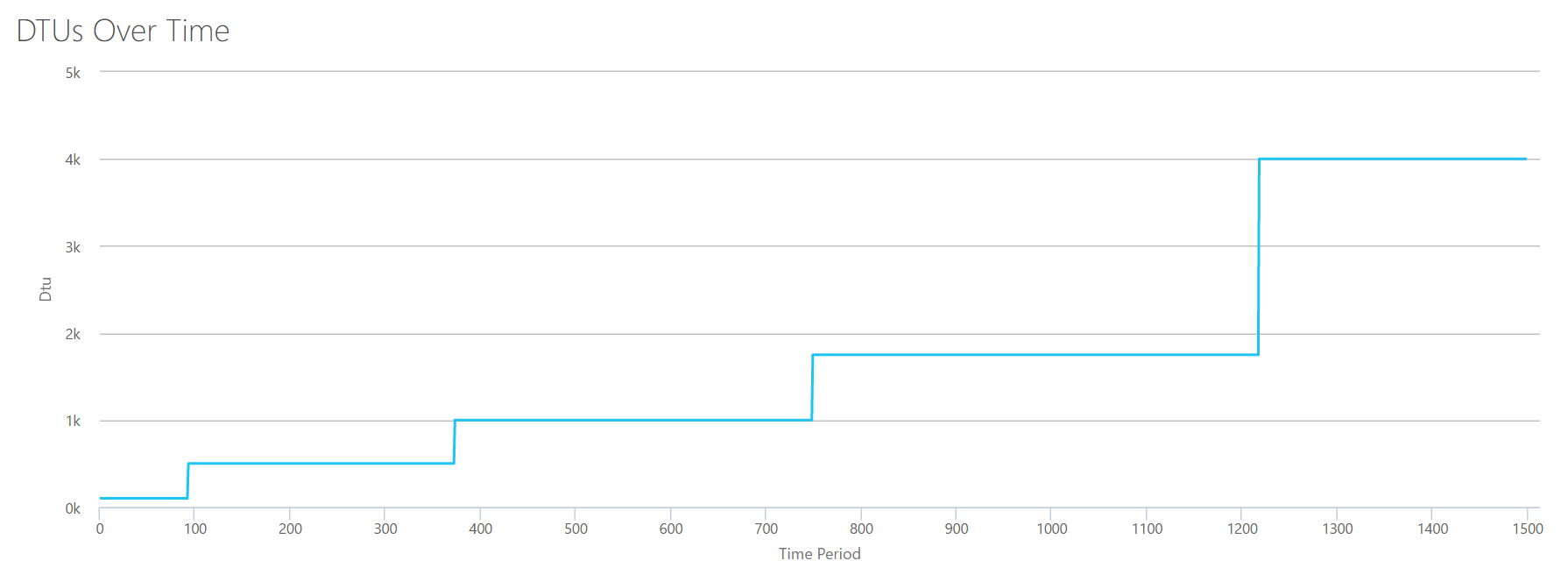
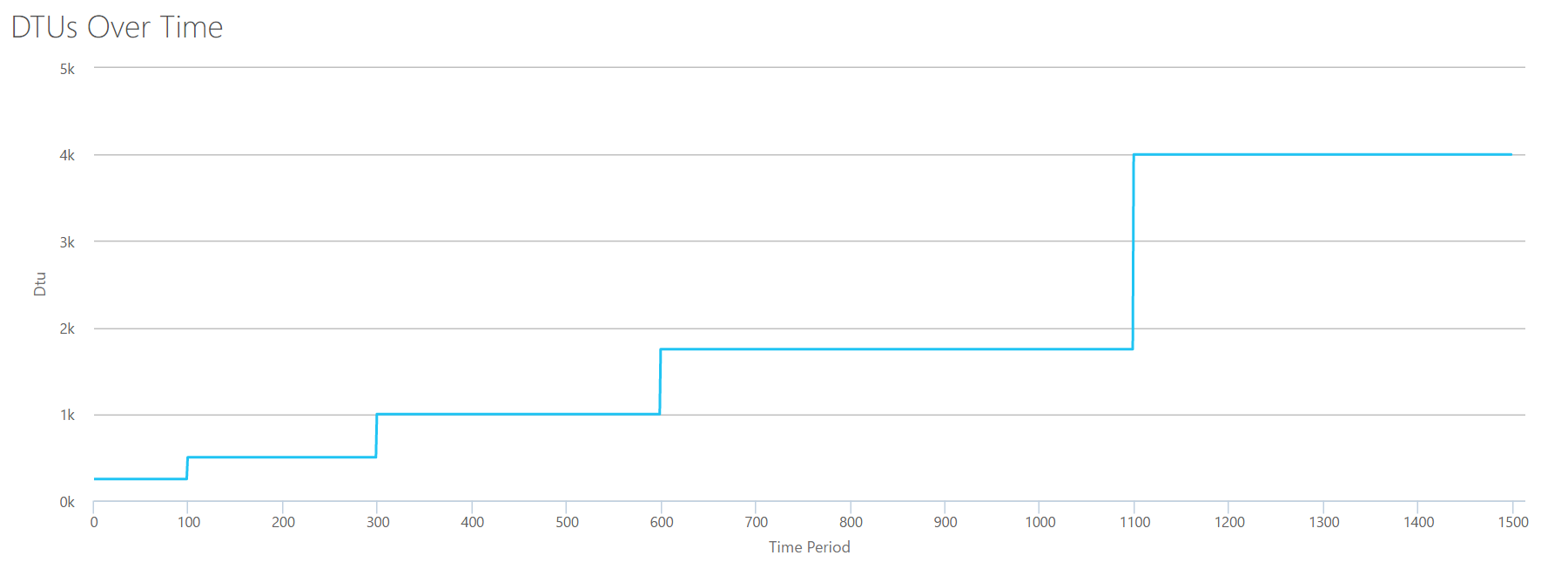
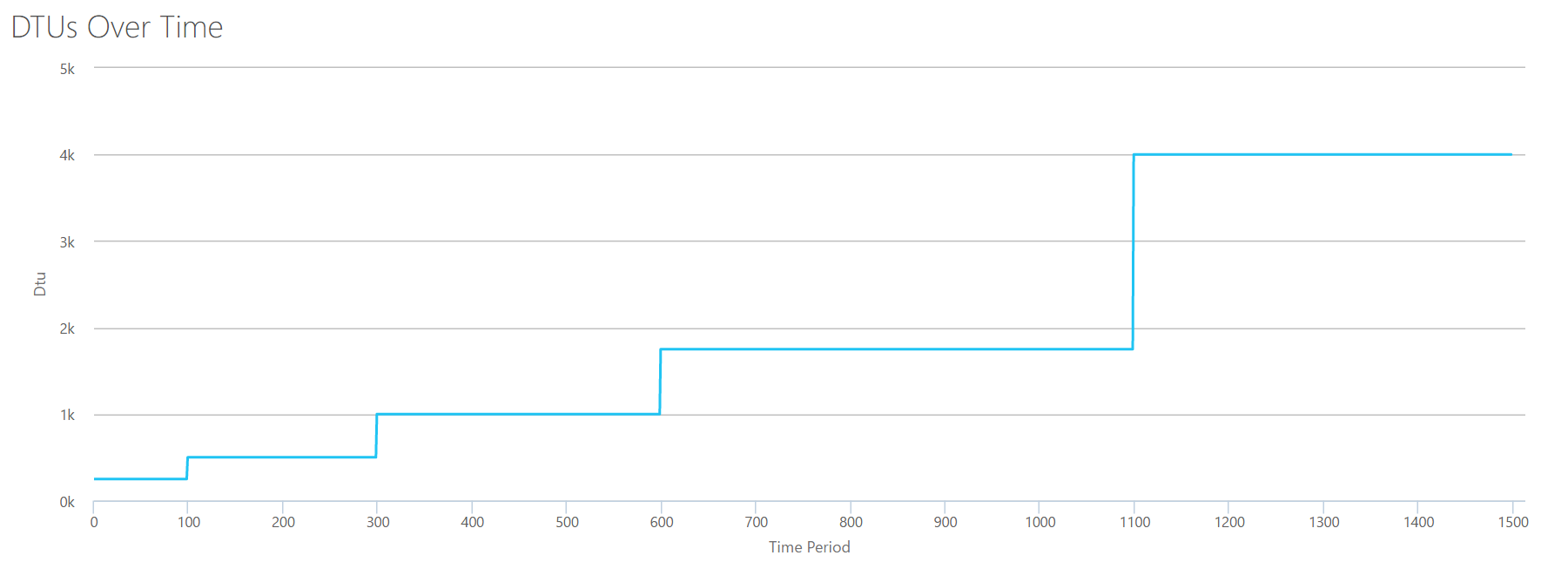
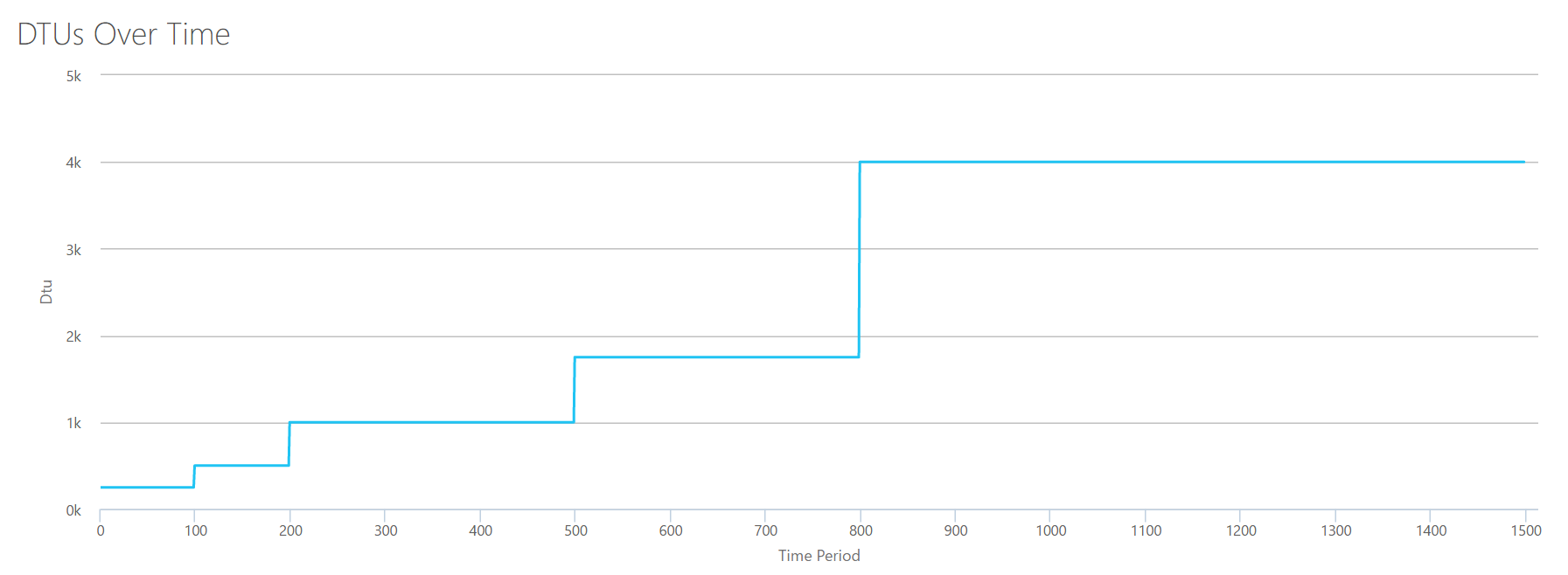
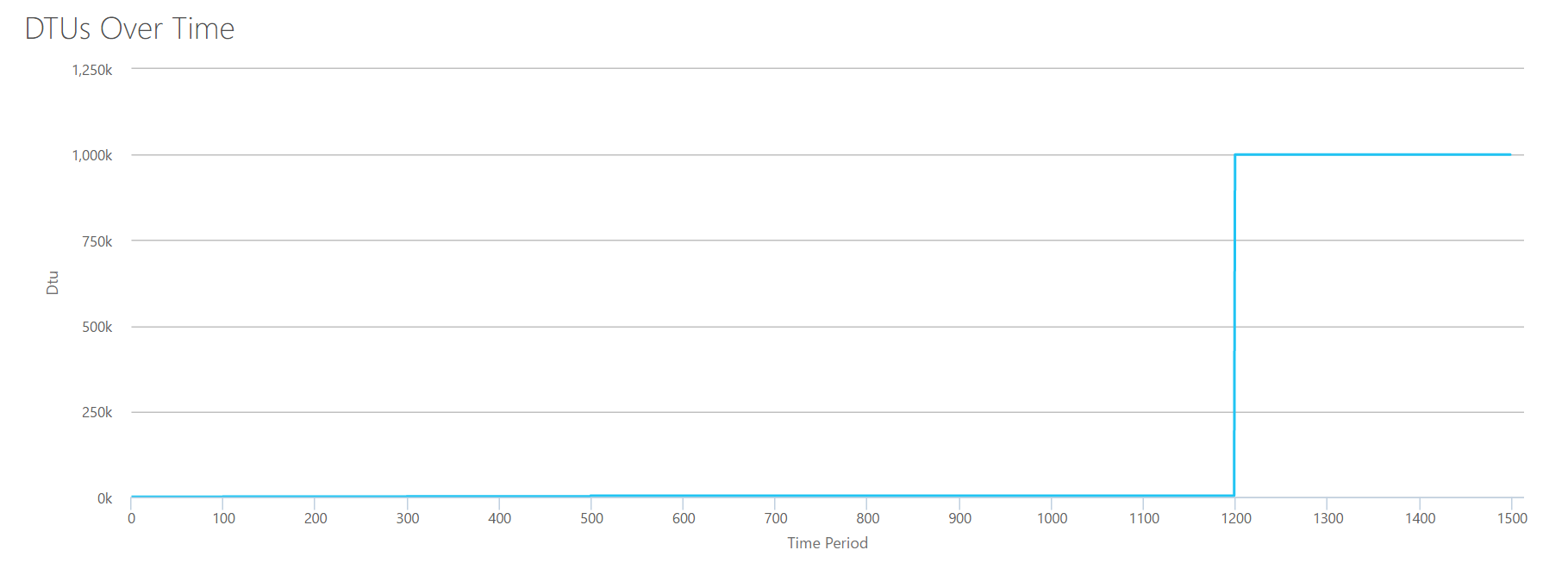
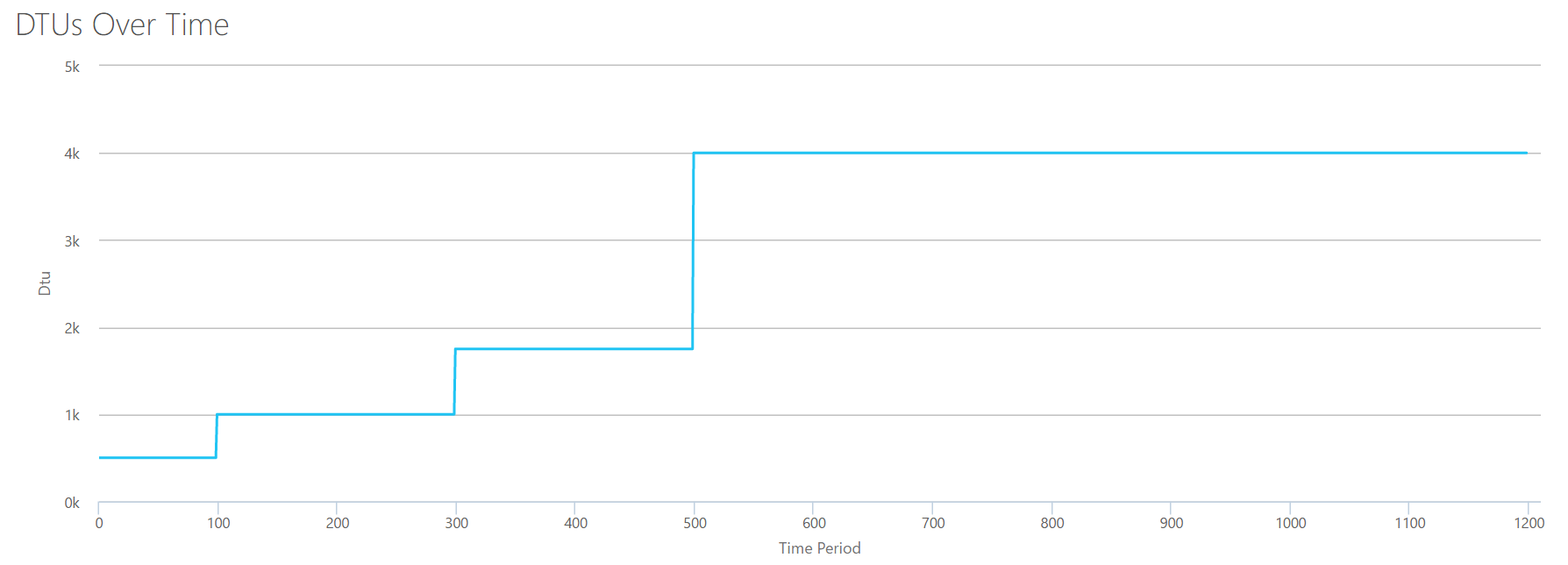


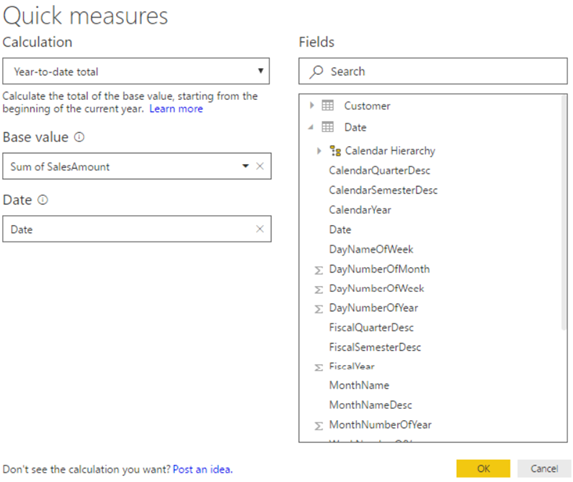


 Derik is a data professional and freshly-minted Microsoft Data Platform MVP focusing on SQL Server. His passion focuses around high availability, disaster recovery, continuous integration, and automated maintenance. His experience has spanned long-term database administration, consulting, and entrepreneurial ventures working in the financial and healthcare industries. He is currently a Senior Database Administrator in charge of the Database Operations team at Subway Franchise World Headquarters. When he is not on the clock, or blogging at SQLHammer.com, Derik devotes his time to the #sqlfamily as the chapter leader for the FairfieldPASS SQL Server user group in Stamford, CT.

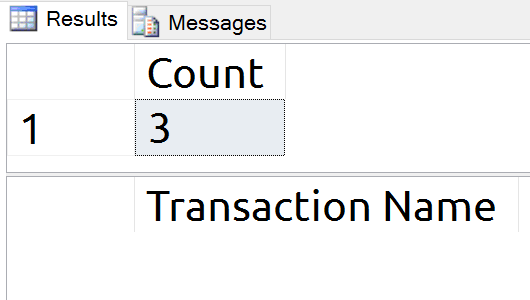

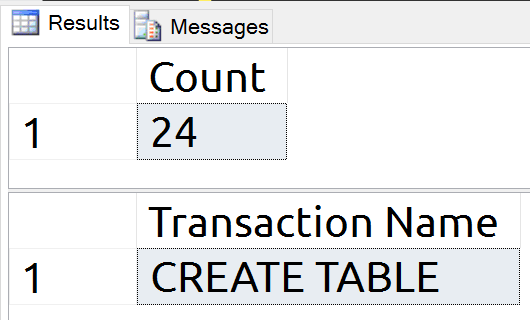
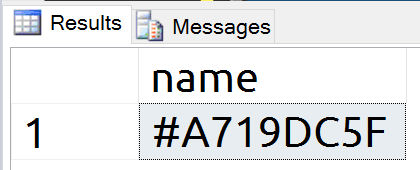
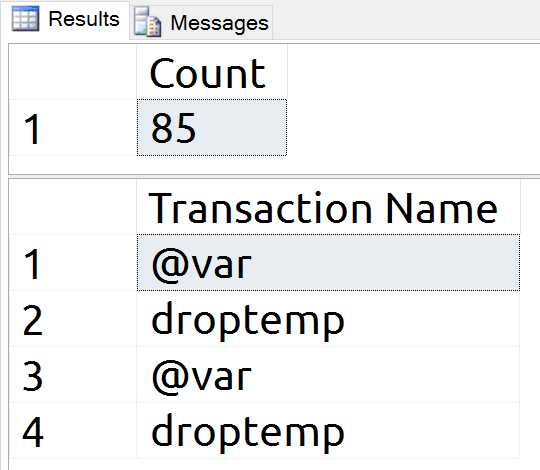
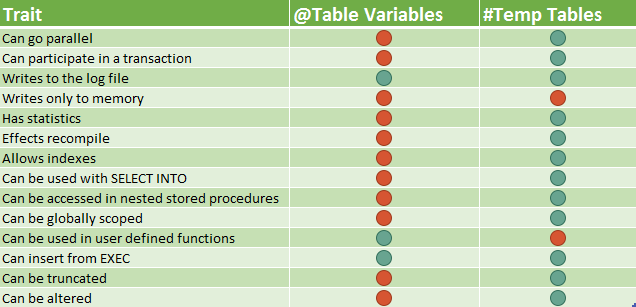
 Derik is a data professional and freshly-minted Microsoft Data Platform MVP focusing on SQL Server. His passion focuses around high availability, disaster recovery, continuous integration, and automated maintenance. His experience has spanned long-term database administration, consulting, and entrepreneurial ventures working in the financial and healthcare industries. He is currently a Senior Database Administrator in charge of the Database Operations team at Subway Franchise World Headquarters. When he is not on the clock, or blogging at SQLHammer.com, Derik devotes his time to the #sqlfamily as the chapter leader for the FairfieldPASS SQL Server user group in Stamford, CT.
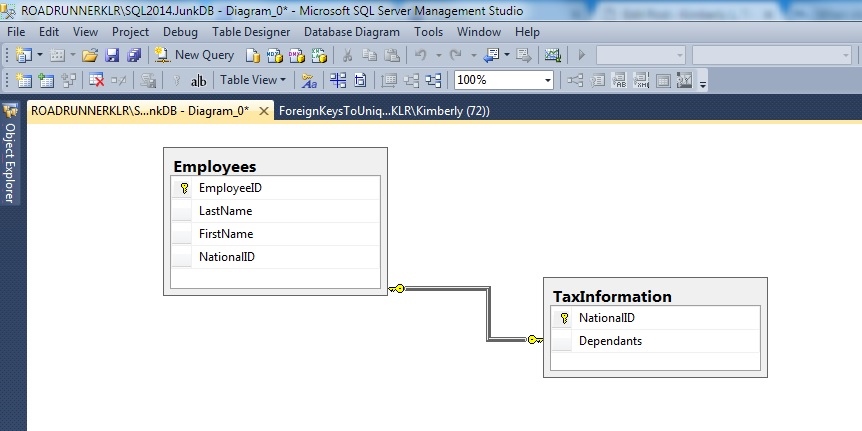


 [3]
[3]