


Read more of this story at Slashdot.
Read more of this story at Slashdot.
Another new feature in SQL 2016 is the Temporal Table (or System Versioning, as its referred to in the documentation). It allows a table to be versioned, in terms of data, and for queries to access rows of the table as they were at some earlier point in time,
I’m quite excited about this, because while we’ve always been able to do this manually, with triggers or CDC or CT, it’s been anything but trivial. I remember trying to implement a form of temporal tables back in SQL 2000, using triggers, and it was an absolute pain in the neck.
So how does it work? Let’s start with a normal un-versioned table.
CREATE TABLE dbo.Stock (
  StockReferenceID INT IDENTITY(1, 1) NOT NULL,
  IssueID INT NULL,
  Condition VARCHAR(10) NULL,
  AvailableQty SMALLINT NULL,
  Price NUMERIC(8, 2) NULL,
  PRIMARY KEY CLUSTERED (StockReferenceID ASC)
);
To make that a temporal table, we need to add two columns, a row start date and a row end date.
ALTER TABLE Stock
  ADD PERIOD FOR SYSTEM_TIME (RowStartDate, RowEndDate),
    RowStartDate DATETIME2 GENERATED ALWAYS AS ROW START HIDDEN NOT NULL DEFAULT GETDATE(),
    RowEndDate DATETIME2 GENERATED ALWAYS AS ROW END HIDDEN NOT NULL DEFAULT CONVERT(DATETIME2, '9999-12-31 23:59:59.99999999');
It’s a little complicated. From my, admittedly limited, testing, the NOT NULL and the DEFAULT are required. The start time’s default needs to be GETDATE() and the end time’s default needs to be the max value of the data type used.
Hidden is an interesting property, it means that the columns won’t appear if SELECT * FROM Stock… is run. The only way to see the column values is to explicitly state them in the SELECT clause.

I wonder if that property will be available for other columns in the future. It would be nice to be able to mark large blob columns as HIDDEN so that SELECT * doesn’t end up pulling many MB per row back.
That ALTER adds the row’s two time stamps. To enable the versioning then just requires
ALTER TABLE Stock
  SET (SYSTEM_VERSIONING = ON);
Once that’s done, the table gains a second, linked, table that contains the history of the rows.

421576540 is the object_id for the Stock table. If is also possible to specify the name for the history table in the ALTER TABLE statement, if preferred.
The history table can be queried directly. The start and end times aren’t hidden in this one.

Or, the temporal table can be queried with a new clause added to the FROM, FOR SYSTEM TIME… Full details at https://msdn.microsoft.com/en-us/library/mt591018.aspx

Very neat.
The one thing that does need mentioning. This is not an audit solution. If the table is altered, history can be lost. If the table is dropped, history is definitely lost. Auditing requirements are such that audit records should survive both. Use this for historical views of how the data looked, and if you need an audit as well, look at something like SQLAudit.
Have you ever wondered what Azure region would be the fastest to host your applications when those applications are accessed from your office? Obviously the closest data center would probably be the best choice (each region has multiple data centers), but how do you know what data center is the closest? And how can you easily confirm the closest data center is the fastest? Well, I recently discovered a site that can help you with that. It’s called AzureSpeed, and it has a number of tests to help you:
There is also a Cloud Region Finder that enables you to quickly lookup the cloud and region information of an application deployment by entering the URL. For example, enter “microsoft.com” and it will return “Azure – North Europe”.
 |
[UPDATE: 5/7/2016 – 9:30am ET] – general updates and corrections. One thing I really love about EMC is everywhere you look, there’s secret projects, innovative efforts that are forked off, efforts to disrupt ourselves, investments and acquisitions always in flight. I take pride in trying to keep a mental map of everything going on, and staying as dialed in as I can be. But sometimes, I totally miss something. That’s not a bummer, because when that inevitable moment of discovery comes – instead of discovering something that is half-baked, I discover something that is nearly done. update: by “done” what I meant here is that unlike a “from a zero start” project, or an investment in a new startup, this is something that has dates, targets, and has a target to “first customers” that is measured in months, not years. Note that later in the article the date we’re putting out is “2017” for release. That’s the case with Project Nitro. We were in a senior staff meeting in April when WHAMMO, I see this thing for the first time (not much earlier than the world at large found out!) – now THAT’S a pleasant surprise! First – understand the use case… There are several extreme-performance NAS markets – Electronic Design Automation (EDA) is one, media/CGI is another, HPC is another, and some analytics use cases is another. When I say “extreme” performance – it’s a case of “as much as possible please”. Project Nitro aims to tackle that – and we think it will smoke anything on the market (including emerging players efforts that are still NOT on the market). This is really, really facemelting. Project Nitro is several things coming together:
Of course, if you compare the density and performance stats to something insane like DSSD, they seem a little pedestrian. Of course – that’s missing one important point. Nitro will have all of the Scale-Out NAS awesomeness that is in Isilon. So… If you have 400 of these bad boys, you get something like this… We’ve been engaging with customers in those vertical markets – and they are STOKED. What’s particularly important is that many of them use Isilon today, and love it… but would really love an “extreme performance pool” they could snap in – while still enjoying all the things they love about Isilon. Let me repeat that:
…. All things they LOVE, now with facemelting, record setting performance for these use cases. For fun, we looked at the stats relative to what’s likely going to be positioned as Nitro’s primary competition (not too many flash-optimized, bladed NAS offers targeted at EDA, Media, HPC :-) Now – neither of these two are generally available yet – so time will tell. We’re aiming for Nitro to be generally and broadly available in 2017. If you want more detail sooner – reach out to your EMC Isilon Specialist! |

Mrdennynow
|
#VMworld 2016 US Public Session Voting open thru May 24th
VMworld 2016 US Public Session Voting open thru…Public Session Voting is the opportunity for the VMware community of experts, customers, partners, bloggers and enthusiasts to cast their votes and help shape the agenda for VMworld 2016. VMware Social Media Advocacy |


Woohoo! I’ll be heading to the US in just over a fortnight for another Storage Field Day event. If you haven’t heard of the very excellent Tech Field Day events, you should check them out. I’m looking forward to time travel and spending time with some really smart people for a few days. It’s also worth checking back on the SFD10 website during the event as there’ll be video streaming and updated links to additional content. You can also see the list of delegates and event-related articles that they’ve published.
I think it’s a great line-up of companies this time around, with some I’m familiar with and some not so much.

I’d also like to publicly thank in advance the nice folk from Tech Field Day (Stephen, Claire and Tom) who’ve seen fit to have me back, as well as my employer for giving me time to attend these events. Also big thanks to the companies presenting.

Click here to learn more about author Marie Crump. The person I call a “data hero” is an indispensable asset in the increasingly data-based business landscape. No organization can do without at least one, and a whole team of them can change everything. Here’s why every company needs a data hero: Data is big — […]
The post Why Your Company Needs a Data Hero (and How to Find One) appeared first on DATAVERSITY.
Woo hoo! Microsoft has announced that SQL Server 2016 will be generally available on June 1st. On that date all four versions of SQL Server 2016 will be available to all users, including brand new ones, MSDN subscribers, and existing customers.
Here is a quick overview of the tons of new features, broken out by edition (click for larger view):

and here is another view on the features available for each edition (click for larger view):

In addition to the on-premises release, Microsoft will also have a virtual machine available on June 1st through its Azure cloud platform to make it real easy for companies to deploy SQL Server 2016 in the cloud. So start planning today!
More info:
Get ready, SQL Server 2016 coming on June 1st
Microsoft SQL Server 2016 will be generally available June 1
SQL Server is the database management system used for storing and retrieving data such as Triggers, Rules, Functions, Tables, and Stored Procedures. Users of SQL Server understand the importance of data backup that can help users restore and recover mistakenly deleted data. Sometimes, user may want to take backup of specific tables from their databases. However, SQL Server does not provide any option for Table-level backup. The article will be discussing alternative ways on how to take table level backup in SQL Server.
One possible method to copy SQL Table from one SQL database to another is with the help of BCP utility. This utility is a command line tool that can be used to import large number of new rows into SQL server tables or to export data out of tables into data files.
The BCP queries needs to be executed in SSMS/ Windows Command Prompt or as a batch script. In order to write/edit scripts, user needs to enable SQLCMD mode in SSMS, which can be enabled by selecting SQLCMD mode under Query.


This method is better than Generate scripts option when the user has a very large table or there are binary data in it as Scripts method is only convenient for small tables having less data. In addition, it is an ideal way to take a backup when user wants to transfer SQL table from one server to another where connection cannot be made.
Second Method involves copying of the SQL Table using SELECT INTO statement. The basic statement for copying SQL table is as follows:
SELECT *
INTO New Table
FROM Original Table
The above statement will copy the desired contents of ‘Original Table’ to ‘New Table’ after creating the ‘New Table’. The statement also allows user to use WHERE clauses for filtering of data from the table, if not the entire table should not be backed up. This method is just a way of copying the SQL table to another new table that act as a backup. The good point of this method is that it can copy number of rows in the table very quickly. The disadvantages are it cannot carry over the keys, indexes, and constraints of the table and backup are still stored in the database.
The third method to backup table to another server for disaster recovery or data loss prevention is to script the table using Generate Scripts option from Tasks.
Steps to script the SQL Table in SQL Server 2005/2008 are as follows:


Generating Scripts method allows copy of any of the objects associated with the table. However, this method is slow and is not recommended for backup of large tables.
Steps for backup in SQL Server versions 2008R2 and above are as follows:
The steps are almost similar but the wizard is different and the options are named little different.


The page has been aimed to discuss the importance of backup of data in SQL Server. It further defines the ways to take backup of specific database objects like Table. The user can take table level backup in SQL Server by using BCP utility, SELECT INTO query or by Generating scripts of the table. The advantages and disadvantages of each kind of backup have been included in the page. It will guide user to choose the desired backup method according to the size of table.
This post was authored by Ayo Olubeko, Program Manager, Data Developer Group.
Two practices drive successful modern applications today – a fast time to market, and a relentless focus on listening to customers and rapidly iterating on their feedback. This has driven numerous improvements in software development and management practices. In this post, I will chronicle how we’ve embraced these principles to supercharge management and development experiences using SQL Server tooling.
SQL Server 2016 delivers many SQL tools enhancements that converge on the same goal of increasing day-to-day productivity, while developing and managing SQL servers and databases on any platform. This post provides an overview of the improvements and I’ll also drop a few hints about what’s on the way. With SQL Server 2016:
We received insightful feedback from customers about how difficult it was to find and install tooling for SQL Server, so we’ve taken a few steps to ensure the experience in SQL Server 2016 is as easy as possible.

The SQL Server tools download page is the unified place to find and install all SQL Server-related tools. The latest version of SQL tools doesn’t just support SQL Server 2016, but it also supports all earlier versions of SQL Server, so there is no need to install SQL tools per SQL Server version. In addition, you don’t need a SQL Server license to install and use these SQL tools.
SSMS has a new one-click installer that makes it easy to install, whether you’re on a server in your data center or on your laptop at home. Additionally, the installer supports administrative installs for environments not connected to the Internet.
 SQL Server Data Tools (SSDT) is the name for all your SQL tools installed into Visual Studio. With just one installation of SSDT in Visual Studio 2015, developers can easily integrate efforts to develop applications for SQL Server, Analysis Services, Reporting Services, Integration Services and any application in Visual Studio 2015 for SQL Server 2016 – or older versions as needed.
SSDT replaces/unifies older tools such as BIDS, SSDT-BI and the database-only SSDT, eliminating the confusion about which version of Visual Studio to use. From Visual Studio 2015 and up you’ll have a simple way to install all of the SQL tools you use every day.
 One of the goals for SQL tools is to provide world-class support for your SQL estate wherever it may be. This could be comprised of SQL servers running on-premises or in the cloud, or some fantastic hybrid of both. We support it all. In order to enable world class coverage of this diverse estate, we have adopted a monthly release cadence for our SQL tools. This faster release cycle brings you additional value and improvements – whether it’s enabling functionality to take advantage of new Microsoft Azure cloud features, issuing a bug fix to address particularly painful errors, or even creating a new wizard/dialog to streamline management of your SQL Server.
These stand-alone SSMS releases include an update checker that informs you of newer SSMS releases when they become available. SSDT update notification continues to be fully integrated with Visual Studio’s notification system. You can keep up to date and learn more about the SSMS and SSDT releases at the SQL Server Release Services blog.
 Discover and seamlessly connect to your databases anywhere
No more need to memorize server and database names. With just a few clicks, the new connection experience in SQL Server Data Tools helps you automatically discover and connect to all your database assets using favorites, recent history or by simply browsing SQL servers and databases on your local PC, network and Azure. You can also pin databases you frequently connect so they’re always there when you need them. In addition, the new connection experience intelligently detects the type of connection you need, automatically configures default properties with sensible values and guides you through firewall settings for SQL Database and Data Warehouse.
The new firewall rule dialog in SSMS allows you to create an Azure database firewall rule within the context of connecting to your database. You don’t have to login to the Azure portal and create a firewall rule prior to connecting to your Azure SQL Database with SSMS. The firewall rule dialog auto-fills the IP address of your client machine and allows you to optionally whitelist an IP range to allow other connections to the database.

SQL Server 2016 is packed with advanced, new features including Always Encrypted, Stretch Database, enhancements with In-Memory Table Optimization and new Basic Availability Groups for AlwaysOn — just to name a few. SSMS delivers highly intelligent, easy-to-click-through wizard interfaces that help you enable these new features and make your SQL Server and Database highly secure, highly available and faster in just a few minutes. There’s an easy learning curve, even though the technology that’s under the hood enabling your business is powerful and complex.

Features such as the Data-tier Application Framework (DACFx) technology and SSDT have helped make SQL Server the market leader of model-based database lifecycle management technology. DACFx and SSDT offer a comprehensive development experience by supporting all database objects in SQL Server 2016, so developers can develop a database in a declarative way using a database project.
Using Visual Studio 2015, version control and Team Foundation Server 2015 or Visual Studio Team Services in the cloud, developers can automate database lifecycle management and truly adopt a DevOps model for rapid application and database development and deployment.
In the months to come, you can look forward to continued enhancements in both SSMS and SSDT that focus on increasing the ease with which you develop and manage data in any SQL platform.
To this end, SSMS will feature performance enhancements and streamlined management and configuration experiences that build on the new capabilities provided by the Visual Studio 2015 shell. Similarly, SSDT will deliver performance improvements and feature support to help database developers handle schema changes more efficiently. Learn more about tooling improvements for SQL Server 2016 in the video below.
Improvements like these can’t happen in a vacuum. Your voice and input are absolutely essential to building the next generation of SQL tools. And the monthly release cycle for our SQL tools allows us to respond faster to the issues you bring to our attention. Please don’t forget to vote on Connect bugs or open suggestions for features you would like to see built.
See the other posts in the SQL Server 2016 blogging series.

[Edit 2016: Check out my new resource – a comprehensive library of all wait types and latch classes – see here.]
A question came up in class today about easily seeing the degree of parallelism for parallel query plans, so I’ve updated my waiting tasks script to pull in the dop field from sys.dm_exec_query_memory_grants. I’ve also added in a URL field that points into the new waits library, and shortened some of the column names.
Here it is for your use.
Enjoy!
(Note that ‘text’ on one line does not have delimiters because that messes up the code formatting plugin):
/*============================================================================
  File:     WaitingTasks.sql

  Summary:  Snapshot of waiting tasks

  SQL Server Versions: 2005 onwards
------------------------------------------------------------------------------
  Written by Paul S. Randal, SQLskills.com

  (c) 2016, SQLskills.com. All rights reserved.

  For more scripts and sample code, check out
    http://www.SQLskills.com

  You may alter this code for your own *non-commercial* purposes. You may
  republish altered code as long as you include this copyright and give due
  credit, but you must obtain prior permission before blogging this code.

  THIS CODE AND INFORMATION ARE PROVIDED "AS IS" WITHOUT WARRANTY OF
  ANY KIND, EITHER EXPRESSED OR IMPLIED, INCLUDING BUT NOT LIMITED
  TO THE IMPLIED WARRANTIES OF MERCHANTABILITY AND/OR FITNESS FOR A
  PARTICULAR PURPOSE.
============================================================================*/
SELECT
    [owt].[session_id] AS [SPID],
    [owt].[exec_context_id] AS [Thread],
    [ot].[scheduler_id] AS [Scheduler],
    [owt].[wait_duration_ms] AS [wait_ms],
    [owt].[wait_type],
    [owt].[blocking_session_id] AS [Blocking SPID],
    [owt].[resource_description],
    CASE [owt].[wait_type]
        WHEN N'CXPACKET' THEN
            RIGHT ([owt].[resource_description],
                CHARINDEX (N'=', REVERSE ([owt].[resource_description])) - 1)
        ELSE NULL
    END AS [Node ID],
    [eqmg].[dop] AS [DOP],
    [er].[database_id] AS [DBID],
    CAST ('https://www.sqlskills.com/help/waits/' + [owt].[wait_type] as XML) AS [Help/Info URL],
    [eqp].[query_plan],
    [est].text
FROM sys.dm_os_waiting_tasks [owt]
INNER JOIN sys.dm_os_tasks [ot] ON
    [owt].[waiting_task_address] = [ot].[task_address]
INNER JOIN sys.dm_exec_sessions [es] ON
    [owt].[session_id] = [es].[session_id]
INNER JOIN sys.dm_exec_requests [er] ON
    [es].[session_id] = [er].[session_id]
FULL JOIN sys.dm_exec_query_memory_grants [eqmg] ON
    [owt].[session_id] = [eqmg].[session_id]
OUTER APPLY sys.dm_exec_sql_text ([er].[sql_handle]) [est]
OUTER APPLY sys.dm_exec_query_plan ([er].[plan_handle]) [eqp]
WHERE
    [es].[is_user_process] = 1
ORDER BY
    [owt].[session_id],
    [owt].[exec_context_id];
GO
The post Updated sys.dm_os_waiting_tasks script to add query DOP appeared first on Paul S. Randal.
As I mentioned in my blog “Why Business Like Yours Choose Power BI Over SiSense”, expect attack from other vendors to intensify as they find themselves fighting an increasingly uphill battle against Power BI. As we’ve seen, Power BI has indeed disrupted their sales cycles. In this blog, I’m reviewing the “10 Ways Power BI Falls Short” presentation that Tableau has published on their site. Tableau, of course, is a fine tool for what it’s designed to do – mainly self-service BI. But as we’ve all seen tools come and go as seasons. A few years ago it was all about Qlik, then Tableau, and now 2016 seems to be the year of Power BI. My advice has always been that the focus should be on sound strategy, data integration, and data quality, and not tools. The last thing you want is a “cool” tool that over promises but under delivers and you’re left with nothing when you decide to move on (and some of the vendors really cross the line during their sales pitch). So, we have to keep them honest!
Anyway, let’s take a look at some the claims that Tableau has made by going through their slides. This is, of course, a one-sided perspective that extolls the Tableau virtues. I plan a future post “10 Ways Tableau Falls Short” to fill in the gap. Also, Tableau should get in the habit to update this document frequently given the fact that Power BI changes weekly and some of the claims are no longer valid.
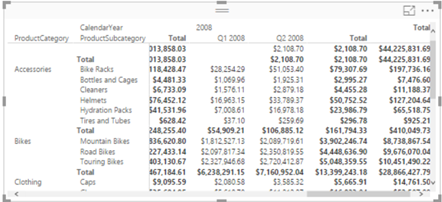
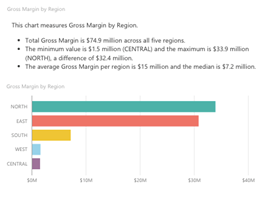
Overall, I believe that some of the points Tableau makes are insignificant while Power BI has already addressed others. Agree? Stay tuned for a “10 Ways Tableau Falls Short” blog.
In Azure, there previously has been only one kind of storage account, which is now called a “General Purpose” storage account. Just introduced is a new kind of storage account, called “Cool Blob Storage”. When creating a storage account, the “Account kind” will now list two options: the existing type “General purpose” as well as the new type “Blob storage”.
“General Purpose” storage accounts provide storage for blobs, files, tables, queues and Azure virtual machine disks under a single account. “Cool Blob Storage” storage accounts are specialized for storing blob data and support choosing an access tier, which allows you to specify how frequently data in the account is accessed. Choose an access tier that matches your storage needs and optimizes costs.
The access tiers available for blob storage accounts are “hot” and “cold”. In general, hot data is classified as data that is accessed very frequently and needs to be highly durable and available. On the other hand, cool data is data that is infrequently accessed and long-lived. Cool data can tolerate a slightly lower availability, but still requires high durability and similar time to access and throughput characteristics as hot data. For cool data, slightly lower availability SLA and higher access costs are acceptable tradeoffs for much lower storage costs. Azure Blob storage now addresses this need for differentiated storage tiers for data with different access patterns and pricing model. So you can now choose between Cool and Hot access tiers to store your less frequently accessed cool data at a lower storage cost, and store more frequently accessed hot data at a lower access cost. The Access Tier attribute of hot or cold is set at an account level and applies to all objects in that account. So if you want to have both a hot access tier and a cold access tier, you will need two accounts. If there is a change in the usage pattern of your data, you can also switch between these access tiers at any time.
| Hot access tier | Cool access tier | |
| Availability | 99.9% | 99% |
| Availability (RA-GRS reads) |
99.99% | 99.9% |
| Usage charges | Higher storage costs Lower access and transaction costs |
Lower storage costs Higher access and transaction costs |
| Minimum object size | N/A | |
| Minimum storage duration | N/A | |
| Latency (Time to first byte) |
milliseconds | |
| Performance and Scalability | Same as general purpose storage accounts | |
Some common scenarios with the Cool tier include: backup data, disaster recovery, media content, social media photos and videos, scientific data, and so on.

Going forward, Blob storage accounts are the recommended way for storing blobs, as future capabilities such as hierarchical storage and tiering will be introduced based on this account type. Note that Blob storage accounts do not yet support page blobs or Zone-redundant storage (ZRS).
More info:
Introducing Azure Cool Blob Storage
Azure Blob Storage: Cool and Hot tiers
Microsoft launches ‘cool blob’ Azure storage – at 1¢ per GB monthly
Microsoft Unveils Cheaper Azure Cool Blob Storage Option
It was long time ago I posted a blog from this series. That was also due to SQLDay conference preparation.
I have found a very interesting series posted by Aaron Bertrand (who will be one of the stars during this conference). I strongly advice to take some time and read these articles. And those are only the newest ones!
Hope you will have a lot of fun reading all of them.
|
Cheers Damian |
by Angela Guess Katherine Noyes reports in CIO.com, “For the past three years executive recruiter Burtch Works has been surveying data-science professionals about salaries and other related topics. Burtch Works defines data scientists as professionals who can work with enormous sets of unstructured data and use analytics to get meaning out of them. Published on […]
The post New Report Offers 5 Reasons to Become a Data Scientist appeared first on DATAVERSITY.
by Angela Guess Ben Dickson recently wrote in TechCrunch, “The fact that plain passwords are no longer safe to protect our digital identities is no secret. For years, the use of two-factor authentication (2FA) and multi-factor authentication (MFA) as a means to ensure online account security and prevent fraud has been a hot topic of […]
The post What Multi-Factor Authentication Has to Gain from Big Data appeared first on DATAVERSITY.
Yesterday in class we had a discussion around the conceptual problem of reconciling the fact that SQL Server does set-based operations, but that it does them in query plans that pass single rows around between operators. In other words, it uses iterative processing to implement set-based operators.
The crux of the discussion is: if SQL Server is passing single rows around, how is that set-based operations?
I explained it in two different ways…
This explanation compares two ways of doing the following logical operation using SQL Server: update all the rows in the Products table where ProductType = 1 and set the Price field to be 10% higher.
The cursor based way (row-by-agonizing-row, or RBAR) would be something like the following:
DECLARE @ProductID   INT;
DECLARE @Price       FLOAT;

DECLARE [MyUpdate] CURSOR FAST_FORWARD FOR
SELECT [ProductID], [Price]
FROM [Products]
WHERE [ProductType] = 1;

OPEN [MyUpdate];

FETCH NEXT FROM [MyUpdate] INTO @ProductID, @Price;

WHILE @@FETCH_STATUS = 0
BEGIN
    UPDATE [Products]
    SET [Price] = @Price * 1.1
    WHERE [ProductID] = @ProductID;

    FETCH NEXT FROM [MyUpdate] INTO @ProductID, @Price;
END

CLOSE [MyUpdate];
DEALLOCATE [MyUpdate];
This method has to set up a scan over the Products table based on the ProductType, and then runs a separate UPDATE transaction for each row returned from the scan, incurring all the overhead of setting up the UPDATE query, starting the transaction, seeking to the correct row based on the ProductID, updating it, and tearing down the transaction and query framework again each time.
The set-based way of doing it would be:
UPDATE [Products]
SET [Price] = [Price] * 1.1
WHERE [ProductType] = 1;
This will have one scan based on the ProductType, which will update rows matching the ProductType, but the query, transaction, and scan are only set up once, and then all the rows are processed, one-at-a-time inside SQL Server.
The difference is that in the set-based way, all the iteration is done inside SQL Server, in the most efficient way it can, rather than manually iterating outside of SQL Server using the cursor.
This explanation involves a similar problem but not involving SQL Server. Imagine you need to acquire twelve 4′ x 8′ plywood sheets from your local home improvement store.
You could drive to and from the store twelve times, and each time you need to go into the store, purchase the sheet, and wait for a staff member to become available to load the sheet into your pickup truck, then drive home and unload the sheet.
Or you could drive to the store once and purchase all twelve sheets in one go, with maybe four staff members making three trips each out to your pickup, carrying one sheet each time. Or even just one staff member making twelve trips out to your pickup.
Which method is more efficient? Multiple trips to the store or one trip to the store, no matter how many staff members are available to carry the sheets out?
No-one in their right mind is going to make twelve trips to the home improvement store when one will suffice. Just like no developer should be writing cursor/RBAR code to perform an operation that SQL Server can do in a set-based manner (when possible).
Set-based operations don’t mean that SQL Server processes the whole set at once – that’s clearly not possible as most sets have more rows than your server has processors (so all the rows in the set simply *can’t* be processed at the same time, even if all processors were running the same code at the same time) – but that it can process the set very, very efficiently by only constructing the processing framework (i.e. query plan with operators, scans, etc.) for the operation once and then iterating over the set of rows inside this framework.
PS Check out the technical comment from Conor Cunningham below (Architect on the SQL Server team, and my counterpart on the Query Optimizer when I was a Dev Lead in the Storage Engine for SQL Server 2005)
The post Reconciling set-based operations with row-by-row iterative processing appeared first on Paul S. Randal.
by Angela Guess Christopher Tozzi recently wrote in The VAR Guy, “[R]elational databases are great if you know ahead of time what structure your data will take, and have a sense of how much data you need to store. But what if your storage needs are less predictable? What if they need to be highly […]
The post 3 Key Advantages of NoSQL Databases appeared first on DATAVERSITY.
Click here to learn more about author Jon Bock. There has been much anticipation that businesses would find relief for their analytics headaches in Hadoop, the open source software for distributed processing and distributed storage of large data sets across clusters of commodity or cloud hardware. There is no doubt Hadoop systems can handle large […]
The post No Relief with Hadoop – Managing The Big Data Reality Gap appeared first on DATAVERSITY.
In a previous blog, I reviewed the claims that Tableau made in their “10 Ways Power BI Falls Short” presentation. To be fair to Power BI, in this blog I’ll list 10 areas where I believe Tableau falls short compared to Power BI.
In this section, I’ll review some general implementation and cost considerations that in my opinion make Power BI more compelling choice than Tableau.
Next, I’ll review specific Power BI strengths for different user types.
By “business users”, I’ll mean information workers that don’t have the skills or desire to create data models.
Data analysts (power users) are the primary audience for self-service BI. Power BI excels in the following areas:
Besides the ability to integrate Power BI to implement synergistic solutions, pros can build hybrid solutions:
Developers has much to gain from the Power BI open extensible architecture.
To recap, Tableau is a fine tool but it will be increasingly harder for it to compete against Power BI. Expect one or more of the following to happen to Tableau and other vendors within a year:
I often hear that Power BI is great but it’s not mature. In my opinion, you should view Power BI to be as mature as Tableau and other tools. That’s because the Power BI building blocks have been around for many years, including xVelocity (the in-memory data engine where imported data is stored), Power Query, Power Pivot, Power View, Tabular, and Azure cloud infrastructure.
I’d love to hear your feedback on Tableau vs. Power BI.

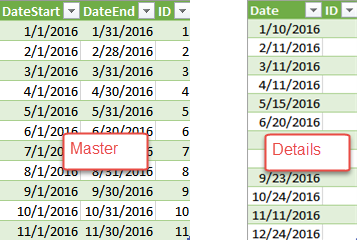
Scenario: Suppose you have two source tables coming from different data sources, such as Excel or text files, as shown in in the screenshot below. The Master table has a DateStart and DateEnd columns that denotes a date range for ID. The Details table has some date (and possibly time) values. You need to look up the ID column from the Master table where the Details.Date column falls between the DateStart and DateEnd so that you can create a relationship Details.ID ð Master.ID. I probably make this more complex because of a real-life scenario where this requirement popped up. But the same approach can be applied when you need to implement simpler lookups in Power Query.
Solution: There are several options to implement this requirement:
ID = CALCULATE(MIN(Master[ID]), FILTER(Master, Master[DateStart]<=Details[Date] && Master[DateEnd] >= Details[Date]))
However, when you try to create a relationship, you’ll get a “circular dependency” error so you might need to copy the table.
let
GetKey = (SourceDate as date) =>
let
Source = Table.SelectRows(Master, each [DateStart]<=SourceDate and SourceDate<=[DateEnd]),
Key = if Table.IsEmpty (Source) then null else Source[ID]{0}
in
Key
in
GetKey
In this case, the function takes a Date argument. When the function is invoked for each row in the Details table, the query will pass the value of the Date column to this argument. Then, Table.SelectRows filters the Master table using the inequality condition. If the filtered table is empty, the function returns null so that it doesn’t error out when attempting to get to the ID value. Otherwise, the function returns the first value in the ID column, assuming that there will be at most a single row matched. The attached sample demonstrates the solution modeled in Excel. The PQLookupData file simulates the source data, while the PQLookup file has the data model and queries.
It’s finally ready!
For the last two years, I’ve been working on-and-off on a new community resource. It was postponed during 2015 while I mentored 50+ people, but this year I’ve had a bunch of time to work on it.
I present to the community a comprehensive library of all wait types and latch classes that have existed since SQL Server 2005 (yes, it includes 2016 waits and latches).
The idea is that over time, this website will have the following information about all wait types and latch classes:
As of today, I have complete information for more than 225 common wait types (897 entries in the library) and 26 common latch classes (185 entries in the library), and I’m adding more information constantly.
If there’s one that I haven’t done yet, and you’re really interested in it, click the email link on the page to let me know. Also, if you’ve seen something be a bottleneck that I haven’t, let me know so I can update the relevant page too.
I’m doing this because there is so little information about waits and latches available online and I know that people are constantly searching for information about them. This is very much a labor of love for me as wait statistics are now my favorite area to teach.
Waiting until it’s complete isn’t feasible, so it’s open and available for use now!
Check it out at https://www.SQLskills.com/help/waits and https://www.SQLskills.com/help/latches, or jump to some examples PAGELATCH_EX, SOS_SCHEDULER_YIELD, WRITELOG, CXPACKET.
Enjoy!
The post Announcing the comprehensive SQL Server Wait Types and Latch Classes Library appeared first on Paul S. Randal.

T-SQL Tuesday #78 is being hosted by Wendy Pastrick, and the challenge this month is simply to "learn something new and blog about it." Her blurb leans toward new features in SQL Server 2016, but since I've blogged and presented about many of those, I thought I would explore something else first-hand that I've always been genuinely curious about.
I've seen multiple people state that a heap can be better than a clustered index for certain scenarios. I cannot disagree with that. One of the interesting reasons I've seen stated, though, is that a RID Lookup is faster than a Key Lookup. I'm a big fan of clustered indexes and not a huge fan of heaps, so I felt this needed some testing.
So, let's test it!
I thought it would be good to create a database with two tables, identical except that one had a clustered primary key, and the other had a non-clustered primary key. I would time loading some rows into the table, updating a bunch of rows in a loop, and selecting from an index (forcing either a Key or RID Lookup).
This question often comes up, so to clarify the important details about this system, I'm on an 8-core VM with 32 GB of RAM, backed by PCIe storage. SQL Server version is 2014 SP1 CU6, with no special configuration changes or trace flags running:
I created a database with plenty of free space in both the data and log file in order to prevent any autogrow events from interfering with the tests. I also set the database to simple recovery to minimize the impact on the transaction log.
CREATE DATABASE HeapVsCIX ON
(
  name = N'HeapVsCIX_data',
  filename = N'C:\...\HeapCIX.mdf',
  size = 100MB, filegrowth = 10MB
)
LOG ON
(
  name = N'HeapVsCIX_log',
  filename = 'C:\...\HeapCIX.ldf',
  size = 100MB, filegrowth = 10MB
);
GO
ALTER DATABASE HeapVsCIX SET RECOVERY SIMPLE;
As I said, two tables, with the only difference being whether the primary key is clustered.
CREATE TABLE dbo.ObjectHeap
(
  ObjectID int PRIMARY KEY NONCLUSTERED,
  Name sysname,
  SchemaID int,
  ModuleDefinition nvarchar(max)
);
CREATE INDEX oh_name ON dbo.ObjectHeap(Name) INCLUDE(SchemaID);

CREATE TABLE dbo.ObjectCIX
(
  ObjectID INT PRIMARY KEY CLUSTERED,
  Name sysname,
  SchemaID int,
  ModuleDefinition nvarchar(max)
);
CREATE INDEX oc_name ON dbo.ObjectCIX(Name) INCLUDE(SchemaID);
I could monitor CPU and all of that, but really the curiosity is almost always around runtime. So I created a logging table to capture the runtime of each test:
CREATE TABLE dbo.Timings
(
  Test varchar(32) NOT NULL,
  StartTime datetime2 NOT NULL DEFAULT SYSUTCDATETIME(),
  EndTime datetime2
);
So, how long does it take to insert 2,000 rows, 100 times? I'm grabbing some pretty basic data from sys.all_objects, and pulling the definition along for any procedures, functions, etc.:
INSERT dbo.Timings(Test) VALUES('Inserting Heap');
GO

TRUNCATE TABLE dbo.ObjectHeap;
INSERT dbo.ObjectHeap(ObjectID, Name, SchemaID, ModuleDefinition)
SELECT TOP (2000) [object_id], name, [schema_id], OBJECT_DEFINITION([object_id])
FROM sys.all_objects ORDER BY [object_id];

GO 100
UPDATE dbo.Timings SET EndTime = SYSUTCDATETIME() WHERE EndTime IS NULL;
GO

-- CIX:
INSERT dbo.Timings(Test) VALUES('Inserting CIX');
GO

TRUNCATE TABLE dbo.ObjectCIX;
INSERT dbo.ObjectCIX(ObjectID, Name, SchemaID, ModuleDefinition)
SELECT TOP (2000) [object_id], name, [schema_id], OBJECT_DEFINITION([object_id])
FROM sys.all_objects ORDER BY [object_id];

GO 100
UPDATE dbo.Timings SET EndTime = SYSUTCDATETIME() WHERE EndTime IS NULL;For the update test, I just wanted to test the speed of writing to a clustered index vs. a heap in a very row-by-row fashion. So I dumped 200 random rows into a #temp table, then built a cursor around it (the #temp table merely ensures that the same 200 rows are updated in both versions of the table, which is probably overkill).
CREATE TABLE #IdsToUpdate(ObjectID int PRIMARY KEY CLUSTERED);

INSERT #IdsToUpdate(ObjectID)
  SELECT TOP (200) ObjectID
  FROM dbo.ObjectCIX ORDER BY NEWID();
GO

INSERT dbo.Timings(Test) VALUES('Updating Heap');
GO
-- update speed - update 200 rows 1,000 times

DECLARE @id int;
DECLARE c CURSOR LOCAL FORWARD_ONLY
  FOR SELECT ObjectID FROM #IdsToUpdate;

OPEN c; FETCH c INTO @id;
WHILE @@FETCH_STATUS <> -1
BEGIN
  UPDATE dbo.ObjectHeap SET Name = REPLACE(Name,'s','u') WHERE ObjectID = @id;
  FETCH c INTO @id;
END

CLOSE c; DEALLOCATE c;
GO 1000

UPDATE dbo.Timings SET EndTime = SYSUTCDATETIME() WHERE EndTime IS NULL;
GO

INSERT dbo.Timings(Test) VALUES('Updating CIX');
GO

DECLARE @id int;
DECLARE c CURSOR LOCAL FORWARD_ONLY
  FOR SELECT ObjectID FROM #IdsToUpdate;

OPEN c; FETCH c INTO @id;
WHILE @@FETCH_STATUS <> -1
BEGIN
  UPDATE dbo.ObjectCIX SET Name = REPLACE(Name,'s','u') WHERE ObjectID = @id;
  FETCH c INTO @id;
END

CLOSE c; DEALLOCATE c;
GO 1000

UPDATE dbo.Timings SET EndTime = SYSUTCDATETIME() WHERE EndTime IS NULL;So, above you saw that I created an index with Name as the key column in each table; in order to evaluate the cost of performing lookups for a significant amount of rows, I wrote a query that assigns the output to a variable (eliminating network I/O and client rendering time), but forces the use of the index:
INSERT dbo.Timings(Test) VALUES('Forcing RID Lookup');
GO

DECLARE @x nvarchar(max);
SELECT @x = ModuleDefinition FROM dbo.ObjectHeap WITH (INDEX(oh_name)) WHERE Name LIKE N'S%';
GO 10000

UPDATE dbo.Timings SET EndTime = SYSUTCDATETIME() WHERE EndTime IS NULL;
GO

INSERT dbo.Timings(Test) VALUES('Forcing Key Lookup');
GO

DECLARE @x nvarchar(max);
SELECT @x = ModuleDefinition FROM dbo.ObjectCIX WITH (INDEX(oc_name)) WHERE Name LIKE N'S%';
GO 10000

UPDATE dbo.Timings SET EndTime = SYSUTCDATETIME() WHERE EndTime IS NULL;
For this one I wanted to show some interesting aspects of the plans before collating the test results. Running them individually head-to-head provides these comparative metrics:

Duration is inconsequential for a single statement, but look at those reads. If you're on slow storage, that's a big difference you won't see in a smaller scale and/or on your local development SSD.
And then the plans showing the two different lookups, using SQL Sentry Plan Explorer:
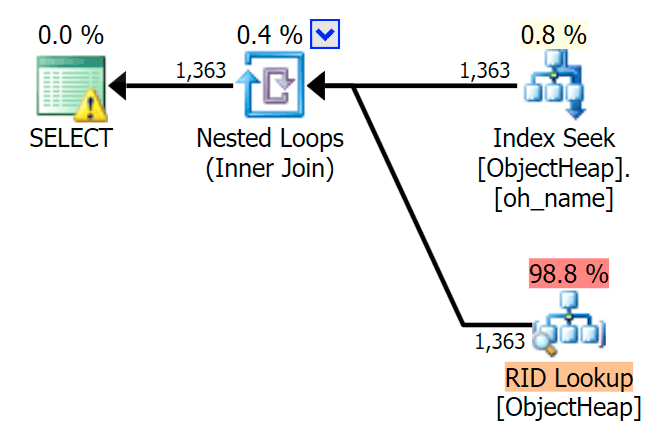
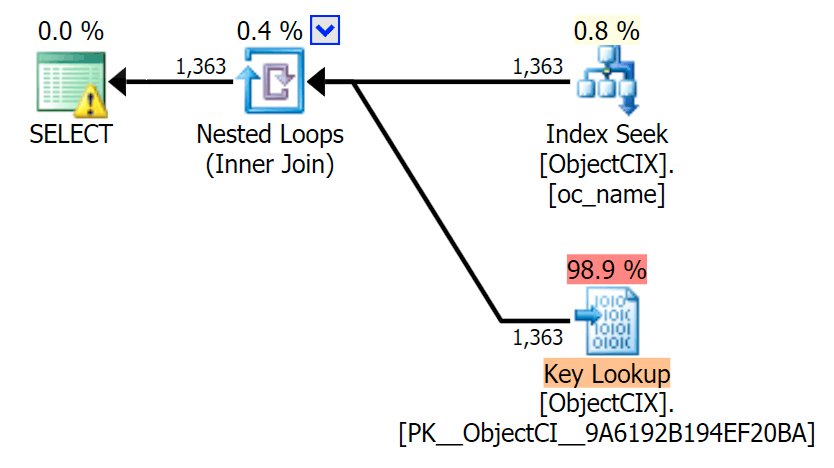
The plans look almost identical, and you might not notice the difference in reads in SSMS unless you were capturing Statistics I/O. Even the estimated I/O costs for the two lookups were similar – 1.69 for the Key Lookup, and 1.59 for the RID lookup. (The warning icon in both plans is for a missing covering index.)
It is interesting to note that if we don't force a lookup and allow SQL Server to decide what to do, it chooses a standard scan in both cases – no missing index warning, and look at how much closer the reads are:

The optimizer knows that a scan will be much cheaper than seek + lookups in this case. I chose a LOB column for variable assignment merely for effect, but the results were similar using a non-LOB column as well.
With the Timings table in place, I was able to easily run the tests multiple times (I ran a dozen tests) and then come with averages for the tests with the following query:
SELECT Test, Avg_Duration = AVG(1.0*DATEDIFF(MILLISECOND, StartTime, EndTime))
  FROM dbo.Timings GROUP BY Test;
A simple bar chart shows how they compare:
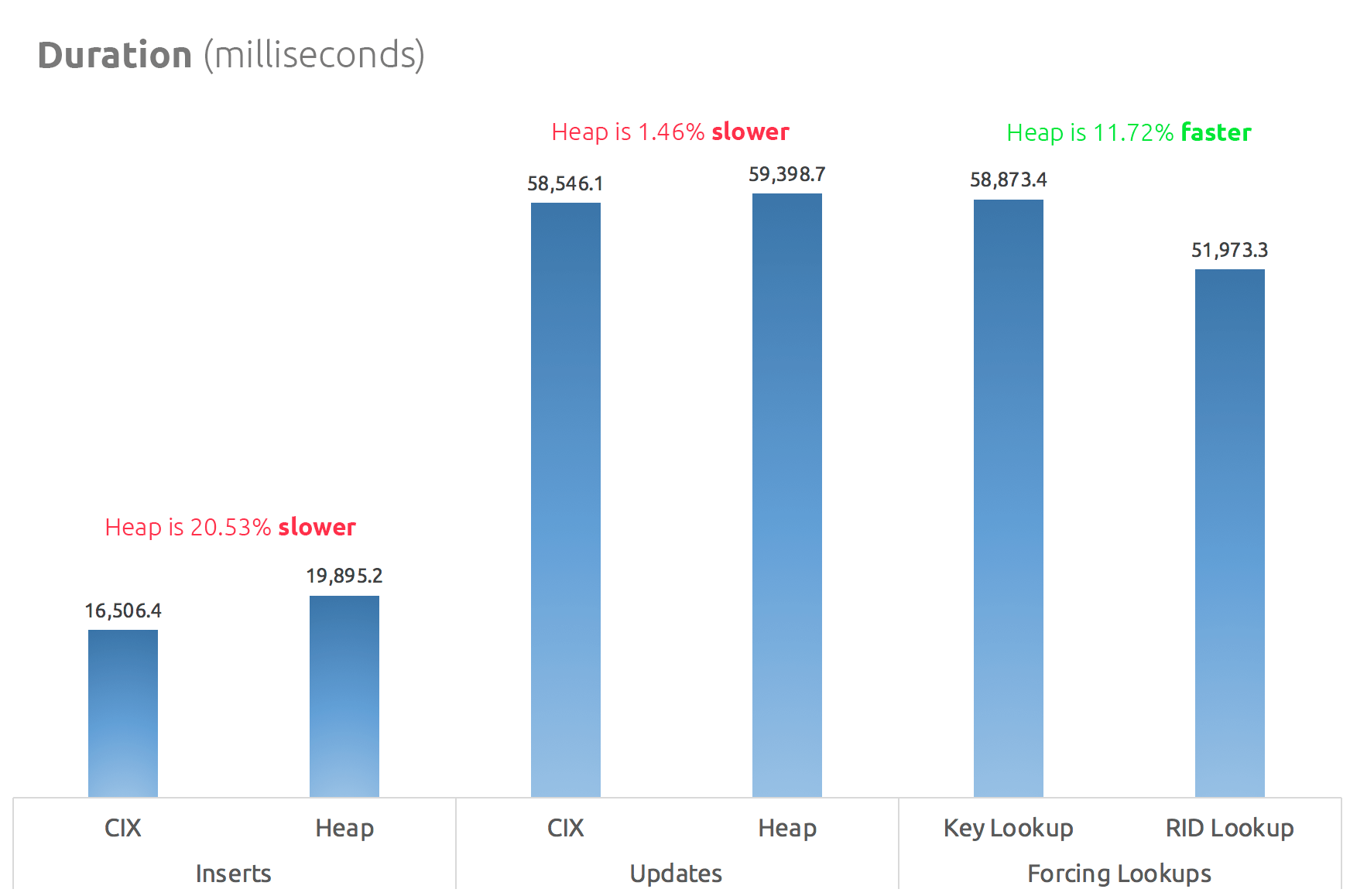
So, the rumors are true: in this case at least, a RID Lookup is significantly faster than a Key Lookup. Going directly to file:page:slot is obviously more efficient in terms of I/O than following the b-tree (and if you aren't on modern storage, the delta could be much more noticeable).
Whether you want to take advantage of that, and bring along all of the other heap aspects, will depend on your workload – the heap is slightly more expensive for write operations. But this is not definitive – this could vary greatly depending on table structure, indexes, and access patterns.
I tested very simple things here, and if you're on the fence about this, I highly recommend testing your actual workload on your own hardware and comparing for yourself (and don't forget to test the same workload where covering indexes are present; you will probably get much better overall performance if you can simply eliminate lookups altogether). Be sure to measure all of the metrics that are important to you; just because I focus on duration doesn't mean it's the one you need to care about most. :-)
The post Is a RID Lookup faster than a Key Lookup? appeared first on SQLPerformance.com.
Documentation is important. It’s also easy to do. Rust ships with tools to help developers create documentation for their libraries.
The main way that many developers write documentation is through source code comments. A single-line comment in Rust is started with //. Many programming languages should already use this construct, so it’s probably not surprising to you. Equally unsurprising, multi-line comments start with /* and end with */. Many Rustaceans (that’s what Rust developers call themselves) prefer single-line comments. Do whatever you want, it’s fun to argue about inconsequential things after the fact.
I use code comments to document code for myself and my co-workers. I use code comments for explaining something to whoever is looking at the code after me. Mainly code comments are for walking through a design decision or piece of logic that might not be clear at a casual glance. In flaker, code comments are used to walk through the construct_id function. With the code removed, it reads like:
fn construct_id(&mut self) -> BigUint {
    // Create a new vec of bytes
    // push the counter into bytes
    // next 6 bytes are the worker id
    // fill the rest of the buffer with the current time, as bytes
    // create a BigUint from the buffer
}
The problem is that code comments aren’t visible to the rest of the world in a meaningful way. Other developers need to read the source code in order to view the code comments. That’s not the friendliest way to introduce your code to the world. Thankfully, there’s a better way!
Document comments make it easy to document as you write code. This also makes it easier to keep your documentation up to date as you’re modifying code. It is, after all, right next to the code you’re changing.
Just like code comments, there are two ways to write document comments for functions and methods. A single-line document comment looks like ///. A multi-line document comment starts with /** on the first line, all by itself, and ends with */. These are referred to as outer comments – outer line doc comments and outer block doc comments, if you want to get specific about it.
We put the comments outside of the code that we’re documenting. Pulling from my flaker library again:
/// Returns a new Flaker based on the specified identifier
///
/// # Arguments
///
/// * `identifier` - A 6 byte vec that provides some arbitrary identification.
///
/// # Remarks
///
/// This is a convenience function that converts the `identifier` `vec` into
/// a 6 byte array. Where possible, prefer the array and use `new`.
///
/// *Note*: This also assumes the `flaker` is being created on a little endian
/// CPU.
pub fn new_from_identifier(identifier: Vec) -> Flaker {
    // magic
}
We can use Markdown in our documentation comments! That’s exciting. Now we can create good looking documentation that has structure. We’ll see more about what this looks like in a little bit. There are a few conventions to use while documenting your code. These are # Examples, # Panics, # Errors, and # Safety. You can read more about the documentation conventions in Documentation – Special Sections and in RFC 505.
We can also use documentation comments to write docs for our modules. These use what’s called inner doc comments. An inner line doc comment looks like //! – note the bang. An inner block doc comment starts with /*! and ends with, you guessed it, */.
These are called inner doc comments because they go inside the thing being documented. Outer doc comments go outside the thing being documented.
Sadly, flaker doesn’t have any module documentation. If it did, though, it would look like:
//! This is the documentation for `flaker`
//!
//! # Examples
This documentation will get generated later when we run cargo doc, which I promise we’ll talk about in a second.
It’s possible to add code samples to a documentation comment using three backticks:
//! ```
//! assert_eq!(4, 2 + 2);
//! ```
When we run cargo test – this code will be executed with all of our tests. But we’ll still see the code when we generate documentation. This also works for function and method level documentation – just replace the //! with ///.
Just remember, your documentation tests will only be run if your crate is a library, not if it’s an application.
Building documentation is relatively simple – you can execute cargo doc to build your documentation. This command will build documentation for your library and all of its dependencies. That may not be desirable (it’s probably not).
If you only want to build the documentation for your own library, you can execute: cargo doc --no-deps. Using --no-deps will only build documentation for your code, not for any third party dependencies. You can even add a --open flag to open the newly built documentation in your web browser. It should look something like this:

If I click through to the Flaker struct itself, we can see the documentation that we wrote! That’s exciting.

Auto-generated documentation for the flaker struct.
Writing docs should always be this easy. Right now, cargo doc won’t put your documentation anywhere apart from the local file system. Many developers use tools to publish documentation to a GitHub static site.
At this point, we know enough to write documentation for our methods and functions using doc comments – ///. We can also write module level documentation with doc comments – //!. We can even format our documentation using markdown and its many features. And, finally, we can even include tests in our documentation. How’s that for a documentation feature?
There are a few more tricks available to you with Rust’s documentation (like using external Markdown files), you can learn more in the documentation chapter of the Rust Book.
by Angela Guess Greg Gillespie recently wrote in Health Data Management, “The Zika virus is sending a chill down the collective spine of healthcare providers and government agencies. So far, Brazil has confirmed nearly 3,000 cases of pregnant women infected with the virus, and the disease is spreading through the Americas. Kamran Khan says there’s […]
The post Fighting Zika with Big Data appeared first on DATAVERSITY.
by Angela Guess Nikhil Dandekar recently answered the question, “How can one become a good machine learning engineer?” on Quora. Dandekar responded, “Here is a list of must-have traits, in no particular order: (1) You need to enjoy an iterative process of development. If you want to build a machine learning system, you need to […]
The post 9 Traits of Machine Learning Engineers appeared first on DATAVERSITY.
