Shared posts
Backing up on-premise SQL Server databases to Azure
CodeSOD: Classic WTF: Injection Proof'd
“When a ‘customer’ of ours needs custom-developed software to suit their business requirements,” Kelly Adams writes, “they can either ‘buy’ the development services from the IT department, or go to an outside vendor. In the latter case, then we’re supposed to approve that the software meets corporate security guidelines.”
“Most of the time, our ‘approval’ is treated as a recommendation, and we end up having to install the application anyway. But recently, they actually listened to us and told the vendor to fix the ‘blatant SQL-injection vulnerabilities’ that we discovered. A few weeks later, when it came time for our second review, we noticed the following as their ‘fix’.”
internal static string FQ(string WhichField)
{
   string expression = "";
   int num2 = Strings.Len(WhichField);
   for (int i = 1; i <= num2; i++)
   {
      string str = Strings.Mid(WhichField, i, 1);
      if (str == "'")
      {
         str = str + "'";
      }
      expression = expression + str;
   }
   return Strings.Trim(
      Strings.Replace(Strings.Replace(Strings.Replace(Strings.Replace(
      Strings.Replace(Strings.Replace(Strings.Replace(Strings.Replace(
      Strings.Replace(Strings.Replace(Strings.Replace(Strings.Replace(
      Strings.Replace(Strings.Replace(Strings.Replace(Strings.Replace(
      Strings.Replace(Strings.Replace(Strings.Replace(Strings.Replace(
      Strings.Replace(Strings.Replace(Strings.Replace(Strings.Replace(
         expression,
            "xp_", "", 1, -1, CompareMethod.Text),
            "sp_", "", 1, -1, CompareMethod.Text),
            "--", "-", 1, -1, CompareMethod.Binary),
            "alter table", "", 1, -1, CompareMethod.Text),
            "drop table", "", 1, -1, CompareMethod.Text),
            "create table", "", 1, -1, CompareMethod.Text),
            "create database", "", 1, -1, CompareMethod.Text),
            "alter table", "", 1, -1, CompareMethod.Text),
            "alter column", "", 1, -1, CompareMethod.Text),
            "drop column", "", 1, -1, CompareMethod.Text),
            "drop database", "", 1, -1, CompareMethod.Text),
            "1=1", "", 1, -1, CompareMethod.Text),
            "union select", "", 1, -1, CompareMethod.Text),
            "/*", "", 1, -1, CompareMethod.Text),
            "*/", "", 1, -1, CompareMethod.Text),
            "boot.ini", "", 1, -1, CompareMethod.Text),
            "../", "", 1, -1, CompareMethod.Text),
            "%27", "", 1, -1, CompareMethod.Text),
            ";dir", "", 1, -1, CompareMethod.Text),
            "|dir", "", 1, -1, CompareMethod.Text),
            "<script", "", 1, -1, CompareMethod.Text),
            "</script>", "", 1, -1, CompareMethod.Text),
            "language=javascript", "", 1, -1, CompareMethod.Text),
            "language=\"javascript\"", "", 1, -1, CompareMethod.Text));
}
Kelly adds, “of course this time, when we told them the application was still vulnerable so long that a hacker typed ‘1 = 1’ instead of ‘1=1’, they told us were beeing too picky, and had us install the application anyway.”
 [Advertisement] Manage IT infrastructure as code across all environments with Puppet. Puppet Enterprise now offers more control and insight, with role-based access control, activity logging and all-new Puppet Apps. Start your free trial today!
Orchestrate Azure Data Factory pipelines and other Azure Data Platform management tasks using Azure Automation
Azure Data Factory (ADF) is a great SaaS solution to compose and orchestrate your Azure data services. It works fine to create, schedule and manage your data pipelines but it has limitations that can make it hard to use in some scenarios. The two main ones are:
1. Some tasks that you regularly want to perform can’t be accomplished with ADF.
A few examples are:
· Start/Pause an Azure SQL Data Warehouse
· Start/Pause an Azure Analysis Services instance
· Process an Azure Analysis Services cube
· Manage on-premises resources
2. Triggering (running) ADF pipelines on demand.
For most people it is hard to switch from the well-known SQL Agent jobs - in which it’s really easy to trigger SSIS processes and execute other tasks - to scheduling ADF pipelines. You now have to create activity windows and define data slices that are dependent on the availability of data sets. Most would like to be able to trigger an ADF pipeline either on demand or when some other task finished successfully.
The tasks listed at point 1 - and almost everything else you can think of - can be done using Azure PowerShell with Azure Resource Manager. Microsoft does an awesome job here: every new SaaS solution has great ARM support from the start. To make use of PowerShell in Azure and more importantly to automate your scripts and processes, Azure Automation comes in to play. It makes it possible to run all your PowerShell scripts in Azure as a SaaS solution. It is an orchestrator in which you can execute all kinds of Data Platform related operations, both in Azure and on-premises as hybrid workers, enabling hybrid Data Platform orchestration scenarios.
Triggering ADF pipelines on demand is a bit trickier. An “Execute now” command in PowerShell does not exist, which is understandable if you know how the scheduling and execution mechanism of ADF has been build. I don’t think it will be easy to change this, unless some major changes to ADF will be made. Fortunately, there is a workaround! If you ever deployed a new ADF pipeline you might have noticed that after deployment, pipelines start immediately when they have an activity window with a date/time in the past. Because it is possible to update the activity window date/time of a pipeline using PowerShell, it’s also possible to trigger a pipeline’s execution by changing its activity window date/time to some value in the past.
In this blog post I will show how you can trigger an ADF pipeline on a daily basis and monitor its execution using PowerShell code that runs in an Azure Automation runbook. Because executing other tasks (point 1) using PowerShell is easy, it becomes possible to orchestrate advanced Azure Data Platform tasks, with the execution of an ADF pipeline as just a part of the total process.
Azure Setup
In this example I’ve used the Azure setup shown below. The ADF pipeline contains one simple copy activity that copies a file from one blob storage container to another.
· Resource Group
o Blob Storage
§ Container: input
§ Container: output
o Azure Data Factory
o Azure Automation
Azure Data Factory Setup
I created the Azure Data Factory pipeline with the Copy Data wizard:
![clip_image001[4]](http://sqlblog.com/blogs/jorg_klein/clip_image0014_2B5E4403.png "clip_image001[4]")
I configured the pipeline to “Run regularly on schedule” with a recurring pattern of “Daily”, “every 1 day” (see the blue rectangle in the screenshot below).
Choosing “Run once now” would set the pipeline property “PipelineMode” to “OneTime” and would disable the ADF scheduler. Initially you might think this seems to be the option you want to use as we want to trigger the pipeline ourselves on demand, but unfortunately that configuration has some limitations:
· The ADF diagram view does not show one-time pipelines. This makes it impossible to monitor the pipeline using the Monitor & Manage dashboard.
· One-time pipelines can’t be updated. This would block us from updating the activity window properties to trigger the pipeline.
The “Start date time” is automatically set to yesterday with the current time. This triggers the pipeline to start running immediately after deployment; as explained ADF automatically triggers pipelines with a start date/time in the past. In this case, we want to trigger the execution ourselves, so set the date to some date in the future (see the red rectangle in the screenshot below).
![clip_image003[4]](http://sqlblog.com/blogs/jorg_klein/clip_image0034_6881FF88.jpg "clip_image003[4]")
For this pipeline I chose to create a simple example that copies a file from one blob storage container to another. Of course, you can design your pipeline anyway you prefer, e.g. using the Copy Data wizard or Visual Studio. Just make sure you schedule it with a daily recurrence.
Azure Automation Setup
The next step is to create a new Azure Automation account. Within that account we need to import the Data Factory PowerShell cmdlets, because the standard set of PowerShell cmdlets in Automation do not contain any ADF related functions.
Navigate to Assets:
![clip_image004[4]](http://sqlblog.com/blogs/jorg_klein/clip_image0044_058AAE51.png "clip_image004[4]")
Click Modules: ![clip_image005[4]](http://sqlblog.com/blogs/jorg_klein/clip_image0054_49CDA64E.png "clip_image005[4]")
Browse the gallery: ![clip_image006[4]](http://sqlblog.com/blogs/jorg_klein/clip_image0064_12871F13.png "clip_image006[4]")
Search for “Data Factory”, select AzureRM.DataFactories and click Import: ![clip_image007[4]](http://sqlblog.com/blogs/jorg_klein/clip_image0074_5B4097D7.png "clip_image007[4]")
AzureRM.DataFactories should now appear in your list of available modules: ![clip_image009[4]](http://sqlblog.com/blogs/jorg_klein/clip_image0094_6AE33399.jpg "clip_image009[4]")
Create Credential
Now we need to create a Credential to be able to automatically login and run our PowerShell script unattended from Azure Automation.
Navigate to Assets again and then click Credentials ![clip_image010[4]](http://sqlblog.com/blogs/jorg_klein/clip_image0104_35D9351A.png "clip_image010[4]")
Click “Add a credential” and supply a user account that has the required permissions to access your Azure Data Factory. You can use the organizational account you use to login to the Azure Portal. It might look like jorgk@yourorganizationalaccountname.com or something like that. ![clip_image012[4]](http://sqlblog.com/blogs/jorg_klein/clip_image0124_0545B762.jpg "clip_image012[4]")
Automation Runbook
We are now ready to create the Automation Runbook which will trigger the Azure Data Factory pipeline, by updating its Active Period to a date/time in the past.
The script performs the following steps:
1. Authenticate with the Automation Credential
2. Connect to the Azure Data Factory
3. Update the pipeline active period to yesterday
4. Unpause the pipeline; execution will begin
5. Monitor the pipeline execution
6. Pause the pipeline
Copy/paste the script below to a Windows PowerShell Script (.ps1) file and name it “TriggerAdfPipeline.ps1”.
# Variables; modify
$rgn = "AzureDataPlatformOrchestration" #Resource Group Name
$acn = "adpo-auto-cred" #Automation Credential Name
$dfn = "adpo-adf" #Data Factory Name
$pln = "CopyPipeline-cu6" #PipeLine Name
$dsn = "OutputDataset-hgv" #DataSet Name (output dataset of pipeline that needs to be produced)
# To test from PowerShell client, uncomment the 2 rows below and provide subscription ID
#Login-AzureRmAccount
#Set-AzureRMContext -SubscriptionId "00000000-0000-0000-0000-000000000000"
# Authenticate
# To test from PowerShell client, comment out the 2 rows below
$AzureCred = Get-AutomationPSCredential -Name $acn
Add-AzureRmAccount -Credential $AzureCred | Out-Null
# Get data factory object
$df=Get-AzureRmDataFactory -ResourceGroupName $rgn -Name $dfn
If($df) {
Write-Output "Connected to data factory $dfn in resource group $rgn."
}
# Create start/end DateTime (yesterday)
$sdt = [System.DateTime]::Today.AddDays(-1) #Yesterday 12:00:00 AM
$edt = [System.DateTime]::Today.AddSeconds(-1) #Yesterday 11:59:59 PM
# Update active period to yesterday
$apr=Set-AzureRmDataFactoryPipelineActivePeriod -DataFactory $df -PipelineName $pln -StartDateTime $sdt -EndDateTime $edt
If($apr) {
Write-Output "Pipeline $pln of data factory $dfn updated with StartDateTime $sdt and EndDateTime $edt."
}
# Unpause pipeline
$rpl = Resume-AzureRmDataFactoryPipeline -DataFactory $df -Name $pln
If($rpl) {
Write-Output "Pipeline $pln resumed."
}
# Create arrays that hold all possible data factory slice states
$failedStates = "Failed Validation", "Timed Out", "Skip", "Failed"
$pendingStates = "Retry Validation", "PendingValidation", "Retry", "InProgress", "PendingExecution"
$finishedStates = "Ready"
# Wait while data factory slice is in pending state
While (Get-AzureRmDataFactorySlice -DataFactory $df -DatasetName $dsn -StartDateTime $sdt -EndDateTime $edt | Where -Property State -In $pendingStates) {
Write-Output "Slice status is:"
Get-AzureRmDataFactorySlice -DataFactory $df -DatasetName $dsn -StartDateTime $sdt -EndDateTime $edt | Select -Property State
Write-Output "Wait 15 seconds"
Start-Sleep 15
}
# Since data factory slice is not pending (anymore), it is either failed or finished
If(Get-AzureRmDataFactorySlice -DataFactory $df -DatasetName $dsn -StartDateTime $sdt -EndDateTime $edt | Where -Property State -In $failedStates){
Write-Output "Slice failed."
Get-AzureRmDataFactorySlice -DataFactory $df -DatasetName $dsn -StartDateTime $sdt -EndDateTime $edt | Select -Property State
} ElseIf (Get-AzureRmDataFactorySlice -DataFactory $df -DatasetName $dsn -StartDateTime $sdt -EndDateTime $edt | Where -Property State -In $finishedStates) {
Write-Output "Slice finished."
} Else {
Write-Output "No State found?"
Get-AzureRmDataFactorySlice -DataFactory $df -DatasetName $dsn -StartDateTime $sdt -EndDateTime $edt | Select -Property State
}
# Pause pipeline
$spr = Suspend-AzureRmDataFactoryPipeline -DataFactory $df -Name $pln
If($spr){
Write-Output "Pipeline $pln paused."
}
Navigate to your Azure Automation account in the Azure Portal and click “Runbooks”:
![clip_image013[4]](http://sqlblog.com/blogs/jorg_klein/clip_image0134_1071D25D.png "clip_image013[4]")
Click “Add a runbook”:
![clip_image014[4]](http://sqlblog.com/blogs/jorg_klein/clip_image0144_5FDE54A4.png "clip_image014[4]")
Now select the TriggerAdfPipeline.ps1 file to import the PowerShell script as Runbook:
![clip_image016[4]](http://sqlblog.com/blogs/jorg_klein/clip_image0164_047272DA.jpg "clip_image016[4]")
Runbook TriggerAdfPipeline is created. Click it to open it:
![clip_image018[4]](http://sqlblog.com/blogs/jorg_klein/clip_image0184_5A91FEA4.jpg "clip_image018[4]")
A Runbook must be published before you are able to start or schedule it. Click Edit:
![clip_image020[4]](http://sqlblog.com/blogs/jorg_klein/clip_image0204_25880025.jpg "clip_image020[4]")
Before publishing, test the Runbook first. Click on the Test pane button and then click Start:
![clip_image022[4]](http://sqlblog.com/blogs/jorg_klein/clip_image0224_74F4826C.jpg "clip_image022[4]")
The pipeline slice ran successfully:
![clip_image024[4]](http://sqlblog.com/blogs/jorg_klein/clip_image0244_39377A6A.jpg "clip_image024[4]")
Now publish the Runbook:
![clip_image026[4]](http://sqlblog.com/blogs/jorg_klein/clip_image0264_56402932.jpg "clip_image026[4]")
You can now create webhooks, schedule and monitor your Runbook jobs:
![clip_image028[4]](http://sqlblog.com/blogs/jorg_klein/clip_image0284_25ACAB7A.jpg "clip_image028[4]")
Extending the script with additional tasks
It’s easy to perform other Azure Data Platform related tasks using PowerShell and Automation Runbooks. Because the script I created waits for the ADF pipeline to end, you can easily execute other tasks before or after the ADF’s execution. The following examples will most likely be useful:
· Pause/Start Azure SQL Data warehouse
· Pause/Start Azure Analysis Services
· Process Azure Analysis Services
o Under investigation, coming soon…
Microsoft SQL Server team hosts Ask Me Anything session
This post was authored by Vin Yu, Program Manager, Data Platform
The Microsoft SQL Server team will host a special Ask Me Anything session on /r/SQLServer, Friday, November 18th, 2016 from 9:30 am to 2:00 pm PDT. AMA event opens up for questions on Thursday, November 17th 2016 at 2:00pm.
What’s an AMA session?
We’ll have folks from across the Microsoft SQL Server engineering team available to answer any questions you have. You can ask us anything about SQL Server or even our team!
Why are we doing an AMA?
We like reaching out and learning from our customers and the community. We want to know how you use SQL Server and how your experience has been. Your questions provide insights into how we can make SQL Server better. AMA sessions turn out to be very useful, and we plan on doing AMAs covering various SQL Server topics in the future.
Who will be there?
You, of course! We’ll also have PMs and Developers from the SQL Server engineering team participating throughout the day. Have any questions about the following topics? Bring them to the AMA.
- SQL Server Features such as Columnstore, In-Memory OLTP, Row-Level Security, PolyBase, Stretch, or any of the features listed here.
- Database Tools for Microsoft SQL Server and Azure SQL Database (SSMS, SSDT, SSRS, SSIS, SSAS, SSMA, SQLPS, CLI Tools)
- Azure Portal for Azure SQL DB, Azure Elastic Database Pools or Azure Virtual Machines with SQL Server
- R Services for predictive analytics, machine learning, and using scalable R packages with SQL Server technologies
- Developing with SQL Server using the language of your choice (Examples. Node, Python, Java, etc.) or connecting your app to SQL Server using our drivers (ODBC, JDBC and open source drivers)
- Migrating or Building Apps and Solutions with SQL Server and the resources we have available to help you get the most out of SQL Server.
Didn’t cover a topic in the list above? Leave a comment with the topic you’d like us to cover or just bring them to the AMA anyways and we’ll try our best to cover it!
Why should I ask questions here instead of StackOverflow, MSDN or Twitter? Can I really ask anything?
An AMA is a great place to ask us anything. StackOverflow and MSDN have restrictions on which questions can be asked while Twitter only allows 140 characters. With an AMA, you’ll get answers directly from the team and have a conversation with the people who build these products and services.
Here are some question ideas:
- What’s new in SQL Server?
- How do I provide feedback and interact with the SQL Server product team on a regular basis?
- What tools would I use to migrate my database to SQL Server?
- What’s a cool trick you don’t think most customers know about?
- With so many database options, why should I consider SQL Server?
Go ahead, ask us anything about our public products or the team! Please note, we cannot comment on unreleased features and future plans.
PASS Summit Announcements: Microsoft Professional Program for Big Data
Microsoft usually has some interesting announcements at the PASS Summit, and this year was no exception. I’m writing a set of blogs covering the major announcements. Next up is the Microsoft Professional Program for Big Data.
A few months back, Microsoft started the Microsoft Professional Program for Data Science (note the program name change from Microsoft Professional Degree to Microsoft Professional Program, or MPP). This is online learning via edX.org as a way to learn the skills and get the hands-on experience that a data science role requires. You may audit any courses, including the associated hands-on labs, for free. However, to receive credit towards completing the data science track in the Microsoft Professional Program, you must obtain a verified certificate for a small fee for each of the ten courses you successfully complete in the curriculum. The course schedule is presented in a suggested order, to guide you as you build your skills, but this order is only a suggestion. If you prefer, you may take them in a different order. You may also take them simultaneously or one at a time, so long as each course is completed within its specified session dates.
Announced at the PASS Summit is the next program, called the Microsoft Professional Program for Big Data. The Big Data program is still in development, and subject to change. It will be launched in 2017. Here is the tentative course list:

This is a great set of courses for those of you looking to architect and build big data solutions. Note you can concentrate on learning Microsoft technologies or take the open source path.
The next program after Big Data is expected to be for Front End Web Development. There are also many other free courses from Microsoft that you can take at edX (see list).
When It’s Gone It’s Gone !
Announcing SQL Server on Linux public preview, first preview of next release of SQL Server
This post was authored by Tiffany Wissner, Senior Director of Data Platform Marketing
Today, we are excited to announce the public preview of the next release of SQL Server on Linux and Windows, which brings the power of SQL Server to both Windows – and for the first time ever – Linux. SQL Server enables developers and organizations to build intelligent applications with industry-leading performance and security technologies using their preferred language and environment. With the next release of SQL Server, you can develop applications with SQL Server on Linux, Windows, Docker, or macOS (via Docker) and then deploy to Linux, Windows, or Docker, on-premises or in the cloud.
We have seen strong reception for the private preview to date with more than 50% of Fortune 500 companies applying for the private preview.

Easy, Fast, and Efficient
We have made it easier than ever to get started with SQL Server. You’ll find native Linux installations with familiar RPM and APT packages for Red Hat Enterprise Linux and Ubuntu Linux, and packages for SUSE Linux Enterprise Server will be coming soon as well. The Windows download is available on the Technet Eval Center. Finally, the public preview on Windows and Linux is also available on Azure Virtual Machines (coming soon) and as images available on Docker Hub, offering a quick and easy installation within minutes.
SQL Server offers tremendous performance. In-Memory OLTP delivers up to 30x faster transaction processing and Columnstore indexes deliver up to 100x faster analytical processing. SQL Server also owns multiple top TPC-E performance benchmarks1 for transaction processing and top TPC-H performance benchmarks2 for data warehousing, as well as top performance benchmarks with leading business applications. We also recently showcased SQL Server running more than one million R predictions per second. With the next release of SQL Server, we are bringing these leading innovations to Linux.
On top of this performance, SQL Server also provides incredible efficiency, and removes the need to architect the scale of your application. For example, SQL Server has enabled 1.2 million requests per second with In-Memory OLTP on a single commodity server.
Tooling on Linux
Today, we have released updated versions of our flagship SQL Server tools including SQL Server Management Studio (SSMS), Visual Studio SQL Server Data Tools (SSDT) and SQL Server PowerShell with support for the next release of SQL Server on Windows and Linux. We are also excited to announce the new SQL Server extension for Visual Studio Code that is available now on the Visual Studio Code marketplace. Developers can use the SQL Server extension for VS Code on macOS/Linux/Windows with SQL Server running anywhere (on-premises, on Linux and Windows, in any cloud, in virtual machines, Docker, SQL Server 2016 or the next release of SQL Server preview) and with Azure SQL Database and Azure SQL DW. Native command-line tools are also available for SQL Server on Linux.
The new SQL Server Migration Assistant (SSMA) 7.1 release helps you quickly convert Oracle, MySQL, Sybase, and DB2 databases to SQL Server on both Linux and Windows. Download SSMA 7.1 today for Oracle, MySQL, Sybase, DB2, and Access.
Other improvements in the next version of SQL Server
The next release of SQL Server brings the power of SQL Server to Linux. In addition, this release includes in-memory, advanced analytics, columnstore, and SQL Server Integration Services (SSIS) enhancements. For more information on what is new with this release, see What’s New in SQL Server.
Stay tuned for additional capabilities in future previews!
Get started today
Try the preview of the next release of SQL Server today! Get started with the preview of SQL Server on Linux, macOS (via Docker) and Windows with our developer tutorials that show you how to install and use SQL Server v.Next on macOS, Docker, Windows, RHEL and Ubuntu and quickly build an app in a programming language of your choice.
- Install on Red Hat Enterprise Linux
- Install on Ubuntu Linux
- Pull and run a Docker container on Linux, Windows, or macOS
- Download the preview for Windows
- Create a SQL Server on Linux virtual machine in Azure
- Install on SUSE Linux Enterprise Server (coming soon)
Learn more
Visit the Connect(); webpage to watch overview, security, high availability, and developer tools videos about SQL Server on Linux on-demand, watch the Microsoft Mechanics video to see how to get started in under one minute, and go to the next release of SQL Server webpage to get started with interactive SQL Server on Linux hands on labs for Linux administrators new to SQL Server and for existing SQL Server database administrators new to Linux, and read detailed documentation. Sign up to stay informed about new SQL Server on Linux developments.
Stay tuned for additional SQL Server Blog posts in the coming weeks, including SQL Server high availability, security, connectors, and developer tools on Linux!
1 http://www.tpc.org/tpce/results/tpce_perf_results.asp?resulttype=NONCLUSTER&version=1%¤cyID=0
2 http://www.tpc.org/tpch/results/tpch_perf_results.asp?resulttype=noncluster
SQL Server 2016 Service Pack 1 generally available
This post was authored by Tiffany Wissner, Senior Director of Data Platform Marketing
Microsoft is pleased to announce the availability of SQL Server 2016 Service Pack 1 (SP1). With SQL Server 2016 SP1, we are making key innovations more accessible to developers and organizations across all SQL Server editions, so it will be easier than ever to build advanced applications that scale across editions as your business needs grow. Developers and application partners can now build to a common programming surface across all editions when creating or upgrading intelligent applications and use the edition which scales to the application’s needs.
With SQL Server 2016 SP1, we want to make it easier than ever for developers and partners to build and upgrade applications that take advantage of advanced performance, security, and data mart capabilities. SQL Server 2016 with Service Pack 1 also offers the most consistent platform from on-premises to cloud with industry leading TCO for applications of all sizes. Standard edition sets the bar for rich programming capabilities, security innovations, and fast performance for mid-tier applications and data marts. You can also easily upgrade to Enterprise edition for mission critical capabilities as your workload scales, without having to re-write your app. Enterprise edition continues to deliver the highest levels of mission critical scalability, availability, and performance as well as maximum virtualization through licensing rights that come with software assurance.

The capabilities in SQL Server 2016 SP1 which are now being make available to Standard edition and Express edition for the first time include:
- Faster transaction performance from In-memory OLTP, faster query performance from In-memory ColumnStore, and the ability to combine the two for real-time Hybrid Transactional and Analytical Processing, also known as Operational Analytics;
- Data warehousing or data mart performance features such as partitioning, compression, change data capture, database snapshot, and the ability to query across structured and unstructured data with a single node of PolyBase; and
- The innovative security feature Always Encrypted for encryption at rest and in motion, as well as fine-grained auditing which captures more detailed audit information for your compliance reporting needs. In addition, row-level security and dynamic data masking are being made available to Express edition for the first time.
This is also exciting for customers and partners who are currently using older versions of SQL Server Standard edition, and now have more great reasons to modernize or upgrade their applications and take advantage of the new features in SQL Server 2016.
We encourage SQL Server 2016 customers to start taking advantage of the great capabilities in Service Pack 1 today. In addition to the features newly available to your application, Service Pack 1 also contains fixes released in Cumulative Updates (CUs) 1, 2 and 3 and the supportability and diagnostics improvements first introduced in SQL Server 2014 SP2. All SQL Server 2016 customers can download Service Pack 1 from the Microsoft Download Center.
If you haven’t moved to SQL Server 2016 yet, but are ready to start evaluating all the great features now available, you can create an Azure VM with SQL Server 2016 SP1. For additional details about the capabilities of SQL Server 2016, read more at www.microsoft.com/sql or for more information on editions, learn more See how the capabilities of SQL Server Stack up at our feature and editions comparison page. To hear more about opportunities that SQL Server 2016 SP1 create for your organization, you can reach out for additional information at this SQL Server Standard edition page.
Announcing the Next Generation of Databases and Data Lakes from Microsoft
This post was authored by Joseph Sirosh, Corporate Vice President of the Microsoft Data Group.

For the past two years, we’ve unveiled several of our cutting-edge technologies and innovative solutions at Connect(); which will be livestreaming globally from New York City starting November 16. This year, I am thrilled to announce the next generation of SQL Server and Azure Data Lake, and several new capabilities to help developers build intelligent applications.
1. Next release of SQL Server with Support for Linux and Docker (Preview)
I am excited to announce the public preview of the next release of SQL Server which brings the power of SQL Server to both Windows – and for the first time ever – Linux. Now you can also develop applications with SQL Server on Linux, Docker, or macOS (via Docker) and then deploy to Linux, Windows, Docker, on-premises, or in the cloud. This represents a major step in our journey to making SQL Server the platform of choice across operating systems, development languages, data types, on-premises and the cloud. All major features of the relational database engine, including advanced features such as in-memory OLTP, in-memory columnstores, Transparent Data Encryption, Always Encrypted, and Row-Level Security now come to Linux. Getting started is easier than ever. You’ll find native Linux installations (more info here) with familiar RPM and APT packages for Red Hat Enterprise Linux, Ubuntu Linux, and SUSE Linux Enterprise Server. The public preview on Windows and Linux will be available on Azure Virtual Machines and as images available on Docker Hub, offering a quick and easy installation within minutes. The Windows download is available on the Technet Eval Center.
We have also added significant improvements into R Services inside SQL Server, such as a very powerful set of machine learning functions that are used by our own product teams across Microsoft. This brings new machine learning and deep neural network functionality with increased speed, performance and scale, especially for handling a large corpus of text data and high-dimensional categorical data. We have just recently showcased SQL Server running more than one million R predictions per second and encourage you all to try out R examples and machine learning templates for SQL Server on GitHub.
The choice of application development stack with the next release of SQL Server is absolutely amazing – it includes .NET, Java, PHP, Node.JS, etc. on Windows, Linux and Mac (via Docker). Native application development experience for Linux and Mac developers has been a key focus for this release. Get started with the next release of SQL Server on Linux, macOS (via Docker) and Windows with our developer tutorials that show you how to install and use the next release of SQL Server on macOS, Docker, Windows, RHEL and Ubuntu and quickly build an app in a programming language of your choice.

2. SQL Server 2016 SP1
We are announcing SQL Server 2016 SP1 which is a unique service pack – for the first time we introduce consistent programming model across SQL Server editions. With this model, programs written to exploit powerful SQL features such as in-memory OLTP, in-memory columnstore analytics, and partitioning will work across Enterprise, Standard and Express editions. Developers will find it easier than ever to take advantage of innovations such as in memory databases and advanced analytics – you can use these advanced features in the Standard Edition and then step up to Enterprise for Mission Critical performance, scale and availability – without having to re-write your application.
Our software partners are excited about the flexibility that this change gives them to adopt advanced features while supporting multiple editions of SQL Server.
“With SQL Server 2016 SP1, we can run the same code entirely on both platforms and customers who need Enterprise scale buy Enterprise, and customers who don’t need that can buy Standard and run just fine. From a programming point of view, it’s easier for us and easier for them,” said Nick Craver, Architecture Lead at Stack Overflow.
To be even more productive with SQL Server, you can now take advantage of improved developer experiences on Windows, Mac and Linux for Node.js, Java, PHP, Python, Ruby, .NET core and C/C++. Our JDBC Connector is now published and available as 100% open source which gives developers more access to information and flexibility on how to contribute and work with the JDBC driver. Additionally, we’ve made updates to ODBC for PHP driver and launched a new ODBC for Linux connector, making it much easier for developers to work with Microsoft SQL-based technologies. To make it more seamless for all developers Microsoft VSCode users can also now connect to SQL Server, including SQL Server on Linux, Azure SQL Database and Azure SQL Data Warehouse. In addition, we’ve released updates to SQL Server Management Studio, SQL Server Data Tools, and Command line tools which now support SQL Server on Linux.

3. Azure Data Lake Analytics and Store GA
Today, I am excited to announce the general availability of Azure Data Lake Analytics and Azure Data Lake Store.
Azure Data Lake Analytics is a cloud analytics service that allows you to develop and run massively parallel data transformations and processing programs in U-SQL, R, Python and .Net over petabytes of data with just a few lines of code. There is no infrastructure to manage, and you can process data on demand allowing you to scale in seconds, and only pay for the resources used. U-SQL is a simple, expressive, and super-extensible language that combines the power of C# with the simplicity of SQL. Developers can write their code either in Visual Studio or Visual Studio Code and the execution environment gives you debugging and optimization recommendations to improve performance and reduce cost.
Azure Data Lake Store is a cloud analytics data lake for enterprises that is secure, massively scalable and built to the open HDFS standard. You can store trillions of files, and single files can be greater than a petabyte in size. It provides massive throughput optimized to run big analytic jobs. It has data encryption in motion and at rest, single sign-on (SSO), multi-factor authentication and management of identities built-in through Azure Active Directory, and fine-grained POSIX-based ACLS for role-based access controls.

Furthermore, we’ve incorporated the technology that sits behind the Microsoft Cognitive Services inside U-SQL directly. Now you can process any amount of unstructured data, e.g., text, images, and extract emotions, age, and all sorts of other cognitive features using Azure Data Lake and perform query by content. You can join emotions from image content with any other type of data you have and do incredibly powerful analytics and intelligence over it. This is what I call Big Cognition. It’s not just extracting one piece of cognitive information at a time, not just about understanding an emotion or whether there’s an object in an image, but rather it’s about joining all the extracted cognitive data with other types of data, so you can do some really powerful analytics with it. We have demonstrated this capability at Microsoft Ignite and PASS Summit, by showing a Big Cognition demo in which we used U-SQL inside Azure Data Lake Analytics to process a million images and understand what’s inside those images. You can watch this demo (starting at minute 38) and try it yourself using a sample project on GitHub.
4. DocumentDB Emulator
We live on a Planet of the Apps, and the best back-end system to build modern intelligent mobile or web apps is Azure DocumentDB – planet-scale, globally distributed managed NoSQL service, with 99.99% availability and guarantees for low latency and consistency, all of which is backed by an enterprise grade security and SLA.
Today I am happy to announce a public preview of DocumentDB Emulator which provides a local development experience for the Azure DocumentDB. Using the DocumentDB Emulator, you can develop and test your application locally without an internet connection, without creating an Azure subscription, and without incurring any costs. This has long been the most requested feature on the user voice site, so we are thrilled to roll this out to everyone.
Furthermore, we’ve added .NET Core support in DocumentDB. The .Net Core is a lightweight and modular platform to create applications and services that run on Linux, Mac and Windows. With DocumentDB support for .Net Core, developers can now use .Net Core to build cross platform applications and services that use DocumentDB API.

5. Other Announcements
- Today we also are announcing the General Availability of R Server for Azure HDInsight. HDInsight is the only fully managed Cloud Hadoop offering that provides optimized open source analytic clusters for Spark, Hive, Map Reduce, HBase, Storm, and R Server backed by a 99.9% SLA. Running Microsoft R Server as a service on top of Apache Spark, customers can achieve unprecedented scale and performance by combining enterprise-scale analytics in R with the power of Spark. With transparently parallelized analytic functions, it’s now possible to handle up to 1000x more data with up to 50x faster speeds than open source R – helping you train more accurate models for better predictions than previously possible. Plus, because R Server is built to work with the open source R language, all of your R scripts can run without significant changes.
- We are also announcing the public preview of Kafka for HDInsight, an enterprise-grade, open-source streaming ingestion service which is cost-effective, easy to provision, manage and use. This service enables you to build real-time solutions like IoT, fraud detection, click-stream analysis, financial alerts, and social analytics. Using out-of-the-box integration with Storm for HDInsight or Spark Stream for HDInsight, you can architect powerful streaming pipelines to drive intelligent real-time actions.
- Another exciting news is the availability of Operational Analytics for Azure SQL Database. It’s the first fully managed Hybrid Transactional and Analytical Processing (HTAP) database service in the cloud. The ability to run both analytics (OLAP) and OLTP workloads on the same database tables at the same time allows developers to build a new level of analytical sophistication into their applications. Developers can eliminate the need for ETL and a data warehouse in some cases (using one system for OLAP and OLTP, instead of creating two separate systems), helping to reduce complexity, cost, and data latency. The in-memory technologies in Azure SQL DB helps achieve phenomenal performance – e.g., 75,000 transactions per second for order processing (11X performance gain) and reduced query execution time from 15 seconds down to 0.26 (57X performance gain). This capability is now a standard feature of Azure SQL DB at no additional cost.
We are making our products and innovations more accessible to all developers – on any platform, on-premises and in the cloud. We are building for a future where our data platform is dwarfed by the aggregate value of the solutions built on top of it. This is the true measure of success of a platform – when the number and the value created by the apps built on top is far larger than the platform itself.
The live broadcast of Connect(); begins on November 16th at 9:45am EST, and continues with interactive Q&A and immersive on-demand content. Join us to learn more about these amazing innovations.
Persisting DBCC output data
Most of the DBCC commands return their results as textual output, even if you have SSMS configured to return result sets to a grid. This makes examining the output a manual process that is prone to errors. It sure would be nice if there was a way to return the output to a grid.
If we were to examine Books Online (BOL) for DBCC in 2000 (http://technet.microsoft.com/en-us/library/aa258281%28v=sql.80%29.aspx) and 2005 (http://msdn.microsoft.com/en-us/library/ms188796%28v=sql.90%29.aspx), we would notice a section titled “Using DBCC Result Set Output”, with the phrase: “Many DBCC commands can produce output in tabular form by using the WITH TABLERESULTS option. This information can be loaded into a table for additional use.” This section has been removed from more recent versions, most likely because the results returned are not documented for the individual DBCC commands and are thus subject to change without notice.
Okay, let’s try this out. At the above BOL links, there are two DBCC commands that are documented to use the TABLERESULTS option: OPENTRAN and SHOWCONTIG. Testing all of the other DBCC commands shows that this option can also be used on the CHECKALLOC, CHECKDB, CHECKFILEGROUP and CHECKTABLE commands. I’m going to continue this post with using DBCC CHECKDB. If you check BOL, it does not mention the TABLERESULTS option. Let’s first see the results we get without the TABLERESULTS option by running:
DBCC CHECKDB (master);
For the consistency check that is performed on the master database, I end up with over 300 lines of output. The key lines in the output are:
…
CHECKDB found 0 allocation errors and 0 consistency errors in database 'master'.
…
And the final two lines:
CHECKDB found 0 allocation errors and 0 consistency errors in database 'mssqlsystemresource'.
DBCC execution completed. If DBCC printed error messages, contact your system administrator.
(Notice that when we run CHECKDB against the master database, the hidden database mssqlsystemresource is also checked.)
If we were to modify the above statement to use the TABLERESULTS option:
DBCC CHECKDB (master) WITH TABLERESULTS;
we would actually get two result sets – one for the master database, and one for the hidden mssqlsystemresource database. Notice that the “DBCC execution completed…” line is not in either of the result sets – it is still displayed on the Messages tab.
Now, most people usually modify this command to suppress informational messages and to show all error messages (it defaults to “only” the first 200 error messages per object), so the command that is normally used would be:
DBCC CHECKDB (master) WITH ALL_ERRORMSGS, NO_INFOMSGS;
And, hopefully, this only returns the message “Command completed successfully”. Let’s modify this command to use the TABLERESULTS option:
DBCC CHECKDB (master) WITH ALL_ERRORMSGS, NO_INFOMSGS, TABLERESULTS;
If there is no corruption in the database, it still returns only the message “Command completed successfully”. However, if there is corruption, you will get a result set back. So, I’m now going to run this against a database (Lab) where I have engineered some corruption. First off, let’s run CHECKDB without the TABLERESULTS option to check the initial output:
DBCC CHECKDB (Lab) WITH ALL_ERRORMSGS, NO_INFOMSGS;
Msg 8939, Level 16, State 98, Line 1
Table error: Object ID 885578193, index ID 0, partition ID 72057594039042048, alloc unit ID 72057594043432960 (type In-row data), page (1:328). Test (IS_OFF (BUF_IOERR, pBUF->bstat)) failed. Values are 133129 and -4.
Msg 8928, Level 16, State 1, Line 1
Object ID 885578193, index ID 0, partition ID 72057594039042048, alloc unit ID 72057594043432960 (type In-row data): Page (1:328) could not be processed. See other errors for details.
CHECKDB found 0 allocation errors and 2 consistency errors in table 'Tally' (object ID 885578193).
CHECKDB found 0 allocation errors and 2 consistency errors in database 'Lab'.
repair_allow_data_loss is the minimum repair level for the errors found by DBCC CHECKDB (Lab).
Here we can see that we indeed have corruption. Quickly now… is any of this corruption in a non-clustered index?
Running this statement with the TABLERESULTS option, we get a grid of the results:
DBCC CHECKDB (Lab) WITH ALL_ERRORMSGS, NO_INFOMSGS, TABLERESULTS;

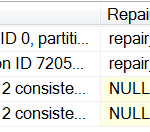
(This screen shot is only showing some of the columns. Note that the message of the previous output for the minimum repair level is still on the Messages tab.)
As you can see, this already makes examining your errors somewhat easier. For instance, you can easily scroll through this output to see if the corruption is in non-clustered indexes (IndexId > 1), where the corruption could easily be fixed by scripting out the index definition, dropping and then re-creating the non-clustered index. Suppose you had over 100 errors… you can see how much faster this would be.
If you recall, the BOL description says that this data can be loaded into a table for further processing. Furthermore, this post is about persisting DBCC output data, which implies storing it into a table. So, let’s make a table, put these results into the table, and then run a query against it. First off, let’s make a local temporary table to hold the results (you could put this into a permanent table if you so desire):
IF OBJECT_ID('tempdb.dbo.#DBCCCHECKDB') IS NOT NULL
   DROP TABLE #DBCCCHECKDB;
CREATE TABLE #DBCCCHECKDB (
   Error       INTEGER,
   [Level]     INTEGER,
   [State]     INTEGER,
   MessageText VARCHAR(MAX),
   RepairLevel VARCHAR(MAX),
   [Status]   INTEGER,
   [DbId]     INTEGER,
   DbFragId   INTEGER,
   ObjectId   INTEGER,
   IndexId     INTEGER,
   PartitionId BIGINT,
   AllocUnitId BIGINT,
   RidDbId     INTEGER,
   RidPruId   INTEGER,
   [File]     INTEGER,
   [Page]     INTEGER,
   Slot       INTEGER,
   RefDbId     INTEGER,
   RefPruId   INTEGER,
   RefFile     INTEGER,
   RefPage     INTEGER,
   RefSlot     INTEGER,
   Allocation INTEGER);
Since the output from using TABLERESULTS isn’t documented, I’ve had to make some assumptions about the data types for these columns. To actually insert the output, we need to use the INSERT INTO … EXECUTE statement:
INSERT INTO #DBCCCHECKDB
EXECUTE ('DBCC CHECKDB (Lab) WITH ALL_ERRORMSGS, NO_INFOMSGS, TABLERESULTS;');
Now that we have the data stored in a temporary table, let’s run a query against the table to return some aggregated data.
— Get the objects, # of errors, and repair level
SELECT [DbId],
       database_name = DB_NAME([DbId]),
       ObjectId,
       [Object] = OBJECT_SCHEMA_NAME(ObjectId, [DbId])
                   + '.' +
                   OBJECT_NAME(ObjectId, [DbId]),
       ErrorQty = COUNT(*),
       RepairLvl = MAX(RepairLevel)
FROM   #DBCCCHECKDB
WHERE   Error NOT IN (8989,8990)
GROUP BY [DbId], ObjectId;
With which I get the following results:

So, there we go. Easy-peasy. By utilizing the TABLERESULTS option, the output of the DBCC CHECKDB command has been persisted into a table, and we are now able to run our own queries against that data. In the event that there is corruption in multiple indexes in a table, this query could easily be extended to get the number of errors in each index.
This post is re-published from my original post on SQL Solutions Group.
The post Persisting DBCC output data appeared first on Wayne Sheffield.
SQL Server 2016 SP1 shocks the world!!!
The entire World has been shocked today! We have never expected to see something like this. Go, grab SQL Server 2016 SP1 and you get all those:

(picture from SQL Server Release Services page)
Holly Molly!!!!
Now in SQL Server 2016 Express you have (for FREE):
- row level security
- dynamic data masking
- database snapshot
- columnstore indexes!!!!
- partitioning!!!!!!!!
- compression (page, row…)
- in memory oltp
- Always encrypted
- polybase…..
- auditing!!!!!
- multiple filestream containers
It is like roller coaster especially for companies that use Standard edition as their primary engine.
For details – check the SQL Server Release Services page.
Cheers
Damian
SQL Server vNext–Linux edition
It has been an incredible day for us the SQL Server Community. First of all we have a new SQL Server 2016 SP1 (described here) which changes literally everything.
It is not all as we can also play with the SQL Server vNext Linux Edition.
How can we play?
First of all – it is a public preview (CTP1) so you can download the bits.
In case you would like to start now that there is an option to visit TechNet Virtual Labs page.
There are 4 labs waiting:

Don’t forget and visit the Release Notes page and check out what’s new.
Cool stuff is coming!!
Cheers
Damian
SQL Server Management Studio and Usability
This blog has moved! You can find this content at the following new location:
http://greglow.com/index.php/2016/11/26/sql-server-management-studio-and-usability/
IBM Triples Cloud Data Center Capacity in the UK
by Angela Guess A recent press release out of the company reports, “IBM today announced that it is adding four new cloud data centers infused with cognitive intelligence in the UK, to keep pace with growing client demand. The investment in the new facilities underscores IBM’s long-standing commitment to providing innovative solutions to the UK […]
The post IBM Triples Cloud Data Center Capacity in the UK appeared first on DATAVERSITY.
Microsoft releases the latest update to Analytics Platform System
Microsoft is pleased to announce that the appliance update, Analytics Platform System (APS) 2016, has been released to manufacturing and is now generally available. APS is Microsoft’s scale-out Massively Parallel Processing fully integrated system for data warehouse specific workloads.
This appliance update builds on the SQL Server2016 release as a foundation to bring you many value-added features. APS 2016 offers additional language coverage to support migrations from SQL Server and other platforms. It also features improved security for hybrid scenarios and the latest security and bug fixes through new firmware and driver updates.
SQL Server 2016
APS 2016 runs on the latest SQL Server 2016 release and now uses the default database compatibility level 130 which can support improved query performance. SQL Server 2016 allows APS to offer features such as secondary index support for CCI tables and PolyBase Kerberos support.
Transact-SQL
APS 2016 supports a broader set of T-SQL compatibility, including support for wider rows and a large number of rows, VARCHAR(MAX), NVARCHAR(MAX) and VARBINARY(MAX). For greater analysis flexibility, APS supports full window frame syntax for ROWS or RANGE and additional windowing functions like FIRST_VALUE, LAST_VALUE, CUME_DIST and PERCENT_RANK. Additional functions like NEWID() and RAND() work with new data type support for UNIQUEIDENTIFIER and NUMERIC. For the full set of supported T-SQL, please visit the online documentation.
PolyBase/Hadoop enhancements
PolyBase now supports the latest Hortonworks HDP 2.4 and HDP 2.5. This appliance update provides enhanced security through Kerberos support via database-scoped credentials and credential support with Azure Storage Blobs for added security across big data analysis.
Install and upgrade enhancements
Hardware architecture updates bring the latest generation processor support (Broadwell), DDR4 DIMMs, and improved DIMM throughput – these will ship with hardware purchased from HPE, Dell or Quanta. This update offers customers an enhanced upgrade and deployment experience on account of pre-packaging of certain Windows Server updates, hotfixes, and an installer that previously required an on-site download.
APS 2016 also supports Fully Qualified Domain Name support, making it possible to setup a domain trust to the appliance. It also ships with the latest firmware/driver updates containing security updates and fixes.
Flexibility of choice with Microsoft’s data warehouse portfolio
The latest APS update is an addition to already existing data warehouse portfolio from Microsoft, covering a range of technology and deployment options that help customers get to insights faster. Customers exploring data warehouse products can also consider SQL Server with Fast Track for Data Warehouse or Azure SQL Data Warehouse, a cloud based fully managed service.
Next Steps
For more details about these features, please visit our online documentation or download the client tools.
Analytics Platform System 2016 Release
Microsoft has a new release for the Analytics Platform System (APS). This appliance update is called APS 2016 and has been released to manufacturing and is now generally available. APS is Microsoft’s scale-out Massively Parallel Processing fully integrated system for data warehouse specific workloads.
This release is built on the latest SQL Server 2016 release, offers additional language surface coverage to aid in migrations from SQL Server and other platforms, adds PolyBase connectivity to the current versions of Hadoop from Hortonworks, additional PolyBase security with Kerberos support and credential support for Azure Storage Blobs, greater indexing and collation support and improvements to the setup and upgrade experience with FQDN support.
The majority of these capabilities have shipped in the monthly releases of Azure SQL Data Warehouse service and/or SQL Server 2016 following the cloud first principle of shipping, getting feedback, and improving rapidly across all of our products.
What’s New in the Release:
SQL Server 2016 re-platform and TSQL compatibility improvements to reduce migration friction from SQL SMP
- Default database compatibility level 130
- Column-level SQL collations – users can choose SQL collations in addition to previously supported Windows collations
- Secondary index support for CCI tables – enables better performance of lookup queries in CCI
- Wide row support – ability to have large objects in a row (>32k) and a large number of rows (>32k) in a table (Note: bulk insert/bcp is the only way to load large objects currently)
- VARCHAR(MAX), NVARCHAR (MAX) and VARBINARY(MAX) – maximum storage size of 2GB
Data Types:
- UNIQUEINDENTIFIER – a 16-byte GUID
- NUMERIC – numeric data types that have fixed precision and scale
Windowing Functions:
- Full window frame syntax support for ROWS or RANGE based windows including UNBOUNDED PRECEEDING, CURRENT ROW, UNBOUNDED FOLLOWING and BETWEEN
- Additional windowing functions support including FIRST_VALUE, LAST_VALUE, CUME_DIST, PERCENT_RANK
Security Functions:
- CHECKSUM() and BINARY_CHECKSUM() – used for building hash indexes
- IS_MEMBER() – indicates whether the current user has a specified database role
- HAS_PERMS_BY_NAME() – evaluates the effective permission of the current user on a securable
Additional Functions:
- NEWID() – creates a UNIQUEIDENTIFIER
- RAND() – returns a pseudo-random float value from 0-1
- DBCC SHRINKDATABASE() – shrinks the size of data and log files in a database
- sp_spaceused() – displays the disk space used or reserved in a table or database
Polybase/Hadoop Enhancements
- Support for the latest distributions from Hortonworks (HDP 2.4 and HDP 2.5)
- Kerberos support via database scoped credentials
- Credential support with Azure Storage Blobs
Install/Upgrade Enhancements
- WSUS updated images
- Security updates taken in updated firmware and drivers
- Fully Qualified Domain Name support
- APS installer includes PAV and hotfixes
- The latest generation processor support (Broadwell), DDR4 DIMMs, and improved DIMM throughput
The latest APS update is an addition to already existing data warehouse portfolio from Microsoft, covering a range of technology and deployment options that help customers get to insights faster. Customers exploring data warehouse products can also consider SQL Server with Fast Track for Data Warehouse or Azure SQL Data Warehouse, a cloud based fully managed service.
For more details about these features, please visit our online documentation or download the client tools.
Microsoft Connect(); announcements
Microsoft Connect(); is a developer event from Nov 16-18, where plenty of announcements are made. Here is a summary of the data platform related announcements:
- Azure Data Lake Analytics is generally available in two datacenters in US (EMEA coming in Feb). Azure Data Lake Analytics is a cloud analytics service that allows you to develop and run massively parallel data transformations and processing programs in U-SQL, R, Python and .Net over petabytes of data with just a few lines of code. See Azure Data Lake Analytics now generally available
- Azure Data Lake Store is generally available in two datacenters in US (EMEA coming in Feb). Azure Data Lake Store is a cloud analytics data lake for enterprises that is secure, massively scalable and built to the open HDFS standard. See Azure Data Lake Store now generally available
- R Server for HDInsight is generally available. Running Microsoft R Server as a service on top of Apache Spark, R Server for HDInsight achieves unprecedented scale and performance by combining the familiarity of the open source R language with the power of Spark. See R Server for HDInsight now generally available
- Kafka for HDInsight is in public preview. This service lets you ingest massive amounts of real-time data and analyze that data with integrations to Storm or Spark for HDinsight. Doing so enables you to build real-time solutions like IoT, fraud detection, click-stream analysis, financial alerts, and social analytics. See Use Apache Kafka with Apache Storm on HDInsight and Kafka for Azure HDInsight now public preview
- SQL Server vNext is in public preview with support for Windows, Linux and Docker. SQL Server v.Next is the next major release of SQL Server after SQL Server 2016. See Announcing SQL Server on Linux public preview, first preview of next release of SQL Server and What’s New in SQL Server vNext (check out Integration Services (SSIS) Scale Out!). Azure images are already available
- SQL Server 2016 Service Pack 1 is generally available. See SQL Server 2016 Service Pack 1 generally available and SQL Server 2016 Service Pack 1 release information and SQL Server 2016 Service Pack 1 (SP1) released !!!. Download here. Big news: with this service pack, many features that were only available in the Enterprise Edition (such as Always Encrypted, In-memory OLTP, In-memory ColumnStore, Operational Analytics, fine-grained auditing, PolyBase, change data capture, database snapshot, data compression, table and index partitioning, multiple filestream containers) are now available in the Standard/Express/Web Edition – see SQL Server 2016 SP1 editions. This allows for a common programming surface across SQL Server editions, which means you can run the same code entirely on both platforms without complex conditional logic: if you need Enterprise scale you use Enterprise, and if who don’t need that you can use Standard and your code runs just fine. Azure images are already available. See A Big Deal : SQL Server 2016 Service Pack 1
- Visual Studio 2017 release candidate. This release has many productivity features and performance updates as well as improvements to the mobile- and cloud-development experiences. See Visual Studio 2017 Release Candidate. Download here
- DocumentDB local instance emulator is in public preview. This allows you to develop and test your application locally without an internet connection, without creating an Azure subscription, and without incurring any costs. See Free local development using the DocumentDB Emulator plus .NET Core support and download at Use the Azure DocumentDB Emulator for development and testing
- Operational Analytics for Azure SQL Database is generally available. This gives you the ability to run both analytics (OLAP) and OLTP workloads on the same database tables. I talked about this feature in SQL Server 2016 (see SQL Server 2016 real-time operational analytics). See the announcement at Microsoft Azure SQL Database provides unparalleled performance with In-Memory technologies
More info:
Announcing the Next Generation of Databases and Data Lakes from Microsoft
Azure Data Lake Microsoft Virtual Academy
SQL Server 2016 SP1 brings new innovation opportunities to software partners
This post was authored by Tiffany Wissner, Senior Director of Data Platform Marketing
Yesterday at Connect(); we announced SQL Server 2016 Service Pack 1 (SP1), which introduces a common programming surface across SQL Server editions. This move makes innovative database features such as in-memory performance across workloads, encryption at rest and in motion, and the ability to query across structured data and unstructured data in Hadoop available to applications of all sizes. Our Independent Software Vendor (ISV) partners now have greater flexibility to adopt advanced database features while supporting multiple SQL Server editions – without having to maintain separate code for each. Your customers gain the flexibility to choose the SQL Server edition that fits their workload, then scale as they go.
As Nick Craver, Architecture Lead at Stack Overflow noted in Joseph Sirosh’s Connect(); announcement blog, this eliminates the burden of programming to different editions. “With SQL Server 2016 SP1, we can run the same code entirely on both platforms and customers who need Enterprise scale buy Enterprise, and customers who don’t need that can buy Standard and run just fine. From a programming point of view it’s easier for us and easier for them.” This means that ISV partners who have been eyeing the performance benefits of in-memory OLTP or the greater security enabled by supporting Always Encrypted now can get started with these innovative features that will help differentiate their applications, regardless of the editions they support.
To help you on your journey to SQL Server 2016, Microsoft is launching the SQL Server 2016 ISV Accelerator Program, a set of resources to help you quickly assess your application for SQL Server 2016 support, leverage the latest features, and learn more about the opportunity to work with Microsoft to bring your applications to market. When you enroll in the program, you’ll have access to a set of SQL Server 2016 training and reference materials and help from Microsoft SQL Server subject matter experts. In addition, you’ll be on a path that can help market your application to Microsoft customers more broadly.
As we look to the future, Microsoft continues to invest in SQL Server programmability features, tooling and connectors to help developers and partners grow their applications. And with our announcement of the next version of SQL Server on Linux and Windows, partners and customer will have even more flexibility in the platforms, languages, and data they use with SQL Server.
We hope you’ll join us on this journey. The best way to get started is to begin today with SQL Server 2016 SP1. Sign up now to get access to tools and resources, and begin innovating with Microsoft’s data platform.
Initial impressions of SQL Server v.Next Public Preview
Microsoft announced its SQL Server on Linux public preview yesterday. I’m really excited to check it out. Here are some interesting things I found during my testing. I’ll write more as I play with it further.
- If you want to play it on Ubuntu, it needs to be 16.04 or above. I didn’t pay attention to that initially, and started installing on Ubuntu 14. Below is a typical message you would get:
[code language=”text”]
The following packages have unmet dependencies:
mssql-server : Depends: openssl (>= 1.0.2) but 1.0.1f-1ubuntu2.21 is to be installed
E: Unable to correct problems, you have held broken packages.
[/code]Running sudo apt-get dist-upgrade brought my Ubuntu to 16.04. The install was smooth afterwards.
- Instruction for Red Hat Enterprise Linux also works for Fedora. I tested it on Fedora 23. I think it should also work on CentOS, although I didn’t test it myself.
- The machine needs to have at least 3.25 GB of memory. On Ubuntu, install won’t continue if that condition is not satisfied:
[code language=”text”]
Preparing to unpack …/mssql-server_14.0.1.246-6_amd64.deb …
ERROR: This machine must have at least 3.25 gigabytes of memory to install Microsoft(R) SQL Server(R).
dpkg: error processing archive /var/cache/apt/archives/mssql-server_14.0.1.246-6_amd64.deb (–unpack):
subprocess new pre-installation script returned error exit status 1
Processing triggers for libc-bin (2.21-0ubuntu4.3) …
Errors were encountered while processing:
/var/cache/apt/archives/mssql-server_14.0.1.246-6_amd64.deb
E: Sub-process /usr/bin/dpkg returned an error code (1)
[/code]
On Fedora, installation finishes, but you won’t be able to start the service:
[code language=”text”]
[hji@localhost ~]$ sudo /opt/mssql/bin/sqlservr-setup
Microsoft(R) SQL Server(R) SetupYou can abort setup at anytime by pressing Ctrl-C. Start this program
with the –help option for information about running it in unattended
mode.The license terms for this product can be downloaded from
http://go.microsoft.com/fwlink/?LinkId=746388 and found
in /usr/share/doc/mssql-server/LICENSE.TXT.Do you accept the license terms? If so, please type “YES”: YES
Please enter a password for the system administrator (SA) account:
Please confirm the password for the system administrator (SA) account:Setting system administrator (SA) account password…
sqlservr: This program requires a machine with at least 3250 megabytes of memory.
Microsoft(R) SQL Server(R) setup failed with error code 1.
Please check the setup log in /var/opt/mssql/log/setup-20161117-122619.log
for more information.
[/code] - Some simple testing
 From the output below, we learn that: 1)in sys.sysfiles, full file name is presented like “C:\var\opt\mssql\data\TestDb.mdf”; 2) Database name, at least inside sqlcmd, is not case-sensitive. By the way, login is also case-insensitive: SA is sA.
[code language=”text”]
1> create database TestDb;
2> goNetwork packet size (bytes): 4096
1 xact[s]:
Clock Time (ms.): total 447 avg 447.0 (2.2 xacts per sec.)
1> use testdb;
2> go
Changed database context to ‘TestDb’.Network packet size (bytes): 4096
1 xact[s]:
Clock Time (ms.): total 3 avg 3.0 (333.3 xacts per sec.)
1> select filename from sys.sysfiles
2> go
filename
——————————————————————————————————————————————————————————————————————————————————————–
C:\var\opt\mssql\data\TestDb.mdf
C:\var\opt\mssql\data\TestDb_log.ldf
[/code] - I then did a quick testing of advanced feature, like Clustered Columnstore Index (CCI). Yes, it’s available in SQL Server for Linux!
[code language=”text”]
1> create table Person (PersonID int, LastName nvarchar(255), FirstName nvarchar(255))
2> goNetwork packet size (bytes): 4096
1 xact[s]:
Clock Time (ms.): total 28 avg 28.0 (35.7 xacts per sec.)
1> create clustered columnstore index Person_CCI on Person;
2> goNetwork packet size (bytes): 4096
1 xact[s]:
Clock Time (ms.): total 25 avg 25.0 (40.0 xacts per sec.)
1>Network packet size (bytes): 4096
1 xact[s]:
Clock Time (ms.): total 1 avg 1.0 (1000.0 xacts per sec.)[/code]
Overall, it looks pretty nice! I’ve got to say, I’m really impressed with Microsoft’s embrace of Linux. By the way, if you use Windows 10, I recommend Bash on Ubuntu on Windows. It’s in beta, but it works for me pretty well so far.
Stay tuned for more. I’ll definitely write more as I play with this new toy!
SQL Server 2016 SP1: Breakthrough Changes
NIH-Led Effort Examines Use of Big Data for Infectious Disease Surveillance
by Angela Guess A new press release out of the National Institutes of Health reports, “Big data derived from electronic health records, social media, the internet and other digital sources have the potential to provide more timely and detailed information on infectious disease threats or outbreaks than traditional surveillance methods. A team of scientists led […]
The post NIH-Led Effort Examines Use of Big Data for Infectious Disease Surveillance appeared first on DATAVERSITY.
Azure Functions to Schedule SQL Azure operations
One of the things that I miss a lot when working on SQL Azure is the ability to schedule jobs, something that one normally does via SQL Server Agent when running on premises.
To execute scheduled task, on Azure, Microsoft recommends to use Azure Automation. While this is surely one way of solving the problem, I find it a little bit too complex for my needs. First of all I’m not a PowerShell fan, and Azure Automation is all about PowerShell. Secondly, I just need to schedule some SQL statements to be executed and I don’t really need all the other nice features that comes with Azure Automation. With Azure Automation you can automate pretty much *all* the resources available on Azure but my interest, for now, is only on SQL Azure. I need something simple. As much as simple as possible.
Azure Functions + Dapper are the answer. Azure Functions can be triggered via CRON settings, which means that a job scheduler can be easily built.
Here’s an example of a CRON trigger (in function.json)
{
  "bindings": [
    {
      "name": "myTimer",
      "type": "timerTrigger",
      "direction": "in",
      "schedule": "0 30 4 * * *"
    }
  ],
  "disabled": false
}
CRON format is detailed here: Azure Function Timer Trigger. As a simple guideline, the format is:
{second} {minute} {hour} {day} {month} {day of the week}
In the sample above, it tells to Azure Function to be executed every day at 04.30. To turn such expression in something that can be more easily read, tools like
https://crontranslator.appspot.com/
are available online. If you use such tools, just keep in mind that many doesn’t support seconds, and then you have the remove them before using the tool.
Dapper is useful because make executing a query really a breeze:
using (var conn = new SqlConnection(_connectionString))
{
  conn.Execute("<your query here>");
}
To use Dapper in Azure Function, a reference to its NuGet package has to be put in the project.json file
{
  "frameworks": {
    "net46": {
      "dependencies": {
        "Dapper": "1.50.2"
      }
    }
  }
}
It’s also worth mentioning that Azure Functions can be called via HTTP or Web Hook and thus also via Azure Logic Apps or Slack. This means that complex workflows that automatically responds to certain events can be put in place very quickly.
Emerging Technologies Like Machine Learning Help Revolutionize Public Sector Agencies
by Angela Guess According to a recent press release out of Accenture, “Advanced analytics and other emerging technologies are revolutionizing the way governments and public service agencies are trying to address citizen demands, helping to overcome persistent challenges such as regulatory compliance, outdated legacy IT infrastructures and organizational cultures, according to a new research report […]
The post Emerging Technologies Like Machine Learning Help Revolutionize Public Sector Agencies appeared first on DATAVERSITY.
SQL Nexus 5.5.0.1
Source Control in SQL Server Management Studio (SSMS)
This post was written by Ken Van Hyning, Engineering Manager, SQL Server Client Tools.
In the latest generation of SQL Server Management Studio, we moved to the Visual Studio 2015 Isolated Shell. While this provides SSMS a modern IDE foundation for many functional areas, it also had some consequences. Specifically, the integration with source control systems in SSMS no longer works the way it did in SSMS 2014 and prior. Previously, one could install the Visual Studio MSSCCI provider and then integrate with various source control systems. Visual Studio 2015 does not support MSSCCI so that is no longer an option to use in SSMS.
Of course, the good news is that Visual Studio 2015 includes TFS and Git source control integration. With the move to VS 2015 Isolated Shell, SSMS should be able to use these packages as well, right? The answer is…yes…but! The issue for SSMS is that the TFS source control integration package VS provides also includes the entire suite of TFS integration features. If we include this package by default, SSMS will have Team Explorer in its entirety which includes things such as work item tracking, builds, etc. This doesn’t fit in the overall experience SSMS is designed for, so we aren’t going to include this package as part of SSMS. The full TFS integrated experience is included as part of SQL Server Data Tools which is designed for a more developer-centric set of scenarios.
That said, if source code integration is an important aspect of how you use SSMS, you can enable the Visual Studio packages manually.
Enabling source control integration in SSMS
To enable TFS integration in SSMS, follow these steps:
- Close SSMS if it is running.
- Install Visual Studio 2015 on your SSMS machine. If you don’t already have Visual Studio, Community Edition will work fine. This is a large download but you can save some space by unselecting all languages during the Visual Studio install if your only purpose is to enable Source Control in SSMS.
- Edit the ssms.pkgundef file found at C:\Program Files (x86)\Microsoft SQL Server\130\Tools\Binn\ManagementStudio\ssms.pkgundef.
- At the top of this file there are a series of packages grouped together related to TFS Source Control features. These packages must be removed from the pkgundef file. This can be done by either deleting the section or commenting out each line using ‘//’. Here is an example of what the section should look like if commented out:// TFS SCC Configuration entries. The TFS entries block Team Explorer from loading.
// Microsoft.VisualStudio.TeamFoundation.VersionControl.HatPackage
//[$RootKey$\AutoLoadPackages\{4CA58AB2-18FA-4F8D-95D4-32DDF27D184C}]
// Microsoft.VisualStudio.TeamFoundation.Lab
//[$RootKey$\Packages\{17c5d08a-602c-4dfb-82b5-8e0f7f50c9d7}]
// GitHub Package
//[$RootKey$\Packages\{c3d3dc68-c977-411f-b3e8-03b0dccf7dfc}]
// Team Foundation Server Provider Package
//[$RootKey$\Packages\{5BF14E63-E267-4787-B20B-B814FD043B38}]
// Microsoft.VisualStudio.TeamFoundation.WorkItemTracking.WitPcwPackage
//[$RootKey$\Packages\{6238f138-0c0c-49ec-b24b-215ee59d84f0}]
// Microsoft.VisualStudio.TeamFoundation.Build.BuildPackage
//[$RootKey$\Packages\{739f34b3-9ba6-4356-9178-ac3ea81bdf47}]
// Microsoft.VisualStudio.TeamFoundation.WorkItemTracking
//[$RootKey$\Packages\{ca39e596-31ed-4b34-aa36-5f0240457a7e}]
// Microsoft.VisualStudio.TeamFoundation
//[$RootKey$\Packages\{b80b010d-188c-4b19-b483-6c20d52071ae}]
// Microsoft.TeamFoundation.Git.Provider.SccProviderPackage
//[$RootKey$\Packages\{7fe30a77-37f9-4cf2-83dd-96b207028e1b}]
// Microsoft.VisualStudio.TeamFoundation.VersionControl.SccPcwPluginPackage
//[$RootKey$\Packages\{1b4f495a-280a-3ba4-8db0-9c9b735e98ce}]
// Microsoft.VisualStudio.TeamFoundation.VersionControl.HatPackage
//[$RootKey$\Packages\{4CA58AB2-18FA-4F8D-95D4-32DDF27D184C}]
// Visual SourceSafe Provider Package
//[$RootKey$\Packages\{AA8EB8CD-7A51-11D0-92C3-00A0C9138C45}]
// Visual SourceSafe Provider Stub Package
[$RootKey$\Packages\{53544C4D-B03D-4209-A7D0-D9DD13A4019B}]
// Microsoft.VisualStudio.TeamFoundation.Initialization.InitializationPackage
[$RootKey$\Packages\{75DF55D4-EC28-47FC-88AC-BE56203C9012}]
// Team Foundation Server Provider Stub Package
[$RootKey$\Packages\{D79B7E0A-F994-4D4D-8FAE-CAE147279E21}]
// Microsoft.VisualStudio.Services.SccDisplayInformationPackage
[$RootKey$\Packages\{D7BB9305-5804-4F92-9CFE-119F4CB0563B}]
// Microsoft.VisualStudio.TeamFoundation.Lab.LabPcwPluginPackage
[$RootKey$\Packages\{e0910062-da1f-411c-b152-a3fc6392ee1f}]
[$RootKey$\ToolsOptionsPages\Source Control]
[$RootKey$\AutoLoadPackages\{11b8e6d7-c08b-4385-b321-321078cdd1f8}]
// TFS SCC Configuration entries.
- At the top of this file there are a series of packages grouped together related to TFS Source Control features. These packages must be removed from the pkgundef file. This can be done by either deleting the section or commenting out each line using ‘//’. Here is an example of what the section should look like if commented out:// TFS SCC Configuration entries. The TFS entries block Team Explorer from loading.
Once completed, start SSMS and the “Team” menu should be visible in the SSMS menu bar. This menu and related features are the standard Visual Studio functionality. This enables connections to TFS servers or Git servers. Please refer to the following Visual Studio documentation for more information:
- Connect to team projects
- Connect to Git repositories
Encryption Primer Session
PASS Summit Announcements: PolyBase enhancements
Microsoft usually has some interesting announcements at the PASS Summit, and this year was no exception. I’m writing a set of blogs covering the major announcements. Next up is the PolyBase enhancements.
PolyBase is a technology that accesses and combines both non-relational and relational data, all from within SQL Server. It allows you to run queries on external data in Hadoop or Azure blob storage. The queries are optimized to push computation to Hadoop via MapReduce jobs.
By simply using Transact-SQL (T-SQL) statements, you an import and export data back and forth between relational tables in SQL Server and non-relational data stored in Hadoop or Azure Blob Storage. You can also query the external data from within a T-SQL query and join it with relational data.
The major use cases for PolyBase are:
- Load data: Use Hadoop as an ETL tool to cleanse data before loading to data warehouse with PolyBase
- Interactively Query: Analyze relational data with semi-structured data using split-based query processing
- Age-out Data: Age-out data to HDFS and use it as ‘cold’ but query-able storage
The main benefits of PolyBase are:
- New business insights across your data lake
- Leverage existing skillsets and BI tools
- Faster time to insights and simplified ETL process
PolyBase supports the following file formats: Delimited text (UTF-8), Hive RCFile, Hive ORC, Parquet, gzip, zlib, Snappy compressed files.
For more details see: Introduction to PolyBase presentation, PolyBase Guide, and the list of supported data sources here.

Polybase was first made available in Analytics Platform System in March 2013, and then in SQL Server 2016. The announcement at the PASS Summit was that by preview early next year, in addition to Hadoop and Azure blob storage, PolyBase will support Teradata, Oracle, SQL Server, and MongoDB in SQL Server 2016. And the Azure Data Lake Store will be supported in Azure SQL Data Warehouse PolyBase.
With SQL Server 2016, you can create a cluster of SQL Server instances to process large data sets from external data sources in a scale-out fashion for better query performance (see PolyBase scale-out groups):
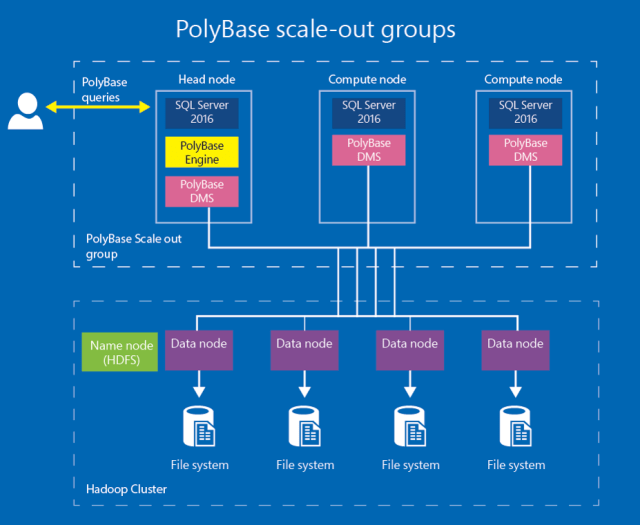
In summary, the main reasons to use PolyBase:
- Ability to integrate SQL Server with data stored in HDFS or Windows Azure Storage BLOB
- Commodity hardware and storage are cheap, easily distributed on HDFS; increases data reliability at a low cost
- Increasing number of different types of data; structured, unstructured, semi-structured (Can have them stored on the best system suitable and queried in one place)
- Increasing size of data and strong aversion to data deletion due to company culture or restrictions
More info:
Integrating Big Data and SQL Server 2016
PolyBase in SQL Server 2016 video
Polybase in SQL Server – Big Data Queried with T-SQL video
Visual Studio Docker tools support for Visual Studio 2015 and 2017
With the Visual Studio 2017 RC release, we've started down the path to finally shipping an official version of Visual Studio Docker tools; enabling developers to locally develop and debug containerized workloads.
The latest Visual Studio 2017 RC Docker Tools added a number of anticipated features:
- Multi-container debugging, supporting true microservice scenarios
- Windows Server Containers for .NET Framework apps
- Addition of CI build definition using a docker-compose.ci.build.yml file at the solution level.
- Return of the Publishing experience that integrates the newly released public preview of the Azure Container Registry and Azure App Service
- Configure Continuous Integration experience for setting up CI/CD with VSTS to Azure Container Services
We also spent a lot of time improving the overall quality
- Performance for first and subsequent debugging sessions, keeping the containers running
- Focus on optimized images for production deployments
- Cleanup of the docker files for consolidating on a single dockerfile for both debug and release and factoring the docker-compose files into a hierarchy, rather than parallel mode leveraging the docker-compose -f flag.
- Better handling for volume sharing failures - at least providing better insight
There are bunch of other great features and quality items that went in to the Visual Studio RC release. It would be great to hear which you like the most, or would like the most.
What about Visual Studio 2015?
The matrix of support scenarios are quite complex, particularly now that we ship inside Visual Studio. The current Visual Studio Docker Tools also focus on .NET Core with Linux, with the addition of .NET Framework targeting Windows Server Containers. While .NET Framework continues to be supported on VS 2015, the current .NET tooling has moved to Visual Studio 2017.
We also have a backlog of items that are required for RTW as well as customers asks, including:
- Open Source the Visual Studio Docker Tools
- Localization
- Complete Perf work
- Cleanup some of the artifacts left behind (solution level obj folder)
- Converge the two debugging buttons as we need better solution level support for solution level debugging from VS
- Add Nano Container support for .NET Core
- Continue to improve perf for Windows Containers
- Add Visual Studio for Mac docker tooling
- Image renaming - as the image and service names are referenced in several docker-compose.*.yml files
- Language services for dockerfile and docker-compose.*.yml files
Attempting to keep both the Visual Studio 2015 and Visual Studio 2017 ship vehicles going would be fairly large effort, and if we took that on, a number of the above items would have to fall below the cut line.
Going forward, past Visual Studio 2017, we absolutely will support an N-1 support policy. Whether that's Visual Studio 2017 + 1/-1, or Visual Studio updates, we'll have to see.
However, at this point, Docker Containers are a relatively new technology that has a lot of rapid changes. We believe customers would prefer us to keep up and even lead in the tooling space as we also believe we'll attract far more customers with the new features then slowing down to support the current scenarios.
What do you think?
Steve
Curious - How does STRING_SPLIT (2016) handle empty/NULL Input?
Technical Preview: Database Experimentation Assistant
This post is authored by Christina Lee, Program Manager – Data Group SEALS Team
Overview
Database Experimentation Assistant (DEA) is a new A/B testing solution for SQL Server upgrades. It will assist in evaluating a targeted version of SQL for a given workload. Customers upgrading from previous SQL server versions (starting 2005 and above) to any new version of the SQL server can use these analysis metrics provided by tool, such as queries that have compatibility errors, degraded queries, query plans, and other workload comparison data to build higher confidence and have a successful upgrade experience.
What Can I Do?
DEA offers the following capabilities for workload comparison analysis and reporting:
- Set up automated workload capture and replay of production database (using existing SQL server functionality Distributed Replay & SQL tracing)
- Perform statistical analysis on traces collected using both old and new instances
- Visualize data through analysis report via rich user experience
With DEA, you can:
- Capture Trace: you can automatically capture a production workload trace with only a few inputs. Learn how to capture trace.
- Replay Trace: you can replay a trace on current and new/proposed instances of SQL. Learn how to replay trace.
- View Workload Analysis Reports: you can generate new reports to gain insights on how workload performance changes across versions of SQL. In addition to generating a new report, you can view previously generated reports. Learn how to generate reports.
DEA can be used through command line: learn how to use DEA command line.
Supported versions
Source: SQL Server 2005, SQL Server 2008, SQL Server 2008 R2, SQL Server 2012, SQL Server 2014, and SQL Server 2016
Target: SQL Server 2012, SQL Server 2014, and SQL Server 2016
Installation
You can install from Microsoft Download Center. Run ‘DatabaseExperimentationAssistant.msi’ to install Database Experimentation Assistant.
Questions/Feedback
For questions, please visit the FAQs for DEA. If you have further questions or would like to provide feedback, please email us at deafeedback@microsoft.com.