New Apple products aren't as easy to come by as they used to be when Apple spread its device launches out a bit more, but as the saying goes, when it rains it pours. Hot off the record-smashing release of Apple's brand new iPhone 5s and iPhone 5c, Apple has sent invitations to newspapers and blogs for a press conference scheduled to take place on October 22nd at 1:00 p.m. EDT, 10:00 a.m. PDT. The company still has plenty in the pipeline, but the co-stars of next week's event are expected to be a completely redesigned fifth-generation iPad as well as an updated iPad mini with a brand new Retina display. Both of the new devices will launch soon after being announced at next week's event, and there's plenty more in store from Apple next week.
Twitter now allows anyone you follow to send you direct messages, if you enable the feature in your settings. The feature can be useful for people who get followers begging them to follow back in order to DM something private, but it could also lead to a ton of spam—that's why it's off by default.
The new feature started rolling out today. To enable it, head to your account settings page, and scroll down to "Receive direct messages from any follower." It's unchecked by default. To allow your followers to send you DMs without you having to follow them first, check the box.
Of course, if your followers just start hitting you with DMs for no reason, you can always come back and uncheck it, but it's a nice tool to have on standby to avoid people who beg for a follow back to DM you something they could have emailed (or worse, once you're following them back, pester you with additional messages). Hit the link below to read more about it. [via Gizmodo and The Verge]
Late last week, BGR covered a rumor that the iPhone Reuse and Recycle Program would be making its way to Europe "in the coming months." As it turns out, the coming months wasn't soon enough. Whether or not that was the original plan, the program was made available in the UK and other European countries beginning Monday for anyone looking to save money on an iPhone upgrade at the Apple Store. Apple has yet to provide a list of all the countries which will be able to participate in the program, but Apple Stores in both the UK and Germany have been reported to be taking trades now. The iPhone Reuse and Recycle Program will presumably make its way throughout Europe in the weeks following this initial launch.
On the heels of its recent redesign, Yahoo Mail is adding a new feature many users have been requesting for years: encryption. The Washington Postrevealed today that Yahoo Mail will begin using default SSL encryption for its webmail interface as of January 8th, 2014. The encryption, which protects messages sent between a user's computer and Yahoo servers, was only made available earlier this year as an option from Yahoo, although most security professionals view it as crucial for any level of privacy on the web. The move comes nearly four years after Gmail switched over to default SSL in January of 2010.
The entire commitment is said to be for 60 episodes, which would be shopped to various VOD and cable outlets, with Deadline naming Netflix, Amazon and WGN America as potential candidates.
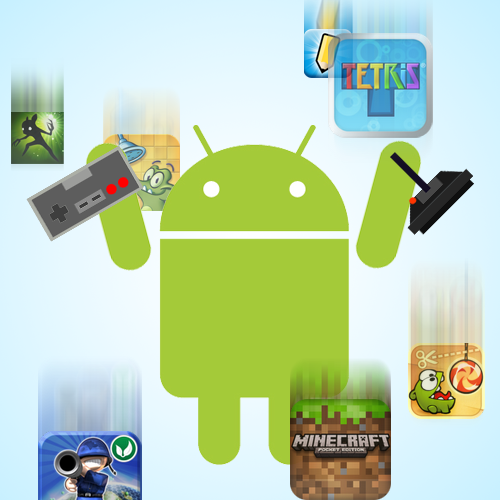
Welcome to the roundup of the best new Android applications, games, and live wallpapers that went live in the Play Store or were spotted by us in the previous 2 weeks or so.
This edition focuses only on new games. The app roundup is coming up soon.
Please wait for this page to load in full in order to see the AppBrain widgets, which include ratings and pricing info.
Following Tesco's Hudl launch a few weeks back, another major British retail name has announced its own-brand, low-cost Android tablet. The Argos "MyTablet" will arrive in stores from tomorrow, Oct. 16, priced at just £99.99. While it undercuts the Tesco Hudl on price, it also doesn't quite match up to it in terms of specs. There's a 7-inch, 1024x600-resolution display, a dual-core 1.6GHz processor with 8GB of storage and microSD support. And you also get front and rear cameras — 2MP and 0.3MP shooters respectively.
On the software side, the device runs a near-stock Android 4.2.2 Jelly Bean-based OS, with BBC iPlayer, Angry Birds and e-reader software pre-loaded.
Wouldn't it be nice if your Windows programs would all update themselves in the background, without you having to manually download every ding dong update that comes along? There are a lot of programs that will monitor updates for you, but the best we've found is Ninite Updater. Here's why.
Platform: Windows Price: $10/year, free workaround available (see below) Download Page
Features
Checks for updates to over 90 programs in the background while you work
Notifies you of updates and installs batches of them in just a few clicks
Skip certain updates or ignore apps entirely
Where It Excels
Ninite Updater—from the makers of the awesome Ninite installer—hits the perfect balance between simplicity and effectiveness. It sits in your system tray, monitoring the programs you have installed, without any action on your part. Updating your apps takes almost no effort at all, requiring just a few clicks to get the batch updater rolling. It has a sizeable database of apps, including all of the apps you can get for the Ninite installer, plus a few others that aren't on the list (like AutoHotkey). Out of 19 unupdated apps on our system, Ninite found updates for 14 of them. Even if you didn't use Ninite to install your programs, it'll detect and update them for you.
Where It Falls Short
The most obvious downside of Ninite updater is its cost—$10 a year isn't a lot, but it's significantly more than other updaters, most of which are free. Still, it's our pick for a reason—it's the best around, even with the $10 a year price tag.
The other major downside we noticed is that it can't update apps that are currently running (well, none of them can, but Ninite won't close them for you—you have to manually close each one yourself). If you do it right when you start your computer this may not be an issue, but if you use most of your apps often, it means a few more clicks to get the job done.
A Free Alternative from Ninite
If $10 a year is too steep for you, there is a workaround of sorts. You can't use the Ninite updater if you don't pony up the cash, but you can use the regular ol' Ninite installer to update your apps. It won't notify you of updates and it requires a few more clicks, but it works very simply: just head to Ninite.com, check off the apps you want to update, then download and run the installer. It'll make sure everything's up to date.
The Competition
If Ninite Updater isn't for you, you have some other options. The FileHippo Updater Checker is one of the more popular options around, and it's completely free. Just run it and it'll take you to a web page listing all the updates you need to install, which you can then download one-by-one. Its database isn't nearly as big as Ninite's, however. On our test system, it only detected 5 out of 19 apps that needed updating (though it did also notify us of 3 apps that could be updated to betas). Plus, it requires you to download and install each update individually, which kind of defeats the purpose of an updater.
Secunia PSI is another popular option. Secunia is the most set-and-forget option, letting you download and install all updates in the background, automatically, without any interaction from you. However, Secunia is a bit more security-focused than anything else—which is a good thing, but it also means it isn't very concerned with minor, non-security updates. Out of our 19 apps, it only notified us of 5 updates, even though some of our other apps were in its database. If you're only looking to stay up-to-date on critical security patches, Secunia PSI is great, but it won't cover all your other programs as well.
Lastly, Software Update Monitor (SUMo) had the best detection rate of them all, finding updates for 18 out of our 19 programs. It also has more configuration options, letting you search for beta versions, search specific folders, and more. However, it only notifies you of what programs need updates—it won't download them for you, or even let you download them directly from their site like FileHippo's updater does. It just leads you to their site, which then leads you to a number of download pages where you can get the files. Plus the main download is riddled with crapware, though you can download a portable or "Lite" version from its download page as long as you avoid the big blue "Download" button and look at the smaller buttons next to it.
Overall, none of these options are perfect, but we found Ninite produced the best experience by far, and is well worth the cost if you want to keep all your programs up to date. It won't catch every program on your computer, but it'll get you most of the way there, especially if you use mostly free software (or software from our yearly Lifehacker packs).
Lifehacker's App Directory is a new and growing directory of recommendations for the best applications and tools in a number of given categories.
Android: Agent is a combination automation tool and personal assistant that will silence your phone during meetings, remember where you parked, auto-respond to texts and phone calls while you're driving, and more, all so you don't have to.
Agent is beautifully simple, and the video above shows you how it works. There are five "agents" in the app, including one that saves your battery (by making some simple system changes like turning off Bluetooth and dimming your screen), the Sleep agent that silences everything but still lets important messages through, the Parking agent that automatically records where you park, the Calendar agent that mutes your phone when there's an appointment on your calendar (and unmutes it when the appointment ends), and the Drive agent, which will read your incoming texts aloud and auto-replies to them to let people know you're on the road.
You can customize each agent to your liking. For example, you can set the battery percentage required for the Battery Agent to kick in, and then again to turn it back off. You can change the auto-response messages that the Drive Agent sends, and so on. The app is easy to use, but still gives you a good bit of control.
If you've used automation tools like Tasker, Llama, or Automagic, (or one of the many apps like them) Agent won't surprise you, and Advanced users may find it limiting. However, non-tech savvy users will appreciate its ease of use. Agent offers the ability to handle common Android tweaks without any programming, all in one app. Plus, it's simple enough you can install it on anyone's phone, even if they're not particularly tech savvy (and especially if an app like Tasker is too much for them). Hit the link below to give it a shot. It's $2 at Google Play.
Great discussions are par for the course here on Lifehacker. Each day, we highlight a discussion that is particularly helpful or insightful, along with other great discussions and reader questions you may have missed. Check out these discussions and add your own thoughts to make them even more wonderful!
From Wikileaks' collection of videos from the whistleblowers' dinner in Moscow to give Edward Snowden the Integrity Award from the Sam Adams Associates for Integrity in Intelligence, a bang-on clip explaining the state of play in America's war on whistleblowing:
It's led us to a point in our relationship with the government, where we have an executive -- a Department of Justice -- that's unwilling to prosecute high officials who lied to Congress and the country on camera, but they'll stop at nothing to persecute someone who told them the truth. And that's a fundamentally dangerous thing to democracy.
Hey! My name is Marques Brownlee and I'm a pretty heavy Galaxy Note 3 user. Some of you may already know me from the MKBHD YouTube Channel. To others, I'm a new face to AndroidPolice. Either way, Artem and I rounded up a list of 10 of the most useful tips and tricks for Samsung's massive new smartphone flagship. So in no particular order, other than for the convenience of the video, here they are.
HTC on Monday finally took the wraps off of its HTC One Max, the humongous phablet we have seen leak extensively over the past few months. Just as earlier reports suggested, the handset is a bigger version of the flagship HTC One smartphone, which BGR recently called the best Android smartphone in the world. One Max highlights include a 5.9-inch full HD display, a somewhat stale 1.7GHz quad-core Snapdragon 600 processor, an UltraPixel rear camera, a 2.1-megapixel front-facing camera, 16GB or 32GB of internal storage, microXDHC card support for an additional 64GB of storage, 2GB of RAM, a 3,300 mAh battery and Android 4.3 Jelly Bean running under HTC's new Sense 5.5 software. It also includes an integrated fingerprint scanner for added security, though unlike Apple's fairly elegant solution on the iPhone 5s that keeps the scanner inconspicuous by embedding it in the home button, the One Max's scanner is a dedicated panel positioned next to the camera lens on the back of the phone. HTC says the One Max will begin rolling out later this month, though no specific launch date or pricing for the U.S. market have been announced. The company's full press release follows below along with a video showcasing the new phone.
Most people probably use the launcher that comes with their phone. Whether you're using a skinned manufacturer version, or the stock Android one, custom launchers provide a ton of sweet features that you might not know existed.
If you're on any Android device that came out in the last two to three years, your best options are going to be Nova and Apex launcher. Many of the features we talk about here can be found in both, however there are very nearly too many custom launchers to count. You can check out Nova (our top pick) as well as plenty of others in our App Directory post.
Use Swipe Actions to Double Your Shortcuts
Many custom launchers offer you the ability to perform actions with swipes on icons. You can tap on Gmail, for example, to open the app like normal, or you can swipe up to open a Gmail label. You can use a swipe gesture to run any of the launcher's custom actions, or launch any app or shortcut. Effectively, you double the number of shortcuts on your home screen.
Use Gestures to Navigate Your Home Screens
In addition to using swipe gestures, custom launchers often let you use multi-finger gestures to accomplish tasks. As you can see in the video above, you can set up gestures to launch apps, open the multitasking interface, or even quickly jump between your many home screens.
Put Widgets In Your Icons, In Your Folders
This one happens to be limited to Action Launcher, but it's a compelling offering. This launcher allows you to place an icon on your home screen that, when tapped, will open the app, but when you swipe it, you'll get a widget for that app. Rather than taking up half your home screen, each widget can take up just one space on the grid. On top of that, you can place those icons inside a folder, saving even more space.
Get More Space For All Your Shortcuts and Widgets
Android allows you to customize where you place just about everything on your home screens, but you might have noticed there are some annoying limitations. For starters, you might have a limited number of home screens, and icons have a fixed size and spacing. The latter can be particularly obnoxious on big screen tablets. Custom launchers typically allow you to adjust your grid size and add as many home screens as you need, so you can fit as much on one page as your screen can handle.
Quickly Access App Info or Uninstall Right From the Home Screen
Google's way of managing apps is kind of a pain. With custom launchers, instead of digging through the settings app, you can just long-press an icon on your home screen and drop it where it is. Both Nova and Apex will pop up a menu that allows you to uninstall it, jump to App Info where you can clear cache or defaults, or even edit the shortcut name. Apex also allows you the option to quickly share an app from this menu, for all those times you just have to tell people how awesome the app you're using is right now.
Backup Your Layout and Import it Later
One of the most time-consuming tasks when setting up a new Android device is getting everything arranged the way you like it again. While Google hasn't made it possible to export your launcher layout yet, most custom launchers will let you create a backup, restore it at a later time (or on a different device), and even import your layout from another launcher with minimal friction. If you're a frequent ROM swapper, it's an essential feature. Unless you just love tedium.
Get (Near) Stock Android...
Unless you use a Nexus device, your phone's manufacturer probably made its own version of the launcher and it could be wildly different. However, many of the best alternative launchers for Android are only mildly different. With very few exceptions, they look and feel almost exactly the way they would on a Nexus. Even if you don't use any of the other features mentioned on this article, this alone can be the most compelling reason to switch.
...Or As Far From It As You Can Get
The neat thing about Android is that you can get pretty crazy without violating your warranty. Do you really like iOS? Dig Windows Phone's tiles? Or are you just obsessed with Super Mario, Breaking Bad, or Grand Theft Auto? Chances are you can find a launcher that caters to just about any preference. Recently featured Themer even allows you to get insanely customized home screens in a quick tap. Buzz Launcher has a similar focus on customization, but with a bit more flexibility (at the expense of simplicity). This is Android, the platform of choice after all. We won't judge. Much.
WikiLeaks has been vocal about its distaste for The Fifth Estate's dramatization of its founder and service, and it's now challenging the film with a film of its own, which anyone in the UK can watch for free. For the rest of this week, Mediastan — a behind-the-scenes documentary on how WikiLeaks handled the reception of state secrets during 2011 — will be streaming on YouTube for those in the UK, where The Fifth Estate opened this weekend. Everyone else will be able to rent the picture for around $2-3 on services like Vimeo and Dailymotion.
Windows: Shortcuts on your desktop (or anywhere else) are usually indicated by that little arrow in the bottom-left corner of the icon. It’s a tad ugly and a new tool called Windows Shortcut Arrow Editor lets you remove it, change it to the old XP style, or customize it with your own arrow.
Download and unzip the program and you will find folders for Windows 7 & Vista, and a separate one for Windows 8. Run the right EXE application and you will find the aforementioned option. Click the one you want and Windows will refresh to give you the new look.
The ZIP file also contains a ‘Shortcut arrows’ folder for a few readymade arrows to use, but you can choose your own too.
The delivery man was working on a Saturday and delivered our 7-inch Kindle Fire HDX this afternoon, and we wanted to make sure you fine folks had a chance to see a quick peek of it.
The new 7-inch Kindle Fire HDX is extremely thin and light (9mm and 303g, respectively) and has an incredible 323ppi 1900 x 1200 pixel screen. Under the hood is a quad-core Snapdragon 800 CPU clocked at 2.2GHz, and paired with 2GB of RAM the new Mojito UI absolutely flies.
A few quick first impressions left us feeling good about what we are seeing here. The package is very well built and assembled, with a mostly soft-touch backing (it almost feels rubberized) and the few buttons are solid and functional. The screen is excellent, as are the dual stereo speakers and Dolby audio system. Of course, we'll know more about things like battery life and wireless performance after a bit of use.
I'm an unapologetic Kindle Fire user. I've found that when it comes to consuming the content I want to consume, Amazon and their hardware deliver it better than anyone else out there, and it's the tablet that sits on my nightstand and puts me to bed every night. Having said that — and yes, I realize it's likely an unpopular opinion — I'm the perfect person to review the latest and greatest Amazon has to offer.
I'll be doing just that, and I've already filled our 16GB unit with some books from my library, signed into my Amazon cloud and migrated my Amazon apps and settings from my older Kindle to the newer one. Look for further thoughts throughout the week, with a full review soon.
In the meantime, there's a short video and some pictures after the break.
It sure looks like the next Nexus in this 7 minute hands on video
Looks like we've all got a little weekend treat here. What this is, apparently, is a full 7 minute hands on video with the LG Nexus 5. We've been seeing and hearing things for the past few weeks, but this is the clearest view yet at what we're expecting to be Google's next Nexus phone. The video is plastered with smartphones.sfr.fr whom it appears we have to thank.
We've not had chance to digest it all yet, but jump in and take a look for yourselves in the video up top. Early thoughts are that it shows the phone to be running Key Lime Pie, so it's likely an older build of the software and doesn't show us anything new. Also, on the hardware front, the large Nexus logo we've seen repeatedly in previous leaks on the rear of the phone seems to be missing, So maybe this is an earlier prototype of the hardware too. That, plus the "not for sale" sign on the back would indicate this probably isn't a retail unit we're looking at. What do you think of it all?
You may not realize it, but you can do an awful lot from your keyboard. You can launch apps, switch between windows, edit text, and even clean out your email, all without ever moving your hands. Even if you've learned the basics, here are 10 actions that might be worth working into your muscle memory.
10. Launch Applications and Other Shortcuts
Start menu? We don't need no stinking Start menu. If you want to launch a program on Windows, just press the Windows key, start typing its name, and press Enter. Bam—you're there. You can also press Win+1 through Win+9 to launch icons from the taskbar, from left to right. You can also give a shortcut a global keyboard command, which is particularly useful. But why stop there? App launchers like Launchyor Quicksilver will let you do so much more with just a few keystrokes—from launching apps to opening folders, running commands, making calculations, and a ton more. They put the power of nearly your whole computer at your fingertips, with no need for that pesky mouse.
9. Highlight and Edit Text like a Ninja
When you're working in a word processor, sometimes you need to go back and highlight, delete, move, or otherwise edit the text you've already typed—and the mouse slows you down more than you probably realize. With the right shortcuts—like Shift+Ctru+Up/Down to select entire paragraphs or End to move the cursor to the end of the current line—you can jump around your document without taking your fingers off the keyboard, so fast that bystanders will have no idea what you're doing or how you're doing it so fast and effortlessly. Check out our list of text editing shortcuts and start building them into your muscle memory. You'll be glad you did. (Of course, if you're dead set on using the mouse, there are some tricks to using it more efficiently too).
Your browser has more built-in shortcuts than you can shake a stick at, and you'd be surprised how much browsing you can get done without that mouse. For example Ctrl+L takes you to the address bar to type in URLs or search terms. Backspace and Shift+Backspace move you back and forward a page. Ctrl+F finds text on a page, while Ctrl+Enter opens a link in a new tab. Check out our guide to mouseless Firefox for more shortcuts (many of which also work in Chrome), or the Keyboard-fu extension for Chrome to customize them.
6. Switch Between, Minimize, and Close Windows (and Tabs)
Working in one window, and need to switch to another? Instead of reaching for the mouse, just press Alt+Tab (or Cmd+Tab on OS X). You'll be able to switch through your open windows super quickly. You can do something similar with your web browser tabs, too—just press Ctrl+Tab. Want to close a window? Don't aim for that tiny X, just press Ctrl/Cmd+W (or quit it entirely with Alt+F4 on Windows, Cmd+Q on the Mac). Win+Up/Down minimizes or maximizes in Windows, and Cmd+M minimizes a window in OS X. Essentially, you can manage all your windows with a few choice keystrokes rather than dragging the mouse around, so put a few of these into your arsenal for those heavy windowed days.
5. Blow Through Your Email Inbox
If there's one thing that always seems to bog down your day, it's email. There are a lot of mental tricks to managing an overflowing inbox, but another great way to speed the process up is learning Gmail's keyboard shortcuts (or, if you use another client, its keyboard shortcuts). Before you know it, you'll be zooming around your inbox, archiving, deleting, and replying to messages with blinding speed. If you need help getting started, this cheat sheet might be worth pasting on your bulletin board.
4. Add Calendar Events, Get Directions, and Control Other Webapps
If #4 is the beginner class on mouse-less web browsing, here's the advanced masterclass. You know the basics, but with a little ingenuity, you can perform nearly any task from your browser's address bar. Just press Ctrl+L to focus the address bar and then type in a custom command that adds a new event to Google Calendar, gets driving directions to a certain address, send email to a specific contact, add something to Evernote, or do one of a million other things. Check out our guide to get it all set up, and never worry about that mouse again.
3. Access the Menus in Any Program
You may know that you can press Ctrl+S to save a file, or Alt+Enter to go full screen (depending on the app). But if you don't know the keyboard shortcut for the menu item you want—or if there isn't one—you can still access the File, Edit, and other menus with the keyboard. On Windows, just press Alt+that menu's underlined letter (for example, Alt+F for File), then arrow down to the option you want. On OS X, just press Ctrl+F2 to head to the menu bar, then start typing the name of the menu item you want.
2. Use the Mouse
What?! Yeah, we went there. Obviously, if you need to click on something, it's faster to use the mouse. But what if you don't have a mouse, or your mouse is out of batteries, or broken? If you're stuck in a bind, you can actually use your keyboard to move the mouse pointer. You'll need to enable it in Windows' Ease of Access center, but once you've done so, you can just move the mouse pointer using the number pad. Check out Microsoft's guide for more info. If you're on a Mac, you can do the same through "Mouse Keys" in System Preferences.
1. Do Anything Else
All that not enough for you? Luckily, you can turn just about any action you can think of into a keyboard shortcut. Windows users should definitely check out AutoHotkey, a super simple scripting language that lets you do anything from remap keys to create entire programs. Mac users don't have anything quite like AutoHotkey, but you can do just about anything with a combination of AppleScript and Quicksilver. The world is your oyster! Photo by Neil T.
The Arizona Republic has found a large cohort of elderly and retired people who claim to have been abused by TSA staff at Phoenix's Sky Harbor airport. The passengers claim that they were required to remove their prostheses (particularly prosthetic breasts worn by cancer survivors), and that their objections were met with threats and hostility.
One woman wrote that an agent ordered a pat down of her prosthetic breast and refused to conduct the search in private, before a flight in May 2012.
"She made me pull it out in front of the world. When I got upset I was told to shut up. I have never been so humiliated in my life," the woman wrote. "The TSA has overstepped their bounds and ruined my vacation."
Two weeks earlier, another passenger wrote that TSA agents twice patted down her breast in as many weeks.
"Since this has occurred at two different checkpoints on two different dates, TSA clearly must have a procedure in place (that) requires that women with breast prosthesis to be singled out and treated in this cruel and humiliating manner," the woman wrote.
There is no record that the TSA responded to the second woman. When it does, it's usually a form letter.
Google Glass, Google schmass. What you really want on your face are these puppies. ION Glasses are sunglass or prescription glasses frames with a built-in LED, Bluetooth stack, and tiny button controller.
What do they do? Well the LED lights up to notify you of new messages – you can set different people to different colors – and you can use the glasses to control the music on your phone, a presentation, or almost anything else controlled via Bluetooth.
The astute observer will say “Why in the living blazes would I want an LED in my glasses? Are you daft, man?” And to this I would say “Non!”
Understand me here – I’m not saying this product is for everyone, but I met the founder, Santiago Ambit, and he is so earnest and big-hearted that we have to assume that he thought this through. So here we are.
Ambit’s system is fairly ingenious. He’s embedded a small piezo buzzer, LED, and Bluetooth stack inside the eyepieces of a standard pair of glasses. They are no heavier than regular Wayfarers and the logo glows on the side so people know you’re into the ION lifestyle.
He is raising funds on Indiegogo and has raised $22,000 of his $150,000 goal. You get a pair of glasses — suitable for prescription or sunglass lenses — for a pledge of $89. They last a week on one charge.
Again, why do you need these? Well, they’re extremely unobtrusive and they’re a great way to see when someone important is calling and to help your prioritize the times you need to pick up your phone.
Because of their clever design no one will have to know you’re using them and, in turn, you can react to messages and notifications without panic or rudeness.
Would I wear these? I’m not so sure, but if I were in security or needed to be in a lot of important meetings I could definitely see myself wanting to get small, discrete messages in the corner of my eye without the potentially off-putting nature of Google Glass.
I rarely end posts with a question but I ask you, dear reader, would you wear these?
If there’s any upside, it’s that opting out is, quite seriously, two clicks away. Two clicks that I only discovered because I went out of my way to look and because I checked the depths of Google+ (lol). But hey — it’s two clicks from somewhere.
Here’s how to do it
Click this link. (And, if necessary, log in to the Googles. I promise that’s a link to actual Google, not fake Google that steals your password and uses it to order handbags.)
Uncheck the checkbox. Unless it’s already unchecked — in which case, leave it unchecked. Oddly, some people are saying they’re opted out by default; others say they find it checked. tl;dr: check = bad.
Hit save!
And you’re done*.
[* Until there's another TOS change, in which case, get ready for another rousing game of find the checkbox!]
Samsung has taken stop-motion animation and the Note 3 and turned them into a really great ad
Samsung always makes commercials people like to talk about. On that level, they are doing exactly what they need to do, because the first rule of advertising is to get people to talk about your product. But sometimes, a company does it so good we have to comment. With the latest Galaxy Note 3 commercial, this is one of those times.
A great commercial shows just what your product can do, how well it can do it, and shows you why you want a product that can do these things. Samsung hits it out of the park this time.
There may be no mockery of other products, or over the top acting and production (or lens flares), but this one is real gold in my book. Let's see more like this, Sammy.
An excellent editorial by Simon St. Laurent on O'Reilly Programming asks what the open Web has gained from the World Wide Web Consortium's terrible decision to add DRM to Web-standards. As St Laurent points out, the decision means that programmers are now under threat of fines or imprisonment for making and improving Web-browsers in ways that displease Hollywood -- and in return, the W3C has extracted exactly zero promises of a better Web for users or programmers.
After acknowledging that, however, he goes on to define an open web as a marketplace, something that is “universal in that it can contain anything”, rather than being universal in that its content can be read by anyone. It seems painfully clear in his discussion of user priorities that the users who matter most in this universal marketplace are the ones who “like to watch big-budget movies at home”. The rest of us – including those who worry about “the danger that programmers will be jailed” are extremely welcome to “weigh into the discussion thoughtfully and with consideration”.
The saddest part of that discussion, however, is the question. What are we users – and what is the W3C – getting from building the risk of programmers being jailed into the core infrastructure of the Web? I have no doubt that browser vendors eager to cut deals will incorporate DRM into their offerings. Does that make it a good idea for the W3C to offer its name, its facilities, its intellectual property agreements, and its umbrella from antitrust prosecution to such a project? Why not leave the companies to pursue their own directions, and take on the risk of legal action themselves?
I’m left, however, with Berners-Lee’s failure to answer his own question, and his strange expectation that users can “ask” for something in return and hope to see it. I have too many memories of decade-old conversations with Microsoft employees after they had, for a time, won the Browser Wars. It was clear that the users I cared about, whether developers or individuals who just couldn’t make things work, were not the users they cared about. Our roles was just to create an ecosystem in which Microsoft could make a lot of money. (Microsoft is far from alone in that view – I only single them out for that past history.)
Today Google announced Shared Endorsements, a feature that will display your name and image next to advertisements. It's an ad play that sounds suspiciously like Facebook's Sponsored Stories, which similarly placed Facebook users (and their mugs) into online ads.
But Google has clearly learned from Facebook's fumbles surrounding ads, and is entering the realm of personalized, targeted ads with a little more transparency.
Sponsored Stories drew an outcry from Facebook users, a class-action lawsuit and an eventual $20 million settlement that forced the company to restructure its privacy policies and call the sponsored stories what they are—ads. The 2011 lawsuit against the company claimed that Facebook violated users' privacy rights by publicizing user Likes in advertisements without permission or compensation.
When the social network originally implemented Sponsored Stories, users couldn't opt out of the service, effectively turning all Likes into advertising fodder. Google, however, has avoided that pitfall. It won't start using your likeness in advertisements until you opt in to the Shared Endorsements feature, and users can limit the visibility of posts or +1s outside of ads by deleting them or changing settings to restrict who can see them.
These steps are certainly laudable from a user privacy perspective—even if they're also a pretty clear attempt to avoid Facebook-like user rage.
Shared Endorsements enables advertisers to show user names, photos and comments made about their products or services on Google's sites, including Google Plus (Google's own social network) and YouTube.
While the personalized advertising recommendations from Facebook and Google sound eerily similar, Facebook is actually more upfront about how and why it uses information:
Sponsored stories are messages coming from friends about them engaging with a Page, app or event that a business, organization or individual has paid to highlight so there’s a better chance people see them.
Google, by contrast, is a little more vague:
When it comes to shared endorsements in ads, you can choose whether your name and photo may be used to help your friends find stuff you love (and avoid stuff you don't).
Head to Google's home page today and you'll see a bright blue banner indicating the company's new terms of service and advertising structure. Last year, Google bombarded its users with notifications of its last major privacy-policy change in much the same way; it's a handy technique for diverting user backlash by making the policy updates impossible to avoid.
Dozens of cyclists attended a hearing on police hostility to cyclists at the San Francisco Board of Supervisors last week. They told stories of undercover cops threatening to beat them up after cutting them off on their bikes; of cops refusing to take action against drivers who had attempted or threatened vehicular homicide; and of a systematic refusal to investigate cases where cyclists were injured or killed by drivers.
Before the inevitable, victim-blaming round of "but cyclists are so aggressive and horrible," please read this (tl;dr: statistical analysis of cyclist behavior does not bear out the caricature of the lunatic rider, who is significantly less common -- and less dangerous -- than the lunatic driver cohort).
When Sarah Harling was hospitalized by a minivan driver who made a left turn into her at a stop sign intersection, she says the SFPD officer who filed the police report included a fabricated statement from her claiming that she “approached the stop sign without stopping.”
Harling said she tried to submit a response to the numerous “factual errors” in the police report, but an officer at SFPD’s Richmond Station “raised his voice to lecture me about how traffic laws apply to cyclists too, how he’d never let his children ride bikes in the city, and then told me repeatedly, ‘I’m not telling you you can’t leave this here, but you just need to understand that sometimes things get lost.’”
“I left the station in tears,” she said.
Harling later hired an attorney, who collected witness statements and a photo, which showed the driver to be at fault and led the driver’s insurance company to settle for his or her maximum amount of coverage available.
Yahoo Mail has been experiencing a major bug, following its revamp earlier this week. According to a number of reports, the service has been automatically forwarding emails to users’ “alternate,” external email addresses – a setting that was switched on without users’ permission. Yahoo has replied to some help requests via its Twitter account @YahooCare, but it hasn’t replied to help requests on its UserVoice forum, nor has its Customer Care site offered a solution to this problem.
We’ve also reached out to the company for information on this and will update if/when we hear back.
Some of the affected users have contacted TechCrunch tips and staff about the problem. It seems the bug has been in the wild for some time. Yahoo’s Mail upgrade took place on Tuesday, Oct. 8, when it introduced 1 TB of storage, “Mail Plus” features, and more. Complaints began showing up shortly after.
In Yahoo Mail, as in many other webmail providers, users had previously been able to configure a secondary address, which could also be used to send their Yahoo Mail elsewhere through an auto-forwarding option, which could be switched off or on. But after the Mail upgrade this week, that auto-forwarding option was set to “on” for some users, even though they had not switched it on themselves.
The result was that users were not getting their emails at all, not realizing that they were being sent to an alternate inbox.
As one tipster lamented to TechCrunch, “Yahoo support wasn’t any help, and after a couple of days I finally figured out that all incoming email was being forwarded to an old Hotmail address that I haven’t used in nearly 15 years. Making the situation even worse, it appears that the Hotmail address was recycled and is now being used by someone else, which is potentially a huge privacy/identity theft issue,” they said. (Security issues around recycled email addresses was another complaint Yahoo recently had to overcome itself).
Another complaint on Yahoo’s UserVoice site reads:
“Auto-forwarding was turned on for my account without my request or action. For over a day, my mail was being forwarded to a DEAD corporate account to a company that I have not worked for over 3.5 years!! This resulted in valuable lost mail.”
Meanwhile, others say they couldn’t get help through Customer Care, and one person even writes that while trying to submit “Feedback,” that page wasn’t working either, leading to error messages. Similar complaints are found on Twitter, too, with some @YahooCare responses asking users to check to see if they could switch the setting off.
The account then tweeted this morning in response to one user that, after checking with the Mail team, their issue — which appears to be related to auto-forwarding — was fixed. But the account is stillrespondingto these kinds of requests, so it’s unclear if that’s the case for all.
@YahooCare Perfect! Option to undo forwarding (which I did not select) is now visible. Problem solved! Thanks
This could be a problem for Yahoo’s attempts at revamping its image. The massive amount of storage Yahoo Mail now offers is tempting for new or relocating email users who may be considering between top webmail services like Gmail, Microsoft’s Outlook.com, and Yahoo, for example. But while no service is immune from issues (Gmail experienced lengthy email delays last month), anything less than a smooth transition from “old” Yahoo Mail to “new” Yahoo Mail could keep users from placing their trust in the company’s infrastructure for something as mission-critical as email.
Really, though, the larger problem here is not that the auto-forwarding was happening (though that’s bad, bugs do happen), but that Yahoo hasn’t publicly addressed the issue (unless you count Twitter support), nor did it reply to those complaining of problems on the forums and through other channels, from what we’re hearing. There’s no reason a rep couldn’t quickly reply on UserVoice at the very least, saying “we’re looking into this now,” or the Mail blog couldn’t post a short message, even if Yahoo doesn’t have a fancy “app status” dashboard like Google.
Without an official comment from Yahoo, we can’t confirm how widespread the issue is or where we are in terms of a fix. This could be a minor issue affecting a small percentage of users, or it could be larger.
Below, a Storify collection shows some examples of the complaints.
UPDATE: To close the loop on this somewhat, it’s 7:30 PM ET, and Yahoo has not provided comment. We did hear they’re aware of the request, however, and were working on a statement.
Bill Watterson, the creator of the beloved comic strip Calvin & Hobbes is notoriously private — in the nearly 20 years since he retired from writing and drawing his strip on December 31st, 1995, he's made precious few public statements about his work. That hasn't stopped both fans and journalists from trying to track down the reclusive artist, but the team behind an upcoming Calvin & Hobbes documentary are trying something different. Dear Mr. Watterson, which will be released in some theaters as well as on iTunes November 15th, traces Watterson's influence through interviews with fans as well as the many cartoonists who owe a debt to his work — but there's no attempt to pull the cover back on Watterson's privacy.
Earlier this week it became apparent that City of London Police had approached certain domain registrars with demands that they should suspend the domains of various torrent and other file-sharing sites. Among them were ExtraTorrent and SumoTorrent, some of the largest indexes on the web today.
There appeared to be no legal basis for the requests, something which outraged Canada-based EasyDNS who refused to comply with a suspension request for meta-search engine TorrentPond.com
To get the lowdown on the latest developments and in order to be absolutely sure that there is no formal legal process underway, TorrentFreak spoke with City of London Police. They told us that in the summer they began a campaign to target websites “that attract visitors by providing unauthorised access to copyrighted content for criminal gain” and that the project is now in new hands.
“In September the project was taken on by the City of London Police’s new Police Intellectual Property Crime Unit [PIPCU], which has been set up to target serious and organized intellectual property crime affecting physical and digital goods, with a specific focus on offences committed online,” a spokesman confirmed.
“The latest stage of Operation Creative, as it is now known, involves contacting registrars whose website domains have been identified as involved in facilitating criminal copyright infringement under UK law and as result are potentially breaching the terms and conditions of the registrars. PIPCU are then requesting the registrars adhere to their terms and conditions and take consideration to suspending the supplied domain.”
So, while the police are stating that the domain registrars are involved in facilitating a crime, there is no formal legal process which establishes either that or whether the torrent and other file-sharing sites involved are actually illegal under UK law.
Given the status of The Pirate Bay and sites like KickassTorrents in the UK it’s certainly possible they are, but none of the sites are based in the UK.
Legal certainty would of course be of some comfort to registrars trying to decide the best course of action in these cases. However, for PDR Ltd, the company we yesterday revealed as suspending the domains of ExtraTorrent and three other MP3 sites, no such reassurance was needed.
So far PDR Ltd have failed to respond to our requests for comment, but according to Mark Jeftovic of EasyDNS, they may now need to think again.
“Any of those registrars that actually complied with the UK requests to bring down the torrent domains *must* allow those domains to simply transfer out, or they themselves will be in violation of the ICANN transfers policy,” Jeftovic told TorrentFreak this morning.
The problem is that the suspended domains are effectively seized and out of the control of their owners. This, Jeftovic notes, leaves the registrar exposed to the wrath of ICANN.
“Since there were no charges against any of the domains and no court orders, it may be at the registrars’ discretion to play ball with these ridiculous demands. However – what they clearly cannot do now, is prevent any of those domain holders from simply transferring out their names to more clueful, less wimpy registrars,” Jeftovic explains.
“If any of those registrars denied the ability to do that, then they would be in clear violation of the ICANN Inter-Registrars Transfer Policy.”
According to that policy, registrars can only take a domain when it was paid for fraudulently or is the subject of a “court order by a court of competent jurisdiction.” As already established, one of those doesn’t exist.
This means that domain owners who refuse a transferral of a domain to a new registrar will open themselves up to further action under ICANN’s Transfer Dispute Resolution Policy, a battle Jeftovic predicts they will lose.
“This is why it is never a good idea to just react to pressure in the face of obnoxious bluster – in the very act of trying to diffuse any perceived culpability you end up opening yourself to real liability,” the EasyDNS CEO concludes.
PHOTO: An Occupy Wall Street demonstrator marches in front of a group of police officers in riot gear in New York. (REUTERS)
Reporting in the New York Times about the ever-expanding operations of undercover police in NYC, led in part by a former CIA agent, Jim Dwyer writes,
The unrestrained surveillance in New York public life is the physical embodiment of what has been taking place online over the last decade under operations of the National Security Agency revealed by Edward J. Snowden. To borrow the title of a 1918 novel about nosy Irish villagers, we have become The Valley of the Squinting Windows. But it was all O.K. because the mayor and the police commissioner said so, though from the outside, no one could really say what they were up to.
 New Apple products aren't as easy to come by as they used to be when Apple spread its device launches out a bit more, but as the saying goes, when it rains it pours. Hot off the record-smashing release of Apple's brand new iPhone 5s and iPhone 5c, Apple has sent invitations to newspapers and blogs for a press conference scheduled to take place on October 22nd at 1:00 p.m. EDT, 10:00 a.m. PDT. The company still has plenty in the pipeline, but the co-stars of next week's event are expected to be a completely redesigned fifth-generation iPad as well as an updated iPad mini with a brand new Retina display. Both of the new devices will launch soon after being announced at next week's event, and there's plenty more in store from Apple next week.









 An
An 


 Dozens of cyclists attended a hearing on police hostility to cyclists at the San Francisco Board of Supervisors last week. They


 Earlier this week it became apparent that City of London Police had approached certain domain registrars with demands that they should suspend the domains of various torrent and other file-sharing sites. Among them were ExtraTorrent and SumoTorrent, some of the largest indexes on the web today.