The parental filter on Sky Broadband, one of the largest ISPs in the UK, blocked jquery, the widely used Javascript library, without which many websites cease to operate. While the block was in place, Sky advised customers that they could get the Web back by disabling the filter, or switching off the "phishing/malware" category.
UK Prime Minister David Cameron has unilaterally decreed that these parental filters will soon be switched on by default for all broadband customers in the UK. But don't worry, the Great Firewall of Cameron won't make any mistakes, because the PM has decreed that Web companies must:
a) Censor all the bad things, but;
b) Don't censor the good things.
Whew, that's a relief.
code.jquery.com may not sound like a mainstream website, as it is really aimed at web and javascript developers but it is pretty common for websites to link to the released javascript (.js) files for jquery and a host of other tools on jquery.com as the site is a CDN for these files, the result being that it is possible many sites may not be performing as expected today.
The advice appears to be for Sky customers to log into their web account, and in the Sky Broadband Shield section turn off the Phishing/Malware filter, or alternatively disable the shield completely.
You've probably heard the word "encryption" a million times before, but if you still aren't exactly sure what it is, we've got you covered. Here's a basic introduction to encryption, when you should use it, and how to set it up.
What Is Encryption?
Encryption is a method of protecting data from people you don't want to see it. For example, when you use your credit card on Amazon, your computer encrypts that information so that others can't steal your personal data as its being transferred. Similarly, if you have a file on your computer you want to keep secret only for yourself, you can encrypt it so that no one can open that file without the password. It's great for everything from sending sensitive information to securing your email, keeping your cloud storage safe, and even hiding your entire operating system.
Encryption, at its core, is similar to those decoder rings you played with when you were younger. You have a message, you encode it using a secret cipher, and only other people with the cipher can read it. Anyone else just sees gibberish. Obviously, this is an incredibly simplified explanation. The encryption in your computer is far more complex—and there are different types of encryption that use multiple "decoder rings"—but that's the general idea.
There are also different levels of security when it comes to encryption. Some types, for example, are more secure but take longer to "decode." And few, if any, encryption methods are 100% foolproof. If you want a more thorough explainer on how encryption works, check out this article from the How-To Geek and this article from HowStuffWorks. They explain a few different kinds of encryption and how they keep you safe online.
Should I Encrypt My Files?
First of all, a short answer: yes. Things can get stolen even if you don't share your computer. All someone needs is a few minutes in front of the keyboard to retrieve anything they want. A login password won't protect you, either—breaking into a password-protected computeris insanely easy.
So should you encrypt your sensitive files? Yes. But it's a bit more to it than that. You have two big choices when it comes to encryption: do you just encrypt the important stuff, or do you encrypt your entire drive? Each has pros and cons:
Encrypting a select group of files—like the ones that contain personal information—keeps them safe without any extra complications. However, if someone had access to your computer, they could still break into it and view any non-encrypted files, access your browser, install malware, and so on.
Encrypting your entire drive makes it difficult for anyone to access any of your data or even boot up your computer without your password. However, if you experience any corruption on your drive, it's much less likely that you'll be able to retrieve that data.
We generally recommend against average users encrypting their entire drive. Unless you have sensitive files all over your computer, or have other reasons for encrypting the entire thing, it's easier to encrypt the sensitive files and call it a day. Full disk encryption is more secure, but can also much more problematic if you don't put in the work to keep everything backed up safely (and then encrypt those backups as well).
That said, we'll show you how to do both in this guide. and what you do is up to you. We'll talk a bit more about each situation in their individual sections below.
How to Encrypt Individual Files or Folders with TrueCrypt
If you need to keep a few files safe from prying eyes, you can encrypt them with the free, open-source, cross-platform TrueCrypt. These steps should work on Windows, OS X, and Linux. Note that if you're encrypting files to send them over the internet, you can also use this previously mentioned 7-Zip method.
Creating a TrueCrypt volume for your files is insanely easy—just follow TrueCrypt's step-by-step wizard. Here's an overview of what it entails:
Start TrueCrypt and click the Create Volume button.
On the first screen of the wizard, select "Create an encrypted file container."
On the next screen, choose "Standard TrueCrypt Volume." If you want to create a hidden volume (to further obscure your data), read more about how it works here. We won't cover it in this tutorial.
On the Volume Location screen, click the Select File button and navigate to the folder in which you want to store your encrypted files. Do not select an existing file as this will delete it—instead, navigate to the folder, type the desired name of your encrypted volume in the "File Name" box, and click Save. We'll add files to this TrueCrypt volume later.
Choose your encryption algorithm on the next screen. AES should be fine for most users, though you can read up on the other options if you so chose. Remember: Some options might be more secure, but slower than others.
Choose the size of your volume. Make sure it has enough space to fit all your files, and any files you may want to add to it later.
Choose a password to protect your files. Remember, the stronger your password, the safer your files will be. Make sure you remember your password, because if you lose it, your data will be inaccessible.
On the next screen, follow the instructions and move your mouse around
randomly for a bit. This will ensure TrueCrypt's generates a strong,
random key. Then click Next to continue with the wizard.
Choose a filesystem for your encrypted volume. If you're storing files over 4GB inside, you'll need to choose NTFS. Click Format to create the volume.
To mount your volume, open up TrueCrypt and click the "Select File" button. Navigate to the file you just created. Then, select an open drive letter from the list and click the Mount button. Type in your password when prompted, and when you're done, your encrypted volume should show up in Windows Explorer, as if it were a separate drive. You can drag files to it, move them around, or delete them just like you would any other folder. When you're done working with it, just head back into TrueCrypt, select it from the list, and click Dismount. Your files should stay safely hidden away.
How to Encrypt Your Entire Hard Drive on Windows with TrueCrypt
The process of encrypting your entire hard drive isn't that different from encrypting individual files and folders (though TrueCrypt can only do this in Windows). Once again, the process is quite simple thanks to TrueCrypt's step-by-step wizard. Here's what you need to do:
Start TrueCrypt and click the Create Volume button.
On the first screen of the wizard, select "Encrypt the System Partition or Entire System Drive."
On the next screen, choose "Normal." If you want to create a hidden operating system (to further obscure your data), read more about how it works here. We won't cover it in this tutorial.
Next, choose "Encrypt the Whole Drive." This should work for most people, though if you have other partitions on your drive that you don't want encrypted, you may want to choose the first option instead.
When asked to encrypt the Host Protected Area, we recommend choosing No, unless you have any specific reason to.
If you only have one operating system installed on your computer, choose "Single-Boot" at this next prompt. If you aren't sure, you're probably using a single-boot setup. If you're dual booting (say, with Linux or another version of Windows), choose "Multi-Boot."
Choose your encryption algorithm on the next screen. AES should be fine
for most users, though you can read up on the other options if you so
chose. Remember: Some options might be more secure, but slower than
others.
Choose a password to protect your files. Remember, the stronger your
password, the safer your files will be. Make sure you remember your
password, because if you lose it, your computer will be unbootable and your data will be lost.
On the next screen, follow the instructions and move your mouse around randomly for a bit. This will ensure TrueCrypt's generates a strong, random key. Then click Next to continue with the wizard.
Next, select a location for a TrueCrypt Rescue Disk, which will help
you save your data if the bootloader, master key, or other important
data gets corrupted. Give it a file name and save it.
Once you've saved the file (in ISO format), you'll have the option to burn it to a CD or DVD. Do this now (using either Windows' built-in tools or a program like ImgBurn) before you continue. Click Next when you've finished burning the disc (and keep the disc in a safe place!).
Choose
a Wipe Mode for your data. "None" is the fastest, but if you want to
ensure that your data is as secure as possible, choose one of the other options (3- or 7-pass is probably fine).
Run
the System Encryption Pretest on the next screen. You'll need to
restart your computer and enter your new TrueCrypt password when
prompted.
If the test runs successfully, you'll get the option
to begin encrypting your drive. Let it run—it'll probably take awhile
(especially if you have a large drive).
That's it. From now on, when you start up your computer, you'll need to enter your TrueCrypt password before you boot into Windows. Make sure you don't forget your password or lose that recovery disc—if you do and something goes wrong, you won't be able to boot into your computer and you'll lose all your data.
How to Encrypt Your Entire Hard Drive on OS X with FileVault
OS X has a built-in encryption tool called FileVault, and it's incredibly easy to set up. All you need to do is:
Head to System Preferences > Security & Privacy > FileVault.
Click the lock in the bottom left-hand corner of the window to make changes. Type in your password when prompted.
Click the Turn on FileVault button. Copy down your recovery key and store it in a safe place (preferably not on your computer—somewhere physically secure like a safe). We don't recommend storing it with Apple.
Restart your computer when prompted.
When you boot back up, OS X will begin encrypting your disk, and your computer will probably run a little slowly while it goes. It could take an hour or more, depending on how big your hard drive is.
Alternative Tools
TrueCrypt has long been one of the most popular encryption tools out there, and it's one of the easiest to set up. It isn't the only option, however. As we mentioned earlier, 7-Zip is also a great way to encrypt your files, as is BitLocker, which comes with the Pro version of Windows 8 (or the Enterprise and Ultimate versions of Windows 7). Check out our Hive Five on encryption tools for a comparison of some of the more popular alternatives if you want to try them out.
Final Words
As we mentioned at the beginning, encryption is not 100% foolproof—but it's better than leaving your files out in the open. Remember what encryption can't do—it can't secure your drive if it's infected with malware, if you leave it turned on in public spaces, or if you're using a weak password. Even if you put your computer to sleep, it's possible an experienced hacker could recover sensitive data from your computer's RAM. Don't let encryption lure you into a false sense of security: it's just one layer of the security process.
Dear Lifehacker,
I've always wondered why Blu-rays have regions, or why a music service is available in one country but not another. The Internet is global, right? And why are videos that stream in one country blocked in another? Is there any rhyme or reason, or is it all just to be annoying?
Sincerely,
Blocked Out
Dear Blocked Out,
It's pretty annoying when a TV show you want to see airs, and then streams for free in its home country but you can't see it where you are, whether you live abroad or you're just traveling. Music and movies are even worse—music services that are owned by global companies are often restricted to a few countries. And don't get us started on staggering Blu-ray releases by region.
Well, actually yes, let's get started on it. There's method behind all of that madness, but none of it has any of your best interests in mind. It's largely about money and how that money is made. Let's dive in.
Rights, Licensing, and Royalties: Why Music Services Launch in Certain Countries Only
When a new music service launches and everyone's talking about it, it can be pretty frustrating to try to sign up only to find out it's not available in your country. Google Play Music was US-only for a long time, Spotify was Europe-only for years, and the newly launched Beats Music is currently US-only. So why do music services launch in one country or region, and then slowly spread out across others? The short answer is licensing and royalties.
Before a major music service can launch, it needs to get licensing agreements with the big three music labels: Warner Music Group (WMG), Universal Music Group (UMG), and Sony Music Entertainment (SME). All three really need to be on board for the music service to be competitive. The agreements make sure their music can be played, they collect the fees that keep the labels in business, and (hopefully) artists get royalties. The trouble is, a licensing agreement with labels in the US doesn't mean much to the same label in a different region or country. That means that for a US-only service to launch in, let's say, Australia, the company needs to sit down with the Australian execs from that same label and ink a new deal. That's the biggest reason why music services tend to launch in one region before another, as opposed to going global all at once.
Depending on how much they have to spend, smaller companies will stick to their own home markets, where they can get an agreement without going bankrupt. The smallest companies and startups get around the issue entirely and make themselves catalogs, search engines, or portals for music hosted elsewhere, the way Bop.fm pulls from YouTube, Spotify, and Rdio, for example, or the way that Solayo pulls from Soundcloud, YouTube, and others.
Advertising and Localization: Why Your Favorite Shows Stream Only in Certain Places
Video services have many of the same challenges, plus some others. Licensing with major producers is largely the reason why Netflix took forever to get up and running in the UK and Ireland, and Hulu, which is owned in large part by those same content producers, is obviously in no hurry to make its content available elsewhere in the world until they can figure out a way to monetize it.
Some of that comes down to paying the necessary fees and residuals to studios, actors, and staff involved with the making of movies and TV shows, but the larger issue is advertising and localization. Streaming video services have to line up local advertisers willing to support their programming, and they also have to battle with the demand for localized content—English language dramas need to be subtitled before broadcast, or dubbed altogether depending on the demands of the studio that produced it and the overseas rights-holder. Both parties play a hand in when their content can be made available on the internet, and it only takes one of them to sink a deal.
With movies, there's another barrier: Staggered film releases. A blockbuster that hit theaters in the US and is now available to stream on Netflix may not appear on Netflix in the UK, for example, because the film just arrived in theaters there, or because it just launched on Blu-ray there, and rights holders don't want to cannibalize sales. To boot, licensing agreements with streaming video sources are usually for a matter of years—usually five to ten, which is why it's news whenever a series of films is about to vanish from Netflix, and why Hulu mentions when any given video or series is going to expire.
As for YouTube and other user-distributed streaming media, licensing is king. Video owners may only have rights to use the music in a video in a few countries, or perhaps they're only producing for a specific audience. Maybe they want to monetize their video, and have to localize it for advertising. In any event, YouTube uploaders have the option to select where their video will be available when they upload the video.
Hype and Piracy: Why DVD and Blu-ray Regions Still Exist
Regional lockout is a method of preventing media—whether it's video games, movies, or even devices like smartphones and game consoles—from being used in a specific part of the world. For most people, they're just annoying, but for the companies that produce and distribute media, it's a tool that allows them to control releases, stagger availability, localize their movies and TV shows, battle piracy, and (perhaps above all) drive up prices in as many markets as possible for as long as possible.
Here's the problem: region codes don't really work for any of those things anymore, and region-locking serves more as a nuisance to jump over for most consumers. Region locking doesn't stop piracy, and it doesn't give labels and studios an advantage or opportunity to build hype in one region while they localize their content there while it's already out to rave reviews in another. Still, labels, studios, and publishers stick to it.
Originally, region locking DVDs and games was all about localization and prices. Producers would already stagger movie premieres by region in order to dub or subtitle programming (and because doing that work in advance and simultaneously launching a film, console, or game in all regions at once is expensive), and that meant staggering disc releases as well. Producers also didn't want someone in one place getting their hands on a DVD of a movie and then selling it to a friend overseas for whom the same movie hadn't even launched yet. The same rules applied to games, specifically PC games and consoles. The trouble today is that region locking, on DVD and Blu-ray players, game consoles, and media, are all easily defeated.
How to Defeat All This Nonsense
Our goal here is to explain the motivation behind this, not to defend it, or even imply it's effective. In short, the real reason producers stick to region locking and location-restrictions is money: Advertising, sponsorships, royalties, licensing fees, and in some cases, in order to serve their own home market while specifically excluding others (See: The BBC iPlayer, which is paid for by citizens of the UK, so they have a mandate to only provide their services to people who pay for them.)
Even so, most people agree that both forms of rights management are annoyances that are antiquated, and only serve to drive up prices and make the most possible money. Region locking is defeated by ripping discs and using good media players, or by buying all-region disc players. Location-restricted streaming services are easily overcome by simple proxies specifically built for the purpose, or by a VPN with multiple exit servers so you can appear to be in any country you want.
In any case, we hope you understand of where these policies and technologies came from, even if all we can do is hope that they go away soon. With that understanding comes the option to support producers that don't play along with these types of media rackets. Vote with your dollars and your bandwidth, and with luck producers who are relying on this system will realize consumers are wise to the scheme.
Red tape to be cut as government seeks to build 100,000 new homes
Coalition is set to abolish 3,000 separate regulations, with 800 already axed
Regulations for bigger windows and larger room sizes to be scrapped also
David Cameron will today signal plans to slash building regulations in order to make it easier to build new homes with smaller rooms and windows. The Prime Minister will spell out how the volumes of red tape affecting housebuilders will be cut from 100 to ten as the Government seeks to build 100,000 new homes a year. But that means regulations imposed by some councils insisting on bigger windows and larger minimum room sizes will also be scrapped.
Mr Cameron will use a speech to the Federation of Small Businesses to reveal that the Coalition will be the first government in modern history to leave office with fewer domestic regulations than when it entered – saving businesses more than £850million a year. In total, the coalition is set to abolish 3,000 separate regulations by the time of the election next year, with 800 already axed.
Mr Cameron will say: ‘Supporting business is a crucial part of our long-term economic plan, creating jobs and security for all. 'That is why I have insisted on slashing needless regulation. We will also help house builders by cutting down 100 overlapping and confusing standards applied to new homes to less than ten.’
Minimum standards spelt out in building regulations, which deal with safety, energy efficiency and the minimum legal size of rooms, will remain in force. But the Department for Communities and Local Government is to tear up a long list of unofficial regulations drawn up by individual councils. Some will be standardised and others abolished altogether.
Those for the chop include rules on windows that have a ‘dirty window factor’ imposed – bigger sizes to allow for dirt to accumulate rather than assuming people will have the common sense to clean them to let more light in. It also includes rules requiring rainwater harvesting in places that do not suffer from water shortages, demands for solar and wind energy sources that cannot physically fit on to the roofs of apartment buildings, and stipulations for multiple phone lines in home offices.
But critics of the Government’s attempts to liberalise the planning regime are likely to view the move as another move towards a planning free-for-all. Figures from the Royal Institution Of Chartered Surveyors show the average British home has shrunk by 40 per cent in 80 years.
In his speech, Mr Cameron will also detail how the Government is taking an axe to health and safety rules. He will say: ‘We will scrap overzealous rules which dictate how to use a ladder at work or what no-smoking signs must look like. ‘We’ve changed the law so that businesses are no longer automatically liable for an accident that isn’t their fault.
‘Employees used to be able to sue their employer if they were insulted by a customer. We’ve changed the Equality Act to stop that. Shopkeepers used to need a poison licence to sell oven cleaner – we’re scrapping that. ‘And as of earlier this month we have scrapped the ridiculous rule that childminders who give food to children have to register as a food business as well as a childminder.’
And he will point out that by March 2015 the Department for Environment will have slashed 80,000 pages of environmental guidance, saving businesses around £100million per year. Mike Cherry, national policy chairman at the Federation of Small Businesses, said: ‘The current situation is too complex for most to understand.’
Prime Minister David Cameron, chats with workers during a visit to a small building site in Buckshaw Village in Chorley, Lancashire. He will promise to scrap “needless” health and safety regulations dictating how to use ladders.
Mr Cameron will tell the Federation of Small Business that his will be the first Government in modern history to leave office with fewer regulations than when it entered, saving firms £850m a year. He will promise to scrap “needless” health and safety regulations dictating how to use ladders and what non-smoking signs should look like. The forthcoming Deregulation Bill will make one million self-employed people exempt from health and safety altogether. the Prime Minister will say. “This will make it easier for you to grow, to create jobs and to help give this country the long-term security we are working towards. More than 1.3m new jobs have been created since I came to office – many of them by small businesses. And I know many of you want to grow further – or may be thinking of employing your first person - but have been put off or held back by red tape.” He will also announce 80,000 pages of so-called “green tape” environmental regulations will be ditched by March 2015, saving firms £100m a year.
The genesis of the Ryno one-wheeled electric motorcycle can be traced back to a moment when Chris Hoffman’s daughter asked if he could build something like what she saw in an episode of Dragon Ball. A few years later, the Ryno is now a reality, and since it’s street legal, we took one for a spin on the streets of Brooklyn.
The Ryno uses gyroscopes and accelerometers to balance and drive. I’ve tried to learn how to ride a motorcycle before, and I found the Ryno easier and more intuitive. You sit down, lean into it, and you’re off. Getting comfortable takes a little while, and tight turning was too advanced for my 20-minute lesson, but I was still able to have fun zipping back and forth on my motorized unicycle.
Microsoft is renaming its SkyDrive cloud storage to OneDrive. The software giant has registered onedrive.com and the company has a promotional video on YouTube announcing the new name. Microsoft says the name change will take place soon, and that the service "will continue to operate as you expect and all of your content will be available on OneDrive and OneDrive for Business respectively as the new name is rolled out across the portfolio."
The name change comes more than six months after Microsoft was forced to rename SkyDrive following a trademark case with British Sky Broadcasting Group (BSkyB). Microsoft is positioning the new OneDrive naming as the one place for documents, photos, and other content. "Changing the name of a product...
Here's more bad news from historic computing site Bletchley Park, where a new, slick museum is being put together with enormous corporate and state funding. Last month, it was the fact that McAfee had apparently banned any mention of Edward Snowden in a cybersecurity exhibit.
Now there's this heartrending BBC report on how volunteers who've given decades of service to Bletchley have been summarily dismissed because they don't fit in with the new plan. The museum of Churchill memoribilia that shared the Bletchley site has been evicted.
For people like me who've donated over the years, fundraised for it, and joined the Friends of Bletchley, this is really distressing news. I've always dreamt of Bletchley getting enough funding to do the site and its collection justice, but if it comes at the expense of decency and integrity, they may as well have left it as Churchill did -- abandoned and forgotten.
New deal within 6 months possible if situation changes dramatically
Following speculation AT&T would make a bid for Vodafone somewhere north of $60 billion, the second-largest U.S. carrier has filed a statement saying it won't pursue the action any further. The official statement comes as a result of U.K. laws — in this case the U.K. Takeover Code — which require companies to release written statements as to their intentions of bid for a U.K. company.
Now our U.K. law prowess isn't of the highest degree, but it seems as though AT&T never actually had much of a serious intention to make a bid for Vodafone to begin with. And in light of the negative effects of the speculation on Vodafone's stock price — down about 3 percent over the weekend — AT&T was required to make a statement reflecting its true intentions.
Citing note 2 of Rule 2.8 of the UK Takeover Code, AT&T does have the right to make a bid for Vodafone in the next six months provided the circumstances fall into line with the notes on that rule. Loosely put, note 2 of Rule 2.8 gives AT&T the opportunity to make another bid for Vodafone if the deal structure changes dramatically (i.e. a reverse takeover), another company makes a serious offer to buy AT&T itself, or the U.K. authorities decide that there has been a dramatic change in circumstances surrounding an AT&T-Vodafone buyout.
That's all big and complicated with lots of legal jargon, but the end result looks to be AT&T putting a bid for Vodafone on the back burner for now. Unless something dramatically changes, we won't see the carrier making such a splash in Europe — or at least the U.K. — any time soon.
Early last year, Melissa Bell, Matt Yglesias and I began wrestling with a question that had bugged all of us for a long time: why hadn't the Internet made the news better at delivering crucial context alongside new information?
This year, we're founding a new publication at Vox Media in order to do something about it.
New information is not always — and perhaps not even usually — the most important information for understanding a topic. The overriding focus on the new made sense when the dominant technology was newsprint: limited space forces hard choices. You can't print a newspaper telling readers everything they need to know about the world, day after day. But you can print a newspaper telling them what they need to know about...
As the purveyor of smartphones, TVs, fridges, ovens, and even kitchen sinks, Samsung couldn't possibly let the opportunity to create smart glasses pass it by. A new report from the Korea Times cites unnamed Samsung officials who claim the company is presently developing a competitor to Google's Glass — tentatively named Galaxy Glass — which could make its debut at the IFA trade show in Berlin this September. One of the officials is quoted as saying that "wearable devices can’t generate profits immediately. Steady releases of devices are showing our firm commitment as a leader in new markets."
Some breaking news in the patent world. Samsung, the world’s biggest handset maker, has announced that it has signed a 10-year patent deal with Google, the maker of Android, the world’s biggest mobile operating system, covering all current and future technology patents.
There are a few key reasons why this is an important piece of news:
First, the deal will bolster both Samsung and Google’s patent positions against patent infringement allegations and subsequent litigation from competitors, and specifically Apple, which has been involved in acrimonious, multinational patent battles worth billions of dollars against Samsung for years now, over Samsung’s Android-powered range of Galaxy smartphones and tablets.
Second, it is a sign of how Google continues to put the patents it gained from its $12.5 billion Motorola acquisition to good use across the Android ecosystem. The ecosystem part is key here. I personally wouldn’t be surprised to see deals like this one appear with other OEMs.
Third, it makes clear that even if Samsung potentially starts to look at ways of breaking away from Android for more control of a mobile platform of its own (something it is rumored to be planning) it will continue to coooperate with Google.
The tone of the short statement from Samsung and Google, which does not outline the financial terms of the agreement, is one of make-tech-love-not-war.
“This agreement with Google is highly significant for the technology industry,” said Dr. Seungho Ahn, the Head of Samsung’s Intellectual Property Center, in a statement. “Samsung and Google are showing the rest of the industry that there is more to gain from cooperating than engaging in unnecessary patent disputes.”
It’s a sentiment echoed by Google, too.
“We’re pleased to enter into a cross-license with our partner Samsung,” said Allen Lo, Deputy General Counsel for Patents at Google, said in the statement. “By working together on agreements like this, companies can reduce the potential for litigation and focus instead on innovation.”
Samsung Electronics Co., Ltd. and Google Inc. today furthered their long-term cooperative partnership with a global patent cross-license agreement covering a broad range of technologies and business areas. The mutually beneficial agreement covers the two companies’ existing patents as well as those filed over the next 10 years.
“We’re pleased to enter into a cross-license with our partner Samsung,” said Allen Lo, Deputy General Counsel for Patents at Google. “By working together on agreements like this, companies can reduce the potential for litigation and focus instead on innovation.”
With this agreement, Samsung and Google gain access to each other’s industry-leading patent portfolios, paving the way for deeper collaboration on research and development of current and future products and technologies.
“This agreement with Google is highly significant for the technology industry,” said Dr. Seungho Ahn, the Head of Samsung’s Intellectual Property Center. “Samsung and Google are showing the rest of the industry that there is more to gain from cooperating than engaging in unnecessary patent disputes.”
With the right hardware setup, you may no longer need to sit in front of your gaming machine. With a PlayStation Vita, you can play PS4 anywhere in your house. With an Nvidia Shield, you can do the same with a Windows gaming PC. But what if you don't want to buy a multiple-hundred dollar handheld game system to play Tomb Raider in bed? Valve is building a game streaming solution right into its free Steam game platform, so you can sling games from your beefy desktop PC to laptops as thin as a MacBook Air. Late last week, Valve invited a host of new users into the Steam In-Home Streaming beta, and we made it in. Read on for our first impressions.
Managing your own computer from afar or troubleshooting a family member's PC without being in front of it is much easier when you have a good remote desktop utility to rely on. This week we're going to look at five of the best remote desktop and management tools, based on your nominations.
While LogMeIn is a fine product, the fact is there are other utilities out there that offer the same—or better—features to users for free, and you came through with tons of options. Here are the five you recommended the most, in no particular order:
Teamviewer supports Windows, OS X, Linux, Android, and iOS, and is free for personal use. It's probably the most obvious alternative to LogMeIn, and the most popular contender from the nominations thread. Not only does Teamviewer offer remote support and remote management—as in you don't necessarily have to have the remote side set up before you need to connect—it also sports useful features like wake-on-LAN to wake up a sleeping computer and put it back to sleep when you're finished, file transfer capabilities, clipboard passthrough, support for connecting from mobile devices like phones or tablets, and more. Teamviewer even supports online meetings and collaboration, so multiple people can connect to one host or share a session if they need to.
The beauty of Teamviewer is that all of the features I mentioned are free, setup is incredibly easy, and the app actually has more features built-in to it than you'll probably ever really need. Those of you who nominated it praised its ability to manage multiple systems from one computer without having to remember them, the fact that Teamviewer works well without you having to make a ton of firewall modifications or do port forwarding, their support for two-step authentication, and more. Read more in the nomination thread here.
Splashtop supports Windows, OS X, Android, and iOS, and is free for personal use (up to five computers, and depending on how you use it). It's perhaps most notable as a tool that allows you to stream audio and video across computers with minimal latency, so if you love watching movies on your tablet that are stored on your desktop but don't want to deal with apps or compatibility issues, Splashtop is a great tool. It's not limited to that these days though—You can use the applications on your remote device like you were sitting right there, manage files without transferring them first in their own native applications, and more.
The only downside to Splashtop free is that it starts to get pricey when you really need remote access. $2/month will get you the ability to access your home computers off network, which is arguably the biggest draw of a remote access tool—so you can actually access your PC when you're away, or a friend or family member's PC without going to their house. It does require a little setup on the client side before you can connect too, but if your goal is to enjoy media remotely and do some light troubleshooting, it's worth a look. Check out its nomination thread here.
Chrome Remote Desktop supports Windows and OS X (and Linux, sort of), and is completely free for personal and commercial use. It's essentially just a Chrome app that you have to install in Chrome on any computer you want to connect to. You'll have to be logged in to Chrome on any computer you want to connect to as well, which is a bit of a bummer, but the great thing is that it runs in your browser, is super-easy to set up, and it's remarkably fast. It's not packed with additional features, but if all you need is to do some quick, cross-platform troubleshooting or access some files remotely, it's fast and free, and uses a web browser you probably already have installed. The video above from Tekzilla shows you how it works.
It's not perfect—Chrome Remote Desktop has no mobile apps or support at all (although the word is it's coming soon), has some trouble with multiple displays, and it's pretty featureless when it comes to things like wake-on-LAN, file transfer, streaming, and other support tools, but what you trade in heft you get back in simplicity and ease-of-use, which is exactly what those of you who nominated it praised it for. Check out the nominations thread here.
Microsoft's RDC protocol and Apple's own Remote Desktop platform both use existing technologies within each respective operating system to give remote administrators the ability to connect from anywhere they need to, access their files, troubleshoot problems, or work with files and applications as though they were using the remote device. If you live in a Windows world, for example, enabling RDC on your home server and connecting directly to it over your LAN is much easier than downloading and setting up a third party tool. If you're connecting remotely across the internet, you can still do it, but you'll need to forward ports and lock things down for security's sake. Plus, there are mobile clients available. Apple's Remote Desktop on the other hand is a bit more complicated—instead of just remote access, you get complete remote management, including the ability to update software, install software, manage users, and fully support a remote computer. ARD is $80. RDC is free (it's not a fair comparison, feature-wise, and we're not trying to compare the two to each other.)
The biggest benefits to both though is that once you're set up, and with minimal effort on the client side, you don't need to do anything else, and you have tons of options and features that let you manage, access, and troubleshoot the remote PC. Since both platforms use protocols built in to their respective operating systems, cross-platform support is a matter of finding a tool that works on each OS that connects to the other, and that offers the features you want. Those of you who praised each mentioned as much, and noted their ease of setup. Check out the nomination thread for RDC here, and for ARD here.
VNC, or Virtual Network Computing, is less of a specific product and more of a platform. It uses existing protocols to send keyboard and mouse actions to a remote computer, and in turn it sends the screen from that remote system back to your viewer. Depending on the VNC client and server software you use, you get more features, like clipboard syncing, file sync and transfer, and more. That's the catch though—there's a VNC client and server that supports every operating system, mobile and desktop, and as long as you know what you're doing and set it up properly, you'll be able to connect to any system you control, anywhere you have internet access, completely for free. The "Official" VNC software is RealVNC, which offers its client and server apps for Windows, OS X, Linux, Android, iOS, and even Chrome for free (but will happily add features and support if you're willing to pay for them).
The other nice thing about VNC is that because it's a simple protocol, you don't necessarily have to match client and server—you can use one server on your PC at home and a free client on your phone to connect to it. VNC isn't difficult to set up, but it can be tricky to set up correctly—as in, in a way where there's minimal latency when you're trying to work with your computer remotely (easier said than done, especially over the Internet), VNC can communicate securely through your firewall at home, and without worrying that your home IP address will suddenly change and prevent you from connecting. Again, not hard, but a knowledgeable hand should do it. RealVNC may be the official VNC software provider, but TightVNC has always been one of my favorites, and it's free. UltraVNC is another option. VNC definitely has the benefit that your data isn't passing through a third party, there are no proprietary tools or services to subscribe to, and you're in complete control. You do have to set it up in advance though, which may make it great for remote access, but not necessarily remote support. Check out the nominations thread here.
Now that you've seen the top five, it's time to vote for the Lifehacker community favorite:
The honorable mention this week goes out to Mikogo, a cross-platform remote management and online meeting platform that supports WIndows, OS X, Linux, Android, and iOS. On the desktop, using it is as simple as opening your browser, and you don't have to install heavy plug-ins to connect with it. It's richly featured and great for web conferences, remote support, and presentations. We mentioned Mikogo a while ago, and while they've come a long way and added a ton of new features (including VoIP chat), they're largely premium and enterprise-oriented (check out their pricing plans here.) They do offer free accounts for personal use though, so it's a great option if you only need to do remote support.
Have something to
say about one of the contenders? Want to make the case for your personal favorite, even if it wasn't included in the list? Remember, the top five are based on your most popular nominations from the call for contenders thread from earlier in the week. Don't just complain about the top five, let us know what your preferred alternative is—and make your case for it—in the discussions below.
The Hive Five is based on reader nominations. As with most Hive Five posts, if your favorite was left out, it didn't get the nominations required in the call for contenders post to make the top five. We understand it's
a bit of a popularity contest. Have a suggestion for the Hive Five? Send us an email at tips+hivefive@lifehacker.com!
Black holes don't actually exist in the way we traditionally think of them, renowned physicist Stephen Hawking has proposed in a short but potentially revolutionary paper.
Classical theory holds that no energy or information can ever escape a black hole, but the principles of quantum physics suggest it can. This contradiction has been the subject of debate among physicists for years. In the paper, "Information Preservation and Weather Forecasting for Black Holes," Dr. Hawking proposes a solution to this paradox: instead of devouring information and energy permanently, black holes release it back into the universe in a garbled, unrecognizable form.
Traditionally, black holes were thought to contain an "event horizon," a sharp boundary...
Your home computer is the perfect machine. It's customized to your exact needs, runs all your must-have apps, and holds every important file you'd ever need to access. The catch: It's not exactly practical to lug a computer with you everywhere you go. That's where remote access comes in. Here are three dead-simple ways to control your home computer from anywhere—your laptop, phone, or even a friend's computer—as though you were sitting directly in front of it.
Blast from the past
is a new weekly feature at Lifehacker, in which we revive old, but
still relevant, posts for your reading and hacking pleasure. This week, since LogMeIn has shut down its free service, we're reviving this post on how to remotely access your computer for free. Be sure to check out our Hive Five on remote desktop applications, as well, since the ones discussed in this post are just a few of the many available.
We've talked about remote access countless times before, but if you're just starting out with the subject, it can be pretty overwhelming. You have a ton of different programs to choose from, some of which only work on certain platforms, and each of which has their own strengths depending on what you're trying to accomplish. Here, we'll share our favorite remote access methods for different situations, as well as alternatives you can try if our favorite doesn't work for you.
We've listed the cross platform options below for everyone, but there are also Windows-only and Mac-only programs for people that use the same OS on all their machines. Click your preference below to add its instructions to the guide.
The Simplest Option: Use TeamViewer
By far the easiest way to access another computer is to use the awesome,
cross-platform TeamViewer. You'll need to install some extra software and create an account, but overall it's pretty simple to set up, and has some very nice features. Here's how it works.
Download and install TeamViewer
on both your home computer and remote computer. Start it up and create
an account by going to Connection > Set Up Unattended Access. This
will make all your computers accessible over the internet with just a
quick username and password combination.
Log into your account
on your home computer. You should see that it's already been added to
TeamViewer's list of machines. Leave TeamViewer running in the
background when you leave the house.
Run TeamViewer on your
remote machine and log into your account. You should immediately see
your home computer in the list. Double-click on it to start a remote
session with that machine.
It really is that simple. Sure,
it requires creating an account and downloading extra software, but it's totally worth it. You can share files between machines (though not quite
as easily as you can with Windows Remote Desktop), you can view
multiple monitors, and configure advanced View settings to make it run
as smoothly as possible. Even if you're trying to connect two Windows
computers or two Macs, I'd still check out TeamViewer in addition to our
platform-specific choices below—it's very good, and might offer you a
few advantages over the other options. Note that TeamViewer also has an iOS and Android app, if you want to connect from your phone, as well
as a web client, if you're on a friend's computer and don't want to
install any extra software on their machine. Plus, it has support for wake-on-LAN, which means you can put your home computer to sleep and wake it up when you want to use it, all without being in front of it. That's pretty great.
Other Cross Platform Programs
TeamViewer isn't the only cross-platform option, but it is our favorite for its simplicity. LogMeIn is popular, but it's no longer free. Still, with features like drag-and-drop file
transfer, file sync, and others, it's pretty solid. It's only accessible from a web browser
and has a slightly more confusing set up, which is why we gave
TeamViewer the edge.
If you're connecting from a Windows computer to a Mac, you can use a screen sharing client like TightVNC or UltraVNC
to connect to your Mac running the built-in Screen Sharing.
Windows to Windows: Use the Built-In Remote Desktop Connection
Windows users have a ton of options, but we really like Windows' built-in Remote Desktop Connection for its Windows integration, high level of control, and the fact that it doesn't require any additional software to set up. Note that you'll need Windows Professional or higher for this feature to be available—Windows Home and Home Premium users will have to try one of the alternatives listed below—but that's usually pretty easy to get at a low price. Here's how to use it to access your Windows computer from another Windows machine.
If You're Connecting from Inside Your Network
If you're on the same network as the computer you want to connect to, using Remote Desktop is quite simple. Just follow these steps:
On the computer you want to access remotely, click the Start menu and search for "allow remote access". Choose the "Allow Remote Access to This Computer" option. You'll get something like the window to the right. You'll want to check one of the bottom two radio buttons, depending on how you'll be accessing the computer. If you're accessing it from another Windows 7 machine, you can use the more secure "Allow connections only from Remote Desktop with Network Level Authentication". If you're accessing it from other programs or versions of Windows, choose the "Allow connections from any version of Remote Desktop" option. Click OK when you're done.
On your remote computer, go to the Start button and search for "Remote Desktop". Choose "Remote Desktop Connection", and type in the name of the computer you want to access (like STEVESCOMPUTER or LIVINGROOM—the name you gave it when you installed Windows. (If you're not sure what your computer is named, go to the Start menu, right-click on Computer, and scroll down to "Computer Name".
Click "Connect." Log in with the username and password you use on your home computer to gain access.
That's it! This is definitely one of the best ways to connect if you're just sitting in another room, though it gets a bit more complicated if you're away from home.
If You're Connecting from Outside Your Network
If you're connecting from afar, you'll need to do some extra steps: most notably you'll need to forward ports on your router. It takes a bit more initial setup, but you don't need to install any extra software.
From your home computer, log into your router's administration page and forward TCP port 3389 to the computer you want to access, as described in this how-to.
Find your home computer's public ip by going to http://whatismyip.org and write down this IP address. Unfortunately, this public IP address could change at any time, leaving you without access. So, we actually recommend you also use a service like DynDNS to create a very simple domain name that you can use to connect your computer and using that instead.
On the computer you want to access remotely, click the Start menu and search for "allow remote access". Choose the "Allow Remote Access to This Computer" option. You'll get something like the window to the right. You'll want to check one of the bottom two radio buttons, depending on how you'll be accessing the computer. If you're accessing it from another Windows 7 machine, you can use the more secure "Allow connections only from Remote Desktop with Network Level Authentication". If you're accessing it from other programs or versions of Windows, choose the "Allow connections from any version of Remote Desktop" option. Click OK when you're done.
Once you've left the house, go to the Start button on your remote computer and search for "Remote Desktop". Choose "Remote Desktop Connection", and type in the IP address you found earlier (or your DynDNS name that you set up).
Click "Connect." Log in with the username and password you use on your home computer to gain access.
From now on, you can connect to your home computer just by repeating steps 4 and 5.
As you can see, Remote Desktop requires a bit more initial setup than something like TeamViewer, but it can be worth it for the speed and great Windows integration it brings you. Not only does it match the resolution of your remote computer, so it really feels like you're using that machine—but you can copy and paste text or files just by pressing Ctrl+C as normal in the Remote Access window, then pressing Ctrl+V to paste them onto your current computer. I also recommend you check out the options available in the Remote Desktop Connection program—you can choose how much of your display to show, whether to show high quality graphics, which hard drives to share, share your printer, and lots more.
Its main downsides are that it isn't exactly the prettiest option, and that it doesn't support multiple monitors at all. The resolution thing might also be a downside for some. I like it because it makes it feel more like the computer's in front of me, but it will resize all your windows to fit the new resolution and you'll have to fix them once you get home. I recommend you give both Remote Desktop and TeamViewer a try, because they're almost equally good in my opinion (though they each have their own strengths and weaknesses).
Other Windows to Windows Programs
As I said above, you should definitely try TeamViewer as described in the cross platform section above—it's just as good as Remote Desktop, and if you have multiple monitors, it's going to probably be even better. It'll require extra software and creating an account, but it's worth it. Remote Desktop seems to be a bit more responsive when typing and clicking, though TeamViewer seems much smoother when it comes to moving around windows. Give them both a try and see which one you like better.
Other popular options for Windows include screen sharing clients like UltraVNC. TightVNC is also popular (and available on Linux), though UltraVNC is a bit more feature-filled. Both clients let you access your computer from any web browser as well, which is nice, but they're also a bit more complicated than Remote Desktop or TeamViewer.
Mac to Mac: Use the Built-In Screen Sharing
OS X has a pretty great Screen Sharing feature built right into the OS, and you can use it to access any Mac from another Mac in no time at all. Here's how to use it.
If You're Connecting from Inside Your Network
If you're on the same network as the computer you want to connect to,
using Remote Desktop is quite simple. Just follow these steps:
On the computer you want to access remotely, head to System Preferences and click on the Sharing Pane. Check the box that says "Screen Sharing". Then exit System Preferences.
On your remote computer, open the Finder and scroll down to "Shared". Find the name of the computer you want to connect to under the "All" option, double-click on it, then click the Share Screen button in the upper right-hand corner. Log in with the username and password you use on your home computer, and you should connect immediately.
That's it! From now on, you should be able to connect to your home computer any time by repeating step 2. Things get a bit more complicated if you're away from home, however.
If You're Connecting from Outside Your Network
If you're connecting from afar, you'll need to forward the ports on your router so that you directly connect to your home computer from the internet. It takes a bit more initial setup, but you don't need to install any extra software.
From your home computer, log into your router's administration page and forward both TCP and UDP port 5900 to the computer you want to access, as described in this how-to.
Find your home computer's public IP by going to http://whatismyip.org and write down this IP address. Unfortunately, this public IP address could change at any time, leaving you without access. So, we actually recommend you also use a service like DynDNS to create a very simple domain name that you can use to connect your computer and using that instead.
On the computer you want to access remotely, head to System Preferences and click on the Sharing Pane. Check the box that says "Screen Sharing". Then exit System Preferences.
Once you've left the house, open the Finder and go to Go > Connect to Server. Type in vnc://12.345.678.90, using the IP address or DynDNS address from step two. Click Connect, log in with the username and password you use on your home computer, and you should see the Screen Sharing client pop up.
From now on, you can connect to your home computer just by repeating step 4.
Screen Sharing is really, really simple to set up, but it isn't without a few downsides. Namely, you can't share files directly between your remote computer and the one you're currently using. Of course, you could just use something like Dropbox to work around this problem, but it's kind of annoying. You can, however, copy text in one machine and paste it into the other, so that's at least nice. And, if you use screen sharing often, be sure to check out previously mentionedScreenSharingMenulet for instant access to your machine from your menu bar.
Other Mac to Mac Programs
Apple has a few other remote access options for you on OS X. iCloud's Back to My Mac is pretty similar to Screen Sharing, and is very easy to set up through iCloud—though we've found it to be a bit less reliable than the built-in Screen Sharing method. You can also check out Apple Remote Desktop, which lets you share files, run Automator scripts, and do a lot more advanced things—but for the somewhat high price of $79.
Lastly, you also have the cross-platform TeamViewer, described in the first section. It requires some extra software and creating an account with the TeamViewer service, but you'll get better file sharing features and quite a bit of control over your remote machine. If Screen Sharing isn't cutting it, TeamViewer is definitely worth a shot.
That seems like a lot of information, but all of the above options are pretty darn simple to set up—you just have a lot of choices as to how you want to do it. What's your favorite way to connect to your computer remotely? Let us know what you prefer and why in the comments below.
If you have an iPhone 5S, Apple can verify your fingerprint in a flash. The company likely has your credit card on file, and it can theoretically even figure out where you are inside a store with its iBeacon service. So far, the company hasn't put the puzzle pieces together to let you buy whatever you can see, but that might be changing soon. The Wall Street Journal reports that Apple is building its own mobile payments business to take on the likes of PayPal, Google, Square, and Isis.
The publication doesn't have any details about what the program might entail, only that the company's careful executive search process suggests strong interest. Apple has reportedly tapped Jennifer Bailey, the head of the company's online store, to...
£114 will get you Sony's little hockey puck style connected camera
The Sony Cyber-shot QX10 has only been with us for a few months, but it's already seen a decent price reduction since those early RRP's. For Brits, Clove Technology has dropped both the black and white versions to the lowest price we've seen so far; £114 including delivery.
We've been pleasantly surprised by the QX10, and had way more fun using it than we ever thought we would. It's not perfect, but it's also more camera, and more zoom, than you'll get on a regular Android smartphone camera. Grab one while stocks last at the source link below, and check out our full review for more.
Given that Google just acquired connected device maker Nest for $3.2 billion, I’m sure plenty of others have now realised that this is the best evidence yet that the smart device space – especially in homes – is really starting to take off. So while plenty have speculated about this next wave there, others are capitalising on it.
Back in September 2011 Evoz, based between the US and Israel, was positioned as a modern baby monitoring (audio and video) system that worked over iOS, working over Wifi, on a monthly subscription basis.
It’s now evolved into a cloud-based platform aimed at any connected devices, and has announced a deal with British Telecom to power the next generation of its home automation devices. It hopes that partnering with large device companies such as Belkin and British Telecom will give it ‘speed to market’.
The Evoz platform focuses on the software behind smart devices to enable functionality beyond today’s gadgets – the ones that only remotely control and monitor – into more advanced functions.
Its platform claims to detect different events in your home (alarms, doorbells, etc.) and do smarter things with that information, such as alert service providers.
Their competitors include Yoics (video streaming solutions to connected devices); Ayla Networks (connectivity solutions for wireless products); Dropcam (Video monitoring, storage and analytics); Nest (valuable data via the thermostat and smoke detector) and Withings (data and services). Then there is connected device platforms which do “IFTTT” style services based on triggers.
But while CEO Avishai Shoham admits their competitors include either cloud platforms or like Nest, largely in hardware, he says “our focus remains software, allowing Evoz to provide comprehensive functionality for data-enabled personalized services for multiple hardware providers.”
The company has previously secured $900k in seed funding, with a round led by Dave McClure and 500 Startups, with additional funding from Initial Capital, David Shen, and Medital.
For the last several years, Animoto has offered web and mobile apps that take photos and videos that its users have shot and pieces them together into beautiful video assets. And while it’s primarily been known as a consumer-facing technology, it’s gotten a lot of attention from businesses that wish to use its tools to promote their products and services. Now it’s making that an even easier proposition by allowing businesses to upload their own logos through its video creation flow.
The Animoto for Business offering has existed for a while, giving users the ability to create and download an unlimited number of videos for $249 a year or $39.99 a month. But Animoto’s growth with SMBs was particularly strong last year, and marked an inflection point for the company.
Thanks to increased adoption, it’s now got more than 40,000 small businesses paying to use its platform — and that’s without having many differentiated tools to support them. Animoto is seeking to change that, by adding features that will appeal to those customers.
“In 2013, we hit a tipping point where the majority of the growth in our revenue was coming from small businesses,” founder Brad Jefferson told me. “Now we are doing things to service them explicitly.”
That includes offering backgrounds with colors that are in touch with their brands, giving them more business-appropriate styles and music to choose from, and so on. But it also means offering up higher resolution videos that render at 1080p, and doing away with the Animoto branding at the end of the video.
The ability to add logos to videos in the creation flow was one of the most widely requested features by Animoto’s business customers, and should help them to differentiate themselves from the pack. Putting it in the web creation flow will also help Animoto to upsell customers who weren’t already part of its business package. The company is also planning to expand the functionality into its mobile apps in the future.
When it's a super cold day or you have aching joints, nothing quite beats the soothing heat a microwave heat bag can deliver. With some basic sewing skills, you can make your own right at home.
Lizziecharlton over at Instructables has put together a step-by-step guide to creating your own DIY microwave heat bag. All you need some cotton material, thread, and some filing for the bag. Fillings can include rice, wheat, feed corn, beans, or several other items. Optionally, you can add some essential oils if you like your bag to have a scent when heated. That, plus being able to choose a fabric that suits your tastes, is what elevates these bags over their store-bought counterparts.
Hit up the full post at Instructables to see how to make one for yourself.
Today, Apple celebrates the 30th anniversary of the Mac, the computer that was almost a critical failure when it launched and turned out to be one of the most important pieces of machinery in the modern computing era.
The Mac was announced by Apple co-founder Steve Jobs on January 24, 1984. The launch was accompanied by one of the most iconic commercials in the history of television, Apple's "1984" spoof which railed against the likes of IBM's computers in favor of the sleeker Mac. The commercial debuted in the third quarter of the Super Bowl that year and was an instant success.
The Mac was one of the first personal computers to employ a Graphical User Interface (what people today called windows) and used the Motorola 68000 processor that was considered extremely fast for its time. At the time of the Mac, Apple was in the middle of developing the Lisa 2, of which Jobs was one of the leaders of the team. The Lisa 2 proved to be expensive for Apple to develop and Jobs was famously switched to the Macintosh team which included Bill Atkinson, Burrell Smith, Jef Raskin along with some computer luminaries that people still recognize today including George Crow, Chris Espinosa, Joanna Hoffman, Bruce Horn, Susan Kare, Andy Hertzfeld, Guy Kawasaki, Daniel Kottke and Jerry Manock.
The Mac 128K, the first of the generation, originally was supposed to retail for $1,995 but was increased to $2,495 by Apple CEO John Sculley after a series of expensive Apple promotional events. Jobs was not happy with the price increase and the subsequent slow sales of the Mac. The rift between Sculley, the Apple board and Jobs was one of the reasons that Jobs was forced to leave the company in 1985.
The Mac eventually did sell well, finding its way into homes but especially schools. If you are a child of the 1980s, using a Mac was one of the key ingredients of your formative years. Macs would sell relatively well to homes and education systems for the 1980s before it began to decline in the 1990s with the uprising and dominance of Microsoft and its Windows computer operating system. By 1996, Apple was in serious trouble as a company and brought Jobs back into the fold as CEO where his first project was working with hardware designer Jony Ive to completely redesign the Mac. The colorful iMac was released in 1998 and was followed by iconic Apple products like the iPod, iPod Touch, iPhone and iPad over the next 13 years. Jobs died in October 2011.
What was your first Mac? How did it help you change the programmable world? Let us know in the comments.
To commemorate 30 years of the Mac, Apple put together a video for the anniversary of the computer, explaining its history and the impact that it had.
Lead image: Steve Jobs with the Mac 128K via Apple.com
There has been plenty of discussion lately on how Nintendo can recover from its downward spiral, but none of the potential solutions have included allowing users to hack their consoles. Nevertheless, this might be a future Nintendo has to face if a recent European Union court ruling is upheld. Europe Online Magazine reports that the EU's top court ruled on Thursday that "Nintendo cannot prevent its consoles from being tampered with to play multimedia from other providers, except in the case of illegally copied video games."
National Security Agency whistleblower Edward Snowden is answering the Internet’s burning questions. Surprisingly, he was even gracious enough to answer my question: “What’s the worst and most realistic harm from bulk collection of data? Why do you think it outweighs national security?”
Snowden, who was granted protection in Russia from American prosecution, has been somewhat press-averse, only holding a few select media interviews. This time, he went directly to netizens to respond to President Obama’s big national security speech last week.
I posted the full response Snowden gave me below. In essence, he argues that the government’s bulk storage of our digital lives causes self-censorship and opens up the potential for severe abuse.
“Study after study has show that human behavior changes when we know we’re being watched. Under observation, we act less free, which means we effectively *are* less free,” he wrote.
He also notes that mass-spying, “enables a capability called “retroactive investigation,” where once you come to the government’s attention, they’ve got a very complete record of your daily activity going back, under current law, often as far as five years.”
I generally think Snowden is right, but the problem with his answer is that it doesn’t help us weigh these harms against the possibility of stopping a terrorist. There will most definitely be government abuse and Americans have already started censoring themselves. On the other hand, in the next 30 years, it’s possible this system could prevent one or two terrorists attacks, potentially saving dozens of lives and billions in economic losses.
As far as I’ve been able to find, the available “studies” that Snowden alludes to are only moderately helpful. For instance, one experimental study found that pervasively monitored participants were less likely to engage conversations that were neutral or critical of their peers. Personally, I do find myself watching my words over email since Snowden leaked the documents, despite the fact that the NSA doesn’t care much about me.
The idea of pervasive surveillance has been popular at least since hipster god-father and post-modern idol, philosopher Michel Foucault conceptualized the problems of an all-seeing authority that could randomly spy on individuals, ominously known as the Panopticon.
In practice, America’s former colonial master, the British, have had a public version of the Panopticon since the 1970′s, with their Closed-Circuit TV system (CCTV). CCTV does stop some crime, though it still happens. Many citizens simply forget that they’re being watched; It appears that humans cannot act on being paranoid 24/7.
In other cases, websites that offer more privacy, such as the Duck Duck Go search engine, have seen a spike in traffic. So, Snowden is correct, some people do change their behavior.
But, what is the actual impact of this behavior change? We still get to vote (and so do the British). There is certainly no end to criticisms of President Obama or anyone else in our government. Even if we watch our words, I haven’t noticed a difference in our democracy, for better or worse.
As to the government abuse of records, retroactively: yes, that’s a serious concern, which President Obama acknowledged in his last speech. Historically, our government likes to maintain hit lists and rogue agents like to abuse their powers for personal gain. It’s probably true that no system will ever be secure from the irrationality of a scorned lover.
Here the impacts are much more tangible. In the past, whistleblowers have had a major impact on the course of US history. Daniel Ellsberg’s release of the Pentagon Papers hastened the military withdrawal from Vietnam and saved many (many) lives. If we’re comparing body counts, it is as likely that the government could shut up a whistleblower who would otherwise stop a corrupt government initiative, as it is the number of those who could be the victims of terrorism.
Right now, The NSA debate has been maddeningly theoretical. So, here’s where I think everyone can agree with Snowden and why he is, in fact, a national hero. Americans cannot make a democratically informed decision without more information on the effectiveness of mass spying. As Snowden concludes, “it should be the result of public decision rather than closed conference.”
The more people examine classified evidence, the less they are convinced the NSA’s programs have been worthwhile. Large organizations, especially hierarchical ones like the federal government, as disturbingly susceptible to “group think“, where dissenters are actively shunned and groups converge on an idea that often ends up being stupid (i.e. the Bay of Pigs disaster).
The intelligence community needs a lot more critics, especially ones who are specifically tasked with protecting civil liberties. As I predicted, under any reasonable scenario of broader oversight, bulk collection of data, as we know it, will change. Since authorities will have to convince a lot more skeptics, the burden of proof will fall more on the NSA, and ultimately limit their reach.
If that happens, we can thank one person and one alone: Edward Snowden.
Read Snowden’s response in full, below and the rest of his live Q&A here.
“The worst and happening-right-now harm of bulk collection — which again, is a euphemism for mass surveillance — is two-fold.
The first is the chilling effect, which is well-understood. Study after study has show that human behavior changes when we know we’re being watched. Under observation, we act less free, which means we effectively *are* less free.
The second, less understood but far more sinister effect of these classified programs, is that they effectively create “permanent records” of our daily activities, even in the absence of any wrongdoing on our part. This enables a capability called “retroactive investigation,” where once you come to the government’s attention, they’ve got a very complete record of your daily activity going back, under current law, often as far as five years. You might not remember where you went to dinner on June 12th 2009, but the government does.
The power these records represent can’t be overstated. In fact, researchers have referred to this sort of data gathering as resulting in “databases of ruin,” where harmful and embarrassing details exist about even the most innocent individuals. The fact that these records are gathered without the government having any reasonable suspicion or probable cause justifying the seizure of data is so divorced from the domain of reason as to be incapable of ever being made lawful at all, and this view was endorsed as recently as today by the federal government’s Privacy and Civil Liberties Oversight board.
Fundamentally, a society in which the pervasive monitoring of the sum of civil activity becomes routine is turning from the traditions of liberty toward what is an inherently illiberal infrastructure of preemptive investigation, a sort of quantified state where the least of actions are measured for propriety. I don’t seek to pass judgment in favor or against such a state in the short time I have here, only to declare that it is not the one we inherited, and should we as a society embrace it, it should be the result of public decision rather than closed conference.”
Redditor LolBoopje discovered that the UK's Great Firewall of Cameron -- the national censorwall put in place by the prime minister -- was blocking updates to the game League of Legends. The update archive contained two files, "VarusExpirationTimer.luaobj" and "XerathMageChainsExtended.luaobj" that had the word "sex" in them, triggering the censorship algorithm. The censorship is totally silent -- users got a "file not found" error -- and it was only some very clever sleuthing that revealed the error.
I've written at length about the worse-than-useless nature of censorware as a means of keeping kids from seeing bad stuff. One of the key points to note here is that silent failure: there is no way of telling how many of the timeouts, file-not-found errors, and other miscellaneous bugs in your daily Web experience are caused by the Great Firewall, and that is by design. It is a system that is intended to make it impossible to tell if it's working. That's not going to be pretty.
The firewall being operated by the UK's biggest internet service providers as part of David Cameron's child internet safety campaign has blocked an update of an online video game due which unintentionally included the letters "s-e-x" in its web address.
The update to online strategy game League of Legends was disrupted by the internet filter because the software attempted to access files that accidentally include the word “sex” in the middle of their file names.
The block resulted in the update failing with “file not found” errors, which are usually created by missing files or broken updates on the part of the developers.
Welcome back to Android Gaming Weekly, our weekly recap on new game releases. We still plan to cover upcoming releases and games we’re playing, but this column is dedicated to new games you can install and start playing right now. Check out our top picks and let us know if you have any suggestions for next week in the comments below.
Dues Ex: The Fall
Description: Deus Ex: The Fall is the start of a new journey in the award winning Deus Ex game series. Set in 2027– the golden era for science, technology and human augmentation. Ben Saxon, an augmented former British SAS Mercenary, is desperate for the truth behind a global conspiracy threatening his life.
Description: Enemy forces are swarming across our borders, and their nefarious tanks are everywhere. You can’t so much as kick a rock without a 120mm muzzle poking out at you from underneath. Time to mount up, buckle down and grease your guns, as the 153rd Tiny Tank battalion faces its toughest challenge yet!
Description: Lucky Frame finally brings their crazy musical game creation to Android: Bad Hotel. An insane hybrid of tower defense and procedural music, with beautiful art and tons of bullets. You are a budding entrepreneur whose hotel is rather unfortunately located within the territory of Tarnation Tadstock, the Texas Tyrant.
Description: Incredible Console-Quality Gameplay and Graphics! From the co-creator of Sony’s blockbuster PlayStation franchise ‘WipEout’ comes ‘Table Top Racing’, a fast and furious combat racing game featuring console quality graphics and gameplay.
Description: Destroy huge waves of robots sent by Lord Metalcrunch with your powerful and healthy tanks. Line up hordes of enemies and watch them fly away as you blast away your cannon in this twinstick-shooter loved by critics.
Description: An adventure game where no two journeys are the same! Become the barbarian king! Adventure across a dangerous land where your decisions can, and will, change your fate.
Description: The world has been turned upside down. Most of the old structures have collapsed. Rebuilding societies and organizing communities is just beginning, and You are one of the Casters. Enter Kalderon, a 3D fantasy world, and find your tower that stores your magical power, build up your realm, and gather and trade resources to strengthen your force.
Description: Elementalist is a Turn Based RPG designed for touch devices. Elementalist features an innovative and new mechanic that enables you to cast your chosen skill by drawing the spell symbol on your screen.
Description: Evil Moon is an action packed steam-punk tower defense game! Destroy epic bosses, myriads of drones and upgrade you weapons and tower. Build and upgrade your base against steam-punk drones and machines!
Description: Shuttle Scuttle is a fast-paced, retro-style shooter game with a mission. It’s the year 2285 and all is peaceful since the forming of the USSA (United Sol System Alliance). That is until Neptune station reports of unidentified spacecraft approaching. A hostile force is making its way through the Sol system towards Earth. Armed shuttles for asteroid destruction are the only defense crafts available.
Despite Ofcom's rulings, O2 requires an agreement in line with inflation
Just yesterday we heard about a new Ofcom ruling that says mobile customers hit with mid-term price hikes should be allowed to leave their contracts. Today, we're hearing that O2 UK will be requiring new customers to agree to such a thing as part of their contract.
OK, so it's not totally underhanded and greedy, since any increases are to be in line with inflation. But instead of leaving us with the possibility of price increases we could ignore, it now leaves us accepting price increases as part of our contracts. Be it O2 or any of the others, the best thing you can do? Read your contract in full before you sign it. And if you don't like it, walk away.
Earlier this week, some Pinterest users noticed that the company was experimenting with support for animated GIFs on its site – the popular, moving images that, until recently, defaulted to static photos when pinned. Today, Pinterest says that it’s rolling out support for GIFs to all pinners on the web, with mobile support expected “soon.”
According to the company, around 1 million users see a GIF on Pinterest every day, and there are already 10 million GIF images across the site. These pins will retroactively become animated GIFs, it seems.
Going forward, when you pin a GIF to Pinterest, a “play” and “pause” button will appear in the lower left-hand corner of the pin itself, Pinterest explains.
That doesn’t mean you’re in charge of determining whether your pin will be animated or not when you post – instead, the play button is visible on the GIFs found in Pinterest’s main feed, category feeds, and search results pages. In other words, Pinterest is keeping the look-and-feel of its site the same as before (meaning, static images), but now you at least have the option of clicking play to see the GIF right on Pinterest, instead of clicking through to the site where it’s hosted.
GIFs have been popular on the web for some time, but until now, Tumblr has been the social service best known for GIF sharing. With Pinterest’s support, that could change. (Especially with Tumblr traffic looking flat these days.)
Meanwhile, Facebook has rolled out autoplay videos, which some suspect may be a precursor to animated GIF support. But while the social network could technically enable GIFs at any time, it may not have wanted to dilute the experience with the busy, and sometimes bothersome, images.
Pinterest, however, seems to have found a nice middle ground.
This is a big deal. Audiobooks are the last holdouts for DRM in audio, and one company, Audible, controls the vast majority of the market and insists upon DRM in all of its catalog (even when authors and publishers object). Itunes, Audible's major sales channel, also insists on DRM in audiobooks (even where Audible can be convinced to drop it). Audiobooks can cost a lot of money, and are very cumbersome to convert to free/open formats without using illegal circumvention tools. To stay on the right side of the law, you have to burn your audiobooks to many discs (sometimes dozens), then re-rip them, enduring breaks that come mid-word; or you have to play the audio out of your computer's analog audio outputs and redigitize them, which can take days (literally) and results in sound-quality loss.
Overdrive going DRM-free for libraries is a massive shift in this market, and marks a turning point in the relationship between the publishers/creators and the technology companies that act as conduits and retail channels for their work. It's especially great that libraries are getting a break, as they have been royally screwed on electronic books and audiobooks up until now.
This is in response to user preferences, widespread compatibility of MP3 across all listening devices and the fact that the vast majority of our extensive audiobook collection is already in MP3 format. This includes the audiobook collections from Hachette, Penguin Group, Random House (Books on Tape and Listening Library), HarperCollins, AudioGo, Blackstone, Tantor Media and dozens of others. Our publisher relations team is working closely with the very few remaining publishers who require WMA to seek permission to sell their titles in MP3 for library and school lending.
We will soon be communicating the discontinuance of WMA sales, and then at a future date, we will announce when MP3 files will be the only supported format through OverDrive platforms. For libraries and schools that currently have WMA audiobook files in their collection, we will be working with the publishers of those titles to gain permissions to update your inventory to MP3. In the event that some titles are unavailable, an alternate solution will be offered to make up for the lost titles. Be on the lookout for announcements on our blog and from your Collection Development Specialist for a timeline of this process.
The National Security Agency's collection of bulk phone records is illegal and should be stopped, according to a report by an independent federal privacy watchdog. The Privacy and Civil Liberties Oversight Board — made independent by Congress in 2007 — said the NSA's phone record collection program provided "minimal" benefits in counter-terrorism operations. The board's findings run counter to President Obama's, who said last week although the program would "end as it currently exists," its capabilities should be maintained.
The Washington Post reports the board's 238-page document was not able to identify "a single instance involving a threat to the United States in which the telephone records program made a concrete difference in...



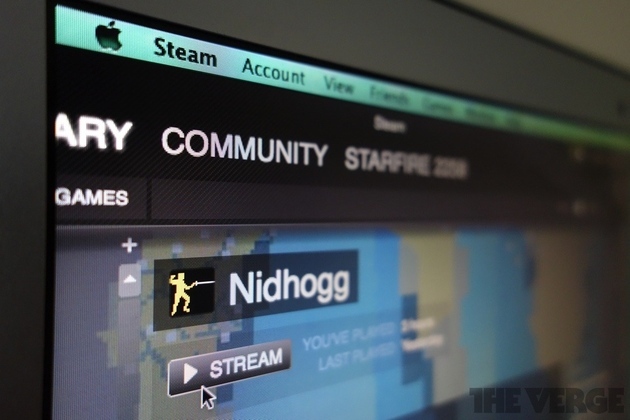


 Redditor LolBoopje discovered that the UK's Great Firewall of Cameron -- the national censorwall put in place by the prime minister -- was


 Ben writes, "Overdrive, which is one of the main suppliers of downloadable audiobooks to public libraries,

