Shared posts

04 May 20:33

Time is on your side—welcoming Timeful to Google

by The Gmail Team
Posted by Alex Gawley, Director of Product Management

With the proliferation of mobile phones and greater access to technology, it should be easy to get things done quickly and effortlessly. That’s why with tools like Gmail, Inbox, Calendar and Docs, we’ve built smart features to help you organize your life and take the work out of work—Inbox makes it easy to get started on your to-do list, Calendar automatically adds events from your Gmail, and Search gives you simple, concise answers about information that’s important to you.

But even as these tools have simplified our lives, we’re still inundated with too many updates, information and everyday tasks. And we still have to do a lot of logistical work ourselves—like deciding to what time exactly we should snooze that Reminder in order to get it done in time for Mom’s birthday, or figuring out when to work on that presentation so that it’s ready for next week’s sales pitch.

Today we’re excited to announce that Timeful, Inc. is joining the Google family to help make getting things done in your life even easier.

The Timeful team has built an impressive system that helps you organize your life by understanding your schedule, habits and needs. You can tell Timeful you want to exercise three times a week or that you need to call the bank by next Tuesday, and their system will make sure you get it done based on an understanding of both your schedule and your priorities. We’re excited about all the ways Timeful’s technology can be applied across products like Inbox, Calendar and beyond, so we can do more of the work for you and let you focus on being creative, having fun and spending time with the people you care about.

Welcome Timeful!
04 May 17:48

Mother cat who lost three babies adopts three orphaned kittens

by Laura Hudson

When her three newborn kittens died after being born prematurely, Mikey the cat was inconsolable. Read the rest

04 May 17:44

Cartoon of the Day

by Bill Crider
04 May 16:37

How to Recover Deleted Playlists in Spotify

by David Nield on Field Guide, shared by Whitson Gordon to Lifehacker

How to Recover Deleted Playlists in Spotify

Got rid of a carefully crafted Spotify playlist that you later wish you hadn’t? Fear not, because Spotify keeps a list of the playlists you’ve deleted, and you can bring them back in seconds—here’s how to do it.

The feature lives on the web—though not in the actual web player—and can be used to restore playlists that you’ve removed from the desktop app, online app and mobile apps. We can find any reference to an expiration period in Spotify’s help documentation so presumably your deleted playlists are available for all time (though don’t bank on it).

Head to www.spotify.com/us/account/recover-playlists (you’ll be asked to log in if you aren’t already) and click Restore next to any of the playlists you want to bring back. Hey presto—your song list is recovered. The same account portal lets you manage your offline devices (for premium users), check your subscription plan and edit your notification settings.

04 May 16:34

Cambodian rock -- before the Khymer Rouge destroyed it

by Clive Thompson

In the 60s and 70, Cambodia had a thriving, free-wheeling rock scene. Then along came the Khmer Rouge. Filmmaker John Pirozzi hunted down the surviving members of that scene and created a terrific documentary about it.

Read the rest
04 May 16:33

Was the world's oldest deck of cards any fun?

by Leigh Alexander
image

The oldest complete deck of cards in the world is from the distinctly-unhappy 15th century, and lives at the Metropolitan Museum of Art's Cloisters location. The oblong cards are nifty-looking—but what would people play with them? Read the rest

04 May 16:33

Tor and Bitlit offer discounted ebooks to print-book owners

by Cory Doctorow


Peter writes, "Macmillan has partnered with ebook bundling start-up BitLit to offer readers who own a print edition of Tor/Forge titles the opportunity to download a DRM free ebook edition using the free BitLit app (available for Ios/Android)." Read the rest

04 May 16:33

Play it now: Traveler

by Leigh Alexander
traveleerr

Traveler is a nuanced and touching text game about... finding where you belong? It's an abstract space travel adventure, where you drift among planets with an eye on your ever-falling system gauges, thinking about your home, your family, your mission. Read the rest

04 May 16:31

These are the hot new watch faces on the LG Watch Urbane

by Phil Nickinson

The watch faces arguably are the most important part of any smartwatch, with the ability to make or break the entire look and feel of the timepiece. A sexy new watch with a bland watch face doesn't do anybody any favors. And the LG Watch Urbane has a few new nice ones, and done away with a few of the more gaudy options from the LG G Watch R.

The standouts are the busy but stylish "chairman" and "chronos" faces, though I'm also partial to the more minimalistic "Classic" and "Castle White" options.

04 May 16:30

Google+ is launching Pinterest-style boards called Collections

by Jacob Kastrenakes

Google+ is trying something a bit different today with the announcement of Collections, a new feature that allows users to create boards of images, videos, and other content categorized around specific interests. The feature sounds a whole lot like Google's take on a Pinterest board: it allows users to make multiple collections, fill them with images, and follow public collections that they're interested in.

Continue reading…

04 May 16:29

Facebook invites everyone inside its Internet.org walled garden

by James Vincent

Facebook is fighting back against accusations that its Internet.org initiative is trampling over the principles of net neutrality by giving any company the chance to offer its services for free on the platform. Critics have previously argued that Facebook would use Internet.org to funnel new users into its preferred services, but now the social network says that any company can sign up, so long as it follows certain technical guidelines to keep data consumption to a minimum.

Any company will be able to join internet.org

In a video announcing the news, Facebook CEO Mark Zuckerberg explains that the initial choice to offer only select services on Internet.org was a pragmatic one, as it was "not sustainable to offer the whole internet for...

Continue reading…

04 May 16:29

Apple pushing music labels to kill free Spotify streaming ahead of Beats relaunch

by Micah Singleton

The Department of Justice is looking closely into Apple’s business practices in relation to its upcoming music streaming service, according to multiple sources. The Verge has learned that Apple has been pushing major music labels to force streaming services like Spotify to abandon their free tiers, which will dramatically reduce the competition for Apple’s upcoming offering. DOJ officials have already interviewed high-ranking music industry executives about Apple’s business habits.

Continue reading…

04 May 16:25

Pinterest Opens Its Doors—And Its API—To Developers At Last

by David Nield

Developers finally have a Pinterest API of note—though the social network is inching open its doors rather than swinging them wide. Today the firm launched a beta Pinterest Developers Platform, described as "a suite of APIs for developers to build apps and integrations that bring pins to life."

The API, or application programming interface, lets coders build all kinds of apps on top of Pinterest's data. (See our API explainer.) The official examples include an app that orders ingredients from a recipe "pin"—pins being the visual bookmarks that serve as Pinterest's analogue to Facebook updates and Twitter tweets—and one that arranges bookings based on a travel pin.

For now the program is only open to developers in the U.S., and they have to go through an application process first. The beta API allows developers to access an authorized user's pins, boards and followers, as well as boards, users and interests the user is following.

Board access extends to reading a board's pins and creating, updating and deleting an authorized user's boards. In addition developers can get details of specific Pins as well as create, update and delete them.

TechCrunch reports that users will get full control over which apps are authorized, with the ability to revoke credentials at any time, and Pinterest won't tolerate shady practices. The social network began work on an API in September, TechCrunch says.

A Different Kind Of Network

The thought of getting busy with Pinterest integration is sure to leave developers drooling. Unlike larger social networks, it promotes a much more positive, aspirational outlook on life. Weddings, food, architecture, travel, design, fashion ... these are the areas where Pinterest excels.

What Pinterest lacks in user numbers—estimates suggest roughly 47 million people access Pinterest accounts at least once a month, way less than Facebook's 1.4 billion and Twitter's 302 million—it makes up in being much more product-focused.

Pinterest stands to benefit too. More ways to utilize the underlying platform means more reason for users to sign up and stick around. Maybe you'll take more care over your dream holidays board if there's an app that can help you make a booking off the back of it.

With Amazon muscling in on Pinterest territory and Google+ rumored to be heading in a Pinterest-esque direction very soon, developer involvement could be crucial for Pinterest's growth.

This isn't Pinterest's first API, but it is the first that's really of use to developers in both its scope and its functionality. Be warned, though: Pinterest says only a few hundred developers are going to be allowed through the gates while it scales up the technology behind the new tools.

Lead image by Madeleine Weiss for ReadWrite

04 May 16:25

Carly Fiorina Touts HP Experience In Her Bid For President

by Ryan Lawler
First In The Nation Republican Leadership Summit Held In New Hampshire It’s official: Former HP CEO Carly Fiorina is running for president, and she’s hoping that her experience running one of the largest technology companies in the world will win over voters. Fiorina — who will be joining us tomorrow at Disrupt NY — announced her Presidential run on Twitter with a link pointing to her official website, Carlyforpresident.com. The site is… Read More
04 May 00:19

This is Harley Quinn and the rest of the Suicide Squad

by Bryan Bishop

Last month we got a peek at Jared Leto's new take on the Joker, and today director David Ayer has revealed the rest of the costumed cast from his upcoming film Suicide Squad. On Twitter the filmmaker revealed a new photo of nine different members of the cast (Leto's Joker not among them). It includes the first look at the movie versions of Harley Quinn, Deadshot, and Captain Boomerang, amongst many others.

From left to right, the characters pictured are Slipknot (Adam Beach), Captain Boomerang (Jai Courtney), Enchantress (Cara Delevingne), Katana (Karen Fukuhara), Rick Flagg (Joel Kinnaman), Harley Quinn (Margot Robbie), Deadshot (Will Smith), Killer Croc (Adewale Akinnuoye-Agbaje), and El Diablo (Jay Hernandez).

Task Force X...

Continue reading…

03 May 20:14

Pager Turns Your Facebook Pages Into Full-Fledged Websites

by Romain Dillet
Screen Shot 2015-05-03 at 13.04.47 Meet Pager, a neat little hack developed during our 24-hour Disrupt NY Hackathon by a team of three engineers. It’s the perfect idea for small business owners who want to turn their Facebook page into a more traditional website. The team has already worked for restaurant owners, doing freelance work and teaching them how to update their WordPress websites — in many ways, it’s… Read More
03 May 17:20

Five Best Small Form Factor PCs

by Alan Henry

Five Best Small Form Factor PCs

If you’re looking for a computer that can fit anywhere and do almost anything, a small form-factor PC is your best bet. The best ones offer power and portability, make the right compromises, and still come in at a good price. This week we’re looking at five of the best, based on your nominations and suggestions.

Earlier in the week we asked you what the best small form factor PCs were. We’re talking about full x86 systems here, so while (as you’ll see in our honorable mentions) there was a lot of love for other platforms, there were plenty of tiny PCs nominated as well that would be perfect for home theater PCs, kids’ computers, office computers, space-saving build platforms, or even modest gaming rigs that don’t take up a lot of space but are still designed to be used with your favorite peripherals.

Here are your five most popular nominees, in no particular order:
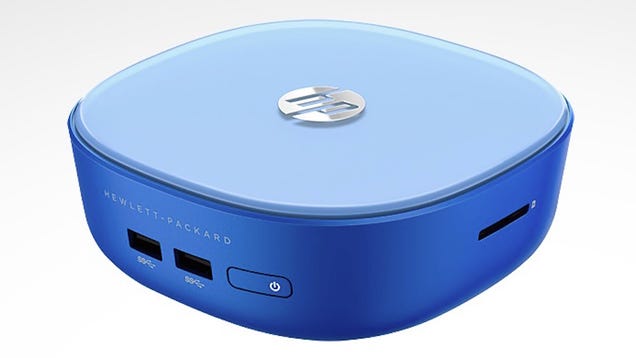
HP Stream Mini

Five Best Small Form Factor PCs

The HP Stream Mini earned a lot of praise when it came out for being a surprisingly capable tiny little powerhouse. It fits in the palm of your hand, and our friends at Gizmodo gave it high marks for packing powerful components into a tiny case. The Stream Mini packs an Intel Celeron processor under the hood with 2GB of RAM (upgradable to 16GB), a 32GB SSD, Windows 8.1, Gigabit Ethernet and Wi-Fi, Intel HD graphics, and more into a round, flat computer that fits in the palm of your hand. Of course, you can see the tradeoffs already—storage and RAM are some of the big ones, but the Stream Mini also has a card reader on the front for more storage, four USB 3.0 ports on the front and back of the case, and HDMI and DisplayPort out so you can connect to a monitor or a TV, whatever you prefer. All of that comes at a price tag of $180 direct from HP, and you have a great little machine for a home theater PC, a children’s computer (or a parents’ computer, depending), or a PC that you need to perform lightweight tasks anywhere you don’t traditionally want a desktop, or don’t want to bring a laptop.

Those of you who nominated the HP Stream Mini pointed out that even though it’s a tiny system, it’s extremely upgradable, and those memory and storage shortfalls can be easily improved either before you buy, or long after. Its size and shape make it a perfect HTPC, some of you mentioned, and despite its Celeron processor, some of you noted that it can be quite snappy and speedy—especially once you get something like Kodi Media Center on it, or if you prefer, your favorite Linux distro. You can read more in its nomination thread here.
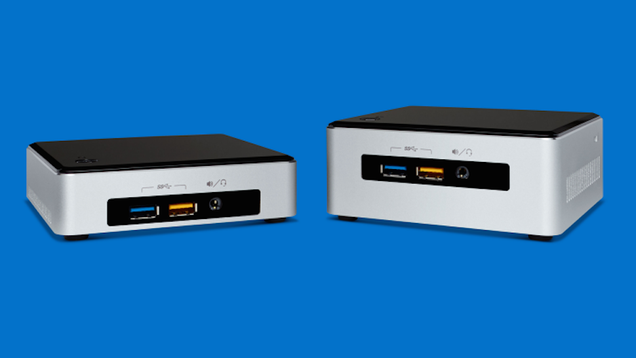

Intel NUC

Five Best Small Form Factor PCs

The Intel NUC (or Next Unit of Computing) series of mini PCs is more of a form factor than a specific product, mostly because you can order NUCs configured in different ways and in different shapes depending on what you need. That said though, the NUC series shares one thing in common—they’re all small boxes (like the image above) that are small enough to go anywhere, pack Intel Core i3, i5, or i7 processors, and are shipped as “barebone kits,” meaning they’re the perfect platform to add the storage and memory that you need. They’re more expensive than some of the more affordable models, even without drives and memory, but you can choose the processor, size, ports, and other features you need before buying. You can get a look at the various models here, and compare them here. Some of them are all glossy black, perfect for HTPCs, others are grey with removable lids, perfect for upgrading, tinkering, test machines, or secondary computers. If you really need to save cash, there are models with Intel Celeron or Atom processors as well. They almost all pack USB 3.0 on-board, many have card readers for additional storage, and most use HDMI, mini-HDMI, or DisplayPort out so you can connect them to just about any possible type of display. Pricewise you’re looking at between $200-$400 depending on the kit you want, but keep an eye out, they’re frequently on sale.

Those of you who nominated and supported the NUC pointed out that they’re the quintessential kit for PC builders who want something smaller than they could probably build themselves, but also want the flexibility to open them up, customize them, swap out storage and upgrade memory, and really make the system fit the need they have for it. If you want your NUC to be an HTPC, you can add huge hard drives to store music or movies, or skip the storage and opt to stream everything. If you want it to be a portable workstation, you can add more RAM and a little less storage and rely on cloud storage to get by. Just keep in mind you really are getting a kit—meaning all of your peripherals aren’t included. You even have to bring your own power cord. Beyond that, the possibilities are endless. You can check out the nomination thread here.
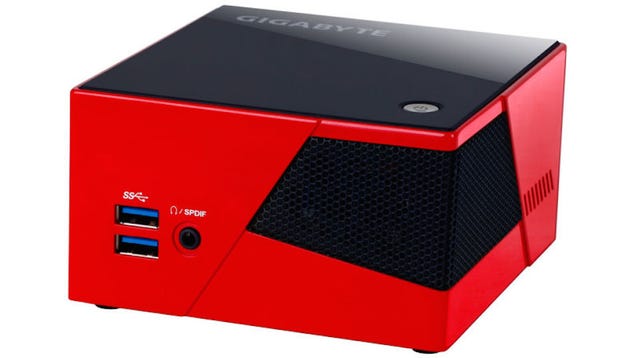

Gigabyte BRIX

Five Best Small Form Factor PCs

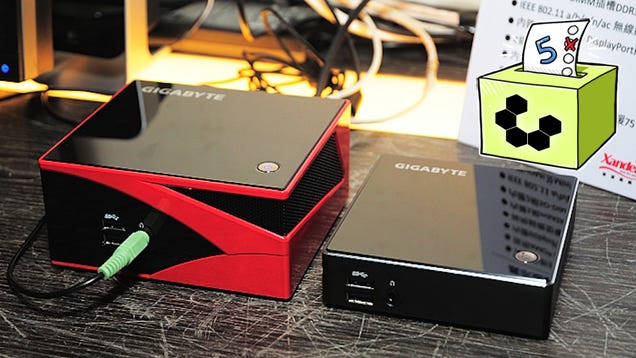
Gigabyte’s BRIX series is another barebones PC kit that you can pick up and then customize with your own preferred storage and memory options. The BRIX are available in workstation, gaming, and budget-friendly models, all in glossy black (with a few of the gaming models in black with bright yellow or red accents.) More than a few of your noted that they’re a bit like higher-end NUCs, with most models shipping with either budget-friendly Intel Celeron processors or higher-end Intel Core i5 or i7 processors, HDMI and mini-DisplayPort video outputs, four USB 3.0 ports, support for up to 16GB (or more) of memory, Wi-FI and Gigabit Ethernet, and Intel HD or HD Pro graphics on-board. Almost all of the higher-end models support discrete graphics, meaning that as long as the card isn’t too big for the case physically, you can install your own graphics card for higher-powered gaming or more graphically demanding tasks. Again, how much you’ll spend depends on which model you choose, but you’re looking at between $300 and $500 depending on the model, which the higher end and gaming models being closer to $500.

Those of you who nominated the BRIX said you loved the look, and that even the budget-friendly options were great as workstations or home theater PCs. You praised them for offering great components in stock, affordable models, and being easy to work on and expand—not to mention that BRIX models have Wi-Fi and Bluetooth modules pre-installed (while other small form factor PCs make you add that on yourself.) You can read more in this nomination thread here, or this nomination thread for one of the higher-end, quad-core BRIX models (the one shown in the image above.)
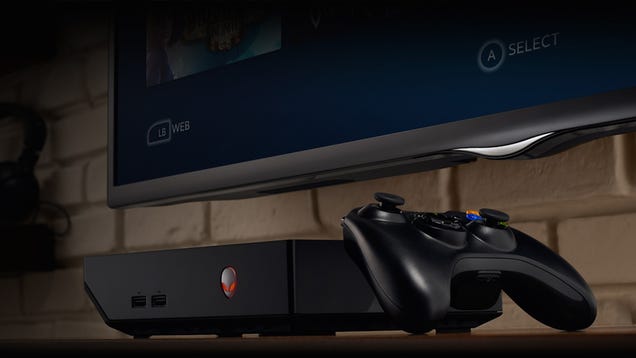

Alienware Alpha

Five Best Small Form Factor PCs

The Alienware Alpha is a line of gaming PCs that work like consoles—that is, they’re small and flat and are designed to be connected to an HDTV and controlled with a gaming controller as opposed to a keyboard and mouse (although that’s certainly possible too.) The Alpha comes in four different models, each of which includes your choice of an Intel Core i3, i5, or i7 processor, 4GB or 8GB of RAM, NVIDIA GeForce GTX 860M+ 2GB graphics cards, and your choice of 500GB, 1TB, or 2TB SATA hard drives. Gigabit Ethernet, Wi-Fi, Bluetooth, and a wireless Xbox 360 controller come standard with each model, and each model ships with Windows 8.1 pre-installed. The design of the Alpha is typical of Alienware, with the glowing alien head logo in the front, sleek glossy black panels, and red accent notches cut out of one side—it’s small enough to slide in where your HTPC would go, and it’s powerful enough to play a lot of PC games on your big screen with solid performance. Speaking of games, this is very much a gaming system (although you can certainly use it as an HTPC or even a workstation if you choose) and it comes with a number of titles bundled and pre-installed, ready to play. Alienware’s custom UI on the system is designed to work with the controller, and can do everything from launch Steam in Big Picture mode to switch to the HDMI input on the back you can use to daisy chain other input devices or consoles. The Alpha also packs USB ports for added storage or wired controllers. The Alpha starts at $499 direct, but you can catch a break on some of the models at Amazon.

Those of you who nominated the Alienware Alpha praised it for being a powerful gaming PC in an incredibly small and living room-friendly package, packing powerful graphics and a speedy processor in a small, pretty box. Alienware (aka Dell, in case that’s not clear) also allows you to customize your Alpha within some degree, so if you don’t want to stick to the base specs, you can add more RAM, swap in a bigger hard drive, and make a few other changes when you order your Alpha—which you’ll want to do, since they’re not horribly upgrade-friendly once you have them in your hand and set up next to your TV (or on your desk connected to that nice huge monitor you also use for work.) For some of you, the sheer price to performance ratio made this one the winner, but you can read all about that in its nomination thread.

ASUS Chromebox

Five Best Small Form Factor PCs

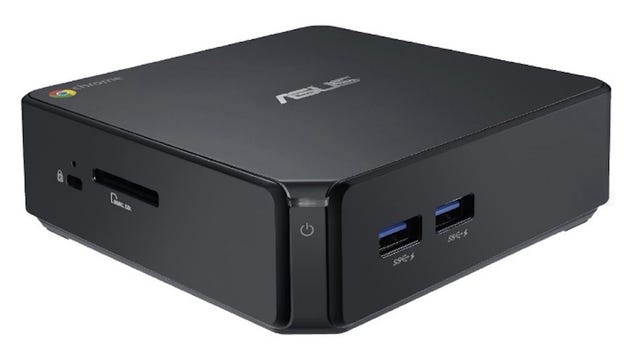
The ASUS Chromebox was a tricky one to include in the roundup, but just because it ships with Chrome OS onboard doesn’t make it any less of a functional small form factor PC. Depending on the model you choose, you’re looking at between $160 to $200 for the standard models with Intel Celeron processors, 16GB SSDs, and 2GB of RAM, but if you look a little harder you can find Core i3, i5, or i7 powered versions for closer to $300. In any case, the standard models don’t come with a ton of storage or memory, but they are exceptionally affordable, ship with Chrome OS, and include things like card readers for added storage, onboard Wi-Fi and Gigabit Ethernet, USB 3.0 ports, and HDMI and DisplayPort outputs so you can connect them to your TV or your monitor. Chrome OS works just fine as an HTPC (and the Chromeboxes can even be mounted on the back of your TV if you like), and it makes for a great and affordable workstaiton, especially if everything you do is on the web anyway, and you like the idea of an instant-on system that uses your Google account as your single key to everything you need to do.

Those of you who nominated the Chromebox explained that despite running Chrome OS, you could just as easily install linux on it if you want, but if it’s Linux you want, you don’t really have to replace Chrome OS to get it. You also noted that upgrading the RAM in the ASUS Chromebox models is a fairly easy process, and while there’s no drive to be upgraded, it’s such a small, power-sipping, and good-looking box you don’t mind it mounted on the back of your TV or staring at you from your home entertainment center. You can read more in its nomination thread here.


Now that you’ve seen the top five, it’s time to put them to a vote to determine the community favorite:


Honorable Mentions

This week’s most obvious honorable mention goes out to the Raspberry Pi and Pi 2, which are more than capable of running Linux (or Windows 10, if you’re interested in the preview) and functioning as a full desktop system in a palm-sized package. Of course, the Pi is an ARM-based system and we were looking for x86 machines in our roundup, but that doesn’t change the fact that the Pi can do a lot of things that make the rest of these machines great options, and it’s even smaller and more affordable to boot. Of course, you don’t get to really customize your build, but you do get your choice of Pi model, can choose your case, and if you want, can build your own portable computer, a semi-desktop computer, a car computer, a game console, even a smartphone. It’s not exaggerating to say the possibilities are endless.

Our second honorable mention goes out to the a repurposed laptop, or as it was nominated, “a laptop with a broken screen,” which is an awesome DIY project and a way to repurpose any old laptop you might already have lying around. After all, we suggested that particular project not too long ago, so while it wasn’t exactly the type of nomination we were going for, it was good to see it in the nominations anyway. We always did like the way it could be mounted on a slider behind your HDTV so you could slide it out when you needed to access it, then push it back in place when you didn’t need to see it anymore.

Have something to say about one of the contenders? Want to make the case for your personal favorite, even if it wasn’t included in the list? Remember, the top five are based on your most popular nominations from the call for contenders thread from earlier in the week. Don’t just complain about the top five, let us know what your preferred alternative is—and make your case for it—in the discussions below.

The Hive Five is based on reader nominations. As with most Hive Five posts, if your favorite was left out, it didn’t get the nominations required in the call for contenders post to make the top five. We understand it’s a bit of a popularity contest. Have a suggestion for the Hive Five? Send us an email at tips+hivefive@lifehacker.com!

Title photo by Sinchen Lin.

03 May 17:19

Witness’s Live-Streaming App Is A Panic Button For The Smartphone Age

by Sarah Perez
witness1 What if live streaming, like those streams that run today on apps like Periscope or Meerkat, could be used to save lives? That’s the premise behind an app called Witness, which made its debut today at the TechCrunch Disrupt NY Hackathon. Built over the course of the weekend, developer Marinos Bernitsas demoed an app that immediately begins recording live audio and video as soon as you… Read More
03 May 08:02

FBI replies to Stingray Freedom of Information request with 5,000 blank pages

by Cory Doctorow


The Stingray -- a fake cellphone tower that gathers identity/location information on everyone who passes it -- is the worst-kept secret in law enforcement, but that doesn't stop feds from going to absurd lengths to pretend they don't use them. Read the rest

03 May 08:01

Like Stealing Candy From A Baby Phone: HTC One Mini 2 Will Not Be Updated To Lollipop

by Jeff Beck

61jtzEKoLgL._SL1024_In response to a question posed on Twitter, HTC announced that the HTC One Mini 2 will not be updated to Android 5.0. The phone is barely a year old and is sold under the One brand that HTC reserves for its flagship devices. As you may recall, HTC made a promise to customers just last year that devices launched under the One brand would receive updates for a minimum of two years.

Read More

Like Stealing Candy From A Baby Phone: HTC One Mini 2 Will Not Be Updated To Lollipop was written by the awesome team at Android Police.


02 May 20:19

Microsoft kills off Windows Media Center

by Tom Warren

Microsoft stopped actively developing Windows Media Center in 2009, but the company still shipped an unmodified version in an upgrade pack for Windows 8. The software giant is planning to kill off Media Center in Windows 10, meaning any PCs upgraded from Windows 7 or Windows 8.1 will lose the feature. Microsoft confirmed the plan to ZDNet’s Ed Bott in a recent interview.

It’s not a surprise move, but Windows Media Center has a passionate and loyal following which will undoubtedly mourn the loss of the feature. Microsoft first introduced Windows Media Center in 2001 as a separate Windows XP version. It was designed to run fullscreen as a media player, and support television channels from TV tuners. A number of PC makers created dedicated...

Continue reading…

02 May 16:50

Ruth Rendell, R. I. P.

by Bill Crider
Author Ruth Rendell dies aged 85: She wrote more than 60 novels in a career spanning 50 years, her best-known creation being Inspector Wexford, which was turned into a highly successful TV series.
02 May 16:50

All Spoilers, All the Time

by Bill Crider
02 May 16:50

Top 10 Computer Disasters (and How to Deal with Them)

by Melanie Pinola

Top 10 Computer Disasters (and How to Deal with Them)

Using a computer means occasionally dealing with annoying, possibly disastrous problems like losing all your data if your hard drive crashes. Here are ten of the most common computer problems and how to deal with them.

10. Your Laptop Was Lost or Stolen

Top 10 Computer Disasters (and How to Deal with Them)

When your laptop goes missing—whether you lost it or it got stolen—you’ll probably panic. Take a deep breath. If you had tracking software like free, open source Prey installed before the event, you can potentially get it back quickly or remotely wipe it. If not, you may be able to locate your laptop using Gmail or Dropbox. Or if you use Backblaze’s backup service, they can track your laptop as well. Otherwise, you can file a police report and hope for the best. To protect yourself going forward: consider these five lessons.

9. Your Computer Catches a Virus or Other Malware

Top 10 Computer Disasters (and How to Deal with Them)

Viruses, worms, and spyware (oh my). Malware is a constant threat, even when you’re very computer-savvy and have antivirus and anti-malware programs protecting you. Here’s how to know if something you download really has a virus and how to clean it off your computer (even if your PC won’t boot).

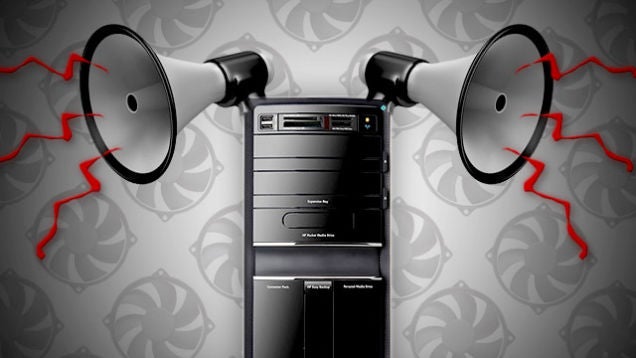
8. Your Computer Fan Won’t Shut Up

Top 10 Computer Disasters (and How to Deal with Them)

Though not as disastrous as the previous problems, a noisy fan is very annoying and it could be a sign something is seriously wrong—like your computer is going to overheat. If your fan is running all the time and your computer is hot, there are both cheap possible solutions (e.g., clean the dust bunnies out) and hardware upgrades you can do.

7. Your Water Cooling Leaks Inside Your PC

Top 10 Computer Disasters (and How to Deal with Them)

Speaking of noise, water cooling is a great way to get more power out of your PC while keeping everything dead quiet. However, it’s not for everyone—especially if you experience the nightmare of your water cooling exploding. Here’s what to do in case that happens to you.

6. Your Display Looks Distorted

Top 10 Computer Disasters (and How to Deal with Them)

If your screen is starting to look weird—random lines or psychedelic graphics randomly appearing, it could be a sign that either your monitor or graphics card is on its last legs. We’ve shown you a few steps for troubleshooting this on the Mac and Dell has a troubleshooting guide for various desktop monitor or laptop screen issues for Windows computers.

5. Windows or OS X Won’t Load Properly or Keeps Crashing

Top 10 Computer Disasters (and How to Deal with Them)

You press the power button only to be confronted with a cryptic message that your computer is having some sort of problem starting. (This is different than pressing the power button and nothing happening at all. See below.) Your first step, as with most issues, is to try to reboot and see if that fixes things. We mentioned other steps to take for OS X if you’re getting the kernel error shown above, and MacWorld offers a few other suggestions, such as booting into OS X Recovery Mode and running Disk Utility. Windows fixes are similar—try booting Windows in safe mode or performing a refresh or reset in Windows 8, as this How-To Geek article suggests. Also, if you get a specific error message when your computer starts but won’t get to the operating system, try doing a search for that exact error phrase. That could tell you if a hardware driver needs updating or what else could be causing the crash.

4. Your Computer Won’t Turn On

Top 10 Computer Disasters (and How to Deal with Them)

If your computer doesn’t even pretend to turn on, it could be for a number of reasons. Maybe your computer does start up but your monitor has issues (if you hear the fan or drive noise or your computer keyboard lights up, go three steps backward to problem #7 to troubleshoot your display). Otherwise, it could be a power issue. Check your power adapter connection or your surge protector (they’re not all created equal), and swap with another adapter if you have one to test. If you’ve upgraded your computer hardware (e.g., installed new memory), try going back to the original configuration to see if that helps. If it’s a laptop, perhaps the battery is dead (or you just didn’t actually charge it). Here’s how to tell if your laptop battery needs replacing. About.com’s PC Support offers more troubleshooting steps to consider.

3. Your Internet Connection Suddenly Sucks or Doesn’t Work at All

Top 10 Computer Disasters (and How to Deal with Them)

We’ve all been there, dealing with intermittent internet connection problems, slow internet connections, or no connection at all. How you troubleshoot will depend on the type of problem you’re having. If you can’t reach any sites at all from any of your computers or devices, try rebooting the modem. If you can’t get to specific sites, your router constantly loses connection, or only one computer on your network can’t get online, check out these troubleshooting steps. If your internet connection is just slow, however, you’ll want to check your Wi-Fi reception and other possible causes, such as your browser getting bogged down by extensions and other issues. We’ve got a Top 10 on fixing a slow internet connection as well.

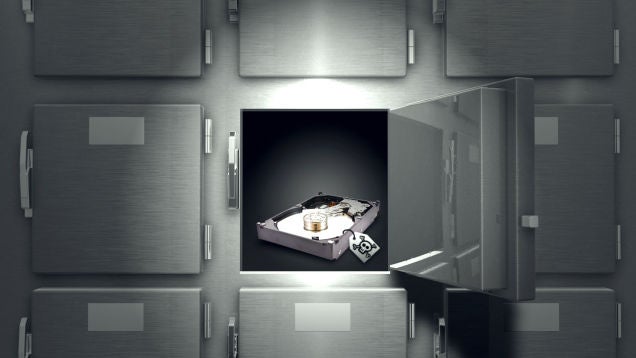
2. Your Hard Drive Crashed or Isn’t Working

Top 10 Computer Disasters (and How to Deal with Them)

Hard drives don’t last forever; it’s not whether a hard drive fails but when that we need to keep in mind (which is why regular computer backups are so essential). If your hard drive is now making weird noises or you can’t access it at all, you may still be able to recover your data—even if the drive is damaged or has been erased. Hook up the drive to an external enclosure and you may be able to find and copy your most important files.

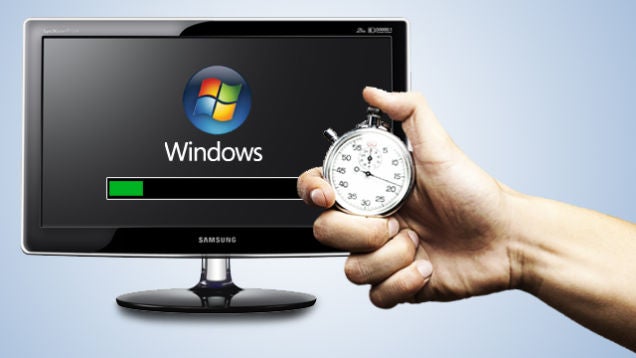
1. Your Computer Has Slowed to a Crawl

Top 10 Computer Disasters (and How to Deal with Them)

What if it’s not just the internet but everything you try to do on your computer that’s suddenly gotten bogged down? This might be the most common troubleshooting complaint. Sadly, over time, all computers will slow down as they get more bloated, and hard drives can slow down as they near the end of their life. That doesn’t mean you can’t speed up and fix your sluggish computer. If you’ve ruled out viruses or other malware, some basic maintenance like cleaning up your hard drive and running some diagnostic tools can refresh your computer for a much-needed performance bump.


Illustration by Tina Mailhot-Roberge. Photos by Yuri Arcurs, Computer Virus Catalog, Michael Napoleon, Jake Sumpter/Aaron Amat (Shutterstock).


Lifehacker’s Weekend Roundup gathers our best guides, explainers, and other posts on a certain subject so you can tackle big projects with ease. For more, check out our Weekend Roundup and Top 10 tags.

02 May 16:47

Podcasting On A Budget: How To Record Great Audio For Less

by Ryan Matthew Pierson

High-quality audio recording was once the exclusive domain of professional studios, radio stations and other settings tricked out with top-notch equipment. But now, thanks to advances in technology and lower pricing, professional-level audio recording has moved within reach of practically anyone. 

So if you've ever wanted to reach a broad audience as a podcaster, there's no time like the present. These days, the difference in quality produced by professional set-ups—with layers of soundproofing and pricey microphones—don't sound all that different from recordings made on a smaller budget. 

But hardware and software alone don't make for polished audio. Having worked in studio settings ranging from small town radio stations, to control rooms of nationally syndicated radio shows, I can tell you that good technique is just as important. 

For the best recordings on a budget, check out this list of tips and tools for the budding podcaster. 

Choosing a Good Microphone

Podcasting set-ups can vary, but in most cases, the two fundamental pieces of equipment are a microphone and a computer. The microphone captures sound, and the computer handles everything else, from recording and editing, to ultimately submission and syndication. Additional components—such as an audio interface, mixer, compressor and more—can be useful, but they're not required. 

When it comes to microphones, good ones don't have to cost a fortune. But wary of ones that are too cheap. You want to strike the right balance of cost vs. quality. Excellent mics that sound like they cost hundreds more can go for anywhere between $100 to just over $200. 

Bear in mind that, if you're podcasting, you want a microphone that can focus on small areas, like the sounds coming out of your mouth or a guest's. The built-in microphones on a laptop or smartphone aren't suitable for professional recording, because they pick up noises coming from anywhere in the room. Unless you want to capture the squeaks of your chair or background conversations, you'll need a dedicated mic. 

The two main types to look at are dynamic and condenser. A dynamic microphone doesn’t require external power, and it does a good job of picking up a limited range of audio through a compact design. Condenser microphones usually need power from an external source, but they provide richer, fuller tones. 

AT2020 

The AT2020 USB microphone by Audio Technica ($102 - 149) is an excellent starting point for podcasters on a budget. The small USB condenser mic can sit on any desktop, and comes with its own stand. 

There's one downside, though: Its lack of integrated controls means that you'll need to do some extra work setting up recording levels and/or touching up in post-production to get the exact sound you need. But even with this in mind, the audio quality of the AT2020 is exceptional for its price.

The Yeti 

Photo by Blue Microphones

The Yeti by Blue Microphones ($129 - 149) is another excellent choice. Since it can pick up sound along multiple directions and recording patterns (cardioid, bidirectional, omnidirectional and stereo), the device can come in handy during two-person interviews. The Yeti can record what is in front of and behind it, so you only need one microphone instead of two. 

That pro comes with a con, however: This product, in particular, captures a bit more background noise than you would normally find in a professional solution. To minimize that, you can tweak its volume settings and tweak the recording in post-production. 

The Yeti also offers gain (or amplitude) control, an integrated mute button and a zero-latency headphone output, for real-time audio monitoring over headphones. The primary connection is USB, though there's also a pro version that features both USB and analog XLR option. 

XLR is a common three-pronged audio connector that provides power and carries a clean analog audio signal from the microphone to whatever it is plugged into. This isn't a connection found on most PCs, but it may come in handy if you eventually add in a mixer or other audio equipment. 

Rode Podcaster

Photo by Rode

Fans of dynamic microphones should appreciate the Rode Podcaster ($220). The USB mic features broadcast-quality sound, capturing a crisp 18-bit, 8 to 48kHz audio. You need to stick pretty close to the microphone, if you want your voice picked up, but that can be a benefit. It means less background noise will make its way into your podcast. 

The Podcaster also offers an integrated 3.5mm headphone jack for live monitoring.

Zoom H2n and H4NSP

Photo by Zoom

There are some great stand-alone audio recording solutions out there that can record high-quality audio from anywhere for later editing. The Zoom H2n ($160 - 225) and H4NSP ($200 - 250) fit in this category. An all-in-one audio recording powerhouse, the 2015 edition of the Zoom H4n features built-in 90/120 degree XY stereo microphones, which point two integrated mics at the source, for truer, more accurate audio. Powered 3.5mm, dual XLR / Hi-Z input jacks give you the ability to connect a multitude of external microphone and audio input devices, so you're not entirely dependent on the built-in microphone solutions. 

The devices also support multi-channel recording for stereo and 4-channel audio, so you can record multiple individuals in their own independent audio tracks. This makes editing and mastering audio for different voice types in an audio-editing program easier. 

By contrast, the H2n has five integrated microphones for mid-side and XY stereo recording, as well as a mic/line input jack for recording from an external audio source. With USB, you can connect the Zoom H2n and use it as a USB microphone or transfer audio files through an SD memory card.

Choosing Your Editing Software

Once you're done recording, you'll probably need to edit the files to eliminate mistakes, shorten the length or just improve the sound quality. With software, you can run a virtual compressor, limiter, and/or background noise reduction process over the audio. If you have a good ear, you can even tweak audio levels to give your voice more base or cut down on elements you’re not happy with. 

Even the best radio personalities in the world have a rack of effects between them and the audience. Modern audio editing software can do the same for you. 

Audacity

Audacity (free) is a powerful audio recording and editing program for OS X, Windows, and Linux. Because it's open source, it has benefitted from a large community of users and code contributors over the years. Audacity offers multi-track mixing, numerous effects and additional audio elements, such as intro sounds, music and more. 

For a commercial solution for Windows or OS X, Adobe Audition ($49/month as part of Creative Cloud or $20/month individually) has long been a go-to software of choice in the audio world for its extensive capabilities. As part of the Creative Cloud suite, it can be used in conjunction with other Adobe products such as Adobe Premier. 

OS X users also have free access to GarageBand for audio editing and effects. The application used to be synonymous with podcasting, since it featured built-in support for exporting audio as podcasts. Too bad Apple removed that feature in version 10.0 a couple of years ago. You can still use the software, though it's not quite as easy to make podcasts as it once was. (An iOS version of GarageBand is also available.) 

Audio Recording and Editing Tips

Once you have your microphone and editing software in place, you are ready to record the first episode of your podcast. Technique is every bit as important as the hardware and software that captures it, so bear the following in mind: 

Keep your microphone at an angle: If you are breathing directly into your mic, your audience will hear it. You'll come off sounding more like Darth Vader and less like a professional broadcaster. Keep the microphone roughly 45-degrees to either side of your mouth to boost your sound quality of your voice. 

Record in quiet surroundings: Recording in a noisy room with kids in the background, pots and pans banging in the kitchen, or a fan blowing in your face will make your podcast's quality suffer. Using a dynamic microphone might help beat back some of the ambient sounds, but it's better to use a quiet space with minimal echo. Some podcasters even record in a closet amid their clothes to cut down on echo and air conditioner sounds.

Cut out the coughs: Audio is very forgiving when it comes to pauses, coughs and even meandering trains of thought. You can edit all of these out in post-production using software (see above). You'll come off as a better speaker, and your audience will appreciate the pace and on-point presentation. 

Not naturally eloquent? Try a scripted dialogue: Some people have a knack for winging it. They can flow and speak without inserting ‘umm’ and ‘uhh’ or stumbling over their thoughts. If you are not one of those people, try writing down what you intend to say ahead of time. Even the best newscasters in the world have a teleprompter, and many popular podcasters use a pre-written set of bullet points to guide them through a show. 

Recording professional-sounding audio used to require deep investments and a lot of time. Those days are long gone. Now, you don't have to drain your bank account or spend hours setting up an array of equipment. With a little practice and the right tools, you can get your message out there, loud and clear. 

Lead photo courtesy of Shutterstock; Audacity screen capture courtesy of Audacity; "podcast" graphic courtesy of Apple; product shots courtesy of respective companies

02 May 10:11

English is weird

by Cory Doctorow


Put the word "only" between any two words of this sentence: "She told him that she loved him."

02 May 10:11

Sony To Release New Bootloaders That Allow Devices To Boot From Recovery, Making Custom ROM Development Much Easier

by Jacob Long

T2Ultra-Thumb

Sony has recently been among the friendlier companies for custom ROM developers, but their devices still had a major hitch. They could not be booted from recovery, which meant third-party software had to modify the build system and if things went wrong, it was a lot more difficult to fix. To address this issue, Sony will begin releasing new bootloaders to allow booting from recovery.

This was first reported at FXP, home to developers who work exclusively with Sony devices to bring custom ROMs like CyanogenMod to end users.

Read More

Sony To Release New Bootloaders That Allow Devices To Boot From Recovery, Making Custom ROM Development Much Easier was written by the awesome team at Android Police.


02 May 10:10

Algorithmic guilt: using secret algorithms to kick people off welfare

by Cory Doctorow

A wrenching and beautifully argued essay by Virginia Eubanks describes the inevitable consequences of letting secret, unaccountable algorithms decide who is eligible for welfare. Read the rest

02 May 10:09

The 20 Joss Whedon-est lines in Avengers: Age of Ultron.

http://www.wired.com/2015/05/avengers-jossiest-lines/

Which lines did you like the best?

01 May 23:26

Amazon's Alexa voice assistant now works with Twitter, Gmail, and Evernote

by Josh Lowensohn

When Amazon's Echo speaker mysteriously appeared out of nowhere last year, it came with another surprise: a voice assistant named Alexa. Like Apple's Siri, you could casually talk to it and it would attempt to infer what you were talking about into simple responses. It turned out to be pretty limited and didn't work so well when we tried it out back in January, but Amazon's kept at it, releasing new updates that added things like Pandora, traffic reports, sports scores, and support for Belkin's WeMo and Phillips's Hue products.

Continue reading…