Shared posts

25 Jun 16:40

Marty's Lowcountry Boil

by Veronica Seder
Featured lowcountry banner

We were lucky enough to get to know Marty Gallipeau (@badfish)—one of our guides while we were down in Charleston shooting our summer catalog. He whipped us up a lowcountry boil and not only introduced us to this iconic southeastern staple, but shared the recipe.

Consider this the southeastern equivalent of a New England clam bake. The ingredients and technique may be simple, hell, downright primitive. But the end result is a feast of epic proportions best enjoyed with plenty of cocktail sauce, ice-cold beers, and good friends.

Take it away, Marty.


Ingredients


4-5 pounds of fresh shrimp
2-3 pounds of potatoes, cut into bite size pieces
2 smoked andouille sausages
5-6 pieces of corn, broken in half
2 Yellow or white onions, roughly cut into 1/4s
2-3 halved lemons
2-3 Zatarain’s "boil in a bag" boxes
1 or 2 boxes of Old Bay or Cajun seasoning
Plenty of hot sauce and cocktail sauce
Roughly chopped parsley for garnish
Plenty of newspaper (for serving)


Directions


Cooktime: 35-40 min. Feeds 6-8

“Bring pot of water to a boil with 2-3 lemons and couple packs of Zattarains. Now the fun part. Start a 20 min. countdown as soon as you drop in the potatoes. Cover the pot and bring back to a boil. After 10 min. add onion. After 15 min. add sausage and corn. In the last 3-5 min. add your shrimp. Now, make sure your table is prepared with a couple layers of newspaper then lift the basket to let the liquid drain back into the pot, and finally dump the boil onto the table. Dust it with Old Bay and don't be afraid to get messy!”


13 Jun 13:54

G-Shock DW-5600E Review: Just How Tough Is a $40 Plastic Watch?

I threw it, dropped it, hit it with a hammer and ran over it with my car to find its breaking point.

13 Jun 13:52

We're All Politicians

by Joshua Danielson, CommunityVoice
Managing our own embarrassing data has become part of living our lives online.
13 Jun 13:15

Raccoon reaches top of Minnesota skyscraper, touches hearts

(Reuters) - A raccoon reached the top of a 25-story St. Paul, Minnesota, skyscraper early on Wednesday after becoming a star on the web, where it captured the hearts of followers across the United States and around the globe.
13 Jun 12:28

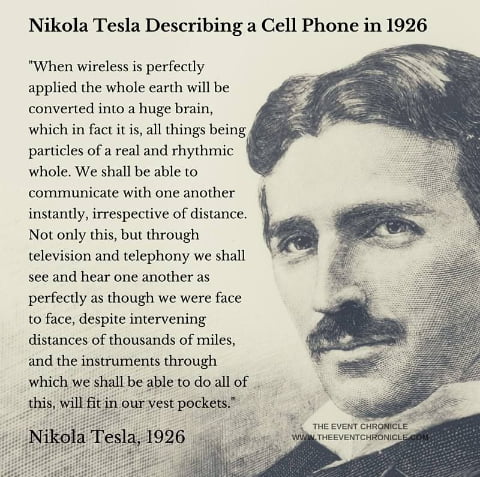
Nikola Tesla Describing a cell phone 1926


1371 points, 135 comments.

13 Jun 12:23

How to Enjoy Old Chain Restaurants

by Nick Douglas

IHOP is now IHOB, and now it’s in a fight with all the burger chains, because nothing can stay pure in our decrepit world. Luckily Metafilter recently unearthed a charming blog called Broken Chains, which reviews the remaining locations of chain restaurants long past their prime, like Ponderosa, Lum’s, and the York…

Read more...

13 Jun 12:17

How to Be Resilient, With Psychologist Rick Hanson

by Alice Bradley

You know how some people seem to have some kind of inner strength that helps them bounce back when things go wrong? Those people who, even though the world sometimes feels like a scorched hellscape seem to carry on with grit, even gratitude? Our guest in this week’s episode is Buddhist psychologist Rick Hanson. Rick…

Read more...

12 Jun 17:45

Technical Camera: An iOS Camera App with a Simple UI and Serious Features

by Michael Zhang

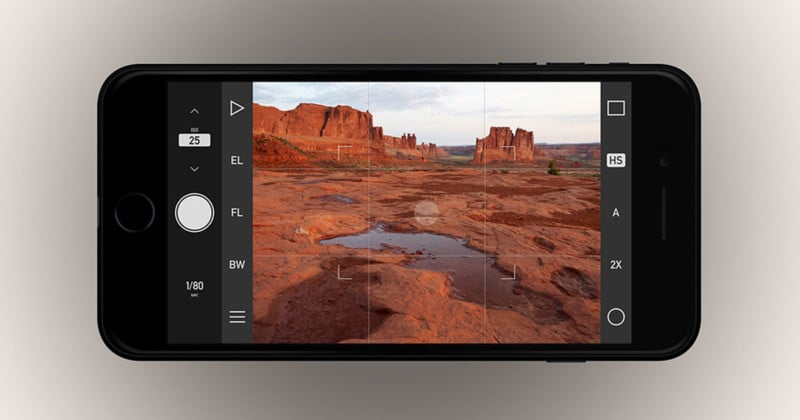
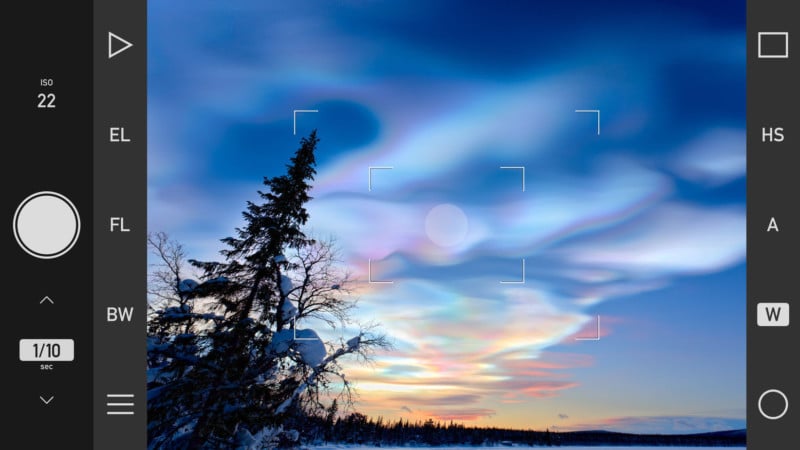
The Hungarian software company DIRE Studio has just launched Technical Camera, a new iOS camera app that’s designed for serious photographers who want a simple yet advanced tool for capturing still photos.

Developer Laszlo Pusztai says he was inspired to create the app because he was frustrated with clutter screens, unorganized storage, the lack of resolution/size adjustments, and clumsy designs in existing camera apps.

The app lacks many of the bells and whistles found packaged with most cameras apps these days. There’s no video, no selfies with the front camera, no AI, and no fancy modes (e.g. panorama or portrait mode or studio lighting).

What the app does have is a sharp focus on creating still photos. The live view itself doesn’t have information or buttons overlaid on it, providing a clean view of what you’re framing.

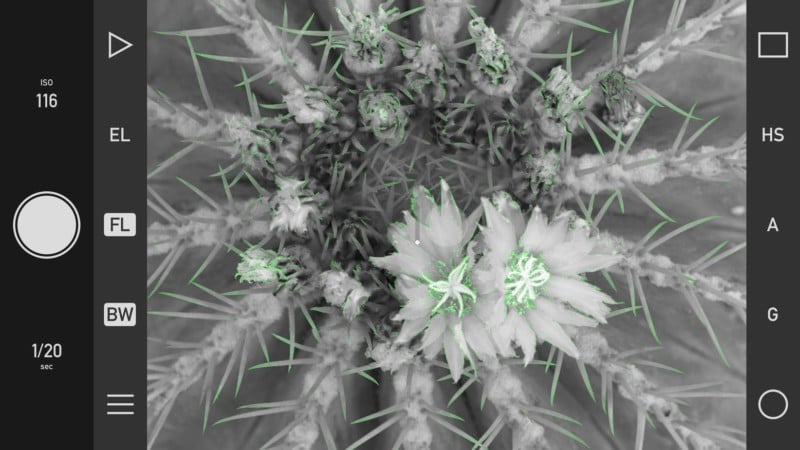
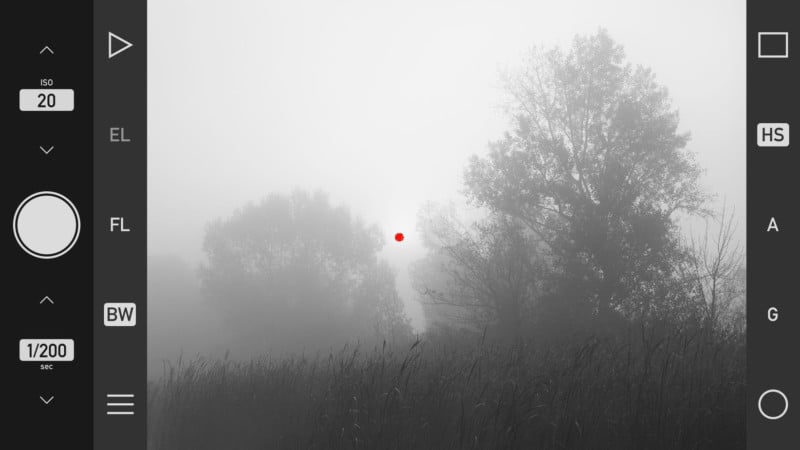
There are professional-level controls that include manual exposure and focus, compensation and locks, focus peaking, and adjustable auto ISO. Smart Function Keys allow you to put your most used functions at your fingertips. Functions can also be customized: you can do things like change the direction of the shutter speed dial or choose the sides of the screen used for exposure compensation and manual focusing.

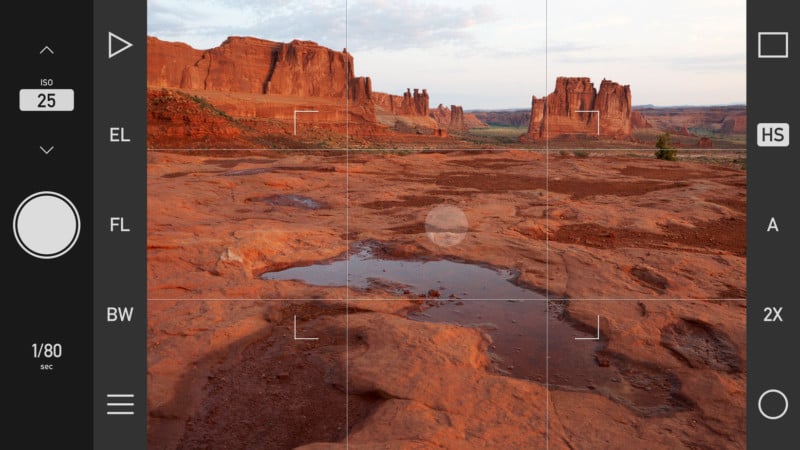
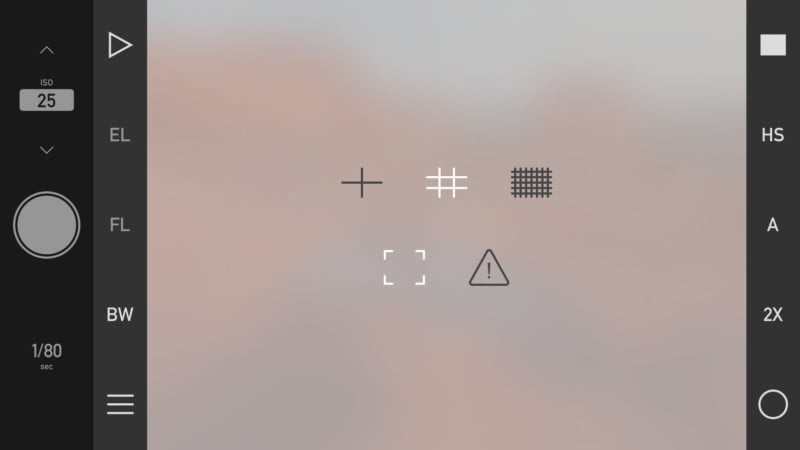
If you’re using the camera to scout locations and plan shots, the visualization aids in the app will come in handy. The Framing Previsor shows the telephoto framing of a scene in the wide-angle live view.

There are different grid overlays to assist with composition.

There’s also highlight and shadow indicators to help with setting exposure.

A real-time wide-angle converter corrects distortion, allowing you to shoot ultra-wide photos with straight lines — useful for things like architectural and real estate photography.

Each photo shoot can be saved to its own album in the app, and you can choose your desired image quality, image size, and geotag settings for each shoot.

Finally, the developers put a great deal of emphasis on standards compliance.

“Standards facilitate workflow integration,” the company says. “So Technical Camera is completely color managed (from capture to display), with support for the frequently used Adobe RGB color space on wide color devices. DNG files adhere to the TIFF/EP specification, complete with a full resolution embedded preview. And metadata included in the photos follow Metadata Working Group recommendations.”

Technical Camera is currently available from the iTunes App Store for $7 (there’s a 30% discount through June 14th). The regular price is $10.

12 Jun 17:44

You Need To Ride These Five 2018 BMW Motorrad Motorcycles This Minute

by Josh Max, Contributor
BMW's motorcycle sales have continued to climb as rivals' sales have sagged. Here's why.
12 Jun 17:43

A Spiritual Journey Exploring the Magnificence of Trees

by Miss Rosen

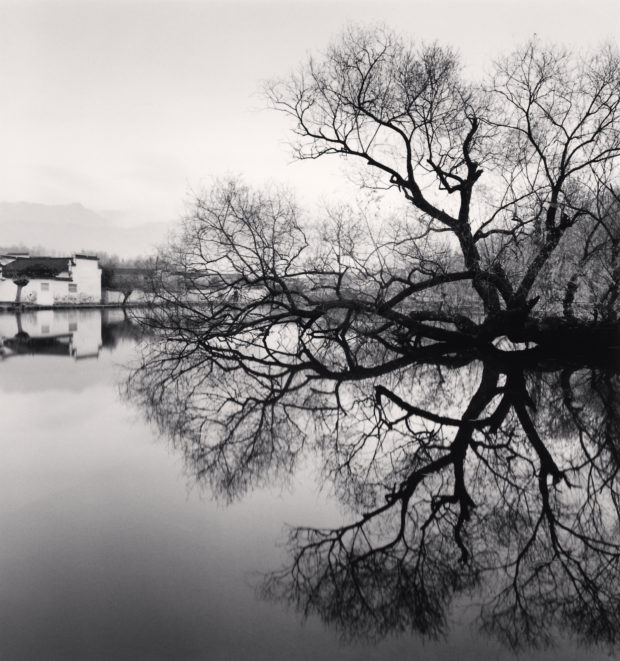
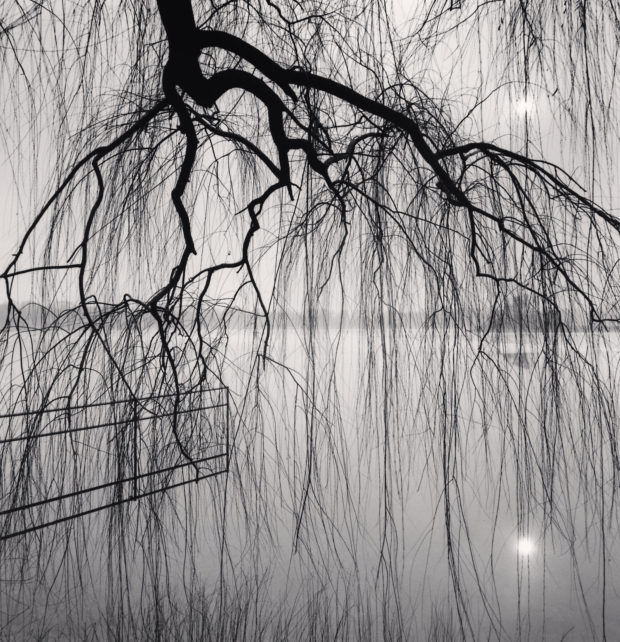
Lake Tree, Beihai Park, Beijing, China, 2008

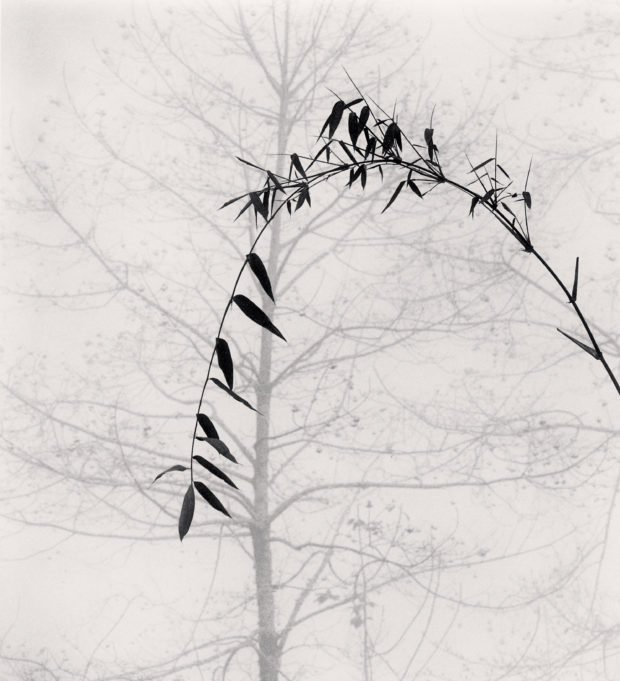
Bamboo and Tree, Qingkou Village, Yunnan, China, 2013

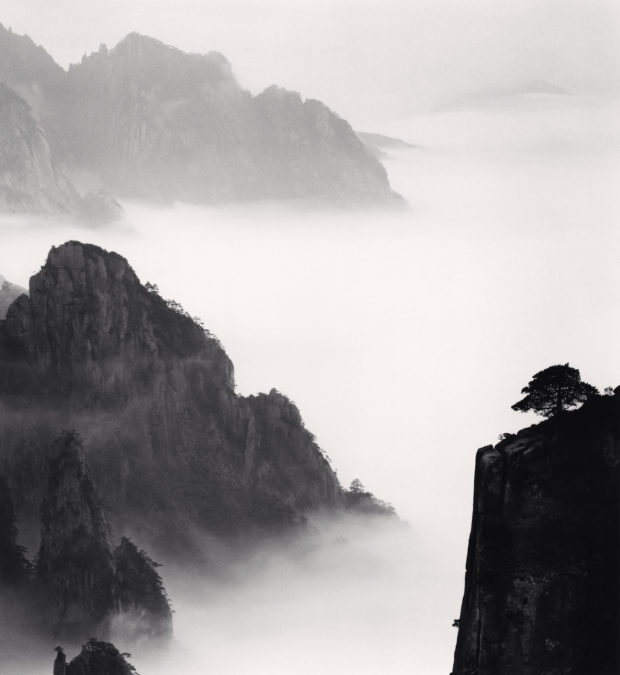
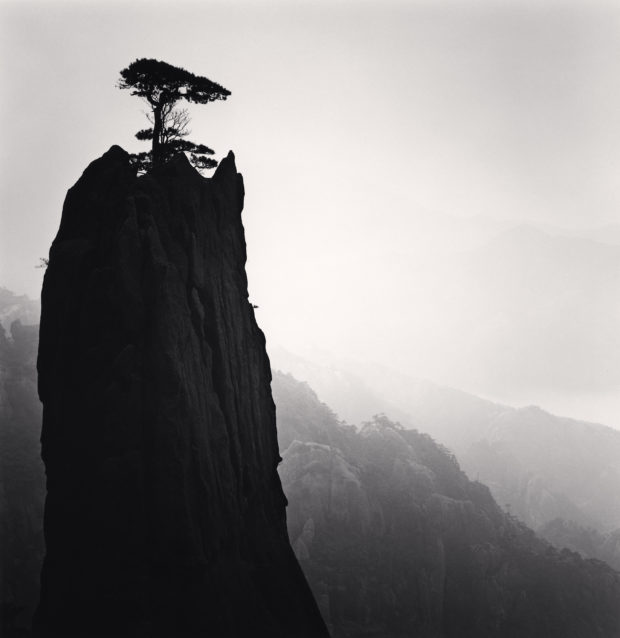
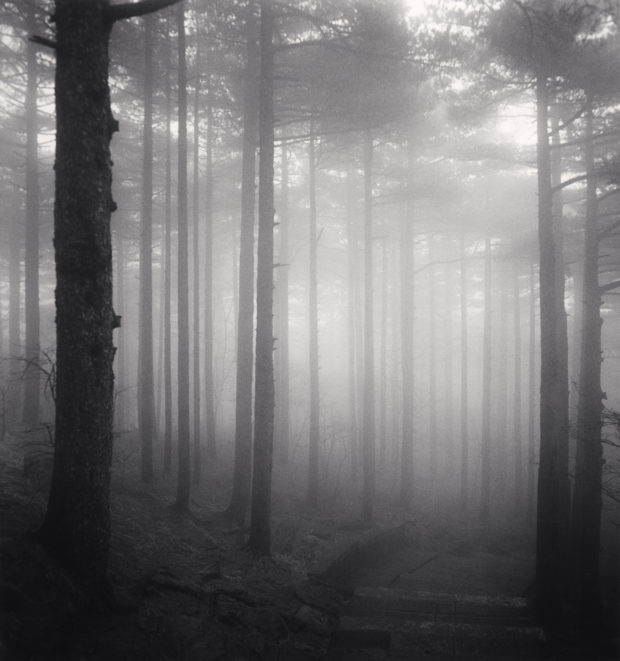
Huangshan Mountains, Study 13, Anhui, China, 2008

As a young boy growing up in the town of Widnes in northwest England, photographer Michael Kenna discovered a tree at the edge of a field in Victoria Park and made it his own. He and his brothers staked out their respective arboreal homes, hidden from the world, they could escape into the limitless expanses of their imaginations. Those trees became sanctuaries from all that civilization demanded of them, allowing them a space to commune with nature, free and unfettered.

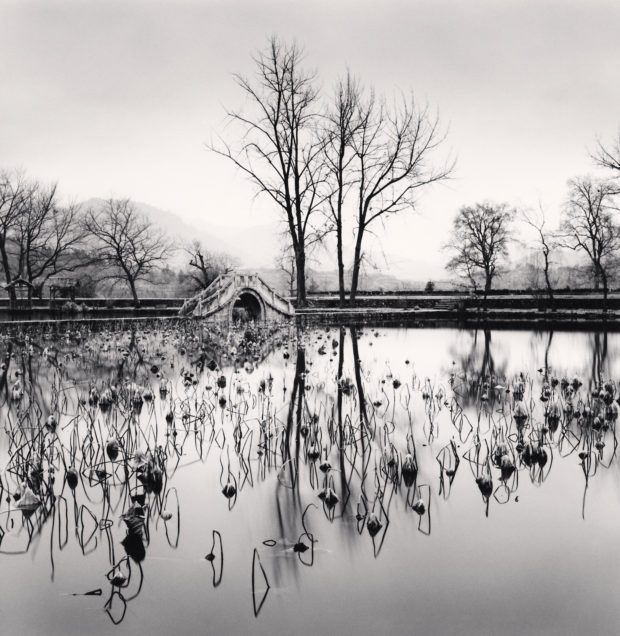
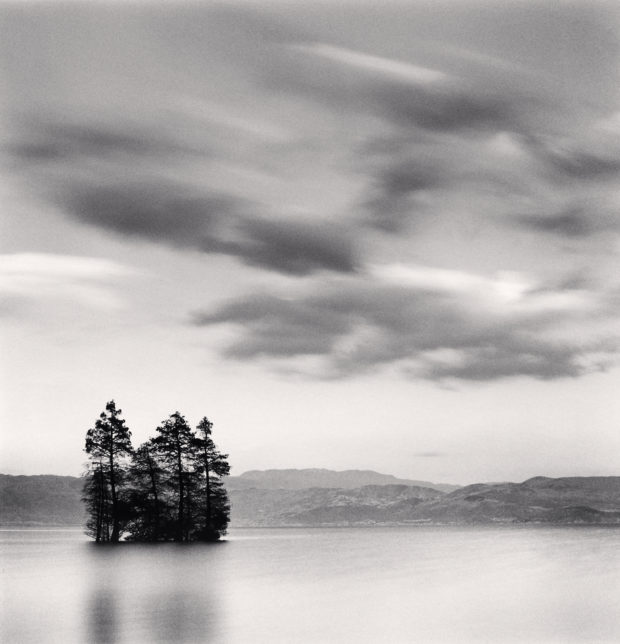
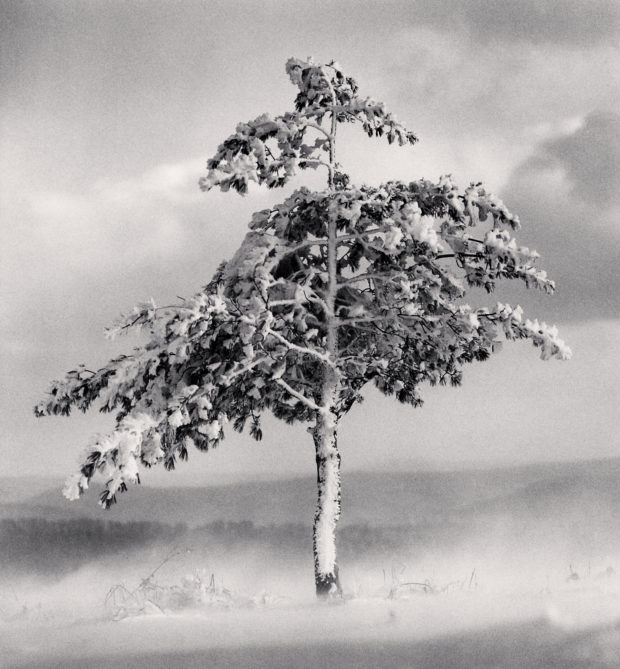
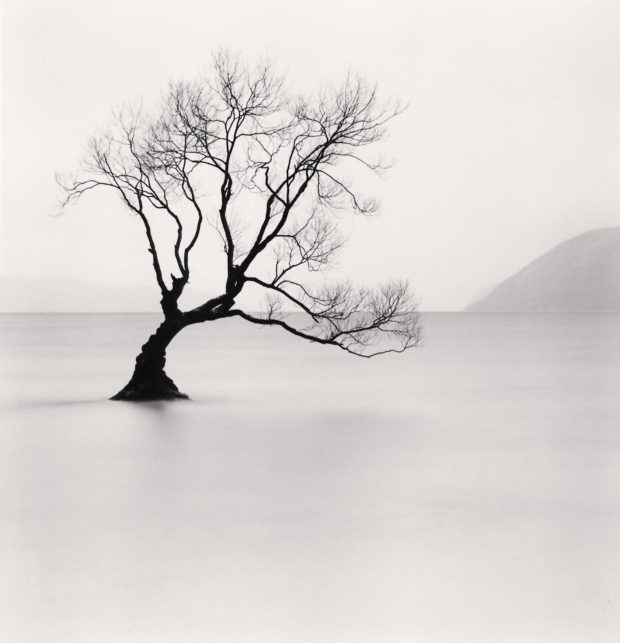
Over the past 35 years, Kenna has dedicated himself to photographing trees all around the globe. Using a Hasselblad to create exquisite black and white silver gelatin prints, Kenna’s portraits of trees are like Zen koans: tranquil and enchanting, minimal and moody, and powerfully evocative of life’s deepest mysteries.

A selection of these works is on view in Philosopher’s Tree’ by Michael Kenna at Blue Lotus Gallery, Hong Kong, from June 15 through July 1, 2018. The works take us around the world, into different realms where trees have their own unique relationship with the landscape and the environment. Whether in China or Italy, Norway or Brazil, Kenna’s relationship to the trees is an unwavering act of devotion.

Here we see some of the grandest fauna in its full glory, speaking silent wisdom, knowledge, and understanding of the secrets of life and the interplay between all living creatures on earth. Kenna shares his observations about life among the trees.

Erhai Lake, Study 9, Yunnan, China. 2014

Could you speak about your early experiences among the trees as a child and how this informed your relationship with these majestic beings?
“As a young boy growing up, I had my own favorite tree. Well, it wasn’t really mine, but I adopted it. More accurately, I suppose, it adopted me. My four brothers also had their own preferred trees, all conveniently located close to the playground. We would often sit high amongst the branches, shouting across to each other, safe from the prowling wild animals on the ground, the evil space ships attacking us from the sky, or the pirate ships waiting to drag us off. The trees were our safe zones, where we were hidden from the world.

“Occasionally, I would visit my tree alone and spend hours amongst the leaves in flights of fanciful imagination. The tree would then be the center of my universe, as well as my best friend. Recently, while visiting my sister in Widnes, I was delighted to once again renew my acquaintance with these trees. They seemed a bit smaller than in my memory, but otherwise quite unchanged.

“Today I have many more tree friends scattered across the world, which I like to visit whenever possible. I don’t climb as much as I used to, but I still like to use my imagination. I have been labeled a ‘landscape photographer’ and am often asked why I don’t make portraits. Of course I do, but of trees.

“When asked why, I usually answer half-jokingly that trees don’t need to primp themselves, they never answer back, and always seem happy with the portraits that I make. They are also fiercely independent, graphically beautiful and seem quite happy to wait around in the cold for many hours while I make long time exposures. How could anybody not love photographing a tree?”

Tree in Snowdrift, Yangcao Hill, Wuchang, Heilongjiang, China. 2

Could you speak about what you have discovered about the character and nature of trees having spent so much time in their presence and observing their ways of life?
“I once had a dream that I was a giant chestnut tree. It seemed that as I grew, centuries came and went. I looked down from where I stood and observed generations of people, individuals and families, going about their lives. Our ongoing human stories – often viewed through the subjective prisms of drama, comedy or tragedy – seemed to take on a whole different light when viewed from this new perspective. I think that when I woke-up, I was a changed person and my respect for these sentinels of experience was dramatically increased.

“Towers of dignity, trees silently offer their wisdom to those willing to listen. Research shows that within minutes of being surrounded by trees and green space, our blood pressure drops, our heart rate slows and our stress levels come down. Trees are the longest living organisms on earth and one of the planet’s most valuable natural resources. They purify the air we breath, improve the water quality, prevent erosion of soil, provide food and shade, reduce noise pollution, and help slow the rate of global warming. They are also exquisitely beautiful.”

What was the inspiration for this body of work: where did the idea take root and how did it begin to develop into a series of photographs?
“For almost 45 years, I have had the distinct honor and privilege to photograph trees in a variety of different countries. I have never consciously made a decision to create a specific body of work on trees. They are just a natural part of my photographic journey. It seems as though I have always photographed trees and will continue to do so. I am very grateful to now be able to offer their portraits as a small token of immense appreciation for their presence in our world. We are all indebted to the trees, they give us so much and ask for so little in return.”

Reflected Tree, Hongkun, Anhui, China, 2007

By traversing the globe, did you distinguish any remarkable similarities or differences between the trees in various places? 
“I am not a scientist, but according to a comprehensive study of the world’s plants by the Botanical Gardens Conservation International (BGCI), there are currently 60,065 species of trees in the world. There are obvious and not so obvious differences, between trees, but I like to think that similarities greatly outweigh differences.

“I suppose it’s a bit like the human population. We appear in all sorts of shapes, sizes and colors. We may speak different languages, and have different cultural and/or religious traditions and habits. Ultimately, we are all part of one human being family.”

Can you speak about the interplay between long exposure photography and the subject at hand: how does this format allow you to discover deeper aspects of the nature of trees?

“My feeling is that if we spend time with a subject matter, and make a considered photograph, rather than just glancing and making a quick snap, we will generally discover more. It is analogous to meeting someone. A quick exchange and we don’t really know the true character of that person. The more time we spend, the more understanding we have. Sometimes it takes a lifetime and we still don’t fully understand somebody.

“It often feels to me that our world continues to spin faster and faster. We have so much to do in a day, so many devices to look at, and people to be in touch with on social media. Information is available everywhere, images are constantly being produced and dispersed. Our world is fast paced and multi-facetted; it can exhaust our many senses if we are not consciously aware.

“It is sometimes necessary to slow ourselves down and get out of the mainstream turbulence. There are many ways of doing this: we could meditate, practice yoga or take a long walk, for example. I would suggest that spending some time with trees is always helpful. For my part I make long photographic exposures, most are a matter of minutes but some last up to twelve hours. What a luxury it is not to have to do anything during these periods of time.”

Huangshan Mountains, Study 21, Anhui, China, 2009

Lastly, could you speak about the meaning of the title Philosopher’s Tree and how you came to it? 
“The Philosopher’s Tree actually existed. I photographed it on a number of occasions in Northern Japan. It was a large Poplar tree that sat in the middle of a farmer’s field near Biei, Hokkaido. Standing about 30 meters tall and with a diameter of almost two meters, its name referred to the resemblance it had to a philosopher lost in thought, with its head tilting to one side. It was a striking and glorious tree.

“Unfortunately, it was cut down in February 2016. The farmer cited the age of the tree (Poplars grow quickly, but have a short life span), and the many trespassing tourists and photographers who would tramp through the crops during the growing seasons to see the tree, despite the many signs asking them not to. It was a sad end for this glorious tree.

“I was extremely fortunate to have met and photographed The Philosopher’s Tree before it was no longer there. Even now, in it’s absence this particular tree remains influential in my life. It reminds me to continually acknowledge that every tree, every thing, every body has a life span, which we should celebrate.”

“Desmond Tutu once wrote: ‘We are fragile creatures, and it is from this weakness, not despite it, that we discover the possibility of true joy.’ Trees are our teachers and we can all gain some wisdom from them. We just have to learn how to slow down, be in the moment, wait a little, and listen.”

Huangshan Mountains, Study 26, Anhui, China. 2009

Lake Tree, Beihai Park, Beijing, China, 2008

Wanaka Lake Tree, Study 1, Otago, New Zealand. 2013

All images: © Michael Kenna

The post A Spiritual Journey Exploring the Magnificence of Trees appeared first on Feature Shoot.

12 Jun 17:41

One of the World’s Largest Steam Locomotives Is About to Make a Triumphant Return

by Justin Franz
article-image

Seventy years after the First Transcontinental Railroad was completed in 1869, the steep Rocky Mountains of Wyoming and Utah were still giving the Union Pacific Railroad trouble.

Despite having massive steam engines, the Union Pacific, one of the biggest railroads in America, still struggled to move heavy freight trains over the mountains and would often have to use multiple locomotives to get trains to their destination. This practice required more workers and more fuel. In 1940, the Union Pacific’s mechanical engineers teamed up with the American Locomotive Company to build one of the world’s largest steam locomotives, a class of engine simply known as “Big Boy.”

Now, six decades after the last Big Boy was taken off the rails, the Union Pacific is rebuilding one of the famous locomotives in honor of the upcoming sesquicentennial celebration of the first Transcontinental Railroad. It’s a project so ambitious that Ed Dickens Jr, a Union Pacific steam locomotive engineer and the man leading the rebuild, has likened it to resurrecting a Tyrannosaurus rex.

article-image

The Big Boy locomotives weighed more than one million pounds and were 132 feet, 9 inches long. Stood on its end, one would be the equivalent of a 13-story building. Each one cost approximately $265,000 to build, or about $4.4 million in today’s money. In the railroad world, the Big Boys were known as 4-8-8-4 articulated type locomotives. That designation meant the locomotive had four wheels in front, two sets of eight driving wheels (the large wheels connected to the pistons that make the locomotive move) in the middle, and four trailing wheels, all underneath one enormous boiler.

Union Pacific purchased 25 of the Big Boys between 1941 and 1944. According to Trains Magazine, the steam engines were originally going to be named “Wasatch,” after the mountains they were built to carry freight over, but in 1941, an American Locomotive Company shop worker wrote “Big Boy” in chalk on the front of the locomotive and the name stuck. Below the steam engine’s new name, the unknown laborer also scratched a “V,” a popular symbol for victory during World War II, a conflict in which the Big Boy locomotives would soon play a pivotal role.

article-image

Locomotive No. 4000, the first Big Boy, left the American Locomotive Company factory in Schenectady, New York, in the summer of 1941 bound for its new owner. The enormous steam engine garnered attention wherever it went and by one count, more than 500 newspaper stories were written about it before it arrived on the Union Pacific’s tracks in Omaha, Nebraska, on Sept. 4, 1941. Locomotive No. 4000 and the other Big Boys were quickly put into service just as the Allied war effort was heating up. Between 1941 and 1945, the steam engines helped move millions of tons of war supplies and other materials, according to the historian John E. Bush, a self-described “Union Pacific steam locomotive nut” and author of numerous train books and a Trains Magazine blog about the locomotives. “Without the Big Boys, the Union Pacific could never have moved all that material for the war effort,” Bush says.

The Union Pacific used the Big Boys until 1959, when they were replaced with diesel-electric locomotives, which were easier and cheaper to maintain, although arguably less impressive than a noisy, smoke-belching steam engine with its symphony of moving parts. Most of the Big Boys were scrapped, but eight were put on display around the country.

article-image

Although some steam engines still operate at museums and heritage railroads, for decades railroad enthusiasts believed the Big Boys were simply too big to ever run again. For one, the infrastructure needed to maintain such a massive locomotive had been torn down at the end of the steam era, and even if someone did rebuild one, there were few rail lines that could handle a machine of that size. But in 2013, Union Pacific announced that it was reacquiring a Big Boy in hopes of restoring it for the 150th anniversary of the completion of the Transcontinental Railroad. In spring 2014, Big Boy No. 4014 was moved from Pomona, California, where it was on display at the RailGiants Trains Museum, to Cheyenne, Wyoming, where Union Pacific keeps and maintains two other historic steam locomotives for special events and excursions.

article-image

Bush, the railroad historian, was lucky enough to ride the Big Boy No. 4014 when it was hauled back to Wyoming by a pair of diesel-electric locomotives. He says highways along the rail line were packed with onlookers watching the unrestored steam engine roll down the tracks. “It was awe-inspiring,” he says. “It was a dream come true for many.”

Since the locomotive’s arrival at Union Pacific’s shop in Wyoming, mechanics have been slowly rebuilding it, which requires the disassembly, inspection, and repair of every single part of the locomotive. The steam engine will also be altered so that it can burn oil which is easier to acquire than the coal it once burned back in the 1940s and 1950s. “This is a massive ground-up restoration,” Dickens says.

article-image

Dickens hopes to have No. 4014 completed and operating on its own power before May 10, 2019, the 150th anniversary of the Transcontinental Railroad. The first trip is expected to take the locomotive to Ogden, Utah, not far from where the Golden Spike was driven at Promontory in 1869.* The ceremonial spike joined the rails of the Union Pacific from Omaha with the Central Pacific Railroad from Sacramento, connecting the the East Coast with the West Coast by rail for the first time in American history. Today, Promontory is a national historic site.

Bush expects train enthusiasts and history buffs from around the world to line the tracks from Wyoming to Utah when the Big Boy makes its first run in 60 years.

“I cannot think of a bigger way to celebrate this anniversary than restoring a Big Boy locomotive,” Bush says. “This is something railroad enthusiasts have dreamed about for more than a half-century.”

*Correction: This article originally referred to Promontory, Utah, as Promontory Point.

12 Jun 17:40

Texas Cowboy Barbecue Recipes - Cowboys and Indians


Cowboys and Indians

Texas Cowboy Barbecue Recipes
Cowboys and Indians
Central Texas-style barbecue has come to define the smoked-meat tradition of the Lone Star State. And the lines (sometimes hours long) have come to define Central Texas barbecue and their popular practitioners. Davila's BBQ in Seguin, Texas, stands ...

12 Jun 17:40

Beyond the Stand-Up Paddleboard: The Hi Life 11.0

by Everett Potter, Contributor
12 Jun 13:51

5 Maps and Apps to Help You Find Free Wi-Fi Anywhere

by Mihir Patkar
find-free-wifi

From coffee shops to airports, the world is slowly opening up free Wi-Fi hotspots to anyone who needs it. But they can be hard to find, and you need to use the more secure ones. A few apps and maps will ensure a reliable free Wi-Fi connection for you no matter where you go.

Normally, you can always go to a public library or a public place like a train station to get free internet service almost anywhere. But when you expand that list with passwords for all sorts of private places (including offices and homes), you won’t have to travel much to get online.

While we have covered some of the best Wi-Fi hotspot finders in the past, this is one area where the app’s quality changes based on which regions it is mostly used in. What you find on one app might not be as good as what you find on another, so try different ones and pick the one that works best for your desired location.

Wi-Fi Free Spot (Web): The Best for USA

In American cities, a free Wi-Fi hotspot is actually never too far away. But things get a little bleaker when you move away from the main hubs. Wi-Fi Free Spot will ensure you know the next best place to go to if you want to stay online.

The main list breaks down every available public location by state, after which you get a further breakdown by cities and towns, and then by places like cafes, restaurants, public spaces, hotels, and so on. Wi-Fi Free Spot also has lists based on companies (McDonald’s, FedEx, etc.), airports, hotels, RV parks and campgrounds, and vacation rental properties.

All in all, you’ll never be left without a connection if you rely on this list. Of course, you need an internet connection to access the list in the first place. So before you visit any city you aren’t familiar with, it would be wise to save its page for offline reading.

Instabridge (Android, iOS): Simple, Intuitive, and the First Choice for Europeans

Instabridge is comparatively new to the game but has already earned a reputation of being reliable for finding networks in European cities. The mobile app also automatically connects to networks when available, saving you the hassle of finding a place.

The app’s community of users share passwords to both public and private Wi-Fi hotspots, letting you use the connection for free. Some users also run speed tests on the networks so you know which ones will let you do some high-speed uploads or downloads. The app can give you notifications for all types of events, like when you connect to a Wi-Fi or when it isn’t working.

Instabridge solves one of the bigger problems of these apps by offering an Offline Mode. You can either download the entire world’s map of places and passwords offline, or a particular region like South-Eastern Asia, Western Europe, Australia and New Zealand, etc. Just remember to be careful and use public Wi-Fi securely.

Download: Instabridge for Android | iOS (Free)

WiFox (Web, Android, iOS): Unlimited Wi-Fi at Any Airport in the World

Airports usually restrict the amount of time a traveler can access their free Wi-Fi. When you have a long layover or a delayed flight, this restriction can be incredibly annoying. But for two bucks, WiFox will connect you to the unlimited Wi-Fi access of airport lounges.

Here’s how it works. The community at WiFox, started by travel blogger Fox Nomad, keeps sharing Wi-Fi names and passwords at airports. With this regularly updated list, you can access a fancy lounge’s Wi-Fi network without ever paying for the lounge upgrade.

Fox Nomad has been doing this list for a couple of years now, and it is the most respected and reliable source of airport lounge passwords today. Before you go on a long journey next, get this app. Or if you don’t want to pay, just use the map.

Download: WiFox for Android | iOS ($2)

Avast Wi-Fi Finder (Android, iOS): Safety for Public Wi-Fi

When you’re connecting to public Wi-Fi networks, you are putting yourself at risk. Apart from the threat of malware, even hackers use it to steal your identity. So Avast, one of the leading antivirus developers, made a Wi-Fi finder with a focus on security.

Avast’s Wi-Fi Finder shows you hotspots that are already in range, as well as others within walking distance. Before you connect to any open Wi-Fi, Avast will offer to run a security check on that network to figure out whether it’s secure or not. This is a small but crucial step that no other Wi-Fi hotspot finder currently offers.

Apart from that, Avast has most of the features you’ll find in Instabridge. It’s also among the few apps to work well in both Europe and America, according to testimonials. You can also check a hotspot’s speed before you connect to it.

Download: Avast Wi-Fi Finder for Android | iOS (Free)

Places to Work (Web): Cafes Aren’t Your Only Option

Forget about your local Starbucks when you next need a reliable Internet connection to do some work. Places To Work has a much better list of all the options, cafes and otherwise, to get things done.

Grant it access to your GPS or search on the map yourself to find a list of nearby places where you can work. In fact, Places To Work is excellent for finding coworking spaces and single-day office desks. Sure, some of these double up as cafes, but you get more than that if you go visit.

We’ve already spoken about how shared offices and coworking spaces make freelancers productive. And most of them will be happy to set you up with a one-day pass if you’re traveling, so feel free to hop in.

If Nothing Else, Use Facebook

Finally, if you don’t want to use any of these free apps or websites, you can always turn to good old Facebook. That’s right, the social network has a similar feature and it’s pretty easy to use. Here’s how to find free public Wi-Fi spaces with Facebook.

Read the full article: 5 Maps and Apps to Help You Find Free Wi-Fi Anywhere

12 Jun 13:51

How to Email Photos Directly From Adobe Lightroom

by Saikat Basu
lightroom-photographers

If you shoot photographs for clients, an essential part of your workflow likely involves emailing those shots when they’re ready. This isn’t particularly difficult to do, but it can be a hassle when you’re doing it all the time.

Adobe Lightroom Classic CC allows you to email one single photo or batches of many photos directly from within the app. It also gives you handy options to choose the quality of the photos you would like to email and the email account you would like to send them from.

How to Email Photos Directly From Adobe Lightroom

You can configure an email client or multiple clients to publish or send your photos from within Lightroom. You can use the default email client or use an internet email like Gmail. Configure the email tool first from the Lightroom Classic CC Email Account Manager.

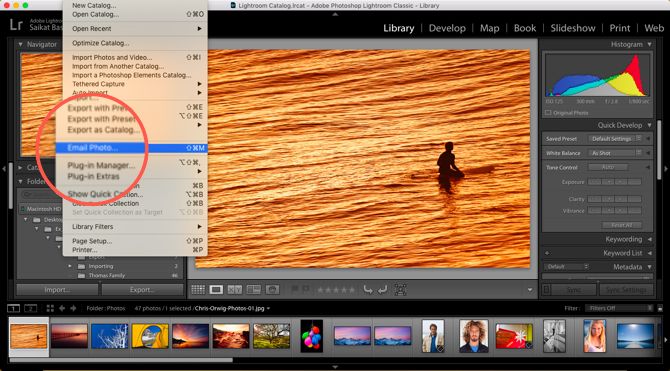
  1. Open Lightroom and go to any module except the Book module. Select the single photo or multiple photos to email.
  2. Go to File > Email Photo. Alternatively, use the shortcut Command + Shift + M (Mac) and Control + Shift + M (Windows).
    Lightroom Email Photos
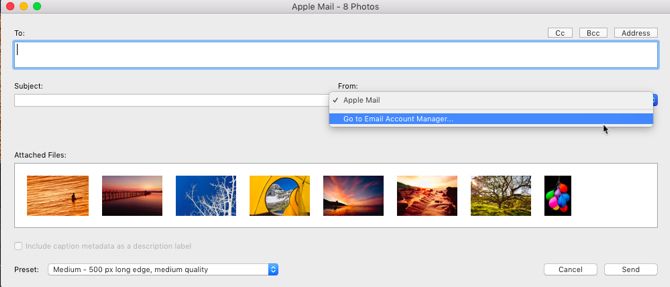
  3. The email creation dialog box is displayed. Click the From popup menu and choose Go To Email Account Manager.
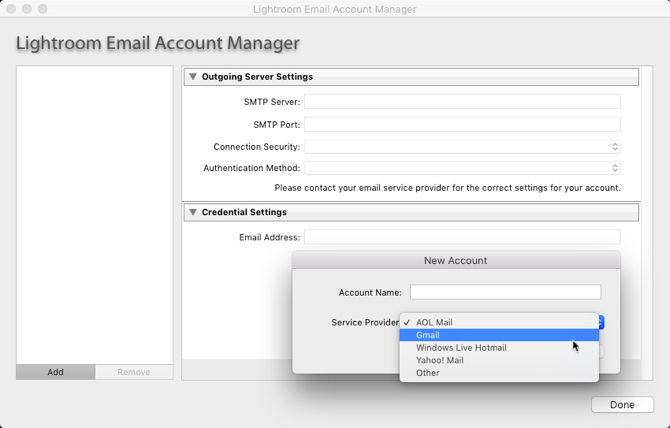
    Lightroom Email Account Manager
  4. The Lightroom Classic CC Email Account Manager window appears. Start configuring your email account with the fields provided for outgoing server settings.
    Configure Email in Lightroom
  5. Click Validate to let Lightroom Classic CC connect with the outgoing mail server.
  6. To add another email account, click on the Add button on the bottom right of the box. Follow the same steps as above to set up the account.
  7. With the email accounts set up, all you have to do now is add the address of the recipient or recipients and add the other information as you would for a regular email.
  8. Choose the Preset for the quality of the photos you want to send. Lightroom converts the photos to the appropriate JPEG quality before sending them.
  9. Click Send.
  10. Lightroom opens the selected email client and lets you add a message along with the attached photos. If you choose an online email service like Gmail, the photos are directly shared as embeds with the email.

Email remains a quick and common way to share a bunch of photos, and Adobe Lightroom Classic CC makes it easier. Remember, there are many more Lightroom shortcuts that can improve your workflow!

Read the full article: How to Email Photos Directly From Adobe Lightroom

11 Jun 17:40

No More Photoshop: 5 No-Signup Image Editors on the Web

by Mihir Patkar
free-online-image-editors

It is a pain to fire up Photoshop, Pixelmator, or GIMP for a simple task like resizing some photos or blurring sensitive information in an image. Well, you don’t need to. Use these websites to do your job in a jiffy.

I’m a big fan of doing common web tasks without signing up. Apart from the convenience, it’s also a big step in protecting your privacy online, especially when you realize how much information websites store about you.

When it comes to everyday operations for an image, you’d be better off using one of these web apps to quickly and efficiently finish what you need to do.

Image Blur (Web): Blur Sensitive Information in Photos

When you share a screenshot or an image, it can often have sensitive information that you don’t want others to know. You might want to protect someone’s identity by blurring their face or even stop bots from reading your email address.

Image Blur is the simplest tool I’ve seen for this task. It only lets you upload images from your hard drive, so you can’t use links to photos. Once the image is uploaded, draw a rectangle anywhere and click “Blur it” to apply the effect. You can have multiple rectangles in the same image to blur different spots. After finishing, you can download the image to your hard drive again. Nothing is stored in the cloud, and the servers are purged periodically, so as to protect privacy.

Image Blur is tremendously convenient to use, but if you’re looking for a little more control, try LunaPic. You’ll need to register to use it, but the web app lets you both pixelate and blur images online.

Screely (Web): Add a Beautiful Background to Images or Screenshots

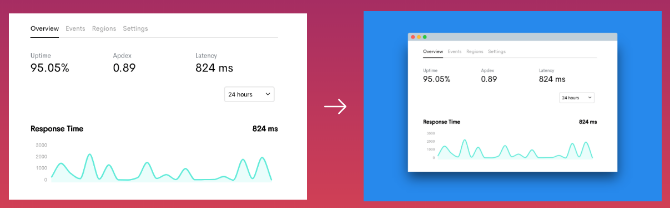
Don’t share a drab old image on the internet, or a badly cropped screenshot that ruins the rounded edges of the window you took it in. There’s a better way. It’s called Screely.

Crop your drab image to the desired size first, and then upload it to Screely. The site will automatically add a background to it, along with a drop shadow, making it look like those professional screenshots and images you see online. You can change the color of the background too.

For screenshots, Screely lets you add a fake window title bar if you want. It only has the Mac title bar theme though.

Screely is a simple tool that does its job well. What was usually five to seven steps in Photoshop is now much faster.

AddText (Web, Android, iOS): Quickly Add Text to Any Image

Whether you’re creating a “One Does Not Simply” meme or actually adding a caption to an image, AddText is the easiest and quickest way to finish the job. Plus, it’s quite customizable.

Once you upload the image, you can add as many text boxes as you want. Each box can have a different font style, color, size, and position. Go wild, it’s all up to you. There are some quirky and fun font styles available here, so go through the selections, you might find something cool to make your text look interesting.

AddText also has mobile apps for Android and iOS, which are just as easy as the web app. Since the web version doesn’t work well on mobile screens, the apps are a better solution. But it defeats the purpose of a quick, no-signup app, so you might as well get one of the best smartphone photo-editing apps.

Social Image Resizer Tool (Web): Crop and Resize for Social Platforms

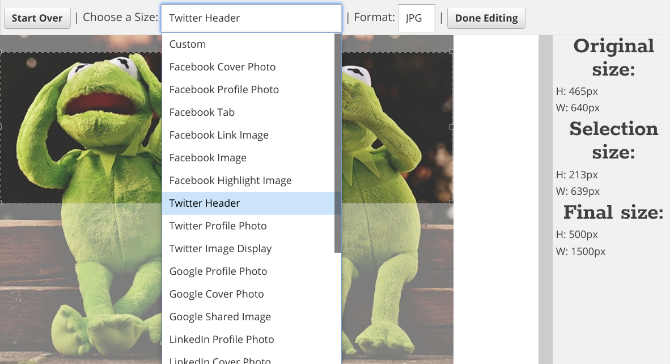
The blog Internet Marketing Ninjas developed a cool web app for anyone who wants to change their social media picture. As you probably know, you usually need a cheat sheet for social media sizes, since Facebook, Twitter, and others keep changing the dimensions of profile pictures, headers, and so on.

Social Image Resizer Tool (SIRT) gets rid of the cheat sheet. Upload an image and you can start cropping it perfectly. Choose what you are making first, like a Facebook header or YouTube profile picture, and SIRT will automatically give you rectangle or circle selection accordingly. Resize and drag it to the desired part of your image. You can see the original image size, the selection size, and the final size at all times.

Once you’re done, choose JPEG, PNG, GIF, or ICO as the final file format and download it to your hard drive.

BIRME (Web): Resize and Rename Many Images in One Click

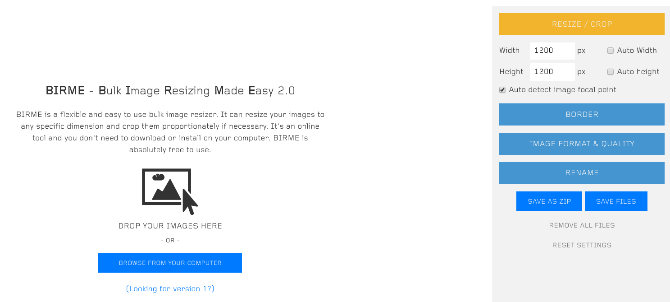
Bulk Image Resizing Made Easy, or BIRME, is the simplest online tool I’ve come across to resize and rename images in a batch. Plus, it’s surprisingly customizable too.

First, upload all the images you want to resize. Choose the desired height or width (and you can have the height or width auto-adjust too, depending on portrait or landscape pictures). Apart from resizing, BIRME will also crop images to your desired aspect ratio, so choose wisely. You can also add a border to all the photos. Images will be saved in JPEG format at 80% quality by default, so you might want to pump that up. And you can rename them too, of course.

BIRME smartly gives users the option to download all photos as a ZIP file, or individually if that’s what you want. As long as you have a fast internet connection to upload and then download those pictures, BIRME is better than resizing images in bulk on a computer.

Not Just Photos, Videos Too

Such simple, no-signup editors aren’t the sole domain of photo editors. If it’s a video you want to crop or resize, there’s a solution for that too. Try one of these free online video editors that make you anonymous, it takes almost no time to do what you need to.

Read the full article: No More Photoshop: 5 No-Signup Image Editors on the Web

11 Jun 17:40

25 Useful iPhone Productivity Apps That’ll Help You Get Things Done

by Dann Albright
iphone-productivity-apps

Your iPhone is one of the best tools for becoming more productive. But there are thousands of productivity apps out there—how do you know which ones to use?

This guide is available to download as a free PDF. Download 25 Useful iPhone Productivity Apps That’ll Help You Get Things Done now. Feel free to copy and share this with your friends and family.

We’ve ranked the 25 best iPhone productivity apps for you here. Which app will take the #1 spot? Keep reading to find out.

25. Forest
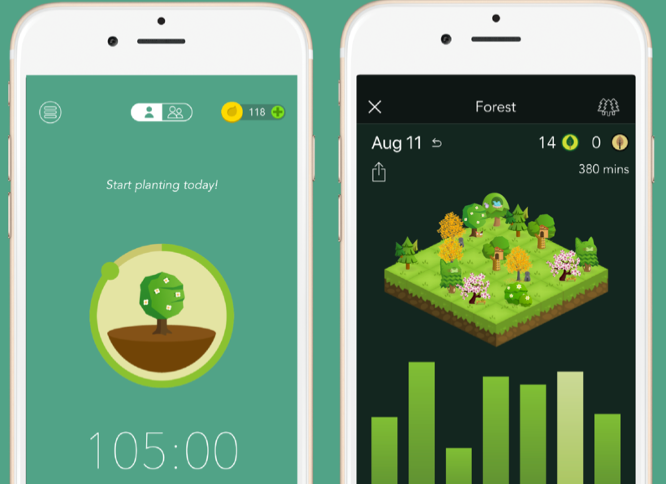
Forest iOS time management app

Staying focused is hard. Forest makes it easier by showing you how long you’ve been able to resist getting distracted by your phone. The longer you leave the app open (blocking other apps), the more your forest grows.

And now you can grow a forest with your friends—but only as long as everyone stays focused. It adds peer pressure to the previous gentle reminder. And the makers of the app will even plant real trees for the ones you grow in the app.

Download: Forest ($2)

24. Astro

The average person spends 13 hours a week reading and responding to email according to SaneBox. What could you do if you got a few of those hours back? Astro will help you find out. Gmail and Office 365 integration, email snooze, priority inbox and notifications, and an in-app calendar make it a stellar iPhone email app.

Astro also gives you the power of an AI assistant. It responds to hundreds of text and voice commands and will help you get work done quickly. The “zap” command is especially useful—it starts up an inbox-cleaning protocol.

Download: Astro (Free)

23. Wrike
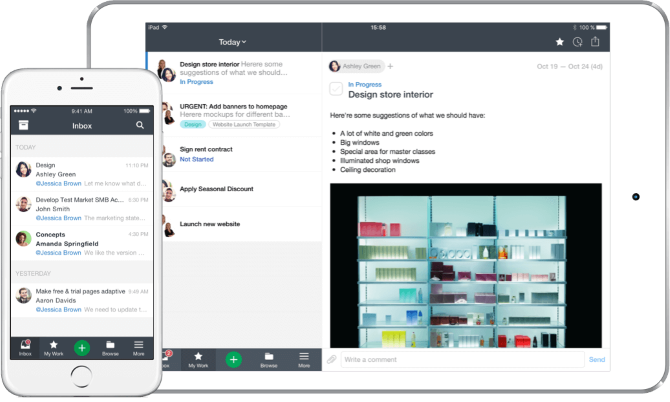
Wrike iOS project management app

If you need to manage projects on the go, Wrike is a great choice. It gives you the project management features you’d expect, like Gantt charts, assignments, approval workflows, and time and budget tracking.

For small teams, Wrike can serve as a free shared task list. Larger teams willing to pay get a full project-management app that keeps team members coordinated and productive.

Download: Wrike (Free)

22. Be Focused Pro
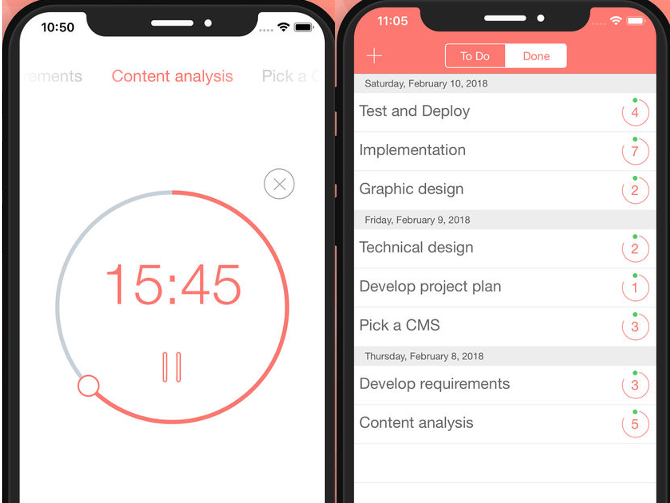
Be Focused Pro iOS time management app

The Pomodoro system is great… but what if you don’t like the traditional 25/5 split? Be Focused Pro is a Pomodoro timer and to-do list app that lets you customize your work intervals. Set the short and long intervals, decide on your break times, enter your tasks, and get moving.

Be Focused Pro also offers notifications, alarms, and other settings that will keep you on pace. There’s even an Apple Watch app so you can take your intervals on the go.

Download: Be Focused Pro ($1)

21. Habitica
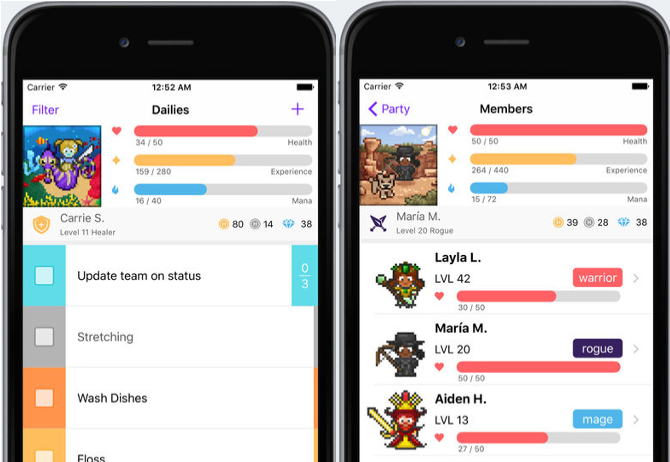
Habitica iOS habit app

Gamification is here to stay. And Habitica is by far the most fun gamified iPhone productivity app. Enter your tasks and the daily/weekly/monthly habits you want to put in place, and start working. When you complete a task, you earn experience. You can use that experience to level up, get new gear, and battle monsters.

Beyond the fun fantasy interface, Habitica is a great way to cement new habits. The theme won’t appeal to everyone, but it’s a welcome break from dry productivity apps.

Download: Habitica (Free, subscription available)

20. Harvest
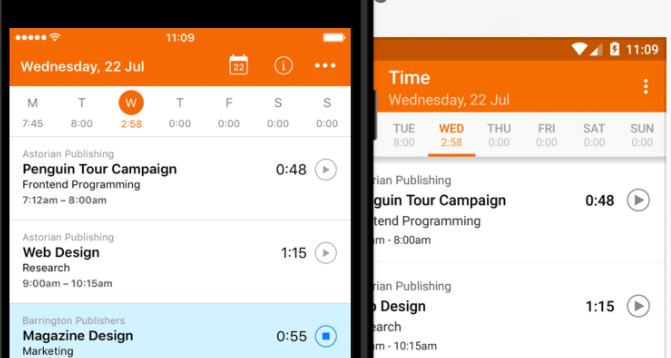
Harvest iOS time tracking app

While it’s pitched as a tool for businesses that need to track employee time, Harvest shows anyone where they’re spending time.

Add tasks, assign time to them, and get reports later to see which tasks you’re spending time on. If you’re a freelancer, you can also use expense logging and invoicing right from the app to simplify your billing process.

Download: Harvest (Free)

19. Bear

While Evernote is still the king of note-taking apps, Bear is making strong inroads. Instead of being bloated with features, it aims for a minimal interface with pleasing typefaces and advanced markup features.

The disadvantage of Bear is that it’s iOS and Mac-only. But if you’re invested in the Apple ecosystem, that won’t be a problem. You can enjoy a great note-taking app designed specifically for iOS. Think of it as a level between Apple Notes and Evernote—and with great design built right in.

Download: Bear (Free, subscription available)

18. Edison Mail
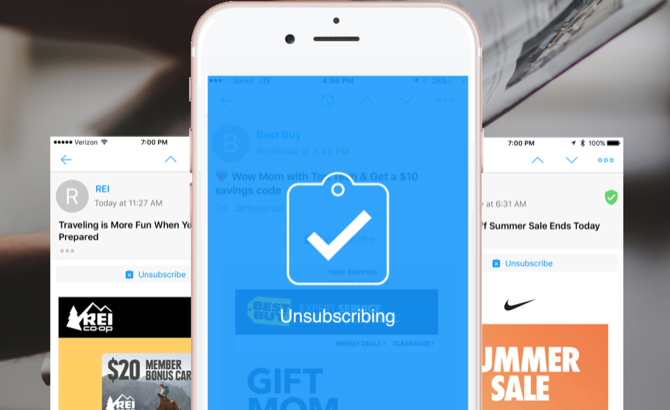
Edison Mail iOS email app

There are a lot of great iPhone email apps, but few have security in mind. Edison Mail prevents email snooping with Touch ID or Face ID authentication.

Beyond that, you get integration with many mail services, custom swipes, intelligent mail categorization, and smart notifications. It’s a great way to unify your myriad inboxes from around the web.

Download: Edison Mail (Free)

17. Nirvana
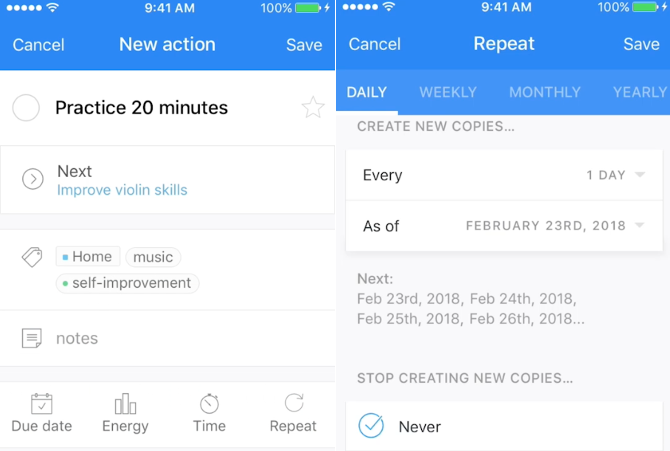
Nirvana iPhone GTD app

The Getting Things Done (GTD) productivity system requires a highly organized app to support it. And Nirvana was built specifically around that purpose. At its core, it’s a task manager, but it also lets you capture information, sort by location, and focus on your next task.

Nirvana Pro adds even more functionality, with unlimited projects, areas, and reference lists. You’ll also need the pro level if you want to create recurring tasks. Even without these features, there’s a ton of organizational power here for GTD enthusiasts.

Download: Nirvana (Free)

16. Productive
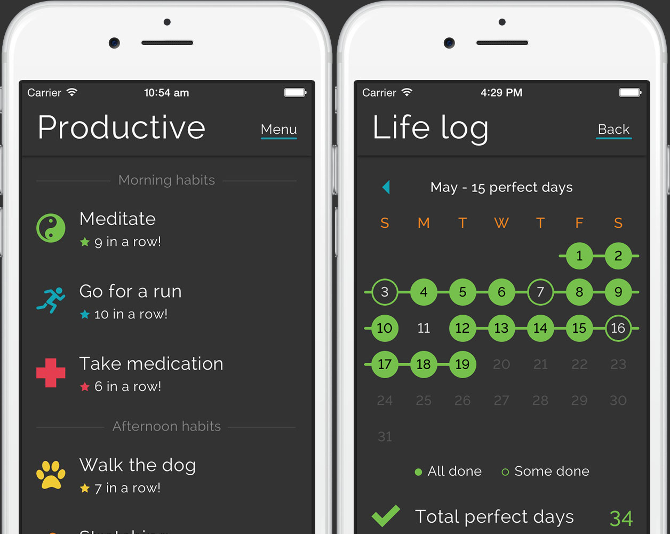
Product iOS habit-tracking app

This app is all about developing and maintaining habits. First, create items for your habits. Then set their recurrence intervals, and choose morning, afternoon, or evening. Finally, track your successes!

You’ll use the don’t-break-the-chain method to build up streaks of habits. Productive gives you detailed reports of how well you’re doing so you can make tweaks, too.

Download: Productive (Free, subscription available)

15. Zendone
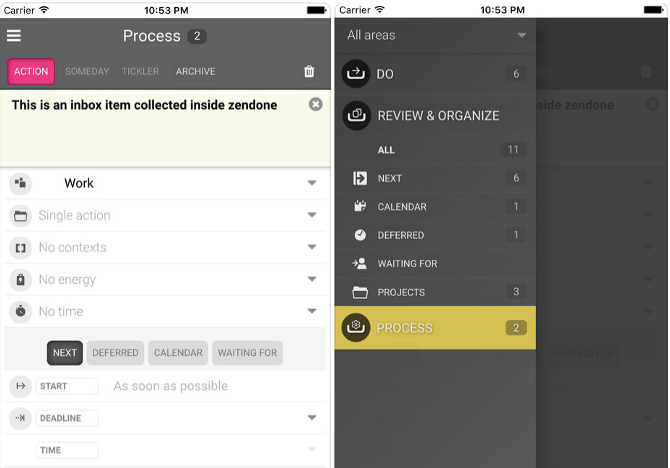
Zendone iOS GTD app

Evernote has been the go-to app for the Getting Things Done system nearly forever. But Zendone doesn’t try to replicate Evernote’s functions. Instead, it serves as a task list and project management app that integrates with Evernote to pull in your notes when you need them.

In this way, Zendone lets you go through the entire GTD process—from collection to archiving to delegation to action—from a single app. The Google Calendar integration makes it easy to schedule future tasks, too. The only downside is that there’s no free option; you can get a trial, but after that you’ll pay at least $5 per month.

Download: Zendone (Free trial, subscription required)

14. OneNote
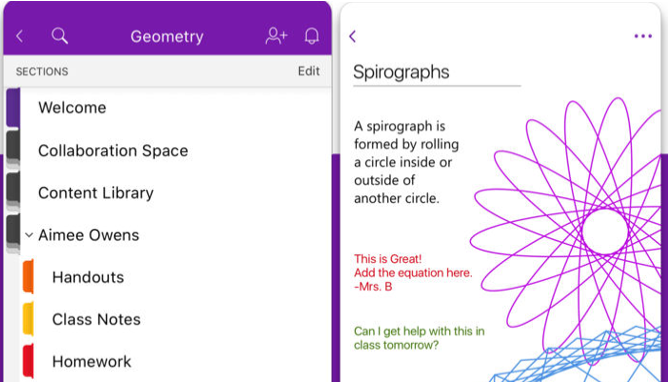
OneNote iOS note-taking app

Microsoft’s note-taking app used to feel like a tacked-on addition to Microsoft Office. But updates to the app added many useful features, and it now rivals Evernote for the crown of best note-taking app.

The biggest advantage is that it’s completely free; there are no upgrade options. But there’s also built-in sketching support for the iPad, powerful organization tools, and cloud sync with OneDrive.

Download: OneNote (Free)

13. Fantastical 2

This calendar app is all about flexibility. With numerous views and themes, you can look at your schedule in the way you prefer. And it works with iCloud, Google Calendar, Exchange, and others, so you can see all your calendars in one place.

The widget and interactive notifications also make sure you don’t forget any of your events. And if you have a newer iPhone, you can use 3D Touch to interact with your events and notifications.

Download: Fantastical 2 ($5)

12. Omnifocus 2
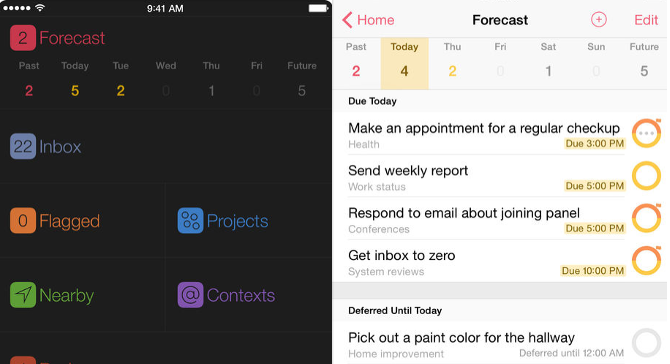
OmniFocus 2 iOS GTD app

If you’ve looked for the best iPhone GTD apps, you’ve almost certainly come across Omnifocus. It’s built from the ground up for Getting Things Done. It will help you keep the various parts of your life separate—it’s the best organization app for GTDers.

Perspectives let you see only work, personal, or any other category of task. Tons of view options narrow in on specifics. There’s a phenomenal amount of customizability here, and with it a huge amount of power. It’s going to take a while to get the hang of it, but there might be no better app for managing your entire life with GTD.

Download: Omnifocus 2 (Free trial, subscription required)

11. Trello

Trello iOS project management app

Trello’s iPhone app will help you coordinate an entire project team or just get yourself organized. The Kanban-style organization makes for great visual workflows. Just drag and drop cards into new categories as they progress.

You can also create checklists in each card, assign cards to other users, add due dates, upload files, and color-code tasks. Each card serves as its own to-do list, making Trello a great app for managing several areas of your life.

Download: Trello (Free, subscription available)

10. Microsoft To-Do
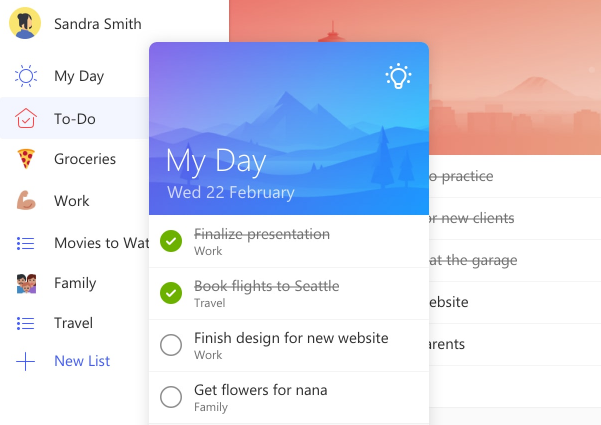
Microsoft To-Do iOS task management app

To-Do is the successor to one of our favorite productivity apps: Wunderlist. Microsoft bought the company and has rebranded the app.

You’ll get all the same features you came to expect with Wunderlist: a simple interface, easy operation, intelligent suggestions, lists, and cloud sync.

It doesn’t offer more features than the best to-do list apps listed below, but the familiar interface and easy syncing across platforms is still appealing.

Download: Microsoft To-Do (Free)

9. Google Calendar

Google Calendar iOS app

You may take it for granted, but Google Calendar is still one of the best productivity apps. And the iPhone version is arguably better than the browser-based one.

It all starts with the view. The clean interface makes it easy to see what you’re doing and when. You can quickly flip through the coming days to get an idea of what’s ahead, and automatically generated images highlight important events.

Smart text interpretation makes it easy to get events on your schedule in just a few taps. And it automatically imports information from Gmail, so your calendar invites, flights, and hotel reservations are already linked in.

Download: Google Calendar (Free)

8. Evernote

There’s no productivity app more popular than Evernote. If you can think of a feature that would be useful for taking notes on your iPhone, Evernote has it.

In addition to all the organizational power of the desktop version, the iPhone app adds features for easy note-taking on the go. One-button note creation, the ability to add photos, a purpose-built business card scanner, and support for handwriting are just the tip of the iceberg.

You can also use 3D Touch to pull up quick actions on your notes to save even more time. Pressure-sensitive sketching takes advantage of new iPhone technology, too. If you want more power than Apple Notes, and you’re alright with a slightly more cluttered interface, Evernote is tough to beat.

Download: Evernote (Free, subscription available)

7. Calendars 5
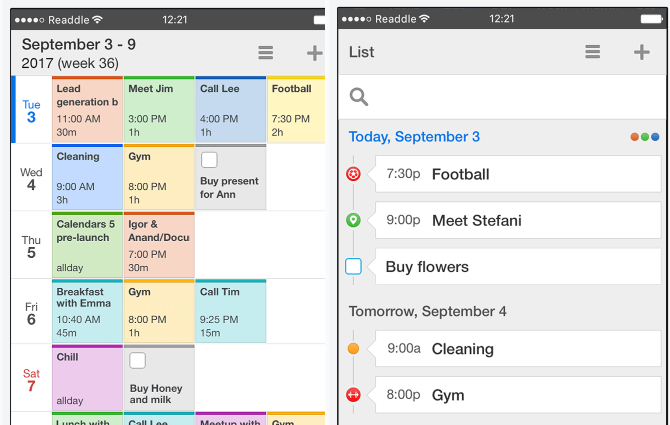
Calendars 5 iOS app

Google Calendar is great, but Calendars 5 takes it to the next level with tons of different views and a built-in to-do list function. You can connect absolutely any type of third-party calendar. (It even supports AOL!)

Natural language support makes it easy to add events quickly; you can even create events with Siri. And although the task manager is relatively simple compared to some of the other productivity apps on this list, the fact that it’s in the same app as your calendar is really useful.

Calendars 5 isn’t cheap, but if you spend a lot of time in your calendar, it’s worth it.

Download: Calendars 5 ($7)

6. Asana

Asana iOS project management app

While it’s generally meant for team-based project management, Asana works equally well for categorizing your own tasks and projects. No matter how many people and projects you’re trying to organize, Asana’s mobile app will keep you on track.

Having the ability to check your tasks in both Kanban and standard views makes this a great alternative to Trello for people who want added flexibility. The calendar and to-do views also make this a versatile project management app.

That versatility is what makes it one of the best organization apps around. It offers tons of ways to store your data and just as many to access and manage it.

Download: Asana (Free)

5. Pocket

Pocket iOS app

While you could use Evernote to store all the articles you’ve been meaning to go back and read, the reading experience from Pocket sets it apart. Whether you’re collecting and reading productivity tips or just grabbing the latest posts on your favorite blogs, Pocket will help you do it.

One of the best ways you can use Pocket to improve productivity on your iPhone is to throw articles into it—either via the app or on your computer—and get in the habit of reading when you have a few minutes to spare.

All you need to do is open the app and tap the first article. Then start reading. You’ll learn more, be more inspired, and have more fuel for productivity from just a few seconds here and there.

Download: Pocket (Free, subscription available)

4. Gmail
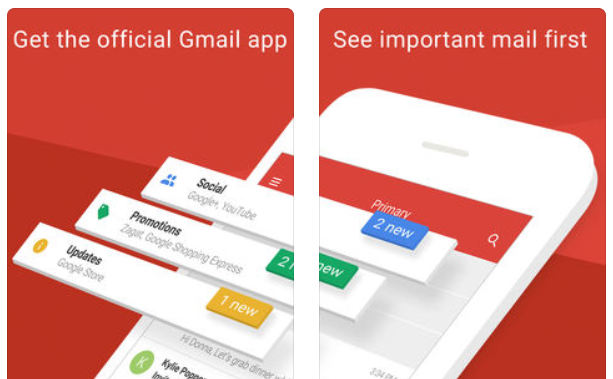
Gmail iOS app

Gmail continually reinvents how we deal with email. And as it come up with new ideas to test in the Inbox app, those ideas get moved to the Gmail app. With the latest Gmail redesign, you have access to lots of new features that will help you manage your email more efficiently.

You can now snooze emails in Gmail so they come back later—freeing up space in your inbox and your brain. Priority and categorized inboxes automatically sort your important emails to where you can see them. Reminders let you know that it’s been a while since you received an email and should probably follow up.

New features roll out all the time, and when they’re perfected, they arrive on the Gmail app. No longer content as just a communication tool, Google has turned Gmail into a full-blown productivity powerhouse.

Download: Gmail (Free)

3. TickTick
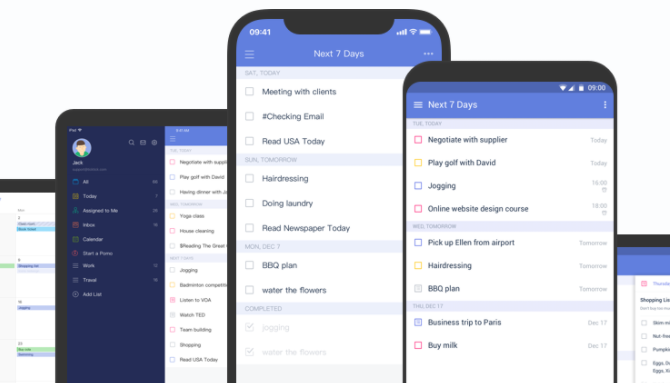
TickTick iOS to-do list app

Flexible scheduling, custom repeat schedules, subtasks, and multiple reminders all help you manage your workload with TickTick. But it’s more than just a to-do app.

The premium version of TickTick offers calendar integration, custom smart lists, and even integration with Siri. It also offers a task timer, which is great when you want to time block your tasks or you need to file reports for hourly billing.

The free version does include a Pomodoro timer, which is nice—that’s one less productivity app you need on your phone. (Unfortunately, the Windows app is premium-only at this time.)

Download: TickTick (Free, subscription available)

2. Things 3

As the most expensive to-do list app on this list, Things 3’s price tag might turn many people off. But ten bucks gets you a huge amount of power. There’s no free plan here to tease you with a few features; you get the whole package right away.

Everything in the app is focused on helping you organize your tasks in the way that works for you. Headings for subtasks, completion pie charts, projects, drag-and-drop scheduling and organization, and dozens of other features make this a tough app to compete with.

It very well may be the best iPhone to-do list app. (The desktop version is one of the best Mac productivity apps, too.) But the price tag keeps it at #2.

Download: Things 3 ($10)

1. Any.do

There are a ton of to-do apps available, and more are released all the time. But Any.do is always near the top of the list. Its simple interface belies a great deal of power, from integration with Google Calendar and iCloud to a built-in AI assistant.

That assistant is still in early access, but it’s very promising; a combination of chatbots and humans should help you get work done faster than ever.

Even without the assistant, Any.do is one of the best to-do list apps on the iPhone, without question. The calendar integration is especially useful. If Apple were to design a task management app (other than Reminders, of course), it would likely look a lot like Any.do.

Download: Any.do (Free, subscription available)

Pick the Best iPhone Productivity App for You

It’s easy to fall down the black hole of iOS productivity apps. Trying to find the best to-do list app can take weeks or months of trying out different options.

But in the end, it’s not about finding the perfect app—it’s about finding one that works for you.

Try a few of the apps above, pick a couple that work well for you, and start using them. You’ll develop habits and workflows that help you boost your productivity no matter which apps you choose!

Read the full article: 25 Useful iPhone Productivity Apps That’ll Help You Get Things Done

11 Jun 17:00

Silver Eagle: 1934

by Dave
New York circa 1934. "Margaret Bourke-White with her camera atop a stainless steel eagle projecting from the sixty-first floor of the Chrysler Building, overlooking Manhattan and the Hudson River." Gelatin silver print from a photograph by Bourke-White's darkroom assistant Oscar Graubner. Her backdrop is Rockefeller Center's RCA Building, completed in 1933. View full size.
11 Jun 16:58

How Did Ancient Medics Figure Out Which Things Had Medicinal Properties?

by Quora, Contributor
How did ancient medics determine the medicinal properties of substances without the modern tech we have today? This question was originally answered on Quora by Drew Smith.
11 Jun 15:16

Shrektastic


2389 points, 39 comments.

08 Jun 14:58

Great Travel Gifts To Get Him - And Borrow Yourself

by Lois Alter Mark, Contributor
You don't have to be a dad to appreciate these gifts that make travel easier, safer and more comfortable.
08 Jun 13:24

Shio Koji Helps Your Food Be Its Best Self

by Claire Lower on Skillet, shared by Claire Lower to Lifehacker

The term “all-purpose seasoning” has always seemed slightly hyperbolic to me. Unless we’re talking about salt, there are few seasonings that truly enhance everything they touch, but shio koji comes close.

Read more...

08 Jun 13:23

The Best Yellowstone Travel Tips From Our Readers

by Nick Douglas

We took the city out of Hack Your City this week, collecting reader tips on Yellowstone National Park. You can read all the best comments in the Staff tab under the original post. We’ve collected highlights below.

Read more...

08 Jun 13:23

To Travel Cheaply, Watch Currency Exchange Rates

by Nick Douglas

Saving on travel is all about flexibility, says the anonymous editor-in-chief of the luxury travel site Andrew Harper. He told Lifehacker about a few reliable ways to watch for discounts on luxury travel, one of which will make you feel like a complete master of the universe, which you already know because we spoiled…
Read more...

08 Jun 13:08

The 25 Best Heist Movies of All Time

by Miss Cellania

A group of experts, or people who think they are experts, plan the perfect crime. It will make them rich! Sometimes it's a thriller with high stakes, sometimes it's a comedy of errors. Often the plans go way off track. Sometimes they get away with it, sometimes they don't, and the fact that you don't know makes it all the more exciting. These are heist movies, and they come in all flavors. Everyone has their favorite, so Vulture built a ranked list for people to discuss and disagree with.

While selecting the 25 best heist films, we leaned heavily on the importance of the heist(s) to the movie’s plot. So, for example, the crime spree itself is perhaps more entertaining in Fantastic Mr. Fox than in the Wes Anderson film we chose, but the former isn’t really thought of as a “heist movie.” Our choices span several decades and aren’t all in English — most are thrillers, although a few are comedies. In some, our anti-heroes prevail — other times, everything goes terribly wrong. But what connects them all is that primal rush of landing the big score. Don’t try any of this at home.

Whether or not you agree with their selections, you'll probably find one or two that you haven't seen that might be working checking out in the list of the 25 best heist movies of all time. -via Metafilter

(Image credit: Maya Robinson/Vulture)

07 Jun 17:41

US Economy Could Grow $2 Billion Per Month If Federal Government Shared Spectrum

by Roslyn Layton, Contributor
It’s not enough to talk about building tomorrow’s 5G infrastructure: the federal government needs to do its part so that the innovators and investors can get the job done.
07 Jun 17:11

How to Use a Phone Screen for Magical Portraits

by Mathias Fast

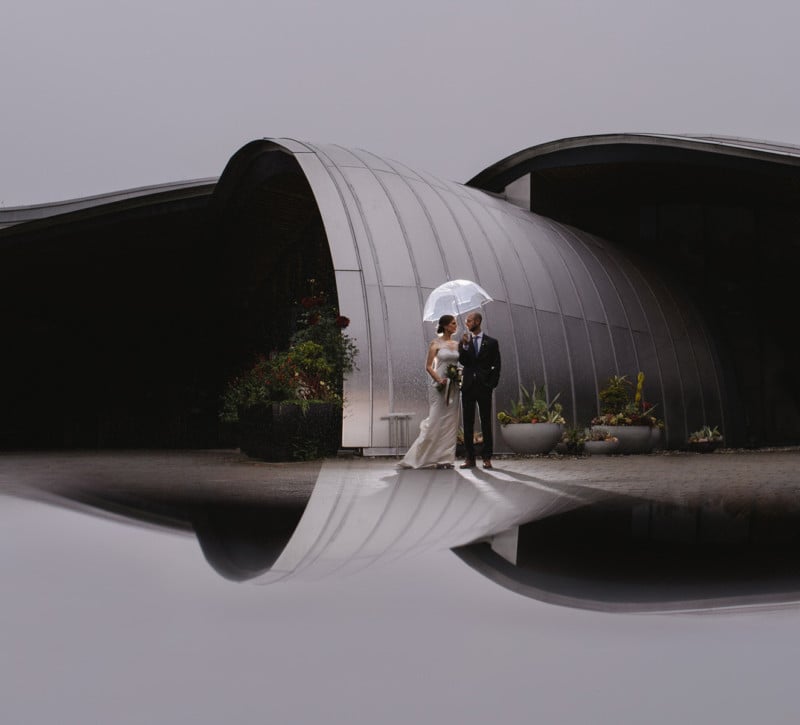
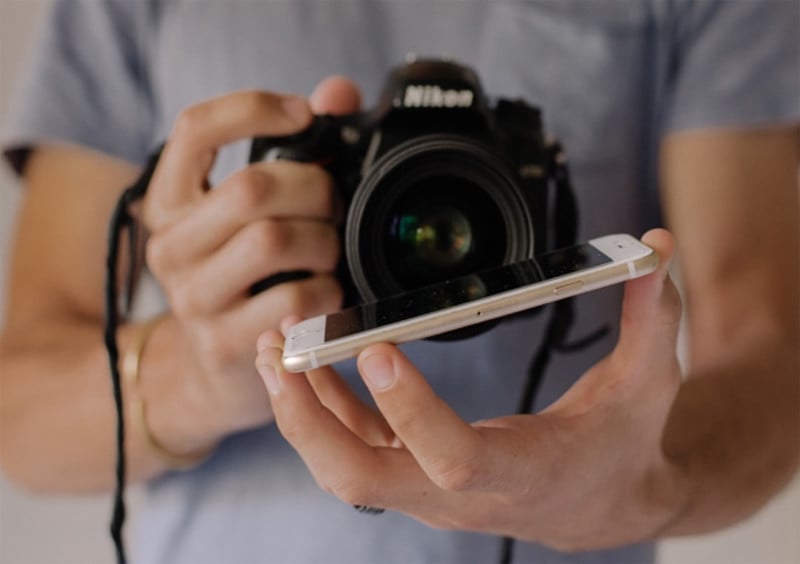
Wedding photographers are always looking to take creative, novel portraits and a quick, simple trick is often sitting right in their pocket. By using a phone screen as a reflective surface, it is possible to cover up unsightly elements, add intrigue, and make an image that much more interesting.

Here’s how it works:

1. Start by holding your phone on a horizontal plane to the bottom edge of your lens.

2. As you look through the viewfinder you’ll see part of the scene reflecting onto the lower part of the image.

3. Simply adjust the phone slightly (while still holding it close the edge of the lens) until you see a reflection that you like.

Before
After

4. Take the picture!

Here are some tips:

1. If you have a bulky case protecting your phone remove it to create a more seamless reflection.

2. The reflected portion of the image will often appear darker or lighter than the rest of the image. Applying a gradient in post-production helps to add balance and intrigue to the image.

Before
After (with gradient applied to lower part of image).

3. Architectural elements (ie. Window, pillars, arches) reflect well and often work great with this technique.

Before
After

4. Results don’t always have to be dramatic. Sometimes a slight reflection can help frame a subject or add that little something.


About the author: Mathias Fast is a wedding photographer based in Vancouver, Canada, and Cape Town, South Africa. You can find more of his work on his website, Facebook, and Instagram.

07 Jun 17:02

How to Make a Gin & Tonic That Doesn't Suck

by Claire Lower on Skillet, shared by Claire Lower to Lifehacker

In a simple libation like a gin & tonic, the spirit should really shine. Too often, cloying, crappy tonic obscures the botanical qualities of its partner, rendering the G&T much less refreshing than it should be. Luckily, long-time cocktail writer Camper English—who literally wrote the book on the beverage—has some…

Read more...

07 Jun 14:49

The Noun Project

by swissmiss

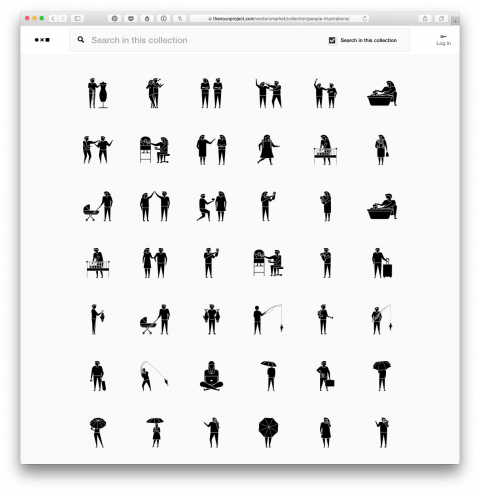
I am continuously amazed by The Noun Project: Search a database of over a million of royalty free icons. Such a delight!

07 Jun 14:46

Some of the Best Amtrak Train Routes

by Johnny Jet, Contributor
Train travel allows us to take our time, enjoy the ride, and experience incredible scenery along the way. Here are the best Amtrak train routes that you should consider adding to your bucket list.