Shared posts

16 Oct 17:53

Netflix Is the Biggest Data Hog in the World

by Dave Parrack

In terms of snaffling internet data, Netflix has everyone else beaten hands down. Netflix is also contributing to video being the biggest drain on bandwidth overall, which, given how many cat videos we all watch, should come as a surprise to absolutely no one.

We know all of this thanks to The Global Internet Phenomena Report from Sandvine [PDF]. Which has drawn data from 150 fixed and mobile operators worldwide. Sandvine claims that this represents “a statistically significant segment of the internet population.”

Stop Watching Videos of Cats

Video as a whole accounts for 58 percent of downstream traffic on the internet. A rise of 22 percent. Video beats web browsing into second place (on 17 percent), with gaming in third (on 8 percent), and social in fourth (on 5 percent).

Netflix by itself accounts for 15 percent of downstream traffic. HTTP media streams, which are embedded videos and other nonspecific video applications, take second place with 13 percent. And YouTube settles into third place with 11 percent.

What’s scary about these numbers is how they could continue to soar. While Netflix already has a healthy userbase the streaming service could add hundreds of millions of new subscribers as it continues to spend money producing original content.

Then there’s YouTube, which is evolving into a TV-like platform for well-produced shows and famous vloggers. And 4K video, which more people are likely to adopt as it becomes the new standard definition. Let’s just hope video compression improves over time.

The Unstoppable Rise of Gaming

While video is likely to remain the number one drain on data, gaming is slowly but surely catching up. This is thanks to a combination of game downloads, Twitch streaming, and professional gaming. And ISPs are going to have to deal with this phenomenon.

If you already pay for Netflix and are looking to get more out of the streaming service be sure to read our ultimate guide to Netflix. And if you’ve never used it but are wondering what the fuss is about here are some reasons to subscribe to Netflix.

Image Credit: Bob Klannukarn/Flickr

Read the full article: Netflix Is the Biggest Data Hog in the World

16 Oct 17:38

The Amazon Index: 21 Amazon Features and Services Explained

by Dan Price
amazon-prime-benefits

You thought Amazon was all about retail shopping, right? Ok, you might have also heard of Amazon Prime Video and Prime Music. You might even know about Amazon Web Services.

But what about everything else? There’s a lot more to Amazon than you probably realize. Here is every Amazon service, explained. We start with two of the obvious ones.

1. Amazon.com

Amazon.com needs no introduction. It’s the primary site of the company. Today, it sells hundreds of products every second across every retail category imaginable.

2. Amazon Prime

Amazon Prime launched way back in 2005 as an expedited two-day shipping service in the United States.

Today, the service has more than 100 million subscribers across more than 200 countries. The shipping benefits remain, but Amazon has since tagged on lots of additional services.

3. Prime Photos

If you live in the US, Canada, UK, Spain, Germany, Italy, France, India, or Japan, and you have an Amazon Drive account, you’ll also get access to Prime Photos. It’s a competitor to Google Photos.

Residents of the United States and Canada can even order prints of their images using the Amazon Prints service.

4. Prime Music

If you live in the United States, Canada, the UK, Germany, Austria, India, or Japan, you’ll receive access to Prime Music as part of your subscription. It provides free access to two million songs.

Note: Amazon Prime Music is different than Amazon Music Unlimited.

5. Prime Video

prime video home screen

All Amazon Prime subscribers receive access to Prime Video. It’s similar to Netflix; you will find a mix of Amazon Originals, TV shows, and movies.

6. Prime Reading

Prime Reading is a digital library service. It lets you borrow and return books, magazines, and comics from Amazon’s collection. It is supported on any device which has an official Kindle app.

The service is available in the US, UK, France, Spain, Italy, and India.

7. Prime Pantry

Prime Pantry is a shopping service for Prime subscribers in the United States, the United Kingdom, Germany, Austria, India, Japan, Italy, Spain, and France.

It ships non-perishable food and household products in a single box for a flat fee. You can load up the box with your own selections, using the on-screen graphic to determine how much more space remains.

8. Prime Now

Prime Now is an instant delivery service for the Amazon Essentials range. You can receive products within one hour for a fee, or within two hours for free. It is only available in selected major cities.

Prime Now is further subdivided into Amazon Restaurants (a food ordering service in the US and UK), Amazon Fresh (fresh grocery delivery in the US, UK, Germany, and Japan), and Amazon Flex (a platform for independent delivery services).

9. Amazon Key

Amazon Key lets the company’s delivery workers enter your home or car and leave a package for you.

10. Amazon Music Unlimited

Amazon Music Unlimited is Amazon’s answer to Spotify. Residents of more than 40 countries—including most of North America, South America, and Europe, can subscribe for a monthly fee. The service has more than 40 million songs in its library.

11. Twitch

In mid-2014, Amazon bought Twitch for almost $1 billion. The live streaming platform primarily focuses on gaming-related content. You can watch eSports competitions, head-to-head league play of various titles, and live feeds of individual players. There’s also gaming-themed talk shows and other content.

12. Amazon Drive

Amazon Drive is the company’s cloud storage app. It is available in the US, Canada, most of Europe, Japan, Australia, China, and Brazil. Prime users get 5GB for free. Everyone else can pay $11.99 per year for 100GB of space or $59.99 for 1TB.


13. Amazon Dash

Amazon Dash is an instant ordering service for household items. From a consumer standpoint, there are two devices to watch out for: Dash Wands and Dash Buttons.

The wand is a glorified barcode scanner that integrates with Amazon Fresh. The buttons can be linked to a particular item (such as kitchen roll or cleaning wipes). When pressed, they’ll order the item without further interaction from the user.

Check out our guide if you’d like to learn some Amazon Dash tips and tricks.

14. STEM Club

Amazon STEM Club

STEM Club launched in early-2016. It aims to help parents get their kids interested in STEM subjects (science, technology, math, and engineering). Amazon will send a STEM-themed toy every one, two, or three months. You can choose to receive an item for kids aged 3-4, 5-7, or 8-13. It costs $19.99 per delivery.

15. Amazon Books

Amazon Books is one of the company’s forays into physical stores. The first store opened in 2015 in Seattle. Today, there are more than 15 shops. The price of the books in-store match the prices on Amazon’s website.

16. Amazon Home Services

amazon home services website landing page

Amazon Home Services is a marketplace for finding home services. The service covers professional trades such as plumbers, house cleaners, carpet cleaners, window cleaners, and garden maintenance.

17. Amazon Inspire

Aimed at teachers, Amazon Inspire provides K-12 resources for classrooms. Content includes lesson plans, handouts, and exams. You can create your own collections and share them with students or create your own content and share it with other educators.

18. Amazon Cash

You can shop without a debit or credit card in the United States and the United Kingdom by adding money to your Amazon Cash account. You can top up your account in stores or by using your mobile phone. Participating stores include brands such as 7-Eleven, CVS, and GameStop.

19. Amazon Smile

If you purchase items through Amazon Smile, the company will donate 0.5 percent of the purchase price to a charity of your choice. The service is one of the best ways to donate to non-profit organizations.

20. Prime Video Direct

Prime Video Direct lets video creators reach new viewers via the Amazon Prime Video platform. Creators can choose either a revenue sharing or ad-supported payment model.

21. Amazon Web Services

Amazon Web Services (AWS) is a cloud computing platform. It is comfortably the largest provider of cloud services, controlling almost 40 percent of the global market share. The second largest provider, Microsoft, has just 11 percent.

AWS itself is subdivided into more than 90 standalone services. They cover storage, networking, analytics, application services, deployment, developer tools, and more. The two most popular services are Amazon Elastic Compute Cloud (EC2) and Amazon Simple Storage Service (S3).

The division now has revenues of more than $17 billion per year.

Amazon Services That Have Come and Gone

Amazon doesn’t get everything right. Plenty of services have come and gone in the company’s 25-year history.

Some of the most notorious include Amazon Destinations (which lasted a little over six months in 2015), Amazon Local (a list of neighborhood-orientated daily deals), and Amazon Honor (a donation service for creators).

It’s also worth mentioning Amazon Go. The first no-checkout automated store opened in 2015. It bills people as they walk out of the door with their purchases. Despite the considerable hype, no further stores have opened due to technical issues surrounding the in-store shopper tracking.

And remember, the company also offers digital devices such as Amazon Fire devices and Kindle eReaders. If you’d like to learn more about these devices, check out our articles about which Fire TV device is right for you and how to find free Kindle books to read.

Read the full article: The Amazon Index: 21 Amazon Features and Services Explained

16 Oct 17:36

The 5 Best Email Signature Generators to Make Your Mails Pop

by Mihir Patkar
email-signatures

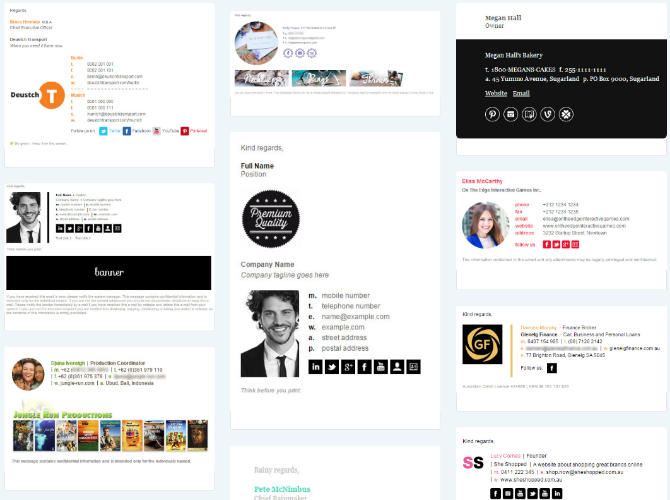
You must have seen some impressive email signatures by now, complete with the sender’s picture, company details, contact details, and little icons for social media. Want to make your own? It’s easier than you think, especially if you use these great email signature apps.

An email signature is important. It makes your messages seem more professional and often saves you the trouble of back-and-forth emails. If someone you’ve emailed needs your office address or phone number, they can find it by checking past messages.

There are a few basic things you need to create the perfect email signature. It helps to know HTML, or how to format in rich text. But you don’t need any of that if you use the right app. You can get minute customizations, plenty of templates, and even email tracking through these free websites and extensions to make your own email signature.

Signature Maker (Web): Simplest Way to Create Email Signatures

signature maker is easiest online app to create email signature for any client

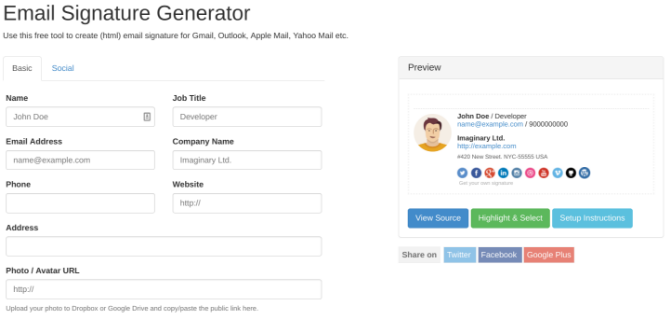
Signature Maker is the easiest way to create an email signature that you can use in any email client of your choice. It looks quite basic, but if this is the first time you’re making a signature, it’s good for beginners.

The Basic tab has a few empty boxes to fill the details you need: name, job title, company name, company website, postal address, email address, phone number, and a link to your photo or avatar.

Switch to the Social tab to add links to your social profiles. You’ll need to put the full link, not just your handle. For example, I would write “https://twitter.com/mihirpatkar” (without the quotes) not just @mihirpatkar. To make it easier, go to your social profile, copy the link, and paste it in the appropriate field.

As you update Signature Maker, it will update details in the preview. Once you’re done, click “Highlight and Select” and paste it in your email app’s signature settings. If you don’t know how, check our guides for Gmail and Outlook:

Si.gnatu.re (Web): Add a Footnote, and Customize Colors, Fonts, and Layout

si.gnatu.re is easy app for signatures that customizes layout

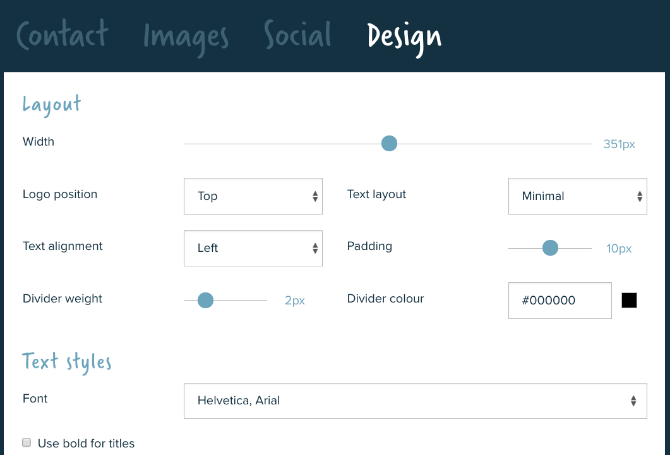
Signature Maker is the basic level of making an email signature. The next step is to level up with Si.gnatu.re, which lets you customize several aspects of how the signature would look. And it lets you add a footnote.

You start with your contact details, most of which also have the option of adding an icon or a text label. Si.gnatu.re also adds a Google Maps link to your address. The social tab only needs your handle this time, not your full web link. You can also add a logo, a profile photo, and a banner image too.

Footnotes are generally functional to add disclaimers to your emails. But they are also a cool way to add more to your signature than contact details. You can throw in witty jokes, motivational quotes, or a simple message that changes from time to time.

Finally, you can customize how the signature looks. Si.gnatu.re gives you minute control over the width, placement of items, fonts, colors, and icons, so that you can get everything to match your company’s colors too.

Mail Signatures (Web): Lots of Free Email Signature Templates

Create a free customizable email signature with Mail Signatures

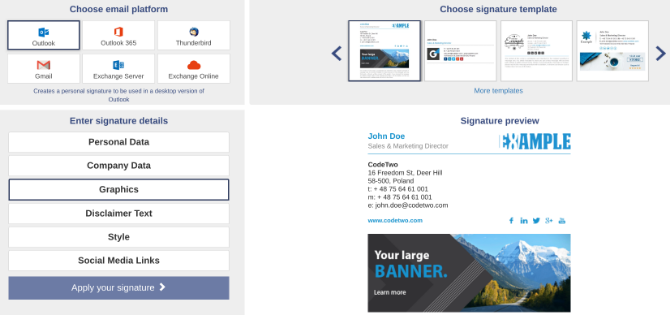
If you don’t have much design sense, you shouldn’t really be changing the layout you get in these apps. The better way is to use a template. Mail Signatures hosts a range of signature templates, so you can pick the one that’s best for your needs.

You can filter the signatures by columns (one, two, or three) as well as the content you need (banners, disclaimers, graphics, logos, photos, and social icons). Once you find something you like, click “Edit Signature” to start turning it into your own pro email signature.

Mail Signatures also lets you choose your favorite email platform in advance, so you know that it can customize each bit of the signature accordingly. Choices include Outlook, Outlook 365, Exchange Server, Exchange Online, Gmail, and Thunderbird.

It’s easy, it’s free, and it’s perhaps the best way for most people to create a professional signature without any HTML or design chops.

Email Signature Rescue’s Examples (Web): Inspirations for Custom Signatures

Beautiful email signature examples

We have apps that let you customize each part of your signature, and we have apps that come with templates. But if you want to stand out, you should create your own signature.

For a bit of inspiration as to what you can do with email signatures, turn to this page from Email Signature Rescue. It collects over 200 different examples of different types of beautiful signatures. Some have buttons with direct links to download an app, while others feature minimalistic design. There is something different for each type of job, much like how you can have business cards for every type of profession.

As for the app itself, Email Signature Rescue is excellent, but it’s better for companies and businesses with a large number of employees. This paid app has a few tricks to apply a signature to every employee’s email and keep it updated when the firm changes its address, web page, social links, or banners.

Mailcastr (Web, Chrome, Android): Signatures With Email Tracking

Mailcastr is more than a simple signature maker. Let’s say you’ve sent an important email. But how do you know when the person has actually opened and read it? Email tracking apps can tell you this information. And Mailcastr does that as part of the signature itself.

Making the signature is actually simple and easy. Once you’re done, get the Chrome extension. When you send an email, Mailcastr will automatically track it. The free version of the app tracks up to five emails a day or 150 emails per month.

If you want more than that, go for the paid version that costs $3 per month. It has unlimited email tracking, and it lets you create multiple signatures. Before every email, you can choose which signature to add. This is terrific if you run multiple businesses, or want different signatures for personal and professional messages while using the same email address.

Mailcastr also has an Android app that can add signatures and track read receipts. You’ll need to send emails from that app though, you can’t use Gmail or Outlook on Android.

Download: Mailcastr for Chrome | Android (Free)

Aim to Get a Reply to Emails

With one of these tools, you’ll make a great email signature. But that is only one part of the puzzle when it comes to writing a professional email. If your goal is to get your email read and maybe seek further action, then you can’t stop at the signature, you need to do more.

It matters how you write your email. It matters how you format it. It matters whether you are too long or too short. And for all of these tips and tricks to compose messages, there are apps to get a reply on your email.

Read the full article: The 5 Best Email Signature Generators to Make Your Mails Pop

16 Oct 17:25

Theo Gray’s Mad Science

by Kevin Kelly

Theo Gray’s Mad Science ($17) is a rare home-chemistry book where the advice of “don’t try this at home” is, for once, appropriate. I usually complain about the scare mongering of home chemistry, but half of the experiments in this how-to book really are extremely dangerous. But the other half are pretty cool. There are no explicit step-by-step instructions given for any of the experiments, just guidelines of what to do. Gray, whose column appears in Popular Science, wants you to do some research and not just be a “script kiddie.” Stunning photos of what to expect from each project help. My son and I have done a few of these and they do work. The prime lesson engendered by this book is the sense that the material world is far more accessible to hacking than first appears.

[This is a Cool Tools Favorite from 2009]

Sample Excerpts:

[warning box near instructions for combing sodium and chlorine to make table salt]
Real Danger Alert: This is the most dangerous experiment in this book. Sodium burns skin and eyes on contact and explodes when exposed to water in any form, sending flaming liquid metal in all directions at high velocity. Chlorine gas kills painfully and spreads rapidly. Under no circumstances should either of these chemicals be handled outside the presence of an experienced chemist. Combining them borders on lunacy.

*

madscience1sm.jpg

FULL OF HOT AIR The exhaust port on a vacuum blows air from below, turning an ordinary grill into a raging inferno, capable of melting glass, iron, even itself if left unchecked.

All the components of glass can be found in two places: the beach and the laundry room. It’s possible to melt pure-white silica beach sand into glass, but only at temperatures of 3,000 to 3,500°F. Washing soda, lime or borax (a traditional laundry aid) added to the sand disrupts the quartz-crystal structure of silica and reduces the required temperatures to a more practical, though still dangerous 2,000 °F, which I achieved with a backyard grill and a vacuum cleaner.

A charcoal fire fed with air from the bottom is hot enough to melt the combination of those materials into glass but not hot enough to make it truly liquid, so bubbles tend to remain and make the glass cloudy. I mixed the finely ground ingredients together and heated them in a cast-iron pot, then poured the molten glass into a graphite mold and pressed it down with a graphite stamp.

Soda-lime glass has the lowest melting point but must be cooled slowly to avoid shattering from the thermal stress.

*

madscience2sm.jpg

PEPSI PAINTING Tinfoil distributes the current to form a pattern through a stencil and a layer of paper towel moistened with Diet Pepsi.

*

Homemade Titanium: With lots of heat, some flowerpots and common chemicals, you can turn raw ore into shiny metal.

An iron crowbar costs about $8; one made of titanium, $80. Solid-titanium scissors start at $700, and don’t even ask about the titanium socket wrench. Titanium must be a rare and precious substance, right?

Actually, as raw ore, titanium is 100 times as abundant as copper. … At temperatures high enough to melt it, titanium exposed to air catches fire. So it has to be refined, forged, welded, and cast in a vacuum or under inert gas–an expensive process.

Yet I was able to make titanium using equipment I had lying around. I did it with thermite reduction, a process commonly used to weld train tracks. In an iron thermite reaction, iron oxide reacts with aluminum and comes out as liquid iron. I just swapped in titanium dioxide instead. But that reaction, in which titanium dioxide transfers its oxygen atoms to aluminum, doesn’t release enough heat to melt the materials.

So I mixed in drywall plaster (calcium sulfate) and more aluminum powder. They react to create huge amounts of extra heat, enough to melt the titanium and allow it to pool at the bottom of the container. Adding ground fluorite powder makes the molten metals more fluid and protects the titanium from air as it cools.

I used clay flowerpots, as suggested by Gert Meyer, who developed this procedure. When nested with sand between them, they last just long enough to let the titanium cool into beads of solid metal.

*
Many of the topics I write about are things I did when I was growing up, and I survived. Without those experiences I might have ended up as a stock broker, or worse.

Science is not something practiced only in labs and universities. It’s a way of looking at the world and seeing truth and beauty everywhere. It’s something you can do whether you are employed as a professional scientist or not. While I have a degree in chemistry from a fine university, I’ve never worked as a professional chemist. I do these demonstrations in my shop on a rural farmstead half a mile from the nearest neighbor. (This is handy when exploring the louder aspects of chemistry.) Mostly I use simple kitchen and shop supplies and chemicals from the hardware store or garden center. I do avoid working in a real lab, because I would much rather tinker in my shop and find a simpler (some might say cruder) way of making the experiment work. Amateur scientists, many of them self-taught, tinkering in their shops and basements have done great things. Using a spirit of making do with what they have and seeing just how far they can take it, they make real contributions to the advancement of science.

*

It makes me cringe when I see warnings to wear gloves and safety glasses while working with baking soda. It’s called crying wolf, and it’s deeply irresponsible, because it makes it that much harder to get through to people about real dangers.

*

Some other chemicals, however, are not your friends. Chlorine gas kills, and you hurt the whole time you’re dying. Mix phosphorus and chlorates wrong and they blow up while you’re mixing them. (I have a friend who still has tiny slivers of glass coming out of his hands twenty years after he made that particular mistake.)

Every chemical, every procedure, every experiment has its own unique set of dangers, and over the years people have learned (the hard way) how to deal with them. In many cases the only way to do an experiment safely is to find a more experienced person to help. This is not book-learning, it’s your life at stake and you want someone by your side who knows what they are doing. There is an unbroken chain of these people leading right back to the first guy who survived, and you want to be part of that chain.

When I do an experiment that looks crazy I either have someone with me who’s done it before, or it’s something that I’ve worked my way up to slowly and carefully. I build in layers of safety, and I make sure that if all else fails I have a clear path to run like hell (and of course I wear glasses at all times).

16 Oct 17:21

Freeze dried taxidermy/TSA-proof knife/Python Tutorials

by Kevin Kelly

Freeze dried taxidermy
Occasionally a small bird strikes one of our windows and dies. Rather than bury it, I freeze dry it. I insert the whole bird into a baggie with a pack of desiccant to keep it dry. The desiccant gel slowly absorbs the moisture in the bird even after it freezes. After a year it is fully dried, and can be kept on a shelf or display indefinitely with all its feathers. This works on birds the size of a sparrow or smaller. — KK

TSA-proof knife
After decades of using a Utili-key as my choice of a small knife to pass through airport security, I lost it in the woods. I replaced it with Victorinox SwissCard. This tool is a mini-Swiss Army knife flattened into a plastic holder the size of credit card but thicker. It has a tiny (1.5 inch) sharp blade, scissors, tweezers, a pen, toothpick, and a pin. You can carry it in your wallet or bag. Goes through security. There is a knock-off version which remarkably adds a magnifier, a light, and four screwdriver heads in the same size card for half the price at $9 — but you’ll need to sharpen the flimsy blade. — KK

Python Tutorials
One of the things I miss about the 1980s was writing programs for fun in BASIC. A couple of years ago I started playing around with Python. It’s easy to learn, and powerful enough to do anything I would want to automate. Christian Thompson’s YouTube channel has wonderful Python tutorials for beginners. Check out the one on how to program a Pong clone. — MF

Advice book on Audible
At the behest of my best friend, I finally downloaded the Audible version of Tiny Beautiful Things, advice on life and love from Cheryl Strayed’s column Dear Sugar. The book is a collection of the most heartbreaking and honest letters seeking help and the advice given. Strayed’s thought-out responses pull from her own life experiences dealing with her mother’s death, drug addiction, divorce, and now as a happily married wife and mother. They are beautiful written and incredibly moving. This book elicits empathy, laughter and at times, lots of tears. There were a few times I was literally sitting in traffic and sobbing listening to her stories. I highly recommend. — CD

Read books in new languages
Parallettext.io is an online tool that helps you learn languages by reading a book in a foreign language with your native language side-by-side. You can click on any sentence to hear it out loud. I’m not sure how helpful it is to learn an entirely new language, but it’s useful for me to read in Spanish from time to time to remind myself of how sentences are structured differently. Right now, I spend a little time each day working my way through Alice in Wonderland. — CD

Cheap DVD Reader
No one in my family of four has a CD or DVD drive in their computer. That’s a good thing, because we rarely need one. When we do (usually to rip a movie or copy photos or music), I pull out this $15 USB CD/DVD drive and plug it into a laptop. — MF


Sign up here to get Recomendo a week early in your inbox.

15 Oct 15:08

Here's A Great Reason Not To Go To The Office Tuesday- It's National Flex Day

by Christine Michel Carter, Contributor
If every firm in the country adopted work flexibility, the economy could save about $15 billion annually.
15 Oct 13:21

Intel Sets Sail With Rolls-Royce On Autonomous Shipping

by Patrick Moorhead, Contributor
We’ve all heard about autonomous cars, but how about shipping? Analyst Patrick Moorhead weighs in on Intel's deal with Rolls-Royce shipping.
12 Oct 17:07

10 Useful Excel Project Management Templates for Tracking

by Tina Sieber
power-of-templates

Project management templates are an essential ingredient in replicating successful projects. With Microsoft Excel’s free templates, you can turn your simple spreadsheets into powerful project management tools.

In this article, you’ll find some of the most useful and free Microsoft Excel project management and project tracking templates you’ll want to use for your next project.

In this article:

Microsoft Excel Project Management Templates

Let’s have a look at the best Microsoft Excel project management templates.

Note: We cover both native and third-party templates here. To find the pre-installed Excel spreadsheet templates, open Excel and search for the respective keyword from the New document screen. If you’re already in Excel, go to File > New to bring up the template search. Check the Managing Microsoft Excel Templates section below for more details.

Excel Project Timeline Templates

Excel comes with several timelines and Gantt chart templates provided by Microsoft, but it also integrates templates from Vertex42, one of the most popular third-party resources for spreadsheets.

1. Work Plan Timeline

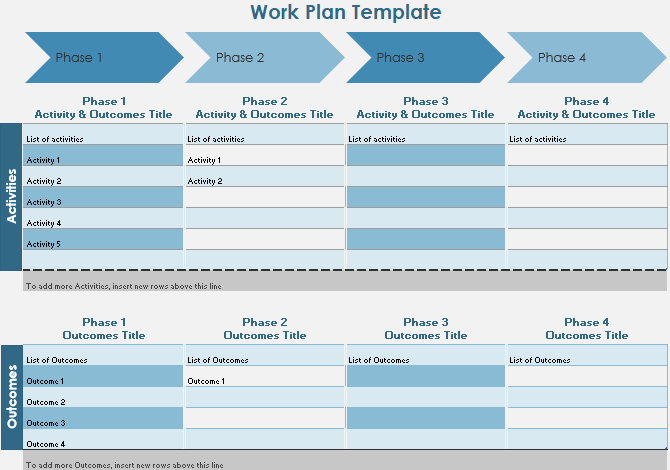
The Work Plan Timeline template is suitable for a basic project with multiple phases. When you enter your data into the worksheet, the roadmap will update automatically.

Excel Work Plan Timeline Template

This template comes pre-installed with Microsoft Excel 2016.

2. Date Tracking Gantt Chart

Gantt charts are a staple in every project manager’s toolset. They help you visualize the flow of your tasks and track progress.

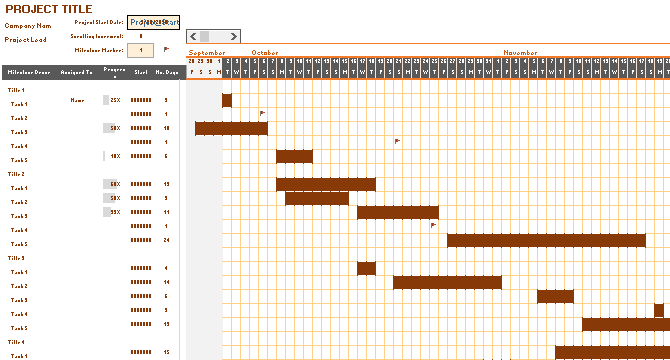
With this template, you can create a comprehensive Gantt chart with minimal effort. Just enter each task, complete with a description, who it’s assigned to, a percentage to indicate progress, a start date, and allocated days until completion.

Gantt chart template to track project progress in Excel.

This template is a Microsoft Excel default.

3. Milestone and Task Project Timeline

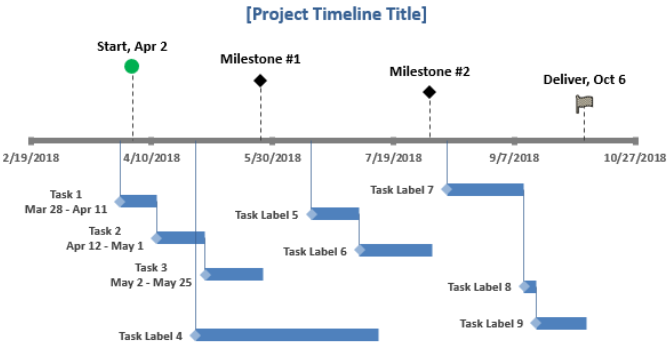
If you want to integrate milestones into a basic timeline, this template provided by Vertex42 is ideal. It combines the best elements of a Gantt chart, i.e. the visualization of the task flow, with milestones hovering above the timeline. Just fill in the respective tables to populate the visual.

An Excel timeline template with integrated milestones.

You can find this template by searching in Excel.

Excel Project Plan Template

A project plan is a document that may require Excel charts but is otherwise composed in Microsoft Word. For basic projects, however, you may get away with only a Microsoft Excel document.

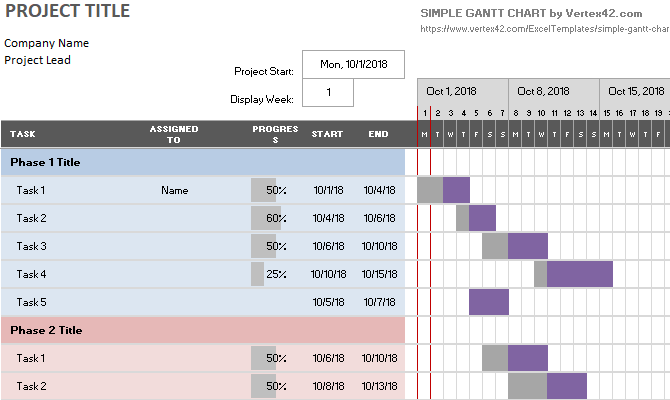
4. Simple Gantt Chart

When you search Excel’s template repository for project plan templates, you’ll mainly find different Gantt chart variations, including this Simple Gantt Chart from Vertex42. What sets it apart from the Gantt chart above is the inclusion of project phases.

A simple Gantt chart Microsoft Excel template with project phases.

This template is included in Microsoft Excel.

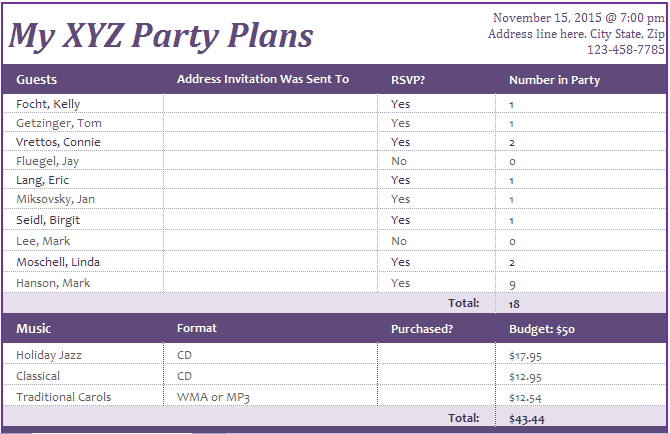
5. Event Planner Template

A project plan really isn’t something you typically put together in Excel. But if your project is simple enough, like planning a party, a solid one-page template that lists essential tasks and lets you define a schedule and budget is all you need. This template from Office Templates Online is a great start.

Excel event planner template for Microsoft Excel.

Excel Project Tracker Template

A search for tracker will bring up a wild mix of personal and business-related Excel spreadsheet templates for tracking. You can narrow down your search by selecting the categories that relate to the project management task you’re dealing with.

6. Activity-Based Cost Tracker

This tracking template can help you get an overview of direct, indirect, and general and administrative product costs.

An Excel template to track indirect and direct product costs.

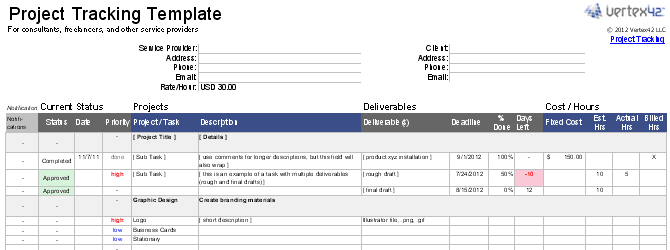
7. Project Tracking Template

This Vertex42 template is essential if you are handling multiple different clients, projects, and/or deliverables. It combines project details, expenses, task statuses, and due dates.

An Excel template to track multiple clients, projects, or deliverables.

Business Plan Templates

Microsoft Office has its own category for business plans. Use the suggested business search and select the Business Plans category on the right.

excel-business-plan-template

You’ll find the following Microsoft Excel templates:

  • Startup expenses
  • Business plan checklist
  • Business plan checklist with SWOT analysis

For more business plan templates, have a look at our dedicated article.

Search for Online Templates

Couldn’t find the exact project management template you need inside Excel? Turn to a third-party online resource for a wider selection of Excel spreadsheet templates. We recommend the following sites.

Vertex42

This website has a few great project management templates for Microsoft Office 2003 and up. The site notes that its templates are mostly related to project scheduling. Anything more complicated might require Microsoft Project or other project management software.

vertex42-project-management-templates

On the page dedicated to project management, you’ll find a list of useful material, including, but not limited to, the following:

Each page contains a quick rundown of what the template does, one or more templates, and further tips and tricks for the respective project management tool. It’s a great resource for budding project managers.

TidyForm

TidyForm has a respectable selection of Microsoft Excel project management templates. The most popular categories are listed on the homepage. If you can’t immediately spot what you need, switch to the Business section or try the search feature.

When you scroll to the bottom of a section, you’ll see a list of popular categories and related categories. This can be helpful when trying to find just the right template.

We recommend the following pages:

Still looking for the perfect template? You might have to create custom Excel templates to get exactly what you want.

Managing Microsoft Excel Templates

First, let’s see what templates you already have installed in Microsoft Excel. For the purpose of this demonstration, we’ve used Excel 2016, but the procedure is similar in Microsoft Office 2013 and Office 2019.

Defaults

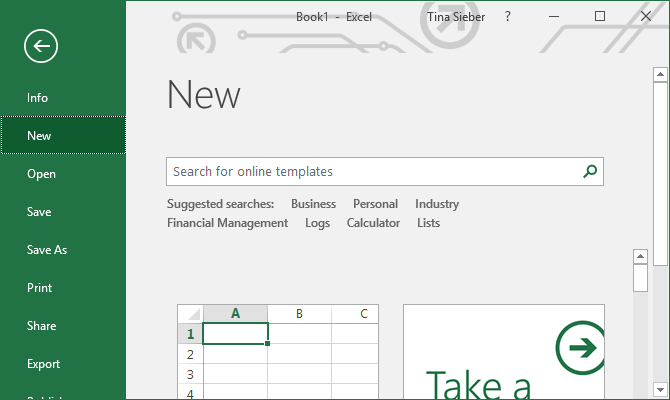
When you start up Microsoft Excel, the first window you see will contain a search field for online templates. When you’re starting from an existing workbook, go to File > New to arrive at the same view.

excel-template-selection

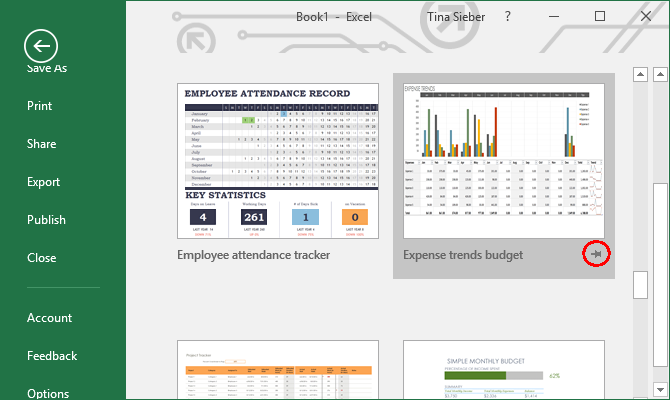
Microsoft Excel comes with a selection of pre-installed templates. They are listed underneath the search field. You can pin favorite ones by clicking the respective symbol in the bottom right of the listing.

excel-pin-template

Search Online for More Project Templates

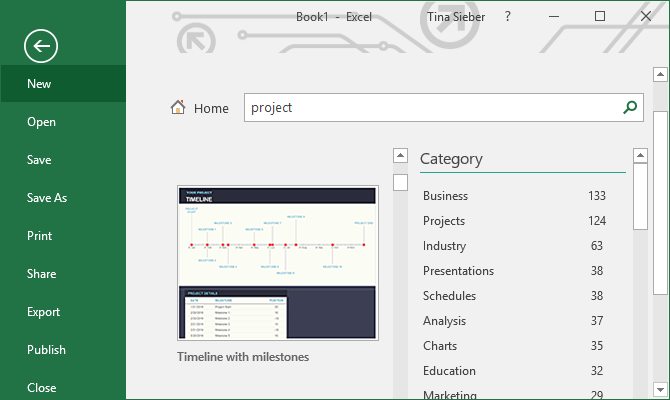
The fastest way to finding the kind of template you need is searching for it. Once you start a search, for example for the term project, you will also see template categories listed next to the templates that match your search.

excel-template-search

Narrow Down Your Search

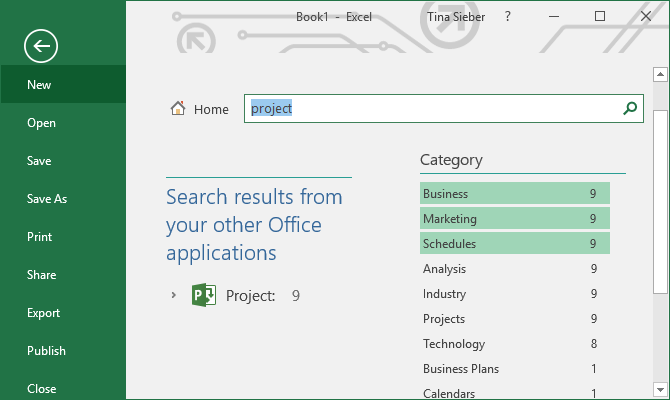
A neat feature is that you can narrow down your search by selecting multiple categories. This helps you exclude templates that may match your keyword, but not your desired category. On the downside, you may find that the perfect template is not available in Microsoft Excel.

excel-template-search-trick

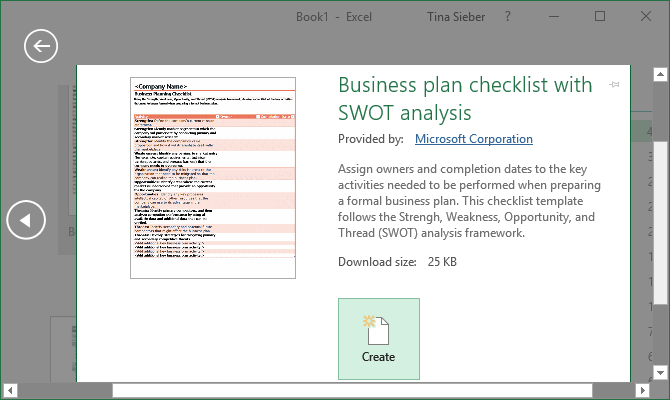
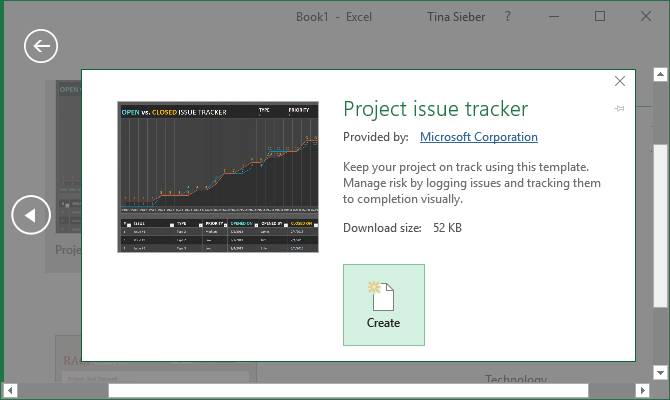
Preview & Create Your Template

When you click a template, you’ll see a preview with a brief description of what the template provides. You can also pin the template from its preview; the symbol sits in the top right.

excel-template-preview

To download and use a template, click the Create button, which will open a new Microsoft Excel workbook with the template pre-filled.

Template Ready, Set, Go

While you’re at it, review our list of useful office templates and stock up on business letter templates.

We have covered a lot of project management tips and tricks the past. Once you’re good with templates, you might want to consider additional tools and solutions. For example, did you know that Outlook is great for project management? Likewise, you could use OneNote for project management. And you could integrate OneNote with Outlook for project management? The possibilities are endless.

Whatever you do, before you start a project, prepare a Work Breakdown Structure.

Read the full article: 10 Useful Excel Project Management Templates for Tracking

12 Oct 17:07

Sony Finally Lets You Change Your PSN ID

by Dave Parrack

Sony is finally going to let PlayStation owners change their PSN IDs, and it has only taken 12 years of begging to make it happen. This means people stuck with the same PSN ID they chose in 2006 will finally be able to change it to something more mature.

Creating a PSN ID to Last a Lifetime

When Sony launched the PlayStation Network in 2006, it asked users to create an online ID. People did just that, but many didn’t take it as seriously as they should have. Cue 30-somethings with dumb names they grew out of a decade ago.

Sony has always insisted that allowing people to change their PlayStation Network Online ID was a bad idea. Because PlayStation Trophies and other essential elements are tied to those IDs. However, the company has now decided to lift those restrictions.

Sony Finally Offers PSN ID Changes

On the PlayStation Blog, Sony announced that PSN ID changes are coming. The feature will first be tested as part of the PlayStation Preview Program before being rolled out to everyone. The beta will run until November, with a full rollout in early 2019.

As with Microsoft’s Xbox Live name changes, the first change will be free, but all subsequent changes will cost you cold hard cash. Sony will charge PlayStation Plus members $4.99 per name change, with everyone else charged $9.99 per name change.

When you change your PSN ID you’ll be able to display your old name alongside it. You can also revert back to your original ID for free at any time. Which may be necessary, as Sony is warning that “users may occasionally encounter issues or errors in certain games.”

There May Be Trouble Ahead…

It’s ridiculous that it has taken Sony this long to offer such a feature. Sure, it may cause issues, and if so, we’re sure the PlayStation forums will be full of complaints saying as much. But forcing people to stick with names chosen 12 years ago was bizarre.

Now might be a good time to buy a PlayStation 4 Pro, but not before reading our PS4 Pro review. And if you already own one you should check out our list of the best PlayStation 4 exclusives. However, do bear in mind that the PlayStation 5 is on the way.

Image Credit: Michael Nugent/Flickr

Read the full article: Sony Finally Lets You Change Your PSN ID

12 Oct 17:06

ART USB Phono Plus

by mark

The ART USB Phono Plus ($79) lets you take the audio from a turntable and plug it into your laptop so you can rip your vinyl.

I was home for the summer visiting my mom and I have all my vinyl there with her because I live in Manhattan and my apartment is too small to have a few thousand records, mainly LPs and seven inches. When I went home for about a week I said, “Y’know what I’m going to do? I’m going to rip my vinyl.” Well, a little bit of it because you have to do it in real time. It’s not like a CD where you can crank through a stack of them really quickly. The first thing I did was I bought a USB turntable on Amazon and it was terrible. The gain was too high and everything sounded really awful and there was no way to adjust the gain.

I did some research and realized two things. One, I had a turntable at my mom’s house that I completely forgot about. So I said, “If I have a turntable already which is pretty good, I just need the pre-amp.” So I did some research and I found the ART and basically what it does is it lets you control the gain input at exactly the level that you want then you just use Audacity to do the recording, which is amazing software.

It takes a long time. You have to sit there and flip the record and then clean up the files to reduce some of the hissing or popping, but I was able to rip a bunch of record that are never going to be on Spotify or iTunes but meant a lot to me. I also had seven inches from my own bands from when I was younger that I had put out and I didn’t have any of those so I really wanted to make sure I had that for myself because you never know what happens.

Vinyl is pretty robust if you store it properly, but again, you never know so I wanted to make sure I had that stuff as well. It was a really fun experience for me and the only regret is that I wish I had more time to sit and rip the vinyl.

[This review was excerpted and edited from our podcast interview with Peter Rojas in 2015.]

11 Oct 15:21

25 Snapchat Accounts You Need to Follow Right Now

by Dan Price
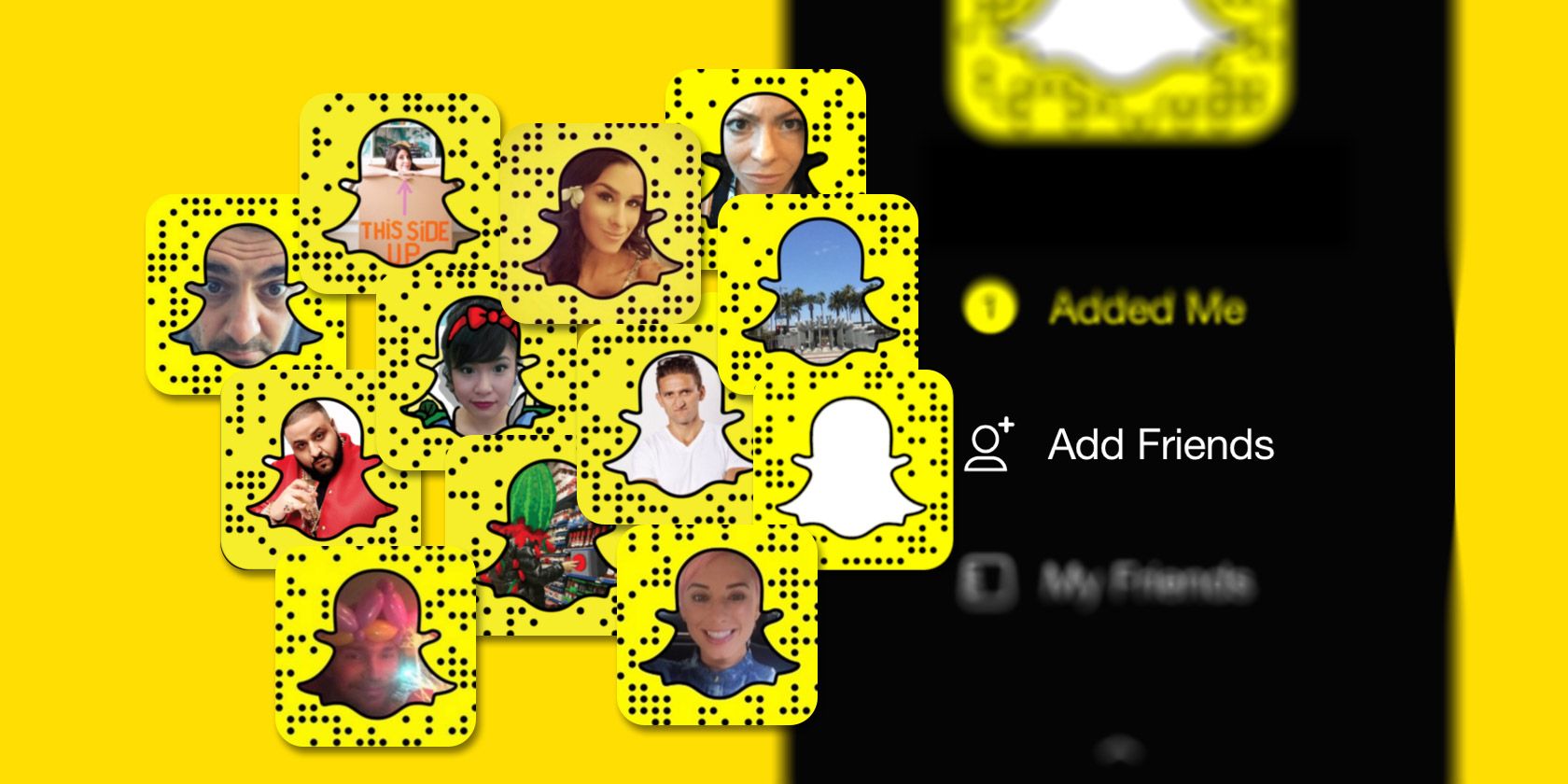
snapchat-follow

It’s not easy to find good Snapchat accounts to follow. To get the most out of the app, you need to make sure you’re interacting with the right people. If you don’t, you’re setting yourself up for an underwhelming experience.

If you’re looking for some of the best Snapchat accounts, keep reading. It doesn’t matter whether you want to find cool people to follow on Snapchat, funny people to follow on Snapchat, or just genuinely interesting people, we’ve got you covered.

In this article we list the hottest Snapchat accounts you should consider following right now.

1. Gil Ozeri (gilozerisnap)

Gil Ozeri is one of the funniest people to follow on Snapchat. The writer and actor is best known for his involvement in Happy Endings and Brooklyn Nine-Nine.

2. Jacob Soboroff (jacobsoboroff)

Jacob Soboroff is a correspondent for NBC News and MSNBC. He specializes in reporting from the U.S./Mexico border. He was one of the first journalists in the world to report on America’s controversial family separation policy.

3. Sallia Goldstein (salliasnap)

Sallia Goldstein is an engineer by day, but her Snapchat is entirely devoted to science. She even hosts a show every Monday where she conducts weird and wacky experiments.

4. Dr. Sandra Lee (drpimplepopper)

Sandra Lee’s Snapchat username is Dr. Pimple Popper. Which should tell you everything you need to know. The professional dermatologist’s account offers a mix of educational content and somewhat disgusting “squeezing” videos. We’ll say no more.

5. Kim Kardashian (kimkardashian)

Sorry, but we had to mention her. Kim Kardashian wasn’t one of Snapchat’s early adopters; her fans were begging her to sign up by the time she eventually joined the service. If you want a glimpse into the life of the queen of reality TV, give Kim a follow.

6. Doug (itsdougthepug)

Doug is a dog. A pug to be precise. His Snapchat account follows his daily life as he munches through ice cream, goes for walks in fancy dress, and gets up to general canine hijinks. It’s better than it sounds, honestly.

7. Sophia Amoruso (sophiaamoruso)

Sophia Amoruso founded the successful fashion brand, Nasty Gal. As you’d expect for a fashionista, her Snapchat is full of clothes, selfies, beauty tips, and other style-themed content.

8. Cassey Ho (blogilates)

Cassey Ho is responsible for the YouTube channel, Blogilates. 4.5 million people have subscribed to see her unique mix of Pilates, yoga, and body sculpting. Her Snapchat offers plenty of quick fitness tips.

9. Taco Bell (tacobell)

Taco Bell is one of the few brands that seems to know how to “do” social media. Its Snapchat videos are irreverent, funny, and likely to make you hungry.

10. Lolo Jones (lolojones)

Our first sports star on the list might not be a household name, but she’s one of a very small group of athletes who has competed in both the summer (2008) and winter (2014) Olympics (in hurdles and bobsleigh, respectively). That’s got to be worth a follow, right?

11. Kevin Hart (kevinhart4real)

Kevin Hart is very much a household name. The comedian has featured in funny movies, released comedy albums, and performed an endless number of stand-up routines for TV.

Note: If you enjoy comedies, check out our list of the funniest movies on Netflix.

12. The New Yorker (thenewyorkermag)

The New Yorker is one of the best magazines in the world if you want commentaries on popular culture combined with rigorous fact-checking.

13. Laverne Cox (lavernecox1)

Laverne Cox is an actress and LGBTQ activist. She’s broken down a countless number of barriers, even becoming the first transgender person to be nominated for an Emmy. Her Snapchat is funny, revealing, and above all, inspiring.

14. Kiersten Rich (theblondeabroad)

If travel is your thing, you probably already know about Kiersten Rich. She runs the popular Blonde Abroad blog. Follow her on Snapchat for a never-ending feed of jealousy-inducing adventures.

15. Justin Kan (justinkan)

Justin is a partner at start-up incubator and accelerator, Y Combinator. He’s a must-follow for any budding entrepreneurs, not least for his weekly Q&A session that anyone can get involved with.

16. Jabin Botsford (jabinbotsford)

Jabin Botsford is a photojournalist for The Washington Post. If you want genuinely jaw-dropping images from behind the scenes of the biggest news stories of the day, Jabin is your man.

17. John Stanmeyer (stanmeyer)

A second photographer worth checking out is John Stanmeyer. He works for National Geographic, so you can expect lots of content featuring wild animals, stunning scenery, and human interest stories.

18. NASA (nasa)

You know what you’re going to get with NASA. The space agency’s Snapchat is a mix of impressive video footage, educational content, and breaking news.

19. Paris Hilton (realparishilton)

Again, we’re sorry. The heiress to the Hilton empire might not offer the most intellectually stimulating content, but if you’re into the whole celebrity lifestyle thing, Ms. Hilton is one of the best people to follow on Snapchat.

20. Serena Williams (serenaunmatched)

The most successful female tennis player of all time offers a fascinating insight into what life is like on tour. There are also plenty of fitness tips and workouts.

21. The White House (whitehouse)

Want a sneak look at what’s really going on in the current administration? The White House’s official Snapchat account aims to deliver. It’s engaging, though probably not as entertaining as Donald Trump’s personal Twitter feed.

22. Amazon (amazon)

Forget Black Friday, Prime Day, and Cyber Monday—if you want to find the best Amazon deals, you should follow the company’s official Snapchat. You’ll find the deals listed in Amazon’s daily Snapchat stories, with the discount codes doled out on a first come, first served basis.

23. Gary Vaynerchuk (garyvee)

Do you aspire to make it big in the business world? Gary Vaynerchuk’s Snapchat provides an insight into the commitment and dedication it requires. Fair warning, he puts in a tremendous number of hours. Not everyone will be able to keep up.

24. The New York Times (thenytimes)

The New York Times doesn’t take itself too seriously on Snapchat, and that gives rise to engaging and varied content. You’ll find everything from breaking news to confused staff members trying to figure out the platform.

25. DJ Khaled (djkhaled305)

We end with a nod to the king of Snapchat. DJ Khaled is a great follow even if you have no interest in his music. His witty one-liners, clever use of emojis, and ability to turn the mundane into the hilarious have seen him rack up millions of fans.

Even More Snapchat Accounts

Instagram might be openly pilfering Snapchat’s best features (the differences between Snapchat stories and Instagram stories are becoming less noticeable by the day), but Snapchat remains hugely popular among its existing userbase. The most recent data suggest the service has almost 200 million active users, so you should be able to find some great people to follow.

If you’re scratching your head and haven’t got a clue where to begin, don’t worry. We’ve got you covered. Check out our articles exploring Snapchat streak tips and the surprising things all Snapchat users should know to learn more.

Read the full article: 25 Snapchat Accounts You Need to Follow Right Now

11 Oct 15:15

How to Manage Your Digital Files: 9 Tips and Tools to Keep You Organized

by Shubham Agarwal

The internet doesn’t have an operating system. There’s no common dashboard you can log on to and manage your digital life from one place. You’re forced to keep track of multiple accounts, services, and more. So when the time comes for you to locate that specific file or piece of data, you don’t have a ton of options except for manually going through every one of them and hope you find it.

You can, though, make that process much less frustrating with third-party tools. Therefore, here are nine tips and apps for managing your digital and online life like an expert.

1. FYI: Manage Multiple Cloud and Local Storages From a Single Platform

FYI Service Demo

If you’re someone (like me) who lives the cloud life, you know how cumbersome it can be when our files are scattered across several domains. A new service called FYI thinks it can help and it does so by bringing all of them on a common platform.

FYI lets you connect accounts for a range of disparate services and have their data appear on a single timeline so that it’s easier for you to search and access them. The developers have added compatibility for the majority of leading titles including Google Suite, Dropbox, OneDrive, Slack, and more.

In addition, FYI also has Mac and Windows apps you can install if you’d like to integrate your local desktop files as well. It is undoubtedly an Internet user’s dream. Plus, it can even show other people you’ve collaborated with on services like Google Docs. The free subscription allows linking five third-party apps. For more, you will have to shed a monthly fee on the paid tiers.

2. History Search: Search Inside Web Pages You’ve Browsed in the Past

History Search Browser Extension

Your browser’s history won’t be that handy if you’re not sure which web page you’re looking for in the first place. For that, try History Search, an add-on for browsers that indexes everything you’ve browsed.

The search assistant enables you to directly look up content inside the web pages you’ve opened in the past. The extension works with nearly every type of site since it’s logging the text they contain. It might not be a good idea though if you have optimized your browsing for maximum privacy.

3. Install a Desktop Backup Tool

Your local data is just as imperative to your digital life as the cloud ones. Unlike a few years ago, however, it’s surprisingly straightforward today to keep both of those in sync with a desktop backup tool. Most of the online storage services like Google Drive offer a back-up app through which you can have your computer’s files sync to the cloud and vice-versa. They’re free too as long as you have ample storage to spare and can be configured without any hassles.

4. WayTab: Catch up on All the Saved Links

WayTab Chrome Demo

The Internet is swamped with content you wish you had enough time for. But you don’t. Most of us, therefore, bookmark links for when we get some leisure time or sign up for a save-for-later service. Turns out, finding time for checking those lists is a daunting task too.

Enter, WayTab, a Chrome extension which takes over the browser’s new tab page to show you a random link from one of the plugged accounts. There’s no denying the fact that on any regular day, you launch a new tab a gazillion times and not every time it’s for heading over to another work-related website.

Try this when you’re about to embark on say YouTube for a quick break. You could instead read that link what you had saved weeks ago. WayTab is compatible with a host of apps including Pocket, Chrome’s bookmarks, Pinterest, Twitter, and more.

5. Password Manager

LastPass Demo

It’s easy to forget about privacy while juggling between so many web services. That’s where a password manager comes in. Along with helping you remember unique passwords for each account, they also make the login process much quicker and less clumsy irrespective of the platform you’re on.

There are several password managers available but the one we would recommend is LastPass. It’s mostly free, comes with all the features you would need and can be installed on any operating system.

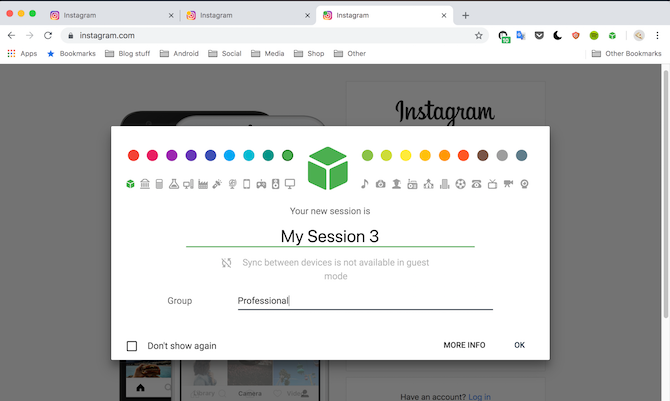
6. SessionBox: Sessions for Browsers

SessionBox Google Chrome Demo

Considering how much you do on a browser, it is unfair that it still doesn’t allow concurrent multiple sessions for the same website. Fortunately, third-party plugins do. Among the sea of extensions which let you start more than one browsing session in the same window,

SessionBox is arguably the most capable. You can initiate as many instances of a particular website as you want, color-code or group them, or even share those sessions with anyone else if you don’t want to send them your actual credentials.

7. The Noguchi Filing System

Unless you’re a compulsive organizer and tag as well as place each file properly in your drive, there’s a good chance you spend way too much time just searching for them. For a better experience, try implementing the Noguchi Filing System in your cloud as well as local storages.

The concept is rather simple. The idea is to segregate your files into two parent folders. One for the current year and the other for the rest. It’s a surprisingly nifty trick that will significantly impact the way you look up files.

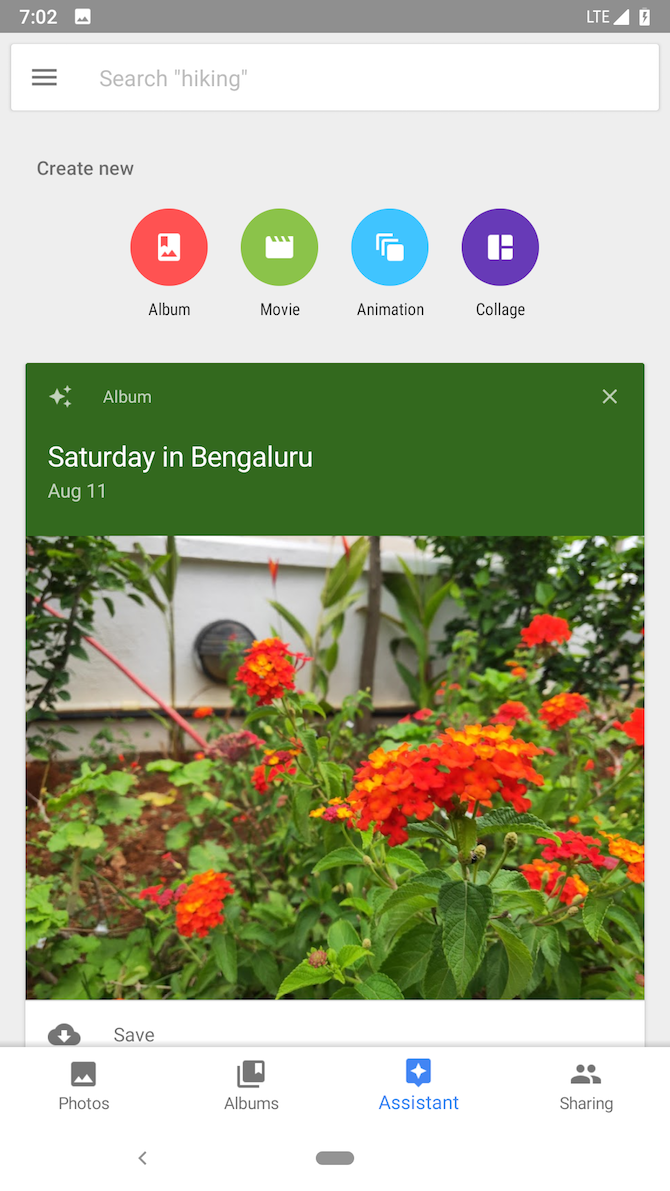
8. Google Photos

Google Photos has been the gold standard of photo management ever since it was launched years ago. And it still is. Whether it’s simply for viewing that particular photo of your spouse you took in 2015 or keeping everything backed up, Google Photos offers it all. Other features include automatic album creation, editing tools, and more.

9. TrackMySubs

TrackMySubs Demo

With the shift towards Internet services, came a flurry of subscriptions in your life. Music, TV shows, ad-free experiences, all demand a monthly charge. Keeping track of these payments and ensuring you don’t pay for an app you haven’t used in a while can be difficult.

To put an end to this snafu, take a look at a website called TrackMySubs. It lets you stay on top of all your subscriptions and keeps you up to date with every statistic there is to know. What’s more, TrackMySubs can also alert you before a subscription is about to be expire allowing you to cancel before it automatically deducts the renewal fee.

Live a More Organized Digital Life

Managing a digital lifestyle is, by no means, a piece of cake. However, there are a vast number of ways and methods you can adopt to be more organized especially with files. Hence, here are the best tips for managing local storage or your Google Drive.

Read the full article: How to Manage Your Digital Files: 9 Tips and Tools to Keep You Organized

11 Oct 15:15

The 6 Best Cheap Cameras for Photography

by Mihir Patkar

They say the best camera is the one you have with you. For most people, your smartphone is your best camera. But as good as modern smartphones are at capturing photos, sometimes you need a dedicated piece of kit. With that in mind, here are the best cheap cameras for photography.

The Difference Between Phones and Cameras

smart phone vs. point and shoot vs. dslr cameras

Simple point-and-shoot cameras are better than your phone’s camera in a number of ways. The biggest difference is the lens, which improves optical zoom for far-away objects. Usually, the camera sensor is also bigger, which means better quality pictures. But phones hold their own against point-and-shoots with smart software that improves the quality of the photos you take.

You’ll see a bigger difference when you compare phones and DSLR cameras. The picture quality on DSLR or mirrorless cameras is miles ahead of smartphones. Plus, you get to change lenses to better suit the environment in which you’re going to be shooting.

There’s a lot more to it, of course, but generally speaking, your phone is good enough for most uses. First figure out if you actually need a dedicated camera separately, and then find the right camera for you.

The Best Cheap Point and Shoot Camera
Canon PowerShot SX620

Canon Powershot SX620 is the best cheap point-and-shoot camera

Canon PowerShot SX620 Digital Camera w/25x Optical Zoom - Wi-Fi & NFC Enabled (Black) Canon PowerShot SX620 Digital Camera w/25x Optical Zoom - Wi-Fi & NFC Enabled (Black) Buy Now At Amazon $259.00
  • Sensor: 1/2.3-inch CMOS
  • Resolution: 20 Megapixels
  • Screen: 3-inch, No Touchscreen
  • Zoom: 25x Optical Zoom (25-625 mm)
  • Video: 1080p Full HD at 60fps
  • Connectivity: Wi-Fi, NFC
  • Battery Life: 295 Shots
  • Who It Is Best For: Anyone on a budget who wants something better than their smartphone to take zoomed-in shots while travelling, or at parties and events.

The Canon PowerShot SX620 is the perfect example of what you get beyond the limited capabilities of a phone’s camera. In particular, its optical zoom of 25x is a big differentiator to capture things that are far away from you.

It lacks a touchscreen, so it takes some time to get used to the controls. But it’s not complicated.

The Best Budget Compact Camera for Most People
Canon PowerShot G9 X Mark II

Canon Powershot G9 X Mark II is the best budget camera among compact or point-and-shoot cameras

Canon PowerShot G9 X Mark II Compact Digital Camera w/1 Inch Sensor and 3inch LCD - Wi-Fi, NFC, Bluetooth Enabled (Silver) Canon PowerShot G9 X Mark II Compact Digital Camera w/1 Inch Sensor and 3inch LCD - Wi-Fi, NFC, Bluetooth Enabled (Silver) Buy Now At Amazon $429.00
  • Sensor: 1-inch CMOS
  • Resolution: 20.1 Megapixels
  • Screen: 3-inch, Touchscreen
  • Zoom: 3x Optical Zoom (28-84 mm)
  • Video: 1080p Full HD at 60fps
  • Connectivity: Wi-Fi
  • Battery Life: 220 Shots
  • Who It Is Best For: Anyone who needs a better-than-smartphone camera for portrait photos, travel pictures, or images of babies and pets.

Most people who are looking for a compact, point-and-shoot camera that offers more than their phone should go with the Canon PowerShot G9 X Mark II. The large 1-inch sensor makes a big difference in how your photos look, and it can also shoot in the RAW file format, which is great if you know how to edit RAW images.

The 3x optical zoom seems less, but the G9 X Mark II is all about image quality. That sensor is what makes the difference, and it’s a wonder to get that in such a compact camera.

The Best Cheap Tough Camera With Waterproofing
Olympus TG-5

Olympus TG-5 is the best rugged, tough, waterproof camera

Olympus TG-5 Waterproof Camera with 3-Inch LCD, Red (V104190RU000) Olympus TG-5 Waterproof Camera with 3-Inch LCD, Red (V104190RU000) Buy Now At Amazon $399.00
  • Sensor: 1/2.3-inch CMOS
  • Resolution: 12 Megapixels
  • Screen: 3-inch, No Touchscreen
  • Zoom: 4x Optical Zoom (25-100 mm)
  • Video: 4K Ultra HD at 60fps
  • Connectivity: Wi-Fi
  • Battery Life: 340 Shots
  • Who It Is Best For: Anyone who needs a rugged camera that can withstand the rigors of adventure sports, outdoor activities, or the uncareful hands of a child.

The Olympus TG-5, the latest in the TG series, is the best tough camera you can buy today. You can even put it in a housing case for additional protection, but you aren’t going to need it. It’s water-resistant up to 50 feet, shockproof for drops from 7 feet, and freeze-proof up to 14 degrees Fahrenheit or -10 degrees Celsius. What more could you ask for?

If this one doesn’t suit your budget, check out our list of the best rugged and waterproof cameras.

The Best Cheap Travel Camera With Long Zoom
Nikon Coolpix B500

Nikon Coolpix B500 is the best cheap point-and-shoot travel camera with a long zoom lens

Nikon COOLPIX B500 Digital Camera (Black) Nikon COOLPIX B500 Digital Camera (Black) Buy Now At Amazon $246.95
  • Sensor: 1/2.3-inch CMOS
  • Resolution: 16 Megapixels
  • Screen: 3-inch, Touchscreen
  • Zoom: 40x Optical Zoom (22.5-900 mm)
  • Video: 1080p Full HD at 60fps
  • Connectivity: Bluetooth, Wi-Fi, NFC
  • Battery Life: 600 Shots
  • Who It Is Best For: Anyone who needs a long-zoom, point-and-shoot travel camera to take pictures of birds or wildlife, or sporting events.

The Nikon Coolpix B500 is a cheap and efficient superzoom camera for anyone who wants to take photos of things that are far away. It’s ideal for travel or events, especially since it uses AA batteries; you can carry plenty of spares to ensure you never run out of battery life.

One word of warning though, this isn’t a great camera for taking photos at night. The sensor is small and weak, and the results won’t even match up to what you get on an up-to-date Apple iPhone, Google Pixel, or Samsung Galaxy.

There are better bridge cameras, but if you’re spending more than the price of the Nikon Coolpix B500, I’d recommend that you move away from superzoom point-and-shoots and instead buy a mirrorless camera or a DSLR.

The Best Cheap Mirrorless Camera
Sony a5100

Sony a5100 is the best cheap mirrorless camera

Sony a5100 16-50mm Mirrorless Digital Camera with 3-Inch Flip Up LCD (Black) Sony a5100 16-50mm Mirrorless Digital Camera with 3-Inch Flip Up LCD (Black) Buy Now At Amazon Too low to display
  • Sensor: APS-C
  • Resolution: 24 Megapixels
  • Screen: 3-inch, Touchscreen
  • Zoom: Depending on lens
  • Video: 1080p Full HD at 60fps
  • Connectivity: Wi-Fi, NFC
  • Battery Life: 400 Shots
  • Who It Is Best For: If you don’t want a bulky DSLR but want the best possible photographs on a budget, even for night shots, buy this.

There’s a case to be made that hobbyists and travelers should buy mirrorless cameras. They’re usually cheaper than DSLR cameras, but offer similar image quality and lens compatibility, all in a compact body.

The Sony A5100 is the best mirrorless camera for anyone on a budget. Sony’s mirrorless cameras boast a wide range of lenses, which makes the A5100 a fantastic choice for any photographer looking to up their game.

The Best Cheap DSLR Camera
Canon EOS Rebel T6 (1300D)

Canon EOS Rebel T6 or Canon EOS 1300D is the best cheap DSLR camera

Canon EOS 1300D EF-S 18-55mm 18.7MP CMOS 5184 x 3456 Pixels (Black) - International Version (No Warranty) Canon EOS 1300D EF-S 18-55mm 18.7MP CMOS 5184 x 3456 Pixels (Black) - International Version (No Warranty) Buy Now At Amazon $329.95
  • Sensor: APS-C
  • Resolution: 18 Megapixels
  • Screen: 3-inch, No Touchscreen
  • Zoom: Depending on lens
  • Video: 1080p Full HD at 60fps
  • Connectivity: Wi-Fi, NFC
  • Battery Life: 500 Shots
  • Who It Is Best For: Anyone who wants the cheapest DSLR you should buy right now.

What’s the cheapest new DSLR camera you should buy? Easy, the Canon EOS Rebel T6, which is known as the Canon EOS 1300D outside the U.S.

Canon has outfitted this camera with everything that makes it easy for a photography beginners. The menu system is easy, the automatic settings will ensure you don’t need to do anything apart from point and shoot, and you can slowly learn the manual bits over time.

That said, the camera lacks a touchscreen, which might be a problem for many users. Its 9-point autofocus system is also dated, and won’t give the best shots for moving objects. Unless you have a specific reason to buy a new camera, you might want to look at buying a used DSLR instead. You’ll often get a deal at the same price for a better camera.

Don’t Forget About Camera Accessories

So now you know what the best cheap cameras for photography are, you need to think about buying accessories. From the above choices, you only need a lens for the mirrorless camera or the DSLR. But that doesn’t mean you can forget about everything else. No matter which camera you end up buying, you’ll need a few things to go with it.

For starters, you’ll need a good SD card to safely store all of your photos, and a case to carry your camera in. Good photography is not only about buying the right camera but also buying the essential accessories for photography.

Read the full article: The 6 Best Cheap Cameras for Photography

11 Oct 15:11

The Best Podcast Equipment for Starters and Enthusiasts

by Joel Lee
best-equipment-podcast

Podcasting has never been more popular, and it isn’t too late to jump in and start one of your own. But before you do, make sure you have an adequate setup and the essential bits of equipment.

These days, you can’t build an audience with substandard podcast quality.

In this article, we’ll cover the best microphones, stands, pop filters, and headphones for hobbyist and enthusiast podcasters. Start with the cheaper offerings and upgrade when necessary—they’re more than good enough!

Microphones for Podcasting

Obviously, you can’t host a podcast if you don’t have a microphone! The good news is, there is no shortage of options across all budgets. The bad news is, there are so many options and specifications that you may be overwhelmed.

Let’s keep things simple. You only need to know two things.

Condenser vs. Dynamic Microphones

Mics fall into two categories: condenser and dynamic. Broadly speaking, condenser mics have better sound fidelity but are more sensitive to environmental noise whereas dynamic mics are more selective about picking up sound but tend to produce a flatter sound. You can learn more in our comparison of condenser versus dynamic microphones.

For a podcast, you need good sound quality but not necessarily great sound quality. I only recommend getting a condenser micropone if you’re willing to build a soundproofed recording closet. Otherwise, you’ll be happier with a dynamic microphone.

USB or XLR Inputs for Microphones

USB microphones (digital) plug in directly to your computer, allowing you to select them as audio input sources. XLR microphones (analog) plug into a mixer, and the mixer plugs into your computer by USB.

If you’re hosting a solo podcast, get a USB microphone. They tend to be cheaper, they’re easier to set up, and they’re less susceptible to electrical interference (“buzz”). If you’re hosting a podcast with multiple talkers on set, then get multiple XLR microphones and a mixer.

Hobbyist USB/XLR Mic: Audio-Technica ATR2100-USB

Audio-Technica ATR2100-USB Cardioid Dynamic USB/XLR Microphone Audio-Technica ATR2100-USB Cardioid Dynamic USB/XLR Microphone Buy Now At Amazon $59.50

I highly recommend the Audio-Technica ATR2100-USB for anyone who wants to podcast but isn’t sure if they’ll stick it out for the long haul. It’s a dynamic mic with a cardioid pattern (common microphone terms) that effectively picks up your voice and ignores everything else. It also has a headphone jack that lets you monitor your speaking with no delay.

But the key feature in the ATR2100-USB is that it supports both USB and XLR connections. If your podcast grows to include more hosts, then you can switch to XLR without buying a replacement mic. There’s also a bundle including the ATR2100-USB and a pop filter and mic stand.

Enthusiast USB Mic: Rode Podcaster

Rode Podcaster USB Dynamic Microphone Rode Podcaster USB Dynamic Microphone Buy Now At Amazon $229.00

The Rode Podcaster—not to be confused with the Rode Procaster!—is the best dynamic USB microphone you can get without strangling your wallet. The sound quality is balanced and excellent, and it has an internal shock mount (won’t pick up handling sounds) and an internal pop filter (you should still buy an external one). And like the ATR2100-USB, the Podcaster has a headphone jack for immediate monitoring of mic output.

Enthusiast XLR Mic: Heil PR40

Heil PR-40 Dynamic Studio Recording Microphone Heil PR-40 Dynamic Studio Recording Microphone Buy Now At Amazon $327.00

The Heil PR40 is expensive but for good reason: it’s the holy grail of USB podcasting microphones. It has an insane frequency range for a dynamic mic, resulting in a rich and full-bodied sound that you’ll love. And it doesn’t pick up any background noise.

Microphone Mixer: Behringer Xenyx Q802USB

At this price, you won’t find a better mixer interface. The Behringer Xenyx Q802USB boasts six input channels, two of which support phantom power—most competitors in this range only support up to two total input channels. It outputs to USB, so if you have multiple podcast hosts, all of your microphones get mixed together as one audio source.

Microphone Stand

While you can record your podcast with microphone literally in hand, I don’t recommend it. Not only is it uncomfortable, but the microphone will pick up handling noises as your hand fidgets and repositions. Plus, it prevents you from interacting with your computer while recording, whether to jot down notes, search Google, etc.

I recommend boom arm models with a retractable scissoring mechanism. These hit all the right points: you can position them however you want, you can adjust them on the fly, and you can close them up when you aren’t recording.

Hobbyist Boom Arm: Neewer Compact Mic Stand

NEEWER Adjustable Microphone Suspension Boom Scissor Arm Stand, Compact Mic Stand Made of Durable Steel for Radio Broadcasting Studio, Voice-Over Sound Studio, Stages, and TV Stations NEEWER Adjustable Microphone Suspension Boom Scissor Arm Stand, Compact Mic Stand Made of Durable Steel for Radio Broadcasting Studio, Voice-Over Sound Studio, Stages, and TV Stations Buy Now At Amazon $12.50

When you’re just starting out, don’t worry about getting a fancy microphone stand. You just need one that’ll clamp to your desk and hold up your microphone even when fully extended. That’s why I recommend the Neewer Compact Mic Stand, which is compact when collapsed but extends up to 2.5 feet. I’ve had mine for years and it doesn’t disappoint.

Enthusiast Boom Arm: Rode PSA1 Mic Stand

RODE PSA1 Swivel Mount Studio Microphone Boom Arm RODE PSA1 Swivel Mount Studio Microphone Boom Arm Buy Now At Amazon $98.79

When you get serious about podcasting—producing at least one episode per day—then you’ll want a heavy-duty microphone stand. The Rode PSA1 Mic Stand may seem a bit expensive, but the build quality is as good as it gets. It also has a dual-axis swivel mount that’s super smooth, allowing for true comfort in positioning freedom.

Microphone Pop Filter

This tiny purchase could drastically improve your podcast’s audio quality. A properly-fitted pop filter prevents bursts of air (e.g. when saying words that start with “P”) from hitting the microphone and causing an irritating pop sound.

Ignore the marshmallow covers that slip directly onto a microphone’s head. These can be somewhat effective, but they aren’t as effective and can never fully eliminate the noise. A real pop filter should sit a few inches away.

InnoGear Pop Filter

InnoGear Updated Microphone Pop Filter Dual Layer Mic Pop Shield with Clip Stabilizing Arm for Recording Vocals Home Studio Broadcasting InnoGear Updated Microphone Pop Filter Dual Layer Mic Pop Shield with Clip Stabilizing Arm for Recording Vocals Home Studio Broadcasting Buy Now At Amazon $6.99

Most pop filters cost less than $10, and they pretty much all look the same: a circular frame with two soft mesh screens, a metal gooseneck that twists and turns to your needs, and a screw clamp that attaches to any kind of microphone stand. I bought this InnoGear years ago because it had the highest Amazon rating at the time and it hasn’t disappointed yet.

Headphones for Podcasting

A good pair of headphones plays several important roles in a podcast:

  • Dialogue is clearer (e.g. when interviewing over the internet)
  • No audio feedback between speaker and microphone
  • Better results when editing your episodes

You might think noise-canceling headphones are ideal in this situation, but that’s not quite true. What you really want is a pair of noise-isolating headphones with a flat, middle-of-the-line equalization across all sound frequencies.

Hobbyist Headphones: Sony MDR7506

Sony MDR7506 Professional Large Diaphragm Headphone Sony MDR7506 Professional Large Diaphragm Headphone Buy Now At Amazon Too low to display

The Sony MDR7506 may not be the prettiest set of headphones you ever buy, but it’s comfortable and good at dampening outside noises. It isn’t perfect, but you’ll be hard-pressed to find a similar quality set at this price. The MDR7506 also comes with a soft carrying case and a 1/4-inch adapter, so you can plug into a mixer interface.

Enthusiast Headphones: Audio-Technica ATH-M50x

Audio-Technica ATH-M50x Professional Studio Monitor Headphones (Certified Refurbished) Audio-Technica ATH-M50x Professional Studio Monitor Headphones (Certified Refurbished) Buy Now At Amazon $119.90

The Audio-Technica ATH-M50x is one of the best-value noise-isolating headphones you can get. Not only is it good at blocking out noises, I also recommend it for its wide frequency range and all-around balance when producing sounds. Its 90-degree-swiveling cups and detachable cable are just cherries on top.

Tips for Hosting a Successful Podcast

Whether or not you have the optimal equipment, remember that creating a podcast isn’t as easy as hitting Record and seeing what comes out. To maximize your chances of success, I recommend checking out a few of our other resources on this topic:

And even when you do have all the right gear and tools, there may be times when you need to record an episode away from home (e.g. you’re traveling and stuck in a hotel, or meeting up with an interviewee at a public cafe). For that, see our tips on recording podcasts with a mobile phone.

Read the full article: The Best Podcast Equipment for Starters and Enthusiasts

11 Oct 14:51

First Man Is an Intimate, Epic Movie About Death, Risk, Ambition, and Space Exploration

by Peter Suderman

History likes to remember the moonshot in mystical terms, as a matter of national will and individual courage, a triumph of the human spirit and American character. It was all of those things—or at least it has become them in retrospect. But many of those involved with the project at the time viewed it on more practical terms, as a complex engineering challenge: How do you lift human beings out of Earth's gravity well, land them on a big rock orbiting the planet 240,000 miles away, and then return them safely?

The answer, it turned out, was to strap a tin can to a rocket, blow it up, connect with a yet another tin can already orbiting in space—and hope everything works out. Which it very well might not.

No one knew this better than Neil Armstrong, the first human to set foot on the surface of the moon, and the subject of Damien Chazelle's intimate, majestic new film, First Man. The movie is a deeply moving, painstakingly detailed, and altogether wondrous reminder that the first voyage to the moon was a feat of brilliant but essentially low-tech engineering where the downside outcome was certain death.

Chazelle captures Armstrong's journey and the years leading up to it with a rough and remarkable physicality, from the sound design, which emphasizes the groaning, rickety construction of early space vessels, to the claustrophobic close-ups and perspective shots that, more than any film I've ever seen, offer a tactile sense of what it was like to be stuffed into a tiny cockpit, spinning out of control, surrounded by inscrutable analog dials, desperately trying to coax an unwilling machine into going where you want while keeping you alive.

The film creates this sensation partly through a series of bravura flight sequences, all of which are shot primarily from the pilot's perspective, and partly through the accumulation of small details—a fly on a flight panel just before takeoff, a mission-tech calling for a Swiss army knife to "fix" a malfunctioning cockpit component minutes before blastoff. First Man never lets you forget that humans traveled to space in objects—objects that were constructed by other humans, sometimes imperfectly. Even when they worked, they offered little more than a thin barrier between the humans inside and the cold abyss beyond.

Chazelle, for his part, treats the film as a kind of cinematic engineering challenge: He shot the film with no green screen and minimal computer generated imagery; some of the rocket launch sequences use historical footage; the bulk of the movie was shot on 16mm film, giving it a period-appropriate grit, texture, and intimacy; the finale was shot in IMAX 70mm, which gives the moon landing a vast and mysterious grandeur, allowing the film, in some of its best moments, to dwell on the black and empty depths of outer space. (In this he follows closely in the footsteps of director Christopher Nolan, whose insistence on practical effects work and large-format photography has helped spark a backlash against filmmaking that relies too heavily on computer-generated imagery.)

The result is a film that offers such a tangible, material sense of all the stuff humans built and used for the moon landing that it almost seems to have physical weight. It's a audio-visual experience, but I remember it almost like something I could reach out and touch.

Yet for all its hard-headed realism, its emphasis on the machinery of spaceflight, First Man is not an unfeeling or inhuman film. Quite the opposite.

Much of the credit for the movie's emotional intelligence goes to Ryan Gosling, who plays Armstrong as with an unshowy reserve that masks a deep well of feeling. After a breathtaking opening flight test, the film shows the death of Armstrong's young daughter, a moment of tragic loss that haunts the rest of the film. It is not the only death portrayed in the film, but it is the most important, the one that grounds every moment to come in the pain of a tragic personal loss.

Chazelle, working from a screenplay by Josh Singer, captures the character not only of Armstrong, but of the entire enterprise—stoic, compartmentalized, determined to the point of obsession, and highly tolerant of the risk of death, which often means not acknowledging the possibility. Among the movie's most quietly powerful scenes is the moment when, just before the moon mission is launched, Armstrong's wife Janet (Claire Foy) forces him to sit down and explain to his children that he might not return, a task he can only manage with detachment. Chazelle has dealt with the inner lives of driven young men before, in Whiplash and La La Land, but First Man is his most mature examination of the male psyche. It's an acute portrait of the ways in which death-taunting ambition becomes an emotional exhaust valve for psychological trauma.

The movie's obsession with death, risk, ambition, and historical achievement also seems designed to raise questions about the existence of such projects in our own time. In contrast to the Apollo missions, modern space programs typically have reduced tolerance for risk, and, consequently, have tended to proceed at a far slower pace, with less grandiose goals and results. They are somewhat safer, yes, but also smaller in scope and scale, and less likely to inspire—or to arrive anywhere worth going.

Although First Man gives a sympathetic hearing to protesters (and, to a lesser extent, legislators) who thought the moonshot was a waste of American lives and taxpayer money, it comes down firmly on the side of its spacefaring subjects: Traveling to the moon, the movie seems to say, was worth it precisely because it was such an ambitious, difficult, and, yes, risky undertaking.

It is perhaps no accident that the most exciting and inspiring space efforts today are in the private sector, from Elon Musk's fanciful visions of colonizing Mars to the commercial space race, which, thanks to the mad ambitions of a handful of billionaires, is closer than ever to taking paying passengers beyond gravity's grip. In a gripping New Yorker feature earlier this year, Nicholas Schmindle made clear that those projects, too, have been strained by death, by difficult personalities, by losses of confidence, and by an assortment of profound engineering conundrums. And they have been fueled by individual determination and men with huge appetites for risk. These are the virtues that First Man celebrates and embodies; they once took us to the moon, and someday, I hope, they will take us beyond.

10 Oct 14:31

The Cornell Note-Taking System: Learn the Method Students Have Used to Enhance Their Learning Since the 1940s

by Colin Marshall

How should you take notes in class? Like so many students who came before me and would come after, I had little idea in college and even less in high school. The inherently ambiguous nature of the note-taking task has inspired a variety of methods and systems, few of them as respected as Cornell Notes. Invented in the 1940s by Cornell University education professor Walter Pauk, author of How to Study in College, Cornell Notes involves dividing each page up into three sections: one to paraphrase the lecture's main ideas, one to summarize those ideas, and one to write questions. After writing down those main ideas during class, immediately summarize and add questions about the content. Then, while studying later, try to answer those questions without looking at the main body of notes.

You'll find a complete and concise explanation of how to take Cornell Notes at Cornell's web site, which includes information on the "Reflect" stage (in which you ask yourself broader questions like “What’s the significance of these facts?" and "What principle are they based on?") and the "Review" stage (in which you "spend at least ten minutes every week reviewing all your previous notes" to aid retention).

For a more detailed visual explanation, have a look at teacher Jennifer DesRochers' instructions for how to take Cornell Notes in the video above, which now approaches one million views on Youtube. Her own version encourages taking down main-idea summaries in drawings as well as text, and including things like "key points" and "important people or ideas" in the question column.

That DesRochers' video now approaches one million views suggests students still find the Cornell Notes system effective, as much as or even more so than they did when Pauk first published it. Over time, of course, its users have also augmented it: take Doug Neill's video "Improving Cornell Notes With Sketchnoting Techniques" above, which combines standard Cornell Notes with his system of "sketchnoting," also known as "visual note-taking and graphic recording."

He provides examples of what such Cornell-formatted sketchnoting might look like, explaining that "having the option of doing something more visual in your mind triggers a different type of processing power, so that you're more active in the way that you're responding to the ideas. You're not just passively taking in information." The nature of school, as students in every era have known, can often induce a state of passivity; systems like Cornell Notes and its many variations remind us of how much more we can learn if we have a way to break out of it.

Follow Open Culture on Facebook and Twitter and share intelligent media with your friends. Or better yet, sign up for our daily email and get a daily dose of Open Culture in your inbox. 

If you'd like to support Open Culture and our mission, please consider making a donation to our site. It's hard to rely 100% on ads, and your contributions will help us provide the best free cultural and educational materials.

Related Content:

1,300 Free Online Courses from Top Universities

Richard Feynman’s “Notebook Technique” Will Help You Learn Any Subject–at School, at Work, or in Life

Wynton Marsalis Gives 12 Tips on How to Practice: For Musicians, Athletes, or Anyone Who Wants to Learn Something New

Carl Sagan’s Syllabus & Final Exam for His Course on Critical Thinking (Cornell, 1986)

What’s a Scientifically-Proven Way to Improve Your Ability to Learn? Get Out and Exercise

Based in Seoul, Colin Marshall writes and broadcasts on cities, language, and culture. His projects include the book The Stateless City: a Walk through 21st-Century Los Angeles and the video series The City in Cinema. Follow him on Twitter at @colinmarshall or on Facebook.

The Cornell Note-Taking System: Learn the Method Students Have Used to Enhance Their Learning Since the 1940s is a post from: Open Culture. Follow us on Facebook, Twitter, and Google Plus, or get our Daily Email. And don't miss our big collections of Free Online Courses, Free Online Movies, Free eBooksFree Audio Books, Free Foreign Language Lessons, and MOOCs.

09 Oct 15:40

An Engineer walks into a kitchen...

691 points, 66 comments.

09 Oct 14:28

Little correction


506 points, 19 comments.

09 Oct 11:15

10 Most Hard-Core Events From Outlaw Biker History

by JFrater

Outlaw biker clubs have had a wild ride. While once considered no more than a public nuisance, these groups have grown more organized over the past few decades. With that increased organization has come ever greater power and influence. Some have even grown so powerful that they’ve not only expanded their illegal activities across multiple […]

The post 10 Most Hard-Core Events From Outlaw Biker History appeared first on Listverse.

09 Oct 11:07

The 7 Best Online Databases as Simple as Spreadsheets

by Dan Price

When you think of database apps, your mind probably pictures Microsoft Excel first. The app has been the de facto market leader for at least two decades.

But it’s not the only show in town. There are plenty of web-based database apps that are just as simple as using a spreadsheet. They each have their own strengths and weaknesses and are targeted at different types of users.

Why Use an Online Database?

Databases can be about so much more than simple rows and columns. You can use databases to control workflows, manage your stock and inventory, provide the backend to an app, track newsletter subscriptions, and more.

So, if you’re wondering which online databases are worth your time, keep reading. We’re going to talk about a few different options.

1. Airtable

Airtable is designed for people who want to organize their daily workflows in database form. It’s like a cross between Trello and Excel. Anyone who works in marketing, project management, ad agencies, and product experience teams will find the app useful.

Airtable has five primary tools: Grid (like Excel), Calendar, Kanban, Gallery, and Form. The app also has a unique feature call Blocks. It lets you mix and match various parts of the five primary tools to create a workflow dashboard that exactly matches your needs.

Pricing: The app has a free tier. It restricts you to 1,200 records per base, 2GB attachments, and two weeks of revision history. The paid plans start at $10 per user, per month.

2. Ragic

ragic example database app

Microsoft Excel has a few key drawbacks when used as a database tool. Errors are notoriously hard to audit and correct, it’s hard to work on two worksheets at the same time, at it lacks native “big picture” tools.

Therefore, Ragic positions itself as a more streamlined and easier-to-use replacement for Excel. As long as you’ve used Excel in the past, you will feel right at home using the app.

Designing a database in Ragic is just like developing a spreadsheet in Excel, but the end result is more powerful.

Ragic comes with dozens of ready-to-use templates, or you can also design your own. Other noteworthy features include mobile access, advanced search tools, user management, and compatibility with the other Microsoft Office apps.

Pricing: If you’re happy with three custom sheets and 1,000 records per sheet, Ragic is free.

3. Caspio

If you need to create a database application, you should try Caspio. It lets you get create forms and publish databases online, even if you don’t have any coding experience. It’s perfect for both internal documents and customer-facing apps.

Caspio supports database deployment on a number of platforms, including content management services, personal blogs, a company portal, and even Facebook and SharePoint.

If you do have coding experience, you can extend your database application using any programming language thanks to the open API.

Pricing: The basic plan allows unlimited users. It costs $59 per month.

4. Knack

knack donations manager app example

Knack is another business-focused app. Some of its clients include Intel, Seattle Seahawks, and Harvard University.

Once again, it’s easy to draw parallels with Excel. Like the Microsoft products, you have control over the structure of your data and how your data connect together. You can also add your own equations and formulas to get the outputs you need.

However, Knack also offers a frontend, letting you interact with your database in a way that Excel does not allow. For example, you can use Knack to make apps such as customer portals, donation managers, event calendars, store locators, and a whole lot more.

Pricing: The Starter plan costs $39 per month. It lets you create 20,000 records and three apps. It also throws in 2GB of storage.

5. Zoho Creator

Small business owners looking to unify their data should check out Zoho Creator. It’s another online database that straddles the divide between spreadsheet and app.

Naturally, the backend is a great way to store data. But the 31 types of collectible information mean you can also create customized front-end apps for all parts of your company. The data itself covers everything from barcodes to location coordinates.

If you don’t want to make your own apps, Zoho offers the App Deck tool. It’s a repo of ready-made apps. Example apps include Logistics, Support Desk, Employee Management, and Project Trackers. Zoho adds new apps on a regular basis.

Zoho specifically recommends the app for people who work in education and non-profit.

Pricing: The entry-level plan costs $10 per month. It can hold 25,000 records and lets you make three apps.

6. Sonadier

sonadier order assignments

Sonadier offers a drag-and-drop app builder. Therefore, once you’ve created your database, it’s straightforward to access and interact with it in many different ways.

The app also deserves a special shout-out for its Zapier integration. Zapier is like a more powerful version of IFTTT. As such, it’s easy to tie your database to real-time events and keep it automatically updated accordingly.

Other features include extensive sharing management options, a built-in file manager, and support for mentions and comments.

Pricing: Sonadier is free to use for up to five users. The first paid plan starts at $5 per month, per user.

7. Anvil

We end with a slightly more complex app—Anvil. It requires knowledge of how to work with Python. However, because you can code directly into the app, Anvil is arguably even more customizable than the other six services in the list.

And, unlike the other apps, Anvil also gives you control over HTTP, CSS, and JavaScript. It means you can make your public-facing apps look exactly the way you want without losing access to Anvil’s powerful backend.

You can run your code on servers and client devices, and you can easily integrate your database with other third-party services by using Anvil’s APIs.

Pricing: Anvil is free for light traffic. Paid plans start at $49 per month.

A Lack of Free Options for Online Databases

As you’ve been reading, you’ve probably noticed the lack of outright free options. That’s not an oversight on our part—there simply aren’t any 100 percent free online databases apps that are worth recommending.

If you don’t fancy paying for one of these options, and instead would like to learn more about how to get the most out of Microsoft Excel, check out our articles on how to collect survey data with Excel, and then how to do basic data analysis with Excel.

Read the full article: The 7 Best Online Databases as Simple as Spreadsheets

09 Oct 10:40

11 Minimalist Mac Apps to Simplify Your Workflow

by Akshata Shanbhag

Feature-rich multipurpose apps are great, but stripped-down single-purpose apps can be far better when you want to get work done.

If you think so too, you’ll appreciate our roundup of minimalistic Mac apps that get the basics right.

1. Min: For Browsing

makeuseof-webpage-on-min-browser-mac

Safari is pretty minimal, but there’s always the temptation to tweak it and load it with extensions. With Min, you can’t do much of that.

Sure, you can bundle tabs, create private tabs, add articles to a Safari-style Reading List, and take a screenshot of the current tab. But that’s about it. None of the features draw you away from your main task—browsing the web.

Download: Min (Free)

2. Vox: For Playing Music

vox-music-player

Vox is one of the best free alternatives to iTunes and works with all popular audio formats.

Drag tracks from Finder to the app’s minimalist interface and you’re good to go. Hit the shortcut Cmd + U and you can paste in a YouTube link to play its audio. Creating playlists and collections is also easy.

If you pay for the premium features, Vox doubles up as a SoundCloud client and supports internet radio. You also get to upload unlimited music to the app’s cloud storage and access it from anywhere.

Download: Vox (Free, subscription available)

3. Apple Mail: For Email

mac-mail-new-look

Your Mac’s native email app is easy to set up and solid enough to handle all your emails. But it can feel pretty cluttered at first glance. Why not make it a better email client with just a few quick tweaks?

Our tips to create a more minimalist interface in Apple Mail can help you. For starters, they’ll show you how to customize the toolbar, hide distracting elements, and simplify searches.

4. Mindly: For Mind Mapping

sample-mindmap-in-mindly-mac

Mindly mind maps resemble the solar system. You start off with a central idea (the sun) and add related ideas (planets) around it. Each idea can further have multiple offshoots (moons).

Zooming in and out of specific nodes is easy and so is moving/copying nodes. You can add notes to each node and distinguish it with a title, color, and an icon.

Download: Mindly ($30, free trial version available)

5. Itsycal: For Scheduling Tasks and Events

calendar-view-itsycal-mac

Itsycal is a no-fuss app that sits in the menu bar and syncs with your Mac’s Calendar app.

It displays a mini calendar and a list of your upcoming events. You can create and delete events right from the menu bar, but you can’t edit them. You’ll have to open Calendar to edit events.

Visit Itsycal’s settings to tweak the appearance of the app and to select the calendars whose events you want on display.

Download: Itsycal (Free)

6. TaskTab: For Keeping a To-Do List

to-do-list-view-tasktab-mac

Simple to-do list apps can keep you focused a lot better than fancy ones, which can become too distracting. TaskTab (from the developers of Battery Health) belongs to the first category. It lets you add tasks to a neat little list and mark them “done” all from the menu bar.

You can import/export tasks and also rearrange them, but this happens through separate panels that stay out of sight. All you see in the menu bar dropdown is your to-do list and the items you’ve crossed off it. The number of pending tasks shows up next to the app’s menu bar icon.

Sure, you might need an advanced task management app to get a bird’s-eye view of all your goals, projects, and deadlines. But TaskTab is useful to keep your daily tasks in sight or if you prefer a basic to-do list that’s easy to access.

Download: TaskTab (Free)

7. Awareness: For Timing Tasks

customize-timer-awareness-on-mac

Awareness is a mindfulness app that aims to make you aware of the time you spend in front of your computer. Since you get to customize “work time” and “break time,” there’s no reason you can’t use Awareness as a timer.

The menu bar displays how much time has elapsed since you started work. The app signals the end of each timed session with the pleasant sound of a Tibetan singing bowl.

If you’d prefer a regular timer app that’s still minimal, get Twenty Five ($2).

Want a Pomodoro-focused timer app? Try Tadam ($4). Be Focused is also a safe bet. It combines a Pomodoro timer with a to-do list and has a free starter version.

Download: Awareness for Mac (Free)

8. nvAlt: For Note-Taking

note-taking-in-nvAlt-mac

You’ll find many unique note-taking apps for Mac, but none as fast and simple as nvAlt. (It’s a fork of the popular app Notational Velocity.)

Creating, editing, renaming, and searching for notes in nvAlt is straightforward. You can customize the layout quite a bit to adapt it to your tastes. Your notes get backed up to your Mac, or to your Simplenote account if you prefer that.

If you hide nvAlt’s Dock icon and program a hotkey to bring up the app, it can become the perfect digital pocket notebook—unobtrusive, yet handy.

Download: nvAlt (Free)

9. Paper: For Writing

document-view-in-paper-mac

Paper is as basic as it gets, which is good when you want to work on the first draft of any piece of writing. You can type using Markdown and export your words as a PDF, a web page, as rich text, or as plain text. That’s it.

If you want to customize the text size or get special views like Typewriter mode or Focus mode, you’ll have to pay up. The good news is that you can test out these premium features free for 14 days.

However, if you’re considering the in-app purchase, you might also want to look at Byword, a more established writing app that costs the same as Paper’s upgrade version.

Download: Paper (Free, $11 upgrade available)

10. Bean: For Word Processing

document-in-bean-word-processor-mac

Bean has been around for more than a decade and is quite popular. It’s perfect if you want the focus to stay on your words and images, with a bit of formatting thrown in.

You won’t find any complicated toolbars and ribbons to deal with or rail against in Bean. There’s one toolbar with a handful of basic options for quick access.

If simple and lightweight is what you’re looking for, you can’t go wrong with Bean. For advanced options minus Microsoft Word’s complexity, try your Mac’s native word processing app, Pages.

Download: Bean (Free)

11. TableEdit: For Spreadsheets

sample-spreadsheet-in-tableedit-mac

TableEdit is like Bean for numbers. It gives you a sparse interface and enough power to take care of basic spreadsheet editing tasks. But you’ll have to stick with one sheet per document.

You can bring in XLSX, XLS, and CSV files, but you might lose advanced formatting during the import. The app is ideal if you creates spreadsheets occasionally. It’ll also work for you if you don’t use all the extras that come bundled with typical spreadsheet programs.

You should do fine with TableEdit for simple uses like creating a personal budget, tracking your net worth, planning a party, or maintaining an editorial calendar.

Download: TableEdit ($10, free trial version available)

Say Yes to Minimalist Apps

Using simple, single-purpose apps is one of the easiest ways to make your Mac experience more minimalist and more conducive to productivity. And now you have some great ones lined up for everyday use!

Read the full article: 11 Minimalist Mac Apps to Simplify Your Workflow

09 Oct 10:35

West Virginia's Small-Town Revival...


West Virginia's Small-Town Revival...


(Third column, 11th story, link)


08 Oct 15:06

Amazingly impressive

670 points, 26 comments.

08 Oct 13:50

Five quotables/Sleeping Dragon/WeCroak

by Kevin Kelly

Five quotables

These gems keep ringing in my head. — KK

Don’t be the best. Be the only. — Jerry Garcia

If you really want to learn how something works, try to change it. — Matt Mazur

For something to be beautiful it doesn’t have to be pretty. — Rei Kawakubo

If you find a path with no obstacles, it probably doesn’t lead anywhere. — Frank A. Clark

Eighty percent of success is showing up. — Woody Allen

Ambient music generator
Sleeping Dragon is a generative music application, available for free on Mac and Windows. You adjust sliders, and the software creates a unique piece of never-ending music. I listen to it while I work. If you don’t want to download the software, you can just listen to the calming sounds it generates on its website. — MF

Death reminder app
WeCroak (iOSAndroid) is a bit morbid but I love it. At random times throughout the day I get a notification banner that says “Don’t forget, you’re going to die,” with instructions to open the app for a quote. All the quotes are about dying. The app is inspired by Bhutanese culture where one is expected to think about death five times a day to achieve happiness. So far my favorite quote to contemplate is a question from Pema Chödrön: “Since death is certain, but the time of death is uncertain, what is the most important thing?” — CD

Logo-free baseball cap
In my never-ending quest to wear clothes without logos, I found a great source of logo-less baseball caps (better than the discontinued Daiso hats). These hefty Falari caps are $9 and come in a refreshing variety of 34 solid colors. Mine are canary yellow. — KK

An honest book about motherhood
The Female Assumption is a raw and honest look at becoming a mother and the pressures on women to reproduce. I couldn’t put it down. Mother of 3, Melanie Holmes interviewed mothers from all over to accurately portray what happens behind the curtain of motherhood. She also includes the stories of women who have consciously chosen to not be mothers. This book is a well-balanced pros and cons list for either path, and a reminder that whatever you decide for yourself is the right choice. Every young woman should read this. — CD

Magnetic phone mount for cars
I’ve tried many different phone mounts, and this magnetic one ($7) is the best. It’s a rubberized magnet that attaches to a car vent. It comes with a metallic sticker to attach to the back of your phone. When I get in my car, I just hold the phone against the magnetic surface and the phone snaps against it. It is much more convenient than other phone mounts that use spring-loaded clips. — MF


Sign up here to get Recomendo a week early in your inbox.

03 Oct 17:32

Toylander 1 Kid's Electric Car

Beginning as Real Life Toys in 1987, Toylander has been making faithful, scaled-down electric recreations of classic trucks and cars. Toylander's Toylander 1 is an incredibly detailed kids-sized electric car...

Visit Uncrate for the full post.
03 Oct 17:31

I’m Delighted to Inform You That the New Suzuki Jimny Has Won a Design Award

I am not delighted to inform you that you still can't buy it in the US.

03 Oct 17:29

10 spots to scope out on a road trip through west central Florida

by Kevin Benefield

For decades, recreational boaters referred to west central Florida as the “lonesome leg.” That’s  because on their 160-mile trips from Clearwater to the Big Bend (where the panhandle meets the peninsula) they never encountered a single buoy. Today, the area is known as Florida’s Nature Coast, and it attracts adventurers eager to explore its renowned wildlife parks and nature preserves, crystal-clear springs and blackwater rivers. But this part of Florida, a magic kingdom of the truest sort, also offers travelers along U.S. Highway 19 an unexpected excursion: a journey back in time.

In Tarpon Springs, step back to the turn of the twentieth century, when the town’s sponge industry boomed and hundreds of Greek divers arrived to bring up the bounty. Up the road in Weeki Wachee and Homosassa, as Publix-anchored strip malls give way to forests of pine, palmetto, and oak, you’ll find the golden age of the American road trip lives on at midcentury roadside attractions showcasing mermaids, underwater observatories, and a hippopotamus named Lu. Hang a left in Otter Creek and follow State Road 24 back to nineteenth-century Florida and the sleepy fishing village and artists enclave of Cedar Key.

Tarpon Springs Sponge Docks

Photograph courtesy of visitstpeteclearwater.com

Tarpon Springs Sponge Docks
In 1873, rich sponge beds were discovered at the mouth of the Anclote River, and by the turn of the century, nearby Tarpon Springs was the largest sponge port in the nation. The first of some 500 Greek divers arrived in 1905 to expand the sponge operation into deeper waters. So successful were these immigrants, sponging soon became Florida’s largest industry. Visitors to the historic docks and the former sponge exchange can shop for a range of varieties—both decorative and utilitarian—including yellow, finger, wire, vase, and wool. St. Nicholas Boat Lines, established in 1924, offers short river cruises aboard historic sponge-diving vessels and demonstrations of sponge harvesting by a diver in traditional gear.

Hellas Bakery & Restaurant

Photograph courtesy of visitstpeteclearwater.com

Hellas Bakery & Restaurant
Thousands of Greek immigrants followed the divers to Tarpon Springs, opening grocery stores, sweets shops, and restaurants. Today, the town has the highest percentage of Greek-American residents of any city in the nation and is a must-visit destination for Greek cuisine. Snag a table at always-bustling Hellas, founded in 1970, for favorites such as gyros, moussaka, pastitsio, and dolmades served in a kitschy dining room bathed in blue neon and lined with colorful murals of Greek village life. Indulge in Greek takes on martinis, mojitos, and sangria featuring ouzo and pomegranate liqueur. After dinner, step into the adjoining bakery for a classic Greek dessert—baklava, galaktoboureko (custard pie), or kourabiedes (butter cookies)—and a wonderfully bitter cup of Greek coffee.

St. Nicholas Greek Orthodox Cathedral

Dawna Moore/Alamy Stock Photo

St. Nicholas Greek Orthodox Cathedral
In Tarpon Springs, community life centers on this impressive neo-Byzantine structure inspired by the Hagia Sophia and rendered in yellow brick. Completed in 1943, the cathedral houses a number of treasures: crystal chandeliers imported from Czechoslovakia and an altar, Bishop’s throne, and choir stalls carved from marble donated by the Greek government (the stone was originally used for the nation’s pavilion at the 1939 World’s Fair). The cathedral also displays scores of hand-painted icons; best known is the Weeping Icon of St. Nicholas, which draws pilgrims from around the world hoping to witness the miraculous formation of crystal-like drops around his eyes, first spotted in 1970.

Weeki Wachee Springs State Park

Photograph courtesy of Weeki Wachee Springs State Park

Weeki Wachee Springs State Park
Since 1947, the 74.2-degree waters of one of the world’s deepest natural springs have served as the playground of mermaids. During Weeki Wachee Springs’ heyday in the 1950s and ’60s, it was among the most popular tourist attractions in the nation, thrilling crowds with underwater productions of Peter Pan and The Wizard of Oz. Today, visitors still pack the 400-seat indoor Mermaid Theater submerged sixteen feet below the water’s surface to watch accomplished swimmers clad in Lycra tails feed fish, drink bottled Cokes, eat apples, and perform synchronized underwater acrobatics to the beat of sock-hop standards and the ethereal strains of Enya.

Ellie Schiller Homosassa Springs State Park

Photograph courtesy of Ellie Schiller Homosassa Springs State Park

Ellie Schiller Homosassa Springs Wildlife State Park
This park traces its beginnings to the early 1900s, when trains on the so-called “Mullet Express” stopped to allow passengers to take in the springs and view the native wildlife. In the 1940s, a small underwater observatory and zoo were established at the main spring, and in 1964, the park was expanded and rebranded “Nature’s Own Attraction.” The big draws were a markedly larger observatory known as the Fish Bowl and a host of trained exotic animals who resided at the park when they weren’t appearing on TV shows or working on movie sets. (These included the bear who played Gentle Ben and Judy the Chimpanzee, who appeared in a host of shows, from Lost in Space to The Beverly Hillbillies.) After the state acquired the park in 1988, the focus turned to native species, and today visitors will encounter West Indian manatees, Florida panthers, black bears, Key deer, and alligators, as well as a host of birds. Be sure to pay a visit to Lucifer “Lu” the hippo; the beloved longtime resident was granted state citizenship by former Governor Lawton Chiles so he could remain in the park he’s called home for fifty-four years. At fifty-eight, he’s the oldest hippo in North America.

Plantation on Crystal River

Photograph courtesy of Plantation on Crystal River

Plantation on Crystal River
For more than half a century, this 232-acre eco-friendly resort in the town of Crystal River has served as the jumping-off point for outdoor adventures on Florida’s Nature Coast. Guests of the 196-room hotel can rent canoes, kayaks, and pontoon boats or book fishing charters at the Plantation Adventure Center and explore the surrounding labyrinth of lakes and rivers. The center is also one of the few operators that offers visitors the unforgettable opportunity to snorkel alongside West Indian manatees in Crystal River, the only place in the world where one can swim with the endangered species. After a day in the wilds of West Florida, feast on locally sourced dishes such as pan-roasted grouper and seafood pasta featuring Florida spiny lobster tail, Gulf shrimp, and sea scallops at the resort’s West 82° Grill.

Crystal River National Wildlife Refuge

Photograph courtesy of Plantation on Crystal River

Crystal River National Wildlife Refuge
Between November and March, some 600 manatees gather at this refuge, whose spring-fed waters stay seventy-two degrees year-round. While many visitors view the gentle giants from boats or on snorkeling tours, those who wish to remain on land are afforded excellent opportunities to experience this annual homecoming from the Three Sisters Boardwalk. The refuge also operates an on-site visitors center featuring manatee exhibits and offers interpretative talks at the boardwalk throughout the winter.

Island Hotel
Sloping wood floors, well-worn furnishings, and slowly turning ceiling fans welcome guests to the 1859 building that has served as the home of this Cedar Key inn since 1946. Early patrons flocked for seafood dinners in the dining room and overnighted in the hotel’s cozy, simply furnished guest rooms; among them were author Pearl Buck, entertainer Tennessee Ernie Ford, and a host of Florida politicos. Plan to spend an evening over beer and burgers in the hotel’s wood-paneled Neptune Bar. Anchored by a 1948 portrait of the Roman god of the sea, the popular watering hole was the site of many an impromptu Jimmy Buffett concert in the 1980s.

Neptune Bar
Neptune Bar, Island Hotel

James Quine/Alamy Stock Photo

Tony’s Seafood Restaurant
Patrons pack the tiny dining room of this Cedar Key restaurant for steaming bowls of clam chowder, which took the top prize at three consecutive Great Chowder Cook-offs. (The organizers of the Newport, Rhode Island–based national competition inducted Tony’s into the Great Chowder Hall of Fame in 2011 and retired the recipe from the contest.) Try snagging a table by the window for a front-row seat of the always-interesting cast of characters—artists, motorcyclists, dogs—cavorting on 2nd Street, the town’s main strip. And be sure to pick up a few cans—or a case—of the creamy, kicky chowder to take home.

Cedar Key Museum State Park
Drop by this small state park to learn about the rich history of Cedar Key, which served as a railroad center and shipping port in the nineteenth century, transporting seafood and timber to markets across the eastern United States. Some displays tell the story of the area’s once-booming pencil industry, which relied on locally harvested cedar and graphite imported from Siberia. A park highlight is the former home of St. Clair Whitman, a Cedar Key resident who turned a room in his circa-1880 house into the island’s first museum in the 1940s. Visitors are afforded a glimpse of life as it once was in rural Florida, as well as the chance to view Whitman’s impressive collections of seashells and American Indian artifacts.

The post 10 spots to scope out on a road trip through west central Florida appeared first on Atlanta Magazine.

03 Oct 17:28

Bill Gates-funded Likewise app gives you recommendations from people you trust - CNET

by Gordon Gottsegen
Likewise recommends everything from books and movies to places and restaurants.
03 Oct 17:28

SEVEN ICONIC 007 ASTON MARTINS IN CENTRAL LONDON FOR "GLOBAL JAMES BOND DAY", 5 OCTOBER

by nospam@example.com (Cinema Retro)


Cinema Retro has received the following press release from Aston Martin:

  • · Seven Iconic Aston Martin James Bond cars will be in central London to celebrate ‘Global James Bond Day’ this Friday
  • · A chance to win a year-long Sky Q package and a 55” Ultra High Definition TV

3 October 2018, London, UK: Aston Martin Lagonda (AML) has teamed up with EON Productions and Sky to celebrate Global James Bond Day on Friday 5 October, launching a prize draw for fans, giving them a chance to win a wide screen television and Sky Q package.

Aston Martin cars are driven by James Bond in eleven of the 007 films; Goldfinger (1964), Thunderball (1965), On Her Majesty’s Secret Service (1969), The Living Daylights (1971), GoldenEye (1995), Tomorrow Never Dies (1997), Die Another Day (2002), Casino Royale (2006), Quantum of Solace (2008), Skyfall (2012) and Spectre (2015).

Throughout Friday, four iconic Aston Martins from the 007 films, the DB10, V8 Vantage, DB5 and DBS will be driving through central London passing major landmarks and James Bond film locations.

Grab a selfie with the Die Another Day (2002) Vanquish, complete with bonnet mounted guns at Aston Martin Park Lane or hop over to Aston Martin Works’ heritage showroom on Dover Street where you will find the battle-scarred Quantum of Solace (2008) DBS.

Visit the ‘Bond in Motion’ exhibition at the London Film Museum and see the DBS from Casino Royale (2006) parked outside. Inside is the largest official collection of original James Bond vehicles.

Aston Martin Vice-President and Chief Marketing Officer, Simon Sproule said: “The connection between James Bond and Aston Martin reaches back through the decades so we are delighted to be supporting Global James Bond Day 2018. London is the home of 007 and fans should be on the lookout for some of the most exciting cars used by James Bond this Friday 5th October.”

Hints and tips will be posted throughout Friday on the @astonmartin and @007 social media channels, giving clues on the location of the cars, which will all bear decals to show they are Global James Bond Day cars. Photographs from the day should be posted on all social media channels, using the hashtags #JamesBondDay and #BondInMotion.

To be in with a chance of the fantastic Sky prize, please visit www.bondcompetition.co.uk.

01 Oct 19:00

The 10 Best New Features of macOS Mojave

by Yusuf Limalia

From cats to various California locations, macOS has gone the distance. macOS Mojave is the fifteenth major release of Apple’s desktop operating system.

This means new features, functionality, and more to geek out at. Here’s our roundup of Mojave’s best features to enhance your macOS experience.

Not running Mojave yet? Simply open the App Store, look for macOS Mojave on the Featured tab, and click Get to begin installing.

1. Dark Mode

macOS Mojave Dark Mode

High Sierra allowed you to change your menu bar and Dock to a darker color scheme, but everything in-between stayed a little bright. To turn to the dark side in Mojave, click on the Apple logo at the upper-left corner of the screen and choose System Preferences. Here, select General, and under Appearance, click on Dark.

Your desktop background and Apple’s native apps such as Safari, Photos, Calendar, Xcode, and more will now feature darker colors and themes. This is much easier on the eyes, especially for people who spend a lot of time on their Mac. Colors in the Photos app also contrast better while in Dark Mode.

Third-party app developers must add dark modes manually, but other apps such as Pixelmator Pro already fit right in. Dark Mode looks beautiful, and we’ll hopefully see it come to iOS in the near future.

2. Dynamic Desktop
macOS Mojave Dynamic Desktop

Have you ever wanted a desktop experience that changes with the time of day? Now you can, with Mojave’s Dynamic Desktop. Combined with features from Dark Mode, your wallpaper and theme will shift along with the position of the sun wherever you are. Your wallpaper dynamically changes from a lighter sky blue to a darker twilight blue as day progresses into night.

To enable Dynamic Desktop, open System Preferences followed by Desktop & Screen Saver. Select one of the options from the Dynamic Desktop section under Desktop.

Using the dropdown menu underneath the wallpaper’s name, select Dynamic. Currently, there are only two wallpaper options that work with Dynamic Desktop.
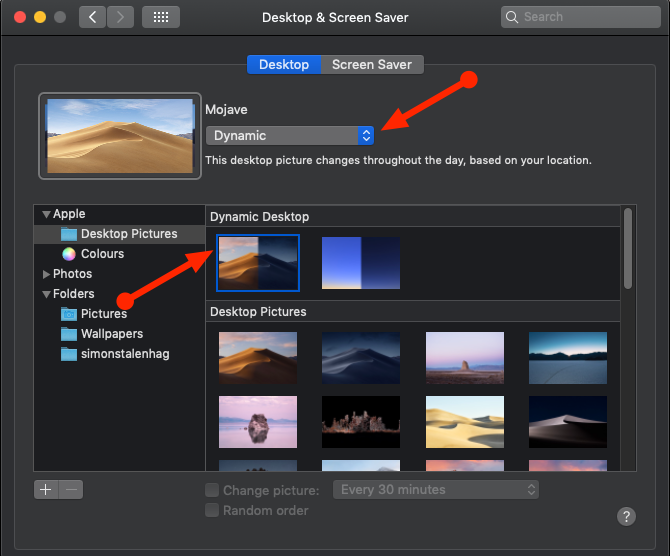
macOS Mojave Dynamic Desktop Settings

Hopefully, Apple will make the format for these wallpapers public. That would allow people to create their own dynamic wallpapers.

One aspect that may deter you from Dynamic Desktop is that it relies on your location to match the lighting to what’s outside. This means you must enable macOS’s location services for Dynamic Desktop to work.

3. Desktop Stacks

Do you have a messy desktop covered in icons? Mojave brings you Desktop Stacks to help bring order to the chaos. Simply right-click some empty space on your desktop and select Use Stacks. Mojave will cleverly clean up your mess and group files together.

Stacks declutter your desktop by stacking similar files on top of one another. You can organize Stacks by file type, date, tags, and more. Simply click on a stack to view its contents; from there double-click on whatever you want to open.

To quickly get a glance at what’s stacked, you can scrub through it using your trackpad. You can also create smart folders that update over time based on specific categories like Date Last Opened.

4. Screenshot Markups

macOS Mojave Screenshot Markup

iOS has had a screenshot markup feature for some time now. Previously you needed a separate app to annotate your screenshots on macOS, but not anymore. After you’ve taken your screenshot, Mojave presents you with some options for quickly making edits.

You can sketch, draw, add text, shapes, and rotate or crop your beloved screenshots. Changing the color, font, and stroke for each of these options is also right at your fingertips. If you’re a serial screenshot taker, you’ll enjoy it.

The Sign option is also particularly impressive; it lets you use your trackpad and finger to create a custom signature to add to your screenshots. Alternatively, hold up a picture of your signature to your camera and you’ll get the same result. The new markup tools tie in beautifully with Mojave’s new screen clipping tool.

5. Screenshot Utility

Mojave also adds a new shortcut to the macOS screenshot arsenal. If you find all the screenshot shortcuts difficult to memorize, this should make your life much easier. Press Cmd + Shift + 5 to bring up the Screenshot Utility toolbar.

macOS Mojave Screenshot Utlity

The bar allows you to:

  • Screenshot the entire screen or a specific window
  • Screenshot a specific area of the screen
  • Record the entire screen
  • Record a specific area of the screen

The options also allow you to choose where the file saves, set a start timer, and show the cursor. After you’ve taken a screenshot or recording, it appears in the lower corner of your screen. This allows you to mark it up and share it straight away, without the need to save a copy. It’s easy and clutter-free.

6. Continuity Camera

Document scanners will eventually die off as the world becomes more digital. They were great while they lasted, but the workflow for scanning a document into your computer can be tedious. If you’re armed with Mojave and an iOS device running iOS 12, just use the Continuity Camera.

This lets you take a picture using your iOS device from your Mac. You can either take a standard picture or have iOS scan a document. Document scanning detects a document that’s in frame, cuts out everything else, and fixes any minor stretching or skewing issues.

On your desktop, right-click empty space and choose a desired option under Import from iPhone. Your selected device’s camera will open and after you’ve taken your desired photo, select Use Photo.

macOS Mojave Continuity Camera

The only caveat here is that you can’t use this feature and your personal hotspot simultaneously, as they both use Bluetooth to communicate with your Mac.

Continuity Camera also integrates directly with Apple’s native Mac apps such as Pages, Keynote, and TextEdit. Simply right-click wherever you’d like to insert your picture or document and follow the same steps.

7. iOS Apps on Mac

macOS Mojave iOSMac Apps

After upgrading to Mojave, you may have noticed some familiar-looking icons in your app launcher. Following the announcement at WWDC, Apple is working on a translation layer that will allow iOS apps to run on your Mac. Currently, there are only four supported apps: Home, News, Stocks, and Voice Memos.

You may notice that these are relatively basic apps. That’s because Apple has a lot more to do in order to completely roll out this new system and make it user-friendly. Making apps designed for touch input usable with a mouse and keyboard is tricky.

Internally this project is called “Marzipan,” but that name might change once the system is complete. It will be interesting to see how the same apps will work with considerations for Force Touch, the Touch Bar, and other user interface elements.

8. The App Store

macOS Mojave App Store

iOS and macOS’s new relationship grows further, as the desktop App Store also has hints of its mobile counterpart. Not only is the new App Store much faster, but various improvements make it easier to navigate. This isn’t just a fancy new skin—the App store received a complete rework.

The main navigation has been moved from little tabs at the top to a much larger section on the left side of the window. The Discover page features curated content and actual use cases about the apps people use. The rest of the App Store breaks down into four main sections:

  • Create
  • Work
  • Play
  • Develop

The old style categories are still present, but the new sections are geared towards what you’re actually trying to accomplish. This makes each section more relatable to the user.

macOS Mojave App Store Discover

One element that doesn’t live in the App Store any longer is system updates. Your apps still get their updates from the App Store, but macOS updates are now where they belong: under System Preferences.

The App Store has felt neglected for some time, with most people downloading apps from vendor websites. This feels like it’s going to change from Mojave onward.

9. Finder

Finder isn’t left out of getting some Mojave treatment. You may recall viewing pictures in Finder was a previously little awkward with Cover Flow or Quick Look. All this changes with Gallery View. Gallery View has a horizontal view of your thumbnails with quick access to markup options and file metadata. The ability to resize the thumbnails would be great, but relative to the list view Cover Flow provided, this is far better.

macOS Mojave Finder
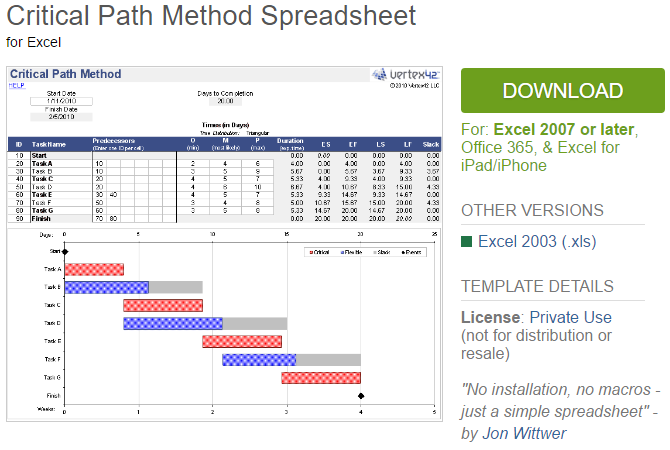
Speaking of Quick Actions, Finder allows you to make some changes without the need to open an additional app. Markup gives you the same options for individual images as discussed in the screenshot section.

For videos or screen recordings, the Markup button becomes a Trim button that lets you trim the start and end points of a video. If you select multiple images, the Markup button allows you to Create PDF by combining the selected images into a single PDF.

10. Other Mojave Enhancements

Mojave comes with a dash of security improvements. Safari has been improved with some password manager-like features, as it gains the ability to create strong passwords automatically. Plus, Safari can create, autofill, and store passwords automatically. It will even flag passwords that you’ve reused, which are a major security risk.

Advertisers can learn a bunch of information about you from your device when you browse the web. Safari now obstructs this by only sharing a simplified system profile. The Enhanced Tracking Prevention offers greater protection against social media Like and Share buttons and comment widgets that track you without permission.

Last but not least, Safari gets support for favicons. This much-needed update helps you identify tabs when you have many open.

macOS Mojave in Review: It’s Great!
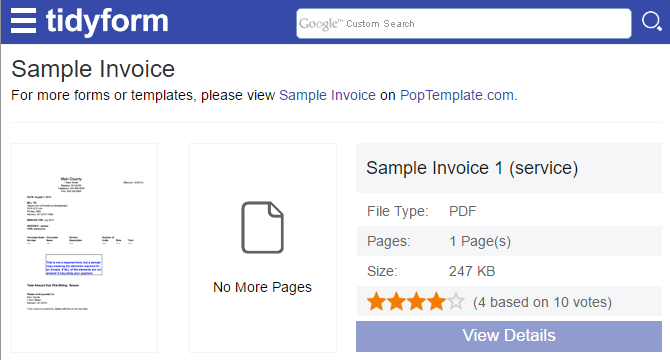
Updates are both exciting and terrifying. In some instances, a company has deployed and update that contains a security flaw or breaks users’ systems. This is why many companies including Apple release beta versions that are tested to mitigate these situations.
Always ensure you back up your machine before updating it, especially if you’re doing a major version upgrade like Mojave. Did you know macOS already includes one of the best backup applications in the form of Time Machine?

Read the full article: The 10 Best New Features of macOS Mojave