Dieser Artikel ist der Start einer mehrteiligen Serie, die sich mit dem SharePoint-Webpart für Inhaltssuche beschäftigt. Dabei wird zunächst die Frage beantwortet, warum dieser Webpart in modernen SharePoint-Anwendungen wichtig ist, Weiterlesen
Ähnliche Beiträge:
Webpart für Inhaltssuche – Teil 2: Abfragen erstellen mit KQL
EM 2012: Fußball-Tippspiel als Webpart für Sharepoint 2010
Anleitung: So aktiviert man Links in SharePoint-Dokumentenbibliotheken
[Den vollständigen Beitrag finden Sie auf der Website]
A connector is a wrapper around your API that allows the underlying web app to talk with Flow, Logic Apps and Power Apps. It provides a way for users to connect their own account and leverage a set of pre-built Triggers and Actions for their apps and workflows.
By being a part of our growing connector family (currently at 100+), you can enable your users to automate common tasks and build workflows in combination with other social and business applications.
Zum Thema Berechtigungen in SharePoint haben wir in den letzten Wochen bereits einige Artikel veröffentlicht. Eine bisher nicht beantwortete Frage ist, welche Struktur- und Inhaltselemente man alles über Zugriffsrechte kontrollieren Weiterlesen
Ähnliche Beiträge:
Grundlagenwissen SharePoint-Berechtigungen (1): Wissenswertes über die Vererbung und Unterbrechung von Berechtigungen
Grundlagenwissen SharePoint-Berechtigungen (2): So vermeiden sie Berechtigungsunterbrechungen
Grundlagenwissen SharePoint-Berechtigungen (3): Risiko Berechtigungsunterbrechungen – und wann sie sinnvoll sind
[Den vollständigen Beitrag finden Sie auf der Website]
US-Dienste wollen zunehmend Einblick in die Laptops und Smartphones der Reisenden bekommen. Internetaktivisten geben Tipps für die Einreise.
Die Internetaktivisten der Electronic Frontier Foundation (EFF) haben ein Handbuch zum Überqueren der US-Grenzen veröffentlicht, das sowohl juristische als auch technische Tipps für die Einreise bereithält. Es ist eingeteilt in drei Kategorien, die erklären, wie Reisende ihre Geräte während des Grenzübergangs schützen können, welche Rechte sie besitzen und wie die eigene Privatsphäre technisch aufrechterhalten werden kann. Aber auch, welche Stellen helfen können, wenn es zu Problemen kommt.
Internetaktivisten veröffentlichen Handbuch zur sicheren USA-Einreise
Wer in die USA einreisen will, muss eine Erklärung abgeben. Künftig könnten auch Social-Media-Passwörter verlangt werden. (Bild: Shutterstock-NAN728)
Dabei gehen die Autoren und Mitarbeiter der EFF nicht nur auf US-Bürger, sondern auch auf Ausländer ein, die privat oder beruflich in die Vereinigten Staaten von Amerika einreisen. Es wird geraten, vor, während und nach der Grenzüberquerung bestimmte Schritte zum Schutz der Geräte zu unternehmen – etwa das Einrichten sicherer Passwörter und die Anwendung verschiedener Verschlüsselungspraktiken. Außerdem sollen gewisse Handlungen wie zum Beispiel das Belügen von Beamten dringend unterlassen werden.
Hintergrund des Handbuchs sind verschärfte Einreisebestimmungen und Kontrollpraxen an US-Grenzen. Wie Netzpolitik.org berichtet, sei Anfang Februar beispielsweise der US-Bürger und Nasa-Mitarbeiter Sidd Bikkannavar bei der Einreise in die USA aufgehalten und genötigt worden, sein Handy zu entsperren. Die Electronic Frontier Foundation rief außerdem dazu auf, dass sich Betroffene bei ihnen melden mögen, sofern sie derartige Praktiken über sich ergehen lassen mussten.
Den Durchsuchungsbeschluss für die Geschäftsräume meines Mandanten hat das Amtsgericht zügig erlassen. Ebenso forsch erhob die Staatsanwaltschaft Anklage. Wegen Betruges.
Der allerdings keiner war. Das habe ich mit einem Schreiben begründet und beantragt, die Anklage nicht zuzulassen. Der Brief war ganze anderthalb Seiten lang. Er enthielt keine Paragrafen, noch nicht einmal den Querverweis auf Urteile. Also an sich insgesamt Ausführungen, zu deren Prüfung man sicher keiner zehn Monate bedarf. In diesem Zeitraum tat sich allerdings – nichts.
Ich schrieb erneut an das Amtsgericht, doch nun bitte über die Anklage zu entscheiden. Selbst für den Fall, dass die Staatsanwaltschaft zu meinem Schreiben keine Stellung nehmen möchte. Wozu sie ja nicht verpflichtet ist. Da ich ein geduldiger Mensch bin und mein Mandant ansonsten auch keine Eile hatte, wartete ich noch mal vier Monate. Wieder nichts.
Na ja, dann also eine telefonische Nachfrage. Die Mitarbeiterin des Gerichts teilt mir mit, die Staatsanwaltschaft habe die Anklage zurückgenommen. Das ist nun sechs Wochen her. Mich als Anwalt darüber zu informieren, hat niemand für nötig gehalten. Der Richter ließ den Vorgang als „erledigt“ austragen, verfügte aber keine Information an mich.
Die Akte ging zurück an die Staatsanwaltschaft. Auch diese hielt es nicht für nötig, mich mal zu informieren. Das Ganze steht schon in einem gewissen Gegensatz zu dem Feuereifer, den die Behörden zunächst an den Tag gelegt haben, als es noch eine Aussicht gab, meinem Mandanten „das Handwerk“ zu legen. Schon bemerkenswert, wenn die Motivation plötzlich nicht mal mehr reicht, den gesetzlichen Informationspflichten gegenüber dem Verteidiger zu genügen.
Apple hat mehrere Jahre Druck auf Händler ausgeübt, einen fixen Verkaufspreis für das iPhone zu verlangen. Zu diesem Ergebnis kommt die russische Kartellbehörde, sie will Apple dafür belangen. Die Strafzahlung soll in den kommenden Tagen verkündet werden. (iPhone, Smartphone)
Arme sind für Selbstporträts mit dem Smartphone zu kurz und Selfie-Sticks zu umständlich. Was liegt also näher, als stattdessen eine kleine Drohne mit Kamera zu verwenden? Golem.de hat den Quadcopter Airselfie im Hosentaschenformat ausprobiert. Ein Hands on von Tobias Költzsch (Drohne, Startup)
Microsoft Teams is now generally available for Office 365 customers, and for those of you who are planning to use it you may be looking for a way to deploy the Teams client to your user's computers.
The Microsoft Teams desktop client installer is available for Windows, Mac, and mobile devices.
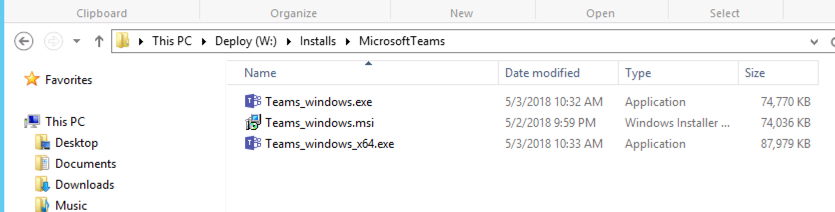
The Mac installer and the Windows setup.exe installer are available from Microsoft here. The Windows setup.exe package has basic command-line switches for silent install and uninstall. You can script the install and use GPO to deploy the package, which I'll demonstrate later in this article.
An MSI package for Windows is also available in x86 and x64 versions. This package is suitable for GPO and SCCM deployment, but works a little differently than the setup.exe package, as you'll see in the demonstration below.
Whichever method you use to deploy Teams, the installer runs in the context of the logged on user, and installs to the %userprofile%\AppData\Local\Microsoft\Teams folder. As you'll see in the comments on this blog post below, this isn't ideal for some environments for a variety of reasons.
Teams is a self-updating application. It will check for, and download, any available updates each time the user runs the program. That makes it simple to maintain (as long as you allow it to self-update), and means that deploying Teams is basically a task of running the installer once, and then not running it again. If you block Teams from self-updating, Microsoft warns that your Teams experience will likely degrade and you'll miss out on new features and performance improvements that are released.
Preparing to Deploy Microsoft Teams
Before you deploy the Teams client you should verify that Teams in your Office 365 tenant is configured the way you want it. Teams configuration is demonstrated in my Getting Started with Microsoft Teams article.
Although Teams is included with eligible Office 365 plans, it can be enabled and disabled on a per-user basis. If you have had Teams disabled during the preview phase, now is the time to turn it back on. For my demonstration environment I'm using Azure AD group-based license management, and have an Active Directory group that is configured to enable the Teams option for users' licenses. Helpfully, that also means I have a security group already in place that I can target my Group Policy to.
Download the Microsoft Teams installer using the links above, and place the files on a network share that users and computers can read from. For this demonstration, the installer will be running from the path \\mgmt\installs\MicrosoftTeams.
If you deploy an old package, the Teams application will self-update automatically. However, you should keep your deployment share updated on a regular basis with the latest install packages to save time.
Deploying Teams via Script or Group Policy using the Setup.exe Package
The Teams setup.exe installer has command-line switches for silent deployment. For example, to silently install Microsoft Teams, the following command line can be used:
C:\temp\> Teams_windows_x64.exe -s
To silently uninstall Teams, the following command line can be used:
Any deployment script for the setup.exe package needs to run in the context of the user. A logon script assigned by Group Policy meets that requirement. So with a little scripting logic you can check for the existence of the Teams application in the user's AppData folder, and run or not run the installer depending on the results.
As a side note, when Teams is uninstalled it leaves the Update.exe file in place. So checking for Update.exe in your script logic will give misleading results. Instead, you can check for the existence of a folder named “.dead”, which is placed in the application folder when Teams is uninstalled. For my deployment script which I'm sharing here, I've checked for “.dead”, and if found, will run the Teams installer again.
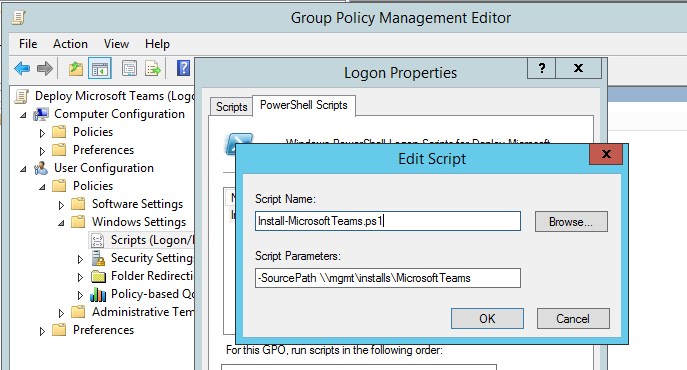
I've written a Teams install PowerShell script, called Install-MicrosoftTeams.ps1, that you can download from the TechNet Script Gallery.
Create a Group Policy that assigns a logon script to run the Install-MicrosoftTeams.ps1 PowerShell script, and provide the -SourcePath as a script parameter.
If you are filtering the GPO to a specific security group, remember to also add Authenticated Users to the Delegation tab of the Group Policy and grant them Read (but not Apply) permissions.
At next Group Policy refresh and logon the Teams client will silently install for the user, and place a Microsoft Teams icon on their desktop.
Deploying Teams via Group Policy using the MSI Package
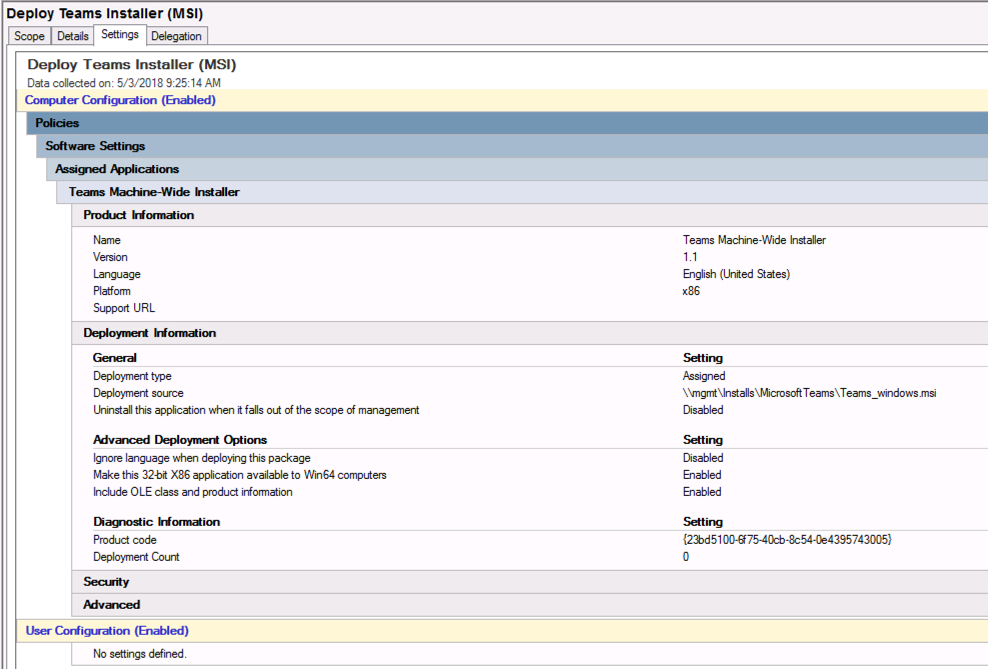
The MSI package for Teams behaves a little differently than the setup.exe package. The MSI package installs the Teams Installer on the computer, placing it in the Program Files or Program Files (x86) folder, depending on which architecture you deploy. The Teams Installer will then run automatically for new users logging on to the computer, and install Teams to their %userprofile%\AppData\Local\Microsoft\Teams folder.
Create a Group Policy and add the Teams MSI package to the Computer Configuration as an assigned application.
Note that if you've previously deployed Teams using the setup.exe package, or the user has previously installed Teams themselves, and then uninstalled Teams later, the Teams installer will not reinstall the application due to the presence of leftover files. Microsoft has provided a cleanup script that you can run to remove the leftover files, and then the Teams installer should be able to successfully install the app for the user.
After Teams has installed, it will automatically launch for the user and prompt them for their sign-in credentials.
Summary
Microsoft has provided multiple software packages for Teams so that we can choose the best deployment method for our environment. The MSI is suitable for Group Policy or SCCM deployment, and is also a good way to pre-stage the Teams application on newly deployed computers. The setup.exe package requires additional scripting but can be deployed via GPO or SCCM as well. In either case, the installer is smart enough to detect existing installs, and avoid reinstalling on uninstalled systems. The self-update capability also means that Teams requires very little maintenance over time.
This is an updated version of an article originally published on March 15th, 2017.
Am Ende haben ihm alle seine juristischen Tricks nichts genützt: Ein Weilheimer Anwalt muss eine hohe Geldstrafe zahlen. Und sein Führerschein ist weg.
Welcome to our new Demo Tuesday series. Each week we will be highlighting a new product feature from the Hybrid Cloud Platform.
If you manage a virtualized desktop/app environment, you probably spend a lot of time min/maxing resources for a variety of uses: from a power user designing graphically intense data visualizations to a group of employees sharing the same app resources. Our two demos this week show you new capabilities to:
Help scale up and scale down connections
Provide high-end device pass through capabilities for the most graphics-heavy workloads
Set up Azure SQL connections that can now be shared across more than one RDS deployment
Demo #1: Improve GPU virtualization
This video demonstrates the improved tools for virtualization performance testing support and shows how to easily dedicate specific hardware to specific VMs for high-demand tasks and users.
RemoteFX vGPU in Windows Server 2016 Hyper-V has integration improvements specifically aimed at making GPU performance testing and monitoring smoother and more intuitive. It works in Windows 10 and Windows Server 2016 and is well suited for load balancing all types of VM use cases.
Discrete Device Assignment (DDA) is a new technology that helps you manage high-performance demands on virtualized resources. Its also useful for maximizing app compatibility across a large pool of users sharing a GPU resource. DDA works in Windows 10 as well as in Windows Server 2016, and in Linux VMs.
Demo #2: Beat the remote logon storm
Tired of the 9 A.M. scenario where everybody starts a connection request to their virtualized workloads, potentially slowing down connection times and deteriorating reliability?
We have made big improvements in highly available Remote Desktop Services in Windows Server 2016including fixing the issues around logon storm and providing a much easier way to do SQL connections. This video shows how to set up Azure SQL Database and connect via Remote Desktop Connection Broker (RD Connection Broker).
Remote Desktop Services technology can now handle 10,000 simultaneous connections, meaning the sudden performance bottlenecks that occur when a large number of users access virtualized resources at the same timeAKA logon stormsare no longer an issue.
In previous versions of high-availability mode, the RD Connection Broker required a dedicated SQL Server always-on cluster using Windows authentication, but this connection was hard and expensive to set up in high-availability mode. Windows Server 2016 has been updated to use RD Connection Broker to connect to an Azure SQL Database using SQL authentication instead.
You can now use an Administrator account that is enabled for Multi-Factor Authentication to sign in to Exchange Online PowerShell and the Office 365 Hybrid Configuration Wizard (HCW).
In case you are not aware, the Azure multi-factor authentication is a method of verifying who you are that requires the use of more than just a username and password. Using MFA for Office 365, users are required to acknowledge a phone call, text message, or app notification on their smart phones after correctly entering their passwords. They can sign in only after this second authentication factor has been satisfied. You can read more about the Office 365 Multi Factor Authentication option here.
Many Exchange Online customers wanted the extra level of security that is offered with Multi-Factor Authentication, which allows you to force the administrator account to use Multi-Factor Authentication. However, because of a limitation in Remote PowerShell, Exchange Online administrators could not connect with a Multi-Factor enabled account. In addition, as the Office 365 Hybrid Wizard also requires Remote PowerShell connections to Exchange Online, prior to now, the account you used to run the HCW could not be enabled for Multi-Factor Authentication.
The Exchange Online PowerShell Module
There is a new module that was created that can be downloaded to allow you to connect with an account that is enabled for Multi-Factor Authentication. You can download the module from the Exchange Online Administration Center (the steps are outlined in this article).
Note: We do not plan to discontinue traditional methods of connecting to Remote PowerShell; if you are not using Multi-Factor Authentication you can continue to connect using the methods you already have in place.
The Hybrid Wizard Update
The Hybrid Wizard has also been updated to allow for Multi-Factor Authentication enabled administrators to authenticate.
Note: There is an issue with this new Authentication method in the 21 Vianet Greater China tenants. For customers with Tenants in that region you cannot use the MFA module or Hybrid integration mentioned in this article and should instead use the Hybrid Wizard located here: http://aka.ms/HCWCN
In order to keep the sign in experience consistent for all customer whether they have MFA enabled or are using traditional credentials, we have updated our credentials page in the wizard.
On the Credential page of the wizard you will see that the “next” button is not available. You are required to pick your credential for on-premises (which by default will be the currently signed in credentials) and “sign in” to Office 365.
Once you select “sign in” you will be prompted for credentials in a familiar looking screen.
If you have Multi-Factor Authentication enabled for the administrator, you would then be prompted for the second factor of authentication.
Once verified, you would see the credential card for both the on-premises and Exchange Online administrators. You will also notice that the “next” button is now activated.
Conclusion
Your feedback about not being able to use MFA enabled account for Exchange Online administration was loud and clear! Please keep providing us feedback so we can continue to identify and address your needs.
You can now use an Administrator account that is enabled for Multi-Factor Authentication to sign in to Exchange Online PowerShell and the Office 365 Hybrid Configuration Wizard (HCW).
In case you are not aware, the Azure multi-factor authentication is a method of verifying who you are that requires the use of more than just a username and password. Using MFA for Office 365, users are required to acknowledge a phone call, text message, or app notification on their smart phones after correctly entering their passwords. They can sign in only after this second authentication factor has been satisfied. You can read more about the Office 365 Multi Factor Authentication option here.
Many Exchange Online customers wanted the extra level of security that is offered with Multi-Factor Authentication, which allows you to force the administrator account to use Multi-Factor Authentication. However, because of a limitation in Remote PowerShell, Exchange Online administrators could not connect with a Multi-Factor enabled account. In addition, as the Office 365 Hybrid Wizard also requires Remote PowerShell connections to Exchange Online, prior to now, the account you used to run the HCW could not be enabled for Multi-Factor Authentication.
The Exchange Online PowerShell Module
There is a new module that was created that can be downloaded to allow you to connect with an account that is enabled for Multi-Factor Authentication. You can download the module from the Exchange Online Administration Center (the steps are outlined in this article).
Note: We do not plan to discontinue traditional methods of connecting to Remote PowerShell; if you are not using Multi-Factor Authentication you can continue to connect using the methods you already have in place.
The Hybrid Wizard Update
The Hybrid Wizard has also been updated to allow for Multi-Factor Authentication enabled administrators to authenticate.
Note: There is an issue with this new Authentication method in the 21 Vianet Greater China tenants. For customers with Tenants in that region you cannot use the MFA module or Hybrid integration mentioned in this article and should instead use the Hybrid Wizard located here: http://aka.ms/HCWCN
In order to keep the sign in experience consistent for all customer whether they have MFA enabled or are using traditional credentials, we have updated our credentials page in the wizard.
On the Credential page of the wizard you will see that the “next” button is not available. You are required to pick your credential for on-premises (which by default will be the currently signed in credentials) and “sign in” to Office 365.
Once you select “sign in” you will be prompted for credentials in a familiar looking screen.
If you have Multi-Factor Authentication enabled for the administrator, you would then be prompted for the second factor of authentication.
Once verified, you would see the credential card for both the on-premises and Exchange Online administrators. You will also notice that the “next” button is now activated.
Conclusion
Your feedback about not being able to use MFA enabled account for Exchange Online administration was loud and clear! Please keep providing us feedback so we can continue to identify and address your needs.
KrebsOnSecurity recently featured the story of a Brazilian man who was peppered with phishing attacks trying to steal his Apple iCloud username and password after his wife’s phone was stolen in a brazen daylight mugging. Today, we’ll take an insider’s look at an Apple iCloud phishing gang that appears to work quite closely with organized crime rings — within the United States and beyond — to remotely unlock and erase stolen Apple devices.
Victims of iPhone theft can use the Find My iPhone feature to remotely locate, lock or erase their iPhone — just by visiting Apple’s site and entering their iCloud username and password. Likewise, an iPhone thief can use those iCloud credentials to remotely unlock the victim’s stolen iPhone, wipe the device, and resell it. As a result, iPhone thieves often subcontract the theft of those credentials to third-party iCloud phishing services. This story is about one of those services.
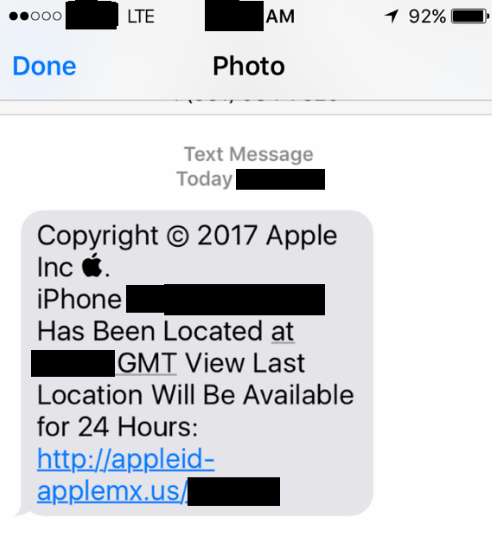
The iCloud account phishing text that John’s friend received months after losing a family iPhone.
Recently, I heard from a security professional whose close friend received a targeted attempt to phish his Apple iCloud credentials. The phishing attack came several months after the friend’s child lost his phone at a public park in Virginia. The phish arrived via text message and claimed to have been sent from Apple. It said the device tied to his son’s phone number had been found, and that its precise location could be seen for the next 24 hours by clicking a link embedded in the text message.
That security professional source — referred to as “John” for simplicity’s sake — declined to be named or credited in this story because some of the actions he took to gain the knowledge presented here may run afoul of U.S. computer fraud and abuse laws.
John said his friend clicked on the link in the text message he received about his son’s missing phone and was presented with a fake iCloud login page: appleid-applemx[dot]us. A lookup on that domain indicates it is hosted on a server in Russia that is or was shared by at least 140 other domains — mostly other apparent iCloud phishing sites — such as accounticloud[dot]site; apple-appleid[dot]store; apple-devicefound[dot]org; and so on (a full list of the domains at that server is available here).
While the phishing server may be hosted in Russia, its core users appear to be in a completely different part of the world. Examining the server more closely, John noticed that it was (mis)configured in a way that leaked data about various Internet addresses that were seen recently accessing the server, as well as the names of specific directories on the server that were being accessed.
After monitoring that logging information for some time, my source discovered there were five Internet addresses that communicated with the server multiple times a day, and that those address corresponded to devices located in Argentina, Colombia, Ecuador and Mexico.
He also found a file openly accessible on the Russian server which indicated that an application running on the server was constantly sending requests to imei24.com and imeidata.net — services that allow anyone to look up information about a mobile device by entering its unique International Mobile Equipment Identity (IMEI) number. These services return a variety of information, including the make and model of the phone, whether Find My iPhone is enabled for the device, and whether the device has been locked or reported stolen.
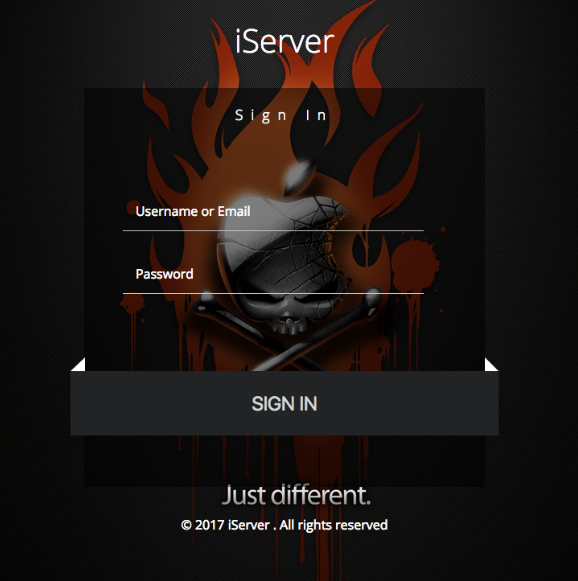
John said that as he was conducting additional reconnaissance of the Russian server, he tried to access “index.php” — which commonly takes one to a site’s home page — when his browser was redirected to “login.php” instead. The resulting page, pictured below, is a login page for an application called “iServer.” The login page displays a custom version of Apple’s trademarked logo as part of a pirate’s skull and crossbones motif, set against a background of bleeding orange flames.
The login page for an Apple iCloud credential phishing operation apparently used to unlock and remotely wipe stolen iPhones.
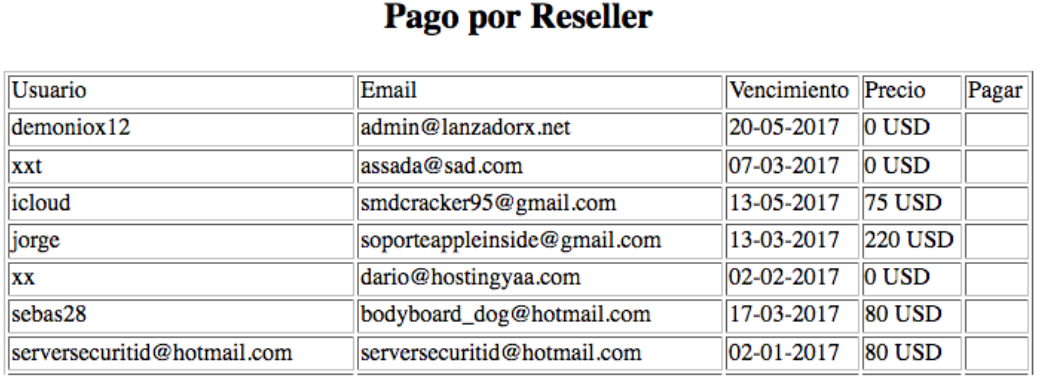
John told me that in addition to serving up that login page, the server also returned the HTML contents of the “index.php” he originally requested from the server. When he saved the contents of index.php to his computer and viewed it as a text file, he noticed it inexplicably included a list of some 137 user names, email addresses and expiration dates for various users who’d apparently paid a monthly fee to access the iCloud phishing service.
“These appear to be ‘resellers’ or people that have access to the crimeware server,” my source said of the user information listed in the server’s “index.php” file.
John told KrebsOnSecurity that with very little effort he was able to guess the password of at least two other users listed in that file. After John logged into the iCloud phishing service with those credentials, the service informed him that the account he was using was expired. John was then prompted to pay for at least one more month subscription access to the server to continue.
Playing along, John said he clicked the “OK” button indicating he wished to renew his subscription, and was taken to a shopping cart hosted on the domain hostingyaa[dot]com. That payment form in turn was accepting PayPal payments for an account tied to an entity called HostingYaa LLC; viewing the HTML source on that payment page revealed the PayPal account was tied to the email address “admin@hostingyaa[dot]com.”
According to the file coughed up by the Russian server, the first username in that user list — demoniox12 — is tied to an email address admin@lanzadorx.net and to a zero-dollar subscription to the phishing service. This strongly indicates the user in question is an administrator of this phishing service.
A review of Lanzadorx[dot]net indicates that it is a phishing-as-a-service offering that advertises the ability to launch targeted phishing attacks at a variety of free online services, including accounts at Apple, Hotmail, Gmail and Yahoo, among others.
A reverse WHOIS lookup ordered from Domaintools.com shows that the admin@lanzadorx.net email is linked to the registration data for exactly two domains — hostingyaa[dot]info and lanzadorx[dot]net [full disclosure: Domaintools is currently one of several advertisers on KrebsOnSecurity].
Hostingyaa[dot]info is registered to a Dario Dorrego, one of the other zero-dollar accounts included near the top of the list of users that are authorized to access the iCloud phishing service. The site says Dorrego’s account corresponds to the email address dario@hostingyaa[dot]com. That name Dario Dorrego also appears in the site registration records for 31 other Web site domains, all of which are listed here.
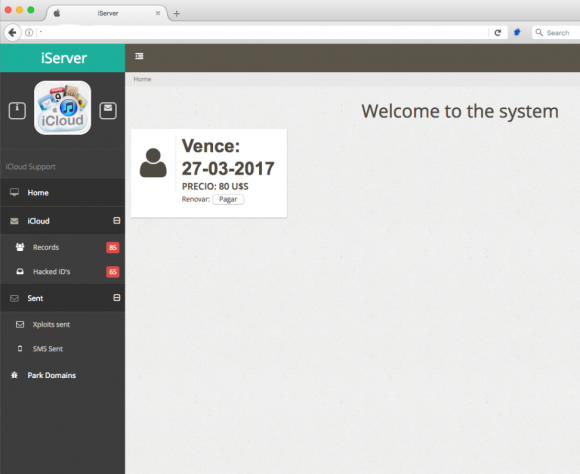
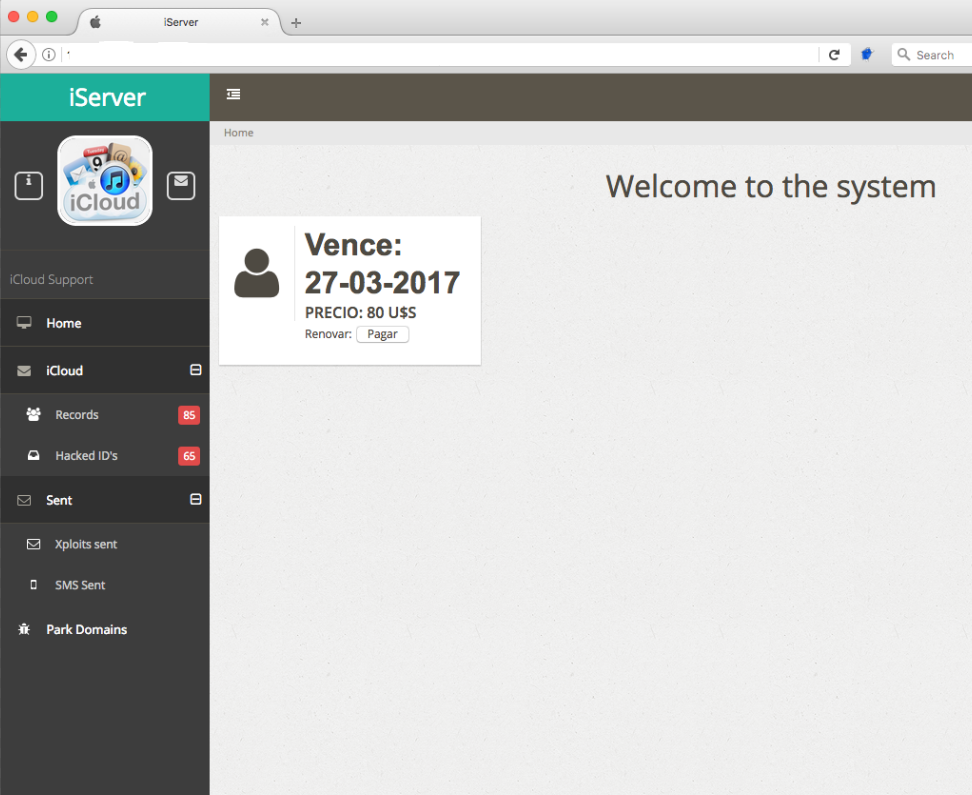
John said he was able to guess the passwords for at least six other accounts on the iCloud phishing service, including one particularly interesting user and possible reseller of the service who picked the username “Jonatan.” Below is a look at the home screen for Jonatan’s account on this iCloud phishing service. We can see the system indicates Jonatan was able to obtain at least 65 “hacked IDs” through this service, and that he pays USD $80 per month for access to it.
“Jonatan,” a user of this iCloud account credential phishing service. Note the left side panel indicates the number of records and hacked IDs recorded for Jonatan’s profile.
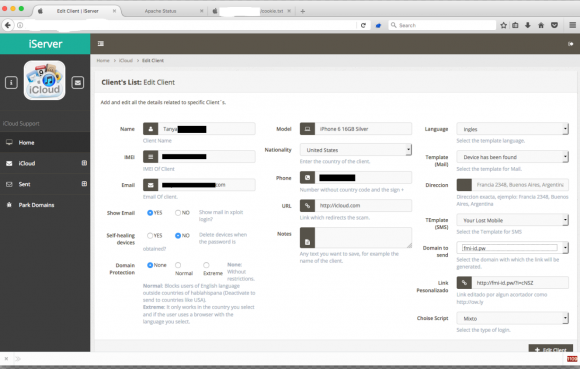
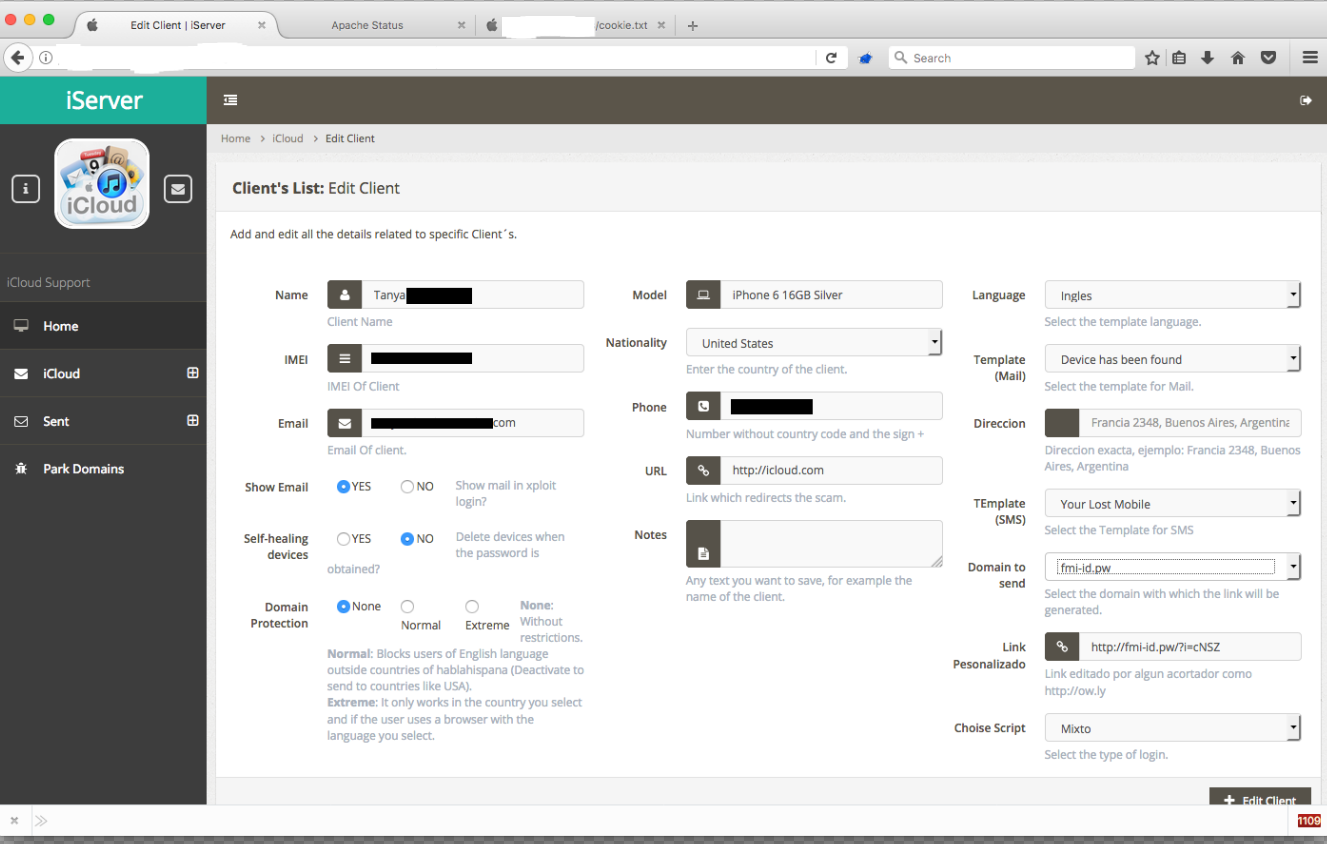
Here are some of the details for “Tanya,” one such victim tied to Jonatan’s account. Tanya’s personal details have been redacted from this image:
This page from the iCloud phishing service shows the redacted account details phished from an iPhone user named Tanya.
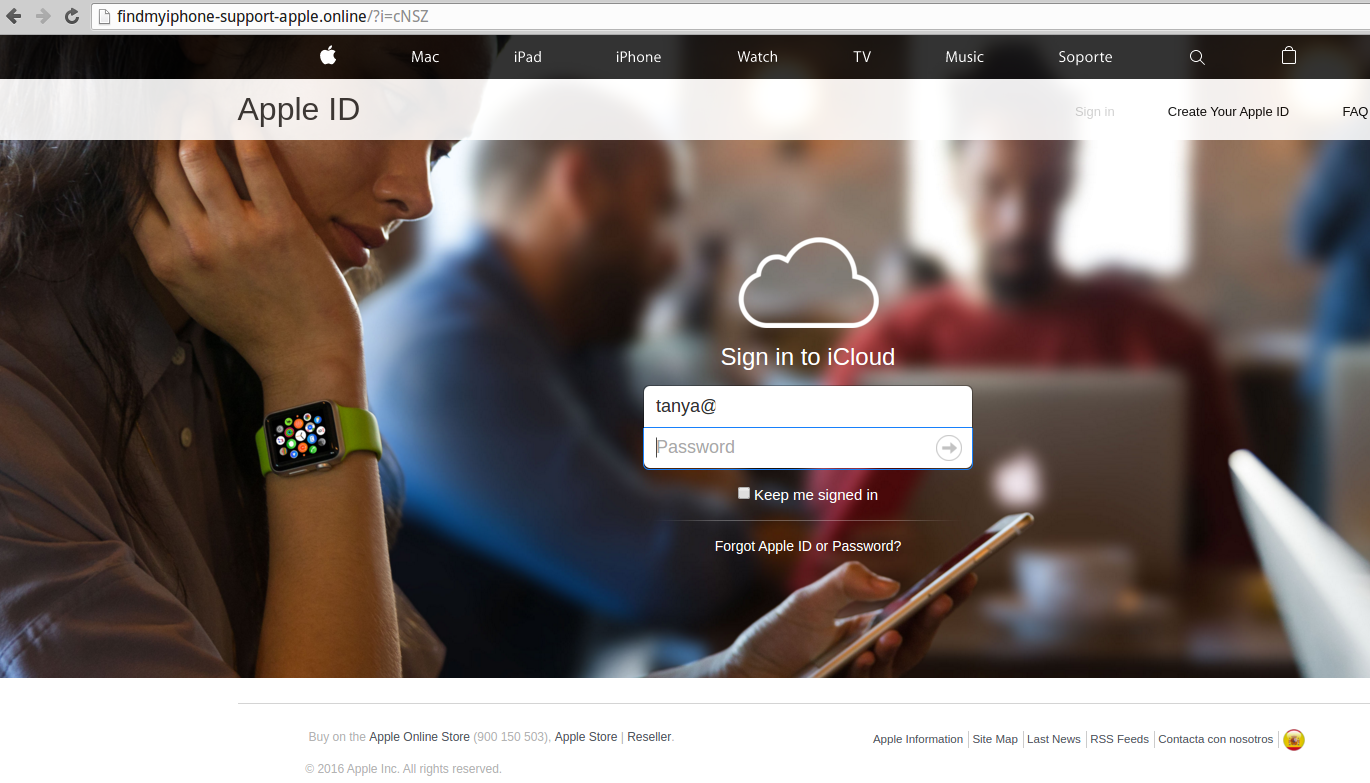
Here is the iCloud phishing page Tanya would have seen if she clicked the link sent to her via text message. Note that the victim’s full email address is automatically populated into the username portion of the login page to make the scam feel more like Apple’s actual iCloud site:
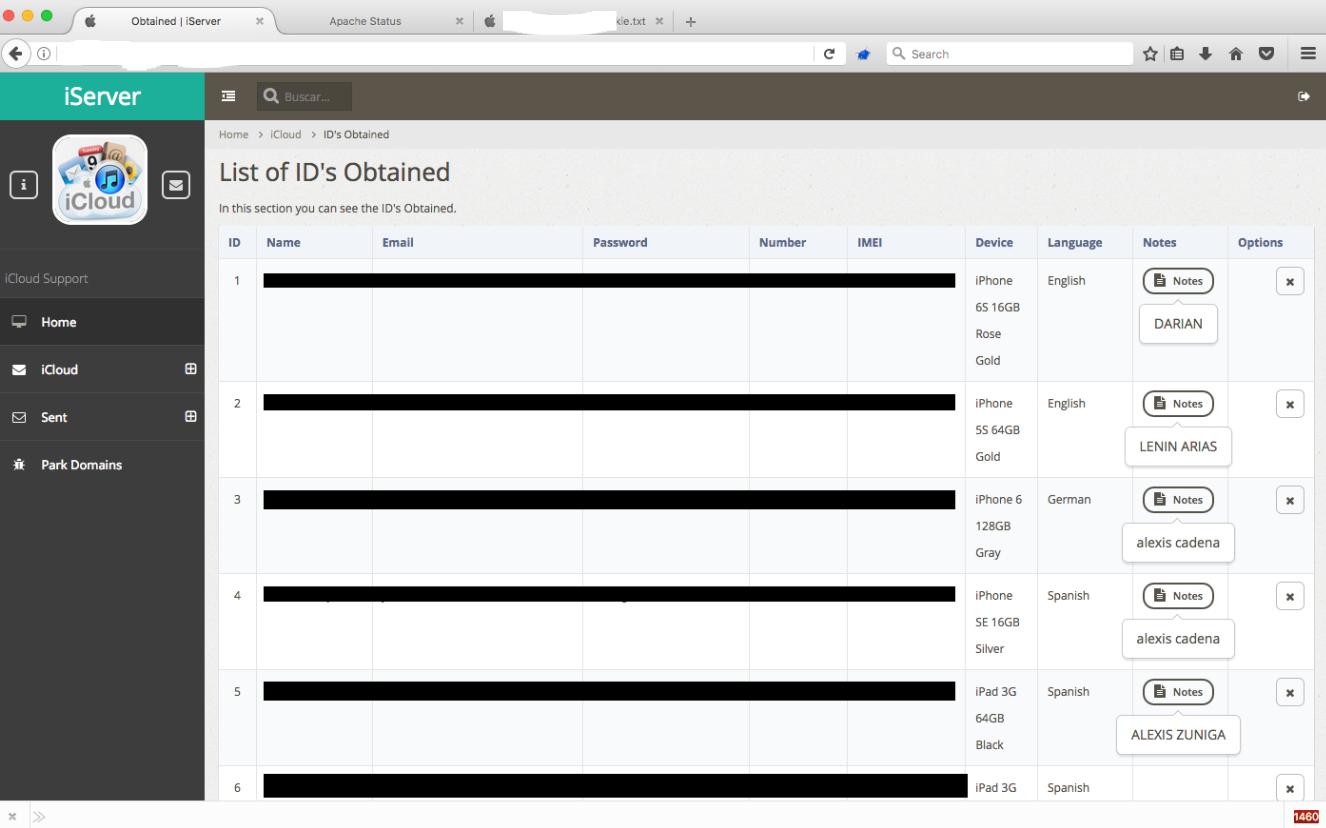
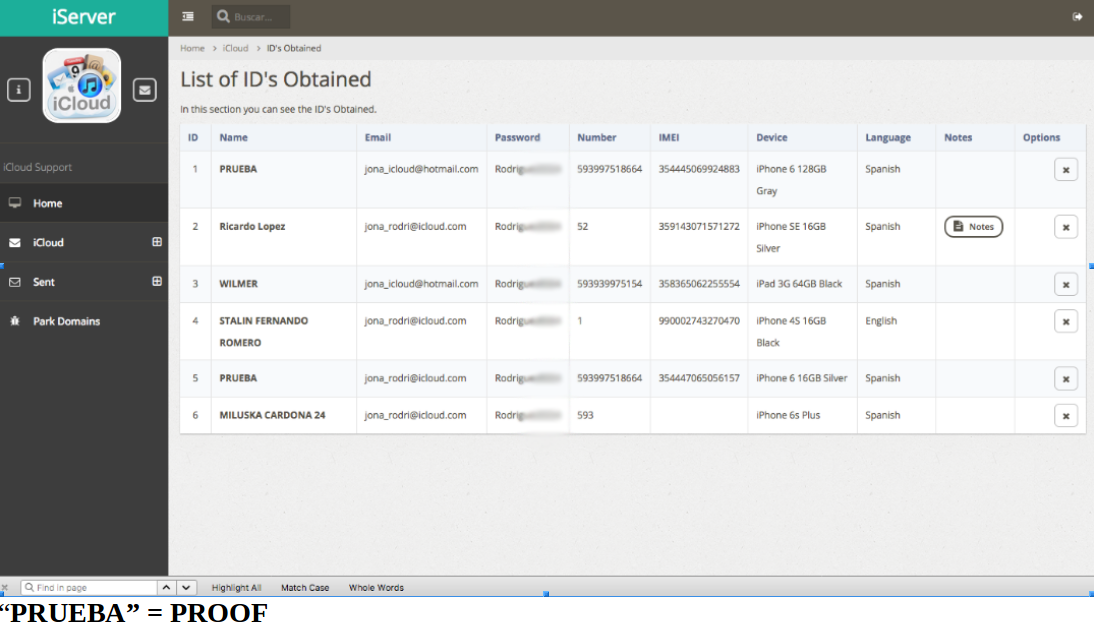
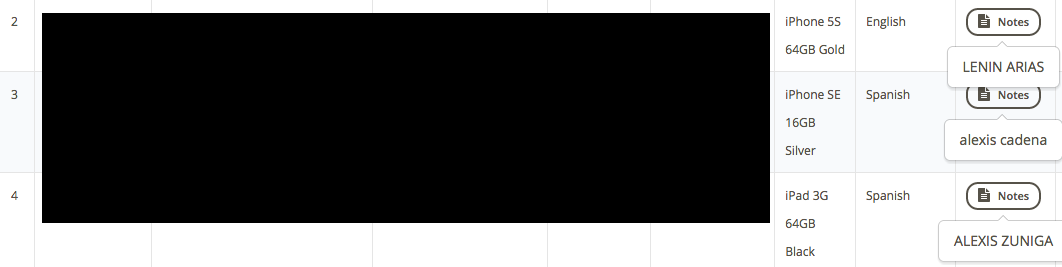
The page below from Jonatan’s profile lists each of his 60+ victims individually, detailing their name, email address, iCloud password, phone number, unique device identifier (IMEI), iPhone model/generation and some random notes apparently inserted by Jonatan:
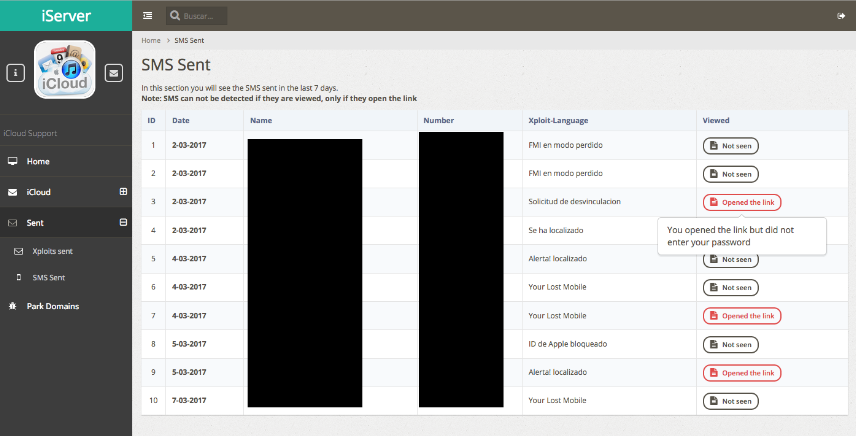
The next screen shot shows the “SMS sent” page. It tracks which victims were sent which variation of phishing scams offered by the site; whether targets had clicked a link in the phony iCloud phishing texts; and if any of those targets ever visited the fake iCloud login pages:
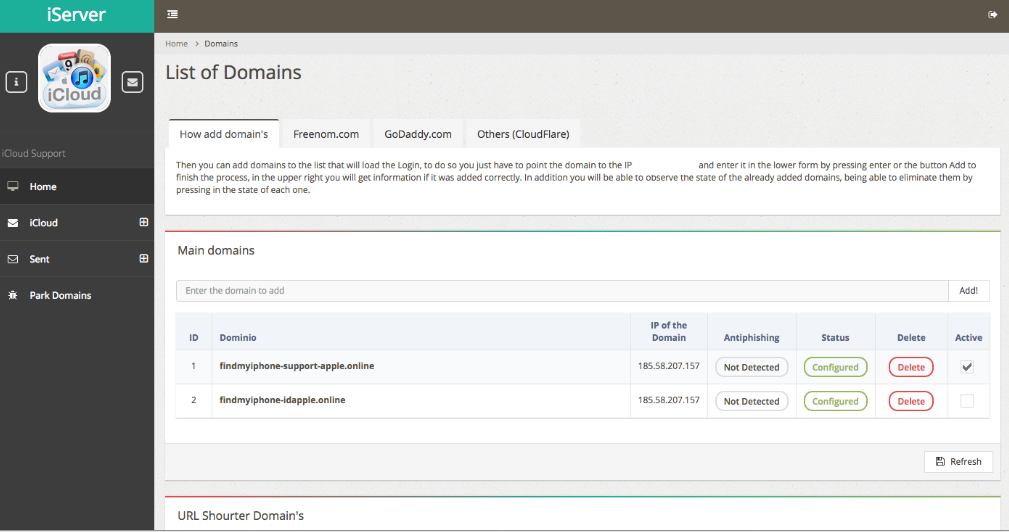
Users of this phishing service can easily add a new phishing domain if their old links get cleaned up or shut down by anti-phishing and anti-spam groups. This service also advertises the ability to track when phishing links have been flagged by anti-phishing companies:
This is where the story turns both comical and ironic. Many times, attackers will test their exploit on themselves whilst failing to fully redact their personal information. Jonatan apparently tested the phishing attacks on himself using his actual Apple iCloud credentials, and this data was indexed by Jonatan’s phishing account at the fake iCloud server. In short, he phished himself and forgot to delete the successful results. Sorry, but I’ve blurred out Jonatan’s iCloud password in the screen shot here:
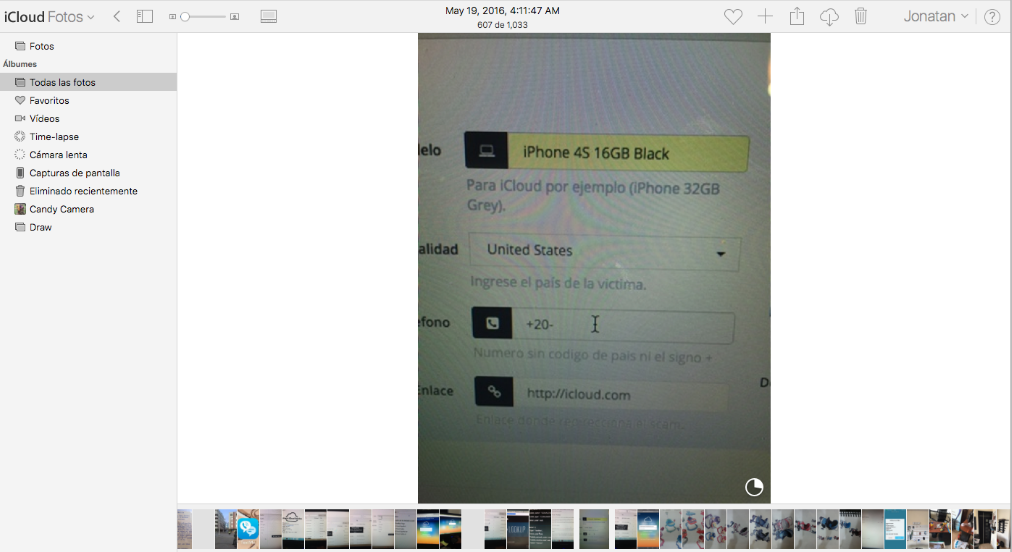
See if you can guess what John did next? Yes, he logged into Jonatan’s iCloud account. Helpfully, one of the screenshots in the photos saved to Jonatan’s iCloud account is of Jonatan logged into the same phishing server that leaked his iCloud account information!
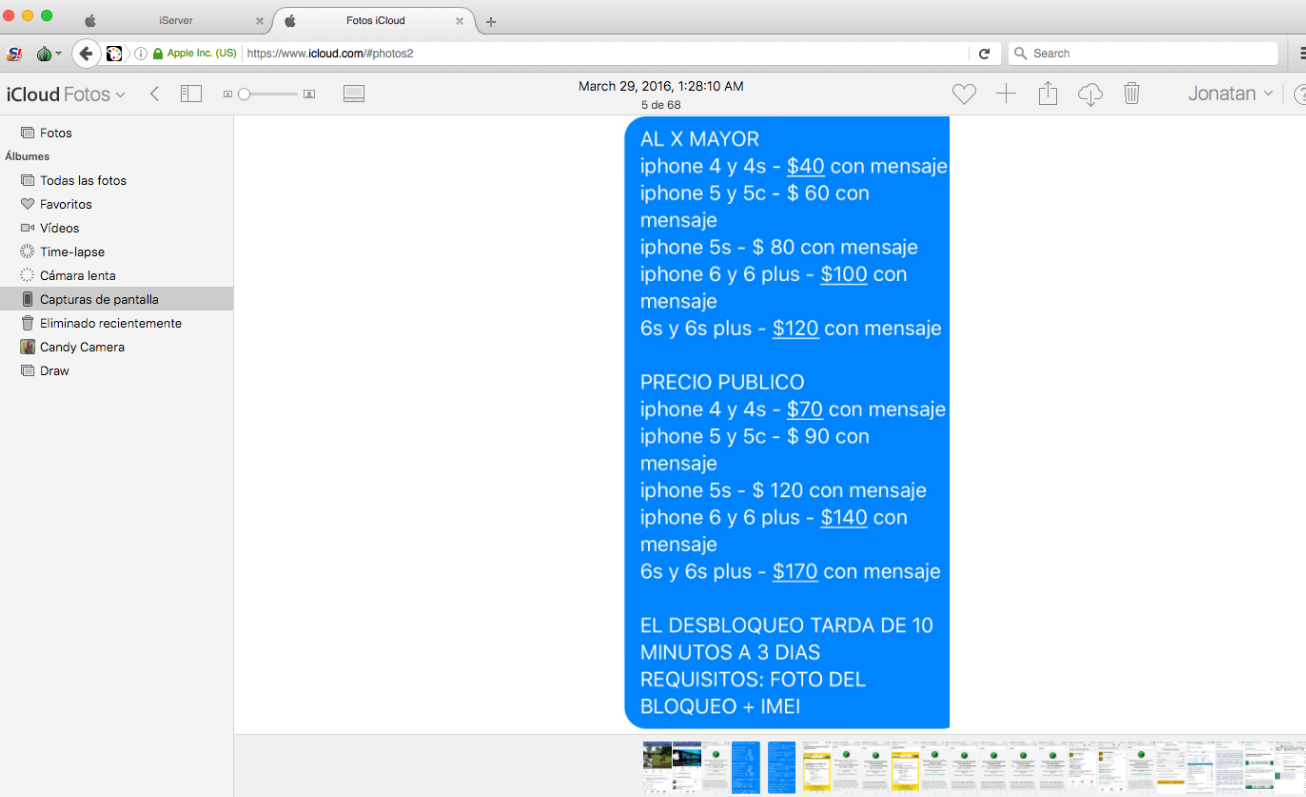
The following advertisement for Jonatan’s service — also one of the images John found in Jonatan’s iCloud account — includes the prices he charges for his own remote iPhone unlocking service. It appears the pricing is adjusted upwards considerably for phishing attacks on newer model stolen iPhones. The price for phishing an iPhone 4 or 4s is $40 per message, versus $120 per message for phishing attacks aimed at iPhone 6s and 6s plus users. Presumably this is because the crooks hiring this service stand to make more money selling newer phones.
The email address that Jonatan used to register on the Apple iPhone phishing service — shown in one of the screen shots above as jona_icloud@hotmail.com — also was used to register an account on Facebook tied to a Jonatan Rodriguez who says he is from Puerto Rico. It just so happens that this Jonatan Rodriguez on Facebook also uses his profile to advertise a “Remove iCloud” service. What are the odds?
Jonatan’s Facebook profile page.
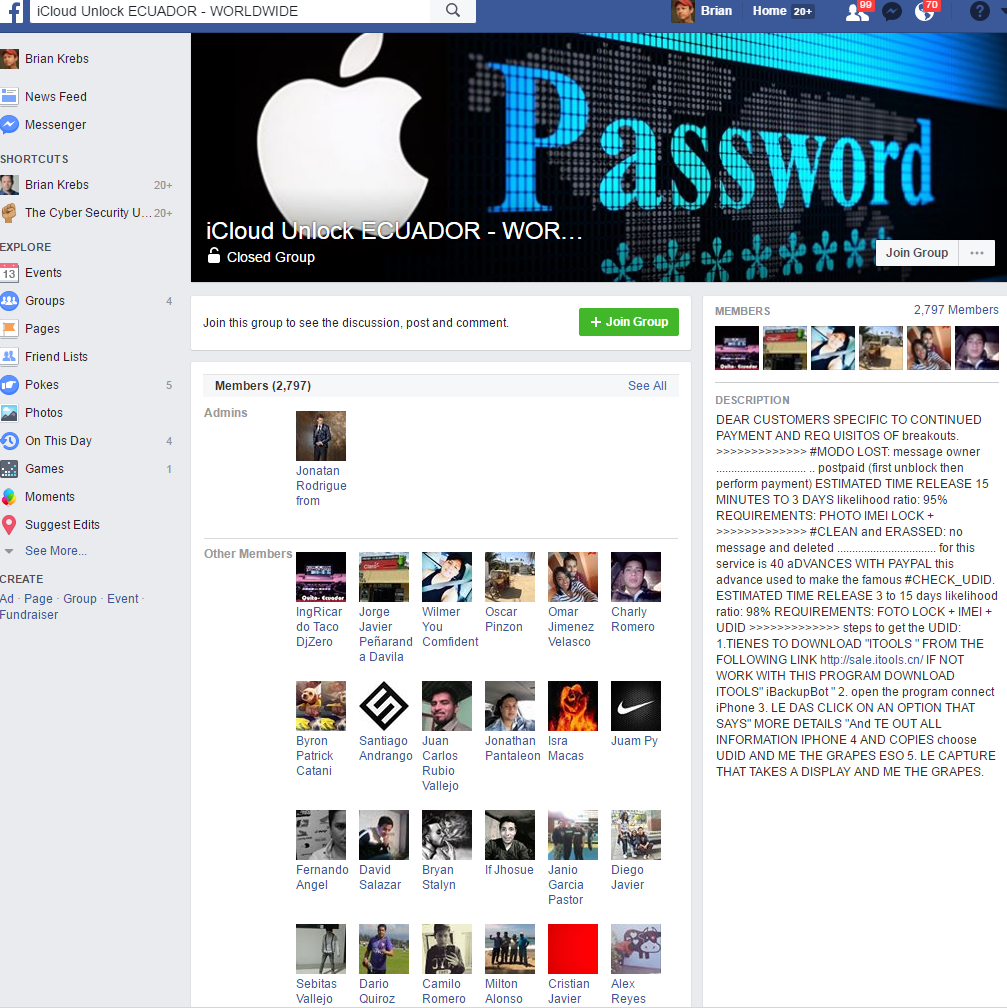
Well, pretty good considering this Facebook user also is the administrator of a Facebook Group called iCloud Unlock Ecuador – Worldwide. Incredibly, Facebook says there are 2,797 members of this group. Here’s what they’re all about:
Jonatan’s Facebook profile picture would have us believe that he is a male model, but the many selfies he apparently took and left in his iCloud account show a much softer side of Jonatan:
Jonatan, in a selfie he uploaded to his iCloud account. Jonatan unwittingly gave away the credentials to his iCloud account because the web site where his iCloud account phishing service provider was hosted had virtually no security (nor did Jonatan, apparently). Other photos in his archive include various ads for his iPhone unlocking service.
Among the members of this Facebook group is one “Alexis Cadena,” whose name appears in several of the screenshots tied to Jonatan’s account in the iCloud phishing service:
Alexis Cadena apparently also has his own iCloud phishing service. It’s not clear if he sub-lets it from Jonatan or what, but here are some of Alexis’s ads:
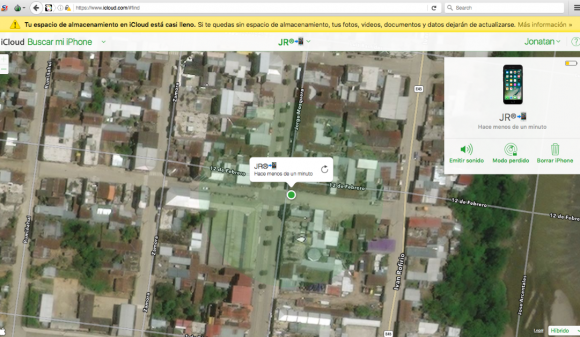
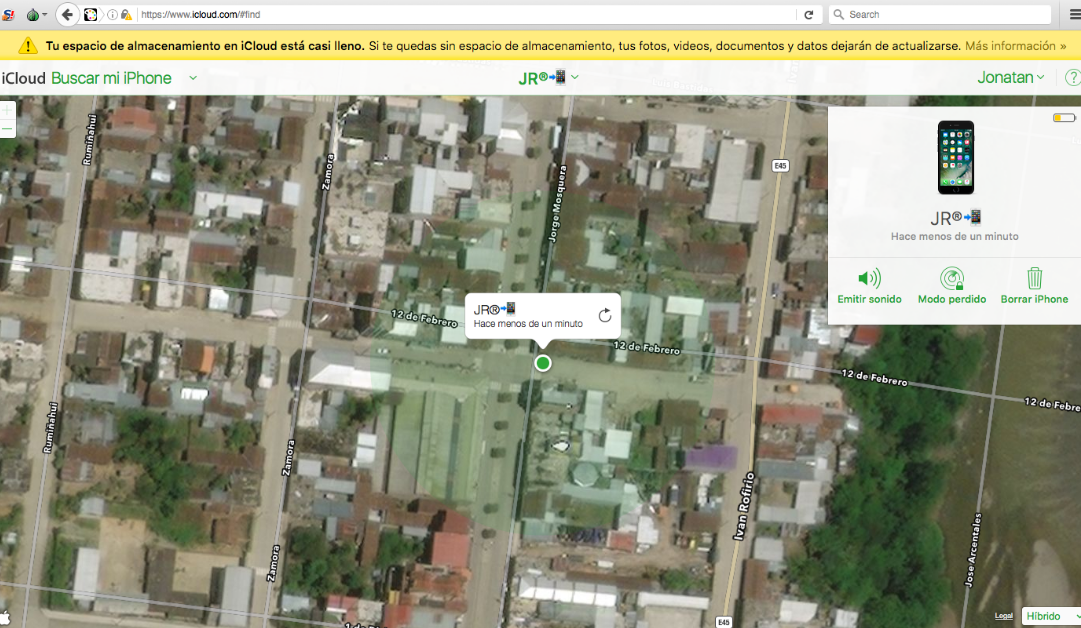
Coming back to Jonatan, the beauty of the iCloud service (and the lure used by Jonatan’s phishing service) is that iPhones can be located fairly accurately to a specific address. Alas, because Jonatan phished his own iCloud account, we can see that according to Jonatan’s iCloud service, his phone was seen in the following neighborhood in Ecuador on March 7, 2017. The map shows a small radius of a few blocks within Yantzaza, a town of 10,000 in southern Educador:
Jonatan’s home town, according to the results of his “find my iphone” feature in iCloud.
Jonatan did not respond to multiple requests for comment.
Wer sein Büro nicht direkt um die Ecke hat, der weiß: Pendeln ist kein Kindergeburtstag. Wir zeigen euch sechs Apps für Android und iOS, die euch den Weg zur Arbeit angenehmer machen sollen.
Apps für Nahverkehrs-Pendler
Wer eine Fahrt von A nach B mit öffentlichen Verkehrsmitteln planen will, greift meistens zu Apps wie dem DB Navigator oder Öffi. Doch es gibt auch spezielle Nahverkehrs-Apps für Pendler, die oft ein und dieselbe Verbindung nutzen. Hier könnt ihr euch über Verspätungen und Ausfälle schnell informieren und euch böse Überraschungen ersparen.
DB Streckenagent (Android, iOS)
Der DB Streckenagent zeigt euch, ob die Züge auf euren Favoriten-Verbindungen pünktlich kommen. (Screenshot: Google Play Store)
Der DB Streckenagent erscheint im üblichen rot-weißen Bahn-Design und kann verschiedene Favoritenverbindungen verwalten und darstellen. Für jede Verbindung lässt sich ein Zeitfenster von einer Stunde angeben, in dem eventuelle Verspätungen, Störungen oder Ausfälle per Push an euch weitergegeben werden. Warum diese Funktion allerdings eine eigene App braucht und nicht in diesem Umfang im DB Navigator untergebracht wurde, weiß wohl nur die Deutsche Bahn. Der DB Streckenagent ist sowohl für Android als auch für iOS kostenlos und werbefrei erhältlich.
Bei Pendel-Panda könnt ihr per Drag and Drop Verbindungen zwischen verschiedenen Orten suchen. (Screenshot: Google Play Store)
Bei Pendelpanda legt ihr auf der App-Startseite bis zu zwölf Stationen bzw. Adressen ab und könnt die abzufragende Verbindung anschließend festlegen, indem ihr den Startpunkt auf den Endpunkt eurer Verbindung zieht. So habt ihr einen schnellen Zugriff auf verschiedene Verbindungen zwischen euren Lieblingsorten. Die Ergebnisse werden direkt von der mobilen Website der Deutschen Bahn eingeblendet. Für die Preisvorschau könnt ihr nicht nur Verkehrsmittel, sondern auch die Klasse und eine eventuelle Bahncard angeben. Die kostenlose Version ist voll funktionsfähig – allerdings müsst ihr mit Werbeeinblendungen rechnen. Für 3 Euro könnt ihr euch die werbefreie Version freischalten lassen.
Pendler: Kein Schnickschnack, dafür sehr zuverlässig. (Screenshot: Google Play Store)
Ganz auf das Wesentliche reduziert kommt Pendler daher: Die App des Entwicklers Guido Savelsberg gewinnt sicher keine Designpreise, überzeugt aber durch eine hohe Kompatibilität – bereits ab Android 2.3 könnt ihr den kleinen Helfer installieren. Ihr legt einfach eure meistgenutzten Verbindungen in den Einstellungen ab und könnt sie fortan auf dem Startbildschirm auswählen. Auch könnt ihr euch für diese Verbindungen einen Verspätungsalarm ab einem bestimmten kritischen Wert einstellen. Pendler ist kostenlos und von Haus aus werbefrei.
Pendelme: Favoriten anlegen und beliebig kombinieren – die schicke iOS-Alternative zu Pendelpanda. (Screenshot: iTunes Store)
Pendelme ist ähnlich aufgebaut wie der oben erwähnte Pendelpanda. Auch hier könnt ihr auf der Startseite verschiedene Favoriten-Orte mit eigenen Bezeichnungen und Icons festlegen. Auch eine normale Verbindungssuche zwischen Nicht-Favoriten ist möglich. Zwischen den einzelnen Verbindungen könnt ihr auch in der Detail-Ansicht schnell hin- und herwischen. Pendelme ist prinzipiell kostenlos, für eine werbefreie Version zahlt ihr einmalig 99 Cent.
Nicht nur in Peking nevenaufreibend: Der Verkehr in der Rush Hour. (Bild: testing / Shutterstock)
Besonders zur Rush Hour kann der Weg zur Arbeit im Auto zur Geduldsprobe werden. Doch für motorisierte Pendler gibt es auch abseits von Google Maps einige Apps mit besonderen Funktionen, die dafür sorgen, dass ihr pünktlich und stressfrei euer Ziel erreicht.
INRIX Traffic Karten & GPS (Android, iOS)
Inrix Traffic Karten & GPS erinnert euch rechtzeitig, damit ihr nicht zu spät ins Auto steigt. (Screenshot: Google Play Store)
Die INRIX-App ähnelt im Funktionsumfang der Konkurrenz von Waze, allerdings ist der Fokus hier etwas deutlicher auf das Pendeln gelegt. So gibt es zum Beispiel einen Abfahrts-Alarm, der die aktuelle Verkehrslage berücksichtigt und sich rechtzeitig per Push meldet, wenn ihr losfahren müsst. Auch bei der Parkplatzsuche ist euch die App behilflich. INRIX Traffic Karten & GPS ist sowohl für Android als auch iOS kostenlos erhältlich.
Waze ist der App-Rundumschlag für die Fortbewegung per PKW: Neben klassischen Routenplanungs-Funktionen lernt die Software auch eure bevorzugten Pendelstrecken und berücksichtigt Staus, Polizeikontrollen und Straßensperren. Ihr könnt euch sogar die aktuellen Benzinpreise bei den Tankstellen auf eurer Route anzeigen lassen. Eine Echtzeit-Fahrtübertragung à la Glympse ist ebenso implementiert wie eine Community-Funktion, mit der ihr andere Fahrer über besondere Vorkommnisse informieren könnt. Waze ist kostenlos und für Android und iOS erhältlich.
Die Empfehlungen in diesem Artikel haben keineswegs den Anspruch auf Vollständigkeit. Wir freuen uns über eure Tipps: Welche Apps nutzt ihr für den täglichen Weg zur Arbeit?
Der Exodus aus Apples Mac App Store hält an. Nun hat auch das Entwicklerstudio St. Clair Software die Konsequenzen aus den schlechten Verkaufsbedingungen gezogen und Apples Onlineshop verlassen. (Apple App Store, Apple)
Die Teilnahme an Demonstrationen oder die Verwendung von bestimmten Hashtags in sozialen Netzwerken könnten von Firmen oder Entwicklern systematisch ausgewertet werden. Das hat Facebook nun in seinen Nutzungsbedingungen klarer als früher untersagt. (Facebook, Soziales Netz)
One of the wins for Office 365 customers who have OneDrive for Business included in their licensing is to migrate users’ personal files to OneDrive.
For files that are stored in home drives on traditional file servers, the reduction in server and storage costs is a benefit. For other personal files stored on local computers, moving the files to OneDrive so that they are safely stored in the cloud is also a benefit.
Generally speaking, OneDrive for Business works well for:
“My documents” scenarios
Simple sharing of documents between small groups of collaborators
Storing data in the cloud where compliance and security can be enforced
Syncing files to mobile computers and devices for working offline or remotely
The OneDrive sync client can also synchronize files from SharePoint libraries for offline access to team files. So having it configure and ready to go is useful to end users who travel or work in places with poor connectivity.
In this article I’m going to demonstrate a simple migration scenario for migrating home drives to OneDrive for Business. For the purposes of this demonstration the environment consists of:
Office 365 E3 licensed users.
Office 2016 (via Office 365 ProPlus) client installations on Windows 10 computers.
The “Next Gen Sync Client” (NGSC), also generally referred to as OneDrive.exe, as opposed to the old Groove.exe sync client that has different features, performance, and reliability.
User home drives located on a file server
Folder redirection for Documents and other well known folders to the home drives
Specific strings of characters in file names (e.g. COM1)
Specific strings in folder names
Maximum of 30 million documents per library
10GB file size limit
Files names or paths with more than 256 characters
Those limitations may change over time, so you should always review the latest information on Microsoft’s support site. There’s a variety of other limits and user experience caveats to be aware of as well.
But for the file limitations, an analysis of the data your planning to migrate would be advisable. This could be as simple as a PowerShell script that recursively scans the file server to look for the issues above. If you qualify for FastTrack support from Microsoft, that service includes analysis and remediation as part of the process (and you can use them for the entire migration, so you don’t need to read this article at all if you don’t want to).
Reviewing OneDrive for Business Admin Settings
The OneDrive for Business Admin portal allows you to control a variety of settings for OneDrive users, such as whether they are able to share content external to the organization, sync with non-domain joined computers, how files can be used from mobile devices, DLP policies, and more. Before you proceed with your OneDrive migration, it’s worth reviewing the settings to make sure they align with your expectations and security policies.
For example, you might consider it necessary to disable sharing of SharePoint and OneDrive content with external users, or limit syncing of files to domain-joined computers only.
Configuring a Group Policy
OneDrive has a Group Policy template available from Microsoft. The OneDrive GPO can be used to set the default location for the OneDrive folder, among other useful settings. That particular setting, in combination with a standard folder redirection policy, is how I’ll be handling the migration in this environment.
The objective of the Group Policy is to:
Create an environment variable representing the OneDrive sync location, so that the variable can be used in the Group Policy folder redirection settings. I’ve used Microsoft’s guidance here. The variable in this example is set to “%userprofile%\OneDrive – Exchange Server Pro”.
Create a new folder in the %OneDriveSync% location. This can be achieved with a Group Policy preference.
Preventing users from choosing a different OneDrive location on the user’s computer. Note that this requires editing the Group Policy template (ADMX file) in the Central Store with your tenant ID. This ensures that the default path of “%userprofile\OneDrive – Tenant Name” is used. Although the GPO template can also be edited to specify a different sync folder, it doesn’t seem to work with variables at all. In my experience it’s easiest to just accept the default path and then restrict users from changing it.
Apply a new folder redirection policy that directs Documents and other folders to the %OneDriveSync% location instead of the home drive on the file server (the policy will move existing files as well).
For this environment I’ve placed the OneDrive GPO as a higher priority than the existing folder redirection GPO. I’ve also scoped the OneDrive GPO only to members of the “OneDrive for Business Users” security group, and denied the “Apply” permission for the previous folder redirection GPO for the “OneDrive for Business Users” group. Note that after removing Authenticated Users from the scope of the new policy, you then need to go to the Delegation tab and delegate the “Read” permission for the GPO, or you may find it does not process at all.
So in effect this all means I can roll out OneDrive to users by adding them to that security group. There is also some end user communication involved in the whole process. You’ll want to make sure your users are expecting the change so there’s no surprises or confusion.
Something to be aware of is that the folder redirection will overwrite any existing data in the destination location that has the same file name and path. If any of your users have already begun using OneDrive and storing files, you should manually deal with those to avoid conflicts. You can find active OneDrive users in the usage reports in the Office 365 admin portal.
Configuring the OneDrive for Business Sync Client
After the GPO has applied, when the user signs in to OneDrive, it will begin syncing that existing data in the local path to the cloud. For environments without any SCCM or other systems in place to initiate a program running in the context of the user, a workaround is to email the user a link to odopen://, which will trigger the OneDrive client to launch. Since you likely want to send them some login instructions and other general adoption advice for OneDrive, you can simply bundle all that up into a single email.
When the user opens OneDrive they’ll be able to walk through the setup process. You should ensure that the instructions you provide are clear about what they should do at each step of the initial configuration wizard.
Monitoring the Deployment
The initial synchronization of files to OneDrive may have a detrimental impact on your network performance. Monitor your network utilization so that you don’t roll out too many users simultaneously.
You can continue to use the OneDrive usage reports in the Office 365 admin portal to track the adoption of OneDrive by your users.
It’s also possible to quickly pull a report of OneDrive usage by using PowerShell.
Once you’re satisfied that user home drives have been migrated to OneDrive for Business, you can do a scan of your file server to confirm that the home drives for users are empty, and then start decommissioning those shares so that the storage can be reclaimed. For any users who have not logged on and completed their migration you can manually assist them, or back up their home drive files elsewhere, or even upload the files to their OneDrive in the cloud yourself so that they’re waiting for initial sync to the client.
Auch wenn das Surface Phone erst im kommenden Jahr erscheint, wird es 2017 ein neues Windows-Smartphone geben. Wir berichten über die Handy-Pläne von Microsoft.
Der Druck auf Apple steigt. Seit Jahren beklagen Entwickler die restriktiven Sandboxing-Vorgaben und weitere Ärgernisse; jetzt verlassen immer mehr von ihnen den Mac App Store. Wird Apple reagieren?
Mac App Store: Restriktive Vorgaben
Mit St. Clair Software hat ein weiterer etablierter Mac-Entwickler den Mac App Store verlassen. Seit fast 30 Jahren schreibt der Entwickler Jon Gotow Mac-Software, den Rückzug von der Apple-Vertriebsplattform erklärt er in einem entsprechenden Blogeintrag mit wirtschaftlichen Gründen. Die Apps seien schon älter gewesen und es habe schlicht keinen Sinn mehr gemacht, sie so aufzupolieren, dass sie den aktuellen Anforderungen Apples entsprächen, meint Gotow.
Entwickler sagen Mac App Store goodbye. (Screenshot: Apple/t3n.de)
Für Nutzer sei der Mac App Store bequem in der Nutzung, Entwickler müssten allerdings zahlreiche Hürden meistern. Einige der großen Probleme habe Apple trotz jahrelanger konstruktiver Kritik nicht behoben, klagt Gotow. Aus Entwicklersicht sei etwa die Sandboxing-Vorgabe zu restriktiv, große Updates könnten nicht zum Upgrade-Preis angeboten werden, und die Entwickler hätten keine Möglichkeit, auf Kommentare und Nutzerbewertungen zu antworten.
Für Gotow ist der Aufbau einer wechselseitigen Beziehung zum Kunden auch einer der Gründe, seine Software-Produkte künftig außerhalb des Mac App Stores zu verkaufen. Außerdem betonen viele Entwickler, dass sie Nutzer außerhalb von Apples App-Plattform schneller mit Aktualisierungen versorgen könnten. Und nicht zuletzt können namhafte Entwicklerstudios im Selbstvertrieb wohl höhere Umsätze erwirtschaften. So berichteten etwa die Entwickler der Mac-Audioanwendung Piezo, Rogue Amoeba, von steigenden Umsätzen nach der Abkehr vom Mac App Store.
Entwickler verlassen Mac App Store
Neben St. Clair Software und Rogue Amoeba haben in den vergangenen Monaten weitere prominente Entwickler dem Mac App Store den Rücken gekehrt, wie jene des Farbwahl-Tools Sip, die Coda-Entwickler Panic und Bohemian Coding, das das Designtool Sketch entwickelt hat. Sollte Apple sich nicht zu einer Reaktion oder gar möglichen Aufweichungen der restriktiven Vorgaben veranlasst sehen, könnten in den nächsten Monaten weitere Entwickler den App-Laden verlassen. Allerdings soll zumindest die Kommentarfunktion mit dem nächsten OS-Update eingeführt werden.
Drah‘ Di net um, oh oh oh
schau, schau, der Kommissar geht um! oh oh oh
Er wird Dich anschau’n
und do weißt warum.
Falco
Es waren wohl Zivilbeamte im Einsatz gegen den Schnee, auf dem wir alle talwärts fahren. Mit meinem Mandanten wollten sie einen Beifang machen. Vermutlich lümmelten sie während einer Observation ohnehin nur im Auto rum. Mangels anderweitiger Beschäftigung bietet es sich da natürlich an, die Verkehrsampel im Auge zu behalten.
Als Ergebnis wollen die Polizisten beobachtet haben, wie mein Mandant bei rot über eine Ampel fuhr. Beim Ausfüllen der für sie ja eher fachfremden Formulare aus dem Verkehrsdezernat haben sich die Fahnder sogar alle Mühe gemacht. Jedenfalls, was die Formalien angeht. So erfahren wir folgendes:
Das Fahrzeug meines Mandanten soll sich 5 Meter vor der Haltelinie befunden haben, als die Ampel auf rot sprang. Die höchstzulässige Geschwindigkeit betrug 50 km/h. Mein Mandant soll „beschleunigt“ und „zügig“ durchgefahren sein.
Tatvorwurf laut Bußgeldbescheid:
Sie missachteten das Rotlicht der Lichtzeichenanlage. Die Rotphase dauerte bereits länger als 1 Sekunde an.
Das soll ein Bußgeld von 200,00 Euro kosten. Und einen Monat Fahrverbot.
Aber halten wir kurz inne und prüfen die Angaben der Polizisten auf Plausibilität. Das tun wir mit der simplen Frage, wie viele Meter ein Auto pro Sekunde zurücklegt, wenn es mit 50 km/h – eine andere Tempomessung haben wir ja nicht – unterwegs ist. Das lässt sich sehr einfach ausrechnen, und zwar mit der jederzeit googelbaren Formel: 50:3,6 = 13,89 Meter pro Sekunde.
Genau diese 13,89 Meter (plus einen Zentimeter) hätte der Wagen meines Mandanten noch von der Haltelinie entfernt sein müssen, als die Ampel auf rot sprang. Dabei wird schon unterstellt, dass mein Mandant die höchstzulässigen 50 km/h auf dem Tacho hatte. Für die vielbefahrenen Kreuzung, um die es geht, mitten im Feierabendverkehr ist das an sich schon ein halsbrecherisches Tempo. Oder, um es mit einer im Vordringen befindlichen juristischen Meinung zu umschreiben: Mordversuch. Wie auch immer, bei einer Entfernung von fünf Metern ist die Ampel vielleicht rot gewesen. Aber noch nicht länger als eine Sekunde.
Das riecht nach schneller Einstellung, Herr Kommissar. Hoffen wir, dass Sie beim Abwiegen Ihrer Drogenfunde ein sichereres Händchen haben.
Zwei Kollegen, Mann und Frau, tauschen ihre E-Mail-Signaturen. Während er zwei Horror-Wochen erlebt, hat sie die produktivste Zeit ihres Lebens – ein Experiment, das Rückschritte aufzeigt.
Zwei Arbeitskollegen einer Arbeitsvermittlungsagentur in den USA haben ein Experiment gestartet: Die Kollegin und der Kollege tauschten für zwei Wochen ihre E-Mail Signaturen. So unterschrieb Nicole Pieri als Martin R. Schneider und Martin R. Schneider als Nicole Pieri. Die Arbeit erledigten beide wie gewohnt. Während sie die produktivsten 14 Tage ihres Lebens hatte, berichtete er via Twitter über die Diskriminierung, die ihm widerfahren ist.
We did an experiment: For two weeks we switched names. I signed all client emails as Nicole. She signed as me.
Folks. It fucking sucked.
— Martin R. Schneider (@SchneidRemarks) 9. März 2017
Produktivität gegen die harte Realität
Das Experiment entstand, als Schneider zuvor versehentlich eine Mail im Sammel-Account unter Nicoles Namen verschickt hatte. Im Büro landen alle E-Mails in einem zentralen Postfach, auf das alle Mitarbeiter Zugriff haben. Die jeweils zuständigen Angestellten beantworten die Nachrichten dann mit ihrer persönlichen Signatur.
Der Kunde antwortete Schneider daraufhin – allerdings alles andere als höflich: Martin R. Schneider schreibt in seinen Tweets, dass der Kunde herablassend war und seine Fragen ignorierte. Bis es ihm dämmerte: Der Kunde verhielt sich so, weil mit einer Frau kommunizierte – oder das zumindest dachte.
Anschließend wollten sie testen, ob diese Reaktion ein Einzelfall war oder doch zur Regel gehört. Der 28-Jährige berichtet weiter, „durch die Hölle“ gegangen zu sein: All seine Handlungen seien hinterfragt worden, alle Kunden, zu denen er vorher ein gutes Verhältnis hatte, wurden misstrauisch. Jemand fragte sogar, ob er Single sei.
Bei Nicole sahen die zwei Wochen völlig anders aus: Vorher war sie hin und wieder von ihrem Chef kritisiert worden, dass sie zu lange für ihre Aufgaben benötigen würde. Das lag nach Schneiders Einschätzung scheinbar daran, dass sie länger brauchte, um Klienten von ihren Vorschlägen zu überzeugen. Jetzt konnte Nicole unter seinem Namen produktiv und ungestört arbeiten – und das ohne für ihre Vorschläge kritisiert zu werden.
Und der Chef fällt aus allen Wolken
Als die Kollegen ihrem Chef schließlich ihre Erkenntnisse präsentierten, zeigte dieser sich fassungslos. Auch Martin, der in ihre Rolle geschlüpft war, zeigte sich entrüstet. Und Nicole? Die konnte die ganze Aufregung kaum nachvollziehen – für sie gehörte dieses Verhalten schlicht zum Arbeitsalltag.
Dennoch verlief das Meeting nicht wie geplant: Der Chef sagte, dass es eine Million Gründe haben könne, weshalb die Klienten so unterschiedlich reagiert hätten. Niemand würde wissen, ob es an der Qualität der Arbeit oder der Leistung generell läge.
Here's the real fucked-up thing: For me, this was shocking. For her, she was USED to it. She just figured it was part of her job.
— Martin R. Schneider (@SchneidRemarks) 9. März 2017
Sie hatte sich an den herablassenden Umgangston der Klienten gewöhnt. Die Ergebnisse liegen keiner wissenschaftlichen Studie zugrunde – müssen sie auch gar nicht. Die Erlebnisse zeigen lediglich, wie die Gleichberechtigung im Arbeitsalltag aussieht: In manchen Bereichen noch viel zu rückschrittlich.
Microsoft hatte beim Surface Studio mit einer eher geringen Nachfrage gerechnet, immerhin war die Zielgruppe doch sehr speziell: Surface Studio ist für Kreative gedacht, die mit ihrer Arbeit Geld verdienen und sich das teure Stück Hardware auch leisten können. Der große Hype rund um das Gerät, die sehr positiven Testberichte sowie wohl auch seine Exklusivität haben wohl bei vielen Menschen den „Haben-will“-Effekt ausgelöst. Erst im Juli wird das Gerät wohl hierzulande erhältlich sein und es scheint auch eine Erklärung für die lange Wartezeit zu geben.
Anscheinend kommt Microsoft nämlich nicht mit der Produktion des Surface Studio mit, was offiziell natürlich an der überwältigenden Nachfrage liegt, inoffiziell scheint aber auch die Komplexität des Geräts selbst dafür verantwortlich zu sein. Wie Dr. Windows berichtet, soll die Ausschlussquote beim Zulieferer enorm hoch sein. So heißt es, dass knapp die Hälfte aller Surface Studio-Displays aussortiert werden müssen, da sie die Qualitätskontrolle nicht passieren. Microsoft hat seine Zulieferer da vor eine echte Herkulesaufgabe gestellt, denn das 28-Zoll große, mit 4500 x 3000 Pixel auflösende Touch-Display mit Stiftunterstützung ist offenbar alles andere als leicht herzustellen.
Für Microsoft ist natürlich besonders ärgerlich, wenn man ein so nachgefragtes Gerät baut und es dann nicht verkaufen kann, da die Produktion zu lange dauert. Es bleibt aber zu hoffen, dass der Zulieferer die Probleme in den Griff bekommt und wir auch in Deutschland schon bald die ersten Surface Studio All-in-One PCs stehen haben.
Testen während des Programmierens, eine bessere Autovervollständigung, bessere Mobile-App-Entwicklung: Visual Studio 2017 bringt neue Funktionen, die schon beim entschlackten Installer anfangen. (Visual Studio, Microsoft)
From the developer of SpotBright and Diarium comes WorkingHours, yet another quality UWP app for Windows 10 of all varieties. This one's an implementation of the classic 'log your time spent on various projects/clients' and it's very slickly done indeed, with multiple views, a ton of integration and backup options, and full adaptability to different screens and sizes. Top notch.


 Apple hat mehrere Jahre Druck auf Händler ausgeübt, einen fixen Verkaufspreis für das iPhone zu verlangen. Zu diesem Ergebnis kommt die russische Kartellbehörde, sie will Apple dafür belangen. Die Strafzahlung soll in den kommenden Tagen verkündet werden. (iPhone, Smartphone)
 Arme sind für Selbstporträts mit dem Smartphone zu kurz und Selfie-Sticks zu umständlich. Was liegt also näher, als stattdessen eine kleine Drohne mit Kamera zu verwenden? Golem.de hat den Quadcopter Airselfie im Hosentaschenformat ausprobiert. Ein Hands on von Tobias Költzsch (















 Der Exodus aus Apples Mac App Store hält an. Nun hat auch das Entwicklerstudio St. Clair Software die Konsequenzen aus den schlechten Verkaufsbedingungen gezogen und Apples Onlineshop verlassen. (Apple App Store, Apple)
 Die Teilnahme an Demonstrationen oder die Verwendung von bestimmten Hashtags in sozialen Netzwerken könnten von Firmen oder Entwicklern systematisch ausgewertet werden. Das hat Facebook nun in seinen Nutzungsbedingungen klarer als früher untersagt. (Facebook, Soziales Netz)


 Auch wenn das Surface Phone erst im kommenden Jahr erscheint, wird es 2017 ein neues Windows-Smartphone geben. Wir berichten über die Handy-Pläne von Microsoft.


 Testen während des Programmierens, eine bessere Autovervollständigung, bessere Mobile-App-Entwicklung: Visual Studio 2017 bringt neue Funktionen, die schon beim entschlackten Installer anfangen. (Visual Studio, Microsoft)