Tom Roche
Shared posts
Our spotlight shines on Rob Pue
Tom Rochererun
Bonus Holiday Episode! Michael Moore Pt. 2, Matt on the Afghanistan Papers
Tom Rochenot as good as part 1
Part two of the Useful Idiots conversation with Michael Moore on his childhood, Rumble, the environment and more. Matt discusses the Washington Post's Afghanistan Papers, and a bonus episode of the Most Stoned Moments
Learn more about your ad choices. Visit megaphone.fm/adchoices
Behind the News, 12/26/19
Tom Roche[Adam Kotsko](https://adamkotsko.com/), author of [“The Evangelical Mind,”](https://nplusonemag.com/issue-35/politics/the-evangelical-mind/) on the life and thought of that tendency • [Shailja Sharma](https://las.depaul.edu/academics/international-studies/faculty/Pages/shailja-sharma.aspx) on India’s new citizenship law and protests against the country’s drift into fascism
Greenhouse Gas Emissions and the Right to Dump Sewage on Your Lawn
Tom Rochegood section on fossil-fuel subsidies, including
> a recent [analysis](https://www.imf.org/en/Publications/WP/Issues/2019/05/02/Global-Fossil-Fuel-Subsidies-Remain-Large-An-Update-Based-on-Country-Level-Estimates-46509) from the I.M.F. not usually known as a place for whacky tree-hugging environmentalists, placed the global cost of the implicit subsidies for fossil fuels at 6.5 percent of GDP in 2017. That would come to around $5.7 trillion this year. You can retrofit a huge number of buildings, build many million electric powered cars, and install an awful lot of solar and wind power for $5.7 trillion.
(This post originally appeared on my Patreon page.)
In debates over protecting the environment, and especially global warming, it is standard practice to refer to the pro-protection side as being in favor of government regulation and the anti-protection side as being pro-free market. This is nonsense and it is nonsense in a way that strongly benefits the enemies of environmental protection.
There is a simple way to think about environmental protection. If I build a home and want to dispose of my sewage in the cheapest possible way, I will just dump it on my neighbor’s lawn. Environmental regulation means having the government say that I can’t do this.
It is bizarre that somehow the prohibition of dumping my sewage on my neighbor’s lawn is treated as government regulation interfering in the market. The government is protecting my neighbor’s property. Prohibiting me from dumping sewage on her lawn is not really different from prohibiting me from building an addition that takes up half of her lot. In both cases, the government is not acting to interfere with the market, it is acting to protect the property rights that are the foundation of the market.
Somehow this basic logic has gotten lost in discussions of environmental regulation and in particular with respect to policies designed to curb global warming. The right routinely gets away with the idea that its opposition is grounded in a commitment to the free market and that those who want to protect the environment are proponents of big government bureaucracy telling everyone what they can and can’t do.
At this point, the fact that greenhouse gas (GHG) emissions are warming the planet and leading to a wide variety of disastrous climate outcomes is no longer debatable. The decision by some politicians to insist ignorance on the issue changes nothing. We know that spewing greenhouse gases into the atmosphere is imposing damage on people in the present and will do much more in the future. Restricting these emissions is effectively telling people that they can’t dump their sewage on their neighbor’s lawns.
In this context, there is no defense to regulations restricting GHG emissions. There are no philosophical or ideological points at issue. The only question is how best to limit GHG emissions and how much we should be willing to pay to do so.
There’s No Place Like the ‘Center’ for the Holidays
Tom Rocheexcellent pullquote:
> For all this talk of empathizing with one’s conversational counterpart, corporate media never mentions one approach that might actually work: establishing a shared distrust of elites. A 2014 survey found that 82% of people felt the country’s wealthiest people wielded too much political influence, and 69% felt “working people” had too little (Associated Press, [7/13/17](https://apnews.com/c3188d43486b4ae29dd33f7d6c3d9735/AP-NORC-Poll:-Three-quarters-in-US-say-they-lack-influence)).

The Washington Post (11/25/19) presents the holiday dinner table as ” a minefield — just waiting to be detonated by political opinions.”
As the holidays approach, corporate media issue a spirited message to readers: Pipe down about politics. Major outlets repeatedly warn that family gatherings are potential hotbeds of political contention, and readers must be strategic with discordant relatives in order to prevent heated debate.
In November, the Washington Post’s “Have Different Politics From Your Family? Here’s How to Survive the Holidays” (11/25/19) offered strategies on how to “avoid detonating the room” with opinions. Last year, the New York Times (11/20/18) instructed readers on “surviving” Thanksgiving, with tips including “don’t mention President Trump” and “find the cutest thing in the room and home in.” The year before, PBS NewsHour (11/22/17) even produced a printable placemat with prescriptions for “civil” holiday conduct, with advice on questions like “how to end a conversation that gets heated or politically charged,” and “should we be having these conversations at all?”
Holiday civility guides might seem innocuous; after all, they ostensibly seek to foster relationships, encouraging people to enjoy food and play with babies in the process. Yet in so doing, they dismiss and stigmatize political dissent.

“Just watch how Judy [Woodruff] asks questions on the NewsHour every night, and do it that way.” (PBS NewsHour, 11/22/17)
These claims offer a glimpse into corporate media’s technocratic, right-skewing political conceptions. Preaching “politics isn’t that important,” for example, is a luxury only the most protected classes can afford—it’s not an option for those facing threats of deportation or SNAP cuts. In a particularly on-the-nose piece, the New York Times (11/26/19) designed a chatbot to coach readers on conversations with an imagined cantankerous uncle of a different political inclination from their own. Users can choose between “liberal” or “conservative”—which, judging by the article, are the only political alignments that exist among families in the US.
These appeals to “civility” evoke a common trope in corporate media. Outlets, including those mentioned above, routinely chastise anyone who would dare to condemn powerful figures without politely asking permission to do so. Several analysts have expounded (Citations Needed Podcast, 6/13/18; FAIR.org, 6/27/18, 10/31/18) upon this topic in recent years, observing how the media castigates those who defy elites—critics of the late wealth-hoarding warmonger John McCain, restaurant workers who refused to serve Trump’s former press secretary Sarah Huckabee Sanders—for their perceived boorishness. It’s no wonder, then, that holiday gatherings are used as yet another opportunity to stifle discourse that might challenge the political establishment.

Vox (11/26/19) urges progressives to frame their arguments in terms of “in-group loyalty, moral purity and respect for authority.”
Still, in the interest of appearing objective, holiday civility entreaties often include some sort of scientific citation. On November 27, Barack Obama tweeted, “Before arguing with friends or family around the Thanksgiving table, take a look at the science behind arguing better.” Obama posted a link to a corresponding Vox article (11/26/19) that provided psychological “techniques” for political discussion, including finding an argument that “resonates” with someone of another political tendency, and making one’s ideological opponents “feel like they’ve been heard.” This, the story argued, would lead interlocutors to find their “common humanity.”
The article treated “liberals” and “conservatives” as opponents of equal moral validity, even including a tip on how conservatives could convince liberals to support an increase in military spending. (Say something like: “Through the military, the disadvantaged can achieve equal standing and overcome the challenges of poverty and inequality.”) The day after the article was published, Vox (11/27/19) ran an interview with psychology professor Joshua Grubbs admonishing readers not to engage in “moral grandstanding.” The piece touted centrists as model arguers: “People that are more toward the middle grandstand less so,” said Grubbs.
In its aforementioned holiday “survival” guide, the Washington Post (11/25/19) claimed that “science has determined that both incivility and kindness are contagious.” The article linked to another Post story (6/26/18) calling “rudeness” “as contagious as the common cold” and lamenting the fact that protesters would dare to “heckle” former Secretary of Homeland Security Kirstjen Nielsen at a Washington, DC, restaurant. The protesters, of course, weren’t “heckling” Nielsen; they were confronting her about deportation and family separation at the US/Mexico border. Still, the story implied they were infected by a general climate of incivility, and not acting out of outrage at the brutality—the unkindness, in Washington Post–speak—of US immigration policy. But the “kindness” corporate media are most concerned about is the kind deserved by the powerful.
For all this talk of empathizing with one’s conversational counterpart, corporate media never mentions one approach that might actually work: establishing a shared distrust of elites. A 2014 survey found that 82% of people felt the country’s wealthiest people wielded too much political influence, and 69% felt “working people” had too little (Associated Press, 7/13/17). But this runs counter to the establishment-boosting agenda of corporate media, which consistently encourages progressives not to find common ground on economic issues (FAIR.org, 6/20/17).
This shows no signs of changing. Just in time for the December holidays, Facebook developed a chatbot to control how its employees discuss issues like privacy and content moderation with their relatives. The New York Times’ coverage (12/2/19) could have decried the company’s attempts to convert its employees into 24-hour PR representatives during their holiday vacations. Instead, the Times toed the pro-business line, praising the bot for providing “answers to difficult questions” and for being “practical with personal technology advice.”
Corporate Media Find All the Wrong Lessons for US Left in Corbyn’s Defeat
Tom RocheMacLeod's 5-point analysis (list bodies omitted below, except for excerpt from item#=5) is yet of US-left takeaways from UK 2019 election:
> 1. Get ready for a coordinated media smear campaign.
> 2. The antisemitism smears are coming.
> 3. Solidarity with developing countries will not be tolerated.
> 4. Building a movement to reach elderly voters will be crucial.
> 5. Don’t unquestioningly accept advice from centrists.
...
> All of the centrist defectors from the Conservatives and Labour lost their seats, as did the pro-EU, stop-Brexit-at-any-cost Liberal Democrat leader Jo Swinson—illustrating that the media center and the public center are not always the same.
 Conservative leader Boris Johnson swept to power in the UK’s December 12 elections, winning 365 of a possible 650 seats. Labour’s socialist leader Jeremy Corbyn announced his resignation, after a bitterly disappointing night for his party.
Across the spectrum, corporate media all came to the same conclusion regarding the election: Corbyn’s loss spells the end for the US left and a “crushing defeat” (New York, 12/13/19) of the discredited policies of socialism. The press was filled with variations on the same reflexive warning to the Democrats: Don’t go left.
Indeed, CNN published three near-identical articles with that message in one 24-hour span (12/12/19, 12/13/19, 12/13/19). The first, written even as polling stations were still open, suggested that “the Democratic Party may see a cautionary tale for the US 2020 presidential race,” as Corbyn “promised revolutionary change, a fundamental overhaul of society, heavy new taxes on the rich and a far bigger role for the state in the economy. Sound familiar?” It claimed he “took his party way to the left, leaving the more moderate ground where many voters feel most comfortable.” Going on to attack Elizabeth Warren and Bernie Sanders specifically, it suggested that proposing a “state-run healthcare system” like Britain’s is a “vote killer,” and that Corbyn’s imminent loss implies Joe Biden or Pete Buttigieg would be a better candidate.
Only a few hours later, John Avalon claimed (CNN, 12/13/19) the election was a “fierce repudiation” of leftist politics, presenting a “cautionary tale about the perils of polarization and the predictable dangers of embracing a far-left leader” who would nationalize key industries. CNN editor-at-large Chris Cillizza (12/13/19) offered exactly the same opinion, claiming Johnson’s victory should “make 2020 Democrats nervous,” insinuating that embracing progressive politics and Medicare for All was political suicide, and recommending a more “moderate” or “pragmatic” candidate than Warren or Sanders.

The chorus did not stop at CNN, however. In fact, surveying just 24 hours of headlines is enough to understand the message corporate media appears so keen for you to hear:
- “Corbyn’s UK Defeat Was Bad News for Sanders, Warren and America’s Left” (NBC News, 12/13/19),
- “Labour’s Crushing Loss in Britain Adds to ‘Too Far Left?’ Debate in US” (New York Times, 12/13/19),
- “The Real Warning in Labour’s Crushing Defeat” (The Week, 12/13/19; Yahoo! News, 12/13/19),
- “Boris Johnson’s Win Should Send a Message to AOC, Warren and Sanders” (Fox News, 12/13/19),
- “Jeremy Corbyn’s Disastrous Loss Should Be a Warning to US Leftists” (Washington Examiner, 12/13/19)
- “Democrats Pick Over Labour Loss in UK as Biden Warns of Moving ‘So Far’ Left” (Guardian, 12/13/19)
- “In British Election, Lessons for American Liberals: Jeremy Corbyn Was Loved by the Left, and He Just Got Trounced” (Newser, 12/13/19),
- “Blowback From UK Election Burns Warren, Sanders: Centrists Warn Corbyn Defeat Highlights the Dangers of a Progressive Nominee” (Politico, 12/13/19),
- “Corbyn’s Loss Is a Warning to Sanders, Warren and the Squad About the Limited Appeal of Socialism” (Hot Air, 12/13/19),
- “Corbyn’s Bloodbath Defeat in UK Election Sends ‘Catastrophic Warning’ to 2020 Dems” (Fox News, 12/13/19).
There are a number of serious flaws with the reasoning, however. Few of these articles note that the UK’s version of Medicare for All, the National Health Service (NHS), is exceptionally popular, and the number one source of national pride for Britons. The NHS is so beloved that more people would countenance privatizing the army before the hospitals. Yet CNN still suggests that Corbyn’s support for the nationalized service contributed to his defeat. Furthermore, Labour’s leader and its overwhelmingly popular manifesto were virtually the same as in 2017, when Corbyn led the party to its best election result since World War II.

The only substantial difference between now and 2017 (unacknowledged in reporting) was that, at the demand of the “moderate” wing of his party, Corbyn had endorsed a second referendum on leaving the European Union without taking a position on the question, attempting to straddle the Brexit issue in a way that alienated both Remain and Leave voters. Just like the Democrats in 2016, a move to the center proved fatal.
Furthermore, none of the articles mentioned that there was another party who adopted precisely this “centrist,” “moderate,” “pragmatic”—or any other media code word (FAIR.org, 3/23/19, 8/21/19) meaning “corporate-approved”—position, and they fared poorly as a result. Jo Swinson, the leader of the Liberal Democrats, presented herself exactly as such, and suffered the ignominy of losing her seat to a 27-year-old rookie challenger from the Scottish National Party.
Nevertheless, there are certainly lessons that American progressives could learn from Labour’s loss:
1. Get ready for a coordinated media smear campaign.
British media managed to turn Corbyn, an elderly, vegetarian, anti-war pacifist, into a figure of hate, presenting him as a terrorist sympathizer, a Communist spy and a national security threat. One academic study of media coverage included an entire section entitled “Delegitimization through Ridicule, Scorn and Personal Attacks,” finding that 75% of articles misrepresented Corbyn or his views. And a report from Loughborough University found a relentless and overwhelming anti-Labour and pro-Conservative message across the British media in the election run up. Progressives who intend to challenge power can expect similar coordinated attacks from power’s mouthpieces.
2. The antisemitism smears are coming.

Jeremy Corbyn faced a torrent of trumped-up antisemitism charges (Mail, 7/29/19).
Media managed to convince much of the British public that the lifelong anti-racism activist is a secret Jew-hater. British historian Mark Curtis noted there had been 1,450 articles in national newspapers linking Corbyn to antisemitism in the past three months alone. The reason for the allegations, as the Washington Post noted in a since-deleted tweet, was “because of [his] strong statements on Palestinian rights.”
The barrage succeeded. When media researchers asked the public what percentage of Labour members faced official complaints over antisemitism, the average guess was 34%. The actual answer is 0.1%. When questioned why they were off by such a massive factor, respondents replied that they chose a number that seemed commensurate with the media coverage.
This tactic will be far more difficult to stick on somebody like Sanders who speaks with such a stereotypical New York Jewish accent. Yet media, seeing how effective it was in discrediting a progressive in the UK, have already begun attempting to smear those around him (e.g., Spectator, 12/5/19; Commentary, 12/13/19).
Of particular note is a Washington Examiner article (12/13/19) claiming Sanders’ campaign is “the most antisemitic in decades.” Its author, Tiana Lowe, calls infamous fascist troll Milo Yiannopoulos “awesome” and regularly boasts of her pride in her Nazi collaborator grandfather, whose organization participated in the Holocaust that killed Sanders’ close relatives. Nevertheless, the attacks, if not the substance of the allegations, must be taken seriously.
3. Solidarity with developing countries will not be tolerated.
Corbyn, like Sanders, immediately condemned the US-backed coup against Evo Morales in Bolivia, an action that drew the ire of an outraged pro-coup media (London Independent, 11/11/19; Daily Express, 11/11/19), who accused him of putting “Marxist solidarity ahead of democracy” (London Times, 11/12/19). Both men have been denounced for their connections, imaginary or otherwise, to Venezuela (FAIR.org, 3/5/19). Sanders’ history of solidarity with Nicaragua in the 1980s will be presented as support for a dictatorship. The left will have to have a response.
4. Building a movement to reach elderly voters will be crucial.

Chart: Lord Ashcroft Polling (12/13/19) (AB–DE represent socioeconomic classes–from managerial to unskilled labor.)
The Labour movement has managed to build an impressive network of alternative and social media countering the corporate press, reaching millions of young people, who voted 3 to 1 in favor of Corbyn. However, there was little concerted effort to reach elderly voters, who still largely rely on traditional media for news, information and opinion. This contributed to only 18% of those over 65 voting Labour, and the retired vote proved to be the backbone of the Tory victory. A similar phenomenon is happening in the US, where Sanders is the runaway favorite among the under-50s, but polls at just 5% among elderly voters, despite his commitment to the kind of social safety net programs they depend upon. Connecting with Boomers and Generation X, who use the Internet and social media for news far less than younger Americans, will require a specially geared effort.
5. Don’t unquestioningly accept advice from centrists.

Chart: Lord Ashcroft Polling (12/13/19)
Under enormous pressure from the “centrist” wing of his party and the media, Corbyn took a “on the one hand/on the other hand” approach to Brexit, the dominant issue of the campaign. Rather than arguing that leaving the European Union was a necessary response to undemocratic, austerity-loving Eurocrats—or, contrariwise, that Brexit must be opposed as a xenophobic scapegoating of immigrants, the British equivalent of “build the wall”—Labour was induced to split the difference, promising to renegotiate a break with the EU and then asking voters once again whether they wanted to leave or not, while Corbyn professed neutrality on the question. Following the media’s insistent advice that the safe path is always somewhere in the middle, the position called to mind the line attributed to Groucho Marx: “Those are my principles, and if you don’t like them… well, I have others.”
Virtually every seat Labour lost was a “Leave” constituency, suggesting that Corbyn was hurt by Labour’s attempts to “moderate.” Turnout also declined from 2017 to 2019, and there are indications that the decline was greater in constituencies with more young voters—by far the most pro-Labour demographic group. All of the centrist defectors from the Conservatives and Labour lost their seats, as did the pro-EU, stop-Brexit-at-any-cost Liberal Democrat leader Jo Swinson—illustrating that the media center and the public center are not always the same.
***
While there certainly are many things that progressives can learn from Labour’s defeat, the herd of independent minds in the corporate press can see only one lesson, the same one they have been sending the left for decades (see Extra!, 9/92, 1–2/95, 6/04, 7–8/06, 1–2/07; FAIR.org, 11/7/08, 3/16/10, 8/21/19), suggesting the advice may not be entirely in good faith.
Behind the News, 12/19/19
Tom RocheAditya Chakraborty @ the Guardian on the British election, BoJo, Brexit, the state of the Labour Party • Nathan Robinson @ Current Affairs and Guardian, author of Why You Should Be a Socialist, on that very topic
Real Python: Run Python Versions in Docker: How to Try the Latest Python Release
Tom RocheHow to use Docker containers as Python environments
There’s always a new version of Python under development. However, it can be cumbersome to compile Python yourself to try out a new version! As you work through this tutorial, you’ll see how to run different Python versions using Docker, including how you can have the latest alpha running on your computer within minutes.
In this tutorial, you’ll learn:
- Which versions of Python are available
- How to get started with Docker
- How to run different Python versions in Docker containers
- How to use Docker containers as Python environments
Let’s get started!
Free Bonus: Click here to get access to a chapter from Python Tricks: The Book that shows you Python's best practices with simple examples you can apply instantly to write more beautiful + Pythonic code.
Understanding Python Versions and Docker
The long journey of moving from Python 2 to Python 3 is coming to a close. Still, it’s important that going forward, you know about the different versions of Python and how to try them out. In general, there are three different kinds of versions you should be aware of:
-
Released versions: Typically, you’ll be running something like Python 3.6, 3.7, or 3.8. Each of these versions adds new features, so it’s good to be conscious of which version you’re running. For instance, f-strings were introduced in Python 3.6 and won’t work in older versions of Python. Similarly, assignment expressions only became available in Python 3.8.
-
Development versions: The Python community is continuously working on new versions of Python. At the time of this writing, Python 3.9 is under development. To preview and test new features, users have access to development versions labeled alpha, beta, and release candidate.
-
Implementations: Python is a language that has several implementations. An implementation of Python contains an interpreter and corresponding libraries. CPython is the reference implementation of Python and the one that is most commonly used. However, there are other implementations like PyPy, IronPython, Jython, MicroPython, and CircuitPython that cover specific use cases.
You’ll usually see which version of Python you’re using when you start a REPL. You can also inspect sys.implementation for more information:
>>> import sys
>>> sys.implementation.name
'cpython'

>>> sys.implementation.version
sys.version_info(major=3, minor=9, micro=0, releaselevel='alpha', serial=1)
You can see that this code is running the first alpha version of CPython 3.9.
Traditionally, you’d use tools like pyenv and conda to manage different Python versions. Docker can replace these in most cases, and it’s often simpler to use. In the rest of this tutorial, you’ll see how to get started.
Using Docker
Docker is a platform for running containers with prepackaged applications. It’s a very powerful system that’s particularly popular for packaging and deploying applications and microservices. In this section, you’ll see the fundamental concepts you’ll need to know to use Docker.
Installing Docker
Docker is available on all major operating systems: Windows, macOS, and Linux. See the official guide for instructions on how to install Docker on your system. Unless you have special needs, you can use the Docker Engine - Community version.
Running Containers
Docker uses the concepts of images and containers. An image is a self-contained package that can be run by Docker. A container is a running image with a certain state. There are several repositories containing pre-built Docker images. Docker Hub is the default repository that you’ll use in this tutorial. For a first example, run the hello-world image:
$ docker run hello-world
Unable to find image 'hello-world:latest' locally
latest: Pulling from library/hello-world
1b930d010525: Pull complete
Digest: sha256:451ce787d12369c5df2a32c85e5a03d52cbcef6eb3586dd03075f3...
Status: Downloaded newer image for hello-world:latest

Hello from Docker!
This message shows that your installation appears to be working correctly.
[ ... Full output clipped ... ]
The first lines show that Docker downloaded hello-world from Docker Hub. When it runs this image, the resulting container produces a "Hello from Docker!" message that prints to your terminal.
Building Your Own Images Using Dockerfiles
You can create your own images using Dockerfiles, which is a plain text file that describes how a Docker image should be set up. The following is an example of a Dockerfile:
 1 FROM ubuntu
 2 RUN apt update && apt install -y cowsay
 3 CMD ["/usr/games/cowsay", "Dockerfiles are cool!"]
A Dockerfile consists of a list of Docker commands. In the example above, there are three steps:
-
Line 1 bases the image on an existing image called
ubuntu. You can do this independently of which system you’re running Docker on. -
Line 2 installs a program named
cowsay. -
Line 3 prepares a command that runs
cowsaywhen the image is executed.
To use this Dockerfile, save it in a text file named Dockerfile, without any file extension.
Note: You can build and run Linux images on any platform, so images like ubuntu are great for building applications that should be available cross-platform.
In contrast, a Windows image will only run on Windows, and a macOS image will only run on macOS.
Next, build an image from your Dockerfile:
$ docker build -t cowsay .
The command will give a lot of output as it’s building the image. -t cowsay will tag your image with the name cowsay. You can use tags to keep track of your images. The final dot in the command specifies the current directory as the build context for your image. This directory should be the one containing Dockerfile.
You can now run your very own Docker image:
$ docker run --rm cowsay
 _______________________
< Dockerfiles are cool! >
 -----------------------
        \   ^__^
         \  (oo)\_______
            (__)\       )\/\
                ||----w |
                ||     ||
The --rm option will clean up your container after use. It’s a good habit to use --rm to avoid filling up your system with stale Docker containers.
Note: Docker has several commands for managing your images and containers. You can list your images and containers using docker images and docker ps -a, respectively.
Both images and containers are assigned a 12-character ID that you can find in these listings. To delete an image or container, use either docker rmi <image_id> or docker rm <container_id> with the correct ID.
The docker command line is very powerful. Use docker --help and the official documentation for more information.
Running Python in a Docker Container
The Docker community releases and maintains Dockerfiles for all new versions of Python, which you can use to try out new Python features. Additionally, the Python core developers maintain a Docker image with all currently available versions of Python. In this section, you’ll learn how to run different Python versions in Docker.
Playing With the REPL
When you run a Python image from Docker Hub, the interpreter is set up so you can play with the REPL directly. To start the REPL in a Python container, run the following command:
$ docker run -it --rm python:rc
Python 3.8.0rc1 (default, Oct  2 2019, 23:30:03)
[GCC 8.3.0] on linux
Type "help", "copyright", "credits" or "license" for more information.
>>>
This command will download the python:rc image from Docker Hub, start a container, and run python inside that container. The -it options are necessary for running the container interactively. The rc tag is shorthand for release candidate and points to the latest development version of Python. In this case, it’s the last release candidate of Python 3.8:
>>> import sys
>>> f"{sys.version_info[:] = }"
"sys.version_info[:] = (3, 8, 0, 'candidate', 1)"
The first time you run a container, it may take some time to download. Later invocations will essentially be immediate. You can exit the REPL like usual, for example, by typing exit(). This also exits the container.
Note: The Docker Hub Python images are kept reasonably well up-to-date. As new releases mature, their alpha and beta versions are made available at the rc tag.
However, if you want to test out the absolute latest versions of Python, then the core developers’ image might be a better bet:
$ docker run -it --rm quay.io/python-devs/ci-image:master
You’ll see a few more examples of using this image later.
You can find a list of all available Python images at Docker Hub. python:latest will always give you the latest stable version of Python, while python:rc will provide you with the most recent development version. You can also request specific versions like python:3.6.3 or python:3.8.0b4, the fourth beta version of Python 3.8. You can even run PyPy using a tag like pypy:latest.
Setting Up Your Python Environment
A Docker container is an isolated environment. Therefore, you usually don’t need to add a virtual environment inside the container. Instead, you can run pip directly to install the necessary packages. To modify the container to include the extra packages, you use a Dockerfile. The following example adds parse and realpython-reader to a Python 3.7.5 container:
 1 FROM python:3.7.5-slim
 2 RUN python -m pip install \
 3         parse \
 4         realpython-reader
Save this file with the name Dockerfile. The -slim tag in line 1 points to a Dockerfile based on a minimal Debian installation. This tag gives a significantly slimmer Docker image, but the downside is that you may need to install more additional tools yourself.
Other designations include -alpine and -windowsservercore. You can find more information about these image variants on Docker Hub.
Note: If you’d like to use a virtual environment inside a Docker container, then there’s one caveat you should be aware of. Each RUN command runs in a separate process, which means that the typical activation of a virtual environment won’t work inside of a Dockerfile.
Instead, you should manually activate the virtual environment by setting the VIRTUAL_ENV and PATH environment variables:
FROM python:3.7.5-slim

# Set up and activate virtual environment
ENV VIRTUAL_ENV "/venv"
RUN python -m venv $VIRTUAL_ENV
ENV PATH "$VIRTUAL_ENV/bin:$PATH"

# Python commands run inside the virtual environment
RUN python -m pip install \
        parse \
        realpython-reader
See Elegantly activating a virtualenv in a Dockerfile for more information.
To build and run your Dockerfile, use the following commands:
$ docker build -t rp .
[ ... Output clipped ... ]

$ docker run -it --rm rp
Again, this will start a REPL session. You can confirm that parse has been installed in the container:
>>> import parse
>>> parse.__version__
'1.12.1'
You can also start containers that run custom commands:
$ docker run --rm rp realpython
The latest tutorials from Real Python (https://realpython.com/)
  0 Run Python Versions in Docker: How to Try the Latest Python Release
[ ... Full output clipped ... ]
Instead of starting a REPL, this runs the realpython command inside the rp container, which lists the latest tutorials published on Real Python. For more information about the realpython-reader package, check out How to Publish an Open-Source Python Package to PyPI.
Running Python Scripts Using Docker
In this section, you’ll see how to run scripts inside Docker. First, save the following example script to a file named headlines.py on your computer:
# headlines.py

import parse
from reader import feed

tutorial = feed.get_article(0)
headlines = [
    r.named["header"]
    for r in parse.findall("\n## {header}\n", tutorial)
]
print("\n".join(headlines))
The script first downloads the latest tutorial from Real Python. Then it uses parse to find all headlines in the tutorial and prints them to the console.
There are two general ways to run scripts like this in your Docker container:
- Mount a local directory as a volume in the Docker container.
- Copy the script into the Docker container.
The first option is especially useful during testing, as you don’t need to rebuild your Docker image when you make changes to your script. To mount your directory as a volume, use the -v option:
$ docker run --rm -v /home/realpython/code:/app rp python /app/headlines.py
Understanding Python Versions and Docker
Using Docker
Running Python in a Docker Container
Conclusion
Further Reading
The option -v /home/realpython/code:/app says that the local directory /home/realpython/code should be mounted as /app inside the container. You can then run the script with the command python /app/headlines.py.
You’ll want to copy your script into your container if you’re going to deploy your script to another machine. You do this by adding a few steps to your Dockerfile:
FROM python:3.7.5-slim
WORKDIR /usr/src/app
RUN python -m pip install \
        parse \
        realpython-reader
COPY headlines.py .
CMD ["python", "headlines.py"]
You set a working directory inside your container to control where commands are run. You can then copy headlines.py to that working directory inside the container, and change the default command to run headlines.py with python. Rebuild your image as usual, and run the container:
$ docker build -t rp .
[ ... Output clipped ... ]

$ docker run --rm rp
Understanding Python Versions and Docker
Using Docker
Running Python in a Docker Container
Conclusion
Further Reading
Note that your script is run when you run the container because you specified the CMD command in the Dockerfile.
See the Python image description on Docker Hub for more information about building your own Dockerfiles.
Running the Latest Alpha
So far, you’ve been pulling images from Docker Hub, but there are many image repositories available. For instance, many cloud providers like AWS, GCP, and DigitalOcean offer dedicated container registries.
The core developers’ Python image is available at Quay.io. To use images from non-default repositories, you use the fully qualified named. For instance, you can run the core developers’ image as follows:
$ docker run -it --rm quay.io/python-devs/ci-image:master
By default, this starts a shell session inside the container. From the shell session, you can explicitly run Python:
$ python3.9 -c "import sys; print(sys.version_info)"
sys.version_info(major=3, minor=9, micro=0, releaselevel='alpha', serial=1)
You can see all available versions of Python by looking inside /usr/local/bin:
$ ls /usr/local/bin/
2to3              get-pythons.sh  pydoc3.5           python3.7m
2to3-3.4          idle            pydoc3.6           python3.7m-config
2to3-3.5          idle3.4         pydoc3.7           python3.8
2to3-3.6          idle3.5         pydoc3.8           python3.8-config
2to3-3.7          idle3.6         pydoc3.9           python3.9
2to3-3.8          idle3.7         python2.7          python3.9-config
2to3-3.9          idle3.8         python2.7-config   pyvenv-3.4
codecov           idle3.9         python3.4          pyvenv-3.5
coverage          mypy            python3.4m         pyvenv-3.6
coverage-3.6      mypyc           python3.4m-config  pyvenv-3.7
coverage3         pip3.5          python3.5          smtpd.py
dmypy             pip3.6          python3.5m         stubgen
easy_install-3.5  pip3.7          python3.5m-config  tox
easy_install-3.6  pip3.8          python3.6          tox-quickstart
easy_install-3.7  pip3.9          python3.6m         virtualenv
easy_install-3.8  pydoc           python3.6m-config
easy_install-3.9  pydoc3.4        python3.7
This image is especially useful if you want to test your code on several Python versions. The Docker image is updated often and includes the latest development versions of Python. If you’re interested in checking out the latest features of Python, even before they’re officially released, then this image is a great choice.
Conclusion
In this tutorial, you’ve seen a quick introduction to working with different Python versions using Docker. This is a great way to test and see that your code is compatible with newer versions of Python. It only takes a few minutes to wrap your Python script in a Docker container, so you can try out the latest alpha as soon as it’s released!
Now you can:
- Start a Python REPL through Docker
- Set up your Python environment inside a Docker image
- Run scripts inside Docker containers
As you test new Python versions in Docker, you’re providing invaluable help to the Python community. If you have any questions or comments, then please leave them in the comments section below.
Further Reading
For more information about Docker, and especially workflows for larger projects, check out Docker in Action - Fitter, Happier, More Productive.
You can also read about other examples of working with Python and Docker in the following tutorials:
- How to Make a Twitter Bot in Python With Tweepy
- Simplifying Offline Python Deployments With Docker
- Django Development with Docker Compose and Machine
- Development and Deployment of Cookiecutter-Django via Docker
[ Improve Your Python With 🐍 Python Tricks 💌 – Get a short & sweet Python Trick delivered to your inbox every couple of days. >> Click here to learn more and see examples ]
How the right’s radical thinktanks reshaped the Conservative party
Tom Rocheoriginal article/transcript x @ https://www.theguardian.com/politics/2019/nov/29/rightwing-thinktank-conservative-boris-johnson-brexit-atlas-network (archived @ https://web.archive.org/web/20191214080824/https://www.theguardian.com/politics/2019/nov/29/rightwing-thinktank-conservative-boris-johnson-brexit-atlas-network )
Episode 94: The Goofy Pseudoscience Copaganda of TV Forensics
Tom Rocheexcellent
Since the early 2000s, a spate of forensics-focused TV shows and films have emerged on the pop culture scene. Years after Law & Order premiered in the '90s, shows like CSI, NCIS, and The Mentalist followed, trumpeting the scientific merit of analyzing blood-spatter patterns, reading facial and bodily cues, and using the latest fingerprint-matching technology to catch the bad guy.
Yet what these procedurals neglect to acknowledge is that many of these popular forensic techniques are deeply unscientific and entirely political. Spatter pattern-matching, firearms analysis, hair analysis, fingerprint and bite mark analysis — they’re all mostly bullshit with little scientific merit. Despite this, forensics have helped contribute to the wrongful convictions of thousands of people: a storytelling aid, prosecutorial smoke and mirrors, a courtroom PR tool to lend scientific verisimilitude to what is very often just circumstantial, hunch-based police work.
On this episode, we break down how popular culture depictions of forensics helps mislead viewers — and by extension jurors — into thinking forensics are science that proves guilt rather than what they really are: slick marketing collateral to help prosecutors convict someone they already think is guilty for other, nonscientific reasons.
We are joined by Aviva Shen, Senior Editor at Slate.
We Tortured Some Folks
Tom Rocheexcellent
Monday marked the five year anniversary of the release of the Senate Intelligence Committee’s executive summary on the CIA’s torture program. The former top Senate Intelligence Committee investigator, Daniel Jones and his team combed through 6.3 million pages of CIA records. Jones discusses the years-long battle with the Bush and Obama administrations to make public the findings of this still-classified 7,000 page report. In this bonus episode, Jones expands on the torture report findings.
Jones is the subject of the new feature film, The Report, starring Adam Driver and Annette Bening, and the host of its companion podcast, The Report Podcast, with Kelly McEvers, where they unpack the story of the CIA’s torture program, the Senate’s investigation, and ensuing cover-up.
Hosted on Acast. See acast.com/privacy for more information.
The great American tax haven: why the super-rich love South Dakota
Tom Rocheoriginal article/transcript By Oliver Bullough @ https://www.theguardian.com/world/2019/nov/14/the-great-american-tax-haven-why-the-super-rich-love-south-dakota-trust-laws (archived @ https://web.archive.org/web/20191209151208/https://www.theguardian.com/world/2019/nov/14/the-great-american-tax-haven-why-the-super-rich-love-south-dakota-trust-laws )
Hyphens and En Dashes and Em Dashes, Oh My!
Tom Rochehas image=https://lh3.googleusercontent.com/pISbyhe07s6-ny1XOaC58bEpD_PZBQFyz5BTi6nlAJ-ndhPfVlDM2RK5yDUHNiCnkjmHMqhnNqnPLJJEJit-cpFA0RwQmYG9OeL1Fmw0Gw7rTfdXEPCUALbfQLW6KYz9NcryovFL showing length(hyphen) < length(en-dash) < length(em-dash)
> A hyphen is used with modifiers that come before nouns. [...] For example, in the phrase “a two-month-long study,” [... Hyphens] should not be used with adverbs that end in “ly.”
...
> The en dash or N dash [...] is used to indicate a span or range[, e.g.,] 1–20mg, 10–20 pages[. ...] En dashes are also used to connect words that have equal weight[, e.g.,] blood–brain barrier, oil–water interface, [...] Michaelis–Menten equation
...
> An em dash is used to indicate a pause or a shift in thought, and can be used to put emphasis on a comment[, e.g.,] “Museum specimens are fragile––be sure to handle them carefully!”
> Em dashes are also used to offset parenthetical matter, [e.g.,] “Several institutions––both national and international––contributed material to this study.”
The differences between them, and how to use them correctly.
The First Impeachment of a President
Tom Rochehttps://kpfa.org/episode/letters-and-politics-november-14-2019/
> Host Mitch Jeserich talks with Brenda Wineapple about the first impeachment of a sitting president, Andrew Johnson in 1868.
> Brenda Wineapple is the author of the book The impeachers: The Trial of Andrew Johnson and the Dream of a Just Nation.
Live Update from Capitol Hill: Latest Happenings and Today’s Depositions. Then, Matt Taibbi on Impeachment.
“You Might Need Some Richard Rorty”
Tom Rocheproblem with download: on my device (which has not had this problem with any other MP3s) the file plays for ~1 min, then hangs
A fish by any other name...
Tom Rocheexcellent oneliners from Heidi Foss
The Now Show - Series 55 Episode 7
Tom Roche404s as of 0215 S 7 Dec 2019
Behind the News, 12/5/19
Tom Roche[Leslie Salzinger @ UC Berkeley](https://womensstudies.berkeley.edu/about/department-faculty/leslie-salzinger/), a contributor to [Mutant Neoliberalism](http://www.fordhampress.com/9780823285723/mutant-neoliberalism/), on gendering Homo economicus • [Forrest Hylton @ UN de Colombia Sede Medellin](https://unalmed.academia.edu/ForrestHylton) on the coup in Bolivia and popular rebellions against neoliberalism in Chile and Colombia ([Jacobin](https://jacobinmag.com/2019/12/bolivia-coup-evo-morales-jeanine-anez) and [LRB](https://www.lrb.co.uk/blog/author/forrest-hylton) articles)
Sanel Zukan: Handle Chromium & Firefox sessions with org-mode
Tom Rochefinally an Emacs exit from Tab Mix Plus!
I was big fan of Session Manager, small addon for Chrome and Chromium that will save all open tabs, assign the name to session and, when is needed, restore it.
Very useful, especially if you are like me, switching between multiple "mind sessions" during the day - research, development or maybe news reading. Or simply, you'd like to remember workflow (and tabs) you had few days ago.
After I decided to ditch all extensions from Chromium except uBlock Origin, it was time to look for alternative. My main goal was it to be browser agnostic and session links had to be stored in text file, so I can enjoy all the goodies of plain text file. What would be better for that than good old org-mode ;)
Long time ago I found this trick: Get the currently open tabs in Google Chrome via the command line and with some elisp sugar and coffee, here is the code:
(require 'cl-lib)

(defun save-chromium-session ()
  "Reads chromium current session and generate org-mode heading with items."
  (interactive)
  (save-excursion
    (let* ((cmd "strings ~/'.config/chromium/Default/Current Session' | 'grep' -E '^https?://' | sort | uniq")
           (ret (shell-command-to-string cmd)))
      (insert
       (concat
        "* "
        (format-time-string "[%Y-%m-%d %H:%M:%S]")
        "\n"
        (mapconcat 'identity
                   (cl-reduce (lambda (lst x)
                                (if (and x (not (string= "" x)))
                                    (cons (concat "  - " x) lst)
                                  lst))
                              (split-string ret "\n")
                              :initial-value (list))
                   "\n"))))))

(defun restore-chromium-session ()
  "Restore session, by openning each link in list with (browse-url).
Make sure to put cursor on date heading that contains list of urls."
  (interactive)
  (save-excursion
    (beginning-of-line)
    (when (looking-at "^\\*")
      (forward-line 1)
      (while (looking-at "^[ ]+-[ ]+\\(http.?+\\)$")
        (let* ((ln (thing-at-point 'line t))
               (ln (replace-regexp-in-string "^[ ]+-[ ]+" "" ln))
               (ln (replace-regexp-in-string "\n" "" ln)))
          (browse-url ln))
        (forward-line 1)))))
So, how does it work?
Evaluate above code, open new org-mode file and call M-x save-chromium-session. It will create something like this:
* [2019-12-04 12:14:02]
  - https://www.reddit.com/r/emacs/comments/...
  - https://www.reddit.com/r/Clojure
  - https://news.ycombinator.com
or whatever urls are running in Chromium instance. To restore it back, put cursor on desired date and run M-x restore-chromium-session. All tabs should be back.
Here is how I use it, with randomly generated data for the purpose of this text:
#+TITLE: Browser sessions

* [2019-12-01 23:15:00]...
* [2019-12-02 18:10:20]...
* [2019-12-03 19:00:12]
  - https://www.reddit.com/r/emacs/comments/...
  - https://www.reddit.com/r/Clojure
  - https://news.ycombinator.com

* [2019-12-04 12:14:02]
  - https://www.reddit.com/r/emacs/comments/...
  - https://www.reddit.com/r/Clojure
  - https://news.ycombinator.com
Note that hack for reading Chromium session isn't perfect: strings will read whatever looks like string and url from binary database and sometimes that will yield small artifacts in urls. But, you can easily edit those and keep session file lean and clean.
To actually open tabs, elisp code will use browse-url and it can be further customized to run Chromium, Firefox or any other browser with browse-url-browser-function variable. Make sure to read documentation for this variable.
Don't forget to put session file in git, mercurial or svn and enjoy the fact that you will never loose your session history again :)
What about Firefox?
If you are using Firefox (recent versions) and would like to pull session urls, here is how to do it.
First, download and compile lz4json, small tool that will decompress Mozilla lz4json format, where Firefox stores session data. Session data (at the time of writing this post) is stored in $HOME/.mozilla/firefox/<unique-name>/sessionstore-backups/recovery.jsonlz4.
If Firefox is not running, recovery.jsonlz4 will not be present, but use previous.jsonlz4 instead.
To extract urls, try this in terminal:
$ lz4jsoncat recovery.jsonlz4 | grep -oP '"(http.+?)"' | sed 's/"//g' | sort | uniq
and update save-chromium-session with:
(defun save-chromium-session ()
  "Reads chromium current session and converts it to org-mode chunk."
  (interactive)
  (save-excursion
    (let* ((path "~/.mozilla/firefox/<unique-name>/sessionstore-backups/recovery.jsonlz4")
           (cmd (concat "lz4jsoncat " path " | grep -oP '\"(http.+?)\"' | sed 's/\"//g' | sort | uniq"))
           (ret (shell-command-to-string cmd)))
...
;; rest of the code is unchanged
Updating documentation strings, function name and any further refactoring is left for exercise.
Kushal Das: Podman on Debian Buster
Tom Rochepodman is about {creating, deploying} both containers and Kubernetes pods (== groups of containers): see (e.g.) https://developers.redhat.com/articles/podman-next-generation-linux-container-tools/
major podman selling point: it's fork/exec process model is more secure. see (e.g.) https://opensource.com/article/18/10/podman-more-secure-way-run-containers
I use podman on all of my production servers, and also inside of the Qubes system in Fedora VMs. A few days ago I saw this post and thought of trying out the steps on my Debian Buster system.
But, it seems it requires one more installation step, so I am adding the updated installation steps for Debian Buster here.
Install all build dependencies
sudo apt -y install \
  gcc \
  make \
  cmake \
  git \
  btrfs-progs \
  golang-go \
  go-md2man \
  iptables \
  libassuan-dev \
  libc6-dev \
  libdevmapper-dev \
  libglib2.0-dev \
  libgpgme-dev \
  libgpg-error-dev \
  libostree-dev \
  libprotobuf-dev \
  libprotobuf-c-dev \
  libseccomp-dev \
  libselinux1-dev \
  libsystemd-dev \
  pkg-config \
  runc \
  uidmap \
  libapparmor-dev \
  libglib2.0-dev \
  libcap-dev \
  libseccomp-dev
Install latest Golang
Download and install latest golang and also make sure that you have a proper
$GOPATH variable. You can read more
here.
Install conmon
conmon is the OCI container runtime monitor. Install it via the following steps:
git clone https://github.com/containers/conmon
cd conmon
make
sudo make podman
sudo cp /usr/local/libexec/podman/conmon  /usr/local/bin/
Install CNI plugins
git clone https://github.com/containernetworking/plugins.git $GOPATH/src/github.com/containernetworking/plugins
cd $GOPATH/src/github.com/containernetworking/plugins
./build_linux.sh
sudo mkdir -p /usr/libexec/cni
sudo cp bin/* /usr/libexec/cni
Setup the bridge
sudo mkdir -p /etc/cni/net.d
curl -qsSL https://raw.githubusercontent.com/containers/libpod/master/cni/87-podman-bridge.conflist | sudo tee /etc/cni/net.d/99-loopback.conf
Create the configuration files
Next, we need configuration files for the registries and also the policy file.
sudo mkdir -p /etc/containers
sudo curl https://raw.githubusercontent.com/projectatomic/registries/master/registries.fedora -o /etc/containers/registries.conf
sudo curl https://raw.githubusercontent.com/containers/skopeo/master/default-policy.json -o /etc/containers/policy.json
Installing slirp4netns
slirp4netns is used for user-mode networking for unprivileged network namespaces. At the time of the writing this blog post, the latest release is 0.4.2.
git clone https://github.com/rootless-containers/slirp4netns
cd slirp4netns
./autogen.sh
./configure --prefix=/usr
make
sudo make install
Installing podman
Finally we are going to install podman.
git clone https://github.com/containers/libpod/ $GOPATH/src/github.com/containers/libpod
cd $GOPATH/src/github.com/containers/libpod
make
sudo make install
Testing podman
Now you can test podman on your Debian system.
podman pull fedora:latest
podman run -it --rm /usr/bin/bash fedora:latest
Mike Driscoll: Adding Notifications to Long-Running Jupyter Notebook Cells
Tom Rochepullquote
> The jupyter-notify package is pretty neat, but it can be easy to miss the notification if you get interrupted by a coworker. One solution you could use it py-toolbox which has a Notify object that you can use to email yourself when a function or cell completes.
If you use Jupyter Notebook to run long-running processes, such as machine learning training, then you would probably like to know when the cell finishes executing. There is a neat browser plugin that you can use to help solve this issue called jupyter-notify. It will allow you to have your browser send a pop-up message when the cell finishes executing.
The notification will look something like this:

Let’s learn how you can add this notification to your Jupyter Notebook!
Installation
The first thing you need to do is install Jupyter Notebook, if you haven’t done so already. Here’s how you can do that using pip:
pip install jupyter
Once that is installed, you will need to install jupyter-notify:
pip install jupyternotify
Now that you have all the packages installed, let’s try it out!
Using Jupyter-Notify
To use jupyter-notify, you will need to run Jupyter Notebook. In a terminal, run this command: jupyter notebook
Now enter the following text in the first cell of the Notebook:
%load_ext jupyternotify
This loads the jupyter-notify extension. Run that cell. You may see your browser ask you to allow notifications from your Notebook. You will want to allow that for the notifier to work properly.
Now you need to add the following code to the next cell in the notebook:
%%notify

import time
time.sleep(10)
print('Finished!')
Your Notebook should now look like this:

Now run that second cell. It will call time.sleep() which makes the code pause execution for however many seconds you specify. In this case, you want to pause execution for 10 seconds, then print out a message that the cell is “Finished!”. When the cell finishes execution, you should see a notification pop-up like this:
If you would like to customize the message that jupyter-notify emits, then you can change the second cell to the following:
%%notify -m "The cell has finished running"

import time
time.sleep(10)
print('Finished!')
Note that the first line has changed to accept a flag and a message string. If you want, you can fire multiple messages off within the cell. Just place the %%notify -m “some message” as many times as necessary in your code.
For example, you could change the code above to this:
import time
time.sleep(10)
%notify -m "The cell finished sleeping"
print('Finished!')
%notify -m "All done!"
For this code to work, you need to make sure that %notify only has one percent (%) sign instead of two as this is a line-magic in Jupyter Notebook.
Wrapping Up
The jupyter-notify package is pretty neat, but it can be easy to miss the notification if you get interrupted by a coworker. One solution you could use it py-toolbox which has a Notify object that you can use to email yourself when a function or cell completes.
Either way, there are solutions available to you if you want your Jupyter Notebook to let you know when it is finished processing.
Personally, if I had a long running process I would probably put it into a Python script file rather than a Jupyter Notebook as that makes my code easier to test and debug. But if you like using Jupyter Notebook, these packages may be the way to go!
The post Adding Notifications to Long-Running Jupyter Notebook Cells appeared first on The Mouse Vs. The Python.
How big tech is dragging us towards the next financial crash
Tom Rocheoriginal article/transcript By Rana Foroohar @ FT) @ https://www.theguardian.com/business/2019/nov/08/how-big-tech-is-dragging-us-towards-the-next-financial-crash (archived @ https://web.archive.org/web/20191128074344/https://www.theguardian.com/business/2019/nov/08/how-big-tech-is-dragging-us-towards-the-next-financial-crash )
The Now Show - Series 55 Episode 5
Tom Rocheexcellent
Chris Moffitt: Building a Windows Shortcut with Python
Tom Roche'create custom Windows shortcuts to launch conda environments'
Introduction
I prefer to use miniconda for installing a lightweight python environment on Windows. I also like to create and customize Windows shortcuts for launching different conda environments in specific working directories. This is an especially useful tip for new users that are not as familiar with the command line on Windows.
After spending way too much time trying to get the shortcuts setup properly on multiple Windows machines, I spent some time automating the link creation process. This article will discuss how to use python to create custom Windows shortcuts to launch conda environments.
Launching Windows Environments
miniconda is great for streamlining the install of packages on Windows and using conda for environment management.
By default, miniconda tries to have as minimal an impact on your system as possible. For example, a default install will not add any python information to your default path, nor will it require admin privileges for installation. This is “a good thing” but it means that you need to do a couple of extra steps to get your python environment working from a standard Windows prompt. For new users this is just one more step in the python installation process.
Fortunately, Anaconda (fka Continuum) provides all the foundations to launch a powershell or command prompt with everything setup for your environment. In fact, the default install will create some shortcuts to do exactly that.
However, I had a hard time modifying these shortcuts to customize the working directory. Additionally, It’s really useful to automate a new user setup instead of trying to walk someone through this tedious process by hand. Hence, the need for this script to automate the process.
For the purposes of this article, I am only going to discuss using the command prompt approach to launching python. There is also a powershell option which is a little more complex but the same principals apply to both.
Once miniconda is installed, the preferred way to launch a python shell is to use miniconda’s
activate.bat
file to configure the shell environment. On my system (with a default miniconda install),
the file is stored here:
C:/Users/CMoffitt/AppData/Local/Continuum/miniconda3/Scripts/activate.bat
In addition, I recommend that you keep your conda
base
environment relatively lightweight and use
another environment for your actual work. On my system, I have a
work
environment that I
want to start up with this shortcut.
When conda creates a new environment on windows, the default directory location for the environment looks like this:
C:/Users/CMoffitt/AppData/Local/Continuum/miniconda3/envs/work
. You can pass this full path to the
activate.bat
file and it will launch for you and automatically start with the
work
environment activated.
The final piece of the launch puzzle is to use
cmd.exe /K
to run a command shell and
return to a prompt once the shell is active.
The full command, if you were to type it, would look something like this:
cmd.exe /K C:/Users/CMoffitt/AppData/Local/Continuum/miniconda3/Scripts/activate.bat C:/Users/CMoffitt/AppData/Local/Continuum/miniconda3/envs/work
The overall concept is pretty straightforward. The challenge is that the paths get pretty long and we want to be smart about making sure we make this as future-proof and portable as possible.
Special Folders
The winshell module makes the process of working with Windows shortcuts a lot easier. This module has been around for a while and has not been updated recently but it worked just fine for me. Since it is a relatively thin wrapper over pywin32 there’s not much need to keep updating winshell.
For the purposes of this article, I used winshell to access special folders, create shortcuts and
read shortcuts. The documentation is straightforward but still uses
os.path
for file
path manipulations so I decided to update my examples to use pathlib. You can refer
to my previous post for an intro to pathlib.
One of the useful aspects of winshell is that it gives you shortcuts to access special directories on Windows. It’s a best practice not to hard code paths but use the aliases that Windows provides. This way, your scripts should work seamlessly on someone else’s machine and work across different versions of Windows.
As shown above, the paths to our miniconda files are buried pretty deep and are dependent on the logged in user’s profile. Trying to hard code all this would be problematic. Talking a new user through the process can be challenging as well.
In order to demonstrate winshell, let’s get the imports in place:
import winshell
from pathlib import Path
If we want to get the user’s profile directory, we can use the
folder
function:
profile = winshell.folder('profile')
Which automatically figures out that it is:
'C:\\Users\\CMoffitt`
Winshell offers access to many different folders that can be accessed via their CSIDL(Constant Special ID List). Here is a list of CSIDLs for reference. As a side note, it looks like the CSIDL has been replaced with KNOWNFOLDERID but in my limited testing, the CSIDLs I’m using in this article are supported for backwards compatibility.
One of the things I like to do is use Pathlib to make some of the needed manipulations
a little bit easier. In the example above, the
profile
variable is a string. I can pass the string to
Path()
which will make subsequent operations easier when building up our paths.
Let’s illustrate by getting the full path to my desktop using the convenience function available for the desktop folder:
desktop = Path(winshell.desktop())
Which looks like this now:
WindowsPath('C:/Users/CMoffitt/OneDrive-Desktop')
We can combine these folder approaches to get a location of the miniconda base directory.
miniconda_base = Path(winshell.folder('CSIDL_LOCAL_APPDATA')) / 'Continuum' / 'miniconda3')
If we want to validate that this is a valid directory:
miniconda_base.is_dir()
True
In my opionion this is much cleaner than trying to do a lot of
os.path.join
to build
up the directory structure.
The other location we need is
cmd.exe
which we can get with
CSIDL_SYSTEM
.
win32_cmd = str(Path(winshell.folder('CSIDL_SYSTEM')) / 'cmd.exe')
You will notice that I converted the Path to a string by using
str
. I did this because winshell
expects all of its inputs to be strings. It does not know how to handle a pathlib object directly.
This is important to keep in mind when creating the actual shortcut in the code below.
Working with Shortcuts
When working with shortcuts on windows, you can right click on the shortcut icon and view the properties. Most people have probably seen something like this:
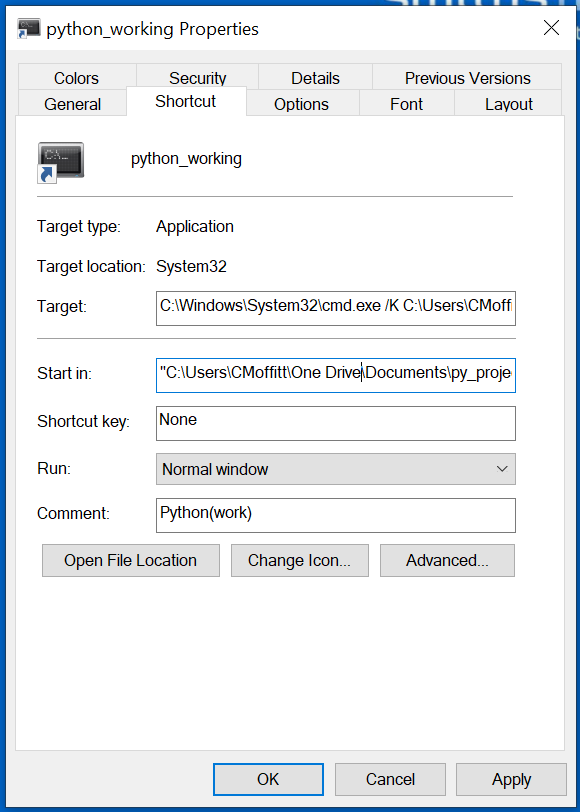
As you get really long command strings, it can be difficult to view in the GUI. Editing them can also get a little challenging when it comes to making sure quotes and escape characters are used correctly.
Winshell provides a
dump
function to make the actual shortcut properties easier to review.
For example, if we want to look at the existing shortcut in our start menu, we need to get the full
path to the
.lnk
file, then create a shortcut object and display the values using
dump
.
lnk = Path(winshell.programs()) / "Anaconda3 (64-bit)" / "Anaconda Prompt (miniconda3).lnk"
shortcut = winshell.shortcut(str(lnk))
shortcut.dump()
{
C:\Users\CMoffitt\AppData\Roaming\Microsoft\Windows\Start Menu\Programs\Anaconda3 (64-bit)\Anaconda Prompt (miniconda3).lnk -> C:\Windows\System32\cmd.exe

arguments: "/K" C:\Users\CMoffitt\AppData\Local\Continuum\miniconda3\Scripts\activate.bat C:\Users\CMoffitt\AppData\Local\Continuum\miniconda3
description: Anaconda Prompt (miniconda3)
hotkey: 0
icon_location: ('C:\\Users\\CMoffitt\\AppData\\Local\\Continuum\\miniconda3\\Menu\\Iconleak-Atrous-Console.ico', 0)
path: C:\Windows\System32\cmd.exe
show_cmd: normal
working_directory: %HOMEPATH%
}
This is a simple representation of all the information we need to use to create a new shortcut link. In my experience this view can make it much easier to understand how to create your own.
Now that we know the information we need, we can create our own shortcut.
We will create our full argument string which includes
cmd.exe /K
followed by the
activate.bat
then
the environment we want to start in:
arg_str = "/K " + str(miniconda_base / "Scripts" / "activate.bat") + " " + str(miniconda_base / "envs" / "work")
We also have the option of passing in an icon which needs to include a full path as well as the index for the icon.
For this example, I’m using the default icon that miniconda uses. Feel free to modify for your own usage.
icon = str(miniconda_base / "Menu" / "Iconleak-Atrous-Console.ico")
The final portion is to start in a specified working directory.
In my case, I have a
My Documents/py_work
directory that contains all my python code.
We can use
CSIDL_PERSONAL
to access My Documents and build the full path to
py_work
.
my_working = str(Path(winshell.folder('CSIDL_PERSONAL')) / "py_work")
Now that all the variables are defined, we create a shortcut link on the desktop:
link_filepath = str(desktop / "python_working.lnk")
    with winshell.shortcut(link_filepath) as link:
        link.path = win32_cmd
        link.description = "Python(work)"
        link.arguments = arg_str
        link.icon_location = (icon, 0)
        link.working_directory = my_working
You should now see something like this on your desktop:
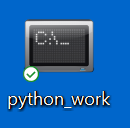
You can easily customize it to use your own directories and environments. It’s a short bit of code but in my opinion it is a lot easier to understand and customize than dealing with Windows shortcut files by hand.
Summary
Here is the full example for a creating a simple shortcut on your desktop that activates a working conda environment and starts in a specific working directory.
import winshell
from pathlib import Path

# Define all the file paths needed for the shortcut
# Assumes default miniconda install
desktop = Path(winshell.desktop())
miniconda_base = Path(
    winshell.folder('CSIDL_LOCAL_APPDATA')) / 'Continuum' / 'miniconda3'
win32_cmd = str(Path(winshell.folder('CSIDL_SYSTEM')) / 'cmd.exe')
icon = str(miniconda_base / "Menu" / "Iconleak-Atrous-Console.ico")

# This will point to My Documents/py_work. Adjust to your preferences
my_working = str(Path(winshell.folder('CSIDL_PERSONAL')) / "py_work")
link_filepath = str(desktop / "python_working.lnk")

# Build up all the arguments to cmd.exe
# Use /K so that the command prompt will stay open
arg_str = "/K " + str(miniconda_base / "Scripts" / "activate.bat") + " " + str(
    miniconda_base / "envs" / "work")

# Create the shortcut on the desktop
with winshell.shortcut(link_filepath) as link:
    link.path = win32_cmd
    link.description = "Python(work)"
    link.arguments = arg_str
    link.icon_location = (icon, 0)
    link.working_directory = my_working
I hope this script will save you just a little bit of time when you are trying to get your Windows system setup to run various conda environments. If you have any other favorite tips you use, let me know in the comments.
Test and Code: 95: Data Science Pipeline Testing with Great Expectations - Abe Gong
Data science and machine learning are affecting more of our lives every day. Decisions based on data science and machine learning are heavily dependent on the quality of the data, and the quality of the data pipeline.
Some of the software in the pipeline can be tested to some extent with traditional testing tools, like pytest.
But what about the data? The data entering the pipeline, and at various stages along the pipeline, should be validated.
That's where pipeline tests come in.
Pipeline tests are applied to data. Pipeline tests help you guard against upstream data changes and monitor data quality.
Abe Gong and Superconductive are building an open source project called Great Expectations. It's a tool to help you build pipeline tests.
This is quite an interesting idea, and I hope it gains traction and takes off.
Special Guest: Abe Gong.
Sponsored By:
- Raygun: Detect, diagnose, and destroy Python errors that are affecting your customers. With smart Python error monitoring software from Raygun.com, you can be alerted to issues affecting your users the second they happen.
Support Test & Code: Python Software Testing & Engineering
Links:
<p>Data science and machine learning are affecting more of our lives every day. Decisions based on data science and machine learning are heavily dependent on the quality of the data, and the quality of the data pipeline.</p> <p>Some of the software in the pipeline can be tested to some extent with traditional testing tools, like pytest.</p> <p>But what about the data? The data entering the pipeline, and at various stages along the pipeline, should be validated.</p> <p>That's where pipeline tests come in.</p> <p>Pipeline tests are applied to data. Pipeline tests help you guard against upstream data changes and monitor data quality.</p> <p>Abe Gong and Superconductive are building an open source project called Great Expectations. It's a tool to help you build pipeline tests.</p> <p>This is quite an interesting idea, and I hope it gains traction and takes off.</p><p>Special Guest: Abe Gong.</p><p>Sponsored By:</p><ul><li><a href="https://testandcode.com/raygun" rel="nofollow">Raygun</a>: <a href="https://testandcode.com/raygun" rel="nofollow">Detect, diagnose, and destroy Python errors that are affecting your customers. With smart Python error monitoring software from Raygun.com, you can be alerted to issues affecting your users the second they happen.</a></li></ul><p><a href="https://www.patreon.com/testpodcast" rel="payment">Support Test & Code: Python Software Testing & Engineering</a></p><p>Links:</p><ul><li><a href="https://greatexpectations.io/" title="Great Expectations" rel="nofollow">Great Expectations</a></li></ul>Free Market Drugs: A Key Part of Elizabeth Warren's Transition to Medicare for All
(This post first appeared on my Patreon page.)
Earlier this month, Senator Warren put out a set of steps that she would put forward as president as part of a transition to Medicare for All. The items that got the most attention were including everyone over age 50 and under age 18 in Medicare, and providing people of all ages with the option to buy into the program. This buy-in would include large subsidies, and people with incomes of less than 200 percent of the poverty level would be able to enter the Medicare program at no cost.
These measures would be enormous steps toward Medicare for All, bringing tens of millions of people into the program, including most of those (people over age 50) with serious medical issues. It would certainly be more than halfway to a universal Medicare program.
While these measures captured most of the attention given to Warren’s transition plan, another part of the plan is probably at least as important. Warren proposed to use the government’s authority to compel the licensing of drug patents so that multiple companies can produce a patented drug, in effect allowing them to be sold at generic prices.
The government can do this both because it has general authority to compel licensing of patents (with reasonable compensation) and because it has explicit authority under the 1980 Bayh-Dole Act to require licensing of any drug developed in part with government-funded research. The overwhelming majority of drugs required some amount of government-supported research in their development, so there would be few drugs that would be exempted if Warren decided to use this mechanism.
These measures are noteworthy because they can be done on the president’s own authority. While the pharmaceutical industry will surely contest in court a president’s use of the government’s authority to weaken their patent rights, these actions would not require Congressional approval.
The Dig: Coup in Bolivia with Jeff Webber
Tom Roche119 min but worth it
Political scientist Jeff Webber discusses the coup against Evo Morales and the recent history of Bolivia.
Read "The Eighteenth Brumaire of Macho Camacho" by Jeff Webber and Forrest Hylton www.versobooks.com/blogs/4493-the-eighteenth-brumaire-of-macho-camacho-jeffery-r-webber-with-forrest-hylton-on-the-coup-in-bolivia
Thanks to University of California Press. Check out their titles at ucpress.edu
Support this podcast with money at Patreon.com/TheDig