Windows 10 has some handy new features, but if you believe the rest of the internet, it also comes with features that eviscerate any semblance of privacy. But that view is a little overblown. Let’s take a closer look at what each of these settings actually do—and which ones are actually a privacy problem.http://lifehacker.com/5904966/why-yo...
Windows 10 has a reputation for “phoning home” more often than its predecessors, and while that’s primarily true, much of this was already present in Windows 8—and an awful lot of it is present in other products like Android, iOS, and Chrome. That’s not to say all of those settings are good, just that there’s very little new happening here.
You can read the privacy statement for Windows 10 here. It’s not quite as sweeping as the Windows Insider Preview policy that caused so much commotion, but it’s still very broad (as most privacy policies are).
Plenty of sites have published lists of all the features you should turn off in Windows 10 to protect your privacy, but many don’t explain in detail what each of these settings do, which makes it hard to separate FUD from fact. So let’s go through those settings and explain what we know about them, where the real problems are, and how to turn everything off.
General Privacy Settings

Let’s start with the obvious. Open up Windows 10’s Settings app and head to Privacy > General. Most of these features are actually pretty self-explanatory, but here’s what each one does:
-
Let apps use my advertising ID: This helps Microsoft present you with more personalized ads in apps. You can safely turn this off without it really affecting your user experience.
-
Turn on SmartScreen Filter: This sends the URLs you visit in Windows Store apps to Microsoft to check them against a list of potentially harmful sites.
Google Chrome does this as well. (Correction: Chrome does this locally, and only submits your URL if you have usage statistics enabled.) I think this is a helpful setting, so I leave it on. You can turn it off if you so desire, but be careful when you browse. Note that this only affects the SmartScreen filter in Windows Store apps—if you want it turned off in the Edge browser, where you’re more likely to use it, you’ll have to do that in Edge’s Advanced Settings (see below).
-
Send Microsoft info about how I write: This feature improves text completion suggestions when you handwrite or type (presumably on the touch keyboard, though it doesn’t say. That’s very broad, and we’ll talk about it more in a bit. I recommend turning this off.
-
Let websites provide locally relevant content: If you speak a language other than English, this feature could be useful, but feel free to turn it off if you’d rather sites not know what language your system uses.
In short, most people can probably turn off these settings and not be affected.
Location Settings

Windows 10, much like iOS and Android, can use your location to provide a better experience in certain apps. For example, it can check your location so you don’t have to type your zip code to get the weather, or so you can pinpoint your location in the Maps app. However, to do this, it may share your location with certain “Trusted Partners” (like the aforementioned weather service, or...well, anyone else).
On a normal desktop computer, you probably won’t use this as much as you would on a phone, so it’s up to you if you want to turn location off entirely. Head to Settings > Privacy Location and look at the list of apps at the bottom. You can turn off individual apps or, if none of them look like they need your location for anything, you can turn location off entirely at the top of this window. (Note that location must be on for Cortana to work.)
Cortana and Start Menu Search

Cortana has some of the most sweeping privacy-related settings, but it’s also one of the most useful new features, which means you have to decide whether turning it off is worth the privacy. In order to work, Cortana logs your voice (to process what you’re saying), location (to give you location-specific answers), your writing (to answer questions), your contacts (so you can reference them), calendar events (so it can create, delete, or give information about your upcoming appointments), and more. That’s a lot of stuff!
Of course, it’s also very similar to Siri and Google Now, which collect a lot of the same data (but on your phone instead of your PC). Thankfully, like those services, Cortana is easy to turn off if you’d rather keep it close to the chest. To do so, here are the settings you should change:
-
Turn Cortana Off. Bring up the Start menu and start typing. Click on the notebook icon in the left sidebar and choose Settings. From there, you can turn off Cortana.
-
Search online and include web results. When you turn off Cortana, you’ll see this option appear. You can turn it off if you’d rather not get web search suggestions from the Start menu, which log your typing and send it back to Microsoft so you can get live-updating predictions, just like you do on Google.com or in Chrome and Firefox.
-
Getting to Know You. In Settings > Privacy > Speech, Inking, & Typing, you’ll find a feature called “Getting to Know You”. This is probably the most sweeping privacy setting on the system, and even after turning off Cortana, you’ll have to disable this setting. Just click the “Stop Getting to Know Me” button to turn it off.
-
Cloud Info. Turning off Getting to Know You removes info from your device, but you’ll have to remove it from the cloud separately. In that same window, click “Go to Bing and manage personal info for all your devices” to clear the Getting to Know You Data from your Microsoft account.

This, coupled with the “Send Microsoft info about how I write” setting mentioned earlier, is the biggest privacy concern in Windows 10, primarily because the language is so vague. The “Getting to Know You” setting does not specify where or when it can collect, say, “typing history”, which is troubling. We contacted Microsoft, who had this to say:
This is the inking and typing function, which users can turn off at any time. Microsoft does not collect any personal information via inking or typing. It is gathered for product improvement purposes, for example, to improve the handwriting visual translation engine, or to improve the user dictionary, language library and spell check functions in Windows. The data is put through rigorous, multi-pass scrubs to ensure it does not collect sensitive or identifiable fields (e.g., no email addresses, passwords, alpha-numerical data, etc.). Data is also chopped into very small bits and stripped of sequence data so it cannot be put back together or identified. The data samplings collected are limited; Microsoft is not capturing everything you write, nor is it capturing data every time.
So it’s not a “keylogger”, it’s more of a text analysis engine that takes already written text, scrubs it and takes words out of sequence, and analyzes them for dictionary and spellcheck purposes. However, once again, the language is extremely broad, and this is probably the most troubling privacy setting on the system. As it is, if you’re worried about Microsoft collecting data and can live without Cortana, turn this setting off.
Microsoft Edge

Microsoft’s new browser, like most modern browsers (including Chrome and Firefox), includes a few features that “phone home” as well. You’ll find them in Edge’s Settings > Advanced Settings. Here’s what they do:
-
Have Cortana assist me in Microsoft Edge. If you’re using Cortana, it will track your browsing history so it can reference it when you ask it questions. You can turn this feature off in Edge’s advanced settings.
-
Show search suggestions as I type. Like the Start menu, Edge does log “your keystrokes”—but it does so to give you search predictions as you type. If you want to turn that feature off, you can turn off “Show search suggestions as I type” here.
-
Help protect me from malicious sites and downloads with SmartScreen Filter. As we mentioned in the first section, SmartScreen filter may track the URLs you visit, but it does so to protect you from potentially harmful sites. I recommend leaving this turned on, but you can turn it off if you so desire.
If you don’t use Microsoft Edge, these features won’t matter much, but it’s good to know where they are.
Wi-Fi Network Sharing

Windows 10 includes a feature called Wi-Fi Sense, which allows you to connect to protected Wi-Fi networks without a password from your Facebook, Outlook.com, and Skype friends. That way, you can connect to a friend’s Wi-Fi network without having to ask them for their password. However, that also means they can share your network with their friends, and so on. Correction: Your friend cannot share your networks with their friends. This actually makes it more secure than giving them your Wi-Fi password.
Most of this process is opt-in, so you shouldn’t have much to worry about. You have to check a box to share your network connection with your contacts, and they have to do the same (and they can only do so if you give them your password). However, you can make your network ineligible for sharing by adding _optout to the end of its SSID (for example, mynetwork_optout). By default, though, Windows will give you the option to connect to networks your friends have shared with you. If you’d like to turn that off, you can do so under Settings > Network & Internet > Wi-Fi > Manage Wi-Fi Settings.
Syncing and Your Microsoft Account

Many of Windows 10s features require a Microsoft Account to use, because they either store information online or sync over the internet. Primarily:
-
Sync settings. In Settings > Accounts > Sync your settings, you can decide what to sync to your other Windows 10 PCs, This is included, but not limited to, your wallpaper and theme, your web browser settings, passwords, accessibility settings, and more. You can turn this off here.
-
Bitlocker Encryption. Encrypting your hard drive is a must-do, and Bitlocker finally comes with all versions of Windows 10. However, if you have the Home edition, it will automatically save your recovery key with your Microsoft account (or disallow you from encrypting your hard drive). There’s not much you can do about this except upgrade to Windows 10 Pro, or use an alternative encryption program like VeraCrypt.
Alternatively, you can avoid using a Microsoft account entirely, by either choosing “Sign in with a local account” during setup, or by going to from Settings > Accounts > Your account. Just choose “Sign in with a local account instead”. Note that you won’t be able to download apps from the Windows Store with this turned off, or use either of the above features.
Windows Update

Unlike its predecessors, Windows 10 doesn’t offer a way to turn off automatic Windows updates. Windows 10 Pro, Enterprise, and Education users have the option of turning Windows Update off through Group Policy or the Registry, but Home editions cannot. This is done for security reasons, however, so we recommend you leave it on. You can always disable specific updates if they cause problems.
Windows Update also uses BitTorrent-like peer-to-peer file sharing to distribute updates. This is cool, but if you don’t want other people using your bandwidth to download updates, you can turn it off. Just head to Settings > Update & Security > Advanced Options > Choose How Update Are Delivered. From here, flip the switch to “Off” or, better yet, change the radio button to PCs on my local network. That allows your PCs at home to distribute updates to each other, just not to other people over the internet.
Feedback and Diagnostics

Like many apps and operating systems, Microsoft allows you to send diagnostic data to Microsoft so it can better troubleshoot performance problems and improve services. However, that often means inadvertently sending information you’d rather not, like memory snapshots or which apps you use the most often.
If you head to Settings > Privacy > Feedback & Diagnostics, you’ll see two settings:
-
Feedback frequency: Windows will occasionally ask you for feedback so you can send Microsoft your thoughts on Windows 10. If you’d rather it not bug you with such things, you can change it to Never.
-
Diagnostic and usage data: This feature can send a lot of data back to Microsoft, including how often you use certain apps, which apps you use most often, and memory snapshots (which can inadvertently include parts of a document you’re working on if something crashes). You can change this to Full, Enhanced, or Basic. You can read more about what each of these to here.
Microsoft doesn’t let you turn off diagnostics completely, except on Enterprise versions of Windows. The Basic setting, they say, is data that is “vital to the operation of Windows”, including Windows Update and malicious software protection.
So What’s the Problem?
So is Windows 10 the worst privacy killer in human history? Probably not, but there are some issues here—primarily:
- Microsoft’s language on one or two settings is very vague, which means it’s hard to tell when it is and isn’t collecting data related to some settings. The “Getting to Know You” setting is particularly vague and problematic.
- All of the settings are opt-out instead of opt-in, and there are very many of them. Most casual users will never even look at these settings.
However, at least Microsoft provides these toggles, which is at least a step in the right direction.
Apart from the language in the “Getting to Know You” setting, though, nothing else here is particularly new. Calling the Start menu nefarious because it provides search predictions seems a bit overblown, especially when we’ve been using that same technology on Google.com, Chrome, and Firefox for years. Most of the other settings exist in other OSes, too, not to mention on your smartphone (which knows just as much, if not more about you than your PC).
That’s not to say you shouldn’t (or should) be concerned—it’s a personal choice. If you’re uncomfortable with any of the settings above, or if you don’t trust Microsoft with certain types of data, you should absolutely turn them off. But you’ll have to give up a few features.
Just keep in mind also that Microsoft is far from the only company doing this, so if you turn them off in Windows, be sure to turn them off in the other apps and devices you use too (including OS X and your browser). Of course, the only way to keep all your data is to never connect to the internet at all—so good luck with that.
Title illustration by Jim Cooke.


 So says Jennifer Granick, who gave the keynote address at the (somewhat infamous) Black Hat security conference today. Once, techno-utopians could say things like “The Internet treats censorship as damage and routes around it.” Today, though, the ongoing centralization of the Internet in the name of security and convenience “increasingly facilitates surveillance, censorship,…

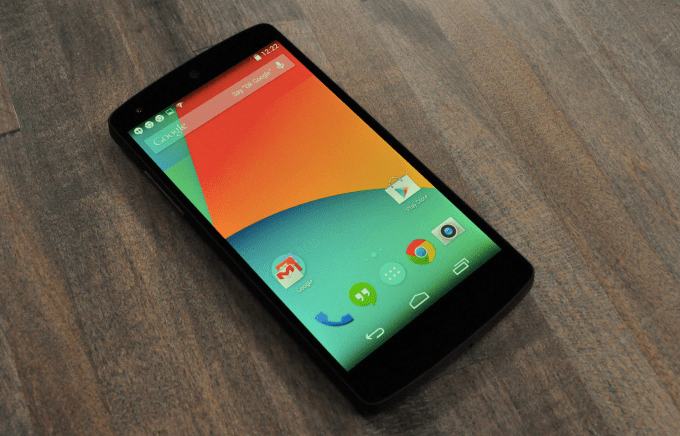 Earlier today, Samsung announced that it would now provide security patches for its Android devices “about once per month.” In addition to Samsung, Google also today announced a similar program for its Nexus devices. Both Samsung and Google will release these security patches as over-the-air updates.


 Late last year the UK Government


 Whenever I try to take a photo through a plane or hotel window, chances are there are plenty of reflections that show up on the final image and ruin it. Now, however, Google and MIT researchers have found a way to take these photos and automatically remove these reflections and other obstructions.
In a paper they will present at Siggraph 2015 later this month, Tianfan Xue, Michael…
Whenever I try to take a photo through a plane or hotel window, chances are there are plenty of reflections that show up on the final image and ruin it. Now, however, Google and MIT researchers have found a way to take these photos and automatically remove these reflections and other obstructions.
In a paper they will present at Siggraph 2015 later this month, Tianfan Xue, Michael…  Ever get the feeling someone’s watching you? Of course you do; you use the Internet… So what’s the answer to pervasive tracking technologies? Well, one answer — at least when you’re able to step off grid entirely because you don’t need to use your kit for a bit — is to put your devices (and connected cards) inside a faraday cage to isolate them from…