Shared posts

09 Jun 20:09

Restaurant that killed customer with nut allergy sends apology email advertising new desserts

by Mark Frauenfelder

Illustration depicting mast cell activation and anaphylaxis: Blausen.com staff. Blausen gallery 2014.  Wikiversity Journal of Medicine. DOI:10.15347/wjm/2014.010. ISSN 20018762. - Own work

Mohammed Zaman, founder of Easingwold Jaipur Spice restaurant in the UK, was sentenced to six years in prison for serving a nut-powder curry to a man with a nut allergy. The victim, who asked Zaman not to give him food with nuts, died from anaphylactic shock immediately after eating it.

After the sentencing, the restaurant issued a fauxpology that concluded with an advertisement for new desserts:

[We] sincerely apologise to all our loyal customers for the recent heavy press surrounding the Easingwold branch and the somewhat disappointing decision for our founding father Mr Zaman. Mistakes have been made and this is no excuse but now is a time to move on as Mr Zaman so wishes.

We are now in the process of launching a new dessert menu and have hired an exclusive pastry chef from London to design this. Our philosophy, started by our founder, [Mohammed] Khalique Zaman, was and still is to create real quality Indian cuisine of the highest standard.

With exhilarating flavours and subtle aromas...Jaipur Spice will transform your perception of Indian food...You'll spot the difference the moment the food arrives!!"

09 Jun 20:08

Ingenious idea for a Thor toolbox

by David Pescovitz

screenshot

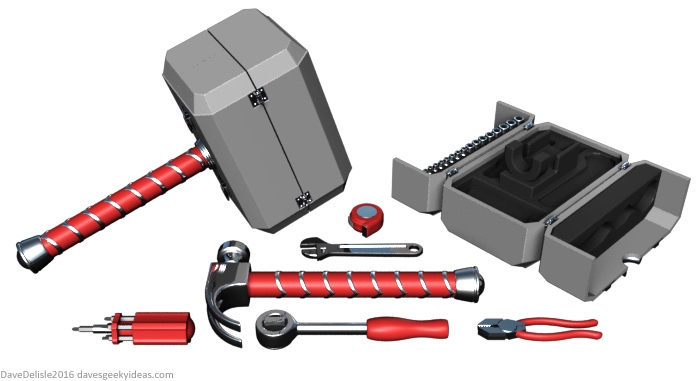
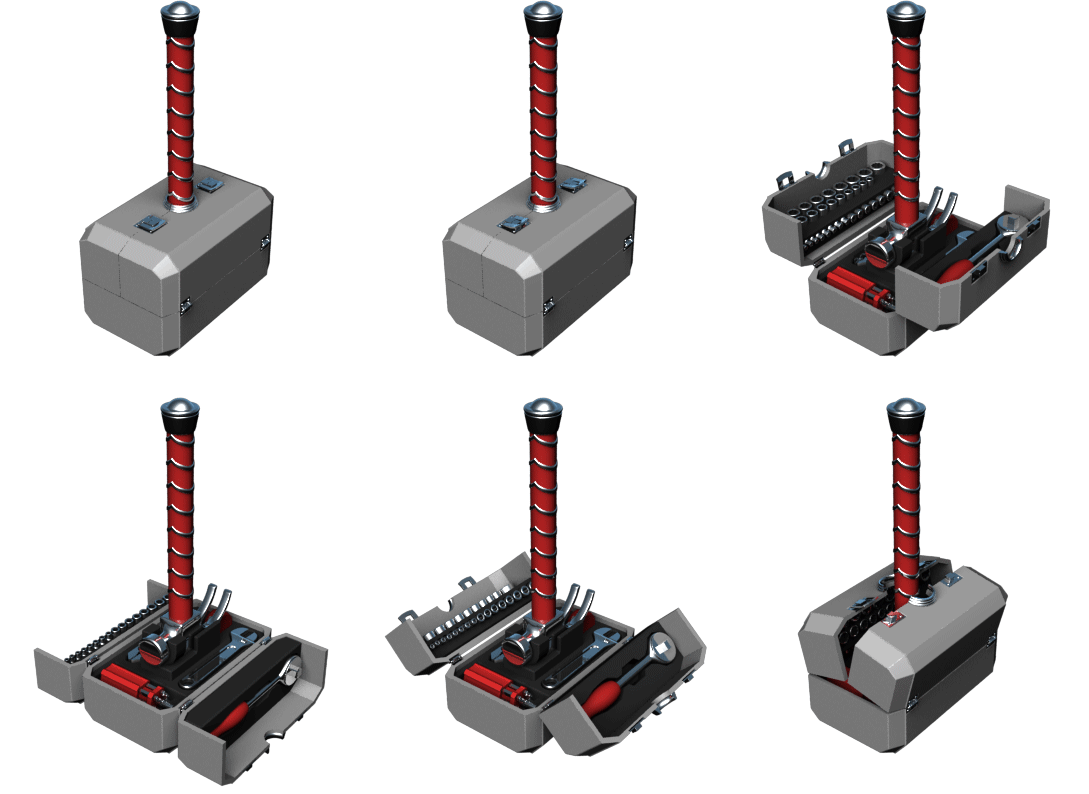
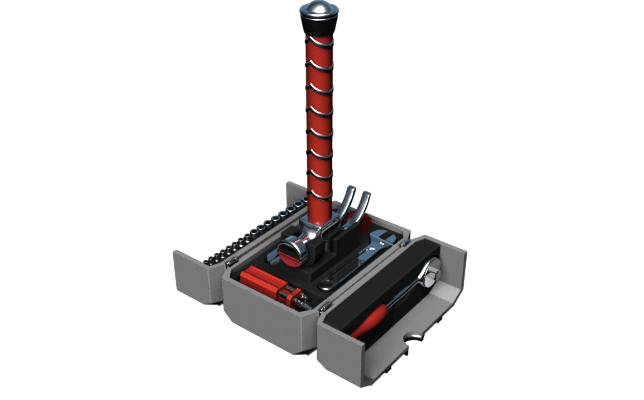
If you were a Norse god/superhero who moonlighted as a carpenter, this Thor Hammer Tool Kit would hit the nail on the head. Unfortunately right now it's just a concept design from Dave's Geeky Ideas!

When not being carried around for Asgardian cosplay, this hammer opens up to reveal all the tools stored inside. The handle is shared with an actual hammer, which is fastened into a removable tray. Beneath the tray is a reservoir for loose tools and nuts/bolts.

thor-hammer-tool-kit-2016-dave-delisle-davesgeekyideas1

5uCfdh1

09 Jun 20:04

The True Size Shows You How Big Countries and States Really Are

by Kristin Wong
The True Size Shows You How Big Countries and States Really Are

Most maps you see don’t show Earth according to its true proportions, so it’s easy to get confused over the size of different countries, states, and even continents relative to each other. The True Size is an interactive map that lets you see how big or small these places really are.

To use the map, you simply search for a country or state. The tool finds and highlights the area, and you can drag it around to see how it changes in proportion to the rest of the world. You can also select multiple areas at a time.

The web app’s developers explain:

It is hard to represent our spherical world on flat piece of paper. Cartographers use something called a “projection” to morph the globe into 2D map. The most popular of these is the Mercator projection.

Every map projection introduces distortion, and each has its own set of problems. One of the most common criticisms of the Mercator map is that it exaggerates the size of countries nearer the poles (US, Russia, Europe), while downplaying the size of those near the equator (the African Continent). On the Mercator projection Greenland appears to be roughly the same size as Africa. In reality, Greenland is 0.8 million sq. miles and Africa is 11.6 million sq. miles, nearly 14 and a half times larger.

It’s interesting to see just how much these places shrink or grow, and it serves to illustrate how skewed our own perceptions of geography may be. Check it out for yourself at the link below.

The True Size Of...

09 Jun 20:02

Introducing Nearby: A new way to discover the things around you

by Unknown
The Play Store offers over one million apps - many of which are created to be used in specific locations or situations. The right app at the right moment lets you get more done. For example, at a store, you may want a barcode scanner to check prices and reviews for an item. Or when you're at a museum, an audio tour would enhance the experience as you make your way around the exhibits.

But, getting the right apps at the right time can be tough if you don’t already know about them. So, we're introducing a new Android feature called Nearby, which notifies you of of things that can be helpful near you.

For example:


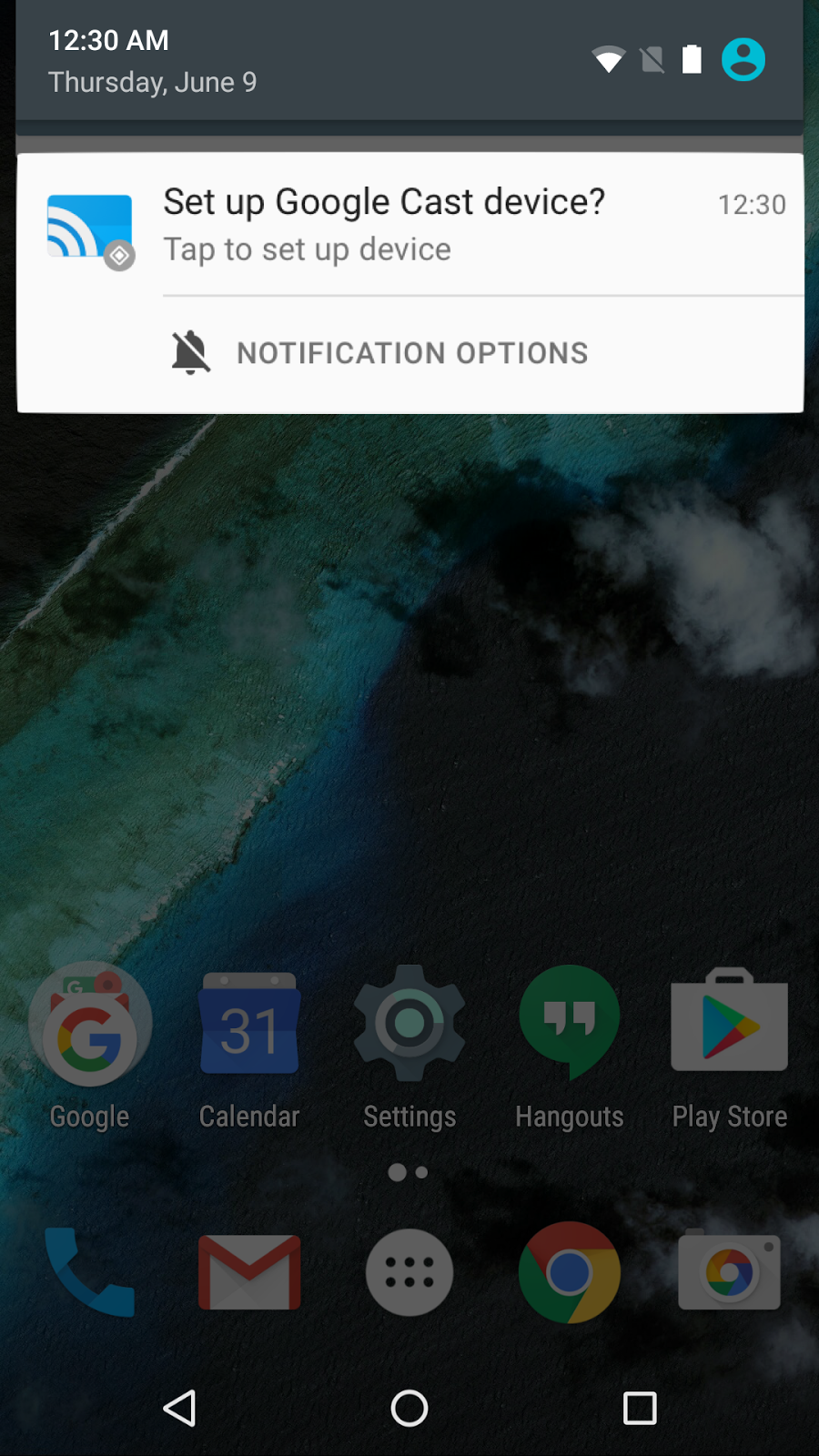
Select Google devices, including Google Cast and Android Wear watches, will also let you set them up simply by tapping a notification when you're near them.


Earlier this year, we started experimenting with surfacing websites relevant to a place in Chrome through the Physical Web project. In addition to displaying relevant apps, Nearby will surface these websites directly from Android. To deploy your own beacons that work with Nearby, check out our developer blog post.

To use Nearby, just turn on Bluetooth and Location, and we'll show you a notification if a nearby app or website is available. Once you’ve opted-in, tapping on a notification takes you straight into the intended experience. If you're not interested, just swipe it away to give us a clear signal.

Nearby has started rolling out to users as part of the upcoming Google Play Services release and will work on Android 4.4 (KitKat) and above.


Posted by Akshay Kannan, Product Manager, Nearby
09 Jun 20:01

Making your Android look and feel like a Nexus

by Ara Wagoner

Theming is about customization and creativity; it's about making things different.

Despite the overwhelming urge to be "not the same" a great amount of time, tech, and talent goes into making 'stock' themes. And many a loving Android nerd proudly rock 'stock' or 'pure' setups. These adjectives aren't quite accurate, so we're not going to use them for the rest of the article. The look we're aiming for in this guide emulates Android as Google intended, so we shall call it Nexus, after the devices that come with this experience out of the box.

It's not hard to understand why Google's visual approach to Android is a popular one, as it's a cohesive look and it's got a wonderful simplicity to it without straying into bland vanilla. The Nexus look has evolved over the years, but now that we've settled into the Material Design era, it's gotten easier and easier to achieve the Nexus look on other devices. Here's how we do it.

Home screen

Now, there's two ways to go here, and they'll both appeal to different types of users. The first and simplest option is to install and use the launcher that comes on Nexus phones: the Google Now Launcher is a clean launcher offered by Google with a simple setup that puts Google Now on the left-most screen of the launcher. If you're someone who doesn't like futzing with a lot of settings, you're in luck, because there are only really two settings you can turn on/off for Google Now Launcher: app suggestions at the top of the app drawer, and whether the launcher will rotate or stay in portrait.

Google Now Launcher doesn't support custom icons so you can't get the pretty Nexus icons for your system apps without using an app like Awesome Icons (and even then, you'd still have your Samsung/HTC/LG/manufacturer icons in the app drawer). You also can't resize the grid, which is 5x5 on Nexus devices, but for some reason 4x4 on everything else. The only supported gesture is the swipe left for the Google Now page.

In short, Google Now Launcher will feel stock and get you that all-important Google Now page on the left, but the icons won't look like Google's and if you have a larger screen, you might feel like the home screen grid leaves a lot of wasted space. That's where Nova Launcher comes in.

Nexus theme in Nova Launcher

The default setup in Nova Launcher is actually pretty Nexus in feel, but we can bring it up a few more notches between some Nova Settings, a few sweet icons, and then we'll still have the flexibility of Nova. Think of it as Nexus Plus. Now, the following is a list of Nova Settings that will bring the launcher in line with the Nexus look. Use what you like and ignore what you don't.

  • Desktop > Grid size: Google Now Launcher is 4x4 or 5x5 depending on the device, and I highly recommend at least a 5x5 grid, if for no other reason than so your desktop icons match up with the dock.
  • Desktop > Icon layout: Turn on app labels on the desktop, displaying the name of the app below its icon just as Google does in Google Now.
  • Desktop > Persistent search bar: You can add back in the search bar that Google keeps at the top of its home screen if you like. You can also customize the style of the bar with the setting directly below this toggle.
  • Desktop > Scroll effect: Simple and Tablet scroll styles will match the effect Google Now Launcher uses when transitioning between pages.
  • Desktop > Infinite Scroll: Google Now does not use an infinite scroll, instead
  • Desktop > Page indicator: Selecting the dotted page indicator where the current page is a bigger dot than the others will match Google Now. By default the indicator should be white, but if you're coming from another theme, you can set it to white in the Page indicator color setting directly below this one.
  • App & widget drawers >Frequently used apps: If you want the app suggestions at the top of your app drawer like you can have on the Google Now Launcher, this will enable it.
  • App & widget drawers > App drawer style: Google Now Launcher switched from a Horizontal app drawer to a Vertical one last fall. If you want to go with the current Vertical grid, that's fine, but if you got too used to the old style, then Horizontal is here for you.
  • App & widget drawers > Card background: Rather than showing your wallpaper, Google Now Launcher's app drawer is backed with a white card. If you want that white card, this is where you get it.
  • App & widget drawers >Transition animation: The Circle animation best mimics the transition used by Google Now Launcher.
  • Folders > Folder preview: Line mimics the folder style used in Google Now Launcher, stacking the apps one behind the other.
  • Folder > Folder background: Now, we have some options here. You can either select the Circle, which matches what Google Now Launcher currently has on non-beta devices, or you can select N Preview for the folder backer that developers are seeing on the Android N preview.
  • Folder > Transition animation: Circle mimics the Google Now Launcher animation, and it's the better animation overall.
  • Folder > Background: You want that white card-like square for your folders, so select the white color and drag the Transparency down to 0%.
  • Gestures & inputs > "Ok Google" hotword: Google Now Launcher listens for its favorite phrase while you're in the launcher, and Nova can do it, too! Just make sure your voice has been trained properly (and recently) and toggle it on.

Now, we've got the launcher laid out as Nexus-ish as we want, but we still need to do something about our app icons. Now, Nova Launcher technically comes with a Marshmallow icon pack included… but it doesn't extend beyond some of the system apps and doesn't look all that great in my humble theming opinion.

Icon Packs

Instead, we're gonna get ourselves a custom icon pack, and while there are a breathtaking amount of Material icon packs out there, here are a few that we think stand out:

  • Glim (Free, $2.79): Glim is one of my favorite icon packs of all time, and that boils down to three words: Color. Alternate. Choice. Not only are there thousands of icons in this pack, but most Google, system, and popular apps have the icon in a rainbow of colors. Want to make your entire app drawer red icons for Christmas? Glim had me covered. Want to make all your dock icons the same lovely orange as BB-8 for our lovely Star Wars theme? Glim's got ya! Glim is available in paid and free variants as well as light or dark variants, and you should absolutely add it to your arsenal.
  • CandyCons (Free): It's not one of the biggest icon packs out there, but what it lacks in numbers it makes up in creativity. Not only are there beautifully done icons for every google app, but most apps have 4-6 variants, from a mere color switch to a completely new take on the icon, including some of the best Google Play Music icons I've ever seen.
  • Materialistik ($0.99): Quite possibly one of the most popular icon packs on the market right now, Materialistik is not quite Google's icons, but it's still material and quite creative with its color choices. If you're happy getting a material icon in an eye-catching palette, then Materialistik is here for you.

Install the icons of your choice and the entire pack in Nova Settings > Look & feel. If you want to indulge any of the colorful alternate icons, you can set them by long-pressing an icon in the app drawer and dragging it up to Edit, or long-pressing an icon on the home screen and selecting Edit. Tap the icon to change it, and then select the pack and icon at will.

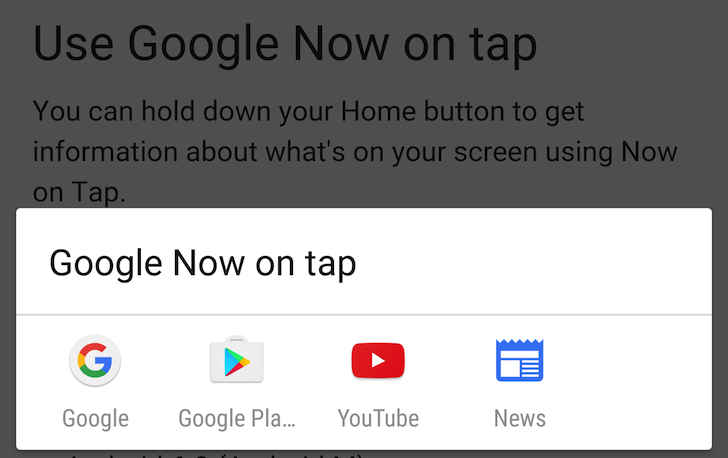
Now, once you've got the icons and layout, we're still missing that snazzy Google Now page on the left. Now, we can't quite recreate it in Nova, but we do have a few options. First, we could put a full-page Google Now widget on the left-most screen. Second, we could just use the long-press home button to bring up Google Now on Tap (or Google Now proper, should you have that set up instead of Now on Tap). Third option is to take advantage of the gesture shortcuts in Nova Launcher Prime and set Google Now as a gesture shortcut like double-tap or a swipe up from the app drawer icon (which you can set by long-pressing the app drawer icon and selecting Edit). The choice is yours.

Wallpapers

There are lots and lots of material design wallpapers out there. Far more than the selection of stock wallpapers that seem to crop up with each new wave of Nexus devices. And again, I would never recommend using a stock wallpaper over something that actually brings some personality and personalization to your device. Want some Material Design Avengers wallpapers? Here you go. Want hundreds of Material and Nexus wallpapers to choose from? Knock yourself out. There's even a fair number of material wallpapers in the icon packs we recommended. You've got options. Use them at your leisure.

Messaging

Google seems to launch another messaging app every other year, and while this year's stab Allo isn't out yet, there are still two Google messengers for you to choose from:

Hangouts is Google's web messenger client, offering instant messaging and audio/video chatting across Android, iOS, and desktop clients. For those of us who heavily use Hangouts already, we can merge our text messages in with it, at least for now. There are some inklings that Google intends to de-merge text messaging from Hangouts.

Google's Messenger app is material, simple, and quite beautiful. And while it doesn't come standard on any non-Nexus device, it's available for any Android phone running Jelly Bean or above. It even offers a few features most SMS apps do not, like location sharing and voice message support. And unlike Hangouts, it doesn't crash at the drop of a hat.

Photos

Now, Google Photos is pre-loaded on most (if not all) Android phones, so all you need to do to get the Google experience here is open the app and enjoy. You should already be doing this because Google Photos offers free unlimited cloud backups of photos under a certain resolution. As a photo gallery, Photos has two main ways to dig through your photos: through the list of photos that have been uploaded to your account, or through the individual device folders. If you have multiple phones all syncing through Google Photos, you can see them all on one timeline in the app instead of switching between phones. There are even some decent (if basic) editing tools included for cropping and filtering photos before you share them.

Keyboard

When the keyboard from Google's Nexus devices came to Google Play in 2013, it introduced a lot of users to a clean, simple keyboard with Google's smarts behind it. Google Keyboard brings us voice typing backed by Google's voice recognition, and Google's yellow blob emoji. It's even got a dark theme, for those of us not wanting to be blinded every time we try to type something… It's also got a swell handwriting mode, whether you're scratching out something with your fingertip or using a stylus.


There are a lot of Google apps that are pre-installed on your device already, including possibly some of the ones we cover. If you want to make your phone feel more like a Nexus, simply open up a few more of those. Give Inbox a try, or see if there's anything you'd like to read in Google Play Books. There are also dozens of Google apps in the Play Store just waiting to dazzle you, like Google Keep or Google Opinion Rewards (yay free money!).

And how do you make your phone look and feel material and Google-y? Share your theming tricks and tips in the comments, or sound off in our Theming forum!

09 Jun 13:34

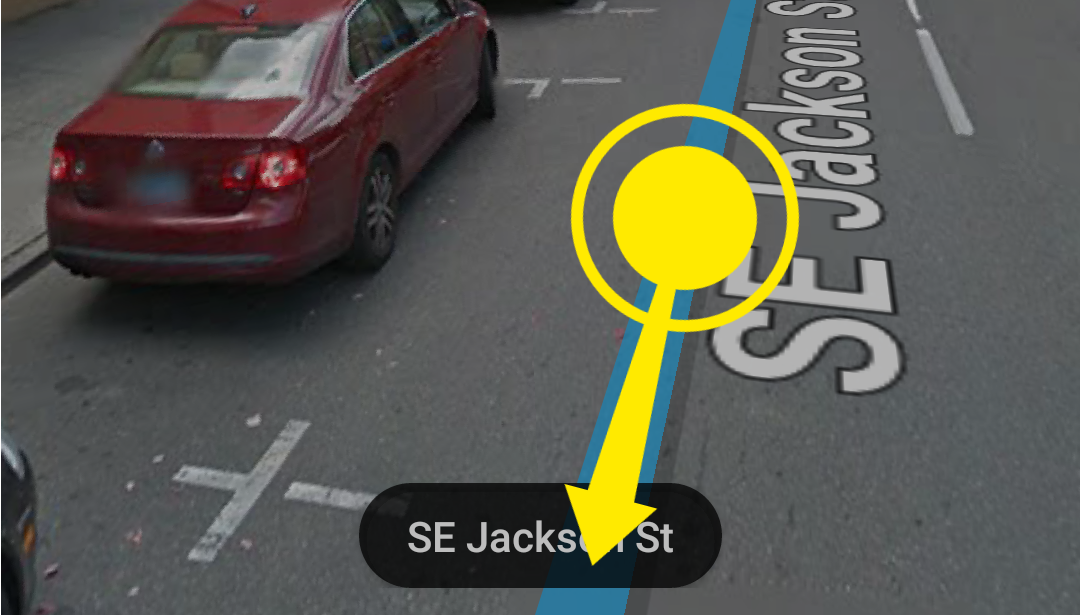
Google Replaces Obnoxious Arrow Navigation In Maps Street View With Super Smooth Swiping

by Cody Toombs

2016-06-08 23.12.24

Have you ever opened up Street View in Google maps and tried to move more than a couple of steps to get a good look around? It's useful and kinda cool, but also utterly horrible. Every move required a tap on the little arrows at the bottom, and you had to wait a little bit after each tap before making the next one. Plus, the arrows weren't always very clear about where they would take you.

Read More

Google Replaces Obnoxious Arrow Navigation In Maps Street View With Super Smooth Swiping was written by the awesome team at Android Police.

09 Jun 13:32

Amazon's Fire HD 6 tablet in white is yours for £70

by Rich Edmonds

Amazon has its Fire HD 6 tablet on sale for the time being for just £70. If you're seeking an affordable Android-powered tablet then Amazon's own offering could save you some pennies while offering a solid experience. The retail giant previously slashed the price of this model back in March.

The usual listing price of the HD 6 tablet is £99, making this quite the deal. Powering the experience is a 1.5GHz quad-core processor, 6-inch HD display, front-facing camera for video calling, 8/16GB of internal storage, a choice of colors, and up to eight hours of battery life.

See at Amazon

09 Jun 13:21

Amazon Fresh grocery delivery service comes to the UK

by Rich McCormick

Amazon Fresh is coming to the UK, Amazon has announced, marking the first step the grocery delivery service has made outside of the United States. From today, Amazon Fresh will be available to Amazon Prime subscribers in north and east London from today onwards, with a 30-day free trial available to people who sign up to use Fresh for the first time.

Fresh is initially available to 69 London postcodes, with one-hour timeframes selectable so users can ensure they're home to collect their groceries, and same-day delivery an option if they order before 1 PM. In addition to more than 130,000 dairy, bakery, and other fresh produce items, Amazon will also deliver goods from around 50 small local specialist stores, including stalls at London's...

Continue reading…

08 Jun 21:11

NHS memo details Google/DeepMind’s five year plan to bring AI to healthcare

by Natasha Lomas
DeepMind More details have emerged about the sweeping scope of Google/DeepMind’s ambitions for pushing its algorithmic fingers deep into the healthcare sector — including wanting to apply machine learning processing to UK NHS data within five years. Read More
08 Jun 19:43

Day One for British self-driving Pod Zero

by David Curry
rdm-group-pod-zero-lutz-pathfinder

RDM Group, the firm responsible for the LUTZ Pathfinder –  a single seat autonomous car that drives on paths – plans to launch multiple new pods at this week’s Automechanika event.

The firm will launch three new driverless pods that fit two, four, and eight people, according to the Coventry Telegraph

See Also: Will Tesla go fully self-driving before the Model 3?

Unlike other automakers that are attempting to build autonomous systems into pre-existing models, RDM Group went for a striking redesign with the PathFinder. We should expect a funky design for Pod Zero, which RDM claims is perfect for airports, shopping centers, and theme parks, where transport is limited.

“This is a massive day for our company and puts us right at the forefront of driverless pod manufacturing,” said David Keene, chief executive of RDM Group. “Pod Zero represents the next generation of pod and features different drivetrain, steering systems and a new striking interior that is dominated by video screens that can play adverts, information videos or showcase the view from outside.”

Looking for revenue from…ads?

RDM is banking on advertising to be the money maker for its driverless project. Instead of the person sitting inside the pod focusing on the road (or path), it wants them to interact with the iPads during their journey.

“We have taken learning from the LUTZ project and moved it on significantly so we now have a manufacturing process that could be ramped up to meet more than £15m of anticipated new orders,” said Keene. The LUTZ project was part of the UK Government’s Transport System Catapult Autodrive project. 

The new pods will have a range of 60 miles, not great when compared to cars, but enough for short trips in public places. It has a top speed of 15 mph, which should allow Pod Zero to remain on the pathways. RDM has also ensured that the pod is accessible for disabled people and has provided wheelchair access.

Pods might be one of the emerging technologies that we’re just starting to see enter the market. We’ve already heard that disabled and old people will benefit the most from self-driving, and the pods could be another way for people with difficulties walking long distance to get around easily. 

The post Day One for British self-driving Pod Zero appeared first on ReadWrite.

08 Jun 19:28

Watch the fastest Isle of Man TT lap ever

by Jason Weisberger
0-73

The Isle Man Tourist Trophy is a deadly race. Two lives have been claimed already this year. That didn't stop incredible motorcyclist Michael Dunlop from posting up a sub 17 minute lap, the fastest ever.

Watch as Dunlop barely keeps his wheels on the ground, while blowing past other riders like they were stationary obstacles. His average speed of 133.392 mph is staggering.

08 Jun 19:27

Official Android N name to be revealed in 'a few weeks'

by Jared DiPane

Google has announced that it will be revealing the official name for Android N in a few weeks. Back at Google I/O the company announced that it was accepting suggestions for the name, and that time period has ended. At this point it is still unknown exactly when Google will unveil the name, or release the official version.

The video says how anyone is able to come up with a great idea, so it will be interesting to see who Google gives the credit for the new name. Are you excited for Android N? Let us know your thoughts in the comments.

Android N Developer Preview

The Android N Developer Preview is just that — a developer preview. While it's now "release candidate beta" quality we still have to issue a word of caution. Tread lightly.

08 Jun 19:25

These people are thrilled to have a heated butter knife

by Ashley Carman

The EasiSpread has a simple goal, one that's advertised in its name — making spreading butter on toast an easy task. The knife heats up to 35 degrees within five seconds, the knife's manufacturer AGI Solutions claims. It's also rechargeable and dishwasher safe. EasiSpread sort of looks like a shank to me. A deluxe, 35-degree-when-heated shank. That's fine.

EasiSpread

Heated butter knives are nothing new, but EasiSpread is different because of its detachable blade, AGI Solutions says. The company hopes to create a heated ice cream scooper following the launch of the knife. Honestly, AGI Solutions appears to be on to something given that butter and ice cream are pretty much all you need to live. True happiness only...

Continue reading…

08 Jun 16:16

Get Material this Wallpaper Wednesday

by Ara Wagoner

Don't let your home screen fall into a rut — switch out your wallpaper!

You don't have to pull out a complex new theme like Spider-Man to bring a breath of fresh air to your home screen. A new wallpaper can do wonders, and launchers like Action Launcher can re-theme your entire home screen around a good wallpaper. In our effort to help brighten your device — and maybe your day — we're compiling some wallpapers for you to try out.

If you've got a wallpaper you use everywhere, share it in the comments below! We're always looking for something new. Now get your wallpaper picker ready and see what's in store this week.

Midnight City by Charlie Henson

This Seattle cityscape may be on the edge of Material Design, it's a slick style with a seductively dark color scheme and some sweet light effects at play. And just check out that reflection on the bay!

Midnight City by Charlie Henson

Night Plane by Jason Zigrino

"Come fly with me, let's fly, let's fly away…" This night scene, inspired by the flight cards in Google Now, just makes me wanna pack and overnight bag and jet off to someplace exciting and fun. Disneyland, anyone?

Night Plane by Jason Zigrino

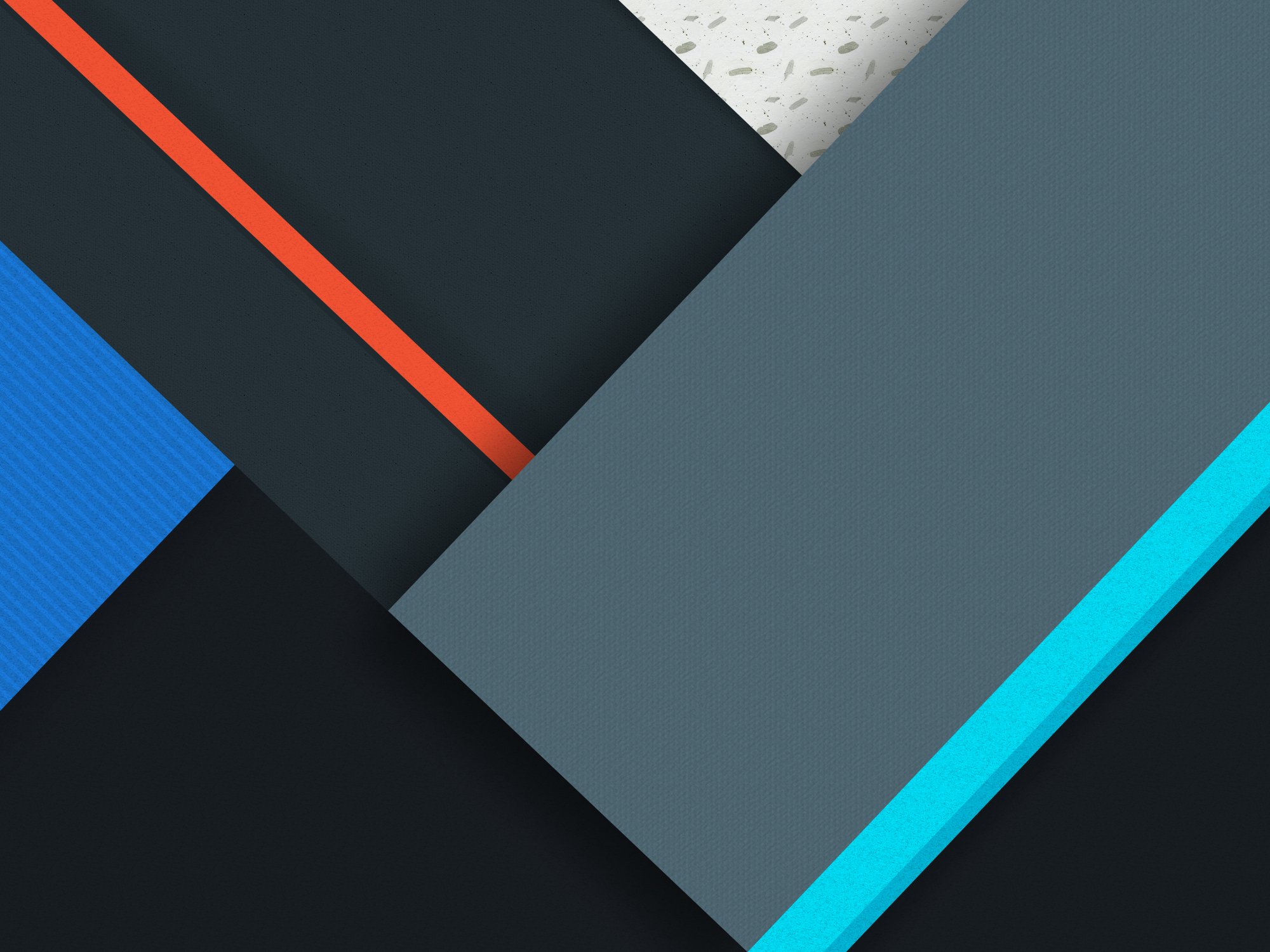
Lines by Shane Wignall

Simple name for a simple wallpaper that plays well on screens large and small. It almost reminds me of a present that's about to be unwrapped. And the bright blue contrasting with the two tones of grey makes this a wallpaper that fits right in with your business attire or something more flashy for a night out on the town.

Lines by Shane Wignall

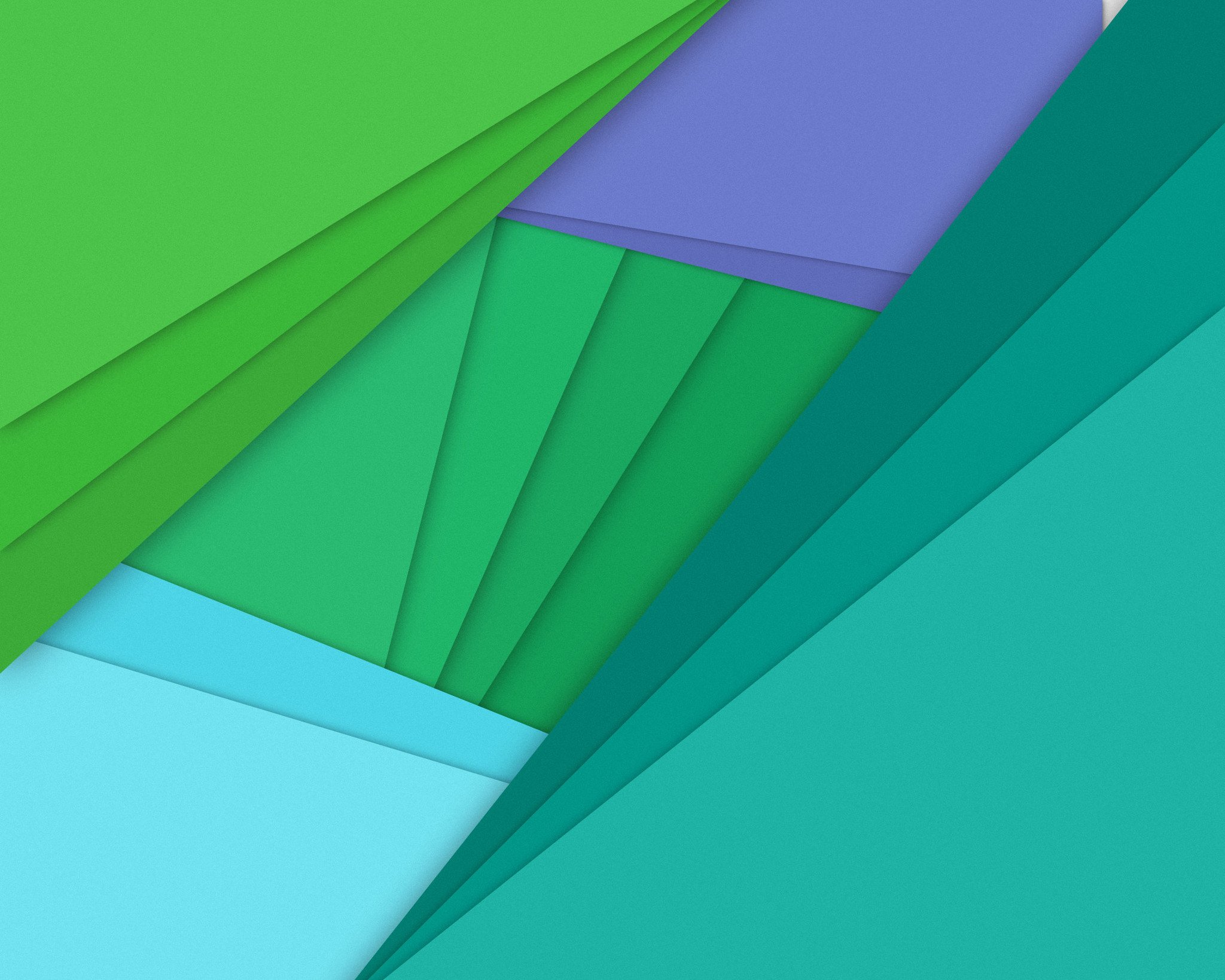
Teal Paper by ShiningWingPony

This cool-colored wallpaper may be a homage, but the execution is fabulous and the tones here are and mesh well with a large variety of home screens and icons. Also, green, purple, and blues? Anyone else seeing a Little Mermaid vibe going here? Just me? Okay, then...

Teal Paper by ShiningWingPony

Ultimate Material Collection by J Amourette

This ridiculously large collection of wallpapers, cultivated by J. Amourette and some enterprising themers, has material wallpapers in every color under the sun. No matter what color scheme you're going for, there's a wall in here for you. And while many are Android-themed, they look at home on any device on your table.

Ultimate Material Collection by J Amourette

08 Jun 14:45

Oh god, here's why turtles are attacking cats

by Arielle Duhaime-Ross

This weekend, I came across an animal video on Facebook that blew me away. It depicted a turtle attacking a very startled orange tabby cat.

As the cat lay on the kitchen floor of some pet owner's apartment, the turtle repeatedly hit it with its head and shell. The cat, clearly annoyed, eventually moved two feet away and flopped down on the kitchen floor again — only to be tackled by the turtle again. On and on this behavior continued. My mouth was hanging open for the entirety of the video.

Captivated, I searched YouTube for other examples of this behavior — and boy was I surprised! In video after video, I saw turtles chasing cats (and some dogs), extremely slowly, in an attempt to hit and bite them.

Videos y...

Continue reading…

08 Jun 12:59

Weaponized shirt for demoralizing designers

by Cory Doctorow

056c026d-1c66-4d42-9fae-a8e96df290c5-1020x1102

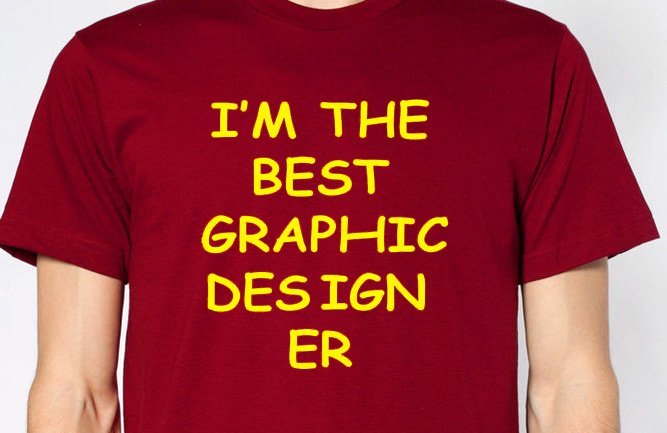
Zoe Quinn's awesome $21 "I'm the best graphic designer" tee has it all: linebreaks, Comic Sans, all caps, weird kerning... Just the thing to break the hearts of your designer pals!

08 Jun 12:55

UK surveillance bill passes House of Commons with bulk powers facing review

by Natasha Lomas
surveillance uk The UK government’s controversial Investigatory Powers bill easily passed a vote in the House of Commons yesterday, with 444 votes in favor and 69 against, after securing support from the opposition Labour Party. Only the SNP and the Green Party voted against what critics have dubbed a Snoopers’ Charter. Read More
07 Jun 19:48

A brief medical history of farting

by Elizabeth Lopatto

One of my favorite hobbies is searching PubMed.gov. I love PubMed — I use it to develop stories, to find sources, and to generally learn about the world around me. For instance: farting.

There was a superstar of the fart literature A PubMed search returns 14 results with "excessive flatulence" in the headline and abstract. A lot of these are about treating constipation, which is admittedly no fun. But there are some standouts, like this gem from 1975: "As yet," writes MD Levitt, "there are no data available that prove excessive flatulence is actually caused by the presence of excessive intestinal gas." Blow my mind, why don't you? As of 1975, there was no proof that farting was caused by too much intestinal gas? I gotta see more work by...

Continue reading…

07 Jun 17:31

Android Central's top 5 picks for Computex 2016!

by Alex Dobie

With Computex 2016 wrapped up, we've picked the best of the best Android-related gadgets you need to know about from this year's show.

Computex 2016 wasn't packed with new Android phones, but there was a wealth of great stuff for the discerning tech enthusiast to discover. On the Android side, Computex was dominated by impressive new phones from ASUS, along with a bunch of crazy new VR demos that show where Google's Daydream endeavor could be headed in the near future.

Read on for a selection of our favorite things from the Taipei-based show.

ASUS ZenFone 3

ASUS's follow-up to its competitively priced ZenFone 2 didn't disappoint, with a $250 price tag, significantly improved build quality and an upgraded camera. It's also the first phone to use Qualcomm's efficient new Snapdragon 625 processor, which should be the baseline for mid-level phones in the year ahead. The company's ZenUI software may still be an acquired taste, but you can't argue with the hardware, materials and affordability of ASUS's latest — particularly considering that it includes a fingerprint sensor as standard.

ASUS ZenFone 3 Deluxe

The Deluxe is ASUS's new flagship phone, bringing a luxurious aluminum unibody, "invisible" antenna lines and an impressive optically-stabilized 23-megapixel camera packed. In fact, the camera is packed with custom ASUS technology, including its TriTech autofocus system that uses laser AF, contrast-detection and phase-detection. It's no slouch when it comes to CPU horsepower too, with a Snapdragon 820 inside and a whopping 6GB of RAM. And given that it's priced a couple of tiers below the very highest of the high-end for the base model with 64GB of storage, it's a tempting offer for unlocked buyers.

ASUS ZenFone 3 Ultra

Let it not be said that nobody's making really big big phones anymore. The Ultra is as much a cellular-connected mini-tablet as it is a smartphone, with a gigantic 6.8-inch display and a stonking 4,600mAh battery. It's also dual-SIM-capable, and pretty clearly designed to appeal to Asian markets where big phones with multi-day battery life are in demand. But it'd just as well make a suitable replacement for an aging 7-inch tablet.

MORE: ASUS ZenFone 3 series preview

Zenbo!!!

Zenbo

ASUS's first home automoton is ridiculous, cutesy and just a little bit creepy. But Zenbo also has a ton of potential, especially when you consider the 'bot's $599 price. In contrast to the disembodied Google Home and Amazon's Alexa, Zenbo is very much a physical presence, which can follow you places, look stuff up online, find recipes, read your kids bedtime stories and meow like a cat. We'll have to wait and see whether Zenbo gains traction with developers — after all, ASUS has never really been a platform company — but a household 'bot that costs less than some smartphones is sure to turn heads and open wallets.

MORE: Up close with Zenbo

Wild new HTC Vive demos

How do you make your rowing machine workouts more interesting? Strap into a VR headset and start rowing in SPAAAAAACE. The Holodia demo, combined with HTC Vive and a strategically placed fishing rod-like device, aims to curb some of the monotony of exercise by transporting you into a range of different virtual worlds. Meanwhile Front Defense — a new title from a startup staffed by HTC employees — shows how room-scale VR can be used to make a traditional first-person shooter more immersive. And virtual music space Lyra — not at the HTC booth but still impressive — allows musicians to create music unconstrained by real-world physics.

MORE: VR and fitness collide with Holodia's rowing machine demo

Classic shooting meets room-scale VR with Front Defense

Drumming in VR with Lyra on HTC Vive


Want to see even more from Computex? Check out PC, gaming and laptop coverage from Windows Central and VR goodies at VRHeads!

07 Jun 14:50

[Editorial] Now On Tap's Image Recognition Is Quickly Becoming The Google Goggles I Always Wanted

by Rita El Khoury

now-on-tap

Google's Goggles is all but abandoned now. We've seen Google resurrect apps from the dead and update them after years of neglect, but it's hard to imagine the company putting a fresh coat of paint on Goggles at this point. If only because the app has been superseded by others from Google, with its functionality cut off into little pieces and moved to various places inside the ecosystem.

But that doesn't take away from the fascination and respect that Goggles deserves.

Read More

[Editorial] Now On Tap's Image Recognition Is Quickly Becoming The Google Goggles I Always Wanted was written by the awesome team at Android Police.

07 Jun 14:49

11 Useful Things You Can Do with Paperclips

by Heather Yamada-Hosley

Paperclips are plentiful and cheap, and useful for more than just clipping paper together. This video shows you a bunch of different ways you can use paperclips to solve everyday problems.

Some of these tricks we’ve mentioned before. You can use them in a pinch to latch bracelets, pin down necklaces, hide bra straps, and fix zippers. For some uses, you’ll need additional materials beyond the paperclip, like a strip of ribbon to make a simple bookmark, or some pushpins to hang photos without poking holes in them. You can even use a heavy paperclip to keep your keys and money together for a night out without carrying your whole wallet with you, open your mail without ripping the papers inside, or as a tab to make finding the end on a roll of tape easier. For visual demos of each trick, check out the video above.

11 Paperclips Tricks You Should Know | Mode

07 Jun 13:30

Researchers find a way to snoop on you through your phone’s vibration motor

by Devin Coldewey
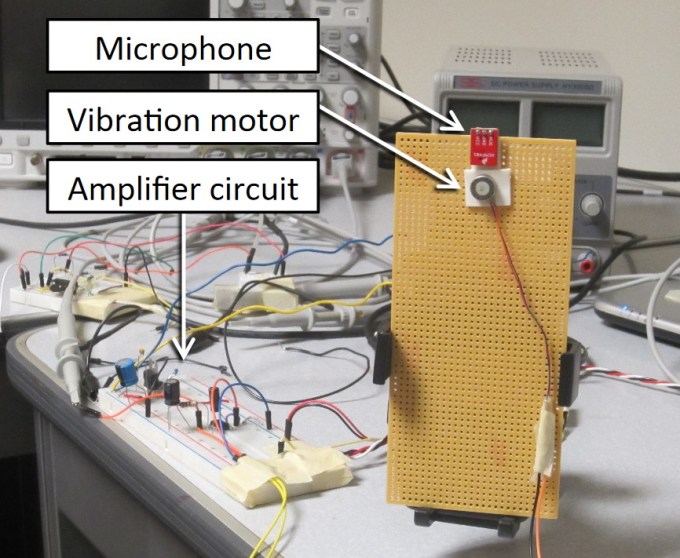
vibraphone Cover up your webcam, disable microphone access and put on your tinfoil hat — but it won’t make any difference, because the Illuminati can get at you through your phone’s vibration motor now. Well, kind of, anyway. Your best defense? Talk in a high voice. Read More
07 Jun 13:26

New Snowden document reveals UK spy agency warned of ‘too much data’ risk in 2010

by Natasha Lomas
datapitfall Another document from the original cache leaked by NSA whistleblower Edward Snowden in 2013 has just been published by The Intercept, and it further bolsters the view that government intelligence agencies’ bulk collection of data for investigatory purposes is counterproductive to national security efforts. Read More
07 Jun 13:22

Jabra's new neckbuds are designed for phone calls as well as music

by Dan Seifert

Neckbuds are all over the place — you can find them on the collars of countless commuters and flyers in most cities — but they are primarily designed for music. Jabra says its new wireless headphones are as good for phone calls as they are for listening to music.

The wireless Halo Smart headphones are similar in appearance to many other neckbud-style headphones. Left and right earbuds are connected by a collar that goes around your neck, and the whole unit communicates with your phone via Bluetooth. Jabra says the neckband provides the space necessary for a battery that can last up to 15 hours for music playback and up to 17 hours for calls. The earbuds have 10mm drivers.

The neckband will also vibrate when a call comes in, and Jabra...

Continue reading…

06 Jun 23:33

Turn an Unwanted Scarf into a Fashionable Kimono-Style Jacket

by Heather Yamada-Hosley

If you have a large, thin scarf you don’t wear anymore, turn it into a kimono-style jacket that you will. It takes less than an hour of work and a few supplies.

Light chiffon-like scarves work best for this project since they drape well. This can be a no-sew project if you decide to use heat tape or glue. You need:

  • Scissors
  • Something to hold the fabric together (heat fusion tape, fabric glue, thread and needle)
  • Iron (if you use heat fusion tape)
  • Scarf that is at least 60 inches long and 1 yard wide

If you don’t have a scarf that big, you can use a smaller scarf but your jacket will be less flowy and smaller. Hem the short sides of your fabric, then fold the them together horizontally and again vertically so you end up with four layers of fabric. Cut up the fold to where it ends (when the fabric is unfolded, the cut should be about halfway up the middle of the entire piece of cloth). This will be the front opening of your jacket. If you want, hem the fabric around this cut. Lay the fabric out to that the front opening is facing you and attach the edges of the sleeves together. Go as far up as you want, the further up you go, the smaller the arm holes will be.

For a faster version of this project, skip the hemming portion. This will make your jacket more likely to fray but if you only want it to last the summer, then you can do less work for a similar look. You can also add customizations like fringe or lace to the bottom of the jacket. Check out the video above (skip to 00:48) for visual instructions.

DIY: Kimono Cardigan | thehuyeninglooks (YouTube)

06 Jun 22:54

Everything you need to know about rooting your Android

by Jerry Hildenbrand

While your Android isn't in the same sort of jail an iPhone lives in, rooting can help you break out.

If you've researched anything about Android on the internet, you've probably seen and read about "rooting" one. There was a time when many of the Android phones available didn't live up to their potential, and root was the answer. Horrible software was the norm, applications that you would never use ran amok and wasted data and battery life, and the experience was bad all around.

Because every Android phone is running the Linux kernel and middleware very similar to a Linux distribution you would install on a computer under the hood, rooting them was the way to allow us to try and fix them our own way. Rooting is how you get complete access to everything in the operating system, and those permissions allow you to change it all. Modern Androids are quite a bit better than they used to be. Even the most inexpensive phone or tablet you can buy in 2016 will do more and perform better that the best Android phone available just a few years ago. But many of us still want to root our phones and are looking for more information.

Table of contents

What exactly is root?

When you root your Android, you're simply adding a standard Linux function that was removed.

Root, at least the way we're talking about it here, is the superuser. Your Android phone uses Linux permissions and file-system ownership. You are a user when you sign in, and you are allowed to do certain things based on your user permissions. Apps you install are also given a type of user ID, and they all have permissions to do certain things — you see those when you install them on older versions of Android, or you are prompted to allow them on Marshmallow or higher — in certain folders with certain files. Root is also a user. The difference is the root user (superuser) has permissions to do anything to any file any place in the system. This includes things we want to do, like uninstall application forced on us by the people who built them or the people who sells them to us as well as things we don't want to do that can put your Android in an unusable state. When you're doing things with superuser permissions, you have the power to do anything.

When you root your Android, you're simply adding a standard Linux function that was removed. A small file called su is placed in the system and given permissions so that another user can run it. It stands for Switch User, and if you run the file without any other parameters it switches your credentials and permissions from a normal user to that of the superuser. You are then in complete control, and can add anything, remove anything and access functions on your phone or tablet that you couldn't reach before. This is pretty important, and something you should think about before you begin.

* Back to the top

Should I root my Android?

Yes. No. Maybe. All three answers are perfectly valid. People have different reasons to want to root their devices. Some do it just because they can — they paid for the hardware and think they should be able to do anything they like. Others want to be able to add things that aren't there, like internet servers or be able to "fix" services that are there but don't work the way they would like them to work. People might buy a phone because they like the hardware, but hate the software and want to change it. Mostly, people root their phones because they simply want to get rid of the extra things on it that they don't want. Every one of these reasons — as well as any reason you might have that aren't mentioned here — are the right reasons.

Most people want root to get rid of the bloat.

Before you do any preparation to root your phone, you need to remember that it changes everything about the inherent security from Google and the people who built it. Plenty of us don't like it, but being able to access an account with admin permissions was not included in release versions of Android on purpose. As soon as you add this capability, you are responsible for the security and integrity of the operating system and every application on it. For some, this is more responsibility than they want or need. Rooting isn't the answer for everyone. If you're not sure about the ways you can break things by doing them as root, you should learn more about it before you start. It's OK to not know things and to try and learn, but not knowing and doing them anyway can turn a very expensive Android into a paperweight. You also need to know that for many Android models, rooting means your warranty is null and void. Services (including apps as well as network access from your carrier) can be denied to you because of the security risk when you're rooted. The risk is real, because so many users go into it all blind and let security lapse. Not doing that is your responsibility — take it seriously!

Finally, there are plenty of users who simply don't care about this stuff. Any Android phone, no matter how restricted root access is, can do just about everything we want or need from a pocket computer. You can change the appearance, choose from over a million apps in Google Play and have complete access to the internet and most any services that live there. You can even make phone calls. It's great if you're happy with what you have and what it can do, and aren't worried about trying to fix what isn't (in your eyes) broken.

* Back to the top

Getting ready to root

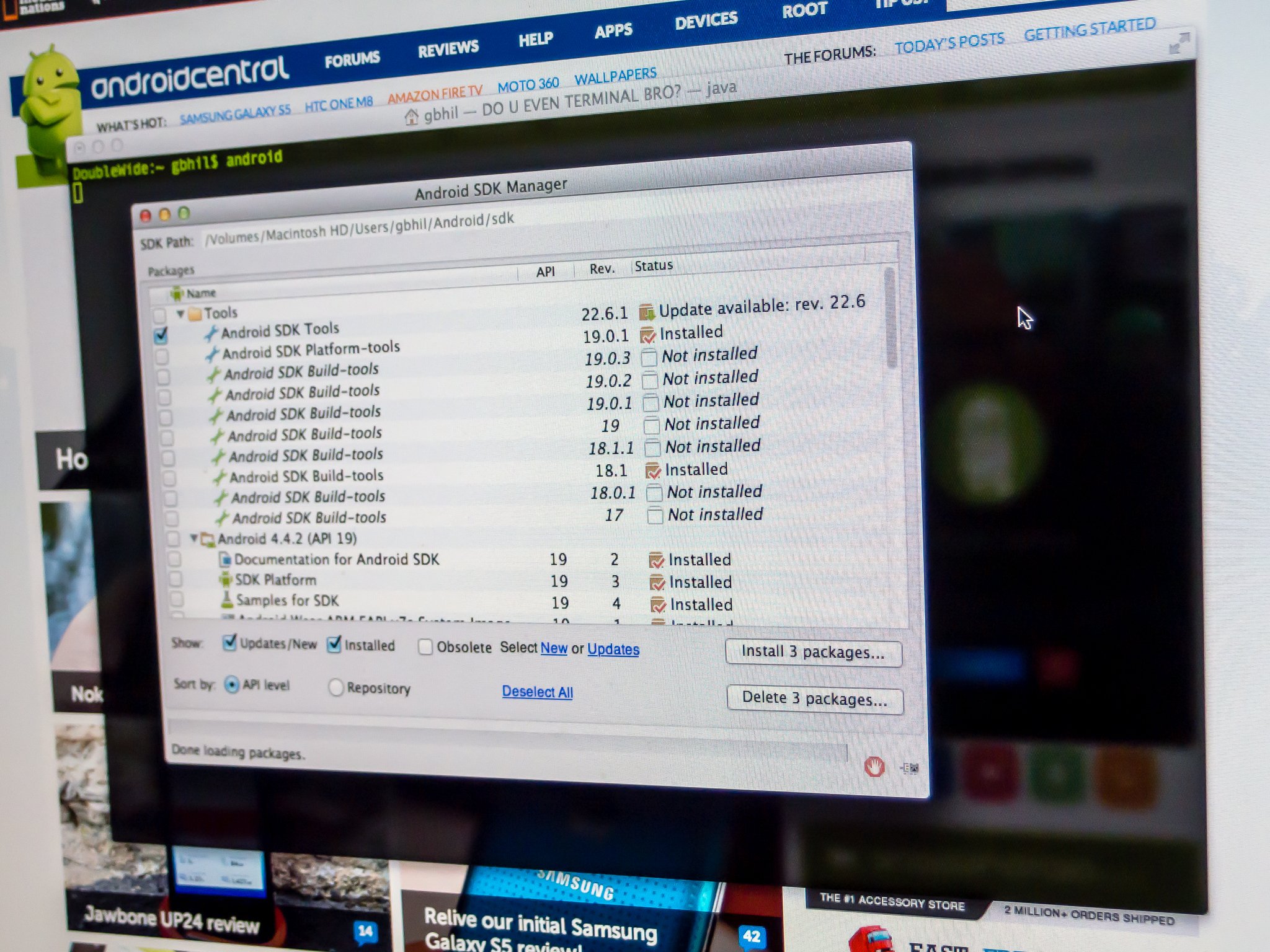
You'll need to do a few things to prepare your phone for rooting, depending on which method you use. Many of the ways require you install the Android SDK or unlock your bootloader. This sounds like a lot of scary work, but it's not difficult and knowing how to use these tools will help if things go wrong.

Here is our comprehensive walk through of how to set up and install the Android SDK

Depending on which phone you have, unlocking the bootloader is slightly different. The "standard" way is by using the OEM unlock command, which is outlined here. If you're using a Motorola, HTC or LG phone (as well as other brands like Huawei or Sony) you'll likely need to get a token you enter during the process. You'll find how to do that and who to get it from at each vendors developer pages. Remember that unlocking the bootloader on your Android may affect the warranty status.

Using commercial root apps

Using commercial rooting apps like Kingo Root or towelroot is straightforward, and can be done with or without a computer. While these apps can't root every phone, the people who make them are doing as best they can to keep the applications current.

While we can't validate the theories that these applications could potentially contain malware or send your data off to a server in some unfriendly nation, plenty of folks around the web have expressed concerns and doubts. You shouldn't ignore them. We recommend that you factory reset your Android before you download, install or run these applications to be safe. Your phone will remain rooted afterwards, and you can factory reset once again then sign in normally. Better safe than sorry.

Using Kingo Root

You can use Kingo Root with or without a computer. You'll find the download for both methods at the Kingo Root page — just select the one you want to use.

If you're using a windows computer with Kingo Root, you'll need to have the correct USB drivers installed on the computer you're using. If you don't have these, the Kingo Root program will try to locate and install the correct ones during the process. Simply plug your phone into the computer and start the application. It's as simple as letting the software set things up, then you click the button labeled "root" in the software. As long as your phone is supported, the rest is automatic. You'll see a list of recommended root application to install after the procedure is finished, but if the program say it was successful your phone should have the superuser unlocked .

It's easier to try and use the Kingo Root app on your phone to root. After you've downloaded it (and allowed sideloading of apps) you charge your phone to at least 50% and run the app. There's only one button to press, and after you tap it the rest is automatic. If the stand-alone version isn't successful, the computer version might be.

Full instructions and tutorials for supported phones can be found at the Kingo Root support page.

Using towelroot

Towelroot is a popular rooting app written by Geohot, the well-known iPhone hacker. Using it is really easy:

  • Download the towelroot application from the official site
  • Install the app (after you allow sideloading) and run it by tapping the Lambda (the Greek letter) symbol in the middle of the app window

Towelroot will attempt to exploit the running kernel, giving temporary access to the system files. Once that happens, the correct files needed to run as root are pushed to the file system. A quick reboot later, and you're rooted.

Only install towelroot from the official towelroot page. There are plenty of mirrors and variants out there, but it's always safest to get files like this directly from the source.

* Back to the top

How to root my phone?

How you root your Android is going to depend on which one you have. There are over 12,000 different Android models (and that's only counting ones that can access Google Play) from hundreds of different manufacturers. Some of those are easy to root, while some of them aren't. There are even models that will probably never be able to be rooted because the people who make or sell them just don't want you to be able to do it. And that's OK! Android means choice, and every person who wants a security-focused device that won't likely ever be rooted like the BlackBerry Priv should be able to buy one. And people who want a device that's easy to root (with all the tools and files needed to unlock it provided by the manufacturer) can buy one. This is something to keep in mind when you're buying your next phone and you should support the manufacturer who shares your thoughts about rooting.

The best Android phones

With over 12,000 different models, we can't cover every single method to root every single device. We can point you in the right direction and help you get there, though.

* Back to the top

Rooting your Samsung phone

Samsung used to offer "developer editions" of their popular models, but weak sales (they usually needed to be paid for in full with no type of subsidy or financing) they seem to have stopped production. We have only ourselves to blame — it's just not worth making something that nobody is buying.

Samsung also makes very lucrative deals with carriers, and most of the time those carriers want to prevent you from rooting your phone. Recent models from AT&T or Verizon are notoriously difficult to exploit, and all the U.S. versions of the Galaxy S7 are locked up and encrypted. There might not ever be a way to root them. This isn't true for unlocked models sold outside of North America though.

Knox can pose special problems when trying to root.

To root most Samsung phones you'll need to use a program called Odin. It's a low-level firmware flashing tool that can push image files to the storage and overwrite existing images. You'll also need the correct USB drivers for Windows computers. If you're using a Mac computer or running Linux, the software that flashes images is called Heimdall. They both work essentially the same, and carry the same risks — if you try and flash the wrong image or a bad image, your phone isn't going to be able to start. While this is often recoverable, know that there is always a chance you can ruin your phone or tablet, and your warranty is voided as soon as you begin.

Also, many Samsung phones ship with Knox security enabled. Knox is part of Samsung's special "Samsung Approved For Enterprise" feature where personal and work environments can be separated in a way that allows both to coexist on the same device. Knox can pose special problems when trying to root a phone that uses it, and it has a software counter that can show when device firmware has been tampered with. This means it's very easy for Samsung to void your warranty if you start fiddling with things.

For more information about rooting Samsung phones, check the forums for your specific model

* Back to the top

Rooting your LG phone

LG phones have several different methods to install the files needed for rooting. Some are completely bootloader unlockable and it's trivial to push the files through a custom recovery, while some are locked up tighter and require some special tricks. As we see with Samsung phones, carriers have a lot of influence here, so many AT&T and LG models take longer to find a method to root.

The LG G5 is simple to root, and you can do it without a computer with both commercially available rooting apps as well as apps from Android enthusiasts like yourself. There are security questions any time you use software built by someone else that could potentially have full access to all the data on your phone or your computer, and you'll need to read everything you can and decide if you want to go this route. Apps like OneClickRoot or AndroidRootPro are a few examples. There are plenty of satisfied users as well as users who question the methods. Listen to both sides and decide what you think here. An alternative is unlocking your bootloader and installing an open-source custom recovery that you can use to flash the needed files or even pre-rooted firmware. This requires a little bit of computer knowledge, but it's not that difficult.

For more information about rooting LG phones, check the forums for your specific model

* Back to the top

Rooting your HTC phone

Much like LG phones, many HTC models can be bootloader unlocked through the HTC Developer program. You'll find complete instructions for doing it here, as well as warranty information you need to know if you give it a try.

The HTC 10 is easy to root, and using the HTC Developer tools to unlock the bootloader allow for sending images to the phone to enable rooting and even more. There are also commercial services like Sunshine that can root your phone through an app or provide mail-in services where they do it for you. Again, it's up to you to decide if you feel comfortable with these services or if you would rather use the Android SDK and do things the manual way. Both methods are known to get you rooted and ready to do the things you wanted root to do.

For more information about rooting HTC phones, check the forums for your specific model

* Back to the top

Rooting your Lenovo (Motorola) phone

Motorola also offers a pretty liberal bootloader unlocking policy, which you'll find at their developer site. Using the standard Android SDK tools, you can unlock your bootloader so that a custom recovery image can be flash. This allows you to flash any other system image to your phone.

If your Motorola phone isn't covered under their bootloader unlocking policy (see the list here) — this means Verizon, of course — you might have to resort to exploits or commercial software like MOFOROOT or OneClickRoot. Once again, we have to remind you about using tools created by someone else that may have admin access on your phone or your computer, but the option is available.

We're waiting to see if the coming generation from Motorola is as developer friendly as they have been in the past, and we'll update accordingly.

For more information about rooting Lenovo (Motorola) phones, check the forums for your specific model

* Back to the top

Rooting your Nexus phone

To root your Nexus phone, you should start with learning how to install and configure the Android SDK. There are plenty of one-click scripts or toolboxes that will unlock your bootloader and get you ready to flash (or even flash it for you) a custom recovery, but there's a great reason to learn how to do it yourself — you are able to fix most anything if it goes wrong by using the Nexus Factory Images.

Google not only supports unlocking your bootloader, they also give you full and complete instructions on how to do it, how to flash third-party images and how to go back. Unlocking the bootloader doesn't break any warranties as Google realizes that there are many valid reasons to flash experimental on the developer/reference device for Android. Take advantage of this, and use the tools Google provides!

Once a third-party recovery image is flashed, you're easily able to push anything you need for root or any other image to your Nexus. Because it's the reference phone and easy to alter, you'll find plenty of tools and resources for things you can do after you've rooted. We highly recommend a Nexus phone to anyone who wants to tinker with the Android software platform.

For more information about rooting Nexus phones, check the forums for your specific model

* Back to the top

Other phones

As mentioned previously, there are over 12,000 current Android models from hundreds of manufacturers. There's no way to include each and every one on a single page.

Some of these phones come with a method (either apporved by the manufacturer or found by a third-party) to unlock the bootloader and use the custom recovery method to root them. Many of these other phones can be rooted with applications like Kingo Root, with or without access to a computer. Phones from names you know, like Sony or Hauwei, are supported as well as phones from companies you might not have heard of like Vivo or Phicomm. You'll find a partial list of supported phones here.

Commercial root apps work, but check out the pros and cons before you use them.

Apps like Kingo Root work because they take advantage of an exploit (a bug or glitch) in the software. This means that many security applications will identify them as a virus, and that software updates can (and do) break compatibility with them. Not every phone can be rooted through an app that leverage an exploit, but many can. It's certainly worth a look to see if your particular phone is supported. These services are profitable, and profitability means time and money is spent to keep them current and working on as many models as possible.

Here's where we will discuss the ethics of companies like Kingo Root or OneClickRoot. It's good to question the methods and motives behind any company that wants access to potentially sensitive information, and a healthy dose of skepticism is a good thing. A lot of folks feel that these kinds of apps are unsafe or follow unsafe practices, and they may be correct. On the other hand, plenty of people have used the apps and services and are completely happy with the results. We can't speak on it either way, as we're not involved in the creation or testing of any of these apps. Our job is to inform you that they exist, and let you know that there is always a bit of inevitable controversy surrounding them.

For more information about rooting other phones, check the forums for your specific model

* Back to the top

Where to go from here?

Now that you're armed with a bit of information about what root is, why you might want to do it and where to go to find the methods, you're able to do some legwork.

The most important part of the entire process is to read. Find every bit of information about rooting your particular phone or tablet, read up on the intricacies of the Android SDK and flashing a custom recovery for your phone, and find out how to go back before you connect any cables or install any software. Even the easiest phones to root require some general computer knowledge — your Android is a computer — so you should make sure you're able to understand things like working with zip files or using a file manager. Remember — it's always OK to have questions and ask for help.

A good place to start is in forums. Our forums are filled with people who hack and crack at Androids for fun, and other resources like XDA Developers forums can be a goldmine of information. Never overlook information that's readily available when it comes to hacking at your expensive phone. Rooting offers a long list of possibilities for responsible and safe users, so make sure you're informed and careful and have fun!

* Back to the top

06 Jun 22:51

This fingerprint scanner fits into a USB port and will make your old PC more secure

by Ashley Carman

We know conventional passwords aren't the most secure, especially if they're re-used across multiple sites. Biometrics are often a quicker and more effective approach, but most older devices don't come with fingerprint sensors or iris scanners. Still, we don't want anyone to be able to guess our PC password. Now, Synaptics thinks it can make our old laptops more secure with its new fingerprint USB module, the Turnkey, which slips into any Windows PC's USB port. Users just have to enroll with their print, pop the USB into the port, and it'll become the primary way they'll gain access to their notebook.

Turnkey is FIDO-certified, meaning it's been vetted and meets certain security and privacy standards. What's unclear, however, is whether...

Continue reading…

06 Jun 19:11

See the new Star Trek 50th Anniversary Barbie dolls

by David Pescovitz

screenshot

In celebration of the 50th anniversary of the Star Trek original TV series, Mattel is releasing a new Barbie collection of Kirk, Spock, and Uhura dolls. These figures would play well with the Star Trek Barbie and Ken released in 1996, during the 30th anniversary of Star Trek.

910EYlFBDnL._SL1500_

91XPmarjAzL._SL1500_

06 Jun 19:10

A couple's 6-month trip around the world, 1 second per day

by Carla Sinclair
1 sec

Here is one couple's trip around the world, one second per day. What took them six months to experience takes us armchair travelers only three minutes!

06 Jun 19:00

The Android Security Bulletin for June 2016 is live - here is what you need to know

by Jerry Hildenbrand

Code changes are pushing out to AOSP, updates are coming for Nexus devices and factory images are posted and ready.

Google has released the lastest monthly Android security update, with full details and new software available. The new Security Patch Level date is June 1, 2016, and changes to the Android Open Source Project should be finished and published within 48 hours. Google also tells us that partners have had access to the warnings in this month's bulletin since May 2 or earlier.

Google says that there have been zero reports of any devices actively exploited by these vulnerabilities.

This month brings patches for 21 security vulnerabilities, ranging in severity from critical to moderate. According to Google, the most severe issue is "a critical security vulnerability that could enable remote code execution on an affected device through multiple methods such as email, web browsing, and MMS when processing media files." It appears that the Stagefright library continues to be a popular focus for security researchers as well as Google's security team, which makes splitting the media server out of the OS layer and updating separately in Android N even more important.

Google also stresses (as it does each month) that there have been zero reports of any devices actively exploited by these vulnerabilities, and that platform-level security protections and service protections like SafetyNet make the risk of actually being affected quite low.

A quick summary:

  • Exploitation for many issues on Android is made more difficult by enhancements in newer versions of the Android platform. We encourage all users to update to the latest version of Android where possible.
  • The Android Security team actively monitors for abuse with ​ Verify Apps and SafetyNet​, which are designed to warn users about ​Potentially Harmful Applications​. Verify Apps is enabled by default on devices with Google Mobile Services​, and is especially important for users who install applications from outside of Google Play. Device rooting tools are prohibited within Google Play, but Verify Apps warns users when they attempt to install a detected rooting application—no matter where it comes from. Additionally, Verify Apps attempts to identify and block installation of known malicious applications that exploit a privilege escalation vulnerability. If such an application has already been installed, Verify Apps will notify the user and attempt to remove the detected application.
  • As appropriate, Google Hangouts and Messenger applications do not automatically pass media to processes such as mediaserver.

Full details of all the issues address can be found at the security bulletin site.

There is no word on when to expect the patch for any other Android-powered device, but current Nexus devices, Android One phones and the Pixel C have an update pushing out over-the-air starting today, and it should be rolled out to all devices in due time. If you're the impatient type (and if so, why aren't you running the Android N Beta?) you can flash the factory images posted at Google's Developer site.