Shared posts

16 Apr 18:45

17 Browser Shortcuts Everyone Should Know

by David Nield

The best keyboard shortcuts can help you power your way through many computing tasks. As muscle memory takes over, you can be open files, format documents, switch between programs, and much more besides, all without lifting your fingers from the keyboard or navigating your way around menus and dialog boxes.

A lot of time spent on your computer is probably spent using the internet, and the benefits of keyboard shortcuts extend to web browsers as well. The most popular browsers use the same keyboard shortcuts as your computer's OS, with the usual caveat that the Cmd (Command) key on macOS typically subs in for the Ctrl (Control) key on Windows.

Below, I've listed some of the most useful keyboard shortcuts for getting around the internet. If there are some that you haven't come across before, they should help you consume more internet in a shorter amount of time. (Aside from these, you'll often find individual sites, such as YouTube and Slack, support their own keyboard shortcuts, too.)

These shortcuts should work in Chrome, Edge, Firefox, and Safari, and will also function in a number of other browsers.

The best keyboard shortcuts for managing tabs

Firefox private browsing
Credit: Lifehacker

Close the current tab: If you need to shut down the browser tab you're looking at, then Ctrl/Cmd+W will do the job—just make sure you're on the right tab, especially if you're closing down a lot of them at once.

Reopen the last closed tab: To bring back a tab you just closed, use Ctrl/Cmd+Shift+T.

Jump to a specific tab: You can get around your open tabs with keyboard shortcuts, too. Hold down Ctrl/Cmd, then tap the number of the tab you want to jump to, starting with 1 for the one on the far left, 2 for the one to the right of that, and so on up to the ninth tab.

Cycle through open tabs: If you want to move through all of your tabs one by one, use Ctrl+Tab on both Windows and macOS (hold down Shift too to go in the opposite direction).

Open a new tab: To open a new tab and jump straight to it, it's Ctrl/Cmd+T.

Open a new window: If you need new windows as well as new tabs, Ctrl/Cmd+N will open up a new window

Open a new incognito window: If you hold down Shift at the same time as Ctrl/Cmd+N, you'll get an incognito or private window instead. The outlier here is Firefox—use Ctrl/Cmd+Shift+P for a new private window.

The best keyboard shortcuts for navigating webpages

Edge right-click menu
Credit: Lifehacker

You've got some handy keyboard shortcuts for getting around webpages, too.

Scroll down or up: Tap Space to see the current page scroll down so you can carry on reading. Use Shift+Space to go back up.

Move between links of a page: Use Tab and Shift+Tab to move between links on a webpage—though on Safari you may have to hold down Option at the same time, depending on your system settings (try it both ways to see which works).

Open a link in a background tab or an active tab: If you want to open a link in a background tab but stay on the current tab, hold down Ctrl/Cmd when clicking on it; if you want to open a link in a new tab and jump straight to it, hold down Ctrl/Cmd+Shift when clicking on it.

Use the keyboard to go backward and forward: You can use keyboard shortcuts instead of the back and forward buttons in your browser, If you're on Windows, hold down Alt and then tap the left or right arrow key, and if you're on macOS use the Cmd key instead of Alt.

More of the best keyboard shortcuts for your browser

Chrome bookmark dialog
Credit: Lifehacker

Find something on a page: If you're looking for something in a webpage, hit Ctrl/Cmd+F to bring up a search box.

Bookmark a page: You can also press Ctrl/Cmd+D to bookmark the webpage you're currently looking at (you should get some additional bookmark organization tools on screen too).

Zoom in or out on a page: Hold down Ctrl/Cmd and then tap the + (plus) button to zoom in on a page. With Ctrl/Cmd held down, you can tap - (minus) to zoom back out, or 0 (zero) to go back to the default zoom level.

Fast refresh a page: Sometimes you'll want to refresh a page to see if something has updated, and Ctrl/Cmd+R is the shortcut you need for that.

Hard refresh a page: Hold down Shift at the same time as Ctrl/Cmd+R and the page will completely refreshes, including any cached content.

Jump right to the address bar: When it's time to go somewhere else on the web, Ctrl/Cmd+L will put the cursor in the address bar at the top of the browser interface. From there you can run a web search, or type out the URL of the page you'd like to visit next.

31 Aug 21:59

Find Nature's Solutions to Your Problems With This Website

by Emily Long

Nature knows best when it comes to, well, most things. If you’re looking for an answer to how to stay cool in the heat, protect yourself from pathogens or form long-term friendships, other living organisms have probably already found a solution—and AskNature.org is compiling them for you.

Read more...

24 Dec 18:26

Quickly Remove the Background in Images Without Photoshop by Using This AI Tool

by Emily Price
Image: Pexels

Removing the background in an image typically involves knowing how to use photo-editing software or enlisting the help of someone else who does. Now there’s another solution: using AI.

Remove.bg is a website whose sole purpose is to remove the background from images. To use it, you just upload an image with people in it and the site will automatically figure out where the people are in the picture and then remove the background, leaving you with a downloadable PNG of your subject with a transparent background.

Screenshot: Remove.bg

As you might image, your mileage may vary. The Verge, which initially spotted the tool, notes that it has trouble with images that have fuzzy backgrounds.

Advertisement

That said, if you have an image with a clear foreground then it can make editing a photo a ton easier.

18 Oct 14:47

How to Demand Action on Climate Change

by Leigh Anderson

Last week, the Intergovernmental Panel on Climate Change released a report—a klaxon, really—warning of the catastrophic consequences of climate change if global political leaders don’t take action right now. For people who’ve been sounding the alarm for decades now, this report is depressing but not surprising; for those of us who’ve not paid as much attention to the science as we should have, the report is a blaring wake-up call. No matter which group you’re in, though, the path forward is clear: We need to pressure our elected leaders, corporations, and even our friends and neighbors to change our ways or we will be witnessing rising sea levels, natural disasters, war, famine and a refugee crisis the likes of which the world has never seen. As the New York Times writes, “the world must utterly transform its energy systems in the next decade or risk ecological and social disaster.”

“The first thing that someone can do,” says Michael Brune, the executive director for the Sierra Club, “is to remember that you have power.”

In the face of enormous, apparently intractable social problems, individual action can seem puny and inconsequential. (And indeed, just 100 companies are responsible for 71 percent of global greenhouse gas emissions, which can make your rinsing out your tuna cans seem like an absurd bit of private theater.) But collectively we actually can slow climate change: “The first thing that someone can do,” says Michael Brune, the executive director for the Sierra Club, “is to remember that you have power. As a citizen, a consumer, an investor, as a human being, you have the power to effect really great change.” Here’s how to get started.

Know Where Your Elected Officials Stand

If you think that everyone’s pretty much on board with the fact of climate change, you’re in for a rude awakening: More than half of Congress are climate-change deniers (and are largely, but not exclusively, Republicans). Want to see how enlightened your rep is on the issue? Check out this handy list of all the climate-change deniers in Congress. You know the drill: Call, write, email, protest, and above all, vote.

Advertisement

Focus on State and Local Government

Municipalities, collectively, might be able to do more than Washington. After President Trump decided to withdraw the U.S. from the Paris climate accord, a coalition of mayors pledged to meet the targets anyway. As Michael Bloomberg, the former mayor of New York City who coordinated the effort, writes in the Times, “More than 130 American cities have joined the Global Covenant of Mayors for Climate and Energy, and all are determined to see that we meet our Paris goal.” Start going to your city council meetings, or at least follow the reporters or environmental advocates who are covering those meetings. Does your city have a sustainability office or a committee on the environment? Does your local university have a sustainability office you can communicate with about local efforts? If you truly turn up nothing, check out the Climate Resilience Toolkit for step-by-step instructions on addressing climate change in your community.

“Who you vote for for mayor, or who’s on your city council, is really important,” says Brune. If you want your community to be powered by clean energy, you need to vote and agitate at the local level.

Brune also points out that governors who believe in and are addressing climate change have made more economic opportunity for their constituents: see New Jersey, Illinois, California, Massachusetts. So hold your governor’s feet to the fire and volunteer for the candidates you think have the best handle on the climate change/economic-opportunity intersection. For a quick way to check out how a federal candidate leans, go to the Sierra Club’s endorsement page. For state and local races, contact your local chapter of the Sierra Club—some states offer “legislative scorecards.”

Take Action Yourself

“The very first thing you have to do is take action yourself,” says David Miller, the North American regional director for the C40 cities’ climate leadership group. When you talk to your elected officials and they ask, “well, what are you doing?” you want to have a ready answer. “Do you take transit? Can you make choices in your own personal transportation? If you drive, can you take transit even one day a week? If you take transit, can you walk more, can you bike more?...Can you choose an electric vehicle over a gas-powered vehicle?” Miller acknowledges that your personal action will depend on your personal circumstances, but that collectively these decisions can have a huge impact.

Advertisement

You can ask yourself the same questions about dozens of relatively small lifestyle choices:

These efforts might seem inconsequential, like rinsing out the tuna cans, above, but if you’re also leaning on your friends and neighbors, and your employer, and your local government, small actions will start to snowball. And regarding those 100 companies that are the big villains in climate change, Miller points out that changing your behavior to not support environmentally-damaging sectors of the economy—by, for example, choosing public transit over cars—you are effecting change. “You’re making choices with your pocketbook.” A million small choices add up.

Influence Your Friends and Neighbors

“Speaking up actually matters,” says Miller. “Building a political movement requires knowledgeable, engaged people who work together on an issue.” If fighting climate change is your new passion, or even your old passion, don’t keep it to yourself. And you don’t have to take a finger-wagging tack—start with the positive: “So many things are happening that are inspiring,” says Miller. “This is a movement that is based on making lives better.” You can talk about how great electric cars are now, or how much you’re enjoying the health benefits of cycling and don’t want to be hit by a car (this is my personal strategy) or how cities around the world are buying fleets of electric buses.

Advertisement

It’s important to influence our elected officials, of course, but as the saying goes, “there go the people. I must follow them, for I am their leader.” Changing representatives’ minds means changing their constituents’ minds. “The most important thing to influence elected officials is a general understanding amongst people that something is the right thing to do,” says Miller.

This is also where Facebook activism comes in—even if you’re just posting about what changes individuals can make, you might influence someone to re-think what kind of car they need, or even if they need a car at all. This doesn’t have to mean scare-mongering or guilt-tripping—keeping a positive and helpful tone is critical. The posts from friends that make me listen usually involve events, like fundraising bike rides or postcard-writing parties—fun things that make activism social. “We’re doomed” is not going to inspire anyone to do anything.

Start With Your Personal Interests and Your Own Community

I confess that while I have always been aware of climate change and vaguely hoping that politicians would do something, it hasn’t been my number-one issue. But lately I’ve gotten into cycling, and so follow a lot of transportation-alternatives types on social media—which has changed how I think about cars, transit, and cities...which in turn has changed what I talk about with friends. A lot of people come to this topic through their own personal perspective, says Brune: grandparents who want their children to have a future that isn’t impoverished because of climate change, parents and teachers who organize to have a strong science-based curriculum in schools.

Brune says, “A lot of people may be more conservative politically, but they run a company or they’re active in the private sector, and want to make an economic argument in favor of taking action on climate change....We have seen people who organize through their church, to make a moral argument for why we should take stronger action in favor of clean energy. We’ve seen all these things be effective in their own right, but when they are coordinated together, you have a cacophony of voices all calling for stronger leadership.”

So are you into education? Check out Climate Parents, follow the National Science Teachers’ Association, and attend your local school board meetings to find out what the science curriculum is in your kid’s school. Are you into gardening? Research how to get started with composting. Catholic? Read what the Pope has to say on climate change. (Jewish? Covered. Episcopalian? Covered.) Are you an engineer or architect? Are you an African-American person who wants to get into camping, or a Latino person who wants to connect with nature? Are you queer and interested in backpacking? I am going to guess that no matter your identity, hobbies, interests, or passions, you can hook up with some group that is enjoying nature and fighting climate change.

Advertisement

My personal next steps? Start going to my local meetings about transportation alternatives, and re-considering my banking. If you’re stumped, look for your local chapter of the Sierra Club, or just find your greenest friend on Facebook and ask what to do. We’ve got a decade to turn things around, so pour yourself a coffee in a reusable mug, make yourself a vegetarian snack, and start planning. The future depends on it.

05 May 19:54

Podcast Ep. 215: Paige Patterson’s Awful Advice

by Hemant Mehta
We also talked about "Modesty Ponchos," Incels, and the Pulse nightclub massacre survivor who claims he's no longer gay.
27 Mar 20:50

Denver Cops Arrest Youth Pastor for Alleged Sexual Assault of 17-Year-Old Victim

by Hemant Mehta
On the girl’s 18th birthday, Pastor Joshua Clemons sent the alleged victim a card saying, "We’re legal.”
06 Oct 11:16

Here's The Problem With Those 'No Haggle' Dealerships

by Tom McParland on Jalopnik, shared by Melissa Kirsch to Lifehacker

One of the most frustrating aspects of buying a car from a dealer is the back and forth about the price. Some dealers have responded to this by offering upfront, “no haggle” prices. And while this seemingly streamlines the process and makes (some) buyers happy, in practice, it’s a little bit more complicated.

We all know the scene. A buyer walks into a dealer looking to buy a car, they find something they like, and then the conversation goes something like this:

Customer: “So what is your best price on this car?”

Salesperson: “How much are you looking to pay per month?”

Customer: “I just want your lowest sale price on the vehicle.”

Salesperson: “Well...I have to talk to my manager.”

[Customer waits for awhile.]

Salesperson returns: “My manager says I can get you $2,000 off the sticker price. That’s the best we can do, and this deal is only good today.”

Advertisement

Now, the customer has no idea if $2,000 off the sticker price on that particular car is a good deal or a crappy one because, in that moment, they don’t know what other stores would be willing to offer. It is completely possible, for example, that two grand off is the best that that dealership can do, even if another dealer across town can go lower.

Of course, the internet has changed a lot of this, whether it’s through email, phone calls, or websites like TrueCar, which customers use to compare quotes. But the process can still be frustrating, especially when dealers refuse to send quotes or send ones that aren’t remotely competitive. It still, in other words, takes time and diligence to shop for a car and be confident you’re getting the lowest price possible.

How have some dealers adapted? By offering so-called “no haggle” prices when you request a quote via the internet. On the surface, this should increase competition and transparency, but, in reality, a lot of stores approach it with a “take it or leave it” mentality.

Advertisement

To wit: I was recently shopping for a brand new Mazda CX-5 for a client in Idaho, but because there were only three Mazda dealers in the area and two of them had the same owners, the lack of competition meant that they didn’t have much incentive to be super generous on one of the hottest-selling crossovers.

The first dealer came back with an offer of $600 off the sticker price, while a competing store came in around $1,800 off the MSRP. When the first store followed up with me, and I informed them that their competitor offered a discount that was triple what their offer was, I got this response, “Well sir, we are a no-haggle dealer and that is our best price.” When I told them that there is no way that price could be acceptable given the other offer, they said: “Well, we sell quality cars, not cheap ones.”

That is when I said (very clearly and slowly) “It’s... the... same... car. A brand new CX-5 why would the quality be any different?” They reiterated that they their “no haggle” policy meant that that was the best they can do.

Advertisement

Which is exactly what I have found elsewhere: Mainly, that these “no haggle” prices on brand-new cars don’t solve the problem. More often than not, the customer is better off actually haggling with someone else.

The issue gets more interesting when it comes to used cars. About once a week, I get an email from a reader who says something along the lines of, “I’m trying to buy a used car from this dealer and they won’t negotiate because they say their pre-owned prices are ‘no haggle.’”

My response to them is usually, “Have you found a similar car with similar miles in your area for a lower price?” More often than not, the answer is no, which means that the dealer is probably not overcharging for the car, just that they did their homework and they already have it priced competitively.

Advertisement

That’s because used car prices are fundamentally different from those on new cars. With new cars, the product is the same across the board, meaning that most of the time you’re just trying to find the dealer willing to sell it to you at the lowest cost. Used cars are a different animal, and there are a lot more factors to consider. When finding the best price on a used car it is more about finding the best value in your particular market, rather than how much you can get off the asking price.

Here’s another example. Recently, I was shopping for a used BMW 3 series Sportwagen, and I narrowed the leads down to two cars. The first one was a non-Certified Pre-Owned 2015 with 28k miles that had an original sticker price of about $48,000, and a current asking price of $28,700. The second one was a Certified Pre-Owned BMW 2015 with 27k miles that had an original sticker price of $56,000 and a current asking price of $29,500. The BMW dealer that was offering the CPO wagon said their advertised price was “no haggle” at $29,500, while the Subaru dealer that had the other wagon was flexible on price and was willing to come down an additional $700.

Despite the fact that the first car now had a sale price $1500 cheaper than the wagon being sold by the BMW dealer, the CPO car had the factory-backed extended warranty, which adds value, in addition to thousands of dollars of additional equipment. In this case, the more expensive “no haggle” car was the better deal.

Advertisement

Another layer of complication: it’s often the case that used car domain retailers like CarMax and other similar outfits who have become synonymous with the “no haggle” approach don’t often have the best prices. That is because CarMax leans on their marketing and dealership style to sell cars, while other stores selling used inventory are pricing their cars in competition with similar vehicles on the market.

The “no haggle” concept is a good one in theory, but depending on the type of car you are trying to buy the approach can cause some confusion for your average buyer. In short: When buying a new car, “no haggle” dealers can often be beaten by someone else, but the dealers that price pre-owned inventory with a “no haggle” prices have usually done their homework.

Advertisement

All of which is not to say that you shouldn’t ask for additional discounts, but, in both cases, the only way to be sure if that “no haggle” price is a good one is to shop around and compare.

04 Jun 22:11

Keep Your Front-Loading Washer Stink-Free With These Four Tips

by Patrick Allan

Some front-loading washers have had issues with mold and mildew, and that means nasty smells that get into your clothes. Here are some easy ways to keep that from happening.

In this video from the Consumer Reports YouTube channel, Dan Diclerico demonstrates how to keep your front-loader from smelling funky:

  1. Wipe the glass and the door gasket dry after each load.
  2. Keep the washer door ajar when not in use so air can circulate.
  3. Regularly remove detergent buildup from the dispenser.
  4. Sanitize the washer every few months using one cup of chlorine bleach. Fill the bleach dispenser and run a no-laundry, hot water cycle.

If you follow these tips, you won’t ever have to worry about moldy smells, regardless of how old your front-loader is. If you’re in the market for a front-loading washer, Diclerico recommends a model with a tub cleaning cycle, which is designed to prevent mildew.

http://lifehacker.com/top-10-ways-to...

How to Get Rid of Odor in a Front-Loader | YouTube

29 Feb 23:31

Make Some DIY Flexible LED Panels for Your Photography Lighting Kit

by Patrick Allan

If you’re looking for a great way to light your photo and video shoots, this DIY super bright LED panel can be molded to shed light anywhere you need it. You can even swap between warm and cool lighting with the flick of a switch.

In this video from the DIY Perks YouTube channel, you’ll learn how to make some flexible LED panels that are great for any photographer’s travel kit. You’ll need some LED strips (he uses Marswell Neutral White LED Strips with High CRI), some fake leather, some wiring, and a solder gun to put it all together. Once you have it all assembled, you’ll have a super bright LED panel that you can flex and fold to fit your needs. You can use it as a light panel for your photo shoots, or just as a work light that can fit almost anywhere. All in all, each panel will cost you around $60 to make, but their usability and portability are worth it. You can find a list of all the parts you need at the link below.

http://lifehacker.com/how-to-improve...

How to Make Flexible LED Panels (DIY Flex Lights!) | YouTube


Contact the author at patrick.allan@lifehacker.com.

31 Jul 23:35

JavaScript & JQuery: A More Beautiful Way to Learn Web Development

by Melanie Pinola

JavaScript & JQuery: A More Beautiful Way to Learn Web Development

These days, there’s no shortage of online resources for teaching yourself to code, but there’s also nothing like reading a good instruction book from start to finish. JavaScript & JQuery, by Jon Duckett, is perhaps the most elegant, visually engaging book you can learn JavaScript from.

This is part of Lifehacker’s book review series. Not every life hack can be summed up in a blog post, so we’ve decided to review some of our favorite life-changing books for deeper dives into life’s most important topics.

JavaScript & JQuery: A More Beautiful Way to Learn Web Development

Even if you’re the type of person who finds technical books naturally interesting and engaging, it’s a huge stretch to call the typical programming book “beautiful.” JavaScript & JQuery: Interactive Front-End Web Development, however, like its companion HTML & CSS, truly is gorgeous. This is no doubt due to Duckett’s background as a creative director of a digital agency and his partnership with award-winning designer and illustrator Emme Stone. However, although the good looks are what drew me into these books, it’s the simple, concise explanations and examples that kept me reading.

(The HTML & CSS book is full of beautifully presented, useful information, but it was published in 2011, when HTML5 and CSS3 were still being developed, so some topics are outdated or missing—notably responsive web design, the approach most designers are using today to make sure sites are optimized for all kinds of screens. It’s still a nice book to pick up, but you might prefer something from the last year or two. JavaScript & JQuery was published in June of 2014 and is still current.)

Who This Book Is For

This book is geared towards people who already know at least a little HTML and CSS and now want to add interactivity to their web sites, make web-based apps, or just learn some programming basics. JavaScript is one of the best programming languages to learn first, so the book can serve as a stepping stone for those considering a career or hobby in programming, particularly front-end web development.http://lifehacker.com/which-programm...

If you’re already an experienced programmer or can currently code in JavaScript, this book isn’t for you. Consider this an Intro to JavaScript 101 class. It’s not a comprehensive, deep dive into everything you can do with JavaScript, but it teaches you just enough to create your own scripts, even sophisticated ones.

Although JavaScript & JQuery is aimed at novices, if you have some knowledge of JavaScript—such as if you’re currently taking coding classes on Codecademy—you could still benefit from the book. I’m self-taught in these languages but also took a few formal university courses in web development and computer science. I found that the book filled in some gaps in my knowledge or at least helped me think about coding concepts in different ways. In other words, the book could also be a good refresher if you haven’t really used JavaScript much or are like me and “don’t know what you don’t know” about JavaScript.

Finally, the book is for people who want a more enjoyable way to learn the language. Its great design and layout should appeal to the book’s target audience: People interested in web design and development, folks who tend to be visual learners.

What You’ll Get

The book teaches three main things:

  • Basic programming concepts and the terms used by JavaScript programmers to describe them (e.g., what functions are and how you “call” them)
  • The language itself (its vocabulary and structure)
  • How JavaScript is applied (through example scripts)

The first six chapters focus on programming and JavaScript basics (how HTML, CSS, and JavaScript fit together, for example, and how scripts can respond to events triggered by the user on the web page). The remaining seven chapters explain more advanced topics like using JQuery and Ajax, and how to handle errors. (JQuery, a JavaScript file, makes coding simpler with fewer lines of code thanks to its special methods. Ajax is a processing model that refreshes parts of the web page without reloading it, just like you can delete or archive emails en masse in Gmail without requiring the page to reload. And finding and squashing bugs is probably the most frustrating part of coding.)

Each chapter contains an introduction page that tells you what you’ll learn, main explanatory pages that discuss the topics you’re learning in that chapter, example pages demonstrating how the code can be applied, and summary pages that remind you of what you learned. Diagrams and infographics, as well as reference pages, are also scattered throughout the book.

Here’s an example:

JavaScript & JQuery: A More Beautiful Way to Learn Web Development

One Trick You’ll Take Away

It’s hard to single out one single tip from this book, since it’s explaining programming concepts and methods and how to use them. As an instruction book, all of the information is useful.

However, there’s a specific type of tip throughout the book that I appreciated in particular: Best or recommended coding approaches. No matter what the programming language, there are usually several ways to accomplish the same task. Sometimes differences are just a matter of style (e.g., where to place closing parenthesis in particular functions), but at other times recommended “best practices” can help avoid performance issues or other problems with your script.

For example, the book notes that you shouldn’t define variables within a loop if those variables don’t need to be changed, because the variable will be defined each time the loop runs, taking up precious resources and slowing down your script. As another example, when comparing two values, instead of using the equals operator “==” (e.g., x == y) , it’s safer to use the strict equals operator, “===” (e.g., x === y), because the latter will compare both the value and the data type of the two objects, making sure they’re truly equal—and avoid errors and other surprises.

Tips like these are great basics that you might not learn if you’re self-taught and just jumping in to fiddle with code, and they highlight an overall theme running throughout the book—which should be in every programming book—how to code for efficiency and avoid errors as much as possible.

Our Take

JavaScript & JQuery is unlike any other learn to code book you’ll probably encounter (besides HTML & CSS). It attempts to explain, concisely and visually, many programming concepts people often struggle with. It does it very well, almost tricking you with its coffee table book-like style to make you pick it up and dive in.

Besides the visual hooks, the code examples in the book are well thought out and practical, with helpful flowcharts, line numbers, and comments to explain what the code does.

JavaScript & JQuery: A More Beautiful Way to Learn Web Development

Also, each chapter builds upon previous code examples to explain more complex methods and ideas. For example, a hotel metaphor in the first chapter explains the concept of objects and properties, and later chapters demonstrate how to write functions that check and update hotel room availability.

All this said, if you don’t care for diagrams and infographics and want more code and text, this might not be the best “how to learn JavaScript book” for you. It’s certainly not the most comprehensive book on the subject. Although it’s over 600 pages long, each page has just a limited amount of information (so readers don’t get overwhelmed). There’s a lot of white space on these carefully designed pages.

Other books cram more information on the page—thus covering more ground— including the also visually-oriented Head First series of programming books, which has a colloquial, sometimes campy tone and lots of callouts. Eloquent JavaScript, another alternative that happens to be free on the web, is smartly written but is also lots of text upon text. And more advanced JavaScript coders might turn to the 1,096-page JavaScript: The Definitive Guide, which is both a reference book and an instructional one.

My biggest wish for JavaScript & JQuery is that it included exercises or mini-exercises readers could do. Although all of the code mentioned in the book is accessible on the book’s web site, there’s no hands-on instruction or challenges, unlike other programming books which provide several practical project examples you could work on. If you want to practice what you’re learning with exercises—and you should, because reading a book on programming is not the same as learning programming by actually doing it and breaking some code—you’ll have to turn to online coding courses or other resources. Also, if you want a book that offers many more types of project examples, one of the alternative books mentioned above (or other books) would be better for you.

Still, the book is a great introduction to JavaScript and JQuery and programming in general. It probably won’t be the only book on JavaScript you’ll pick up, but it’ll probably be the most enjoyable one to keep thumbing through.

You can grab the book on Amazon for $23 in paperback or $33 in hardcover. (Some Amazon reviewers complain that the binding is poor on the paperback version, but I haven’t had an issue with it.) The book also has a dedicated web site if you’d like the full chapter list, more page examples, and sample code.http://www.amazon.com/JavaScript-JQu...

29 Jul 16:50

How to Do a Clean Install of Windows 10

by Whitson Gordon

How to Do a Clean Install of Windows 10

Windows 10 is finally here, and your computer will automatically prompt you to upgrade. But if you’d rather start fresh, you can do a clean install—you just need to follow a few steps in the right order.http://lifehacker.com/5983652/how-to...

Doing a clean install is quite simple, as long as you make sure you have a valid license. Here’s what you need to do:

  1. Back up all your data first! Doing a clean install erases everything on your hard drive—apps, documents, everything. So, we do not recommend continuing until you have backed up any and all of your data.
  2. If you bought a copy of Windows 10, you will have a license key in the box or in your email. Grab this license key and have it on hand.
    If you were previously a Windows 7 or 8 user, you are eligible for a free upgrade. However, according to Microsoft, you have to upgrade an existing computer to do so. So, even if you want to do a clean install, wait for the Windows 10 update to hit your computer, then install the upgrade first. It feels like a waste of time, but it’s the only way to ensure you you get your free license. Once you’ve done so, you won’t need a key—Windows will just “know” your computer from then on, even if you erase the drive. Just skip any prompts for license keys, and after installing Windows 10 it should activate itself automatically.
  3. Once you’ve either got your license key or installed the free Windows 10 upgrade, head to this page and download Microsoft’s Media Creation Tool. Launch it when it finishes downloading.
  4. Select the “Create installation media for another PC” option and click Next (even if you’re using the computer on which you’re installing Windows 10).
  5. Choose your language and edition of Windows. If you bought Windows 10, it’ll say which edition you have on the box or in your email. If you upgraded from Windows 7 or 8, you can check which version you have under Control Panel > System and Security > System.
  6. Choose what kind of media you want to create. We recommend using a USB flash drive.
  7. The Media Creation Tool will download and burn the installation files for you. When it’s done, restart your computer, keeping your flash drive plugged in.
  8. Boot from your flash drive. You can usually do this by pressing F12 (or a similar key) at startup, then choosing your flash drive from the list that appears. If that doesn’t work, read this article for more options.
  9. You should be greeted with the Windows 10 installer. Follow the initial prompts and, when given the option, choose “Custom: Install Windows Only”.
  10. Select the hard drive you want to install Windows 10 on. If you aren’t sure which drive or partition it is, look for the largest one, or the one that says “Primary” in the right column—that’s probably it (but make extra sure before continuing, because you will erase that hard drive!)
  11. Click the “Format” button. (If the Format button is grayed out, click “Delete”, then click “New”.) Press Next to install Windows on that drive.
  12. Allow the installation wizard to guide you through the rest of the process.

There may be other methods that work (we’re still investigating), but this method worked well for me. Once you’ve installed Windows 10, just grab all your favorite apps and enjoy setting up your fresh machine!http://lifehacker.com/lifehacker-pac...

22 Jul 21:45

How Google's Inbox Transformed the Way I Use Email

by Eric Ravenscraft

How Google's Inbox Transformed the Way I Use Email

Google polarized the Gmail crowd when it released Inbox. For some, it was confusing and unhelpful. For others like myself, however, Inbox is a breath of fresh air. Here’s how it’s changed my workflow, and why I think it’s worth giving it a shot.http://lifehacker.com/how-googles-ne...

Before Inbox came out, I was a pretty avid Gmail user. I used filters, labels, and stars to meticulously organize my emails based on my needs at the time. Of course, this system resulted in a lot of tweaking as my needs changed. I quickly accumulated too many labels, and most of my “email management” ended up occurring outside of Gmail. Once I used Unroll.me to clear out the junk I was getting, half of my filters weren’t even necessary anymore.

That’s not to say Gmail was never useful. I liked it, but what I needed was something that let me prioritize certain emails the way starring did, but still let me organize and quickly deal with emails that were important but not urgent.

Enter Inbox.http://lifehacker.com/5918010/unroll...

Bundles Combine Tabs, Filters, and Labels Into One Brilliant Package

How Google's Inbox Transformed the Way I Use Email

One of the biggest differences between Gmail and Inbox is that your email gets grouped into things called “bundles.” You can think of bundles like Gmail’s filters on steroids. You can create complex rules that govern what goes into a bundle, and even when a bundle appears in your inbox. You can also clear out an entire bundle with one click. This is Inbox’s greatest superpower.

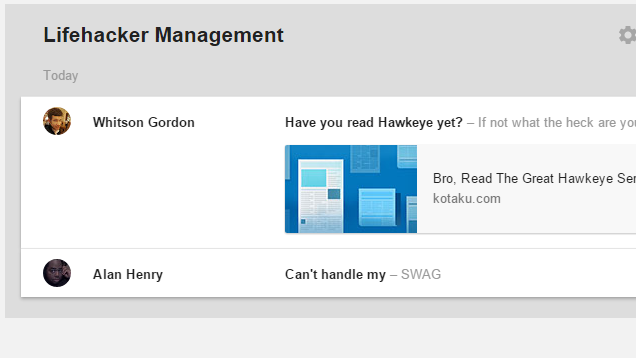
Here’s an example of how this works in my workflow: I routinely get emails from Lifehacker’s Editor-in-Chief Whitson Gordon, and our Deputy Editor Alan Henry. They review my features, give me edit notes, and occasionally give me comic-reading suggestions. I added both of them to a bundle so that all of their emails appear together (as seen above). This has a few advantages:

  • I can focus on one task at a time: When a bundle is open, it pushes all other email aside. The only thing I’ll see in the Lifehacker Management bundle is emails from my editors. This performs the same function as the Gmail tabs, but with much more direct control and customization.
  • I can clear out a bunch of emails at once: Inbox comes with several pre-made bundles, including several that mirror Gmail’s tabs. Bundles like Promotions and Trips put a bunch of related emails together, which makes it super easy to deal with. When I need to travel, my flight, hotel, and rental car emails are all in one place.
  • I can delay unimportant tasks: I get a few promotional emails from sites like NewEgg or Amazon that I do want to receive. However, I don’t need to check with them multiple times throughout the day. I can set the Promos bundle to only show up once a day, at 7AM, browse through them real quickly, and then close it. I won’t hear from that bundle again until the next day.

Bundles are a very different way of dealing with email than labels, filters, or Gmail’s tab system. It takes the best features of each of them and combines them into one, mega-smart organizational system. All the emails from my boss are grouped into one place, my promos are in another, and my purchase history is in another. Instead of seeing a list of messages, I see a list of tasks. Respond to my boss, track my packages, and if I have time, browse through what’s new on Amazon. It’s much simpler.

Now That My Inbox is a To-Do List, Reminders and Snooze Fit In Perfectly

How Google's Inbox Transformed the Way I Use Email

The task-oriented approach to bundles changed how I thought about email. Instead of just seeing it as a list of messages to get through, I see everything as a job to get done. Inbox encourages this by putting your reminders directly in line with your messages. Google Now already has some sweet reminder features. You can say “Remind me to check out Lifehacker every morning” and your phone will give you a notification. Since you’re likely to ignore that, Inbox will show you the same reminder until you mark it done.http://hackerspace.kinja.com/using-google-n...

This fits in elegantly with the task-oriented approach to email Inbox already takes. The email from my boss is its own reminder to respond to him, so I don’t need to create a to-do to handle that, but I do need a reminder to research that idea I had in the middle of the night last night. Inbox isn’t just where I get outside messages, it’s where I see what needs to be done today. Best of all, I don’t need to waste time organizing carefully curated sets of to-do lists. Just speak it to my phone and trust that it will show up later.

“But Eric, isn’t that going to get overwhelming? Everything you ever need to do in one place?” I hear you cry. It’s true! If everything you ever needed to do was in one giant list, you wouldn’t be able to read it. Fortunately, that’s where snooze comes in handy. You can already set specific times for reminders. When you receive an email, you can similarly “snooze” it until a specific time.

Let’s use another example. Say I set a reservation at my local bar for Wednesday at 7PM. I don’t need a constant reminder about that in my inbox for forever, but I also don’t want to forget it. I can snooze the confirmation email I received until the day of my reservation. It will be gone from my inbox until I need it. Once it returns, it’s another item on my to-do list for the evening.

It takes a little while to get used to this mindset. However, once you get in the swing of it, it feels totally natural. Get a shipping notification? Snooze it until the day it’s set to arrive. Need to remember to do something next month? Speak it to your phone. Don’t want to forget an email from your boss? Pin it to the top.

Now That I’m Used to Inbox, My Work Email Sucks

How Google's Inbox Transformed the Way I Use Email

Google has made it possible for companies that use Google Apps to allow Inbox. Unfortunately, due to technical reasons beyond my own control, it’s not available for my work email yet. So I have Inbox on my personal email and the old Gmail method for my work email. This contrast, for me, highlights how much harder email was the old way.

In no particular order, here are the problems I have with my current work email that I could solve with Inbox:

  • Sorting through email pitches is a chore. Having one clear-all button for bundles is sort of like a touchscreen phone. You don’t realize how essential it is until you have it and then you can’t live without it. When I get a bunch of junk email in Inbox, I can scan through the subject lines, click one button, and they’re gone. With Gmail, I need to either create elaborate filters, or make sure that I’m not accidentally including an important email from someone at the company.
  • I can label important email, but it still gets pushed down. The biggest reason bundles help is they put a bunch of email into one line. I use labels to highlight messages from certain key people in the company, but in the morning, I may have twenty emails from people I don’t care about and I don’t see the important message from my boss until I reach the next page. With bundles properly set up, all those messages are just one line, and my boss’s emails get highlighted.
  • I can forget important emails. Gmail has no built-in way to remind you of an email later. While some clients like Boomerang can fill this particular hole, it’s still annoying that I have to use entirely separate apps just to remind myself that I need to reply to something next week.

Of course, all of this is my personal experience. Email means different things to different people. Several years ago, I didn’t even receive enough email to lose track of it, so Inbox would’ve been overkill. What works for me may not work for you.http://lifehacker.com/boomerang-now-...

However, I’ve found that for where I’m at right now, Inbox offers a much more useful approach. It’s not a nicer interface for the ways you’ve always used email. If you try to use Inbox the same way you’ve always used Gmail, you’ll hate it. Inbox isn’t Gmail. It’s a completely different way to get things done. If you can see your messages (and reminders) as a set of tasks to work through during the day, and learn to schedule or snooze the ones you don’t need during the moment, you’ll likely find that Inbox is highly adept at giving you exactly the messages you need right when you need to deal with them, and quickly removing the rest.

08 May 13:31

AntiAdware Gets Rid of Bundled Crapware on Popular Download Sites

by Whitson Gordon

AntiAdware Gets Rid of Bundled Crapware on Popular Download Sites

Greasemonky (Chrome/Firefox/Opera/Safari/Android): The Windows download world is in a sad state. Tons of download sites, including popular ones like Sourceforge and Adobe, bundle extra crapware with their installers. AntiAdware is a simple script that blocks these, so you don’t have to worry about getting tricked.

AntiAdware is a greasemonkey script, so you’ll need Greasemonkey for Firefox or Tampermonkey for Chrome to install it (you can install it manually in Chrome as well, but it won’t receive updates). AntiAdware blocks adware on nearly 40 sites, including Sourceforge, Softonic, Adobe.com, CNET, and a number of file hosting services like Filefactory.

Note that AntiAdware won’t block crapware that’s normally built into a given app’s installer, but it will block crapware that download sites add. For example, it’ll remove the McAffee checkbox on Adobe.com, or make the main download button on Sourceforge link to the plain installer (rather than the SourceForge installer). In most cases, you can easily avoid these things on your own, but if you’re particularly click-happy, you might miss them. It’s also great for installing on a tech-unsavvy friend or relative’s computer.

Hit the link below to read more and download the script.

AntiAdware | Greasy Fork via Ghacks

26 Feb 16:09

Better Window Manager for OS X Saves Window States However You Want

by Thorin Klosowski

Better Window Manager for OS X Saves Window States However You Want

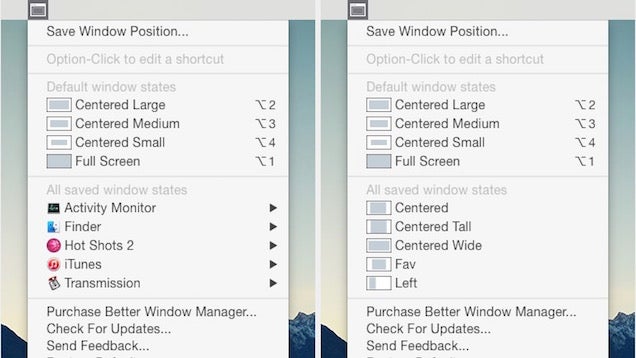
Mac: We've seen a lot of apps that mimic Windows' snapping feature where open windows are automatically opened in different positions, but Better Window Manager manages to combine a lot of features into a small package. It allows you to save window states, manage shortcuts, and more.

With Better Manager, you can create application specific window states, assign shortcuts to different states, save various custom sizes, and it works on multiple desktops. More importantly though, it works great on Yosemite, which some of the other options seem to have struggled with. It's cheap at just $3, but there's a free trial on the developers site as well.

Better Window Manager ($3) | via One Thing Well

25 Feb 16:23

Get away with Google Flights

by Google Blogs
While winds howl, frost bites and snow falls, people dream of getting away from it all. Every year around this time, we see an uptick in searches for spring and summer travel from people who have had it up to here with winter. And in the middle of one of the coldest, snowiest, iciest winters on record in the U.S., you better believe people are gearing up to grab their suntan lotion and their carry-ons, and hop on a plane. Enter Google Flights, which makes it easy to plan the trip that’s right for you. Here are a few tips to help you book this year’s dream vacation.

Flexibility is key when finding great deals
There’s a travel myth that you can always find the best deals on Tuesday. But actually, you can find good deals any day of the week—especially if you’re flexible with your travel dates. Though it’s sometimes hard to pull the trigger because you’re afraid the price will drop tomorrow (or next Tuesday, maybe?), our experience shows it’s usually best to book right away.

Regardless of which day you sit down to plan your trip, you can use the calendar in Google Flights to scroll through months and see the lowest fare highlighted for each day. If you’re planning even further out, use the lowest fares graph beneath the calendar to see how prices may fluctuate based on the season, holidays or other events. You can also set preferences (such as direct flights only) and our calendar will adjust to show you just those flights and fares that fit the bill. Finally, if you can save more by using a nearby airport or flying on a different day, we’ll show you a tip at the top of your results.
Not sure about your destination? No problem
Sometimes, you know exactly where your destination needs to be—say, when you’re taking a business trip, or headed to a wedding or family reunion. But there are times when all you know is that you want to go somewhere. Maybe you want to go somewhere with a beach, but don’t care if it’s in Greece or the Caribbean. Or you want to visit Southeast Asia, but aren’t sure which countries to visit.

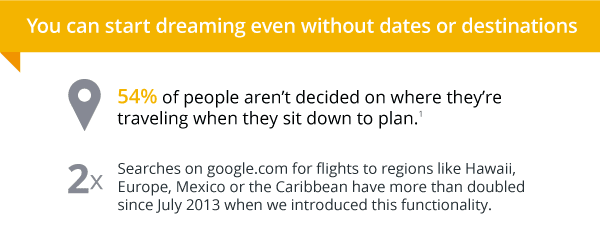
Our research shows more than half of searchers don’t know where they’re going to travel when they sit down to plan. With Google Flights, you can search for regions or whole countries, like “Flights to Europe” and “Flights to Mexico." Or, expand the map to scan the entire world and see accurate prices for all the different cities you can fly to, along with filters for your flight preferences. If you’re in a particularly adventurous—or lazy—mood, select the “I’m Feeling Lucky” button on the map and we’ll suggest ideas for where to go based on popular destinations and your past search history.

But… cheaper isn’t always better
We all love a good deal, but when it comes to choosing flights, cheaper doesn’t always win—and no wonder, when sometimes that means two connections instead of none. On Google Flights, the vast majority of people choose one of the Best flights—considered to be flights that are the best combination of price and convenience. Try it out next time you’re looking for something that fits your schedule, not just your budget.

So once you’ve warmed your hands on that cup of hot cocoa, put them to work on your keyboard or phone. Google Flights is ready to find the best destinations, dates, fares and flights for you to get away from it all.

Posted by Eric Zimmerman, Product Manager, Google Flights (dreaming of warmth from my Boston ice prison)
08 Feb 18:58

The Toilet Paper That Gives You the Most Bang for Your Buck

by Patrick Allan

The Toilet Paper That Gives You the Most Bang for Your Buck

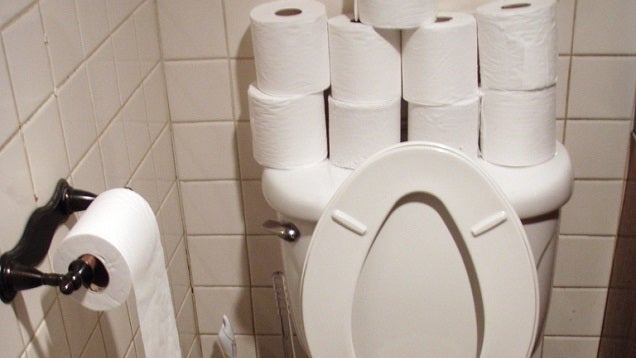
When you're taking care of business, it's comforting to know you've got the best toilet paper for the best price. After extensive research and testing, these were found to be the best sheets for your behind.

The keys to good toilet paper is that it's comfortable to use, durable, doesn't clog up the plumbing, and doesn't cost an arm and a leg. You also want it to tear easily along the perforations for easy access. Here's what toilet paper Lifehacker alum Kevin Purdy at The Sweethome found to be the leaps and bound above the rest:

White Cloud 3-Ply Ultra Bathroom Tissue is the best toilet paper because it feels good, gets the job done, dissolves easily in water, and is cheap to boot. It's also the top scorer in both Consumer Reports and Good Housekeeping's rigorous head-to-head testing.

You can get 12 rolls for only $6, which is awesome if you can find it. The catch is that Walmart is one of the only places out there that sells it, and if you do manage to find it online, the price is likely way higher than $6. So if you're willing to brave your nearest Walmart, your rump and wallet will be pleased. If not, you're better off with the runner up: Quilted Northern Ultra Plush. If you want something a little more environmentally friendly, check out Seventh Generation Bathroom Tissue—though it can be a lot more expensive. To read up more about the best toilet paper out there, check out the link below. You can also see what the best paper towels and facial tissues are.

The Best Toilet Paper for Most Rumps | The Sweethome

Photo by Daniel Lobo.