If I’m going to rail against myths in learning, it makes sense to be clear about what learning design without myths looks like. Let me lay out a little of what mythless learning design is, or should be.
Learning with myths manifests in many ways. Redundant development to accommodate learning styles, or generations. Shortened to be appropriate for millennials or the attention span of a goldfish. Using video and images for everything because we process images 60K faster. Quiz show templates for knowledge test questions because they’re more engaging. And all of these would be wrong.
Instead, mythless design starts with focusing on performance. That is, there’re clear learning outcomes that will change what people do that will affect the success of the organization. It’s not about knowledge itself, but only in service of achieving better ability to make decisions.
Then, it’s about designing meaningful practice in making those decisions. It’s not about testing knowledge, but ability to apply that knowledge to choose between alternative courses of action. It can be mini-scenarios (better multiple choice), branching, or sims, but it’s about ‘do’, not know.
We reinforce practice with content that guides performance and provides feedback. It does use multiple media, because we use the right media for the message. Yes, we look to engage multiple senses, but for comprehending and encoding information. And variety. We use visuals to tap into our powerful visual processing system, not because they have any particular metric improvement. We also use audio when appropriate. And while text is visual, we use it as appropriate too. To address learning outcomes, not learner preferences.
Mythless learning design may use small amounts of content, but because minimalism keeps cognitive load in check, not because our attention span has changed. We need appropriate chunking, as our working memory is limited, so we want to make things as small as possible, but no smaller!
We design meaningful active practice not because any generation needs it, but because it’s better aligned with how our brains learn at pretty much any age. There are developmental differences in working memory capacity and experience base, but everyone benefits from doing things, not passively consuming content.
There are good bases for design. Ones that lead to real outcomes. Starting from a performance focus, and reflecting what’s been demonstrated in learning science research, and tested and refined. Evidence guiding design, not myths.
There are also bad bases for design. Dale’s Cone, shiny object syndrome, the list goes on. Gilded bad design is still bad design. Get the core right. Let’s practice good, mythless learning design. Please.
In Microsoft Build 2020, Microsoft announced new smart and flexible Microsoft Lists that will be available in June 2020.
In this post, we’re gonna explore Microsoft Lists by explaining the following:
1 What’s Microsoft Lists?
2 What’s Microsoft Lists Home Page?
3 Microsoft Lists Availability
4 Microsoft Lists Demo
What’s Microsoft Lists?
Microsoft Lists is a Microsoft 365 APP that helps you track and visualize your information and organize your work in a simple, smart, and flexible manner.
Microsoft Lists in a nutshell
Microsoft Lists is a new evolution on top of SharePoint lists, it’s stored in SharePoint sites that can be created and accessed from:
New Microsoft Lists home page,
SharePoint team site (Modern Experience).
Microsoft Teams.
Mobile App (IOS).
Microsoft Lists Capabilities
Using Microsoft Lists, you will be easily able to
Create a blank list and define your own structure, formatting, and data.
Create a list from Excel by uploading an Excel file and choose the table of data that you would like to import.
Create a list from an existing list with the same structure, formatting, rules, and alerts …etc.
Create lists from ready-made templates that come with pre-defined structure and formatting.
Track issues, Manage assets, Organize Events, Save contacts, Manage FAQs ..etc.
Build customizable views.
Set and trigger business rules.
Create conditional formatting.
Create alerts.
Share your list with your team, grant access, and manage permissions.
Add comments on the list items level. (these comments are stored within the list schema itself).
In comments, you will be able to @mention someone (this user will be notified).
Edit and order columns in the form.
Show and hide fields in the form based on a specific condition.
What’s Microsoft Lists Home Page?
It’s a centralized location build on SharePoint for all your Microsoft lists across Microsoft 365.
Through Microsoft Lists home page, you will be able to
Create lists from scratch or from wide ready-made templates.
Manage your lists in one location.
Check recent lists, My lists, and favorite lists.
Bookmark a list as a favorite list.
Microsoft Lists Availability
Microsoft Lists Home Page Availability
Currently, the Microsoft Lists (web version) status is under development and as we earlier mentioned, it will be released in June 2020 for the targeted release customer, then to all customers.
Microsoft Lists Availability
Microsoft Lists Home Page APP (IOS) Availability
Regarding Mobile App (IOS), Microsoft Lists Home Page will be released on mobile in Q1 2021.
Where we can find Microsoft Lists Home Page?
As soon as Microsoft Lists will be generally released, you will be able to see the new Microsoft Lists app icon in the Microsoft 365 app launcher like other Microsoft 365 Apps.
Microsoft Lists Demo
Watch this video to explore the new Microsoft Lists features and capabilities.
Microsoft Lists FAQ
Will Micsorost Lists be available in the classic experience?
As a short answer, NO! Microsoft Lists will be only available in Modern experience, once you move from classic to modern, you will get all the values of Microsoft Lists.
Will SharePoint Classic List be deprecated due to Microsoft Lists?
No, there no plan to deprecate SharePoint Classic List, I don’t think so! Also, Microsoft has not alluded to such a thing.
Where Microsoft Lists are stored?
Microsoft Lists are stored in SharePoint sites, Not in OneDrive!
Can I export Microsoft Lists to Excel?
Yes, you can export Microsoft Lists to Excel.
Can I use Power Automate and Power Apps with Microsoft Lists?
Yes, you can use Power Automate and Power Apps with Microsoft Lists.
Microsoft Lists Vs Microsoft TO-DO?
Simply, Microsoft TO-DO is a task management app for individuals, you can manage your own tasks, track the task progress and status.
In the other hand, Microsoft lists is a work tracking and management app for individual as well as for the team, it’s used to visualize your structured data, build your custom views, rules and custom forms using Power Apps.
Microsoft Lists Vs Microsoft Planners?
Again, Microsoft Planner is a task management app for teams. you can manage and assign tasks to your team members and track the task progress and status.
Conclusion
In conclusion, we have explored the new Microsoft Lists features and capabilities and when it will be released, as well as, we have answered the most popular Microsoft Lists related questions.
My name is Mohamed El-Qassas, I’m EPM Consultant, SharePoint Consultant, BI Consultant, Microsoft MVP, SharePoint StackExchange Moderator, C# Corner MVP, Microsoft TechNet Wiki Judge / Author, Blogger
Game based elearning is an innovative approach to train not only students but also the employees of any industry or organization. It has started to become a best solution to train the employees and enhance their skills, one can say it has become an emerging trend. It is a procedure to develop and convey interactive […]
The Blackboard Partnerships team is excited to announce the launch of the brand-new Blackboard App Catalog—a comprehensive collection of integrations for Blackboard Learn. Nearly a year-long in the making, the new App Catalog represents a quality culmination of partner input, client feedback, solution evaluation, implementation planning, workflow testing, and data population.
Why We Did It:
Partner integrations continue to play a critical and vital role within the Blackboard Learn ecosystem, and we’ve always strived to maintain a current and detailed inventory of our partners and their available integrations. The new App Catalog directly enables our partner community to manage their own App listings—ultimately providing our clients with a current, comprehensive, and detailed list of available integrations across all flavors of Blackboard Learn.
How It Works:
All Partners in the Blackboard Partnerships Program are listed on the App Catalog Partners page and are able to submit detailed information for each of their “Apps” (integrations) to the App Catalog. Submitted Apps are reviewed by the Blackboard App Catalog team and appear in the App Catalog upon approval.
The App Catalog enables anyone to browse, search, or filter the Apps by integration type (LTI + REST, Building Block, Partner Cloud) or Category (Accessibility, Admin/Support Tool, Assessment, Classroom Tool, Consulting/Dev Services, Content, Data Insights, Multimedia, Safety/Security, SIS/System Integrator)
The new Blackboard App Catalog uses OpenChannel—an experienced provider of LMS integration marketplace solutions in the educational space.
What It’s For:
As our partner community continues to expand, and our clients navigate their transitions from the Original to Ultra experience of Blackboard Learn, partner integrations are more important than ever before. Our partners and clients deserved a scalable, dynamic, and comprehensive resource for partner integrations – and we’ve delivered.
It Will Continue to Expand and Grow:
The new Blackboard App Catalog confirms our continued investment in the expansion of our partner integration ecosystem, commitment to client transparency, and ongoing support of our transition to Blackboard Learn Ultra. With an updated FAQ page coming soon and new Partners and Apps being added weekly, the Blackboard App Catalog is a valuable resource that will only improve as it grows.
A version of this post was originally published on February 4, 2020, in Open Access Government.
The number of middle school teachers has fallen dramatically in the last decade or so. Teachers everywhere point to high levels of stress, long working hours, unclear expectations, and not enough support as the main issues behind their decision to part ways with the education system. The teacher shortage is real and growing.
With smaller numbers of teachers, it’s easy for middle schools to fall in the vicious cycle of poor performance: fewer teachers means bigger classes, which means each student gets less teaching attention, which leads to worse grades, which reflect poorly on the teacher’s professional performance, which makes them want to get out of the system.
To break out of this cycle — or avoid it altogether — middle school teachers do need all the support they can get. This can come in various shapes and forms, but education technology will always be in the mix.
So let’s explore how teachers can harness edtech resources, with a focus on school learning management systems, to maximize their limited time and supplies, while also delivering a more engaging, personalized experience for middle school students.
How an LMS can help teachers keep older students engaged
Part of the challenge for middle school educators is being able to motivate and meet the individual needs of students at a time when abilities, interests, and willingness to learn can vary considerably.
The use of edtech tools such as learning management systems (LMS) can help teachers to improve the design and delivery of instruction, as well as to assess student progress. This can give a few hours back to teachers each week, allowing them more time to provide a more personalized learning experience for each student.
Here’s how the use of an LMS can help teachers keep older students engaged:
Better organization of resources
A learning management system allows teachers to host various types of learning materials in one centralized location, helping them to streamline their workloads and better plan ahead for future lessons. From the all too familiar textbooks to video recordings of lectures, audio files, YouTube videos, and everything in between, teachers can store and organize all types of learning materials, give access to students and track their behavior within the system. No lost documents anymore!
Self-paced learning
A cloud-based LMS allows students to go through learning materials at their own pace. Because of their different abilities and interests, students achieve mastery of concepts at different times. An LMS that supports self-paced learning offers students some degree of agency over their own learning process, thus meeting the needs of both high achievers and those who simply need more time to understand a part of a lesson.
Game-based learning
Teachers can also use such resources to increase engagement rates with gamification. Gathering points, collecting badges, and getting trophies are no longer associated just with games. A little competition can go a long way during the learning process and many school LMSs include gamification elements that make it easy to design engaging online lessons.
Face-to-face communication is not the only way to get a point across a classroom, and an LMS offers various ways of class collaboration. Students can use an LMS to ask questions when they don’t understand something, as well as offer answers and explain what they know, both among themselves and with the teacher, all when it’s most convenient for each user.
Assessment is a core element of the teaching process to ensure that students are fulfilling their potential and getting the support they need in areas where they are struggling. However, teachers often lack the time and tools to make such insights. An LMS encompasses different types of assessments to make the process more efficient. It can have even a dozen different types of built-in assessments, for either summative, interim or formative assessments, thus allowing teachers to mix and match the best type for any situation. Add to this a centralized gradebook, and the teacher’s administrative workload diminishes considerably.
Teachers can further sort student learning data into comprehensible reports. Data is powerful. Teachers can create standard or custom charts and reports of data such as assignment grades, lesson progress, missing work, class completion, and so on. Therefore they can pinpoint exactly where one student might need extra help or when others could benefit from advanced resources.
Importantly, a great learning management system should come with a set of features that supports adaptive learning so that educators can tailor their teaching as the student learns. This means that as each student progresses through their learning trajectory, the system makes personalized recommendations of what that student needs to do next: redo the learning module, check further resources take, enroll in a different learning path, etc.
There are many ways in which education technology can ease the workload of middle school teachers while creating a better learning experience for students. A learning management system may not be the only example, but it sure is one of the most comprehensible solutions educators can turn to.
Also, a good LMS combined with targeted professional development and other types of school and community support may contribute to better retention of middle school teachers.
We’re on a mission to advance learning for all. Read unique perspectives from Blackboard leaders on how this guides everything we do—from driving innovation in EdTech to improving accessibility and increasing student engagement. Part II.
As an EdTech company with a mission to advance learning, we are propelled by a deep commitment to help our partners continuously improve student success through innovative technologies and services. Today, the education community is experiencing a sea change of unprecedented magnitude. We continue to be inspired by the resiliency and nimbleness of K-12 districts, higher education institutions, governments, businesses, and associations around the globe as they evolve their remote and blended learning models and accelerate their digital transformation plans due to the global pandemic. While there are still many unknowns regarding the upcoming academic year, we can say with conviction that now more than ever, our community has come together to push the boundaries of innovation and advance learning for all.
Below are some of the most exciting ways that we are advancing learning by anticipating the needs of tomorrow and transforming education through innovation:
Creating a connected and holistic online learning environment
With the rapid shift to remote instruction, the education community quickly discovered that adopting a holistic approach to online learning made the biggest impact on student success. Looking ahead, this means implementing a learning ecosystem that encompasses an interconnected set of tools and services that work together to drive student success.
To help make this connected ecosystem a reality for our higher education clients, we launched Blackboard One earlier this year. With the understanding that a one-size-fits-all approach simply doesn’t work, Blackboard One is a customizable offering that brings together our teaching and learning technologies and student success service solutions to effectively manage every stage of the student lifecycle. This allows us to assess institutions’ unique needs and curate the right combination of tools and services—drawing from our LMS, data and analytics, student services, and consulting technologies—to drive student, institutional and academic success.
With the same concept in mind, we launched Blackboard Unite for K-12 to support districts and schools as they move beyond a stop-gap solution and develop a nimble remote or blended learning model to ensure learning continues regardless of what the future may hold. Blackboard Unite brings together the power of the district-branded mobile app, school-to-home messaging, virtual classroom, learning management system, accessibility tool, and teaching training and onboarding services to help districts successfully utilize and mature their distance learning efforts. It’s well-understood that the connections between a teacher and a parent are essential to a student’s progress and success, especially in a remote environment. So, in the fall we’ll be launching our newest addition to Blackboard Unite, a safe and secure two-way mobile messaging tool called Blackboard Reach that will allow teachers and parents to engage in direct two-way dialogue using their mobile device, framed by the district’s brand.
Meanwhile, the SaaS delivery model for Blackboard Learn is allowing us to rapidly innovate across a range of capabilities for a better teaching and learning experience. We will be integrating the Learn Chatbot as an automated way for faculty and students to ask questions about how to use the LMS, driving better usage and adoption, while also allowing support staff to focus on mission-driven work by reducing help desk inquiries. We’re also in the process of developing Blackboard Assist, a new offering that connects students with important institutional and external partner resources for academic and general wellness support. And, finally, in response to the need to facilitate more student interactions online, we are planning to integrate additional video feeds into the Blackboard Collaborate video gallery, enhancing the video pinning options and allowing instructors to more easily share and monitor content for their class.
Adopting a data-driven approach
We see data as the driving force behind the next wave of EdTech innovation. In fact, we’re committed to applying a dynamic, data-driven approach to continuously enhancing the user experience. Because the Blackboard Data platform serves as the foundation for our integrated teaching and learning environment, we are uniquely positioned to help institutions advance their digital learning strategies based on the consolidated insights we gather from across their education ecosystem.
This year, we’re expanding the Blackboard Reporting Stack with new reporting capabilities available through the new Blackboard Reporting Tier, powered by Blackboard Data. These new, free reports gather robust usage and adoption data from Learn and other licensed Blackboard SaaS products, providing institutions with important insights into how learning is happening across their digital ecosystem. The first available report offers an analysis of Blackboard Collaborate virtual classroom solution usage, with additional reports for other products to follow.
We recognize there is still considerable uncertainty regarding plans for the upcoming academic year, and that last-minute implementation of blended or fully online courses has the potential to negatively impact at-risk populations. To mitigate these potential challenges, we’re launching a solution that leverages data from the LMS in combination with our retention coaching solutions to enable targeted outreach to at-risk students and early interventions to course correct and drive student success.
Prioritizing accessibility within the entire learning ecosystem
Over the past several years, we have focused on expanding access to education by helping institutions establish a culture of accessibility and building innovative technologies that apply the principles of Universal Design for Learning. As learning environments become increasingly more digital, we believe a more personalized approach to instruction and content delivery is paramount. Today, connecting all types of students to opportunities for learning requires a mobile strategy. Because learners, instructors, and administrators are now increasingly reliant on their mobile devices, we recently made the alternative formats feature within Blackboard Ally—Blackboard’s accessibility tool—available on our app for students. This integration grants students access to learning materials in a variety of modalities that align to their preferences and needs.
We also believe that accessible content should permeate all touchpoints within a learner’s education environment—from the LMS to external resources. To help make this a reality, earlier this month we launched Ally as a Service, which allows Ally’s functionality to be embedded in other contexts. For example, it can be applied to content in library systems to provide alternative formats for content housed outside the LMS and public-facing websites.
Together, we can create a smarter, more holistic online learning environment–we’re excited for what the future holds! Join us virtually at BbWorld20 today and tomorrow and tune into our product roadmap sessions to learn more about additional innovations on the horizon that are bound to advance learning for all.
How can we do more with less? This question is becoming increasingly important as organizations adapt to the new normal. Operational agility is essential for business survival. As budgets tighten and disruption continues, managers must be ready and willing to shift employee roles to focus on business priorities. Adopting practices that put the right people … Continued
The Department for Education quietly handed back £330 million of the 2019-20 apprenticeships budget to the Treasury, FE Week can reveal.
The admission comes despite concerns that small employers had struggled to find providers with sufficient non-levy funds to train their apprentices, with some being turned away.
Mark Dawe, chief executive of the Association of Employment of Learning Providers, said it will remain “one of life’s great mysteries as to why this was allowed to happen”.
“The department knew full well that there was huge demand from small and mediumsized employers for apprenticeships that was not being met by the non-levy contracting system,” he added.
“Providers could have got the money out the door in an instant at a time when apprenticeship starts were crashing from their pre-levy levels.”
The admission of surrendered funds was made by education secretary Gavin Williamson in a letter to the education select committee this week.
In a series of questions about the DfE’s spending plans for 2020-21, the committee asked Williamson why the apprenticeships budget had increased by 17 per cent to £2.5 billion compared to last year, as noted in the department’s recently published “main estimate memorandum”.
The education secretary explained that the apprenticeships budget is in fact at the same level as the last financial year, and the document “shows an increase of around 17 per cent because the funding in 2019-20 was reduced for unspent funding surrendered to Treasury”.
The DfE then told FE Week that a total of £330 million was handed back to Treasury last year, explaining that where departments are not on course to spend the full amount allocated to them at the start of the year, they can “surrender part of their budget cover back to Treasury to allow them to use these funds for other government priorities”.
A spokesperson said: “Spending on the apprenticeship programme is demand led, and employers can choose which apprenticeships they offer, how many and when. In particular, we do not anticipate that all employers who pay the levy will need or want to use all the funds available to them – but they are able to.
“As is usual practice, any underspends in overall departmental budgets by the end of the financial year are first returned to Treasury as per the consolidated budgeting guidance.”
This isn’t the first time the DfE has handed back lumps of apprenticeship funding to the Treasury. In 2017-18 – the first year of the levy – around £300 million was surrendered.
The DfE claimed it did not surrender an apprenticeships underspend in 2018-19.
As per levy rules, businesses with a payroll of £3 million or more pay each month into the pot and have a rolling 24-month deadline to spend the funds.
The levy policy was designed so that large employers wouldn’t use all of their funds. The unspent money is meant to be recycled and made available to small businesses who do not pay the levy to use to train their apprentices. Unspent funds are also used to top up levy funds by ten per cent as well as pay for English and maths teaching for relevant apprentices, among other things.
In February 2019, FE Week revealed how training providers’ non-levy funding was running dry and that some had even had to turn apprentices away, with the government insisting it couldn’t offer more cash as it didn’t have any left in the system.
In January 2020, the AELP further warned that training providers are “having to turn their backs” on up to 40,000 small businesses due to the shortfall in apprenticeship levy funds.
The Education and Skills Funding Agency is currently in the process of transitioning all small employers on to the digital apprenticeships system, which has only been used by levy-payers since its launch in April 2017 to spend their funds.
This will bring an end to provider funding allocations, secured through a procurement process, being used to train apprentices with small non-levy paying businesses.
The transition is due to complete by April 2021.
Dawe said: “We can take solace from the fact that the moving of all employers on to the digital apprenticeship service should reduce the chances of this happening again.”
Leonard Houx is a senior instructional designer at Cass Business School where he designs instruction that comes together as simultaneously effective, efficient and engaging – and helps others to learn to do this as well! Over the last ten years working in online learning, Leonard has worked in the private sector, charity sector and university sector. He has written about online learning for the Guardian, the Association for Learning Technology and E-Learning Age.
With many universities still physically closed and planning for a continued foray into online course delivery, numerous experts have published pieces advising teachers on how to teach online.
There are some deeply thoughtful and indeed helpful pieces out there, yet, it seems the focus is almost entirely on high-level principles such as presence and empathy or on media types, for example synchronous vs asynchronous.
What experts have been less ready to advise has been to describe concretely what the online learning should look like. So, specifically, what could a real-life lesson activity sequence look like for the novice online teacher?
In what follows, I describe three basic activity sequences for online lessons – from simple to intermediate – using a mix of tools. I then follow this by describing each of the suggested tools (or constituent parts) in greater depth and the rationale behind each.
Each sequence is simple to structure but if each constituent part is executed well, it will engage students more and leave them less exhausted.
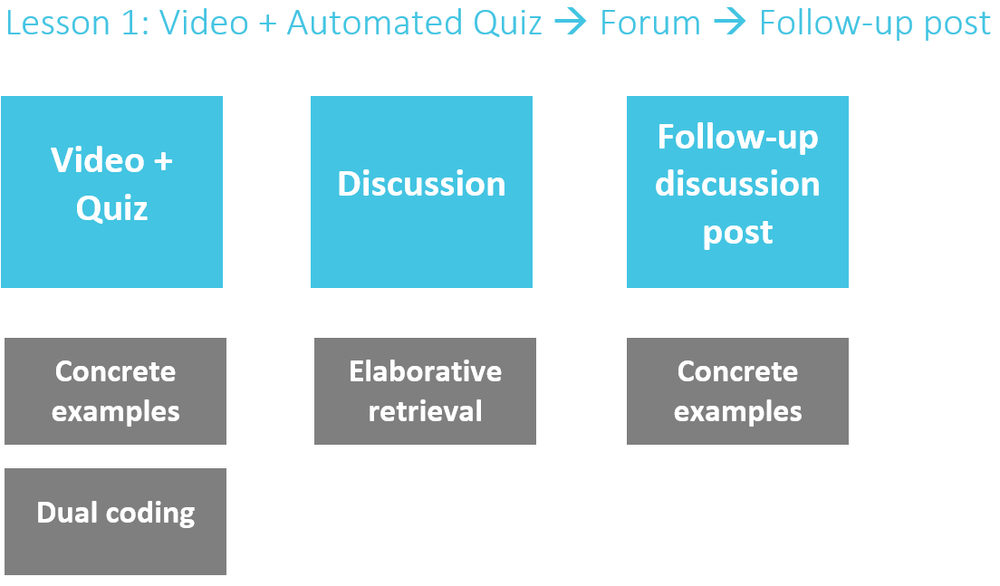
The purpose of the design, for each lesson, has been to incorporate into online teaching as many of the following six evidence-based educational practices – as identified by The Learning Scientists – as possible:
1. Concrete examples: illustrate ideas with examples that students can easily grasp
2. Dual coding: integrate words with images
3. Elaborative questions: ask questions that help students connect new learning with prior learning
4. Retrieval practice: have students practice with test questions on what they remember
5. Interleave practice: mix practice test questions from a variety of lessons
6. Space practice: delay interval periods between practice tests
For more detail on each of these refer to the Learning Scientist blog
This is the most basic sequence for a lesson in an online, for-credit module. Video coupled with a quiz, a forum, and a follow-up email.
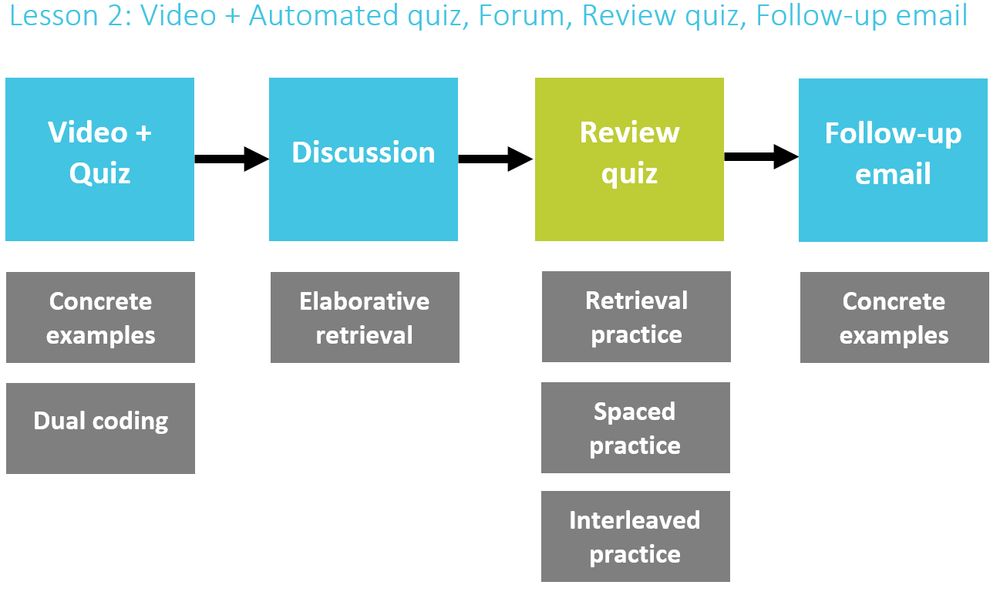
Next, we add a review quiz, allowing us to incorporate retrieval practice and, with that, spaced practice and interleaved practice.
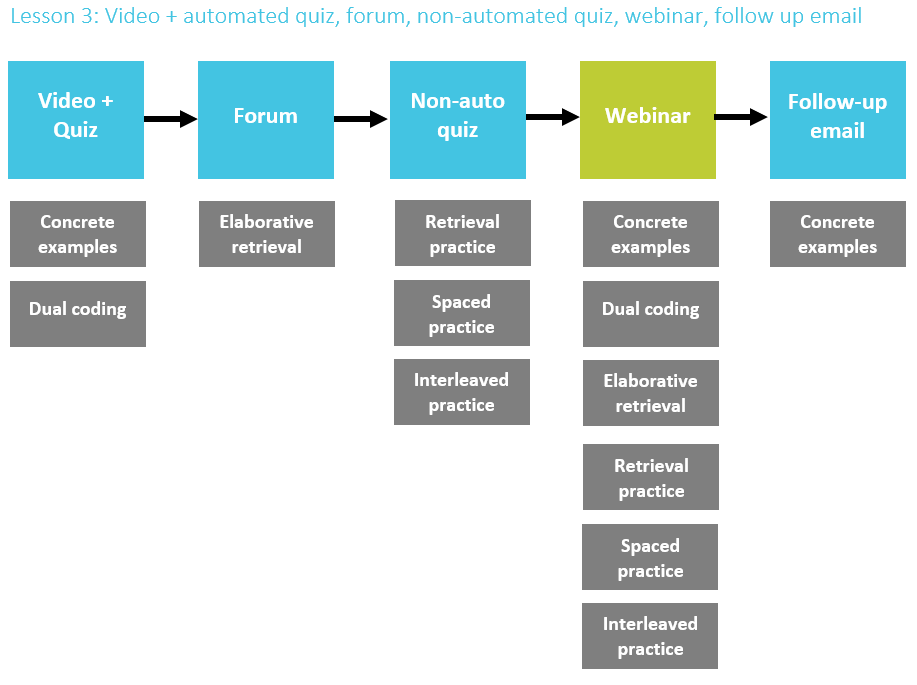
Finally, in this third lesson structure, we add the webinar, which in the form, largely, of responsive teaching, you can incorporate all six of the best practices.
I now turn to describe each of these online activity elements.
Video recording
I recommend you start with video not because it is, in itself, more pedagogically effective (1). It’s because of recorded video– over webinars, audio, web resources or online texts – allows the most to be done with it for starts that is pedagogically effective.
Compared to texts and audio, video gives you more means to manage learners’ cognitive load. Particularly, video allows you to more easily and, in more ways, integrate visuals with your words. This integration of the visual and verbal is often referred to as ‘dual coding’ or the ‘multimedia principle’. It is one of the Learning Scientists’ top 6 most reliable evidence-based practices. Likewise, and it’s easier to progressively reveal those graphics, which also reduces cognitive load. It also feels more natural to use informal language when speaking compared to writing – and this also decreases cognitive load.
Videos are also easier to navigate and control. Students can watch them when they want, as much as they want and at what speed they want (some students report watching lecture videos at 1.25 or 1.5 speed). You can break them into shorter parts, which evidence suggests helps with engagement. A study of learners on free MOOCs found under six minutes to be optimal (2). Adding a chapterised structure also promises to give more control and help students learn more effectively (3).
Compared to webinars, videos are a little less scary. If you make a mistake, you can just record it over again. If you deliver a webinar and can’t get the microphone to work for the first 20 minutes, that’s happened; you can’t take it back. That doesn’t mean don’t do webinars – they have their advantages as well, as we will see. And, after all, control isn’t everything (especially at this historical moment) and online text is even more forgiving and easier to fix than video. But still, video can give you a bit more wiggle room to fix mistakes. (A word of warning: for perfectionists, that this control can be as much of a blessing as a curse as you can descend into an endless pursuit of perfection.)
Lastly, compared to text, it carries a sense of presence that many students will value as they feel increasingly isolated and may feel a loss of what in British universities are called “contact hours”.
Here you – having read Understanding How We Learn – will want to incorporate the evidence-based practice of using multiple concrete examples, and integrating meaningful visuals with your word and your words, keeping the text to a minimum.
Your videos, will be fundamental to your student’s success. But videos are – besides pressing ‘play’, ‘next’ and ‘1.25 speed’– entirely passive. And this creates a kind of visibility problem. You cannot tell, usually, much about what the student has watched beyond than if a student has opened the page. More importantly, you cannot what your learners have learned, as, in lieu of any retrieval practice, they have only a false sense of fluency that comes with a memory of not the learning itself but of having been told something. This is made worse in video as students tend to perceive video as making easier to learn (4). So you don’t have a check for understanding loop because just watching something doesn’t mean you understood it. But you also don’t have an accountability loop because you can’t, from a technical perspective, tell if they were even looking at the screen. This is why the CFU quiz is so important.
CFU quiz
The next thing you want to build is a quiz or, specifically, quizzes, each coupled with a video or set of videos. Hence our block,
would look like
Video1 + Quiz1
Video2 + Quiz2
Video3 + Quiz3
or, perhaps
Video1a + Video1b + Video1c + Quiz1
Video2a + Video2b + Video2c + Quiz2
Video3a + Video3b + Video3c + Quiz3
Coupling each video with a quiz helps, your learners to take an active role towards their learning, and you have a clearer picture of both their engagement and understanding.
Quizzes tend to enhance learners’ focus on the videos. Researchers have found that when videos were interspersed with designated review quizzes, tested students reported fewer instances of mind wandering (19%) than those who did not have tests (41%) and those who used the time for restudy (39%) and showed improved learning on a test of the final section of the lecture (89% vs 65% for restudy and 70% for non-tested), indicating a learned habit of increased focus on the videos (5).
Quizzes likewise tend to be viewed positively by students and have a high engagement rate. In a case study from an Abnormal Psychology module, Jennifer Hillman found students to have a positive view of pre-class test questions giving a 4.4 to the question “How helpful do you think the online quizzes were…to your learning of material in the course?” and a 4.7 to the question “If you used the online quizzes to study for exams, how helpful were they?” (6). At Cass Business School, our videos coupled with quizzes have the highest completion rate of all our non-required activities. This correlates with what experts in online behaviour have observed about online behaviour – that users tend to commit their time and energy based on immediate cost/benefit analyses. Jakob Nielsen calls this ‘interaction elasticity’ (after price elasticity) usage increases as difficulty decreases and vice versa. Quizzes tend to not be difficult as they require little effort (often the click of a radio button) as well as little risk (they are not marked and not seen by other students) yet offer something immediate in return (feedback and completion). For automated questions, the feedback is usually unambiguous – as is the sense of completion.
An immediate quiz this way, does not bring the student a tremendously ‘desirable difficulty’ as Robert Bjork would call it: it is not difficult for a student to remember and therefore does not do as much to reinforce long-term learning as one that might appear a day or two later (7).
What a coupled or adjacent quiz like this does do, however, is more fundamental in that it checks students understood the content. Here, the quiz provides an ideal level of clarity, as it can provide questions allow for more precise diagnosis later. Also, with the results showing in a table in most VLEs, the teacher can easily scan the results for patterns.
I recommend here a quiz where the answers can be automatically graded and given feedback and therefor avoiding short essay questions with model answers. Automated questions can be, for example, true/false, multiple choice, quantitative, fill-in-the-blank, and hotspot questions.
You can use automated questions for simple, factual learning, but it can also be used for deeper learning. It can be used for procedural learning such as in formulas. You can ask scenario-based questions, which can have a stronger correspondence with real-life situations. You can also use multiple choice to ask elaborative questions (e.g. why, how).
Here I would couple a quiz with each video. For example, if you break your lesson into four videos, you have also four accompanying quizzes. The way I do this in a VLE is I build the quiz and embed this video in the introductory body of the quiz activity. I also turn on activity completion in the VLE so that when the student completes the quiz, the activity is marked as complete. This gives allows for that ‘accountability loop’ Lemov mentions, and in a more meaningful way than if just a video had been uploaded.
Forum discussion
A forum allows you to do a more open-ended, elaborative activity where students can connect the lesson with their prior knowledge and compare their ideas with other students.
I should say that I am suggesting you use a discussion forum with some strong concerns. I have seen that too often engagement is not as good as it should be. Many students find discussion forums difficult and spend a surprising amount of time preparing their responses, many more do not post at all, feeling intimidated or saying that they don’t see the point. And academics new to online learning, may actually not notice limited participation as the forum is populated with interesting posts from the brighter students. They fail to notice that other students are not participating and thereby benefitting from elaborating their learning in their own words.
Likewise, many academics struggle to write questions that are open-ended enough to sustain a group discussion, but offer enough structure enough to be engaging and productive. Instead, they ask the equivalent of an essay question. The strong students, who usually post first anyway, exhaust the question in the first three posts. The weaker students, who usually post later, are left paraphrasing what has been said or simply “I agree with what she said”.
It should not be surprising, therefore that, in their literature review of online discussions, Laura Schindler and Gary Burkholder find that “recent research suggests that levels of critical thinking in discussions remain low.” (8) Too many teachers seem to treat discussion forums like a social constructivist Field of Dreams: build it and they will come. Sadly, the only activity that field will see will be students pressing the back button so they can find something more interesting to do.
That said, a well-designed forum activity can still do a lot. It can allow students to compare responses, to voice concerns, to see that other students and their teachers are out there, to articulate their learning in their own words and thereby integrate the lesson with their existing knowledge, to navigate meanings and interpretations.
Schindler and Burkholder recommend keeping discussion prompts structured. That is “clear, detailed, [and] specify instructions for participation and time parameters”. They also recommend providing “initial and response posts exemplars”.
What can be effective is asking students to provide a concrete example of something (give an example of foreshadowing, give an example of a disappointing IPO). Here students can tie concepts to their own experience and benefit from others examples. Even better, you can ask students elaborative “why” and “how” questions to get them to connect the content to prior learning.
One way to overcome the “she already said it” problem is to set the discussion (if you can) so that students cannot see others’ posts until they have posted. This way, their answer will not be influence by other posts they see and they do not need to worry about their post being original. In this case, a good prompt might be an elaborative question, for example, “why would Shakespeare have Macbeth say that he thought he heard a voice cry out ‘Sleep no more!’?” You can also ask students to diagram what they are learning on paper and upload images of their work, for example, “draw a fishbone diagram mapping the causes for Kodak’s downfall as a business”.
Lastly, you can use a forum to allow students to ask you questions. What do they feel they do not understand? What do they want to know more about?
Follow-up email
A follow-up email gives you the chance to give students some responsive teaching. You can review students’ participation and performance in the quiz and discussion and try to correct gaps and misunderstandings. Sending a follow up email also provides a recognition for students that you are there with them, supporting them. It also gives them a prompt to keep up with the lessons.
I recommend doing this through the VLE, if possible, through an announcement forum. This way, they are pointed back to the VLE and students have a record of your message in the online course your message is associated with.
Non-automated quiz
This is where you can ask question in short essay form. Studies have shown that students learn more from essay questions than from essays and these will have a stronger correlation to any later essay writing work they might have to do for their summative assessments.
On the other hand, essay questions can be riskier in the sense that they only work when students have a higher level of understanding. Students have a more difficult time using the feedback from model answers. Likewise, there is a risk that they give empty or circular answers. This is why it is advisable to have the automated CFU questions in place first.
That said, again, essay questions do benefit students more as students have to express the answers in their own words and thereby integrate the lesson better with their prior knowledge.
Likewise, there is more of a chance here to dig deeper: to ask fuller elaborative questions about where and how and open further questions for students that you can discuss in a webinar.
Webinar
Finally, we finally add the webinar. The webinar is a great tool, but as we have seen, it is not as good for giving learners control over content, breaking into parts, or accessibility.
However, used well, the webinar can be incredibly powerful as it can uniquely incorporate all six of the Learning Scientists strategies for effective learning and, with our other activities in place, it can use these capabilities to tie the lesson together to keep students on track and deliver rich, multi-layered, responsive teaching.
How can webinars use all six of the Learning Scientists’ strategies?
· Dual coding: use multimedia – using slides with visuals and worked examples with narration.
· Concrete examples: include examples in your webinar, as well as in discussion and questions.
· Retrieval practice: webinarsoftware like Zoom and Adobe Connectprovidesurvey and/or quiz tools; which also help increase student engagement.
· Interleaving: questionscan and should be interleaved.
· Spaced practice: by interleaving and testing students in a regular webinar, you are allowing students space between practice.
· Elaboration: in the webinar, you can elaborate on questions that students asked during the week and you can build on activity within the webinar. After a quiz or survey question, you can ask students to answer elaborative questions for example “those who answered b: why did you choose that?” This also helps you to build engagement and keep the conversation on track.
This is all the more powerful because, in this sequence, you have seen how students have handled the activities and can do some real responsive teaching. That is, your webinar is, as so many students complain of, just a lecture transferred to online, rather it is given in response to all the work so far. It is feedback. But it is not just feedback, but rather interactive feedback. As Dylan William has said in interview “as a general principle, don’t ever give feedback to students unless you make the time… for them to respond to the feedback” (9). The webinar here gives a perfect opportunity for this.
Lastly, the webinar takes these capabilities and adds a sense of timing and urgency to your lesson. Unlike the other, asynchronous, activities, the limited availability, the scarcity, of the webinar is one of its greatest strengths. It is a great strength because its scarcity increases the students’ sense of urgency to participate – and to meaningfully participate in the webinar, the need to complete the week’s activities. In social psychology, this influencing power is called the ‘scarcity principle’. (10) But, in so doing, the webinar doesn’t just motivate students to participate in the webinar, but all the activities, since the webinar gives feedback on them.
This kind of shepherding is critical online. With the flexibility that online learning offers, it can be easy for students to imagine that timing doesn’t matter and they can just do the activities in any order and at the last minute. Students are not always the best judges of how to sequence and time their learning. Keeping at least one activity pinned down in time can help keep them on track (11).
Conclusion
In conclusion, what I have shown is a design, so there are a lot of trade-offs involved. There are also a lot of ways – not all of them being equal – that it can be done. Perhaps you might want to add a collaborative assignment, or you have some VR simulation and your students all have headsets. But if, perhaps, you are a teacher who is contemplating how to move beyond emergency teaching online, this could be a good place to start.
References:
(1) Clark, R. E. (1983). Reconsidering research on learning from media. Review of educational research, 53(4), 445-459.
(2) Guo, Philip J., Juho Kim, and Rob Rubin. "How video production affects student engagement: An empirical study of MOOC videos." Proceedings of the first ACM conference on Learning@ scale conference. 2014.
(3) Zhang, D., Zhou, L., Briggs, R. O., & Nunamaker, J. F. (2006). Instructional video in e-learning: Assessing the impact of interactive video on learning effectiveness. Information & Management, 43(1), 15-27. doi:10.1016/j.im.2005.01.004
(4) Choi, H. J., & Johnson, S. D. (2005). The effect of context-based video instruction on learning and motivation in online courses. The American Journal of Distance Education, 19(4), 215-227.
(5) Szpunar, K. K., Khan, N. Y., & Schacter, D. L. (2013). Interpolated memory tests reduce mind wandering and improve learning of online lectures. Proceedings of the National Academy of Sciences, 110(16), 6313-6317.
(6) Hillman, J. (2012). The impact of online quizzes on student engagement and learning. Last Accessed October, 20, 2015.
(7) Karpicke, J.D., Roediger H.L., 2007a. Expanding retrieval practice promotes short-term retention, but equally spaced retrieval enhances long-term retention. J. Exp. Psychol. Learn. Mem. Cogn. 33 (4), 704–719. http://dx.doi.org/10.1037/0278-7393.33.4.704.
(8) Schindler, L. A., & Burkholder, G. J. (2014). Instructional Design and Facilitation Approaches That Promote Critical Thinking in Asynchronous Online Discussions: A Review of the Literature. Higher Learning Research Communications, 4(4), 11-29.
(9) Dylan, W. 2017. Assessment, Marking and Feedback. In: H. Carl and M. Robin, ed., What Does this Look Like in the Classroom? Bridging the gap between research and practice. Melton, Woodbridge, UK: John Catt, p.28.
(10) Highhouse, S., Beadle, D., Gallo, A., & Miller, L. (1998). Get 'em while they last! Effects of scarcity information in job advertisements. Journal of Applied Social Psychology, 28(9), 779-795.
(11) Kirschner, P. A., & van Merriënboer, J. J. (2013). Do learners really know best? Urban legends in education. Educational psychologist, 48(3), 169-183.
The geothermal resources of the earth are vast, clean and plentiful. Unlike most other renewable energy resources, geothermal energy is available throughout the year, has an inherent storage capability and is independent of weather conditions. Its storage capability makes it an ideal stabilizing energy, which can compensate for the fluctuating nature of other forms of renewable energy, originating from the sun or the wind.
How does it work?
The source of geothermal energy is the continuous heat flux flowing from the interior of the earth towards its surface. Geothermal power plants pipe hot water or steam through wells that sometimes reach deep down to reservoirs underground. The thermal energy is then converted into electricity using different technologies:
Dry steam power plants extract very hot steam from reservoirs in the earth. The steam activates turbines that generate electricity.
Geothermal flash steam power plants use water temperatures of a least 182 C and convert it to steam to drive generator turbines. When the steam cools, it condenses water which is injected back into the ground to be used again.
Geothermal binary cycle power plants can use water temperature as low as 57 C. The thermal energy is used to heat a fluid that turns into steam at low temperatures. This steam is pushed through a turbine to generate electricity. The water never touches the fluid and is re-injected into the well, where it heats up again, closing the cycle.
New IEC standard forsteam turbines
For the geothermal industry to continue to prosper, notably as a viable alternative to fossil fuels, the technology used must meet proper safety and performance benchmarks. IEC International Standards ensure that systems and devices employed are tested and meet the appropriate standards of quality and efficiency. IEC Technical Committee 5 develops specifications and standards for the rating and testing of steam turbines. In 2020, it released the second edition of a key standard specifying the requirements for steam turbines: IEC 60045-1, which now includes automation safety specifications. The standard can be used for geothermal steam turbines but also for turbines employed in concentrated solar power plants, another form of renewable energy.
Viable alternative to fossil fuelsas a result of COVID-19
As the price of oil has come down to historically low levels during the COVID-19 pandemic, it is no longer covering the costs of drilling, etc…Many see this as an opportunity to encourage oil companies, which are already investing in renewable energies, to make the switch to geothermal energy.
“The overlap between geothermal and oil and gas is in exploring, drilling and production. With this comes expert understanding of the earth’s sub-surface. It takes expert knowledge to find the right spots to drill, how to drill, what equipment is needed, and how to use it. During the current crisis, many skilled workers in oil and gas drilling companies are on standby. These workers could be re-deployed to the geothermal sector,” says Marit Brommer, the Executive Director of the International Geothermal Association (IGA) in an interview on the REN21 site.
If oil companies do seize the opportunity to switch at least partly to geothermal energy, IEC International Standards are there to help.
Tired of attending virtual drinks on a Friday after work? HR Grapevine has collated a list of different ways that HR and employers can get the company together before the weekend to have some fun. From...
Organisations may have tried to replicate the traditions of the pub after work on a Friday by hosting a virtual drinks session where employees can reflect on the working week and catch-up with one another.
But, given that a large portion of employees are still working at home due to COVID-19, it is possible that some may be feeling a little drained by the repetition of virtual drinks on a Friday.
So, what other activities can HR and employers host to get employees together and to promote a positive culture other than clinking glasses to mark the end of a long week?
HR Grapevine has collated five different tips below…
Bring your pets to the virtual meet
As a nation of pet lovers – and as a population that has endured weeks of distraction from fluffy tails and tiny paws while working from home – a Friday virtual meet-up may be the perfect opportunity to get your furry friends involved.
Back in the office, some firms such as Amazon, Google and Ben & Jerry’s allowed staff members to bring pets in from time to time, so why not make your remote office dog-friendly too?
When employees are downing tools for the day and are looking for something other than virtual drinks, getting together and bringing pets onto the call may be a good way to boost spirits and morale.
Host a work quiz
For weeks, employees may have used virtual quizzes in their personal lives as a way to stay in touch with friends and family and to have fun over the weekend. Given that virtual communication has substituted human contact for quite some time, it is possible that there is a level of apathy towards the traditional way that these quizzes are run.
But, these quizzes don’t always have to be based on trivia and general knowledge; they can be made personal to allow staff to get as involved as possible – and it may even help teams get to know each other better.
One example of this could be to circulate photos of colleagues’ desks with a small clue hinting at who it belongs to and ask staff to guess whose set-up it is.
In addition, sharing emoji quizzes and guessing which baby photo matches up to which colleague could be a good way to keep staff engaged.
After work yoga
Throughout this period of homeworking, the physical wellbeing of some employees has taken a hit, particularly if they don’t have the correct or comfortable desk set-up.
So, to help employees relax– and as a way to help alleviate aches and pains – organisations could host virtual yoga sessions after work.
This could also be a good way for people to down tools and for them to separate personal and professional life.
Host a virtual bake off
For all of those Bake Off lovers out there, hosting a virtual cookery competition could be a good way to get employees chatting and engaging about something other than work.
Getting employees to try their hand at baking a cake and showcasing their efforts over video call, in return for a score from critiquing colleagues, could be a nice way to wind down after work.
To make it inexpensive and accessible to all staff members, employers could set a maximum five pound spend limit. This should also encourage employees to get creative too.
Do virtual bingo
Another alternative to Friday work drinks is hosting a virtual bingo session. Assign one employee as the online bingo caller and employees can either play using a virtual bingo card or by printing off their cards so they can complete it on paper.
These are just some suggestions that HR leaders may be interested in, but if you do have any more ideas, then please share them below…
What are your most successful and least successful ID projects? Two graduate students have asked me this in interviews, and it’s a good question for reflection. It’s hard to pick, but these two examples are one of my best ID projects and one of my worst.
One of my most successful
One of my favorite courses was an online graduate course on cultural competence for K-12 teachers. The evaluation for that course asked if it was a “transformative” experience for students. I knew I was setting a high bar when I wrote the evaluation, and I expected that most students would say that they learned from the course but that it didn’t really transform their teaching. However, about two thirds of the students said this course was truly transformative; it made them completely rethink their approach to teaching.
It was a challenging course, and it really pushed people out of their comfort zones. That’s where the real learning happens regarding diversity though. We used storytelling successfully in that course to bring the theory to life and help people make emotional connections. Students also told many of their own stories and shared experiences in the discussion forums. I consider this one of my most successful projects because it really inspired people to change.
The course looks dated now, but for a project in 2007, I was quite proud of it. Looking back, I can also see the stories in this course as one step on my own journey to incorporating storytelling in elearning.
This was also a rewarding project because the SME was fantastic. We developed a great working relationship, and I learned a ton from her. That was also a time when I had a wonderful manager and team. While I don’t intend to ever quit working on my own, I value the time I had with that team. Even 10+ years later, those relationships make me look fondly back at this project.
Part of a story used to teach identity development in the diversity course
Least Successful
One of my very first freelance projects was not successful, although it was an excellent learning experience for me. I made a number of mistakes that I now know to avoid.
Mistake #1: It was a subcontracted project, but I didn’t have a detailed Statement of Work.
Mistake #2: I briefly discussed a scenario-based approach with the owner of the contracting company, and I thought he understood what I planned.
Mistake #3: The client reviewed and approved the storyboard, but the owner never looked at anything until I had the full Captivate course completed. I didn’t make sure I got sign-offs from the owner at each stage.
The owner of the subcontracting company was aghast that I hadn’t created a traditional “click next” page turner course and demanded (in all caps) that I scrap everything and completely recreate the whole course over a weekend. Since I couldn’t complete that amount of work in his time frame, I offered to either do a smaller revision over the weekend or a full revision in two weeks. He wouldn’t accept that his demand was impossible, so I didn’t get paid for the rest of the project.
I know now to have better agreements in place, especially regarding reviews and revisions. If the owner had reviewed the course at the storyboard stage or we’d had a better definition of the course in the agreement, I’m sure we could have come up with a solution that worked for everyone.
Your best ID projects? Your worst?
What are your best and worst ID projects? What have you learned from those experiences?
Your questions
This post, like many of my posts, was prompted by a question from a reader. I love good questions that make me think and reflect like this. If you have a question you’d like to see me answer here, you can send it via my contact form. Email readers, just reply to this message.
In today’s time learners structure a theoretical model on specific subjects depending on various sources for data, like for instance, formal instruction, colleagues etc. Nonetheless, with regards to executing it in real scenario, trainees experience a plunge in their work execution and productivity. Simulations for sales training is one kind of a training which is […]
Bill Ballhaus opening keynote address – the summary
“While we’re distanced physically, it’s never been so important to find ways to stay connected.” These were the opening words and the central message from our Chairman, CEO and President Bill Ballhaus in his keynote address to TLC Europe Online 2020. Speaking from his home, he said this year’s online conference was the best opportunity for “facing the unprecedented challenges together.”
The high levels of interest in this year’s Teaching and Learning Conference show that many people share Bill’s sentiments. Registrants are more than triple compared to previous years, with record numbers tuning in to hear the opening address, making 2020 our largest conference ever. The keynote addressed how we have catered to the unprecedented surge in demand and usage of the VLE with reassuring thoughts about how best universities can cope with the uncertain future.
Rising demand
The rise in the usage of our technologies in recent weeks has been exponential. By April, we saw a 100% increase in students learning online and 1.5 million downloads of alternative formats. By May, we had 100 times more users of Blackboard Collaborate on European servers on the same day compared to 2019!
To meet this demand, Bill explained how we’ve used Blackboard Data to track rates of usage across Europe. And highlighted the importance of a close partnership with Amazon Web Services (AWS) to expand the provision for cloud resources “well in excess of expectations” to continually deliver effectively for all our customers.
Support for the wider community
During the pandemic, we’ve been doing everything in our power to help the wider community. This has been achieved through sector insights in our blog content and hosting more than 80 faculty webinars for more than 20,000 registered members. In addition, we’ve provided free training resources and tool kits, including “getting started” video tutorials, alongside our community site with live forums to engage with other users.
The impact over the next 6-12 months
Bill acknowledged the challenges of the lockdown period and how some institutions were “better prepared than others.” A lot of universities have had to move quickly, rapidly increasing the adoption of the VLE to support its students and staff. This has proved demanding for many of their instructors and has resulted in temporary changes to assessment policies that will have a lasting impact on course completions.
But even more important is what happens over the next 6 to 12 months and how we address the challenges ahead. Especially as we expect falls in student numbers with a growing number of institutions developing financial concerns. Our Chief Financial Officer Edwin Scholte explained how a “deep and prolonged recession” was likely and that universities would need to address the commercial models of education with the need for greater flexibility in course structure and delivery.
They both explained that to adapt to the “new normal,” universities will need “a fundamental shift of approach,” including a strong focus on retention and engagement policies. While all universities will have to transition to blended learning models.
Key technology trends
Bill told listeners that never in the history of education had the benefits of SaaS (Service as a Software) programmes been so evident. The pandemic has “dramatically accelerated” existing trends, particularly the move to cloud-based technologies where availability is no longer restricted.
We have also seen the increased adoption of the Blackboard Ultra interface. Bill said that in this new world, the emphasis on dual modes was “driving clients to want to put students and instructors on the most modern, seamless user interfaces.”
One of the biggest technology trends, he alluded to, is the growing use of Blackboard Data Analytics, which was introduced last July, helping to create “more personalized and dynamic experiences” for students. With younger generations spending more time in virtual worlds we will introduce interactive components similar to those they are used to in retail and entertainment environments to provide a more engaging and valuable experience.
Final message
TLC 2020 provides a space for us all to uncover the opportunities ahead of us. Bill’s view is that “no one has all the right answers and there isn’t one right answer for every institution.” But now we have the time and space to engage in dialogue on all these vital issues. Though there are uncertainties ahead, when we share ideas we can “face the future with optimism,” he concluded.
Free interactive sessions and panels for TLC Europe Online end June 5th. Reserve your spot to get in on the discussion.
A lot of technical committees and a lot of teams rely on meeting face to face a number of times each year. The remote sessions build on that, but you’ve already got the rapport.
When you’re facilitating and chairing a pure remote meeting, you can’t read the room as well if there’s no visual contact. People may not be as engaged.
You can’t have a coffee break or sit down for a face to face
discussion. It is difficult to structure the meeting in a way that you can deal
with certain topics, have a break, take some issues offline and have some
further one on one discussions.
When you’re just online, things really change — typically,
most online meetings focus on one or two particular areas. But we’re in a
situation this year where we don’t have a choice. It’s a case of finding out
what does and doesn’t work. Of course, what works for some teams might not work
for others.
Technical Committee 106 were due to all meet in Canada in April but we converted the series of Working Group and Project Team meetings to occur the same week, but all online. One of the best parts of it was a virtual coffee break in one of the larger Working Groups, where we stopped for 15 or 20 minutes and we just went around the group.
There were 30-odd people and we were just talking like we were sitting next to each other and sharing not our work, but just sharing our local experiences. You could see the room ‘light up’, you could see the faces get more engaged.
The meeting changed after that because people were actually
more engaged in the overall process. As leaders, it’s up to us to read the room
and structure the meeting so that we can engage with people.
When there’s a lot of people, you also need to reach out to
those that aren’t speaking. Some people with English as a second language might
not contribute as much online.
I think we’re all going to learn. One of the groups I like
to turn to in these sorts of scenarios are our IEC Young Professionals because
they’ve grown up online and do a lot of their work online. We’re going to learn
a lot from them too.
But, as chairs, we should also speak to each other and come up with ideas that work and focus on the things that are going to really help us this year.
Do you know all the Microsoft Teams tricks and tips available to upgrade your collaboration experience? You’d be surprised how much you can accomplish when you go beyond the basics.
Even if you’ve been using for Teams for some time, you could be missing out on hidden capabilities that can boost productivity.
Packed with AI, video conferencing, and instant messaging, here are some handy tricks to get the most out of Teams.
1 – Bridge location gaps with Microsoft Teams features
You work in a large company. It has multiple offices. Some could be in different countries. In the age of the freelance economy and remote working, it’s easier to find the talent you need if you’re willing to search outside your own location.
While you benefit from an extended talent pool, it also means that you’ll need to make sure conversations don’t get lost in translation.
Teams has you covered.
Inline message translation keeps everyone on the same page and communicating in their preferred language. Just click on the ellipses next to a message to translate it.
2 – Chat with external contacts on different platforms (without leaving Teams)
Do you communicate with people outside your organization?
When this is the case, it is extremely unproductive to move out of Teams and into your external contact’s choice of app – only to start the conversation again.
Or even worse, end up resorting to email like it’s the 90s. (Okay, email has a purpose but you get the point).
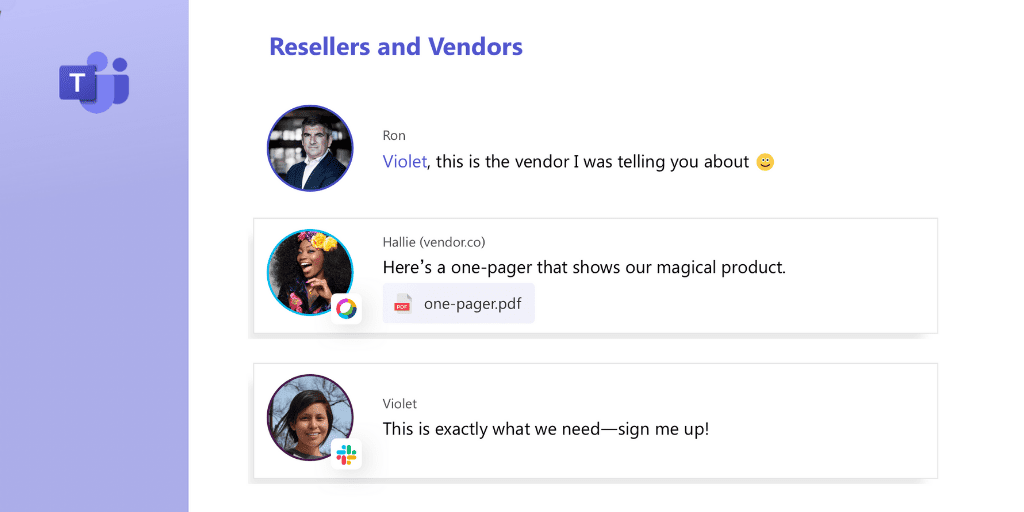
That’s why Mio has created universal channels for Microsoft Teams with Slack or Webex Teams…
You can stay in Teams and send messages to your contractors, suppliers, or clients that use Slack or Webex.
They stay in their platform too and Mio translates the messages across platform.
Resellers and vendors
And it’s not just messages that are supported…
GIFs, emojis, and message edits/deletes are all supported.
3 – Enhance Microsoft Teams video with real-time captions
You know how to translate your Teams messages. But what if you’re in a video call and you don’t speak the other person’s language?
Using the “Translate to” menu, users sharing content can choose to add captions in a specific language. You can select up to 6 languages at once, which is great for event administrators who want to reach people from various backgrounds.
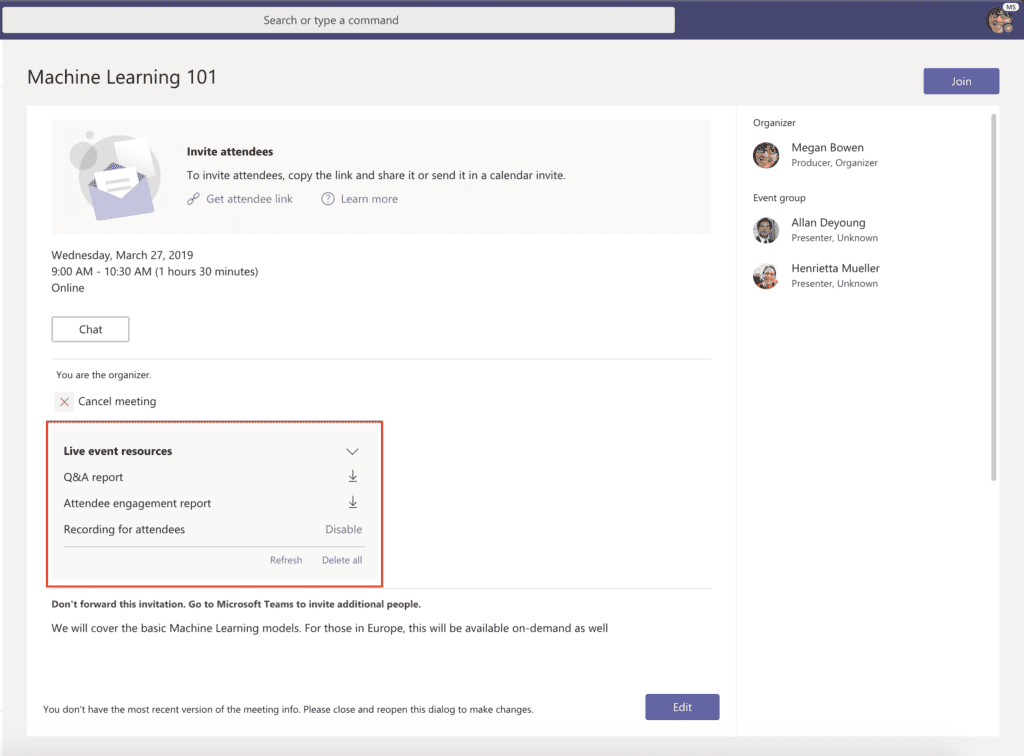
You’ll also be able to download your meeting transcript once the conversation has finished. Click on Meetings then Live Event Resources to find your transcript.
Attendees can turn on live captions by clicking Subtitles On in the lower right-hand corner of their screen.
Machine Learning 101
4 – Find Teams users instantly with @mentions
When you have questions that only a specific expert can answer, don’t waste time scrolling through hundreds of contacts.
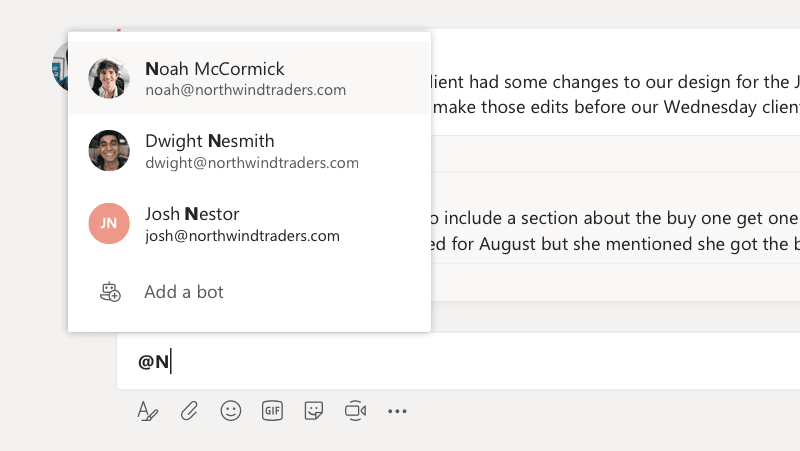
@Mention filtration in the search bar is a great feature for companies with lots of employees. All you need to do is type the username of the person you want to reach after the @ symbol in the search bar.
@
Teams will show you the user you’re looking for – as well as any group chats you’re already part of.
Want to send a message? Click on the user and start chatting without leaving your current project or window.
5 – Follow Teams channels to reduce information overload
Not only do you have emails and phone calls to keep on top of, but you might also be managing various collaboration tools, workforce optimization packages, and people too.
Following channels that matter most will help reduce the amount of unnecessary information coming your way.
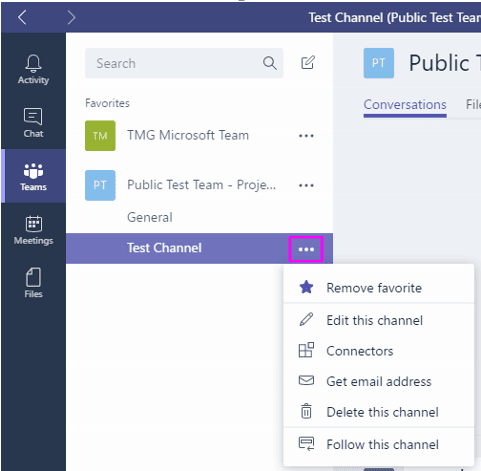
To follow a channel:
Click on the ellipses next to a channel
Click on the Follow option
Teams Channel
6 – Have some fun with GIFs
When it comes to finding useful tips, lots of companies focus heavily on solutions for productivity and efficiency.
They can forget how important it is to build a company culture through your communication tools.
GIFs and custom reactions help strengthen bonds between users at a time when remote working is making face-to-face interactions less likely.
All you need to do is click on the GIF button underneath your “Type a new message” box and enter a keyword to find dozens of GIFs.
Gifs
7 – Customize your Microsoft Teams background
Video conferencing is a great way to bring teams together, regardless of where your users are.
However, people may be reluctant to join a video meeting if their environment is messy or distracting.
The good news? Microsoft Teams changes all that.
You can blur everything behind you in a video, for absolute privacy.
To do this, simply:
Click on your audio and video settings screen when you join a meeting
Choose the ellipses “…” for more options
Tap on Blur my background
You can also add custom backgrounds like an office environment or company logo, rather than blurring out the background.
Microsoft Teams Custom Backgrounds
If you’re looking for something a little more exciting than a blur, you can customize your video with virtual backgrounds.
Microsoft introduced virtual backgrounds for Microsoft Teams in April 2020. Microsoft said it designed custom backgrounds to let you replace your real meeting background with a “fresh and bright home office.”
To find virtual backgrounds, launch a video chat and tap the … menu:
Menu
Click Show background effects.
This will bring up a sidebar with some alternative background options.
New background
You can only use stock photos from Microsoft for now but watch this space.
Soon, Microsoft claims that it will be opening the door for you to use your own custom backgrounds from pictures you choose yourself.
8 – Learn quick keyboard shortcuts for Microsoft Teams
There’s nothing worse than spending 20 minutes trying to find the function you need when you’re in the middle of a meeting or working on a project.
That’s why it’s a good idea to learn the keyboard shortcuts available in Microsoft Teams.
Here are a few of the basics you need to know:
Go to Search (move straight to the search bar): Ctrl + E
Turn your camera off Ctrl+Shift+O
Mute yourself: Ctrl+Shift+M
Background blur: Ctrl+Shift+P
Zoom: Ctrl+= to zoom in orCtrl+- to zoom out
Go to your files: Ctrl+6
To get a complete list of all your keyboard shortcuts, enter /Keys into the search menu at the top of Microsoft Teams.
Shortcuts
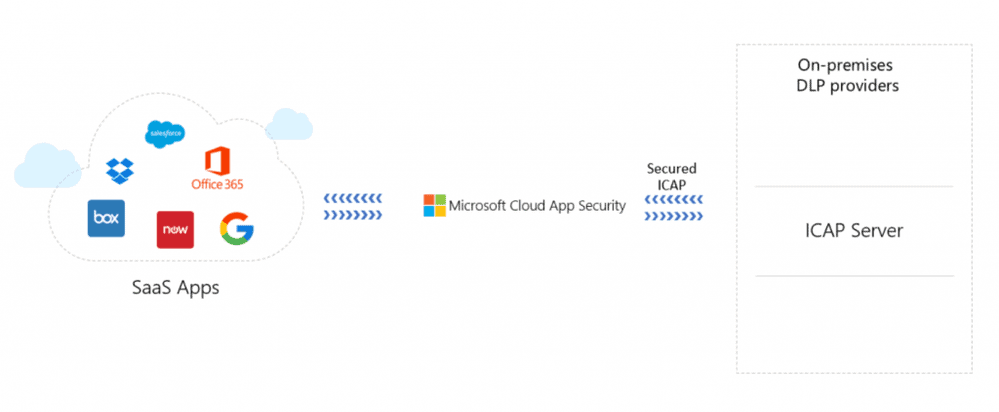
9 – Get peace of mind with Data Loss Prevention
Data Loss Prevention in Microsoft Teams appeared as part of the Enterprise Connect update in 2019.
DLP is available for Office 365 users with E5 licensing and users with the Advanced Compliance add-on.
Data loss prevention features are already available in Teams through OneDrive for Business and SharePoint. However, the latest feature is particularly useful for helping to detect sensitive information in chat messages. This is excellent for people worried about things like GDPR compliance.
To get started, visit the Data Loss Preventionsection of the Office 365 security and compliance center and click on Policy. Clicking on Create a Policy will allow you to start building your DLP strategy.
Policy
10 – Microsoft Teams meetings with intelligent capture
Finally, one of the best Microsoft Teams tricks we’re looking forward to is coming out later this year.
To celebrate Microsoft Teams 2nd birthday, Microsoft has announced a range of new features – including intelligent capture within meetings.
If you’re writing content on analog whiteboards, and need to enhance brainstorming sessions, Microsoft Teams offers intelligent capture and “content cameras.”
Using USB cameras, Microsoft Teams Rooms service will be able to capture, focus, enhance, and resize your whiteboard images.
This means that even if you’re standing in front of a whiteboard, Microsoft will still be able to show off whatever’s written behind you!
Really quick video demo of the #MicrosoftTeams Room Content Camera in action.
As soon as you select Content Camera, it finds the whiteboard in the room, frames it, zooms in. When you step in front, you're translucent. Then it builds out drawn content as it sees it. Really cool! pic.twitter.com/lrNHf6XH1i
And check out our CEO, Tom Hadfield, talking to Rob Scott at UC Today about how and why universal channels exist below.
About the Author
Dominic is the Director of Content Marketing and Communications at Mio. Mio powers seamless communication between workplace chat apps like Slack, Cisco Webex Teams and Microsoft Teams.
Reference:
Kent, D. (2020). These 10 Microsoft Teams Tricks will Make you Forget all about Skype for Business. Available at: https://dispatch.m.io/microsoft-teams-tricks/ [Accessed: 7th May 2020].
When all you have is Zoom, every work-from-home office looks like an endless face-to-face video call. I have been working remotely since 2003. Video calls have been a regular part of my work and I have used pretty well every platform available. In the early days my favourite platform was Marratech, until they were bought by Google and some of the technology created Hangouts. But video communication was only part of my work.
Asynchronous communication — threaded discussions, blogs, and wikis — was always part of my work conversations. Writely — which became Google Docs — was a great tool and helped our distributed team, from British Columbia to New Brunswick, write the specifications for the Pan-Canadian Online Learning Portal. This was the first time that all the Ministers of Education had agreed to do something together. But CMEC cancelled the project after a vendor was selected. It would be interesting to see how the current pandemic would have been handled by schools, with a national online learning resource already in place and with over 10 years of experience. But I digress. Let’s just say that technology is not usually the issue in the workplace — it’s how the technology is used.
anxiety about possible distractions, like children
no casual conversations, or ability to walk and chat
the stress of looking at your face all the time
dead air
It seems that the Zoom gallery view of seeing everyone’s face at one glance has become the default type of Zoom meeting. This shows the lack of creativity, or even basic understanding of the medium, by those who run the meetings. I agree that non-verbal communication can be an issue. That’s why I often have one-on-one video calls, as these are more intimate and great for getting to know someone better over time.
I have successfully completed many projects with people I have never met in person. Anxiety about children bursting in is only a problem for control freaks. My discussions over the past month unanimously show that people appreciate having more human conversations as people are no longer wearing their ‘office armour’. We see the person behind their job title.
Yes, you can Zoom and walk (just don’t chew gum as well). Our perpetual beta coffee club meets regularly on Zoom and one member was out walking during our last call. He just turned off his video, and would stop from time to time and turn the video back on. Finally, there is no reason to always have your video camera on. Video is great to get to know other people but after the first few meetings, it’s no longer necessary. And dead air (nobody talking) is actually good for thinking. You are not running a radio broadcast.
The problem is not Zoom. It’s your bloody meetings!
In meetings, bloody meetings I highlighted age-old problems with business meetings, which I learned about in the 1980’s and which continue today. Meetings should have an objective, a clear format, and be run by a competent person to facilitate the process. Most importantly there must be a clear reason why the meeting is necessary in the first place. Quite often, an alternative would be more effective than calling a meeting — e.g. one-on-one conversation, email, wiki, blog, discussion thread, etc.
Liberating Structures offer 33 open source methods for convening meetings for different purposes. Use one of these instead of an ad hoc Zoom chat wasting most attendees’ time. These have been used and tested around the world. In addition, Liberating Structures are now being frequently adapted for distributed workers. There is no excuse for “Chairing without due thought & preparation”.
Like most organizational changes, meetings will only get better when those in leadership positions decide to make them so. Perhaps the ubiquity of all these Zoom meetings over the past month will get people thinking and talking about better ways to communicate and collaborate at work.
Whether you stay with distributed work or go back to a location, improving meetings will not only raise morale but make room for what is really important in every workplace now — learning. The problems with meetings are not new, so let’s use this crisis to compensate every person who has ever been stuck in a useless meeting, and make meetings better.
“In 1973, Canadian business management expert Henry Mintzberg was among the first to examine the problem [frustrations with meetings]. His book ‘The Nature of Managerial Work’ found that more than half of managers’ time in his sample was spent in meetings.” —CNBC 2015
Recently, the AppSumo site gave away free animated .gifs via Lordicon. The offer no longer exists, but the Lordicon site still has a pack for 50 free animated gifs. It’s actually 100 images because you get outline and solid options.
These are great to use in your Rise 360 and Rise.com courses. Here’s an example course from one of our training webinars on how to create compliance training.
Use Free Animated Gifs As Header Graphics
Use Free Animated Gifs As Bullet Point Alternatives
Use Free Animated Gifs with E-Learning Interactions
Bonus Idea
I sign up for sites like AppSumo (there are others, too) because often they have media-related offers that can be used in online course development. This Lordicon offer was free and they gave away 1000 animated gifs. They also recently had an offer for Depositphotos images at $.39 each. That’s a great deal. That’s one that seems to come around every few months.
Most of the offers on those sites are not relevant so I ignore them; but I do like it when I come across one of the low cost (or free) multimedia deals that I can use for my courses. It’s worth checking out.
"reduce learning as much as possible in order to improve performance" - very much in the Learning Reducer mindset!
‘Learning’ is the most terribly confused and conflicted term. It has been so utterly subverted by education, that it’s near impossible to use it meaningfully any more.
It has helped me, personally, to identify three distinct types of activity sometimes described as 'learning':
Education: this is a set of rituals in which people are expected to memorise information (sometimes described as ‘learning objectives') in order to pass a test. Whilst humans are able to do this given sufficient incentive, it is terribly inefficient process (they forget almost all of it quickly) and it rarely has any impact on behaviour. It is not ‘learning’ in any meaningful sense and doesn’t change people. Sadly, almost all of the activity we describe today as ‘learning’ is, on closer inspection ‘education’. However, the activity has become bureaucratised on a monstrous scale and is proving hard to stamp out.
Learning Elimination: books and digital devices have provided humans with the ability to externalise knowledge and guidance, effectively doing the opposite to education and presenting us with the opportunity to improve performance whilst reducing learning. When we talk about ‘performance consulting’ or ‘point-of-need support’, our aim should be to reduce learning as much as possible in order to improve performance. Often, the aim of organisational L&D is ultimately to improve performance so – paradoxically – the main job of L&D teams is increasingly to reduce the need to learn (as more opportunities to externalise knowledge - for example using mobile devices - become available). Learning elimination is often corrupted by education where, for example, someone intending to create 'useful stuff' ends up creating educational modules instead.
People Change: this is the only true sense of learning and comprises, in essence, experience design. People are changed by their reactions to the world, and by experiences that have some affective consequence. Often (though not exclusively) this means ‘learning by doing’ since what we do ourselves typically has the greatest personal impact (although watching another person make a terrible mistake can also be impactful). If we wish to change people therefore, our work is to design the kinds of experiences that will do that – in practice this is often challenges.
Today, almost everything we describe as 'learning' is in fact 'education'. We could easily get a lot better at doing learning elimination, and it would be nice to see people start doing 'people change' well - i.e. in a more scientific, less 'magical' fashion.
The following is a quick illustrated guide to what you will find in my Modern Workplace Learning 2020 (MWL2020) resource. The 4 D’s of Learning Following the results of my 2019 Top 200 Tools for Learning (13th annual) survey I analysed the 100 tools on the Top Tools for Personal and Professional Learning list and identified […]
Given the impact of the coronavirus pandemic, we’re all adapting to a new and unprecedented situation, both at work and in our personal lives. We’re looking to get better at adapting to change, managing our time, tuning out distractions, and handling the demands of partners, kids, and pets that aren’t used to being around us 24/7. We may have decided that it’s finally time to take advantage of the opportunities for personal improvement and career advancement our companies are offering. The good news? Virtual learning is available anytime, anywhere—even from your living room couch when the kids are in bed […]
Over the past few weeks, Microsoft Teams has become the prime tool for online teamwork. It allows all team members to participate in meetings, share documents, set and monitor tasks and organise online conferences. We created a detailed guide which will help you to use all functions of the co-operative platform effectively.
Create a team
Working at MS Teams starts with the creation of a team – perhaps from the same or different functions within your organisation, who are working on a specific project. To do this, select “create a team” from the navigation on the left. Then, name your team and add a description if preferred. By default, a team will be private, but if you set it to public your colleagues will be able to join. Now, you can add new members and groups of contacts. If you need to add those who don`t work in the company, you’ll need to provide their e-mails. However, you’ll only be able to invite guests if it was you that created the team.
To proceed with the advanced team settings, click the ellipsis near its name and select “Manage team”: this way you will find new participants, channels and applications. Here you can add a picture to personify the team.
After creating the team, you can proceed with the channel creation.
Creating Channels
Interaction in MS Teams is based around channels – each of them is devoted to a separate subject. Here all tasks are handled: meetings and conferences are organized and access to files is provided. By default, each team has a general channel that is used to share information with all participants. To add a new channel, click the ellipsis near the name of the team and choose “add channel”, then name and describe it. To make the channel visible for all team members, and set to “Automatically show this channel in everyone`s channel list”.
To make them easier to find, you can add channels that are used more often in the ‘Favorites’ list. To access the additional channel settings, click the ellipsis next to the channels tame. To add another tab, press +. Here, you’ll be able to include the Planner app and create the project board for tracking and monitoring the team tasks.
In each channel you can conduct online meetings – just click “start a meeting”. Here you’ll be able to share any content your team might need from your computer.
A meeting can also be recorded, which is a useful tool, especially when you might have forgotten an important point that was raised! There is a button “Start recording” below. Nearby there is a button that allows you to share files with those in the meeting. To co-edit the document, click “Edit” on the top of the screen. During the meeting you can make notes: all of which are saved in the meeting chat, which is created automatically.
To share files with the participants of the channel, click the “Files” tab on the top of the screen, choose necessary documents and click “Open”. If there are too many channels, filter them by clicking the icon in the top corner.
Chats
There is a possibility to create chats with a member or a group of members of the team. Press “start a conversation” on the top of the screen and enter the contacts of those you would like to chat with. Naming your chat will make it easier to find afterwards. The most important chats can be pinned: select “advanced features” then “pin”. You can ‘pin’ up to 15 chats.
Calls
MS Teams allows calling any member of the team. Recent call history and voicemails are saved in the “Calls” list. Missed calls and messages appear in the news feed. You can either video call or voice call a colleague straight from the chat.
How to join the meeting
The meetings organised in Teams are available in your calendar. You can also join them via your mobile. Choose “Join the meeting” in the invitation form. To participate in the event, open the MS Teams app, or its web version. If you prefer the web version, you’ll need to enter your name and click “join now”. In the web version you will get the meeting ID which you can also use to dial in via Blue Jeans.
How to organise live events
In MS teams, events can be broadcast online to a larger audience. During the event, a speaker can share content with the participants, manage video and create reports. To start the broadcast, choose “meetings” on the left and click “create”. On the top of the pop-up window, select “new meeting” and then “new live event”.
Add the name of the event, the date, time and any other information if preferred. In the field “invite people to your event group” add the names of the organisers and presenters. In the section “live event permissions” choose who you would like to invite. Define the criteria needed in the section “how will you produce your live event?” and click “schedule”. Then you;ll be able to product a “link for the participants”, which you can then copy and share with those you wish to invite to the event.
MS Teams allows over 1000 contacts to take part in an event at any given time. The participants are divided into groups: producers, presenters and audience. The producer manages the event: starts and finishes it, and monitors the files being shared. The presenters conduct the presentation: share audio and video and answer the questions.
After roles have been outlined, you can then give access to the live event, using the ‘permissions’ tab under ‘users. It could be separate groups (people and groups), all your colleagues (organisation-wide) or a user who has a link (public). Then define the participants who can access the event records, activate Q&A and click “schedule” – you will get the link for participation in the live event. Send it to the users you would like to invite – by e-mail or invitation in the calendar.
Note: MS Teams calendar is synchronized with your Outlook calendar.
Applications
Teams facilitates almost all Microsoft apps – you can use them straightly on the platform. Some of the apps have chatbots. By clicking + on the top of the screen, you will see the list of the available applications. Some of them can be used in chats, and their content is easily inserted into messages. Moreover, there are connections in MS Teams – the apps which are connected with the project management programs.
The university’s senate was due to vote on a resolution that would see Durham develop a range of online degrees to “complement its existing high quality residential educational programme”.
This blog is guest-authored by Dr. Tendai
Charles. He is Director of the Centre for Research in Digital Education at the
British University in Dubai, United Arab Emirates.
The British University in Dubai (BUiD) is a
unique Higher Education Institution (HEI) in the Middle East because its
students are almost exclusively postgraduates. Many of whom work part-time,
support families, and are expatriates. Due to the nature of their lives, these
students need a cloud-based Learning Management System (LMS), which offers them
the capacity to study independently, at their own pace, wherever they are in
the world.
BUiD had been subscribed to Blackboard 9.0 for several years, however, data analytics revealed that faculty were not using it adequately. When questioned as to why this was the case, faculty responded by indicating that they were satisfied with the rich features of Blackboard 9.0 but thought that its User Interface (UI) wasn’t at its full potential. BUiD’s faculty desired an LMS with the capability of Blackboard 9.0, which had a simpler, modern, more intuitive UI. Consequently, Prof. Abdullah AlShamsi (Vice-Chancellor of BUiD) decided it was time for a change. It was time to upgrade to an LMS that met the needs of both faculty and postgraduate students in order to facilitate BUiD’s Blended Learning agenda.
In January 2020, the Blackboard team and
representatives of a competitor LMS were invited to BUiD to deliver live-presentations.
Both teams were given the same amount of time to describe their LMS products
in-detail, and to give hands-on demonstrations to faculty. The team presented
the Blackboard Ultra system. Thereafter, demo accounts for both LMS products
were created for a period of 30 days. Throughout the month of February, faculty
tested both systems, uploading content, creating assessments, and communicating
with students who agreed to partake in this trial. Thereafter, a survey was
distributed among all faculty members, that enquired about their personal
experiences of the demo accounts and their preferences regarding which LMS was
best. 90% of faculty believed that Blackboard Ultra was better for facilitating
Blended Learning, better for supporting students with educational needs, and
provided a simpler, easier to use UI compared to the competitor.
After reviewing the results of this survey,
Prof. Abdullah AlShamsi decided BUiD would upgrade to Blackboard Ultra.
Blackboard’s UK-based technical team and BUiD’s IT Department (led by Mr.
Khaleelullah Ghourie) determined that this would be a 12 to 16 week process,
meaning the upgrade would be completed by the Fall of 2020. However, due to the
historic COVID-19 pandemic, in mid-March the UAE’s Ministry of Education
instructed all HEIs to teach online. Consequently, BUiD’s and Blackboard’s
technical teams rescheduled the upgrade, such that Blackboard Ultra could be
live on 1st April. Both technical teams literally worked day and night for 2
consecutive weeks in order to make this unprecedented feat happen. Somehow,
they were successful in this endeavour, and by 4th April some faculty were
delivering live, synchronous online lessons via Blackboard Collaborate
Ultra.
Now, 2 weeks after the upgrade, BUiD is using
Blackboard Ultra for the following:
Online teaching
Regular online faculty/departmental meeting
Building a virtual community amongst students online
Professional development training
Hosting conferences online
Webinars for community engagement
Provision of online exams
Hosting “Open Days” for prospective students
And more…
Ultimately, BUiD is now conducting a large
portion of its daily activities via the Blackboard Ultra platform, and we
encourage other HEIs in the region to consider upgrading, too. We are proud
partners of Blackboard and thank them for their support during this COVID-19 period.
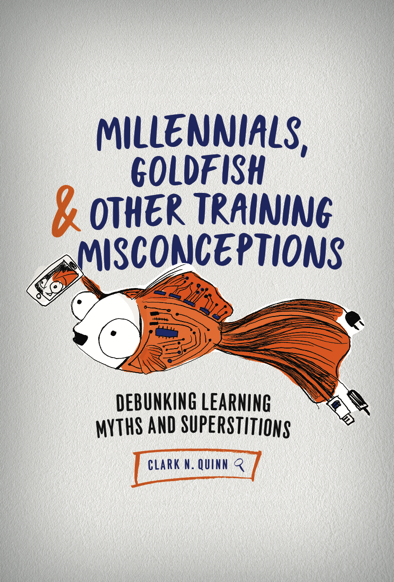 Learning with myths manifests in many ways. Redundant development to accommodate learning styles, or generations. Shortened to be appropriate for millennials or the attention span of a goldfish. Using video and images for everything because we process images 60K faster. Quiz show templates for knowledge test questions because they’re more engaging. And all of these would be wrong.