How to download the latest version of the EMC VNX Simulator (VSA): Here’s a quick guide that shows you how to get hold of and download the latest EMC VNX Simulator (VSA). For those of you who are not familiar with it, the physical EMC VNX is a unified storage appliance with both file and block storage capabilities, can contain Flash and SAS based storage, and provides connectivity either via Fiber and/or Ethernet (NAS). It also harnesses some pretty useful and powerful technologies such as Fast Cache and Fast auto-tiering. For more information head on over to the EMC VNX webpage here.
The VNX Simulator (VSA) is a highly useful addition to your VMware vSphere lab as it provides you with a real-world type VNX experience, from the management (Unisphere web interface) right through to providing you with the ability to copy and run virtual machines off of it. The VNX simulator offers file (NAS) connectivity to/from your ESXi hosts. As you can imagine this is ideal for training, product familarisation or if you just want to play around with some pretty cool shared storage in your lab. I run a VNX simulator in my own home vSphere lab for some shared storage and can normally comfortably run 3-5 VMs off of it (low workloads).
Before we continue however I want to point out the following “must-know” points regarding the EMC VNX Simulator (VSA):
- This is a non-commercial product and as such isn’t intended for production use.
- It doesn’t come with any “official” EMC support, though check out the EMC community forums as this is a great source of any EMC related information & community support.
- This simulates the File only version of the VNX, ie: no block level storage.
- Don’t expect a publically available Block version of the VNX Simulator, this is due to licensing restrictions.
- As the name suggests, it is a simulator and although it acts and behaves like a physical VNX don’t expect the same blazingly fast IO disk speeds from it.
- It is ideal for a lab environment where high performance isn’t required, more the ability to get hands on time with the product.
I’ve written a few other blog posts here and here, on the EMC VNX VSA and how to get it up and running though these are based on an earlier code release (UBER version). However if you are after the latest publically available version of the VNX Simulator then simply follow these six basic steps.
Step 1
Open a web browser and navigate to the URL: http://support.emc.com *Note: this now replaces EMC PowerLink for your go-to place for any EMC related downloads.
If you already have an EMC account logon then enter in these credentials and click the ‘’Log In” button. If you don’t already have an account then no problem, simply click the “Register Now” and enter in the relevant details to have an account set up for you (this is free as you’d expect).
If registering for the first time, when you receive your logon credentials then enter them in to the login fields and click the “Log In” button.
Step 2
Once you have successfully logged in you will then be presented with the EMC Online Support page, as you want to download your own copy of the VNX Simulator (VSA) then click the “Downloads” link indicated below.
Step 3
With you now being at the Downloads page we want to perform a search for the VNX Simulator downloadable file.
Step 4
In the “Find a Product” field type in “VNX”, this will bring up everything relating to the VNX. Simply scroll down and select “VNX Series” and then click the blue arrow button (3 – see below) to kick off the search.
Step 5
Once the search results are returned you will see a large number of VNX related downloads, to make things easier we want to sort this long list of files by the “Title”. Click the “Title” Sort by field as shown below.
Step 6
With the list of VNX files now sorted by Title, scroll down until you get to the files called “VNX File Simulator”. You will notice that there are a few different versions of these files, go for the latest. At the time of writing this post the latest downloadable version was OE 7.1.65.8 (Q1 2013). Check back from time to time for any new releases.
You will notice that there is a “Single Data Mover” and a “Two Data Movers” version, what one you download is up to you. As the name suggests one version has a single data mover and the other two (ie: the part of the appliance that handles the “data” as it “moves” in and out of the VNX – in this case via Ethernet connetivity). If you want to learn more about the various parts that make up a VNX or Celerra then check out my earlier post here on the EMC Celerra VSA. *Note: the post is on the earlier EMC unified model the Celerra, though much of the fundamentals still applies to the VNX.
In most lab instances you’ll probably only want the single data mover, though if you are studying or want more to configure (ie: dual data movers) then the two data mover version may be a more attractive option to you.
As you can see from the image above, the downloads aren’t small and average about 2.2GB in size, so unless you are on a very fast internet connection now may be a good time to go and put the kettle on.
I hope you found this brief download guide of use, I will be producing a couple of posts and a video on the next steps, ie: installing and configuring the EMC VNX simulator so check back soon for these posts. Though in the meantime here is a link to one of my blog posts which contains links to a PPT presentation I did a while back which provides a summary on how to install and run the VNX VSA. *Note: Unfortunately the webcast has since expired and been removed (not by me), though a link to download a copy of the presentation is still available.
The release of VMware vSphere 5.5 has seen a number of enhancements to the underlying hypervisor (ESXi), and as with every major release of vSphere there is an increase in it’s capabilities around CPU, Disk and/or memory.
Probably the most significant in the VMware vSphere 5.5 release is the increase in VMDK file size that can be created and used, from 2TB (vSphere 5.1) to a massive 62TB! That is quite a jump, and will definitely come as good news to businesses dealing with large amounts of data that have a requirement to have it mounted on a single volume. Though you’d want to make sure you have an effective working backup and recovery strategy in place. ;)
The following is a quick-glance table that outlines some of the new VMware vSphere 5.5 per physical host (ie: not per virtual machine (VM)) maximum configurations.
Per Physical ESXi Host
VMware vSphere 5.1
VMware vSphere 5.5
Logical CPU
160
320
Virtual CPU
2048
4096
NUMA Nodes
8
16
RAM (Memory)
2TB
4TB* (16TB experimental only support)
VMDK Size
2TB
62TB
vSphere Hypervisor RAM (Memory) – Free Version
32GB
Unlimited
For SMBs and vSphere home lab users who run the free vSphere Hypervisor, the release of 5.5 removes the 32GB physical memory limit which means (budget permitting) you could start looking at using a single ESXi/Hypervisor solution using a server crammed full of memory, and of course an appropriately sized CPU and disk subsystem to match. Though I personally think that if you are spending that sort of money on memory you’d likely be wanting to nest your ESXi/Hypervisor hosts and use the highly useful functionality found with having a vCenter Server install, eg: DRS, HA, vMotion, etc.
VMware vSphere author, blogger and all-round aficionado, Scott Lowe, is releasing an update to his highly popular “Mastering VMware vSphere” book. This time he is joined by fellow blogger Nick Marshall in updating “Mastering VMware vSphere” to reflect all the latest vSphere 5.5 changes and updates.
I definitely can recommend “Master VMware vSphere” as an easy to read and highly informative way to learn about vSphere, and even if you’re a seasoned vSphere professional, it is a useful reference book for those times when you need to sanity-check your thinking on something vSphere related.
I’ll be picking up my copy when it is released, though the biggest decision is whether to go for the paperback or electronic Kindle version?
Windows 8.1 is coming. The release date is close. It’s free. Why upgrade? Not only are upgrades sensible from a performance and security perspective, but you get new features. One recipient of some feature love is the Start Menu. If you have already installed the Windows 8.1 preview, then you have experienced some of this magic. Like what? Let’s take a look!
1. Start button
To me, I don’t need a Start Button. But let’s face it, the Start Button is important to most users. It’s comfort food to Windows users – and in the end, nobody matters like our users. In Windows 8.1, it’s back from its vacation. What does it launch? The Start Menu, of course.
Bonus: Right-click the returned Start Button (or Start “Tip“) and reveal the Quick Link menu for experts. This menu, which was previously only available through the Windows+X keyboard shortcut, reveals handy advanced features for expert users. Want more? The Quick Launch menu now includes Shut Down and Sleep commands. Want to shut down with the fewest keystrokes, use this menu!
2. New size tiles
I think Windows Phone hit it out of the park when they introduced the small tiles. With Windows 8.1, I get the same small tiles, plus a large tile option that is the equivalent of two wide tiles, stacked. Putting more on my Start Menu means easier access to more applications, even the ones without live data and even the ones I only access occasionally.
Bonus: In addition to resizing tiles in the new Start Menu, manipulating tiles has also been given a facelift. More like Windows Phone, the Start Menu goes into an “edit” mode when the user touches and holds a tile. From there tiles can be rearranged, resized, and grouped with useful names. No more mistakenly dragging a tile while panning. Plus, Windows 8.1 lets you multi-select and multi-uninstall. It’s a dream, esp. for dev-types.
3. Roaming layout
Maybe it’s just me, but I spend a lot of time tweaking my Start Menu layout. My OCD and I like it just right. And then, I change my mind on what “just right” even means. That’s real work, and I hate repeating it when I log onto another device. With Windows 8.1, my Start Menu layout roams across devices, following my account wherever I log in – and saving me from repeating my endless task.
Bonus: Windows 8.0 introduced the touch-friendly control panel but missed some settings. As a result, users would toggle to the desktop control panel from time to time. With Windows 8.1, the touch-friendly control panel gives you everything in parity to the desktop control panel. All there, and all finger-friendly.
4. Reordering programs
The Start Menu is a list of for favorite or most frequent apps. It’s your personal dashboard. And, when you need an ancillary app, you search for it or view all apps to find it. Viewing all apps is painful when the sort is simplistic and static. With Windows 8.1, you can sort your apps by frequency, folder, name, and more. Plus, accessing all is just a single swipe up. Simple? Maybe. Brilliant? Certainly.
Bonus: On that note (that your Start Screen is your dashboard), with Windows 8.1 users will find even more value in their Lock Screen, even before they log in. The Windows 8.1 Lock Screen delivers a photos slide show from your local or cloud photos and direct access to the camera, just like Windows Phone. It’s all there, and it’s all good.
5. Desktop background
Some Windows 8.0 users found the transition from the desktop to the Start Menu to be abrupt and startling. With Windows 8.1, users can set the background of their Start Menu to match the desktop background. As a result, the transition to the Start Menu is a graceful experience. It really is. And, for those who loved the animated designs as their Start Menu background, those are still there.
Bonus: Many Windows 8 users don’t have a touch device. With Windows 8.1, users now have the ability to customize what the corners do. And, users can boot directly to their desktop. The Start menu can display on the active display when you have multiple monitors, and, should you want to default to App Apps view, you can.
Summary
Some subtle improvements in Windows 8.1 show dramatic concern for user feedback. Then again, sometimes Windows 8 sticks up for itself and the direction it is leading. But in 8 short months, this small update to Windows 8.0 feels anything but small. And in the best tradition of Windows, it puts more and more power in the hands of the user. Configure to your heart’s content.
About 80 years ago (more like 10) Microsoft released the Natural Ergonomic Desktop 7000. The keyboard, mouse combo was unparalleled in ergonomic value. A culmination in ergonomic research, the 7000 was superior for several reasons!
The best features of the old Desktop 7000 keyboard:
I have been using this style of keyboard for far more than 6 years. Lots of the key printing has been warn off from use. But, I would never give it up. The keyboard gives me amazing comfort and stamina to work. What do I love about it so much? Not everything, granted. But here are some things:
The keyboard was split. This might sound controversial, but insofar as ergonomic comfort, nothing competes with the split keyboard. It allows your hands to rest at dramatically contrasted angles and, as a bonus, drives your typing skills through the roof!
The wrist rest was attached. This might sound trivial, but the comfortable wrist rest wasn’t a snap-on rest. As a result, as you will read in the next point, when you would elevate the keyboard, the rest didn’t wiggle a bit. It is so soft, I find myself petting it.
The reverse tilt. You will never believe this until you try it yourself. But, hold out your hands and find your fingers pointing down, not up. Standard keyboard kickstands are in the back, tilting the keyboard toward you. Your fingers are forced up. The 7000 reverse tilt is a kickstand in the front, tilting the keyboard away from you. Your fingers rest down. It sounds crazy, I know. But this single, innovative feature has propelled this keyboard into near mythical ergonomic lore. This is also why the wrist rest simply has to be attached to the base.
The standard layout. I can learn another keyboard layout if I have to do it. Laptops always come with some kooky layout that the OEM thinks is clever when it’s plain stupid. Though there were several improvements to the keyboard layout that followed the 7000 (like the large delete button), the 7000 layout is plain-Jane standard, and easy to use. That’s always been a bonus to me. I have always loved its simplicity.
Few custom buttons. The 7000 has a few custom buttons (features I rarely use). Other than volume, those are useless to me. I tried setting them up many times. But I am good enough with standard keyboard shortcuts that additional keys just get in the way. Some keyboards clutter themselves with custom keys. The 7000 adds one row and that’s it. Thank you.
The best features of the old Desktop 7000 mouse:
I no longer use this mouse, I have to admit. I have returned to it over and over, trying to use it. But, it has a singular flaw that I cannot handle. The surface or pattern on my desk screws up the optics of the mouse’s laser. As a result, the mouse is not accurate when I use it at home. I can’t have my cursor jumping around the screen. No way. And, I will be darned if I will use a mouse pad! No way. But for the many years I enjoyed the mouse, this is what I loved the most:
It’s huge! Most people are thrown off by how large the mouse is. It’s far larger than the flat, stupid mice you see in stores today. At rest, your hand is cupped, not flat. At a size larger than a tennis ball, your hand wraps around and rests on the mouse with ease. In fact, you could leave your hand on the mouse for ages and it would never fatigue. This time, size matters.
It’s tilted. If you’re left-handed the 700’s mouse (which is the premium Explorer Mouse) isn’t for you. It dramatically tilts to the right. Again, for the right-handed, your hand naturally rests with a tilt to that side. As a result, using the mouse means you don’t have to flex your wrist to accommodate an ambidextrous, uniform mouse – a feature that doesn’t matter once you purchase the mouse and use it. The tilt is magical.
The thumb rest. Your thumb should not fall to the desk, it should rest on the mouse. It adds to the accuracy of movement, and where else would you want your mouse? The 7000’s mouse does better than giving you a thumb rest. It gives your thumb a gel pad on which it can rest and relish in its comfort. The thumb rest (where the Microsoft logo is) is a thing of wonder.
Flaws?
Is it fair to pretend the 7000 didn’t have any flaws? Not at all. Frist, the keys are very deep. I actually like that, but the design allowed considerable dust collection. I still hate that today. Otherwise, the keyboard is perfect. The mouse, on the other hand, has an inferior laser that doesn’t track on every surface – and I hate that. The other, critical problem with the mouse, is the gel for my thumb. As comfortable as it is, it does not stand up to time. Eventually the slick surface gets gummy.
Enter the Sculpt Ergonomic Desktop
I can’t answer the question “Why did Microsoft wait so long to improve the 7000?” As I visit companies, I see it used everywhere. Perhaps nobody complained. But to have a new version released is a tempting treat. It will be only a matter of time until I have one on my desk. I promise.
The Natural Ergonomic Desktop 7000 sells for $119 on http://microsoft.com/hardware and for a more reasonable $79 on http://amazon.com. The new Sculpt Ergonomic Desktop sells on http://microsoft.com/hardware for $129 (only $10 more). There’s no discount elsewhere since it was just released. That’s not a cheap price, by the way, for a keyboard and mouse. I admit that. But what is the comfort and the long-term health of your wrist worth?
Aside: My first year out of college, this old lady ran a red light and I t-boned her car with mine. My air bags deployed and decimated my wrist when it did. Years and years of casts and physical therapy have helped me recover from miserable to bad. As a result, I cherish my wrist and do everything I can to keep it happy. If you have never damaged your wrist, you need to be a little more thankful then you have been.
Differences
The new Sculpt Ergonomic Keyboard is wonderful. Instead of filling the split space with a needless zoom button, it’s completely empty. Smart. Instead of cluttering the top bar with useless custom keys, there are none. Great. And, even the number pad is removed (I use it once a month at most) to let the keyboard have 104 keys and tiny footprint of 15.4 inches by 8.96 inches. Wow.
The Sculpt Ergonomic Mouse, on the other hand, hasn’t won my heart yet, but I am willing. It strongly resembles the 7000’s Explorer Mouse. It’s big. Good. It’s tilted. Great. But, it doesn’t appear to have a forward button, only a back button. It doesn’t appear to have a gel rest. Yes, I can deal with those two things. But, until I test its laser on my desk surface, I can’t be sure it will be a suitable replacement for the Laser Mouse 6000 I use today which works fine.
Conclusion
For a while it seemed that Microsoft had stopped caring about ergonomics. Their mice have been flat, small, and crazy. Their keyboards have been equally clunky. The Sculpt has restored my confidence.
Let me say this
Microsoft, thank you for building the 7000 Desktop so many years ago, it has made my life better. It has made my work easier. It has made my wrists happier. And, Microsoft, thank you for updating the 7000 Desktop with the Sculpt Ergonomic Desktop. I can’t wait to try it.
Editor’s note: The following post was written by SQL Server MVP Rafael Salas
Creating Power Query Functions
You have seen or started using Power Query for Excel by now. If not you have been missing one of the greatest tools of the new Self-Service Business Intelligence offering Power BI.
Power Query has a wide range of options to discover, extract and manipulate data from internal and external sources via a very friendly user interface and you can go a long way with little to no programing. However, you are also given the choice of creating queries from scratch using M language in those situations where the requirements go beyond of the functionality provided by the user interface.
In this post, I want to show you how you can create parameterized functions that can be later be referenced and re-used by other Power Queries. This is something that can come handy when you want to wrap complex logic that end users may not be able to write themselves or when dealing with a piece of logic that is frequently used.
A Simple Scenario for a function: Formatting Dates
For this first example, let’s start with a simple scenario where we need to ensure that date values are formatted as MM/DD/YYYY and ensure that the month and day portions have leading zeros; so a value of 8/5/2010 should be represented as 08/05/2010 and so on.
We will use a dataset from and Excel table with a list of conferences along with their dates and location information. As you can see in the Figure 1, the date values does not have the required leading zeros in the month and day parts.
Creating a Baseline Query for Our Function
Since we are not familiar yet with M language we are going to format the dates by using the options provided by the user interface and then use the generated code as baseline for a function.
1. Click any cell within the table and create a new Power Query. Power Query –> From Table
2. When the Query Editor window opens, right-click in any of the columns and select: Insert Column –> Custom as shown in Figure 2
3. When the Insert Custom Column editor opens, enter the following M code and click OK
4. Back in the query editor, we should now have a new column called “custom” that displays the date values properly formatted as text. Click done to close the query editor and see the results of the query in a new Excel sheet.
Creating the Function
Now imagine users need to reformat date values as previously shown in a regular basis. We will create a function that takes a date value as input parameter (InDate) and returns a date as text with the appropriate format using the expression from step 3.
5. Create a new Power Query. Power Query –> From Other Sources –> Blank Query
6. When the query editor opens, click the Advanced Query editor button as shown in the figure below. Note: Advance query editor is disable by default, to enable it click options in the Power Query menu and check the Enable advanced query editing option.
7. Change the query as follows and click done (see Figure 6):
a. Replace the double quotes in the “source” expression with the expression from step 3 above. Then, parameterize the expression by replacing the “EventDate” field with “InDate” string.
b. Add an outer let…in expression with an input date parameter called “InDate”.
Once you click Done, the query editor is able to recognize our query as a parameterized function as shown in the figure below. Click Done to exit the editor, and if you have not gotten any errors your function is ready to be used. Note: you should be able to test the function with a single input value by using the Invoke button, but you would need to delete the “Invoke<fnName>” step that is added to the query before exiting the query editor.
Calling a Function
Now that our function has been created, we should be able to call it from other queries within the workbook. We will use a copy of the query we built at the beginning with the list of events and dates.
8. Go to the worksheet that has the query we created in steps 1 through 4, click on any cell and click the Filter & Shape option in the Query Settings pane or under the Query menu in the ribbon.
9. One the query editor opens and if necessary, change the type of the EventDate column to Date so it matches the data type of the input parameter of our function. Select EventDate column->right-click->Change Type->Date
10. Now we will add a new column that use the function we just created to reformat the values in EventDate. Select any column->Right-click->Insert Column->Custom
11. Once the Insert Custom Column editor opens, paste the following code to invoke the function and pass the EventDate values as parameter. Click OK.
fFormatDate([EventDate])
As you can see, the function is executed for every record in the record set.
Few notes about M and Power Query Functions
· M language is case sensitive, so make sure that both spelling and casing are correct when troubleshooting your code.
· The scope of a function is the workbook on which it is contained, so you would need to re-create functions on each workbook where they are needed.
· There is no easy way to discover or search for custom functions within an Excel file. This may pose a challenge when dealing with workbooks with many worksheets.
As you can see, we have the ability to use functions as a way to encapsulate pieces of logic that can later be referenced from other power queries in the workbook giving us greater flexibility when creating more complex queries, or breaking a large query into smaller and more manageable pieces. You can also use function to abstract calls to external data sources such as APIs or to break complex queries into more manageable units of code.
Preview version warning – this information is current for Power Query preview (Version: 1.5.3296.1161). The information contained in this article may change prior to RTM.
About the author
Rafael is a speaker, published authored and blogger with +15 years of relevant IT experience across multiple industries. He specializes in Business Intelligence and information architecture and is the recipient of multiple industry awards, including Microsoft Most Valuable Professional (MVP) and The Data Warehouse Institute best practices. Rafael is also an active member in the SQL Server technical community and maintains a blog at www.rafael-salas.com. Follow him on Twitter.
About MVP Monday
The MVP Monday Series is created by Melissa Travers. In this series we work to provide readers with a guest post from an MVP every Monday. Melissa is a Community Program Manager, formerly known as MVP Lead, for Messaging and Collaboration (Exchange, Lync, Office 365 and SharePoint) and Microsoft Dynamics in the US. She began her career at Microsoft as an Exchange Support Engineer and has been working with the technical community in some capacity for almost a decade. In her spare time she enjoys going to the gym, shopping for handbags, watching period and fantasy dramas, and spending time with her children and miniature Dachshund. Melissa lives in North Carolina and works out of the Microsoft Charlotte office.
Nate worked on software that communicated with onboard computers for large machinery and industrial vehicles. Two releases a year made for a tight development schedule, but the fast turnaround created plenty of variety. With the next release cycle, he’d be taking the lead on the highest-priority feature: an Engine Theft Deterrent (ETD) system, something unprecedented but interesting.
“How ’bout we just hire a guy to stand by the engine with a gun?” Nate asked.
His project lead laughed in response.
“Where can I find the requirements?”
“We don’t have any yet.”
“Typical," Nate said.
“Even better, the SBU requesting this feature doesn’t know when they’ll be able to provide some.”
“But they’re still saying ‘high-priority’?”
The project lead smiled. “The highest.”
Nate shook his head. “So what do you need me to do right now?”
“Twiddle your thumbs? Stock up on caffeine for the last-minute code binge?” The project lead shrugged. “I’ll let you know when we have more.”
As weeks and then months slipped by, “more” turned out not to be “nothing.” His time being billable, and lacking a thumb-twiddling time bucket to fall back on, Nate pitched in on other projects- until his manager called him into his office one day, slumping and worn. Beside his manager’s desk, an unknown man loomed in undeserved triumph- the self-styled lion who, after batting down a gnat, crowned himself king of the jungle.
The manager introduced Nate to the man: the SBU lead for the ETD feature.
“You’re supposed to be 100% dedicated to ETD,” the lead declared. “What are you doing working on other projects?”
Bewildered, Nate looked to his manager. “I never received any requirements.”
“When you get them, you can’t be elbow-deep in other things!” the lead argued without any loss of face. “We need this feature in this release. Period, end of story.”
“So when will we have requirements from you?” Nate’s manager asked.
“We’re working on them, don’t worry. We’ll be in touch.” With a warning glare Nate’s way, the lead darted out.
Nate’s manager sighed. “That meeting came from hours of panicky emails and phone calls and crap you don’t want to know about. Don’t check in any more code, OK?”
“What?”
“Just wait for the requirements.” Vengeance sparked over his eyes. “You’re dedicated, so make sure you bill them for your time.”
“Gladly.”
Unfortunately, the requirements were still missing when code lockdown arrived months later, despite appeals from Nate, the project lead, and their management. The SBU complained mightily about ETD not being in the release. “If you can’t deliver on time,” the business lead rumbled, “then we’ll have to go to an outside contractor.”
A new release schedule dawned, full of fresh promise, but not for Nate. Several months in, the project lead received an invite for the “final” ETD requirements meeting, and forwarded it to Nate. The SBU lead was surprised to see him, but nevertheless made him welcome. “You’ll like what we’ve come up with,” he gushed. “This will be huge for us.”
The hour-long meeting began with 10 minutes of directionless chatting, 20 minutes of introductions, 20 minutes reviewing the project charter. When they finally got to the ten minutes dedicated to discussing the requirements, Nate listened closely, but all he heard was the sound of one, maybe two interns scribbling down some ideas five minutes before the meeting. The requirements were little more than, “We need an ETD system.”
“I think there are some scenarios you’re not considering,“ he phrased as delicately as possible. ”What if there are multiple engines, and thus multiple instances of the software to manage at once— like in marine applications?”
“Um…” Nervous glances ricocheted around the conference table.
“What if an engine control computer is replaced with one that doesn’t support ETD?“ Nate asked. ”Imagine someone wanted to steal a boat and had an extra control module lying around, with an older release of the software. What then?”
More blank stares and lack of answers.
By the time the requirements were fleshed out, it was too late for the change review committee to approve them for the next release. In dire straits, the SBU put together a business case, wherein whining was converted to imaginary dollar values.
“It’s now nearly a year since this project was initiated. We can’t wait any longer!“ the SBU lead cried. ”Every release that goes by without ETD costs us $100,000 in revenue! How am I supposed to tell my boss we let release after release go by while $100K was lost each time?”
Nate, his project lead, and their management were pulled from one warm-fuzzy meeting to the next, where management assured other management they understood the SBU’s concerns and were making ETD their top priority. It took some magical wand-waving at nosebleed altitudes, but the requirements were approved and rushed into Nate’s hands for emergency development. After a feverish effort, the feature was built, tested, and approved before the code lockdown. There was only one more hurdle before ETD could be integrated into the production release: the SBU had to test and sign off on it.
Nate sent off notifications to all the relevant stakeholders, and waited. And waited. Follow-up emails and phone calls went unanswered. He had to escalate through the project lead and his manager before the SBU lead deigned to reply.
“We don’t have any engine software written yet,” he calmly informed Nate without the least hint of shame. “We won’t be able to test until after the next release, at the earliest.”
Another release went by without ETD. By that point, the feature had racked up 100 hours in requirements definition, 500 hours for technical writing and project management overhead, and over 600 hours in designing, coding and testing. All of that, for no visible outcome. Even Sisyphus could point to the sores on his feet.
Not long after, Nate left for a position in another part of the company. Two years and four releases later, the SBU was finally ready to field-test their critical anti-theft feature. From the project’s ashes, Nate had snagged a patent and a valuable lesson: always include “Guy With Gun” during alternatives analysis.
[Advertisement] Make your team a DevOps team with BuildMaster. Pairing an easy-to-use web UI with a free base platform, BuildMaster gets you started in minutes. See how Allrecipes.com and others use BuildMaster to automate their software delivery.
It was spring (or autumn, if you live south of the equator). A time when everyone's heart is a little bit lighter. When the layers of clothing are worn just a bit looser. When even the infirmed have a spring (or autumn) in their step.
Everyone except for Tim.
To Tim, the double buzz of the busy signal ringing in his ear had the same soothing qualities as the whine of a mosquito about to deliver a package of SARS.
He hung up the phone, picked it up again after two beats and wearily pushed the redial button.
After a few seconds his persistence was rewarded…with another busy signal. Followed almost immediately by the sound of Tim’s head hitting the desk.
It wasn’t that long ago when Tim was normal. Well, less abnormal. Tim was looking for a charting control for the company’s Web-based product. After scouring the Interwebs, he found one that was perfect. It did exactly what was needed, was inexpensive, and had no royalties. That’s the trifecta of third-party software. Tim happily ponied up his credit card info into the company’s online store
However as soon has he clicked on the Confirm button, it seemed that the sound echoed down the connection like a complex idea in the head of an idiot. Tim expected to receive a confirmation email almost immediately.
Nothing.
How about an email with the downloading instructions?
Nada.
Maybe a plain invoice that looks like it was cribbed from Microsoft Word?
Bupkiss.
After giving it the requisite 24 hours (because in the world of instant communication and always on-line connectivity, it will occasionally take a full day for an email to arrive at the intended destination…doesn’t it?), Tim was getting a little concerned. He went onto the software company’s forum and signed up. The page claimed that an activation email would be sent. But apparently it was delivered to the same /dev/null as the download instructions.
By this point, Tim was getting concerned. Well, more annoyed. But there was a little tinge of concern in there too.
A quick search on the WHOIS info for the domain turned up a name, address and phone number. It was readily apparent that the software company was a one man shop. A quick trip back to the company’s Web turned up no phone number. So Tim called the WHOIS number. And that brought him to his current state.
"Just one more time", Tim thought.
This time his persistence paid off. Instead of the busy signal, Tim heard the click of a connection. “Hello?” he queried hopefully.
"Thank you for calling. We are currently experiencing a larger than normal call volume", came the sound of the annoyingly pleasant voice. "The expected wait time is….143…minutes".
If Tim wasn’t careful, the constant pounding of his head on the table could result in a concussion.
Looking up wearily, Tim did notice something that hadn’t caught his eye before. A My Downloads link on the site. Tim clicked on the link and got to a page teasingly asking for credentials. Not useful. But the page also had a “Forgot My Username” link. Another click got him to a page asking for a first and last name and an email address. With little expectation of success (if the site can’t email an invoice, how could it email a password?), he provided the requisite details and hit Enter.
After only a moment, the Web site responded. Tim could barely believe his eyes. The site had generously provided his username AND his password. On screen. In plain sight. And not a particularly creative password either. I mean come on people…123456 does not qualify as secure. And first initial/last name is not a great username either. Tim logged in, got his software and lowered his blood pressure by 30 points.
But as he moved back to his life, Tim paused for a moment. A generic default username. A pitiful default password. And he knew the full name of the owner of the site. Surely the owner would have reset his password. Wouldn’t he?
The Forgot My Username link was still there…tempting Tim like a Twinkie tempts a dieter.
Tim filled in the first and last name and the generic email of first initial, last name and the company’s domain. His finger poised over the Enter key. Until a small, electronic voice materialized out of nowhere.
"Your wait time is now…139…minutes"
Yes, the company had caused him a couple of days a grief, Tim thought as he stood his finger down from DEFCON 5, but at least he still had his dignity. He quickly composed an email explaining the issue and sent it to the owner’s email address. A few minutes later, an automated response came back.
This time, Tim managed to avoid enlarging the bruise.
[Advertisement] Make your team a DevOps team with BuildMaster. Pairing an easy-to-use web UI with a free base platform, BuildMaster gets you started in minutes. See how Allrecipes.com and others use BuildMaster to automate their software delivery.
When a new company is formed, it's usually just the owner, possibly some partners, and a small staff. As they figure out how the business is to be run, they come up with their own ways of doing things. Over time, the staff grows, and more rules are created about how this or that is to be done. Eventually, it reaches critical mass, and all of these rules get quantified into written guidelines. Sometimes this can be a good thing. For example, coding style guidelines, if done correctly, can be a good thing.
Unfortunately, beyond a certain point, the company becomes bureaucratic, and the folks making the rules tend to be insulated from the bigger picture. People start clarifying rules to add finer grained detail. To the point of lunacy. You get stuff like instructions on whether of not to put a space before a semicolon; in which corner of the page a staple should be used, and at what angle it should be to the page, or how many sheets of TP to use for #1 vs. #2, and whether you should choose one ply or two ply. The rules start to resemble a mindless automaton, blindly forging ahead, without thought, sensibility or sentience. It's enough to suck the life out of any well-meaning effort.
Sadly, you also tend to get people whose sole purpose is to ensure that everyone complies with the rules. Whether or not they make sense. Regardless of context. Common sense and rational thought have no place in the process. Resistance is futile.
However, a resourceful engineer can always turn it around, use the rules to his advantage, and defeat the machine!
Derek K's company was a small branch of a much larger company. His team was in charge of processing and shipping whatever was sold each day. Most of the staff used a custom application to assist in this endeavour. It had originally been written in a language Derek had never heard of, was error prone and required manual fixes to the data before it could be run. While the program itself only took around five minutes to run, those manual fixes ended up wasting about a half an hour of everyone’s morning.
The larger company announced plans to create a new version of the program; one that would eliminate all the manual data fixes. Derek's team members cheered and waited with bated breath. Just two months after the announcement, the new software was delivered, and it actually had the promised feature: manual fixing of data was no longer required! But there was a new problem. It took over an hour to run.
After the program finished reconciliation, they found mistakes in the data that needed to be manually corrected and the program
needed to be run again (so much for progress). With the old program, two or three cycles of fixing the data and rerunning the program were usually required, taking about an hour in total. With the new program, running it two or three times meant two or three hours. Everything these staff members did was dependent on getting the data ready to use. Losing that much time meant people were working overtime to get orders out, and some of them were going out late enough to miss the shipping deadlines. Late shipments meant unhappy customers.
Complaints were sent out, but the crack engineering squad from the larger office sent a global message stating that they had investigated the code, that “there was a lot going on under the hood” and they would be unable to improve the speed. A request to go back to the old program was denied, as “the data conversion was permanent.” Derek decided to take a look at the code.
After spelunking through the depths of the program, he found a for-each loop going through a collection to look for a matching item. Derek noticed that there was no exit for a match, so he added a break to the loop. After running a test, the program was running in half the time! Derek shrugged this off as a simple oversight and committed the change with a comment about the time save.
He’d just saved at least an hour for most people, if not more. Derek then began to dig further into the code, but before getting
anywhere significant, an email hit his box: “Breaks from a loop is poor practice and is not allowed in any code. Please see 'Coding Practices' document, 'Loops' on page 23, part 3, paragraph 4.” Dumbfounded, Derek checked the codebase, and sure enough his change had been reverted. He shrugged off the ridiculousness of it, ripped out the for-each loop, replaced it with a while-loop, and checked that in instead, with a similar time improvement, again commenting about the time save.
Just a few minutes later, another email arrived: “While loops are not as efficient as the for..each loop, and should be avoided whenever there is an opportunity to use a for..each loop. Please see 'Coding Practices' document, 'Loops' on page 23, part 2, paragraph 2. PLEASE READ THE CODING PRACTICES DOCUMENTATION.”
Derek decided a walk would be a good idea before checking to confirm that his code had been reverted yet again. Not knowing
what else to do, he decided to investigate the code further. Eventually, he figured out that the original loop was being run more than once – it was using a loop to search through a list of about 150,000 items - and it was being called around 20,000 times.
Derek converted the list into a hash map, completely blew away the loop, and tested the changes. The entire program now
ran in about a minute. He checked in the changes, making sure to put in the comments: “Make sure to use the right kind of
collection. Please see 'Coding Practices' document, 'Collections' on page 42, part 4, paragraph 1.”
That piece of code was never reverted.
[Advertisement] Make your team a DevOps team with BuildMaster. Pairing an easy-to-use web UI with a free base platform, BuildMaster gets you started in minutes. See how Allrecipes.com and others use BuildMaster to automate their software delivery.
How many times do we have to scramble to assemble a decent Dev & Test environment?
When I think back to my past lives, I can attest that it’s been a challenging mess. I used to run around to various departments in order to find available machines, software installation disks, licenses and IT resources to help me put everything together.
Taking shortcuts usually meant cutting back on the Dev & Test infrastructure. Consequently, I rarely had environments that mirrored the actual production environment. Products would make their way through development and quality assurance, but I rarely had a clear picture of how it would react to the production environment. Deploying to production usually resulted in being asked to come in on weekends because the outcome was completely unpredictable and that time needed to be scheduled in order to rollback.
Just thinking about all this sends chills down my spine!
Since then things have change quite a bit. I found shortcuts allowing me to build cost effective environments without having to run around begging for resources. Microsoft has recently introduced Dev & Test that allows me to setup my environments in a matter of minutes!
If you’re already an MSDN subscriber then you’re all set! Visual Studio Professional, Premium or Ultimate MSDN subscriptions will permit you to activateDev & Test by creating a Windows Azure subscription from your MSDN subscription benefits page.
Using the MSDN Windows Azure subscription, I can spin up virtual machines that allow me to test various scenarios. For example, I can choose from a variety of pre-configured Virtual Machines like Windows Server, SQL Server, SharePoint and BizTalk. With discounts ranging from 25% on Cloud Services to upwards of 33% on BizTalk Enterprise Virtual Machines.
There are a couple of interesting benefits to building my Dev & Test environments on Windows Azure. First of all, it’s great for short lived projects. I can create environments without major capital investments and I can rapidly decommission Virtual Machines, services and reserved resources when the project comes to an end. Best of all I don’t get stuck with the extra hardware and software licenses.
Waiting after IT departments is a thing of the past, I can get up and running quickly!
Using Windows Azure Dev & Test, I can cycle through proof of concepts using various Virtual Machine configurations. Easily playing around with OS versions, the # GBs of RAM, the # of CPU cores and the amount of available bandwidth allows me spot potential pain points before going to production. Doing the same kind of tests on-premise can be quite complex due to the sheer amount time required to deal with all the hardware and software involved.
Select QUICK CREATE from the VIRTUAL MACHINE option found under COMPUTER. Then complete the form by providing your new Virtual Machine with a name, a size and by selecting the base image from the dropdown list. Provide Windows Azure with a user name and password that you will use to login. Finally select the region where you want to create your Virtual Machines.
Choosing the right Virtual Machine size can be challenging and being able to try them out is a huge advantage. At this point it’s also important to note that along with CPU,RAM and Disk Size each configuration comes with a specific amount of Bandwidth. Be sure that your application does not suffer because it lacks Bandwidth.
Clicking on CREATE A VIRTUAL MACHINE will start provisioning a Virtual Machine based on your specifications. This is the perfect time to get yourself a cup of coffee, by the time you get back you will be presented with your brand new Virtual Machine.
Clicking on the Virtual Machine will bring you to it’s dashboard.
This is where you are presented with diagnostics, configurations and general information about the Virtual Machine. Use this information to monitor and diagnose performance problems without using Remote Desktop.
Working with Windows Azure over the last year, I have to say that much of the pain associated with creating and managing Dev & Test environments has gone away. I can finally concentrate on finding the right solution for my client’s needs without having to deal with too much politics and the red tape that comes with it.
Being able to spin up machines at a moments notice has allowed to me rapidly confirm and validate possible architectures. Above all else, it’s allowed me to do so at a very low cost since I don’t really need to have my Virtual Machines running 24/7.
Keep in mind that prices used in this post have been taken from August 2013 and may have changed over time. Please refer to the official pricing on windowsazure.com.
Shutting down Virtual Machines when I don’t need them ends up saving me quite a bit of money! I currently start the Virtual Machine when I start working in the morning and I shut it down when I go home at night. I’m currently paying for about 8 hours worth of compute time per day. Since its only running for 8 hours per day I’m currently paying $0.96/day instead of $2.88/day, which corresponds to a full day’s worth of compute.
Lets put this back into perspective, because daily pricing doesn’t really give a good idea of the actual cost for my Dev & Test environment. So lets look at this on a long term basis. My projects usually go for 3 months, working on average 20 days per month. That means that my Dev & Test environment is costing me a total of $57.60 for the duration of whole project. Keep in mind that if my Virtual Machine had been running 24/7 it would have cost me $144.
Nevertheless, savings generated by the discounted pricing of the Windows Azure Dev & Test offering are quite significant and do make a world of difference in the long run.
I use Windows Azure Dev & Test environments because:
You can connect securely from anywhere (working from home)
You can test load and scalability scenarios
You can use PowerShell to automate their creation
You can develop Windows & Linux based solutions
You can test newly release software (SQL Server, BizTalk, SharePoint…)
You don't have to wait for hardware, procurement or internal processes
You pay for what you use (by the minute billing)
You benefit from discounted hourly rates
You get monthly Windows Azure Credits
You can Dev & Test in the cloud and deploy on-premise
You might have come across about this message within your DBA life, if its a recurring issue then do not ignore as it says informational message in the SQL Server error log.
Since SQL Server 2008 version this is officially classified as error message, error 833 :- This message indicates that SQL Server has issued a read or write request from disk, and that the request has taken longer than 15 seconds to return. This error is reported by SQL Server and indicates a problem with the IO subsystem.
How It works?
One word -longer I/O requests on the server whether SQL Server database files are located. Digging deeper this is handled by Buffer Management which holds primary responsibility to ensure database engine handles store and retrieve data and at the same time disk I/O can also cope up the requirement.
For the obvious reasons disk IO operation will consume many resources and many times may take long time to finish, this is where Buffer Management comes into action by efficiently handling the operations. The key components in this management is buffer manager and buffer cache. Again Buffer Manager is responsible to manage access and updates to database pages and Buffer Cache (or you can refer it as buffer pool) to look after reduce database file IO actions.
In the event of slowdown of buffer operations the buffer manager identifies that certain I/O request that has been outstanding for at least 15 seconds, then reports to the error log with an error message 833. The additional text for the 833 is as follows:
SQL Server has encountered %d occurrence(s) of I/O requests taking longer than %d seconds to complete on file [%ls] in database [%ls] (%d).
The OS file handle is 0x%p. The offset of the latest long I/O is: %#0xxxx.
Though this is classified as error, for a moment it stands as warning as it do not indicate a problem to SQL Server. However, as a DBA practice if you have observed this message for more than 5 times in a day then no doubt the underlying disk subsystem is not good! As usual the BOL clearly indicates the reasons for long I/O as….often indicate a SQL Server workload that is too intense for the disk subsystem. An inadequate disk subsystem may be indicated when:
Multiple long I/O messages appear in the error log during a heavy SQL Server workload. Perfmon counters show long disk latencies, long disk queues, or no disk idle time.
Not just to blame SQL Server alone, the long I/O are caused due to the disk component (driver or controller or firmware) that is not allowing the faster execution of results, also postponing servicing of I/O request that was sent out by SQL Server services. In addition to the SQL Server error log it is essential in diagnosing this error to go through Windows Event Viewer logs –> System log for any hardware related messages.
How to find root cause?
Remember Dynamic Management Views (DMVs) (good old friend) and in particular sys.dm_os_wait_stats. One of the archive post here: SQL Server latch waits – index contention & performance issues how DMVs can help you to get information? Mind you this DMV shows the time for waits that have completed since the last restart of SQL Server service or last execution of DBCC SQLPERF(‘sys.dm_os_wait_stats’CLEAR);, not the current status of waits. BOL reference: Specific types of wait times during query execution can indicate bottlenecks or stall points within the query. Similarly, high wait times, or wait counts server wide can indicate bottlenecks or hot spots in interaction query interactions within the server instance. For example, lock waits indicate data contention by queries; page IO latch waits indicate slow IO response times; page latch update waits indicate incorrect file layout. So to find out further status of wait stats run this query:
select * from sys.dm_os_wait_stats where wait_type like ‘PAGEIOLATCH%’ order by wait_type
and
select * from sys.dm_io_virtual_file_stats(NULL, NULL) vfs, sys.dm_io_pending_io_requests as pir where vfs.file_handle = pir.io_handle
How to Troubleshoot?
There are few steps and pre-cautionary measures to take that will reduce occurrence of this issue. Though its a general practice to run Anti-Virus (AV) tool on all the Enterprise servers, it is good to explain to your System Administrator that to exclude the SQL Server binaries, database related folders from the AV scan. Never ever place the SQL Server database data or log files on a drive that is marked to compress the contents.
When this error occurs on TEMPDB then its a bigger problem and more action is needed immediately. To find out the further diagnostics enable trace flag 1118 (if in doubt, see KBA936185 and Paul’s blog post on T1118), as one of the CSS engineers explained that:
Trace flag 1118 forces uniform extent allocations instead of mixed page allocations. The trace flag is commonly used to assist in TEMPDB scalability by avoiding SGAM and other allocation contention points. SQL Server 2008 optimized mixed extent allocation behavior reducing the need for trace flag 1118 and the contention on SGAM(s).
By now you should be able to find out the root cause of this issue along with hardware check from the storage engineers to see if any of the disk components are faulty.
As a DBA how many times were you involved in BI development related projects?
As a DBA would you be interested to take on Development projects within your Enterprise?
As a DBA, do you favour tools or your own scripts?
Since the release of SQL Server 2008 R2 version BI has been a greater deal within data platform arena to provide end-to-end solutions to the end-users.
Business Intelligence (BI) (related) features were there since 2000 version and key aspect for this area is development. That is another big topic for DBA’s to handle to ensure that the design and development is thorougly following the aspects of the solution. In this scenario the deployment comes handy where you frequently deploy the project to a development server for unit testing in order to create AS databases defined by the project.
There is no doubt that every BI project relies upon the tools quality (for the end-users) to analyze the data which is being presented, this is where it might end up in success or failure. Let us call these tools as client-tools at server-side, which are essential for MDX queries that is another layer for Analysis Services to query the data.
Having said that SQL Server 2012 brings up two kinds – Tabular and Multi-dimensional for MDX queries. All these is managed using SQL Server Management Studio (SSMS) and BI Development Studio (BIDS) and how to tackle same for the end-user (business users in particular). This is where the good-old MS Office tools (Excel) and SQL Server Reporting Services (SSRS). Now with SQL Server 2012 we have Power View and PowerPivot (for Excel & SharePoint) tools which are the best visualization provision based tools.
It is evident that majority of the coding (applicaiton features) can be handled using .NET technology, at the end you must ensure to data storage where the Analysis Services database comes into existence and using tools such as SQL Server Management Studio (SSMS) and BI Development Studio (BIDS) can help the users to deploy all of the projects (associated) within the solution using Solution Explorer.
Going back to basics on deployment, from BIDS or SSMS when you deploy a project multiple tasks are handled in background by the tools. Initially the project is built, which creates the output files that define the AS database and corresponding objects. Then the specified destination server is validated by routing the desitnation database and respective objects that will be created on the server. In any case (unless otherwise specified) the deployment engine will takeout the pre-existing database with the contents of the projects unles those objects were created by the project during a previous deployment.
The deployment is handled with the file on the server such as IncrementalSnapshot.XML which is generated under %\<project name>\Obj folder, this consists all the information for the desitnation server, database objects that have changed outside of the project. In case of multiple developers working on same solution then project configuration and associated settings will determine the deployment properties, so you must ensure that each developer to use their own configuration (standardised) with their own project configuration options.
Further the SSAS project deployment needs a cosnideration on improving the performance and scalability of your BI data platform (SSAS services). As the BI theory itself highly analytical the corresponding hardware resources must be intact to handle multipe projects or multiple instances of AS on existing server. The CUBE processing is a high-resource task which will need CPU and memory to process depending upon the schedule.
Initially when you have installed the SSAS instance (version 2008 and 2008 R2), as to relate with relational databases (sample) the installer will not deploy any Analysis Services databases. The sample database such as Adventure Works (see relevant database for each version fromwww.codeplex.com site) needs to be deployed when you begin the samples, the way I have followed was to ensure the Service Account for SSAS has relevant permissins on the folder where the AdventureWorksDW2008R2 sample database is located. The important piece of deployment is look for .sln file that contain solution for that project.
When it comes to SQL Server 2012, then Big Data is another important topic to cover and it will be nicely overviewed within another blog post.
If in case the project deployment requires the CUBE processing then for fast and effective processing you must remember that cube processing is performing by SSAS by generating Analysis Services generated statements (MDX) to SQL statements against the underlying relational database. As it referred the tuning is dependant on the underlying SQL statements with corresponding updated statistics or indexes to the underlying tables which may improve the performance to avoid any table scans.
Here are my list (check-list) of
In any version of Analysis Services, ensure that the key columns are integer.
The dimension caching feature from SQL Server 2005 AS onwards provide more efficiency in processing.
Also it is possible to improve cube processing performance by tuning the underlying SQL statements executed.
Test the settings execution between ProcessFull vs ProcessDataand ProcessIndex (ref. SSAS Perf.guide), this is a memory-intensive process.
Change and test the parallel processing settings from AS processing options for Maximum parallel tasks change it, like the MAXDOP settings in releational world. I would say set this value to 2 times of number of CPUs on the server.
For the troubleshooting techniques it is better to use PROFILER on the Development server to capture the SQL statements issued by the AS.
As a best practice make sure to use a system-wide trace file (profile the AS SQL statements) by using SQL Profiler to script out the .trc file that can be used on multiple development server if you see any slowdown of trend.
From SQL Server 2008 onwards the Scalable Shared Databases concept on SSAS has importance of deployment, where the data processing is handled by a single-server with respective fast memory and I/O on hardware to escalate the data aggregations processing.
Since SQL Server 2012 is relatively easy to install and get running, using just the default configuration settings, I thought it would be interesting to explore the negative performance effects of some of these default configuration settings, using a simple, repeatable test.
My test machine is a desktop machine with an Intel Core i7-3770K processor with 32GB of RAM, and two fast, consumer-level SSDs. The C: drive is a 512GB OCZ Vertex 4, and the L: drive is a faster, 256GB Samsung 840 Pro. Both SSDs are plugged into 6Gbps SATA III ports, and they are performing as I would expect.
For my test database, I downloaded a copy of the 2008 Credit database and restored it to a SQL Server 2012 SP1 CU5 instance. This database has a table called charge, that has 1.6 million rows of data. The database starts out with a 1000MB data file, and a 400MB log file with 15 VLFs. The database is in the SIMPLE recovery model, and both the data and log files have their autogrowth set to 10% (which is not the best choice). I used the MOVE command to place the SQL Server log file for the database on my separate, faster L: drive, so I would get the fastest possible sequential write performance for the log file.
To make this experiment more interesting, I changed the recovery model to FULL, and I changed the autogrowth for both the data and log files to 1MB (which is a really bad idea). Finally, I took a compressed, full database backup to have a SQL Server 2012 baseline for the experiments, as shown in Listing 1:
Initial Preparation of the Credit Database
USE [master];

-- Start of initial preparation
-- Restore from the original SQL Server 2008 backup with MOVE if necessary
-- This will upgrade it to SQL Server 2012 format
RESTORE DATABASE [Credit]
FROM  DISK = N'C:\SQLBackups\CreditBackup100.bak' WITH  FILE = 1,
MOVE N'CreditData' TO N'C:\SQLData\CreditData.mdf',
MOVE N'CreditLog' TO N'L:\SQLLogs\CreditLog.ldf',  NOUNLOAD,  STATS = 1;
GO


-- Change compatibility level to 110 (SQL Server 2012)
-- This is different from the database format
ALTER DATABASE [Credit] SET COMPATIBILITY_LEVEL = 110;
GO
-- Change recovery model to FULL
ALTER DATABASE [Credit] SET RECOVERY FULL WITH NO_WAIT;
GO
-- Change file growth for data file to 1 MB (This is a bad thing to do!)
ALTER DATABASE [Credit] MODIFY FILE (NAME = N'CreditData', FILEGROWTH = 1MB);
GO
-- Change file growth for data file to 1 MB (This is a bad thing to do!)
ALTER DATABASE [Credit] MODIFY FILE (NAME = N'CreditLog', FILEGROWTH = 1MB)
GO

-- Take a compressed full backup for a baseline
BACKUP DATABASE [Credit]
TO  DISK = N'C:\SQLBackups\CreditBackup110.bak' WITH NOFORMAT, INIT,
NAME = N'Credit-Full Database Backup', SKIP, NOREWIND, NOUNLOAD, COMPRESSION,  STATS = 1;
GO
-- End of initial preparation
Listing 1: Initial Preparation and Backup of Baseline Database
Standard Test Details
After the initial preparation, I ran a test, where I doubled the number of rows in the charge table every time I went through a loop, with a simple INSERT…SELECT pattern, also incrementing the charge_dt to a later date for each new set of charges. I added some timing information, and gathered some information about cumulative waits, VLFs, and file sizes for each test run. I dropped and then restored the baseline SQL Server 2012 Credit database before each test run. I also restarted the SQL Server Service before each test run after I made my configuration changes. Listing 2 shows the standard test loop that I ran for each configuration. Listing 3 shows the cleanup I did after each test was done.
-- Start Standard Test
USE Credit;
GO

-- Supress done messages
SET NOCOUNT ON;

-- Get starting row count and size of Charge table
EXEC sp_spaceused N'dbo.charge';

-- Get intial VLF count
DBCC LogInfo;

-- Individual File Sizes and space available for current database
SELECT f.name AS [File Name] , f.physical_name AS [Physical Name],
CAST((f.size/128.0) AS decimal(15,2)) AS [Total Size in MB],
CAST(f.size/128.0 - CAST(FILEPROPERTY(f.name, 'SpaceUsed') AS int)/128.0 AS decimal(15,2))
AS [Available Space In MB], [file_id], fg.name AS [Filegroup Name]
FROM sys.database_files AS f WITH (NOLOCK)
LEFT OUTER JOIN sys.data_spaces AS fg WITH (NOLOCK)
ON f.data_space_id = fg.data_space_id OPTION (RECOMPILE);


-- Clear Wait Stats
DBCC SQLPERF('sys.dm_os_wait_stats', CLEAR);

-- Declare and initialize some variables
DECLARE @LoopCount int = 1;
DECLARE @DateDiff int = 30;
DECLARE @Start datetime = GETDATE();
DECLARE @LoopDone datetime;
DECLARE @End datetime;

-- Double the size of the charge table each time, changing charge_dt to a higher value each loop
WHILE @LoopCount < 6
    BEGIN
        INSERT INTO dbo.charge
        (member_no, provider_no, category_no, charge_dt, charge_amt, statement_no, charge_code)
        SELECT member_no, provider_no, category_no, charge_dt + @DateDiff, charge_amt, statement_no, charge_code
        FROM dbo.charge;

        -- Do some timing and housekeeping
        SET @LoopDone = GETDATE();
        PRINT N'Loop ' + CONVERT(NVARCHAR(5), @LoopCount) + N' done in ' + CONVERT(NVARCHAR(5), DATEDIFF(second, @Start, @LoopDone)) + N' seconds';
        SET @DateDiff += 30;
        SET @LoopCount += 1;
    END

SET @End = GETDATE();

SELECT DATEDIFF(second, @Start, @End) AS [Total Elapsed Time (sec)];


-- Isolate top waits for server instance since last restart or statistics clear
-- SQL Server 2012 and newer specific version
WITH Waits
AS (SELECT wait_type, CAST(wait_time_ms / 1000. AS DECIMAL(12, 2)) AS [wait_time_s],
    CAST(100. * wait_time_ms / SUM(wait_time_ms) OVER () AS decimal(12,2)) AS [pct],
    ROW_NUMBER() OVER (ORDER BY wait_time_ms DESC) AS rn
    FROM sys.dm_os_wait_stats WITH (NOLOCK)
    WHERE wait_type NOT IN (N'CLR_SEMAPHORE', N'LAZYWRITER_SLEEP', N'RESOURCE_QUEUE',N'SLEEP_TASK',
                            N'SLEEP_SYSTEMTASK', N'SQLTRACE_BUFFER_FLUSH', N'WAITFOR', N'LOGMGR_QUEUE',
                            N'CHECKPOINT_QUEUE', N'REQUEST_FOR_DEADLOCK_SEARCH', N'XE_TIMER_EVENT',
                            N'BROKER_TO_FLUSH', N'BROKER_TASK_STOP', N'CLR_MANUAL_EVENT', N'CLR_AUTO_EVENT',
                            N'DISPATCHER_QUEUE_SEMAPHORE' ,N'FT_IFTS_SCHEDULER_IDLE_WAIT', N'XE_DISPATCHER_WAIT',
                            N'XE_DISPATCHER_JOIN', N'SQLTRACE_INCREMENTAL_FLUSH_SLEEP', N'ONDEMAND_TASK_QUEUE',
                            N'BROKER_EVENTHANDLER', N'SLEEP_BPOOL_FLUSH', N'SLEEP_DBSTARTUP', N'DIRTY_PAGE_POLL',
                            N'HADR_FILESTREAM_IOMGR_IOCOMPLETION',N'SP_SERVER_DIAGNOSTICS_SLEEP')),
Running_Waits
AS (SELECT W1.wait_type, wait_time_s, pct,
    SUM(pct) OVER(ORDER BY pct DESC ROWS UNBOUNDED PRECEDING) AS [running_pct]
    FROM Waits AS W1)
SELECT wait_type, wait_time_s, pct, running_pct
FROM Running_Waits
WHERE running_pct - pct <= 99
ORDER BY running_pct
OPTION (RECOMPILE);

-- Get ending VLF count of current database
DBCC LogInfo;

-- Individual File Sizes and space available for current database
SELECT f.name AS [File Name] , f.physical_name AS [Physical Name],
CAST((f.size/128.0) AS decimal(15,2)) AS [Total Size in MB],
CAST(f.size/128.0 - CAST(FILEPROPERTY(f.name, 'SpaceUsed') AS int)/128.0 AS decimal(15,2))
AS [Available Space In MB], [file_id], fg.name AS [Filegroup Name]
FROM sys.database_files AS f WITH (NOLOCK)
LEFT OUTER JOIN sys.data_spaces AS fg WITH (NOLOCK)
ON f.data_space_id = fg.data_space_id OPTION (RECOMPILE);

-- Get ending row count and size of Charge table
EXEC sp_spaceused N'dbo.charge';
GO
-- End Standard Test
Listing 2: Standard Test
-- Cleanup after each test run
-- Drop Credit database
USE [master]
GO
ALTER DATABASE [Credit] SET  SINGLE_USER WITH ROLLBACK IMMEDIATE;
GO
DROP DATABASE [Credit];
GO

-- Restore from our initial baseline SQL Server 2012 full backup
RESTORE DATABASE [Credit]
FROM  DISK = N'C:\SQLBackups\CreditBackup110.bak' WITH  FILE = 1,
MOVE N'CreditData' TO N'C:\SQLData\CreditData.mdf',
MOVE N'CreditLog' TO N'L:\SQLLogs\CreditLog.ldf',  NOUNLOAD,  STATS = 1;
GO

-- Restart SQL Server Service

-- End of Cleanup
Listing 3: Cleanup After Each Test Run
After all of this preparation, what did I actually want to test? Each test would measure the elapsed time and ending Virtual Log File (VLF) count after inserting 49.4 million rows into the credit table, in ever larger batches of INSERTs. I also wanted to see what the top cumulative wait statistics were for each test run.
Test Configurations and Results
Test 1
Disable Windows Instant File Initialization (IFI), which is the default condition when you install SQL Server, unless you choose to enable it. I used the very bad autogrowth value of 1MB for both the data file and the log file of the database. This is a very bad combination that you should not emulate! I expected this configuration to perform relatively poorly, and I was not surprised by the results. This test took 1074 seconds to complete, and the VLF count went up to 126,399. Table 1 shows the top cumulative wait types during this test run. The PREEMPTIVE_OS_xxx waits are related to the fact that we have such a small file autogrowth increment and that Windows Instant File Initialization is not enabled.
Wait Type
Percent
Running Percent
CXPACKET
72.22
72.22
PREEMPTIVE_OS_FLUSHFILEBUFFERS
13.01
85.23
PREEMPTIVE_OS_WRITEFILEGATHER
6.52
91.75
WRITELOG
2.13
93.88
PREEMPTIVE_OS_FILEOPS
1.39
95.27
PAGEIOLATCH_EX
0.97
96.24
ASYNC_IO_COMPLETION
0.82
97.06
WRITE_COMPLETION
0.71
97.77
IO_COMPLETION
0.67
98.44
LATCH_SH
0.62
99.06
Table 1: Test 1 Cumulative Wait Types
Test 2
Enable Windows Instant File Initialization (making sure to restart the SQL Server Service). I used the same bad autogrowth value of 1MB for both the data file and the log file of the database. I expected this configuration to still perform relatively poorly. This test took 1069 seconds to complete, and the VLF count went up to 126,399. The lower elapsed time was really within the margin of error, so just enabling Windows Instant File Initialization was not really helping in a meaningful way (by itself). Keep in mind that IFI only affects the data file, not the log file. Table 2 shows the top cumulative wait types during this test run. The cumulative wait types during Test 2 did not really change in a meaningful way.
Wait Type
Percent
Running Percent
CXPACKET
72.88
72.88
PREEMPTIVE_OS_FLUSHFILEBUFFERS
13.34
86.22
PREEMPTIVE_OS_WRITEFILEGATHER
6.4
92.62
PREEMPTIVE_OS_FILEOPS
1.39
94.01
WRITELOG
1.12
95.13
WRITE_COMPLETION
1.01
96.14
PAGEIOLATCH_EX
0.87
97.01
ASYNCH_IO_COMPLETION
0.83
97.84
LATCH_SH
0.67
98.51
IO_COMPLETION
0.65
99.16
Table 2: Test 2 Cumulative Wait Types
Test 3
Enable Windows Instant File Initialization (making sure to restart the SQL Server Service). I changed the autogrowth value to a more reasonable 1024MB for both the data file and the log file of the database. I expected this configuration to perform much better, with a reduced VLF count in the log file. This test took 771 seconds to complete, and the VLF count only went up to 246, which was much better. Table 3 shows the top cumulative wait types during this test run. We can see that PREEMPTIVE_OS_FLUSHFILEBUFFERS drops completely off the list when we have much fewer file growths during the test.
Wait Type
Percent
Running Percent
CXPACKET
88.95
88.95
PREEMPTIVE_OS_WRITEFILEGATHER
7.48
96.43
ASYNCH_IO_COMPLETION
1.11
97.54
PAGEIOLATCH_EX
0.89
98.43
LATCH_SH
0.88
99.31
Table 3: Test 3 Cumulative Wait Types
Test 4
Enable Windows Instant File Initialization (making sure to restart the SQL Server Service). I changed the autogrowth value to a more reasonable 1024MB for both the data file and the log file of the database. I also pre-grew the log file to 32000MB, in 4000MB increments (to reduce the VLF count and eliminate any log file autogrowths during the test). I expected this configuration to perform a little better than Test 3, with a reduced VLF count in the log file. This test took 711 seconds to complete, and the VLF count only went up to 127, which was even better. Table 4 shows the top cumulative wait types during this test run. Notice that the PREEMPTIVE_OS_WRITEFILEGATHER wait type is greatly reduced by this latest configuration, since we are only seeing a few file growths for the data file and none for the log file.
Wait Type
Percent
Running Percent
CXPACKET
94.74
94.74
PREEMPTIVE_OS_WRITEFILEGATHER
1.57
96.31
ASYNCH_IO_COMPLETION
1.13
97.44
PAGEIOLATCH_EX
1.12
98.56
LATCH_SH
0.94
99.50
Table 4: Test 4 Cumulative Wait Types
Test 5
Test 5 used the same configuration steps as Test 4, except that I changed the instance-level MAXDOP setting to 4 (since I had a single, quad-core processor with hyper-threading enabled). This change had no measurable effect, taking 716 seconds to complete, and the VLF count stayed at 127. Since there is only one NUMA node on my desktop machine, I did not expect any improvement here. Table 5 shows the top cumulative wait types during this test run.
Wait Type
Percent
Running Percent
CXPACKET
92.69
92.69
PREEMPTIVE_OS_WRITEFILEGATHER
2.71
95.40
ASYNCH_IO_COMPLETION
1.89
97.29
PAGEIOLATCH_EX
1.68
98.97
LATCH_SH
0.63
99.60
Table 5: Test 5 Cumulative Wait Types
Test 6
Test 6 used the same configuration steps as Test 5, except that I changed the tempdb configuration by adding three additional tempdb data files and I made all of the tempdb data files the same initial size (2048MB) with an autogrowth increment of 1024MB. I also made the tempdb log file a larger 1024MB initial size, with an autogrowth increment of 1024MB. This change also had no measurable effect, taking 723 seconds to complete, with the VLF count staying at 127. This was somewhat of a surprise, since I could see the original tempdb data file being hit pretty hard during the test runs. Table 6 shows the top cumulative wait types during this test run.
Wait Type
Percent
Running Percent
CXPACKET
94.07
94.07
ASYNCH_IO_COMPLETION
1.96
96.03
PREEMPTIVE_OS_WRITEFILEGATHER
1.96
97.99
PAGEIOLATCH_EX
1.83
99.82
Table 6: Test 6 Cumulative Wait Types
Part One Conclusions
We can see from these tests that it is very beneficial to make sure that you use a reasonable autogrowth increment size for both your data file(s) and log file rather than an extremely small autogrowth increment size. It is also very beneficial to manually pre-grow your log file to an appropriate size, in 4000MB increments so that it does not have to autogrow during normal and maintenance operations. This will also keep your VLF count under control.
It is also beneficial to enable Windows Instant File Initialization (IFI), even though it only affects your SQL Server data file(s). More tests in Part 2 will show some of the other advantages of IFI for SQL Server. You can get the complete script and some more detailed results here. Table 7 shows the overall test results for Part 1. Keep in mind that this testing is using relatively high performance, consumer-level SSDs, so the negative effects of lots of small file growths in the data and log files are not as severe as they might otherwise be with magnetic disk storage.
Summary: Microsoft Scripting Guy, Ed Wilson, talks about how to configure Windows PowerShell memory availability for specialized applications.
Hey, Scripting Guy! I really need your help. We are doing something that perhaps Windows PowerShell cannot do. At least, this is the way it seems. We have a huge file share, and we are parsing through it with a series of Select-String commands to find specific types of things. We are using Get-ChildItem to obtain files for us to parse, and we have filtered it out as much as is possible. The thing is, that when I say huge, I mean really, really huge. Absolutely GINORMOUS type of huge.
Anyway, we are perfectly resigned to the fact that Windows PowerShell will take some time to go through this parsing effort, and we have obviously tested everything on mock (much smaller) data prior to turning this thing loose. The problem is that Windows PowerShell runs for an hour or so, and then it stops with a System.OutOfMemoryException error message. It is bad enough that it happens, but it is horrible that it takes so long to occur. We make changes, reboot the server, wait for another hour, and boom!—it happens again. We have spent an entire week trying to make this work, and you are our last hope. I searched the Hey, Scripting Guy! blog, but I did not find anything helpful. So now’s your chance to be a real hero.
—AP
Hello AP,
Microsoft Scripting Guy, Ed Wilson, is here. Today is a great day. I got up, and fixed some nice English Breakfast tea with a bit of organic orange rind, some peppermint and spearmint leaves, a bit of crushed cinnamon stick, and a touch of lemon grass. I must say, it is a very refreshing cup of tea. Yesterday I had an awesome session with my mentee, Ashley McGlone. I am real proud of everything he has accomplished so far. So the week is going along perfectly. I am looking forward to this Thursday (August 1, 2013). We are having the Windows PowerShell User Group meeting in Charlotte, North Carolina. It will be awesome. With everything moving along smoothly, I thought I would take some time to try to catch up a bit with questions such as yours that are emailed to scripter@microsoft.com.
Configuring memory for Windows PowerShell
To configure memory resources for Windows PowerShell, you must launch Windows PowerShell with Admin rights. If you attempt to do anything on the WSMAN: drive as a normal user, you will receive the following “Access is denied” error message:
In addition to Admin rights, the WinRM service must be running. In Windows PowerShell 3.0 in Windows 8, this service starts on demand. Therefore, the first attempts to access the WinRM drive will result in a prompt to start the WinRM service. I use the Get-Service cmdlet to ensure that everything started properly:
PS C:\> get-service *win*
Status Name DisplayName
------ ---- -----------
Running WinDefend Windows Defender Service
Running WinHttpAutoProx... WinHTTP Web Proxy Auto-Discovery Se..
Running Winmgmt Windows Management Instrumentation
Running WinRM Windows Remote Management (WS-Manag..
Check and set the machine-wide setting
The first thing to do is to check and set the machine-wide memory setting. To do this, I navigate to WsMan:\Localhost\Shell in my Windows PowerShell console. I then use the Get-ChildItem cmdlet (dir is alias) to see my settings for everything. This is shown here:
To make the change, I use the Set-Item cmdlet and change the value of MaxMemoryPerShellMB from 1 GB to 2 GB. This technique is shown here:
Set-Item .\MaxMemoryPerShellMB 2048
Now I use the Up arrow and change Get-Item to Set-Item. This command and its output are shown here:
Note I am already in WsMan:\LocalHost\Shell when I run the Set-Item command. If you do not want to navigate to the folder first, you can use this command:
I notice that a warning appears that states I also need to change memory settings for plug-ins. (This is true in Windows PowerShell 3.0.) Therefore, I navigate to the plug-ins directory to make those changes. But before I make any changes, I notice there are several plug-ins listed:
The thing that is confusing is that I need to make a memory change for each plug-in endpoint configuration that I target from the client. Luckily, I happen to know that the default Windows PowerShell endpoint is Microsoft.PowerShell, and that is the only one I need to change. I type the following command:
The command results in a warning that states I need to restart WinRM and that the value for the plug-in will only work if it is less than or equal to the value for the global memory setting. Here is the command and the output:
Note I was in the Wsman:\LocalHost\Plugin directory when I ran the command to set the memory for the plug-in. If you do not want to navigate to the location, use this command instead:
Now I need to restart the WinRM service. To do this, I use the Restart-Service cmdlet. The command is shown here:
Restart-Service winrm
Just for fun, I close the Windows PowerShell console, and then reopen it. I rerun my Get-Item commands to see if anything has reverted. As indicated in the image that follows, everything is groovy.
AP, that is all there is to using the WSMAN drive to configure Windows PowerShell memory. Join me tomorrow when I will talk about more cool stuff.
If you have handled the DAC packages from SQL Server 2008 R2 for your database update deployments, then you will know about Data-Tier Framework. However, here is brief explanation from the source:
The Microsoft® SQL Server® 2012 Data-Tier Application Framework (DACFx) is a component which provides application lifecycle services for database development and management for Microsoft® SQL Server® and Windows Azure SQL Databases.
DacFX supports various database deployment and management scenarios for SQL Server and Windows Azure SQL Databases including extracting/exporting a live database to a DAC package, deploying a DAC package to a new or existing database, and migrating from on-premise SQL Server to Windows Azure. This functionality is exposed via the DACFx managed API. DACFx can target SQL Server 2005 SP4, 2008 SP1, 2008R2, 2012, and Windows Azure SQL Databases. DACFx also provides the command-line utility SqlPackage.exe for creating and deploying .dacpac and .bacpac packages. DACFx supports scenarios provided by SQL Server client tooling including SQL Server Data Tools and SQL Server Management Studio 2012.
Building a database project after a change has been made to the pre- or post-deployment script, reducing the script in length, may cause corruption of the script.
After build, the pre- or post- deployment scripts may contain extra characters or statements that were not on the original user script.
Symptom
Publishing the database project may fail due to invalid, extraneous characters in the pre- or post-deployment scripts.
Examining the deployment script generated during a project Publish operation may show extra characters/statements in the contents of the pre- or post-deployment segments.
Resolution
Install the updated release of DACFx available here to fix this issue.
Once the new version is installed, execute a Clean operation on your database projects and then Rebuild.
The next big question is how to obtain the package update or this new version, the new version can be downloaded from this DACFx package @ Microsoft Downloads page. The important point that you need to ensure is this version of DACFx supersedes the previous available versions. This means you can directly upgrade from the previous versions as an in-place upgrade. The new version is 11.1.2864, in order to obtain the currently installed DACFx version you can go to Add/Remove programs and look for SSDT for Visual Studio 2010/2012 program.
SSDT blog post confirms that: This release of DACFxis fully compatible with the newly released June 2013 release of SQL Server Data Tools, available here, as well as the Visual Studio 2013 Preview. This release is also compatible with SSMS of SQL Server 2012 and SQL Server 2012 SP1.
In SQL Server 2012, a new feature was added called Columnstore Indexes that resulted in huge query performance improvements. In SQL Server 2014, there have been two major improvements on this feature:
Clustered: They have enhanced the columnstore to be a pure columnar store, so indexing is no longer required. The In-Memory ColumnStore for data warehousing is implemented as a clustered columnstore index (or CCI) on a table. The data in a CCI is grouped and stored for every column in the table. Unlike the non-clustered columnstore index, the CCI is the data – there is no other underlying data structure
Updatable: You are able to insert, update, and delete data in an existing ColumnStore. Note that a columnstore index is impossible to update “in-place” due to its highly compressed structure, so “deltastores” are used. The same solution was done for v2 of PDW
Note you will still be able to create a non-clustered columnstore index which is not updatable. A table with a clustered columnstore index cannot have any type of nonclustered index.
As part of our SQL Server 2014 In-Memory OLTP blog series we asked early adopter RickKutschera from bwin.party, to blog about his solution experience with SQL Server 2014 In-Memory OLTP. Read on below to hear more the experience from Rick.
You can also learn more about bwin’s experience in the video ‘bwin Wins with SQL Server 2014’, or download SQL Server 2014 CTP1 to experience In-Memory OLTP for yourself.
The whole world right now revolves around the cloud, of which one the major architectural aspects is focused on scale-out. However, there are some areas where scale-out is not an option, and even more unfortunately there are architectures where scale-out in parts of the design causes a massive need to increasingly scale-up in other areas. One of these scenarios is the ASP.Net Session State Server.
When you take a website as a typical example of a scale-out model you have a number of servers in the webserver farm. It is perfectly flexible, with one exception: If you need to transport certain data points from one request a user makes to the next (e.g. the user id of a logged in user in a webshop) this model naturally comes with a limitation. As the subsequent requests can hit different servers in the farm you need to coordinate this special “session data” in a central location. As you can see in the picture, no matter how big your farm is, there is always one database server to coordinate it.
Microsoft offers three models within its Session State architecture to meet the needs for this kind of application scenario: 1. An InProc version, which is only good for very small farms, 2. A version based on AppFabric, which in turn needs a database as its controlling instance, or 3. A SQL Server based approach, which is the implementation I will focus on from now on.
SQL Server is a good bet for a scenario like this. It is a proven technology, which can handle large amounts of data and it provides full ACID compliance if needed. The problem though is that SQL Server, along with other relational databases, is designed in a way where heavily accessed data on a page or small number of pages can be a barrier to scale and performance. Looking at the Session State, what you typically find aligns with this situation which is a relatively small number of entries in the table (
When Microsoft first introduced me to the In-Memory OLTP engine (project codenamed “Hekaton”) as part of SQL Server 2014, I immediately saw the potential for a real fix to my dilemma. A highly scalable, latch-free, memory-optimized, processor-optimized SQL Server. Since the In-Memory OLTP engine was integrated as part of SQL Server, I was quickly amazed with the relative ease in working with it. Due to this integration the syntax was very close to what we were used to and most important the client access layer was identical, meaning that we were able to swap out the “old” SQL Server Session State with an In-Memory OLTP version without the IIS webserver ever noticing the change.
With this ease of migration there are some details to consider. The In-Memory OLTP engine is not only latch-free, but also lock-free. This means that some of the normal rules of pessimistic databases just don’t apply. In SQL Server when two transactions want to update the same record one will wait until the other is finished and eventually both will succeed. This is not true with the In-Memory OLTP engine where the waiting (caused by locks and latches) has been removed for pure speed, which leads one of the transactions failing with a Write/Write conflict in the end. When implementing it this somewhat feels like deadlock handling. Additionally, In-Memory OLTP is limited in some areas when it comes to surface exposure. The most crucial of those was the fact that In-Memory OLTP, memory-optimized tables do not support BLOBs, which are an essential part of the Session State DB. Overcoming those areas does pose a certain challenge, but with a little ingenuity it is a workable solution. (Stay tuned for a detailed post about our way to store BLOBs in the In-Memory OLTP engine).
So how does the “new” version of our implementation of Session State look? Well… exactly as the old one did, and that’s the beauty of it! The only difference when using the In-Memory OLTP engine is that you no longer max out at 10.000 Requests/Sec. With the current hardware you are easily able to scale up to 250.000 Requests/Sec, based on a box that costs
Will this be enough for the future? I don’t know… But I am convinced that almost all webpages out there will survive for a long time before the Session State Server is a bottleneck again. (And if you should be the one with the exception to that give me a call. I am sure we will find a solution.)
Thanks, RickKutschera, Manager of Database Engineering BWin.party
Here's a list of things I talk to new IT folks about; they are things I didn't always get right over time, or things that new folks drove me nuts doing:
1) Accurate
is more important than fast
2) Fast
is good as long as it doesn’t violate rule #1
3) Late
is occasionally going to happen; late without warning management should not happen
4) Try
new things. Life is a learning experience.
5) Ask
for help if you’re not sure you’re going to get something right. See #1
6) Show
initiative. You are also being hired for your brain. Use it.
7) You don’t have the whole picture. If you need more of the picture in order to
make smart decisions, ask for it.
If you are involved in SQL Azure projects in your organisation then you will be aware of SQL Server 2012 SP1 CU2 release update which has given the option to support for back to Azure cloud storage right in the database engine. As the feature is a CU release and soon it will be incorporated in Service Pack 2 release, BOL reveals the advantage about this feature:
This feature can be used to backup SQL Server databases on an on-premises instance or an instance of SQL Server running a hosted environment such as Windows Azure Virtual Machine. Backup to cloud offers benefits such as availability, limitless geo-replicated off-site storage, and ease of migration of data to and from the cloud. In this release, you can issue BACKUP or RESTORE statements by using tsql or SMO. Back up to or restore from the Windows Azure Blob storage service by using SQL Server Management Studio Backup or Restore Wizard is not available in this release.
Creating off-site storage for your SQL Server backups can be as easy as modifying your existing scripts/jobs. Off-site storage should typically be far enough from the production database location to prevent a single disaster that might impact both the off-site and production database locations. By choosing to geo replicate the Blob storage you have an extra layer of protection in the event of a disaster that could affect the whole region. In addition, backups are available from anywhere and at any time and can easily be accessed for restores.
Backup Archive: The Windows Azure Blob Storage service offers a better alternative to the often used tape option to archive backups. Tape storage might require physical transportation to an off-site facility and measures to protect the media. Storing your backups in Windows Azure Blob Storage provides an instant, highly available, and a durable archiving option.
No overhead of hardware management:There is no overhead of hardware management with Windows Azure services. Windows Azure services manage the hardware and provide geo-replication for redundancy and protection against hardware failures.
Currently for instances of SQL Server running in a Windows Azure Virtual Machine, backing up to Windows Azure Blob storage services can be done by creating attached disks. However, there is a limit to the number of disks you can attach to a Windows Azure Virtual Machine. This limit is 16 disks for an extra large instance and fewer for smaller instances. By enabling a direct backup to Windows Azure Blob Storage, you can bypass the 16 disk limit.
In addition, the backup file which now is stored in the Windows Azure Blob storage service is directly available to either an on-premises SQL Server or another SQL Server running in a Windows Azure Virtual Machine, without the need for database attach/detach or downloading and attaching the VHD.
There will be cost involved in the cloud storage backup strategy, but it is highly essential to see the Windows Azure Billing Considerations options. The Windows Azure pricing calculator can help estimate your costs. In any case we should not take this cloud storage backup as a replacement to local backup (on-premise databases) strategy. As you are putting up only the important data on cloud, not all of the data it is highly essential to ensure that local backups are always secure and faster than sending them on wire. There is a catch in terms of what is used within the data transfers, because all the usage on Cloud is charged based on the space used and calculated on a scale of redundancy level. So you need to consider the pricing structure agreement that you may have with Microsoft and also the inbound data transfers to Windows Azure are free and outbound transfers are calculated based on the scale of transfers.
Over the years when a performance problem comes up there is always some speculation that it’s a network issue and not the database (can’t be us!). I always ask a few quick questions to see if I can see a reason to pursue the network angle:
Is the problem affecting multiple database servers?
Is the problem affecting multiple databases and/or multiple applications?
Is the problem experienced in a particular geographic location?
I won’t say it’s never the network, but usually when it’s the network everything is slow or down. Check, ask them to check, but assume it’s a database or application issue is my rule of thumb.
But.
I worked with a client where everything was running fine. The server in question had the IP changed to meet some security requirements, it came back up fine and all seemed ok, except that jobs were taking 3x to 5x as long. Nothing changed but the IP. How could that cause a problem? Seems like network doesn’t it?
Network team swore it wasn’t them. No way could changing an IP affect performance. A more likely culprit given the reason for the change was the firewall. Firewall team swore it was not them. Database team goes back to look again, sees nothing wrong on the server. Changes IP back to old IP, performance is fine.
So what do you do now? No one sees a cause, but clearly something is wrong.
They flipped the IP back again, performance drops immediately. I still thought the firewall had to be the problem. I’m not a firewall guy so I’m pushing for details, what kind of rules are running, which rules are getting hit, etc, looking for clues. Finally with some arm twisting I have the firewall taken offline, removing it from the equation. Performance still bad. Firewall team mad. And yes, the database team was still sad.
Now we go back to the network team. We’ve proved that it’s running fine with old IP, miserable with the new IP. After agreeing to look again, reluctantly, because it makes no sense, they find the problem. The new segment had packet inspection enabled, the old segment did not. The high amount of data being transferred was maxing out the switch and that was the bottleneck. Turned it off, presto, all was well again.
So for once it was the network. I’ll probably never see that root cause again, but now I know to ask about it, just in case.
Part 5 of a 9-part series. Today’s post has two sections; the second half will post tomorrow.
One of the industry metrics that I follow closely every quarter is the sale of x86 servers around the world. I look at the trends around the purchase of the server hardware (what is the growth rate, where are they being purchased, etc.) by country, by segment, and at least 10 other benchmarks that apply to me and the Windows Server and System Center business. Sorting through this data is key, so believe me when I say that I am an Excel expert – and I love the new self-service BI that has been built by the Excel and SQL teams!
Looking at where the servers have been purchased, where the highest levels of growth are occurring, and now with organizations looking at how they move to a Service Provider model – it is obvious that we are seeing the rise of the Service Provider and public cloud.
The move to a service provider model is one of the most significant shifts we are seeing in data centers around the world. This is occurring as two key developments are afoot: First, many organizations are making moves to use Service Provider and public cloud capacity; and Second, there is an internal shift within organizations towards a model wherein they are provide Infrastructure-as-a-Service (IaaS) for their internal business units. This is all headed towards a model where enterprises have detailed reporting on the usage of that infrastructure, if not bill-back for the actual usage.
Back during the planning phase of 2012 R2, we carefully considered where to focus our investments for this release wave, and we chose to concentrate our efforts on enabling Service Providers to build out a highly-available, highly-scalable IaaS infrastructure on cost-effective hardware. With the innovations we have driven in storage, networking, and compute, we believe Service Providers can now build-out an IaaS platform that enables them to deliver VMs at 50% of the cost of competitors. I repeat: 50%. The bulk of the savings comes from our storage innovations and the low costs of our licenses.
You might be asking yourself, “Why is Microsoft focused on Service Providers? Isn’t that what all of us really are? Isn’t the job that most of us have in building out infrastructure (whether that be in an internal private cloud, a service provider cloud, or a public cloud) all about delivering the infrastructure our ‘customers’ need to host the applications and services that run the organization? And shouldn’t we be doing it in a way that offers the required SLA while relentlessly diving down the associated costs?” Even if you haven’t recently asked yourself a question this long, when you read today’s post (and tomorrow’s) think of yourself and your organization, and consider whether or not you think we are all Service Providers.
At the core of our investments in 2012 R2 is the belief that customers are going to be using multiple clouds, and they want those clouds to be consistent.
Consistency across clouds is key to enabling the flexibility and frictionless movement of applications across these clouds, and, if this consistency exists, applications can be developed once and then hosted in any clouds. This means consistency for the developer. If clouds are consistent with the same management and operations tools easily used to operate these applications, that means consistency for the IT Pro.
It really all comes down to the friction-free movement of applications and VMs across clouds. Microsoft is very unique in this regard; we are the only cloud vendor investing and innovating in public, private and hosted clouds – with a promise of consistency (and no lock-in!) across all of them.
We are taking what we learn from our innovations in Windows Azure and delivering them through Windows Server, System Center and the Windows Azure Pack for you to use in your data center. This enables us to do rapid innovation in the public cloud, battle harden the innovations, and then deliver them to you to deploy. This is one of the ways in which we have been able to quicken our cadence and deliver the kind of value you see in these R2 releases. You’ll be able to see a number of areas where we are driving consistency across clouds in today’s post.
And speaking of today’s post – this IaaS topic will be published in two parts, with the second half appearing tomorrow morning.
In this first half of our two-part overview of the 2012 R2’s IaaS capabilities, Erin Chapple, a Partner Group Program Manager in the Windows Server & System Center team, examines the amazing infrastructure innovations delivered by Windows Server 2012 R2, System Center 2012 R2, and the new features in the Windows Azure Pack.
As always in this series, check out the “Next Steps” at the bottom of this post for links to wide range of engineering content with deep, technical overviews of the concepts examined in this post.
* * *
It’s hard to believe that only one year ago we were celebrating the release of Windows Server 2012, and System Center 2012 SP1 was in beta.
Both of these releases delivered the most innovation to date in a single server operating system release, and the question on everyone’s mind was, “What’s next?” There was another question, too: “What could we deliver in a year?”
The good news is that, as engineers, we love a challenge, and taking software projects like Windows Server and System Center and delivering a compelling set of end-to-end scenarios in just a year was a challenge we welcomed!
One of the things we noticed when we examined Windows Server 2012 and System Center 2012 SP1 was that, despite the great innovation, customers still had to stitch multiple components together in order to build an Infrastructure-as-a-Service (IaaS) offering.
IaaS was a critical area where we could make a difference for our customers, and it was an area of increasing importance to our enterprise customers and their need to internally operate in more of a Service Provider capacity (this capability includes the need to consolidate data center resources and offer virtual machine (VM) rental to departments in order to see not only an infrastructure spend benefit, but also a process to cut operating costs). Additionally, the number of Service Providers moving from more traditional dedicated hosting models into the IaaS market is growing. This focus on delivering IaaS solutions for Service Providers (and enterprises that want to act as Service Providers for their users) became a rallying point across the Windows Server, System Center, and Windows Azure Pack (WAP) teams. As David Cross explained in his intro to this R2 series, we shifted our focus from features and components to delivering smooth end-to-end scenarios.
To deliver this value in the Windows Server 2012 R2 release, we focused on two important aspects of delivering IaaS:
Continuing to drive innovation into the infrastructure itself to ensure network, compute, and storage are not only low-cost, but also easy to operate through rich integration with System Center.
Delivering a delightful experience for the IaaS and tenant administrators using IaaS.
To be clear, by “tenant” we are referring to the customer of the Service Provider who is acquiring and using resources offered by the Service Provider.
The remainder of this blog post will analyze the specific scenarios we outlined in our planning process, and we’ll also detail how we worked through the integration and technical challenges to deliver these scenarios for the Windows Server 2012 R2 preview software that is currently available. As mentioned above, these investments are targeted specifically at Service Providers and enterprises that want to act as Service Providers for their users. For simplicity, we will refer to this collection of customers simply as Service Providers.
Low-Cost, Easy-to-Operate Infrastructure
In the cloud-first world, infrastructure plays an increasingly important role in the modern data center. Innovation at the infrastructure layer enables Service Providers to deliver higher levels of performance and availability as well as richer services – while remaining cost effective. Additionally, the focus on separating the infrastructure from the workloads and applications makes it easier to adopt new innovation and stay up to date. With a little upfront planning and design, the infrastructure can move forward at a faster pace than the workloads that run on it.
When we think about the infrastructure, we focus on three components:
Network
Compute
Storage
Network
With Windows Server 2012 and System Center Virtual Machine Manager (SCVMM), we enabled new foundational scenarios from Continuous Availability (with in-box NIC Teaming) to building blocks for Software Defined Networking (with the extensible Hyper-V Virtual Switch and Hyper-V Network Virtualization [HNV]) to IP Address Management (IPAM). We designed these scenarios from end-to-end, to provide the infrastructure needed to enable them in Windows Server, and the management and automation of these scenarios through SCVMM.
As we looked to build on this foundation, we spent time with customers (from enterprises, to Service Providers, to Microsoft’s own data center groups such as Azure and Bing) hoping to understand how they operate and what they needed to run their networks. As a result of this research, three main pieces of feedback emerged:
Reduce networking Capital Expenditures (CapEx). Achieving reduced CapEx is not just about low cost networking equipment. It is equally important to enable customers to maximize utilization of their existing resources (in other words, make what they have work even better) and reduce the need for specialized hardware over time.
Choice and flexibility matter. Customers want choice and flexibility in both the networking vendors they use and the cloud in which their workloads run. Service Providers and enterprises running their own infrastructure want the ability to plug and play between vendors without having to change tools, processes, or knowledge. Enterprises using either the cloud or hosted environments want the ability to deploy any workloads across any cloud.
Network automation is the key. The most frequent piece of feedback we received was that network automation is key in making the network more flexible and easier to operate. For example, Azure applies thousands of changes in the network on a regular basis, and more than 50,000 network changes every day! Without automation, this would be impossible. Automation is required across the Service Provider’s network, the tenant’s network, and network infrastructure services (load balancing, firewall, etc.).
These learnings helped crystallize our core customer vision for networking in the R2 release:
Enable existing networks to become a pooled, automated resource with flexibility to move workloads across any cloud and to enable such agility alongside high performance and easy diagnosability.
This vision defined the scenario areas we targeted: Cloud Scale Performance and Diagnosability, Comprehensive Software-Defined-Networking (SDN) Solution, and Network Infrastructure Enhancements for the cloud. As shown in Figure 1 (see below), there are many features that further enhance our end-to-end capabilities in these areas.
Scenario 1: Cloud Scale Performance and Diagnosability
Driving up performance enables customers to do more with their existing investments, instead of having to rely on new or specialized hardware to meet their scale needs. This in turn drives down capital expenses. With the Windows Server 2012 R2 release, Virtual RSS (vRSS) enables traffic intensive workloads to scale up to optimally utilize high speed NICs (10G) even from a VM. In addition, in order to improve diagnostics and thereby drive down operational expenses, we worked closely with Azure to design the ability to remotely collect packet captures and ETW traces both as a live feed (with Microsoft Message Analyzer) and as an .etl file. This enables diagnostics without a need to log on to the console of the target computer (Host or VM). The resulting model helps get at the needed data faster to isolate root cause issues, and it enables more flexibility for remotely administered computers.
Scenario 2: Comprehensive SDN Solution
Today’s Virtual LAN (VLAN) networks tend to be inflexible and they require high touch whenever network changes are required. In multi-tenanted service provider environments, this setup reduces agility across a number of scenarios, such as onboarding new tenants, live migrating VMs, and applying new policies. With the 2012 R2 release, we advanced both of the key building blocks – Hyper-V Virtual Switch and Hyper-V Network Virtualization. We have also filled a key in-box gap around providing Windows Server gateways to enable customers to flexibly span their workloads across multiple clouds. We also enabled basic management of physical switches (with standards-based schemas) using Windows PowerShell and SCVMM, thereby making it possible to automate certain diagnostics across the hosts and into the physical network. Finally, deployment and management is entirely automated via SCVMM, with tenant self-service via Windows Azure Pack.
Enhanced Network Virtualization
In Windows Server 2012, we shipped the first release of our network virtualization solution. It was highly scalable, standards-based and enabled scenarios such as:
Multiple virtual networks on the same physical network.
Live migration of VMs across layer 2 networks.
Bring your own network topology (including your own IP addresses).
The components that comprise our network virtualization solution include four important elements:
Windows Azure Pack This provides a tenant-facing portal for creating virtual networks.
System Center Virtual Machine Manager (SCVMM) This provides a centralized management of the virtual networks.
Hyper-V Network Virtualization This supports the data plane needed to virtualize network traffic.
Third party gateways (including F5, Huawei, and Iron Networks) These provide the connection between the virtual and physical networks.
Though we have great partners (including F5, Huawei, and Iron Networks) shipping HNV gateways, we heard feedback from customers that we needed to ship an in-box gateway that reduced the amount of computing resources needed to perform these gateway capabilities, met the high availability needs for virtual networks, and was fully manageable by SCVMM. Addressing this customer feedback was one of our major focuses for R2.
In Windows Server, we added a multi-tenant in-box gateway that performs Site-to-Site (VPN), Network Address Translation (NAT), and Forwarding functions. The multiple-tenant portion of the gateway enables Service Providers to reduce the amount of compute resources dedicated to providing the HNV gateway capabilities needed for network virtualization. To do this, we enabled multiple VM networks to use the same gateway VM.
Though this might sound like a pretty straight forward feature, it required some big changes across the networking stack, the virtual switch, and network virtualization. First, to support a multi-tenant gateway, we added the ability to support multiple routing domains within the same VM. This required changes in the Windows networking stack to compartmentalize the different virtual networks providing tenant traffic isolation per compartment and allowing overlapping IP addresses.
To ensure the availability for virtual networks, the key was to make the gateway highly available (because it provides the bridge out of the virtual network). Then we leveraged the existing host and guest clustering capabilities in Windows – this allowed us to build a highly available in-box gateway. In addition to supporting clustering in the gateway, we needed to expand the type of packets that were supported in the VM network because this is required for the clustering heartbeat functionality. In Windows 2012 we only supported IP traffic and we needed to expand this to include ARPs and Duplication Address Detection (DAD) packets. Making these changes also had the fortunate side effect of enabling new scenarios in the network virtualization platform, e.g. bring your own DHCP and host and guest cluster allowing for highly available VMs in a VM network.
Just adding an in-box gateway in Windows Server wasn’t enough. It was important for this to really light up when managed by SCVMM, which brings the automation and management to virtual networks and the gateways. Building on the existing capabilities of being able to create, modify, and remove VM networks, SCVMM makes it seamless to deploy the in-box gateway by shipping a service template. SCVMM also automatically configures the gateway and ensures that even as VMs move around in the data center, the communication in the VM network remains unbroken. This is the type of integration between compute and networking and Windows and SCVMM that provides the flexibility and automation needed by our customers.
Integrated physical and virtual switch management
Another common IT need which we now support is integrated physical and virtual switch management. We heard from customers that the management experience between virtual and physical is disjointed and causes operational issues such as when VLAN configuration is out of sync between the physical switch and the virtual switch. To solve this issue, and others like it, we delivered two things in R2.
First, we introduced new standards-based switch management. This allows admins to manage their switches (physical and virtual) through PowerShell using an industry standard management schema. The standards-based schema allows admins to set and configure ports on the switch, set and configure VLANs, and much more. In addition, with Widows Server 2012 R2, we are extending the Windows Logo program to include network switches that implement this industry standard. Though using Windows PowerShell to manage switch and having a logo certification provide strong customer value on t own, we again want to light up scenarios across Windows and SCVMM to provide the greatest value. Second, we have added the ability in SCVMM to manage network switches. To go back to the example above where VLANs get out of sync between physical and virtual switches, we use the power of this standardized switch management interface plus SCVMM to monitor the VLAN configuration across both the virtual and physical switches, notify the admin if something in the VLAN configuration is out of sync and allow the administrator to automatically fix the misconfiguration.
Scenario 3: Network Infrastructure Enhancements
Networks of virtualized data centers and cloud environments are required to be automated for agility, dynamically scalable and dispensable, and be able to enforce control upon its administration. With the R2 release, IP Address Management (IPAM) implements several major enhancements, including streamlined and unified IP address space management of physical and virtual networks, as well as tighter integration with SCVMM. IPAM in Windows Server 2012 R2 offers granular and customizable role-based access control and delegated administration across multiple data centers. IPAM also provides a single console for monitoring and the management of addressing and naming services across data centers – especially supporting administration of advanced capabilities around continuous availability of IP addressing (with DHCP failover), DHCP Policies, filters, and so on. With the need for integration with other systems and automation, IPAM offers exhaustive Windows PowerShell support and is highly scalable with SQL Server support as its backend. There have also been improvements made to the addressing and naming services, such as DNS supporting per-zone query metrics to support managed services. DHCP includes improvements to DHCP policies with support of FQDN based policy to streamline DNS registration.
In summary, the 2012 R2 wave builds on the networking foundation introduced in Windows Server 2012 and System Center SP1 with improvements in performance and diagnosability, as well as by providing rich SDN scenarios.
Compute
Windows Server 2012 was a significant release for Microsoft in terms of delivering a best-in-class cloud computing platform. We’ve continued to invest in developing the industry’s best compute virtualization platform for cloud computing with Windows Server and System Center 2012 R2 – and this includes investments across private, public and hosted cloud environments.
After the release of Windows Server 2012, we received feedback from customers supporting the strides made in enabling higher levels of virtual machine mobility, new data center and deployment architectures, and how Hyper-V Replica could be used to span the bridge between a private cloud and a hosted cloud environment.
As we talked with customers about how they were using Windows Server 2012 and the opportunities they saw ahead of them, it became very clear that the R2 wave of products needed to:
Remove the barriers between private, public and hosted cloud environments and deliver a single compute platform that would work for all environments.
This vision defined the scenario areas we targeted: Increasing Uptime and Performance in Hosted Cloud Environments, Improving Operations in Private Cloud Environments, and Delivering Next Generation Experiences. As shown in Figure 2 (see below), there are many features that further enhance our end-to-end capabilities in these scenario areas.
Figure 2: Compute enhancements in the R2 wave
Scenario 1: Increasing Uptime and Performance in Hosted Cloud Environments
For hosted cloud environments, we have spent a lot of time working on increasing virtual machine uptime and providing advanced storage capabilities for virtual machines. With Windows Server 2012 R2, it is now possible to configure quality of service controls on virtual machines storage, while the virtual machine is running. This means that virtual machines with high storage throughput requirements (for example, a heavy database workload) will not use excessive amounts of storage throughput and slow down other virtual machines in the environment. We also added the ability to create clustered virtual machines using highly available virtual hard disks that are stored on a scale out file server. This allows a Service Provider to offer enterprise-grade, clustered, virtualized workloads, without the need to invest in separate storage hardware, and without exposing their storage infrastructure to the end user. Finally, it is now possible for Service Providers to both expand and reduce the size of virtual hard disks on running virtual machines.
All these investments mean that Service Providers can deliver new capabilities and higher levels of service to their customers without the need toinvest in new hardware.
Scenarios 2: Improving Operations in Private Cloud Environments
The amazing level of virtual machine mobility delivered in Windows Server 2012 was one of the most popular additions in that release. Customers have particularly enjoyed being able to deploy updates to clustered environments with zero downtime and minimal administrative oversight. That functionality is thanks to the Cluster Aware Updating functionality provided in this release.
We continued to make significant investments in live migration in Windows Server 2012 R2. For example, live migration with compression provides 2 to 3 times faster live migration with your existing infrastructure, while live migration over SMB Direct provides even faster live migration (with lower CPU utilization) for RDMA-enabled network infrastructures. The end result of this is that maintenance operations and patch deployment in your private cloud environment can be performed in significantly less time. This means that an update that may have taken half a day to deploy to your private cloud environment can now be deployed over a lunch break.
To see this feature in action, watch Jeff Woolsey’s demo here.
We have also added the ability the make exported copies of running virtual machines for easy troubleshooting and diagnosis of issues inside a virtualized environment.
Scenario 3: Delivering Next Generation Experiences
We are also continuing to push the envelope on what is possible with virtual machines by introducing second generation virtual machines – a new type of virtual machine that is UEFI-based and dramatically reduces the use of emulated “legacy” devices.
For administrators who interact directly with virtual machines on a daily basis, we have worked closely with the Remote Desktop team to deliver an entirely new level of integration for virtual machines that provides full Remote Desktop capabilities (such as enhanced graphics, copy and paste, and sound) when interacting with a virtual machine – without requiring network connectivity.
In summary, the R2 wave substantively expands the level of reliability and high performance you can expect from Windows Server, and increases the confidence you can have building and operating your cloud infrastructure when using Windows Server and System Center.
Storage
A large number of enhancements around storage came with the 2012 wave of products, including Cluster Shared Volumes (CSV), the new virtual hard disk VHDX format, the Resilient File System (ReFS), Storage Management Initiative Specification (SMI-S) support, iSCSI Software Target, Server Message Block (SMB) 3.0, Hyper-V Virtual Fibre Channel, and Chkdsk improvements to name a few. Most notably in the 2012 release was a set of strategic shifts introduced to reduce storage costs. By using software-defined storage with Spaces as a low-cost storage alternative, and file-based storage for application workloads such as Hyper-V, customers could reduce their storage costs significantly.
In planning for R2, one of the clear messages we heard from customers who were responsible for building private cloud and IaaS solutions is that storage represents one of the largest areas of spend. This presents a serious and ongoing challenge for tight enterprise IT budgets, and, for the 2012 R2 release, we attacked this problem head-on. We, approached storage with a goal to reduce both capital expenditure costs and operational expenditure costs through software-defined storage.
This learning helped crystallize our core customer vision for storage in the R2 release:
Reduce $/GB and $/IOPS/GB for private cloud and IaaS storage while delivering high performance and continuous availability
This vision defined the scenario areas we targeted:
High Performance Storage Fabric for Compute
Scalable Resilient Storage with Cost-Effective Hardware
End-to-end Storage Management.
As shown in Figure 3 (see below), there are many features that further enhance our end-to-end capabilities in these scenario areas.
Figure 3: Windows Server 2012 R2 storage enhancements
Scenario 1: High Performance Storage Fabric for Compute
Building on the strategic shifts introduced in Windows Server 2012, our vision for IaaS cloud storage focusses on disaggregated compute and storage. In this model, scale-out of the Hyper-V compute hosts is achieved with a low-cost storage fabric using SMB3 file-based storage, where virtual machines access VHD/VHDX files over low-cost, Ethernet-based networks, as illustrated in Figure 4:
Figure 4: Disaggregated compute and storage
This model enables the Hyper-V compute layer to scale out without incurring the costs of expensive Fiber Channel host bus adapters (HBA) in each server. SMB3 serves as the high performance protocol, enabling VHD’s to be accessed from a Scale-out File Server. IaaS deployments can achieve high performance scale out on low-cost Ethernet or Infiniband fabrics, as well as in a converged networking model. A few of the enhancements in Windows Server 2012 R2 are:
Optimized SMB Direct SMB Direct is a feature of SMB that can take advantage of RDMA-enabled network cards to achieve blazing fast performance by offloading to the NIC. SMB Direct was first introduced in Windows Server 2012, and it is further optimized in Windows Server 2012 R2 around smaller I/Os. Performance has been increased by up to 50 percent for 8k I/Os.
Optimized Rebalancing of Scale-out File Server When a VM is started and the VHDX file is opened in Windows Server 2012 R2, the associated SMB session is transitioned to the optimal node. This is done seamless and automatically to ensure that SMB connections deliver the best performance possible.
Live Migration over SMB Live migration enables you to move a VM run state from one host to another with no perceived downtime to clients, where the run state is copied over the network between the hosts. Now in Windows Server 2012 R2, you can leverage the power of SMB3 when performing a live migration. With an RDMA-enabled NIC, SMB Direct features will enable a live migration to be performed faster, and, more importantly, to have less CPU impact. You can also leverage SMB multi-channel to simultaneously stream the live migration across multiple network cards. With better performance and lower impact to the system, live migration with SMB is a win-win partnership.
SMB Bandwidth Management SMB is becoming a common infrastructure for a number of components used across a wide range of scenarios. Effected scenarios include: copying VHDX files to the Hyper-V hosts, to I/O redirection with Cluster Shared Volumes, to live migrations, to the file based storage that services up the VHDXs. However, not all SMB traffic is equal, and different usages have different levels of importance. For example, provisioning a new VHDX from a VM library to a Hyper-V host is not as important as providing the VMs that are already running on that host access to their VHDXs. SMB bandwidth management allows you to have different categories of SMB traffic and to define bandwidth limits per category.
The combination of these features delivers a high performance and scalable file-based storage infrastructure at low cost.
Scenario 2: Scalable Resilient Storage with Cost-Effective Hardware
In Windows Server 2012 R2, we continue the journey with Spaces delivering high-performance, resilient storage on inexpensive hardware through the power of software. Windows Server 2012 R2 delivers many of the high-end features you expect from expensive storage arrays, such as:
Storage Spaces Tiering This provides support for tiering of storage where data access is heat-mapped and the most commonly accessed data lives on high performance SSD’s and cold data lives on cheaper HDD spinning media. This delivers the best of both worlds with SSD performance and low-cost HDD capacity, and data is automatically moved between the tiers. Files can also be explicitly pinned to a particular tier. For example, a golden VHD image can be pinned in its entirety to the fast SSD tier. You can see this functionality in Jeff’s demo (as also noted above) here.
Storage Spaces Write-back Cache This is another new Spaces feature where writes to the storage are satisfied from the fast SSD tier and then later written back to the HDD layer. This boosts performance of applications by enabling them to quickly get their data committed to disk, allowing them to move forward and then Spaces will later determine where the best place is for that data.
Enhanced Data Deduplication Deduplication was introduced in Windows Server 2012, but has been taken to the next level in Windows Server 2012 R2. Deduplication can now optimize a running virtual machine, so that it can be extended to work in more scenarios. Deduplication can also be used on Cluster Shared Volumes. Several changes speed up deduplication optimization, and read/write of optimized files is faster. In short, deduplication optimizes storage and enables you to do more with less storage.
The combination of these features will deliver the opportunity for significantly reduced CapEx costs for a scalable, resilient, cloud storage platform.
Scenario 3: End-to-end Storage Management
Another focus area was to reduce the operational costs associated with deploying and managing a Windows Server 2012 R2 cloud storage infrastructure. SCVMM now provides end-to-end management of the entire IaaS storage infrastructure. Some of the most notable enhancements are:
Storage Spaces Management SCVMM now fully manages Storage Spaces to provision and manage Spaces and Pools.
Storage Management API (SM-API) The foundation for a unified management experience is in our Storage Management API (SM-API). A single management API that can manage SANs, Storage Spaces, and everything in-between.
Broad Storage Management In our efforts to reduce storage costs, we recognize that the cheapest storage may be the storage you’ve already purchased. This was fundamental to SCVMM managing all types of storage to reduce operational costs no matter what your storage preference (i.e. SANs, Spaces, or File Based Storage).
Scale-out File Server Provisioning SCVMM can now completely deploy and configure a set of clustered scale-out file servers. It does bare-metal provisioning of the OS, configures the file server roles, clusters them, and makes them a scale-out file server. You can create and configure permissions on shares, and then configure the Hyper-V hosts and their VMs on those shares and disks. This is complete end-to-end management in a single management console.
This simplified and consolidated end-to-end management experience is part of our commitment to the core value of delivering a complete experience that combines the power of Windows Server 2012 R2 with the manageability of Systems Center 2012 R2 enable reduced operational expenses (OpEx).
When you combine all the pieces of software-defined storage as discussed above, Windows Server 2012 R2 will further reduce $/GB and $/IOPS/GB for private cloud and IaaS storage while delivering traditional high-end value such as continuous availability.
* * *
This in-depth look at the IaaS capabilities in the 2012 R2 wave of products is pretty jaw dropping, and, to get even deeper into these amazing innovations I recommend taking a look at the content featured in the “Next Steps” section below.
The work being done with R2’s infrastructure innovations are new benchmark for the scalable, flexible, powerful cloud computing era.
We’ll get into this even more in the second half of our IaaS overview tomorrow.
- Brad
Next Steps
To learn more about the topics covered in this post, check out the following articles covering Networking and Storage:
Message Analyzer Analyze network, system events and log files all together, all in one place, with powerful correlation, diagnostic and visualizations tools.
What’s New for SMI-S in Windows Server 2012 R2 SMI-S has become one of the fundamental industry standards for managing storage, in this blog it will discuss what is new in Windows Server 2012 R2 for managing storage with SMI-S.
In a post about 4 1/2 years ago , I gave you my version of a replacement for the old pre-2005 pseudotable syscacheobjects . I called it sp_cacheobjects and created it as a view in the master database. With the sp _ prefix, the view can be accessed from any database. When testing this on SQL Server 2012, I noticed that I almost always got a lot more rows back than I was expecting. Even when I added a WHERE clause to limit the database to only the database I was working in, I STILL got way to many...(read more)
It’s stated in SQL Server 2014 Books Online that “The following isolation levels are supported for transactions accessing memory-optimized tables: SNAPSHOT, REPEATABLE READ, and SERIALIZABLE”. But later on, on the same page, it’s stated the “The isolation level READ COMMITTED is supported for memory optimized tables with autocommit transactions”. “Autocommit transaction” is just another way to say that individual SQL statements are always atomic, and so an “autocommit transaction” is a single SQL statement that either completely commits or completely rolls back. There’s no way, for example, for a single SQL UPDATE statement to update 10 rows successfully but fail to update 1 row. Either all 11 rows are updated or none of them are.
I had trouble reconciling these two seemingly conflicting statements about Hekaton tables’ isolation level and set out to find out if Hekaton tables can implement “traditional” SQL Server read committed semantics, or if they *support* read committed, but implement it with snapshot semantics. Read committed means that “the latest committed version of a row is read”.
A well-known behavior of SQL Server tables under read committed is known as “statement-level inconsistency”. You can see this behavior by executing a single SELECT statement in a client program running under a debugger, reading a few rows and then stopping the program, and, in a different session, updating, deleted, or inserting rows that have not yet been read (but remember that SQL Server uses 8000 byte buffers for reading and sending rows to the client side). The final resultset usually will reflect the changes that happen *during* the execution of the statement, which includes the reading of the rows from table to buffer to client. If you haven’t seen this behavior demonstrated, come to a class or place where I’m speaking and ask.
Back to Hekaton tables. There are four use cases, and let’s assume the session’s isolation level is read committed, the default.
1. Running in a compiled stored procedure – the isolation level must be specified in the stored procedure definition. Read committed is not supported.
2. Explicit user transactions (i.e. BEGIN TRAN…etc) – attempting to perform a SELECT statement on a Hekaton table without an isolation level hint or with a query hint of readcommitted produces an error.
3. Implicit user transactions (i.e. SET IMPLICIT_TRANSACTIONS ON) – work the same as explicit user transactions with respect to Hekaton tables.
4. Autocommit transactions – attempting to perform a SELECT on a Hekaton table without an isolation level hint succeeds. You aren’t allowed to use the readcommitted query hint even in an autocommit transaction.
We’re interested in use case 4. And, with that use case, in CTP1, using a SELECT statement without a hint produces SNAPSHOT semantics, rather than READ COMMITTED semantics. There is no statement-level inconsistency for Hekaton tables Also with READ COMMITTED SNAPSHOT isolation, the behavior of the READ COMMITTED isolation level (RCSI) is indistinguishable from SNAPSHOT.
Given those experimental results (and perhaps I need to do more experimentation with queries with more complex plans), I’m prepared to conclude until convinced otherwise that Hekaton tables support READ COMMITTED (and RCSI) with autocommit transactions, but *implement* that level with SNAPSHOT semantics. What’s the difference?
With a multi-version storage engine, each version is read as of a well-defined logical read time. With SNAPSHOT isolation, the logical read time is the beginning of the transaction. READ COMMITTED isolation would read the appropriate version with a logical read time equal to the current time, according to the whitepaper “High-Performance Concurrency Control Mechanisms for Main-Memory Databases“. In autocommit transactions, the logical read time always appears to be the beginning of the (one and only) SQL statement. SNAPSHOT and READ COMMITTED and (RCSI) are indistinguishable.
To wrap this up, most folks would consider the Hekaton behavior to be an improvement, as READ COMMITTED statement-level inconsistancy is not usually considered to be a desirable behavior. But it was worth asking the question… So do Hekaton tables really implement only “SNAPSHOT, REPEATABLE READ, and SERIALIZABLE” isolation?
I like to look at things that have been in use for a while to see how they hold up. Sometimes it’s a way to be smarter or more cost efficient the next time. Sometimes a reminder to sweat the small stuff. Sometimes it is just interesting.
Here’s one example. About 6 years ago I had the wooden fence replaced on the left and right side of my backyard. The back fence had been installed by the neighbor behind me at some earlier point and was in good condition. Six years later his fence still looks solid, my fence is starting to look creaky. Both are pressure treated, so why? I wonder if the back fence didn’t use the ‘old’ pressure treating, but I don’t know. I can see that the boards are thicker and the spacing between posts is less (six feet compared to my eight feet). When it’s time to replace the fence I’m going to tell the fence company ‘I want that kind of fencing’ as a starting point for the work.
Another one is the plastic slide at a local park. We were there one day and it rained briefly. The sun returned and the slide dried quickly, all except for the big puddle at the bottom of the slide where it flattens out as the rider exits. That took a lot longer to dry. A simple half inch hole in the slide would have fixed the problem. I’m betting the designer just never thought about the scenario (though to be fair, maybe the slide was supposed to be installed in a way that the water would run off the end).
Here’s another one. This is a photo of a door at the local library branch I use. My guess is that this is an original door going back to when the facility was built around 1985.
The finish is completely gone around the brass plate used to keep the door from wearing at the point where people push on it. The plate has held up well, the door itself seems solid, why is the finish failing? My guess is that someone has polished that plate over the years to make it look nice and keep it clean, and in the process has used something that removed the finish.
I wonder if the plate was original equipment or installed after? I bet it was original, it makes sense to identify that area as one that needs protection. Looking at the results 25 or so years later, what could you do different if you were buying a replacement door today? Options might be:
Find a finish that holds up to common janitorial and brass cleaners
Use a different metal that might drive a different cleaning solvent or might not seem to require polishing (rather than ‘cleaning’)
Put some kind of raised border to keep the cleaning rag from hitting the wood
Embed a caution note on the plate to try to keep the janitor from damaging the finish
Use a non-wood (even if wood looking) surface
Do nothing, it’s good enough
Of course, we don’t know if this happened gradually over many hundreds of cleanings, or happened because one day they used a bleach spray because that was all they had. If I was making doors I’d be curious to find out. Is there a win in fixing this? It depends on the cost and if the new solution would be considered a valid replacement – customers might not want a Corian door. Do customers care? Sort of. Anyone who owns or manages a facility would like to keep it looking good for as long as possible and with as little effort as possible. With the right solution maybe it is a decent bullet point on the ‘why you should buy doors from me’ brochure.
The problem is that fixing the door now is a pain. You can strip and refinish, but then the problem is likely to occur again. Now you’re in the bandaid business. If it lasts 10 years that’s not bad, if it looks bad in a year it’s hardly worth doing.
I think the main reason I think about this stuff is trying to acquire the mindset of always thinking about the failure cases, the edge cases. It may not be possible to know them all or fix them all, but sometimes fixing them costs just about nothing (drilling the hole in the slide) if you can figure out what to do. Maybe that means I step in one or two fewer potholes on the road to wherever I’m going that day.
Every new version of SQL Server includes new or expanded features that effect query plans. Most (sometimes not all) of the query plan changes (and most of the functionality changes) can be discovered by “diff-ing” the XML schema for query plans between the current/new version and the previous version. I’ve done this before to enumerate the plan changes from SQL Server 2008 R2 to SQL Server 2012.
Here’s the changes discovered from diff-ing the plan schemas from SQL Server 2012 SP1 to SQL Server 2014 CTP1.
First, the BaseStatementInfoType (these show up as the properties on the far left iterator (e.g. SELECT iterator) has some new attributes. Note that not all of them show up in the CTP1 plans I’ve looked at, the ones I’ve seen in real plans are marked with an asterisk.
CardinalityEstimationModel110* – does this use the new SQL Server 2014 cardinality estimate model or the “legacy” model?
StatementSqlHandle
DatabaseContextSettingsId
ParentObjectId
StatementParameterizationType
There’s also a new reason for non-parallelized plan: NoParallelForMemoryOptimizedTables. I didn’t find this in the diff, but noticed this in real CTP1 plans while looking for the other attributes.
In the QueryPlanType structure, there’s an additional attribute, EffectiveDegreeOfParallelism. This is the maximum parallelism used by a columnstore index build. Parallel columnstore index builds is a new feature.
There’s a few for the Hekaton feature:
– ObjectType/StorageType – new enumeration member: MemoryOptimized*
– TableScanType or RowsetType: New Attribute on (Predicate/PartitionId/IndexedViewInfo) – IsMemoryOptimized*
– IndexKindType enumeration now includes:
NonClusteredHash – Hekaton index*
SelectiveXML and SecondarySelectiveXML – for Selective XML Index feature introduced in SQL Server 2012 SP1. Don’t know why these weren’t in the 2012 SP1 schema.
New Attribute on HashType: BitmapCreator
New Attribute on RelOpType: StatsCollectionId
Note that, as I mentioned before, I haven’t actually seen all these new attributes yet and the XML Schema doesn’t always make discovering where I should look for them easy. But I now know approximately what to look for and looking at query plans in XML format (rather than “picture” format) will help. As time goes on, we’ll find out what causes these attributes to surface. For example, the CardinalityEstimationModel110 attribute appears in most/every query plan, but the EffectiveDegreeOfParallelism requires collecting a query plan for a columnstore index build.
Feel free to let me know if you find any more items. Happy splunking…
Bob
Steve set aside his Turkish pizza and borek and answered the phone. He was taking lunch around the corner from the office.
“The server is down!” his boss grumbled into the phone. “Where are you? Can you come back in? This is production! Production is down!”
Steve boxed his lunch up and wiped the grease from his fingers, then slogged back to the office. The server was not, in fact, down, but their core application process was. The management panic was inaccurate, but justified. Steve restarted the service before investigating.
It came up, and it stayed up.
Between piping-hot bites of borek, Steve dug through the system. He looked for logs, core dumps, or any other traces of what might have caused the application to crash. Nothing of the kind existed. Since the process stayed up, Steve wrote the issue off as a combination of cosmic rays and butterfly farts in Taiwan. He logged the issue and finished his lunch.
The next day, nothing interesting happened. Nor the day after that. Weeks passed. Then months
.
The process went down during lunch again. This time, Steve was already at his desk, enjoying a much healthier lunch, packed up from home. When his boss came in, panicking about production being down, Steve ignored his sandwich and restarted the service.
It came up, and it stayed up. Once again, there were no traces of any error or crash.
The days, weeks and months shambled along. At seemingly random intervals, Steve or one of his co-workers would get a frantic message from their boss: “The server is down!” Sometimes the process died on a weekend. Sometimes they went months without issue, other times the process auto-destructed twice in the same week. Every time, someone was fixing the server while cramming their lunch into their food-hole.
Steve got to thinking. It happened seemingly randomly, but only ever during lunch. As if it were on a schedule…
Steve checked the crontab file on the production server. Like many production systems, the file was large and stuffed with a huge pile of jobs that were needed to keep everything running like it was supposed to. Steve grepped for jobs scheduled to run sometime during the 12PM hour, and found this one:
12 22 * * * kill 21342
Every day, at 12:22PM, the system killed whichever process had the ID 21342. Most days, that was probably no process. Some days, maybe a user’s shell got the PID. But every once in a while, the great roulette wheel of process scheduling came up “00”, and their main production application got assigned that ID.
[Advertisement] Make your team a DevOps team with BuildMaster. Pairing an easy-to-use web UI with a free base platform, BuildMaster gets you started in minutes. See how Allrecipes.com and others use BuildMaster to automate their software delivery.
A few years back, RJ was hiring developers. Besieged by pretenders, he had devised an online coding test and hired a recruitment firm to subject candidates to it in hopes of weeding out the lower-quality developers. Since RJ and a teammate had to assess each candidate by themselves, the test was an important time-saver: if the candidate's code wouldn't even compile, refused to run, or obviously didn't work, that was an easy write-off. But this story wouldn't be much of a WTF if it were merely about some feckless applicant.
One day they received a submission from a Mrs. Qiu Jiang. Her code not only compiled and ran, it actually worked. It passed RJ's test cases quickly too, which meant Qiu hadn't simply brute-forced her way through. RJ had high hopes for their face-to-face interview.
Qiu's first language was Cantonese, and she spoke English well enough, but mere language barriers couldn't account for her inability to answer even the simplest of RJ's technical questions. He rephrased and repeated even led a little, baffled by how at-odds Qiu's apparent knowledge was with her coding submission. In the end, RJ thanked Mrs. Jiang for her time and sent her on her way. RJ briefly considered reaching out to the recruitment firm to find out how this had happened, weeks went by, candidates came and went, and he mostly forgot about Qiu.
Then came the submission from John. John was a gem of a developer - his code was close to perfect and he was even better in person. After shaking his hand and letting him know they'd be in touch, RJ hurried to his colleague's desk to let him know they at long last had a winner. However, while he was walking his teammate through John's submission, something nagged at him. It seemed...familiar. He went back to John's résumé and all the pieces fell into place.
It was right there at the top bold and center-aligned: John Jiang.
RJ dug through the pile on his desk until he found Qiu Jiang's submission: sure enough, the code was almost identical to that of her husband. Now her poor showing in the interview made sense: there was only one developer in the family.
Wondering how they'd let this slip through the cracks, RJ called the recruitment firm. They didn't seem surprised when he described the Jiang Problem, though. The recruiter drone told RJ this was standard procedure: they got a substantially higher commission for placing a female candidate. Especially if English is her second language.
RJ had a few choice words for the company he'd partnered with. But the RJ Test had proved its worth yet again: this time, teaching him something about the quality of his recruiter.
[Advertisement] Make your team a DevOps team with BuildMaster. Pairing an easy-to-use web UI with a free base platform, BuildMaster gets you started in minutes. See how Allrecipes.com and others use BuildMaster to automate their software delivery.
As we continue to pour our few remaining keystrokes into walled gardens we should be asking ourselves - who controls our content? You don't want all your words to be wasted so I hope you own your own domains and have backup copies of all these years of content.
If you die, will everything you've written become a 404? Some people choice to quit the internet, commit infosuicide and make everything return "410 Gone" but most us want our content to live on.
If you die, who will maintain your sites?
If you have kids, you likely have designated a godfather or godmother to raise your kids if you're gone. You should also designate a blogmother and blogfather.
If you have a Google Account (although, oddly and sadly, not a Google Apps account) you can set up the Google Inactive Account Manager to decide what you want done with your account when it's 'inactive' (you're dead). You can have your data sent to a relative, or have the account deleted. It's a great idea.
You can also sign up for a service like Legacy Locker which promises to manage all your digital stuff and handled the hard questions like "is he or she really dead?" and "are you the digital beneficiary?" At $30 a year or $300 one time it seems a little spendy, but it exists and there's clearly a market for the idea.
You should have a "Getaway Thumb Drive." This is your "the house is burning, RUN" drive.
Consider using TrueCrypt or BitLocker To Go to encrypt one and give a copy to two friends or family members (or lawyer). Make a "readme.txt" or a "soiamdead.txt" explaining what you want done with your sites, passwords, etc."
Add your social media sites, blogs, code, repositories and anything else as an asset in your will that is handled by an executor like any other asset.
Even the US Government thinks we need a Social Media Will and I agree. Except for the part where you give your friend an Excel sheet with all your passwords in plaintext. Oh, US Government, you!
They suggest:
Review the privacy policies and the terms and conditions of each website where you have a presence.
State how you would like your profiles to be handled. You may want to completely cancel your profile or keep it up for friends and family to visit. Some sites allow users to create a memorial profile where other users can still see your profile but can’t post anything new.
Give the social media executor a document that lists all the websites where you have a profile, along with your usernames and passwords.
Stipulate in your will that the online executor should have a copy of your death certificate. The online executor may need this as proof in order for websites to take any actions on your behalf.
Check to see if the social media platforms have account management features to let you proactively manage what happens to your accounts after you die.
You should have a plan for your blog, your domains, and anything that has a login. I use a Password Manager and my family has access to that as well.
This may seem morbid or overwhelming, but this is a project that should take you only a few hours. Imagine your family, spouse or partner in the wake of your death and how it will feel for them, wondering how to manage all this digital flotsam you've left. They'll have no idea where to start. It could take them months, or never, to figure it all out. Just take a few hours and write it down.
Despite that fact that I’ve written over 270 posts in the past 5 years on this blog, one of my most popular posts has been my article on CLARiiON CX700 FLARE Recovery. I’ve been assisting someone via e-mail over the past month or so who was having problems getting a CX700 he’d acquired to boot. He’s a smart guy, but hasn’t used a CLARiiON before. And I was working from muscle memory and unable to eyeball the console for myself. So it was an interesting challenge, combined with varying time zones.
Anyway, I thought it would be interesting to do one or two posts on some basic CX stuff that may or may not assist people who are doing this for the first time. This isn’t going to be a comprehensive series but rather a few notes and examples as I think of them.
In this instance, my correspondent had a terminal connection to the array, and was seeing the following output:
.... Storage System Failure - Contact your Service Representative ...
ErrorCode: 0x00000142
ErrorDesc:
Device: LCC 0 UART
FRU: STORAGE PROCESSOR
Description: LCC slot indicator Error!
Error detected when handling LCC READ command
EndError:
ErrorTime: 07/29/2013 04:11:38
Basically, the key thing was that error code ending in 142. According to this list of CX error codes I dug up, it indicates some sort of problem with the LCC. What wasn’t clear until much later, unfortunately, was which SP my correspondent was connected to. It turned out that SP A was faulty and needed to be replaced. There’s also a LCC 0 UART Sub-Menu available from the Diagnostics section of the Utility Partition. You can perform LCC diagnostics at this point to verify the POST errors you’re seeing. In short, pulling SP A allowed the system to boot, and error codes mean something to someone. Please note that I haven’t verified if these apply to the CX3, CX4 or VNX.


 The release of VMware vSphere 5.5 has seen a number of enhancements to the underlying hypervisor (ESXi), and as with every major release of vSphere there is an increase in it’s capabilities around CPU, Disk and/or memory.
 VMware vSphere author, blogger and all-round aficionado, Scott Lowe, is releasing an update to his highly popular “Mastering VMware vSphere” book. This time he is joined by fellow blogger Nick Marshall in updating “Mastering VMware vSphere” to reflect all the latest vSphere 5.5 changes and updates.
 Start button

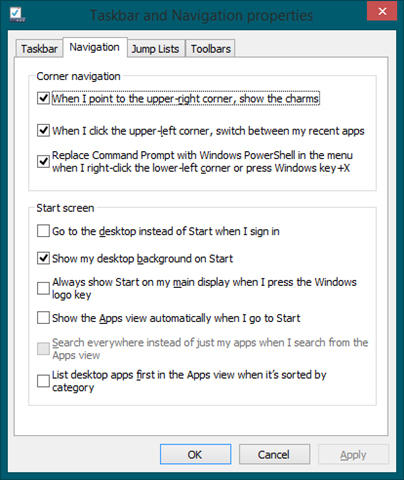


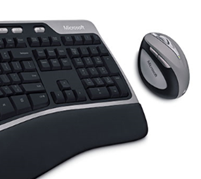 It’s huge! Most people are thrown off by how large the mouse is. It’s far larger than the flat, stupid mice you see in stores today. At rest, your hand is cupped, not flat. At a size larger than a tennis ball, your hand wraps around and rests on the mouse with ease. In fact, you could leave your hand on the mouse for ages and it would never fatigue. This time, size matters.



 [Advertisement] Make your team a DevOps team with BuildMaster. Pairing an easy-to-use web UI with a free base platform, BuildMaster gets you started in minutes. See how Allrecipes.com and others use BuildMaster to automate their software delivery.


.jpg)


 When a new company is formed, it's usually just the owner, possibly some partners, and a small staff. As they figure out how the business is to be run, they come up with their own ways of doing things. Over time, the staff grows, and more rules are created about how this or that is to be done. Eventually, it reaches critical mass, and all of these rules get quantified into written guidelines. Sometimes this can be a good thing. For example, coding style guidelines, if done correctly, can be a good thing.


 How many times do we have to scramble to assemble a decent Dev & Test environment?


 Hey, Scripting Guy! I really need your help. We are doing something that perhaps Windows PowerShell cannot do. At least, this is the way it seems. We have a huge file share, and we are parsing through it with a series of Select-String commands to find specific types of things. We are using Get-ChildItem to obtain files for us to parse, and we have filtered it out as much as is possible. The thing is, that when I say huge, I mean really, really huge. Absolutely GINORMOUS type of huge.
 Hello AP,


 Part 5 of a 9-part series. Today’s post has two sections; the second half will post tomorrow.