Shared posts

24 Jan 18:07

Top 10 Ways to Improve Your Monitor, the Screen You Stare at All Day

by Melanie Pinola

Top 10 Ways to Improve Your Monitor, the Screen You Stare at All Day

Many of us are stuck behind our desk and computer all day long, which makes the hardware we use quite important. Let's give some more thought to our monitors, with these ten tips for getting the most out of those screens.

10. Calibrate Your Monitor for the Best Picture

Even if you're not a graphic design professional or video editor, color calibration ensures your screen shows consistent and accurate colors—important when touching up photos and correcting colors that just look "off." Here's our guide to both casual and more advanced monitor calibration. You can also rent a colorimiter on the cheap.

9. Play Games at a Higher Resolution Than Your Monitor Supports

If your monitor's native resolution isn't compatible with the games you want to play, you can trick your monitor into getting sharper images during gaming by using a lesser-known type of anti-aliasing. This isn't without its downsides, but here's the explanation.

8. Hide Stuff Behind Your Monitor

Top 10 Ways to Improve Your Monitor, the Screen You Stare at All Day

If you've got very limited desk space or you just want a clean and clutter-free desk, use your monitor to hide all the stuff you need nearby. You can mount just about anything behind your monitor—including your laptop, external hard drive, and cables.

7. Pair Your Tablet with Your Monitor
Top 10 Ways to Improve Your Monitor, the Screen You Stare at All Day

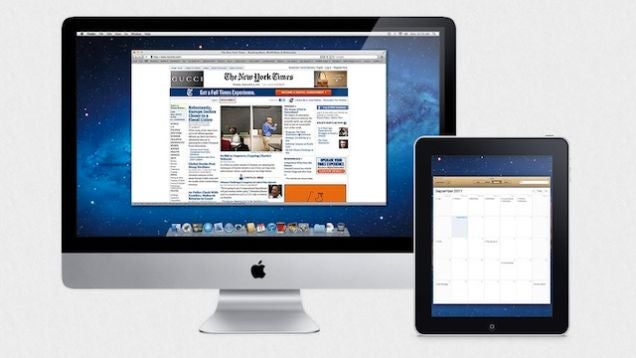
This one's not so much about using your main monitor, but about offloading some of those windows to your tablet so you have more screen real estate. You'll also be able to do things that a non-touchscreen monitor can't do, like tapping to use the calculator. These apps connect your mobile device to your monitor. You can also use the Kindle as a second monitor.

6. Use Your Monitor for Photo Backgrounds

Top 10 Ways to Improve Your Monitor, the Screen You Stare at All Day

If you want to take more professional-looking photos, your monitor may be the perfect backdrop. Just find a great background for your monitor and place the object you're capturing in front of it. If you use a green background, you'll be able to easily "green screen" your photos for background removal (just like they do in the movies!). Sort of related (not really), set your desktop wallpaper to what's behind the monitor(s) in your workspace, as shown above, and it'll make your desk feel more spacious.

5. Tweak Your Monitor for a Better Reading Experience
Top 10 Ways to Improve Your Monitor, the Screen You Stare at All Day

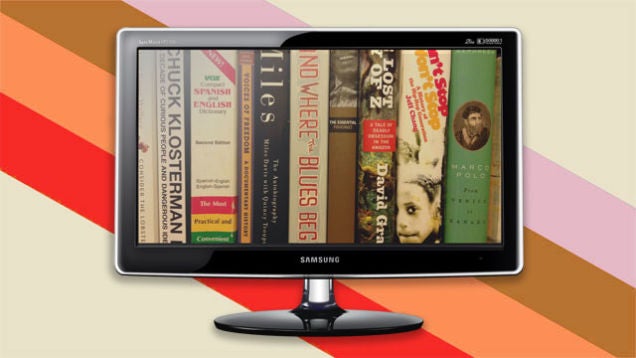
Reading loads of articles and books on our computers isn't quite eye-friendly or comfortable, but we can make it more so, with things like using adjustable monitor stands, calibrating specifically for reading, and using extensions that modify the text on the screen.

4. Use Apps and Shortcuts to Control Your Monitor

Top 10 Ways to Improve Your Monitor, the Screen You Stare at All Day

Your monitor's built-in tools are alright for basic settings tweaks, but if you want even more control, apps and keyboard shortcuts will help. We're big fans of F.lux and Chrome extension G.lux for automatically adjusting your screen brightness and temperature (so that blue light doesn't wreck our sleep), as well as multi-monitor tools like DisplayFusion and Synergy that maximize our multi-monitor setups. If you want to quickly put your monitor to sleep, there's a shortcut for that, and there's an app for locking your monitor too.

3. Set Your Monitor Up Ergonomically

Top 10 Ways to Improve Your Monitor, the Screen You Stare at All Day

Our desk setups tend to be very unfriendly to our bodies, but proper positioning of our tech could mitigate some of the damage. When it comes to your monitor, you'll want to keep it an arm's length away and the top of the monitor at about eye level. Special computer glasses can also help prevent eyestrain and other Computer Vision Syndrome issues.

2. Max Out Your Multiple Monitors

Top 10 Ways to Improve Your Monitor, the Screen You Stare at All Day

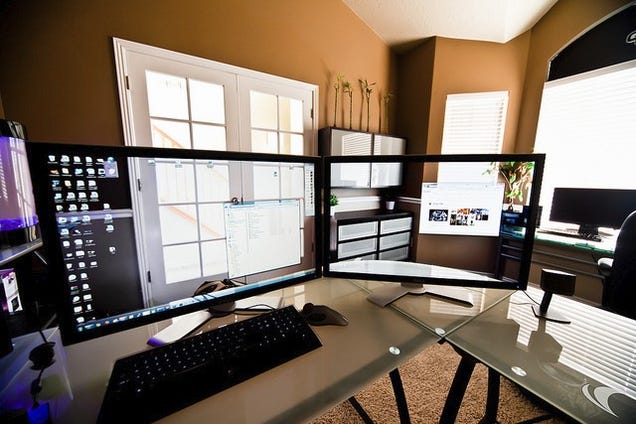
There's something to be said for sticking to just one small monitor, but many of us like to rock two, three, or many more monitors for as much screen real estate as we can afford. An oldie but a goodie—How to make the most of your dual monitors—and our latest multi-monitor guide—How to set up triple monitors for widescreen gaming (and work)—should get you started. Windows users can also refer to these tips and tricks or fix that annoying cursor drag with a settings tweak.

If you want to decorate your screens with some multi-monitor wallpaper, these are some of the best places to find them, a collection of ultra-wide wallpapers, and yet more dual-monitor and multi-screen wallpapers (you can never have too many).

1. Buy the Best New Monitor

Top 10 Ways to Improve Your Monitor, the Screen You Stare at All Day

Sometimes, it's best to just upgrade your monitor or buy another one to extend your digital workspace. So, here's how to shop smartly: First, know the differences between different types of computer monitors. Consider whether a 4K monitor is right for you (or a cheap 4K TV can sub for your monitor). Review our monitor buying guide and check out the five most popular computer monitors on Lifehacker.

Photo by cobalt88 (Shutterstock).


Lifehacker's Weekend Roundup gathers our best guides, explainers, and other posts on a certain subject so you can tackle big projects with ease. For more, check out our Weekend Roundupand Top 10 tags.

24 Jan 11:09

YotaPhone 2 review

by Russell Holly

Niche Android phones have a history of doing that one _really cool thing_, but more often than not fail at being a great regular phone. It's cool if you're one of the 100 people in the world who could honestly benefit from having a projector baked into your phone, or have a mighty need for the ability to charge someone else's phone with the massive battery built into your device. But when these features end up being the sole thing that makes your phone special, it's clear that the phone isn't ever going to escape that niche market.

When I was first able to spend time with the original YotaPhone, I immediately felt that the phone was forever doomed to niche markets. It was huge, the software wasn't great, and while the ePaper screen was neat it didn't really do much. There's a really good chance that very few people have ever touched the original YotaPhone — mostly a Russian endeavor anyway — as a result.

This is not that phone. This is the YotaPhone 2, and it is clear that the creators of this device have done everything they could to take this phone out of that extreme niche category to make something that could legitimately appeal to everyone. Like its predecessor, the most interesting part of the YotaPhone 2 is the second screen on the _back_ of the phone. Unlike its predecessor, the rest of the YotaPhone 2 is a decent phone. A combination of thoughtful software development, careful hardware optimization, and the potential for a limited U.S. release for those who don't want to import have created a unique option that would work well for users of all types.

Here's our full review.


24 Jan 11:05

A Better $100 Upgrade: Five Paid Programs that Improve Windows Now

by Whitson Gordon

Every few years, a new version of Windows comes out with some decent, but minor upgrades and a $100 price tag. If you'd rather pay $100 for a real boost in features, consider buying these five programs to get a truly new version of Windows.

Blast from the past is a weekly feature at Lifehacker in which we revive old, but still relevant, posts for your reading and hacking pleasure. This post was originally published before the release of Windows 8, but now that Windows 10 is going to be free at launch, it's the perfect time to put that $100 toward some real software upgrades.

Xplorer2 Pro - $30

A Better $100 Upgrade: Five Paid Programs that Improve Windows Now

Windows Explorer is simple and easy to use, which is great for beginners—but once you cross the line into power user territory, it really just doesn't cut it. There are a ton of great alternative file browsers out there, but our favorite is Xplorer 2. It has an advanced, but not difficult-to-use interface that lets you browse with tabs, multiple panes for easy file copying, tons of keyboard shortcuts, and advanced searching (which is the main reason to buy Pro over the free lite version). It'll also replace Windows Explorer as your default file manager, which is absolutely killer.

If you don't like Xplorer 2, you can check out some of its competition, like the similarly-priced but somewhat ugly Total Commander, or the much more expensive, but amazing, Directory Opus. Check out our App Directory entry on Xplorer2 for more info on its competition.

Fences Pro - $10

We've talked about Fences numerous times before, and there's a reason for that: there's just no better way to get your desktop clean and organized. Fences lets you divide up your messy desktop into a number of groups—or "fences"—letting you put newly-downloaded files in one fence, current projects in another fence, and short notes in another. You can double-click on the desktop to hide all your icons when you don't want to see them, and even give them names.

These basic features are all free, but Fences really gets useful with the $10 pro version. With a pro license, you can have Fences organize your desktop automatically, by putting new files into a certain fence, or grouping them by things like name and file type. You can even fade your fences until they're moused over, so they're only 100% visible when you actually work with them. If you actually use your desktop to organize working files, Fences Pro is the perfect app to keep it from getting cluttered.

Bins - $5

A Better $100 Upgrade: Five Paid Programs that Improve Windows Now

At a measly $5, there's no reason not to try Bins. Created by the same developer as Fences, Bins lets you group together icons in your Windows Taskbar, almost like the popular Stacks feature in OS X. It keeps your Taskbar slim, while keeping all your apps at the ready: just is mouse over a group's icon to get access to the shortcuts within. It also lets you pin files and folders to your taskbar, which is something we've all been wishing for forever. Essentially, it does for your taskbar what Fences does for your desktop: it keeps it clean, organized, and much easier to sift through.

Divvy - $14

One of Windows 7's best new features was Aero Snap, the feature that let you "snap" a window to a screen edge to make it take up half the screen, or to the top of your screen to maximize it. It can get a little annoying, though—sometimes you're just moving a window and it thinks you want to snap it; other times you wish you had more options over how to divide up your windows. What if you wanted to split your screen 60-40 between two windows instead of 50-50? Or put one window on top and one on the bottom? Divvy lets you do that. With just a hotkey, you can bring up the Divvy grid and tell it exactly where you want the current window to reside. You can even create keyboard shortcuts for different custom layouts, so you can split your screen up into even chunks with just a few keystrokes. If you like Aero Snap but think it could be better, turn it off and use Divvy instead.

DisplayFusion Pro - $25

A Better $100 Upgrade: Five Paid Programs that Improve Windows Now

Lastly, if you use multiple monitors, DisplayFusion Pro is a must have piece of software (if you only use one monitor, you can probably skip this one). Windows' multi-monitor support got better in Windows 8, but it's nowhere near as powerful as DisplayFusion. With it, you can manage your multi-monitor wallpaper, gives you hotkeys to move windows between monitors or change their opacity, adds extra titlebar buttons, more window snapping features (though you won't need them, since you'll use Divvy!), and a ton of other stuff. You can get a few of these features with the free version of DisplayFusion, but all the good stuff comes with a $25 pro license, so if you use multiple monitors in your setup, DisplayFusion Pro is absolutely worth the price. It'll make you feel like your computer was actually meant to have multiple monitors.


Obviously, Windows has a lot of great programs worth paying for—like Trillian Pro, Breevy, or MediaMonkey Gold, but our goal today was to find $100 worth of apps that are so well integrated that they should be part of Windows in the first place. It's also worth mentioning there are a lot of free apps that fit this category, too like Console2, Launchy, or Dexpot, so check out our App Directory for more Windows essentials. If you have a favorite Windows add-on we didn't mention, be sure to share it in the comments below.

Title image remixed from clearviewstock, clearviewstock, Shawn Hempel, greglith, Tyler Olson, Masekesam, and Elle Arden Images (all Shutterstock).

Video music by Russel Reynolds.

24 Jan 11:02

Secure browsing by default

In the next few days, we’ll be updating The Old Reader to have https enabled for all users by default. This means that your browser will now be told to communicate with The Old Reader using a secure connection, as you will see by the lock icon and the https rather than the http in the address bar of your browser.

While this will be a great change for most of you, there may be some of you that are unable to use https, or https will result in poor experience. So, we’ve added an option to your settings page to turn off this default.

It is also important to note that many of the posts that you read in The Old Reader reference images, videos, podcasts, etc., are not using a secure connection. Because of this, you may see a warning about “unencrypted elements” depending on the type of browser you use and the settings you have.

We do our best so that no matter what your setting, https or http, no information about your Old Reader session is transferred from your browser to any of the feeds you are subscribed to. If you’re seeing otherwise, let us know and we’ll drop everything and fix it immediately.

As always, if you have any issues at all, please contact support@theoldreader.com and we’ll be happy to hear your feedback or give you a hand.

23 Jan 23:03

Millennials’ Favorite Trivia Game Dominates App Store Charts

by Cat Zakrzewski
Trivia Crack Trivia Crack, a game show style quiz app that launched in Argentina, is swiftly taking over schools and college campuses around the world. For months Trivia Crack has been one of the most popular apps in the American app store, currently topping both the free and paid app charts. Now boasting 85 million users and 800,000 daily downloads, the app yesterday expanded with a UK version. Read More
23 Jan 21:27

Apple Patents Technology to Legalize P2P Sharing

by Ernesto

apple-p2pLittle over a decade ago Apple revolutionized the music industry with its iTunes store, allowing people to purchase digital copies of their favorite music.

With iTunes, Apple offered pirates a legal option, but the company still sees value in “sharing” music and other media with friends and family.

In fact, the company was just awarded a patent that makes it possible to license P2P sharing.

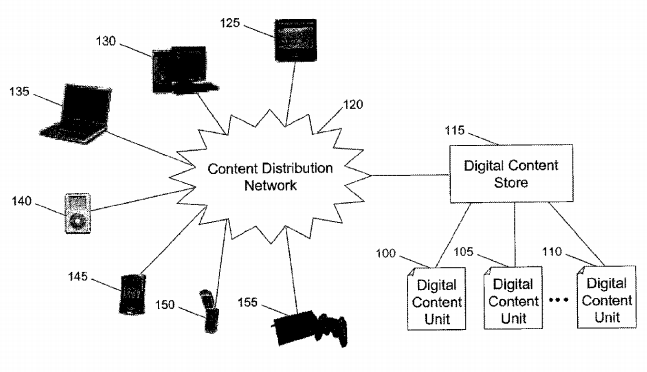
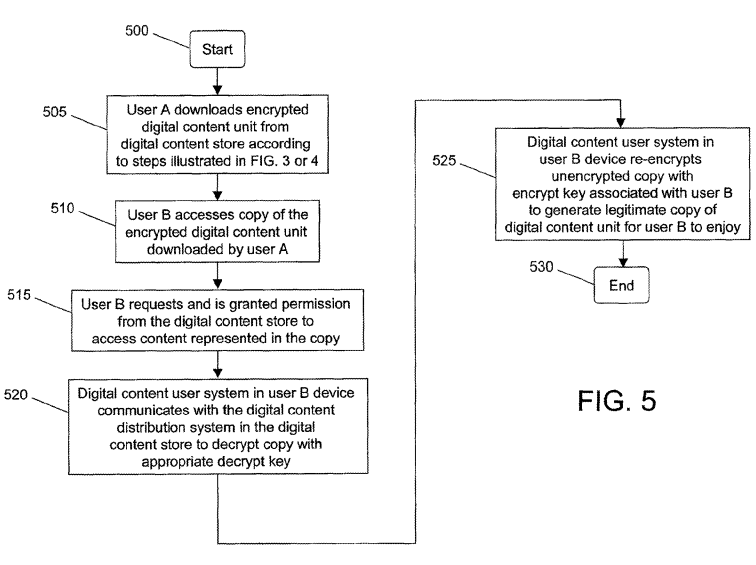
Titled “decoupling rights in a digital content unit from download” the patent describes a system where users can freely share music and videos with each other. Instead of getting the actual file from iTunes or other stores, users would only need to obtain a license.

Once licensed these files can be shared freely across one’s own devices, with friends, family or even complete strangers.

applepat1

According to Apple such a system has several benefits. Among other things, reduced bandwidth and other overhead costs. This may result in a separate and cheaper price tier for those users who only have to license a media file.

“This reduction in operating expenses may facilitate a two-tier pricing structure. For example, the digital content store may charge a first price to users who download a digital content unit from the store and a second price to users who authorize a digital content unit without downloading the unit,” the patent reads.

This price reduction may then make it more interesting to share files legally, thereby reducing traditional forms of piracy.

“This may encourage users to trade or copy digital content units as well as authorize these copies. Such sharing may, in turn, reduce piracy or illegal copying..,” Apple argues.

apple2

While “legalized P2P sharing” may sound appealing, in theory it’s actually quite restrictive. The idea introduces a new layer of content protection which means that the files in question can only be played on “trusted client software.”

This means that transferring files between devices is only possible if these support Apple’s licensing scheme. That’s actually a step backwards from the DRM-free music that’s sold in most stores today.

It’s unclear whether Apple has any plans to use the P2P licensing technology in the wild. The original idea is a bit dated, but perhaps Apple can think of some less restrictive implementations of their newly obtained patent.

Source: TorrentFreak, for the latest info on copyright, file-sharing, torrent sites and anonymous VPN services.

23 Jan 18:13

London cop who repeatedly kicked, beat woman who wouldn't leave her child's sickbed cleared

by Cory Doctorow

Officer Warren Luke was cleared of the charge of "actual bodily harm" after he admitted to causing more than 40 injuries to a woman who wouldn't leave the hospital bedside of her seven year old daughter, who has cerebral palsy. Read the rest
23 Jan 15:31

Get Better at Saying “No” by Considering If You'd Do the Task Today

by Herbert Lui

Get Better at Saying “No” by Considering If You'd Do the Task Today

It can be difficult to remember that saying yes to something means saying no to something else. To keep this in mind the next time someone approaches you with an opportunity, ask yourself, "If I had to do this today, would I agree to it?"

Think about how you plan to fit into your schedule, what you will probably need to give up or deprioritize, and whether or not it's worth it. Ideally, this will help you immediately feel the eventual annoyance of obligation and prevent you from committing to something you wished you hadn't.

Unfortunately, this question does break down if a task or commitment takes longer than a single day (although you could still pretend that today is Day 1 of a longer commitment and project it throughout the week or month). To help gauge interest, you could also consider whether your reaction is a moderate, "Yes," or a resounding, "Hell yeah!"

The power of saying no | Tim Harford

Photo by Robert Lowe.

23 Jan 13:40

Twitter launches tweet translations for mobile apps and web

by Dan Thorp-Lancaster

Twitter has announced today that it has enabled tweet translation, powered by Bing, on both its official Android app, as well as on the web. The feature was previously available on TweetDeck, and has been tested off and on for a while now.


23 Jan 13:38

Britain's second-largest carrier O2 to be bought out in $15 billion deal

by Rich McCormick

Hong Kong-based telecommunications giant Hutchison Whampoa is poised to purchase Britain's second-biggest wireless carrier, O2, in a deal reportedly worth upwards of £10 billion ($15 billion). Hutchison Whampoa — owned by Chinese billionaire Li Ka-shing — already owns Three, another major cell phone provider in the United Kingdom. Should Hutchison Whampoa successfully purchase O2 from its current owner, Spanish firm Telefónica, then Ka-shing's company would create the UK's largest mobile group.

Continue reading…

23 Jan 13:37

China Cracks Down On VPN Services After Censorship System ‘Upgrade’

by Jon Russell
china flag China is cracking down on VPNs, software that allows internet users to Twitter, Facebook, Gmail and others services blocked in the country, according to state media and service providers. Read More
23 Jan 00:32

Central Manuals Lets You Find and Download User Manuals for Free

by Patrick Allan

Central Manuals Lets You Find and Download User Manuals for Free

Unless you can think of a clever way to store them, user manuals are kind of a hassle to keep around. When you find yourself in need of one, however, Central Manuals lets you find and download them for free in the PDF format.

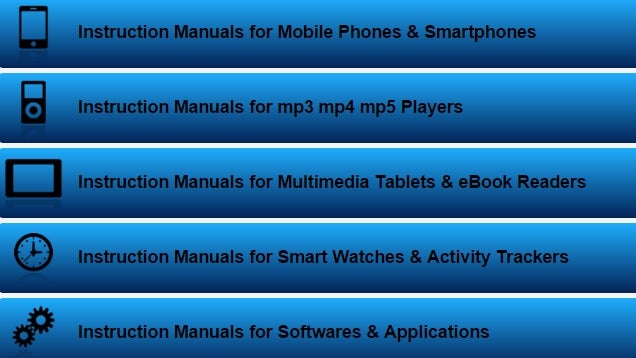
Let's face it, most of us throw these things away unless we're totally clueless about a particular product. With Central Manuals, there's no need to worry because their collection of manuals is extensive. You can search by type or brand, and they have practically everything covered. There are manuals for cameras, camcorders, smartphones, mp3 players, tablets, eBook readers, smart watches, activity trackers, and video game consoles. You can even find instruction manuals for software. You can start finding the manuals you need at the link below.

Central Manuals - Find and download free of charge | Central Manuals

22 Jan 14:21

They put a Pirate Party MEP in charge of EU copyright reform: you won't believe awesomesauce that followed

by Cory Doctorow


Julia Reda, the sharp-as-a-tack Member of the European Parliament for the German Pirate Party, has just tendered her draft report on copyright reform in the EU. It is full of amazingly sensible suggestions. Read the rest

22 Jan 14:20

MegaChat is a Browser-Based, Encrypted Voice and Video Chat App

by Eric Ravenscraft

MegaChat is a Browser-Based, Encrypted Voice and Video Chat App

Mega has been on our radar for secure file storage ever since the file storage phoenix rose from the ashes of MegaUpload. Now, the company has created MegaChat, which it bills as a secure alternative to Skype, offering browser-based voice and video chat.

The service is clearly being pitched to the security conscious. As The Verge rightly points out, Mega's history with end-to-end encryption hasn't always been up to industry standards, but it's probably better than nothing. Mega is also offering bounties for anyone who can find security holes at the moment. It's a fledgling beta, but the adventurous can try it out right now.

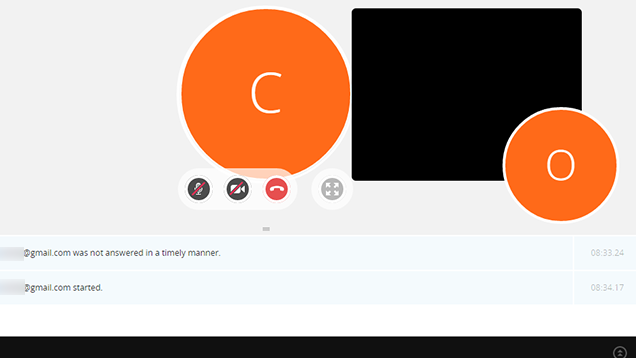
At the moment, the service is limited to voice (seen above) and video calls. Text chat and group video conferences are coming later. The beta is open to the public. All you need to do is sign-up for a Mega account at the source link below and add contacts. So far it seems to work pretty well as a chat service, though whether it's really as secure as Mega claims is yet to be determined.

Mega.nz | via The Verge

22 Jan 14:12

Kim Dotcom launches his secure 'Skype killer' MegaChat

by James Vincent

Kim Doctom’s file-sharing site Mega has launched the public beta of its video and audio chat service MegaChat. The browser-based app features end-to-end encryption on calls, which Dotcom says gives the service a clear advantage over competitors such as Skype and Google Hangouts.


Retweet if you like to try our new, browser-based & encrypted #MegaChat beta TODAY :-) #SkypeKiller

— Kim Dotcom (@KimDotcom) January 20, 2015

While it's true that the Snowden leaks suggested that the NSA essentially has free rein over Skype, Dotcom’s sites don’t have the best track record on security either. As GigaOm points out, Mega’s previous claims to offer end-to-end encryption on file-sharing when the site launched in 2013 were met with...

Continue reading…

21 Jan 23:55

Netflix says piracy service Popcorn Time is a real competitor

by Jacob Kastrenakes

Netflix isn't just worried about HBO — it's worried about pirates, too. In a letter to shareholders yesterday, Netflix says that piracy is one of its "biggest competitors," and notably, it specifically points to one piracy service that's caught its attention: Popcorn Time. Popcorn Time's app is meant to make pirating a movie as easy as streaming one on Netflix. The app allows you to browse through an iTunes-like catalog of movies and TV shows by their posters, select one for more information, and then start streaming it after a short buffering period. It's so streamlined that anyone should be able to just pick it up and start watching.

Continue reading…

21 Jan 22:22

The best Android keyboard apps

by Ara Wagoner

Tap tap tap away with these great keyboards for your Android phones and tablets.

Keyboards are important. Really important. Without a good keyboard, communicating on a smartphone can go from heavenly bliss straight back to teeth-pulling torture. Keyboards are also one of the most important apps you select from a security standpoint, as they are by their very nature keyloggers. And while most users will never really need to worry about if their keyboard is stealing their emails and passwords as they type it in, it is something that you should keep in mind if you're checking out a keyboard that you know absolutely nothing about.

There are a number of great keyboards out there, each with its own features, flaws, and followings. There are utterly simplistic keyboards and bleeding-edge keyboards with a longer list of features than some smartphones. Finding a keyboard that fits you and your lifestyle can be a bit daunting.

Whatever your style may be, these are the five keyboards that we think stand above the rest, and may be worthy of composing your LOLs and WTFs.

Article updated April 2016

SwiftKey

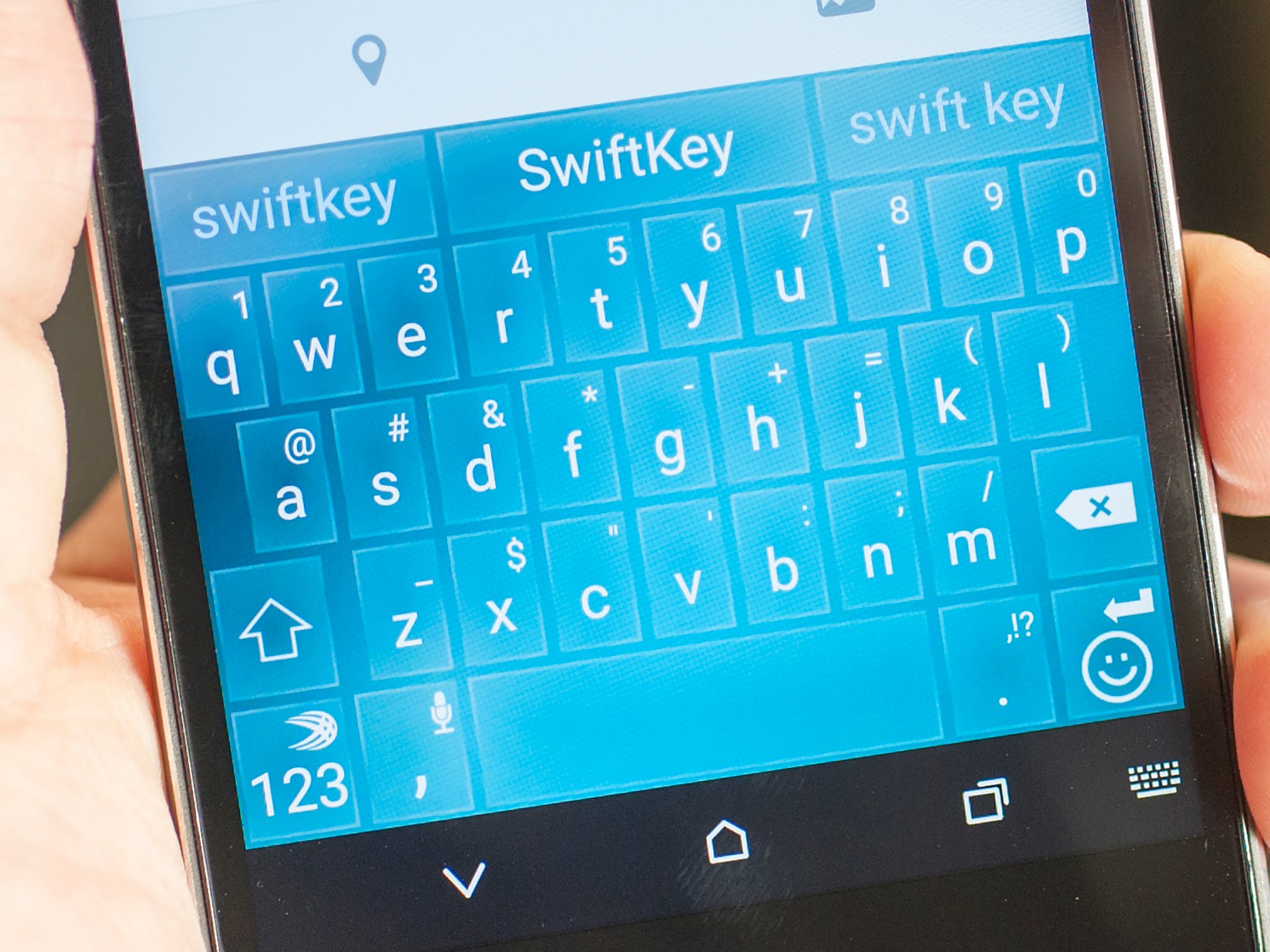
If you had to ask us to pick one keyboard as our ultimate top choice for Android, SwiftKey would be it.

For years, SwiftKey soared above Google's included keyboard, and it did — and still does — come preinstalled on many a phone and tablet. SwiftKey's prediction methods, called the "fluency engine," has made it the keyboard that many users and editors alike keep coming back to. SwiftKey has been pre-loaded on millions of devices over the years, including on flagships like the Samsung Galaxy S4.

While SwiftKey used to be a paid app, the keyboard itself went free in 2014, instead having its users pay for themes — such as their Frozen theme pack. SwiftKey has led the keyboard pack for a while, but it has plenty of competition to keep it on its toes. .

Download SwiftKey

Swype

Swype is to SwiftKey as GM is to Ford. Both are established, respected, feature-rich keyboards. Swype allows you to swipe out words or whole sentences, and Swype supports typing in two languages at once, for bilingual users. Swype offers a free version, but the full version is a dollar, and themes are an additional two dollars apiece. For those uninterested in having Elsa on they keyboard, Swype offers sports themes, including Major League Soccer themes.

Swype ties into Android's Accessibility features for TalkBack and Explore By Touch, which make Swype a keyboard vision-impaired users can learn more easily on their own. Copy/Cut/Paste functions are embedded as gestures in Swype's keyboard, too. Swype all the things!

Download Swype

Google Keyboard

While years ago, Google's built-in android keyboard was considered a bit of a slouch, it's built to compete today. The Google Keyboard is completely free, supports gesture typing for both individual words and entire sentences, a bounty of languages, a modest choice of themes, and it was the first keyboard to feature the full library of Kit Kat emoji last year. That may not sound like much, but after years of mediocre or downright dreadful emoji from the OEMs and keyboard manufacturers, Kit Kat system emoji was a welcome change and drew in quite a few users before third-party keyboards began to integrate it.

The Google Keyboard employs Google's own text-to-speech engine for voice dictation, and the many advancements in voice recognition made for Google Now and Android Wear over the last few years have benefitted this keyboard greatly. Google's keyboard still has a little ways to go on the text prediction, but it does learn from your typed data across Google's apps and services.

Download Google Keyboard

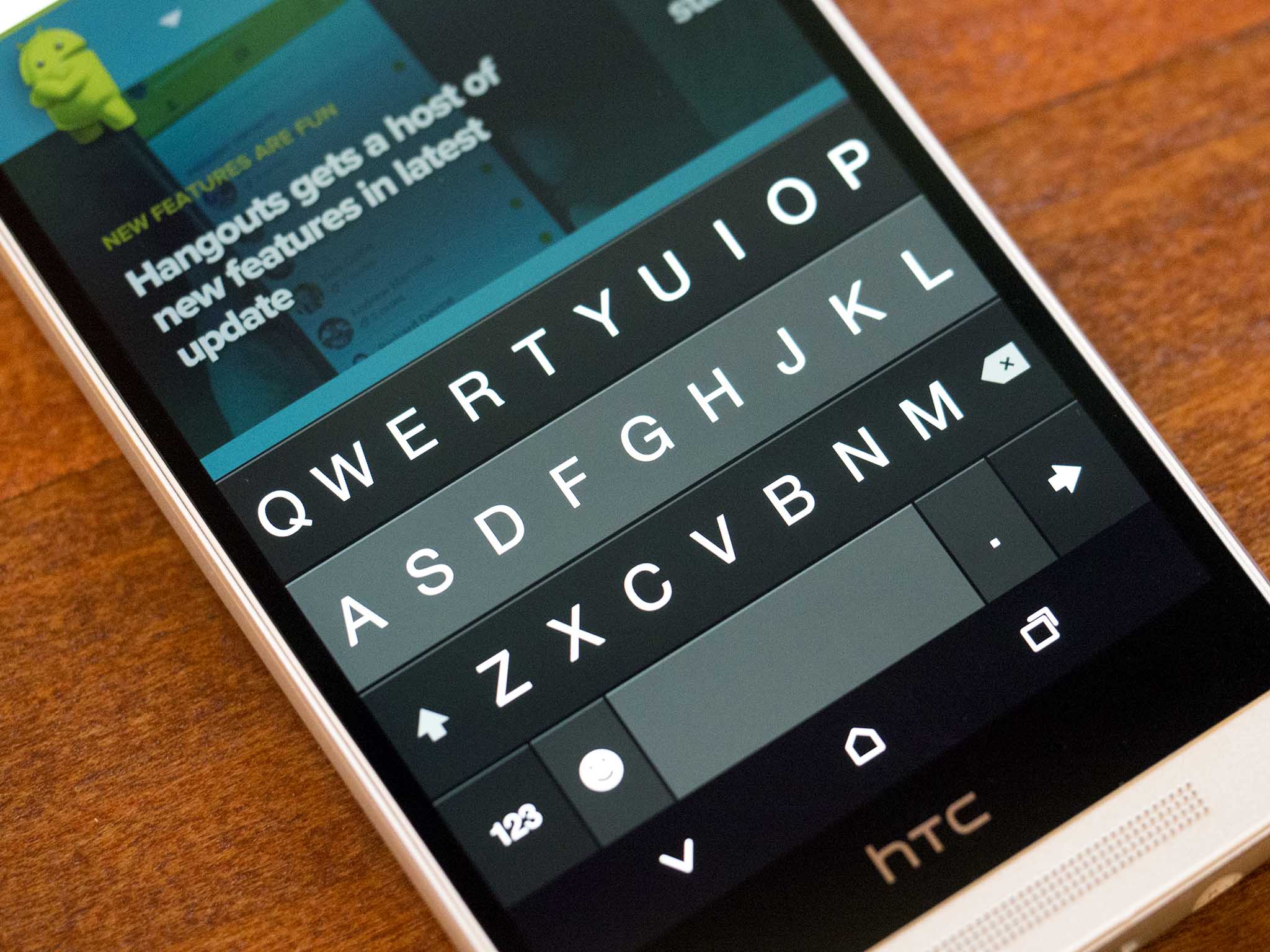
Fleksy

Fleksy is a keyboard that exudes class with its minimalist styling and its artfully done themes — if you want a Frozen keyboard theme that actually looks good, go get the Fleksy one. Now, make no mistake, Fleksy is not a cheap keyboard, though they do offer a 30-day trial to decide if it's worth the $1.99. After paying for the keyboard, most premium themes are also paid, including licensed themes like Frozen and The Hunger Games.

Beyond more traditional customization options like a fifth row for numbers and support for more layouts than your standard QWERTY and DVORAK, Fleksy's keyboard has extensions, allowing it to send things like gifs or work while becoming invisible. Another interesting addition to Fleksy is are the badges and rewards system that encourages users to master the keyboard and its features.

Download Fleksy

Touchpal

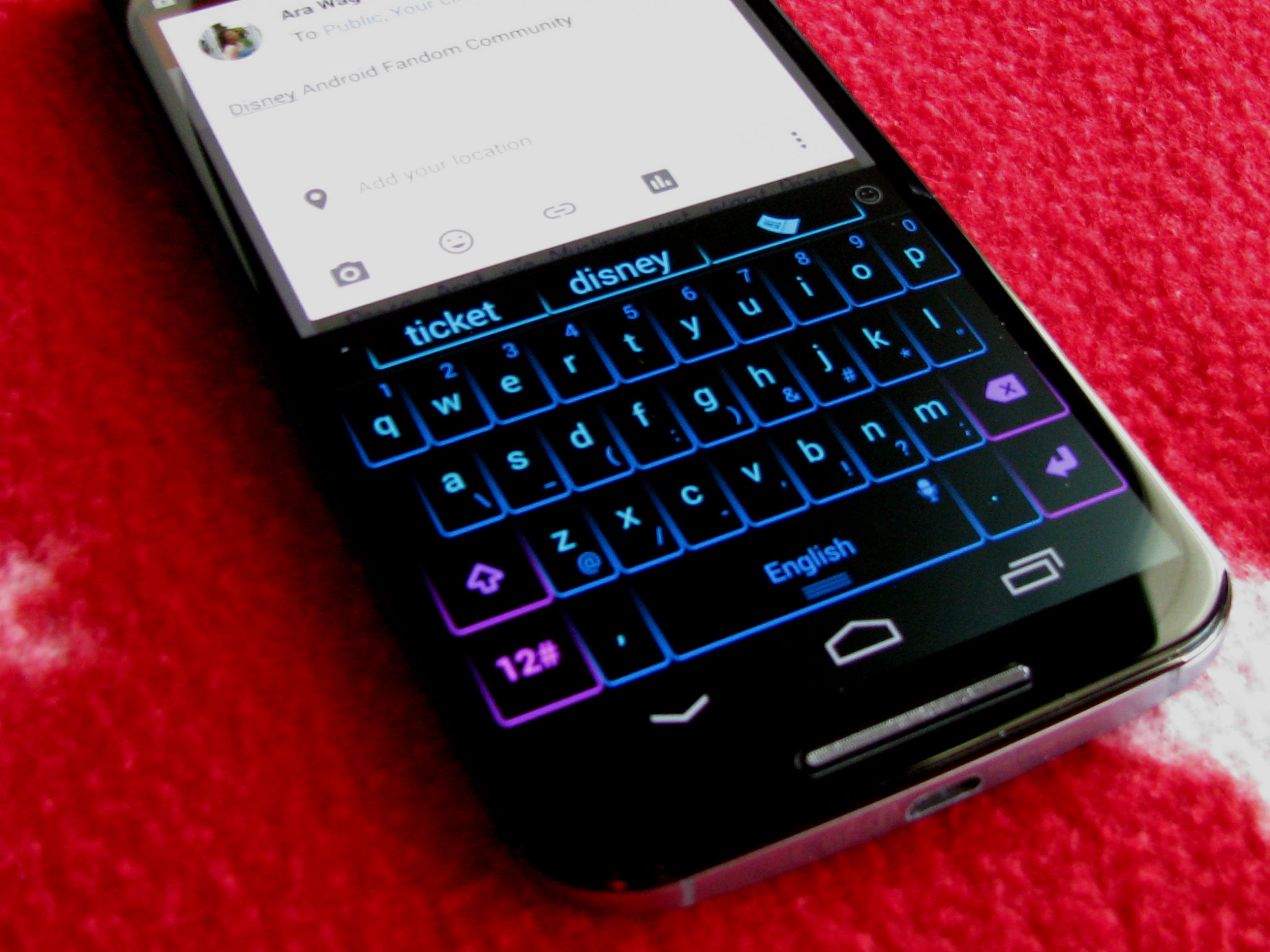
TouchPal is one of the lesser-recognized keyboards out there, but a few useful features have helped it stand out and get over 10 million installs. TouchPal's keyboard held the freemium model of an always-free keyboard with a paid theme store and paid cloud syncing before SwiftKey and the rest of the field headed that direction. However, while you can pay for premium themes, you also have the option to simply upload your own background image and make your own for free.

What has stood out about TouchPal for me, and made it my primary keyboard for the last year now are three things: the dialogue between the developers and the beta community, swiping from the backspace to delete the last word, and swiping the space bar up to access the emoji drawer, which supports system emoji and now emoji art and emoticons.

Download TouchPal

Which keyboard do you use?

What keyboard do you use?

So, which keyboard graces your device? Do you prefer a more simplistic keyboard or a model with more bells and whistles? Chime in below in the comments section with your keyboard setup.

21 Jan 20:54

Google Docs, Sheets, And Slides Updated With Real-Time Spell Check, Hiding Rows/Columns, And More [APK Download]

by Ryan Whitwam

Google_Drive_Icon copyUpdate Wednesday keeps rolling on, this time with new versions of Docs, Sheets, and Slides. This is a bigger update that actually warranted a blog post from Google. There are some nice functionality changes in all three apps.

test4

What’s New

According to Google, here's what's new in the updated apps. And yes, I know that's an iOS device in the animation above. Blame Google.

  • Real-time spell-checking in documents
  • Hiding rows and columns in spreadsheets
  • Grouping shapes in presentations
  • Touch ID on iOS (just for the sake of completeness)
  • Support for screen-reading services like Talkback

Download

The APK is signed by Google and upgrades your existing app.

Google Docs, Sheets, And Slides Updated With Real-Time Spell Check, Hiding Rows/Columns, And More [APK Download] was written by the awesome team at Android Police.


21 Jan 20:51

Microsoft Announces Project Spartan, Its New Browser For Windows 10

by Frederic Lardinois
2015-01-21_1001 As expected, Microsoft took the wraps off a new browser today. It will feature a new rendering engine “that will empower our next generation of Windows users on Windows 10,” Joe Belfiore, Microsoft’s Corporate Vice President for its Operating Systems Group, said at today’s event. The new browser, which is unsurprisingly codenamed “Project Spartan,” will… Read More
21 Jan 20:41

WhatsApp launches a web client for Chrome and Android

by Russell Brandom

WhatsApp is coming to the desktop, thanks to a web client that launched today for Chrome and Android. Reached by The Verge, WhatsApp confirmed earlier rumors, which pointed to a newly live page at web.whatsapp.com. "The primary use is of course still on your phone," a spokesman said, "but there are people who spend time in front of a computer at home or at work and this will help bridge the two."

Continue reading…

21 Jan 20:41

The 9 biggest announcements from Microsoft's Windows 10 event

by Adi Robertson

We got our first look at a bunch of features in Windows 10, which comes out next week for people who signed up for the pre-release. As expected, Microsoft made a strong push toward connecting its devices more seamlessly, part of its universal apps program. Office, Outlook, and other apps all work quite similarly across devices, and Cortana is everywhere, working as a natural-language interface and personal assistant. The big surprise, however, was Microsoft’s foray into virtual reality, with its HoloLens glasses, an ambitious bid to create a system for overlaying holographic images over the real world.

Continue reading…

21 Jan 17:59

BBC News App For The UK Gets A Complete Material Overhaul

by Ryan Whitwam

8Attention British people, the BBC News app has been updated with a completely new look—material design and all that. So people must be happy, right? Of course not, because things have changed and change is bad. Sure is pretty, though.

1 2 3

The changelog for this update only lists Lollipop support and bug fixes, so the UI is the star of the show. It seems like a solid implementation of Android's updated look and feel.

BBC News App For The UK Gets A Complete Material Overhaul was written by the awesome team at Android Police.


21 Jan 17:58

Windows 10’s Mobile Debut Reveals Cross-Platform Features And Skype Integration

by Darrell Etherington
Screen Shot 2015-01-21 at 12.39.20 PM Windows 10 was hailed at Microsoft’s special event today as a cross-platform OS that makes it easy to build once and ship to almost anything. Microsoft EVP of Operating Systems Terry Myserson said it was the “only platform that enables innovation across this broad range of devices.” Myserson kicked off the event with an overview of three key areas that are “ripe for… Read More
21 Jan 17:55

Windows 10 will be a free upgrade for Windows 7 and 8.1 users

by Nathan Ingraham

Microsoft's Windows 10 event is just getting started, and it sounds like the company is eager to make it as easy and cheap as possible for those running older versions of Windows to upgrade. Terry Myerson just announced on stage that, for the first year after Windows 10 launches, any device running Windows 7, Windows 8.1, or Windows Phone 8.1 will be able to upgrade to the latest version of MIcrosoft's OS — for free. How exactly this program will work isn't clear just yet — it'll certainly be subject to some hardware requirements, particularly for older machines running Windows 7. But a simplified upgrade path will likely do a lot to help Windows 10 adoption — rather than dealing with a number of different versions of Windows and...

Continue reading…

21 Jan 17:55

These are Windows 10's new desktop features

by Chris Welch

Microsoft today lifted the veil on its upcoming Windows 10 operating system, offering a thorough preview of what consumers can expect when the software is released later this year across desktops, smartphones, and tablets. After a small glimpse back in September revealed numerous changes — a modernized Start Menu, better multitasking with Task View, and UI improvements among them — Microsoft used today's press conference to focus on what Windows 10 will mean for its millions of everyday users.

First, Microsoft has already leveraged early tester feedback to improve Windows 10. If you're familiar with and prefer the Windows 8.1 experience, you'll be able to take the Start Screen full screen instead of the Windows 7-style start menu we saw...

Continue reading…

21 Jan 17:55

Amazon kills Amazon Wallet six months after launch

by Micah Singleton

Amazon Wallet is officially dead. According to CNET, the company began informing users last night that it would be shuttering its mobile payments app today, removing it from Google Play and the Amazon Appstore. The app allowed users to upload gift, loyalty, and membership cards, but not credit or debit cards. While Amazon officially launched the app in beta, it did pre-load it on to its Fire Phone. Current users will still be able to use cards previously loaded on to Amazon Wallet, but balances will not be updated after today, leaving it up to users to track how much they've spent. "We’ve learned a great deal from the Amazon Wallet beta program and will look for ways to apply these lessons in the future as we continue to innovate on...

Continue reading…

21 Jan 17:54

Classic cars on the big screen

by Bill Crider
21 Jan 14:22

Use This Deep Breathing Technique to Calm Yourself

by Eric Ravenscraft

Use This Deep Breathing Technique to Calm Yourself

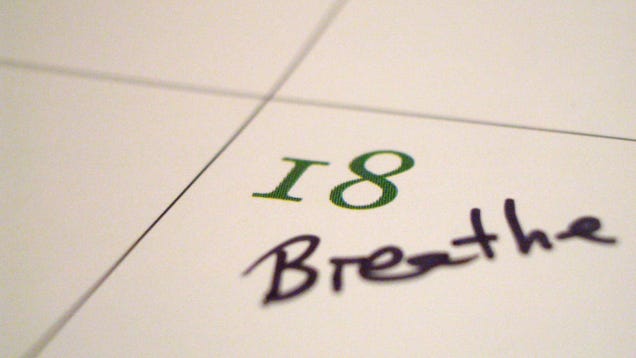
How you breathe can have a significant impact on your physical and emotional health. If you're about to head into a high-stress situation, or just want to calm yourself from an existing one, this technique can help you focus on better breathing while distracting you from the trouble at hand.

As health tips blog HelpGuide.org explains, breathing from your diaphragm is a great way to lower your stress levels and breath efficiently. That tip doesn't help much, though, if you don't know how to breath from your diaphragm. To learn, follow these steps:

  • Sit comfortably with your back straight. Put one hand on your chest and the other on your stomach.
  • Breathe in through your nose. The hand on your stomach should rise. The hand on your chest should move very little.
  • Exhale through your mouth, pushing out as much air as you can while contracting your abdominal muscles. The hand on your stomach should move in as you exhale, but your other hand should move very little.
  • Continue to breathe in through your nose and out through your mouth. Try to inhale enough so that your lower abdomen rises and falls. Count slowly as you exhale.

Giving yourself a physical indicator outside of your body should help you realize which parts you're breathing with inside. Not only will this help improve your breathing habits, but you're paying attention to your hands and your chest, rather than the worries running through your head.

Relaxation Techniques for Stress Relief | HelpGuide.org via 99u

Photo by Rob.

21 Jan 13:40

Apple Buys UK Startup Behind Musicmetric To Add Analytics To Beats

by Jon Russell
2010-06-06T15-56-53 -- DSC_0385 Apple appears ready to add more analytics and analysis to Beats, the streaming service it acquired last year, after news surfaced that the U.S. company bought the British company behind Musicmetric. Read More

20 Jan 22:20

Yuri Shwedoff's captivating postapocalyptic fantasyscapes

by Andrea James
5ac9fbae3fef335264e8885eb03846e2

Artist Yuri Shwedoff from the Russian Federation creates disturbingly beautiful postapocalyptic illustrations with familiar elements. Read the rest