Shared posts

20 Jul 19:49

The Best Alarm Clock App for Android

by Alan Henry

The Best Alarm Clock App for Android

A perfectly serviceable alarm clock and timer comes with your Android phone, so you might not think to download another one. That may be true, but if you’re looking for more features, more customization options, and more powerful alarms than your stock clock comes with, Gentle Alarm is here—and we think it’s the best.

Gentle Alarm

Platform: Android
Price: $2.21 (Free “trial version” available)
Download Page

Features

  • Set as many alarms as you want, at any time of day, in both 12 and 24 hour formats
  • Create pre-alarm, alarm, and snooze “profiles” where you can customize the alarm sound, volume, fade-in volume, duration of the alarm, even display brightness. Comes with three profiles by default: “workday,” “day off,” and “nap.”
  • Can be configured to play music, playlists, or even an internet radio stream as an alarm, so you can wake up to your favorite song or playlist, and can even be configured to only play songs by specific genres or artists
  • Can be configured to sound an alarm that slowly increases in volume or vibration intensity until you dismiss it or after successive snoozes
  • Can schedule multiple alarms, each with different songs or playlists, or to play a random song or playlist
  • Can be configured to require you to solve challenge questions or simple math problems before the alarm can be snoozed or dismissed
  • Lets you flip your phone over to snooze, or shake the phone to disable the alarm
  • Can be configured to launch a specific application when the alarm goes off
  • Can display a countdown timer on-screen until the alarm sounds, making the app useful for a timer as well as an alarm clock
  • Has a built-in “dock” mode and a “night mode,” where the clock and alarm settings are displayed on-screen or the current time is displayed on a dimmed display, making it useful as a desk clock or bedside clock, respectively
  • Supports speech input for alarms, the same way the default clock and alarm does
  • Allows you to auto-dismiss or auto-snooze alarms
  • Allows you to customize the color and background of the alarm display
  • Has a downloadable home screen widget, and downloadable extra alarm sounds if you don’t like the default selection
  • Has a built-in flashlight
  • Has full support for third-party apps like Tasker and Sleepbot, so you can even add more customization features or use the app to help track your sleep

Where It Excels

The age of dozens of alarm clock apps all over Google Play is over, but there are still a few that offer customization options and flexibility you won’t get in the default clock on your phone. Gentle Alarm has always been popular, but the reason it gets the nod from us is the sheer myriad ways you can customize the way you wake up. Here’s an example: With Gentle Alarm, you can tell the screen to light up to 20% so you’re not blinded when you pick up the phone to disable the alarm. You can also tell Gentle Alarm to play your favorite internet radio stream at 7am, but only at half-volume, and to slowly fade in from there until you flip the phone over to snooze it for exactly 20 minutes, at which it’ll bump up the volume to full and fade in from 20% volume to full volume if you don’t turn it off.

That’s a ridiculous amount of flexibility, and the fact that the app has so many ways to really dial in the details so you wake up the way you want—or in a way that wakes you up but not anyone else in the same bed or bedroom as you—makes it a winner. All of those customization options and features are easy to understand and configure, too.

Beyond that, Gentle Alarm has all of the features you would expect from a good alarm clock app. Multiple alarms, one-button “all off” and “night” modes are a nice touch, as is the included dock mode, which (on a personal note) makes the clock really useful to leave running while you have your Android phone docked or charging on your desk while you work. The third party support is also a really nice touch, so Tasker fans can really get under the hood with the app and customize it even further without essentially having to rewrite many of the things that Gentle Alarm already does.

Where It Falls Short

Gentle Alarm is great, but it’s by no means perfect.

First, its interface looks like something straight out of the Gingerbread/Ice Cream Sandwich days, and that’s probably because it hasn’t had a significant UI overhaul since then. To be fair, an alarm clock doesn’t need to be pretty to work, but in an age where every app is moving to Holo and Material Design and a more streamlined, modern look, it’s kind of a jarring look backward to install Gentle Alarm on Lollipop or Android M and see those big chunky grey buttons with black text in them again from Android’s earlier, uglier days. Even the default font of the clock itself is reminiscent of those days. On the bright side, the developer listens actively to the user community and updates the app to fix bugs and add requested features almost monthly. I’m sure a UI overhaul is somewhere on the to-do list.

Second, all of the features and tools that Gentle Alarm offers can actually be a detriment to just setting a quick alarm for a nap, or setting a timer for eggs or something. You may find yourself using Gentle Alarm to build your perfect “wake up in the morning” scenario, but still using your built-in alarm for something simpler and easier to operate when you just want to nap for a little while, or when you want to remember to check the roast in 45 minutes without diving into menus and buttons (and yes, even Gentle Alarm’s “Quick Alarm” option is a bit much when you could just tap the microphone or pull up Google Now and say “set a timer for 45 minutes” or “set an alarm for an hour from now.”)

We should also note that a number of people have complained that Lollipop users have had some issues with notifications with Gentle Alarm. We didn’t have the same problems when we tested, but the dev has already acknowledged the issues and promises an update.

The Competition

Clock (Free) is Android’s built-in alarm clock and timer. It’s since been decoupled from Android itself, so if for some reason you don’t have it, you can grab it from Google Play. For many people will get the job done just fine, and its integration with Google Search on your device means that setting alarms and timers is as easy as a voice command or a couple of taps. You can set up multiple alarms, set some active and disable others, and the app doesn’t have to be in the foreground for it to wake you up when the time comes. It’s not particularly feature rich, but if you just want something to go off to wake you up or remind you to do a thing, this will work just fine and not cost you a cent.

Timely (Free) was actually going to be our top choice. It’s beautiful, just customizable enough to get the job done, packed with features (although not quite as many as Gentle Alarm) that give you control over how your alarm goes off, when, how long you can snooze, and it even can sync across multiple Android devices so you don’t have to re-configure your alarms when you switch phones or move from one device to another. It’s a gorgeous app that gives you tons of control over the visual look and feel, it looks just as good on Android tablets as it does on phones, and like any alarm, it can be set to challenge you with puzzles to make sure you’re actually awake before snoozing. It also has a timer and stopwatch built-in, which is nice.

The reason we can’t make it our primary pick is because the team behind it was acquired by Google back in February, and users report that even though the app’s been updated as recently as February, it’s completely broken in Lollipop due to changes in the notification system, and given the dev team is now a part of Google (and that they’ve been completely silent on social media since before the acquisition) the odds of an update are pretty slim. If you’re running an ICS or KitKat device, or want to gamble on it, it’s worth a look, but otherwise, steer clear.

Alarm Droid (Free, $1.68 via in-app purchase to remove ads) boasts a great looking UI, complete with attention to Material Design. You can set multiple alarms, and the ability to snooze your phone just by flipping it over on your nightstand. You can set recurring alarms by date and time and the snooze screen has multiple large buttons for different snooze durations. It even features a speaking clock that can speak the time aloud to you at set intervals, and the option to back up your alarm settings and restore them from a file. Local weather displays on the screen when the alarm goes off. Beyond that, it doesn’t do much that the other apps (or the stock alarm clock) don’t also do, but the other developers could take a page from the design.

Alarm Clock Xtreme ($2, Free, ad-supported version available) was our previous favorite pick, and it’s still a great app. If you have it and like it, there’s no reason to switch here, and unlike our top pick, its design and UI has come along way with the times. However, there’s no getting past the fact that it just doesn’t have the same features as Gentle Alarm. It still has all of the things that made it great originally—as many alarms as you want to set, puzzles or challenges to snooze or disable the alarm, a tablet-friendly version and an updated UI, auto-snooze and auto-dismiss, a built-in timer, the option to wake to music instead of sounds, and so on. Still, we’ve bumped it down mostly because while great, it’s nothing really that the default alarm app doesn’t already do, and the features it does have that Gentle Alarm doesn’t don’t make it worth the ads or the price tag when compared to something that’s more feature-rich for the same price. We do love the UI though—maybe Gentle Alarm can take a cue.

My Alarm Clock ($2, Free, ad-supported version available) is a great looking alarm clock, especially if you’re looking for something to rest on your nightstand. Local weather displays when you wake, along with a dimmer, sleepy-eye-friendly blue-on-black text style that’s easy to read in the dark. The app comes with its own built-in flashlight, clock widgets and home screen widgets that you can customize to keep a clock on the home screen if you prefer, customizable alarms, multiple alarms, and background alarms, and more. The nightstand mode is great, and the app has a built-in sleep timer that will play white noise to help you get to sleep, and then wake you up again when it’s time to get out of bed. Beyond that though, it doesn’t offer too much more in the way of customization, and many people have reported that there are issued with Lollipop. Even worse, the free version consumes massive amounts of data to pull down and stream advertisements—enough that some people say it’s eaten through their monthly mobile data allowance, which is a huge turn-off.

Lightning Bug (Free) is a little different. Most people use it to help fall asleep to soothing sounds of nature, but the app can just as easily be set to lull you to sleep with sounds of rain falling, monks chanting, or traffic on a city street outside your window, or wake you up with an alarm in the morning. $0.99 will buy you additional soundscapes to enjoy, like the sounds of the forest, or an ocean lapping at a tropical beach.


Lifehacker’s App Directory is a new and growing directory of recommendations for the best applications and tools in a number of given categories.

20 Jul 19:47

Evocative image of rose embers

by Andrea James
acacd92e3259279e6dc43536757a6c2d

This gorgeous image of the dying embers of a bouquet of roses, titled "The Ash," was meticulously crafted by the creative team at Ars Thanea. See how they did it. Read the rest

20 Jul 19:42

Instagram Brings Search To The Web

by Lucas Matney
Instagram Explore Instagram revolutionized how we searched for pics of celebrities getting wasted on yachts on mobile, and now they’re bringing that same experience to the web. Today, Instagram is adding search to its desktop experience. Users can now search hashtags, profiles and locations on instagram.com in a viewing experience that is beginning to grow much more congruous with the Instagram mobile… Read More
20 Jul 19:42

Microsoft Apparently Wants Cortana To Be Fluent In British Humor

by Alex Wilhelm
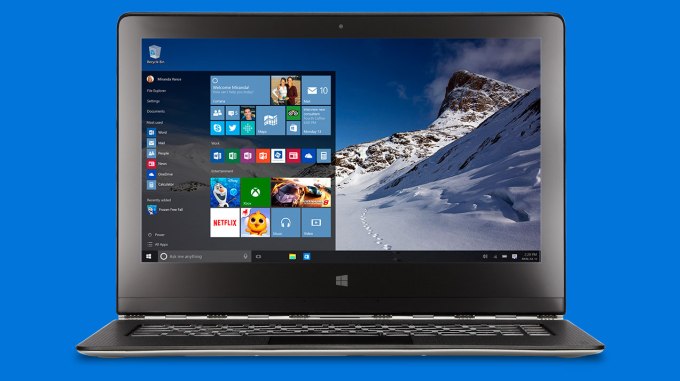
windows10-laptop Microsoft seems intent to make its digital assistant Cortana culturally fluent. In a post today, the software firm detailed when it will launch Cortana into new markets with Windows 10, and how it will slot the tool into various countries, each of which have their own hallmarks. Read More
20 Jul 19:40

PayPal is independent again and already worth more than eBay

by Ben Popper

On Friday PayPal spun out from eBay. This morning its shares started trading openly. By noon the market was valuing the company at over $50 billion, roughly 43 percent more than eBay. Not bad considering that eBay acquired the payment company back in 2002 for just $1.5 billion.

PayPal is still a dominant force in payments on the web. More importantly, it has branched out into mobile payments with the acquisition of Braintree, one of the leading providers of back-end technology for in-app payments. Braintree, in turn, had acquired Venmo, one of the fastest-growing peer-to-peer payment apps in the US. At the start of this month PayPal also acquired Xoom, giving it a play in the booming world of international money transfers. Taken...

Continue reading…

20 Jul 15:17

Supercut of terrible movie special effects

by Rob Beschizza

jawsThe collection includes, but does not conclude, with The Rock's turn in The Scorpion King. There is far worse in store! [World Wide Interweb via Kottke]

20 Jul 12:29

How to Eat These Sloppy Foods without Making a Mess of Yourself

by Thorin Klosowski

How to Eat These Sloppy Foods without Making a Mess of Yourself

Whether it’s a hamburger the size of your head or a massive plate of hot wings, some foods are best eaten alone in a dark corner somewhere. You could just be an adult and not order those foods in public, or you can master the art of eating sloppy foods in public. Here’s how to do it.

Use the “Claw” to Eat a Burger

How to Eat These Sloppy Foods without Making a Mess of Yourself

Burgers are a mainstay for restaurants and barbecues alike, but eating one gracefully can become an exercise in futility when it’s jam packed with toppings. However, held properly, even the most ungraceful amongst us can avoid spillage.

Our friends over at Kotaku point to the “claw” as the best way to eat a burger, and in my experience it works better than most. Hold the burger with your thumbs and pinkies on the bottom, and your three middle fingers on the top. You can then rotate around the burger (as opposed to going in straight) to minimize spillage all around. It might not work perfectly for that half-pounder with bacon and an avocado, but it’ll do the trick in most instances.http://kotaku.com/the-perfect-wa...

Debone Chicken Wings Before Eating Them or Learn to Eat with One Hand

You have two solid options for eating chicken wings without making a fool of yourself and both work equally well. It just depends on how you want to approach your wings.

Typically, the preferred method of wing eating mess-free revolves around removing the bones first. This prevents the inevitable cheek-covered-in-sauce that comes with eating wings straight off the bone. Pick up the flat part of the wing, then find the little bone. Give it a wiggle and a twist to pull it out. Do the same with the bigger bone. Now you can just eat away.

If that’s too much work for you, then you can just tackle your bowl of wings with one hand. All you need to do is hold the larger end of the wing with one hand, then push down on the meat at the top. You can then eat the whole thing straight off the bone while keeping your other hand clean for the inevitable high fives that follow.http://lifehacker.com/5880851/eat-a-...

Eat Chips, Cheetos, and Other Snacks with Chopsticks

How to Eat These Sloppy Foods without Making a Mess of Yourself

This one’s a bit of a Lifehacker classic, especially since our own Whitson Gordon swears by it, but it’s still worth mentioning again. If you’re going to eat greasy foods like chips or Cheetos, do it with chopsticks to keep your fingers clean.http://lifehacker.com/5983408/how-we...

Cut Off the Ends of Watermelon Rinds

For whatever reason, the traditional method for cutting a watermelon into wedges makes it nearly impossible to eat without getting watermelon juice all over yourself. Thankfully, there are better methods.

If the watermelon’s already quartered, you can simply cut off the ends as shown in the video above. This keeps the center intact so you have something to hold onto, but you don’t get melon all over your face.

Alternately, if you’re the one in charge of watermelon prep, cut it into sticks instead of wedges. This way nobody will look like a fool and you’ll be a hero for many a barbecue to come.http://lifehacker.com/cut-a-watermel...

Bite the Top Off Soup Dumplings Before Eating

Chinese soup dumplings are tasty nuggets of explosive liquid that can destroy your shirt and mouth if you’re not careful. Over on Zagat, they suggest taking a cautionary approach to those soup dumplings to avoid burning the roof of your mouth or splattering on your shirt.

Start by grabbing the dumpling with your chopsticks very slowly so you don’t rip off the bottom, then, place the dumpling onto your spoon with the knot side up. Your first inclination now is to stuff that whole thing in your mouth, but don’t do it. Instead, bite off the knot on the top to let the steam escape, then suck out the broth. Once it’s brothless, go ahead and dip it into the soy sauce and eat the skin.

Photo by LplusD.

19 Jul 23:12

Amy Crehore and other women artists featured at Miura Jiro gallery in Tokyo

by Mark Frauenfelder

Amy Crehore has three lovely paintings on display at the Miura Jiro gallery. The show is called "Ephemeral – Territory of Girls" and it runs from July 25 to August 16, 2015.

19 Jul 23:11

This Interactive Timeline Explains Why Time Flies By as You Get Older

by Patrick Allan

This Interactive Timeline Explains Why Time Flies By as You Get Older

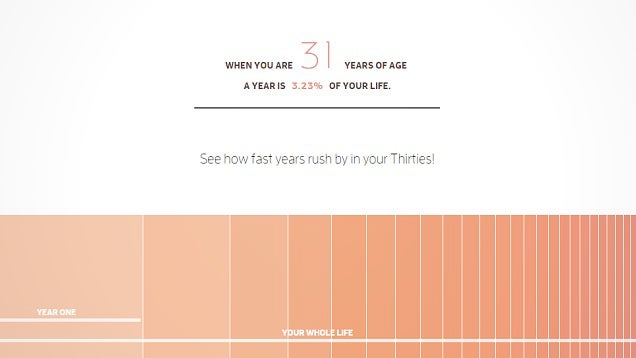
Did it seem like this year was shorter than the last? This interactive timeline explains how your brain’s perception of time might be changing more and more as you get older to make it seem like time is passing by faster than it really is.

This timeline from Maximilian Kiener suggests that we perceive time relative to the “absolute” time we compare it to. In other words, the longer you’re alive, the smaller a year becomes in relation to your entire life as a whole. For example, when you’re five, a year is 20% of your entire life. When you’re 50, however, a year is only 2% of your life. The timeline, based on a theory from philosopher Paul Janet, lets you scroll down to pass time and explains the concept in a clever, easy to understand way. So if your time seems to be passing you by faster than it used to, you’re not crazy, you’re just getting older. Relish every good moment you can, because there’s a good chance those moments will start to zoom by. You can check out the interactive timeline at the link below.http://lifehacker.com/how-your-brain...

Time | Maximilian Kiener via Flowing Data

19 Jul 19:23

16 Pics Of Fairy Tale Architecture From Norway

by Bill Crider
19 Jul 12:00

This Galaxy S6 case doubles the battery and adds SD card support

by Jerry Hildenbrand

This Galaxy S6 and Galaxy S6 edge case aims to alleviate any issues you might have over battery life and lack of SD card support.

With a built-in 3,700 mAh battery as well as a built-in micro SD card slot, the Offgrid case looks like it was designed to fill the gap many think Samsung left with the Galaxy S6 when they moved to a new design. We've seen battery cases before, but the twist here is support (via USB OTG) for an SD card of up to 128 GB. Put in your SD card, pop the case on your Galaxy S6, and a flip of a switch changes from charging mode to storage mode.

Yeah, we're interested, too. We ordered one to check out — anyone else?

Buy the Incipio Offgrid case for $89.99


18 Jul 22:50

Google might soon help you find anyone from a plumber to a painter

by Dante D'Orazio

It appears Google is about to enter the growing home services market. The search giant has snatched up roughly 20 employees from Homejoy, a startup that focused on pairing house cleaners with apartment-dwellers and homeowners. Google confirmed the hires to our sister site, Recode, just hours after Homejoy announced yesterday that it was closing shop for good at the end of the month.

Goodbye Homejoy, hello Google

Google has yet to announce any foray into home services, but Buzzfeed reported earlier this year that the company was working on a service that would connect local plumbers, cleaners, painters, and other workers with homeowners. The employees Google has picked up from Homejoy largely represent the startup's product and...

Continue reading…

18 Jul 22:50

This Video Shows You How to Cook a Perfect Looking Fried Egg

by Patrick Allan

There are a lot of approaches to cooking a good fried egg, but this method will make your egg look so good, you’ll think it came right out of a cartoon.http://lifehacker.com/six-ways-to-ma...

This video from the ChefSteps YouTube channel demonstrates how to cook an egg with no runny egg white or yolk, no crunchy edges, and the visual appeal of an egg right out of a Pixar movie. The trick is using a non-stick pan, a little butter, and cooking it on the lowest heat possible. You should be able to touch the pan quickly without it hurting you. Frying eggs this way is great for any meal where you’re using an egg to top something off or garnish a meal. Of course, not only will your fried egg look good, but it will taste delicious too.

ChefSteps Tips & Tricks: Edible Emoji Egg | YouTube

18 Jul 20:12

Google Play Books Can Now Sync Notes to Google Drive

by Eric Ravenscraft

Google Play Books Can Now Sync Notes to Google Drive

Google Play Books has been our top pick for ereader on Android for a while. Now, it’s getting a little better. The newest version of Play Books allows you to sync your notes, highlights, and bookmarks to a separate folder in Google Drive.http://lifehacker.com/5875516/the-be...

The option is buried in the app’s settings. Once you enable it, Play Books will create a folder in your Google Drive account and fill it with any notes or highlights you make while reading. You can duplicate the notes document and edit it as a regular Google Doc. This can be particularly handy if you’re doing research or trying to track a complex story.

[Update: Changelog And Google Drive Note Sync] Play Books v3.5 Gets A UI Refresh, Adds New Suggestion Experience To Find Books You Might Like, And More | Android Police

18 Jul 20:12

Weekend fun: 5 free and fun puzzle games

by Jerry Hildenbrand

A lot of us use our Android phones for important things. Serious bizness and stuff. We need to stay in touch with our people, keep up with our calendar, listen to our boss deflate our spirit and destroy our dreams over Slack and other things that aren't nearly as fun as we want them to be. It's a necessary evil, and part of being an adult and having a job.

But there is always time to squeeze in a little fun when nobody is looking. (Don't look, Phil.) And there are plenty of games that you can play for just a few minutes at a time to get that fun injection. Whether you want a relaxing way to power through a bathroom break, or pass the time while your significant other is shopping for things you can't be bothered to care about (there's a reason they put benches in the mall), here are five great little apps that will help you pass the time.


18 Jul 10:14

A New Class Of Worker Could Fix The On-Demand Economy

by Ken Davis
5279833992_1b91f78e21_o The rise of the on-demand economy has presented difficult questions for both employers and employees. It’s not uncommon to see stories about the series of legal and regulatory challenges Uber is facing. Through all of these legal and moral difficulties, the debate remains the same: Should contractors be considered employees or is the solution to create a third classification of worker? Read More
17 Jul 21:47

Incredible Science Machine team seeks Rube Goldberg record with chain reaction gizmo

by Xeni Jardin
photo-original

Chain reaction artists and domino builders have collaborated to create what they hope will go on record as the largest chain reaction in history. Read the rest

17 Jul 20:19

This is Microsoft's Cortana app for Android

by Tom Warren

Microsoft is planning to release a version of its Cortana digital assistant for Android this month, but a copy has leaked early onto the internet today. If you’re familiar with the Windows Phone or Windows 10 versions of Cortana, then there’s not many surprises in the Android version. You can access Cortana’s notebook to control information stored about you, and there’s the usual options for bringing up events, nearby places to eat and drink, news, sports, weather, and more.

Continue reading…

17 Jul 20:19

Amazon preps fresh grocery delivery launch in UK

by Recode Staff

Amazon’s grocery delivery service is still only available in a few markets in the U.S., but the e-commerce company is already planning to launch the service outside of the country.

Multiple sources tell Re/code that Amazon is prepping to launch the Amazon Fresh service in the U.K. this year, where it will encounter a competitive grocery delivery market that is more mature than that in the U.S. IGD estimates that online sales make up 5 percent of grocery sales in the U.K., where ordering online and picking up in a store is also becoming increasingly popular. Most estimates show that online grocery sales in the U.S. currently account for less than 1 percent of the market here.

Continue reading…

17 Jul 16:30

Dog submerged in long grass occasionally surfaces joyfully

by Rob Beschizza

DOGShe's saying "Hey, turn your phone sideways!" [via]

17 Jul 12:42

U.K. ‘Emergency’ Surveillance Law Ruled Unlawful By High Court

by Natasha Lomas
gavel In a high profile win for civil liberties in the U.K., surveillance legislation rushed through the national parliament in a matter of days last year has today been declared unlawful under European Human Rights law. Read More
17 Jul 12:41

This pet lizard lives in a real-life video game and I’m jealous as hell

by James Vincent

Being a human is (mostly) pretty okay. You've got self-awareness, funky trousers, moral agency, caramel soy lattes, the whole nine yards. But sometimes it feels like a really solid life decision would be to just dial down all this tediously self-aware sentience to something a little more chill; something a little more, I don't know, like a tiny pet lizard popping bubbles. Not sold on the idea? Watch this video and tell me it isn't the future our weak species craves:

LAURA LIKES TO POP BUBBLES OH MY GOD pic.twitter.com/3FwtQXdiAk

— nick ✰ (@knvckIe) July 16, 2015

I'm not even sure what type of lizard this is (probably a chameleon, right? It's got those weird mitten hands and animatronic swivel eyes), but it's living its life in...

Continue reading…

17 Jul 12:39

Samsung KNOX certified by the UK government on Galaxy S6, Galaxy S6 edge

by Rich Edmonds

Samsung has announced that both the Galaxy S6 and Galaxy S6 edge have been certified by the UK government for data-at-rest. Samsung is the first mobile phone manufacturer to receive said certification from the Communications and Electronics Security Group (CESG). Both smartphones are now recommended for use by government and public sector organizations, including police forces, hospitals, and local councils.

17 Jul 12:33

Windows 10 Home Updates Will be Automatic and Mandatory

by Eric Ravenscraft

Windows 10 Home Updates Will be Automatic and Mandatory

Windows 10 is about to drop at the end of the month. When the new OS comes out, it looks like Microsoft will be making some changes to its update policy. The ability to turn updates off entirely will be completely removed.

As Ars Technica points out, the new Windows 10 EULA includes a statement that implies users agree to “automatic updates without any additional notice.” Home users will also notice that they will have only two options for dealing with updates: installing them and rebooting automatically, and installing, then choosing when to update. Here’s the relevant section of the EULA:

Updates. The software periodically checks for system and app updates, and downloads and installs them for you. You may obtain updates only from Microsoft or authorized sources, and Microsoft may need to update your system to provide you with those updates. By accepting this agreement, you agree to receive these types of automatic updates without any additional notice.

Emphasis added. Of course, until Windows 10 is officially released, anything could still change. It wouldn’t be the first time Microsoft announced a new policy for a product, then reversed the decision later. In fact, Microsoft hasn’t announced this at all, yet. However, given Microsoft’s new Windows-as-a-service approach, this may be inevitable. Most other software we use is subject to frequent updates, but the ability to permanently delay Windows updates has made it hard for Microsoft to keep its platform secure and up-to-date with other contemporaries.

Windows 10 updates to be automatic and mandatory for Home users | Ars Technica

17 Jul 12:33

Amazon for Android Now Supports Voice Commands Like "Where's My Stuff"

by Eric Ravenscraft

Amazon for Android Now Supports Voice Commands Like "Where's My Stuff"

Voice commands are great. While we’re used to using these in our various personal assistant apps, Amazon is getting in on the action with app-specific voice commands in its app, including things like “where’s my stuff?” and reordering some items.

The feature was quietly added a couple weeks ago, though the company has only recently updated its changelog. You can now use voice commands to ask about existing orders with commands like “Where’s my stuff?” or more specific questions like “Where’s my blu-ray?” You can also use voice commands to re-order items like paper towels and other sundries. It’s not a revolutionary breakthrough, but clearly Amazon is putting what it’s learned from the Amazon Echo to good use.

Amazon Shopping | Google Play Store via Android Police

16 Jul 23:46

Inbox by Gmail: Snooze to just the right time

by The Gmail Team
Posted by Vijay Umapathy, Product Manager

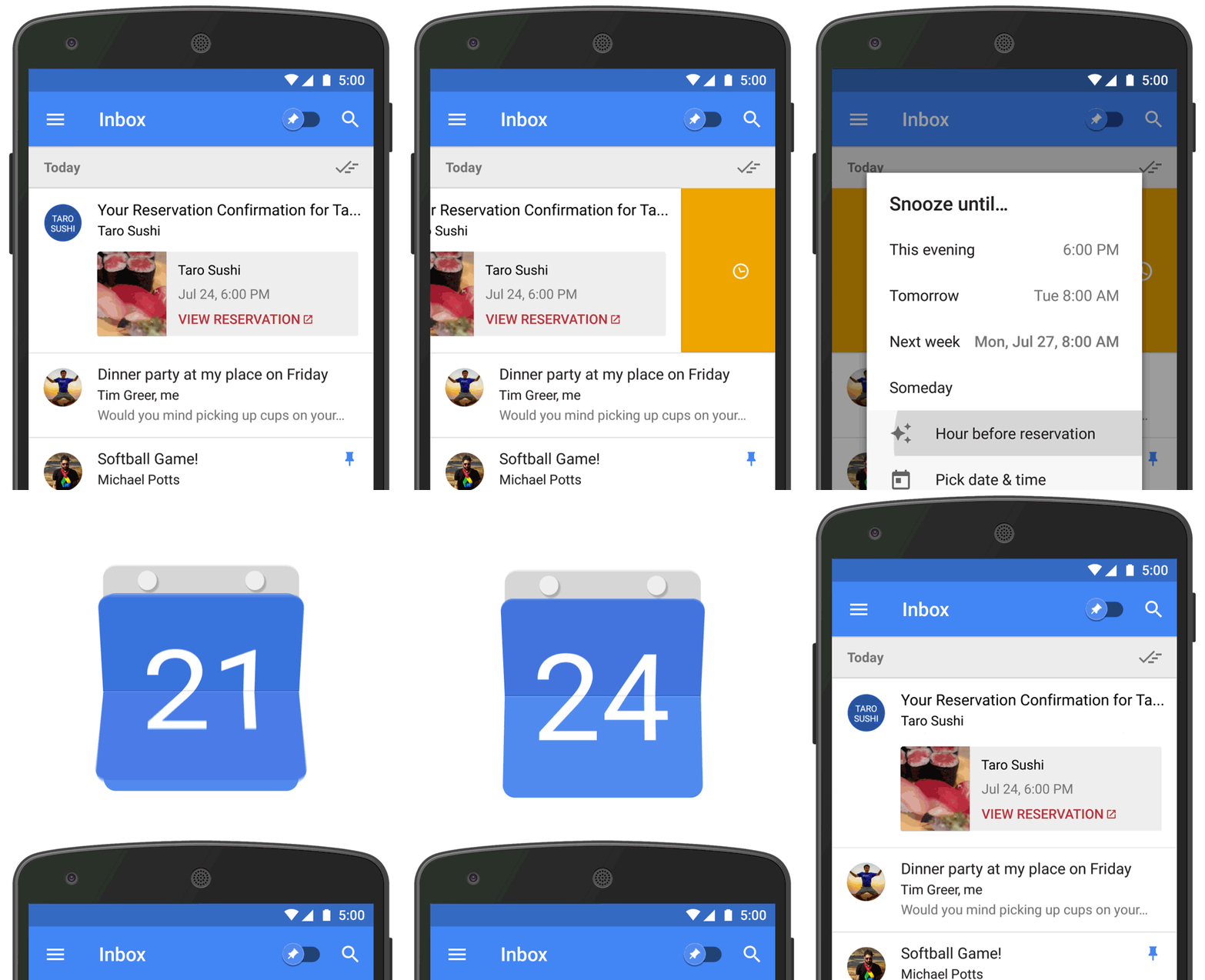
Wouldn’t it be nice if your concert ticket appeared at the top of your inbox just before the event started, or your hotel confirmation came back right before you needed to check in?

Starting today, Snooze in Inbox is getting a bit more convenient—when you snooze an email that has dates and times (like event confirmations or shipping notifications), you’ll get a one-tap option to snooze to exactly the right time, like the day of your concert or the morning your package will arrive.
You'll see these new Snooze options on most of these types of emails:

  • Package tracking updates
  • Restaurant and event reservations
  • Calendar invites
  • Flight confirmations
  • Hotel reservations
  • Rental car reservations

So next time, try snoozing that email to the day before the event. Then sit back and relax, knowing your email will come back at just the right time.

16 Jul 19:54

The Best Smartphone For Every Need

by Darren Orf and Sean Hollister on Reviews, shared by Alan Henry to Lifehacker

The Best Smartphone For Every Need

“What’s the best smartphone?” It’s a question I hear at least once or twice a week.

That’s fine. It comes with the territory, really. I write about all kinds of technology all day, every day, but none so much as smartphones. I’ve reviewed many of the major ones released in the past year, from the dirt-cheap to the metal and glossy. They all have something to add in their own way, but only a handful really stand out.

I teamed up with Gizmodo’s reviews editor Sean Hollister, who is also flush with smartphone knowledge, to finally hammer out the definitive answer.

And as you’d imagine: it’s complicated.

The Best Smartphone For Every Need

The funny thing about buying a smartphone in 2015 is that it’s hard to go wrong. Not too long ago, even great phones could have terrible battery life, be bogged down by gobs of unwanted software, have an awful camera, or be missing a crucial feature or two. Now, we find almost every major handset will last till bedtime, take decent photos, display them on an excellent screen, blaze through apps with a speedy processor, and browse the web with fast LTE connectivity.

If you want a great smartphone, all you really need to do is avoid phones that pretend to be excellent, but aren’t. (Don’t get suckered into buying a Galaxy Core Prime instead of a Galaxy S6, even if it’s $130 cheaper upfront. It’s not worth it.)

So if all good phones are great phones, what makes a phone The Best? Why, it simply had to be better than every other phone at providing something people crave. That was the bar we set.

The Best Smartphone For Every Need

The Best Smartphone For Every Need

The Best Overall: Galaxy S6·

The iPhone, dethroned. The Galaxy S6 is the absolute best smartphone that you can buy in 2015. Yeah, I know that the world at large doesn’t seem to agree with me, but hear me out. The S6 does almost everything you could possibly want from your pint-sized computer.

The Galaxy S6 looks great, has both wireless charging standards, decent battery life, one of the best smartphone cameras, a fingerprint scanner that doesn’t suck, a blazing fast processor, and an eye-popping quad HD screen all packed into a 5.1-inch body. Here’s the kicker: it all works. It works very well.http://gizmodo.com/samsung-galaxy...

Now, yes, there are some things the S6 can’t do. For instance, you can’t swap out the battery or microSD card (a bummer, I know) and if you drop it in water, you’re pretty much boned. But it also can’t read your mind and time travel, so I think you’ll be fine.

Now, I’m not saying the Galaxy S6 is for everyone. I would still perform a harrowing misdemeanor if it meant the S6 would just run stock Android instead of still being saddled with Samsung’s user interface layer TouchWiz. But this is the best TouchWiz has ever been, and it’s helped create the best smartphone ever made.

The No-Brainer: Apple iPhone 6 (or iPhone 6 Plus)

The Best Smartphone For Every Need

Even the best Android device is still a thinking man’s phone. Sometimes you don’t want to think. Like when you witness that perfect, fleeting moment you’d like to capture with your smartphone camera. Technically, there are many phones that take pictures just as good—or better!—than an iPhone. If you set the focus properly. If you hold your hands steady. If you take a burst of pictures and pick the best one. If your phone isn’t bogged down with other apps. The iPhone 6 takes the photo you want almost every single time you hit the shutter button. And thanks to optical image stabilization, the iPhone 6 Plus does it even better.http://gizmodo.com/iphone-6-plus-...

That kind of we-figured-it-out-so-you-don’t-have-to thinking pervades the entire experience of using an iPhone, and it’s why the iPhone is the phone that’s easiest to recommend for the most people, regardless of where they’re coming from. If you’re not sure exactly what you want, buy an iPhone 6. (If you’ve got small hands, buy an iPhone 6.) If you want a mini-tablet that takes even better pictures and video, buy an iPhone 6 Plus.

Other reasons to buy an iPhone: The best app store. The best portable gaming device. The best customer support.

The Best Smartphone For Every Need

The Longest Lasting (And Best Waterproof): Sony Xperia Z3

A lot of smartphones cross my desk, and very rarely does one do something that makes me cartoonishly double take. The Sony Xperia Z3 not only did that, it did it on a daily basis. Simply put, the Z3 has the most insane battery life I’ve ever seen on a smartphone. I could take it off the charger, use it moderately all day, forget to charge it and then almost make it to bedtime on day two. That’s crazy good. Plus, this phone looks pretty fantastic when you consider it’s waterproof as well!http://gizmodo.com/sony-xperia-z3...

You may not think that waterproofing your smartphone is that big of deal. Just keep it in your pocket when it rains, and don’t be clumsy! But there were times I was busily typing out an email on my smartphone while I was running late for work, and needed to take a shower. I hopped in the shower with the Z3, finished my email, and was out the door. Imagine watching Netflix in your bathtub. Or never worrying about spills. There’s even a dedicated camera shutter button so you can take pictures underwater.

If battery life is the absolute must-have feature you need in a smartphone, the Xperia Z3 is the best you can buy. And yeah, the fact it won’t suicide itself after some drops of water is just an added bonus. Just know you’ll need to pay the full unlocked price—or get the Z3v on Verizon—if you want one. And that there’s a Z4 right around the corner.

The Best Smartphone For Every Need

The Best Big Phone: Samsung Galaxy Note 4

There are lots of phones with big screens. There’s only one that actually puts that screen to good use. The Samsung Galaxy Note 4 not only has a gorgeous 5.7-inch, 2560 x 1440 Super AMOLED display that’s nearly as crisp as they come, it comes with split-screen multitasking and an excellent active stylus to let you actually make use of all that real estate. It’s an excellent phone in almost every other way too. It doesn’t have the best battery life, the best camera, or the fastest processor, but they’re all above average, and it’s one of the few remaining high-end phones with a removeable battery and microSD card slot.http://gizmodo.com/samsung-galaxy...

Plus—another way it makes use of that awesome screen—you can slot it into a Samsung Gear VR headset to try out the first generation of good-enough virtual reality. If you want a big phone, the only reasons not to buy it are if you’re set on a heftier iPhone 6 Plus with its amazing camera—and its bulkier chassis—or if you’re waiting for its successor, the Galaxy Note 5, which will surely appear later this year.

The Best Smartphone For Every Need

The Best for Traditionalists: LG G4

LG’s G4 and the Galaxy S6 are similar in important ways. The G4 also has an awesome camera, surprisingly robust battery life, a speedy processor, and great ergonomics because of its slight curve. The big difference is that LG preserves the old-school removeable back cover Android has long been known for—giving you access to your battery and SD card.http://gizmodo.com/lg-g4-review-t...

In many ways, it’s the perfection of what an Android smartphone used to be. It appeals to the power users of yesteryear. It’s for the kind of person who craves a more complex and powerful camera on their smartphone with an excellent manual mode, not the kind who just wants to take slightly better pictures. Even for those folks, the G4 does lots of things really well. But if you like the old way of thinking, this is the one you’ve been waiting for.

The Best Smartphone For Every Need

The Best Cheap Off-Contract Phone: OnePlus One

The $250 OnePlus One is the phone you should buy if you don’t want a carrier ball-and-chain, and don’t want to spend $600+ on something better. It’s phone you buy if your existing phone breaks, and you can’t afford to replace it. Because for the money, the OnePlus One is utterly fantastic. Nothing else in its price range comes close. It’s one of the few smartphones under $300 that I would describe as “elegant” and regularly garners “oohs” and “ahhs” from friends.http://gizmodo.com/oneplus-one-re...

How does it compare to the other smartphones on this list? It’s a little shy, of course. The One has a 5.5-inch 1080p LCD display that’s definitely a lot duller than the top-tier phones. The One’s CyanogenMod operating system is nice and customizable, but it’s no substitute for Android Lollipop. Even though the camera takes pretty good pictures, I frequently lose photo opportunities because of the One’s abnormally long shutter speed. But where the One fails as a shooter it makes up for in sheer endurance: the battery life is second only to the Xperia Z3. And though the Snapdragon 801 processor isn’t the latest and greatest, it feels quick enough.

It’s a shame you can only get it on GSM carriers—no Verizon or Sprint.

The OnePlus Two might be worth the wait, but it’s probably going to be more expensive. $250 is hard to beat.

The Best Smartphone For Every Need

The Best for Pure Android (And Movies): Nexus 6

If you want the latest and greatest Android has to offer, accept no substitutes. The gigantic Nexus 6 is the only phone guaranteed to get swift Android updates. Even though the Moto X was supposedly a Google flagship phone, the Nexus 6 is the only one where you could already be running a preview build of Android M. It’s also the only place to try Google’s own Fi cell service, for that matter.http://gizmodo.com/nexus-6-review...

Thankfully, it’s also an excellent phone. While the Nexus 6 is already eight months old, you’d be hard-pressed to tell because it shipped with state-of-the-art specs at launch. The Snapdragon 805 processor and 2560 x 1440 AMOLED screen are still excellent, and the battery life is definitely not bad. It’s also got some of the awesome features Motorola originally introduced in the Moto X line, like the ability to always listen for voice commands and let you glance at notifications even with the screen locked.

Plus, with that gorgeous six-inch screen and nice loud front-facing stereo speakers, this is definitely the smartphone we’d recommend for watching movies. Just make sure that you buy yours from a carrier that won’t fill it up with bloatware.

The Best Smartphone For Every Need

The Best Smartphone For Every Need

Galaxy S6 Edge

The Best for Showing Off, perhaps. The Samsung Galaxy S6 Edge is a fine phone, and it looks slick, but you’re paying an extra $100 for worse ergonomics while everything else stays the same.


The Best Smartphone For Every Need


Galaxy S6 Active

We tried it. Not bad, but you’d get better protection by simply buying a case.


The Best Smartphone For Every Need

Galaxy S5

Only if you can get it free on contract. The S6 really is better in many important ways. If you need a removeable battery and SD card, go for the LG G4 instead.


The Best Smartphone For Every Need


Galaxy Alpha

Weak, low-res screen with a weird tint. Not worth the money. Also see: Galaxy S5 Mini.


The Best Smartphone For Every Need

HTC One M9

The HTC One M9 is all looks with no standout features. No waterproofing, no wireless charging, and not even a passable camera. We considered calling it The Best for Butterfingers because HTC will replace your screen for free if it cracks, but meh.


The Best Smartphone For Every Need

Droid Turbo

The primary things the Droid Turbo claims to do—resist water, last ages on a charge—the Sony Z3 does better. If you’re all about movies, games, high-res screens and Moto-exclusive features, the Nexus 6 is the one you want instead.


The Best Smartphone For Every Need

Sony Xperia Z3 Compact

Take everything awesome about Sony’s Z3, and shrink it down for smaller hands. Give it even better battery life—and, yeah, a lower res screen. Then tease poor Americans by only selling it off-contract, on GSM networks, for less than a year. We called it Android’s Best Kept Secret.


The Best Smartphone For Every Need

Moto X (2014)

Motorola makes great phones. But last year’s Moto X is beginning to feel its age with a not-so-great camera and an older processor. Customization is its only real perk. Plus, a new one is coming, so practice some patience if you’re dead set on Moto and don’t want the Nexus 6 in your corner.


The Best Smartphone For Every Need

iPhone 5S

When the iPhone 6 first came out, the iPhone 5S still made a lot of sense. It’s even better for small hands, and it’s a little less likely to slip out of them. Now that it’s aged a bit, we’d be hard pressed to recommend it over any of our top picks. Not when a new iPhone is right around the corner, and the rest of Apple’s lineup is likely to shift.


The Best Smartphone For Every Need

iPhone 5C

Same argument as the iPhone 5S above. We were toying with calling this one the Best Free On Contract, but we can’t wholeheartedly recommend buying a new iPhone 5C now, not when Apple’s almost certainly about to change the whole lineup.


The Best Smartphone For Every Need

LG G Flex 2

I actually love this phone, and I bet you’d be happy with it, too. But its curve is the only defining feature. While that’s a pretty great conversation piece, the phone is run-of-the-mill compared to our bests. A full HD screen when we’re on the cusp of a 2K revolution. Why get stuck in the past?


The Best Smartphone For Every Need

Moto G (2nd gen)

Once a contender for Best Cheap Off-Contract Smartphone, it’s no longer cheap enough compared to the OnePlus One to justify its mid-range specs. You also can’t get it with LTE in the United States.


The Best Smartphone For Every Need

Microsoft / Nokia Lumia

Despite Microsoft’s latest woes, hardware’s never been the problem with Lumia devices. In fact, they have some of the best cameras you’ll find. But that software is just not as good as iOS and Android. Not even close. If you actually want to use lots of apps, look elsewhere.


The Best Smartphone For Every Need

HTC One (M8) for Windows

The HTC One M8 was great, sure—over a year ago. And while Windows Phone actually suits this device pretty well, a neglected app store as well as a neglected mobile OS means you’re much better off with practically any alternative.


BlackBerry

Not a chance. Even the best BlackBerry isn’t good enough. The BlackBerry operating system is a dead end. If you buy one, you’ll be sorry when BlackBerry moves to Android instead.


Amazon Fire Phone

LOL no.


Photos by Michael Hession

16 Jul 19:52

SanDisk Announces The Connect Wireless Stick, Up To 128GB Of Storage For Your Phone Accessible Via WiFi

by Ryan Whitwam

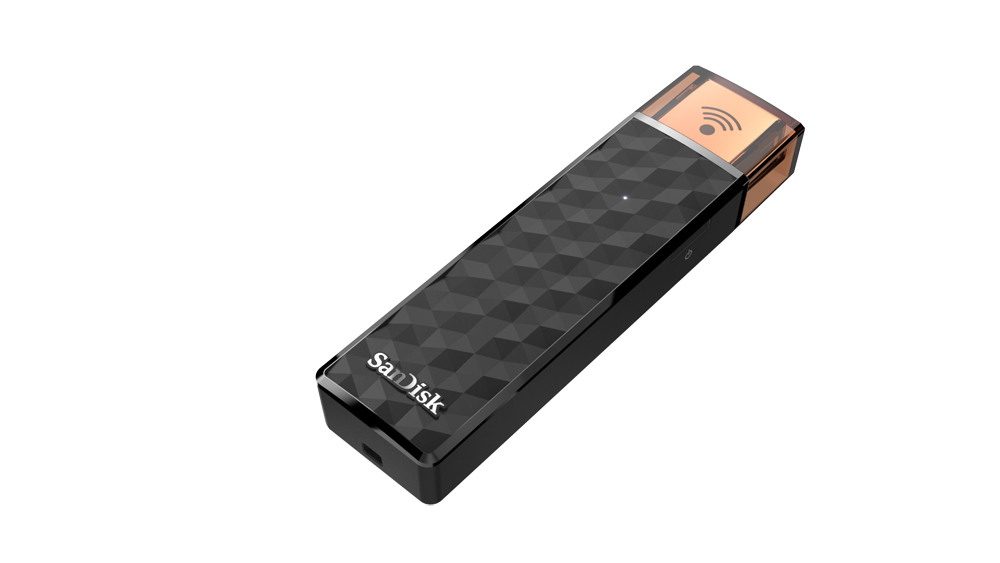
2015-07-16 13_20_59-Amazon.com_ SanDisk Connect Wireless Stick 32GB for Smartphones, Tablets and ComSanDisk has announced a new product in its Connect line of wireless storage devices, the Connect Wireless Stick. This appears to be the second generation version of the Connect Wireless Flash Drive, which has been around for about a year. This version is slimmer, has more storage, and relies on a new app.

Stick_angle_topright_closed 513wTZZLxqL._SL1000_

This appears at first to be a standard USB drive, and indeed it can be used like that. However, the whole point of the Connect Wireless Stick is that you'll load it up with content from your PC, then activate the built-in WiFi hotspot.

Read More

SanDisk Announces The Connect Wireless Stick, Up To 128GB Of Storage For Your Phone Accessible Via WiFi was written by the awesome team at Android Police.


16 Jul 17:48

Samsung and Apple said to be nearing a deal to join the electronic SIM launch

by Joseph Keller

The GSMA, a group representing several mobile carriers across the world, is currently in negotiations with Samsung and Apple for the launch of electronic SIM cards. So-called e-SIMs would allow customers to switch between carriers almost instantly, without the need to get a new physical SIM from their carrier. Carriers across the world, including AT&T, Deutsche Telekom, and Telefónica are all expected to support e-SIMs.


16 Jul 17:48

How to use Smart Lock to unlock your phone automatically

by Justin Duino

Using Smart Lock is an easy way to mix security with convenience — keep your Android locked unless you want it unlocked.

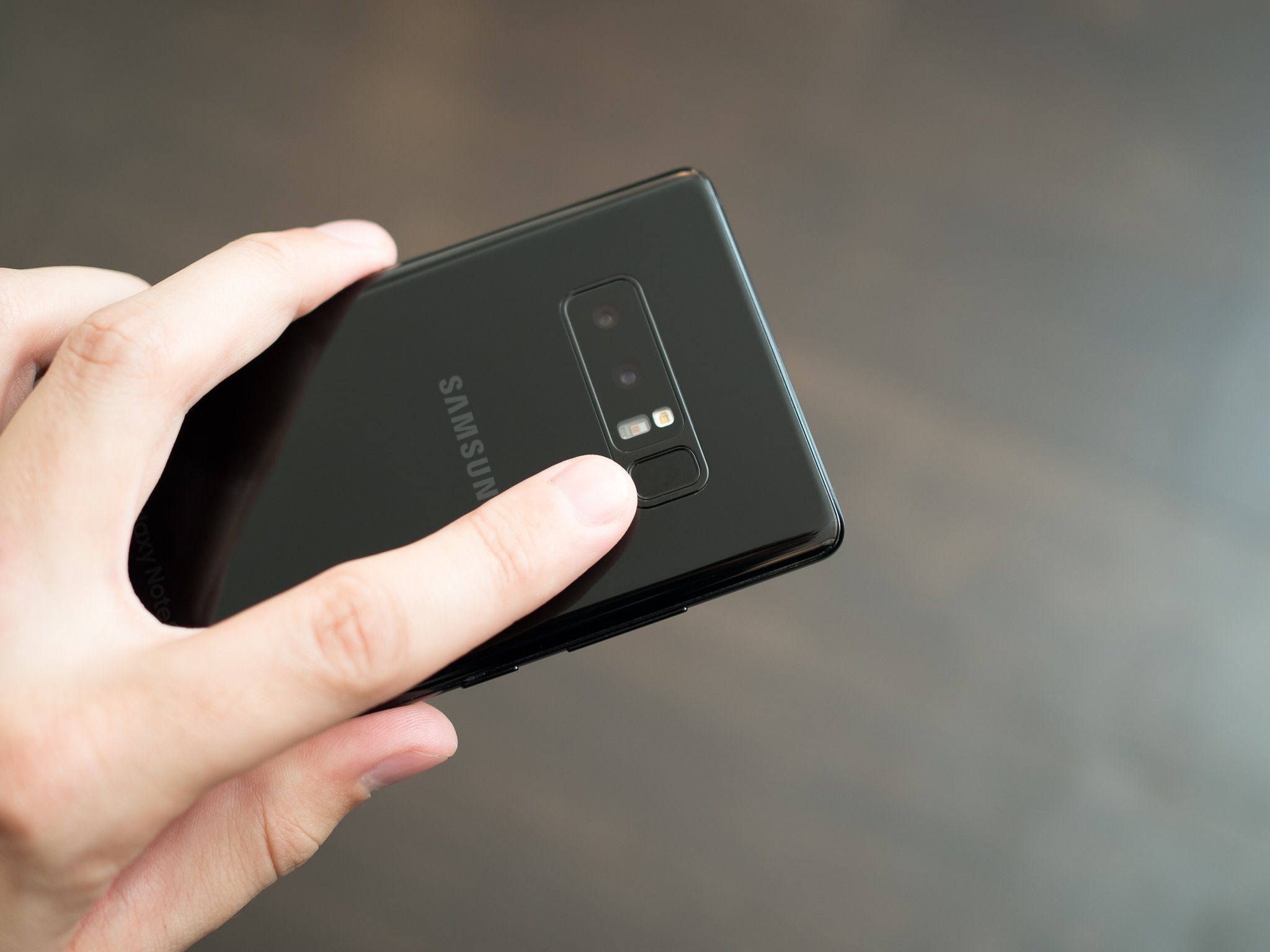
Introduced with Android 5.0 Lollipop, Smart Lock lets you set things up so that your phone unlocks its screen when certain conditions are met without entering your password or PIN or fingerprint. You'll find the setting is the Security section of your phone settings, and you begin by tapping it and entering your PIN or passphrase.

Once enabled, Smart Lock has five ways it can intelligently keep your phone unlocked for you but locked if anyone else happens to find it. You might not see every option on every phone so take a peek at your user manual if you can't find a setting.

On-body Detection

On-body Detection uses your phone's motion sensors like the accelerometer or gyroscope to keep it unlocked while it's in your hand, your pocket or a bag. If it senses that you're in motion and you've unlocked your phone with any other method it stays unlocked. When things stop moving it locks the screen.

Of course, if you have unlocked the screen it will stay unlocked when someone else is carrying it, too. On-body Detection tries to "learn" the cadence of how you move, but it's far from perfect and not something that should ever be considered secure — it's simply a convenience feature. To set it up:

  • Tap On-body Detection in the Smart Lock settings menu
  • Toggle the slider switch

Just remember that it may take a few minutes for your phone to realize it's no longer on your body and should lock the screen, and if someone else picks it up they won't have to enter your password or fingerprint to use it.

Trusted Places

Trusted Places uses what's called geofencing to keep your phone unlocked when you're in a specific area and locked everywhere else.

Geofencing uses your phone's location system to define a small area around a specific point inside a virtual fence. The software can tell the rest of the system whether your phone is inside or outside of that fence, and things like unlocking your screen can happen while you're inside the fence. Geofencing is used for a lot of things, not just Smart Lock.

You'll need to set up a location for your home and work places, and for Trusted Places to work you'll need to have location turned on and an internet connection. Once you've enabled location (any of the three options are suitable) you can set up Trusted Places like this:

  • In the Smart Lock settings menu, tap Trusted Places, then tap Home
  • Tap Turn on this location and you'll be asked to choose a "Home" address if you haven't already set one up
  • Set up other places to keep your phone unlocked by tapping Add trusted place

Geofencing is only as accurate as your phone's location sensors. As long as apps like Google Maps or turn-by-turn navigation work for you, Trusted Places will work. And be just as accurate. Just remember that your phone doesn't know who is holding it, just where it's being held and will unlock itself for anyone inside a Trusted Place.

Trusted devices

Your phone can stay unlocked as long as it is connected to a specific Bluetooth device (or in the proximity of an NFC tag on older models) using the Trusted devices setting.

Bluetooth has a very limited range. We sometimes wish it were longer, like when we walk away while wearing headphones, but that limit (in the neighborhood of 30 to 40 feet) is perfect to use as a leash for Trusted devices. As long as you have a good connection to any Bluetooth device — your watch, a luggage or key tag, your car, anything — your phone will stay unlocked. Once the connection drops it locks itself.

You probably were prompted to set up Trusted devices when you first pair a new Bluetooth device, but you can do it manually like this:

  • Tap Trusted devices in the Smart Lock settings menu
  • Tap Add trusted device then tap Bluetooth
  • Choose a paired device from the list

Trusted NFC tags that have been set up previously will continue to work, but you can no longer modify or set up a new Trusted NFC device.

As mentioned, the Trusted devices setting is dependent on your Bluetooth connection. When your phone senses it doesn't have a good connection to any Bluetooth device you have specified it will lock itself. When it si connected it stays unlocked, so if another person has your phone and your watch or keys (or whatever devices you used) it will stay unlocked!

Trusted face

You can use the front-facing camera on your phone to scan your face and unlock it using the Trusted face option.

We'll start by saying that this isn't designed for security — anyone with a half-decent photo of your face can use it to unlock your phone. It's not the same thing as using Iris scanning on a Galaxy phone or Face ID on an iPhone, and is simply using facial recognition software -— the same facial recognition you see in Google Photos. It's another convenience setting and one that's kind of cool.

To set up Trusted face:

  • Tap Trusted face in the Smart Lock settings menu
  • Tap Set up and follow the on-screen directions to scan your face

Depending on the camera hardware inside your phone this will take a minute or two. You'll need to position your face inside a defined area and watch for feedback that it's scanning it. It's not hard.

If you're not getting accurate results using Trusted face you can refine the way your phone "sees" your face by using the Improve face matching setting.

  • In the Smart Lock settings menu, tap on Trusted face
  • Tap Improve face matching
  • Tap Next and follow the on-screen prompt

Just remember that any photo of your face that's in focus can be used to unlock your phone — including photos you have posted on Facebook or other social media. Never think of Trusted face as a high-security option.

Trusted voice

You can unlock your phone using the same "OK Google" phrase you use for Google Assistant by setting up Trusted voice.

Actively listening for your voice while the screen is off takes processing and battery power, so you'll not find the feature available on every Android phone. Once your phone hears the "OK Google" phrase it needs to check and make sure the inflection and tone match what it recognizes as your voice, and if it decides it's you speaking it will unlock itself. Your phone will need to hear you clearly to be able to make the match, and if it does you won't have to enter a password or scan your fingerprint.

To set up Trusted voice:

  • Make sure that you've enabled and set up the "OK Google" hotword for either Google Assistant or Google Now
  • Open the Google app from your app drawer
  • Access the settings menu by tapping the icon in the top left side (the Hamburger menu)
  • Tap Voice then tap OK Google detection
  • Look for any or all of the following settings and enable them:
    • From and screen
    • Always on

Once complete, you can add a Trusted voice in the Smart Lock settings menu by taping Trusted voice.

As mentioned, not every phone supports Trusted voice. Even if your phone does support the feature, it will only be as accurate as the keyword to trigger Assistant or OK Google is. If you have trouble getting your phone to recognize your voice to use Assistant or OK Google, for example, you have a heavy accent or trouble speaking clearly, you'll have the same issues using it. On recent phones using newer hardware, it uses very little battery and you'll probably never notice it, but it can also have a dramatic impact on battery life on older phones.

Convenience versus security

None of these methods is as secure as a PIN, pattern, password, or fingerprint. We shouldn't forget that. But in many cases, they can be much more convenient, and making it convenient to unlock your phone makes it more likely that you'll set it up with a screen lock in the first place. A locked screen with Trusted face (for example) is much more secure than a phone with no screen lock even though it can be fooled with a good photo.

That's the goal of Smart Lock — to get you to lock your phone and your personal data. When everyone uses a good screen lock it becomes harder for a phone thief to use or resell them and the incentive to steal a phone in the first place goes way down. Not only are you protecting your data and any data you have about your contacts, you're helping everyone when you lock your screen.

Take a minute and set up a good screen lock and use Smart Lock to make things easy if you haven't already!

Update: January 2018: Updated with the latest information about Smart Lock.